5-1-2010
American sign language finger challenge
Jeffrey Cougler
Follow this and additional works at:
http://scholarworks.rit.edu/theses
ASL Facts Deaf Culture ABC Lessons Fingerspell
Rubber Ducky
Help Quit
in candidacy for the
Master of Fine Arts degree.
American Sign Language Finger Challenge
Jeffrey Cougler
Chief Advisor’s Signature
Date
Associate Advisor:
Cathy Chou, Assistant Professor, National Technical Institute for the Deaf,
Arts & Imaging Studies, College of Imaging and Arts and Sciences Support Faculty
Associate Advisor’s Signature
Date
Associate Advisor:
James Ver Hague, Professor Emeritus, College of Imaging and Arts and Sciences,
School of Design, Computer Graphics Design
Associate Advisor’s Signature
Date
Associate Advisor:
Baldev Kaur Khalsa, Associate Professor, National Technical Institute for the Deaf,
American Sign Language and Interpreting Education
Associate Advisor’s Signature
Date
School of Design Chairperson:
Patti Lachance, Associate Chairperson, Associate Professor,
College of Imaging and Arts and Sciences, School of Design
School of Design’s Signature
Date
Reproduction Granted:
I, Jeffrey Cougler, hereby grant permission to Rochester Institute of Technology to reproduce my thesis
documentation in whole or part. Any reproduction will not be for commercial use or profit.
Author’s Signature
Date
Inclusion in the RIT Digital Media Library Electronic Thesis and Dissertation (ETD) Archive:
present real time fingerspelling in American Sign
Language (ASL). At best, a site displays an array of
illustrated static manual letters, which are displayed
side by side like the roman alphabet letters to form a
word. Another site flashes sequential photos of manual
letters, as in the word, “S-W-E-A-T-E-R”
1, after which
you type what you think you saw. In either case this
is not real-time fingerspelling.
Using the publication reference “Expressive and
Receptive Fingerspelling for Hearing Adults” by
Lavera M. Guillory, Macromedia Director MX 2004, this
thesis is an interactive computer assisted instructional
product, designed to improve students’ receptive
abilities when using ASL fingerspelling. This was
achieved by incorporating the transitions from letter
to letter using real-time animation, and provides a
realistic representation.
Explored and created is a dynamic user experience
that is clean, innovative and easy to navigate. Adobe
Photoshop and Adobe Illustrator generate the simple
gray on white vector line art from images extracted
from video clips. The SWF animations were compiled in
Flash, while Director was used to create challenges for
one to seven letter words and finger combinations.
Key Words
American Sign Language
American Sign Language grammar
ASL
dactylology
dattilologia
Deaf
deaf
fingerspell
fingerspeller
fingerspelling
fingerspelling letter transitions
fingerspelling transitions
handshape
handshapes
Hard of Hearing
manual alphabet
No part of this publication may be reproduced,
stored in a retrieval system or transmitted in
any form or by any means electronic, mechanical
photocopying, recording or otherwise, without
the written permission of the publisher.
Senior Advisor: Chris Jackson
Associate Advisor: Cathy Chou
Associate Advisor: Baldev Kaur Khalsa
Associate Advisor: James Ver Hague
Graphic Design: Jeffrey Cougler
Library of Congress Cataloging-in-Publication Data
Application submitted
ISBN Application submitted
Printer: Xerox DocuColor 242
Paper: Hewlett-Packard Matte Coated 28# Bond
Software: Adobe InDesign, Photoshop, and Illustrator
Rochester Institute of Technology
National Technical Institute of Technology
Arts & Imaging Studies Lab
One Lomb Memorial Drive
Rochester, NY, 14623
USA
Introduction . . . 8
Thesis Proposal as
of November 2004.
Literature Review . . . 14
Encapsulate the importance
of what was read.
Project . . . 18
Storyboard of the project
from start to finish.
Process . . . 90
Thesis parameters, design considerations,
technical issues, troubleshooting.
Conclusion . . . 144
Significance of the project, new questions
generated as a result of the project.
Journal . . . 150
Daily writings of what was done, what was
thought and how JLC felt during that day.
Bibliography . . . 206
All materials referenced including books
software manuals, web sites, etc.
Summary . . . 140
A Introduction
B Literature Review
C Project
organizations and a rich cultural history. A third
group related to being deaf are people who identify
themselves as Hard of Hearing (HH).
In every country, at least two cultures coexist:
Hearing and Deaf. How the two cultural communities
use these terms is political, individual and personal,
centering around identity issues, therefore making it
a bicultural issue. Identity depends on the severity
of the hearing loss, age of onset, social interaction,
medical intervention, and oral and/or Deaf language
fluency. Persons born profoundly deaf, who had a
Deaf secondary education, and prefer using ASL, will
undoubtedly identify themselves as Deaf. People
who grew up with normal hearing before becoming
either somewhat deaf or profoundly deaf, need time
to adapt and to explore the Deaf community. It will
take time before they know how to label themselves
with the culturally appropriate and meaningful terms
from the Deaf community. Concurrently, a person born
with deafness of any degree, who grew up surrounded
by Hearing people, does not know any Deaf people
or ASL, had a mainstream education and medical
intervention such as hearing aids, a cochlear implant,
or speech therapy, may identify themselves as deaf or
HH. Subsequently, any deaf, deafened or HH person
who is exposed to the Deaf community, who then
feels a kinship to the Deaf culture and acquires some
ASL fluency may change their identity to Deaf, while
comfortably existing in both cultures.
nDo you need a friend to practice reading or receptive
fingerspelling in American Sign Language?
This was the basic premise used in the exploration and
creation of a software prototype that uses real-time
animation to help improve American Sign Language
(ASL) fingerspelling reception. This computer aided
instruction (CAI) uses Adobe Director (DIR) as the
engine to run Flash (SWF), QuickTime videos and
QuickTime Virtual Reality (QTVR) movie clips. It
started as a simple class project in September 2003
and was finished in December 2006, shortly before
leaving for Rome, Italy in 2007 to conduct research,
which would expand this module and was made
possible through a Fulbright scholarship.
All languages evolve in a community of users and
are an important part of their culture. Fingerspelling
is only one component of ASL. To understand the
complexity of this focus on the fingerspelling
component of ASL, one must become aware of the
make-up of the Deaf community and its culture.
nDeafCulture
Cathy Chou
Associate Advisor
Assistant Professor, NTID, AIS
CIAS Support Faculty
James Ver Hague
Associate Advisor
Professor Emeritus, CIAS, CGD
Baldev Kaur Khalsa
Associate Advisor
Associate Professor, NTID, ASLIE
ThesisStatement
The goal is to create an instructional interactive
computer software product, designed to improve
students’ receptive abilities in the use of American
Sign Language (ASL) fingerspelling. This project
includes the following:
n
The correct hand formation of letters and
exercises for receptive practice of different letter
combinations and words in real-time.
n
Music videos teaching the alphabet, which are
entertaining.
n
Variable speeds from slow to fast to further
challenge the students’ skills.
n
Quizzes that show progress and enable the student
to proceed to a higher level.
n
A Certificate of Achievement that students will be
able to print upon passing the final exam.
nAcronymsandNomenclature
Deaf, deaf and HH are terms used frequently in this
document. In this thesis, the acronym DdHH is used
in referring to the Deaf, deaf and HH.
The Author, Jeffrey Lynn Cougler, from this point
forward is referred to as “JLC” and in the third person,
i.e.,
he , him or his,
as appropriate.
When the author describes a process which is
performed by others he uses plural pronouns, such as
they, their or them
as required.
Acronyms are notated within parenthesis after long
names and common technical and design terms.
nThesisProposal
11 November 2004
Title
ASL Finger Challenge (ASLFC)
Client
Rochester Institute of Technology (RIT)
College of Imaging Arts and Sciences (CIAS)
Computer Graphics Design (CGD)
National Technical Institute for the Deaf (NTID)
American Sign Language and Interpreting
Education (ASLIE)
CommitteeMembers
Chris Jackson
Chief Advisor
Associate Professor, CIAS, CGD
must learn to read the shapes as a unit or “envelope”
(Akamatsu, T. C. 1985). The easiest fingerspelling to
read is when someone is mouthing the words, as do
many interpreters, using Signed English. The difficult
fingerspellers to read are individuals using pure ASL
that do not move their lips and/or use very basic
sounds for emphasis.
In April 2004, JLC contacted Baldev Kaur Khalsa,
then Assistant Professor, RIT, NTID, American Sign
Language & Interpreting Education Program (ASLIE)
seeking feedback on several fingerspelling projects he
had completed during thr RIT school year 2003-2004.
The response was very positive. In fact, Baldev Kaur
Khalsa called in Rico Peterson, then Chairperson, RIT,
NTID, ASLIE and William Newell, the Coordinator of
the Faculty/Staff Sign Language Education Program
(FSSLEP), who said, “We’ve been looking to do
something like these sign pictures for two years. We
originally assigned it to NTID Graphics, who returned
it saying, ‘It could not be done.’ Would you be
interested in exploring signed words and phrases?”
Additionally, NTID has been on a quest for someone
who could do good handshape drawings in signs for
illustrations as part of a new curriculum and JLC’s
project would be a nice addition/supplement.
JLC has chosen to focus on fingerspelling because
it’s an essential component of ASL. If one does not
know the sign for a word or phrase, one may ask by
fingerspelling, and the receiver will show the correct
sign. If one is signing and an observer asks, “What
Background
In researching fingerspelling aids via the web, DVD
and videotapes, JLC has been unable to find an
interactive product that truly presents real-time
fingerspelling in ASL. What has been seen are static
pictures showing the letter handshapes side by side
like Roman alphabet letters forming a word, while
another product flashes photos of the handshape
letters in sequence, as in the word,
“S-W-E-A-T-E-R”
1, after which one types what was seen. In either
case this is not real-time fingerspelling. When one
fingerspells there are transitions between each of the
handshapes of each letter that are just as important
as the actual letters themselves. Transitions? Yes, in
every word, such as “S-W-E-A-T-E-R” there is a time
when the fingers change from “S” to “W” to “E” to
“A”, etc. Depending on the speed of the fingerspeller,
one rarely sees the individual letters. It is the same
concept in reading the Roman word “sweater.” The
reader does not “see” the individual letters, but
rather the group of letters that create the word, as in
a “gestalt”
2. The same is true in fingerspelling. One
1 In ASL the proper way to represent or Gloss Notate a word being fingerspelled is to use capital letters separating the letters with a hyphen, as in S-W-E-A-T-E-R.
2 On 12 April 2008, at 12:13 am, Elena Radutzky wrote:
Methodology
JLC set out to do the following:
n
Develop materials using Lavera M. Guillory’s guide,
“Expressive and Receptive Fingerspelling for Hearing
Adults”, (1966) a reference guide for
all fingerspelling transitions.
n
View a 1.5 hour videotape on the basics
of fingerspelling entitled “The Quick Brown
Fox Jumps Over The Lazy Dog” (1992)
by Joyce Linden Groode.
n
Research any and all media materials appropriate
for the project.
n
Research American Sign Language development and
chronology and include applicable findings, as a
history lesson. Research the “Rochester Method,”
a manual communication method developed in
Rochester, NY, which used fingerspelling exclusively
to communicate.
n
Create an interactive interface that is clean,
innovative and easy to navigate.
n
Create a login window that keeps track of where
the student is within the program. This means if
the student must quit before a lesson ends, the
program remembers and restarts at the student’s
exit point.
n
Use color to represent the different areas of study.
n
Use photographs and create simple line drawing
animations with Adobe Photoshop and Illustrator,
saving the files in a SWF format.
n
Create a database of letter transitions for all
does that sign mean?” the signer will often fingerspell
what the sign means. JLC’s experience, reveals that
receptive fingerspelling is the most common stumbling
block for someone learning ASL. Fingerspelling by
itself is probably one of the most difficult components
to learn. One can always practice expressive
fingerspelling alone. Look at a tree and fingerspell
T-R-E-E. To improve fingerspelling receptive skills,
you need another person who is fingerspelling. How
often have we heard, “I could get better if only I had
someone to practice with”?
3Subsequent to knowing
the letters and recognizing the transitions, the
ability to read fingerspelling is further complicated
by individual nuances and speed while fingerspelling.
“ASL Finger Challenge” will be a good practice tool for
ASL students. Practice always makes one better.
n3. On 23 October 2004 at 4:43 pm EDT, Daron Scarborough wrote:
TargetAudience
This project is targeted to high school or college
students, who are currently enrolled in an ASL 1
class, or individuals who desire to improve their skills
because there is “nobody to practice with.” JLC will
test market young children to see how they react.
nTargetHardware
Laptops, desktop computers using Macintosh OSX
and Windows 95/98/ME/2000/XP 32MB RAM 16-bit
Graphics support 16-bit Sound Card, Macintosh OS
7/8/9/X 10.1 or better.
nTargetSoftware
Macromedia Director MX 2004. The project includes
a Mac and Windows compatible Macromedia Director
Projector DVD that when inserted into any computer,
will automatically be opened by the CD/DVD driver
and be ready for the student to use.
npossible letter formations using publication
references “Expressive and Receptive Fingerspelling
for Hearing Adults” by LaVera M. Guillory. Learn
how to write the Lingo code required for accessing
the database of the various letter transitions.
n
Incorporate the voice of DdHH persons. Many who
are profoundly deaf can speak. Some are easily
understood while others are not. In my experience,
a DdHH voice is unrecognizable to the average
hearing person and requires practice. Additionally
for some, this is a bit disconcerting. This aspect
can sensitize the Hearing to the speech sounds of
the Deaf. Sound effects are an option with an on/
off volume controlled feature.
n
Limitations include lack of time to cover the
breadth of the English language. With the allotted
time frame for this thesis, it is impossible to
develop a product containing all word possibilities.
n
There are 27 letters (English A-Z and ASL manual
letter ZZ). Each transition between letter pairs has
a 4 drawings. A minimum of 3,000 illustrations
are required to complete this project. This does
not include the possibilities of numbers and their
transitions.
A Introduction
B LiteratureReview
C Project
D Process
E Summary
F Conclusion
G Journal
H
Bibliography
with 2 letters, and building up to 7 letter words. It
includes a section that randomly plays any possible
letter combinations and words. Guillory emphasized
learning letter combinations such as “I-N-G” or
“G-H-T” which are easy to train the eye to recognize
but difficult to pronounce. Guillory in her forward
suggests that, instead of memorizing the names of
the hand positions of individual letters, hearing
people could use phonetics in learning receptive
fingerspelling. This recommended strategy was
incorporated into ASLFC. “It is a plan for learning
to fingerspell basic phonetic elements found in the
English language instead of learning the individual
letters of the manual alphabet” (L. M. Guillory). This
encourages students to learn to recognize groups of
handshapes like they do when reading a “Whole Word”.
SIGNING NATURALLY, STUDENT WORKBOOK: LEVEL 1
SIGNING NATURALLY, STUDENT WORKBOOK: LEVEL 2
Expanded Edition
Cheri Smith, Ken Mikos, and Ella Mae Lentz
1993
These textbooks and videotapes were used for
learning ASL during the 2003-2004 school year. They
were the standard required course materials used for
many years at NTID until ASL AT WORK, STUDENT TEXT
replaced them. JLC learned basic to intermediate
lessons about Deaf culture, which included
introductory lessons in relating to a Deaf person in
formal and informal settings, etiquette, and how to
tell stories and jokes.
Introduction
In Section A, “Introduction” the literature that
framed ASLFC focused on Deaf culture, the American
Sign Language and linguistics studies, and technical
manuals. They are listed in alphabetical order by
title and grouped as listed above. ASL is a visual
language thus, almost all the language instructions
were accompanied by a VHS tape.
LanguageandLinguistics
ASL AT WORK, STUDENT TEXT
William Newell, Cindy Campbell, Barbara Ray Holcomb,
Samuel Holcomb, Frank Caccamise,
Rico Peterson.
2005
Textbook and videotape used for learning ASL
during the RIT 2005-2006 academic year. It was
developed by the ASLIE faculty at NTID. JLC learned
advanced lessons about Deaf culture, which included
introductory lessons in how to tell stories, jokes,
etiquette, and relating to a Deaf person in formal
and informal settings.
EXPRESSIVE AND RECEPTIVE FINGERSPELLING FOR
HEARING ADULTS
Lavera M. Guillory
1966
FINGERSPELLING, EXPRESSIVE AND RECEPTIVE FLUENCY
Joyce Linden Groode
Dawn Sign Press
1992
This excellent videotape with several lessons and
a supplemental booklet, was the best series of
lessons about fingerspelling that JLC found during
his research for ASLFC. It gave excellent information
on handshapes, position of the arm, how to
transition from one letter to another, which includes
exceptions like “V-E” and common mistakes made by
beginners. The information about keeping the hand
stationary while fingerspelling and how to do double
letters was the major influence to ASLFC animation.
A good videotape to refer to when expanding future
versions of ASLFC.
LINGUISTICS OF AMERICAN SIGN LANGUAGE
Clayton Valli and Ceil Lucas
1992
This excellent book written by two linguists at
Gallaudet University is the most comprehensive book
referenced for ASLFC. Used in several of JLC’s NTID
courses, it is the book that explains ASL syntax, gloss
notation, phonology, morphology, classifiers, etc.
DeafCulture
DEAF IN AMERICA: VOICES FROM A CULTURE
Carol A Padden and Tom L Humphries
1990
This excellent book written by two Deaf authors was
the required textbook used in several NTID courses
such as “Deaf Culture”, which JLC took during his first
quarter at RIT in 2003. It took several readings to
fully appreciate. This was the book that introduced
the concept of Deaf versus deaf while introducing
other components of ASL and Deaf culture which
you will experience as you read through this
documentation and do ASLFC. A component of DEAF
IN AMERICA that was deliberately omitted from ASLFC
dealt with the hearing children of Deaf adults (CODA).
SEEING VOICES:
A JOURNEY INTO THE WORLD OF THE DEAF
Oliver Sacks, Ph.D.
University of California Press
1989
This excellent book, written by a hearing man who
had minimal knowledge of ASL and Deaf culture
before writing, which examines the psychological
make up of the DdHH individuals and includes the
concept of CODA. This book was important because
it examines language acquisition and how it effects
the DdHH if a language is not acquired by the age
of four. It also explores language and the spatial
abilities of DdHH individuals and CODAs, who acquire
ASL as a first language.
ComputerGraphics
USING DIRECTOR MX
Software Application Manual
2002
how to create web pages. JLC wants to acquire
proficiency in this skill because he desires to upload
ASLFC online in the near future. Based on 2008
experiments, it will prove to be quite challenging.
STYLIN’ WITH CSS
Charles Wyke-Smith
2005
Textbook used for HTML Coursework to learn how to
develop websites. An excellent manual that explains
step by step how to use Cascading Style Sheets (CSS),
which is code used in conjunction with XHTML. It
will easily change the look and feel of websites
by assigning style properties that correspond to a
specific XHTML code and allowing it to change the
headline and body copy’s font, font size, or color
among other attributes.
FLASH 3D
Jim VerHague and Chris Jackson
2006
Textbook required for the course “Flash 3D” which
JLC took in Fall 2006. It is an excellent step by step
book for learning how to make three dimensional
illusions in Flash using ActionScript coding,
instances, members and understanding some basic
principles of trigonometry. This book demonstrated
that it may be possible to do ASLFC in Flash.
to learn more features of Director by using the
software manuals that came with the Macromedia
Director software of which JLC owned version 7.
When referring to USING DIRECTOR MX, he once again
found the counsel of his instructor Chris Jackson
to be better than using the software instruction
manual. Lingo, the software language used to author
Macromedia Director, was too complex for this novice
to intuitively know how to use.
USING DIRECTOR MX
Gary Rosenweig
2003
Eager to be Lingo savvy, JLC purchased several books
on Lingo and Director MX 2004. This comprehensive
827 page independent software manual, proudly
claims it’s “the only Director MX book you need”. The
kinds of coding required for ASLFC were too esoteric
and specific for him to find in such a book, which
was purchased to avoid being overly dependent on
his instructors. It backfired, the book proved too
technical and many of the attempts to use some of
the coding failed and was replaced with the help of
his instructors, specifically Chris Jackson.
MACROMEDIA DREAMWEAVER MX 2004:
HANDS-ON TRAINING
Garo Green with Lynda Weinman
2003
A Introduction
B Literature Review
C Project
D Process
E Summary
F Conclusion
G Journal
H
Bibliography
ASLFingerChallenge
Figure C.3 Figure C.2 Figure C.1
InstallationandLaunch
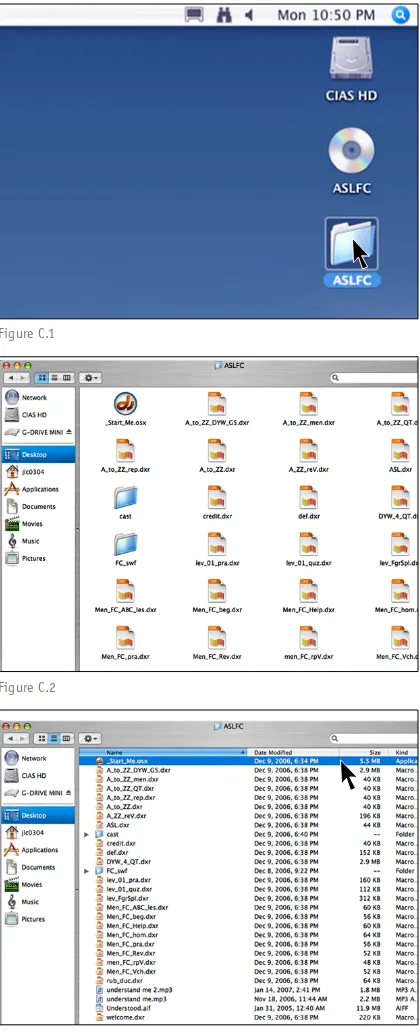
“ASLFC” arrives to users on a CD Disk (Figure C.1),
which contains a 281.9 MB folder that contains all
of the required files to operate the Macromedia™
Director MX 2004 projector, i.e., the application
required to operate the “ASLFC“ program on any
computer. However, the users must specify which
platform he or she is using as the disk shall be
compatible either with a Mac OS or Windows OS.
The users insert the disk then copy the folder
in its entirety onto the computer hard drive.
Upon downloading, the ASLFC folder will appear.
(Figure C.1) and the users can then open the
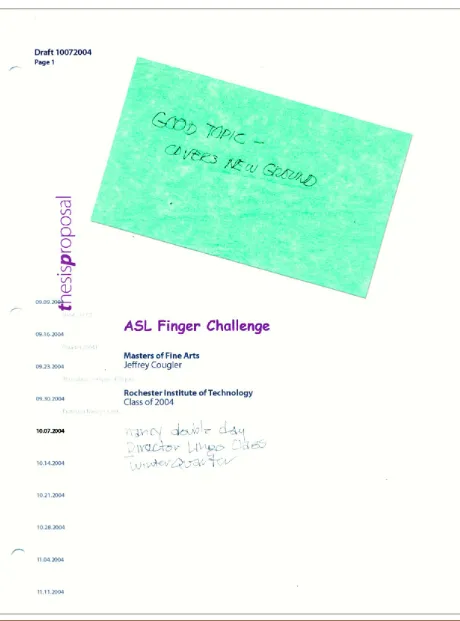
folder to reveal the protected file contents. The
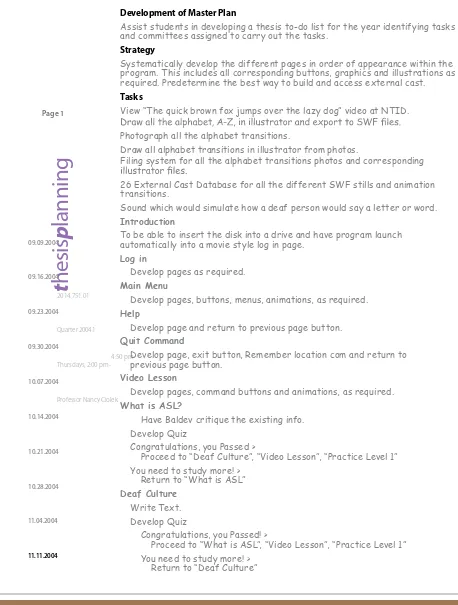
users need to locate the projector, which is
entitled “_Start_Me.OSX” or “_Start_Me.Win”. This
name was chosen to make it appear as the first
item within the folder’s content list, as seen here
in the “Icon” (Figure C.2), “List” (Figure C.3) or
“Column” (Figure C.4) view on the Mac respectively.
Figure C.6 Figure C.5
Figure C.9 Figure C.8 Figure C.7
TakeChallenge
When the application is launched, revealed to the
users is a 640 x 480 pixel screen. The page header
slides onto the screen from the left side of the sreen,
while “Welcome” text fades in (Figure C.7-C.9).
The “Take Challenge” text (Figure C.10) gives
information about the program, how to use it and
asks that the users fill out and return a survey
form that asks questions about the user experience
and the program’s effectiveness. This survey was
given to the users by the author and/or by the
thesis advisor, Baldev Kaur Khalsa, who conducted
user testing for her ASL level 1 class at NTID.
Please note this program uses the standard
rollover feature of buttons, which changes color
and the index finger cursor or “cursor -1” appears
to indicate, “click here”. If the users are at a
point in the program where they are not ready
to do the lesson the menu button is inactive
and will not change color, thus keeping new
users on a clear step by step lesson track.
Figure C.12 Figure C.11
Figure C.15 Figure C.14 Figure C.13
ABCLessons
After the drop-down menu is complete, the
“Hello” page appears, which introduces the
teacher and a brief overview of the ASL
alphabet and how to start the first lesson
entitled “ABC Animation” (Figure C.13-C.16).
Figure C.18 Figure C.17
Figure C.21 Figure C.20 Figure C.19
ABCAnimation
From this point forward the storyboard shows
an animated video that silently begins with
the teacher fading out then the film titling
fading in and out (Figure C.19-C.22).
unCommonSenses is the name of the author’s
design and production firm (Figure C.20). The
name was chosen because his friend and fellow
designer, Dean Lockhart, once remarked that he
designs using his uncommon senses, which are the
senses having to do with creativity, perception,
intuition, memory, will, imagination, and reason;
and allows one to think outside normal parameters.
Figure C.27 Figure C.26
Figure C.25 Figure C.24
Figure C.33 Figure C.32
Figure C.31 Figure C.30
Figure C.36 Figure C.35 Figure C.34
At letter Q, (Figure C.34) the singer begins the vocal
line, “Do you want to know how to understand me?”
and repeats 5 times at increasing sound volume. The
animation ends with large, bold typography flashing,
“do you want to know how to understand me?” in
Figure C.39 Figure C.38 Figure C.37
AnimationEnding
Figure C.42 Figure C.41 Figure C.40
VideoControls
Although the animation is a passive experience,
the video control buttons, located in upper right
corner of the screen, (Figure C.40) allows the
users to have control over the experience.
From left to right we have as follows ::
Menu
Clicking this button (Figure C.40), takes the users
to the “ABC Animation” menu page, which allows
the users to click on the gray “Main Menu” button
(Figure C.41) or the blue “ABC Lessons” (Figure C.42).
Rewind
A one click button that takes the users
to the beginning of the video, then
automatically starts replaying.
FastRewind
Click and hold this button to fast rewind
the animation in real-time.
Stop
Click this button to hold the video on current frame.
Play
Click this button to start the video
at its current location.
FastForward
Figure C.45 Figure C.44 Figure C.43
MainMenu
Advanced users and students, and previous
users may bypass the step by step format
restriction by clicking “Main Menu”, (Figure
C.43), which will slide out, then drop down,
revealing all of the lessons (Figure C.44-C.45).
At this point in the program, the users find
all the buttons are active for any lesson, such
as “ABC Review” (Figure C.46),“Fingerspelling”
(Figure C.47) or “Credits” (Figure C.48).
Figure C.51 Figure C.50
Figure C.49 Figure C.48
ABCRealPerson
The drop-down menu reveals the second lesson.
There is a blue pointer and text saying “Please
Choose” When “ABC Real Person” is clicked (Figure
C.52-C.54), the video begins with the animated
teacher fading out; “unCommonSenses” silently
dances onto the screen; followed by “presents”;
then the “ASLFC” title; the animated teacher fades
back in (Figure C.55) and an edited version of the
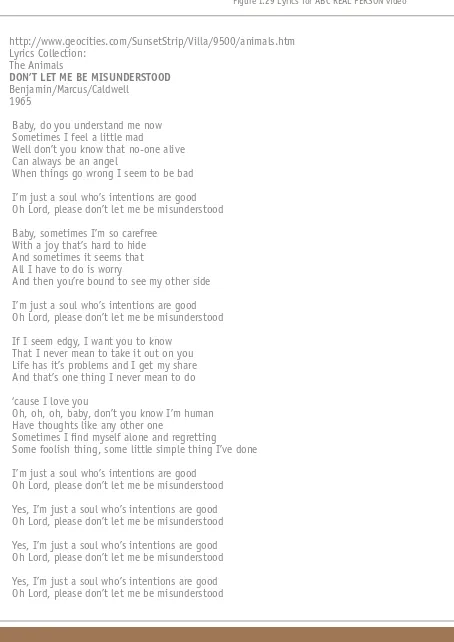
song “Don’t Let Me Be Misunderstood” (Bennie
Benjamin, Gloria Caldwell and Sol Marcus, 1964)
as sung by Santa Esmerelda (Leroy Gómes, 1977)
begins. Then, the animation morphs into the video
of the teacher (Figure C.57). As in the animation, the
manual letters are accompanied by a white Roman
letter within a rainbow array of colored disks, which
move to give the students a sense of logic to these
sometimes arbitrary handshapes (Figure C.58-C.64).
Figure C.60 Figure C.59
Figure C.58 Figure C.57
Figure C.66 Figure C.65
Figure C.64 Figure C.63
At the end of letter ZZ, the singer Gómes exclaims,
”oh lord, please don’t let me be misunderstood!”
along with large typography, flashing, the words in
perfect sync as they are sung (Figure C.65-C.67).
The video ends with the real teacher morphing
back into the animated teacher, (Figure C.68) ,
then “ABC Lessons” menu drops down to reveal
the next lesson, “ABC Review” (Figure C.69).
ABCReview
Clicking “ABC Review”animates the menu closing
up and off the stage. “ABC Review” header slides
onto the screen (Figure C.71), then positions itself
on top of the menu while the 27 Roman alphabet
symbols and user instructions fade on (Figure C.72).
Upon rolling over a Roman letter (Figure C.73), a
colored disk with the white letter appears, indicating
an active button. Clicking a letter will start an
animation of the arm raising up to shoulder height,
also know as fingerspelling space (Figure C.74-C.75).
Figure C.75 Figure C.74
At the end of the raising hand animation, the
corresponding manual letter will be seen (Figure
C.76). Click another letter, the hand raises again to
show the corresponding manual letter (Figure C.77).
QuickTimeVirtualReality
The Purpose of adding a Quick Time Virtual Reality
(QTVR) movie clip is to give the students a view
of the handshape from all perspectives. Some
letters are simply too complex for the students
to grasp from one static forward position.
There are 5 QTVR clips in this section. When letter
“D”, “E”, “K”, “M”, or “X” (Figure C.77) is selected a new
button appears and disappears below the “Credit”
button along with a red text message, “Click to see
a letter in virtual reality”. Clicking this button will
take the users to the corresponding QTVR letter.
When the users place the curser on top of the image
a spread hand cursor appears which indicates to the
users that they need to click and drag the mouse
sideways, right or left. Then the character will rotate
as the users drag. The hand always stays in perfect
focus. Depending on the hand position in relation
to the body, the contrast and opaqueness will
change. When the body comes into the foreground
and the hand appears to begin to go behind the
character, the body becomes transparent, enabling
the users to see what the true handshape is for
this letter (Figure C.80). As the figure rotates to
the body’s backside, the opacity returns to 100%,
while the contrast is still slightly less to keep a
strong focus on the handshape (Figure C.81).
Figure C.81 Figure C.80
Figure C.87 Figure C.86
Figure C.85 Figure C.84
As the character’s body rotates into the
background, behind the hand, the brightness,
contrast and focus is clearly on the handshape.
Clicking and holding the curser at the edge of
the QTVR, a continuous rotation will occur. To
continue reviewing letters, click on another
letter, for example “L”. The faded letter will
exhibit a faded rollover button (Figure C.82).
The users may repeat and review any letter to help
memorize the ASL fingerspelling handshapes.
As with any lesson, to end and go to the next
level, simply click on “ABC Lessons” (Figure C.87)
and the ABC Lessons Menu will travel across the
screen (Figure C.88) and drop-down (Figure C.89)
to reveal a blue indicator and asks the user, “Please
choose” the next lesson (Figure C.90).
nABCPractice
After the users click on blue “ABC Practice”, the
menu animates the menu closing up and off the
stage. Then the “ABC Practice“ header slides out
(Figure C.91), moves across the line and back
(Figure C.92), then locks into place as the lesson
instructions fades into view (Figure C.93).
At this point the users are given instructions
which end with “Good Luck”, a colored activation
button with drop out type. When the users do
a rollover, there is a reverse effect. Clicking the
button activates the practice session (Figure C.95).
The unique feature of this button is a lingo code
that allows the manual letters to be loaded in a
random order every time it is clicked. Hence each
time the users launch this section they will have a
different experience, that makes it impossible for
the users to know what the next letter will be!
After clicking the blue button, the character’s
hand starts to raise (Figure C.96).
Figure C.96 Figure C.95
As in the manner of “ABC Review” the hand raises
and reveals (Figure C.97) a letter. The users then
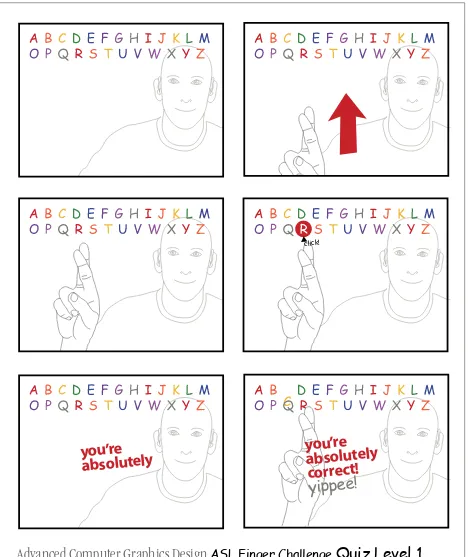
click on the button which they think is the letter
(Figure C.98). When the letter is clicked a message
starts. The users will read “You are absolutely...”,
and depending on the speed of the computer,
there is a momentary pause to keep the users in
suspense as to whether they have the “correct!”
or “wrong!” answer (Figure C.99). If the answer is
right, the message will say “correct!”, the letter
clicked will automatically turn into an icon of the
manual letter and 1 point is added into the “right”
column in the upper right corner of the stage. A
30 second pause will happen while the users view
the current frame, which also gives a secondary
encouragement statement, such as “good job!”, “for
1 point!”, “whoo hoo!” or “yippee!” (Figure C.100).
Figure C.102 Figure C.101
Figure C.105
If the users select an incorrect button the same
sequence occurs, “You are absolutely...”, a hesitation
occurs, then “wrong!” will appear. Simultaneously,
1 point is added into the “wrong” column and the
button stays as an active button until the correct
corresponding handshape appears. As with “correct”,
secondary phrases like “00PS!”, “it’s OK, you’re still
learning!”, “for 0 points!” “so sorry!” and “try again?”
appear to lighten the stress of making a mistake
which happens to all beginners (Figure C.105).
Thus the practice session continues ...
If the users are using a slow computer, the “Next
Button” (Figure C.109) will activate the next letter
in the practice sequence. Usually, computers less
than six years old will continue at a good pace.
When all 27 manual letters have been presented
the drop-down menu will activate, while the
grid of colored letters compresses to the right
to align with the “Congratulations” message
and instructions as to what to do next.
The grid should be studied to see which letters
were incorrectly answered and to look at the
scores (Figure C.112). If the users have answered
a substantial amount of correct answers they may
feel ready to take the quiz. In general, 21 correct
answers will assure a passing grade of 75 points.
Hence, the teacher will ask, what do you want to do?
Figure C.118 Figure C.117
Figure C.116 Figure C.115
At this point, under “ABC Lessons” the students can
choose to do any past module as follows:
rewatch “ABC Animation” or ABC Real Person”
(Figure C.113); do additional studying by returning
to “ABC Review” (Figure C.114); do additional
work in “ABC Practice” (Figure C.115-C.116). If
the students are doing really well, then they
can select “ABC Quiz” (Figure C.117-C.118).
The students are in total control. The users may
even seek assistance by selecting the “Help”
button (Figure C.119) or click “Quit” (Figure
C.120) and study at a later time. There is no
right or wrong at this point. Just the desire
to immediately continue or return later.
nFigure C.124 Figure C.123 Figure C.122
Help
Figure C.130 Figure C.128 Figure C.126
ABCQuiz
If the users decide they are ready to do the Quiz,
then with a click on one of two “ABC Quiz” buttons
(Figure C.126), the drop-down menu animates
(Figure C.127-C.128), then the “ABC Quiz” header
slides out (Figure C.129), moves across the line and
back (Figure C.130-C.131), then locks into place as
the quiz instructions fade into view (Figure C.132).
Figure C.135 Figure C.134
As in “ABC Practice”, “Good Luck” is a colored
activation button with drop out type. When the users
do a rollover, it has a reverse effect. Clicking the
button activates the practice session (Figure C.133).
As in “ABC Practice”, “Good Luck” features an
attached lingo code that allows all the manual
letters to be loaded in a random order each
and every time it is clicked. Hence, each time
the users launch this section, they will have a
different experience, which makes it impossible
for the users to anticipate the next letter.
After clicking the purple button, the character’s hand
starts to raise (Figure C.135) and a letter is revealed
(Figure C.136). The users then click on the button
that they think is the letter (Figure C.137) which
starts a message. Depending on the speed of the
computer, it first tells the users “You are absolutely...”,
then it hesitates to say whether they have the
“correct!” or “wrong!” answer (Figure C.138). If the
users are correct the message will say “correct!” the
letter clicked will automatically turn into an icon
of the manual letter and 3.7 points are added into
the “score” column in the upper right corner of the
stage. 3.7? Yes, there are 27 letters in this alphabet.
100 divided by 27 is 3.7. Hence you earn 3.7 points
each. A 30 second pause will happen while the users
view the current frame, which also gives a secondary
encouragement statement, such as “good job!”, “for
1 point!”, “whoo hoo!” or “yippee!” (Figure C.138).
Figure C.144 Figure C.143
Figure C.142 Figure C.141
As in “ABC Practice”, when the users select an
incorrect button, the message “You are absolutely...”,
appears, there is a slight pause, then “wrong!” will
appear (Figure C.140). This time no points are added
to the score and the button remains an active
button until the correct corresponding handshape
appears. As with “correct” secondary phrases like
“00PS!”, “it’s OK, you’re still learning!”, “for 0 points!”,
“so sorry!” and “try again?” appear to help reduce
the anxiety caused by an error (Figure C.141).
Thus the quiz continues until all 27 manual letters
have been presented...
Figure C.150
Figure C.153 Figure C.152 Figure C.151
As with “ABC Practice”, if using a slow computer,
the “Next Button” (Figure C.109) can be
used to activate the subsequent letter in the
sequence. Usually, computers less than six
years old will progress at a good pace.
When all 27 manual letters have been presented
the drop-down menu will activate, while
the grid of colored letters compresses to
the right to align with the “Congratulations”
message and instructions to continue.
Figure C.159 Figure C.158
Figure C.157 Figure C.156
Figure C.160
Fingerspelling
Figure C.163 Figure C.162 Figure C.161
Rollover “Good Luck”, which is a colored
activation button with drop out type, and
a reverse effect occurs (Figure C.161).
Similar to “ABC Practice” and “ABC Quiz”, “Good
Luck” features an attached lingo code that allows
a database of 30 out of 41 animated Flash movie
clips (SWF) to load in a random order. Hence, each
time the users launch this section, it is impossible
to know the next word or letter combination.
After clicking the activation button, the
teacher raises his hand (Figure C.162-C.163)
and spells a letter combination or word
such as “EAT” (Figure C.164-C.169).
Letter combinations are 2-3 letters such
as “EA”, “GH”, or “WS” They are used to help
students recognize words that contain these
letter elements or they could represent an
acronym such as “NTID”, “RIT”, “FBI”, etc.
Although this section is animated the fairly accurate
rendering gives a good visual approximation of
how fingerspelling is done, as the fingers transit
from one letter to the other creating the series
of handshapes or “envelope” that the users must
decipher when reading a letter combination or word.
Figure C.169 Figure C.168
Figure C.167 Figure C.166
Figure C.175 Figure C.174
Figure C.173 Figure C.172
Figure C.178 Figure C.177 Figure C.176
Click the “Next” button (Figure C.170) to activate
each subsequent animation such as “RED” (Figure
C.171-C.175) or “ER” (Figure C.176-C.178).
There are 41 possible animations that could play:
9 two letter words, 11 two letter compilations,
8 three letter words, 2 three letter combinations,
2 four letter words, 5 five letters words, 2 six
letter words and 2 seven letter words as follows:
Figure C.181 Figure C.180 Figure C.179
Figure C.187 Figure C.186
Figure C.185 Figure C.184
Figure C.193 Figure C.192
Figure C.191 Figure C.190
Figure C.199 Figure C.198
Figure C.197 Figure C.196
Figure C.202 Figure C.201 Figure C.200
As noted, this lesson will load 30 SWF files.
The program does not test the user, but
offers the opportunity to practice reading
real-time fingerspelling. In version 5.0, a
“Reveal” button was added to allow the users
to learn which word had been played.
Figure C.205 Figure C.204
Figure C.208 Figure C.207 Figure C.206
ASLFacts
Clicking the yellow “ASL Facts” button initiates the
ASLFC menu action and launches a 5 page lesson
about American Sign Language (Figure C.206-209).
This lesson compares ASL to other European
Deaf Sign Languages (DSL), discusses how
the different DSL came to acquire a manual
alphabet, how ASL developed in the United
States, that Dr. William Stokoe, a hearing linguist
analyzed, documented, proved ASL to be a natural
language and that fingerspelling is a complex
and integral part of ASL (Figure C.209).
Students navigate to the various pages with a next
and back button. Each page tell indicates if users are
on “page 1 of 5” or “page 3 of 5”
(Figure C.206-210).
When students have finished this lesson, a pointer
indicates that the next lesson is “Deaf Culture”
which the users will click to launch (Figure C.211).
Figure C.211 Figure C.210
DeafCulture
Clicking the orange button in “ASL Facts” (Figure
C.212) initiates the ASLFC menu action and launches
a short lesson about the DdHH culture in the USA.
This lesson defines culture, and how it effects
the behavior of those who identify themselves
as members of the Deaf
1Culture (Figure C.215).
Also in this lesson, the students will find four
web links to various sites about the DdHH and
deafness and issues that are currently effecting
the DdHH Community. For example click on www.
deaflinx.com (Figure C.216) and the default web
browser, where ALSFC resides, will launch this web
site in a separate window from the ASLFC window.
To close the browser window the users must click
on the red button on a Mac or the X (close) button
in Windows (Figure C.217), which will bring the
ASLFC screen into view for the next step.
n1 To use the word deaf, with a lowercase “d” is to refer to the medical and audiological condition; someone who cannot hear is deaf. In contrast, a person who is Deaf, with a capital “D” has the audiological condition and is also a member of the Deaf community and an active participant in Deaf culture, which has social structures, values, art, clubs, organizations and a cultural history (Woodward, 1972). Using the term D/deaf includes both groups.
Figure C.217 Figure C.216
Figure C.220 Figure C.219 Figure C.218
RubberDucky
Instead of a final lesson, the last section is a
live action acapella video, which demonstrates
in an entertaining and witty way, the “Rochester
Method”, a “Manual Coded English” system of
communication used primarily in Rochester, NY.
Introduced by Zenas Westervelt in 1878, the
Rochester Method was developed at the Western
New York Institute for Deaf Mutes, now known as
the Rochester School for the Deaf. The concept was
to improve DdHH students understanding of the
English language, thereby integrating DdHH people
into mainstream hearing society. This method used
oral speech, mouth movements and fingerspelling
for expression, and lipreading mouth movements,
listening to speech, and reading fingerspelling for
reception. A few other schools for the DdHH within
the USA, adopted the Rochester Method for a short
period of time. Reseach on this system documented
that DdHH students’ English did improve
(Rosenberg-Naparsteck, 2002). However, in the end, the
Rochester Method proved too laborious and tiresome
for everyday conversation. It fell out of favor in
the 1940s. We can still find DdHH people, who were
trained in the Rochester Method
Figure C.223
Figure C.229 Figure C.228
Figure C.227 Figure C.226
Figure C.232
Figure C.238 Figure C.237
Figure C.236 Figure C.235
Figure C.244 Figure C.243
Figure C.242 Figure C.241
Figure C.247
The video uses lyrics that were adapted from
the popular song from “Sesame Street” entitled
“Rubber Ducky”, which was released in 1972
and was sung by the orange muppet Bert (Jim
Henson), about his favorite toy that accompanies
him during bath time (Figure C.235).
At the world premiere of this video, the
video vocalist was given the recommendation
to “stick to graphic design”.
The recording was to educate people to the
fact that some DdHH people can verbalize, as
well as sing. However listeners may require
time to acclimate to DdHH vocalization.
The video ends by congratulating the students
for finishing, and instructs the students to
replay the video, (Figure C.247-C.248) quit or
practice more by clicking any of the previously
played lessons, (Figure C.249), or click on the
one remaining section known as “Credits”, which
is considered optional (Figure C.250).
nCredits
The seventh button down on the menu list
is “Credits”. If clicked the typical ASLFC menu
action plays (Figure C.2451-C.253), and when
the red header locks into place, a list of people
responsible for the development of this project
are listed (Figure C.254). These people include
faculty and students, who graciously contributed
time and effort to bring this project to fruition.
The very last item the users can click is the
“Quit” button (Figure C.255), which closes the
program until the students want to practice more
fingerspelling reception (Figure C.256).
nFigure C.256 Figure C.255
A Introduction
B LiteratureReview
C Project
D Process
E Summary
F Conclusion
G Journal
H
Bibliography
Introduction
The goal of this chapter is to explain the design,
technical, and linguistic process of the author’s
project. Here JLC discusses the technical issues
he encountered. This information is broad, and is
written for those who understand the technical
jargon for software such as Adobe Director, Flash,
Illustrator and Photoshop. A general analysis of
coding explains why it works.
This Chapter has four parts:
n
Overview, which discusses how the thesis project
came into existence.
n
Design development, which examines the design
issues and the project’s aesthetic development.
n
Technical development, which examines the
procedures, problems, and solutions to making a
successful interactive project.
n
Linguistic development, which discusses what JLC
Figure D.3 Figure D.2 Figure D.1
Overview
PROJECT 1
This project’s evolution, which ultimately became the
author’s choice for his thesis, originally and uniquely
started as a class assignment during September 2003
(RIT quarter 2003.1). When “finished it garnered so
much enthusiasm that it encouraged JLC to pursue
and develop it as enabled by subsequent class
projects. The originating project is outlined as
follows:
n
Figure D.1-D.9.
n
Chris Jackson’s requirement was “teach something”.
n
Project started week of 22 September 2003.
n
Presented storyboard for approval.
n
Photographed myself doing the alphabet.
n
Rotoscoped using Photoshop.
n
Chose Photoshop 7 because Illustrator 10 could
not convert vector into SWF files.
n
Intention was to create a linear animation to go
from A to Z.
n
Finished the INTRODUCTION, then letters A, B, C,
D, G, H, I.
n
Had voice with mouth movement.
n
Received an overwhelming POSITIVE RESPONSE,
Figure D.9 Figure D.8
Figure D.7 Figure D.6
Figure D.12 Figure D.11 Figure D.10
PROJECT 2
n
Created in January 2004 (RIT quarter 2003.2).
n
Project required using Director MX.
n
The assignment was to create a button control
that as it slid across the screen, it caused an
animation to happen. It was referred to as the
“Slider Project”.
n
Author saw this as an opportunity to develop a
different tool to teach the ASL Manual Alphabet.
Intention was to complete A to Z.
n
Intended to have voice and mouth movement that
activated as slider passed over the Roman Letter.
n
Color was again used for each letter and character.
n
General reaction was positive.
COMMENTS and PROBLEMS
n
GIF based graphics looked very pixilated.
n
Slider did not match position of the Roman letter
(Figure D.16).
n
Was only able to finished transitions A to M.
n
Activation of the voice was unsatisfactory. If
users stopped the slider at the point where
mouth changed, the voice worked. If slider moved
continuously the voice seemed insufficiently
audible, but hearing people who listened closely
heard a squeak.
n
Intoduced an earring, which appeared starting
with letter C. Reaction to the earring included,
“it was distracting”.
n
Got an error message when user reached “M”.
Figure D.18 Figure D.17
Figure D.16 Figure D.15
Figure D.21 Figure D.20 Figure D.19
PROJECT 3
n
Final Authoring Multimedia using Macromedia
Director MX project during February 2004 (RIT
quarter 2003.2).
n
Requirement was to create an interactive maze or
arcade style game.
n
Require an introductory movie using either Adobe
Premiere, Macromedia Director or Flash, which was
exported into a QuickTime format.
n
The Minimal length for the Quicktime movie was
30 seconds. The maximum length was 90 seconds.
n
A quit button was required.
n
Tracking user score was optional.
n
Professor Jackson gave permission to do
something different.
n
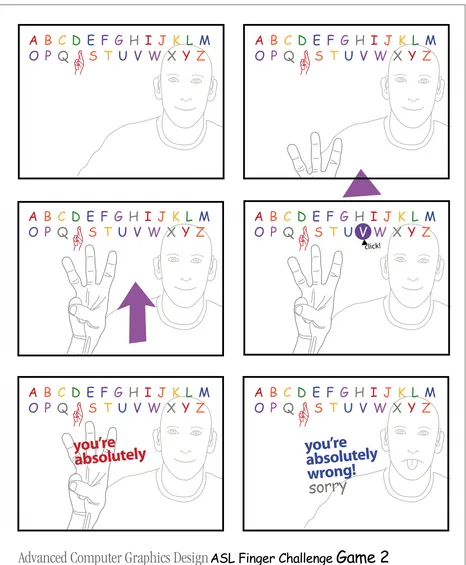
JLC wanted to develop a game to teach the ASL
Manual Alphabet (ASLMA), using an educational
game where the students matched the ASLMA
to the English equivelent of Roman style letter
(Figure D.28-D.33).
n
The premise of the game was a challenge to recall
the ASLMA seen in the introductory animation.
Since the manual alphabet was formed by the
hand and its fingers, the game’s name became
“ASL Finger Challenge” (Figure D.19).
n
The QuickTime was a musical animation using
an edited version of the song “Don’t Let Me Be
Misunderstood” (Bennie Benjamin, Gloria Caldwell
and Sol Marcus, 1964) as sung by Santa Esmerelda
(Leroy Gómes, 1977).
n
Used flash cards, which alternated between
Figure D.27 Figure D.26
Figure D.25 Figure D.24
Figure D.30 Figure D.29 Figure D.28
n
When the video finishes processing, a fade in of
the game instructions comes onto the screen.
n
When users click on the green 3D “Start Game”
button, game started by presenting the first letter.
The unique feature of this button is a Lingo code
that allows the manual letters to be loaded in a
random order every time it is clicked. Therefore,
each time users launch this section they will have
a different experience, which makes it impossible
for users to know what the next letter will be.
n
Users then click on the button, which they think
is the correct letter (Figure D.29).
n
Theoretically, one point was to be added to the
score for each correct answer while each incorrect
answer subtracted one point (Figure D.29 and
D.30).
n
This feature did not work correctly. The correct
Figure D.33 Figure D.32 Figure D.31
the counter did correctly keep track of the score,
which would display the correct amount after
several attempts (Figure D.31). This included
the numbers being negative, if the answers were
incorrect and the score went below 0.
n
When users click on “Help” the program takes
them to a page that gives information on how the
game works (Figure D.32).
n
Eventually every game ended with a “Director
Player Error” message (Figure D.33).
n
At this point the users had to click “No which
quit the projector.
n
Because this was the course’s final project
Figure D.36 Figure D.35 Figure D.34
PROJECT 4
n
Created during RIT quarter 2003.4, which occurred
from March through May 2004 using Flash MX and
Actionscript 1.0.
n
Took class “Instructional Multimedia” with Chris
Jackson as the instructor.
n
JLC began thinking that this topic could become
his thesis project.
n
Required a one frame MovieClip introduction
(Figure D.34-D.38) which culminated with the
ASLFC title transforming itself into a layout
header.
n
Created basic layout, which included use of color,
background, headers and typography placement.
n
Initiated a grid system (Figure D.39-42).
n
Began a Graphic User Interface (GUI) which
required rollover buttons, as an animated menu
of sorts; chose a menu that dropped like venetian
blinds (Figure D.39-D.42).
n
Introduced a teaching character, whose eyes
Figure D.42 Figure D.41
Figure D.40 Figure D.39
Figure D.45 Figure D.44 Figure D.43
n
Layout header ASLFC changed color such as
purple, blue or orange depending on lesson’s
content (Figure D.43-D.48).
n
Used QuickTime video animation from Project 3.
No transitions in the animation (Figure D.44).
PROBLEMS:
n
QuickTime included the instructions for doing a
practice session, which did not work (Figure D.45).
n
Flash MX and ActionScript 1.0 was “buggy which
caused problems as project got more complex.
n
Although an ActionScript required it, the drop
down menu MovieClip would not close (Figure
D.46-D.47).
n