(J
o
o
o
o
DOMAIN System
Command Reference
Apollo Computer Inc. 330 Billerica Road Chelmsford, MA 01824
Oopyright
©
1987 Apollo Oomputer Inc.All rights reserved.
Printed in U.S.A.
First Printing: Latest Printing: Updated:
May, 1983 December, 1986
June, 1987
This document was produced using the SORIBE document preparation system. (SORIBE is a registered trademark of Unilogic, Ltd.)
APOLLO and Domain are registered trademarks of Apollo Oomputer Inc.
3DGR, Aegis, D3M, DGR, Domain/Access, Domain/Ada, Domain/Bridge, Domain/O, ( ' \ Domain/OomOontroller, Domain/OommonLISP, Domain/CORE, Domain/Debug, Domain/DFL, \. __ / Domain/Dialogue, Domain/DQC, Domain/IX, Domain/Laser-26, Domain/LISP, Domain/P AK,
Domain/POC, Domain/POO-Remote, Domain/POI, Domain/SNA, Domain/X.25, DPSS/MAIL, DSEE, FPX, GMR, GPR, GSR, Network Oomputing Kernel, NOK, Network Oomputing System, NOS, Open Network Toolkit, Open System Toolkit, OST, Personal Workstation, and Series 3000 are trademarks of Apollo Computer Inc ..
Ada is a registered trademark of the U.S. Government (Ada Joint Program Office). PostScript is a trademark of Adobe Systems Incorporated.
Apollo Oomputer Inc. reserves the right to make changes in specifications and other information contained in this publication without prior notice, and the reader should in all cases consult Apollo Oomputer Inc. to determine whether any such changes have been made.
THE TERMS AND CONDITIONS GOVERNING THE SALE OF APOLLO COMPUTER INC. HARDWARE PRODUCTS AND THE LICENSING OF APOLLO COMPUTER INC. SOFTWARE CONSIST SOLELY OF THOSE SET FORTH IN THE WRITTEN CONTRACTS BETWEEN APOLLO COMPUTER INC. AND ITS CUSTOMERS. NO REPRESENTATION OR OTHER AFFIRMATION OF FACT CONTAINED IN THIS PUBLICATION, INC~UDING BUT NOT LIMITED TO STATEMENTS REGARDING CAP ACITY, RESPONSE-TIME PERFORMANCE, SUITABILITY FOR USE OR PERFORMANCE OF PRODUCTS DESCRIBED HEREIN SHALL BE DEEMED TO BE A WARRANTY BY APOLLO COMPUTER INC. FOR ANY PURPOSE, OR GIVE RISE TO ANY LIABILITY BY APOLLO COMPUTER INC. WHATSOEVER.
IN NO EVENT SHALL APOLLO COMPUTER INC. BE LIABLE FOR ANY INCIDENTAL, INDIRECT, SPECIAL OR CONSEQUENTIAL DAMAGES WHATSOEVER (INCLUDING BUT NOT LIMITED TO LOST PROFITS) ARISING OUT OF OR RELATING TO THIS PUBLICATION OR THE INFORMATION CONTAINED IN IT, EVEN IF APOLLO COMPUTER INC. HAS BEEN ADVISED, KNEW OR SHOULD HAVE KNOWN OF THE POSSIBILITY OF SUCH DAMAGES.
THE SOFTWARE PROGRAMS DESCRIBED IN THIS DOCUMENT ARE CONFIDENTIAL INFORMATION AND PROPRIETARY PRODUCTS OF APOLLO COMPUTER INC. OR ITS LICENSORS.
~)
o
o
o
o
Update Package
1
to the
DOMAIN System
Command Reference
Apollo Computer Inc.
330 Billerica Road
Chelmsford, MA 01824
Copyright
©
1987 Apollo Computer Inc.All rights reserved.
Printed in U.S.A.
First Printing: June, 1987
This document was produced using the SCRIBE document preparation system. (SCRIBE is a registered trademark of Unilogic, Ltd.)
APOLLO and Domain are registered trademarks of Apollo Computer Inc.
3DGR, Aegis, D3M, DGR, Domain/Access, Domain/Ada, Domain/Bridge, Domain/C, Domain/ComController, Domain/CommonLISP, Domain/CORE, Domain/Debug, Domain/DFL, Domain/Dialogue, Domain/DQC, Domain/IX, Domain/Laser-26, Domain/LISP, Domain/P AK, Domain/PCC, Domain/PCC-Remote, Domain/PCI, Domain/SNA, Domain/X.25, DPSS/MAIL, DSEE, FPX, GMR, GPR, GSR, Network Computing Kernel, NCK, Network Computing System, NCS, Open Network Toolkit, Open System Toolkit, OST, Personal Workstation, and Series 3000 are trademarks of Apollo Computer Inc.
/
Ada is a registered trademark of the U.S. Government (Ada Joint Program Office). PostScript is \, ___ -/ a trademark of Adobe Systems Incorporated.
Apollo Computer Inc. reserves the right to make changes in specifications and other information contained in this publication without prior notice, and the reader should in all cases consult Apollo Computer Inc. to determine whether any such changes have been made.
THE TERMS AND CONDITIONS GOVERNING THE SALE OF APOLLO COMPUTER INC. HARDWARE PRODUCTS AND THE LICENSING OF APOLLO COMPUTER INC. SOFTWARE CONSIST SOLELY OF THOSE SET FORTH IN THE WRITTEN CONTRACTS BETWEEN APOLLO COMPUTER INC. AND ITS CUSTOMERS. NO REPRESENTATION OR OTHER AFFIRMATION OF FACT CONTAINED IN THIS PUBLICATION, INCLUDING BUT NOT LIMITED TO STATEMENTS REGARDING CAPACITY, RESPONSE-TIME PERFORMANCE, SUITABILITY FOR USE OR PERFORMANCE OF PRODUCTS DESCRIBED HEREIN SHALL BE DEEMED TO BE A WARRANTY BY APOLLO COMPUTER INC. FOR ANY PURPOSE, OR GIVE RISE TO ANY LIABILITY BY APOLLO COMPUTER INC. WHATSOEVER.
IN NO EVENT SHALL APOLLO COMPUTER INC. BE LIABLE FOR ANY INCIDENTAL, INDIRECT, SPECIAL OR CONSEQUENTIAL DAMAGES WHATSOEVER (INCLUDING BUT NOT LIMITED TO LOST PROFITS) ARISING OUT OF OR RELATING TO THIS PUBLICATION OR THE INFORMATION CONTAINED IN IT, EVEN IF APOLLO COMPUTER INC. HAS BEEN ADVISED, KNEW OR SHOULD HAVE KNOWN OF THE POSSIBILITY OF SUCH DAMAGES.
o
o
o
o
Updating Instructions
The information in this package supersedes the contents of the DOMAIN System Command Reference, Revision 04. To update your manual, remove the old pages and insert the new pages as listed below. Insert this instruction sheet behind the title page as a record of the changes.
Remove
Title/Notice
Preface
4-39/4-40
4-171/4-172 through 4-174
4-249/4-250
4-277/4-278
4-315/4-316
4-319/4-320 through 4-330
Index-l through Index-9
Reader's Response/ Business Reply
Insert
Title/Notice
Preface
2-14.1
2-50.1
4-39/4-39.1 through 4-40
4-171/4-172 through 4-174
4-249/4-250
4-263.1/4-263.2
4-277/4-278
4-315/4-316 through 4-316.1
4-319/4-320 through 4-330
Index-l through Index-8
( '
\
C)
( ,
o
o
o
o
Preface
This document updates the SR9.5 version of the DOMAIN System Command Reference for software features included in the SR9.6 release. The DOMAIN System Command Reference is the third volume in the three-volume introduction to the DOMAIN computing system. The first volume, Getting Started With Your DOMAIN System (Order Number 002348), provides a tutorial approach to getting started on your node. The second volume, DOMAIN System User's Guide (Order Number 005488), constitutes a handbook that takes you beyond the introductory stage into practical applications of Display Manager (DM) and Shell operations. This third document provides complete reference information on all of the DM and Shell commands that are available to you. We assume that you are familiar with the material in the first two books before you attempt to use this reference manual. Fundamental concepts like file structure and usage are taken for granted here. We tell you how to use the commands; not why you might want to use them.
For information on creating, protecting, and maintaining the network environment, see Administering Your DOMAIN System (Order number 001746). For information on creating, protecting, and maintaining the DOMAIN/BRIDGE internet environment, see Administering Your DOMAIN/BRIDGE Internet (Order number 005694).
Problems, Questions, and Suggestions
We appreciate comments from the people who use our system. In order to make it easy for you to communicate with us, we provide the User Change Request (UCR) system for software-related comments, and the Reader's Response form for documentation comments. By using these formal channels you make it easy for us to respond to your comments.
You can get more information about how to submit a UCR by consulting the description of the Shell command CRUCR {CREATE_USER_CHANGE_REQUEST}. You can also get more information by typing:
$ HELP CRUCR <RETURN>
Documentation Conventions
Unless otherwise noted in the text, this manual uses the following symbolic conventions.
UPPERCASE
lowercase
{
}
<
>
CTRL/Z
Pre/ace
Uppercase words or characters in formats and command descriptions represent commands or keywords that you must use literally.
Lowercase words or characters in formats and command descriptions represent values that you must supply.
Square brackets enclose optional items in formats and command descriptions. In sample Pascal statements, square brackets assume their Pascal meanings.
Braces enclose a list from which you must choose an item in formats and command descriptions. In sample Pascal statements, braces assume their Pascal meanings.
A vertical bar separates items in a list of choices.
Angle brackets enclose the name of a key on the keyboard.
The notation CTRL/ followed by the name of a key indicates a control character sequence. You should hold down the
<
CTRL>
key while typing the character.Horizontal ellipsis points indicate that the preceding item may be repeated one or more times.
Vertical ellipsis points mean that irrelevant parts of a figure or example have been omitted.
vi
~
\
o
o
o
o
o
Summary of Technical Changes
The Display Manager
The following new features are available in the SR9.6 DM.
New Commands and Features
• CDM (CHANGE_DISPLAY _MANAGER_MODE): Change the display manager mode. • LOM (LOAD_COLOR_MAP): Load a color map.
The Shell
The following new features are available in the SR9.6 shell.
New Commands and Features
• SCRCH (SHOW _SCREEN_ CHARACTERISTICS): Show screen characteristics. • SH8 (INVOKE_8-BIT _SHELL): Invoke 8-bit shell.
Changes to Existing Commands
• CPSCR: New -APPEND and -GPR[_BITMAP] options. • LCNET: New -C option.
• RTSTAT: New -DESC[RIPTION] option.
• VCTL: New -SUSP, -EOL, -[NO]RAW, -[NO]ENABLE_SIGS options. • VSIZE: New -STD option.
• VT100: Support for PASTE and F8 keys. • WBAK: New -PDTU option.
.. _ .
-o
o
o
o
o
Summary of Technical Changes from SRD.2
Display Manager
The following new features are available in the SR9.5 Display Manager.
New Commands
• BL (BALANCE): Balance delimiters.
• CURS (CURSOR_LOCK): Control cursor positioning.
• MONO (MONOCHROME): Set color monitor to black and white. Changes to Existing Commands
• CP: -N no longer must be the last token on the command line. • CPO: New option, -W, to create process in wait mode.
• CPS: New option, -W, to create process in wait mode.
• DQ: New argument, WINDOW _NAME, which allows you to send a fault to a specific process in a named window.
• WC: New argument, WINDOW _NAME, which allows you to close a specific named window.
Shell
The following new features are available in the SR9.5 Shell.
New Commands
• SHUTSPM: Shut down the Server Process Manager on a node. • UMASK: Set DOMAIN/IX file-creation mode mask.
Changes to Existing Commands
• BIND: -SET _ VERSION nn.mm option is no longer valid. • CPF: New option, -NSUBS; -SUBS is the default.
• CPT: New option, -NSUBS; -SUBS is the default.
• CRP: New option, -QUIET, to suppress connection messages.
• CRTYOBJ: New option, -PRE_SR9.5, to generate object modules in pre-SR9.5 format.
• DEBUG: New options, -NSRC to suppress source file display, and -GLOB to enable DEBUG to enter routines in global address space.
• EDACL: New options, -SETPERS, -SETPROJ, -SETORG, -DYNAMIC, for DOMAIN/DC compatibility.
• EDFONT: font pathname and initial editing character may now be passed to the program as command line arguments.
• EDNS: New interactive command, UPDATE, to update the NS _HELPER database on a remote node.
• FPPMASK: Several new floating-point error mask conditions may now be reported. • HPC: Several new options: -TO name, -FROM name, -PROC name, -LIMIT n, -MAP,
-NHDR.
• LD: Severl new options: -SC; -SR, -W, -CRB, -CRA, -USB, -USA, -MOB, -MOA. LD also now automatically sizes its output to the width of the transcript pad's window. • LUSR: New option, -IDLE, to include idle nodes in report listing.
• OLD _EDFONT: Obsolete command; no longer supported.
• PRF: Several new options: -COL, -POST, -LPI, -PAPER_SIZE, -ORIENT, -C, -NC,
-D, -ND.
• RTCHK: -DEVICE option replaces -IIC.
• SET: Default startup file pathname is now USER _DATAjSHjSTARTUP in the login home directory.
• SH: Default startup file pathname is now USER_DATAjSHjSTARTUP in the login home directory.
• SIORF: -OBJ is obsolete and no longer supported. The command now handles binary objects automatically.
• SIOTF: -OBJ is obsolete and no longer supported. The command now handles binary objects automatically.
• TB: Complete overhaul; now performs cross-process traces.
NOTE: A vertical bar in the margin indicates a substantive technical change from Revision 03.
Preface 4
I
o
o
o
o
o
Summary of Technical Changes
The Shell
The following new features are available in the SR9.2 Shell.
New Commands and Features
• CRTY (CREATE_TYPE): Create a new type.
• CRTYOBJ (CREATE_ TYPE_ OBJECT): Create a type object module for binding. • DLTY (DELETE_TYPE): Delete a type.
• EDIP (EDIT _IP _HELPER): Invoke editor for IP _HELPER. • INTM (INSTALL_ TYPE_MANAGER): Install a type manager. • INTY (INSTALL_TYPE): Install a new type.
• ITEST (lOS _ TEST): Test lOS _ $calls.
• SETV AR (SET _ VARIABLE): Set the value of a variable.
Changes to Existing Commands
• KBD: New keyboard type added.
• LTY: Change in command syntax for -N option.
- - - _ . _ . _ -._--_. __ ... _ - - - - _ ... . - - - _ .. _ . _ - - - -.. _-_._. __ ....
-o
o
o
o
- - - -- - - ._. __ . _ . _-Summary of Technical Changes
Display Manager
The following new features are available in the SR9.0 Display Manager.
New Commands
• ENV (ENVffiONMENT): Set or display an environment variable. • TNI (TO _NEXT _ICON): Move cursor to next icon.
Changes
12
Existing Commands• LO [-ONI-OFF]: Enable/disable logoff capability. • SQ (SEARCH_QUIT): Now identical to ABRT.
• WP (WINDOW _POP): Now works with named windows and window groups. Shell
The following new features are available in the SR9.0 Shell.
New Commands and Features
• Active functions: You may now use the construct .. II command II to assign the value
returned by 'command' to a Shell variable. See the DOMAIN System User's Guide for details.
• DSPST (DISPLAY _PROCESS_STATUS): Display process status graphically. • EDNS (EDIT _NAMING_SERVER): Invoke naming server editor.
• EXPORT: Change a Shell variable into an Environment variable. • FOR: Execute a FOR statement.
• HLPVER (HELP _VERSION): Provide HELP support for Shell scripts. • L TY (LIST_TYPES): List installed types.
• NOT: Negate a Boolean value.
• OLD _EDFONT: Former version of EDFONT with function key interface.
• PRF (PRINT _FILE): Now supports Imagen 8/300 and Imagen LBP-I0 laser printers connected via SIO lines or the Multibus.
• PRFD (PRF _DISPLAY): Invoke menu-based PRF. • SELECT: Execute a SELECT statement.
• SEND _ ALARM: Send messages to alarm servers. • SET: Set current Shell conditions.
• SOURCE: Execute a Shell script at the current Shell level. • VSIZE (VT100_SIZE): Set or display VT100 window settings. Changes to Existing Commands
• ARGS -ERROUT: Now writes output to error output if desired.
• BIND: Several new options: -ALLRESOLVED, -BDIR, -LOCALSEARCH, -NOLOCALSEARCH, -MULTIRES, -NOMULTIRES, -MAKERS, -NUND, -SET _ VERSION, -SYSTYPE.
• CPF -DU: Now deletes currently locked files once they are unlocked. • CPT -F: Force tree deletion is you have P rights.
• CRP: New option: -:ME; new functionality in -LOGIN; -MBX no longer available. • CRUCR: New corporate address for UCR submissions.
• CTNODE: Several new options: -FROM, -ON, -MS, -MD, -IDUPL, -LC, -ROOT, plus three new paragraphs in the description explaining "confusion resolution ".
• DEBUG: New information on macros and variables, new option, -PROC, for cross-process debugging
• EDACL: New option, -UNIX, plus new directory rights "S" (search) and "E" (expunge).
• EDFONT: New version with a pointing device-driven interface. • EDMTDESC: Now supports cartridge tapes.
• EWIASP: No lohger standard software. Documentation is now provided with the RJE product.
• EXISTF: Wildcarding in pathname arguments is now supported. • EXIT: Now works for FOR and SELECT as well as WHILE. • FPAT: New options: -RM, -RMF, -LM.
• HASPSVR: No longer standard software. Documentation is now provided with the RJE product.
• INLIB: Now supports multiple pathnames and wildcarding.
• INVOL: Default paging size (option 8) is now 352 pages instead of 256. A new option 10 allows you to set or display the sector interleave factor for a volume. (See Appendix D.)
• LAS: New options: -ALL, -FROM, -TO, -PROCESS. • LCNODE: New options: -C, -ID.
• LD -ROOT: Supports new naming server.
• NETSVC -S: Controls network server availability on a node. • NEXT: Now works for FOR and SELECT as well as WHILE. • PRF: Completely overhauled for SR9.
• PROBENET: New options: -D, -SENS. Deleted option: -Q. Comment character changed from '(blank)' to
'#'.
Reported statistics also changed.• PRSVR -N: Assign a name to the print server process.
• RBAK: Now supports cartridge tapes with the options -DEV CT, -RETEN, -NRETEN, -REWIND. Limited floppy disk support.
• READ: New option, -ERRIN, for reading from error input; new -TYPE choices: ANY and ENV.
• READC: New option, -ERRIN, for reading from error input. • READLN: New option, -ERRIN, for reading from error input. • RETURN -OK: Same as -TRUE.
• RWMT: Now supports cartridge tapes with the options -DEV CT, -RETEN, -NRETEN. Limited floppy disk support.
• SAL VOL: Now allows controller unit number specification for use when two or more of the same storage device are attached to one node.
• SH: Completely overhauled for SR9.
• TCTL: Several new options: -[NO]RTS_ENABLE, -FORCE, -NO[RAW].
• WBAK: Now supports cartridge tapes with the options -DEV CT, -RETEN, -NRETEN, -SYSBOOT, -NO _EOT. Limited floppy disk support.
NOTE: A vertical bar in the margin indicates a substantive technical change from Revision 02.
Preface vi
o
0
(J
o
o
Chapter 1 Display Manager Basics
1.1. Defining Points and Regions 1.2. Defining Window Boundaries 1.3. Defining a Range of Text 1.4. Using Regular Expressions 1.5. Key Naming Conventions
1.5.1. Standard Key Names
Contents
1.5.2. Controlling Keys from Within a Program 1.6. Special Characters in DM Scripts and Key Definitions
Chapter 2 Display Manager Commands
Chapter 3 Shell Basics
3.1. Command Format 3.1.1. Arguments 3.1.2. Separators
3.1.3. Node Specifications 3.2. Using Special Characters 3.3. The Command Line Parser
3.3.1. Standard Command Options 3.3.2. Command Line Parser Options
Chapter 4 Shell Commands
Illustrations
Figure 1-1. The Low-Profile Model II Keyboard Map 1-10
Figure 1-2. The Low-Profile Model I Keyboard Map 1-10
Figure 1-3. The Mouse Key Map 1-10
Figure 1-4. The 880 Keyboard Map 1-11
Figure 3-1. Typical Shell Command Format 3-1
Tables
Table 3-1. Command Shell Special Characters 3-4
o
o
o
o
Chapter 1
Display Manager Basics
This chapter summarizes the basic concepts that apply to the DM commands described individually in the following chapter. For a more indepth discussion of these concepts, please refer to the DOMAIN System User's Guide.
1.1. Defining Points and Regions
Unless otherwise noted, all DM commands must be preceded by a pointing operation. This generally involves moving the cursor to the spot where the command is to be executed (for example, pointing to the window that you want to scroll), or specifying a specific screen or line location as a command argument. If you don't specify some pointing function, the Display Manager executes. the command at the current cursor position.
To point, simply move the cursor to the desired location. For example, to point to a window, place the cursor anywhere inside the window. The command reads the cursor position to determine which window you mean. (Please note that when you use the block cursor to designate a point on the screen, the designated point is actually at the lower left corner of the block cursor.)
You can also define a point in any of the following ways:
line-number
+/-
line-numberLine numbers begin at 1 and range upward to the last line in the pad. Pads may contain up to 262,143 lines. You may use the symbol II $11 to refer to the last line in the pad. Remember that the edit pad window legend contains the line number of the top line in the window for reference. You may also display the line number (plus the column number and X and Y coordinates) of the current cursor position by using the DM command 11=11.
The 11+/- line-number II format denotes the nth line before or after the current cursor position in a pad.
[[line-number], [column-number]]
This format indicates the point by line and column number in the pad. The Display Manager assumes the current line if the first portion is omitted, and column one if the second portion is omitted. Line n~mbers range from 1 to the last line in the pad (262,143 max.). Column numbers range from 1 to 256.
Examples: [127.14] Line 127. column 14
[53] Line 53. column 1. Brackets are
optional in this case: see above.
[.12] Column 12 of the current line
([x-coordinate], [y-coordinate])
Screen coordinates specify bit positions on the display. The origin (0,0) is at the extreme upper left corner of the screen. Maximum values for x and y coordinates depend on the size of the screen in use. The current x or y coordinate of the cursor is used if you omit it from the coordinate pair. When you specify a point in this format, you must use the outer set of parentheses to enclose the numbers. This is how the Display Manager distinguishes between line/column positions in a pad (above) and X/Y coordinates on the screen.
Examples: (200.450)
(135)
(.730)
/ regular-expression/ or \regular-expression \
Bit position with the given coordinates
Bit position whose X coordinate is 135
and whose Y coordinate is the same as the current cursor position.
Bit position whose X coordinate is the same as the current cursor position and whose Y coordinate is 730.
A regular expression specifies a string in the pad that begins or ends the region of interest. Regular expressions are described in section 1.4.
Now that we can identify points, let's turn to regions. A region is simply the area between two points. To define a region, you need to use the DM command DR (DEFINE_REGION). The region definition operation has the following format:
[point] DR; [point]
The first point marks one corner of the region. The second point marks the opposite corner of the region. Remember that the points may be defined by cursor positions or specified explicitly in one of the alternate formats mentioned above.
For convenience, the predefined key, <MARK>, invokes the DR command. Point the cursor at the start of the range, MARK it, "then point at the end of the range. That's all there is to it.
For those DM commands that require you to specify a region in which to operate, you can declare it either by MARKing it, or by explicitly specifying the region with one of the techniques described above. If a DM command does require you to define a region, the command is specified in the following format:
[region] command
The symbol [region] indicates where you must define the region. (The definition of a range for text editing operations -- cut, paste, substitute,etc.-- is slightly different. Refer to section 1.3 for more information.)
Display Manager Basics 1-2
i - ' \
I
---
-o
o
o
o
o
1.2. Defining Window Boundaries
When a window's size or position on the screen is changed in any way, the DM determines the new boundaries of the window using calculations based on a pair of points (a .. point pair") on the screen. Usually, the first point in the pair has been defined with the DR command and the second point is the current cursor position, although you may provide absolute point coordinates as described in section 1.1.
Each point may specify either a new or existing edge of a window, or a new or existing corner of a window. The new window, then, is created based on the relationship between the X and Y coordinates of the two points. When either of the points specifies a new upper edge or right edge for a window, the position is adjusted to account for the size of the displayed block cursor, because the actual coordinates of the cursor are determined by its lower left corner. This adjustment is made only when the coordinate source is the block cursor, and not when the point comes from the touchpad or mouse, or from explicitly entered coordinates.
The relationship between the two points in the point pair affects the actions of the window-related commands CP, CE, CV, CC, WG, WM, and WDF in the following ways:
1. Horizontal movement only (y coordinates of the two points are equal):
Creation - Create a window bounded by the given x coordinates, the top of the screen, and just above the normal DM command window (i.e., a full vertical window).
WG/WM - Select the unobscured vertical edge nearest to the first point, and change the x coordinate of that edge to be that of the second point. The y coordinate of the first point must be within the unobscured range of y coordinates of the selected edge.
2. Vertical movement only (x coordinates of the two points are equal):
Analogous to horizontal movement, except that for creation, the full horizontal width of the screen is used.
3. No movement (two points are equal):
Creation - create a 512 by 512 window centered as nearly as possible (subject to screen boundaries) on the given cursor position.
WG - treated as in 4 below.
WM - Select the unobscured corner nearest the given point, and move the corner to that point.
4. Two points differ in both x and y:
Creation - The given four coordinate values form opposing corners of the window.
WG/WM - The first point selects the nearest unobscured corner (the corner itself must be visible) and that corner is repositioned at the second point.
• If the last such command was window deletion (i.e., WC), the default region IS the
same as that of the deleted window.
• If the last such command was a successful window creation command, the default
region is the next third of the screen following the created window.
• If the last such command was an unsuccessful window creation command, the default
region is the same as specified in that command.
To define the five default window regions, use the DM command WDF.
1.3. Defining
aRange of Text
The text editing commands that perform cut, paste, and substitute functions operate on a range of text. That range is declared just as you would mark any other region in a pad; i.e., you place the cursor at the start of the range, press <:MARK>, then move the cursor to the end of the range and issue the command in question.
The region of text you define for a cut, paste, or search operation is highlighted in reverse video when you use the <MARK> key. This is because that key invokes the DR;ECHO command sequence. You can still use the DR command alone to place a mark, but the highlighting feature is not invoked without ECHO. You can cancel the defined ranged with the ABRT command (invoked with CTRL/X). Refer to the descriptions of the DR, ECHO, and ABRT commands for more information.
Please note that the character under the cursor at the end of the range is NOT included within the range. Note also that you may NOT declare a range explicitly as an argument to the editing commands, since those commands do not, in general, accept arguments. You must use the MARK key or the DR command sequence.
The default range is different for these editing operations, too. While the general DM default range is the current cursor position, cut, paste, and substitute commands apply to all characters from the current cursor position up to the end of the line (including the NEWLINE character) if no other range has been marked immediately prior to invoking the command.
1.4. Using Regular Expressions
Special "regular expression II notation is used to specify patterns for search and substitute strings
in the Display Manager editor. This notation is also used in the Shell commands ED (EDIT), EDSTR (EDIT_STREAM), FPAT (FIND_PATTERN), FPATB (FIND_PATTERN_BLOCK), and CHPAT (CHANGE_PATTERN). Regular expressions permit you to concisely describe textual patterns without necessarily knowing their exact contents or format. You can create expressions to describe patterns in particular positions on a line, patterns that always contain certain characters and sometimes include others, or patterns that match text of indefinite length.
Regular expressions are constructed as follows:
1. Any standard ASCII character (except those discussed below) is a regular expression and matches one and only one occurrence of that character. (For multiple occurrence
Display Manager Basics 1-4
( " \
I I
\" .. _//
c
~,
~
.. -.. /( '
o
o
o
o
o
matches, see II * II below.) The case of the characters in the expression IS not
significant by default. Use the DM command SO (SET_CASE) to control case significance.
SAM
fred12
Joe (acltb)
All valid expressions.
2. A percent sign (%) at the beginning of a regular expression matches the empty string at the beginning of a line. If a II % II is not the first character in the expression, then it simply matches the percent character. Use this special feature to mark the start of a line in a regular expression.
II%Printll matches the string in line a but not line b, because in line b Print is not at
the beginning of the line.
(a) Print this file.
(b) This Print file.
3. A dollar sign ($) at the end of a regular expression matches the null character at the end of a line. If II $11 is not the last character in the expression, then it simply matches the dollar sign character. Use this special feature to mark the end of a line in a regular expression.
II file$1I matches the string in line a but not line b, because III line b file IS not
followed by an end-of-line marker.
(a) Print this file
(b) This file is permanent
4. A question mark (?) matches any single character except a NEWLINE character. The only exception to this is if the II?II appears inside a character class (see below), in which case it represents the question mark character itself.
II?OLD???II matches a and b, but not c, because in line c the letters II OLD II are alone on the line.
(a) HOLDING (b) FOLDERS
(c) OLD
5. Whereas the above expression (?) matches only a single occurrence of a pattern, an asterisk (*) following a regular expression causes it to match zero or more occurrences of that expression. The only exception to this is if the II * II appears inside a character
class (see below), in which case it represents the asterisk character itself. Matching zero or more occurrences of some pattern is called a closure. An expression used in a closure will never match NEWLINE.
a*b
%a?*b
Match b, ab, aab, etc.
[A-Z] [A-Z] [A-Z]
*
Match any uppercase word; i.e., any string containing at least two (and possibly more) uppercase characters (see character classes, below). Strings like IIMaryll would not match, since IIMaryll does not begin with two uppercase characters.6. A string of characters enclosed in square brackets II [string] II is called a character class. This pattern matches anyone character in the string but no others. If, however, the
first character of the string is a tilde (~), the regular expression matches anyone
character except the characters in the string. If.-..J is not the first character in the string, then it simply matches the tilde character. Note also that the other special characters
%
$ ?*
lose their special meaning inside square brackets, and simply represent themselves.[sam] Match the single characters s, a, or m. (If you want to match the word II sam II, don't use the square brackets.) .
[,...,sam] Match any single character except s, a, or m.
7. Within a character class, you can specify anyone of a range of letters or digits by indicating the beginning and ending characters in the range separated by a hyphen. That is, 0 through 9 matches any single digit; a through z or A through Z matches any single letter, lowercase or uppercase respectively. (Remember, though, that the actual matching search ignores case unless you have used the DM command
sa
to enable case sensitivity.) The range can be a subset of the digits or letters (i.e., a through n or 3 through 8). The first and last characters of the range, however, must be of the same type: digit, lowercase letter, or uppercase letter. II[A-9]
II is illegal.Note that the II_II character has a special meaning inside square brackets. If you want to include the literal hyphen character in the class for matching, it must either be the first or last character in the class (so that it does not appear to separate two range-marking characters) or be escaped (see below).
The II] II character is also special to character classes -- it closes the class descriptor list. If you want to include the right bracket character in the class, it also must be escaped (see below).
In summary, the following characters have special meaning inside square brackets:
-
]
[a-d]
%
[A-Z]1-[1-9][0-9]
*
[OA-Z]
Match any single occurrence of a, b, c, or d.
Match any capital letter that is also the first character on the line (%).
Match any of the page numbers in this chapter.
Match any string containing a zero or a capital letter.
Match any uppercase letter or punctuation mark (i.e., no lowercase letter or number).
8. The at sign (@) is an escape character. Characters preceded by the II@II character have special meaning in regular expressions, as indicated below.
Display Manager Basics 1-6
C':
( '
- - - _ . _ . _ - - - _ ... _---._--_._---_.
---o
o
o
o
o
@n
@t
@f
Match NEWLINE character.
Match a tab character. Note, however, that the keyboard TAB key does not insert a literal tab; rather it moves the cursor to the display's next tab position. In a regular expression, @t matches only tab characters that have been inserted with @t.
Match a form feed character.
In addition, the escape character may be used inside a character class definition ([]) to specify literal occurrences of characters like "_" and "] ", which have special functions inside square brackets. You may also use it whenever you need a literal occurrence of some special character in a normal expression (like ?, *, or @ itself).
[A-Z@-@]]
@?@*
Match any capital letter, a hyphen, or a right bracket.
Match a question mark followed by an asterisk, rather than zero or more occurrences of any character (1*).
9. You can concatenate regular expressions to form a more complex regular expression. The resulting regular expression matches the concatenation of the strings that the component regular expressions match. All of the examples above concatenate expressions (single characters of some sort) into longer strings for matching.
10. You can Iitag" parts of a regular expression to help rearrange pieces of a matched string. A text pattern surrounded by braces II {pattern} II is remembered and can be
referred to by "@n", where n is a single digit referring to the string remembered by the nth pair of braces.
s/ {???}{?*} /@2@1/
8 is the DM command for string substitution. The example will move a three-character sequence from the beginning of a line to the end of the line. II ??? II matches the first three characters of the line,
and "?* II matches the rest of the line.
Summary of Features c % $ ?
*
[. .. ] [-... ] [cl-c2] @c {expr}Literal character
Beginning of line (if first character only) End of line (if last character only)
Any single character except NEWLINE
Closure (zero or more occurrences of previous pattern)
Character class (anyone of these characters) Negated character class (all characters except those in brackets or NEWLINE)
Anyone of a range of characters from cl through c2 (must be same type) Escaped character (e.g .. @%. @[. @*. etc.)
Tagged expression for use later in command line
CAUTION: Remember that the special characters described above apply only to regular expression operations. Some of these characters also have meanings (often radically different) in Shell commands and other software products. If you are using a regular expression as a part of one of those Shell commands or products, be sure to enclose the expression in quotation marks so that it will not be misinterpreted.
1.5. Key Naming Conventions
Every key on your keyboard (and mouse) has a name; in fact, almost every key has a set of three or four names. One set is the normal one, and is invoked when the key is pressed down. The second set is invoked when the key is released; these names are the up-transition names. The third set is invoked when the key is pressed simultaneously with the SHIFT key; these are the shifted names. Finally, many keys have special functions when they are pressed simultaneously with the CTRL key; these are the control shifted names.
1.5.1. Standard Key Names
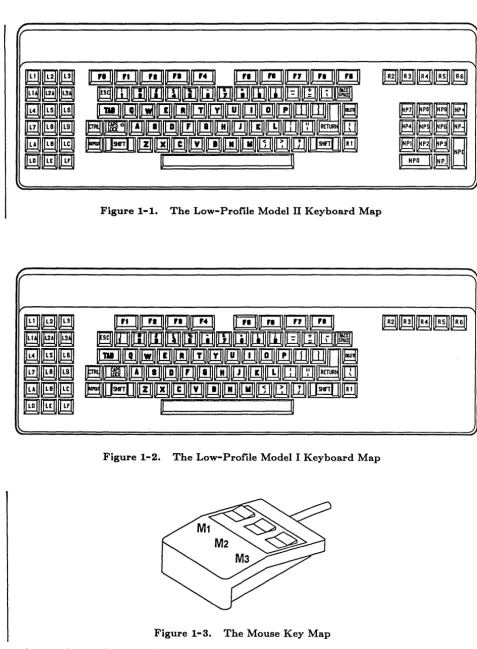
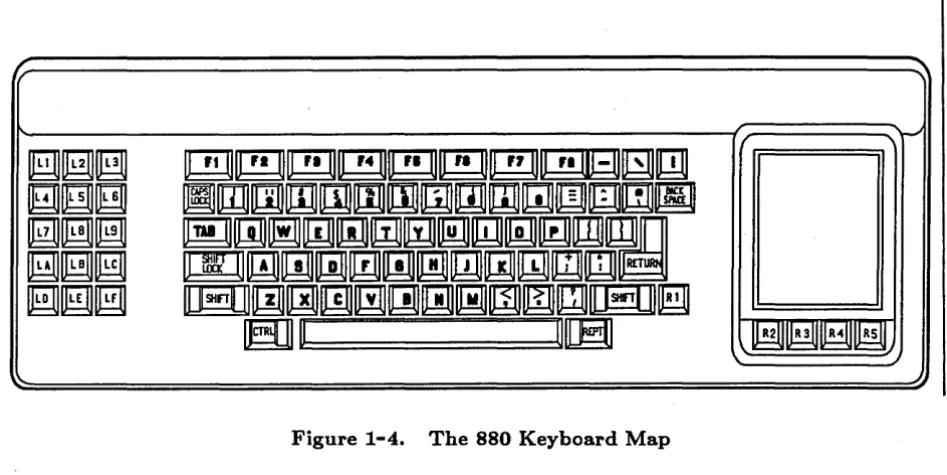
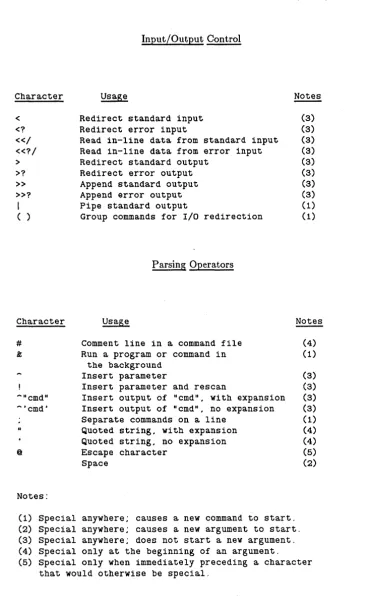
The definable keys (see Figures 1-1, 1-2, and 1-4) have the following names:
Letters and numbers
ASCII Control
Display Manager Basics
These are named by their own single character. The capital letters are distinct from the lowercase letters: merely refer to A instead of worrying about II a shifted II. When you refer to these
keys in a key definition, enter them within single quotation marks.
These are the standard intraline and interline control keys.
CR Carriage Return BS Back Space TAB Tab
TABS Shifted Tab
-TAB Control Shifted Tab
ESC Escape (low-profile only). Same as .-[. (hex lB). DEL Delete (low-profile only).
Same as '-1' (hex 7F) .
1-8
o
o
o
o
o
Alphabetic Control
DM Function
Program Function
Numeric Keypad
Mouse
These are named AX, where x is some other valid key name (i.e., Ay for CTRL/Y and AN for CTRL/N). There are also six non-alphabetic control characters. Their names must appear in single quotation marks. The names and the hexadecimal values of ,the keys are: ,A [' (hex lB), 'A\' (hex lC), 'A]' (hex lD), 'A,....,,' (hex IE), 'A1' (hex IF), and 'AI' (hex 7F).
These keys perform special Display Manager functions. Those on the left side of the keyboard are named Ll through L9 and LA through LF. (Note that the low-profile keyboards have an extra row of keys below Ll through L3. These keys are named LIA, L2A, and L3A.) Their up-transition names are LIU through L9U and LAU though LFU. Their shifted names are LIS through L9S and LAS through LFS. The DM Function keys on the right side of the keyboard are named Rl through R6. Their up-transition and shifted names are formed in the same way that the left-side keys are.
NOTE: Due to internal hardware restrictions, the 880 keyboard does not execute shifted definitions for these keys. The DM will not object if you define shifted operations for them, but nothing will happen when you try to use the shifted definitions.
These keys are specially reserved for user program control. They appear at the top of the keyboard and are named Fl through F8, as labeled. Their up-transition names are FlU through F8U. Their shifted names are FlS through F8S. Their control shifted names are AFI through AF8. (Note that the low-profile Model II keyboard has two additional program function keys, FO and F9. Their shifted and control shifted names are derived as described above.)
These keys are only available on the low-profile Model II keyboard. The keypad's numeric keys are named NPO through NP9. The keypad symbols are named NP+, NP-, and NP. respectively. The nEntern key is named NPE. Keys 0 through 9, plus (+), and minus (-) can have shifted names (for example, NP+S).
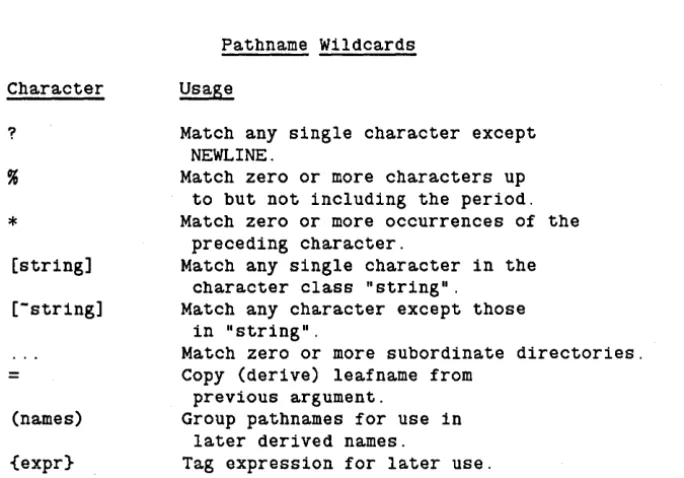
These are the keys located on the optional mouse pointing device (Figure 1-3). Their names are Ml, M2, and M3. Their up-transition names are MlU, M2U, and M3U. There are no shifted or control shifted names.
Names containing special characters and all ordinary graphic characters must be in single quotes. For example, to define the lowercase x key so that it acts just like the uppercase X key, you would use the following command line:
kd 'x' es 'X' ke
Figure 1-1. The Low-Profile Model II Keyboard Map
Figure 1-2. The Low-Profile Model I Keyboard Map
Figure 1-3. The Mouse Key Map
character keys. Although it is possible to change the definitions of these keys, that capability is intended mainly for use in programs. When a program defines a key, the definition applies only
while the program is running and only in pads the program controls. ( " ,
\
)',--,,/
o
o
o
o
o
r
~r r-"
~~[lgJJ
~~~~~~~~~~
~~~
mmmrnmrnmrnmm~~rnm~
~[ill~
~m~[[ilJIIiIIl!!ll~l@J~I!iIJ~m~
~[ill~
m~~m~~~m[!JJrnmmRET
~~~
ma:r1~[!ijm~[!J][!JJ~mmrn[l#!l]~
BJ]~
ij[(B
R21111R 3 1111 R-4 II II Rsil~
[image:29.615.74.548.52.289.2]..)
Figure 1-4. The 880 Keyboard Map
1.5.2. Controlling Keys from Within a Program
Because of the great flexibility provided by our displays and keyboards, many applications programs assume control of these and redefine various capabilities. When this happens, the default DM key definitions are overridden by the applications program. The default definitions are restored once the applications program ends. For your own applications, you may control key definitions through program calls to the PAD _$DEF _PFK and PAD $DM CMD routines as described in the DOMAIN System Call Reference.
Because the normal functions of the Display Manager keys are often useful (even when they have been redefined by applications programs), the <HOLD> and <HOLD/GO> keys have been defined to provide a temporary override function. Pressing <HOLD> while in an applications program will restore the keyboard to its log in DM definitions. Pressing <HOLD> again will re-enable the application-defined keys.
You may not change this feature of the <HOLD> and <HOLD/GO> keys, which is functional only when the keyboard is under applications program control. This capability is independent of the default Display Manager definitions of WH (WINDOW _HOLD).
1.6.
Special Characters in DM Scripts and Key Definitions
Several rules governing the use of literal and special characters affect the proper interpretation of commands within the Display Manager environment. The following characters have special meanings when they appear in a DM command line or script.
#
&
The use of II@II can be confusing in key definitions because the text in key definitions is actually processed twice - once when the definition is made, and once when the key is depressed and the definition is used. If a character needs to be escaped both times, it must be preceded by three II@II signs. For example, "@@@#" becomes "@#" in the key definition, which then becomes
II # II when the definition is used. Only the characters listed in this section are special within key definitions.
When read from a DM script, (via the CMDF comamnd), the
"#"
character causes the remainder of the line to be treated as a comment and skipped.Semicolon is the normal command delimiter. It is equivalent to NEWLINE (generated by <RETURN».
This character makes an input request, except when it is read from the keyboard. When read from the keyboard, it can be used in the replacement part of a substitution command to represent the entire string matching the regular expression. When "&" is preceded by II@II it becomes an ordinary character in both contexts. Therefore, you can't use "&" within a script or key definition and also use its special meaning within substitute commands that appear in that script or definition.
Some commands accept strings surrounded by single quotes. They are KD, ES, CP, CPO, CPS, and the II & II character. When you use single quotes, the only characters in the quoted string that retain their special meanings are II@II,
"&",
and the closing single quote. All other characters revert to their literal graphic values. Note, however, that the KD command is not aware of single quotes within the definition string, so II # II and "; II must be quoted there as well.For example, to define the F4 key to enter the string
"-#-"
at the current cursor position, place the following line in a key definition file:kd F4 es ._@@@#-. ke
Display Manager Basics 1-12
/----~
I
o
o
o
o
o
Display Manager Task Lists
Moving the Cursor
Task OM Command Predefined Key
Move left one character Move right one character Move up one line
Move down one line
Set arrow key scale factors (raster units)
Move to start of next line Move to beginning of line Move to end of line Move to top line in window Move to bottom line in window Move to window border
Tab left Tab right Set tabs
AL AR AU AD AS x Y
AO;TL TL TR TT TB
TWB {-L, -R, -T,
Low-Profile +--+
t
!
none CTRL/K I+--+1 <SHIFT>/t <SHIFT>/! -B} noneTHL CTRL/<TAB>
TH <TAB>
TS [nl n2 ... ] [-R] none
(LA) (LC) (L8) (LE) (L7) (L9) (LOS) (LFS)
Move to OM Input Pad TOM
Move to next window on screen TN
Move to previous window TLW
<CMO> (L5) <NEXT WNOW> (LB) CTRL/L
Move to next window in which TI input is enabled
Move cursor to next unobscured TNI icon on the display
none
none
Control window availability CURS [-aNI-OFF] none
for cursor placement
Creating a Process
880 Keyboard
+--+
t
!
none CTRL/K I+--+1 none none none CTRL/<TAB> <TAB> none <CMO> <NEXT WNOW> CTRL/L none none none (LA) (LC) (L8) (LE) (L4) (L6) (L5) (LB)Task OM Command Predefined Key
Create new process, transcript pad, and windows
Create new process without transcript pad or windows
Create server process (valid only in OM startup file)
CP pathname
CPO pathname
CPS pathname
Low-Profile 880 Keyboard
<SHELL> (L5S) <SHELL> (R2)
none none
Task
Quit, stop, or blast a process
Suspend execution of a process
Resume execution of suspended process
Task
Create edit pad and window in which to view it
create view window (read-only pad)
Create copy of existing window
Display Manager Basics
Controlling a Process
OM Command Predefined Key
Low-Profile 880 Keyboard
DQ [name] [-SI-BI-c nn] CTRL/Q
DS none
DC none
Creating a Window
Read and Edit Pads
OM Command
CTRL/Q
none
none
Predefined Key
Low-Profile 880 Keyboard
CE pathname <EDIT> (R4) <EDIT> (R4)
CV pathname <READ> (RS) <READ> (RS)
CC none none
1-14
(~" ~_ .. / '
- - -
---o
o
o
0
0
TaskGrow or shrink a window using rubberbanding Move a window
using rubberbanding
Push or pop a window on stack
close (delete) a window
close window, pad; update file close window, pad; no update
set scroll mode set autohold mode
Toggle scroll and autohold modes set hold mode
set insert mode
(see "Editing a Pad")
Define position of default window n
View latest output in Shell's process transcript pad Copy text to Shell's process input pad
copy text to DM input pad for use with <READ>
Managing Windows
OM Command
WGE
WME
WP
WC [name] [-Q I -F] PW;WC -Q
WC -Q
WS [-ON -OFF] WA [-ON -OFF] WA;WS
WH [-ON -OFF]
WDF [n]
AU;AU;PB;TI
DR;TR;XC;TL;TI;TB; TR;XP;TR
DR;
/[-a-zO-9$@/@-o_']/ XC CV_FILE;TDM; ES 'CV ';X? CV_FILE; TR;EN
Predefined Key
Low-Profile 880 Keyboard
<GROW> (LSA)
<MOVE> (LSAS)
<POP> (RI)
none
<EXIT> (R5) <ABORT> (R5S)
CTRL/S none CTRL/A <HOLD> (R6)
none
CTRL/V
<AGAIN> (R2)
<SHIFT>/<READ> (RSS) CTRL/G CTRL/W CTRL/P none CTRL/Y CTRL/N CTRL/S none CTRL/A
<HOLD/GO> (R5)
none
CTRL/V
<FB>
none
Moving a Pad Under a Window
Task OM Command Predefined Key
Low-Profile 880 Keyboard
Move top of pad into window PT none none
Move cursor to first character PT;TT;TL CTRL/T CTRL/T
in pad
Move bottom of pad into window PB none none
Move cursor to last character PB;TB;TR CTRL/B CTRL/B
in pad
Move pad n pages PP [-]n t ~ ~ t
(LD, LF) (LDt LF)
Move pad n lines PV [-]n <SHIFT>/t <SHIFT>/~ F2, FS
(LBS) (LES)
Move pad n characters PH [-]n <SHIFT>/~ <SHIFT>/-+ ~ -+
Task
Set read/write mode
Set insert/overstrike mode
Insert string
Insert NEWLINE character
Insert new line after current line Insert raw (noecho) character Insert end-of-file mark
Delete character at cursor Delete character before cursor Delete word of text
Delete from cursor to end of line Delete entire line
Copy text to paste buffer Cut (delete) text and write
to paste buffer
Paste (write) text in paste buffer into pad
Copy a portion of the screen into a GMF file
Search forward for string Repeat last forward search Search backward for string Repeat last backward search Abort search
it
Set case comparison for search
substitute string2 for all occurrences of stringl in defined range
substitute string2 for first occurrence of stringl in each line of defined range
Check and/or balance delimiting characters
undo previous command(s)
Update edit file without closing edit pad
Display Manager Basics
Editing a Pad
OM Command
RO [-ON EI [-ON
-OFF] -OFF]
ES 'string' EN
TR;EN;TL ER nn EEF
ED EE
DR;/[-A-ZO-9$_]/XD ES , ';EE;DR;TR;XD;TL;TR CMS;TL;XD
XC [-F pathname name] XD [-F pathname name]
XP [-F pathname name]
XI [pathname]
/string/
//
\string\
\\
ABRT (or) SQ SC [-ON I -OFF] S/stringl/string2/
SO/stringl/string2/
UNDO
PW
1-16
Predefined Key '\ ,--,
~/
Low-Profile 880 Keyboard
CTRL/M CTRL/M
<INS> (L1S) <INS MODE> (Ll)
[Default DM operation] <RETURN> <RETURN> <Fl> <Fl>
none none
CTRL/Z CTRL/Z
<CHAR DEL> (L3) <CHAR DEL> (L3) <BACK SPACE> <BACK SPACE> <F6> <F6>
<F7> <F7>
<LINE DEL> (L2) <LINE DEL> (L2)
<COPY> (L1A) CTRL/C ~,
<CUT> (L1AS) CTRL/E I
" " <PASTE> (L2A) CTRL/O
none none
none none
CTRL/R CTRL/R
none none
CTRL/U CTRL/U
CTRL/X CTRL/X
f"-none none
""
none none
none none
none
/ - - ' ,
(
\
<UNDO> (L2AS) none
'--'
u
o
o
o
o
Using Window Groups and Icons
Task OM Command
Add a window or group to a WGRA group_name [entry_name] new or existing group
of windows
Remove a window or group WGRR group_name [entry_name] from a group of windows
control window visibility WI [entry_name] [-I I -W]
Change a window into an icon ICON [entry_name] [-I I -W]
or an icon into a window [-C 'char']
set icon position and IDF
offset vector
Display a list of the windows in a group
CPB
Predefined Key
Low-Profile 880 Keyboard
none none
none none
none none
none none
none none
none none
Managing the Display Environment
Task
Request help
Log in Log off
shut down system
place a mark Go to a mark Clear mark stack
Display cursor coordinates (line, column; x/y coord.)
Acknowledge DM alarm
Acknowledge alarm and pop window
Set or display an environment variable
Set background color Set window color
Set color monitor to black & white
Refresh entire screen Refresh window
Load font for use in pads
Declare keyboard type
Set or display key definition Request input to command line
OM Command Predefined Key
Low-Profile 880 Keyboard
none <HELP> (R6S) none
L id [proj [org]] [-P] [-H] none none
none none
LO [-F] [-ON I-OFF] none
SHUT [-F] none
DR GM CMS
AA AP
ENV var [value]
BGC [-ON I -OFF] INV [-ON I -OFF] MONO [-ON I -OFF]
RS RW [-R]
FL pathname
KBD [type]
KD name [[def.] KE] &'prompt'
<MARK> (Ll) none none none none none none none none none CTRL/F none none none none none
'\.,--,/
c
o
Chapter 2
Display Manager COIDInands
o
o
o
AA (ACKNOWLEDGE_ALARM)
AA (ACKNOWLEDGE_ALARM) -- Acknowledge Display Manager Alarms
FORMAT
AA
The AA command acknowledges a Display Manager alarm. This command turns off the current alarm and enables further alarms, which may already be waiting. AA requires no arguments or options.
Display Manager Commands 2-2
c
o
o
o
o
o
ABRT (ABORT)
ABRT (ABORT) -- Abort text search; cancel any action involving ECHO
FORMAT
ABRT (CTRL/X)
The ABRT command aborts a text search, and cancels any action involving the ECHO command.
When you use ABRT to abort the current search, the Display Manager returns the message IISearch aborted. II It does not move the window. Note that you cannot type this command during a search.
When you use ABRT to abort the ECHO command, ABRT cancels a move window with rubberbanding or grow window with rubberbanding operation; or, it cancels highlighting for a defined range of text, depending on how ECHO was used.
AD (ARROW _DOWN)
AD (ARROW _DOWN) -- Move cursor down one line.
FORMAT
AD
The AD command moves the cursor down one line from its current position. By default, the down arrow key (LE) on the left hand key pad executes this command.
Display Manager Oommands 2-4
c
o
o
o
o
o
AL (ARROW _LEFT)
AL (ARROW _LEFT) -- Move cursor left one character.
FORMAT
AL
AP (ACKNOWLEDGE_POP)
AP (ACKNOWLEDGE_POP) -- Acknowledge alarm and pop window.
FORMAT
AP
The AP command acknowledges a Display Manager alarm and displays ( .. pops .. ) the window to which the alarm pertains. This command is particularly useful if the window is completely covered so that you cannot point to it. AP requires no arguments or options.
o
o
o
o
o
AR (ARROW _RIGHT)
AR (ARROW _RIGHT) -- Move cursor right one character.
FORMAT
AR
AS (ARROW _SCALE)
AS (ARROW_SCALE) -- Set scale factors for arrow keys.
FORMAT
AS
[x[y]]
The AS command sets scale factors for the arrow keys. The scale factor is useful for changing the apparent sensitivity of the arrow keys and for lining up the edges of windows after moving them.
ARGUMENTS
If no arguments are specified, then the default scale factors are used, as described below.
x
(optional)
y
(optional)
Display Manager Commands
Specify horizontal scale factor in raster units (integer). This value must be in the range 0-1023. (Note, however, that portrait displays may only display up to 800 raster units in this dimension.) There are approximately 100 raster units per inch. The default horizontal movement is the width of the character on which the cursor rests; if the cursor is not on a character, the DM uses the width of a space in the last window. Specifying 0 for 'x' indicates that the default should be used.
Default if omitted: 0
Specify vertical scale factor in raster units (integer). This value must be in the range 0-1023. (Note, however, that landscape displays may only display up to 800 raster units in this dimension.) The default vertical movement is the height of a line in the last window. Specifying 0 for 'y' indicates that the default should be used.
Default if omitted: leave current y value unchanged
2-8
c
~,
(
o
o
o
o
o
AU (ARROW _ UP)
AU (ARROW_UP) -- Move cursor up one line.
FORMAT
AU
BGC (BACKGROUND _ COLOR)
BGC (BACKGROUND_COLOR) -- Set background color of display.
FORMAT
BGC [-ON
I
-OFF]The BGC command sets the background color for monochrome displays. Note that this is the display background only; window background color is controlled with INV
(INVERT _ COLOR).
The background color is ON, by default, at login.
NOTE:
OPTIONS
BGC has meaning only for monochromatic displays. It has no effect on nodes with color displays. See the DM command MONO for information about background color on color displays.
If no option is specified, BGC toggles the current mode.
-ON
-OFF
Display Manager Commands
Set background color to grey or green, depending on display type.
Set background color to black.
2-10
o
o
o
o
o
BL (BALANOE)
BL (BALANCE) -- Balance delimiters.
FORMAT
[range]BL
[-I
I
-0] [1_ char] [r _ char]BL determines whether a given pair of delimiting characters (for instance, left and right parentheses) is balanced within a specified range of text.
ARGUMENTS
range (optional)
I_char (optional)
r char (optional)
OPTIONS
Specify range of text to be checked. This argument is valid only when used with -0; the range for -I is the current cursor position to the end (or beginning) of the file. Define the range to be checked as described in "Defining a Range of Text" in the previous chapter.
Default if omitted: check from cursor to end of line
Specify the left delimiting character. If 'r _ char' is specified but this argument is omitted, the left delimiting character defaults to 'r _ char'. If both arguments are omitted, the left delimiting character defaults to left parenthesis.
Specify the right delimiting character. If 'I_char' is specified but this argument is omitted, the right delimiting character defaults to '1_ char'. If both arguments are omitted, the right delimiting character defaults to right parenthesis.
If either of the following options is specified, it must precede any specified arguments.
Default options are indicated by "(D)."
-I
(D) Insert mode: search for balanced delimiters from the current character to the beginning or end of the file. The behavior of BL depends upon the character under the cursor when BL is invoked.If you position the cursor on a delimiter and BL finds a balancing delimiter, it moves the cursor to the matched character momentarily (to show you where the balance is completed), then returns the cursor to the character immediately iollowing the initial cursor postion. The search direction is forward if the character under the cursor is a left delimiter, and backward if the character is a right delimiter.
BL (BALANCE)
-0
Display Manager Commands
balancing delimiter, it gives an error message and sounds the alarm, then inserts a matching right delimiter at the initial cursor position.
If you position the cursor on a character other than a delimiter, BL searches backward for the first occurrence of '1_ char', briefly shows you where it is, then inserts a matching right delimiter at the initial cursor position.
Check mode: check only -- do not insert balancing characters or move the cursor . You may mark a range of text to be checked if you specify this option; see the 'range' argument above. BL checks all pairs of specified delimiters within the specified range. Results of the check are displayed in the DM message window.
2-12