Think Java
How to Think Like a Computer Scientist
Think Java
How to Think Like a Computer Scientist
Version 6.1.3
Allen B. Downey and Chris Mayfield
Green Tea Press
Copyright©2016 Allen B. Downey and Chris Mayfield.
Green Tea Press 9 Washburn Ave Needham, MA 02492
Permission is granted to copy, distribute, and/or modify this work under the terms of the Creative Commons Attribution-NonCommercial-ShareAlike 3.0 Unported License, which is available at http://creativecommons.org/ licenses/by-nc-sa/3.0/.
The original form of this book is LATEX source code. Compiling this code has the effect of generating a device-independent representation of the book, which can be converted to other formats and printed.
Contents
Preface xiii
1 The way of the program 1
1.1 What is programming? . . . 1
1.2 What is computer science? . . . 2
1.3 Programming languages . . . 3
1.4 The hello world program . . . 4
1.5 Displaying strings . . . 6
1.6 Escape sequences . . . 7
1.7 Formatting code . . . 8
1.8 Debugging code . . . 9
1.9 Vocabulary . . . 10
1.10 Exercises . . . 12
2 Variables and operators 15 2.1 Declaring variables . . . 15
2.2 Assignment . . . 16
2.3 State diagrams . . . 17
2.4 Printing variables . . . 18
vi CONTENTS
2.6 Floating-point numbers . . . 21
2.7 Rounding errors . . . 22
2.8 Operators for strings . . . 23
2.9 Composition . . . 24
2.10 Types of errors . . . 25
2.11 Vocabulary . . . 28
2.12 Exercises . . . 30
3 Input and output 33 3.1 The System class . . . 33
3.2 The Scanner class . . . 34
3.3 Program structure . . . 36
3.4 Inches to centimeters . . . 37
3.5 Literals and constants . . . 38
3.6 Formatting output . . . 38
3.7 Centimeters to inches . . . 40
3.8 Modulus operator . . . 41
3.9 Putting it all together . . . 41
3.10 The Scanner bug . . . 43
3.11 Vocabulary . . . 44
3.12 Exercises . . . 45
4 Void methods 49 4.1 Math methods . . . 49
4.2 Composition revisited . . . 50
4.3 Adding new methods . . . 51
CONTENTS vii
4.5 Parameters and arguments . . . 55
4.6 Multiple parameters . . . 56
4.7 Stack diagrams . . . 57
4.8 Reading documentation . . . 59
4.9 Writing documentation . . . 61
4.10 Vocabulary . . . 63
4.11 Exercises . . . 63
5 Conditionals and logic 67 5.1 Relational operators . . . 67
5.2 Logical operators . . . 68
5.3 Conditional statements . . . 69
5.4 Chaining and nesting . . . 71
5.5 Flag variables . . . 72
5.6 The return statement . . . 72
5.7 Validating input . . . 73
5.8 Recursive methods . . . 74
5.9 Recursive stack diagrams . . . 76
5.10 Binary numbers . . . 77
5.11 Vocabulary . . . 79
5.12 Exercises . . . 80
6 Value methods 85 6.1 Return values . . . 85
6.2 Writing methods . . . 88
6.3 Method composition . . . 90
viii CONTENTS
6.5 Boolean methods . . . 93
6.6 Javadoc tags . . . 94
6.7 More recursion . . . 95
6.8 Leap of faith . . . 97
6.9 One more example . . . 98
6.10 Vocabulary . . . 98
6.11 Exercises . . . 99
7 Loops 105 7.1 The while statement . . . 105
7.2 Generating tables . . . 107
7.3 Encapsulation and generalization . . . 109
7.4 More generalization . . . 112
7.5 The for statement . . . 114
7.6 The do-while loop . . . 115
7.7 Break and continue . . . 116
7.8 Vocabulary . . . 118
7.9 Exercises . . . 118
8 Arrays 123 8.1 Creating arrays . . . 123
8.2 Accessing elements . . . 124
8.3 Displaying arrays . . . 125
8.4 Copying arrays . . . 127
8.5 Array length . . . 128
8.6 Array traversal . . . 128
CONTENTS ix
8.8 Traverse and count . . . 131
8.9 Building a histogram . . . 131
8.10 The enhanced for loop . . . 133
8.11 Vocabulary . . . 134
8.12 Exercises . . . 134
9 Strings and things 139 9.1 Characters . . . 139
9.2 Strings are immutable . . . 141
9.3 String traversal . . . 141
9.4 Substrings . . . 143
9.5 The indexOf method . . . 144
9.6 String comparison . . . 144
9.7 String formatting . . . 145
9.8 Wrapper classes . . . 146
9.9 Command-line arguments . . . 147
9.10 Vocabulary . . . 148
9.11 Exercises . . . 149
10 Objects 155 10.1 Point objects . . . 155
10.2 Attributes . . . 156
10.3 Objects as parameters . . . 157
10.4 Objects as return types . . . 158
10.5 Mutable objects . . . 159
10.6 Aliasing . . . 160
x CONTENTS
10.8 Garbage collection . . . 162
10.9 Class diagrams . . . 162
10.10 Java library source . . . 163
10.11 Vocabulary . . . 164
10.12 Exercises . . . 165
11 Classes 171 11.1 The Time class . . . 172
11.2 Constructors . . . 173
11.3 More constructors . . . 174
11.4 Getters and setters . . . 176
11.5 Displaying objects . . . 178
11.6 The toString method . . . 179
11.7 The equals method . . . 180
11.8 Adding times . . . 181
11.9 Pure methods and modifiers . . . 183
11.10 Vocabulary . . . 184
11.11 Exercises . . . 186
12 Arrays of objects 189 12.1 Card objects . . . 189
12.2 Card toString . . . 191
12.3 Class variables . . . 193
12.4 The compareTo method . . . 194
12.5 Cards are immutable . . . 195
12.6 Arrays of cards . . . 196
CONTENTS xi
12.8 Binary search . . . 199
12.9 Tracing the code . . . 201
12.10 Recursive version . . . 202
12.11 Vocabulary . . . 202
12.12 Exercises . . . 203
13 Objects of arrays 205 13.1 The Deck class . . . 205
13.2 Shuffling decks . . . 207
13.3 Selection sort . . . 208
13.4 Merge sort . . . 208
13.5 Subdecks . . . 209
13.6 Merging decks . . . 210
13.7 Adding recursion . . . 211
13.8 Vocabulary . . . 212
13.9 Exercises . . . 213
14 Objects of objects 215 14.1 Decks and hands . . . 216
14.2 CardCollection . . . 216
14.3 Inheritance . . . 219
14.4 Dealing cards . . . 221
14.5 The Player class . . . 223
14.6 The Eights class . . . 226
14.7 Class relationships . . . 230
14.8 Vocabulary . . . 231
xii CONTENTS
A Development tools 233
A.1 Installing DrJava . . . 233
A.2 DrJava interactions . . . 235
A.3 Command-line interface . . . 236
A.4 Command-line testing . . . 237
A.5 Running Checkstyle . . . 239
A.6 Tracing with a debugger . . . 240
A.7 Testing with JUnit . . . 241
A.8 Vocabulary . . . 243
B Java 2D graphics 245 B.1 Creating graphics . . . 245
B.2 Graphics methods . . . 246
B.3 Example drawing . . . 248
B.4 Vocabulary . . . 250
B.5 Exercises . . . 250
C Debugging 253 C.1 Compile-time errors . . . 253
C.2 Run-time errors . . . 257
C.3 Logic errors . . . 261
Preface
Think Javais an introduction to computer science and programming intended for readers with little or no experience. We start with the most basic concepts and are careful to define all terms when they are first used. The book presents each new idea in a logical progression. Larger topics, like recursion and object-oriented programming, are divided into smaller examples and introduced over the course of several chapters.
This book is intentionally concise. Each chapter is 12–14 pages and covers the material for one week of a college course. It is not meant to be a comprehensive presentation of Java, but rather, an initial exposure to programming constructs and techniques. We begin with small problems and basic algorithms and work up to object-oriented design. In the vocabulary of computer science pedagogy, this book uses the “objects late” approach.
The philosophy behind the book
Here are the guiding principles that make the book the way it is:
One concept at a time. We break down topics that give beginners trouble into a series of small steps, so that they can exercise each new concept in isolation before continuing.
xiv PREFACE
Conciseness. An important goal of the book is to be small enough so that students can read and understand the entire text in a one-semester college or AP course.
Emphasis on vocabulary. We try to introduce the minimum number of terms and define them carefully when they are first used. We also organize them in glossaries at the end of each chapter.
Program development. There are many strategies for writing programs, including bottom-up, top-down, and others. We demonstrate multiple program development techniques, allowing readers to choose methods that work best for them.
Multiple learning curves. To write a program, you have to understand the algorithm, know the programming language, and be able to debug errors. We discuss these and other aspects throughout the book, and include an appendix that summarizes our advice.
Object-oriented programming
Some Java books introduce classes and objects immediately; others begin with procedural programming and transition to object-oriented more gradually.
Many of Java’s object-oriented features are motivated by problems with previ-ous languages, and their implementations are influenced by this history. Some of these features are hard to explain when people aren’t familiar with the problems they solve.
We get to object-oriented programming as quickly as possible, limited by the requirement that we introduce concepts one at a time, as clearly as possible, in a way that allows readers to practice each idea in isolation before moving on. So it takes some time to get there.
But you can’t write Java programs (even hello world) without encountering object-oriented features. In some cases we explain a feature briefly when it first appears, and then explain it more deeply later on.
PREFACE xv
a registered trademark of the College Board.) We introduce nearly every topic in the “AP Java subset” with a few exceptions. A mapping of Think Java section numbers to the current AP course description is available on our website: http://thinkjava.org.
Appendixes
The chapters of this book are meant to be read in order, because each one builds on the previous one. We also include three appendixes with material that can be read at any time:
Appendix 1: Development tools
The steps for compiling, running, and debugging Java code depend on the details of the development environment and operating system. We avoided putting these details in the main text, because they can be distracting. Instead, we provide this appendix with a brief introduction to DrJava – an interactive development environment (IDE) that is helpful for beginners – and other development tools, including Checkstyle for code quality and JUnit for testing.
Appendix 2: Java 2D graphics
Java provides libraries for working with graphics and animation, and these topics can be engaging for students. The libraries require object-oriented features that readers will not completely understand until after Chapter 11, but they can be used much earlier.
Appendix 3: Debugging
We provide debugging suggestions throughout the book, but we also col-lect our debugging advice in an appendix. We recommend that readers review this appendix several times as they work through the book.
Using the code examples
Most of the code examples in this book are available from a Git repository at
xvi PREFACE
GitHub is a hosting service that provides storage for Git repositories and a convenient web interface. It provides several ways to work with the code:
You can create a copy of the repository on GitHub by pressing the Fork
button. If you don’t already have a GitHub account, you’ll need to create one. After forking, you’ll have your own repository on GitHub that you can use to keep track of code you write. Then you can “clone” the repository, which downloads a copy of the files to your computer.
Alternatively, you could clone the repository without forking. If you choose this option, you don’t need a GitHub account, but you won’t be able to save your changes on GitHub.
If you don’t want to use Git at all, you can download the code in a ZIP archive using the Download ZIPbutton on the GitHub page, or this link:
http://tinyurl.com/ThinkJavaCodeZip.
After you clone the repository or unzip the ZIP file, you should have a directory calledThinkJavaCode with a subdirectory for each chapter in the book.
All examples in this book were developed and tested using Java SE Develop-ment Kit 8. If you are using a more recent version, the examples in this book should still work. If you are using an older version, some of them may not.
Contributors over the years
Many people have sent corrections and suggestions, and we appreciate their valuable feedback!
Ellen Hildreth used this book to teach Data Structures at Wellesley College and submitted a whole stack of corrections, along with some great suggestions.
Tania Passfield pointed out that some glossaries had leftover terms that no longer appeared in the text.
PREFACE xvii
Matt Crawford sent in a whole patch file full of corrections.
Chi-Yu Li pointed out a typo and an error in one of the code examples. Doan Thanh Nam corrected an example.
Muhammad Saied translated the book into Arabic, and found several errors in the process.
Marius Margowski found an inconsistency in a code example.
Leslie Klein discovered another error in the series expansion of exp(−x2), identified typos in the card array figures, and gave helpful suggestions to clarify several exercises.
Micah Lindstrom reported half a dozen typos and sent corrections.
James Riely ported the textbook source from LaTeX to Sphinx.
http://fpl.cs.depaul.edu/jriely/thinkapjava/
Peter Knaggs ported the book to C#.
http://www.rigwit.co.uk/think/sharp/
Heidi Gentry-Kolen recorded several video lectures that follow the book.
https://www.youtube.com/user/digipipeline
We are especially grateful to our technical reviewers: Blythe Samuels, David Wisneski, and Stephen Rose. They found errors, made many great suggestions, and helped make the book much better.
Additional contributors who found one or more typos: Stijn Debrouwere, Guy Driesen, Andai Velican, Chris Kuszmaul, Daniel Kurikesu, Josh Donath, Rens Findhammer, Elisa Abedrapo, Yousef BaAfif, Bruce Hill, Matt Underwood, Isaac Sultan, Dan Rice, Robert Beard, Daniel Pierce, Michael Giftthaler, and Min Zeng.
If you have additional comments or ideas about the text, please send them to:
Chapter 1
The way of the program
The goal of this book is to teach you to think like a computer scientist. This way of thinking combines some of the best features of mathematics, engineer-ing, and natural science. Like mathematicians, computer scientists use formal languages to denote ideas, specifically computations. Like engineers, they design things, assembling components into systems and evaluating trade-offs among alternatives. And like scientists, they observe the behavior of complex systems, form hypotheses, and test predictions.
The single most important skill for a computer scientist is problem solving. It involves the ability to formulate problems, think creatively about solutions, and express solutions clearly and accurately. As it turns out, the process of learning to program is an excellent opportunity to develop problem solving skills. That’s why this chapter is called, “The way of the program”.
On one level you will be learning to program, a useful skill by itself. But on another level you will use programming as a means to an end. As we go along, that end will become clearer.
1.1
What is programming?
2 Chapter 1 The way of the program
a system of equations or finding the roots of a polynomial. It can also be a symbolic computation, like searching and replacing text in a document or (strangely enough) compiling a program. The details look different in different languages, but a few basic instructions appear in just about every language.
input: Get data from the keyboard, a file, a sensor, or some other device.
output: Display data on the screen, or send data to a file or other device.
math: Perform basic mathematical operations like addition and division.
decisions: Check for certain conditions and execute the appropriate code.
repetition: Perform some action repeatedly, usually with some variation.
Believe it or not, that’s pretty much all there is to it. Every program you’ve ever used, no matter how complicated, is made up of small instructions that look much like these. So you can think of programming as the process of breaking down a large, complex task into smaller and smaller subtasks. The process continues until the subtasks are simple enough to be performed with the basic instructions provided by the computer.
1.2
What is computer science?
One of the most interesting aspects of writing programs is deciding how to solve a particular problem, especially when there are multiple solutions. For example, there are numerous ways to sort a list of numbers, and each way has its advantages. In order to determine which way is best for a given situation, we need techniques for describing and analyzing solutions formally.
Computer scienceis the science of algorithms, including their discovery and analysis. An algorithm is a sequence of steps that specifies how to solve a problem. Some algorithms are faster than others, and some use less space in computer memory. As you learn to develop algorithms for problems you haven’t solved before, you also learn to think like a computer scientist.
1.3 Programming languages 3
them down and correcting them is called debugging. As you learn to debug your programs, you will develop new problem solving skills. You will need to think creatively when unexpected errors happen.
Although it can be frustrating, debugging is an intellectually rich, challenging, and interesting part of computer programming. In some ways, debugging is like detective work. You are confronted with clues, and you have to infer the processes and events that led to the results you see. Thinking about how to correct programs and improve their performance sometimes even leads to the discovery of new algorithms.
1.3
Programming languages
The programming language you will learn is Java, which is a high-level lan-guage. Other high-level languages you may have heard of include Python, C and C++, Ruby, and JavaScript.
Before they can run, programs in high-level languages have to be translated into a low-level language, also called “machine language”. This translation takes some time, which is a small disadvantage of high-level languages. But high-level languages have two advantages:
It is much easier to program in a high-level language. Programs take less time to write, they are shorter and easier to read, and they are more likely to be correct.
High-level languages are portable, meaning they can run on different kinds of computers with few or no modifications. Low-level programs can only run on one kind of computer, and have to be rewritten to run on another.
Two kinds of programs translate high-level languages into low-level languages: interpreters and compilers. An interpreter reads a high-level program and executes it, meaning that it does what the program says. It processes the pro-gram a little at a time, alternately reading lines and performing computations. Figure 1.1 shows the structure of an interpreter.
4 Chapter 1 The way of the program
Figure 1.1: How interpreted languages are executed.
is called the source code, and the translated program is called the object code or the executable. Once a program is compiled, you can execute it repeatedly without further translation. As a result, compiled programs often run faster than interpreted programs.
[image:22.612.89.482.398.461.2]Java isbothcompiled and interpreted. Instead of translating programs directly into machine language, the Java compiler generates byte code. Similar to machine language, byte code is easy and fast to interpret. But it is also portable, so it is possible to compile a Java program on one machine, transfer the byte code to another machine, and run the byte code on the other machine. The interpreter that runs byte code is called a “Java Virtual Machine” (JVM).
Figure 1.2: The process of compiling and running a Java program.
Figure 1.2 shows the steps of this process. Although it might seem complicated, these steps are automated for you in most program development environments. Usually you only have to press a button or type a single command to compile and run your program. On the other hand, it is important to know what steps are happening in the background, so if something goes wrong you can figure out what it is.
1.4
The hello world program
1.4 The hello world program 5
public class Hello {
public static void main(String[] args) { // generate some simple output
System.out.println("Hello, World!"); }
}
When this program runs it displays:
Hello, World!
Notice that the output does not include the quotation marks.
Java programs are made up of class and method definitions, and methods are made up of statements. A statement is a line of code that performs a basic operation. In the hello world program, this line is a print statement that displays a message on the screen:
System.out.println("Hello, World!");
System.out.printlndisplays results on the screen; the nameprintlnstands for “print line”. Confusingly,print can mean both “display on the screen” and “send to the printer”. In this book, we’ll try to say “display” when we mean output to the screen. Like most statements, the print statement ends with a semicolon (;).
Java is “case-sensitive”, which means that uppercase and lowercase are not the same. In this example, System has to begin with an uppercase letter; system and SYSTEM won’t work.
A method is a named sequence of statements. This program defines one method named main:
public static void main(String[] args)
The name and format of mainis special: when the program runs, it starts at the first statement inmainand ends when it finishes the last statement. Later, we will see programs that define more than one method.
6 Chapter 1 The way of the program
capital letter. The name of the class has to match the name of the file it is in, so this class has to be in a file namedHello.java.
Java uses squiggly braces ({ and }) to group things together. InHello.java, the outermost braces contain the class definition, and the inner braces contain the method definition.
The line that begins with two slashes (//) is a comment, which is a bit of English text that explains the code. When the compiler sees //, it ignores everything from there until the end of the line. Comments have no effect on the execution of the program, but they make it easier for other programmers (and your future self) to understand what you meant to do.
1.5
Displaying strings
You can put as many statements as you like inmain. For example, to display more than one line of output:
public class Hello {
public static void main(String[] args) { // generate some simple output
System.out.println("Hello, World!"); // first line System.out.println("How are you?"); // another line }
}
As this example shows, you can put comments at the end of a line as well as on lines all by themselves.
Phrases that appear in quotation marks are calledstrings, because they con-tain a sequence of “characters” strung together. Characters can be letters, numbers, punctuation marks, symbols, spaces, tabs, etc.
1.6 Escape sequences 7
public class Goodbye {
public static void main(String[] args) { System.out.print("Goodbye, ");
System.out.println("cruel world"); }
}
In this example, the first statement does not add a newline, so the output appears on a single line as Goodbye, cruel world. Notice that there is a space at the end of the first string, which appears in the output.
1.6
Escape sequences
It is possible to display multiple lines of output in just one line of code. You just have to tell Java where to put the line breaks.
public class Hello {
public static void main(String[] args) {
System.out.print("Hello!\nHow are you doing?\n"); }
}
The output is two lines, each ending with a newline character:
Hello!
How are you doing?
The \n is an escape sequence, which is a sequence of characters that rep-resents a special character. The backslash allows you to “escape” the string’s literal interpretation. Notice there is no space between\n andHow. If you add a space there, there will be a space at the beginning of the second line.
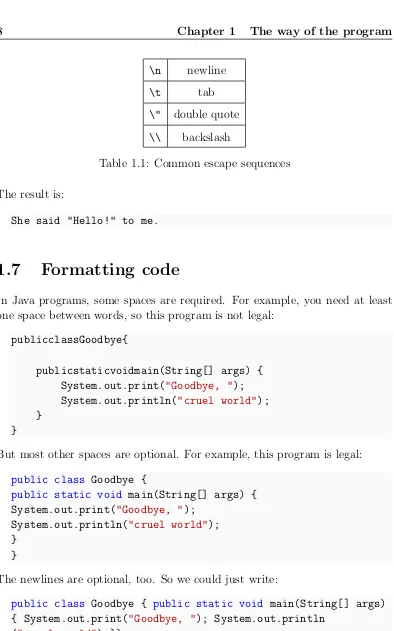
Another common use of escape sequences is to have quotation marks inside of strings. Since double quotes indicate the beginning and end of strings, you need to escape them with a backslash.
8 Chapter 1 The way of the program
\n newline
\t tab
\" double quote
[image:26.612.90.484.66.697.2]\\ backslash
Table 1.1: Common escape sequences
The result is:
She said "Hello!" to me.
1.7
Formatting code
In Java programs, some spaces are required. For example, you need at least one space between words, so this program is not legal:
publicclassGoodbye{
publicstaticvoidmain(String[] args) { System.out.print("Goodbye, "); System.out.println("cruel world"); }
}
But most other spaces are optional. For example, this program is legal:
public class Goodbye {
public static void main(String[] args) { System.out.print("Goodbye, ");
System.out.println("cruel world"); }
}
The newlines are optional, too. So we could just write:
public class Goodbye { public static void main(String[] args) { System.out.print("Goodbye, "); System.out.println
1.8 Debugging code 9
It still works, but the program is getting harder and harder to read. Newlines and spaces are important for organizing your program visually, making it easier to understand the program and find errors when they occur.
Many editors will automatically format source code with consistent indenting and line breaks. For example, in DrJava (see Appendix A) you can indent the code by selecting all text (Ctrl+A) and pressing the Tab key.
Organizations that do a lot of software development usually have strict guide-lines on how to format source code. For example, Google publishes its Java coding standards for use in open-source projects: http://google.github. io/styleguide/javaguide.html.
You might not understand these guidelines now, because they refer to language features we haven’t yet seen. But you might want to refer back to them periodically as you read this book.
1.8
Debugging code
It is a good idea to read this book in front of a computer so you can try out the examples as you go. You can run many of the examples directly in DrJava’s Interactions Pane (see Appendix A). But if you put the code in a source file, it will be easier to try out variations.
Whenever you are experimenting with a new feature, you should also try to make mistakes. For example, in the hello world program, what happens if you leave out one of the quotation marks? What if you leave out both? What if you spell println wrong? These kinds of experiments help you remember what you read. They also help with debugging, because you learn what the error messages mean. It is better to make mistakes now and on purpose than later on and accidentally.
10 Chapter 1 The way of the program
Programming and debugging should go hand in hand. Don’t just write a bunch of code and then perform trial and error debugging until it all works. Instead, start with a program that does something and make small modifications, de-bugging them as you go, until the program does what you want. That way you will always have a working program, and it will be easier to isolate errors.
A great example of this principle is the Linux operating system, which contains millions of lines of code. It started out as a simple program Linus Torvalds used to explore the Intel 80386 chip. According to Larry Greenfield in The Linux Users’ Guide, “One of Linus’s earlier projects was a program that would switch between printing AAAA and BBBB. This later evolved to Linux.”
Finally, programming sometimes brings out strong emotions. If you are strug-gling with a difficult bug, you might feel angry, despondent, or embarrassed. Remember that you are not alone, and most if not all programmers have had similar experiences. Don’t hesitate to reach out to a friend and ask questions!
1.9
Vocabulary
Throughout the book, we try to define each term the first time we use it. At the end of each chapter, we include the new terms and their definitions in order of appearance. If you spend some time learning this vocabulary, you will have an easier time reading the following chapters.
problem solving: The process of formulating a problem, finding a solution, and expressing the solution.
program: A sequence of instructions that specifies how to perform tasks on a computer.
programming: The application of problem solving to creating executable computer programs.
computer science: The scientific and practical approach to computation and its applications.
1.9 Vocabulary 11
bug: An error in a program.
debugging: The process of finding and removing errors.
high-level language: A programming language that is designed to be easy for humans to read and write.
low-level language: A programming language that is designed to be easy for a computer to run. Also called “machine language” or “assembly language”.
portable: The ability of a program to run on more than one kind of computer.
interpret: To run a program in a high-level language by translating it one line at a time and immediately executing the corresponding instructions.
compile: To translate a program in a high-level language into a low-level language, all at once, in preparation for later execution.
source code: A program in a high-level language, before being compiled.
object code: The output of the compiler, after translating the program.
executable: Another name for object code that is ready to run on specific hardware.
byte code: A special kind of object code used for Java programs. Byte code is similar to a low-level language, but it is portable like a high-level language.
statement: Part of a program that specifies one step of an algorithm.
print statement: A statement that causes output to be displayed on the screen.
method: A named sequence of statements.
class: For now, a collection of related methods. (We will see later that there is more to it.)
comment: A part of a program that contains information about the program but has no effect when the program runs.
12 Chapter 1 The way of the program
newline: A special character signifying the end of a line of text. Also known as line ending, end of line (EOL), or line break.
escape sequence: A sequence of code that represents a special character when used inside a string.
1.10
Exercises
At the end of each chapter, we include exercises you can do with the things you’ve learned. We encourage you to at least attempt every problem. You can’t learn to program only by reading about it; you have to practice.
Before you can compile and run Java programs, you might have to download and install a few tools. There are many good options, but we recommend DrJava, which is an “integrated development environment” (IDE) well suited for beginners. Instructions for getting started are in Appendix A.1.
The code for this chapter is in the ch01 directory of ThinkJavaCode. See page xv for instructions on how to download the repository. Before you start the exercises, we recommend that you compile and run the examples.
Exercise 1.1 Computer scientists have the annoying habit of using common English words to mean something other than their common English meaning. For example, in English, statements and comments are the same thing, but in programs they are different.
1. In computer jargon, what’s the difference between a statement and a comment?
2. What does it mean to say that a program is portable?
3. In common English, what does the word compile mean?
4. What is an executable? Why is that word used as a noun?
1.10 Exercises 13
Exercise 1.2 Before you do anything else, find out how to compile and run a Java program. Some environments provide sample programs similar to the example in Section 1.4.
1. Type in the hello world program, then compile and run it.
2. Add a print statement that displays a second message after the “Hello, World!”. Say something witty like, “How are you?” Compile and run the program again.
3. Add a comment to the program (anywhere), recompile, and run it again. The new comment should not affect the result.
This exercise may seem trivial, but it is the starting place for many of the programs we will work with. To debug with confidence, you will need to have confidence in your programming environment.
In some environments, it is easy to lose track of which program is executing. You might find yourself trying to debug one program while you are accidentally running another. Adding (and changing) print statements is a simple way to be sure that the program you are looking at is the program you are running.
Exercise 1.3 It is a good idea to commit as many errors as you can think of, so that you see what error messages the compiler produces. Sometimes the compiler tells you exactly what is wrong, and all you have to do is fix it. But sometimes the error messages are misleading. Over time you will develop a sense for when you can trust the compiler and when you have to figure things out yourself.
Starting with the hello world program, try out each of the following errors. After you make each change, compile the program, read the error message (if there is one), and then fix the error.
1. Remove one of the open squiggly braces.
2. Remove one of the close squiggly braces.
3. Instead ofmain, write mian.
14 Chapter 1 The way of the program
5. Remove the word public.
6. Remove the word System.
7. Replace println with Println.
8. Replace println with print.
Chapter 2
Variables and operators
This chapter describes how to write statements using variables, which store values like numbers and words, and operators, which are symbols that perform a computation. We also explain three kinds of programming errors and offer additional debugging advice.
2.1
Declaring variables
One of the most powerful features of a programming language is the ability to define and manipulate variables. A variable is a named location that stores a value. Values may be numbers, text, images, sounds, and other types of data. To store a value, you first have to declare a variable.
String message;
This statement is a declaration, because it declares that the variable named messagehas the typeString. Each variable has a typethat determines what kind of values it can store. For example, the inttype can store integers, and the chartype can store characters.
16 Chapter 2 Variables and operators
To declare an integer variable named x, you simply type:
int x;
Note that x is an arbitrary name for the variable. In general, you should use names that indicate what the variables mean. For example, if you saw these declarations, you could probably guess what values would be stored:
String firstName; String lastName;
int hour, minute;
This example declares two variables with type String and two with type
int. When a variable name contains more than one word, like firstName, it is conventional to capitalize the first letter of each word except the first. Variable names are case-sensitive, sofirstNameis not the same asfirstname orFirstName.
This example also demonstrates the syntax for declaring multiple variables with the same type on one line: hourandminuteare both integers. Note that each declaration statement ends with a semicolon.
You can use any name you want for a variable. But there are about 50 reserved words, called keywords, that you are not allowed to use as variable names. These words include public, class, static, void, and int, which are used by the compiler to analyze the structure of the program.
You can find the complete list of keywords at http://docs.oracle.com/ javase/tutorial/java/nutsandbolts/_keywords.html, but you don’t have to memorize them. Most programming editors provide “syntax highlighting”, which makes different parts of the program appear in different colors.
2.2
Assignment
Now that we have declared variables, we want to use them to store values. We do that with anassignment statement.
message = "Hello!"; // give message the value "Hello!"
hour = 11; // assign the value 11 to hour
2.3 State diagrams 17
This example shows three assignments, and the comments illustrate different ways people sometimes talk about assignment statements. The vocabulary can be confusing here, but the idea is straightforward:
When you declare a variable, you create a named storage location.
When you make an assignment to a variable, you update its value.
As a general rule, a variable has to have the same type as the value you assign to it. For example, you cannot store a string in minute or an integer inmessage. We will see some examples that seem to break this rule, but we’ll get to that later.
A common source of confusion is that some strings looklike integers, but they are not. For example, message can contain the string "123", which is made up of the characters '1', '2', and '3'. But that is not the same thing as the integer 123.
message = "123"; // legal
message = 123; // not legal
Variables must be initialized (assigned for the first time) before they can be used. You can declare a variable and then assign a value later, as in the previous example. You can also declare and initialize on the same line:
String message = "Hello!";
int hour = 11;
int minute = 59;
2.3
State diagrams
Because Java uses the = symbol for assignment, it is tempting to interpret the statement a = b as a statement of equality. It is not!
18 Chapter 2 Variables and operators
Also, in mathematics, a statement of equality is true for all time. If a = b now, a is always equal to b. In Java, an assignment statement can make two variables equal, but they don’t have to stay that way.
int a = 5;
int b = a; // a and b are now equal
a = 3; // a and b are no longer equal
The third line changes the value of a, but it does not change the value of b, so they are no longer equal.
Taken together, the variables in a program and their current values make up the program’s state. Figure 2.1 shows the state of the program after these assignment statements run.
5 3 a
b
Figure 2.1: State diagram of the variables a and b.
Diagrams like this one that show the state of the program are called state diagrams. Each variable is represented with a box showing the name of the variable on the outside and the value inside. As the program runs, the state changes, so you should think of a state diagram as a snapshot of a particular point in time.
2.4
Printing variables
You can display the value of a variable using print or println. The fol-lowing statements declare a variable named firstLine, assign it the value "Hello, again!", and display that value.
String firstLine = "Hello, again!"; System.out.println(firstLine);
2.5 Arithmetic operators 19
System.out.print("The value of firstLine is "); System.out.println(firstLine);
For this example, the output is:
The value of firstLine is Hello, again!
Conveniently, the syntax for displaying a variable is the same regardless of its type. For example:
int hour = 11;
int minute = 59;
System.out.print("The current time is "); System.out.print(hour);
System.out.print(":"); System.out.print(minute); System.out.println("."); The output of this program is:
The current time is 11:59.
To output multiple values on the same line, it’s common to use several print statements followed by println at the end. But don’t forget the println! On many computers, the output fromprintis stored without being displayed until printlnis run; then the entire line is displayed at once. If you omit the println, the program might display the stored output at unexpected times or even terminate without displaying anything.
2.5
Arithmetic operators
Operatorsare symbols that represent simple computations. For example, the addition operator is +, subtraction is -, multiplication is *, and division is/.
The following program converts a time of day to minutes:
int hour = 11;
int minute = 59;
20 Chapter 2 Variables and operators
In this program, hour * 60 + minute is an expression, which represents a single value to be computed. When the program runs, each variable is replaced by its current value, and then the operators are applied. The values operators work with are called operands.
The result of the previous example is:
Number of minutes since midnight: 719
Expressions are generally a combination of numbers, variables, and operators. When complied and executed, they become a single value.
For example, the expression1 + 1has the value2. In the expressionhour - 1, Java replaces the variable with its value, yielding11 - 1, which has the value 10. In the expressionhour * 60 + minute, both variables get replaced, yield-ing11 * 60 + 59. The multiplication happens first, yielding660 + 59. Then the addition yields719.
Addition, subtraction, and multiplication all do what you expect, but you might be surprised by division. For example, the following fragment tries to compute the fraction of an hour that has elapsed:
System.out.print("Fraction of the hour that has passed: "); System.out.println(minute / 60);
The output is:
Fraction of the hour that has passed: 0
This result often confuses people. The value of minute is 59, and 59 divided by 60 should be 0.98333, not 0. The problem is that Java performs “integer division” when the operands are integers. By design, integer division always rounds toward zero, even in cases like this one where the next integer is close.
As an alternative, we can calculate a percentage rather than a fraction:
System.out.print("Percent of the hour that has passed: "); System.out.println(minute * 100 / 60);
The new output is:
Percent of the hour that has passed: 98
2.6 Floating-point numbers 21
2.6
Floating-point numbers
A more general solution is to usefloating-pointnumbers, which can represent fractions as well as integers. In Java, the default floating-point type is called
double, which is short for double-precision. You can create double variables and assign values to them using the same syntax we used for the other types:
double pi; pi = 3.14159;
Java performs “floating-point division” when one or more operands aredouble
values. So we can solve the problem we saw in the previous section:
double minute = 59.0;
System.out.print("Fraction of the hour that has passed: "); System.out.println(minute / 60.0);
The output is:
Fraction of the hour that has passed: 0.9833333333333333
Although floating-point numbers are useful, they can be a source of confusion. For example, Java distinguishes the integer value 1 from the floating-point value 1.0, even though they seem to be the same number. They belong to different data types, and strictly speaking, you are not allowed to make as-signments between types.
The following is illegal because the variable on the left is anintand the value on the right is a double:
int x = 1.1; // compiler error
It is easy to forget this rule because in many cases Javaautomaticallyconverts from one type to another:
double y = 1; // legal, but bad style
The preceding example should be illegal, but Java allows it by converting the
intvalue1to thedoublevalue1.0automatically. This leniency is convenient, but it often causes problems for beginners. For example:
22 Chapter 2 Variables and operators
You might expect the variable y to get the value 0.333333, which is a legal floating-point value. But instead it gets the value0.0. The expression on the right divides two integers, so Java does integer division, which yields the int
value0. Converted to double, the value assigned to y is 0.0.
One way to solve this problem (once you figure out the bug) is to make the right-hand side a floating-point expression. The following setsy to0.333333, as expected:
double y = 1.0 / 3.0; // correct
As a matter of style, you should always assign point values to floating-point variables. The compiler won’t make you do it, but you never know when a simple mistake will come back and haunt you.
2.7
Rounding errors
Most floating-point numbers are only approximately correct. Some numbers, like reasonably-sized integers, can be represented exactly. But repeating frac-tions, like 1/3, and irrational numbers, like π, cannot. To represent these numbers, computers have to round off to the nearest floating-point number.
The difference between the number we want and the floating-point number we get is calledrounding error. For example, the following two statements should be equivalent:
System.out.println(0.1 * 10);
System.out.println(0.1 + 0.1 + 0.1 + 0.1 + 0.1 + 0.1 + 0.1 + 0.1 + 0.1 + 0.1);
But on many machines, the output is:
1.0
0.9999999999999999
2.8 Operators for strings 23
For many applications, like computer graphics, encryption, statistical analysis, and multimedia rendering, floating-point arithmetic has benefits that outweigh the costs. But if you needabsoluteprecision, use integers instead. For example, consider a bank account with a balance of $123.45:
double balance = 123.45; // potential rounding error
In this example, balances will become inaccurate over time as the variable is used in arithmetic operations like deposits and withdrawals. The result would be angry customers and potential lawsuits. You can avoid the problem by representing the balance as an integer:
int balance = 12345; // total number of cents
This solution works as long as the number of cents doesn’t exceed the largest integer, which is about 2 billion.
2.8
Operators for strings
In general, you cannot perform mathematical operations on strings, even if the strings look like numbers. The following expressions are illegal:
"Hello" - 1 "World" / 123 "Hello" * "World"
The + operator works with strings, but it might not do what you expect. For strings, the +operator performs concatenation, which means joining end-to-end. So "Hello, " + "World!"yields the string "Hello, World!".
Or if you have a variable called name that has type String, the expression "Hello, " + nameappends the value ofnameto the hello string, which creates a personalized greeting.
Since addition is defined for both numbers and strings, Java performs auto-matic conversions you may not expect:
System.out.println(1 + 2 + "Hello"); // the output is 3Hello
24 Chapter 2 Variables and operators
Java executes these operations from left to right. In the first line, 1 + 2 is 3, and 3 + "Hello" is "3Hello". But in the second line, "Hello" + 1 is "Hello1", and "Hello1" + 2 is "Hello12".
When more than one operator appears in an expression, they are evaluated according toorder of operations. Generally speaking, Java evaluates oper-ators from left to right (as we saw in the previous section). But for numeric operators, Java follows mathematical conventions:
Multiplication and division take “precedence” over addition and subtrac-tion, which means they happen first. So 1 + 2 * 3 yields 7, not 9, and 2 + 4 / 2 yields 4, not 3.
If the operators have the same precedence, they are evaluated from left to right. So in the expression minute * 100 / 60, the multiplication happens first; if the value of minute is 59, we get 5900 / 60, which yields98. If these same operations had gone from right to left, the result would have been 59 * 1, which is incorrect.
Any time you want to override the order of operations (or you are not sure what it is) you can use parentheses. Expressions in parentheses are evaluated first, so (1 + 2) * 3 is 9. You can also use parentheses to make an expression easier to read, as in (minute * 100) / 60, even though it doesn’t change the result.
Don’t work too hard to remember the order of operations, especially for other operators. If it’s not obvious by looking at the expression, use parentheses to make it clear.
2.9
Composition
So far we have looked at the elements of a programming language – variables, expressions, and statements – in isolation, without talking about how to put them together.
2.10 Types of errors 25
multiply numbers and we know how to display values. We can combine these operations into a single statement:
System.out.println(17 * 3);
Any arithmetic expression can be used inside a print statement. We’ve already seen one example:
System.out.println(hour * 60 + minute);
You can also put arbitrary expressions on the right side of an assignment:
int percentage;
percentage = (minute * 100) / 60;
The left side of an assignment must be a variable name, not an expression. That’s because the left side indicates where the result will be stored, and expressions do not represent storage locations.
hour = minute + 1; // correct
minute + 1 = hour; // compiler error
The ability to compose operations may not seem impressive now, but we will see examples later on that allow us to write complex computations neatly and concisely. But don’t get too carried away. Large, complex expressions can be hard to read and debug.
2.10
Types of errors
Three kinds of errors can occur in a program: compile-time errors, run-time errors, and logic errors. It is useful to distinguish among them in order to track them down more quickly.
Compile-time errors occur when you violate the syntax rules of the Java language. For example, parentheses and braces have to come in matching pairs. So (1 + 2) is legal, but 8) is not. In the latter case, the program cannot be compiled, and the compiler displays an error.
26 Chapter 2 Variables and operators
public class Hello {
public static void main(String[] args) { // generate some simple output
System.out.println("Hello, World!"); }
}
If you forget the semicolon at the end of the print statement, you might get an error message like this:
File: Hello.java [line: 5] Error: ';' expected
That’s pretty good: the location of the error is correct, and the error message tells you what’s wrong.
But error messages are not always easy to understand. Sometimes the compiler reports the place in the program where the error was detected, not where it actually occurred. And sometimes the description of the problem is more confusing than helpful.
For example, if you leave out the closing brace at the end ofmain(line 6), you might get a message like this:
File: Hello.java [line: 7]
Error: reached end of file while parsing
There are two problems here. First, the error message is written from the com-piler’s point of view, not yours. Parsing is the process of reading a program before translating; if the compiler gets to the end of the file while still parsing, that means something was omitted. But the compiler doesn’t know what. It also doesn’t know where. The compiler discovers the error at the end of the program (line 7), but the missing brace should be on the previous line.
Error messages contain useful information, so you should make an effort to read and understand them. But don’t take them too literally.
2.10 Types of errors 27
The second type of error is a run-time error, so-called because it does not appear until after the program has started running. In Java, these errors occur while the interpreter is executing byte code and something goes wrong. These errors are also called “exceptions” because they usually indicate that something exceptional (and bad) has happened.
Run-time errors are rare in the simple programs you will see in the first few chapters, so it might be a while before you encounter one. When a run-time error occurs, the interpreter displays an error message that explains what happened and where.
For example, if you accidentally divide by zero you will get a message like this:
Exception in thread "main" java.lang.ArithmeticException: / by zero at Hello.main(Hello.java:5)
Some parts of this output are useful for debugging. The first line includes the name of the exception, java.lang.ArithmeticException, and a message that indicates more specifically what happened, / by zero. The next line shows the method where the error occurred;Hello.mainindicates the method main in the classHello. It also reports the file where the method is defined, Hello.java, and the line number where the error occurred,5.
Error messages sometimes contain additional information that won’t make sense yet. So one of the challenges is to figure out where to find the useful parts without being overwhelmed by extraneous information. Also, keep in mind that the line where the program crashed may not be the line that needs to be corrected.
The third type of error is thelogic error. If your program has a logic error, it will compile and run without generating error messages, but it will not do the right thing. Instead, it will do exactly what you told it to do. For example, here is a version of the hello world program with a logic error:
public class Hello {
public static void main(String[] args) { System.out.println("Hello, ");
System.out.println("World!"); }
28 Chapter 2 Variables and operators
This program compiles and runs just fine, but the output is:
Hello, World!
Assuming that we wanted the output on one line, this is not correct. The problem is that the first line uses println, when we probably meant to use print (see the “goodbye world” example of Section 1.5).
Identifying logic errors can be hard because you have to work backwards, looking at the output of the program, trying to figure out why it is doing the wrong thing, and how to make it do the right thing. Usually the compiler and the interpreter can’t help you, since they don’t know what the right thing is.
Now that you know about the three kinds of errors, you might want to read Appendix C, where we’ve collected some of our favorite debugging advice. It refers to language features we haven’t talked about yet, so you might want to re-read it from time to time.
2.11
Vocabulary
variable: A named storage location for values. All variables have a type, which is declared when the variable is created.
value: A number, string, or other data that can be stored in a variable. Every value belongs to a type (for example, intor String).
declaration: A statement that creates a new variable and specifies its type.
type: Mathematically speaking, a set of values. The type of a variable deter-mines which values it can have.
syntax: The structure of a program; the arrangement of the words and sym-bols it contains.
keyword: A reserved word used by the compiler to analyze programs. You cannot use keywords (like public, class, and void) as variable names.
assignment: A statement that gives a value to a variable.
2.11 Vocabulary 29
state: The variables in a program and their current values.
state diagram: A graphical representation of the state of a program at a point in time.
operator: A symbol that represents a computation like addition, multiplica-tion, or string concatenation.
operand: One of the values on which an operator operates. Most operators in Java require two operands.
expression: A combination of variables, operators, and values that repre-sents a single value. Expressions also have types, as determined by their operators and operands.
floating-point: A data type that represents numbers with an integer part and a fractional part. In Java, the default floating-point type isdouble.
rounding error: The difference between the number we want to represent and the nearest floating-point number.
concatenate: To join two values, often strings, end-to-end.
order of operations: The rules that determine in what order operations are evaluated.
composition: The ability to combine simple expressions and statements into compound expressions and statements.
compile-time error: An error in the source code that makes it impossible to compile. Also called a “syntax error”.
parse: To analyze the structure of a program; what the compiler does first.
run-time error: An error in a program that makes it impossible to run to completion. Also called an “exception”.
30 Chapter 2 Variables and operators
2.12
Exercises
The code for this chapter is in the ch02 directory of ThinkJavaCode. See page xv for instructions on how to download the repository. Before you start the exercises, we recommend that you compile and run the examples.
If you have not already read Appendix A.2, now might be a good time. It describes the DrJava Interactions Pane, which is a useful way to develop and test short fragments of code without writing a complete class definition.
Exercise 2.1 If you are using this book in a class, you might enjoy this exercise. Find a partner and play “Stump the Chump”:
Start with a program that compiles and runs correctly. One player looks away while the other player adds an error to the program. Then the first player tries to find and fix the error. You get two points if you find the error without compiling the program, one point if you find it using the compiler, and your opponent gets a point if you don’t find it.
Exercise 2.2 The point of this exercise is (1) to use string concatenation to display values with different types (int and String), and (2) to practice developing programs gradually by adding a few statements at a time.
1. Create a new program named Date.java. Copy or type in something like the hello world program and make sure you can compile and run it.
2. Following the example in Section 2.4, write a program that creates vari-ables named day, date,month, andyear. The variableday will contain the day of the week (like Friday), and date will contain the day of the month (like the 13th). What type is each variable? Assign values to those variables that represent today’s date.
3. Display (print out) the value of each variable on a line by itself. This is an intermediate step that is useful for checking that everything is working so far. Compile and run your program before moving on.
4. Modify the program so that it displays the date in standard American format, for example: Thursday, July 16, 2015.
2.12 Exercises 31
American format:
Thursday, July 16, 2015 European format:
Thursday 16 July 2015
Exercise 2.3 The point of this exercise is to (1) use some of the arithmetic operators, and (2) start thinking about compound entities (like time of day) that are represented with multiple values.
1. Create a new program calledTime.java. From now on, we won’t remind you to start with a small, working program, but you should.
2. Following the example program in Section 2.4, create variables named hour, minute, and second. Assign values that are roughly the current time. Use a 24-hour clock so that at 2pm the value of hour is 14.
3. Make the program calculate and display the number of seconds since midnight.
4. Calculate and display the number of seconds remaining in the day.
5. Calculate and display the percentage of the day that has passed. You might run into problems when computing percentages with integers, so consider using floating-point.
6. Change the values of hour, minute, and second to reflect the current time. Then write code to compute the elapsed time since you started working on this exercise.
Chapter 3
Input and output
The programs we’ve looked at so far simply display messages, which doesn’t involve a lot of real computation. This chapter will show you how to read input from the keyboard, use that input to calculate a result, and then format that result for output.
3.1
The System class
We have been using System.out.println for a while, but you might not have thought about what it means. System is a class that provides methods related to the “system” or environment where programs run. It also provides System.out, which is a special value that provides methods for displaying output, including println.
In fact, we can use System.out.printlnto display the value of System.out:
System.out.println(System.out);
The result is:
java.io.PrintStream@685d72cd
34 Chapter 3 Input and output
The numbers and letters after the @ sign are the address of System.out, represented as a hexadecimal (base 16) number. The address of a value is its location in the computer’s memory, which might be different on different computers. In this example the address is 685d72cd, but if you run the same code you might get something different.
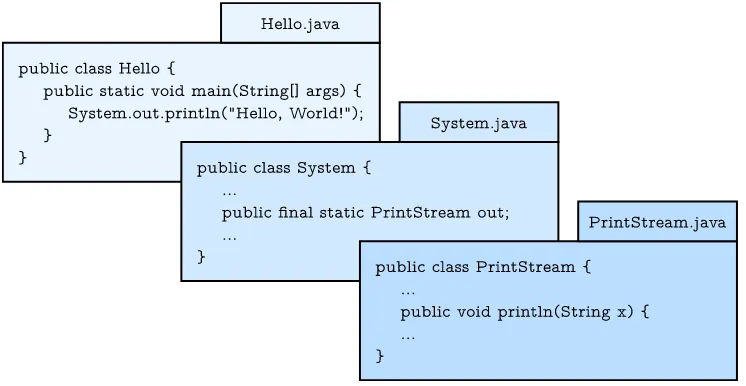
[image:52.612.99.472.290.483.2]As shown in Figure 3.1, System is defined in a file called System.java, and PrintStream is defined in PrintStream.java. These files are part of the Java library, which is an extensive collection of classes you can use in your programs.
Figure 3.1: System.out.println refers to the out variable of the System class, which is aPrintStream that provides a method calledprintln.
3.2
The Scanner class
The System class also provides the special value System.in, which is an InputStream that provides methods for reading input from the keyboard. These methods are not easy to use; fortunately, Java provides other classes that make it easier to handle common input tasks.
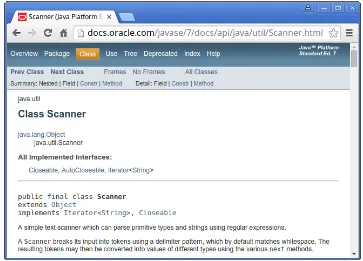
3.2 The Scanner class 35
package that contains classes so useful they are called “utility classes”. Before you can use Scanner, you have to import it like this:
import java.util.Scanner;
This import statement tells the compiler that when you say Scanner, you mean the one defined in java.util. It’s necessary because there might be another class named Scannerin another package. Using an import statement makes your code unambiguous.
Import statements can’t be inside a class definition. By convention, they are usually at the beginning of the file.
Next you have to create a Scanner:
Scanner in = new Scanner(System.in);
This line declares a Scanner variable named in and creates a new Scanner that takes input from System.in.
Scanner provides a method called nextLine that reads a line of input from the keyboard and returns a String. The following example reads two lines and repeats them back to the user:
import java.util.Scanner;
public class Echo {
public static void main(String[] args) { String line;
Scanner in = new Scanner(System.in);
System.out.print("Type something: "); line = in.nextLine();
System.out.println("You said: " + line);
System.out.print("Type something else: "); line = in.nextLine();
System.out.println("You also said: " + line); }
36 Chapter 3 Input and output
If you omit the import statement and later refer to Scanner, you will get a compiler error like “cannot find symbol”. That means the compiler doesn’t know what you mean by Scanner.
You might wonder why we can use the System class without importing it. System belongs to the java.lang package, which is imported automatically. According to the documentation,java.lang“provides classes that are funda-mental to the design of the Java programming language.” The String class is also part of the java.lang package.
3.3
Program structure
At this point, we have seen all of the elements that make up Java programs. Figure 3.2 shows these organizational units.
Figure 3.2: Elements of the Java language, from largest to smallest.
To review, a package is a collection of classes, which define methods. Methods contain statements, some of which contain expressions. Expressions are made up oftokens, which are the basic elements of a program, including numbers, variable names, operators, keywords, and punctuation like parentheses, braces and semicolons.
The standard edition of Java comes with several thousand classes you can
3.4 Inches to centimeters 37
library athttp://docs.oracle.com/javase/8/docs/api/. Most of the Java library itself is written in Java.
Note there is a major difference between the Java language, which defines the syntax and meaning of the elements in Figure 3.2, and the Javalibrary, which provides the built-in classes.
3.4
Inches to centimeters
Now let’s see an example that’s a little more useful. Although most of the world has adopted the metric system for weights and measures, some countries are stuck with English units. For example, when talking with friends in Europe about the weather, people in the United States might have to convert from Celsius to Fahrenheit and back. Or they might want to convert height in inches to centimeters.
We can write a program to help. We’ll use a Scannerto input a measurement in inches, convert to centimeters, and then display the results. The following lines declare the variables and create the Scanner:
int inch;
double cm;
Scanner in = new Scanner(System.in);
The next step is to prompt the user for the input. We’ll use print instead of printlnso they can enter the input on the same line as the prompt. And we’ll use the Scannermethod nextInt, which reads input from the keyboard and converts it to an integer:
System.out.print("How many inches? "); inch = in.nextInt();
Next we multiply the number of inches by 2.54, since that’s how many cen-timeters there are per inch, and display the results:
cm = inch * 2.54;
38 Chapter 3 Input and output
This code works correctly, but it has a minor problem. If another programmer reads this code, they might wonder where 2.54 comes from. For the benefit of others (and yourself in the future), it would be better to assign this value to a variable with a meaningful name. We’ll demonstrate in the next section.
3.5
Literals and constants
A value that appears in a program, like 2.54 (or" in ="), is called a literal. In general, there’s nothing wrong with literals. But when numbers like 2.54 appear in an expression with no explanation, they make code hard to read. And if the same value appears many times, and might have to change in the future, it makes code hard to maintain.
Values like that are sometimes called magic numbers(with the implication that being “magic” is not a good thing). A good practice is to assign magic numbers to variables with meaningful names, like this:
double cmPerInch = 2.54; cm = inch * cmPerInch;
This version is easier to read and less error-prone, but it still has a problem. Variables can vary, but the number of centimeters in an inch does not. Once we assign a value tocmPerInch, it should never change. Java provides a language feature that enforces that rule, the keywordfinal.
final double CM_PER_INCH = 2.54;
Declaring that a variable is final means that it cannot be reassigned once it has been initialized. If you try, the compiler reports an error. Variables declared as final are calledconstants. By convention, names for constants are all uppercase, with the underscore character (_) between words.
3.6
Formatting output
3.6 Formatting output 39
System.out.print(4.0 / 3.0);
The result is:
1.3333333333333333
That might be more than you want. System.out provides another method, called printf, that gives you more control of the format. The “f” in printf stands for “formatted”. Here’s an example:
System.out.printf("Four thirds = %.3f", 4.0 / 3.0);
The first value in the parentheses is a format string that specifies how the output should be displayed. This format string contains ordinary text followed by a format specifier, which is a special sequence that starts with a percent sign. The format specifier %.3f indicates that the following value should be displayed as floating-point, rounded to three decimal places. The result is:
Four thirds = 1.333
The format string can contain any number of format specifiers; here’s an ex-ample with two:
int inch = 100;
double cm = inch * CM_PER_INCH;
System.out.printf("%d in = %f cm\n", inch, cm); The result is:
100 in = 254.000000 cm
Like print, printf does not append a newline. So format strings often end with a newline character.
The format specifier%ddisplays integer values (“d” stands for “decimal”). The values are matched up with the format specifiers in order, so inchis displayed using %d, and cm is displayed using %f.
40 Chapter 3 Input and output
%d decimal integer 12345
%08d padded with zeros, at least 8 digits wide 00012345
%f floating-point 6.789000
%.2f rounded to 2 decimal places 6.79
Table 3.1: Example format specifiers
3.7
Centimeters to inches
Now suppose we have a measurement in centimeters, and we want to round it off to the nearest inch. It is tempting to write:
inch = cm / CM_PER_INCH; // syntax error
But the result is an error – you get something like, “Bad types in assignment: from double to int.” The problem is that the value on the right is floating-point, and the variable on the left is an integer.
The simplest way to convert a floating-point value to an integer is to use atype cast, so called because it molds or “casts” a value from one type to another. The syntax for type casting is to put the name of the type in parentheses a