Simple Computer
Security
Disinfect Your PC
CA
Simple Computer
Security
Disinfect Your PC
CA
Simple Computer Security: Disinfect Your PC
Published by
Wiley Publishing, Inc.
10475 Crosspoint Boulevard Indianapolis, IN 46256
www.wiley.com
Copyright © 2007 by Wiley Publishing, Inc., Indianapolis, Indiana Published simultaneously in Canada
ISBN: 978-0-470-06854-0
Manufactured in the United States of America 10 9 8 7 6 5 4 3 2 1
1B/QT/QR/QX/IN
No part of this publication may be reproduced, stored in a retrieval system or transmitted in any form or by any means, electronic, mechanical, photocopying, recording, scanning or otherwise, except as permitted under Sections 107 or 108 of the 1976 United States Copyright Act, without either the prior written permission of the Publisher, or
authorization through payment of the appropriate per-copy fee to the Copyright Clearance Center, 222 Rosewood Drive, Danvers, MA 01923, (978) 750-8400, fax (978) 646-8600. Requests to the Publisher for permission should be addressed to the Legal Department, Wiley Publishing, Inc., 10475 Crosspoint Blvd., Indianapolis, IN 46256, (317) 572-3447, fax (317) 572-4355, or online at http://www.wiley.com/go/permissions.
LIMIT OF LIABILITY/DISCLAIMER OF WARRANTY: THE PUBLISHER AND THE AUTHOR MAKE NO REPRESENTATIONS OR WARRANTIES WITH RESPECT TO THE ACCURACY OR COMPLETENESS OF THE CONTENTS OF THIS WORK AND SPECIF-ICALLY DISCLAIM ALL WARRANTIES, INCLUDING WITHOUT LIMITATION WAR-RANTIES OF FITNESS FOR A PARTICULAR PURPOSE. NO WARRANTY MAY BE CREATED OR EXTENDED BY SALES OR PROMOTIONAL MATERIALS. THE ADVICE AND STRATEGIES CONTAINED HEREIN MAY NOT BE SUITABLE FOR EVERY SITU-ATION. THIS WORK IS SOLD WITH THE UNDERSTANDING THAT THE PUBLISHER IS NOT ENGAGED IN RENDERING LEGAL, ACCOUNTING, OR OTHER PROFES-SIONAL SERVICES. IF PROFESPROFES-SIONAL ASSISTANCE IS REQUIRED, THE SERVICES OF A COMPETENT PROFESSIONAL PERSON SHOULD BE SOUGHT. NEITHER THE PUBLISHER NOR THE AUTHOR SHALL BE LIABLE FOR DAMAGES ARISING HERE-FROM. THE FACT THAT AN ORGANIZATION OR WEBSITE IS REFERRED TO IN THIS WORK AS A CITATION AND/OR A POTENTIAL SOURCE OF FURTHER INFORMA-TION DOES NOT MEAN THAT THE AUTHOR OR THE PUBLISHER ENDORSES THE INFORMATION THE ORGANIZATION OR WEBSITE MAY PROVIDE OR RECOMMEN-DATIONS IT MAY MAKE. FURTHER, READERS SHOULD BE AWARE THAT INTERNET WEBSITES LISTED IN THIS WORK MAY HAVE CHANGED OR DISAP-PEARED BETWEEN WHEN THIS WORK WAS WRITTEN AND WHEN IT IS READ.
For general information on our other products and services or to obtain technical support, please contact our Customer Care Department within the U.S. at (800) 762-2974, outside the U.S. at (317) 572-3993 or fax (317) 572-4002.
Library of Congress Cataloging-in-Publication Data: Available from Publisher
Trademarks: Wiley, the Wiley logo, and related trade dress are trademarks or registered
trademarks of John Wiley & Sons, Inc. and/or its affiliates, in the United States and other countries, and may not be used without written permission. The CA logo and related CA trademarks are trademarks or registered trademarks of CA International, Inc. All other trademarks are the property of their respective owners. Wiley Publishing, Inc., is not associated with any product or vendor mentioned in this book.
Credits
Executive Editor
Carol Long
Senior Development Editor
Tom Dinse Production Editor Angela Smith Copy Editor Kathryn Duggan Editorial Manager
Mary Beth Wakefield
Production Manager
Tim Tate
Vice President and
Executive Group Publisher
Richard Swadley
Vice President and Executive Publisher
Joseph B. Wikert
Project Coordinator
Jennifer Theriot
Graphics and Production Specialists Carrie Foster Brooke Graczyk Denny Hager Jennifer Mayberry Barbara Moore
Quality Control Technicians
Laura Albert Jessica Kramer
Proofreading and Indexing
Techbooks Estalita Slivoskey
Anniversary Logo Design
Acknowledgments
CA would like to thank all of the people who have contributed their technical, editorial, administrative, and/or creative expertise to the making of its first series of CA Simple computer solution books.
Laural Gentry
Diana Gruhn
Lawrence Guerin
Mark Haswell
Robyn Herbert
Christopher Hickey
George Kafkarkou
David Luft
Gary McGuire
Contents
Acknowledgments
vii
Introduction
xvii
Part I: Understand the Threats and Solutions 1
Chapter 1: Viruses, Spyware, and Other Malware
Infections
3
About Viral Infections 3 About Spyware 5
Adware 7
Prevalence of Malware 7 Threats Affect Online Behavior 8
Chapter 2: Spam, PC Intrusion, and Inappropriate
Content
11
About Spam 11 About PC Intrusion 12 Inappropriate Content 13
Chapter 3: Solutions to Online Threats
17
Combat Viruses, Spyware, and Other Malware 17 Get Rid of Spam 20 Stop PC Intrusions 21 Protect Your Family from Inappropriate Content 22 Active Protection: CA Internet Security Suite 23 Why Choose CA Internet Security Suite? 26 CA Anti-Virus: Complete Virus Protection 27 CA Personal Firewall: Complete Hacker and Privacy
Protection 29 CA Anti-Spyware: Comprehensive Anti-Spyware Solution 30 CA Anti-Spam: Complete Spam Protection 32 Blue Coat K9 Web Protection: Take Control 33
Part II: Detect and Eliminate Threats
35
Chapter 4: Installing CA Internet Security Suite 2007
37
Installing CA Internet Security Suite 2007 40
Step 1 40
Step 2 41
Step 3 41
Step 4 42
Step 5 43
Step 6 43
Step 7 44
Step 8 45
You’re Done! 45 Prior to Installing Blue Coat K9 Web Protection 46 Installing Blue Coat K9 Web Protection 46
Step 1 46
Step 2 47
Step 3 47
Step 4 48
Step 5 49
Step 6 49
Step 7 50
You’re Done! 51
Chapter 5: Using the CA Security Center
53
Open the CA Security Center 53 The CA Security Center Window 55 Status Information 57 Common Functions 58 Use the System Tray Icon 58
Chapter 6: Detecting and Eliminating Viruses
61
Disable the Real-time Scanner 80 Enable the Real-time Email Scanner 81 Disable the Real-time Email Scanner 83 Schedule Automatic Scans 84 Advanced Tasks 85 Exclude Files and Folders from Virus Scanning 86
Add Files or Folders to the On-demand
Scanner Exclusion List 86 Edit the On-demand Scanner Exclusion List 87 Add Files or Folders to the Real-time Scanner
Exclusion List 89 Edit the Real-time Scanner Exclusion List 90 Working with Quarantined Items 92 View Your Quarantined Items 92 Delete Items 93 Restore Items 95 Enable or Disable Automatic Quarantine 97 On-demand Scanning 97 Real-time Scanning 97 Real-time Email Scanning 98 Enable or Disable Additional Scanning Methods 99 On-demand Heuristic Scanning 99 Real-time Scanner Heuristic Scanning 100 Network File Scanning 102 Enable or Disable Virus Cleaning Methods 103 On-demand Scanning 103 Real-time Scanning 104 Real-time Email Scanning 104 Restore Scan Settings Defaults 105
Chapter 7: Stopping Hackers from Attacking Your PC 107
Email Screen 133 Protection Settings 134 Email Attachments 135 Reports Screen 136 Settings Tab 136 Log Viewer 137 Option Menus 138 General Options 138 Firewall Options 139 Privacy Options 140 Email Options 145 Common Tasks 147 Secure Now 147 Block All Internet Access 148 Restore Internet Access 149 Clean Cache Now 150 Advanced Tasks 150 Firewall 151 Add an Application 151 Edit Application Access 152 Add Expert Rules to an Application 154 Add Expert Firewall Rules 161 Zone Protection Levels 166 Change Your Safe Zone 167 Change Your Restricted Zone 168 Assign Network Adapters and Ports to Zones 170 Internet Browser Protection 171 Manage Sites 171 Change the Cookie Control Protection Level 173 Change the Ad/Pop-up Blocker Protection Level 175 Change the Mobile Code Protection Level 177 Cache Cleaner 179 Schedule the Cache Cleaner 179 Clean Cache Now 180 Customize the Cache Cleaner 181 ID Theft 182 Add Private Information to My Safe 182 Edit Private Information in My Safe 184 Add a Trusted Site 187 Edit a Trusted Site 188
Email 191
Enable or Disable Inbound Email Protection 191 Enable or Disable Outbound Email Protection 192 Add Attachments to Inbound Email
Protection List 193 Edit Attachments in the Inbound Email
Protection List 194 Configure Advanced Outbound Email
Chapter 8: Protecting Against Spyware and Adware
199
Anti-Spyware Scanning Methods 199 CA Anti-Spyware Introduction 201 Open CA Anti-Spyware 201 Overview Screen 204 Quarantine Screen 206 Options Screen 208 Reports Screen 209 Common Tasks 211 Secure Now 211 Perform a Quick Scan 212 Perform a Selective Scan 214 Turn Real-Time Protection On or Off 216 Schedule Automatic Scans 217 Advanced Tasks 219 Specify Scan Options 219 Exclude Files or Folders from On-Demand
Spyware Scanning 220 Add Files or Folders to the Excluded
Files/Folders List 220 Remove Items from the Excluded
Files/Folders or Spyware List 221 Exclude Files or Folders from Real-Time Spyware
Scanning 223 Add Files or Folders to the Excluded
Files/Folders List 223 Remove Items from the Excluded Files/Folders
List or Spyware List 224 Exclude Specific Spyware from Spyware Scans 226 For On-Demand Scanning Exclusion 226 For Real-Time Scanning Exclusion 226 Working with Quarantined Items 227 View Quarantined Items 227 Delete Items 228 Restore Items 229 Enable or Disable Automatic Quarantine 229 Scanning Multiple User Accounts 230 Configure Alert Sounds 231 Restore Scan Settings Defaults 232 Submit Files to CA Research 232
Chapter 9: Blocking Spam
235
Options Screen 241 Quarantine Tab 242 Senders Tab 243 Spam Score Tab 244 Search Tab 246 Advanced Tab 247 Rules Tab 248 Menu Buttons 249 Common Tasks 250 Review Quarantined Messages 250 Approve Messages and Senders 253 Block Messages and Senders 254 Search for Email Messages 256 Approved Senders List 257 View Approved Senders 257 Add Senders to Your Approved Senders List 259 Add Domains to Your Approved Senders List 260 Delete Senders from Your Approved
Senders List 261 Build Your Approved Senders List
Automatically 262 Blocked Senders List 263 View Blocked Senders 263 Add Senders to Your Blocked Senders List 265 Add Domains to Your Blocked Senders List 266 Delete Senders from Your Blocked Senders List 267 Advanced Tasks 268 Setting Options 268 Export Approved Senders Lists 269 Import Approved Senders Lists 270 Require Valid Digital Signatures 271 Require Matching Names from Senders 272
Chapter 10: Blocking Offensive Websites
275
Web Content Filtering Methods 276 Blue Coat K9 Web Protection Introduction 277 Open Blue Coat K9 Web Protection Administration 278 Administrator Login 280 View Internet Activity 281 View Activity Summary 282 View Activity Detail 284
Setup 285
Tasks 292 Unblock or Block Websites 292 Enable or Disable Google SafeSearch 293 Configure Time Restrictions 295 Hide or Show Admin Options on Block Page Alerts 296 Hide or Show Blocked URL Keywords on Block
Page Alerts 298 Change the Administration Password 299 Configure Audible Bark on Blocked Alert 300 Configure Time Out Settings 301
Chapter 11: Ensuring Up-to-Date Protection
305
Update CA Internet Security Suite 305 Configure Proxy Settings 307 Configure Automatic Update Options 309 View the Update Log 312
Introduction
T
his book discusses the primary issues and threats that face all computer and Internet users. Not only does it describe the symptoms, prevalence, and affects of the most common com-puter security problems, it also provides simple solutions so you and your family will have a safe and pleasant online and computing experience.The explanations, statistics, and real-world stories in this book ensure that you are informed about the facts when you’re dealing with Internet issues. And the included Internet security software and the step-by-step instructions will keep you properly protected.
How This Book Is Organized
This book is organized in a simple manner, which can be summed up as follows:
•
First you learn about the problems facing computer and Internet users.•
Then you learn about the solutions to combat those problems.•
Next you’ll prepare to implement the solutions.•
Finally the book will help you properly employ the solu-tions with step-by-step instrucsolu-tions, illustrasolu-tions, and tips.Part I: Understand the Threats and Solutions
The chapters in this part explain the main online and computing threats, and discuss solutions that can be implemented to combat them.
Chapter 1: Viruses, Spyware, and Other Malware Infections
Chapter 2: Spam, PC Intrusion, and Inappropriate Content
This chapter covers a few issues relating to Internet use, such as spam, intruders, and inappropriate online content. The information about these items that the chapter provides can help you protect yourself and your family while online.
Chapter 3: Solutions to Online Threats
This chapter helps you fight online threats by discussing simple solu-tions to protect your data, identity, and family. It provides ways to prevent the issues from arising and to protect yourself from unfore-seeable threats.
Part II: Detect and Eliminate Threats
The chapters in this part explain how to install, set up, and use two pieces of software that will protect you from the main online and computing threats discussed in Part I of this book. In addition, you’ll also learn how to keep your software up-to-date to ensure that you’re properly protected from the latest threats.
Chapter 4:
Installing CA Internet Security Suite 2007
This chapter steps you through the installation of CA Internet Security Suite 2007, which is included with this book. This software is your first step toward active protection against threats such as viruses, spyware, and PC intrusion.
Chapter 5:
Using the CA Security Center
This chapter discusses the CA Security Center, which lets you easily access and use the component products of CA Internet Security Suite—all from a single location.
Chapter 6:
Detecting and Eliminating Viruses
This chapter covers the CA Anti-Virus component of CA Internet Security Suite, which protects your personal documents and your PC by detecting and eliminating all types of viral infections.
Chapter 7:
Stopping Hackers from Attacking Your PC
Chapter 8:
Protecting Against Spyware and Adware
This chapter covers the CA Anti-Spyware component of CA Internet Security Suite. This software protects your identity and PC by detecting and eliminating spyware and other non-viral infections.
Chapter 9:
Blocking Spam
This chapter covers the CA Anti-Spam component of CA Internet Security Suite, which helps reduce or eliminate the spam you receive.
Chapter 10:
Blocking Offensive Websites
This chapter covers Blue Coat K9 Web Protection, which protects your family from web content that may be inappropriate for younger PC users.
Chapter 11:
Ensuring Up-to-Date Protection
This discusses how to keep your CA Internet Security Suite up-to-date with the latest product upup-to-dates. This ensures that you’re prop-erly protected from the latest Internet threats, such as new viruses, spyware, and security holes that are found every day.
Who Should Read This Book
Anyone who uses the Internet, email, or a computer should read this book.
Whether you are a self-proclaimed computer illiterate or a life-long IT professional, this book will inform you of the issues and threats associated with computer and Internet usage. It gives you the tools and understanding to properly implement solutions to combat those issues and threats, so you can be sure you don’t fall victim to Internet crimes and your privacy and identity are protected.
The CA Internet Security Suite 2007
CD-ROM Included with This Book
CA Internet Security Suite 2007 combines easy-to-use, award-win-ning, business-strength technology with preconfigured settings and automatic updates that take the guesswork out of PC security.
The following software applications are included in CA Internet Security Suite 2007:
•
CA Anti-Virus 2007•
CA Personal Firewall 2007•
CA Anti-Spyware 2007•
CA Anti-Spam 2007PART I
UNDERSTAND THE
THREATS AND SOLUTIONS
In This Part
Chapter 1: Viruses, Spyware, and Other Malware Infections
Chapter 2: Spam, PC Intrusion, and Inappropriate Content
Chapter 3: Solutions to Online Threats
You face many threats when you use a computer for surfing the web. Being familiar with these threats and how to battle them is necessary to ensure that your documents, identity, and family are protected from things such as viruses, spyware, and hackers.
1
VIRUSES, SPYWARE,
AND OTHER
MALWARE
INFECTIONS
T
his chapter will help you learn about the differ-ent types of viruses and infections that can plague your computer and destroy your files, including the following:•
Viruses•
Worms•
Trojans•
Spyware•
MalwareIt discusses the symptoms and prevalence of these infections, and the affects they can have on your PC’s data and performance.
About Viral Infections
A computer virus is a form of malicious software, also referred to as malware — a catch-all term for computer programs or executable code that do bad or unwanted things. Viruses can do the following if left unchecked:
•
Damage or delete files.Windows XP system files. The damage caused by viruses can range from rendering useless just a few files to affect-ing your entire computer, possibly requiraffect-ing you to rein-stall your operating system and start from scratch.
•
Slow down your computer.Viruses can run in the background, without being seen, and may cause your computer to run extremely slow.
•
Invade your email program.Some forms of viruses may wreak even more havoc by spreading themselves to the contacts in your address book.
Note
Not all computer problems are caused by viruses. Even though your computer, or a particular program, may not be running properly, this could be caused by other things, such as a bug (which is simply an error in the application’s code), or misconfiguration of software or hardware. Contact the software or hardware vendor to see if they are aware of any issues and if they can help.
Here are the main forms of viral infections, which are commonly referred to as viruses:
•
VirusA “generic” computer virus is a small program that attaches itself to another program or document, such as a word processing document, and replicates it with the potential to cause damage to your computer.
A more common type of virus is one that “invades” your email program and spreads to contacts in your address book.
•
WormThis type of virus is specifically engineered to make exten-sive use of email and security holes in software or operating systems to spread rapidly.
•
TrojanThis is a type of program that pretends to be something harmless, but has a damaging or otherwise malicious intent.
About Spyware
Spyware is a malware that is placed secretly on a computer. It tracks the user’s behavior and reports information back to a central source. Some types of spyware are simply annoying because they cause increased spam or unwanted pop-ups, but others can go so far as to threaten the security of your PC and personal information.
Did you know?
The AOL/NCSA report (December 2005) reports that 61% of home users have spyware/adware installed on their PC.
Spyware can act like a peeping tom or, at worse, a geeky thief. For example, it:
•
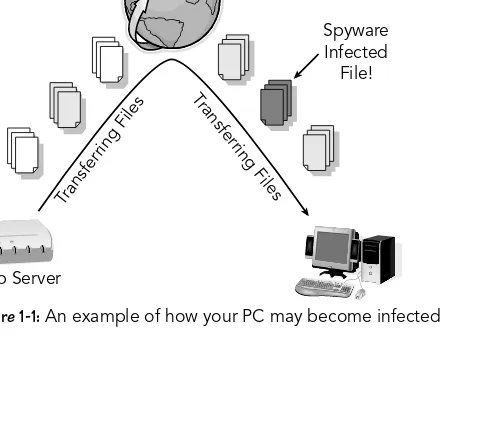
Can be installed on your PC without your consent. [image:30.540.105.349.347.563.2]Typically, spyware finds its way onto PCs by “piggyback-ing” onto a file, such as a computer game, a music file, or a free software program (as shown in Figure 1-1), or it can be downloaded from the Internet when you visit a particu-lar website. Pests such as spyware can often lurk silently on your computer until someone or something sets them off, or until they are found and properly removed.
Figure 1-1:An example of how your PC may become infected Internet
Spyware Infected
File!
Web Server Tran
sferri
ng Files
Tr an
sferri
n
Note
While spyware may seem similar to viruses and worms, it is much dif-ferent. Spyware tends to spread easily and is generally more resistant to quick-and-easy removal than most viruses.
•
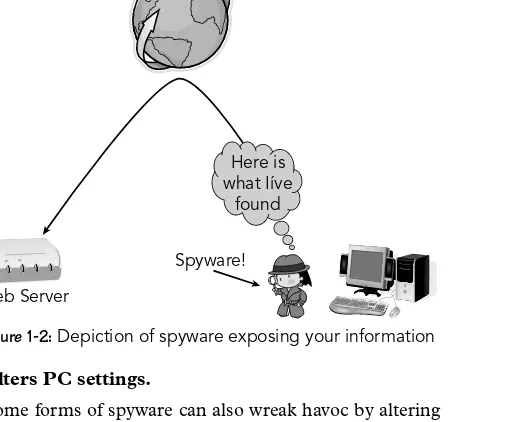
Compromises your data, computing habits, and identity. [image:31.540.75.334.249.460.2]Spyware can monitor information about your computing habits, such as what websites you visit, or record your key-strokes, which in the end can lead to identity theft. For example, spyware can record the keystrokes that you use while keying in a credit card number and send this number to a “cyberthief.” Figure 1-2 shows an example of how spyware sends your information to an unwanted, central source.
Figure 1-2:Depiction of spyware exposing your information
•
Alters PC settings.Some forms of spyware can also wreak havoc by altering computer settings like your web browser home page setting or the placement of your desktop icons. This doesn’t do much damage to your PC, but it’s really annoying.
Internet
Web Server
Spyware! Here is what Iíve
•
Slows down your PC.Spyware can rob your PC of system speed and Internet access efficiency. This can become a big problem when you’re trying to use the programs on your PC, watch videos online, or download large files.
Adware
Adware is similar to spyware — however, it may be installed with your consent. Therefore, make sure you thoroughly read installation agreements. Often there are clauses in the agreement that legally specify the installation of adware. In most cases, you probably won’t notice these statements unless you read the agreement carefully.
Adware comes complete with the following disadvantages:
•
Adware takes a step further than spyware.Just as with spyware, your Internet habits such as the sites you visit are tracked. In addition, however, adware uses that information to produce targeted advertising, such as pop-up ads, on your computer screen.
•
Displays arrays of annoying advertising.When infected with adware, you will likely see frequent pop-up ads appear out of nowhere. This may even happen every time you open your web browser.
•
Slows down your PC.The adware software working in the background and the bombardment of ads can slow your PC to a crawl.
Prevalence of Malware
After hearing descriptions of “spyware” and “adware,” 43% of Internet users, or about 59 million American adults, say they have had one of these programs on their home computer.
Note
Although most do not know the source of their woes, millions of home Internet users have experienced computer problems in the past year that are consistent with problems caused by computer pests and malware. For example, here are some statistics that indi-cate the presence of malware:
•
52% of home Internet users say their computer has slowed down or is not running as fast as it used to.•
51% of home Internet users say their computer started freezing up or crashing, requiring them to shut down or restart.•
25% of home Internet users say a new program appeared on their computer that they didn’t install or new icons sud-denly appeared on their desktop.•
18% of home Internet users say their Internet home page changed without them resetting it.In sum, 68% of home Internet users, or about 93 million American adults, have experienced at least one of these problems in the past year.
Sixty percent of Internet users who report computer problems do not know the source, but others cite viruses, spyware, adware, oper-ating system flaws, and hardware glitches as the culprits. Not every-one attempted a fix, but those who did often found that they needed help, paid or unpaid. About 28 million American adults ended up spending at least $100 to get their computer working again.
Threats Affect Online Behavior
The threat of unwanted programs being secretly loaded onto com-puters is becoming a serious matter. As a result, many online users have begun to take precautions by changing the way they use the Internet.
Overall, 91% of Internet users say they have made at least one change in their online behavior to avoid unwanted software pro-grams. Here are some of the changes:
•
48% of Internet users say they have stopped visiting partic-ular websites that they fear might deposit unwanted pro-grams on their computers.•
25% of Internet users say they have stopped downloading music or video files from peer-to-peer (P2P) networks to avoid getting unwanted software programs on their computers.2
SPAM, PC
INTRUSION, AND
INAPPROPRIATE
CONTENT
T
his chapter covers a few issues that relate to Internet usage, such as the following:•
Spam email•
Internet intruders and hackers•
Inappropriate online contentThis chapter helps you understand these items to better protect yourself and your family while online.
About Spam
Spam is the common term for electronic “junk mail” or
unwanted messages sent to a person’s email account. Spam can affect your PC and productivity, and it can also be a serious threat to your security and privacy.
Did you know?
The following are the main issues relating to spam:
•
Spam is a serious problem.The billions of spam messages circulating across the Internet can disrupt email delivery, degrade system per-formance, and reduce overall productivity.
•
Just pressing the Delete button may not be enough.Deleting spam emails seems like the simple solution, but if you add up the time spent deleting every spam email you receive, you lose a significant amount of productivity. In addition, just deleting spam does not stop it.
•
Spam can lead to worse things.Spam messages may contain offensive or fraudulent mate-rial and can even be used to spread viruses.
•
Spammers are smart.Along with other hijacked home computers, spammers may be using your PC to send unsolicited and possibly offensive email messages.
Did you know?
The FTC reports as much as two-thirds of spam is deceptive or false and violates the law, and as much as 30% of all spam is relayed by compro-mised home and home office PCs, but controlled from afar.
About PC Intrusion
Every PC connected to the Internet is a potential target for hackers. Computers are under constant attack from cyber vandals. When it comes to security, most people do not realize three very important things:
•
Internet access goes in both directions.•
Intruders can take advantage of many things.There are thousands of services that computers use, and some are more vulnerable to hackers than others. For example, most Internet users access websites through web browsers and email client software to send and receive email. However, there are thousands of other services that could be vulnerable to vandalism, including those used to send files, receive files, share printers, share files, and so on.
Did you know?
A typical unprotected PC will come under attack within 20 minutes of being connected to the Internet, says the SANS Institute.
•
By default, your PC is extremely vulnerable.In the interest of ease-of-use, default settings on most machines provide wide-open access to services. To make the benefits of networking available to everyone, most manufacturers ship their systems with default configura-tions that allow open access among systems that might want to communicate with each other. The idea is to remove obstacles so that exchanging services and informa-tion between computers is easy. But this also makes them vulnerable to abuses, such as the following:
•
Invading your privacy and stealing copies of your files or emails.•
Destroying your files.•
Eavesdropping on your communications.•
Installing malicious programs on your machines with-out your knowledge and permission.Did you know?
According to the FTC, 9.9 million people suffered some form of identity theft in 2003, where PC intrusion and other online threats may have con-tributed to this problem, costing consumers approximately $5 billion.
Inappropriate Content
Being a part of the first generation of Internet parents may be a bit overwhelming. Nevertheless, you need to know about the following issues:
•
It really happens.Even when they don’t intend to, most children run into pornography, gambling, and even predators on the Internet. PC infections such as viruses and adware can also contribute to inadvertent exposure of inappropriate content to your children.
Did you know?
70% of all 15-17 year-olds who have ever gone online have accidentally stumbled across pornography while there, and 23% “very” or “some-what” often. (Kaiser Family Foundation study, 2001)
43% of children said they do not have rules about Internet use in their homes. (Time/CNN Poll, 2000)
•
Internet predators.Although some online chat rooms are monitored and viola-tors are kicked off, many of these are full of foul language, violence, and sexual conversations. Even more frightening, instant messaging conversations are typically not moni-tored at all — opening the doors for Internet predators to take advantage of your children.
Did you know?
61% of parents say their teens participate in chat rooms and/or use instant messaging, as reported in the Parents’ Internet Monitoring Study by the Ketchum Global Research Network.
One in five children, ages 10-17, has received a sexual solicitation over the Internet. (“The Web’s Dark Secret”; Newsweek, 19 March, 2001)
Social networking sites, such as MySpace and Friendster, can also pose a real danger for children. Teenagers and even preteens post personal information and photographs on these sites — potential gold mines for predators.
Did you know?
•
A new language.3
SOLUTIONS TO
ONLINE THREATS
D
on’t be a victim of online threats — fight back by implementing the simple solutions provided in this chapter to protect your data, identity, and family.Fighting these online threats involves two main tasks:
•
Active ProtectionInstalling and properly using an Internet security suite — which includes protection against threats such as viruses, spyware, and PC intrusion — is vital for proper protection against the hackers, intruders, and other wrongdoers.
•
Preventative MeasuresEven though security programs may actively detect and eliminate any threats your PC encounters, you should always help prevent these issues from ever arising.
Combat Viruses, Spyware,
and Other Malware
Ensure your PC is free and stays free of malware infections by following the tips in this section.
Active Protection
You need these programs to help detect and eliminate any malware that sneaks its way onto your PC.
•
Download updates regularly.New viruses and other malware emerge every day, and your security software needs to know about them in order to provide full protection.
Security software programs, known as signature file updates, usually allow you to specify how to handle update down-loads. The best option is to set the program to automati-cally update when needed, so you don’t have to worry — you’ll always be fully protected.
•
Run frequent full-system scans.Even though most security software programs actively scan your PC for malware, you should also perform a full system scan at least once a month.
Preventative Measures
•
Keep your system up-to-date.Malware often takes advantage of security holes in operat-ing systems and software programs. You should always install any available updates for your operating system, such as Windows, and any common software you use.
You can visit Microsoft’s Windows update service at:
http://windowsupdate.microsoft.com
•
Use caution when downloading files on the Internet.Only download files from reputable websites by looking for signs, such as a privacy statement, full contact information, and SSL encryption of sensitive information, typically indi-cated by a padlock in the lower-right corner of your web browser. In addition, be wary of websites referred to you by unsolicited emails or for offers that seem too good to be true.
To help protect yourself, you shouldn’t use file-sharing programs (also known as peer-to-peer or P2P ). In addi-tion, trading someone else’s copyrighted work is illegal, and you may end up in legal trouble.
•
Be careful with email.•
Don’t download or open unsolicited email attach-ments.Only download and open email attachments from people you know.•
Watch for phishing scams. Criminals frequently sendemails that claim to be from a legitimate enterprise in an attempt to get the user to provide private informa-tion that will be used for identity theft. This is referred to as phishing.
For example, identity thieves may send a fake email say-ing that a particular account needs to be updated in order to prevent cancellation or fees. In the email is a link to a website that has a similar address and looks just like the organization’s real site, when in reality, it sends your login and other personal information to the thief.
Make sure you don’t become a victim — if you receive emails that ask you to do something — such as login, update information, verify information, or provide sensitive information you should try to verify that it’s indeed a real request and not from a thief.
•
Check your account (via website or phone) to see ifyou really need to take any action specified in the email. However, don’t click any links in the email and call only customer service numbers that you know to be legiti-mate. To access your account and check phone numbers, you should find the institution’s actual website through your browser, not with the URL listed in the email.
•
Check for security alerts. Security softwaresome-times can help identify fraudulent emails. If you have this type of software, try to verify the authenticity of the sender or email message.
•
Surf the Web with caution.Be careful when browsing the Internet to help reduce the amount of infections your PC receives. Follow these guidelines:
•
Review your web browser settings. You should reviewand set your web browser’s privacy and security settings. If necessary, refer to your browser’s help section to learn more about these settings and recommendations.
•
Don’t visit illegal or adult sites. Visiting websites that•
Disconnect from the Internet when you’re away.Using “always on” Internet connections such as cable and DSL increases your chances of some infections and intrusions, because your PC is always connected to the Internet. This doesn’t mean you should switch back to dial-up Internet — however, you may want to discon-nect from your “always on” condiscon-nection when you don’t plan on using it for a long period of time.
Get Rid of Spam
Tired of sorting through your junk email? This section provides some solutions that will help.
Active Protection
•
Use Anti-Spam software.Not all anti-spam applications work the same; however the following are two of main methods used to get rid of spam:
•
Sender filtering: This method allows only messagesfrom your approved sender list to reach your inbox — all other mail is quarantined for later review.
This is typically the best method to properly fight spam.
•
Key word filtering: This method filters out emailmessages that contain certain key words or phrases, which are defined by you or others.
Preventative Measures
•
Keep your email address private.Be careful whom you give your email address to. Before giving your address out on an online form, check if there is a website privacy policy. This policy typically informs you of how they handle your personal information.
Signing up for free offers seen online or by email may dra-matically increase your chances of receiving spam messages.
Spammers scan websites for email addresses. Therefore, be careful about where your address is listed on the Web.
example, instead of “[email protected],” you could use “user AT email DOT com.”
Most people in online forums know this trick and use it now. You could be one step ahead of the spammers and add extra spaces, such as “user AT email DOT com.”
Stop PC Intrusions
Here are solutions to help ensure your PC doesn’t get invaded.
Active Protection
•
Use a personal firewall.A firewall acts as a barrier between your PC and the Internet, preventing unauthorized access to your PC and is an impor-tant first line of defense for computer security. It prevents unauthorized access (unauthorized programs or unauthorized Internet users) to your PC and hides your Internet-connected PC from view. All information leaving and entering your PC must pass through the firewall. It ultimately helps keep hack-ers away from your phack-ersonal and confidential data.
Preventative Measures
•
Keep your system up-to-date.Malware often takes advantage of security holes in operat-ing systems and software programs. You should always install any available updates for your operating system, such as Windows, and any common software you use.
You can visit Microsoft’s Windows update service by visiting:
http://windowsupdate.microsoft.com
•
Use caution when downloading or sharing files on the Internet.Only download files from reputable websites by looking for signs, such as a privacy statement, full contact information, and SSL encryption of sensitive information, typically indi-cated by a padlock in the lower right hand of your web browser. In addition, be wary of websites referred to you by unsolicited emails or for offers that seem to good to be true.
trading someone else’s copyrighted work is illegal and you may end up in legal trouble.
•
Disconnect from the Internet when away.Using “always on” Internet connections such cable and DSL increases your chances of some infections and intru-sions as your PC is always connected to the Internet. This doesn’t mean you should switch back to dial-up Internet — however, you may want to disconnect from your “always on” connection when you don’t plan on using it for a long period of time.
Protect Your Family from
Inappropriate Content
Follow the tips in this section to protect your family from offensive or inappropriate content on the Internet.
Active Protection
•
Use web content filtering software.Web content filters, also referred to as parental controls, allow you to control the Internet content that is delivered to your PC. The functions and features of these filters vary greatly; however, they all generally allow you to set what content you want to allow and disallow based upon con-tent categories, keywords, and other settings.
Keep in mind, inappropriate pop-up windows and websites can just appear on screen even if the user isn’t trying to view such material. Therefore, to protect your family you should use web content filtering to ensure only the approved material is displayed.
Preventative Measures
•
Make Internet rules.•
Monitor your children’s Internet activity.Even if you use a parental control filter, it’s a good idea to know your children’s online habits, such as what websites are they visiting, who they talk to, how long they stay con-nected, and so on.
•
Keep an eye on your children.Another way to help make the Web safer for your children is to place the family PC in an exposed area, rather than in a secluded area where you can’t keep an eye on them.
•
Know the Internet lingo.If you currently review your child’s online communica-tions, or if you plan to, here are some common acronyms you should know:
•
LOL (Laugh Out Loud)•
BRB (Be Right Back)•
A/S/L (Age/Sex/Location)•
POS (Parent Over Shoulder)•
P911 (Parent Alert)•
LMIRL (Let’s Meet In Real Life)•
JK (Just Kidding)On the Web
The FBI’s A Parent’s Guide to Internet Safety is available at http://www .fbi.gov/publications/pguide/pguidee.htm.
Active Protection: CA Internet
Security Suite
CA Internet Security Suite, developed by CA (formerly Computer Associates), provides comprehensive active protection against all the online threats discussed in this book to help ensure you and your family have a great online experience.
Consumer Story
My PC continually re-booted itself while I was using various pro-grams, making it impossible for me to get any work done.
I chose CA Internet Security Suite, which immediately identified and removed the virus from my PC. Now it runs like new.
Barry Stradtner
Mishawaka, IN
Figure 3-1:CA Internet Security Suite product box
The following software applications are included in CA Internet Security Suite:
•
CA Anti-VirusIf you’re unprotected, viruses can invade through email, downloads, and even web pages. From there, they can destroy your photos, music, documents, and more. CA Anti-Virus provides complete protection against viruses, worms, and Trojan horse programs.
•
CA Personal Firewall•
CA Anti-SpywareSpyware can steal your credit card numbers and pass-words, switch your home page, redirect your web searches, display annoying ads, and slow your PC to a crawl. CA Anti-Spyware (formerly eTrust PestPatrol Anti-Spyware) protects against a wide range of spyware threats.
•
CA Anti-SpamCA Anti-Spam makes sure you get messages from people you know, and redirects messages from people you don’t. It works seamlessly with Microsoft Outlook and Outlook Express to stop unwanted spam and fraudulent phishing scams.
•
Blue Coat K9 Web ProtectionThe Internet is a fascinating place, full of valuable infor-mation. But as a parent, you need a good set of guidelines about where it’s safe to go. Blue Coat K9 Web Protection provides a family-safe web experience, where you control the Internet content that enters your home.
Note
To access these applications, CA Internet Security Suite provides a con-venient portal screen, known as the CA Security Center (see Figure 3-2). You can get to this screen by clicking an icon in your system tray or by selecting it from the Start menu.
Why Choose CA Internet
Security Suite?
•
Developed by a trusted company.CA provides software to 98% of Fortune 500 companies — which are among the world’s largest — and to millions of home users worldwide.
•
Uses powerful technology.CA Internet Security Suite gives you the same powerful technology used by the world’s largest businesses, in a format that’s both easy-to-use and affordable.
•
Certified and award winning.CA Internet Security Suite components are ICSA-certified, and have earned numerous other certifications and awards, including Virus Bulletin 100%, West Coast Labs Checkmark certification, and PC Magazine Editor’s Choice.
•
Smart design.The small hard drive footprint and efficient use of system resources ensure fast installation, quick scans, and superior usability.
•
Keeps you protected.With free daily protection updates, free upgrades to the lat-est product features, and free 24 x 7 online support, your one-year subscription helps protect you from the latest threats.
Consumer Story
My Internet experience had become so miserable that I consid-ered disconnecting altogether. I couldn’t even log on to check the news or weather without being bombarded by relentless pop-ups, adware, spyware and countless other malicious programs.
CA’s user-friendly Internet Security Suite virtually eliminated my Internet problems.
Tim Pitts
CA Anti-Virus: Complete
Virus Protection
Here are some of the distinctive features and functionalities of CA Anti-Virus (see Figure 3-3):
Figure 3-3:CA Anti-Virus main screen
•
Real-time, scheduled, and on-demand scanning.Allows you to run a scan at any time, or schedule scans at preselected intervals to meet your needs. Real-time scan-ning proactively stops viruses by scanscan-ning files when they are opened, closed, or saved to your PC.
•
Automatic email scanning.Protects against viruses that arrive via email, before they can cause damage.
Consumer Story
My computer had slowed down and even began to lock up. More than 1,800 viruses had infected my hard drive including some vital files in my Windows folder. I had to format my hard drive and rein-stall Windows to reclaim my computer.
Before going online, I installed CA Internet Security Suite and haven’t had any more Internet related problems.
David Hamilton
•
File quarantine.Removes malware from its current location to a secure quarantine area where you can safely review the file (see Figure 3-4).
Figure 3-4:CA Anti-Virus Quarantine screen
•
Daily, fully automatic updates.Easily and effectively addresses the primary reason PC users suffer attacks: out-of-date signature files.
Consumer Story
My computer crashed several times, causing me to either reboot the system or reinstall the entire operating system.
After installing CA Anti-Virus, my system has been running without failure and viruses are quickly removed.
Baskaran Muthu
CA Personal Firewall: Complete
Hacker and Privacy Protection
Here are some of the distinctive features and functionalities of CA Personal Firewall (see Figure 3-5):
Figure 3-5:CA Personal Firewall main screen
•
Pre-configured security settings.Provide you with optimal protection right out of the box, and reduce firewall warnings for known programs.
•
Customized alerts.Provide instant recommendations on how to handle pro-grams’ attempts to access the Internet, intrusion attempts, and other security events.
•
Ad blocking.Cuts out annoying pop-up and pop-under ads, letting you surf in peace.
•
ID theft protection.Consumer Story
I found programs on my computer that I didn’t voluntarily download. The programs that I did use would freeze while I was re-directed to these other programs. I’ve lost a lot of valuable information.
Now I use CA’s firewall and anti-virus program and have not had a problem since.
Robert Fuller
Manorville, NY
CA Anti-Spyware: Comprehensive
Anti-Spyware Solution
Here are some of the distinctive features and functionalities of CA Anti-Spyware (see Figure 3-6):
Figure 3-6:CA Anti-Spyware main screen
•
Comprehensive spyware detection and removal.•
Real-time spyware protection.Prevents and removes unwanted applications, prevents malicious changes to Windows files and settings, and pro-tects browser settings for your home page, favorites, and search pages.
•
Scheduled and on-demand scanning.You can launch scans on demand or schedule regular scans to meet your needs. Custom scans allow you to select spe-cific disks, files, and folders to scan. Figure 3-7 shows an example of a completed spyware scan.
Figure 3-7:CA Anti-Spyware Scan screen
•
Detailed scan results.Shows the specific threat level of any spyware found, and allows you to link to the CA Spyware Information Center for more details.
Consumer Story
A cyber criminal gained access to my PayPal account through the Internet, and purchased nearly $1,000 in goods — with my money.
After discovering that, I installed CA Anti-Spyware and haven’t had any problems since then.
Geof Steele
Consumer Story
Without anyone using the computer, the Internet connection would light up and our PC would run as if it had a mind of its own. Someone was using it — unfortunately, it was no one we knew. CA Anti-Spwyare found and removed several spyware programs. Most of all it blocked the intruder’s access to our PC.
Thomas Horton
Mount Airy, NC
CA Anti-Spam: Complete
Spam Protection
Here are some of the distinctive features and functionalities of CA Anti-Spam (see Figure 3-8):
Figure 3-8:CA Anti-Spam toolbar
•
Blocks unwanted spam.Allows only messages from your approved senders list to reach your email inbox — all other mail is quarantined for you to review later.
•
Prevents phishing attacks and email fraud.Automatically verifies the authenticity of messages, and displays a clear visual warning on suspicious emails.
Consumer Story
A barrage of spam messages soliciting drugs, sex, and other offen-sive content streamed into my inbox. Dodging the unwanted mes-sages was very time consuming.
By downloading CA Anti-Spam, I’ve almost eliminated any unwanted messages.
Jayne Stowell
•
Integrates seamlessly with Microsoft Outlook/ Outlook Expresss.Provides easy access to all features directly from the tool-bar in Microsoft Outlook and Outlook Express.
•
Email search.Creates a search index of all information stored in
Microsoft Outlook, so you can quickly and easily find mes-sages, attachments, contacts, appointments, journal entries, and notes.
Blue Coat K9 Web Protection:
Take Control
Here are some of the distinctive features and functionalities of Blue Coat K9 Web Protection (see Figure 3-9):
Figure 3-9:Blue Coat K9 Web Protection admin screen
•
Customizable web filtering policy.•
Administrator password protection.Allows you to set a password to block others from modify-ing settmodify-ings or disablmodify-ing the filtermodify-ing function.
•
Extensive reporting capabilities.Offers detailed reports of all Internet activity, including all websites visited and blocked, the category ratings of the sites, and the URLs of visited sites.
Consumer Story
Allowing our children Internet access made us uneasy, especially knowing of a rash of online predators living in the surrounding area.
To solve the problem, we installed CA Internet Security Suite with Parental Controls. Now we allow our children to enjoy the benefits of Internet activity with less worry.
Richard DeHart
PART II
DETECT AND ELIMINATE
THREATS
In This Part
Chapter 4: Installing CA Internet Security Suite 2007
Chapter 5: Using the CA Security Center
Chapter 6: Detecting and Eliminating Viruses
Chapter 7: Stopping Hackers from Attacking Your PC
Chapter 8: Protecting Against Spyware and Adware
Chapter 9: Blocking Spam
Chapter 10: Blocking Offensive Websites
Chapter 11: Ensuring Up-to-Date Protection
The chapters in this part explain how to install, set up, and use two pieces of software—CA Internet Security Suite and Blue Coat K9 Web Protection—which will protect you from the major online and computing threats discussed in Part I. In addition, you learn how to keep your software up-to-date to ensure that you’re properly pro-tected from the latest threats.
4
INSTALLING
CA INTERNET
SECURITY SUITE 2007
I
nstalling CA Internet Security Suite 2007, which is included with this book, is your first step toward active protection against threats such as viruses, spyware, and PC intrusion — which is vital in this day and age to guard against hackers, intruders, and other wrongdoers.Operating System Support
CA Internet Security Suite 2007 requires that you have one of the following operating systems installed:
•
Microsoft Windows 98 (Second Edition)•
Microsoft Windows ME•
Microsoft Windows 2000 (with Service Pack 3 or later)•
Microsoft Windows XP Home Edition or Professional Edition (with Service Pack 1 or later)You can visit the CA consumer support web site at
http://www.ca.com/consumer/supportfor the latest
information about supported operating systems.
Note
Windows Server based operating systems are not supported.
System Requirements
The following requirements must be met or exceeded for a full installation of CA Internet Security Suite 2007:
•
60MB free hard disk space•
CD-ROM drive•
Internet Explorer 5.5 or later•
Internet accessIndividual Programs
Tables 4-1 through 4-4 list the system requirements (based on your operating system) that must be met or exceeded for the particular programs to install and run correctly.
Table 4-1:Microsoft Windows 98 (Second Edition)
Program Processor Memory Disk Speed (RAM) Space CA Anti-Virus 300MHz 256MB 25MB CA Personal Firewall 300MHz 256MB 25MB CA Anti-Spyware 300MHz 256MB 25MB CA Anti-Spam 300MHz 128MB 25MB
Table 4-2:Windows ME
Table 4-3:Windows 2000 (Service Pack 3 or later)
Program Processor Memory Disk Speed (RAM) Space CA Anti-Virus 300MHz 256MB 25MB CA Personal Firewall 300MHz 256MB 25MB CA Anti-Spyware 300MHz 256MB 25MB CA Anti-Spam 300MHz 128MB 25MB Blue Coat K9 Web 233MHz 64MB 25MB Protection
Table 4-4:Windows XP (Service Pack 1 or later)
Program Processor Memory Disk Speed (RAM) Space CA Anti-Virus 300MHz 256MB 25MB CA Personal Firewall 300MHz 256MB 25MB CA Anti-Spyware 300MHz 256MB 25MB CA Anti-Spam 300MHz 128MB 25MB Blue Coat K9 Web 233MHz 64MB 25 MB Protection
In addition, the following software is required for CA Anti-Spam installations:
•
One or more POP3 or MAPI email accounts•
One of the following products:•
Microsoft Outlook 2000, 2002, or 2003•
Microsoft Outlook Express 5.5, 6.0, or laterNote
Before Installing CA Internet
Security Suite 2007
Make sure you follow these directions and recommendations before starting the installation:
•
Uninstall any firewall software running on your computer. You must uninstall this software and reboot your computer before you install CA Internet Security Suite. Failure to do so may cause conflicts between the two products.Note
However, if you use Windows XP’s firewall utility don’t worry about dis-abling or uninstalling it. CA Internet Security Suite will detect if the Windows Firewall utility is present (and running) and will disable it prior to installation. When CA Personal Firewall is uninstalled, it will then reenable Windows Firewall.
•
Uninstall any anti-virus software other than a previous ver-sion of eTrust(r) EZ Antivirus, or CA Anti-Virus. You must uninstall this software and reboot your computer before you install CA Internet Security Suite. Failure to do so may cause conflicts between the two products, resulting in a system failure.•
Uninstall or shut down any existing anti-spyware software running on your computer before you install CA Internet Security Suite.•
Close all programs currently running on your computer before you install the product.Installing CA Internet
Security Suite 2007
Follow these steps to install CA Internet Security Suite 2007, which is included with this book.
Step 1
Insert the CA Internet Security Suite installation CD into your drive.
Note
If the installation does not start automatically, you can launch it by brows-ing to the drive containbrows-ing the CD, and double-clickbrows-ing the setup.exe
file.
Select Install from the Installation Menu.
Step 2
The welcome message appears, shown in Figure 4-1.
Figure 4-1:Welcome message
Click Next to continue.
Step 3
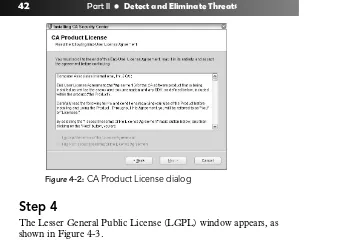
The CA Product License dialog appears, as shown in Figure 4-2, and displays the End-User License Agreement.
Read the End-User License Agreement.
If you agree with the terms of the agreement, scroll to the end of the agreement, select the I accept the terms of the License Agreement option button, and click Next.
Note
Figure 4-2:CA Product License dialog
Step 4
[image:67.540.19.361.26.278.2]The Lesser General Public License (LGPL) window appears, as shown in Figure 4-3.
Figure 4-3:Lesser General Public License (LGPL) window
Read the LGPL agreement.
Step 5
The Enter License Key window appears, as shown in Figure 4-4.
Figure 4-4:Enter License Key window
Enter your license key and click Next.
Note
You will find your license key in the CD pocket along with the CA Internet Security Suite 2007 CDs bundled with this book.
Step 6
The Installation Path dialog appears, as Figure 4-5 shows.
Select the folder in which you want to install CA Internet Security Suite and click Next.
Note
The default installation folder is C:\Program Files\CA\CA Internet Security Suite. To install the product to a different folder, enter the folder
name in the Installation Path field or click Browse to select the appropriate folder.
Step 7
The Product Options window appears, as shown in Figure 4-6.
Figure 4-6:Product Options window
Select the corresponding check boxes of the security software that you want to install, and then click Install.
The installation begins copying files. It might take several minutes, depending on the speed of your computer and connection. During the process, the installation status is displayed. If you are connected to the Internet, the installation also downloads the latest product updates.
Note
If you previously registered your CA product using the license key entered, the Product Registration dialog box does not appear and you can skip the next step.
Step 8
If you are connected to the Internet, ensure that you register your product.
If you are not currently connected to the Internet, you can register when your computer is online by opening the CA Security Center and clicking Help, then click Product Registration.
You’re Done!
The Installation Complete dialog box appears (see Figure 4-7).
Figure 4-7:Installation Complete dialog
Specify if you would like to restart your computer now or later, and then click Complete.
Warning
It is advised that you restart immediately, as you will not have any pro-tection until your computer is restarted.
Prior to Installing Blue Coat
K9 Web Protection
Users of CA Internet Security Suite 2007 (with a valid license) are automatically entitled to a one-year license for Blue Coat K9 Web Protection, so keep in mind:
•
You must complete the installation of CA Internet Security Suite 2007 on your computer (including restarting your PC) before starting the Blue Coat K9 Web Protection installation.Installing Blue Coat
K9 Web Protection
Follow these steps to install Blue Coat K9 Web Protection, which is included with this book.
Step 1
Insert your Blue Coat K9 Web Protection installation CD into your drive.
The Setup Wizard, seen in Figure 4-8, will begin automatically.
Figure 4-8:Blue Coat K9 Web Protection Setup Wizard
Note
If your installation fails to start automatically, you can launch it by browsing to the drive containing the CD, and double-clicking the
Click Next to continue.
Step 2
On the next screen, shown in Figure 4-9, you will be prompted to accept the K9 Web Protection license agreement.
Figure 4-9:K9 Web Protection License Agreement dialog
Click the I Agree button to accept the agreement.
Step 3
Now you will see the Choose Install Location dialog box, shown in Figure 4-10.
Blue Coat K9 Web Protection defaults to C:\Program Files\Blue Coat K9 Web Protection. If you want to install the software in a folder other than this one, click the Browse button and select a dif-ferent location.
When finished, click Next.
Step 4
You will now see the Install License dialog box, as shown in Figure 4-11.
Figure 4-11:Install License dialog
Obtain your Blue Coat K9 Web Protection License as follows:
1.
Click the Request K9 Web Protection License (or Get License...) link.This will take you to the Blue Coat K9 Web Protection website, as seen in Figure 4-12.
2.
Fill out the license request form, and then click Request License.Figure 4-12:K9 Web Protection license request Web page
Note
Your email account (and/or your Internet Service Provider) may be set to disregard unwanted email (known as “spam”). To ensure that you get your K9 license email, configure your mail account to accept messages from [email protected]. If you do not see the K9 license email
shortly after requesting your license, check your email account anti-spam settings, and check your “junk” folder to see if the K9 license email was routed there.
Step 5
Copy your K9 license from your email message, paste it into the Enter License box, and click Next.
Step 6
Figure 4-13:Install Password dialog
Enter and verify your password, and then click Next.
Note
The password must be 15 characters or less and can only include alphanumeric characters (A–Z and 0–9) as well as the following: !, @, #, $, %, ^, *, (, ), {, and }.
This password will enable you to access the K9 Web Protection administration interface, configure the Web filtering rules according to your needs, and override blocked pages. It is also required to uninstall the application.
Step 7
Now you will see the Shortcut Placement dialog box, shown in Figure 4-14.
Choose which shortcuts you want by checking the appropriate boxes, and then click Install.
You’re Done!
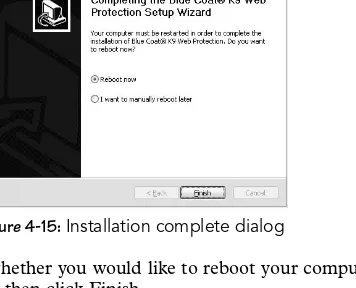
[image:76.540.102.280.148.292.2]The Installation Complete dialog appears, as shown in Figure 4-15.
Figure 4-15:Installation complete dialog
Specify whether you would like to reboot your computer now or later, and then click Finish.
Warning
It is advised that you restart immediately, as you will not have any pro-tection until your computer is restarted.
Congratulations! Blue Coat K9 Web Protection is now installed on your system
Blue Coat K9 Web Protection will begin (after the reboot) protecting your system with the Default Internet Protection Level.
5
USING THE CA
SECURITY CENTER
T
he CA Security Center lets you easily access and use the component products of CA Internet Security Suite — all from a single location.Open the CA Security Center
You can open the CA Security Center in any of the following ways:
•
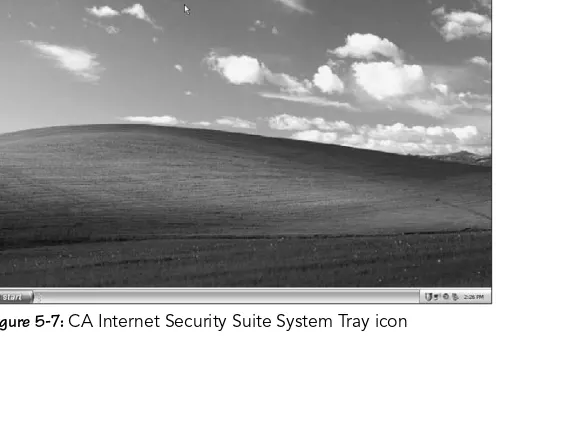
A quick double-click.By far the easiest way to access CA Security Center is by double-clicking on the system tray icon, which is in the lower-right corner of your desktop (see Figure 5-1).
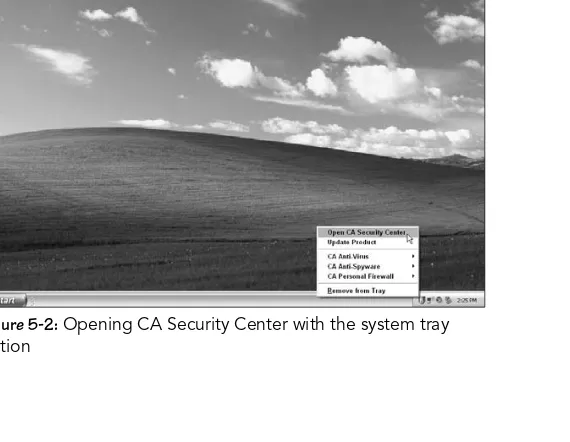
•
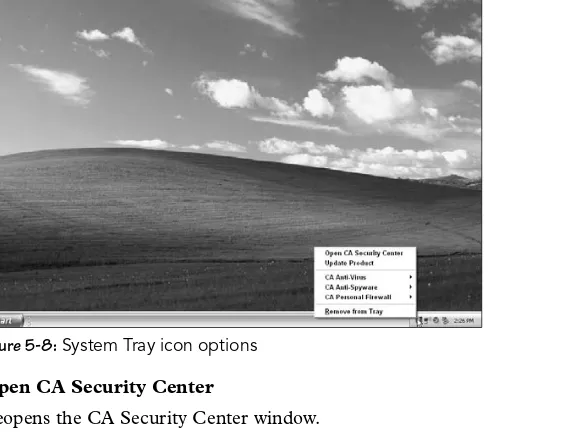
System tray right-click option.Figure 5-1:Opening CA Security Center with a quick double-click
[image:79.540.74.359.310.531.2]•
Start menu.If you have something against using the system tray icon, or if it has disappeared, don’t worry. Browse to the follow-ing path on your Start menu:
Programs (or All Programs) ➞CA ➞CA Internet Security Suite
[image:80.540.101.390.165.383.2]Then click CA Security Center, as shown in Figure 5-3.
Figure 5-3:Opening CA Security Center via the Start menu