Mastering
™
Visual Basic
®
.NET
Evangelos Petroutsos
Associate Publisher: Richard Mills Acquisitions Editor: Denise Santoro Lincoln Developmental Editor: Tom Cirtin Editors: Pete Gaughan, Linda Recktenwald Production Editor: Kylie Johnston
Technical Editors: Jesse Patterson, Greg Guntle
Book Designer: Maureen Forys, Happenstance Type-O-Rama Graphic Illustrator: Tony Jonick
Electronic Publishing Specialist: Maureen Forys, Happenstance Type-O-Rama
Proofreaders: Nanette Duffy, Amey Garber, Dave Nash, Laurie O’Connell, Yariv Rabinovitch, Nancy Riddiough Indexer: Ted Laux
CD Coordinator: Christine Detlefs CD Technician: Keith McNeil Cover Designer: Design Site
Cover Illustrator/Photographer: Sergie Loobkoff
Copyright © 2002 SYBEX Inc., 1151 Marina Village Parkway, Alameda, CA 94501. World rights reserved. The author created reusable code in this publication expressly for reuse by readers. Sybex grants readers limited permission to reuse the code found in this publication or its accompa-nying CD-ROM so long as the author is attributed in any application containing the reusable code and the code itself is never distributed, posted online by electronic transmission, sold, or commercially exploited as a stand-alone product. Aside from this specific exception concerning reusable code, no part of this publication may be stored in a retrieval system, transmitted, or reproduced in any way, including but not limited to photo-copy, photograph, magnetic, or other record, without the prior agreement and written permission of the publisher.
Library of Congress Card Number: 2001094602
ISBN: 0-7821-2877-7
SYBEX and the SYBEX logo are either registered trademarks or trademarks of SYBEX Inc. in the United States and/or other countries. Mastering is a trademark of SYBEX Inc.
Screen reproductions produced with FullShot 99. FullShot 99 © 1991–1999 Inbit Incorporated. All rights reserved. FullShot is a trademark of Inbit Incorporated.
The CD interface was created using Macromedia Director, COPYRIGHT 1994, 1997–2001 Macromedia Inc. For more information on Macromedia and Macromedia Director, visit www.macromedia.com.
Internet screen shot(s) using Microsoft Internet Explorer reprinted by permission from Microsoft Corporation.
TRADEMARKS: SYBEX has attempted throughout this book to distinguish proprietary trademarks from descriptive terms by following the capitalization style used by the manufacturer.
The author and publisher have made their best efforts to prepare this book, and the content is based upon final release software whenever possible. Portions of the manuscript may be based upon pre-release versions supplied by software manufacturer(s). The author and the publisher make no representation or warranties of any kind with regard to the completeness or accuracy of the contents herein and accept no liability of any kind including but not limited to performance, merchantability, fitness for any particular purpose, or any losses or damages of any kind caused or alleged to be caused directly or indirectly from this book.
Manufactured in the United States of America
The media and/or any online materials accompanying this book that are available now or in the future contain programs and/or text files (the “Software”) to be used in connection with the book. SYBEX hereby grants to you a license to use the Software, subject to the terms that follow. Your purchase, acceptance, or use of the Software will constitute your acceptance of such terms.
The Software compilation is the property of SYBEX unless otherwise indicated and is protected by copyright to SYBEX or other copyright owner(s) as indicated in the media files (the “Owner(s)”). You are hereby granted a single-user license to use the Software for your per-sonal, noncommercial use only. You may not reproduce, sell, distribute, publish, circulate, or commercially exploit the Software, or any portion thereof, without the written consent of SYBEX and the specific copy-right owner(s) of any component software included on this media. In the event that the Software or components include specific license requirements or end-user agreements, statements of condition, dis-claimers, limitations or warranties (“User License”), those End-User Licenses supersede the terms and conditions herein as to that particular Software component. Your purchase, acceptance, or use of the Software will constitute your acceptance of such End-User Licenses. By purchase, use or acceptance of the Software you further agree to comply with all export laws and regulations of the United States as such laws and regulations may exist from time to time.
REUSABLECODE INTHISBOOK
The author created reusable code in this publication expressly for reuse for readers. Sybex grants readers permission to reuse for any purpose the code found in this publication or its accompanying CD-ROM so long as the author is attributed in any application containing the reusable code, and the code itself is never sold or commercially exploited as a stand-alone product.
SOFTWARESUPPORT
Components of the supplemental Software and any offers associated with them may be supported by the specific Owner(s) of that material, but they are not supported by SYBEX. Information regarding any available support may be obtained from the Owner(s) using the information provided in the appropriate read.me files or listed else-where on the media.
Should the manufacturer(s) or other Owner(s) cease to offer support or decline to honor any offer, SYBEX bears no responsibility. This notice concerning support for the Software is provided for your information only. SYBEX is not the agent or principal of the Owner(s), and SYBEX is in no way responsible for providing any sup-port for the Software, nor is it liable or responsible for any supsup-port provided, or not provided, by the Owner(s).
WARRANTY
SYBEX warrants the enclosed media to be free of physical defects for a period of ninety (90) days after purchase. The Software is not available
from SYBEX in any other form or media than that enclosed herein or posted to www.sybex.com. If you discover a defect in the media during this warranty period, you may obtain a replacement of identical format at no charge by sending the defective media, postage prepaid, with proof of purchase to:
SYBEX Inc.
Product Support Department 1151 Marina Village Parkway Alameda, CA 94501 Web: www.sybex.com
After the 90-day period, you can obtain replacement media of identi-cal format by sending us the defective disk, proof of purchase, and a check or money order for $10, payable to SYBEX.
DISCLAIMER
SYBEX makes no warranty or representation, either expressed or implied, with respect to the Software or its contents, quality, per-formance, merchantability, or fitness for a particular purpose. In no event will SYBEX, its distributors, or dealers be liable to you or any other party for direct, indirect, special, incidental, consequential, or other damages arising out of the use of or inability to use the Soft-ware or its contents even if advised of the possibility of such damage. In the event that the Software includes an online update feature, SYBEX further disclaims any obligation to provide this feature for any specific duration other than the initial posting.
The exclusion of implied warranties is not permitted by some states. Therefore, the above exclusion may not apply to you. This warranty provides you with specific legal rights; there may be other rights that you may have that vary from state to state. The pricing of the book with the Software by SYBEX reflects the allocation of risk and limitations on liability contained in this agreement of Terms and Conditions.
SHAREWAREDISTRIBUTION
This Software may contain various programs that are distributed as shareware. Copyright laws apply to both shareware and ordinary commercial software, and the copyright Owner(s) retains all rights. If you try a shareware program and continue using it, you are expected to register it. Individual programs differ on details of trial periods, regis-tration, and payment. Please observe the requirements stated in appropriate files.
COPYPROTECTION
The Software in whole or in part may or may not be copy-protected or encrypted. However, in all cases, reselling or redistributing these files without authorization is expressly forbidden except as specifically provided for by the Owner(s) therein.
Acknowledgments
Many people contributed
to this book, and I would like to thank them all. I guess I should start with the programmers at Microsoft, for their commitment to Visual Basic. Visual Basic has evolved from a small, limited programming environment to a first-class development tool.Special thanks to the talented people at Sybex—to all of them and to each one individually. I’ll start with editor Pete Gaughan, who has taken this book personally and improved it in numerous ways. Thanks, Pete. Thank you to developmental editor Tom Cirtin, who has followed the progress of the book, its ups and downs, and managed to coordinate the entire team. To technical editors Jesse Patterson and Greg Guntle for scrutinizing every paragraph and every line of code. To produc-tion editor Kylie Johnston, who has done more than I can guess to keep this project in order and on schedule. To designer and compositor Maureen Forys, and everyone else who added their expertise and talent. Thank you all!
I’d like to thank and recognize Matt Tagliaferri for contributing Chapter 17, on exception handling.
Contents at a Glance
Introduction. . . xxiii
Part I • The Fundamentals . . . 1
Chapter 1 • Getting Started with VB.NET . . . 3
Chapter 2 • Visual Basic Projects . . . 33
Chapter 3 • Visual Basic: The Language . . . 79
Chapter 4 • Writing and Using Procedures . . . 151
Chapter 5 • Working with Forms . . . 185
Chapter 6 • Basic Windows Controls . . . 241
Chapter 7 • More Windows Controls . . . 289
Part II • Rolling Your Own Objects. . . 327
Chapter 8 • Building Custom Classes . . . 329
Chapter 9 • Building Custom Windows Controls . . . 391
Chapter 10 • Automating Microsoft Office Applications . . . 433
Part III • Basic Framework Classes . . . 477
Chapter 11 • Storing Data in Collections . . . 479
Chapter 12 • Handling Strings, Characters, and Dates . . . 529
Chapter 13 • Working with Folders and Files . . . 569
Part IV • Intermediate Programming . . . 617
Chapter 14 • Drawing and Painting with Visual Basic . . . 619
Chapter 15 • Printing with VB.NET . . . 699
Chapter 17 • Error Handling and Debugging . . . 791
Chapter 18 • Recursive Programming . . . 811
Chapter 19 • The Multiple Document Interface . . . 837
Part V • Database Programming with VB.NET . . . 867
Chapter 20 • Databases: Architecture and Basic Concepts . . . 869
Chapter 21 • Building Database Applications with ADO.NET . . . 925
Chapter 22 • Programming the ADO.NET Objects . . . 963
Part VI • VB.NET on the Web . . . 997
Chapter 23 • Introduction to Web Programming . . . 999
Chapter 24 • Accessing Data on the Web . . . 1047
Chapter 25 • XML Web Services . . . 1083
Introduction
Welcome to .NET and Visual Basic .NET.
As you already know, .NET is a name fora new strategy: a blueprint for building applications for the next decade. It’s actually even more than that. It’s Microsoft’s commitment to remain at the top of a rapidly changing world and give us the tools to address the needs of tomorrow’s computing. Visual Basic .NET is a language for creating .NET applications, like many others. It also happens that Visual Basic is the easiest to learn, most productive language (but you already know that).
Visual Basic .NET is released shortly after the tenth anniversary of the first version of VB. The original language that changed the landscape of computing has lasted for 10 years and has enabled more programmers to write Windows application than any other language. Programmers who invested in Visual Basic 10 years ago are in demand today. In the world of computing, how-ever, things change very fast, including languages. At some point, they either die, or they evolve into something new. Visual Basic was a language designed primarily for developing Windows applications. It was a simple language, because it managed to hide many of the low-level details of the operating system. Those who wanted to do more with Visual Basic had to resort to Win-dows API. In a way, earlier versions of Visual Basic were ‘sandboxed’ to protect developers from scary details.
Microsoft had to redesign Visual Basic. The old language just didn’t belong in the .NET pic-ture (at least, it wouldn’t integrate very well into the picpic-ture). Visual Basic .NET is not VB7; it’s a drastic departure from VB6, but a necessary departure. Visual Basic .NET was designed to take us through the next decade of computing, and if you want to stay ahead, you will have to invest the time and effort to learn it.
The most fundamental component of the .NET initiative is the .NET Framework, or simply the Framework. You can think of the Framework as an enormous collection of functions for just about any programming task. All drawing methods, for example, are part of the System.Drawing class. To draw a rectangle, you call the DrawRectangle method, passing the appropriate argu-ments. To create a new folder, you call the CreateDirectory method of the Directory class; to retrieve the files in a folder, you call the GetFiles method of the same object. The Framework contains all the functionality of the operating system and makes it available to your application through numerous methods.
with Visual Basic. This makes the language as powerful as any other language, but it also makes the learning curve steeper. The good news is that, if you get started today, you’ll get a head start, which may well last for another decade.
Who Should Read This Book?
You don’t need to know Visual Basic to read Mastering Visual Basic .NET,but you do need a basic understanding of programming. You need to know the meaning of variables and functions and how an If…Thenstructure works. This book is addressed to the typical programmer who wants to get the most out of Visual Basic. It covers the topics I feel are of use to most VB programmers, and it does so in depth. Visual Basic .NET is an extremely rich programming environment, and I’ve had to choose between superficial coverage of many topics and in-depth coverage of fewer topics. To make room for more topics, I have avoided including a lot of reference material and lengthy listings. For example, you won’t find complete project listings or Form descriptions. I assume you can draw a few controls on a Form and set their properties, and you don’t need long descriptions of the properties of the control. I’m also assuming that you don’t want to read the trivial segments of each application. Instead, the listings concentrate on the “meaty” part of the code: the procedures that explain the topic at hand. If you want to see the complete listing, it’s all on the CD.
The topics covered in this book were chosen to provide a solid understanding of the principles and techniques for developing applications with Visual Basic. Programming isn’t about new key-words and functions. I chose the topics I felt every programmer should learn in order to master the language. I was also motivated by my desire to present useful, practical examples. You will not find all topics equally interesting or important. My hope is that everyone will find something interesting and something of value to their daily work—whether it’s an application that maps the folders and files of a drive to a TreeView control, an application that prints tabular data, or an application that saves a collection of objects to a file.
Many books offer their readers long, numbered sequences of steps to accomplish something. Fol-lowing instructions simplifies certain tasks, but programming isn’t about folFol-lowing instructions. It’s about being creative; it’s about understanding principles and being able to apply the same techniques in several practical situations. And the way to creatively exploit the power of a language such as Visual Basic .NET is to understand its principles and its programming model.
In many cases, I provide a detailed, step-by-step procedure that will help you accomplish a task, such as designing a menu. But not all tasks are as simple as designing menus. I explain why things must be done in a certain way, and I present alternatives and try to connect new topics to those explained earlier in the book. In several chapters, I expand on applications developed in earlier chap-ters. Associating new knowledge to something you have already mastered provides positive feedback and a deeper understanding of the language.
How About the Advanced Topics?
Some of the topics discussed in this book are non-trivial, and quite a few topics can be considered advanced. The TreeView control, for example, is not a trivial control, like the Button or TextBox control, but it’s ideal for displaying hierarchical information (this is the control that displays the hierarchy of folders in Windows Explorer). If you want to build an elaborate user interface, you should be able to program controls like the TreeView control, which is discussed in Chapter 16. (But you need not read that chapter before you decide to use this control in a project.)
You may also find some examples to be more difficult than you expected. I have tried to make the text and the examples easy to read and understand, but not unrealistically simple. In Chapter 13, you’ll find information about the File and Directory objects. You can use these objects to access and manipulate the file system from within your application, but this chapter wouldn’t be nearly as use-ful without an application that shows you how to scan a folder recursively (scan the folder’s files and then its subfolders, to any depth). To make each chapter as useful as I could, I’ve included com-plex examples, which will provide a better understanding of the topics. In addition, many of these examples can be easily incorporated into your applications.
You can do a lot with the TreeView control with very little programming, but in order to make the most out of this control, you must be ready for some advanced programming. Nothing terribly complicated, but some things just aren’t simple. Programming most of the operations of the Tree-View control, for instance, is straightforward, but if your application calls for populating a TreeTree-View with an arbitrary number of branches (such as mapping a directory structure to a TreeView), the code can get involved.
The reason I’ve included the more advanced examples is that the corresponding chapters would be incomplete without them. If you find some material to be over your head at first reading, you can skip it and come back to it after you have mastered other aspects of the language. But don’t let a few advanced examples intimidate you. Most of the techniques are well within the reach of an average VB programmer. The few advanced topics were included for the readers who are willing to take that extra step and build elaborate interfaces using the latest tools and techniques.
There’s another good reason for including advanced topics. Explaining a simple topic, like how to populate a collection with items, is very simple. But what good is it to populate a collection if you don’t know how to save it to disk and read back its items in a later session? Likewise, what good is it to learn how to print simple text files? In a business environment, you will most likely be asked to print a tabular report, which is substantially more complicated than printing text. In Chapter 15 you will learn how to print business reports with headers, footers, and page numbers, and even how to draw grids around the rows and columns of the report. One of my goals in writing this book was to exhaust the topics I’ve chosen to discuss and to present all the information you need to do some-thing practical.
The Structure of the Book
chapter too simple. The topics become progressively more advanced, and even experienced program-mers will find some new information in each chapter. Even if you are familiar with the topics in a chapter, take a look at the examples. I have tried to simplify many of the advanced topics and demonstrate them with clear, practical examples.
VB6
➠
VB.NETExperienced Visual Basic programmers should pay attention to these special sidebars with the “VB6 to VB.NET” icon, which calls your attention to changes in the language. These sections usually describe new features in VB.NET or enhancements of VB6 features, but also VB6 features that are no longer supported by VB.NET.
This book tries to teach through examples. Isolated topics are demonstrated with short examples, and at the end of many chapters, you’ll build a large, practical, real-world app that “puts together” the topics and techniques discussed throughout the chapter. You may find some of the more advanced applications a bit more difficult to understand, but you shouldn’t give up. Simpler applica-tions would have made my job easier, but the book wouldn’t deserve the Masteringtitle and your knowledge of Visual Basic wouldn’t be as complete.
In the first part of the book, we’ll go through the fundamentals of Visual Basic .NET. You’ll learn how to design visual interfaces with point-and-click operations, and how to program a few simple events, like the click of the mouse on a button. After reading the first two chapters, you’ll understand the structure of a Windows application. Then we’ll explore the elements of the visual interface (the basic Windows controls) and how to program them.
The second part of the book is about building and using objects. Visual Basic .NET is a truly object-oriented language, and objects are the recurring theme in every chapter. Part II is a formal and more systematic treatment of objects. You will learn how to build custom classes and controls, which will help you understand object-oriented programming a little better.
In the third part of the book, we’ll discuss some of the most common classes of the Framework. The Framework is the core of .NET. It’s your gateway to the functionality of the operating system itself, and it’s going to be incorporated into the next version of Windows. In Part III we’ll examine collections (like ArrayLists and HashTables), the objects for manipulating files and folders, the StringBuilder object that manipulates text, and a few more.
The fourth part of the book is a collection of intermediate to advanced topics. It includes chapters on graphics and printing, an overview of the debugging tools, and a chapter on recursive programming— a very powerful programming technique. You will also find a chapter on building Multiple Document Interfaces—an interface that hosts multiple windows, each one displaying a different document.
The fifth part of the book is an overview of the data access tools. The emphasis is on the visual tools, and you will learn how to query databases and present data to the user. You will also find information on programming the basic objects of ADO.NET.
browser. Web services are functions that can be called from anywhere, and they’re one of the most promising features of the .NET Platform.
Mastering Visual Basic .NETdoes not cover all the topics you can think of. I hope I’ve chosen the topics you’ll encounter most often in your daily tasks and I’ve covered them in enough detail, to help you understand the basics and be able to look up more specific topics in the product documentation.
How to Reach the Author
Despite our best efforts, a book this size is bound to contain errors. Although a printed medium isn’t as easy to update as a Web site, I will spare no effort to fix every problem you report (or I dis-cover). The revised applications, along with any other material I think will be of use to the readers of this book, will be posted on the Sybex Web site. If you have any problems with the text or the appli-cations in this book, you can contact me directly at [email protected].
Part
I
The Fundamentals
In this section:
◆ Chapter 1: Getting Started with VB.NET
◆ Chapter 2: Visual Basic Projects
◆ Chapter 3: Visual Basic: The Language
◆ Chapter 4: Writing and Using Procedures
◆ Chapter 5: Working with Forms
◆ Chapter 6: Basic Windows Controls
Chapter 1
Getting Started with VB.NET
Welcome to the Enterprise
Edition of Visual Basic .NET. I’m assuming you have installedVisual Studio .NET, Enterprise Edition. You may have even already explored the new environ-ment on your own, but this book doesn’t require any knowledge of Visual Basic 6. It doesn’t require anything more than a familiarity with programming. As you already know, Visual Basic .NET is just one of the languages you can use to build applications with Visual Studio .NET. I happen to be convinced that it is also the simplest, most convenient language, but this isn’t really the issue. What you should keep in mind is that Visual Studio .NET is an integrated environ-ment for building, testing, and debugging a variety of applications: Windows applications, Web applications, classes and custom controls, even console applications. It provides numerous tools for automating the development process, visual tools to perform many common design and pro-gramming tasks, and more features than any author would hope to cover.
The first thing you must learn is the environment you’ll be working in from now on. In the first chapter of this book, you’ll familiarize yourself with the integrated development environment (IDE) and how its tools allow you to quickly design the user interface of your application, as well as how to program the application.
It will be a while before you explore all the items of the IDE. Visual Studio is an environment for developing all types of applications, from a simple Windows application to a complete Web app involving databases and XML files. I will explain the various items as needed in the course of the book. In this chapter, we’ll look at the basic components of the IDE needed to build simple Windows applications.
The Integrated Development Environment
So, what’s the distinction between Visual Studio .NET and the language? Visual Studio .NET is the environment that provides all the necessary tools for developing applications. The language is only one aspect of a Windows application. The visual interface of the application isn’t tied to a spe-cific language, and the same tools you’ll use to develop your application’s interface will also be used by all programmers, regardless of the language they’ll use to code the application.
The tools you’ll use to access databases are also independent of the language. Visual Studio pro-vides tools that allow you to connect to a database, inspect its objects, retrieve the information you’re interested in, and even store it in objects that can be accessed from within any language.
There are many visual tools in the IDE, like the Menu Designer. This tool allows you to visually design menus and to set their names and basic properties (such as checking, enabling, or disabling certain options). Designing a menu doesn’t involve any code, and it’s carried out with point-and-click operations. Of course, you will have to insert some code behind the commands of your menus, and (again) you can use any language to program them.
To simplify the process of application development, Visual Studio .NET provides an environment that’s common to all languages, which is known as integrated development environment (IDE).The purpose of the IDE is to enable the developer to do as much as possible with visual tools, before writing code. The IDE provides tools for designing, executing, and debugging your applications. It’s your second desktop, and you’ll be spending most of your productive hours in this environment.
The Start Page
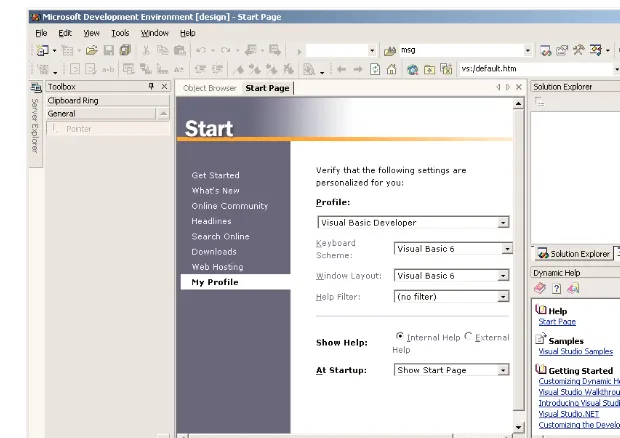
When you run Visual Studio for the first time, you will see the window shown in Figure 1.1. On the My Profile tab, you will set your personal preferences by specifying your language. Select Visual Basic Developer in the Profile box, and the other two boxes will be filled automatically. You can leave the other fields to their default values. The ComboBox control at the bottom of the page, the At Startup control, is where you define what you want Visual Studio .NET to do when it starts. The choices are the following:
Show Start Page Every time you start Visual Studio .NET, this page will appear.
Load Last Loaded Solution Once you start working on a real project (a project that will take you from a few days to a few months to complete), select this option so that the project will be loaded automatically every time you start Visual Studio .NET.
Show Open Project Dialog Box Every time you start Visual Studio .NET, the Open Project dialog box will appear, where you can select a project to open.
Show New Project Dialog Box Every time you start Visual Studio .NET, the New Project dialog box will appear, where you can specify the name of a new project—a setting to avoid.
Show Empty Environment This option instructs Visual Studio .NET to start a new empty solution, and you’re responsible for adding new or existing projects to the solution and new or existing items to a project.
The remaining options lead to Visual Studio sites with up-to-date information about the prod-uct, such as news articles, updated documents, and service packs or patches. At the very least, you should switch to the Downloads option from time to time to check for updates. The installation of the updates should be automatic—after you confirm your intention to download and update any new component, of course.
The Web Hosting option leads to a page with information about ISPs that support ASP.NET. You will need the services of these ISPs to post an actual Web application or Web services to the Internet. Web applications and Web services are two types of projects you can develop with Visual Studio (they’re discussed in the last part of the book). These projects aren’t distributed to users; instead, they run on a Web server; users must connect to the URL of the Web server and run the application in their browser.
Note The official names of the products are Visual Studio .NET and Visual Basic .NET. Throughout the book I will
refer to the language as VB.NET and mostly as VB. When referring to the previous version of the language, I will use VB6.
Starting a New Project
At this point, you can create a new project and start working with Visual Basic .NET. To best explain the various items of the IDE, we are going to build a simple form—it’s not even an application. The form is the window of your application—what users will see on their desktop when they run your application.
[image:18.612.175.485.76.295.2]Open the File menu and select New ➢Project. In the New Project dialog box (Figure 1.2), you will see a list of project types you can create with Visual Studio. Select the Windows Application Figure 1.1
template, and Visual Studio will suggest the name WindowsApplication1 as the project name. Change it to MyTestApplication. Under the project’s name is another box, named Location. This is the folder in which the new project will be created (every project is stored in its own folder). Visual Studio will create a new folder under the one specified in the Location box and will name it after the project. You can leave the default project folder and click the OK button.
VB6
➠
VB.NETUnlike previous versions of Visual Basic, Visual Basic .NET creates a new folder for the project and saves the project’s files there, even before you edit them. The IDE saves the changes to the project’s files by default every time you run the project. To change this behavior, use the Tools ➢Options dialog box, which is described later in this book.
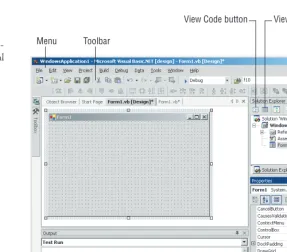
What you see now is the Visual Studio IDE displaying the Form Designer for a new project (Figure 1.3). The main window is the Form Designer, and the gray surface on it is the window of your new application in design mode. Using the Form Designer, you’ll be able to design the visible interface of the application (place various components of the Windows interface on the form) and then program the application.
The default environment is rather crowded, so let’s hide a few of the toolbars we’re not going to use in the projects of the first few chapters. You can always show any of the toolbars at any time. Open the View menu and select Toolbars. You will see a submenu with 28 commands, which are toggles. Each command corresponds to a toolbar, and you can turn the corresponding toolbar on or off by clicking one of the commands in the Toolbar submenu. Turn off all the toolbars except for the Layout and Standard toolbars.
The last item in the Toolbars submenu is the Customize command, which leads to a dialog box where you can specify which of the toolbars and which of the commands you want to see.
Using the Windows Form Designer
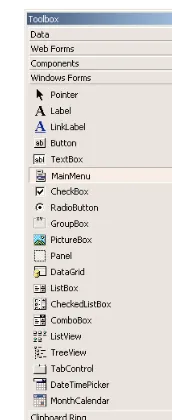
To design the form, you must place on it all the controls you want to display to the user at runtime. The controls are the components of the Windows interface (buttons, radio buttons, lists, and so on). Open the Toolbox by moving the pointer over the Toolbox tab at the far left; the Toolbox will pull out, as shown in Figure 1.4. This toolbox contains an icon for each control you can use on your form.
The controls are organized into tabs, each tab containing controls you can use with a specific type of project. In the first part of the book, we’ll create simple Windows applications and we’ll use the controls on the Windows Forms tab. When you develop a Web application, the icons of the controls on the Windows Forms tab will become disabled and you will be allowed to place only Web con-trols on the form (which will be a Web form, as opposed the Windows form you’re building in this project). If you click the Web Forms tab now, all the icons on it will be disabled.
To place a control on the form, you can double-click the icon of the control. A new instance with a default size will be placed on the form. Then you can position and resize it with the mouse. Or you can select the control with the mouse, then move the mouse over the form and draw the outline of the control. A new instance of the control will be placed on the form, and it will fill the rectangle you specified with the mouse. Place a TextBox control on the form by double-clicking the TextBox icon on the Toolbox.
Properties window Solution Explorer
Menu Toolbar
[image:20.612.174.461.74.326.2]View Designer button View Code button
The control’s properties will be displayed in the Properties window (Figure 1.5). This window, at the far left edge of the IDE, displays the properties of the selected control on the form. If the Properties win-dow is not visible, select View ➢Properties Window, or press F4. If no control is selected, the proper-ties of the selected item in the Solution Explorer will be displayed. Place another TextBox control on the form. The new control will be placed almost on top of the previous one. Reposition the two controls on the form with the mouse. Then right-click one of them and, from the context menu, select Properties.
[image:21.612.177.312.385.590.2]In the Properties window, also known as the Property Browser, you see the properties that deter-mine the appearance of the control, and in some cases, its function. Locate the TextBox control’s Text property and set it to “My TextBox Control” by entering the string (without the quotes) into the box next to property name. Select the current setting, which is TextBox1, and type a new string. The control’s Text property is the string that appears in the control.
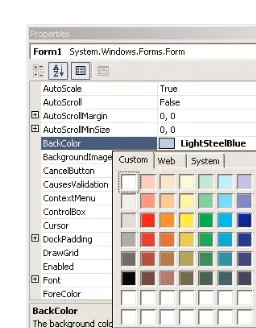
Then locate its BackColor property and select it with the mouse. A button with an arrow will appear next to the current setting of the property. Click this button and you will see a dialog box with three tabs (Custom, Web, and System), as shown in Figure 1.6. On this dialog box, you can select the color, from any of the three tabs, that will fill the control’s background. Set the control’s background color to yellow and notice that the control’s appearance will change on the form.
Then locate the control’s Font property. You can click the plus sign in front of the property name and set the individual properties of the font, or you can click the button with the ellipsis to invoke the Font dialog box. On this dialog box, you can set the font and its attributes and then click OK to close the dialog box. Set the TextBox control’s Font property to Verdana, 14 points, bold. As soon as you close the Font dialog box, the control on the form will be adjusted to the new setting.
There’s a good chance that the string you assigned to the control’s Text property won’t fit in the control’s width when rendered in the new font. Select the control on the form with the mouse, and you will see eight handles along its perimeter. Rest the pointer over any of these handles, and it will assume a shape indicating the direction in which you can resize the control. Make the control long enough to fit the entire string. If you have to, resize the form as well. Click somewhere on the form and when the handles along its perimeter appear, resize it with the mouse.
[image:22.612.175.303.210.374.2]If you attempt to make the control tall enough to accommodate a few lines of text, you’ll realize that you can’t change the control’s height. By default, the TextBox control accepts a single line of text. So far you’ve manipulated properties that determine the appearance of the control. Now you’ll change a property that determines not only the appearance, but the function of the control as well. Locate the Multiline property. Its current setting is False. Expand the list of available settings and Figure 1.6
change it to True. (You can also change it by double-clicking the name of the property. This action toggles the True/False settings.) Then switch to the form, select the TextBox control, and make it taller.
The Multiline property determines whether the TextBox control can accept one (if Multiline = False) or more (if Multiline = True) lines of text. Set this property to True, go back to the Text property, and this time set it to a long string and press Enter. The control will break the long text into multiple lines. If you resize the control, the lines will change, but the entire string will fit across the control. That’s because the control’s WordWrap property is True. Set it to False to see how the string will be rendered on the control.
Multiline TextBox controls usually have a vertical scrollbar, so that users can quickly locate the section of the text they’re interested in. Locate the control’s ScrollBars property and expand the list of possible settings by clicking the button with the arrow. This property’s settings are None, Verti-cal, Horizontal, and Both. Set it to vertiVerti-cal, assign a very long string to its Text property, and watch how the control handles the text. At design time, you can’t scroll the text on the control. If you attempt to move the scrollbar, the entire control will be moved. To examine the control’s behavior at runtime, press F5. The application will be compiled, and a few moments later, the form with the two TextBox controls will appear on the desktop (like the ones in Figure 1.7). This is what the users of your application would see (if this were an application worth distributing, of course).
Enter some text at runtime, select text on the control, and copy it to the Clipboard by pressing Ctrl+C. You can also copy text in any other Windows application and paste it on the TextBox con-trol. When you’re done, open the Debug menu and select Stop Debugging. This will terminate your application’s execution, and you’ll be returned to the IDE.
One of the properties of the TextBox control that determines its function, rather than its appear-ance, is the CharacterCasing property, whose settings are Normal, Upper, and Lower. In normal mode, the characters appear as typed. In Lower mode, the characters are automatically converted to lowercase before they are displayed on the control. The default setting of this property is Normal. Set it to Upper or Lower, run the application again, and see how this property’s setting affects the function of the control. Enter some lowercase text on the control, and the control itself will convert it to uppercase (or vice versa).
The design of a new application starts with the design of the application’s form. The design of the form determines the functionality of the application. In effect, the controls on the form deter-mine how the application will interact with the user. The form itself is a prototype, and you can demonstrate it to a customer before even adding a single line of code. As you understand, by placing Figure 1.7
controls on the form and setting their properties you’re implementing a lot of functionality before coding the application. The TextBox control with the settings discussed in this section is a func-tional text editor.
Project Types
Before moving on, let me mention briefly all the types of projects you can build with Visual Studio in addition to Windows applications. All the project types supported by Visual Studio are displayed on the New Project dialog box, and they’re the following:
Class library A class library is a basic code-building component, which has no visible interface and adds specific functionality to your project. Simply put, a class is a collection of functions that will be used in other projects beyond the current one. With classes, however, you don’t have to distribute source code. Class libraries are equivalent to ActiveX DLL and ActiveX EXE project types of VB6.
Windows control library A Windows control (or simply control), such as a TextBox or Button, is a basic element of the user interface. If the controls that come with Visual Basic (the ones that appear in the Toolbox by default) don’t provide the functionality you need, you can build your own custom controls. People design their own custom controls for very specific operations to simplify the development of large applications in a team environment. If you have a good idea for a custom control, you can market it—the pages of the computer trade magazines are full of ads for advanced custom controls that complement the existing ones.
Console application A Console application is an application with a very limited user interface. This type of application displays its output on a Command Prompt window and receives input from the same window. You’ll see an example of a simple Console application later in this chap-ter, and that will be the last Console application in this book. The purpose of this book is to show you how to build Windows and Web applications with rich interfaces, not DOS-like appli-cations. However, the product’s documentation uses Console applications to demonstrate specific topics, and this is why I’ve included a short section on Console applications in this chapter.
Windows service A Windows service is a new name for the old NT services, and they’re long-running applications that don’t have a visible interface. These services can be started automatically when the computer is turned on, paused, and restarted. An application that monitors and reacts to changes in the file system is a prime candidate for implementing as a Windows service. When users upload files to a specific folder, the Windows service might initiate some processing (copy the file, read its contents and update a database, and so on). We will not discuss Windows serv-ices in this book.
the process surprisingly similar to the process of building Windows applications. Web applica-tions and Web services are discussed in detail in the last part of the book.
ASP.NET Web service A Web service is not the equivalent of a Windows service. A Web service is a program that resides on a Web server and services requests, just like a Web applica-tion, but it doesn’t return an HTML page. Instead, it returns the result of a calculation or a data-base lookup. Requests to Web services are usually made by another server, which is responsible for processing the data. A Web applicationthat accepts a query for all VB books published by Sybex will return a page with the results. A Web servicethat accepts the same query will return an XML file with the results. The file will be used by the application that made the request to prepare a new page and send it to the client, or to populate a Windows form.
Web control library Just as you can build custom Windows controls to use with your Windows forms, you can create custom Web controls to use with your Web pages. Web con-trols are not discussed in this book, but once you’ve understood how ASP applications work and how Web applications interact with clients, you’ll be able to follow the examples in the documentation.
The other three templates in the New Project dialog box—Empty Project, Empty Web Project, and New Project In Existing Folder—are not project types, just a way to organize the new project yourself. When you create a new project of any of the previous types, Visual Studio creates a new folder named after the project and populates it with a few files that are necessary for the specific application type. A Windows application, for example, has a form, and the appropriate file is created automatically in the project’s folder when a new Windows application is created. With the last three types of projects, you’re responsible for creating and adding all the required items yourself.
Your First VB Application
In this section, we’ll develop a very simple application to demonstrate not only the design of the interface, but also how to code the application. We’ll build an application that allows the user to enter the name of their favorite programming language, and then we evaluate the choice. Objectively, VB is a step ahead of all other languages and it will receive the best evaluation. All other languages will get the same grade—good, but not VB.
Tip The project you will build in this section is called WindowsApplication1, and you can find it in this chapter’s folder
on the CD. Copy the WindowsApplication1 folder from the CD to your hard disk, then clear the Read-Only attribute of the files in the folder. All the files you copy from the CD are read-only. To change this attribute (so that you can save the changes), select all the files in a project’s folder, right-click them, and select Properties. In the dialog box that appears, clear the box Read-Only.
Now we must insert some code to evaluate the user’s favorite language. Windows applications are made up of small code segments, called event handlers,which react to specific actions. In the case of our example, we want to program the action of clicking the button. When the user clicks the button, we want to execute some code that will display a message.
To insert some code behind the Button control, double-click the control and you’ll see the code window of the application, which is shown in Figure 1.9. The line “Private ...” is too long to fit on the printed page, so I’ve inserted a line-continuation character(an underscore) to break it into two lines. When a line is too long, you can break it into two lines by inserting the line continuation character. Alternatively, you can turn on the word wrap feature of the editor (you’ll see shortly how to adjust the editor’s properties). Notice that I’ve also inserted quite a bit of space before the second half of the first code line. It’s customary to indent continued lines so that they can be easily distinguished from the other lines.
The editor opened a subroutine, which is delimited by the following statements:
Private Sub Button1_Click(ByVal sender As System.Object, _ ByVal e As System.EventArgs) Handles Button1.Click End Sub
Figure 1.9 The outline of a subroutine that handles the Click event of a Button control
At the top of the main pane of the Designer, you will see two tabs named after the form: in Figure 1.9, they’re the Form1.vb [Design] tab and the Form1.vb tab. The first tab is the Win-dows Form Designer (where you build the interface of the application with visual tools) and the second is the code editor, where you insert the code behind the interface. At the top of the code editor, which is what you see in Figure 1.9, are two ComboBoxes. The one on the left contains the names of the controls on the form. The other one contains the names of events each control recognizes. When you select a control (or an object, in general) in the left list, the other list’s con-tents are adjusted accordingly. To program a specific event of a specific control, select the name of the control in the first list (the Objects list) and the name of the event in the right list (the Events list).
The Click event happens to be the default event of the Button control, so when you double-click a Button on the form, you’re taken to the Button1_Click subroutine. This subroutine is an event handler. An event handler is invoked automatically every time an event takes place. The event is the Click event of the Button1 control. Every time the Button1 control on the form is clicked, the Button1_Click subroutine is activated. To react to the Click event of the button, you must insert the appropriate code in this subroutine.
The name of the subroutine is made up of the name of the control, followed by an underscore and the name of the event. This is just the default name, and you can change it to anything you like (such as EvaluateLanguage, for this example, or StartCalculations). What makes this subroutine an event handler is the keyword Handlesat the end of the statement. The Handles keyword tells the compiler what event this subroutine is supposed to handle. Button1.Clickis the Click event of the Button1 control. If there were another button on the form, the Button2 control, you’d have to write code for a subroutine that would handle the Button2.Clickevent. Each control recognizes many events; for each control and event combination, you can provide a different event handler. Of course, we never program every possible event for every control.
Note As you will soon realize, the controls have a default behavior and handle the basic events on their own. The
TextBox control knows how to handle keystrokes. The CheckBox control (a small square with a check mark) changes state by hiding or displaying the checkmark every time it’s clicked. The ScrollBar control moves its indicator (the button in the middle of the control) every time you click one of the arrows at the two ends. Because of this default behavior of the controls, you need not supply any code for the events of most controls on the form.
Rename Button1_Click subroutine to EvaluateLanguage. However, you shouldn’t change the name of the event this subroutine handles. If you change the name of the control after you have inserted some code in an event handler, the name of the event handled by the subroutine will be automatically changed. The name of the subroutine, however, won’t change.
Listing 1.1: Processing a User-Supplied String
Private Sub EvaluateLanguage_Click(ByVal sender As System.Object, _ ByVal e As System.EventArgs) Handles Button1.Click Dim language As String
language = TextBox1.Text
If language = “Visual Basic” Then MsgBox(“We have a winner!”) Else
MsgBox(language & “ is not a bad language.”) End If
End Sub
Here’s what this code does. First, it assigns the value of the TextBox1 control to the variable lan-guage. A variable is a named location in memory, where a value is stored. This memory location can be read later in the code or set to a different value. Variables are where we store the intermediate results of our calculation when we write code. Then the program compares the value of the language
variable to the literal “Visual Basic”, and depending on the outcome of the comparison, it displays one of two messages. The MsgBox() function displays the specified message in a small window with the OK button. Users can view the message and then click the OK button to close the message box.
Even if you’re not familiar with the syntax of the language, you should be able to understand what this code does. Visual Basic is the simplest .NET language, and we will discuss the various aspects of the language in detail in the following chapters. In the meantime, you should try to under-stand the process of developing a Windows application: how to build the visible interface of the application, and how to program the events to which you want your application to react.
Making the Application More Robust
The code of our first application isn’t very robust. If the user doesn’t enter the string with the exact spelling shown in the listing, the comparison will fail. We can convert the string to uppercase and then compare it to “VISUAL BASIC” to eliminate differences in case. To convert a string to upper-case, use the ToUpper method of the string class. The following expression returns the string stored in the languagevariable, converted to uppercase:
language.ToUpper
We should also assume that the user may enter “VB” or “VB.NET”, so let’s modify our code as shown in Listing 1.2.
Listing 1.2: A More Robust String Comparison Technique
Private Sub EvaluateLanguage_Click(ByVal sender As System.Object, _ ByVal e As System.EventArgs) Handles Button1.Click Dim language As String
language = language.ToUpper If language = “VISUAL BASIC” Or _
language = “VB” Or _ language = “VB.NET” Then MsgBox(“We have a winner!”) Else
MsgBox(language & “ is not a bad language”) End If
End Sub
The If statement is a long one, and for clarity I’ve inserted the underscore character to break it into multiple text lines. As you enter the code, you will either enter an underscore character and then press Enter to move to the following line, or ignore the underscore character and continue typing on the same line. You will see later how you can instruct the code editor to automatically wrap long lines of code.
Run the application, enter the name of your favorite language, and then click the Button to evalu-ate your choice. It’s an extremely simple project, but this is how you write Windows applications: you design the interface and then enter code behind selected events.
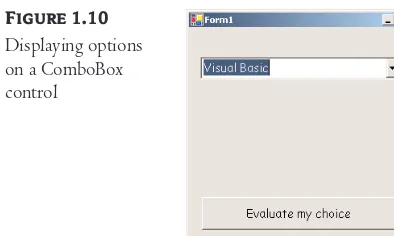
In the following section, we’ll improve our application. You never know what users may throw at your application, so whenever possible we try to limit their response to the number of available choices. In our case, we can display the names of certain languages (the ones we’re interested in) and force the user to select one of them. One way to display a limited number of choices is to use a ComboBox control. In the following section, we’ll revise our sample application so that the user won’t have to enter the name of the language. The user will be forced to select his or her favorite language from a list, so that we won’t have to validate the string supplied by the user.
Making the Application More User-Friendly
Start a new project, the WindowsApplication2 project. If there’s already a project by that name in your VB projects folder, name it differently or specify a different location. Click the Browse button on the New Project dialog box and select a new folder. You can also create a new folder like “MyProjects” or “VB.NET Samples” and select this as the default folder for your next few projects. Every time you create a new project, this folder will be suggested by default. When you’re ready for your own projects, specify a different location with the Browse button.
When the form of the project appears in the IDE, set the form’s Font property. Locate the Font item in the Properties window and click the button with the ellipsis (three dots). The usual Font dialog box will appear, and you can set the form’s font. This time, set it to Comic Sans MS, 11 points. All the controls you’ll place on the form from will inherit this font.
We must now populate the ComboBox control with the choices. Select the ComboBox control on the form by clicking it with the mouse and locate its Items property in the Properties window. The setting of this property is “Collection,” which means that the Items property doesn’t have a single value; it’s a collection of items (strings, in our case). Click the ellipsis button and you’ll see the String Collection Editor dialog box, as shown in Figure 1.11.
The main pane on the dialog box is a TextBox, where you can enter the items you want to appear in the ComboBox control at runtime. Enter the following strings, one per row and in the order shown here:
C++
C#
Java
Visual Basic
Cobol
[image:30.612.95.292.75.193.2]Then click the OK button to close the dialog box. The items will not appear on the control at design time, but you will see them when you run the project. Before running the project, set one more property. Locate the ComboBox control’s Text property and set it to “Select your favorite language.” This is not an item of the list; it’s the string that will initially appear on the control. Figure 1.11
You can run the project now and see how the ComboBox control behaves. Press F5 and wait for a few seconds. The project will be compiled, and you’ll see its form on your desktop, on top of the Visual Studio window. This is the same form we’ve been designing so far, but in runtime (in effect, what the users of the application will see if you decide to distribute it).
I’m sure you know how this control behaves in a typical Windows application, and our sample appli-cation is no exception. You can select an item on the control either with the mouse or with the keyboard. Click the button with the arrow to expand the list, and then select an item with the mouse. Or press the arrow down and arrow up keys to scroll through the list of items. The control isn’t expanded, but each time you click an arrow button, the next or previous item in the list appears on the control.
We haven’t told the application what to do when the button is clicked, so let’s go back and add some code to the project. Stop the application by clicking the Stop button on the toolbar (the solid black square) or by selecting Debug ➢Stop Debugging from the main menu. When the form appears in design mode, double-click the button and the code window will open, displaying an empty Click event handler. Insert the statements shown in Listing 1.3 between the Private Suband End Substatements.
Listing 1.3: The Revised Application
Private Sub EvaluateLanguage_Click(ByVal sender As System.Object, _ ByVal e As System.EventArgs) Handles Button1.Click Dim language As String
language = ComboBox1.Text
If language = “Visual Basic” Then MsgBox(“We have a winner!”) Else
MsgBox(language & “ is not a bad language.”) End If
End Sub
When the form is first displayed, a string that doesn’t correspond to a language is displayed in the ComboBox control. We must select one of the items from within our code when the form is first loaded. When a form is loaded, the Load event of the Form object is raised. Double-click some-where on the form, and the editor will open the form’s Load event handler:
Private Sub Form1_Load(ByVal sender As System.Object, _
ByVal e As System.EventArgs) Handles MyBase.Load
End Sub
Enter the following code to select the item “Visual Basic” when the form is loaded:
Private Sub Form1_Load(ByVal sender As System.Object, _
ByVal e As System.EventArgs) Handles MyBase.Load ComboBox1.SelectedIndex = 3
End Sub
As you realize, the controls on the Toolbox are more than nice pictures. They encapsulate a lot of functionality, and they expose properties that allow you to adjust their appearance and their func-tionality. Most properties are usually set at design time.
The IDE Components
The IDE of Visual Studio.NET contains numerous components, and it will take you a while to explore them. It’s practically impossible to explain what each tool, each window, and each menu does. We’ll discuss specific tools as we go along and as the topics we discuss get more and more advanced. In this section, I will go through the basic items of the IDE, the ones we’ll use in the fol-lowing few chapters to build simple Windows applications.
The IDE Menu
The IDE main menu provides the following commands, which lead to submenus. Notice that most menus can also be displayed as toolbars. Also, not all options are available at all times. The options that cannot possibly apply to the current state of the IDE are either invisible or disabled. The Edit menu is a typical example. It’s quite short when you’re designing the form and quite lengthy when you edit code. The Data menu disappears altogether when you switch to the code editor—you can’t use the options of this menu while editing code.
File Menu
The File menu contains commands for opening and saving projects, or project items, as well as the commands for adding new or existing items to the current project.
Edit Menu
The Edit menu contains the usual editing commands. Among the commands of the Edit menu are the Advanced command and the IntelliSense command.
Advanced Submenu
The more interesting options of the Edit ➢Advanced submenu are the following. Notice that the Advanced submenu is invisible while you design a form visually and appears when you switch to the code editor.
View White Space Space characters (necessary to indent lines of code and make it easy to read) are replaced by periods.
Word Wrap When a code line’s length exceeds the length of the code window, it’s automati-cally wrapped.
IntelliSense Submenu
The Edit ➢IntelliSense menu item leads to a submenu with four options, which are described next. IntelliSense is a feature of the editor (and of other Microsoft applications) that displays as much information as possible, whenever possible. When you type the name of a function and the opening parenthesis, for example, IntelliSense will display the syntax of the function—its arguments. The IntelliSense submenu includes the following options.
List Members When this option is on, the editor lists all the members (properties, methods, events, and argument list) in a drop-down list. This list will appear when you enter the name of an object or control followed by a period. Then you can select the desired member from the list with the mouse or with the keyboard. Let’s say your form contains a control named TextBox1 and you’re writing code for this form. When you enter the following string:
TextBox1.
a list with the members of the TextBox control will appear (as seen in Figure 1.12). Select the Text property and then type the equal sign, followed by a string in quotes like the following:
TextBox1.Text = “Your User Name”
If you select a property that can accept a limited number of settings, you will see the names of the appropriate constants in a drop-down list. If you enter the following statement:
TextBox1.TextAlign =
you will see the constants you can assign to the property (as shown in Figure 1.13, they are the val-ues HorizontalAlignment.Center, HorizontalAlignment.Right, and HorizontalAlignment.Left). Again, you can select the desired value with the mouse or the arrow keys.
The drop-down list with the members of a control or object (the Members List) remains open until you type a terminator key (the Escape or End key) or switch to another window.
Parameter Info While editing code, you can move the pointer over a variable, method, or prop-erty and see its declaration in a yellow tooltip.
Figure 1.12
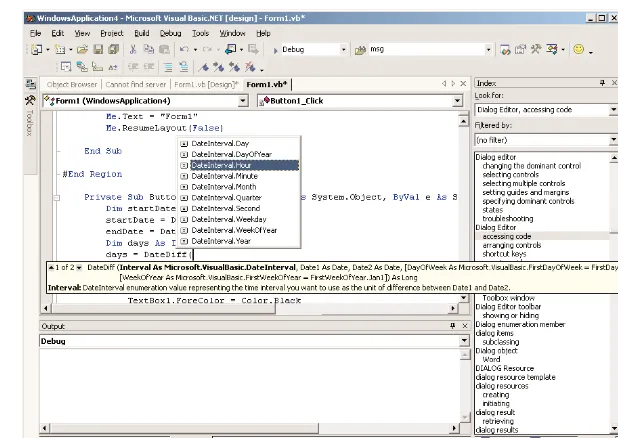
Quick Info This is another IntelliSense feature that displays information about commands and functions. When you type the opening parenthesis following the name of a function, for example, the function’s arguments will be displayed in a tooltip box (a yellow horizontal box). The first argument appears in bold font; after entering a value for this argument, the next one will appear in bold. If an argument accepts a fixed number of settings, these values will appear in a drop-down list, as explained previously.
Figure 1.14 shows the syntax of the DateDiff() function. This function calculates the difference between two dates in a specified time interval. The first argument is the time interval, and its value can be one of the constants shown in the list. The following two arguments are the two dates. The remaining arguments are optional, and they specify options like the first day of the week and the first day of the year. This function returns a Long value (an integer that represents the number of the intervals between the two dates).
Complete Word The Complete Word feature enables you to complete the current word by pressing Ctrl+spacebar. For example, if you type “TextB” and then press Ctrl+spacebar, you will see a list of words that you’re most likely to type (TextBox, TextBox1, and so on).
View Menu
This menu contains commands to display any toolbar or window of the IDE. You have already seen the Toolbars menu (earlier, under “Starting a New Project”). The Other Windows command leads to submenu with the names of some standard windows, including the Output and Command windows. The Output window is the console of the application. The compiler’s messages, for example, are dis-played in the Output window. The Command window allows you to enter and execute statements. When you debug an application, you can stop it and enter VB statements in the Command window.
Project Menu
This menu contains commands for adding items to the current project (an item can be a form, a file, a component, even another project). The last option in this menu is the Set As StartUp Project com-mand, which lets you specify which of the projects in a multiproject solution is the startup project (the one that will run when you press F5). The Add Reference and Add Web Reference commands Figure 1.13
allow you to add references to .NET (or COM) components and Web components respectively. We’ll use both commands in later chapters.
Build Menu
The Build menu contains commands for building (compiling) your project. The two basic com-mands in this menu are the Build and Rebuild All comcom-mands. The Build command compiles (builds the executable) of the entire solution, but it doesn’t compile any components of the project that haven’t changed since the last build. The Rebuild All command does the same, but it clears any existing files and builds the solution from scratch.
Debug Menu
This menu contains commands to start or end an application, as well as the basic debugging tools (which are discussed in Chapter 17).
Data Menu
This menu contains commands you will use with projects that access data. You’ll see how to use this short menu’s commands in sections that describe the visual database tools in Chapters 21 and 22 in Part V of the book.
Format Menu
[image:35.612.177.486.75.294.2]The Format menu, which is visible only while you design a Windows or Web form, contains com-mands for aligning the controls on the form. The comcom-mands of this menu will be discussed briefly later in this chapter and in more detail in the following chapter.
Tools Menu
This menu contains a list of tools, and most of them apply to C++. The Macros command of the Tools menu leads to a submenu with commands for creating macros. Just as you can create macros in an Office application to simplify many tasks, you can create macros to automate many of the repetitive tasks you perform in the IDE. I’m not going to discuss macros in this book, but once you familiarize yourself with the environment, you should look up the topic of writing macros in the documentation.
Window Menu
This is the typical Window menu of any Windows application. In addition to the list of open win-dows, it also contains the Hide command, which hides all Toolboxes and devotes the entire window of the IDE to the code editor or the Form Designer. The Toolboxes don’t disappear completely. They’re all retracted, and you can see their tabs on the left and right edges of the IDE window. To expand a Toolbox, just hover the mouse pointer over the corresponding tab.
Help Menu
This menu contains the various help options. The Dynamic Help command opens the Dynamic Help window, which is populated with topics that apply to the current operation. The Index com-mand opens the Index window, where you can enter a topic and get help on the specific topic.
The Toolbox Window
Here you will find all the controls you can use to build your application’s interface. The Toolbox window is usually retracted, and you must move the pointer over it to view the Toolbox. This win-dow contains these tabs:
Crystal Reports
Data
XML Schema
Dialog Editor
Web Forms
Components
Windows Forms
HTML
Clipboard Ring
General
The Data tab contains the icons of the objects you will use to build data-driven applications, and they’re explored in Part V of the book. The items on the Data tab are objects with no visible inter-face. The XML Schema tab contains the tools you’ll need to work with schema XML files. We’ll touch this topic in Part V of the book, but you don’t really need to understand XML to use it. You’ll see how to create XML files with visual tools.
The Solution Explorer
This window contains a list of the items in the current solution. A solution may contain multiple projects, and each project may contain multiple items. The Solution Explorer displays a hierarchical list of all the components, organized by project. You can right-click any component of the project and select Properties in the context menu to see the selected component’s properties in the Proper-ties window. If you select a project, you will see the Project ProperProper-ties dialog box. You will find more information on project properties in the following chapter.
If a project contains multiple forms, you can right-click the form you want to become the startup form and select Set As StartUp Object. If the solution contains multiple projects, you can right-click the project you want to become the startup form and select Set As StartUp Project. You can also add items to a project with the Add Item command of the context menu, or remove a component from the project with the Exclude From Project command. This command removes the selected compo-nent from the project, but doesn’t affect the compocompo-nent’s file on the disk. The Remove command removes the selected component from the project and also deletes the component’s file from the disk.
The Properties Window
This window (also known as the Property Browser) displays all the properties of the selected com-ponent and their settings. Every time you place a control on a form, you switch to this window to adjust the appearance of the control on the form, and you have already seen how to manipulate the properties of a control through the Properties window.
Many properties are set to a single value, like a number or a string. If the possible settings of a property are relatively few, they’re displayed as meaningful constants in a drop-down list. Other properties are set through a more elaborate interface. Color properties, for example, are set from within a Color dialog box that’s displayed right in the Properties window. Font properties are set through the usual Font dialog box. Collections are set in a Collection Editor dialog box, where you can enter one string for each item of the collection.
If the Properties window is hidden or you have closed it, you can either select the View ➢ Proper-ties Window command or right-click a control on the form and select ProperProper-ties. Or you can simply press F4 to bring up this window. There will be occasions where a control may totally overlap another control, and you won’t be able to select the hidden control and view its properties. In this case, you can select the desired control in the ComboBox part of the Properties window. This box contains the names of all the controls on the form, and you can select a control on the form by selecting its name on this box. Use this technique to set the properties of a control that’s covered by another control.