Rochester Institute of Technology
RIT Scholar Works
Theses Thesis/Dissertation Collections
6-30-2014
Web Browser Private Mode Forensics Analysis
Emad Sayed NoorullaFollow this and additional works at:http://scholarworks.rit.edu/theses
This Thesis is brought to you for free and open access by the Thesis/Dissertation Collections at RIT Scholar Works. It has been accepted for inclusion in Theses by an authorized administrator of RIT Scholar Works. For more information, please [email protected].
Recommended Citation
Web Browser Private Mode Forensics Analysis
By
Emad Sayed Noorulla
Thesis submitted in partial fulfillment of the requirements
for the degree of
Master of Science in
Computer Security and Information Assurance
Rochester Institute of Technology
B. Thomas Golisano College
of
Computing and Information Sciences
Department of Computing Security
Rochester Institute of Technology
B. Thomas Golisano College
of
Computing and Information Sciences
Department of Computing Security
Master of Science in
Computer Security and Information Assurance
Thesis Approval Form
Student Name: Emad Sayed Noorulla
Thesis Title:
Web Browser Private Mode Forensics Analysis
Thesis Committee
Name
Signature
Date
Prof Yin Pan
Chair
Prof Bo Yuan
Committee Member
Table of Contents
Abstract ... 4
1. Introduction ... 6
2. Background Information ... 10
3. Forensic Process ... 12
4. Web Browser Forensics ... 16
5. Browser Private Mode Analysis ... 28
6. Browser Private Mode Analysis Result ... 49
Bibliography ... 52
List of Figures
Figure 1: Database structure for Firefox history ... 19Figure 2: SetDispositionInformationFile screenshot ... 31
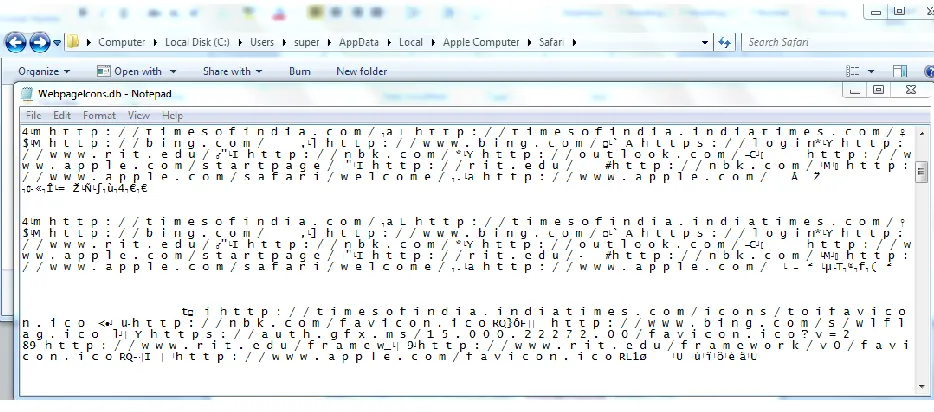
Figure 3: Safari writing data on WebpageIcons.db Windows Screenshot ... 33
Figure 4: Safari WebpageIcons.db on Windows Screenshot ... 34
Figure 5: Safari WebpageIcons.db on MAC Screenshot ... 35
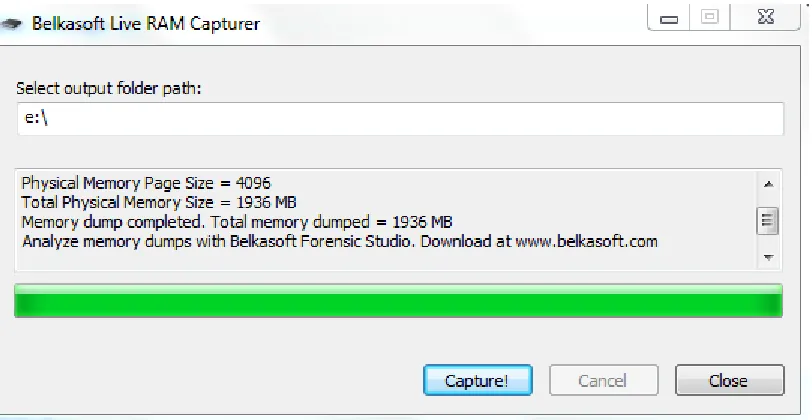
Figure 6: RAM Capture on Windows Screenshot... 36
Figure 7: IE Winhex analysis Screenshot ... 37
Figure 8: Chrome on Windows Winhex analysis Screenshot ... 38
Figure 9: Firefox on Windows Winhex analysis Screenshot ... 39
Figure 10: Safari on Windows Winhex analysis Screenshot ... 41
Figure 11: Chrome on Linux Winhex analysis Screenshot ... 43
Figure 12: Firefox on Linux Winhex analysis Screenshot ... 44
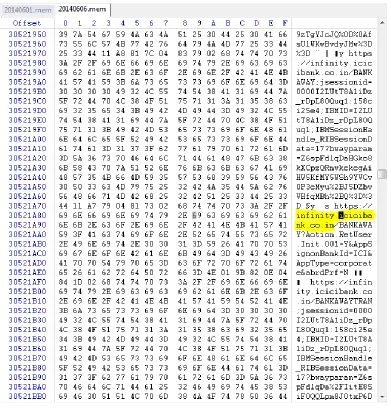
Figure 13: Safari on MAC Winhex analysis Screenshot ... 46
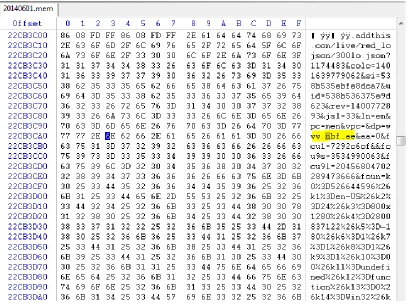
Figure 14: Chrome on MAC Winhex analysis Screenshot... 47
Abstract
To maintain privacy of the end consumers the browser vendors
provide a very good feature on the browser called the “Private Mode”. As
per the browser vendors, the Private Mode ensures Cookies, Temporary
Internet Files, Webpage history, Form data and passwords, Anti-phishing
cache, Address bar and search AutoComplete, Automatic Crash Restore
(ACR) and Document Object Model (DOM) storage information is not
stored on the system [45].
To put to test the browser vendors claim, I had setup a test to confirm the
claims. During the first test the file system was monitored for all reads and
writes. On the second test the image of the RAM was taken after the
browser was used in private mode. The image was analyzed to check if the
RAM contained any data related to the user browsing. The browsers chosen
to perform this test were: Internet Explorer, Firefox, Google Chrome and
Safari.
During the file system monitoring analysis for the browsers in private mode
it was found that Google Chrome and Firefox didn’t write any data on the
file system. Safari wrote data on just a single file called “WebpageIcons.db”.
Internet Explorer wrote browsing data on the file system and then deleted
it. This data can be recovered using any recovery tool such as Recuva.
1
Introduction
1.1
Introduction
Malicious users over the internet are constantly trying to steal as much data as they can
for personal benefit from other users. The kind of information that can be valuable to
the malicious user include but not limited to Social Security numbers, credit card
numbers, online banking passwords, user email addresses, user address book, user
browsing history, user download history, user search history, autocomplete information
stored in browsers, user temporary internet files and user browser cookies, etc.
Therefore, it is very important to ensure privacy over the internet. The server side
privacy is generally enforced by regulations like Health Insurance Portability and
Accountability Act (HIPAA) [39], Sarbanes-Oxley (SOX) [40] [41] [42], Privacy Act of 1974
[43], Payment Card Industry (PCI) [44], etc. However, the client side information which is
also important is something that can be controlled by the end user. To handle
information stored at end users’ systems, the different browser vendors have
introduced a new feature in their browser called InPrivate Browsing (Internet Explorer),
Private Browsing (Firefox), Incognito Window (Chrome) and Private Browsing (Safari).
These vendors claim that when the feature is used, following data is usually discarded
after the browser is closed: Cookies, Temporary Internet Files, Webpage history, Form
data and passwords, Anti-phishing cache, Address bar and search AutoComplete,
1.2 Problem Statement
Privacy has always been an issue with browsers, therefore the goal of this thesis would
be to investigate and determine how well the new “Private” mode of browsers protect
and ensure user privacy.
1.3 History of Browsers
Current day browsers are based on the idea proposed by Tim Berners-Lee and Robert
Cailliau back in 1990 mainly to create a medium to distribute research papers to other
interested people [1][2]. This led them to create the first browser known as the WWW
short for WorldWideWeb [3]. The browser was used to interpret HTML to normal text
and graphics better known as web page. Servers usually store these web pages and
users use client systems to view the page. A user would type in the name of the web
page they would like to access in the web browser and the server would grant the user
access to the web page [4].
After the first browser WWW, lots of other browsers were shortly developed but one of
the most widely used browser back then was NCSA Mosaic. The same team later
created the first commercial browser called the Netscape Navigator [3]. Later the team
created an open source version the browser known as Mozilla [3]. Microsoft quickly
jumped into the market and launched their version of browser known as Internet
Explorer in 1995 [8]. This quickly turned into a war between the two companies to
increase their market presence. The two companies kept releasing on a monthly basis a
new beta version of the browser without thinking about fixing bugs from earlier
releases. This also made them only think about thrilling the clients with rich features
only think about adding new features and not worry about security. Therefore, the
browsers released during that period were poorly designed in terms of code [5]. Due to
this each release handled the tags and display layout differently and also had
compatibility issues on different platforms (Microsoft and Macintosh)[6].
Initially Macintosh was shipped with Netscape Navigator, later they signed a five year
deal with Microsoft to have Internet Explorer as the default browser. After the five year
deal, Apple released their browser called Safari in 2003. It was first release only for the
Mac OS and in 2007 released a Windows version of Safari too. They were third most
widely used browser until 2008.
In 2008, Google released Google Chrome web browser which came as a surprise by a
company whose main business is internet search engine. It mainly happened after they
hired a group of developers from Firefox and demonstrated a working model of
Chrome. The code for the browser was kept as open source. This helped other
developers, learn the code and help in porting into other operating systems such as Mac
OS and Linux based systems. As of today Google Chrome is the third most widely used
browser followed by Safari [10][9][28].
1.4 Browser Security History
Browsers have become the most important part of the computer as they had become
an interface between the user and the internet. Therefore it was really important to
concentrate on the security of the browsers and not let any personal information of the
end users leak due to vulnerabilities present in the browser. To handle all security
related issues with browsers, Microsoft started the Trustworthy Computing initiative in
2002. This fully concentrated on finding and fixing all flaws related to the Internet
Explorer Browser. Mozilla too fully focused on security aspect from the release of their
With the increase in market share of Macs, they are also being targeted in terms of
finding vulnerabilities and exploiting them [18]. Also lately there are instance where
more vulnerabilities have been found on Macs compared to Microsoft products [19].
Also since browsers form the big interface between the user and the internet, Safari has
been a big target too for a lot of attackers [20]. But Safari also has been trying to
concentrate on protecting their users as they were one of the first browsers to come out
with the “Private Browsing” feature [21].
Google Chrome browser has been built with two separate modules called protection
domains: the browser kernel which exchanges messages with the operating system and
a rendering engine which runs with limited privileges in a sandbox. The main aim of
Chrome is to prevent a malware from being run through the browser and file theft. The
way the sandboxing works is that the browser runs on a restricted token instead of
running with the users token and also every tab opened by a user is a new process by
itself running with limited privileges. This would ensure that any malicious code would
be running with limited privileges and can access data accessible only by the security
token given to the limited privilege process [22][23][26]. Also due to this reason at a
browser security competition Chrome survived the hit and was considered the most
secure browser [25]. But it is not like Chrome didn’t get hit with a series of vulnerability
discoveries [24]. To improve the security on the browser Google started the bug-bounty
program which would pay all the researchers who would submit vulnerabilities they find
on the browser code and submit it to Google to release a fix for the same [27].
Finally, the ultimate goal of every vendor is to have a flaw free browser without any
2
Background Information
2.1 Forensics Definition
The usage of science and technology to gather, investigate and review evidence
discovered at a crime scene and submit facts drawn from the evidence for a case in the
court of law is the definition of Forensics. Facts from evidence can be drawn from
different areas of science such as biology, chemistry, physics, geology and more recent
being computers [11].
2.2 Digital forensics
Digital forensics is a branch of forensics that deals with the recovery, investigation and
analysis of evidences found in digital devices suitable enough to be presented in a court
of law. The different branches of digital forensics but not limited to include Computer
forensics, Mobile device forensics, Network forensics and Database forensics
[12][13][14]. These different branches help in gathering evidences from computer based
crime, recovering destroyed files, discovering altered photographs, retrieving traces of
hacking using logs from different sources and also recovering data stored on cell phones
[13].
While performing this kind of investigation, it is really important to follow proper
procedures and protocols and also maintaining well documented chain of custody for
the movement of the evidence while digging out evidence in a computer and finding out
2.3 Chain of Custody
It is really important to maintain a chain of custody for the digital evidences too.
Following proper forensic process is an important aspect of all forensic investigations. If
proper processes and procedures are not following this could result in losing the
integrity of the evidence. Therefore it is important to maintain a chain of custody and
have a digital hash taken at every movement of the evidence and ensure that it matches
3
Forensics Process
3.1 Introduction
Every forensic investigation should follow proper set of process and procedures for the
evidence to be admissible in the court of law. The process used to retrieve the evidence
till getting the final results should be repeatable using the process and procedure. If not
the end result after the analysis would be considered void [12][15][16].
3.2 Forensic Process
A forensic process can be of two kinds, based on how you collect the data. The two
kinds are: Live Acquisition and Dead Acquisition.
From a forensic investigation firm point of view, every case would have the following phases:
I. Pre-Investigation Phase
II. Investigation Phase
III. Post Investigation Phase
I.
Pre-Investigation Phase:
a.
Request from Clients:
The clients would send an information request for services by email or phone. A
the company has to offer. Also if it is an urgent matter and requires live
acquisition, all documents will be processed fast and would directly jump to the
acquisition part of the investigation phase. For the dead acquisition, the below
process would be continued to be followed.
b.
Signing Service Level Agreement (SLA) and Legal Agreement:
The client would sign up for one or more services and would also clearly explain
the case in detail. The SLA would also include the preferred delivery medium for
the final report and the evidence gathered. A hash of the media would be taken
immediately as a measure of integrity as well as a detailed description of the drive
would be entered into the Chain of Custody report.
c.
Chain of Custody:
Original media will be used to create a minimum of 2 copies of which hashes will
be taken and compared to the original. At no time will any of the analyst would
have direct access to the original media. The original media would be stored in a
fire safe. Access to the copies will be restricted and would require multiple
authorizations and additional documentation.
d.
Hashing Mismatch:
If at any given point of time a hash mismatch would happen to occur, a high
priority analysis would have to be executed to account for the mismatch.
Documentation needs to be provided explaining the reason for the mismatch and
eliminate any possibility of evidence contamination.
II.
Investigation Phase:
a.
Planning:
The examiner will begin by identifying the sources and types of evidence. Based on
carry out the investigation is present. As soon as the examiner receives the digital
evidence, he would compare the hash of the drive to the hash of the original to
ensure the integrity of the evidence and this will be documented. The examiner
will also verify the presence of Chain of Custody documents, logs, fire safe for
reports and evidence storage and a labeller to label all the physical evidence with
the case number.
b.
Acquisition:
If it is a live acquisition, the examiner would connect his flash drive and run a
volatile memory imaging tool and copy the image to another storage device. Dead
acquisition involves disk imaging, gathering information from different sources
such as servers, client machines, network devices and flash drives etc. using best
practices and following the chain of custody for admissibility. During the imaging
process, the examiner would place the disk in the imaging bay drive and make an
image of the drive while employing a write blocker hardware device to prevent
any change to the original drive. The examiner would need to note the hash of the
original drive before the imaging process and after the imaging process to ensure
nothing has been modified on the original drive. The copy also will be hashed and
checked against the original drives hash to ensure that the two devices have got
identical data on them. During the imaging process only one examiner would have
access to the imaging bay and no other examiner should have access to the
imaging bay until the imaging task is completed. All actions taken by the examiner
will be recorded in the logbook which would include date and time of the task
performed and the duration.
c.
Examination:
The examination process involves systematic search of evidence related to the
investigation phase. Initial examination would be to search for evidences in the
most common places based on the description provided by the client. During the
examination the examiner will search for evidence and information in the deleted
files, formatted drives, hidden files and slack space to look for evidences. A hash of
the drive copy will occur prior to this phase and one at the end of the phase to
ensure admissibility.
d.
Analyze:
This phase requires putting together all the findings and the data collected from
the previous phases, determining the importance of the data found and coming to
a conclusion based on the collected data. After the investigation is complete, the
examiner would again compute two different hash values of the disk image to
endure that the image was not tampered and has been intact throughout the
investigation. During this phase there will be an emphasis on the timeline
development, detection of malware and verification of results using alternative
utilities.
III.
Post Investigation Phase:
a.
Reporting:
A collection of all the findings and final outcome from the investigation phase
would form the report.
b.
Report Delivery:
The report would be delivered as agreed while signing the SLA. The final package
would include the final report (Executive Summary report and Technical details),
copy of the log book, cop of the chain of custody, copy of the disk drive used by
4
Web Browser Forensics
4.1 Introduction
Every forensic investigation should follow proper set of process and procedures for the
evidence to be admissible in the court of law. The process used to retrieve the evidence
till getting the final results should be repeatable using the process and procedure. If not
the end result after the analysis would be considered void [12][15][16].
4.2 Types of Evidence
During an investigation the below are the different kinds of evidences that an
investigator would be looking for [29]:
a. Surfing history:
Surfing history of a user would mainly contain typed URLs, redirects and also
the number of visits to a particular site.
b. Bookmarks:
This would mainly contain shortcuts or bookmarks created to specific
websites by the user.
An investigator would mainly need to check for downloaded file in the
default locations, also in the user defined locations or sometimes files are
downloaded to default locations and then are moved or copied to user
defined locations.
d. Cookies:
These are files that contain a wealth of information about the user. It would
contain information like usernames, passwords and web session information.
e. Cache:
It is a temporary area on the disk which is used to store most recently visited
web sites.
4.3 Related Work
As referenced earlier, forensics is mainly performed to collect evidence based on the
subject of the case. The evidence can be collected from different parts of a
communication channel. Those different parts can be: Server side which stores access
logs, error logs, application logs, system logs etc; Intermediate site logs which can be
from firewall logs, router logs, anti-virus logs, web filter logs, switch logs, network
access control logs etc; Client side which stores temporary internet files, index.dat files,
history.dat, cookies, favorites, html stored in unallocated space, registry etc. Our main
topic of discussion is with regards to client side logs and mainly pertaining to web
browser. To help an investigator, researchers have written papers clearly explaining
where to look for evidence for different browsers installed on different operating
systems. Below is a list of browsers and different techniques of extracting evidence from
them [29].
Windows XP: On Windows XP systems, IE stores data in the “drive:\Documents and
Settings\<username>\ profile folder. Folders that you would find there would be
Favorites, Cookies, History and Temporary Internet Files. Also Registry stored
information like Typed URLs, Passwords and Protected Storage Information [29].
IE Temporary Internet Files are stored in drive:\Documents and
Settings\<username>\Local Settings. This folder contains an index.dat file that stores
URL, Filename, Username and Content Info. This also provides us information even if
the user deletes their Temporary Internet files [29].
The Registry saves the Typed URL at NTUSER.DAT\Microsoft\Internet
Explorer\Typed URLs. The Protected Storage System Provider stores user IDs and
passwords for websites at NTUSER.DAT\Software\Microsoft\Protected Storage
System Provider. This is usually stored in encrypted form which can be viewed in
clear text using Registry Viewer, tool by Access Data [30].
Windows Vista/7/8: On Windows Vista and Windows 7 systems, the cache and history information is stored in drive:\Users\<user
name>\AppData\Local\Microsoft\Windows\. The cache here would contain files
stored from different webpages browsed by the user. The history would tell you
what sites someone has visited, when and how many times [31].
The cookies, that can contain a password or a session ID to a website they had
authenticated to, are stored in drive:\Users\<user
name>\AppData\Roaming\Microsoft\Windows\Cookies [31].
The Registry stores the Typed URL at
HKEY_CURRENT_USER\Software\Microsoft\Internet Explorer\TypedUrls, while the
AutoComplete data like forms data and passwords at
data and passwords are in obfuscated form and would need tools like Registry
viewer or PassView [32] to view the data in clear text.
II.
Firefox:
From version 3 onwards, Firefox stores all browsing information in a SQLite
database instead of a flat file (mork file format). Below image shows the
[image:20.612.118.547.298.540.2]database structure used to store Firefox browsing information.
Figure 1: Database structure for Firefox history [33]
The database files that are required are places.sqlite, formhistory.sqlite,
downloads.sqlite, cookies.sqlite, search.sqlite and signons.sqlite.
The places.sqlite database mainly consists of accessed URLs and bookmarks. Lot
of tables stores this information, but the most important ones are:
Moz_places table is the central table where all the URLs are stored. The following fields are part of the moz_places table:
id: This is the table’s primary key
url: This stores URLs accessed
title: this stores the title of the page
visit_count: this stores the number visits count
hidden: this is mainly used for URL queries and RSS feeds. This tells us if
the URL would be displayed by the autocomplete functions. If the value is
set to 1 would mean that it is hidden.
typed: this would tell you if the URL was typed or not. A value of 1 would
mean that the URL was typed and 0 would mean it was not typed.
frecency: this is a score given to URLs, bookmarks, history and tags. The
scoring is done based on the number of times the site was visited, the
type of visit, last visit and if the URL was bookmarked or tagged.
The other important table within the places.sqlite database is the
moz_bookmarks table. This stores the bookmarks and the following are the important fields:
id: this is the tables primary key
type: if the value is 1, it means that the entry is a URL. If the value is 2, it
fk: a foreign key used to link the moz_places with the moz_bookmarks
table.
parent: this indicates parent folder id of this record, usually used in
conjunction with position.
position: this indicates the position of the record within the folder.
title: the title of the page is stored here.
folder_type: this identifier tells us if the record is a folder.
dateAdded: this stores the time and date when the record was added.
lastModified: this stores the date and time when the record was last
modified.
The moz_historyvisits is also another important table in the places.sqlite database. Below are the important fields:
id: this is the table’s primary key
place_id: this is a reference to the moz_places table
from_visit: this stores the referrer information for the current page.
visit_date: this stores the date and time the URL was accessed.
b) formhistory.sqlite
formhistory.sqlite database has just one table called moz_formhistory and this
stores the id, fieldname and the value.
downloads.sqlite again like formhistory.sqlite has only one table called the
moz_downloads table and the important fields are as below:
id: contains the tables primary key
name: this stores the filename of the file being downloaded.
source: source URL of the download
target: directory where it was downloaded
startTime and endTime: download start and end time.
state: shows if the download is paused, completed or cancelled.
referrer: stores URL information of the previous page.
curnBytes: stores information about the current downloaded bytes
maxBytes: stores information about the total bytes to be downloaded
d) cookies.sqlite
This file has one table called the moz_cookies and stores all of the cookie data
like id, name, value, host, path, expiry, lastAccessed, isSecure and isHttpOnly.
Different operating systems store this information in different locations.
The different locations are:
Windows XP
C:\Documents and Settings\<username>\Application
Windows Vista/Windows 7/8
C:\Users\<user>\AppData\Roaming\Mozilla\Firefox\Profiles\<profile folder>\
Linux based systems
/home/<user>/.mozilla/firefox/<profile folder>/places.sqlite
Mac OS X
/Users/<user>/Library/Application Support/Firefox/Profiles/default.lov/
/Users/<user>/Library/Caches/Firefox/Profiles/*.default/
/Users/<user>/Library/Caches/Firefox/Profiles/*.default/Cache/
There different tools developed by different people from the forensics
community. The most popular tools are mainly Firefox 3 Extractor (also known as
f3e) and FoxAnalysis [47][48].
III.
Google Chrome:
Chrome also stores its history in SQLite database but the structure is different from
Firefox. The History folder stores the database file that contains the browsing history
and can be viewed using any SQLite browser. The important tables are downloads,
presentation, urls, keyword_search_terms, segment_usage, visits, meta and
segments. The most significant ones are downloads, urls and visits. The list of all
downloaded files is stored in downloads table. The urls contains all accessed or
visited URLs. And visits table contains the type of visit and the time the site was
visited [46].
We can view the urls table by running the below query
CREATE TABLE urls(id INTEGER PRIMARY KEY,url LONGVARCHAR,title LONGVARCHAR,visit_count INTEGER DEFAULT 0 NOT NULL, typed_count INTEGER DEFAULT 0 NOT NULL,last_visit_time INTEGER NOT NULL,hidden
INTEGER DEFAULT 0 NOT NULL, favicon_id INTEGER DEFAULT 0 NOT NULL);
CREATE INDEX urls_favicon_id_INDEX ON urls (favicon_id);
CREATE INDEX urls_url_index ON urls (url);
The same can be done for visits table
sqlite> .schema visits
CREATE TABLE visits(id INTEGER PRIMARY KEY,url INTEGER NOT NULL,visit_time INTEGER NOT NULL,from_visit
INTEGER,transition INTEGER DEFAULT 0 NOT NULL,segment_id INTEGER,is_indexed BOOLEAN);
CREATE INDEX visits_from_index ON visits (from_visit);
CREATE INDEX visits_time_index ON visits (visit_time);
CREATE INDEX visits_url_index ON visits (url);
Therefore user browsing information can be retrieved by running the query
SELECT urls.url, urls.title, urls.visit_count, urls.typed_count, urls.last_visit_time, urls.hidden, visits.visit_time,
visits.from_visit, visits.transition FROM urls, visits WHERE urls.id = visits.url
The history files are stored in the following locations:
Windows (Vista and 7/8): C:\Users\<username>\AppData\Local\Google\Chrome\
Windows XP: C:\Documents and Settings\<username>\Local Settings\Application
Data\Google\Chrome\
Linux: /home/$USER/.config/google-chrome/ or sometimes
/home/$USER/.config/chromium/
Mac OSX: /Users/<user>/Library/Caches/Google/Chrome/Default/Cache
Since the database tables are quite similar the f3e tool has an option of retrieving
the user internet browsing information. The other tool that can be used for
retrieving browsing information is ChromeAnalysis [49].
IV.
Safari:
Safari too uses SQLite database to store its browsing related data. The files of
interest in Safari are Bookmarks.plist, TopSites.plist, History.plist, LastSession.plist,
Cookies.plist and Cache.db[55][56].
Bookmarks.plist: This file is mainly used to store bookmarks used by end on Safari
[56].
TopSites.plist: This file stores all the most frequently visit website of the user [56].
LastSession.plist: This is used to track sites that are currently open by the end user
and has active connections to the site. This would also include multiple tabs or
multiple windows open to different sites. In cases where the browser would crash
unexpectedly, this file is used to restore the previous browsing session.
History.plist: This list contains the date and time when a site was visited and number
of times the site was visited.
Cookies.plist: This is similar to History.plist contains the date and time when a site
was visited, but additionally also contains account names that were used on the
website.
Cookies.db: This too is similar to History.plist contains the date and time when the
site was visited but also pictures and other temporary browsing data. This can be
extracted using any carving tool to extract the required information.
Windows (Vista and 7/8):
C:\Users\<username>\AppData\Roaming\Apple Computer\Safari
C:\Users\<username>\AppData\Local\Apple Computer\Safari
Windows XP:
C:\Documents and Settings\<username>\Local Settings\Application Data\Apple
Computer\Safari\
C:\Documents and Settings\<username>\Application Data\Apple Computer\Safari\
Mac OSX:
/Users/<username>/Library/Safari/
/Users/<username>/Library/Caches/com.apple.Safari/
4.4 Related work on Private mode Analysis
Researchers earlier have performed similar analysis of private mode and have
released papers related to the findings. The research performed by Donny and
Narasimha in [66] have used a tool called DaemonFS and was restricted to just
Windows 7 operating system. They found that the Internet Explorer stored data on
the file system as well as in the memory and the browsing data were recoverable
using file recovery tools. Google Chrome and Firefox did not store any data on the
file system but the data was recoverable from the memory. Safari stored data only
on a single file called the WebpageIcons.db and browsing data was again
The research performed by Huwida, Noora, Ibtesam and Mario in [67] covered
private mode analysis of Internet Explorer, Firefox and Chrome only on Windows XP
setup. Their approach was to run the browsers in private mode, then look for
evidences in typical browsing history locations. Then also take live memory and hard
drive image capture to look for evidences. They had similar findings as Donny and
Narasimha in [66]. They were able to find that no data was written to the file system
by Chrome and Firefox, but were able to find data in the live memory captures. But
for Internet Explorer they were able to recover data that written to the file system
during the InPrivate session. They were also able to recover the contents from the
5
Browser Private
Mode Analysis
5.1 Private Browsing
The private mode in all vendor browsers claim that all browsing history, temporary
internet files, form data, cookies, usernames and passwords leaves no traces or
evidence of the browsing or search history behind [35][36][37][38]. Chrome, Firefox and
Safari also claim that they don’t store download list entries [36][37][38].
5.2 Approach
Previous research performed by Donny and Narasimha in [66] covered only Windows 7
operating system and research performed by Huwida, Noora, Ibtesam and Mario in [67]
had covered only Windows XP. My work would verify findings from [66] and [67] on
Windows XP, Windows 7 and Windows 8 using different tool (Processmon) and extend
the same tests to Ubuntu and Mac OS. As both the research groups have not identified
the operating system operation that writes the data to the file system during the file
system analysis. My work would show which process would write or delete the data
from the file system.
To achieve the thesis goals the following two approaches will be used:
File system monitoring tools will be used to trace different reads and writes on the file
system. On Windows based system Regmon, Processmon and Filemon will be used. For
Live memory would be captured and imaged to recover and carve out browsing related
information to see if data can be recovered from the physical memory itself.
5.3 Data Carving
Data carving is the process of extracting specific type of data from unstructured data.
Usually when files are written to File System they are indexed based on type of file
system ie FAT, FAT32, NTFS, ext4 etc and written on to disk. Recovery of such files are
easy as when a file is deleted from the Operating system, usually the OS puts a marker
in front of the entry of the file in the index to show that the file is deleted and the space
is available to be reused.
The same is not the case when we deal with physical memory. All the core Operating
system files and all the applications are loaded on the physical memory. This is done so
that the CPU can access and process operating system related data requests faster.
Operating system usually allocates a block of memory for each application and process
running on the system. Once the process is terminated, the operating system
reallocates the memory to be used by other processes. Now by running data carving
tools it is possible to retrieve data that was written to these memory blocks. The tool
scans for data block by block to look for specific type of header and footer information.
5.4 Tools Used
RegMon: RegMon is a registry monitoring tool developed by Sysinternals to monitor
modifications made to the registry by different processes running on the operating
system. It does not need any installation and is a portable executable [51].
FileMon: FileMon is a filesystem activity monitoring tool developed by Sysinternals to
monitor and watch different reads and writes to the file system by different processes
for Mac OS is developed by DeepIT. It has similar functionality as the FileMon for
Windows [60].
DaemonFS: This is a FileMon like tool used to monitor specific files and folders for reads
and writes to the specific monitored files and folder. This was specifically used for
Ubuntu and Mac OS [59].
Recuva: Recuva is a recovery tool used to recover deleted files in the operating system.
It can perform deep scan to recover files from different parts of the operating system
[53].
Belkasoft Ram Capturer: This tool is mainly used to capture Ram image to be analyzed
by other tool to recover browser related evidence [58].
Rekall: dd on Linux with kernel later than version 2.6 has locked down direct access to
the memory for tools like dd [64]. Therefore to perform memory acquisition of Linux
based system it is required to install an external tool like Rekall which can perform
memory acquisition that can help for further analysis [63].
Magnet Forensics Internet Evidence Finder: This tool carves out data from the disk/ram
image that is loaded for analysis [57].
OSXPmem: This is an open source tool used to acquire physical memory contents from
an Intel based Mac. To run the tool you need to have root access to the system as the
tool runs under root privilege [65].
5.5 Private Mode Analysis
The first approach was to just monitor the file system reads and writes to check
what is written to the disk by the browser process. The following were the
finding related to the different browsers:
I. Internet Explorer 8/9:
Internet Explorer is main browser built-in with all Windows systems. To
monitor all the reads and writes by the browser, FileMon and RegMon were
used.
While using the browser in the InPrivate mode in Internet Explorer, it was
notice that Internet Explorer write all the data to the disk as mentioned below
for the different operating systems:
For Windows XP: drive:\Documents and Settings\<username>\ profile folder.
For Windows 7/8:
drive:\Users\<username>\AppData\Local\Microsoft\Windows\
For Internet Explorer in all Windows Operating System, the browser writes the
data to the disk and then deletes the data by a file system operation called
“SetDispositionInformationFile”. This operation deletes the file when the file is
closed [54]. This deleted data can be easily recovered using recovery tools like
Recuva.
Figure 2:SetDispositionInformationFile screenshot
Firefox was downloaded and installed on the scoped operating systems ie,
Windows XP, Windows 7, Windows 8, Ubuntu, and Mac OS. The following
were the findings related to the browser:
Windows XP: The browser did not write any browsing related information on
the file system.
Windows 7/8: The browser had similar behavior in this operating system too.
It did not write any browsing history related information in the file system.
Ubuntu: The browser did not write any browsing related information to the
file system.
Mac OS: The browser did not write any browsing related information to the
file system.
III. Google Chrome:
Google Chrome was downloaded and installed on the scoped operating
systems ie Windows XP, Windows 7, Windows 8, Ubuntu, and Mac OS. All the
process reads and writes were monitoring using file monitor tools.
Windows XP: The browser did not write any browsing related information on
the file system.
Windows 7/8: The browser had similar behavior in this operating system too.
It did not write any browsing history related information in the file system.
Ubuntu: The browser did not write any browsing related information to the
file system.
Mac OS: The browser did not write any browsing related information to the
IV. Safari:
Safari comes pre-installed on all MAC OS systems. It had to be downloaded
and installed on the scoped Windows operation systems ie Windows XP,
Windows 7 and Windows 8. Monitoring tools were used to monitor all the
reads and writes to the file system.
Windows XP:
It was noted that during the private mode no information was written to file
system except for one write to a file called “WebpageIcons.db” located in the
below directory:
C:\Documents and Settings\<username>\Local Settings\Application
Data\Apple Computer\Safari\
Windows 7/8:
It was noted that during the private mode no information was written to file
system except for one write to a file called “WebpageIcons.db” located in the
below directory:
C:\Users\<user>\AppData\Local\Apple Computer\Safari
Figure 4: SafariWebpageIcons.db on Windows Screenshot
Mac OSX:
It was noted that during the private mode no information was written to file
system except for one write to a file called “WebpageIcons.db” located in the
below directory:
/Users/<username>/Library/Safari/
Note: This was only applicable to the old versions of Safari ie 6.1.5. The newer
version 7.0.5 has fixed this issue and it was not possible to retrieve any
Figure 5: SafariWebpageIcons.db on MAC Screenshot
5.5.2 Live Memory Capture
The second approach was to launch the browser in Private mode and
browse any website and then close the browser. Then take a live
memory capture using any memory capture tool and save it on an
external drive. After copying to external drive we would run data
carving tool against the image to extract the required evidence [61]
[62].
Windows Analysis:
external drive as part of best practice in forensics. This was done as
shown below:
Figure 6: RAM Capture on Windows Screenshot
Internet Explorer:
Figure 7: IE Winhex analysis Screenshot
Google Chrome:
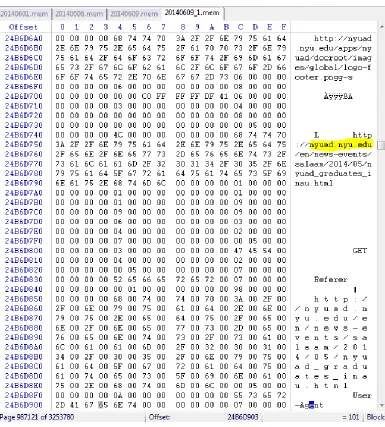
shown earlier. The captured file was opened using Winhex to
perform analysis. During the analysis it was found that the browsed
websites were stored in the RAM.
Figure 8: Chrome on Windows Winhex analysis Screenshot
FireFox:
previously. Then the image file was opened using Winhex to perform
analysis. During the analysis it was found that the browsing data
existed in the captured memory file.
Safari:
Figure 10: Safari on Windows Winhex analysis Screenshot
Linux Analysis:
dd as the new kernel 2.6 and later have additional security control to
protect the memory [63][64]. Therefore in order to get Rekall workin
we need to install a package called “linux-headers-server” for Ubuntu
based Linux and “gcc” and “kernel-headers” for CentOs based Linux.
After that the memory contents were captured and transfer to an
external drive using the dcfldd command as shown below:
---Output---
emad@emad-VirtualBox:~/linux$ sudo dcfldd if=/dev/pmem of=/media/8437-F391/test.img bs=1024
[sudo] password for emad:
1524480 blocks (1488Mb) written. 1524671+1 records in
1524671+1 records out
emad@emad-VirtualBox:~/linux$
---End of Output---
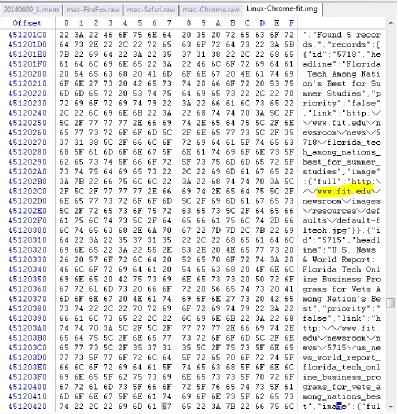
Chrome:
Figure 11: Chrome on Linux Winhex analysis Screenshot
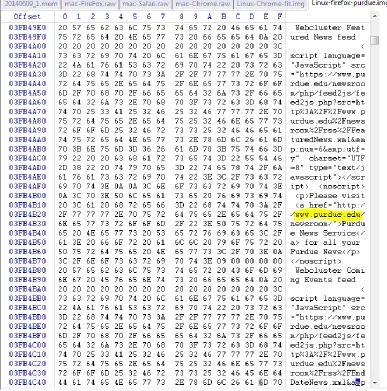
Firefox:
for further analysis. During analysis it was found that the URL was
stored in the memory.
Figure 12: Firefox on Linux Winhex analysis Screenshot
Mac OSX Analysis:
---Output---
Emads-MacBook-Pro:OSXPMem emad$ sudo ./osxpmem -v -f raw /Volumes/Untitled/macosdump.raw
Password:
Loading kext from ./pmem.kext
Recieved memory map, size:12528 bytes (descriptors: 48)
[0000000000000000 - 000000000008e000] Conventional [WRITTEN] [000000000008e000 - 0000000000090000] Reserved [PADDED] [0000000000090000 - 00000000000a0000] Conventional [WRITTEN]
………. ……….
Part of Output Omitted
………. ………. [00000000e00f8000 - 00000000e00f9000] MMIO [PADDED]
[00000000fed1c000 - 00000000fed20000] MMIO [PADDED] [00000000ffe70000 - 00000000ffea0000] MMIO [PADDED] [0000000100000000 - 000000016f600000] Conventional [WRITTEN] Acquired 1024816 pages (4197646336 bytes)
Size of physical address space: 6163529728 bytes (261 segments)
Successfully wrote raw image of memory to /Volumes/Untitled/macosdump.raw Kernel directory table base: 0x0000000750e000
Unloading kext volatility.driver.pmem Emads-MacBook-Pro:OSXPMem emad$
---End of Output---
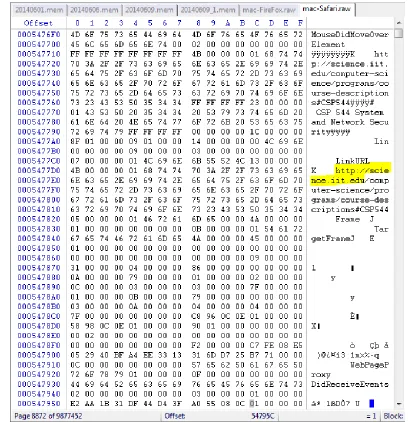
Safari:
Figure 13: Safari on MAC Winhex analysis Screenshot
Chrome:
captured image was opened using Winhex for further analysis.
During analysis it was found that the URL was stored in the memory.
Figure 14: Chrome on MAC Winhex analysis Screenshot
FireFox:
captured image was opened using Winhex for further analysis.
During analysis it was found that the URL was stored in the memory.
6
Private Mode
Analysis Results
6.1 Conclusion
As mentioned earlier, browser vendors claim to not store any browsing related on
the end device. But the results of testing and investigation are as follows:
Recovery from file system method:
Browser Vendor Comments Result
Internet Explorer Browsing related information is recoverable
as the browser writes the data on the file
system and then deletes it by a file system
operation called
“SetDispositionInformationFile”.
Fail
Firefox The browser doesn’t write anything to the
filesystem and no data can be recovered.
Pass
Chrome The browser doesn’t write anything to thefilesystem and no data can be recovered.
Pass
Safari The browser writes browsing data on a fileRecovery from physical memory (RAM) method:
Browser Vendor Comments Result
Internet Explorer Browsing related information is
recoverable as the browser writes
data on the RAM.
Fail
Firefox Browsing related information is
recoverable as the browser writes
data on the RAM.
Fail
Chrome Browsing related information is
recoverable as the browser writes
data on the RAM.
Fail
Safari Browsing related information is
recoverable as the browser writes
data on the RAM.
Fail
Therefore from a user privacy perspective it is preferable to use Google Chrome and
Firefox than using Safari or Internet Explorer.
6.2 Mitigation
We have discussed two methods on how browsing history of private sessions can be
recovered, one was recovery from file system method and the other was using physical
For the file system method the browser vendor should ensure that the browser in
private should not write any data on the file system as writing data on the file system
makes it easy for anyone to perform recovery.
For the memory recovery method the browser vendor should ensure that when the
process is shut down, the memory allocated or used by the browser is filled with
random characters so that data cannot be recovered from the memory.
6.3 Future work
Future work could be to assess the effectiveness of the popular privacy eraser software
to check if they would actually get rid of all the browsing history related information.
Additionally further assessment can be performed for the remaining browsers in the
market.
With a shift in users heavily adopting mobile devices, there have been browsers
developed specifically for mobile devices. Performing analysis of these browsers in
Bibliography
1. “CERN - How the Web Began,” accessed August 1, 2010, http://public.web.cern.ch/public/en/about/WebStory-en.html. 2. “History of Web Browsers,” accessed August 1, 2010,
http://www.mapsofworld.com/referrals/internet/internet-history/history-of-web-browsers.html.
3. “Web Browser History - First, Early,” accessed August 5, 2010, http://www.livinginternet.com/w/wi_browse.htm.
4. “CERN - How the Web Works,” accessed August 11, 2010, http://public.web.cern.ch/public/en/about/WebWork-en.html. 5. “History of Web Browsers,” accessed August 1, 2010,
http://www.mapsofworld.com/referrals/internet/internet-history/history-of-web-browsers.html.
6. Eric Holter, “Browser Compatibility Support Issues,” accessed August 12, 2010, http://www.newfangled.com/browser_compatibility_support.
7. Jeffrey R. Jones, “Browser Vulnerability Analysis,” accessed September 6, 2010,
http://blogs.technet.com/cfs-filesystemfile.ashx/__key/CommunityServer-
Components-PostAttachments/00-02-59-48-22/ie_2D00_firefox_2D00_vuln_2D00_analysis.pdf.
8. “Internet Explorer - Wikipedia, the Free Encyclopedia,” accessed September 28, 2010, http://en.wikipedia.org/wiki/Internet_Explorer.
9. “Safari (web Browser) - Wikipedia, the Free Encyclopedia,” accessed September 28, 2010, http://en.wikipedia.org/wiki/Safari_(web_browser).
10.“Google Chrome - Wikipedia, the Free Encyclopedia,” accessed September 28, 2010, http://en.wikipedia.org/wiki/Google_Chrome.
11.“What Is Forensics,” accessed October 28, 2010,
http://library.thinkquest.org/TQ0312020/whatisforens.htm.
12.“Digital Forensics - Wikipedia, the Free Encyclopedia,” accessed November 6, 2010, http://en.wikipedia.org/wiki/Digital_forensics.
14.“What Is Computer Forensics? - Definition from Whatis.com - See Also: Cyberforensics,” accessed November 6, 2010,
http://searchsecurity.techtarget.com/sDefinition/0,,sid14_gci1007675,00.html. 15.“Computer Forensics - Wikipedia, the Free Encyclopedia,” accessed November 8,
2010, http://en.wikipedia.org/wiki/Computer_forensics.
16.“Federal Rules of Evidence -- 2010 | Federal Evidence Review,” accessed November 12, 2010, http://federalevidence.com/rules-of-evidence#Rule901. 17.J. Patzakis, “Maintaining the Digital Chain of Custody,” in Infosecurity Europe
Conference, 2003.
18.Charles Jade, “Mac Market Share Surges in U.S.: Apple «,” accessed December 10, 2010, http://gigaom.com/apple/mac-market-share-surges-in-u-s/.
19.Alejandro Martínez-Cabrera, “Apple Surpasses Microsoft in Security Vulnerabilities - SFGate,” accessed December 10, 2010,
http://articles.sfgate.com/2010-07-24/business/21996176_1_vulnerabilities-software-vendors-mozilla-foundation.
20.Ryan Naraine, “Apple Plugs 48 Safari, WebKit Security Holes | ZDNet,” accessed December 10, 2010, http://www.zdnet.com/blog/security/apple-plugs-48-safari-webkit-security-holes/6623.
21.“Privacy Mode - Wikipedia, the Free Encyclopedia,” accessed December 10, 2010, http://en.wikipedia.org/wiki/Privacy_mode.
22.“Chromium-Security-Architecture.pdf,” accessed December 14, 2010,
http://seclab.stanford.edu/websec/chromium/chromium-security-architecture.pdf. 23.Marc Chung, “Chrome’s Process Model Explained,” accessed December 14,
2010, http://blog.marcchung.com/2008/09/05/chromes-process-model-explained.html.
24.Ryan Naraine, “Google Plugs ‘High Risk’ Chrome Security Holes | ZDNet,” accessed December 14, 2010, http://www.zdnet.com/blog/security/google-plugs-high-risk-chrome-security-holes/6952.
25.Andrew Heining, “Browser Security: Pwn2Own Topples All but Chrome - CSMonitor.com,” accessed December 14, 2010,
http://www.csmonitor.com/Innovation/Horizons/2009/0324/browser-security-pwn2own-topples-all-but-chrome.
27.Gregg Keizer, “Google to Pay Bounties for Chrome Browser Bugs - Computerworld,” accessed December 14, 2010,
http://www.computerworld.com/s/article/9150011/Google_to_pay_bounties_for_ Chrome_browser_bugs.
28.“Browser Statistics,” accessed December 19, 2010, http://www.w3schools.com/browsers/browsers_stats.asp.
29.Brett Shavers and Ron Godfrey, “Internet And Chat Forensics,” accessed December 25, 2010, http://www.slideshare.net/bshavers/internet-and-chat-forensics-286361.
30.“AccessData Product Support Downloads | AccessData.com,” accessed January 17, 2011, http://accessdata.com/support/adownloads.
31.“Forensically Interesting Spots in the Windows 7, Vista and XP File System and Registry (and Anti-Forensics),” accessed January 23, 2011,
http://www.irongeek.com/i.php?page=security/windows-forensics-registry-and-file-system-spots.
32.“IE PassView - Password Manager Program for Internet Explorer,” accessed January 23, 2011, http://www.nirsoft.net/utils/internet_explorer_password.html. 33.“Mozilla Firefox 3 History File Format - Forensics Wiki,” accessed January 24,
2011,
http://www.forensicswiki.org/wiki/Mozilla_Firefox_3_History_File_Format. 34.M. T Pereira, “Forensic Analysis of the Firefox 3 Internet History and Recovery
of Deleted SQLite Records,” Digital Investigation 5, no. 3–4 (2009): 93–103.
35.“Internet Explorer 8: Features,” accessed February 21, 2011,
http://www.microsoft.com/windows/internet-explorer/features/safer.aspx.
36.“Start Safari’s Private Browsing via Keyboard Shortcut | E-Mail & Internet | Mac OS X Hints | Macworld,” accessed February 21, 2011,
http://www.macworld.com/article/133941/2008/06/safariprivate.html. 37.“Private Browsing | How to | Firefox Help,” accessed February 21, 2011,
http://support.mozilla.com/en-US/kb/private%20browsing.
38.“Incognito Mode (private Browsing) - Google Chrome Help,” accessed February 21, 2011,
40.“Key Implications of Sarbanes-Oxley,” accessed February 28, 2011, http://www.bizforum.org/whitepapers/ibm.htm.
41.G. Stults, “An Overview of Sarbanes-Oxley for the Information Security Professional,” 2004.
42.“Sarbanes-Oxley IT Security Compliance Checklist - Jason Kolb Re: The Future of the Internet,” accessed February 28, 2011,
http://jasonkolb.com/weblog/2006/04/web_20_security_1.html.
43.G. R Beaty, “Disclosure of the Air Force Human Factors Investigation,” Journal
of Air Law and Commerce 42 (1976): 385.
44.“Official Source of PCI DSS Data Security Standards Documents and Payment Card Compliance Guidelines,” accessed February 28, 2011,
https://www.pcisecuritystandards.org/security_standards/index.php. 45.“What Is InPrivate Browsing?,” accessed February 28, 2011,
http://windows.microsoft.com/en-US/windows-vista/What-is-InPrivate-Browsing. 46.Kristinn, “Google Chrome Forensics,” accessed March 21, 2011,
http://computer-forensics.sans.org/blog/2010/01/21/google-chrome-forensics/. 47.“Firefox 3 Forensics - Research,” accessed March 21, 2011,
http://www.firefoxforensics.com/research/index.shtml.
48.“FoxAnalysis - Firefox 3 Forensics,” accessed March 21, 2011, http://forensic-software.co.uk/foxanalysis.aspx.
49.“ChromeAnalysis - Google Chrome Forensics,” accessed March 21, 2011, http://forensic-software.co.uk/chromeanalysis.aspx.
50.“Manage Internet Cache,” accessed March 21, 2011,
http://www.maintain.se/cocktail/help/leopard/files/caches/internet.html. 51.“Regmon,” accessed February 2, 2013, http://regmon.softpedia.com/. 52.“Filemon,” accessed February 16, 2013,
http://www.softpedia.com/get/Programming/Other-Programming-Files/Filemon.shtml.
53.“Recuva - Undelete, Unerase, File and Disk Recovery - Free Download,” accessed February 18, 2013, http://www.piriform.com/recuva.
54.“FILE_DISPOSITION_INFORMATION Structure (Windows Drivers),”
55.“Apple Safari - Forensics Wiki,” accessed December 18, 2013, http://www.forensicswiki.org/wiki/Apple_Safari.
56.Selena Ley, “Safari Browser Analysis,” accessed December 18, 2013,
http://www.appleexaminer.com/MacsAndOS/Analysis/HowTo/SafariBrowserAna lysis/SafariBrowserAnalysis.html.
57.“Digital Forensics, Computer Forensics, Recover Files - Magnet Forensics,” accessed February 10, 2014, http://www.magnetforensics.com/.
58.“Live RAM Capturer,” accessed February 10, 2014, http://forensic.belkasoft.com/en/ram/download.asp.
59.“DaemonFS - Browse /1.1 at SourceForge.net,” accessed March 21, 2014, http://sourceforge.net/projects/daemonfs/files/1.1/.
60.“Download FileMon for Mac - Filesystem Activity Monitoring Tool. MacUpdate.com,” accessed April 12, 2014,
https://www.macupdate.com/app/mac/41435/filemon. 61.“Wp-Intro-to-File-Carving.pdf,” accessed April 14, 2014,
http://www.mcafee.com/hk/resources/white-papers/foundstone/wp-intro-to-file-carving.pdf.
62.“HowStuffWorks ‘Memory Storage and Management,’” accessed April 14, 2014, http://computer.howstuffworks.com/operating-system7.htm.
63.“InfoSec Handlers Diary Blog - Linux Memory Dump with Rekall,” accessed May 5, 2014,
https://isc.sans.edu/diary/Linux+Memory+Dump+with+Rekall/17775.
64.“How Do I Dump Physical Memory in Linux? - Super User,” accessed May 5, 2014, https://superuser.com/questions/164960/how-do-i-dump-physical-memory-in-linux.
65.“OSXPmem - Pmem - The OSX Pmem Memory Acquisition Tool. - Pmem Is a Suite of Memory Acquisition Tools. - Google Project Hosting,” accessed May 9, 2014, http://code.google.com/p/pmem/wiki/OSXPmem.
66.“Do Private and Portable Web Browsers Leave Incriminating Evidence? A Forensic Analysis of Residual Artifacts from Private and Portable Web Browsing Sessions - 5017a135.pdf,” accessed August 6, 2014,
http://www.ieee-security.org/TC/SPW2013/papers/data/5017a135.pdf.
![Figure 1: Database structure for Firefox history [33]](https://thumb-us.123doks.com/thumbv2/123dok_us/42714.3836/20.612.118.547.298.540/figure-database-structure-firefox-history.webp)