Rochester Institute of Technology
RIT Scholar Works
Theses Thesis/Dissertation Collections
1-2014
Server-Based Desktop Virtualization
Anas Raqi Shabaitah
Follow this and additional works at:http://scholarworks.rit.edu/theses
This Thesis is brought to you for free and open access by the Thesis/Dissertation Collections at RIT Scholar Works. It has been accepted for inclusion in Theses by an authorized administrator of RIT Scholar Works. For more information, please [email protected].
Recommended Citation
1
Copyright
By
Anas Raqi Shabaitah
2014
2
Server-Based Desktop Virtualization
By
Anas Raqi Shabaitah
<Thesis>
Presented to the Faculty of the Graduate School of RIT University in Partial Fulfillment
Of the Requirements for the Degree of
Master of Science in Network, Systems and Security Administration
(NSSA)
Rochester Institute of Technology (RIT)
Department of Networking and Systems Administration
Golisano College of Computing and Information Science
www.rit.edu
<Jan, 2014>
Advisor: Prof. Charles Border
3
Dedication
I dedicate my thesis work to my family. A special feeling of gratitude to my wife,
Reema, who never left my side and encouraged me. I also dedicate this work to my
4
Acknowledgements
I would like to express my deepest gratitude and appreciation to my advisor, Professor
Charles Border, for his excellent guidance and caring. I would also like to thank my
committee members, Professor Khalid Khawaja and Professor Muhieddin Amer. A
special thanks to my family. At the end, I would like to express appreciation to my
beloved wife, Reema, who was always my support in the moments when there was no
5
Abstract
Server-Based Desktop Virtualization
Anas Raqi Shabaitah, MSc
RIT University, 2014
Virtualization can be accomplished at different layers in the computational stack and
with different goals (servers, desktops, applications, storage and network). This research
focuses on server-based desktop virtualization. According to the Gartner group, the main
business drivers for adopting desktop virtualization are: application compatibility,
business continuity, security and compliance, mobility and improved productivity [15].
Despite these business drivers, desktop virtualization has not been widely adopted.
According to a survey conducted by Matrix42, only 5% of desktop computers are
virtualized [37]. The research deals with the challenges preventing the wider adoption of
server-based desktop virtualization while focusing on two of the main virtualization
architectures: session-based desktop virtualization (SBDV) and virtual desktop
infrastructure (VDI).
The first chapter introduces some of the challenges faced by large organizations in their
efforts to create a cost effective and manageable desktop computing environment. The
second chapter discusses two of the main server-based desktop virtualizations (VDI and
SBDV), illustrating some of the advantages and disadvantages in these different
architectures. The third chapter focuses on some of the technical challenges and provides
recommendations regarding server-based desktop virtualization. In the fourth chapter,
6
user profiles (light, heavy and multimedia). Data and results collected from desktop
assessment and lab are used to formulate baselines and metrics for capacity planning.
According to the conducted measurements, it is concluded that light and heavy profiles
can be virtualized using SBDV, while for multimedia profiles, additional capacity
planning and resource allocation are required. Multimedia profiles can be virtualized with
VDI considering client-side rendering to avoid network bandwidth congestion.
While the research focuses on VDI and SBDV, it highlights few points related to client
access devices (CADs). CADs are one of the main components in the desktop
virtualization stack (OS virtualization, session virtualization, application virtualization,
connection broker, CADs and user data and profiles). The latter chapter of the research
focuses on conclusions and future work toward greater levels of adoption of VDI and
SBDV.
7
Table of contents
Introduction ... 9
Chapter1: Traditional Desktops Challenges ... 12
1.1. Inefficient resource utilization ... 12
1.2. Power Consumption ... 13
1.3. Management Overhead ... 14
Chapter2: Server-Based Desktops Virtualization... 18
2.1. Server Architectures and Locus of Computations ... 18
2.2. Virtual Desktop Infrastructure (VDI) ... 22
2.2.1. VDI Definition ... 22
2.2.2. VDI Components ... 23
2.2.3. VDI Architecture ... 25
2.2.4. Microsoft VDI ... 27
2.2.5. VMware VDI ... 34
2.2.6. Citrix VDI ... 36
2.3. Session-Based Desktop Virtualization ... 39
2.3.1. Definition ... 39
2.3.2. Architecture ... 39
2.3.3. Microsoft RDS ... 41
2.3.4. Linux Terminal Server Project (LTSP) ... 42
Chapter3: ... 46
Challenges of Server-Based Desktop Virtualization & Recommendations ... 46
3.1. Administration and Management Overhead ... 46
3.2. IT Infrastructure Requirements ... 48
3.3. Session Virtualization and VDI ... 55
3.4. Remote Desktop Protocols ... 59
Chapter4: Lab Measurements and Capacity Planning ... 64
4.1. Lab Measurements ... 65
4.1.1. Lab Design & Components ... 65
4.1.2. User Profiles ... 66
4.1.2.1 Light Users ... 66
4.1.2.2 Heavy Users ... 67
4.1.2.3 Multimedia Users ... 68
4.1.3. Lab Measurements ... 69
4.1.3.1. Light Profile ... 69
8
4.1.3.3. Multimedia Profile ... 76
4.1.3.4. Disk Utilization ... 78
4.2. Capacity Planning ... 80
Conclusions and Future Work ... 82
Conclusions ... 82
Future Work ... 84
Mobile Devices and Server-Based Desktop Virtualization ... 84
Open Standard ... 86
HTML5 ... 87
Appendixes... 88
Appendix A: Desktop Virtualization Assessment Results. ... 88
Appendix B: Lab Measurements Components. ... 90
Appendix C: Customized Scripts. ... 91
Appendix D: Thin Clients Overview. ... 98
Bibliography ... 100
[image:9.612.82.527.72.388.2]Glossary ... 103
9
Introduction
Desktop computers have changed and evolved over the last decade. Over years, desktops
have been transformed from being large and slow machines to small and fast machines in
order to meet the increasing demand. The first desktop computer kit was available in
1974 by Micro Instrumentation Telemetry Systems (MITS). At that time, computers were
just kits. Nothing was assembled till the 1980s. The first versions of the assembled
desktops were expensive and used to run BASIC language. The first desktop computer
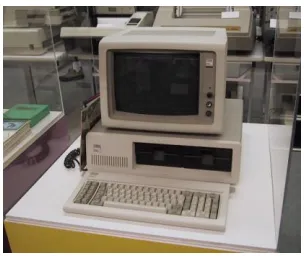
that became the pattern for the current home computer was the IBM PC Junior. IBM PC
Junior is shown in Figure 1 below. The number of desktop computers rapidly increased
over years. According to Forrester Research, the total number of computers (desktops
[image:10.612.230.382.395.523.2]and laptops) in 2012 is around 1.4 Billion [4].
Figure 1: IBM PC Junior (Source: www.tpsoft.com)
It is not only the technology that evolved over time, the definition of desktop computers
evolved as well. Up to recently, desktop computer was defined as a computer with user
data and information stored on it, a screen to display information and input / output
devices. Now, thanks to the mobilization of Information Technology (IT), desktops refer
10
Note: The phrase “traditional desktop computers” or “fat clients” refers to physical
desktop computers.
Like with other technologies, the implementation and management of desktop computers
present challenges to organizations. According to VMware [38], the main challenges
associated with traditional desktops can be summarized in the following: management
overhead, total cost of ownership (TCO), Security and inefficient utilization of resources.
In its simplest definition, desktop virtualization refers to the separation of the desktop
environment (operating system, applications and user profiles) from the physical
machine. This is done by hosting desktop computers as virtual machines (guests) or
sessions on top of physical hosts.
Vendors promoting server virtualization are also promoting desktop virtualization. It is
noticeable that the main vendors for server virtualization are also playing a major role in
the desktop virtualization track. According to Gartner group [15], VMware is the leader in
server virtualization and is also one of the leaders in desktop virtualization. The same
applies for both Citrix and Microsoft.
According to Brian Madden [1]:
“VMware’s success with virtualization was based on servers’ virtualizations. While this
was happening, a separate group of IT Professionals were doing what is called
Server-Based Computing (SBC). With SBC, instead of running applications from the local
desktops, the applications run on a server centrally located and the user just sees a
dynamic picture of what the application is doing. This concept of SBC was pioneered by
11 called Citrix WinFrame. Microsoft caught wind of what Citrix was doing, and the two
companies worked together to bring this SBC technology into the mainstream, creating a
special Terminal Server edition of Windows NT 4.0. In the late 2000s, when Citrix and
Microsoft were having a great success with SBC, VMware was enjoying great success
with their server virtualization products. Around this time, it started to occur to the
VMware executives, partners and investors that merely focusing on the servers in the
data center was really limiting VMware’s potential. If there were 50 million servers in
the world that could be virtualized, the surely there must be 500 million desktops! And so
the great race to virtualize desktops began”.
The solution developed by VMware aims to move the resource utilization and locus of
computations from the physical desktop computers to VMs hosted on a host. A VM is
dedicated for each user, users connect to their VMs using remote desktop protocols. The
solution developed by VMware has similarities with that developed by Citrix (SBC). The
main difference is that with the VMware solution, each user has a dedicated VM. The
VMware solution required more server resources to serve the same number of VMs
compared to Citrix solution (SBC).
The first chapter of this research explores the challenges associated with Traditional
12
Chapter1: Traditional Desktops Challenges
With the traditional deployment architecture, the execution of applications and the
resource computations are done on the physical desktop computers. The traditional
deployment architecture has challenges, three of the main challenges are discussed in this
chapter.
1.1. Inefficient resource utilization
Desktop computers are powerful machines that are inefficiently utilized in the traditional
deployment architecture of each user controlling access to their own hardware. As part of
this research, a hardware and software assessment is conducted on an international
company based on Dubai to better understand relevant utilization rates. Quest Desktop
Virtualization assessment tool (http://www.quest.com) was run for a period of one month.
Figure 2 below shows the average resource utilization during the one month period
(Desktop computers’ IDs are hidden for confidentiality).
13
Note: more details about the conducted assessment are in the appendix section (Appendix
A: Desktop Virtualization Assessment Results).
1.2. Power Consumption
According to Wyse Technology, the desktop traditional computing architecture is
everywhere (schools, hospitals, etc...) [2]. Desktop computers have an unseen
environmental and economic impact throughout their lifecycle. Starting from their
production phase and ending with their disposal. The global information and
communication technology (ICT) industry accounts for approximately two percent of the
global carbon dioxide (CO₂ ) emissions, a value equivalent to aviation according to
Gartner, Inc [40].
An average desktop computer with monitor requires 10 times its weight in chemicals and
fossil fuels to produce [41]. But the main impact of desktop computers on the
environment comes from their operation phase. Based on studies [2], approximately 15%
of organizations’ energy costs and carbon footprint comes from Information Technology
use, 39% of this value comes from desktop computers and servers. But it is not only the
operation phase of desktop computers that effect the environment. When a desktop
computer reaches the end of life (disposal phase), hazardous materials contained on it
have a negative impact on the environment if not disposed of properly. Based on statistics
collected from the National Recycling Coalition [2], between 1997 and 2007 about 500
million personal computers were disposed of. While it is not clear what percentage of
these computers were disposed of properly, the negative impact of their disposal on the
14
Desktop computers consume between 85 and 110 Watts (W) [2]. Figure 3 below
examines the energy consumption (kWh), electricity cost ($) and CO₂ emissions for
three PC installation scenarios with and without power management feature.
Figure 3: Desktops Power Consumption, Electricity cost and CO₂ Emissions [2]
1.3. Management Overhead
Desktop computers management and administration represent a challenge in the
traditional desktop deployment architecture. Some of the tasks that must be accomplished
include: Desktop imaging process, updates and patches deployment, O.S migration and
applications upgrade.
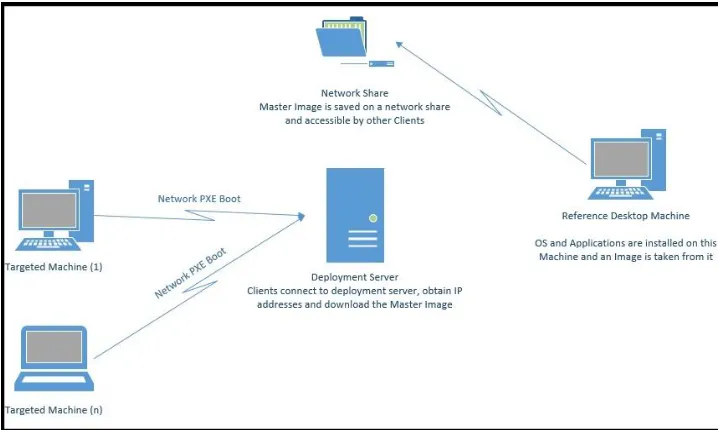
One way to enhance the efficiency of deployment and management include the creation
of a master “Standard” image instead of manually installing OS and applications. A best
practice is to use a reference desktop computer with all the standard applications and OS
installed, and updated with the latest patches and drivers. The master image is captured
from the reference desktop computer and saved on a network shared drive. Targeted
15
to get the image from the network shared drive. The standard image has to be updated
frequently and injected with the latest drivers. The process of “Imaging” and “Installing”
can turn into a complex task especially for enterprise companies with a large number of
desktop computers, and for applications that need to be updated frequently (Example:
[image:16.612.125.484.219.434.2]Microsoft Applications). Figure 4 below shows the components of the imaging process.
Figure 4: Desktop Imaging Process
According to a report issued by Microsoft [3], about 24% of computers scanned by
Microsoft tools were not running real-time antimalware software or were running
out-of-date antimalware software. According to BullGuard Security Centre [42], only five
percent of users scanned were running fully-patched Windows operating system. One
reason behind this problem is the large number of desktop computers to manage. Many
mid-size and enterprise companies have thousands of desktop computers to manage.
While there are tools that aid in the automation and management of desktop computers
16
(WSUS), a Microsoft proprietary tool to manage the deployment of windows updates
from a central location. WSUS has a server component which connects to Microsoft
update website, downloads relevant updates and distributes them to the clients based on a
predefined schedule. Other tools like ManageEngine patch management tool, which
works with Microsoft updates and third party updates, unlike WSUS which works only
with Microsoft updates. Those tools help in automating and easing the process of patch
and update deployment, but the process remains very complex and prove to failure
leaving the unpatched desktop computers open for attack. Before deploying patches and
updates using the patch automation tools, updates have to be tested on test environments
to make sure that the newly deployed updates will not result in a downtime or
interruption.
OS migration is another challenge for traditional desktop computers. Like patch
deployment, there are different tools for lite-touch deployment (deploying OS with
minimal intervention from systems administrators) and zero-touch deployment (deploying
OS with no intervention from systems administrators). Windows Deployment Services
(WDS) and Microsoft SCCM (System Center Configuration Manager) are two of the
leading tools for OS deployments. Such tools help ease the deployment and migration of
OS. On the other hand, while trying to make OS deployment easier, another challenge is
created. Deployment systems like WDS and SCCM can turn into a complicated task that
17
There are other challenges for traditional desktop computers like cost, but it is not a main
challenge as the technology gets cheaper day after day. Another challenge is mobility,
traditional desktop computers are machines that cannot mobile with the users.
Next chapter of this research, server-based desktop virtualization, is the core chapter of
this research. Throughout this chapter, two of the main Server-based desktop
18
Chapter2: Server-Based Desktops Virtualization
2.1. Server Architectures and Locus of Computations
Server-based desktop virtualization is accomplished in different architectures. This paper
will discuss the two main approaches of server-based desktop virtualization which are:
virtual desktop infrastructure (VDI) and session-based desktop virtualization (SBDV).
The server-based desktop virtualization technology is evolving, and the competition
between different vendors is drastically increasing, the result of this competition is the
development of different architectures for server-based desktop virtualization. This
research finds it crucial to have general models illustrating the server side architecture
and the locus of computations. The research develops three main models:
1. Model A: persistent VM.
2. Model B: non-persistent VM.
3. Model C: session based.
All vendors’ architectures fit in one or more of those general architectures. VDI can be
implemented by model A and model B, while SBDV is implemented using model C. The
three models are explained in the following paragraphs.
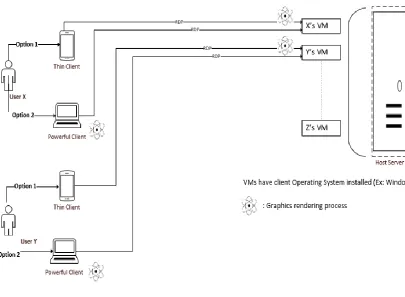
In model A, each user has a dedicated VM hosted on the host server. VMs have client
OS installed on them to provide the desired user experience. The resource computations
are by default performed on the host server. Thanks to the 64-bit architecture, the ratio of
clients to servers is increased, resulting in more number of clients (VMs) per server. But
there is one resource which is not evolving the same way that other resources do, this
19
overcome the network challenge. One of the solutions is to perform in the graphics and
[image:20.612.95.500.182.479.2]multimedia rendering process on the client side.
Figure 5: Model A (persistent VMs).
As shown in the figure above (model A), users can connect to their dedicated VMs using
a thin client or a fat client. If a thin client is used, hence thin clients don’t have powerful
graphics adapter to perform the rendering process, the rendering process can be
accomplished on the server side (server-side rendering). If a fat client is used, then the
rendering process can be accomplished on the client sider (client-side rendering).
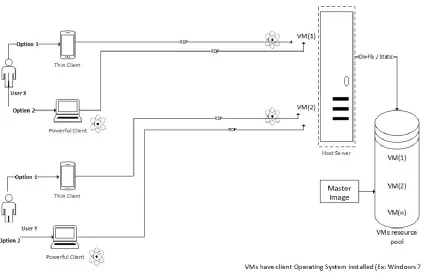
In model B, both client-side and server-side rendering are achievable depending on the
20
user connect to the server, a new VM is created from the VM resource pool. The creation
process can be either on-fly or static depending on the technology used. For instance,
Microsoft VDI supports static type of creation, while integrating Microsoft VDI with
other products like Microsoft System Center allows on-fly creation of VMs. Model B
[image:21.612.95.516.231.504.2]architecture is illustrated on the Figure below (model B).
Figure 6: Model B (non-persistent VMs).
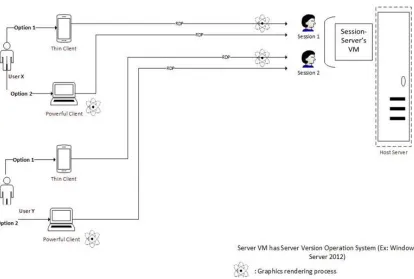
In model C, VMs are replaced with sessions. Sessions are created from a server version
of OS which can be installed on a physical or a virtual machine. As with both model A
21
depending on the client and technology used. Model C architecture is illustrate on the
[image:22.612.99.513.166.445.2]Figure below (model C).
Figure 7: Model C (session-based).
The next two sections of this chapter explores the two main approaches of session-based
22 2.2. Virtual Desktop Infrastructure (VDI)
Desktop virtualization consists of six components: OS virtualization, session
virtualization, application virtualization, connection broker, client access devices and user
data and profiles. The research focuses on three of the six components: OS virtualization,
session virtualization and connection broker. Although client access devices (CADs) are
an essential component of the desktop virtualization, the research will only briefly
discuss the client access devices. Other components of desktop virtualization (application
virtualization and user data and profiles) are outside of this research scope.
2.2.1. VDI Definition
VDI refers to the virtualized desktop computers running on top of a hypervisor. VMs can
be either distributed where each user has one desktop VM (guest) or it can be a pool of
VMs where VMs are shared between users, users get random VMs from the pool upon
establishing the connection. Users access the VMs using Remote Protocols (RP) like
Microsoft Remote Desktop Protocol (RDP), Citrix High Definition Experience (HDX))
23
2.2.2. VDI Components
The main components of a VDI architecture are:
A protocol used to connect the users to the guest VMs. Previously, the protocol
was called “the display protocol” since it was mainly used to handle the updating
of the display, passing the keyboard and mouse input. The display protocols
evolved and is renamed to desktop remoting protocols (DRPs). The function of
DRPs is more than just the displaying part. Remoting protocols handle different
functions including the following:
- Full keyboard, mouse and touch redirection from the local client to the guest
VMs.
- Support for multi monitors.
- Multimedia redirection. This feature allows multimedia files to be rendered on
the client side (this feature is explored in details in chapter 3 & 4).
- Bi-directional audio, which allows audio to be sent to and from the local
client.
A virtual management platform. This platform manages the servers hosting the
guest VMs, it also helps in provisioning and managing the clients’ VMs.
A connection (session) broker. It is responsible for load balancing the traffic from
the clients, it is also the connection point for clients connecting from the local
network.
Application virtualization. It enables fast access to applications from end user
24
virtualization the deployment is faster (no local installation of application,
virtualized application uses the server computational resources).
Note: This component is out of this research scope, it is mentioned since it is a
main component of VDI.
Profile and data redirection: with traditional desktop computers, users customize
their desktops (background, documents, settings, etc.) and have these
customizations preserved whenever they login to their machines. With VDI, users
either have their persistent VMs or non-persistent VMs. With persistent VMs,
users have their dedicated VMs. Like with traditional desktop computers,
persistent VMs allow users to customize their desktops and have their
customization available whenever they login to their VMs. But with
non-persistent VMs, users connect to random VMs from a pool of VMs, which brings
a new challenge for VDI, which is to save the users customization and redirect
their data whenever they connect. The profile and data redirection component of
VDI is used to ensure that the customization is preserved for non-persistent type
of VDI.
VDI gateway: It is used to receive requests from clients connecting from internet.
For security purposes, the connection between the remote clients and the VDI
gateway is encrypted, VDI gateway converts the encrypted traffic to a format that
25
[image:26.612.143.467.130.432.2]2.2.3. VDI Architecture
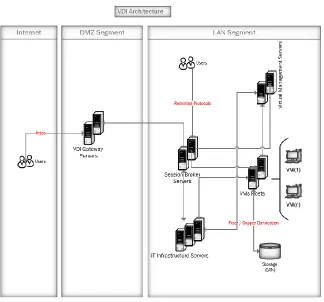
Figure (8) below illustrates the basic architecture for VDI.
Figure 8: VDI Architecture
The architecture divides VDI components into three segments: Local area network
(LAN), demilitarized zone (DMZ) and the internet. The VDI gateway servers are hosted
in the DMZ zone to provide access for remote users. VDI gateway is an optional
component which is used if remote access is required. For both remote users and internal
users the remote desktop client (RDC) is required to establish the connection with the
VDI gateway or the connection broker servers. The RDC contains information about the
server to which the users connects, information includes: Server IP address, server name,
26
For remote clients, the connection with the VDI gateway server is encrypted. VDI
gateway encapsulates the RDP traffic for security purposes.
The remote client initiates the connection by executing the RDC file, RDC connects to
the VDI gateway. The VDI gateway receives the traffic from the remote clients then it
extracts the RDP traffic and forwards it to the connection broker server. The connection
broker consults the infrastructure servers and retrieves the user profile type (persistent or
non-persistent VMs).
The connection broker communicates with the virtual management servers. If the type of
the VM is persistent (determined from the user’s parameters), then the connection broker
connects to the user’s VM hosted on the VMs Host. The connection broker passes the
information to the VDI gateway, which encapsulates the traffic then sends it back to the
remote client. If the type of VM is non-persistent, then the connection broker consults the
virtual management server. The virtual management server informs the host and gets a
random VM from the VMs pool. If the VMs pool has no VMs available, then the virtual
management server instructs the host to create a VM from the master copy.
The same scenario applies with the internal users except that they connect directly to the
connection broker instead of the VDI gateway. The VMs virtual hard disks (VHDs) are
27
2.2.4. Microsoft VDI
Microsoft VDI shares the same components of the VDI architecture illustrated in Figure
8 above. But Microsoft has additional components added to its VDI: Microsoft licensing
server and remote desktop (RD) web access. Microsoft VDI components are: RD
Gateway, RD web access, RD session host, RD connection broker, licensing server and
hyper-V servers to host the VMs. There are other optional components that help
managing VDI infrastructure like: Microsoft System Center Virtual Machine Manager
(SCVMM), Microsoft System Center Operations Manager (SCOM) and Microsoft
System Center Configuration Manager (SCCM).
SCVMM is a management solution for the virtualized datacenter, it enables companies
to configure and manage virtualization host, networking, and storage [43]. SCCM is used
to provide more effective IT services by enabling secure and scalable software and
applications deployment, compliance settings management, and comprehensive asset
management for servers and desktops [44]. SCOM provides deep visibility into the health,
performance and availability across applications, OSs, hypervisors and hardware [45].
28 Figure 9: Microsoft VDI Architecture. [8]
Out of the box, Microsoft provides static type of VDI. This means that virtual machines
must be created prior to the assignment of VMs for the users. To have dynamic type of
VDI, other management tools like SCVMM are required. As per Microsoft
recommendations, a Master image should be created and other VMs are cloned from the
master image. When the master image is installed and configured, a tool called “sysprep”
is used. Sysprep is used to prepare VM for duplication by removing unique installation
information like security identifiers (SIDs). The master image holds the OS with the
required applications and customization. If application virtualization is integrated with
the VDI, then the applications are not installed locally on the VMs, instead they are
hosted on the application virtualization servers). The average size for the master image is
(8-10 G.B) [11]. The storage requirements for VDI can turn into a challenge if the number
of VMs is high. In addition to the storage requirements, disk input and output operations
29
physical server where all VMs are accessed at the same time. Even if the VMs are hosted
on a SAN, this will cause a lot of load on the Disks. Those challenges and others are
discussed on Chapter 3 “Server-Based Desktop Virtualization Challenges and
Recommendations”.
The licensing part for Microsoft VDI is complicated. At the time of writing this research,
Microsoft licensing for VDI works as follow [12] [1]:
Software assurance (SA) and virtual desktop access (VDA): if SA is not available,
then VDA is required. VDA is a yearly subscription of 100 $ per device. Unlike
SA, VDA doesn’t allow free upgrade from one version to another.
Even if SA or VDA is available, end users are not allowed to access their VMs
from thin clients without another SA or VDA. An exception for this is for home
users’ scenarios where extended roaming rights (ERR) is used. ERR allows users
to access their VMs without additional SA or VDA as long as their primary
device at the office has SA or VDA. If a user is using a tablet at home to access
his office VM then no additional license is required, but if the user brings the
tablet device to the office then VDA or SA is required.
Microsoft RDP is a multi-channel protocol that allows users of a remote client to
connect to a server or a VM over a network. This multi-channel capability enables the
use of separate channels, called virtual channels, to carry different types of data
including graphics, keyboard and mouse inputs, device communication, and file
30
connections, negotiate capabilities (example: security) and transfer input between the
RDC and the server [14].
RDP facilitates the user interaction with the VM by transferring graphics display
information from the VM to the local client, as well, transferring and encrypting
inputs from the local client to the VM. The following figure shows the connection
sequence for RDP [13].
Figure 10: RDP connection sequence [13]
On the server side, Microsoft RDP uses its own video driver to render the display output.
The output is transformed into network packets and sent over the network to the remote
31
Windows graphics devices interface (GDI). For input devices like mouse and keyboard,
inputs are redirected from the client to the server. On the server, RDP uses its own
on-screen keyboard and mouse drivers to receive the inputs data [13].
Microsoft has enhanced its RDP protocol starting from the first version of RDP, version
four. Version four is part of Windows NT 4.0 terminal server edition. RDP version 4 was
mainly focused on connecting multi login sessions to the server. RDP has evolved over
time, the latest version of RDP, known as RDP 8.1 which is part of Windows 8.1 and
Windows server 2012 R2.
Note: RDP 8.1 is the latest version of RDP released by Microsoft at the time of writing
this research.
Prior to RDP 8.1, RDP used to work well with LAN (10 Mbps and above). But when it
comes to WAN, RDP isn’t performing well. Different versions of RDP protocol (RDP 7
and RDP 8) are tested and assessed as part of this research, test results and scenarios are
illustrated in Chapter 4 “Lab Experiments and Capacity Planning”.
Prior to RDP 8, graphics rendering is performed using the graphics driver of RDP on the
server side (software-based rendering). Software-based rendering is poor in performance
compared to hardware-based rendering. With RDP 8 (supported in Windows 8 and
Windows server 2012), Microsoft introduced a new technology known as RemoteFX. It
aims to provide a better experience and performance for remote devices. The first version
of RemoteFX (released with Windows 2008) supports LAN scenarios only, while with
32
Note: WAN scenario for RemoteFX is tested, results are illustrated on Chapter 4 “Lab
Experiments and Capacity Planning”.
RemoteFX consists of three main components: graphical processor unit (GPU)
virtualization, enhanced codec and USB port-level redirection. GPU is a graphics card
processor designed to perform complex mathematical calculations that are required for
graphics rendering. With GPU virtualization, a physical GPU can be virtualized and
assigned to multiple VMs. With Microsoft VDI, one physical GPU can be assigned to
twelve virtual GPUs. Graphics card are usually equipped with one or two GPUs, which
provides up to twenty four virtual GPUs. As a result, one physical server can provide
GPU capabilities to twenty four VMs. As illustrated earlier, Microsoft RDP renders
graphics on the server side. The integration with physical GPU increases the performance
for the rendering process. The challenge is that most of the servers don’t have powerful
graphics card. To overcome this challenge, Microsoft introduced a software rasterizer
that allows using RemoteFX for environments that don’t have physical GPUs.
RemoteFX introduces enhanced codec that is designed to improve the encoding and
decoding of remote display. A major improvement on RemoteFX is the RemoteFX USB
redirection. Prior to RemoteFX, RDP supports basic redirection such as keyboard, mouse,
disk and other devices. RDP basic redirection is done by redirecting devices to one of the
supported RDP redirection devices types. As a result, some of the device-specific
functionalities are not functional with RDP.
RemoteFX is not a replacement for the basic RDP redirection used with the RDP
33
compatible with basic RDP redirection. At the time of writing this research, RemoteFX is
not widely adopted due to the challenges it has. With RemoteFX, optimization cannot be
achieved since the redirection is done at the port level. In order to use RemoteFX, the
driver for the devices must be installed on the host. RemoteFX USB redirection cannot be
used for WAN Scenarios, and the major challenge for RemoteFX is that only one session
from the remote client can access the redirected device at a time, that includes the local
client is self.
RDPs are a crucial components for any VDI design. Vendors and researchers focus their
efforts to enhance the RDPs. With traditional desktop computers, the desktop computer
case is connected to the monitor by a video graphics adapter (VGA) or digital visual
interface (DVI) cable. With VDI, the network media between the host and remote clients
is equivalent to VGA or DVI cable of the traditional desktop computers.
More details about RDPs including Microsoft RDP & RemoteFX are in Chapter3
34
2.2.5. VMware VDI
[image:35.612.126.486.181.417.2]Figure 12 below shows the high-level architecture of VMware VDI [17].
Figure 12: VMware View high-level architecture [17].
The VMware VDI solution is VMware View [17]. The first component of VMware View
is the CADs. This component includes the clients used to access the VMs hosted on
VMware hypervisor (VMware has its owned hypervisor known as VMware vSphere).
CADs can be either fat, thin, repurposed desktop computers or mobile devices. With
repurposed desktop computers, companies lock down the OS installed and allow only the
RDC (VMware View Client) to run from the desktop computer. Another approach for
using repurposed desktop computers with VDI is by network boot (PXE boot), where
35
This approach (network boot) is preferable since no OS is installed on the client side
resulting in reduced management overhead and enhanced security.
Access infrastructure is the second component of VMware View VDI solution. Access
infrastructure aims to provide access from remote clients to the hosted VMs. LAN, WAN
and VMware View Manager (connection broker) are part of the Access Infrastructure
layer.
Virtual infrastructure is the third component. It defines the technologies used to host the
VMs. The fourth component is View desktops which has the configuration of the VMs
accessed by remote clients. Session management is the last component of VMware View.
This component plays the role of deployment and management for VMs, and the
integration with the infrastructure services like AD. Desktop provisioning, pool
management, session monitoring and virtual printing are parts of the session management
component.
Personal Computer over Internet Protocol (PCoIP) is the RDP used by VMware. PCoIP
was developed by Teradici [18]. PCoIP uses UDP instead of TCP to deliver bitmaps by
encoding them on the host server then streaming them over the network to the remote
clients. It transmits only regions of the screen that change from frame to the next frame in
order to optimize the bandwidth utilization.
From an architectural standpoint, PCoIP is more like Microsoft RemoteFX. Both of them
are designed for general purposes. But unlike RemoteFX, PCoIP doesn’t support GPUs
on the server side which means that PCoIP doesn’t work with applications that require
36
2.2.6. Citrix VDI
XenDesktop is the VDI solution from Citrix. The core components for XenDesktop are:
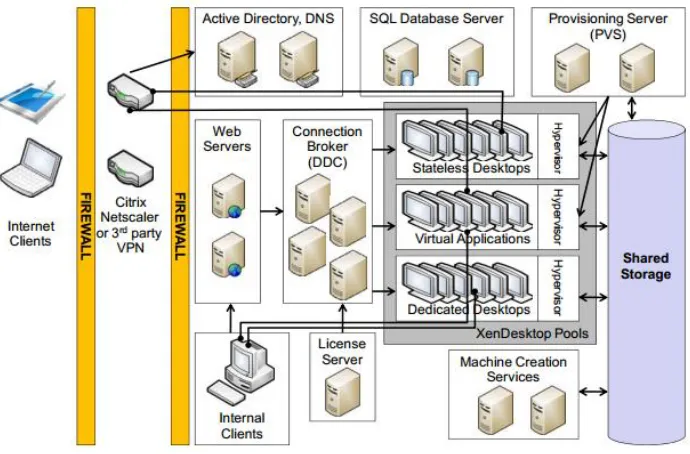
Desktop Delivery Controller (DDC), Provisioning Servers (PVS), Virtual Desktop Agent
[image:37.612.137.482.224.451.2](VDA) and Secure Delivery and Desktop Receiver [19]. The architecture is illustrated in
Figure 13 below.
Figure 13: Citrix XenDesktop Architecture [19].
DDC is the infrastructure component installed on servers in order to authenticate users
and manage virtual desktop environment. The connection broker is part of the DDC
component. VDA component resides on VMs that are hosted on the physical servers and
is used to establish connection between the VMs and the remote clients using Citrix RDP
(High Definition Experience Protocol (HDX)). HDX is the new version of Independent
37
The desktop receiver component is the RDC for Citrix. It is installed on the remote
clients to initiate the connection with the VMs. To host the VMs, Citrix has its own
hypervisor (XenServer), Citrix also supports other hypervisors like Microsoft hyper-V
and VMware vSphere ESX (i) hypervisors. PVS are based on software-streaming
technology (PVS is used for OS streaming virtualization, a client-based desktop
virtualization that is outside the research scope).
HDX is built on top of ICA, HDX uses both TCP and UDP.HDX uses three principals
to optimize and deliver applications over network with best effort. Intelligent redirection,
adaptive compression and data de-duplication are the three principals used by HDX. With
intelligent redirection, activities like screen updates, applications, and object rendering
are monitored to determine where to redirect the computational part of the rendering
process. HDX supports both client-side and server-side rendering, so if the rendering
requires a high percentage of the available bandwidth, then HDX instructs the rendering
process to be done on the client side if the client supports rendering (in this case, the
client should have a powerful VGA to support the rendering process. This is against the
VDI strategy of replacing powerful computers with thin clients). Client-side rendering is
performed by sending few commands from the server side to the remote client instead of
sending the whole rendered data, this saves bandwidth and delivers multimedia objects
with high quality. One of the great features with HDX intelligent redirection is that
devices like webcam, printers and scanners can be terminated locally on the remote client
instead of redirecting them from the server. The local termination allows the interaction
with the devices at the native USB port speed and reduces the load on the network.
38
Figure 14: HDX Intelligent Redirection Principal [20].
Adaptive Compression is a core intellectual property of the HDX protocol. It is used to
set and decide which codecs to use based on different network conditions and also
optimize the utilization of CPU and GPU resources. Data de-duplication is implemented
with the help of multicasting and caching techniques. HDX supports multicasting of
multimedia in one-to-many scenarios where multiple remote clients request the same
multimedia file from the server. In this case, HDX sends only one copy of the requested
file to the remote clients’ site (recommended for WAN scenarios). HDX caching
duplicates commonly access data (print jobs, images and video files) [20].
More details about the three RDPs (HDX, RemoteFX and PCoIP) are available in the
next chapter (Chapter3 – Server-based Desktop Virtualization Challenges and
Recommendations). The next section of this chapter explores the second server-based
39 2.3. Session-Based Desktop Virtualization
Session virtualization, presentation virtualization, terminal services and remote desktop
session host (RDSH) refer to the session-based desktop virtualization (SBDV). SBDV is
the oldest server-based desktop virtualization approach but still the most used with more
than 100 million users worldwide [1].
2.3.1. Definition
Session is defined as a list of processes that provides services to a logical entity like a
logged in user [8]. Both VDI and SBDV aim to place user sessions / VMs on a single
server or few number of servers. As well, both solutions use the same RDPs. The
difference between VDI and SBDV is on the architecture.
Session virtualization is similar to multiple users sharing the same room where each user
has his / her own desk (session), but since they are sharing the same room they are not
allowed to talk loudly or change anything in the office layout. But at the same time they
can customize their own desk. While with VDI, it is similar to multiple rooms or offices
where every employee has his/ her own room.
2.3.2. Architecture
With SBDV, virtual management server is not required as virtualization is done on the
sessions not on the OS itself. SBDV allows multiple users to connect and receive sessions
from the session host servers, resulting in more users connecting to the same server
compared to VDI. Due to that, SBDV is considered much cheaper and easier to
40
[image:41.612.144.475.115.411.2]A high-level architecture of SBDV is illustrated in Figure 15 below.
Figure 15: SBDV Architecture.
The function of sessions host server is to host the user’ sessions. Users connect to the
session host and get their sessions with the required applications. For the applications to
function, they should be installed on the session host server. Since session host server
runs a server version of the OS, application compatibility issues are possible. Challenges
of SBDV are elaborated in Chapter 3 of this research.
The following two sections of this chapter explores two of the main SBDV technologies,
Microsoft session-based desktop virtualization (remote desktop services – RDS) and
41
2.3.3. Microsoft RDS
Microsoft terminal services (TS) is the foundation for different vendors and
technologies. For instance, Citrix built its protocol on top of Microsoft TS and added
more functionality like applications publishing. TS evolved since its development (in
1998). Microsoft RDS (previously known as TS) is a full solution for session
virtualization. Figure 16 below shows Microsoft RDS architecture [8].
Figure 16: Microsoft RDS Architecture [8].
In Microsoft SBDV approach, security and protection are guaranteed by isolating users’
sessions. For each session, the majority of the running processes and services are owned
by the login user. Only two of the processes running under the user session are owned by
the system, winlogon.exe and csrss.exe. Those services are created for each user session
but maintained under system as they are too critical to run under the end users’
42
Microsoft enhanced its session virtualization solution since TS. One of the enhancements
is the application virtualization (RemoteApp), a feature that allows publishing specific
applications instead of the full desktop.
Another enhancement is the driverless printing. Prior to this feature, printing while using
Microsoft session virtualization was a big challenge as it was required to install local
printer drivers on the session host server. In addition to that, print jobs were rendered on
the server side, causing high utilization on both the server resources and network
bandwidth. Microsoft solved this problem by rendering the print jobs using extensible
markup language (XML) paper specifications (XPS) file, then sending the print jobs
using Microsoft RDP to the remote client where they get printed using the local printer of
the remote client [8].
2.3.4. Linux Terminal Server Project (LTSP)
LTSP is an open source project. It was born out of the need to have a terminal that could
communicate using TCP/IP protocol between IBM AS/400 and UNIX application server.
In addition to allowing the communication between the two servers, the terminal should
allow users to perform their daily job like accessing email, documents editing and
browsing the internet [22].
According to Jim McQuillan, the author of The Linux Terminal Server Project: Thin
clients and Linux article, LTSP is considered a project because it came out to the public
as a result of a project implemented to address a customer needs. To respond to the
43
UNIX Server, the decision was made to use a diskless workstations (diskless workstation
is a workstation that doesn’t require a CD-ROM, hard disk or floppy for booting
purposes) running Linux kernel and X-Windows (X-Window is the RDP used by Linux
terminal server and clients). This is how the project started. The first implementation
contained a server and 11 workstations. (The latest update is on June 2000 where the
customer had more than 100 workstations using the LTSP). As a result of this successful
and low-cost project, the team decided to share their solution with the rest of the world.
The LTSP is combined of four core components: clients (thin clients, diskless clients or
traditional desktop computers), a dedicated switch backplane, a Linux server running the
LTSP package and X-Window protocol to display the sessions on the client side. Thin
clients are preferred over traditional desktop computers for two mean reasons. The first
reason is that thin clients are cheaper than traditional desktops computers and have a
longer life time (for more details about thin clients, refer to Appendix D – Thin Clients
Overview). The second reason is that thin clients provide more security and easier
management.
LTSP is architected based on the network size. For small networks, thin clients, LTSP
and other computers can share the same network. While all components can share the
same network for small-size networks, for large networks or networks with bandwidth
intensive applications, a separate network subnet should be created for the LTSP. On this
subnet, thin clients and the session host are connected to a dedicated switch (switch port
speed is decided based on capacity planning). Other desktop computers (Desktop
44
that can be shared with other network resources. Figure 17 & 18 illustrates the high-level
architectures for both approaches [23].
Figure 17: Separate LTSP Sub network [23]
Figure 18: Shared LTSP Sub Network [23]
Thin client boots from the network using PXE and requests an IP address from the
DHCP server. The DHCP server passes additional information to the thin client and
downloads a Linux initramfs file system (initramfs is a complete set of compressed
directories, initramfs is used to mount a root file system). The Linux initramfs is
downloaded via TFTP into the memory of the thin client. After that, the thin client
connects to the LTSP Server’s X session. When the connection is established with the
server, all operations and computations are done on the server side and displayed into the
45
The X window system, known as X, is an open source client-server system used to
manage the graphical user interface (GUI) for single or multiple computers [24]. X is
separated from the OS, which means that if GUI is not required, then installing the X
system is not needed, resulting in a better performance and a higher security.
The next chapter deals with some of the main challenges of server-based desktop
46
Chapter3:
Challenges of Server-Based Desktop Virtualization & Recommendations
The objective of server-based desktop virtualization is to move the locus of
computations from the end users’ desktop computers to the servers in order to reduce the
cost, enhance the security and efficiently utilize the available resources. There are
different challenges associated with server-based desktop virtualization. One of the main
challenges is that the administration and management overhead is moved from the
desktop computers to the servers, another challenge is to have a proper capacity planning
for the server’s resources and network bandwidth to accommodate the required
computations. There are other challenges that are specific to VDI and SBDV. The main
four technical challenges and the recommendations for those challenges are elaborated in
the following sections of this chapter.
3.1. Administration and Management Overhead
Moving desktop computers from the client side to the servers reduces the administration
overhead from the client side but increases it on datacenter. In order to manage the hosted
VMs / sessions, the three elements of administration (people, process and technology)
should be on place.
With traditional environments, the support team members are categorized on three levels:
level1, level2 and level3. Level1 is the tier with majority of staff, staff in level1 are entry
level staff. Level3 is the “expert tier” with less number of staff. While with desktop
47
setup), the issues related to applications and OS is expected to be reduced. Requests like
password reset and customization for OS are not expected to reduce. So it is expected that
number of staff in level1 is slightly reduced. Since all desktop computers are centralized,
if a user faces a login failure it is most probably not a single user issue, it is an issue that
affect all users. With desktop virtualization, most of the incidents will be tackled at the
datacenter level and not at the end user desk, due to that Level2 and Level3 staff will get
increased [7].
Virtualizing desktop computers increases the administration and management overhead.
Companies can reduce the management overheads by carefully planning changes in the
administration elements to adapt with desktop virtualization. Starting with people, the
support pyramid (level1, 2 and 3) should be changed, adding more staff to level 2 and 3
while slightly reducing level1 staff.
Companies should have clear processes in place to ease the management and
administration. For instance, the procurement strategy for desktops should be changed. In
most cases, no more super-desktop computers or fat desktop computers are required.
Companies should have standard procedures and processes for buying thin clients.
Standardizing hardware helps reducing the administration overhead.
Technology plays an important role in reducing administration overheads. Tools that
automate and proactively act to incidents will definitely reduce the administration and
management overhead.
48 3.2. IT Infrastructure Requirements
IT infrastructure challenges are summarized in the following:
- Storage capacity requirements.
- Storage Performance.
- Server Resources.
- Network Latency.
VDI demands more storage capacity compared to SBDV. For large deployments, storage
is a bottleneck with VDI approach. As outlined earlier, VMs can be either persistent or
non-persistent. With persistent approach, users have their dedicated VMs. In average, the
disk requirement for one image (OS, applications and data) is 30-40 G.B [1]. For large
deployments, example of 4000 desktop computers, the required space is 160 TB. While
the storage cost is drastically reduced, still server storage cost is higher than desktop
computers storage. According to Gartner group, over 40-60% of desktop virtualization
budget is spent on storage [46].
One of the options to reduce the disk space requirements is to use a master image. With
the master image, the required disk space is reduced since VMs uses the same master
image. Since VMs use the same master image, the settings and applications are identical
for all VMs. It is recommended for companies seeking to standardize their applications
and settings. If the users have the freedom to customize their applications, then this is not
the right approach. Application virtualization (Microsoft App-v, VMware Thin App and
49
virtualization with the master image, clients use the master image to load the OS and then
their customized applications are streamed using the application virtualization solution.
Vendors and Researchers are continuously developing new solutions to overcome the
space requirements of VMs. For instance, Microsoft introduced a new feature called
“differencing disk” [8]. This feature allows a child-parent relationship between the child
(differencing disks) and the parent (master image) VHDs. Differencing disk holds the
changes from the parent VHD, while parent VHD contains the OS plus the standard
applications and settings. Applications like Antivirus Agents, Anti-spam and standard
applications are included within the parent VHD. This approach reduces the space
requirements for the VMs under the condition explained in the following paragraph.
To host 100 VMs, the solution is to create a master image and then prepare 100 VMs in
the form of differencing disks. This approach reduces the disk space if the majority of the
disk read operations are done on the master image, this is not always true. Having the
majority of the disk read operations performed on the master image means that users are
only using the applications installed on the master image. What if the users install their
own application, then the majority of the disk read and write operations will be
performed on the child disks, which means that the size of the child disks will increase. In
some cases, the size of the child disk get increased to a level where it exceeds the size of
the master image. As a conclusion, this solution can be implemented for cases where
differences between the master image and the child disks are minimum [1].
If the majority of the disk read operations are performed on the master image, then it is
50
handle the disk read requests from the VMs. If the number of read requests to the master
image is high (which is the case for VDI since multiple VMs are reading from the same
master image), then the master image disk performance can be turned into a bottleneck.
The objective of VDI is to host multiple VMs on a single host in order to reduce the cost
and to increase the efficiency and security. With the persistent type of VMs where users
have their own VMs (no master image or image sharing), the performance is better
compared to the shared VM approach, but it has drawbacks including disk space
requirements and administration overhead. This approach is illustrated in Figure 19
below.
Figure 19: Persistent VMs hosted on a physical server.
With the master image approach where multiple VMs share the same image (Figure 20),
the challenge is with the disk write operations on the master image. Technically, it is not
possible for two VMs to share the same disk since the disk is locked by the VM accessing
it. VMs have huge number of transaction to write including logs, temp files and page
files. So to solve the problem, the master image is used for disk read operations, while
51
Figure 20: VMs with Shared Master Image. Read-Only Operations are performed to the Master Image. Read/ Write Operations are performed on the differential / delta disks.
As illustrated in Figure 20, VMs have two VHDs. The master image for the read
operations, and the child VHDs for the read/ write operation. When a VM writes on
differential disk and it needs to read what it wrote earlier, then the read operation is
performed on the child disk and not on the master image VHD. This approach reduces the
required disk capacity on the SAN or storage resources. It is expected that huge number
of read hits will be performed on the master image which may result in a performance
bottleneck. To overcome this challenge, read operations can be cached for better
performance. It is recommended to cache the disk read operations on a storage with high
IOPS, solid state disk (SSD) is a good choice for caching read operations [1]. New servers
are equipped with SSD, which makes the implementation of the caching option easier.
As outlined earlier, the parent-child approach reduces the disk requirements, but this is
not applicable in all cases. When the VMs are newly created, they have minor changes
from the master image which makes the differential disks very small in size. But with
52
new hotfixes, installing applications and service packs increase the size of the child disks.
And over time, the size of the child disks may exceed the size of the master image. Not
only that, as outlined earlier, in order to overcome the performance bottleneck of the
master image, storage disks like SSD are recommended. But since the write operations
are done on the child VHDs and VMs will read what it wrote before, then most of the
disk read operations are shifted from the master image to the child disks which are hosted
on a storage disks like the SAN. With multiple machines reading and writing to the SAN,
there is a possibility for performance bottleneck. But unlike with master image, using
SSD with the child disks will be a challenge due to the high cost of SSD, as well, SSD
doesn’t come in large capacity. A normal hard disk costs around $0.075 per GB while an
SSD costs around $1 per GB (SSD is almost 13 times more expensive that normal HDD)
[47].
To overcome the performance challenge for the child disks, VDI vendors recommend
recomposing VMs. The recomposing process involves creating an updated master image
with all the hotfixes, service packs and common applications. In order to apply the
updated master image, the “dirty” child disks must be deleted. By doing so, the difference
between the differential images and the master VHDs is minimum and majority of read
operations are again performed on the master image. The problem with this approach is
the deletion of the child disks which contain all users’ customized settings, applications
and data, this is an approach that will not be accepted for some scenarios [8].
To overcome the problem of child disks deletion, a different partition for the user data
can be created. For example, C drive is used for the system and D drive for the users’
53
The problem with this approach is that if the user installs applications on C drive, then
things are getting back to square one again (the size increment of the differential disk) [1].
There is no one solution that fits all requirements, different requirements can be
addressed with different solutions. The parent-child approach fits for standard
applications. The persistent VMs approach with no master image can solve the problem
for the users who need administrative permissions and customized applications. Other
solutions involve using SBDV, more details about the best solution based on needs are in
section 3.3 “Session Virtualization vs VDI”.
The server resources requirements is another challenge for server-based desktop
virtualization. Moving desktop computers from the client side to the datacenter requires
investment on the datacenter side, it also requires proper capacity planning for IT
infrastructure resources (memory, disk, CPU, GPU and network) to accommodate the
computational needs of the desktop computers. Hardware and software assessment are a
crucial element for the planning phase, it gives a clear idea about different parameters
like applications compatibility, resources utilization, applications execution latency, peak
hours for applications usage and others.
Network is another crucial component for any desktop computing architecture, let it be a
traditional desktop computers environment or a virtualized one. But when it comes to
virtualized desktop environment, more care should be placed on the network part since it
is the artery of the virtual desktop environment. For LAN scenarios with a network speed
of 100 Mbps and above, all types of RDPs are expected to function with an acceptable
54
always available. WAN optimization, WAN acceleration and Quality of Service (QoS)
help optimizing the WAN. Solutions like Riverbed (a leader in WAN optimization) cache
the common traffic and apply different compression algorithms to optimize the traffic.
Different RDPs utilize the available bandwidth in different ways. More details about the
55 3.3. Session Virtualization and VDI
As outlined earlier, there is no one solution that fits all requirements. VDI is
recommended for some scenarios where SBDV doesn’t fit and vice versa. While for other
scenarios, integrating both solutions gives the required outcome. This section explores
the challenges for both solution and denotes where each solution fits the best.
With SBDV, the host “session host server” provides sessions to the clients, the clients
connect to the server (server OS) and not to a client OS. SBDV is the most used
server-based desktop virtualization solution with more 100 million users worldwide [1]. SBDV
simplifies the administration and installation of applications but it has several limitations.
Application compatibility is one of the challenges for SBDV. Some of the applications do
not support multiple sessions (instances) of the same application running simultaneously
on a single OS. While other application will not function when running in session-based
virtualization since all sessions have the same IP address (which means all clients use the
same IP Address which belongs the server).
Note: the application compatibility issue related to using a single IP address is tackled by
having virtual IPs to provide each session with its own IP address.
Other issues with SBDV relates to availability. Since all sessions run on the same server,
any failure on the server side will affect all sessions hosted on that server. In addition to
that, any maintenance or upgrade on the server should be performed out of peak hours.
While high availability (HA) and load balancing (LB) help increasing the server up time,
there are cases where such solutions will not be helpful. For instance, if the sessions are
56
session on the malfunctioned server will not be automatically redirected to the other
server in the cluster, users session are disconnected and they have to initiate the
connection again. Other challenges are related to access level assigned to users. Since
users share the same server, it is highly recommended not to provide administrative or
power privileges to end users, any change performed by users with administrative
permissions affects all users session hosted on the same server. Hence, SBDV is not
recommended for scenarios where administrative privileges is needed by the end users.
Performance is another challenge for SBDV, the server resources at not equally
distributed among sessions. A user with intensive access to resources will degrade the
performance for other users. Vendors introduced different solution to control the
distribution of the server resources between the sessions. Solutions like session throttling
and resource quotas help assigning different quotas for the users based on their profiles
and requirements.
SBDV is still the most used approach among server-based desktop virtualization
solutions. This is due to the simplicity of management and administration, low-cost and
other factors. While SBDV is not the right solution for power users, it fits for normal
users. Users using desktop computers for word processing, internet access and other light
applications can be hosted under the SBDV umbrella.
VDI is a complex solution that involves integration between different components. VDI
administration overhead is higher compared to SBDV. For instance, while installing a
new application under SBDV is performed on a single location (the host server), with
![Figure 9: Microsoft VDI Architecture. [8]](https://thumb-us.123doks.com/thumbv2/123dok_us/102922.9610/29.612.153.470.74.305/figure-microsoft-vdi-architecture.webp)
![Figure 12: VMware View high-level architecture [17].](https://thumb-us.123doks.com/thumbv2/123dok_us/102922.9610/35.612.126.486.181.417/figure-vmware-view-high-level-architecture.webp)