< Day Day Up >
" Table of Contents
" Index
" Reviews
" Reader Reviews
" Errata
" Academic
Windows Server Hacks
By Mitch Tulloch
Publisher : O'Reilly Pub Date : March 2004
ISBN : 0-596-00647-0 Pages : 384
The tools, or hacks in this book reveal techniques that go well beyond basic management tasks found in most handbooks. Hacks range from those that deal with general administration to more esoteric hacks in the areas of network deployment, patch management, performance, security, and backup and recovery. No matter which Windows Server you use--NT, IIS, 2000, or
system administrators to work for you.
< Day Day Up >
< Day Day Up >
" Table of Contents
" Index
" Reviews
" Reader Reviews
" Errata
" Academic
Windows Server Hacks
By Mitch Tulloch
Publisher : O'Reilly Pub Date : March 2004
ISBN : 0-596-00647-0 Pages : 384
Copyright
Credits
About the Author
Contributors
Acknowledgments
Foreword: I'm a Sci-Fi freak
Preface
Why Windows Server Hacks?
Getting and Using the Scripts
How to Use This Book
How This Book Is Organized
Conventions Used in This Book
Using Code Examples
How to Contact Us
Got a Hack?
Chapter 1. General Administration
Hacks #1-16
Section 1. Use Run As to Perform Administrative Tasks
Section 2. Drag and Drop to the Run Menu
Section 3. Find and Replace Registry Keys from a Command Line
Section 4. Automatically Log On After Booting
Section 5. Wait for and Optionally Terminate a Process
Section 6. Shut Down a Remote Computer
Section 7. Rename Mapped Drives
Section 8. Execute a Command on Each Computer in a Domain
Section 9. Add, Remove, or Retrieve Environment Variables
Section 10. Extend Group Policy
Section 11. Disable EFS
Section 12. Get Event Log Information
Section 14. Desktop Checker
Section 15. Top Five Tools
Section 16. myITforum.com
Chapter 2. Active Directory
Hacks #17-24
Section 17. Retrieve the List of Old Domain Computer Accounts
Section 18. Automate Creation of OU Structure
Section 19. Modify All Objects in the OU
Section 20. Delegate Control of an OU to a User
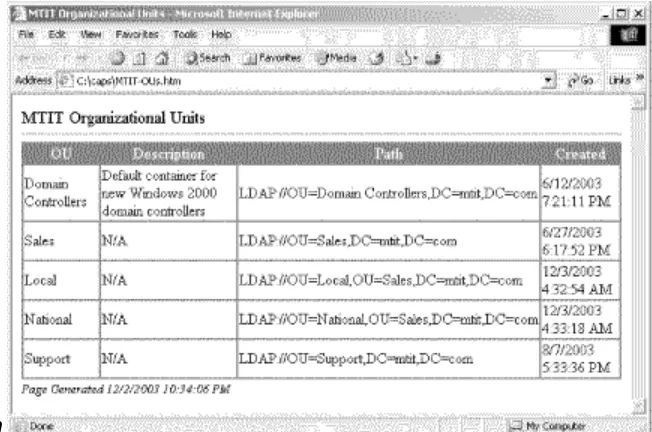
Section 21. Send OU Information in Active Directory to an HTML Page
Section 22. Display Active Directory Information
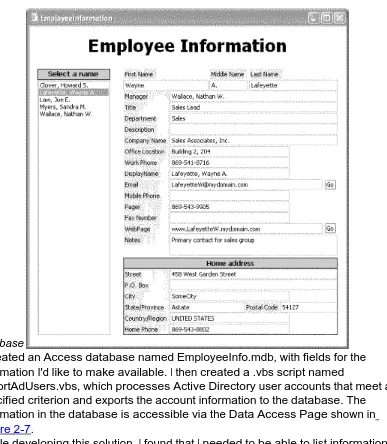
Section 23. Store and Display Contact Information in Active Directory
Section 24. Restore the Active Directory Icon in Windows XP
Chapter 3. User Management
Hacks #25-35
Section 25. Search for Domain Users
Section 26. Manage User Accounts in Active Directory
Section 27. Get a List of Disabled Accounts
Section 28. Get User Account Information
Section 29. Check for Passwords that Never Expire
Section 30. Enumerate Group Membership to a CSV File
Section 31. Modify User Properties for All Users in a Particular OU
Section 32. Check Group Membership and Map Drives in a Logon Script
Section 33. Script Creation of a User's Home Directory and Permissions
Section 34. Prevent Ordinary Users from Creating Local Accounts
Section 35. Put a Logoff Icon on the Desktop
Chapter 4. Networking Services
Hacks #36-47
Section 37. Simplify DNS Aging and Scavenging
Section 38. Troubleshoot DNS
Section 39. Manually Recreate a Damaged WINS Database
Section 40. Change WINS for All Enabled Adapters
Section 41. Ensure DHCP Server Availability
Section 42. Change a Network Adapter's IP Info
Section 43. Change from Static IP to DHCP
Section 44. Release and Renew IP Addresses
Section 45. Use netsh to Change Configuration Settings
Section 46. Remove Orphaned Network Cards
Section 47. Implement Windows 2000 Network Load Balancing
Chapter 5. File and Print
Hacks #48-53
Section 48. Map Network Drives
Section 49. Determine Who Has A Particular File Open on the Network
Section 50. Display a Directory Tree
Section 51. Automate Printer Management
Section 52. Set the Default Printer Based on Location
Section 53. Add Printers Based on Name of Computer
Chapter 6. IIS
Hacks #54-61
Section 54. Back Up the Metabase
Section 55. Restore the Metabase
Section 56. Map the Metabase
Section 57. Metabase Hacks
Section 58. Hide the Metabase
Section 59. IIS Administration Scripts
Section 60. Run Other Web Servers
Chapter 7. Deployment
Hacks #62-68
Section 62. Get Started with RIS
Section 63. Customize RIS
Section 64. Tune RIS
Section 65. Customize SysPrep
Section 66. Remove Windows Components from the Command Line
Section 67. Unattended Installation of Windows Components
Section 68. Easily Create a Network Boot Disk
Chapter 8. Security
Hacks #69-78
Section 69. Fundamentals of a Virus-Free Network
Section 70. Antivirus FAQ
Section 71. Rename the Administrator and Guest Accounts
Section 72. Get a List of Local Administrators
Section 73. Find All Computers that Are Running a Service
Section 74. Grant Administrative Access to a Domain Controller
Section 75. Secure Backups
Section 76. Find Computers with Automatic logon Enabled
Section 77. Security FAQ
Section 78. Microsoft Security Tools
Chapter 9. Patch Management
Hacks #79-89
Section 79. Best Practices for Patch Management
Section 80. Beginners Guide to Enterprise Patch Management
Section 81. Patch-Management FAQ
Section 82. Enumerate Installed Hotfixes
Section 83. Apply Patches in the Correct Order
Section 84. Windows Update FAQ
Section 86. Use Automatic Updates Effectively
Section 87. Use Group Policy to Configure Automatic Updates
Section 88. Automatic Updates FAQ
Section 89. Software Update Services FAQ
Chapter 10. Backup and Recovery
Hacks #90-100
Section 90. Collect Disaster Recovery Files
Section 91. Back Up Individual Files from the Command Line
Section 92. Back Up System State on Remote Machines
Section 93. Back Up and Restore a Certificate Authority
Section 94. Back Up EFS
Section 95. Work with Shadow Copies
Section 96. Back Up and Clear the Event Logs
Section 97. Back Up the DFS Namespace
Section 98. Recover with Automated System Recovery
Section 99. Recovery Roadmap
Section 100. Data Recovery of Last Resort
Colophon
Index
< Day Day Up >
< Day Day Up >
Copyright © 2004 O'Reilly Media, Inc. Printed in the United States of America.
Published by O'Reilly Media, Inc., 1005 Gravenstein Highway North, Sebastopol, CA 95472.
sales promotional use. Online editions are also available for most titles
(http://safari.oreilly.com). For more information, contact our corporate/institutional sales department: (800) 998-9938 or [email protected].
Nutshell Handbook, the Nutshell Handbook logo, and the O'Reilly logo are registered trademarks of O'Reilly Media, Inc. The Hacks series designations, Windows Server Hacks, the image of a squeegee, 'Hacks 100 Industrial-Strength Tips and Tricks,' and related trade dress are trademarks of O'Reilly Media, Inc. Many of the designations used by manufacturers and sellers to distinguish their products are claimed as trademarks. Where those designations appear in this book, and O'Reilly Media, Inc. was aware of a trademark claim, the designations have been printed in caps or initial caps.
While every precaution has been taken in the preparation of this book, the publisher and authors assume no responsibility for errors or omissions, or for damages resulting from the use of the information contained herein.
< Day Day Up >
< Day Day Up >
Credits
About the Author Contributors Acknowledgments
< Day Day Up >
About the Author
Mitch Tulloch is the author of over a dozen computer books, including three Nutshells for O'Reilly & Associates, Inc. (Microsoft Exchange Server in a Nutshell, Windows 2000 Administration in a Nutshell, and Windows Server 2003 in a Nutshell), two encyclopedias for Microsoft Press (the Microsoft Encyclopedia of Networking, currently in its second edition, and the Microsoft Encyclopedia of Security), and a string of titles for system administrators from
Osborne/McGraw-Hill. Mitch has also written feature articles for industry magazines such as NetworkWorld and Microsoft Certified Professional Magazine, has developed university-level courses in Windows system
administration, and provides training and consulting in Microsoft platforms and products. Mitch is based in Winnipeg, Canada, and you can contact him through his web site (http://www.mtit.com).
< Day Day Up >
< Day Day Up >
Contributors
The following people contributed their hacks, writing, and inspiration to this book:
Dennis Abbott is a columnist on myITforum.com (http://www.myitforum.com) and has been working in the high tech industry for eight years. He has worked with Microsoft Systems Management Server since Version 1.1 and with Windows NT Server since Version 3.51. Dennis discovered the power of Microsoft scripting while building in-house solutions for software distribution that required
industry-standard infrastructure and a minimum amount of code. He has coded numerous scripts that combine Windows Management Instrumentation, Active Directory Service Interfaces, and Windows Scripting Host to create simple solutions to complex problems. He currently works for Schneider National in Green Bay, WI, where he bicycles to work through rain, sleet, or snow. Previous employers include Dell Computers and Advanced Micro Devices. He can be reached at [email protected].
has been in the IT industry for eight years. He is thankful to be lucky enough to be able to turn a hobby into a career. He is a lifelong resident of St. Petersburg, FL, where he currently resides with his wife, Wendy, and son, Kyle. In his spare time, you can usually find Sean cheering for his hometown Tampa Bay Buccaneers, playing one of his guitars, or fishing the waters of Tampa Bay with Wendy. You can reach Sean at [email protected].
Michael Brainard is a columnist on myITforum.com (http://www.myitforum.com) and has worked in the computer industry for the past 10 years. He has worked in Tennessee, Georgia, and Florida. During that time he has worked for companies such as Eastman Chemical Company, Cox Communications, MCI, and Motorola. He currently runs his own business, Computing Xperts (CX)
(http://www.computingxperts.com), in the South Florida area. He has spent 6 of his 10 years in the computer industry administrating Systems Management Server (SMS), package automation, and scripting, and he spent the other 4 years
offering automated solutions utilizing Active Directory and Group Policy. In his current assignment, he is working as a consultant for Mortgage Systems International to design an SMS 2003 hierarchy for an international mortgage company.
Chris Crowe works as a Database Administrator for Trimble in Christchurch, New Zealand. He has a MCP, MCP+I, MCSA, and MCSE, and he has been a
Microsoft MVP since 1997, specializing in Internet Information Server (IIS). In early 2000, Chris started a web site called IISFAQ (http://www.IISFAQ.com) as a
resource to help him maintain a set of answers to frequently asked questions on the microsoft.public.inetserver.iis newsgroup on msnews.microsoft.com. IISFAQ has since grown to be the premier independent IIS resource on the Internet. Chris can be reached via IISFAQ or via email at [email protected].
Matthew Goedtel is a columnist on myITforum.com (http://www.myitforum.com) and is President and CEO of IT Centric Inc. (http://www.itcentric.biz), an IT
solutions and consulting company that offers professional services and technology solutions. Matthew founded IT Centric in 2002, with the vision of forming a
leading-edge solutions firm, creating innovative solutions while ensuring cost effectiveness. Prior to IT Centric, he was Senior Systems Architect with National Life of Vermont, where he led the design and migration to Windows 2000,
evaluated and redefined single vendor solution for data center server and storage solutions, assisted with the design and implementation of a SAN and enterprise backup solution, and much more. Prior to National Life, he held a Systems Engineer position at Merrill Lynch, developing change and configuration
John Gormly is a columnist on myITforum.com (http://www.myitforum.com) and has worked for a leading public accounting firm for the last 15 years. He earned his bachelor's degree in Accounting and Finance from the University of Cincinnati. He began his career as an auditor and made the transition in to IT nine years ago, when he was asked to head the IT department for the firm's Cincinnati location. He is now a Regional Technology Director and is responsible for all aspects of technology, including PC support, LAN/WAN infrastructure, telecommunications, project management, training, IT deployments, and personnel management. John has written many training courses for end users, technical articles for newsletters, and presentations specifically for the IT community. He specializes in all Microsoft operating systems and all versions of Microsoft Office. He also maintains
certifications in Novell Netware (CNE3, 4, and 5) and is an A+ Certified Technician. John lives in Lebanon, OH, with his wife, Cynthia, and three young sons—John, Jacob, and Joshua. John can be reached at [email protected]. Harvey Hendricks is a columnist on myITforum.com (http://www.myitforum.com) and started working with computers as a hobby that later became an occupation. He bought his first computer in 1982 and taught himself to write basic language programs. Writing programs soon went from being a hobby to an obsession, and when a career change became desirable he returned to college after an 18-year hiatus. There he became a member of a national honor society and earned a degree in Computer Science in 1993. He is employed at a great company in Houston, Texas, where his responsibilities include Microsoft Systems
Management Server, Network Associates Inc. Total Virus Defense, IBM Tivoli Storage Manager, Microsoft Software Update Server, RSA SecurID, and
SecurPBX. He holds the following certifications: TIAComp A+, Microsoft Certified Professional, and Microsoft Certified Systems Engineer. He is active in the martial arts, holding a second degree black belt in Tae Kwon Do and a first degree black belt in Torite-jutsu, and he is a member in good standing of Dragon Society International. He rides his Harley Davidson motorcycle every chance he gets and in his spare time also likes riding his dirt bikes, scuba diving, camping, hunting, fishing, and snow skiing.
Don Hite is a columnist on myITforum.com (http://www.myitforum.com). The eldest of four children, he was born to American parents in the Army hospital at
Wurzburg Germany in November 1957. After living in Bad Kissingen, Germany, for the first few years of his life, the Hite family moved back to the United States when Don was still in khaki army diapers. Educated by trade as a commercial maintenance electrician and holding a master electrician's license, Don made the career change from terminating copper conductor cable to terminating Ethernet cable in the early 1990s. Don lives in Raymore, MO, with his wife, Ginny. He has a son, Lee, a stepdaughter, Lisa, and a grandson named Blake.
specializing in system management. Dave is the co-owner of SMSExpert.com (http://www.smsexpert.com), the largest provider of SMS third-party tools. Janis Keim is a columnist on myITforum.com (http://www.myitforum.com) and is the PC Technical Support Supervisor for State Street, a mutual funds company in Kansas City, MO, and has over 15 years of experience in computer technology. As the SMS administrator for approximately 1,700 workstations, her
responsibilities include software packaging, testing, and deployment. She is also responsible for image build creation from start to finish, deployment of new PCs, ePO administration, security-related patch deployment for all workstations, maintenance of the company's entire fire call password process, and
management of six support personnel. She is also cofounder of the Kansas City Regional SMS User Group (KCRSMSUG).
Tim Kelly is a columnist on myITforum.com (http://www.myitforum.com) and is Technology Leader for TSYS (http://www.tsys.com), the world's largest credit card processing company. Tim leads the implementation of Microsoft.NET-based web services and applications. He worked for three years at Microsoft (1998-2001) during the time of the Windows 2000 rollout and assisted multiple enterprise customers with Active Directory implementations. He has worked extensively in e-commerce and the highly available web applications space during the last five years and counts as specialties IIS, MSCS, MS SQL high availability and
management, Active Directory, and core network technologies. He is a graduate of the University of Idaho and received a Master's degree in Business from Auburn University. Tim enjoys his family—Lynn, Russell, and Jackson—when he's not jumping out of perfectly good airplanes. His web site is
http://www.skydiveopelika.net.
Thomas Lee (http://www.psp.co.uk/tfl/tfl.htm) is Chief Technologist at QA, the UK's largest independent training firm, and has worked with Windows since it was first released. He graduated from Carnegie Mellon University and subsequently worked on two successful operating system projects (Comshare's Commander II and ICL's VME) before joining Andersen Consulting in 1981, where he was a manager in the London office. He was an independent consultant from 1987 until he joined QA in 2003, where he now lectures, consults, and owns QA's technical portfolio. Thomas is a Microsoft Certified Systems Engineer (MCSE), Microsoft Certified Trainer (MCT), Microsoft Valued Professional (MVP) and Microsoft Regional Director (Europe). Thomas lives in a cottage in the English countryside with his wife, Susan, and daughter, Rebecca.
Tim Mintner is a columnist on myITforum.com (http://www.myitforum.com) and is President and a Systems Architect Consultant for MMH Services
Active Directory, SMS, SQL Server, MOM, Exchange, and ISA server. Tim is based in St. Louis, MO, where he runs the Microsoft Infrastructure Professional Users Group (http://www.mipug.org). Tim can often be found answering questions in the forums at myITforum.com. You can reach Tim by emailing him at
Chris Mosby is a columnist on myITforum.com (http://www.myitforum.com) and worked for three years at Bechtel Hanford Inc. (BHI) as a full-time SMS/Virus Protection Administrator. During his tenure at that company, Chris turned SMS into an essential management tool for BHI. His complete redesign of BHI's antivirus system and antivirus policy led to the elimination of 7,356 viruses and to zero network downtime due to virus infection from January 2000 until he left employment at BHI in June 2003. At last report, this antivirus system is still protecting the BHI network and was able to fend off thousands of additional virus infections during the global outbreaks of Blaster, Mimail, Welchia, and Swen viruses during the period of August and September 2003. His other
accomplishments include beta-testing the current version of SMS Installer for Microsoft, designing and implementing the initial SMS 2.0 system of Bechtel National's Waste Treatment Plant Project, obtaining his Symantec Product Specialist Certification in Norton AntiVirus Corporate Edition 7.5/7.6, and
coauthoring Configuring Symantec AntiVirus Corporate Edition (Syngress). Chris is also the creator of SMS Admin gear (http://www.cafeshops.com/smsadmin). Chris now works as the SMS Administrator for a large regional bank and lives in Tupelo, MS, with the love of his life, his wife Debbie. He can be contacted at
Marcus Oh is a team leader for the Windows Core Technologies Group at Cox Communications, Inc. (http://www.cox.com), specializing in Systems
Management. He lives happily with his wife, Joanna, in Alpharetta, GA. In his spare time, Marcus writes articles for myITforum.com (http://www.myitforum.com), maintains geek status by reading a mound of technical articles and white papers, and helps his wife with her web site (http://www.webcritter.net). He can be
reached at [email protected].
Rob Olson is a columnist on myITforum.com (http://www.myitforum.com) and is the founder of DudeWorks Software (http://www.dudeworks.com), which develops add-on solutions for SMS and many other Windows systems-management tools and solutions and provides custom systems-management programming solutions. Rob also serves as a senior software distribution engineer for a major financial company in the United States, supporting over 50,000 (and growing) SMS clients. He can be reached at [email protected].
Marcin Policht has been contributing to a number of popular technology web sites, such as myITforum.com (http://www.myitforum.com), ServerWatch
(http://databasejournal.com) for several years. While he focuses on engineering and administration of large Windows deployments (primarily in financial
institutions) involving a variety of Windows-based products, such as SMS, SQL, IIS, Exchange, and Citrix, he is also interested in programming and scripting topics. This interest is best exemplified by his book WMI Essentials for
Automating Windows Management (SAMS), published in 2001. He also cowrote Windows 2003 Server Bible (Wiley) and Mastering Active Directory for Windows Server 2003 (Sybex). Marcin has also been actively involved as a technical trainer in the field of certifications. One of the first recipients of Windows 2000 and
Windows 2003 MCSE and MCSA, he has also worked with Microsoft on setting criteria for Windows 2000 Clustering exam.
Brian Rogers is a columnist on myITforum.com (http://www.myitforum.com) and is currently a consultant with Collective Technologies Inc. (http://www.colltech.com), providing SMS 2.0 and 2003 analysis, proof of concepts, implementations, and upgrades, with focus on patch management. His previous experience includes over five years with Systems Management Server, beginning with SMS 1.2 and continuing through to SMS 2003; over two years as an MCT, teaching SMS 1.2 and 2.0; and over three years as an SMS 2.0 Administrator.
Janet Ryding is a columnist on myITforum.com (http://www.myitforum.com), based in the UK, and has more than 10 years of experience in the IT industry. Working mainly with Windows NT/2000, Citrix, and the standard BackOffice products, she provides network consultation to a variety of large multinational organizations and has worked in the past for Ford Motor Company, the Ministry of Defense, and the National Health Service. Janet holds an MCSE in NT4 and 2000, the Citrix CCA and CCSP certifications, and Cisco's CCNA. Janet is currently working on a variety of projects and is looking to move into more project management roles. She can be reached at [email protected].
Peter Rysavy is a columnist on myITforum.com (http://www.myitforum.com) and is currently the webmaster and network administrator at a small private business college. He spends his day taking care of the academic network and labs,
administering an Exchange email system and the college intranet, supporting the campus-wide wireless network, and maintaining the college web site. In his spare time, Peter is actively involved in the Tablet PC community, evangelizing the platform, contributing news stories, interacting with users, and writing about Tablet PCs on his web site, Tabula PC (http://www.kstati.com/tabula).
Hans Schefske is a columnist on myITforum.com (http://www.myitforum.com) and has over eight years experience engineering and designing the architecture and implementation of Microsoft client/server-based network solutions. Consulting and leading projects in the IT industry, he has provided technical expertise in the areas of designing and implementing infrastructures for large enterprise-level
Novartis, and Hoffman LaRoche Pharmaceuticals. In 2003, Hans was awarded a Microsoft Most Valuable Professional (MVP) Award for SMS for his outstanding technical skills and willingness to share knowledge with his peers. As a technical author at myITforum.com, he provides technical information, tools, scripts, and utilities for IT professionals and administrators to better assist them in managing their Microsoft-based solutions. Hans is currently a Senior Active Directory and SMS consultant at a large telecommunications company based in Atlanta, GA. Pat Sklodowski is a contributor to myITforum.com.com
(http://www.myitforum.com) and a Microsoft Certified Systems Engineer with over eight years of industry experience. His specialties include Windows NT/2000, Active Directory, SMS, Exchange, and scripting. Pat is currently working as a Senior Engineer with a global provider of engineering solutions and specialized staffing. He is responsible for developing new initiatives, architectural solutions, technical project-management, and ongoing support. Pat can be reached at
Donnie Taylor is a columnist for several web sites, including myITforum.com (http://www.myitforum.com), and is currently the Systems Management
Administrator for Central Technology Services. His duties include the installation, maintenance, and administration of SMS, MOM, SQL, and various management applications. He has been with Central Technology Services for four years. Donnie lives with his wife and two daughters in Jefferson City, MO. He met his wife while attending Southwest Missouri State University, where he pursued degrees in CIS/MIS, English, and Anthropology. Donnie enjoys PC and console gaming, exploring his Cherokee heritage, and spending time with his family. Dan Thomson is a columnist on myITforum.com (http://www.myitforum.com) and an influential member of the IT staff at a local college, where he assists with many aspects of supporting the computing systems. Some of Dan's responsibilities include maintaining antivirus software, OS imaging, group policies, software deployments, and SMS. Dan is always happy to share whenever he can and can be found participating in many online forums and newsgroups. Dan enjoys spending time with his wife and 10-month-old daughter.
Richard Threlkeld is a columnist on myITforum.com (http://www.myitforum.com) and was employed as a contractor for Motorola, where he eventually worked his way up to manage the SMS infrastructure for all of Motorola's Boynton Beach facilities, including packaging, software deployments, site maintenance, client support, and reporting. Along with his local SMS responsibilities, Richard also helped develop packages for Motorola's Global Packaging Team which
and deals with other Active Directory and engineering issues. Outside of work, Richard takes part in different SMS forums and user communities, where he is regularly found assisting other administrators with issues in their environments. Richard is also a Microsoft MVP for SMS because of his community
involvement.
Rod Trent, manager of myITforum.com (http://www.myitforum.com), is the leading expert on Microsoft Systems Management Server. He has over 18 years of IT experience, 8 of which have been dedicated to SMS. He is the author of such books as Microsoft SMS Installer, Admin911:SMS, and IIS 5.0: A Beginner's Guide and has written thousands of articles on technology topics. myITforum.com is the central location for third-party SMS support, as well as the online gathering place for IT professionals and the IT community. Rod speaks at least three times a year at various conferences and is a principal in NetImpress, Inc.
(http://www.netimpress.com).
Chuck Young is a columnist on myITforum.com (http://www.myitforum.com) and began his IT career during his time in the Air National Guard, when he converted an old Banyan Vines network to an NT environment. After pursuing a degree in Computer Science and holding several jobs in the computer industry, Chuck now finds himself working almost exclusively with Microsoft Systems Management Server (SMS). Often mistaken for SMSMAN, Chuck is just a dedicated perfectionist that will not settle for less than 80%; his philosophy is "Why give 100% at anything? It doesn't leave anything for the fun stuff!" Chuck can be reached at [email protected].
Oren Zippori is a columnist on myITforum.com (http://www.myitforum.com) and is currently working for Team Computers, a gold-certified Support Center for Microsoft. Oren specializes in system-management products and has also been involved in Windows 2000 and Exchange 2000 migrations. Oren also manages an open forum for Microsoft in Israel that supports SMS and MOM products. Oren spends his free time scuba diving, mountain climbing, and playing snooker. He knows how to enjoy a good fiction book and likes to write short stories for fun. You can reach him at [email protected]
l l < Day Day Up > l
l
Acknowledgments
Talk about a book being a cooperative venture; this one was definitely so, for without the time, expertise, and content contributed by so many other IT
professionals—many of them columnists on myITforum.com
(http://www.myitforum.com)—this book wouldn't be the valuable resource to Windows system administrators that it is. So, a big thanks to everyone who contributed hacks to this book. You deserve it first, so thanks! And thanks especially to Rod Trent, CEO of myITforum.com, for his friendship and support—thanks, man!
Second comes my thanks to Rael Dornfest, my editor at O'Reilly, who has been great fun to work with and whose gentle prodding has helped keep me focused on the task at hand—making this book as good as possible. Thanks, Rael!
Third in line for thanks is my agent, Neil Salkind of Studio B
(http://www.studiob.com), for his friendship and support in writing this, my 14th
book. Thanks, Neil!
Fourth, thanks to MTS Communications Inc. (http://www.mts.ca) for providing Internet services and web hosting for my web site (http://www.mtit.com), with special thanks to Dinis Prazeres there at MTS. Thanks!
Last but not least, thanks to my wife and business partner, Ingrid, coauthor of the Microsoft Encyclopedia of Networking, 2nd Edition and consultant for our
company MTIT Enterprises. (http://www.mtit.com). Thanks, Schatz!
l l < Day Day Up > l
l
Foreword: I'm a Sci-Fi freak
Just because I work in the computer technology field, you might automatically assume that I'm also an avid science fiction reader. And, while there are many IT professionals who have never spoken a single word of Klingon or adeptly wielded a light saber made of paper towel rolls, if you point your finger at me, you can rest assured that your accusation is spot on. To be fair, my love of Science Fiction began years before I had my hands on a computer keyboard. I was practicing the Vulcan hand greeting long before I was potty trained, and I was mind-melding with my favorite pet before I knew how to feed myself. You can imagine my parents' joy.
When Mitch Tulloch approached me about helping out with Windows Server Hacks, there was no hesitation in my response. Even though I've known Mitch for years and his work is always top-notch, Mitch has an unfair advantage when it comes to making Windows Server Hacks successful—he actually carried the nickname of "The Vulcan" during his university days. So, using a kind of
mind-meld, Mitch pieced together a culmination of the most powerful solutions on Earth to load Windows Server Hacks with tricks, tips, scripts, tools, and
workarounds to help systems administrators manage their Windows-based networks. We've all bought books and ended up skipping pages or chapters because the information provided simply does not apply to our specific situation. But because the information in Windows Server Hacks comes from real world experience based on tried-and-true solutions, you'll probably use more of this book than any other in your tech library.
In addition to working with Mitch, I was also excited that Windows Server Hacks would include many solutions from the myITforum.com community. Among the myITforum.com membership, you'll find some of the smartest individuals in the industry who are willing to share their solutions to help make the IT world a better place. This fact becomes clearly evident as you read and implement the solutions in this book. And, when you're ready to find more solutions like those represented in Windows Server Hacks, you can stop by myITforum.com and experience the community.
As many of you know, Vulcans show no emotion. So, I guess I may have ultimately tipped my hat when I was doubly excited that Windows Server Hacks was an O'Reilly project. O'Reilly is one of the top publishers in the world,
spreading high-quality information to IT workers everywhere. For that, I am
honored for the opportunity to introduce this book. I know you'll find it as useful as I do.
To all those that contributed to this book, I salute you. Of course, that salute comes in the form of a perfectly crafted Vulcan hand greeting—Mitch would know.
Rod Trent
l l < Day Day Up > l
l l < Day Day Up > l
l
Preface
For some time now, Microsoft Windows (in all its incarnations) has been the dominant desktop operating system for businesses small and large. But in recent years, the platform has also made significant inroads into the server side of the equation. In the late 1990s, for example, the now-legacy Windows NT 4.0 Server platform became popular for running web servers using IIS and largely displaced Novell NetWare in the file/print server arena. Other server applications that ran on top of NT, such as Microsoft Exchange and Microsoft SQL Server, also made Windows a top platform for messaging/collaboration and database servers. Windows 2000 Server built upon the success of NT by adding increased stability, reliability, and a new feature called Active Directory that quickly overtook Novell Directory Services (NDS) as the dominant enterprise-level directory service product. And Windows Server 2003, the latest incarnation of server-side Windows, is likely to further cement Microsoft's dominant position in the enterprise, despite the serious challenges arising from Linux and other open source software.
Why has Microsoft made such rapid gains in the server market? The answer is found in the simplicity of administering the platforms. An easy-to-use GUI, a consistent set of tools, wizards that walk you through performing complex tasks—such features make it possible to learn how to install, configure, and maintain Windows servers in weeks, without any knowledge of a programming or scripting language or learning a lot of complicated command-line syntax. In fact, you can probably accomplish about 90% of all Windows administration without ever opening a command prompt or running a script.
But it's that other 10% that can really matter sometimes, and that's what this book is mainly about.
l l < Day Day Up > l
l
Why Windows Server Hacks?
While most common, day-to-day tasks of Windows administration can be performed from the GUI, it's not always the best way, especially with complex or repetitive tasks. Scripts and command-line tools often provide a faster and more flexible approach, and Windows has grown more powerful in this area with the progressive addition of VBScript, Active Directory Services Interface (ADSI), Windows Management Instrumentation (WMI), and dozens of new commands to each new version of the platform. Unfortunately, learning to leverage the power of these different features takes time—a precious commodity for today's busy system administrator.
That's why a large portion of this book consists of scripts and other tools that can make your life much easier as an administrator. These tools, or hacks—quick and dirty solutions to problems or clever ways of doing things—were created by other professionals who have had to struggle to find solutions to administering their own Windows environments, and you can benefit from their expertise in two important ways. First, you can use their scripts, tools, tips, and advice to save valuable time as you manage your own Windows-based network. Second, by studying the scripts and learning a little VB/ADSI/WMI, you can easily customize these scripts to create even more powerful tools that meet your own specific needs.
l l < Day Day Up > l
l
Getting and Using the Scripts
To save you the time and effort of typing long scripts by hand, all the scripts (except those that are only a few lines long) are available for download from the O'Reilly web site at http://www.oreilly.com/catalog/winsvrhks/.
Before you use them in your own networking environment, however, make sure you have the latest scripting engines on the workstation from which you run the scripts. You can download the latest scripting engines from the Microsoft Scripting home page (http://msdn.microsoft.com/scripting/).
Also note that, when working with the Active Directory Services Interface (ADSI), you must have the same applicable rights you need to use the built-in
administrative tools. See Microsoft's ADSI web page
(http://www.microsoft.com/windows2000/techinfo/howitworks/activedirectory/adsili nks.asp) for more information.
Furthermore, for VB scripts that interact with WMI, apply the most current version of the WMI agents, which are downloadable from the MSDN WMI SDK
(http://msdn.microsoft.com/library/default.asp?url=/library/en-us/wmisdk/wmi/wmi_ start_page.asp). This information is important enough that we mention it again several times at the beginning of the first few chapters.
Finally, please note that while every all of the scripts, tools, procedures, and resources described and contained in this book have been tested, both the author and those experts who contributed them make no guarantee or warranty that they will work as intended in your own networking environment, nor do we assume any liability or responsibility for any loss or damage arising from their use. In other words, the information provided in this book is presented on an as is basis, and we strongly recommend that you try out a hack in a test environment first before using it in your company's production environment.
l l < Day Day Up > l
l
How to Use This Book
Although this book is divided into chapters, as described in the following section, you can use it in a variety of different ways. One approach is to think of the book as a toolbox and start by becoming familiar with the tools in each chapter. Then, when a need arises or a problem occurs, you can simply use the right tool for the job. Or, you might decide to browse or read the book from cover to cover,
studying the procedures and scripts to learn more about power administration of Windows systems. Some of the hacks are helpful in this area, because they contain tutorials about complex subjects or well-documented scripts. You might also pick one chapter and see what you find useful to your current situation or might find helpful in the future.
l l < Day Day Up > l
l l < Day Day Up > l
l
How This Book Is Organized
Whichever way you choose to use this book, you will probably first want to familiarize yourself with the contents, so here's a brief synopsis of each chapter and what you'll find:
Chapter 1, General Administration
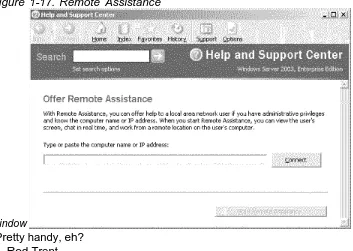
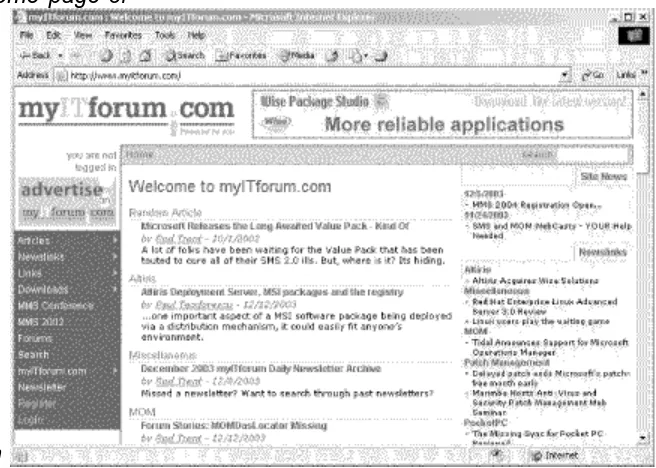
Think of this chapter as the removable top drawer of your toolbox—usually cluttered, but containing your favorite, indispensable tools. The topics in this chapter include ways of hacking the Run As command, collecting event log information, running commands, extending your environment, shutting down processes, renaming mapped drives, and more. You'll also learn how to disable file encryption if you don't need or want it, collect configuration settings from remote machines, use automatic logon where it's safe to do so, and make it easier for users to access Remote Assistance when they need to. We'll also list some of our favorite third-party tools and a terrific online resource for Microsoft management technologies.
Most of the time, when you're administering Active Directory, you'll find the GUI tools are easy to use but ill suited for complex or repetitive tasks. That's where scripts come in, and this chapter includes scripts that leverage ADSI and WMI to make your life easier. These scripts can be used to perform tasks such as searching for old computer accounts, creating organizational units (OUs),
delegating authority over OUs, and displaying information about objects stored in Active Directory.
Chapter 3, User Management
A large part of day-to-day administration of an Active Directory environment is managing users and their accounts. The usual way of doing this is by using the GUI, but when it comes to organizations with hundreds or even thousands of users, this approach can be frustrating. This chapter is mostly about
alternatives—ways of doing things faster using scripts. You'll find scripts for displaying information about users, finding specific users on your network, changing user passwords, unlocking user accounts, getting a list of disabled accounts, displaying which groups a user belongs to, and more. If you're familiar with VBScript, you can also customize these scripts further to meet the specific needs of your own networking environment.
Chapter 4, Networking Services
Under the hood of Windows are the core networking services and components that enable systems to communicate across a network. These components include services such as Dynamic Host Configuration Protocol (DHCP), Domain Name System (DNS), Windows Internet Name Service (WINS), and other
services that run on top of TCP/IP. Configuring these services can be complex, and it can be hard to pinpoint the problem when things go wrong. This chapter is about managing such services and other networking components. You'll learn how to use a script to manage services on remote computers, how to ensure DHCP server availability so your clients can communicate, how DNS aging and
scavenging work and can be configured, how to troubleshoot common DNS problems when Active Directory is deployed, how to perform complicated network configuration tasks using scripts and from the command line, and several other important tasks.
Chapter 5, File and Print
this chapter is about—doing old tasks in new ways and making complex tasks simple.
Chapter 6, IIS
Internet Information Services (IIS) is one of the more popular features of Windows server platforms. Whether you're running IIS 5 (Windows 2000 Server) or IIS 6 (Windows Server 2003), the ability to hack the metabase (the place where IIS stores its configuration settings) lets you do things that are impossible to do using the standard GUI tool for managing IIS—namely, Internet Services Manager. Before you start hacking the metabase, however, you better be sure you've backed it up properly and know your way around inside it. Several hacks in this chapter deal with these topics, including how to restore the metabase when you have no working backup. Also included are tips on hiding the metabase from attackers to make it more secure, managing different aspects of IIS by using scripts, and allowing other HTTP services, such as the Apache web server, to run on Windows and coexist with IIS.
Chapter 7, Deployment
Administering Windows-based networks begins with deployment, and the focus of this chapter is on how to manage the installation (and uninstallation) of
Windows 2000/XP/2003 and its individual components. In particular, the first several articles deal with Remote Installation Services (RIS) and Sysprep, two powerful but complex tools for installing Windows images on large numbers of machines. Other articles deal with removing unneeded components manually from the command line and during unattended setup, and creating a network boot disk for unattended installation of Windows. These tips and tools are designed to make the job of deploying Windows easier, so you can get on with the day-to-day job of configuring, maintaining, and troubleshooting systems on your network.
Chapter 8, Security
Probably no aspect of the system administrator's job is more important these days than security, and this is especially so with systems running Windows. The ever-increasing threats of viruses, worms, Trojans, and other exploits means administrators have to spend time and energy learning how to protect their company's networks against the wiles of malicious hackers on the Internet. This chapter looks at some of the ways you can protect your network from these threats. It includes coverage of best practices in virus protection, protecting Administrator accounts, securing backups, protecting domain controllers, and finding machines with automatic logon enabled. A security FAQ and a review of security tools you can download from Microsoft's web site round out this chapter and help you build an arsenal of best practices and tools that can help keep your network secure.
Chapter 9, Patch Management
proliferation of Internet worms and other threats, new patches are being released for Windows platforms on an almost weekly basis. It takes time and energy to test these patches and deploy them on production systems, and occasionally
something goes wrong and a patch designed to correct one problem actually creates another. The first key to effective patch management is proper business practices: test, deploy, and verify. The second key is proper tools; Windows platforms come with several built-in tools, while others can be obtained from Microsoft's web site and third-party vendors. The third key is
knowledge—knowing how patch-management tools work and how to troubleshoot them when things go wrong. The hacks in this chapter touch on all three keys to effective patch management and help enlarge your understanding and skills in this crucial area of a system administrator's job description.
Chapter 10, Backup and Recovery
Finally, this chapter looks at the backup process and examines how to back up specific entities, such as your System State, certificate authority (CA) information, Encrypting File System (EFS) keys, and Distributed File System (DFS)
namespace. We also look at how to back up something as simple as an
individual file from the command line, to something as complicated as an entire system using the new Automated System Recover (ASR) feature of Windows Server 2003. Also included is a script that can be used to collect disaster recovery files and event logs from remote Windows 2000 servers. We also map out procedures you can try to recover a failed system, short of restoring everything from backup, navigating through a maze of options like Safe Mode, Emergency Repair, Last Known Good Configuration, and the Recovery Console. Finally, we mention a few services you can call on when your worst nightmare happens and you need to recover your business data from a failed disk that has no backup.
l l < Day Day Up > l
l l < Day Day Up > l
l
Conventions Used in This Book
l The following typographical conventions are used in this book:
l Indicates new terms, URLs, email addresses, filenames, file extensions, pathnames, directories, and Unix utilities.
l Constant width
l Indicates commands, options, switches, variables, attributes, keys, functions, types, classes, namespaces, methods, modules, properties, parameters, values, objects, events, event handlers, XML tags, HTML tags, macros, the contents of files, or the output from commands.
l Constant width bold
l Used in examples and tables to show commands or other text that should be typed literally by the user.
l Constant width italic
l Used in examples, tables, and commands to show text that should be replaced with user-supplied values.
l Color
l The second color is used to indicate a cross-reference within the text.
This icon signifies a tip, suggestion, or general note.
This icon indicates a warning or caution.
The thermometer icons, found next to each hack, indicate the relative complexity of the hack:
beginner moderate expert
< Day Day Up >
Using Code Examples
This book is here to help you get your job done. In general, you may use the code in this book in your programs and documentation. You do not need to contact us for permission unless you're reproducing a significant portion of the code. For example, writing a program that uses several chunks of code from this book does not require permission. Selling or distributing a CD-ROM of examples from O'Reilly books does require permission. Answering a question by citing this book and quoting example code does not require permission. Incorporating a
significant amount of example code from this book into your product's documentation does require permission.
O'Reilly & Associates and the author both appreciate, but do not require,
attribution. An attribution usually includes the title, author, publisher, and ISBN. For example: "Windows Server Hacks, by Mitch Tulloch. Copyright 2004 O'Reilly & Associates, Inc., ISBN 0-596-00647-0."
If you feel your use of code examples falls outside fair use or the permission given above, feel free to contact us at [email protected].
< Day Day Up >
< Day Day Up >
How to Contact Us
We have tested and verified the information in this book to the best of our ability, but you may find that features have changed (or even that we have made
mistakes!). As a reader of this book, you can help us to improve future editions by sending us your feedback. Please let us know about any errors, inaccuracies, bugs, misleading or confusing statements, and typos that you find anywhere in this book.
Please also let us know what we can do to make this book more useful to you. We take your comments seriously and will try to incorporate reasonable
O'Reilly & Associates, Inc.1005 Gravenstein Hwy N.Sebastopol, CA 95472(800) 998-9938 (in the U.S. or Canada)(707) 829-0515 (international/local)(707) 829-0104 (fax)
To ask technical questions or to comment on the book, send email to:
For more information about this book and others, see the O'Reilly web site:
http://www.oreilly.com
For details about Windows Server Hacks, including examples, errata, reviews, and plans for future editions, go to:
http://www.oreilly.com/catalog/winsvrhks/
For code examples, additions and corrections, and other related miscellany:
http://www.oreilly.com/catalog/winsvrhks/
< Day Day Up >
< Day Day Up >
Got a Hack?
To explore Hacks books online or to contribute a hack for future titles, visit:
http://hacks.oreilly.com
< Day Day Up >
Chapter 1. General Administration
Hacks #1-16
Section 1. Use Run As to Perform Administrative Tasks Section 2. Drag and Drop to the Run Menu
Section 3. Find and Replace Registry Keys from a Command Line Section 4. Automatically Log On After Booting
Section 5. Wait for and Optionally Terminate a Process Section 6. Shut Down a Remote Computer
Section 7. Rename Mapped Drives
Section 8. Execute a Command on Each Computer in a Domain Section 9. Add, Remove, or Retrieve Environment Variables Section 10. Extend Group Policy
Section 11. Disable EFS
Section 12. Get Event Log Information Section 13. Shortcut to Remote Assistance Section 14. Desktop Checker
Section 15. Top Five Tools Section 16. myITforum.com
< Day Day Up >
Hacks #1-16
We'll begin with a catchall chapter of tips and tools that cover a wide range of general Windows system administration topics. Think of this chapter as the removable top drawer of your toolbox—usually cluttered, but containing your favorite, indispensable tools. The topics in this chapter include ways of hacking the Run As command, collecting event log information, running commands, extending your environment, shutting down processes, renaming mapped drives, and more. You'll also learn how to disable file encryption if you don't need or want it, collect configuration settings from remote machines, use automatic logon where it's safe to do so, and make it easier for users to access Remote
Assistance when they need it. We'll also list some of our favorite third-party tools and a terrific online resource for Microsoft management technologies.
A number of the hacks in this chapter include scripts. To ensure these scripts run properly on your systems, make sure you download the latest scripting engines on the workstation from which you run the scripts. You can get these scripting
engines from the Microsoft Scripting home page at
http://msdn.microsoft.com/scripting/. Also, when working with the Active Directory Services Interface (ADSI), you must have the same applicable rights you need to use the built-in administrative tools, which basically means that you need
administrator credentials to run the scripts.
< Day Day Up >
< Day Day Up >
Hack 1 Use Run As to Perform Administrative Tasks
Use Run As to protect your administrator workstation from Trojans and other nasties.
If you're lazy, like I am, you probably use the default administrator account on your desktop workstation for browsing the Web, checking your email, and managing the servers on your company's network.
Not a good idea.
compromised, and the attacker would have total access to your workstation and possibly to your whole network! To avoid such dangers, administrators should always have two user accounts: a regular (user-level) account for ordinary activities, such as web browsing and messaging, and an administrator-level account, used only for performing administrative tasks. This way, when you are reading your email and suddenly remember you have to reschedule a backup, you can simply log off, log back on using your administrator account, perform the task, log off again, and log on again as a regular user.
Who am I kidding? That's too much to expect of a lazy system administrator. How Run As Works
The Run As service (called Secondary Logon service in Windows Server 2003 and Windows XP) is a hack designed to enable you to run programs by using alternate credentials while you're logged on using another account. For example, if you are an administrator and are logged on to your desktop using your regular user account, you won't be able to run administrative tools such as Computer Management, because they require administrator credentials to run properly. (Actually, you can open Computer Management as an ordinary user; you just can't do much with it.) Using Run As, however, you can run Computer Management as an administrator while remaining logged on as an ordinary user.
There are two ways to use Run As: using the GUI or from the command line. To use the GUI method, first find the program you want to run in Windows Explorer or
My Computer. Then, for executables (*.exe files), hold down the Shift key, right-click the program's icon, and select Run to open the Run As Other User dialog box shown in Figure 1-1. For MMC consoles (*.msc files) and Control Panel utilities (*.cpl files), you do the same thing but don't need to hold down the
Shift key.
Figure 1-1. Using Run As to run a program using administrator
credentials
MTIT\Administrator or [email protected] for an example domain named mtit.com (replace these credentials with the name of your own domain). The advantage of doing it the way shown in Figure 1-1 is that, if your computer is a member server, you can specify a local user account by entering the name of the computer in the Domain field.
Using Run As from the command line is just as easy, but you need to know the path to the program (unless the program file is located within the system path). For example, the Computer Management console file compmgmt.msc is located in the \system32 directory. To run it as Administrator in the MTIT domain, simply type the following at a command prompt: runas /user:MTIT\Administrator "mmc %windir\system32\compmgnt.msc"
You'll be prompted for a password for the account, after which Computer
Management will open. Note that you can also type this command directly into the Run box (accessed by Start Run).
Limitations of Run As
While Run As is useful, it has some limitations. First, the alternate credentials you specify must have the Log On Locally user right on the computer. Since Run As is usually used with administrator credentials (which have that right by default), this is usually an issue only in certain circumstances. For example, say you grant a few knowledgeable users a second user account that belongs to the Power Users group, to allow them to update device drivers and perform other minor
maintenance on their desktop computers. If you try to reduce the attack surface of your network by removing the right to Log On Locally from the Power Users group using Group Policy, then these users won't be able to perform such tasks.
Also, there are certain tasks you can't perform directly using Run As, such as opening the Printers folder to administer a printer that is connected to your machine. The reason for this is that the special folders such as Printers and Network and Dial-up Connections are opened indirectly by the operating system, not by a command. You also can't use Run As to open Windows Explorer and access the filesystem on your computer as administrator, because the Windows shell explorer.exe is already running as your current desktop environment and Windows allows only one GUI shell to run at a time.
Finally, Run As also might not work if the program you are trying to run is located on a network share, because the credentials used to access the share might be different than the credentials used to run the program.
Most limitations have workarounds of some sort, if you try hard enough to find them. So, let's see if we can figure out ways to get around these limitations (except for the Log On Locally limitation, which is absolute).
Running programs without an executable
account. Right-click on the task bar and open Task Manager. Then, switch to the Processes tab, select explorer.exe, and click End Process to kill the desktop but leave Task Manager running. Now, switch to the Applications tab, click New Task, type runas /user:MTIT\Administrator explorer.exe to run the Windows Explorer shell in an administrator context, and click OK. Finally, move Task Manager out of the way and type your password into the command-prompt window.
A new desktop will now appear, running in the security context of your administrator account. You can now change the settings of your Local Area Connection, modify the properties of a printer in the Printers folder, browse the filesystem, or do anything you want to do as administrator. But be sure to leave Task Manager running, because it is your only connection to your original desktop! You can minimize it so it won't be in the way.
Once you're finished performing your administrative tasks, you can return to your original desktop (the one running under the security context of your regular
account) as follows. Maximize Task Manager so that you'll have access to it when your desktop disappears again. Then, to log off of your administrator session, click Start Shut Down and select Log Off.
Do not try to log off by pressing Ctrl-Alt-Del and clicking Log Off, because this will log off the session for your regular user account.
Your administrator desktop has now disappeared, but Task Manager is still running (in the security context of your regular account), so switch to the Applications tab, click New Task, type runas /user:MTIT\Administrator explorer.exe, and click OK. Your desktop has returned.
At this point, you might ask, "Why should I go to all that trouble? It would be faster just to log off as a regular user and log on as an administrator." True, but any applications you have running as a regular user would then have to be terminated. Doing it the way shown here, however, leaves all your desktop applications
running in the background.
Running programs from network shares
To make your life easier, instead of having to type stuff at the command line, you can use Run As to create a shortcut that will run a program under alternate credentials. For example, to run the Computer Management console from a Run As shortcut, right-click on your desktop, select New Shortcut, and type
%windir%\system32\compmgmt.msc as the command string. Name your shortcut Computer Management and click OK. Then, right-click on the shortcut, select Properties to open its properties sheet, and on the Shortcut tab select the checkbox labeled "Run program as other user" (on Windows Server 2003, click the Advanced button on the Shortcut tab to configure this). Now, whenever you double-click on the shortcut to run Computer Management, the Run As Other User dialog box (see Figure 1-1) will appear. Just type in your administrator password to run Computer Management in administrator context.
There's another way to create Run As shortcuts that you might find even easier to use. Just right-click on your desktop, select New Shortcut, and type the
following command string: %windir%\system32\runas.exe
/user:MTIT\Administrator "mmc %windir%\system32\compmgmt.msc"
Save the shortcut with the name Computer Management. Now, when you double-click the shortcut, a command-prompt window opens, prompting you for the password for the MTIT\Administrator account. Type the password, press Enter, and Computer Management starts in administrator context.
What if you get tired of typing your administrator password each time you want to run a Run As shortcut? On Windows Server 2003, there's a way to get around that. Just create a new shortcut with this command string:
%windir%\system32\runas.exe /user:MTIT\Administrator /savecred "mmc %windir%\
system32\compmgmt.msc"
Notice the /savecred switch in this string. This option first appeared in Windows XP. The first time you double-click on the shortcut, a command-prompt window opens to prompt you for the password for the alternate credentials, just like before. The next time you double-click on the shortcut, however, you are not prompted for the password; it was stored on your machine the first time you ran the shortcut. Now you no longer have to type a password each time you use your Run As shortcut. Time-saver, right? Yes, but it's also a possible security hole: once the credentials for your administrator account are stored locally on the machine, they can be used to run any command-line program using administrator credentials.
Here's a scenario to illustrate what I mean. Let's say you need to run an
administrative tool on a user's desktop machine without logging the user off the machine. You ask the user to take a coffee break. Then, you open a
command-prompt window and use runas with /savecred to start the tool (you use /savecred because you might have to run several administrative tools and you don't want to have to type your complex 24-character password repeatedly). When you're finished, you close all the tools you started and walk away. When the user returns to her desktop, she opens a command prompt and types runas
displaying administrator credentials in the title bar. The user now knows that she can use this approach to run any program on her machine using administrator credentials.
What did you do wrong as administrator in this scenario? Two things: you used /savecred on a user's desktop machine, which saved your administrator
password locally on the machine, and you haven't renamed the default
administrator account. If you had changed the name of this account to something complex and unknown to ordinary users, the runas /user:MTIT\Administrator /savecred cmd command the user typed wouldn't work.
What do you do if you have used /savecred on an unsecured machine without thinking about the consequences? Just delete your stored credentials on the machine by opening Stored User Names and Passwords in the Control Panel.
< Day Day Up >
< Day Day Up >
Hack 2 Drag and Drop to the Run Menu
If you're tired of having to drop out to a command prompt and navigate through folders to run an executable that requires switches, try this.
The following easy-to-use steps can be used to run the program of your choice from the Run menu with any command-line switches you need to include. This is much handier than opening a command prompt and changing to the directory where the executable is located, especially if long filenames are involved, which
requires you to enclose your path in double quotes.
First, navigate in Windows Explorer to the executable you want to launch (Figure 1-2).
Figure 1-2. Selecting the executable to run in
Explorer
Figure 1-3. Opening the Run menu
Then, drag and drop your executable to the Run menu (Figure 1-4). Make sure the Open box is empty before you perform this step, or unexpected results might
occur.
Figure 1-4. Dragging and dropping the executable into the Run
menu
Now, simply add your switches and click OK to launch your application (Figure 1-5).
Figure 1-5. Adding switches as
needed
You'll want to keep in mind that any filenames or paths that don't follow the old 8.3 naming convention should be within quotation marks to run properly (Figure 1-6). Figure 1-6. Using quotation marks for long
filenames/paths
Note that your switches and arguments can reside outside of the quotation marks.
< Day Day Up >
< Day Day Up >
Hack 3 Find and Replace Registry Keys from a Command
Line
Using the Regfind utility, you can easily search the Registry for a value, regardless of the key, and replace it.
Regfind (from the Windows 2000 Server Resource Kit) can be an invaluable tool when you need change a Registry key that you know the value for but when do not necessarily know the full path. Recently tasked with changing the hardcoded DNS server IP on all the servers in our organization, I was pleasantly surprised when I located this gem. The problem with trying to change the DNS server entry in the Registry is that all the IP parameters are broken up by a hashed ID. The ID references several things, but most of them have to do with the network card. Regfind allows you to search a set of subkeys in the Registry for a specific value and, when found, replace it. Another real beauty of this program is that it will work remotely; all you need to do is supply it with a list of machines and let it go. Using a list of computer names (generated from SMS, Server Manager, or AD Users and Computers), combined with two batch files, you can make sweeping changes in a dynamic environment.
The Code
Here's an example of how to change the DNS server entry on all servers in your organization. First, create a batch file called Regchange2.bat with the following syntax: regfind -m \\%1 -p
HKEY_LOCAL_MACHINE\SYSTEM\CurrentControlSet\Services\Tcpip\parameters
"OLDIP" -r "NEWIP"
You will obviously want to replace OLDIP with the old DNS server IP and replace NEWIP with the new DNS server IP.
Now, create a second batch file called regchange1.bat with the following syntax:
for /F %%A in (servers.txt) do (call regchange2.bat %%A)
Now you need to create a list file for your batch files to use. Create a listing of servers that need to have their DNS IP's changed and save that list as servers.txt. An SMS report or a copy/paste from the server manager will suffice, or you can create the file manually if you like.
Running the Hack
Now, simply run the regchange1.bat batch file by calling it from a logon script and watch all your servers have their IP settings changed!
This is just one simple example of how to use Regfind. There are many command-line arguments, so please examine those to meet your needs. —Donnie Taylor
< Day Day Up >
< Day Day Up >
Hack 4 Automatically Log On After Booting
It's sometimes convenient to configure machines to log on automatically when booted. Here are three ways to do this.
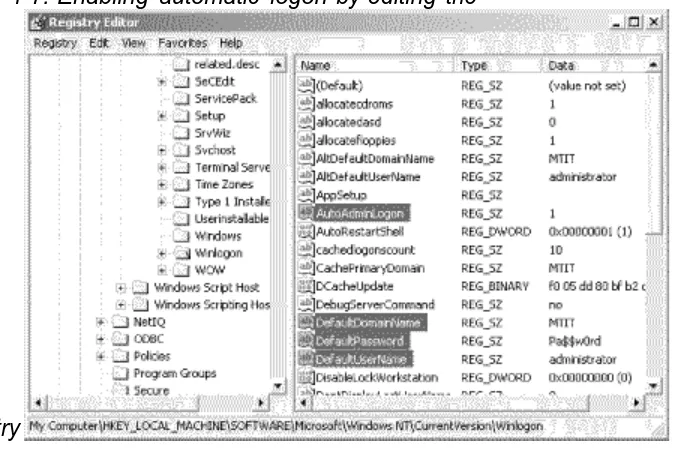
In all versions of Windows that are based on Windows NT (including Windows 2000, Windows XP, and Windows Server 2003), a user is required to log on before he can use the system interactively. This is usually done by pressing
Ctrl-Alt-Del and typing the user's credentials. Automatic logon is an option you can set to enable Windows to log on automatically using credentials that are stored in the Registry. To invoke automatic logon, you set Registry entries that define the user ID, the password, and the domain to be used to log on. Why use this feature? There are a number of reasons. As an IT professional, I have several of my home systems set up to do this, and it makes life simpler. Test systems in a lab might be another place to use this feature. I also use it all the time on virtual machine images I have running on my laptop.