Take Control of your PC with UEFI Secure Boot
Greig Paul
University of Strathclyde Department of Electronic & Electrical Engineering Glasgow, United KingdomJames Irvine
University of Strathclyde Department of Electronic & Electrical Engineering Glasgow, United KingdomAbstract—UEFI secure boot is often regarded as a nuisance for Linux users, but you can use it to protect your system by taking control of it. Learn how to do this, sign your own bootloader, and protect your whole system with full disk encryption (including the kernel).
I. INTRODUCTION
UEFI (Unified Extensible Firmware Interface) is the open, multi-vendor replacement for the aging BIOS standard, which first appeared in IBM computers in 1976. The UEFI standard is extensive, covering the full boot architecture. This article focuses on a single useful but typically overlooked feature of UEFI Secure Boot.
Often maligned, you’ve probably only encountered UEFI secure boot when you disabled it during initial setup of your computer. Indeed, the introduction of secure boot was mired with controversy over Microsoft (an operating system vendor) being in charge of signing third party operating system code which would boot under a secure boot environment.
In this article, we explore the basics of secure boot, and how to take control of it. We’ll look at how to install your own keys, and sign your own binaries with these keys. We’ll also show how you can build a single standalone GRUB EFI binary, which will protect your system from tampering such as cold-boot attacks. Finally, we show how full disk encryption can be used to protect the entire hard disk, including the kernel image (which ordinarily needs to be stored unencrypted).
II. UEFI SECUREBOOT
Secure boot is designed to protect a system against mali-cious code being loaded and executed early in the boot process, before the operating system has been loaded. This is to prevent malicious software from installing a “bootkit”, and maintaining control over a computer to mask its presence. If an invalid binary is loaded while secure boot is enabled, the user is alerted and the system will refuse to boot the tampered binary.
On each boot-up, the UEFI firmware inspects each EFI binary that is loaded, and ensures it either has either a valid signature (backed by a locally-trusted certificate) or that the binary’s checksum is present in an allowed list. It also verifies that the signature or checksum does not appear in the deny list. Lists of trusted certificates or checksums are stored as EFI variables within the non-volatile memory used by the UEFI firmware environment to store settings and configuration data.
Platform Key (PK)
Key Exchange Key (KEK)
db (allow)
[image:1.612.353.533.124.392.2]dbx (deny)
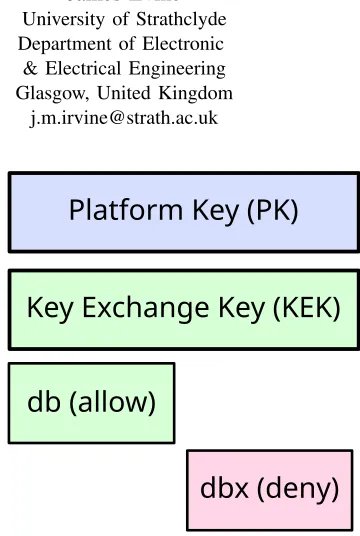
Fig. 1: Hierarchy of secure boot keys
A. UEFI Key Overview
The four main EFI variables used for secure boot are shown in Figure 1. The Platform Key (often abbreviated to PK) offers full control of the secure boot key hierarchy. The holder of the PK can install a new PK, and update the KEK (Key Exchange Key). This is a second key, which can either sign executable EFI binaries directly, or be used to sign the db and dbx databases. The db (signature database) variable contains a list of allowed signing certificates, or the cryptographic hashes of allowed binaries. The dbx is the inverse of db, and is used as a blacklist of specific certificates or hashes, which would otherwise have been accepted, but which should not be able to run. Only KEK and db (shown in green) keys can sign binaries which may boot the system.
The PK on most systems is issued by the manufacturer of the hardware, while a KEK is held by the operating system vendor (such as Microsoft). Hardware vendors also commonly have their own KEK installed (since multiple KEKs can be present). To take full ownership of a computer using secure boot, you need to replace (at a minimum) the PK and KEK, in order to prevent new keys being installed without your consent. You should also replace the signature database (db) if you wish to prevent commercially signed EFI binaries from running on your system. Since there are signed binaries
control over a computer to take control of the installed keys. A pre-installed manufacturer PK can only be programmatically replaced by signing it with the existing PK. With physical access to the computer, and access to the UEFI firmware environment, this key can be removed, and a new one installed. Requiring physical access to the system to override the default keys is an important security requirement of secure boot, to prevent malicious software from completing this process. Note that some locked-down ARM-based devices implement UEFI secure boot without the ability to change the pre-installed keys.
III. TESTINGPROCEDURE
You can follow these procedures on a physical computer, or alternatively in a virtualised instance of the Intel Tianocore reference UEFI implementation. Theovmfpackage available in most Linux distributions includes this. The QEMU virtu-alisation tool can launch an instance of ovmf for experimen-tation. Note that the “fat” argument specifies that a directory, “storage”, will be presented to the virtualised firmware as a persistent storage volume. Create this directory in the current working directory, and launch QEMU.
qemu-system-x86_64 -enable-kvm -net none \ -m 1024 -hda fat:storage/ -pflash \
/usr/share/ovmf/ovmf_x64.bin
Files present in this folder when starting QEMU will appear as a volume to the virtualised UEFI firmware. Note that files added to it after starting QEMU will not appear in the system restart QEMU and they will appear. This directory can be used to hold the public keys we wish to install to the UEFI firmware, as well as UEFI images to be booted later in the process.
IV. GENERATING YOUR OWN KEYS
Secure boot keys are self-signed 2048-bit RSA keys, in X.509 certificate format. Note that most implementations do not support key lengths greater than 2048 bits at present. You can generate a 2048-bit keypair (with a validity period of 3650 days, or 10 years) with the following openssl command:
openssl req -new -x509 -newkey rsa:2048 \ -keyout PK.key -out PK.crt -days 3650 \ -subj \"/CN=My PK/"
The CN subject can be customised as you wish, and its value is not important. The resulting PK.key is a private key, and PK.crt is the corresponding certificate (containing the public key), which you will install into the UEFI firmware shortly. You should store the private key securely on an encrypted storage device, in a safe place.
[image:2.612.356.536.54.188.2]The same process can now be carried out for both the KEK, and for the db key. Note that the db and KEK EFI variables can contain multiple keys (and in the case of db, SHA256 hashes of bootable binaries), although for simplicity this article only considers storing a single certificate in each. This is more than adequate for taking control of your own computer. Once again, the .key files are private keys which should be stored securely, and the .crt files are public certificates to be installed into your UEFI system variables.
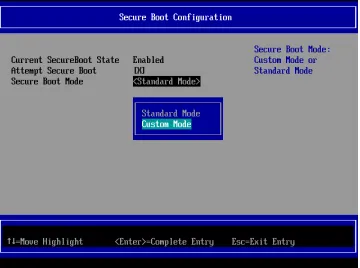
Fig. 2: Taking ownership and installing keys
Fig. 3: Erasing the existing platform key
V. TAKING OWNERSHIP AND INSTALLING KEYS
Every UEFI firmware interface differs, and it is therefore not possible to provide step-by-step instructions on how to install your own keys. Refer to your motherboard or laptop’s instruction manual, or search online for the maker of the UEFI firmware. Enter the UEFI firmware interface, usually by holding a key down at boot time, and locate the security menu. Here there should be a section or submenu for secure boot. Change the mode control to “custom” mode. This should allow you to access the key management menus.
At this point, you should make a backup of the UEFI platform keys currently installed. You should not need this, since there should be an option within your UEFI firmware interface to restore the default keys, but it does no harm to be cautious. There should be an option to export or save the current keys to a USB flash drive. It is best to format this with the FAT filesystem if you have any issues with it being detected.
After you have copied the backup keys somewhere safe, load the public certificate (.crt) files you created previously onto the USB flash drive. Take care not to mix them up with the backup certificates from earlier. Enter the UEFI firmware interface, and use the option to reset or clear all existing secure boot keys.
[image:2.612.355.536.225.361.2]Fig. 4: Loading a new key from a storage device
value can be loaded in from the UEFI firmware interface, or from software running on the computer (such as an operating system).
At this point you should temporarily disable secure boot, in order to continue following this article. Your newly installed keys will remain in place for when secure boot is enabled.
VI. SIGNINGBINARIES
After you have installed your custom UEFI signing keys, you need to sign your own EFI binaries. There are a variety of different ways to build (or obtain) these. Most modern Linux bootloaders are EFI-compatible (for example, GRUB 2, rEFInd or gummiboot), and the Linux kernel itself can be built as a bootable EFI binary since version 3.3. It’s possible to sign and boot any valid EFI binary, although the approach you take here depends on your preference.
One option is to sign the kernel image directly. If your distribution uses a binary kernel, you would need to sign each new kernel update before rebooting your system. If you use a self-compiled kernel, you would need to sign each kernel after building it. This approach however requires you to keep on top of kernel updates, and sign each image. This can become arduous, especially if you use a rolling-release distribution, or test mainline release candidates. An alternative, and the approach we used in this article, is to sign a locked-down UEFI-compatible bootloader (GRUB 2 in the case of this article), and use this to boot various kernels from your system.
Some distributions configure GRUB to validate kernel image signatures against a distribution-specified public key (with which they sign all kernel binaries) and disable editing of the kernel cmdline variable when secure boot is in use. You should therefore refer to the documentation for your distribution, as the section on ensuring your boot images are encrypted would not be essential in this case.
The linux sbsigntools package is available from the repositories of most Linux distributions, and is a good first port-of-call when signing UEFI binaries. UEFI secure boot binaries should be signed with an Authenticode-format signa-ture. The command of interest is sbsign, which is invoked as follows:
sbsign k e y DB.key c e r t DB.crt \
unsigned.efi --output signed.efi
Due to subtle variations in the implementation of the UEFI standards, some systems may reject a correctly signed binary from sbsign. The best alternative we found was to use the osslsigncode utility, which also generates Authenticode signatures. While this tool was not specifically intended for use with secure boot, it produces signatures which match the required specification. Sinceosslsigncodedoes not appear to be commonly included in distribution repositories, you should build it from its source code. The process is relatively straightforward, and simply requires runningmake, which will produce the executable binary. If you encounter any issues, ensure you have installed openssl and curl, which are dependencies of the package. See the resources section for a link to the source code repository.
Binaries are signed with osslsigntool in a similar manner to sbsign. Note that the hash is defined as SHA256 per the UEFI specification, and this should not be altered.
osslsigncode -certs DB.crt -key DB.key \ -h sha256 -in unsigned.efi -out signed.efi
VII. BOOTING WITHUEFI
After you have signed an EFI binary (such as the GRUB bootloader binary), the obvious next step is to test it. Comput-ers using the legacy BIOS boot technology load the initial operating system bootloader from the MBR (master boot record) of the selected boot device. The MBR contains code to load a further (and larger) bootloader held within the disk, which loads the operating system. In contrast, UEFI is designed to allow for more than one bootloader to exist on one drive, without the need for these bootloaders to cooperate, or even know the others exist.
Bootable UEFI binaries are located on a storage device (such as a hard disk) within a standard path. The partition containing these binaries is referred to as the EFI System Partition. It has a partition ID of 0xEF00 in gdisk, the GPT-compatible equivalent to fdisk. This partition is conventionally located at the beginning of the filesystem, and formatted with a FAT32 filesystem. UEFI bootable binaries are then stored as files in the EFI/BOOT/directory.
This signed binary should now boot if it is placed at EFI/BOOT/BOOTX64.EFI within the EFI system partition, or an external drive which is set as the boot device. It is possible to have multiple EFI binaries available on one EFI system partition, which makes it easier to create a multi-boot setup. For that to work however, the UEFI firmware needs a boot entry created in its non-volatile memory. Otherwise the default filename (BOOTX64.EFI) will be used, if it exists.
To add a new EFI binary to your firmware’s list of available binaries, you should use the efibootmgr utility. This tool can be found in distribution repositories, and is often used automatically by the installers for popular bootloaders such as GRUB.
you should attempt to boot an unsigned EFI binary. To do so, you can place a binary (such as an unsigned GRUB EFI binary) atEFI/BOOT/BOOTX64.EFIon a FAT32-formatted USB flash drive. Use the UEFI firmware interface to set this drive as the current boot drive, and ensure a security warning appears, which halts the boot process. You should also verify that an image signed with the default UEFI secure boot keys does not boot an Ubuntu 12.04 (or newer) CD or bootable USB stick should allow you to verify this. Finally, you should ensure that your self-signed binary boots correctly and without error.
VIII. INSTALLINGSTANDALONEGRUB
By default, the GRUB bootloader uses a configuration file stored at /boot/grub/grub.cfg. Ordinarily, this file could be edited by anyone able to modify the contents of your /boot partition, either by booting to another OS, or by placing your drive in another computer.
A. Bootloader Security
Prior to the advent of secure boot and UEFI, someone with physical access to a computer was presumed to have full access to it. User passwords could be bypassed by simply adding init=/bin/bashto the kernel cmdline parameter, and the computer would boot straight up into a root shell, with full access to all files on the system.
Setting up full disk encryption is one way to protect your data from physical attack if the contents of the hard disk is encrypted, the disk must be decrypted before the system can boot. It is not possible to mount the disk’s partitions without the decryption key, so the data is protected.
Another approach is to prevent an attacker from altering the kernel cmdline parameter. This approach is easily bypassed on most computers however, by installing a new bootloader. This bootloader need not respect the restrictions imposed by the original bootloader. In many cases, replacing the bootloader may prove unnecessary GRUB and other bootloaders are fully configurable by means of a separate configuration file, which could be edited to bypass security restrictions such as passwords.
B. GRUB Binary Installaton
There would therefore be no real security advantage in signing the GRUB bootloader, since the signed (and verified) bootloader would then load unsigned modules from the hard disk, and use an unsigned configuration file. By having GRUB create a single, bootable EFI binary, containing all the neces-sary modules and configuration files, you no longer need to trust the modules and configuration file of your GRUB binary. After signing the GRUB binary, it cannot be modified without Secure Boot rejecting it and refusing to load. This failure would alert you to someone attempting to compromise your computer by modifying the bootloader.
As mentioned earlier, this step may not be necessary on some distributions, as their GRUB bootloader will automati-cally enforce similar restrictions and checks on kernels, when booted with secure boot enabled. This section is therefore intended for those who are not using such a distribution,
or who wish to implement something similar themselves for learning purposes.
To create a standalone GRUB binary, the grub-mkstandalone tool is needed. This tool should be included as part of recent GRUB2 distribution packages.
grub-mkstandalone -d \
/usr/lib/grub/x86_64-efi/ -O x86_64-efi \ m o d u l e s ="part_gpt part_msdos" \
--fonts="unicode" --locales="en@quot" \ --themes="" -o \
"/home/user/grub-standalone.efi" \
"boot/grub/grub.cfg=/boot/grub/grub.cfg"
A more detailed explanation of the arguments used here is available on the man page for grub-mkstandalone. The significant arguments are -o, which specifies the output file to be used, and the final string argument, specifying the path to the current GRUB configuration file. The resulting standalone GRUB binary is directly bootable, and contains a memdisk, which holds the configuration file and modules, as well as the configuration file. This GRUB binary can now be signed, and used to boot the system. Note that this process should be repeated when the GRUB configuration file is re-generated, such as after adding a new kernel, changing boot parameters, or after adding a new operating system to the list, since the embedded configuration file will be out of date with the regular system one.
C. A Licensing Warning
As GRUB 2 is licensed under the GPLv3 (or later), this raises one consideration to be aware of. While not a consideration for individual users (who can simply install new Secure Boot keys and boot a modified bootloader), if the GRUB 2 bootloader (or indeed any other GPL-v3 licensed bootloader) was signed with a private signing key, and the distributed computer system was designed to prevent the use of unsigned bootloaders, use of the GPL-v3 licensed software would not be in compliance with the licence. This is as a result of the so-called anti-tivo’ization clause of GPLv3, which requires that users be able to install and execute their own modified version of GPLv3 software on a system, without being technically restricted from doing so.
IX. LOCKINGDOWNGRUB
To prevent a malicious user from modifying the kernel cmdline of your system (for example, to point to a different init binary), a GRUB password should be set. GRUB passwords are stored within the configuration file, after being hashed with a cryptographic hashing function. Generate a password hash with the grub-mkpasswd-pbkdf2 command, which will prompt you to enter a password.
located in /etc/grub.d or similar). In the file 40 custom, add the following:
set superusers="root"
password_pbkdf2 root <generated pass hash>
This will create a GRUB superuser account named root, which is able to boot any GRUB entry, edit existing boot items, and enter a GRUB console. Without further configuration, this password will also be required to boot the system. If you prefer to have yet another password on boot-up, you can skip the next step. With full disk encryption in use though, there is little need in requiring a password on each boot-up.
To remove the requirement for the supervisor password to be entered on a normal boot-up, edit the standard boot menu template (normally /etc/grub.d/10-linux), and locate the line creating a regular menu entry. It should look somewhat similar to the line shown below. Note that for reproducing in print form, this line has been broken up.
echo "menuentry ’$(echo "$title" | grub_quote)’ ${CLASS}
\$menuentry_id_option
’gnulinux-$version-$type-$boot_device_id’ {" | sed "s/ˆ/$submenu_indentation/"
Change this line by adding the argument --unrestricted, before the opening curly bracket. This change tells GRUB that booting this entry does not require a password prompt. Depending on your distribution and GRUB version, the exact contents of the line may differ. Once again, for the purpose of reproduction in print, the line has been broken up. The resulting line should be similar to:
echo "menuentry ’$(echo "$title" | grub_quote)’ ${CLASS}
\$menuentry_id_option
’gnulinux-$version-$type-$boot_device_id’ --unrestricted {" | sed
"s/ˆ/$submenu_indentation/"
After adding a superuser account and configuring the need (or otherwise) for boot-up passwords, the main GRUB configuration file should be re-generated. The command for this is distribution specific, but is often update-grub or grub-mkconfig. The standalone GRUB binary should also be re-generated and tested.
X. PROTECTING THEKERNEL
At this point, you should have a system capable of booting a signed (and password protected) GRUB bootloader. An adversary without access to your keys would not be able to modify the bootloader, or its configuration or modules. Like-wise, they would not be able to change the parameters passed by the bootloader to the kernel. They could however modify your kernel image (by swapping the hard disk into another computer). This would then be booted by GRUB. While it is possible for GRUB to verify kernel image signatures, this requires you to re-sign each kernel update.
An alternative approach is to use full disk encryption to protect the full system, including kernel images, the root
filesystem, and your home directory. This prevents someone from removing your computer’s drive and accessing your data, or modifying it without knowing your encryption password, the drive contents will be unreadable (and thus unmodifiable).
Most online guides will show full disk encryption, but leave a separate, unencrypted /boot partition (which holds the kernel and initrd images) for ease of booting. By only creating a single, encrypted root partition, there won’t be an unencrypted kernel or initrd stored on the disk. You can, of course, create a separate boot partition and encrypt it using dm-crypt as normal, if you prefer.
The full process of carrying out full disk encryption including the boot partition is worthy of an article in itself, given the various distribution-specific changes necessary. A good starting point, however, is the ArchLinux wiki (see the Resources section at the end of this article). The main difference from a conventional encryption setup is the use of the GRUB GRUB_ENABLE_CRYPTODISK=y configura-tion parameter, which tells GRUB to attempt to decrypt an encrypted volume prior to loading the main GRUB menu.
To avoid having to enter the encryption password twice per boot-up, the system’s /etc/crypttab can be used to automatically decrypt the filesystem with a keyfile. This keyfile can then be included in the (encrypted) initrd of the filesystem (refer to your distribution’s documentation to find out how to add this to the initrd, so it will be included each time it is regenerated for a kernel update).
This keyfile should be owned by the root user, and does not require any user or group to have read access to it. Likewise, you should give the initrd image (in the boot partition) the same protection, to prevent it from being accessed while the system is powered up, and the keyfile being extracted.
XI. FINALCONSIDERATIONS
UEFI secure boot allows you to take control over what code can run on your computer. Installing your own keys allows you to prevent malicious people from easily booting their own code on your computer. Combining this with full disk encryption will keep your data protected against unauthorised access and theft, and prevent an attacker from tricking you into booting a malicious kernel.
As a final step, you should apply a password to your UEFI setup interface, in order to prevent a physical attacker from gaining access to your computer’s setup interface, and installing their own PK, KEK and db key, as these instruc-tions did. You should be aware, however, that a weakness in your motherboard or laptop’s implementation of UEFI could potentially allow this password to be bypassed or removed, and that the ability to re-flash the UEFI firmware through a “rescue mode” on your system could potentially clear NVRAM variables. Nonetheless, by taking control of secure boot and using it protect your system, you should be better protected against malicious software or those with temporary physical access to your computer.
XII. RESOURCES
More information about the keys and inner workings of secure boot:
http://blog.hansenpartnership.com/ the-meaning-of-all-the-uefi-keys/
osslsigncode repository:
http://sourceforge.net/projects/osslsigncode/
ArchLinux wiki instructions for fully encrypted systems: https://wiki.archlinux.org/index.php/Dm-crypt/Encrypting an entire system#Encrypted boot partition .28GRUB.29
Guide for full-disk encryption including kernel image: http://www.pavelkogan.com/2014/05/23/
luks-full-disk-encryption/
Fedora Wiki on their Secure Boot implementation: https://fedoraproject.org/wiki/Features/SecureBoot
ACKNOWLEDGMENT
This work was funded by EPSRC Doctoral Training Grant EP/K503174/1.
AUTHORS
Greig Paul is a PhD researcher in the mobile communica-tions group at the University of Strathclyde, Glasgow (UK), where he works on mobile device security and secure data storage.