Microsoft SQL Server 2000 Performance
Optimization and Tuning Handbook
Ken England
Digital Press An imprint of Butterworth-Heinemann
Boston * Oxford * Auckland * Johannesburg * Melbourne * New Delhi
Copyright © 2001 Butterworth-Heinemann
A member of the Reed Elsevier group
All rights reserved.
Digital Press™ is an imprint of Butterworth-Heinemann.
All trademarks found herein are property of their respective owners.
No part of this publication may be reproduced, stored in a retrieval system, or transmitted in any form or by any means, electronic, mechanical, photocopying, recording, or otherwise, without the prior written permission of the publisher.
Recognizing the importance of preserving what has been written, Butterworth-Heinemann prints its books on acid-free paper whenever possible.
Library of Congress Cataloging-in-Publication Data
England, Ken, 1955-
Microsoft SQL server 2000 performance optimization and tuning handbook / Ken England. p. cm.
Includes index.
ISBN 1-55558-241-9 (pbk.: alk. paper)
1. Client/server computing. 2. SQL server. 3. Relational databases. I. Title.
QA76.9.C55 E635 2001
005.75'85-dc21
2001017498
British Library Cataloging-in-Publication Data
A catalogue record for this book is available from the British Library.
Manager of Special Sales Butterworth-Heinemann 225 Wildwood Avenue Woburn, MA 01801-2041 Tel: 781-904-2500
Fax: 781-904-2620
For information on all Butterworth-Heinemann publications available, contact our World Wide Web home page at: http://www.bh.com.
10 9 8 7 6 5 4 3 2 1
Printed in the United States of America
Related Titles From Digital Press
Tony Redmond, Microsoft® Exchange Server for Windows 2000: Planning, Design and Implementation,
ISBN 1-55558-224-9, 1072pp, 2000
Jerry Cochran, Mission-Critical Microsoft® Exchange 2000: Building Highly Available Messaging and Knowledge Management Systems,
ISBN 1-55558-233-8, 320pp, 2001
Kieran McCorry, Connecting Microsoft® Exchange Server, ISBN 1-55558-204-4, 416pp, October 1999
John Rhoton, Programmer's Guide to Internet Mail: SMTP, POP, IMAP, and LDAP, ISBN 1-55558-212-5, 312pp, October 1999
Mike Daugherty, Monitoring and Managing Microsoft® Exchange 2000 Server, ISBN 1-55558-232-X, 440pp, 2001
For more information or to order these and other Digital Press titles please visit our website at www.bhusa.com/digitalpress!
At www.bhusa.com/digitalpress you can:
• Join the Digital Press Email Service and have news about our books delivered right to your desktop
• Read the latest news on titles
• Sample chapters on featured titles for free
• Question our expert authors and editors
• Download free software to accompany select texts
To Margaret, Michael, and Katy
Microsoft Certified Trainer. His previous books for Digital Press have helped thousands of professionals make the best possible use of their SQL databases.
Acknowledgments
Most of all, I would like to thank Margaret, Michael, and Katy England for their long suffering while I was locked in my study writing this text. Writing about databases is,
unfortunately, not an activity in which most of the family can join in. Because of this, writing and being sociable are usually mutually exclusive!
Margaret had to spend many a weekend anchored to the house. Michael missed out on computer game time, kicking a ball around, and tinkering with our old Series II Land Rover. He was very patient while his dad kept disappearing in front of a PC for protracted periods of time. Katy missed out on company while she watched cartoons.
Also an apology to Holly, my German Shepherd, who missed out on many walks. It's best not to annoy German Shepherds too much!
As well as the friends and colleagues who encouraged me with the book, I would like to give an extra special thanks to the following people.
A very special thank you to Keith Burns, who always has a bubbling enthusiasm for SQL Server; Nigel Stanley and the folk at ICS Solutions for helping to put SQL Server on the map; Dave Gay from Microsoft (UK), an old friend, who stimulates my grey matter through many deep discussions; Chris Atkinson from Microsoft, another old friend, who has helped me out on many occasions and has also stimulated my grey matter; and also, Doctor Lilian Hobbs, a database comrade-in-arms, and Doctor Jeff Middleton for debating many SQL Server and related topics while on 20 mile hikes!
I would also like to thank Karl Dehmer, Lori Oviatt, and Adam Shapiro from Microsoft Training Development, who came all the way over to the United Kingdom to teach an absolutely superb SQL Server 6.5 performance tuning and optimization course a few years ago. Their enthusiasm then for SQL Server performance tuning rubbed off on me and gave me a much-needed boost to complete the SQL Server 6.5 book and now this one. Another special thanks goes to friends at Butterworth-Heinemann. Many thanks to our other friends in Microsoft, without whose skill and hard work SQL Server 2000 would not be the excellent product it is today.
Ken England January 2001
Preface
My last SQL Server performance book was aimed at SQL Server 6.5. When Microsoft released SQL Server 7.0 it was almost as if it were a new product. Although it was backward compatible in many areas with SQL Server 6.5, the architecture was very different. For
of multiple indexes and table joins. The query processor could also now execute complex queries in parallel. As well as all these changes and many more, Windows 2000 was beginning to slowly appear on the horizon.
For these reasons, I decided that upgrading a SQL Server 6.5 performance and tuning book to SQL Server 7.0 was not going to be a trivial task and would be much more than an editing exercise. I decided that my goal would be to work with SQL Server 7.0 through its lifetime in my usual performance-tuning-consultancy capacity and not rewrite the book until I felt confident with the way the new architecture behaved. Of course, nothing stays still for long with software, especially Microsoft software, and so the actual book-writing goal was to write a SQL Server 2000 version.
SQL Server 2000 has added many useful enhancements to SQL Server 7.0, but it is still the SQL Server 7.0 architecture and, therefore, behaves pretty much in the same way. I say to my students that if you know SQL Server 7.0, you pretty much know SQL Server 2000.
So here goes-the follow-up to the SQL Server 6.5 performance and tuning book. I hope you like this updated SQL Server 2000 version.
The chapters are written to follow one another in a logical fashion, building on some of the topics introduced in previous chapters. The structure of the chapters is as follows:
• Chapter 1 introduces the goals of performance tuning and the elements of the physical database design process including data volume analysis and transaction analysis. It also introduces the example BankingDB database.
• Chapter 2 describes the SQL Server storage structures including database files, databases, database pages, and extents.
• Chapter 3 introduces clustered indexes and nonclustered indexes. How data is inserted and retrieved and choosing the appropriate index for a given situation are discussed.
• Chapter 4 introduces the query optimizer and steps in the query optimization process. This chapter also discusses the special approach to query optimization used by stored procedures.
• Chapter 5 looks at the interaction between SQL Server and Windows 2000 in the areas of CPU, memory, and disk I/O. How to track down and remove bottlenecks is
explored.
• Chapter 6 introduces SQL Server locking mechanisms and strategies and the methods and tools available for monitoring locks.
• Chapter 7 looks at performance monitoring and the tools available to assist the database administrator.
• Chapter 8 provides a performance tuning aide-mémoire.
I really enjoy tuning databases and making them run fast. Even more, I really enjoy taking an elusive performance problem, tracking it down, and fixing it. I hope you, too, find the same level of enjoyment that I do and that this book kick-starts your interest in performance tuning SQL Server.
1.1 What is performance tuning?
What is the goal of tuning a SQL Server database? The goal is to improve performance until acceptable levels are reached. Acceptable levels can be defined in a number of ways. For a large online transaction processing (OLTP) application the performance goal might be to provide subsecond response time for critical transactions and to provide a response time of less than two seconds for 95 percent of the other main transactions. For some systems, typically batch systems, acceptable performance might be measured in throughput. For example, a settlement system may define acceptable performance in terms of the number of trades settled per hour. For an overnight batch suite acceptable performance might be that it must finish before the business day starts.
Whatever the system, designing for performance should start early in the design process and continue after the application has gone live. Performance tuning is not a one-off process but an iterative process during which response time is measured, tuning performed, and response time measured again.
There is no right way to design a database; there are a number of possible approaches and all these may be perfectly valid. It is sometimes said that performance tuning is an art, not a science. This may be true, but it is important to undertake performance tuning experiments with the same kind of rigorous, controlled conditions under which scientific experiments are performed. Measurements should be taken before and after any modification, and these should be made one at a time so it can be established which modification, if any, resulted in an improvement or degradation.
What areas should the database designer concentrate on? The simple answer to this question is that the database designer should concentrate on those areas that will return the most benefit. In my experience, for most database designs I have worked with, large gains are typically made in the area of query and index design. As we shall see later in this book, inappropriate indexes and badly written queries, as well as some other contributing factors, can negatively influence the query optimizer such that it chooses an inefficient strategy.
To give you some idea of the gains to be made in this area I once was asked to look at a query that joined a number of large tables together. The query was abandoned after it had not
completed within 12 hours. The addition of an index in conjunction with a modification to the query meant the query now completed in less than eight minutes! This magnitude of gain cannot be achieved just by purchasing more hardware or by twiddling with some arcane SQL Server configuration option. A database designer or administrator's time is always limited, so make the best use of it! The other main area where gains can be dramatic is lock contention. Removing lock bottlenecks in a system with a large number of users can have a huge impact on response times.
Now, some words of caution when chasing performance problems. If users phone up to tell you that they are getting poor response times, do not immediately jump to conclusions about what is causing the problem. Circle at a high altitude first. Having made sure that you are about to monitor the correct server use the System Monitor to look at the CPU, disk
Perhaps the network is sluggish or there is lock contention. Also be aware of the fact that some bottlenecks hide others. A memory bottleneck often manifests itself as a disk bottleneck.
There is no substitute for knowing your own server and knowing the normal range of System Monitor counters. Establish trends. Measure a set of counters regularly, and then, when someone comments that the system is slow, you can wave a graph in front of him or her showing that it isn't!
So, when do we start to worry about performance? As soon as possible, of course! We want to take the logical design and start to look at how we should transform it into an efficient
physical design.
1.2 The physical database design process
Once the database logical design has been satisfactorily completed, it can be turned into a database physical design. In the physical design process the database designer will be considering such issues as the placement of data and the choice of indexes and, as such, the resulting physical design will be crucial to good database performance. The following two important points should be made here:
1. A bad logical design means that a good physical design cannot be performed. Good logical design is crucial to good database performance, and a bad logical design will result in a physical design that attempts to cover up the weaknesses in it. A bad logical design is hard to change, and once the system is implemented it will be almost
impossible to do so.
2. The physical design process is a key phase in the overall design process. It is too often ignored until the last minute in the vain hope that performance will be satisfactory. Without a good physical design, performance is rarely satisfactory and throwing hardware at the problem is rarely completely effective. There is no substitute for a good physical design, and the time and effort spent in the physical design process will be rewarded with an efficient and well-tuned database, not to mention happy users!
Before embarking on the physical design of the database, it is worth stepping back and considering a number of points, as follows:
• What kind of system are we trying to design? Is it a fast online transaction processing (OLTP) system comprised of perhaps hundreds of users with a throughput of hundreds of transactions per second (TPS) and an average transaction response time that must not exceed two seconds? Is it a multigigabyte data warehouse, which must support few online users but must be able to process very complex ad hoc queries in a reasonable time, or is it a combination of the two?
The type of system will strongly influence the physical database design decisions that must be made. If the system is to support OLTP and complex decision support, then maybe more than one database should be considered-one for the operational OLTP system and one, fed by extracts from the operational OLTP system, to support complex decision support.
platform. It is no use spending weeks trying to squeeze the last few CPU cycles out of a CPU bound database when, for a small outlay, another processor can be purchased. Similarly, there is little point purchasing another CPU for a system that is disk I/O bound.
• Has the database design been approached from a textbook normalization standpoint? Normalizing the database design is the correct approach and has many benefits, but there may be areas where some denormalization might be a good idea. This might upset a few purists, but if a very short response time is needed for a specific query it might be the best approach. This is not an excuse for not creating a normalized design. A normalized design should be the starting point for any effort made at
denormalization.
• How important is data consistency? For example, is it important that if a query rereads a piece of data within a transaction it is guaranteed that it will not have changed? Data consistency and performance are enemies of one another, and, therefore, if consistency requirements can be relaxed, performance may be increased.
How does a database designer move from the logical design phase to a good physical database design? There is no single correct method; however, certain information should be captured and used as input to the physical design process. Such information includes data volumes, data growth, and transaction profiles.
1.2.1 Data volume analysis
It is very important to capture information on current data volumes and expected data volumes. Without this information it is not even possible to estimate the number and size of the disk drives that will be required by the database. Recording the information is often a case of using a simple spreadsheet, as shown in Table 1.1.
Table 1.1: Capturing Simple Data Volume Information
Table Name # of Rows Row Size Space Needed % Annual Growth
Space Needed in 12 Months
Accounts 25,000 100 2,500,000 10 2,750,000
Branches 100 200 20,000 5 21,000
Customers 10,000 200 2,000,000 20 2,400,000
Transactions 400,000 50 20,000,000 25 25,000,000
This may appear to be a trivial operation, but it is surprising how few database designers do it. It is also interesting to find the different views from business users on what the figures should be! Another column that could be added might represent how volatile the data is in a
particular table. The percentage annual growth of a table might be zero, but this may be because a large amount of data is continually being removed as well as being added.
percent; however, they do phone you to complain that the system just stopped because the database was full!
So how are the size of indexes calculated? The Creating and Maintaining Databases online book gives sample calculations to assist in the sizing of tables, as well as clustered and nonclustered indexes with both fixed, and variable-length columns. It is highly recommended that these calculations are performed, and it is worth using a spreadsheet such as Microsoft Excel to perform the calculations in order to save time and effort. Watch the newsgroups for stored procedures in circulation that do these calculations. Also check out the SQL Server resource kits. At the time of writing the Microsoft BackOffice 4.5 Resource Kit contains a tool named data sizer, which will assist in the sizing of databases.
A rule of thumb is to double the size of the user data to estimate the size of the database. Crude though this appears, by the time indexes and some space for expansion have been added, double the size is not far off!
What about the size of the transaction log? This is difficult to size, since it depends on the write activity to the database, frequency of transaction backups, and transaction profiles. Microsoft suggests that about 10 percent to 25 percent of the database size should be chosen. This is not a bad start, but once the system testing phase of the development has started the database designer can start monitoring the space use in the transaction log with dbcc sqlperf (logspace). The transaction log space is a critical resource and running out of it should be avoided.
Unfortunately, many factors contribute to transaction log growth. These include the rate per second of transactions that change database data and the amount of data these transactions change. Remember that in an operational system, if a transaction log backup fails for some reason, the transaction log will continue to fill until the next successful transaction log
backup. It may be desirable to have a transaction log large enough so that it can accommodate the failure of one transaction log backup. Replication failures will impact the effectiveness of transaction log backups, and, of course, there is always the user who runs a job that updates a million-row table without warning you.
For all these reasons, do not be tight with transaction log space. With the price of disk space as it is, a transaction log can be created with a large amount of contingency space.
Finally, do not forget that as a database designer/administrator, you will need lots of disk space to hold at least one copy of the production database for performance tuning testing. Not having a copy of the production database can really hinder you.
So, we now have documented information on data volumes and growth. This in itself will determine a minimum disk configuration; however, it is only a minimum, since transaction analysis may determine that the minimum disk configuration will not provide enough disk I/O bandwidth.
If data volume analysis is concerned with the amount of data in the database and the space it needs, transaction analysis is concerned with the way in which data is manipulated and at what frequency.
Data in the database may be manipulated by code, such as Visual Basic, or a tool such as Microsoft Access, or a third-party product accessing SQL Server. Whichever way the data is accessed, it will presumably be as a result of a business transaction of some kind. Transaction analysis is about capturing information on these business transactions and investigating how they access data in the database and in which mode. Table 1.2 shows some attributes of a business transaction it might be useful to record.
Table 1.2: Capturing Transaction Attributes
Attribute Explanation
Name A name assigned to the transaction
Average frequency Average number of times executed per hour Peak frequency Peak number of times executed per hour Priority A relative priority assigned to each transaction
Mode Whether the transaction only reads the database or writes to it also Tables accessed Tables accessed by the transaction and in which mode
Table keys Keys used to access the table
Clearly, by their very nature, it is not possible to capture the information shown in Table 1.2
for ad hoc transactions nor is it practical to capture this information for every business
transaction in anything other than a very simple system. However, this information should be captured for at least the most important business transactions. By most important we mean those transactions that must provide the fastest response times and/or are frequently executed. A business transaction that runs every three months and can be run during a weekend is unlikely to appear on the list of most important transactions!
It is important to prioritize transactions, since it is virtually impossible to be able to optimize every transaction in the system. Indexes that will speed up queries will almost certainly slow down inserts.
An example of the attributes captured for a transaction are shown in Table 1.3.
Table 1.3: Example Transaction Attributes
Attribute Value
Name Order Creation
Average
frequency 10,000 per hour Peak frequency 15,000 per hour Priority 1 (high) Mode Write
Tables accessed Orders (w), Order Items (w), Customers (r), Parts (r)
There are various ways to document the transaction analysis process and some modeling tools will automate part of this documentation. The secret is to document the important transactions and their attributes so that the database designer can decide which indexes should be defined on which tables.
Again, it is often a case of using simple spreadsheets, as shown in Table 1.4.
Table 1.4: Capturing Simple Transaction Analysis Information
Transactions/Tables Orders Order_items Parts Customers
Customer inquiry R
Order inquiry R R
Order entry I I R R
Customer inquiry cust_number
Order inquiry order_number order_number
Order entry order_number order_number parts_number cust_number
The first spreadsheet maps the transactions to the mode in which they access tables; the modes are I for insert, R for read, U for update, and D for delete. The second spreadsheet maps the transactions to the key with which they access tables. Again, there is nothing complex about this but it really pays to do it. Depending on how the system has been
implemented, a business transaction may be modeled as a number of stored procedures, and, if desired, one may wish to use these instead of transaction names.
It is also important when considering the key business transactions not to forget triggers. The trigger accesses tables in various modes, just as the application code does.
Data integrity enforcement using declarative referential integrity should also be included. Foreign key constraints will access other tables in the database and there is nothing magical about them. If an appropriate index is not present, they will scan the whole table like any other query.
Once the transaction analysis has been performed, the database designer should have a good understanding of the tables that are accessed frequently, in which mode, and with which key. From this information one can begin to derive the following:
• Which tables are accessed the most and therefore experience the most disk I/O?
• Which tables are written to frequently by many transactions and therefore might experience the most lock contention?
• For a given table, which columns are used to access the required rows; that is, which common column combinations form the search arguments in the queries?
In other words where are the hot spots in the database?
Relational databases, and SQL Server is no exception, are reasonably easy to prototype, so there is no excuse for not testing the physical design you are considering. Load data into your tables, add your indexes, and stress your database with some representative Transact-SQL. See how many transactions a second you can perform on a given server or, to look at it another way, how much disk I/O does a named transaction generate? Which resource-CPU or disk-do you run out of first?
Start stress testing with simple experiments. Jumping in at the deep end with many users testing complex functionality is likely just to confuse the issue. Begin with simple transactions issued by one user and then try more complex transactions.
Do not forget multiuser testing! Lock contention cannot be tested unless some kind of
multiuser testing is performed. In its simplest form this might involve persuading a number of potential users to use the test system concurrently by following set scripts while performance statistics are monitored. In its more sophisticated form this might involve the use of a
multiuser testing product, which can simulate many users while running automated scripts.
Transaction analysis and performance testing can be approached in a much more sophisticated way than has been described above. The important point, however, is that it should be done-the level of sophistication being determined by done-the available resource, be it time or money.
Again, note that physical design and performance testing are ongoing activities. Systems are usually in a constant state of flux, because business requirements are usually in a constant state of flux. Therefore, performance should be regularly monitored and, if necessary, the database tuned.
1.2.3 Hardware environment considerations
The previous section described preproduction performance testing. This should have given the database designer a feel for the hardware requirements of the production system. Obviously, there is a hardware budget for any project, but it is clearly critical to have sufficient hardware to support the workload of the system. It is also critical to have the correct balance and correct type of hardware.
For example, there is no point in spending a small fortune on CPU power if only a small amount of money is spent on the disk subsystem. Similarly, there is no point in spending a small fortune on the disk subsystem if only a small amount of money is spent on memory. Would the application benefit from a multiprocessor configuration or a single powerful processor?
If the application's main component is a single report that runs through the night but must be finished before 9:00 A.M., a single powerful processor might be a better choice. On the other hand, if the application consists of a large number of users in an OLTP system, a more cost-effective solution would probably be a multiprocessor configuration.
Take a step back and look at the application and its hardware as a whole. Make sure the system resource is not unbalanced and do not forget the network!
Once we have performed our data volume and transaction analysis we can start to consider our physical design. We will need to decide what transactions need to be supported by indexes and what type of index we should use. Chapter 3 discusses indexes in detail, but before we look at indexes we need a more general view of the storage structures used in SQL Server, and these are covered in the next chapter.
Chapter 2: SQL Server Storage Structures
2.1 Introduction
A developer of application code is probably quite content to consider a SQL Server as a collection of databases containing tables, indexes, triggers, stored procedures, and views. As a database designer and a person who will be responsible for the performance of those
databases, it is useful to be able to look a little deeper at the storage structures in SQL Server. A lot of the internals of SQL Server are hidden and undocumented, but we can still learn a fair amount about the way the product works. This chapter investigates the storage structures that SQL Server uses and the methods available to view them.
2.2 Databases and files
A database contains all the tables, views, indexes, triggers, stored procedures, and user data that make up an application. A SQL Server will typically host many databases. Usually individual databases are backed up, restored, and integrity checked, so a database can also be thought of as a unit of administration. Because a database is the container for our objects, we will need to spend some time here looking at how databases are structured and managed. We will then drill down into the database files and investigate database pages and other structures.
A database resides in one or more operating system files, which may reside on FAT, FAT32, or NTFS partitions depending on the operating system. These operating system files are known in SQL Server terminology as database files. These database files may be used to hold user and system tables (data files) or track changes made to these tables (transaction log files). There can be as many as 32,767 files per database and 32,767 databases hosted by a SQL Server. A database can be as large as 1,048,516 terabytes (TB). A data file in a database can be as large as 32 TB and a transaction log file as large as 4 TB. Of course, most sites will never come remotely close to these numbers, but it is nice to know that there is plenty of headroom!
The files used by a SQL Server 2000 database belong exclusively to that database. In other words, a file cannot be shared by databases. Also, a file cannot be used to hold both data and transaction log information. This means that a database must consist of a minimum of two files. This is a much cleaner model that used in previous versions (prior to SQL Server 7.0).
There are three file types associated with a SQL Server 2000 database, as follows:
2. Secondary data files hold data that does not fit on the primary data file. Some
databases may not have any secondary data files, while others have multiple secondary data files. The recommended file extension for secondary data files is an .ndf
extension.
3. Log files hold all of the log information used to recover the database. There is at least one log file for each database. The recommended file extension for log files is an .ldf extension.
The primary data file will hold the system tables and may hold user tables. For most users, placing all their database tables in this file and placing the file on a suitable RAID
[image:13.595.74.336.372.578.2]configuration will be sufficient. For some users, their user tables may be too large to place in a single file, since this would mean that the file would be too large to place on one of the storage devices. In this case, multiple data files—a primary and multiple secondary files— may be used. User tables would then be created and populated. SQL Server would allocate space from each file to each table so that the tables were effectively spread across the files and, consequently, the physical storage devices.
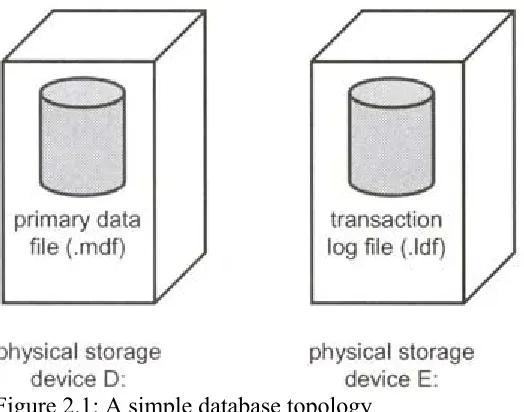
Figure 2.1 shows a simple database topology using a single file to hold the system tables and user tables and a single file for the transaction log. The files reside on separate physical storage devices, which may be single disks or RAID configurations. RAID configurations are discussed in Chapter 5.
Figure 2.1: A simple database topology
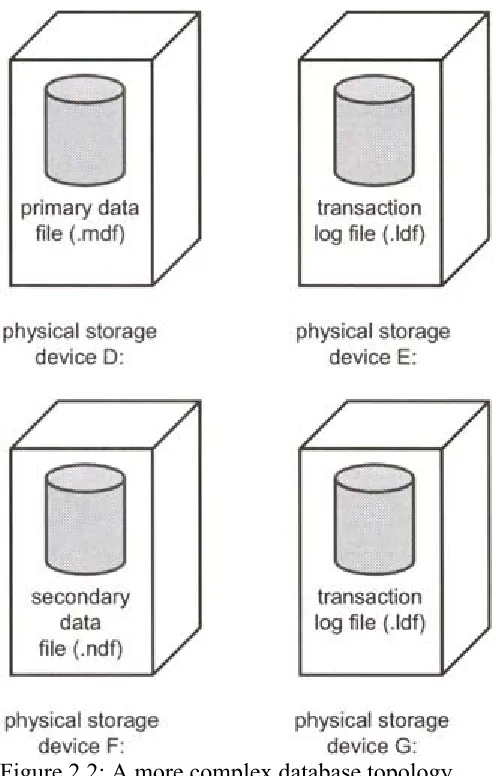
Figure 2.2: A more complex database topology
For those users with even greater database performance and size requirements, filegroups may be used. The role of a filegroup is to gather data files together into collections of files into which database tables, indexes, and text/image data can be explicitly placed. This gives the database administrator great control over the placement of these database objects. Perhaps two database tables that are very heavily accessed can be separated into two filegroups consisting of two sets of data files residing on two sets of physical storage devices. The tables could also be separated from their nonclustered indexes in a similar fashion. Nonclustered indexes are described in Chapter 3. From an administration perspective, individual filegroups can be backed up allowing a large database to be backed up in parts.
Some rules govern the use of filegroups. Transaction logs are never members of filegroups— only data files are. Also, data files can only be a member of one filegroup.
user-defined filegroup and making this the default filegroup when the database is first created. This ensures that the system tables alone reside in the primary filegroup and all user data resides in the user-defined filegroup in a separate, secondary data file.
2.3 Creating databases
Databases can be created by means of the Create Database Wizard, the SQL Server Enterprise Manager, or the Transact-SQL CREATE DATABASE statement. Since the Create Database Wizard is merely a wrapper around the SQL Server Enterprise Manager database creation dialog boxes, it will not be discussed further here. A database may also be created with the SQL-DMO (Distributed Management Objects). Creating a database with the SQL Server Enterprise Manager is accomplished as follows:
1. Expand the server group and expand the server. 2. Right-click Databases, then click New Database.
3. Enter the name of the database and collation on the General tab.
4. Enter the name, file, size, and attribute information for each data file on the Data Files tab.
5. Enter the name, file, size, and attribute information for each transaction log file on the Log Files tab.
6. Click OK.
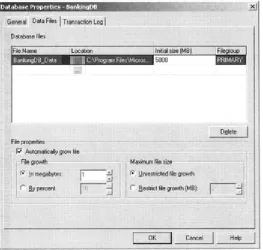
[image:15.595.73.336.452.702.2]Depending on how large the database will be, this may take a considerable length of time. In this case using a Transact-SQL script running in the background may be a better bet. The SQL Server Enterprise Manager Database Properties dialog box with the Data Files tab selected is shown in Figure 2.3.
Figure 2.3: The Database Properties dialog box
example, by various system stored procedures such as sp_helpfile. The location is the physical storage location where the file will reside. A filegroup may also be entered for data files other than the primary at this point, in which case the secondary data file will be placed in that filegroup. Other attributes of the file relate to size and growth, which will be discussed shortly.
An example of creating a database using the Transact-SQL CREATE DATABASE statement is as follows:
CREATE DATABASE BankingDB ON PRIMARY
( NAME = BankingData,
FILENAME = 'd:\data\BankingData.mdf', SIZE = 200MB,
MAXSIZE = 800MB, FILEGROWTH = 40MB ) LOG ON
( NAME = 'BankingLog',
FILENAME = 'e:\data\BankingLog.ldf', SIZE = 100MB,
MAXSIZE = 500MB, FILEGROWTH = 50MB )
As with SQL Server Enterprise Manager, a name is specified for the file—this time with the NAME option—and a physical location is specified with the FILENAME option. The ON keyword introduces a list containing one or more data file definitions, and the LOG ON keyword introduces a list containing one or more transaction log file definitions.
The PRIMARY keyword identifies the list of files following it as files that belong to the primary filegroup. The first file definition in the primary filegroup becomes the primary file, which is the file containing the database system tables. The PRIMARY keyword can be omitted, in which case the first file specified in the CREATE DATABASE statement is the primary file.
Regardless of the mechanism by which a database is created, size and growth information may be specified. The Initial size (MB) in the SQL Server Enterprise Manager and the SIZE keyword in the CREATE DATABASE statement specify the initial size of the file. In Transact-SQL, the units are, by default, megabytes, although this can be specified explicitly by using the suffix MB. If desired, the file size can be specified in kilobytes using the KB suffix, gigabytes using the GB suffix, and terabytes using the TB suffix.
In SQL Server 2000, when a data file or transaction log file fills it can automatically grow. In the SQL Server Enterprise Manager, a file is allowed to automatically grow by checking the Automatically grow file check box. This is, in fact, checked by default. In Transact-SQL, the file, by default, will be allowed to grow unless the FILEGROWTH keyword is set to 0. When a file grows, the size of the growth increment is controlled by the Filegrowth property in the SQL Server Enterprise Manager and the FILEGROWTH keyword in Transact-SQL. The growth increment can be specified as a fixed value, such as 10 megabytes, or as a percentage. This is the percentage of the size of the file at the time the increment takes place. Therefore, the size increment will increase over time. In Transact-SQL, the FILEGROWTH value can be specified using the suffix MB, KB, GB, TB, or %, with MB being the default. If the
The file may be allowed to grow until it takes up all the available space in the physical storage device on which it resides, at which point an error will be returned when it tries to grow again. Alternatively, a limit can be set using the Restrict filegrowth (MB) text box in the SQL Server Enterprise Manager or the MAXSIZE keyword in Transact-SQL. The MAXSIZE value can be specified using the suffix MB, which is the default, KB, GB, or TB. The keyword UNLIMITED can also be specified—this is the default.
Note Every time a file extends, the applications using the database during the file extension operation may experience performance degradation. Also, extending a file multiple times may result in fragmented disk space. It is advisable, therefore, to try to create the file with an initial size estimated to be close to the size that will ultimately be required by the file.
The following example shows a CREATE DATABASE statement, which will create a database consisting of multiple data and transaction log files:
CREATE DATABASE BankingDB ON PRIMARY
( NAME = BankingData1,
FILENAME = 'd:\data\BankingData1.mdf', SIZE = 50MB,
MAXSIZE = 200MB, FILEGROWTH = 25MB), ( NAME = BankingData2,
FILENAME = 'e:\data\BankingData2.ndf', SIZE = 50MB,
MAXSIZE = 200MB, FILEGROWTH = 25MB) LOG ON
( NAME = BankingLog1,
FILENAME = 'f:\data\BankingLog1.ldf', SIZE = 50MB,
MAXSIZE = 200MB, FILEGROWTH = 25MB), ( NAME = BankingLog2,
FILENAME = 'g:\data\BankingLog2.ldf', SIZE = 50MB,
MAXSIZE = 200MB, FILEGROWTH = 25MB)
The following example re-creates the multiple file BankingDB database created in the
previous example, but this time a user-defined filegroup, Filegroup1, is created. Since the file named BankingData2 follows the filegroup definition, it is placed in this filegroup. This means that tables, indexes, and text/image data can be explicitly placed in this filegroup if required. If no filegroup is specified on the object definition, the object will be created in the DEFAULT filegroup, which, unless it is changed, is the primary filegroup.
CREATE DATABASE BankingDB ON PRIMARY
( NAME = BankingData1,
FILENAME = 'd:\data\BankingData1.mdf', SIZE = 50MB,
FILENAME = 'e:\data\BankingData2.ndf', SIZE = 50MB,
MAXSIZE = 200MB, FILEGROWTH = 25MB) LOG ON
( NAME = BankingLog1,
FILENAME = 'f:\data\BankingLog1.ldf', SIZE = 50MB,
MAXSIZE = 200MB, FILEGROWTH = 25MB), ( NAME = BankingLog2,
FILENAME = 'g:\data\BankingLog2.ldf', SIZE = 50MB,
MAXSIZE = 200MB, FILEGROWTH = 25MB)
Various attributes of a database can be modified after it has been created. These include increasing and reducing the size of data and transaction log files, adding and removing
database and transaction log files, creating filegroups, changing the DEFAULT filegroup, and changing database options.
These operations are achieved by using the ALTER DATABASE statement, DBCC SHRINKFILE, and DBCC SHRINKDATABASE. These operations can also be changed through the SQL Server Enterprise Manager. Let us first look at increasing the size of a database.
2.4 Increasing the size of a database
To increase the size of a database, data and transaction log files may be expanded by using the SQL Server Enterprise Manager or the Transact-SQL ALTER DATABASE statement.
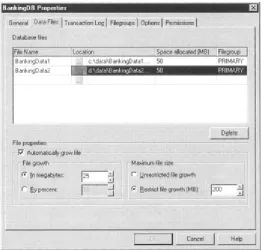
[image:18.595.72.333.496.746.2]Increasing the size of a file in the SQL Server Enterprise Manager is merely a case of entering a new value in the Space allocated (MB) text box, as shown in Figure 2.4.
In Transact-SQL, the ALTER DATABASE statement is used, as follows:
ALTER DATABASE BankingDB MODIFY FILE
(NAME = BankingData2, SIZE = 100MB)
Note that file attributes such as MAXSIZE and FILEGROWTH may also be modified with an ALTER DATABASE statement.
Another way of increasing the size of a database is to add data and transaction log files, as follows:
ALTER DATABASE BankingDB ADD FILE
(NAME = BankingData3,
FILENAME = 'h:\data\BankingData3.ndf', SIZE = 50MB,
MAXSIZE = 200MB, FILEGROWTH = 25MB)
Note that to add a transaction log file the ADD LOG clause is used.
To add a file to an existing user-defined filegroup, the ADD FILE … TO FILEGROUP syntax is used, as follows:
ALTER DATABASE BankingDB ADD FILE
(NAME = BankingData3,
FILENAME = 'd:\data\BankingData3.ndf', SIZE = 50MB,
MAXSIZE = 200MB, FILEGROWTH = 25MB) TO FILEGROUP FileGroup1
Figure 2.5: Adding a new file to an existing filegroup
Note A file that already exists in the database cannot be subsequently added to another filegroup.
2.5 Decreasing the size of a database
There are a number of mechanisms that can be used to decrease the size of a database. On one hand, a database can be flagged to allow automatic database shrinkage to occur at periodic intervals. This requires no effort on the part of the database administrator, but it also allows no control. On the other hand, DBCC statements can be used to manually shrink a database or individual database files. These DBCC statements provide the database administrator with the greatest control over how the shrinkage takes place. The SQL Server Enterprise Manager also provides a means to shrink a database or file, and this operation can be scheduled under the control of the database administrator.
Before we look at shrinking a database, it is worth considering why we might want to do so. Obviously, shrinking a database in a way that physically releases space back to the operating system is an attractive proposition if space is limited on the server and disk space must be shared among applications. However, if space is taken away from a database and used by another application, it is no longer available for use by that database. If the database is likely to grow and need the space in the short term, it is pointless releasing the space. Also, the process of expanding the database files in increments, as previously discussed, is not necessarily efficient, since the act of extending the file may impact the performance of applications, and the file extents may end up being fragmented around the disk drive.
However, if a database has grown in an uncharacteristic fashion because a large amount of data has been added and then removed, it makes sense to release the space that is not likely to be needed again. With these thoughts in mind, let us look at how a database and its files can be shrunk.
A database option can be set that makes a database a candidate for automatically being shrunk. Database options and how to set them will be discussed shortly. At periodic intervals a database with this option set may be shrunk if there is sufficient free space in the database to warrant it. Note that the database administrator has no control over exactly what happens and when.
2.5.2 Shrinking a database in the SQL Server Enterprise Manager
A database can be shrunk using the SQL Server Enterprise Manager, as follows:
1. Expand the server group and expand the server.
2. Expand Databases, then right-click the database to be shrunk. 3. Select All Tasks and Shrink Database.
4. Select the desired options. 5. Click OK.
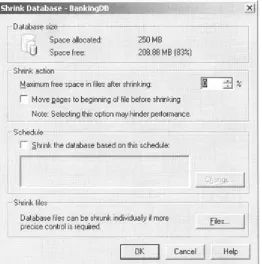
[image:21.595.74.336.323.587.2]The SQL Server Enterprise Manager Shrink Database dialog box is shown in Figure 2.6.
Figure 2.6: Shrinking a database using the SQL Server Enterprise Manager
The dialog box offers the database administrator some options concerning database shrinkage. By choosing to move the pages to the beginning of the file before shrinking, SQL Server will reorganize the data in the database files by relocating pages at the end of the file to the beginning of the file.
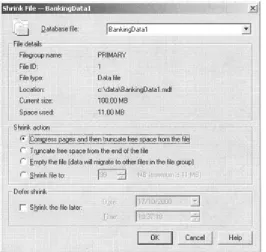
This dialog box pretty much maps onto the DBCC SHRINKDATABASE statement, which will be described shortly. There are two restrictions to bear in mind when using a shrink database operation. First, a database cannot be shrunk in such a way that user data is lost. Second, the files that comprise the database cannot be shrunk past their initial size—that is, the size at which they were initially created. For greater control, the Files button may be mouse-clicked. The Shrink File dialog box is displayed in Figure 2.7.
Figure 2.7: Shrinking a database file using the SQL Server Enterprise Manager
When a file is shrunk using this dialog box, it can be shrunk below its initial creation size as long as user data would not be lost. Various options allow a finer level of control. The file can be reorganized (compressed) and the free space truncated from the end or the free space truncated from the end without the compression taking place first. The target file size can be set—this option will compress and truncate. There is also an option to migrate data from the file to other files in its filegroup so it can be emptied and then removed from the database. The option to shrink the database file on a scheduled basis is also provided. This dialog box pretty much maps onto the DBCC SHRINKFILE statement described in the following section.
2.5.3 Shrinking a database Using DBCC statements
The greatest control over database shrinkage is provided by two DBCC statements—DBCC SHRINKDATABASE and DBCC SHRINKFILE. The first statement considers all the files in the database when attempting to shrink it. The second statement only considers the named file.
The SQL Server Enterprise Manager actually executes a DBCC SHRINKDATABASE statement when it is used to shrink a database and a DBCC SHRINKFILE statement when it is used to shrink a database file.
DBCC SHRINKDATABASE
( database_name [, target_percent]
[, {NOTRUNCATE | TRUNCATEONLY}]
)
The target percent parameter is the desired percentage of free space left in the database file after the database has been shrunk. If this parameter is omitted, SQL Server will attempt to shrink the database as much as possible.
The NOTRUNCATE option ensures that any free file space produced by relocating data is kept within the database files and not given back to the operating system. If the database files were examined with Windows Explorer before and after the shrink operation, no change in file size would be observed.
The TRUNCATEONLY option ensures that any free space at the end of the data files is returned to the operating system but no data is relocated within the files. If the database files were examined with Windows Explorer before and after the shrink operation, a change in file size may be observed. The target_percent parameter is disregarded when the
TRUNCATEONLY option is used.
If neither of these is specified, data is relocated in the files, and the free space at the end of the files is released to the operating system.
The operation of shrinking a database is not quite as straightforward as it first appears. Various restrictions come into play, and you may not always see shrinkage as large as you may expect. For example, as we have said, a database file cannot be shrunk, using DBCC SHRINKDATABASE, smaller than the size at which it was first created. Also, a database cannot be shrunk smaller than the model database (a DBCC SHRINKFILE can shrink a file smaller than its initial size). Data files and transaction log files are also treated differently. In the case of data files, each file is considered individually. In the case of transaction log files, all the files are treated as if they were one contiguous lump of transaction log.
Of course, a database can never be shrunk smaller than the amount of data it currently holds.
Let us now consider DBCC SHRINKFILE. The syntax diagram for this statement is as follows:
DBCC SHRINKFILE
( {file_name | file_id }
{ [, target_size]
| [, {EMPTYFILE | NOTRUNCATE | TRUNCATEONLY}]
}
)
The target size parameter is the desired size to which the database file should be shrunk. If this parameter is omitted, SQL Server will attempt to shrink the file as much as possible.
2.5.4 Removing database files
Files can be removed from the database by using the ALTER DATBASE statement. Neither data files nor transaction log files can be removed from a database if they contain data or transaction log records. In the case of data files, the DBCC SHRINKFILE statement with the EMPTYFILE option can be used to move data out of the file that is to be removed to other files in the same filegroup. This is not possible in the case of transaction log files. The
transaction log will have to be truncated to remove transaction log records before the removal of a transaction log file is possible.
The following example removes a file from the BankingDB database created earlier:
ALTER DATABASE BankingDB REMOVE FILE BankingData2
Remove a file using the SQL Server Enterprise Manager is merely a case of selecting the file to remove and mouse-clicking the Delete button, as shown in Figure 2.8.
Figure 2.8: Removing a file with the SQL Server Enterprise Manager
A filegroup can also be removed, as follows:
ALTER DATABASE BankingDB REMOVE FILEGROUP FileGroup1
However, a filegroup cannot be removed if it contains files.
2.6 Modifying filegroup properties
be both retrieved and changed. The READONLY property is the opposite of the
READWRITE property in that those objects in a filegroup with the READONLY property set cannot be changed; they can only be retrieved. The primary filegroup cannot have this
property set.
The DEFAULT property is by default set on the primary filegroup. A filegroup with this property set is used to store objects whose definition does not include a target filegroup specification. The DEFAULT property can be set on a filegroup other than the primary filegroup, but only one filegroup in a database can have this property set. The following example sets the READONLY attribute on the filegroup FileGroup1:
ALTER DATABASE BankingDB
MODIFY FILEGROUP FileGroup1 READONLY
Note Setting the properties READONLY or READWRITE requires exclusive use of the database.
2.7 Setting database options
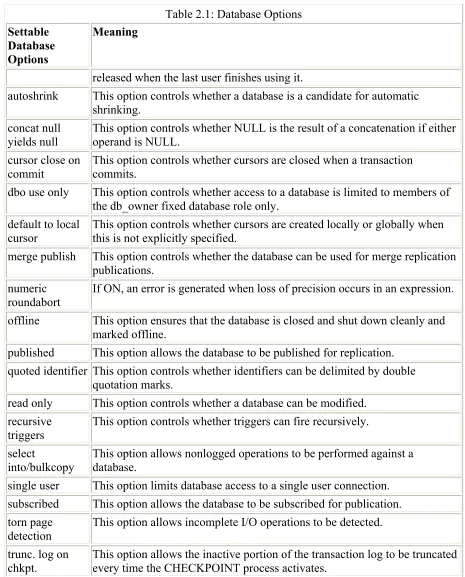
Database options are the attributes of a database and control the way it behaves and its capabilities. The database options are listed in Table 2.1.
Table 2.1: Database Options
Settable Database Options
Meaning
ANSI null
default This option controls the database default nullability. If a table column is created without specifying NULL or NOT NULL, the default behavior is to create the column with NOT NULL. However, the ANSI standard specifies that the column should be created with NULL. Set this option to follow the ANSI standard. It is recommended that NULL or NOT NULL always be explicitly specified to avoid confusion.
ANSI nulls This option controls the result of comparing NULL values. If it is set, comparisons with a NULL value evaluate to NULL, not TRUE or FALSE. When not set, comparisons of non-Unicode values with a NULL value evaluate to TRUE if both values are NULL.
ANSI padding If ON, strings are padded to the same length before comparison or insert. If OFF, strings are not padded.
ANSI warnings This option controls whether warnings are issued if, for example, NULL values appear in aggregate functions.
arithabort If ON, a query is terminated when an overflow or divide-by-zero error occurs during the execution of the query.
auto create
statistics This option controls whether statistics are automatically created on columns used in the search conditions in WHERE clauses. auto update
statistics This option controls whether existing statistics are automatically updated when the statistics become inaccurate because the data in the tables have changed.
Table 2.1: Database Options
Settable Database Options
Meaning
released when the last user finishes using it.
autoshrink This option controls whether a database is a candidate for automatic shrinking.
concat null yields null
This option controls whether NULL is the result of a concatenation if either operand is NULL.
cursor close on commit
This option controls whether cursors are closed when a transaction commits.
dbo use only This option controls whether access to a database is limited to members of the db_owner fixed database role only.
default to local
cursor This option controls whether cursors are created locally or globally when this is not explicitly specified. merge publish This option controls whether the database can be used for merge replication
publications. numeric
roundabort If ON, an error is generated when loss of precision occurs in an expression. offline This option ensures that the database is closed and shut down cleanly and
marked offline.
published This option allows the database to be published for replication. quoted identifier This option controls whether identifiers can be delimited by double
quotation marks.
read only This option controls whether a database can be modified. recursive
triggers
This option controls whether triggers can fire recursively.
select
into/bulkcopy
This option allows nonlogged operations to be performed against a database.
single user This option limits database access to a single user connection. subscribed This option allows the database to be subscribed for publication. torn page
detection
This option allows incomplete I/O operations to be detected.
trunc. log on chkpt.
This option allows the inactive portion of the transaction log to be truncated every time the CHECKPOINT process activates.
To set a database option the SQL Server Enterprise Manager or the ALTER DATABASE statement can be used. The system stored procedure sp_dboption is supported for backward compatibility.
To use the SQL Server Enterprise Manager, do the following:
1. Expand the server group and expand the server.
3. Select Properties.
4. Select the Options tab and the required options. 5. Click OK.
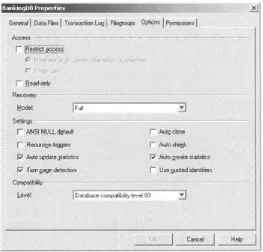
[image:27.595.72.335.153.405.2]The SQL Server Enterprise Manager Options tab is shown in Figure 2.9.
Figure 2.9: Setting database options
Because some options—for example, replication options—are set by other parts of the SQL Server Enterprise Manager, the options displayed in the Options tab are a subset of the available database options.
The following example sets a database option using Transact-SQL:
ALTER DATABASE BankingDB SET AUTO_SHRINK ON
2.8 Displaying information about databases
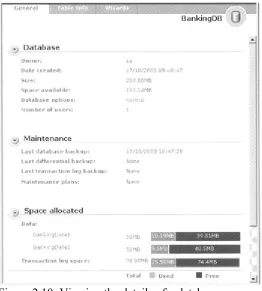
Information about databases can be obtained through the SQL Server Enterprise Manager or various Transact-SQL statements. We have already seen the properties page that is displayed when a database is right-clicked and Properties selected. This shows us quite a lot of
information, including the files that comprise the database. An example of this is shown in
Figure 2.10: Viewing the details of a database
[image:28.595.73.335.69.360.2]A database administrator can drill down by clicking on, for example, Table Info. The resultant output is shown in Figure 2.11.
Figure 2.11: Displaying space allocation information
In Transact-SQL, the sp_helpdb system stored procedure is very useful. This is as follows:
EXEC sp_helpdb
This outputs one row for each database on the server. The db_size column is the total size of all the files in the database.
A database name can be specified as a parameter, as follows:
EXEC sp_helpdb BankingDB
name db_size owner dbid created status ---- --- --- ---- --- --- BankingDB 1500.00 MB sa 6 Oct 23 2000 Status=ONLINE…
Name fileid filename filegroup size maxsize growth usage
---
bankingdata 1 d:\data\bankingdata.mdf PRIMARY 1024000 KB Unlimited 1024 KB data only
bankinglog 2 d:\data\bankinglog.ldf NULL 512000 KB Unlimited 1024 KB log only
This displays information about the files in the database. Other useful system-stored procedures, which can be used to obtain information about files and filegroups, are
sp_helpfile and sp_helpfilegroup. Another useful system-stored procedure is sp_spaceused, which returns space use information.
2.9 System tables used in database configuration
The configuration of a database is reflected in various system tables held in the master database and the user database. The master database contains a system table,
[image:29.595.69.519.498.754.2]SYSDATABASES, which contains one row for every database resident on the SQL Server. The structure of this system table is shown in Table 2.2.
Table 2.2: The SYSDATABASES System Table
Column Datatype Description
name sysname The database name
dbid smallint The unique ID of the database
sid varbinary(85) The Windows NT system ID of the database creator mode smallint Internal lock mechanism used in database creation status integer Database status bits (O = set by sp_dboption):
1 = autoclose (O)
4 = select into/bulkcopy (O)
8 = trunc. log on chkpt (O)
Table 2.2: The SYSDATABASES System Table
Column Datatype Description
32 = loading
64 = prerecovery
128 = recovering
256 = not recovered
512 = offline (O)
1,024 = read only (O)
2,048 = dbo use only (O)
4,096 = single user (O)
32,768 = emergency mode
4,194,304 = autoshrink
1,073,741,824 = cleanly shut down status2 integer 16,384 = ANSI null default (O)
2,048 = numeric roundabort (O)
4,096 = arithabort (O)
8,192 = ANSI padding (O)
65,536 = concat null yields null (O)
131,072 = recursive triggers(O)
1,048,576 = default to local cursor (O)
8,388,608 = quoted identifier (O)
33,554,432 = cursor close on commit (O)
67,108,864 = ANSI nulls (O)
268,435,456 = ANSI warnings (O)
Table 2.2: The SYSDATABASES System Table
Column Datatype Description
category integer Contains a bitmap used for replication:
1 = Published
2 = Subscribed
4 = Merge Published
8 = Merge Subscribed
cmptlevel tinyint Set by sp_dbcmptlevel—specifies the database compatibility level filename nvarchar(260) Location of the primary data file for this database
version smallint SQL Server internal code version that created the database
As can be seen, the SYSDATABASES system table contains a column, filename, which points to the primary data file (.MDF) of a database on the server. This is the pointer from the master database to each user database. Once the primary data file of a database has been located, the SYSFILES system table, which resides in every database, can be located. This has one row representing each file—data or log—found in the database.
The SYSFILES system table is shown in Table 2.3.
Table 2.3: The SYSFILES System Table
Column Datatype Description
fileid smallint Unique identifier for the file within the database groupid smallint Identifier of the filegroup to which the file belongs size integer File size in (8 KB) database pages
maxsize integer Maximum file size in (8 KB) database pages. 0 = no growth and -1 = unlimited growth.
growth integer Growth increment of the file. 0 = no growth. This is in units of 8 KB pages or a percentage, depending on the status column. If the status column contains 0x100,000, then growth is in percentage, not pages. status integer Status bits for the growth value in either megabytes (MB) or kilobytes
(K):
0x1 = Default device
0x2 = Disk file
0x40 = Log device
0x80 = File has been written to since last backup
[image:31.595.68.530.413.766.2]Table 2.3: The SYSFILES System Table
Column Datatype Description
statement
0x8000 = Device created during database creation
0x100000 = Growth is in percentage, not pages perf integer Reserved by Microsoft
name nchar(128) Logical name of the file filename nchar(260) Full path of filename
One other system table found in each database is worthy of note at this point: the
SYSFILEGROUPS system table, which contains one row for every filegroup in the database.
The SYSFILEGROUPS system table is shown in Table 2.4.
Table 2.4: The SYSFILEGROUPS System Table
Column Datatype Description
groupid smallint Unique identifier for the filegroup within the database allocpolicy smallint Reserved by Microsoft
status int 0x8 = READ ONLY
0x10 = DEFAULT groupname sysname Filegroup name
All of these tables can be queried with SELECT statements, but it is easier to use the system stored procedures provided, namely sp_helpdb, sp_helpfile, and sp_helpfilegroup. We have already seen an example of sp_helpdb. Examples of sp_helpfile and sp_helpfilegroup are as follows:
EXEC sp_helpfile
Name fileid filename filegroup size maxsize growth usage
---
bankingdata 1 d:\data\bankingdata.mdf PRIMARY 1024000 KB Unlimited 1024 KB data only
bankinglog 2 d:\data\bankinglog.ldf NULL 512000 KB Unlimited 1024 KB log only
EXEC sp_helpfilegroup
groupname groupid filecount
--- --- ---
2.10 Units of storage
A database is a collection of logical pages, each 8 KB in size. Database pages are always this size and cannot be adjusted by the database designer. The 8 KB page is the fundamental unit of storage and it is also a unit of I/O and a unit of locking (there are other units of I/O and locking).
Tables and indexes consist of database pages. The way that database pages are allocated to tables and indexes is through extents.
An extent is a structure that contains eight database pages (64 KB). Extents are of two types— uniform and mixed. A uniform extent devotes its eight pages completely to one object, for example, a particular table in the database. A mixed extent allows its pages to be used by up to eight different objects. Although each page can only be used for one object, all eight pages in a mixed extent can be used by different objects. For example, a mixed extent can provide space for eight tables. A uniform extent is shown in Figure 2.12, and a mixed extent is shown in Figure 2.13.
Figure 2.12: A uniform extent
Figure 2.13: A mixed extent
The reason that SQL Server 2000 uses mixed extents is to ensure that a whole eight page (64 KB) extent is not used for a small table. Instead, single pages are allocated to the table one at a time as the number of rows it contains grows. When eight pages have been allocated and more pages are needed, uniform extents are used to allocate eight pages at a time.
To observe the allocation of space to a table, try the following:
1. Create a table, T1, with a single column of data type CHAR(8000). A single row only can fit onto a database page.
2. Insert eight rows, one at a time, checking the space allocated to the table with the sp_spaceused system stored procedure after each insert (e.g., EXEC sp_spaceused T1).
3. Insert another row, checking the space reserved.
What you will find is that after each row is inserted, the data column (the amount of space used by data in the table) is incremented by 8 KB—that is, a single page from a mixed extent. The reserved column (the amount of total reserved space for the table) is also incremented by 8 KB.
(IAM), which we will discuss later. This is the 8 KB that is displayed in the Index_Size column. There is no index space actually used, since there is no index on this table.
After eight rows have been inserted, the data column will display 64 KB and the reserved column will display 72 KB. After row 9 is inserted, however, the data column will display 72 KB but the reserved column will display 136 KB. This is because a whole eight page uniform extent has now been allocated to the table, causing the reserved value to jump by 64 KB.
Let us have a quick look at the sp_spaceused system stored procedure.
To see the space allocated to a table use the system stored procedure sp_spaceused, as follows:
sp_spaceused branches
name rows reserved data index_size unused ---- ---- --- ---- --- --- branches 100 72 KB 64 KB 8 KB 0 KB
In the above example, sp_spaceused reports that there are 100 rows in the Branches table and that 72 KB or 9 database pages of space have been reserved for it. Out of the 9 pages, 8 pages have been used by the table to store rows and another 1 page has been used for index space which, as mentioned above, is actually used by a IAM page. Note that the system stored procedure sp_spaceused gets its information from the sysindexes system table, which only holds estimates. It does this to avoid becoming a bottleneck at run time, but it can become inaccurate. To synchronize the sysindexes system table with the real space used, execute a DBCC CHECKTABLE or a DBCC UPDATEUSAGE statement, which will scan the table and indexes.
2.11 Database pages
Database pages are used for a variety of tasks. Database pages that are used to hold table rows and index entries are known as data pages and index pages, respectively. If the table contains columns of the data type TEXT or IMAGE, then these columns are usually implemented as structures of Text/Image pages (unless the TEXT/IMAGE data is stored in the row). There are other types of pages also, namely Global Allocation Map (GAM) pages, Page Free Space (PFS), and Index Allocation Map (IAM) pages. We will discuss these types of pages shortly.
First, though, let us take out the magnifying glass and take a closer look at a typical page structure. The most common database page we are likely to meet is a data page, so we will use a data page as an example.
Figure 2.14: The basic structure of a database page
There is a fixed 96-byte page header, which contains information such as the page number, pointers to the previous and next page (if used), and the object ID of the object to which the page belongs. The pointers are needed, because pages are linked together, as shown in Figure 2.15. However, this only happens in certain circumstances, as we shall see in Chapter 3.
Figure 2.15: Pages linked in a chain
[image:35.595.71.268.67.418.2]What does a data page look like inside? The internal structure of a data page is shown in
Figure 2.16. We can see the data rows, but there is also another structure called a row offset table. The row offset table contains two byte entries consisting of the row number and the offset byte address of the row in the page. The first row in our page is at byte offset 96, because of the 96-byte page header. Our row (plus overhead) is 20 bytes in length, so the next row is at byte offset 116 and so on. The row offset table basically gives us a level of
nonclustered indexes may contain pointers to data rows in their leaf-level index pages. Such a pointer is known as a Row ID and is made up of a File ID, database page number, and a row number. The File ID and database page number (a Page ID) take SQL Server to an individual page in a file and the row number and then takes SQL Server to an entry in the row offset table. In our example, the Row ID of the row nearest the fixed page header would consist of the page number, 23, and the row number, 0.
Figure 2.16: The internals of a data page
Entry 0 in the row offset table contains byte offset address 96. SQL Server can then use this offset to retrieve the row. Because the Row ID is implemented this way, we can see that a row can change position in the table without the Row ID having to change. All that has to change is the offset address in the row offset table entry. Why would a row change position in a page? In Figure 2.16, if row 1 were deleted, row 2 may move up to row 0 in order to keep the free space in the page contiguous if a new row needed to be inserted. The Row ID for row 2 would not change.
Note SQL Server 2000 will not shuffle rows like this for the sake of it. It will only do so to accommodate new inserts on the page.
What does a data row look like inside? Data rows contain columns of data, as you would expect, but they also contain overhead. The amount of overhead depends on whether the row contains all fixed-length columns or whether there are also variable-length columns. In Figure 2.17 we have the structure of the Accounts table row in our BankingDB database. The
Accounts table has five fixed-length columns. The first three columns are of type integer, the fourth column is of type money, and the last column is of type char(400).