A modular methodology for converting large,
complex books into usable, accessible and
standards-compliant ebooks
Alan Dawson and Emma McCulloch
Cent re for Digit al Library Research, Depart ment of Comput er and Informat ion Sciences, Universit y of St rat hclyde, Glasgow G1 1XH
alan.dawson@st rat h.ac.uk
0B
Contents
Summary 3
Acknowledgements 3 1. Rationale 4
Background 4
2. Ebook methodology description 6 Selecting materials 6
Selecting hardware and software 6 Adopting naming conventions 6
Digitisation via scanning or photography 8 Optical character recognition 8
Image editing and archiving 9 Proofreading and text editing 9 Document analysis and structuring 10 Converting from Word to XHTML 11 Using the Access database 11
Ebook publishing 12 Ebook creation workflow 13 3. Ebook creation tutorial 14
Test ebook creation 14 Prepare materials 14 Digitise text and images 15 Edit images 16
Proofread and edit text 17 Apply structure 17 Add images 18 Add indexes 19
Add metadata and front matter 19 Add value 20
Convert from Word to XHTML 22 Create ebook 22
Publish ebook 22 Apply further editing 23 Customise design 23 Archive files 24
4. Ebook policies and principles 25 5. Other applications 26
User feedback 26
6. Advances in knowledge and understanding arising from the research 27 7. References 28
Appendix A: List of associated files 29
Appendix B: Word styles and structures for ebook creation 29 Appendix C: Twenty issues in ebook creation 29
1B
Summary
This document describes the methodology used for ebook creation for the Glasgow Digital Library (GDL), and provides detailed instructions on how the same methodology could be used elsewhere. Key features of the methodology are:
– Use of low-cost desktop hardware and software for digitisation.
– Creation of ebooks in non-proprietary, open-access XHTML format.
– Compliance with recommended standards and practice for accessibility, usability, interoperability, resource description and digital preservation.
– Use of an Access database for automatic generation of ebook web pages, including the creation of title pages, tables of contents and navigation between ebook pages.
– Automatic creation of relevant ALT text from image captions.
– Adding value to ebooks by automatically converting certain ebook elements into active links, notably the table of contents, indexes, footnotes, endnotes, and internal cross-references.
– Automatic creation of specific granular metadata for each web page.
– Potential application to other types of content, such as booklets, journals, reports and other document collections.
The document includes a description and explanation of the processes for ebook creation followed by a tutorial. The ebook creation tutorial covers the following main stages:
– Selection and preparation – Digitisation
– Proofreading and editing – Structuring
– Converting to XHTML – Creating ebook from database – Publishing
– Customising – Archiving
Although the first three stages are not specific to this methodology, they are included in order to provide a complete description of the process.
14B
Acknowledgements
Funding of £5462 for completion and documentation of this research was provided by the British Academy as award SG-41075 under section H6 of its Small Research Grants scheme, 2005.
Assistance and encouragement with the funding application was provided by Jane Barton, Centre for Digital Library Research (CDLR), University of Strathclyde. Some initial testing and documentation of the methodology was carried out by Jake Wallis, formerly of CDLR, now at Charles Sturt
2B
1. Rationale
The methodology described in this document is intended to provide practical guidance to anyone wishing to digitise large, complex books as efficiently as possible while ensuring that the resulting ebook is optimised for accessibility, usability, resource discovery and longevity. The methodology is intended for use by non-specialists using standard desktop software.
Comprehensive documentation of the creation and delivery of a digital resource is essential if the resource is to be shared, re-used and sustainable over the longer term (James, 2003). Accurate recording of the processes that have created digital resources and made them available to a wider audience are vital. As Bliss & Woollard (2004) have noted, ‘documentation establishes the relationship between original documents and digital resource’.
This document provides a record of the methods used to create the Glasgow Digital Library (GDL) ebook collection. Ebook creation can be a relatively simple matter, if it simply involves making digital images of each page available, either online or via proprietary hardware. However, converting large, complex books to more usable and accessible ebooks can be more difficult and time-consuming. There are two essential elements: machine-readable text, which is far more useful, accessible and flexible than page images; and compliance with standards, which ensures consistency and interoperability with other digital resources. In addition, issues arising from use of non-standard characters, notes, tables, illustrations, references, indexes, etc must all be addressed. The granularity, or degree to which the text is broken into chunks for presentation, must also be considered. Decisions must be taken on design issues such as navigation, and on policy issues such as correction of errors in the original.
The Arts and Humanities Data Service provides excellent advice and documentation on standards and best practice guidelines for those creating digital resources, which in turn provides a sound basis for the planning of digitisation projects and the development of detailed methodologies. However, this planning and development process requires time, money and skills and so can be prohibitive, especially for small-scale digitisation initiatives or those digitising text-based materials in the course of their research. Those wishing to create ebooks may therefore be tempted to adopt the easier, but less valuable, image-based approach. As a result, valuable machine-readable text may not be made
available to the wider research community, and the probability of serendipitous discovery of ebook sections via search engines or aggregated text collections is greatly reduced.
Furthermore, there is evidence to show that most readers approach digital texts with many of the same expectations that they have inherited from printed books (Wilson et al, 2002). Some ebook features that users found to be particularly useful were the inclusion of a cover or title page, a sense of
structure, the presentation of the ebook as cohesive unit, and the use of tables of contents and indexes. While some of these features can be provided using page images or a print-based format such as PDF, the use of standard XHTML web pages instead will provide far more effective linking from tables of contents and indexes to ebook content, as well as providing many other advantages. Some of the disadvantages of using PDF format for ebooks are summarised by Dawson & Wallis (2005).
15B
Background
The Glasgow Digital Library (http://gdl.cdlr.strath.ac.uk/) is an online service that provides
access to a number of digitised collections, with the aim of supporting learning, teaching and research about Glasgow and within Glasgow. The methodology described here was used to create the GDL ebook collection. This comprises a number of nineteenth-century texts relating to the city of Glasgow, which are of historical significance and are out of copyright, along with some recent books where the author or publisher explicitly granted permission to make the full text available online.
One of the first ebooks created was Scotland and the Antarctic, a teaching resource that has a complex structure, with many tables, boxes, diagrams, photographs and captions. In the absence of an
The creation of two further ebooks, Memoirs and portraits of one hundred Glasgow men and The old country houses of the old Glasgow gentry, and a small research project on ebook indexing, permitted refinement of the methodology to optimise creation of granular metadata for ebook sections and resource discovery via search engines.
A number of other ebooks were subsequently created for the GDL, and the methodology was further refined and extended, in its handling of notes, tables, illustrations, references, indexes, title pages, contents pages and navigation. The revised methodology was then tested on the most recent addition to the GDL ebook collection, Who’s who in Glasgow in 1909, and some further refinements were made to allow for greater flexibility and customisation.
3B
2. Ebook methodology description
16B
Selecting materials
In selecting texts for digitisation decisions will have to be made about the suitability of individual texts for digitisation. If the text is to be added to an existing digitised collection will it fit into that collection? Does the text add value to the collection as a whole and will it be of interest to a significant enough audience for it to be worthwhile digitising? A project plan, the remit of the funding body or a collection development policy may help answer these kinds of questions.
Several factors must be taken into account in considering a historical text for digitisation:
– The value of the historical text in cultural and financial terms. Selected texts must be handled with care.
– The condition of the book itself, its pages and its binding. Is the book in robust enough condition for the handling involved in digitisation? Does the spine offer enough flexibility for scanning, or would a digital camera provide a better alternative?
– The quality and spacing of the text – is it distinct and printed in a clear typeface? If the text is to be processed by optical character recognition software then it must be clear enough to be adequately captured by scanning or digital photography.
17B
Selecting hardware and software
Small-scale digitisation projects can find the costs of specialised equipment (such as a book scanner) prohibitively expensive. It is possible to find low-cost solutions, using basic technology and standard desktop software products, which will allow for the creation of digital content of potential value to both the scholarly and wider communities.
The GDL digitisation methodology uses the following low-cost solutions:
Item Approximate cost
Flat-bed A4 scanner and standard scanning software £80
Digital camera and mini tripod £200
Paint Shop Pro software, for image editing and format conversion £100
Abbyy FineReader software, for optical character recognition (OCR) £80
Microsoft Word, for editing and structuring text after OCR £0
Microsoft Access database software, for ebook creation and management £0
Microsoft IIS web server, for providing web access to the published ebook £0
Total cost of the hardware and software used for ebook creation was therefore less than £500. Word, Access and IIS are commercial products but were already available as part of institution-wide site licences, so no additional expenditure was required. A standard desktop PC was also used, but this was already in use, so no special purchase was required.
18B
Adopting naming conventions
Ebook identifier:
A six-letter code, comprising the first three letters of the first author’s surname, followed by three meaningful letters from the book title. For example, the book ‘Who's who in Glasgow in 1909’, by George Eyre-Todd, has the identifier eyrwho. This identifier becomes the name of the folder holding all the ebook files, and the prefix of every associated file (apart from the ebook home page, which is index.html). Every identifier must be unique. If two authors had the same or similar surnames, a different three-letter code would be used, e.g. ey2 or e02. This system is not scaleable to thousands of authors with the same surname, but it does not need to be for the scope of the GDL.
Image files of images:
The file name comprises the ebook identifier followed by the number of the page (in the physical book) on which the image appears, e.g. eyrwho345.tif. Pages 0-9 start with 00, pages 10-99 start with 0, e.g. eyrwho001.tif and eyrwho045.jpg. Where a page contains two or more images, a suffix letter is used, e.g. eyrwho067a.jpg, eyrwho067b.jpg. Where images appear in the book before page 1 (e.g. in a preface or frontispiece), they are numbered sequentially from 0001, e.g. eyrwho0001.jpg. This system ensures that all image files can be sorted into the same order they appear in the book (which can be useful), provided the book has fewer than 1000 pages.
Thumbnail images:
While most ebooks will include full-size images along with the text, some thumbnail images may be required, e.g. for use on the title page or an ebooks listing page. Again a naming convention is advisable, as it facilitates automated linking as well as sound file management. The GDL simply uses an x in front of the relevant image file name, e.g. xeyrwho045.jpg for a thumbnail of an image on page 45, or xeyrwho.jpg for a thumbnail image to be used as a link to the whole book.
Image files of text:
If a book is being scanned, these images will not usually be retained at all, so the issue does not arise – only text files will be saved. If a book is being photographed, the image files will usually have an arbitrary sequential number assigned by the camera software, e.g. DSCN1234.jpg. As these images will not necessarily be retained after ebook completion, it is not essential to rename them, but it is advisable. If they are not renamed it is essential to store them in the correct ebook folder. Bulk file renaming, e.g. from DSCN to eyrwho, is a trivial matter using one of the many free renaming programs available. The image numbers will not correspond to the book page numbers, but this does not matter as long as the numbering sequence is correct.
Text files:
One or more text files will be created as a result of the OCR process. These are only stored temporarily but a naming convention is still useful (particularly if different people are working on the same book), e.g. eyrwho001-045.txt for a file holding the first 45 pages of text.
Word files:
The final version of the file holding the ebook should have the same name as the ebook identifier, e.g. eyrwho.doc. However, large books will probably require various versions, e.g. for proofreading and structuring. These can simply be numbered, e.g. eyrwho1.doc,
eyrwho2.doc, until the process is complete, when the final version should be copied or
renamed. This system provides a useful backup system as well as clarity.
Web pages:
In the ebook methodology all web pages are created automatically from a database, so manual file naming is not required. The naming system used ensures that the HTML files can be sorted into the same order they appear in the book, e.g. eyrwho01.htm for chapter 1, eyrwho0203.htm
19B
Digitisation via scanning or photography
Decisions have to be made about the condition of the book in order to select the most appropriate approach to digitisation. If the spine is robust enough and the book is strongly bound it may be sufficiently sturdy to place on a flat-bed scanner. Care should be taken not to place strain on the binding in doing so. A digital camera can be used if the bindings of the book are fragile. Images from the camera can be copied to a PC and archive copies stored in secure locations for preservation, or edited and saved in compressed formats for online delivery.
A work area with adequate space and lighting will help to capture good quality digital images when using a camera. Working with a scanner can be noisy and repetitive. Sessions of scanning should be broken up with regular breaks and interspersed with other elements of the digitisation workflow (such as the image manipulation or proofreading) to alleviate monotony.
20B
Optical character recognition
If a scanner is used, then it is usual for optical character recognition (OCR) to be carried out as part of the scanning process, so it is not necessary to create any image files of the text, just the text files. In the ebook methodology text was almost always saved in plain text format, rather than in Word or RTF format, to prevent the inclusion of incorrect formatting. Although superficially helpful, in practice the formatting was rarely satisfactory and sometimes caused problems when converting Word files to HTML for web delivery. The only occasions when the preservation of formatting was useful were:
1. If a page included a substantial amount of bold or italic text. As most books digitised were rather old, this was very rare.
2. If the text included numerous notes identified by superscript numbers. The retention of
superscripts enabled the automation of notes formatting, although manual format checking was still necessary, as the automatic formatting was imperfect.
If the text pages were photographed rather than scanned, a separate process of OCR was carried out on the image files (after they had been copied from camera to PC) in order to extract the text in machine readable form. The GDL ebook methodology uses an effective piece of software called Abbyy FineReader for this element of the workflow. As well as producing very accurate text from good-quality images, a useful feature is the processing of batches of images at once. As long as the pages are captured in the correct order, the software can simply be left to run through 50-100 images at once, with the resulting text being stored in a single text file.
When photographing text pages a standard compact digital camera was found to be adequate. The main requirements for producing images suitable for accurate OCR are:
– Good lighting. Bright fluorescent lights and use of flash were both adequate, but good natural light produced the best results.
– A steady hand. This was difficult to guarantee each time. With practice it became possible to tell quickly from the camera screen whether a picture was sharp enough to produce good results, and if not it was simply deleted immediately and a new picture taken. Use of a small mini tripod, held in the hand, was found to improve steadiness.
– Accurate horizontal alignment. Curvature of text, or text not parallel to the top of the image, impaired OCR accuracy. With practice good horizontal alignment was quite easy to achieve. It was easy to rotate images by one degree or less using Paint Shop Pro, to ensure alignment of text with the top of the image, but this took extra time, so it was better to get the original image properly aligned. Curvature of text was more of a problem, as some old books had bowed pages. Again a little practice proved invaluable. It became quite easy to recognise a problem page, and to hold it up slightly with one hand (rather than leaving the book lying flat) while taking the picture with the other hand.
results it was often necessary to photograph a page of text in two parts, to avoid text curvature. This meant covering up the bottom half with a blank sheet of card while photographing the top half, and vice versa, so that none of the text was processed twice by the OCR software. Again this worked well with a little practice. The maximum height of average-sized text photographed in a single shot was about 10cm.
Two-column text format sometimes posed problems, both for scanning and photography. While the OCR software could recognise columns and scan text correctly in some cases, it was not always reliable, so best results were obtained by scanning or photographing columns separately. This meant that for a book with large pages, printed in two-column format (such as Who’s who in Glasgow in 1909), it was necessary to take four photographs of each page of text. Furthermore, each image required a separate photograph, so a page containing two images required six photographs. In practice, all the pictures were captured and processed separately from the text. While digital photography could produce near-perfect quality for text and OCR, the same was not true for pictures. Better-quality results, and better image alignment, were almost always obtained from scanning pictures than photographing them. Where a book was too heavy and fragile to scan on a flatbed scanner, this left three options for image capture.
– Invest in a book scanner.
– Pay for image photography by a professional department or specialist company.
– Use digital photography and accept the results as adequate for the task in hand.
In practice the investment in a book scanner could not be justified, but both other methods were used. If external funding had been obtained for a project, and it was necessary to produce archive-quality image files, then the university media services department were paid to do the image photography and provide the resulting files on CD. If little or no funding was available, then the compact camera was used to capture pictures as well as text. As a consequence the quality of images in Who's who in Glasgow in 1909 is not particularly good, but it is adequate for the purpose. In contrast, the images in
The Old country houses of the old Glasgow gentry are much larger and far more central to the purpose of the book, and so the expense of professional photography was necessary and justifiable.
21B
Image editing and archiving
In the ebook methodology TIFF and JPEG were the only two image file formats used. TIFF files (Tagged Image File Format) are widely used for the creation and archiving of master copies of digital images (Morrison et al, 2000). Images in this format have a relatively large file size. Some image manipulation, such as cropping and aligning, was carried out on TIFF files before archiving. Most image manipulation, such as resizing and lightening, was carried out on JPEG files (Joint
Photographic Experts Group). The batch facility of Paint Shop Pro was used to copy and convert multiple TIFF files to JPEG files. Images in JPEG format are more suitable for delivery over the web, as their file size offers a practical balance between download time and image quality, and they are recognised by all web browsers and versions. Where photographic work was outsourced then TIFF images were obtained and archived, even if they were never used after the JPEGs were created.
If the physical book being digitised is readily available, e.g. in a library carrying out the digitisation, then the ebook methodology does not require archiving of images used to capture text. Hence the digitised images of text pages may be discarded once the text has been extracted by OCR. Only image files containing pictures require archiving. However, if the book being digitised is not readily
available, then it is useful to keep images of the text, for proofreading and checking purposes, at least until ebook creation is complete.
22B
Proofreading and text editing
wait until all the text from a book had been converted to machine-readable form, and stored in a single file, before carrying out proofreading. Some standard global editing operations were carried out before proofreading, e.g. the conversion of double spaces to single spaces, the removal of spaces before and after paragraph breaks etc. In theory it is also possible to correct frequent OCR errors in bulk, but this does require care. For example, one the most common problems is the representation of ‘rn’ as ‘m’. In the ebook ‘Things seen in the Scottish Highlands’ this meant that ‘caim’ often had to be corrected to ‘cairn’. However, ‘caim’ can exist as a proper name, so a global search-and-replace could create new errors while fixing others. The safest method was therefore to use a conditional rather than a global search-and-replace, allowing each potential change to be accepted or rejected.
As well as enabling repetitive editing, working on all the text in a single file made it easier for the specialist proofreader to work on a complete file, whether at work, home or elsewhere. The proofreading stage was also a good place to deal with any odd elements of a page that survived the OCR process:
– Running chapter headings and titles. These were simply deleted.
– Printers’ marks. These were also deleted.
– Page numbers. These were retained if the book included an index, otherwise deleted.
23B
Document analysis and structuring
The digitisation and OCR phases of the GDL ebook methodology are similar to those used elsewhere, but have been recorded in some detail for the benefit of those who may lack digitisation experience or who wish to increase efficiency and cut costs. The key features of the GDL ebook methodology are document structuring and the use of a database.
The purpose of document analysis is to identify the hierarchical structure of chapter and section headings, and all other structural elements occurring in a book, so that this structure can be reflected in the markup used to create the ebook. In most printed books the structure is relatively obvious, but some subjective decisions may have to be made on structural issues, taking into consideration that the ebook will be used in a different medium from the original print edition. However, in most cases the resulting ebook will reflect the elements of the print environment that are familiar and helpful to the reader.
In principle the process of document analysis and structuring is very simple. The essential structure of the book is captured by storing the digitised text in a Microsoft Word document, with Word styles applied to the text to define chapter and section headings, subheadings, lists, image captions, quotations, normal text, and any other document elements found in the original book. The crucial point is that it is the structure of the hook, not its formatting, that is captured in Word. This means that fonts and typefaces are irrelevant. The only formatting that is applied in Word without using styles is bold, italic and underlined text.
Any automatic formatting introduced by Word should suppressed. For example, single and double quotes should be left as ' and " and not converted to smart quotes.
The pagination in printed books is largely a by-product of the printing process and does not
necessarily indicate the structure of a book, as sentences and paragraphs often break across pages. It is therefore possible to remove page numbers from the Word document and the ebook as they are not relevant to its structure. However, the main reason for retaining them is to enable an effective linked ebook index, as most book indexes refer to page numbers rather than sections.
24B
Converting from Word to XHTML
When the editing and structuring has been finished, the Word document has to be converted to a single XHTML file. This is a key step in the methodology, and various options are available:
– Use a Word macro that processes the Word document paragraph by paragraph, converting each one to its equivalent XHTML style, e.g. so that Heading 1 becomes <h1>, Heading 2 becomes <h2>, Normal paragraphs are identified by <p> etc. This is the method used in the GDL ebook methodology, as it ensures that a compact and valid XHTML file is created, with no extraneous formatting information. It also enables the automatic handling of elements that add value, such as linked indexes, notes, images and cross-references.
– Use the Word ‘Save as Web page’ option. This has the advantage of being readily available in most versions of Word, but the disadvantage that the resulting HTML file is large and cluttered with redundant formatting markup, so that it requires further processing before it can be parsed and imported to a database.
– Use a special-purpose commercial convertor, such as eXtyles from Inera Inc or xDoc from Cambridge Docs.
Whichever method is used, the main requirement for the XHTML file is that every structural
paragraph (identified by <p>, <h2> etc) should be stored as a separate physical paragraph in the file.
The Word macro used in the GDL ebook methodology works most effectively with Word 95
documents, although it also works with Word 2000. It is freely available on request to anyone wishing to use and customise it for non-commercial use. Control of style conversions is handled by an external configuration file.
Another option is to process the HTML file produced directly from Word via an external program that strips out all the redundant markup. This has been tested with some success in the GDL ebook
methodology, though the process is less powerful and flexible than using a Word macro.
Whichever method is used the end result should be a single file in XHTML format, consisting solely of text and markup, with no embedded formatting. It is not necessary for the file to be a valid XML file (complying with a DTD), although it should be well-formed, so that it can be automatically processed via a database.
25B
Using the Access database
‘Simple techniques, such as template documents and automation using macros, can help to maintain consistency and reduce the likelihood of errors.’
(James, 2003)
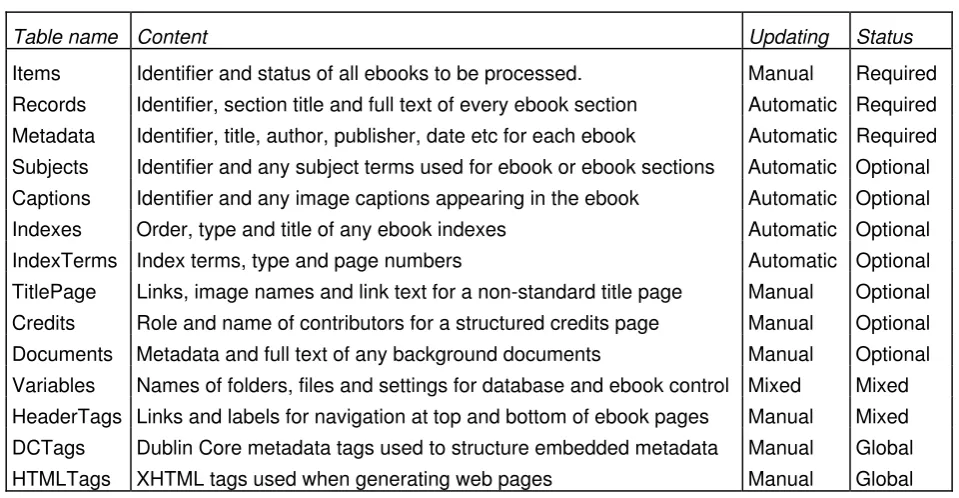
Use of an Access database enables an ebook to be automatically created once its structure has been defined in Word and then XHTML. Ebook creation via the ebooks database is a two-stage process:
– The XHTML file is loaded into the database, by running the ‘Import HTML’ macro.
– The Ebook web pages are created from the records held in the database, by running the ‘Create Ebook’ macro.
Table name Content Updating Status
Items Identifier and status of all ebooks to be processed. Manual Required Records Identifier, section title and full text of every ebook section Automatic Required Metadata Identifier, title, author, publisher, date etc for each ebook Automatic Required Subjects Identifier and any subject terms used for ebook or ebook sections Automatic Optional Captions Identifier and any image captions appearing in the ebook Automatic Optional Indexes Order, type and title of any ebook indexes Automatic Optional
IndexTerms Index terms, type and page numbers Automatic Optional
TitlePage Links, image names and link text for a non-standard title page Manual Optional Credits Role and name of contributors for a structured credits page Manual Optional Documents Metadata and full text of any background documents Manual Optional Variables Names of folders, files and settings for database and ebook control Mixed Mixed HeaderTags Links and labels for navigation at top and bottom of ebook pages Manual Mixed DCTags Dublin Core metadata tags used to structure embedded metadata Manual Global
HTMLTags XHTML tags used when generating web pages Manual Global
‘Manual’ updating means that the content of the database table is edited by hand.
‘Automatic’ updating means that the tables are populated by running the ‘Import HTML’ macro. It is possible, though not recommended, to manually edit these automatically populated tables.
‘Mixed’ updating means that the table is edited manually but that records can be added when an ebook is loaded into the database from the XHTML file. The advantage of storing variables in the Word and XHTML files along with the text is that all the relevant information for the ebook can be kept
together, meaning that the Access database is not required for preservation purposes.
‘Required’ status means that there must be an entry in that table for successful ebook creation.
‘Optional’ status means that a standard ebook can be created without an entry in that table.
‘Global’ status means that the entries in the table apply to all ebooks, so the table is required, but does not need to be updated for each ebook.
‘Mixed’ status means that some entries in the table apply to all ebooks, but these can be supplemented by entries for specific ebooks, e.g. to allow for non-standard style sheets or file locations.
26B
Ebook publishing
The location of ebook folders and files is specified in the Variables table in the database. If the entry for the OutputDir variable is set to a folder on a web server, then it is possible to publish ebooks directly from the database. However, it is advisable to first create ebooks in a local folder on a desktop PC or test server, before making them widely available via the web. This allows for quality control and testing before publishing, by sample manual checking of image links, navigation, design and so on.
All web page formatting is handled by external style sheets. These are not generated by the database but must be manually copied to the relevant folder. A default stylesheet, ebooks.css, is supplied with the ebook methodology toolkit. This can be used as it is or can be customised, supplemented or replaced by another stylesheet.
A simple page listing all ebooks will be created in the ebooks folder whenever one or more ebooks are created. If only one ebook is created then this page will have just one link. In most cases this listing page will be superseded by adding a link to the ebook from an existing web page, or by manually creating a better ebook listing page.
27B
Ebook creation workflow
Some example pages from ebooks at different stages of creation are provided in Appendix D and Appendix E. These pages illustrate that when the structure of a document has been captured, it is easy to transfer it from one software format to another, thereby facilitating flexibility, usability and
4B
3. Ebook creation tutorial
This section gives a step-by-step guide to ebook creation, following the workflow described above. Use of a Microsoft Access database is the key stage in the ebook methodology that makes it easy to create structured ebooks. Before creating your own ebook it is a good idea to test the process on your own computer by using the ebook supplied as part of the ebook methodology toolkit.
28B
Test ebook creation
1. Create a folder called c:\ebooks\eyrwho\ on the machine you are using (you can change this later).
2. Copy the ebooks.css file to the c:\ebooks\ folder (this file is supplied as part of the toolkit).
3. Copy the file eyrwho.htm (supplied with the toolkit) to the c:\ebooks\eyrwho\ folder.
4. Copy the ebooks.mdb database (supplied as part of the toolkit) to any suitable folder on the computer you are using (and make sure the database is not read-only).
5. Open the database using Access and select the Macros option from the main Access page.
6. Run the macro Import HTML by double-clicking the name. This copies the ebook from
eyrwho.htm to the database. After a few seconds delay you should see a message confirming that
the ebook has been successfully imported to the database.
7. Create the ebook by running the macro Create Ebooks. After a delay of a few seconds you should see a message confirming the creation of the ebook web pages.
8. Use your browser to navigate to c:\ebooks\ and open the ebook or ebooks you have just created. The images will not be present, but otherwise the entire ebook text and indexes, complete with navigation, should have been created.
If the above test has been successful, customise the process as follows:
a) Rename the folder c:\ebooks\eyrwho\ or move it to a new location.
b) Open the Variables table in the database and change the entries for InputDir and OutputDir (set to
c:\ebooks\ by default) to reflect the new name and location of your ebooks folder.
c) Change the credits and the navigation links by opening the Variables table and editing the entries for ItemCredit, CollectionLabel and CollectionURL to refer to yourself and your own organisation.
d) Run the Create Ebooks macro again. This should recreate the ebook in the new location, with links
referring to your own organisation instead of the Glasgow Digital Library.
Once this test has been successful, you are in a position to control the creation of your own ebooks.
29B
Prepare materials
1. Assess the condition of the work being digitised and decide whether it is robust enough for flatbed scanning or whether it would be less damaging to use a digital camera.
2. Study the text to be digitised to decide how best to handle specific pages. For example, large pages may be better handled in smaller chunks by screening off desired areas prior to photographing, or by using the scanning software to select a specific area before scanning. Images and text should be handled separately, and that multiple columns may be better handled individually.
3. Decide on an appropriate naming convention for the book itself and for all the files to be associated with it, including text and images. Files should be named or numbered sequentially, corresponding to the order of the text.
30B
Digitise text and images
Follow the instructions below under Scanning or Photography depending on the method being used. In either case it is more efficient to capture all the text first and then all the images (or vice versa) rather than switching between them. The instructions below assume text is being handled first.
45B
Scanning text
1. Consider the position of the scanning equipment and PC. Adopt the most ergonomic layout in terms of distance between the two and according to handedness.
2. Place the book face down on the scanner and scan a test page to ensure a book position that gives good results, with minimum curvature of text. Most bound books will have to be held down (lightly) during the scanning process. Take care not to damage the spine by holding the book down longer or harder than necessary. It is usually more effective to hold down the book by hand rather than using the lid of the scanner to keep it in place, since the latter may result in the book moving slightly and becoming misaligned.
3. Preview the page to be scanned (Scan – Preview), and if necessary adjust the book to ensure that the lines of text run parallel to the top edge of the scanner. Previewing a page also enables the scanning area to be cropped, so that specific areas of a page can be selected or excluded, or multiple columns can be scanned separately. Set the output format or output type from the scanner to be text.
4. Scan the page, or the selected page area, and save the resulting file, using the agreed file naming convention, ensuring that files are named sequentially. When scanning text, extra white space will be ignored, as will any images, so the whole page can be scanned at once, including images.
5. Repeat step 4 for every page in the book that contains text.
6. If the book has an index, this should be scanned too as text, one column at a time (index columns are usually too close together for scanning software to deal with effectively). As indexes are often in small fonts, with entries wrapping over several lines, it may sometimes be quicker to type indexes. The subsequent handling of indexes is dealt with at a later stage.
7. Check the saved files for quality and re-scan any pages where results are poor. Note that italic text is notoriously difficult for OCR software to handle, so it may not be possible to scan italic text effectively – it may have to be typed. Corrections can be made to text files at this stage or later in the process.
46B
Scanning images
Repeat the scanning procedure for images rather than text. Set the output format and resolution from the scanner, e.g. to 300dpi TIF. Even if the images are in black and white (as is usual in old books) it is often worth scanning in colour, as this can give an extra depth to images, especially if they are sepia tinted. Colour images can easily be converted to greyscale later (though not vice versa). Remember that images can be cropped later, so it is better to scan too big an area rather than too little, but any extra border should be kept to a minimum so that files are no bigger than necessary. Parallel alignment of the page with the scanner is less vital for images than for text, as images can be rotated later. However, it does save time if images can be captured precisely during scanning.
47B
Photographing text
A digital camera can be used if scanning is not appropriate, e.g. for books that would be damaged by flatbed scanning.
1. Select the camera setting for close-up photography, with high-quality resolution (but not necessarily the highest).
3. Position the camera so that the image of the page fills most of the available area. If holding the camera, a mini-tripod screwed into the base of the camera can be used as a handle to increase steadiness. If images are often blurred due to camera shake, use of the timer with a minimum delay (two or three seconds) may be worth trying. Ensure that the top of the text is parallel to the edge of the viewfinder or camera screen.
4. Take two or three test images and transfer them to a PC. Use of a card reader is likely to be faster and more flexible than a direct cable connection to the camera. Inspect the images, and if
necessary repeat testing until the images are sharp are the text well-aligned horizontally.
5. Take a series of photographs in rapid succession, ensuring that each page is captured in the correct order. If capturing a page in two or more steps, cover the unwanted area using a piece of white card, to ensure that all text is only ever captured once. This will avoid the need for any editing of images before OCR. Once the production line is in place, each image takes just a few seconds, so even a large book can be processed in a couple of hours. However, it is best to take pictures in batches of 50 to 100 and then transfer them to the PC, rather than several hundred at once, so that any problems can be identified quickly, and OCR can proceed on the PC while the next batch of pictures is being taken. Once the image files are safely on the PC then the camera card can be erased to make room for the next set of pictures.
6. When a batch of images are on the PC, start the OCR software to process them. In the case of Abbyy FineReader, this involves selecting the ‘Open and Read’ option, browsing to the relevant folder and selecting the files to be processed. When the processing has finished, the ‘Save Text As’ option allows the text from all the images to be saved in a single text file. The resulting text files can be edited manually later.
48B
Photographing images
If any pictures are to be captured using a camera, repeat the above procedure, photographing each image separately. Most compact cameras save files in JPG format, so the option of saving as TIFF may not be available. The resulting JPEG files will probably be adequate for web display but may not be of archive preservation quality. Remember that images can be cropped or rotated later, so it is better to a photograph an area slightly larger than the image. As the process is so quick, it is probably worth taking two photographs of each picture, transferring them all to the PC, and then deleting the inferior one of each pair after viewing them at full size on the PC.
31B
Edit images
1. Irrespective of whether image files were captured using a scanner or a digital camera, each one should be previewed, and where necessary edited, using graphics software such as Adobe PhotoShop or Paint Shop Pro. Images should be rotated to ensure they are straight, and cropped to remove any unnecessary surrounding space. Files should be saved in their original size and format after cropping or rotating.
2. After completing cropping and rotating (where necessary), TIF files should be copied to JPEG format. All files can be processed at once, e.g. using the batch conversion feature in Paint Shop Pro.
3. Resize the JPEG files to make them suitable for web display. If the images have a standard size in the original book, e.g. a series of portraits, then they should all have the same size in the ebook, in which case it is possible to automate the process. For example, most of the images in Who’s who in Glasgow in 1909 are only 6cm wide in the printed book. To reproduce them at about the same size in the ebook, they were each resized to a standard width of 250 pixels (with minor variations in height, to retain the original aspect ratio). A few slightly larger images were resized to 300 pixels in width, while five very large images (24cm wide in the printed book) were resized to 800 or 1000 pixels wide for the ebook.
if the images are from a camera, then it may be necessary to retrieve the image from the camera card or to take another photograph.
32B
Proofread and edit text
1. Combine all the text files created during scanning or OCR into one big file, and then save it in Word format. If OCR from camera images has been used then this will simply be a case of copying and pasting text from a few files. However, OCR via a scanner may result in hundreds of separate text files (one for each page). In this case a simple Word macro or other automated method will allow all the text files to be merged in the correct order, provided that a sequential file-naming convention has been used.
2. Proofread and edit the Word document so that the text content is as faithful as possible to the original text (while ignoring typefaces and font sizes). For example, it may be desirable to retain capitalised words at the start of chapters. Any bold or italic formatting in the body of the text (not in headings) should be applied during proofreading. It is of course essential to have the original pages to hand while proofreading (either the original book or the scanned text pages).
3. Ensure that all structural elements of the book are retained, such as headings, paragraphs, lists, tables and quotations. These should be identified using Word styles, as explained below.
4. If the book includes any tables, these should be reproduced using Word tables, not tabs. Any paragraphs within tables should be represented using line breaks rather than paragraph breaks, to ensue that the XHTML conversion works properly.
5. Remove any unnecessary page breaks from the document, e.g. where a paragraph in the printed book is split over two pages, combine the two parts into one paragraph. If page numbers are being retained in the ebook (for indexing purposes or design choice), move any page numbers that appear in the middle of a paragraph to the beginning or end of the paragraph, to keep the text continuous.
6. If necessary, remove any soft hyphens (those used only at the end of lines), as line breaks in the ebook will be in different places.
33B
Apply structure
Once satisfied that the scanned content accurately reflects that of the original, go through the book applying Word styles to capture the structure of the book. For example, use ‘Normal’ style for ordinary paragraphs, ‘Title’ style for the book title, ‘Heading 1’ style for main headings and so on. Before doing this, ensure that the required Word styles are available in your document. These are various ways of doing this, depending on the version of Word in use and your own previous use of Word styles and templates:
– The simplest method is to open the empty document Ebook.doc (supplied as part of this toolkit) which includes the recommend set of styles, paste in the entire text you are working on, and use Save As to save it with a new name.
– A more robust alternative is to use the Style organizer (under Format in Word) to copy all the styles from Ebook.doc to your current document, overwriting any styles already in use. – A further option (recommended if you are planning to create several ebooks), is to copy all the
styles from Ebook.doc to your Normal.dot file so that they are always available for any future documents you create in Word.
Word styles are immensely useful in their own right, irrespective of ebook creation, this may be a good opportunity to start using them consistently.
A full list of recommended styles is given in Appendix B. The styles commonly used in most books are:
Word style Description
author Document author. There is usually only such style in any document. caption Caption for image or table.
Heading 1 Level 1 heading. This will always start a new web page. Heading 2 Level 2 heading. This will usually start a new web page. Heading 3 Level 3 heading. This can start a new web page if you wish. Heading 4 Level 4 heading. This never starts a new web page. img Image filename.
index Index entry.
li Unordered list item (e.g. bullet points). linum Ordered list item.
lq Long quote.
Normal Normal paragraph. Normal Indent Indented paragraph.
pagenum Page number in printed book.
Title Document title. There is usually only such style in any document.
subtitle Document subtitle, if any. There is usually only such style in any document.
Depending on the nature of the original book, it may not be obvious when to use Heading 1, Heading 2, Heading 3 and Heading 4 styles. These can be thought of as chapters, sections, subsections and subheadings. By applying these structures you are in effect designing the ebook layout. Each Heading 1 and Heading 2 style applied will result in a new web page being generated, while the Heading 1 styles will be used to generate the table of contents, so its use is particularly important. The main aim should be to capture the structure of the printed book as faithfully as possible, but if there is some ambiguity then you may choose to use headings more liberally if you want to generate shorter web pages. As the ebook generation only takes a minute or two, it is easy enough to change styles later and recreate the ebook if you are not happy with the results or you wish to test different options.
The alignment (left, centred, right) of headings and paragraphs can be ignored at this stage, as their positioning in the resulting web pages will be controlled by the ebook stylesheet.
34B
Add images
The position of images in an ebook need not be exactly the same as in the printed book. In many cases it is possible to improve on the image position, placing it as close as possible to the referring text, as the page restrictions of the printed format do not apply. If images are left-aligned or right-aligned then text will wrap around the images on the web page.
The method for handling images depends on the method used for XHTML conversion. If for any reason you wish to print the Word version of the ebook then it will be necessary to include the image itself in the Word document. The paragraph below describes the method used in the GDL ebook methodology, which does not require printing the Word document and assumes conversion from Word to XHTML via a Word macro:
Where an image appears in the original, type the name of the image filename rather than inserting the image itself. The correct image links can then be incorporated during the conversion from Word to XHTML. Image captions should be included as text, below the image filename. Image filenames should have img style, captions should have caption style. A single-letter code is used to determine the alignment of an image: l for left, c for centre, r for right, x for unspecified positioning.
If a caption is to be used only for ALT text, but is not to be displayed on the web page, then it should be included on the same line as the image filename. For example,
U
specifies that the image with filename eyrwho042.jpg is to be included and centered, with ALT text ROBERT BLYTH, C.A., F.F.A, whereas
U
eyrwho042c
ROBERT BLYTH, C.A., F.F.A.
would display the same image, with the text displayed on the page as a caption (and also used in ALT text).
35B
Add indexes
If the book contains no index, save the document and proceed to the next stage. If indexes are to be included, incorporate the index content into the Word document, following on from the end of the ebook content. The steps described below will ensure that the index can be converted to a fully-functioning linked index, provided the GDL ebook conversion method is used. If any other method is used to convert from Word to XHTML, it is unlikely that the index conversion will be fully effective, and the steps below are not applicable.
1. Insert the heading ‘Index’ and apply Heading 1 style to it. This must appear after the ebook content and before the index entries.
2. Proofread and edit the index to ensure the index entries are as in the original book and that page numbers are correct. Use a tab to separate the index term and the corresponding page number(s). Ensure that a comma and space are used to separate any page references, e.g.
Scanning 25, 43, 158
3. Apply ‘Normal’ style throughout the index.
4. If there are any references, e.g. ‘Scanning, see Digitisation’ remove the textual cross-reference and duplicate the relevant page number (in this example, ‘Scanning’ would become an index entry in its own right, with the page numbers for Digitisation duplicated).
5. Remove any page ranges, e.g. change ‘38-39’ to ‘38’. The page range will be irrelevant on the web, as users will be directed to whichever web page (or section) represents the start of page 38.
6. Using standard Word functions, convert the index entries (terms and page numbers) from text to a table (selecting tab as the column separator). Alter column widths as desired to improve manageability, and correct any obvious formatting errors.
7. Insert an additional column to the left of the table, to record the type of index entry, e.g. topic Scanning 25, 43, 158
This enables the creation of specific types of indexes, e.g. for people, places, topics and so on. Abbreviations can be used here to avoid lengthy repetition, and the full names of the index types defined within the document just before the Index heading. For example:
beninst Benevolent institutions group Organisations
person People
Any such entries should have the Word style ‘indextitle’.
8) Save the document.
36B
Add metadata and front matter
Most books have a collection of ‘front matter’, i.e. text that appears before the main content of the book. As well as the name, place and date of publication, this may include quotations,
Style Content
title
Who's Who in Glasgow in 1909
subtitle
A biographical dictionary of nearly five hundred living
Glasgow citizens and of notable citizens who have died since
1st January, 1907
author
George Eyre-Todd
byline Editor of "The Book of Glasgow Cathedral", etc. Author of "Scotland: Picturesque
and Traditional", etc.
Normal Illustrated with several hundreds of portraits, etc.
metadata creator Eyre-Todd, George
metadata coverage-spatial Glasgow (Scotland)
metadata coverage-temporal 1909
metadata pubdate 1909
metadata pubname Gowans & Gray Limited
metadata pubplace Glasgow
variable ItemType ebook chapter variable Notes none
variable PageNumbers top on
The ‘variable’ style is simply a convenient means of specifying processing instructions, such as the type of item and the positioning and use of notes and page numbers.
The Heading 1 styles will generate the main sections or chapters of the ebooks. This means that any Heading 1 styles in the front matter will influence the naming of web pages. Often this does not matter, but if a book has a very clear numbered structure then it is sensible and useful for the page naming to reflect this. For example, in the book ‘Memoirs and portraits of one hundred Glasgow men’, it made sense for the web page numbering of the main chapters to run from 1 to 100. However, the lengthy preface and introduction appear before the first main chapter. This structure is handled by applying Heading 0 style to the headings Preface and Introduction, so that they create separate web pages but without disrupting page naming and numbering. The first Heading 1 style can therefore be reserved for the first of the 100 men.
When the ebook web pages are created, the title, author and date of publication will be automatically included in the <title> tag of each page, along with the title of the current chapter or section. The syntax used is the same as that recommended by AACR2 (Anglo-American Cataloging Rules). This means that every ebook web page will have a distinct and relevant title, and will be contextualised, so that the title makes sense when a page is discovered individually, e.g. via a search engine. More information about this aspect of ebook creation is given by Dawson (2004) and Dawson & Hamilton (2006).
37B
Add value
Part of the beauty of creating ebooks as web pages is that it enables features to be added that are not feasible in either the printed format or in more rigid ebook formats. Some of these features are an integral part of the ebook methodology, e.g.
– automatic creation of linked table of contents – automatic creation of linked indexes
– automatic creation of ALT text from embedded images
– automatic creation of title page
– automatic creation of navigation between ebook pages
The extent to which an ebook adds further value to the printed format depends on the content and type of ebook, the time available for ebook customisation, and whether potential ebook usage can justify any work involved in adding extra value. Although at first it may seem that each further step takes time (and therefore usually costs money), with a little practice it is quite quick and easy to add value to ebooks with relatively little time and effort.
Examples of some further means of adding value to ebooks are summarised below. These refinements are optional and can be left until after the first version of the ebook is created.
49B
Notes
Many books include footnotes or endnotes. These can simply be treated as normal paragraphs, but any footnotes will look very odd in an ebook if they appear in the middle of a web page or paragraph. All footnotes should therefore be treated as endnotes, and moved to the end of the relevant section or chapter (i.e. before the next Heading 1 or Heading 2 style). Value can be added by linking the endnote to the relevant reference point in the text. This can be done automatically provided that a unique convention is used for note formatting. For example, if notes are referenced by a number in brackets, such as (1) then the corresponding endnote should use the same convention, like this:
(1) Endnote number 1.
In the GDL ebook methodology, the linking of notes can be controlled by an entry near the start of the Word document, such as:
Notes roundbrackets
to specify that Notes should be linked and are identified by round brackets. Any such entry should have ‘variable’ style.
50B
Internal references
Many books include some sort of internal references, whether to sections, pages or images. These can easily be converted to hyperlinks by applying a character style and inserting the name of the linked page. For example, in the GDL ebook methodology, changing the text
(see section 4)
in the Word document to
(see Ugooant0402.htmUsection 4)
will ensure that the text ‘section 4’ is linked to the relevant web page, provided that it has ‘anchor’ style, with the linked page (in this case gooant0402.htm) having the ‘href’ style. As these references will be fixed in the text, they should not be applied until the ebook structure and file naming has been finalised. Using hidden text format for ‘href’ style means that the Word document can be printed without the link appearing.
A policy decision needs to be made about whether the original text may be changed, e.g. so that a reference to an image ‘on the page opposite’ may be changed to ‘below’ or ‘above’. For further discussion and illustration of this issue, see Dawson & Wallis (2005). A copy of this paper is provided as Appendix C.
51B
External links
38B
Convert from Word to XHTML
When the editing and structuring has been finished, the Word document can be converted to a single XHTML file. This is a key step in the methodology, and various options are available, as described earlier in the methodology description.
As shortcut keys can be applied to macros, the GDL ebook methodology simply requires the user to press a function key (F2) to carry out the conversion. This runs the Word macro
‘ConvertWordToHTML’ that has already been installed. The process has been shown to work well for ebooks up to 500 pages long (250,000 words), though conversion can take up to two minutes with a very large book.
Whichever method is used the end result should be a single file in XHTML format, consisting solely of text and markup, with no embedded formatting. Every structural paragraph (identified by <p>, <h2> etc) should be stored as a separate physical paragraph in the file. It is not necessary for the file to be a valid XML file (complying with a DTD), although it should be well-formed, so that it can be automatically processed via a database.
In order for the content to be correctly loaded into the database, each single quote character in the XHTML file must be doubled, so that they are not confused with string delimiters. This can be done automatically, e.g. in Wordpad or a text editor, by replacing every occurrence of ' with '' (two single-quote characters, not one double-single-quote character).
39B
Create ebook
If the test ebook creation has been successful and the XHTML file has been created, the next step is to create your own ebook.
1. Ensure that any images are stored in the relevant ebook folder, as specified in the database.
2. Open the ebooks.mdb database.
3. Open the Items table and insert a new row to register the new ebook, entering the ebook identifier (ItemId), and short title, leaving the default values for the other fields (these can be changed later if need be). Ensure that the Status field for the ebook you have just entered is set to ‘active’.
4. Return to the main Access page and select Macros. Run the macro Import HTML by double-clicking the name. After a few seconds delay you should see a message confirming that the ebook has been successfully imported. If there are any errors at this stage it is possible to diagnose them by opening the CreateEbook module and inspecting the values of relevant variables.
5. If the Import HTML macro has run successfully, create the ebook by running the Create Ebooks macro. After a delay of a few seconds you should see a message confirming the creation of the ebook web pages.
6. Use your browser to navigate to the ebooks folder and open the ebook you have just created.
40B
Publish ebook
When you are satisfied with the results, copy the folder containing the ebook images and web pages to a folder on your web server. Note that the Word document and the single large XHTML file should not be copied to the web server. It is therefore a good idea to use one folder for input files (Word, large XHTML and TIFF files) and a different one for output files (web pages and JPEG files), so that the output folder can be copied to a web server in its entirety.
When the ebook has been published on a web server and a link added to it, it becomes open to indexing by web search engines. Most Google indexing takes place about once a month. It is easy to check when ebooks (or any other web pages) have been indexed by searching Google using the inurl: prefix. For example: entering
in the Google search box will search for the word ‘partick’ within the GDL ebook ‘Who’s who in Glasgow in 1909’. If there are any results then it shows that the ebook has been indexed. It is then feasible to add a search box to the ebook title page, so that users may search within the ebook without having to use any particular syntax. This can be done by manually editing the ebook title page to add the necessary markup, but the ebook creation methodology automates the process for Google, if the SearchStatus field in the Items table in the database is set to ‘active’.
If an institution has its own search engine then this should be used to offer searching to users, rather than a general Internet search engine such as Google.
41B
Apply further editing
It is likely that at some stage you will wish to make changes to an ebook after publication, e.g. to correct errors, amend structure, enhance design or add features such as linked notes and references.
Any text changes should be applied to the Word document, then the process of XHTML conversion and ebook creation should be repeated. This methodology ensures that the preservation copy has the same content as the published web pages.
Any changes to images may be applied to either TIFF or JPEG files, or both, depending on their nature. For example, cropping or renaming should be applied to both TIFF and JPEG files to ensure they are the same. However, resizing or lightening may be applied just to JPEG files to improve the web display, leaving the corresponding TIFF files unchanged.
The processes of editing, saving, converting and creating an ebook can be undertaken as often as necessary. To avoid having to repeatedly copy files to a web server, you may choose to change the OutputDir entry in the Variables table of the database to refer directly to a web server (given the necessary access privilege), so that web pages are republished as soon as they are created.
42B
Customise design
The default ebook design created by the database is adequate for most ebooks, but can be customised in several possible ways:
52B
Title page
The default title page is fairly plain, consisting of the title, any subtitle, author, date, publisher and links to contents. A small image of the cover of the printed book can be included automatically by giving it the name of the itemid followed by ‘cover’ and filing it in the relevant folder, e.g.
c:\ebooks\eyrwho\eyrwhocover.jpg.
A different design can be chosen for the title page of a specific book by entering the details into the TitlePage table of the ebooks database. Two alternative designs are already provided:
– Four thumbnail images across a single row, as in http://gdl.cdlr.strath.ac.uk/mlemen/
– Nine thumbnail images arranged in three rows of three, as in
http://gdl.cdlr.strath.ac.uk/scotia/gooant/
In order for either of these design templates to work, the names of the thumbnail image files must be entered into the TitlePage table, as well as the relevant Itemid, the names of files to be linked to, and any linking text. Two examples are provided in the TitlePage table.
Other title page designs could be generated automatically by editing the CreateEbooks module, or the title page could be produced manually using separate web page creation software.
53B
Margins, line spacing, font types and sizes
ItemId VarName VarValue mlemen ItemCSS mlemen.css
mlemen ItemStyle body { margin-left: 5%; margin-right: 0%; background-image: url(book.jpg); }
The first row shows that the ebook with ItemId mlemen has its own style sheet, the second row shows that it also has its own background image (stored in the file book.jpg).
54B
XHTML tags
All the XHTML tags used in the creation of the ebook web pages are stored in the HTMLTags table in the ebooks database. These can easily be changed simply by editing the relevant entry in the table. New XHTML tags can be added, but in order for them to be used it will be necessary to edit the CreateEbook module. This should be easy to do for anyone with a little familiarity with Visual Basic, but is not recommended otherwise. XHTML tags are identified in the module with the syntax
X("TagName"). For example, the following row in the HTMLTags table:
ItemId TagName TagValue
ebook ItalicEnd </em>
will ensure that the statement
Print #Filenum, X("ItalicEnd")
in the CreateEbook module will output </em> to the page being created. If necessary different tags
could be used in different ebooks by adding a new row and changing the ItemId field.
55B
Navigation
The content of the navigation bar that appears at the top and bottom of ebook web pages is held in the HeaderTags table in the ebooks database, and can be changed simply by editing that table, which can be done directly in the table or via the HeaderTags form. A completely different style of navigation could be provided by editing the CreateEbook module.
The forward and back navigation between ebook pages is controlled by the Navigation module, and could be changed by editing the code in that module.
43B
Archive files
Copies of all input files (Word, TIFF etc) should be kept on a backup or archive server. It is also prudent to keep preservation copies on other media such as CD or DVD, in accordance with any institutional policy. Backup copies of ebook web pages are less important as these can easily be recreated from the database.
It is worth emphasising that the master copy of the original book is held in the Word file. Access is used to generate the web pages, but this is a temporary convenience. The content could be deleted from the Access database without affecting archiving. In fact, if several ebooks are being created, the database can grow quite large. The database should be compacted periodically to minimise its size (select Tools / Database Utilities / Compact and Repair Database). Ebooks can be deleted from the database after work on them has finished, as the archive copy is held in the Word document and the corresponding XHTML file. If necessary the Word document can be converted to XHTML again, reimported to the database, and the ebook recreated.
5B
4. Ebook policies and principles
A summary of various policy and technical issues that may arise when creating ebooks is given by Dawson & Wallis (2005). Most of the technical issues are covered above, but the policy issues are independent of any specific methodology. Consideration of the policy issues for the GDL led to formulation of the following overarching principle:
The original substantive text must be retained unaltered. However, minor changes may be made to structural elements of the text that are a product of printing in book format, rather than inherent in the original work, in order to enhance the value of publication in ebook
format (Dawson & Wallis, 2005).
Implementation of this principle when creating ebooks for the GDL led to the following set of rules:
– All digitised text must be carefully proofread and verified before publication.
– Indisputable spelling or typographic errors may be corrected.
– Text that exists purely for internal navigation, e.g. cross-references to page numbers or illustrations, may be reworded.
– Additional section headings, index entries or summaries may be inserted, provided they are flagged as being part of the ebook but not the original work.
– Cross-references to other publications may be converted into live links, provided the wording of the original text is retained.
– Punctuation and case may be amended if necessary to enhance online publication.
– Images, notes and tables may be moved to ensure they appear in the right section, or to smooth formatting issues.