A Desktop Quick Reference
IN A NUTSHELL
.NET
WINDOWS FORMS
Controls, Forms,
Menus, GDI+ and more
.NET WINDOWS FORMS
IN A NUTSHELL
Chapter 1
Table of Contents
Preface
. . . .ix
Part I. Introduction to Windows Forms
1. .NET and Windows Forms Overview
. . .3
Windows Development and .NET 3
The Common Language Runtime (CLR) 5
.NET Programming Languages 10
Components 11
The .NET Type System 12
2. Controls
. . .23
Windows Forms and the Control Class 23
Using Standard Control Features 24
Built-in Controls 47
3. Forms, Containers and Applications
. . . .51
Application Structure 51
The Form Class 56
Containment 68
Layout 76
Localization 81
Extender Providers 86
4. Menus and Toolbars
. . . .88
Menus 88
5. Building Controls
. . .95
Composite Controls 95
Custom Controls 100
Designing for Developers 112
Summary 116
6. Inheritance and Reuse
. . . .118
When To Inherit 119
Inheriting from Forms and User Controls 122
Inheriting from Other Controls 127
Pitfalls of Inheritance 136
Summary 140
7. Redrawing and GDI+
. . . .141
Drawing and Controls 141
GDI+ 145
Summary 196
8. Property Grids
. . . .197
Displaying Simple Objects 197
Type Conversion 207
Custom Type Editors 225
Summary 231
9. Controls and the IDE
. . . .233
Design Time vs. Runtime 233
Custom Component Designers 236
Extender Providers 264
Summary 268
10. Data Binding
. . . .269
Data Sources and Bindings 269
Simple and Complex Binding 279
DataTable, DataSet, and Friends 282
The DataGrid Control 294
The DataView Class 298
Part II. Windows Forms Reference
11. How To Use This Quick Reference
. . . .303
Finding a Quick-Reference Entry 303 Reading a Quick-Reference Entry 304
12. Converting from C# to VB Syntax
. . . .309
General Considerations 309 Classes 310 Structures 310 Interfaces 311 Class, Structure, and Interface Members 311 Delegates 315 Enumerations 315
13. The System.ComponentModel Namespace
. . . .317
14. The System.Drawing Namespace
. . . .389
15. The System.Drawing.Drawing2D Namespace
. . . .459
16. The System.Drawing.Imaging Namespace
. . . .486
17. The System.Drawing.Printing Namespace
. . . .515
18. The System.Drawing.Text Namespace
. . . .537
19. The System.Windows.Forms Namespace
. . . .541
20. The System.Windows.Forms.Design Namespace
. . . .810
Part III. Appendixes
A. Namespaces and Assemblies
. . . .834
B. Type, Method, Property, Event, and Field Index
. . . .835
Chapter 3Forms, Apps, Containers
3
Forms, Containers, and
Applications
Any interactive application must have at least one window through which to present its user interface. In the Windows Forms framework, all such top-level application windows are represented by objects whose types derive from theForm class. As with any user interface element, theFormclass inherits from theControl class, but it adds windowing features, such as management of the window border and interaction with the Windows taskbar. All Windows Forms applications have at least one class derived fromForm.
In this chapter we will examine the structure of a typical Windows Forms applica-tion and the way its constituent forms are created. We will look at the programming model for forms, and the way that the Visual Studio .NET Forms Designer uses this model. We will look in detail at the relationship between a form and the controls it contains, and also at the relationships that can exist between forms. The mechanisms underpinning the automatic layout features described in the previous chapter will be examined, and we will see how to use these to add our own custom layout facilities.
Application Structure
All Windows Forms applications have something in common, regardless of whether they are created with Visual Studio .NET or written from scratch:
• They all have at least one form, the main application window. • They all need to display that form at start up.
• They must shut down correctly at the appropriate time.
Forms, Apps,
Containers
Startup and Shutdown
All programs have to start executing somewhere, and .NET applications have a special method that is called when the application is run. This method is respon-sible for creating whatever windows the application requires and performing any other necessary initialization.
In C# and Visual Basic, this entry point is always a static method calledMain. It doesn’t matter which class this is defined in, although Visual Studio always makes it a member of the main form that it puts in any new project. It generates code like the C# code shown in Example 3-1.
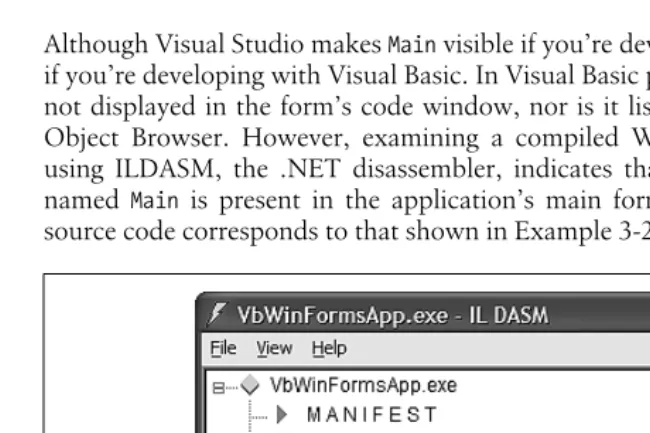
Although Visual Studio makesMainvisible if you’re developing with C#, it hides it if you’re developing with Visual Basic. In Visual Basic projects, the code forMainis not displayed in the form’s code window, nor is it listed in Class View or in the Object Browser. However, examining a compiled Windows Forms application using ILDASM, the .NET disassembler, indicates that a hidden public method named Main is present in the application’s main form, as Figure 3-1 shows. Its source code corresponds to that shown in Example 3-2.
[image:7.612.56.381.329.545.2]Example 3-1. A typical application entry point
[STAThread] static void Main( ) {
Application.Run(new Form1( )); }
If your application needs to read the command-line parameters, you can modify Main(or, if you’re coding in Visual Basic, you can add it yourself, rather than have the compiler add it) so that it takes a parameter of typestring[]orString( ). You will then be passed an array of strings, one for each argument. You can also change the return type tointif you wish to return an exit code. Examples 3-3 and 3-4 illustrate these techniques. The STAThread custom attribute is a backward-compatibility feature that will be discussed shortly.
It is also possible to retrieve the command-line arguments using the
Environment class’s GetCommandLineArgs method. You might find this approach easier because you can call this method anywhere in your program, not just in Main. It also means you don’t need to modify theMainmethod’s signature, and in VB, it means you don’t need to define aMain method at all.
TheMainfunction turns out to be trivial in the majority of applications because most interesting initialization takes place inside individual forms. All that happens inMainis an instance of the program’s main user interface (Form1) is created, and control is then passed to the framework’sApplicationclass, which manages the application’s execution for the remainder of its lifetime. The program runs until theApplicationclass decides it is time to exit. By default, this is when the main form is closed.
The Application Class
To do its job, the Windows Forms framework needs to have a high degree of control over our application. In particular, it must respond correctly to the kind of input that all Windows applications are required to handle, such as mouse clicks Example 3-2. An application entry point in VB
<STAThread> Public Shared Sub Main( ) Application.Run(new Form1( )) End Sub
Example 3-3. C# application entry point with parameters
[STAThread]
static int Main(string[] args) {
Application.Run(new Form1( )); }
Example 3-4. VB application entry point with parameters
<STAThread> _
Public Shared Function Main(args As String( )) As Integer Application.Run(New Form1( ))
Forms, Apps,
Containers
and redraw requests. This means the framework needs to be in charge of our appli-cation’s main thread most of the time; otherwise, it cannot deal with these events.*
Although our application’s execution is stage-managed by the framework, we can still influence its behavior by using theApplicationclass. For example, we can tell
the framework to shut down our program by calling the Application.Exit
method. In fact, interacting with the Application class is the first thing most programs do. They typically start like Example 3-1, calling Application.Run to surrender control to Windows Forms. This causes the framework to display the Formobject that it is given, after which it sits and waits for events. From then on, our code will only be run as a result of some activity, such as a mouse click, causing the framework to call one of our event handlers.
This event-driven style of execution is an important feature of Windows Forms. The framework is able to deal with events only because we leave it in charge. Of
course, while one of our event handlers is running (e.g., the code in a Click
handler is executing), we are temporarily back in charge, which means the frame-work will be unable to process any other events until our event handler returns. Most of the time, this is a good thing, because life would become unbearably complex if we could be asked to start handling a new event before we had finished dealing with the previous one; reentrant code is notoriously hard to get right, so it is a good thing that it is not usually required.
The only problem is that if our event handlers take a long time to execute, the user interface will become unresponsive. Until our code returns control to the framework, the user will not be able to click on or type into our program, or to move the windows around. (Strictly speaking the input won’t be lost—such events are stored in a queue, just as they are with normal Windows programs. But there will be no response to this input until the handler returns.) We can’t even give the user a way to abort the operation if it takes too long because the inability to process user input makes it difficult to support any kind of Cancel button.
While the obvious solution is to avoid writing event handlers that take too long to execute, this is not always possible. Fortunately, long-running event handlers can choose to give the framework a chance to deal with any events that may be
queued up and awaiting processing. The Applicationclass provides a method
calledDoEvents. This handles any pending input and then returns. Of course, any code that calls this method needs to be careful, because it is inviting reentrant behavior, so whenever you call this method, you must consider the implications of another of your event handlers being run beforeDoEventsreturns. But it does mean that slow code has a way of making sure the application does not appear to lock up completely.
The DoEvents method is not the only way of reentering the framework’s event handling code. Whenever you display a modal dialog (e.g., by using the MessageBox class, or by displaying a form with the ShowDialog method, as described later), Windows Forms is once again in charge of your thread and will process events for you for as long as the window is displayed.
Because the Applicationclass effectively owns our thread, we must get its help when we wish to shut down our program. By default, it monitors the form that we passed to itsRunmethod (usually the program’s main form), and it exits when that form closes. However, we can also force a shutdown by calling itsExitmethod; this closes all windows and then exits. (In other words, whenExitis called, the Runmethod returns. This will usually cause the program to exit, because the only
thing the Main function usually does is call the Run method, as shown in
Example 3-1. When theMain method finishes, the program exits.)
The Application class also provides a few miscellaneous utility features. For example, you can modify the way exceptions are handled. If any of your event handlers should throw an exception, the default behavior is for the application to
terminate. But the Application class has a static (or shared) event called
ThreadExceptionthat is raised whenever such an exception occurs; handling this event prevents the unhandled exception dialog from appearing, and the applica-tion will not exit unless you explicitly terminate it in your handler. The Applicationclass also exposes anIdleevent that is fired whenever some input has just been handled and the application is about to become idle. You could use this to perform background processing tasks.
Forms and Threads
With all this talk of theApplicationobject owning our thread, and of keeping the user interface responsive in the face of long-running operations, you may well be wondering about the use of threads in Windows Forms applications. Although it is possible to write multithreaded Windows Forms applications, there are some serious restrictions. A full discussion of multithreaded programming is well beyond the scope of this book, but it is important to know what the restrictions are.
There is one fundamental rule for threads in Windows Forms applications: you can only use a control’s methods or properties from the thread on which it was created. In other words, you must never call any methods on a control from a worker thread,*nor can you read or write its properties. The only exceptions to
this rule are calls to theInvoke,BeginInvoke, andEndInvokemethods and to the InvokeRequired property, which can all be used from any thread.
This may seem a surprisingly draconian restriction, but it is not as bad as it sounds. It is possible to use theControlclass’sInvokemethod to run code on the right thread for the control—you just pass a delegate to theInvokemethod, and it calls that delegate for you on the correct thread. The call will not occur until the next time the Windows Forms framework processes messages on the control’s thread. (This is to avoid reentrancy.)Invokewaits for the method to complete, so if an event is being handled by the user interface thread currently,Invokewill wait for that handler to finish. Beware of the potential for deadlock here;BeginInvoke is sometimes a better choice because it doesn’t wait for the invoked method to finish running—it just adds the request to run the method to the framework’s internal event queue and then returns immediately. (It is possible that your user interface thread was waiting for your worker thread to do something, so if you
Forms, Apps,
Containers
also make your worker thread wait for the user interface thread to do something, both threads will deadlock, causing your application to freeze.)
TheInvokeRequiredproperty is aboolorBooleanthat tells you whether you are on
the right thread for the control (InvokeRequired returns False) or not
(InvokeRequired returns True). This can be used in conjunction with the
BeginInvokemethod to force a particular method to run on the correct thread, as shown in the following C# code fragment:
private void MustRunOnUIThread( ) {
if (InvokeRequired) {
BeginInvoke(new MethodInvoker(MustRunOnUIThread)); return;
}
... invoke not required, must be on right thread already }
This method checks to see if it is on the right thread, and if not, it uses BeginInvoketo direct the call to the control’s own thread.*MethodInvokeris a
dele-gate type defined by Windows Forms that represents methods with no parameters and no return value (or, in Visual Basic, aSubwith no parameters). In fact, you can use any delegate type you like, and there is an overloaded version ofControl. BeginInvokethat takes a parameter list (as anobjectarray) as its second param-eter, allowing you to use a delegate that requires parameters to be passed.
You may also be wondering why Visual Studio .NET places anSTAThreadattribute on your application’sMainfunction, as shown in Example 3-1. This is required for ActiveX controls to work. If you want to use ActiveX controls, the COM runtime must be initialized in a particular way on the user interface thread. In .NET, COM is always initialized by the CLR, so we use this attribute to tell the CLR how we would like it to configure COM on this thread. A full discussion of COM interop and COM’s threading model is beyond the scope of this book, although if you are familiar with COM, you might find it helpful to know that this attribute ensures that the main thread will belong to an STA.
So theApplicationclass is responsible for managing our application’s lifetime, main thread, and event processing. But all the interesting activity surrounds the forms that make up our applications, so let’s now look in more detail at theForm class.
The Form Class
All windows in a Windows Forms application are represented by objects of some type deriving from theFormclass. Of course,Formderives fromControl, as do all classes that represent visual elements, so we have already seen much of what it can do in the previous chapter. But we will now look at the features that theForm class adds.
You will rarely use theFormclass directly—any forms you define in your applica-tion will be represented by a class that inherits fromForm. Adding a new form in Visual Studio .NET simply adds an appropriate class definition to your project. We will examine how it structures these classes when generating new forms, and we will look at how it cleans up any resource used by the form when it is destroyed. Then, we will consider the different types of forms. Finally, we will look at extender properties. These provide a powerful way of extending the behavior of all controls on a form to augment the basicControl functionality.
The Forms Designer
Most forms are designed using the Forms Designer in Visual Studio .NET. This is not an essential requirement—the designer just generates code that you could write manually instead. It is simply much easier to arrange the contents of a form visually than it is to write code to do this.
When you add a new form to a project, a new class definition is created. The Designer always uses the same structure for the source code of these classes. They begin withprivatefields in C# andFriendfields in VB to hold the contents of the form. (The Designer inserts new fields here as you add controls to the form.) Next
is the constructor, followed by the Dispose and InitializeComponent methods;
these are all described below. If this is the main form in your application, the
program’s entry point (the Main method described above) will follow in C#
programs; in VB programs, it will be added by the compiler at compile time, but will not be displayed with the form’s source code. Finally, any event handlers for controls on your form will be added at the end of the class.
The Designer does not make it obvious where you are expected to add any code of your own, such as fields or methods other than event handlers. This is because it doesn’t matter—Visual Studio .NET is pretty robust about working around you. It is even happy for you to move most of the code that it generates if you don’t like the way it arranges things, with the exception of the code inside the InitializeComponentmethod, which you should avoid modifying by hand. (The editor hides this code by default to discourage you from changing it.)
Initialization
Any freshly created form will contain a constructor and anInitializeComponent method. The jobof these methods is to make sure a form is correctly initialized before it is displayed.
The generated constructor is very simple—it just calls the InitializeComponent method. The intent here is that the Forms Designer places all its initialization code inInitializeComponent, and you will write any initialization that you require in the constructor. The designer effectively owns InitializeComponent, and it is recommended that you avoid modifying its contents, because this is liable to confuse the Designer. So when you look at the source code for a form class, Visual
Forms, Apps,
Containers
behind a line that appears as “Windows Form Designer generated code.”*You can
see this code by clicking on the + symbol at the left of this line in the editor.
You must not make any modifications to the overall structure of the
InitializeComponentmethod. It is usually acceptable to make small changes to existing lines, or to remove them entirely, but more sub-stantial changes will almost certainly confuse Visual Studio .NET, and you could find that you can no longer edit your form visually in the designer. Most changes can be made using the Forms designer or by modifying values in its Properties window, which causes Visual Studio to update theInitializeComponent method automatically.
Although the theory is that you will never need to modify anything inside this gener-ated code, you may occasionally have to make edits. If you do make such changes by hand, you must be very careful not to change the overall structure of the method, as this could confuse the Designer, so it is useful to know roughly how the method is arranged. It begins by creating the objects that make up the UI: each control on the form will have a corresponding line calling thenewoperator, and store the result in the relevant field. In C#, for example, such code appears as follows:
this.button1 = new System.Windows.Forms.Button( ); this.label1 = new System.Windows.Forms.Label( ); this.textBox1 = new System.Windows.Forms.TextBox( );
and in VB, it appears as follows:
Me.Button1 = New System.Windows.Forms.Button( ) Me.Label1 = New System.Windows.Forms.Label( ) Me.TextBox1 = New System.Windows.Forms.TextBox( )
Next, there will be a call to theSuspendLayoutmethod, which is inherited from the Controlclass. Layout is discussed in detail later on, but the purpose of this call is to prevent the form from attempting to rearrange itself every time a control is set up. Then each control is configured in turn—any necessary properties are set (position, name, and taborder, at a minimum), and event handlers (in C# only) are added. In C#, this looks like the following:
this.textBox1.Location = new System.Drawing.Point(112, 136); this.textBox1.Name = "textBox1";
this.textBox1.TabIndex = 2; this.textBox1.Text = "textBox1"; this.textBox1.TextChanged += new
System.EventHandler(this.textBox1_TextChanged);
The corresponding VB code appears as follows:
Me.TextBox1.Location = New System.Drawing.Point(112, 136) Me.TextBox1.Name = "TextBox1"
Me.TextBox1.TabIndex = 2 Me.TextBox1.Text = "TextBox1"
After this, the form’s size is set and then all the controls are added to itsControls collection. (Simply creating controls and storing them in private fields is not enough to make them appear on screen—they must be explicitly added to the form on which they are to appear; this process will be discussed in detail later.) Finally, the ResumeLayoutmethod, which is inherited from theControlclass, is called. This is the counterpart of the earlier call toSuspendLayout, and it indicates to the form that the various additions and modifications are complete, and that it won’t be wasting CPU cycles when it manages its layout. This call will also cause an initial layout to be performed, causing any docked controls to be positioned appropriately.
Disposal
The other method created on all new forms is the Dispose method. This runs
when the form is destroyed and frees any resources that were allocated for the form. In fact, all controls have twoDisposemethods: one public, supplied by the framework, and one protected, which you usually write yourself. To understand why, we must first look at the way resources are normally released in .NET.
The CLR has a garbage collector, which means that when objects fall out of use, the memory used by those objects will eventually be freed automatically. Classes can have special functions called finalizers, which are run just before the garbage collector frees an object. Classes in the .NET Framework that represent expensive resources such as window handles usually have finalizers that release these resources. So in the long run, there will be no resource leaks—everything will eventually be freed either by the garbage collector or by the finalizers that the garbage collector calls. Unfortunately, the garbage collector only really cares about memory usage, and only bothers to free objects when it is low on memory. This means that a very long time (minutes or even hours) can pass between an object falling out of use and the garbage collector noticing and running its final-izer. This is unacceptable for many types of resources, especially the kinds used by GUI applications. (Although current versions of Windows are much more forgiving than the versions of old, hogging graphical resources has never been a good idea and is best avoided even today.)
So the .NET Framework defines a standard idiom for making sure such resources are freed more quickly, and the C# language has special support for this idiom.
Objects that own expensive resources should implement the IDisposable
inter-face, which defines a single method,Dispose. If code is using such an object, as soon as it has finished with the object it should call itsDisposemethod, allowing it to free the resources it is using. (Such objects usually also have finalizers, so if the client code forgets to callDispose, the resources will be freed eventually, if some-what late. But this is not an excuse for not calling the method.)
The Control class (and therefore any class deriving from it) implements
Forms, Apps,
Containers
using(Brush b = new SolidBrush(this.ForeColor)) {
... do some painting with the brush ... }
When the code exits the block that follows theusingstatement, theBrushobject’s Dispose method will be called. (The Brushclass is part of GDI+, and it imple-mentsIDisposable; this example is typical of redraw code in a custom control.) The most important feature of this construct is that it will callDisposeregardless of how we leave the block. Even if the code returns from the middle of the block or throws an exception,Disposewill still be called, because the compiler puts this code in afinally block for us.*
Unfortunately, Visual Basic does not have any equivalent to using blocks in C#. You must remember to callDispose yourself.
Forms typically have a lot of resources associated with them, so it is not surprising that they are always required to support this idiom. In fact, all user elements are— theControlclass enforces this because it implementsIDisposable. The good news is that most of the work is done for us by theControlclass, as is so often the case. It provides an implementation that callsDisposeon all the controls contained by the form and frees all resources that the Windows Forms framework obtained on your behalf for the form. But it also provides us with the opportunity to free any resources that we may have acquired that it might not know about. (For example, if you obtain a connection to a database for use on your form, it is your responsi-bility to close it when the form is disposed.)
The picture is complicated slightly by the fact that there are two times at which resource disposal might occur. Not only must all resources be freed whenDispose is called, they must also be freed if the client has failed to callDisposeby the time the finalizer runs. The model used by theControl class†enables you to use the
same code for both situations: any code to free resources allocated by your form lives in an overload of the Disposemethod, distinguished by its signature:void Dispose(bool)(in C#) orSub Dispose(Boolean)(in VB). This method will be called in both scenarios—either when the user callsIDispose.Disposeor when the final-izer runs.
It is important to distinguish between timely disposal and finalization when cleaning up resources. In a finalizer, it is never possible to be sure whether any references you hold to other objects are still valid: if the runtime has determined that your object is to be garbage collected, it is highly likely that it will also have decided that the objects you are using must be collected too. Because the CLR makes no guarantees of the order in which finalizers are run, it is entirely possible
* Afinallyblock is a block of code that the CLR guarantees to run, regardless of how the flow of execution leaves the preceding block. It allows a single piece of cleanup code to be used in the face of normal exit, premature returns, and exceptions.
that any objects to which you hold references have already had their finalizers run. In this case, callingDisposeon them could be dangerous—most objects will not expect to have their methods called once they have been finalized. So most of the
time, yourDispose method will only want to do anything when the object was
explicitly disposed of by the user. The only resources you would free during final-ization would be those external to the CLR, such as any temporary files created by your object or any handles obtained through interop.
TheDisposemethod that you are intended to override is protected, so it cannot be called by external code. It will be called by theControlclass if the user calls the publicDisposemethod (IDispose.Dispose). In this case, the parameter passed to the protectedDisposemethod will betrue. It will also be called when the finalizer runs, in which case the parameter will befalse. (Note that this method will only
be called once—if IDispose.Dispose is called, the Control class disables the
object’s finalizer.) So the parameter indicates whether resources are being freed promptly or in a finalizer, allowing you to choose the appropriate behavior. Consider the code generated by the Designer, as shown in Examples 3-5 and 3-6.
This checks to see if the public Dispose method was called, and if it was, it
disposes of thecomponents object, if present. (Thecomponents object is a collec-tion of any non-Controlcomponents in use on the form, e.g., data sources.) But if finalization is in progress (i.e., the disposing parameter is false), it doesn’t
bother, for the reasons detailed above. If you add any code to this Dispose
method, it too will normally live inside theif(disposing) { ... } block. Example 3-5. The default protected Dispose method in C#
protected override void Dispose( bool disposing ) {
if( disposing ) {
if (components != null) {
components.Dispose( ); }
}
base.Dispose( disposing ); }
Example 3-6. The default protected Dispose method in VB
Protected Overloads Overrides Sub Dispose(ByVal disposing As Boolean) If disposing Then
If Not (components Is Nothing) Then components.Dispose( )
End If End If
Forms, Apps,
Containers
Components added to a form using the Forms Designer in Visual Studio .NET will not necessarily be added to the form’scomponents
collection. Only those components with a constructor that takes a single parameter of typeIContainerwill be added. (All the compo-nents in the framework that require disposal have such a construc-tor.) If you are writing your own component that has code in its
Disposemethod, you must supply an appropriate constructor. This constructor must callAddon the supplied container to add itself to thecomponents collection.
There are two very important rules you must stick to if you need to modify this resource disposal code in your form. First, you must always call the base class’s Disposemethod in yourDisposemethod, because otherwise theControlclass will not release its resources correctly. Second, you should never define your own finalizer in a form—doing so could interact badly with theControl class’s own finalizer; the correct place to put code to release resources in a form (or any other UI element) is in the overridden protectedDisposemethod. This is precisely what the code generated by the forms designer does, as shown in Examples 3-5 and 3-6.
You may be wondering what thecomponentsmember is for, and why it needs to be disposed of. It is a collection of components, and its jobis to dispose of those
components—if you add a component such as a Timer to a form, the Forms
Designer will automatically generate code to add that component to the componentscollection. In fact, it does this by passingcomponentsas a construction parameter to the component, e.g.:
this.timer1 = new System.Windows.Forms.Timer(this.components);
The component will then add itself to thecomponentscollection. As you can see from Examples 3-5 and 3-6, the defaultDisposemethod supplied by the Designer will callDisposeon thecomponentscollection. This in turn will cause that collec-tion to callDisposeon each component it contains. So if you are using a component that implementsIDispose, the easiest way to make sure it is freed correctly is simply to add it to thecomponentscollection. The Forms Designer does this automatically for any components that require disposal. (It determines which require disposal by examining their constructors—if a component supplies a constructor that takes an IContaineras a parameter, it will use that constructor, passing componentsas the container.) You can also add any objects of your own to the collection:
components.Add(myDisposableObject);
or:
components.Add(myDisposableObject)
Showing Modal and Non-Modal Forms
A modal form is one that demands the user’s immediate attention, and blocks input to any other windows the application may have open. (The application enters a mode where it will only allow the user to access that form, hence the name.) Forms should be displayed modally only if the application cannot proceed until the form is satisfied. Typical examples would be error messages that must not go unnoticed or dialogs that collect data from the user that must be supplied before an operation can be completed (e.g., the File Open dialog—an application needs to know which file it is supposed to load before it can open it).
You select between modal and non-modal behavior when you display the form.
The Form class provides two methods for displaying a form:ShowDialog, which
displays the form modally, andShow, which displays it non-modally.
The Show method returns immediately, leaving the form on screen. (The event
handling mechanism discussed earlier can deliver events to any number of windows.) A non-modal form has a life of its own once it has been displayed; it may even outlive the form that created it.
By contrast, the ShowDialog method does not return until the dialog has been
dismissed by the user. Of course, this means that the thread will not return to the Applicationclass’s main event-handling loop until the dialog goes away, but this is not a problem because the framework will process events inside theShowDialog method. However, events are handled differently when a modal dialog is open— any attempts to click on a form other than the one being displayed modally are rejected. Other forms will still be redrawn correctly, but will simply beep if the user tries to provide them with any input. This forces the user to deal with the modal dialog before progressing.
There is a more minor (and somewhat curious) difference between modal and non-modal use of forms: resizable forms have a subtly different appearance. When displayed modally, a form will always have a resize grip at the bottom righthand corner. Non-modal forms only have a resize grip if they have a status bar.
Be careful with your use of modal dialogs, because they can prove somewhat annoying for the user: dialogs that render the rest of the application inaccessible for no good reason are just frustrating. For example, older versions of Internet Explorer would prevent you from scrolling the main window if you had a search dialog open. If you wanted to look at the text just below the match, you had to cancel the search to do so. Fortunately this obstructive and needless use of a modal dialog has been fixed—Internet Explorer’s search dialog is now non-modal. To avoid making this kind of design error in your own applications, you should follow this guideline: do not make your dialogs modal unless they really have to be.
Closing forms
Having displayed a form, either modally or non-modally, we will want to close it at some point. There are several ways in which a form can be closed. From a programmer’s point of view, the most direct approach is to call itsClosemethod, as follows:
this.Close( ); // C#
Forms, Apps,
Containers
A form may also be closed automatically by the Windows Forms framework in response to user input; for example, if the user clicks on a form’s close icon, the window will close. However, if you want to prevent this (as you might if, for example, the window represents an unsaved file), you can do so by handling the Formclass’sClosingevent. The framework raises this event just before closing the window, regardless of whether the window is being closed automatically or by an explicit call to the Close method. The event’s type is CancelEventHandler; its BooleanCancelproperty enables us to prevent the window from closing if neces-sary. Examples 3-7 and 3-8 illustrate the use of this property when handling the Closing event.
Example 3-7. Handling the Closing event in C#
private void MyForm_Closing(object sender, System.ComponentModel.CancelEventArgs e) {
if (!IsWorkSaved( )) {
DialogResult rc = MessageBox.Show( "Save work before exiting?", "Exit application",
MessageBoxButtons.YesNoCancel);
if (rc == DialogResult.Cancel) {
e.Cancel = true; }
else if (rc == DialogResult.Yes) {
SaveWork( ); }
} }
Example 3-8. Handling the Closing event in VB
Private Sub MyForm_Closing(sender As Object, _ e As System.ComponentModel.CancelEventArgs) If Not IsWorkSaved( ) Then
Dim rc As DialogResult = MessageBox.Show( _ "Save work before exiting?", _
"Exit application", _
MessageBoxButtons.YesNoCancel)
If rc = DialogResult.Cancel Then e.Cancel = True
Else If rc = DialogResult.Yes Then SaveWork( )
The form in Examples 3-7 and 3-8 checks to see if there is unsaved work. (IsWorkSavedis just a fictional method for illustrating this example—it is not part of the framework.) If there is, it displays a message box giving the user a chance to save this work, abandon it, or cancel, which keeps the window open. In the latter case, this code informs the framework that the window should not be closed after all by setting theCancel property of theCancelEventArgs argument totrue.
If you write an MDI application (i.e., an application that can display multiple documents as children of a single main frame), the framework treats an attempt to
close the main window specially. Not only does the main window get aClosing
andClosedevent, so does each child window. The child windows are asked first, so if each child represents a different document, each child can prompt the user if there is unsaved work. But none of the children are closed until all of the windows (the children and the main window) have fired theClosingevent. This means the close can be vetoed by any of the windows. The close will only happen if all the child windows and the main window are happy.
If nothing cancels the Closingevent, the window will be closed, and theClosed event will be raised. If the form is shown non-modally, the framework then calls the form’sDispose method to make sure that all the form’s resources are freed. This means once a non-modal form has been closed, you cannot reuse the object to display the form a second time. If you callShowon a form that has already been closed, an exception will be thrown. For modal dialogs, however, it is common to want to use the form object after the window has closed. For example, if the dialog was displayed to retrieve information from the user, you will want to get that information out of the object once the window closes. Modal dialogs are therefore
not disposed of when they are closed, and you must call Dispose yourself, as
shown in Examples 3-9 and 3-10. You should make sure that you use any proper-ties or methods that you need before callingDispose (i.e., inside theusing block).
Example 3-9. Disposing of a modal dialog in C#
using (LoginForm lf = new LoginForm( )) {
lf.ShowDialog( ); userID = lf.UserID; password = lf.Password; }
Example 3-10. Disposing of a modal dialog in VB
Try
Dim lf As New LoginForm( ) lf.ShowDialog( )
userID = lf.UserID password = lf.Password Finally
Forms, Apps,
Containers
Although the framework will automatically try to close a window when its close icon is pressed, it is common to want to close a form as the result of a button click. It turns out that if the button does nothing more than close the form, you do not need to write a click handler to make this happen. The Windows Forms framework will automatically close the form when any button with aDialogResult is clicked. So we will now look at dialog results.
Automatic button click handling
A dialog might be closed for several different reasons. Instead of clicking the OK button, the user might attempt to cancel the dialog by clicking on its close icon or Cancel button, or by pressing the Escape key. Most applications will distinguish between such cancellation and normal completion, and some may make a finer distinction still, such as a message box with Yes, No, and Cancel buttons. Windows Forms provides support for automatically managing the various ways of closing a window without having to write click handlers. It also makes it easy for users of a form to find out which way a form was closed. Both of these facilities revolve around dialog results.
TheFormclass’sShowDialogmethod returns a value indicating how the dialog was
dismissed. The returned value corresponds to theDialogResult property of the
button with which the user closed the window. The following code shows an excerpt from the initialization of a form containing two buttons, buttonOK and buttonCancel(the Forms Designer will generate such code if you set a button’s DialogResult property in the Properties window):
buttonOK.DialogResult = DialogResult.OK; buttonCancel.DialogResult = DialogResult.Cancel;
Any code that shows this dialog will be able to determine which button was clicked fromShowDialog’s return code. The returned value can also be retrieved later from theDialogResult property of theForm object.
The type of theShowDialogmethod’s return value and of theDialogResult prop-erty of both theFormobject and of individualButtoncontrols is alsoDialogResult, which is an enumeration type containing values for the most widely used dialog buttons:OK,Cancel,Yes,No,Abort,Retry, andIgnore.
To handle button clicks without an event handler, you must set a button’s DialogResult property to any value other than the default (DialogResult.None). Then clicking that button will cause the framework to close the form and return that value. If you want, you can still supply aClickevent handler for the button, which will be run before the window is closed. But the window will be closed whether you supply one or not (unless there is aClosinghandler for the form that cancels the close, as described earlier).
It is also possible to return a dialog result without using aButtoncontrol. If you wish to close the form in response to some event that did not originate from a button, you can also set theForm class’sDialogResult property before callingClose.
the sameDialogResultin all three cases. This turns out to be simple because the Windows Forms framework can fake a click on the Cancel button when the Escape key is pressed. All we need to do is tell the form which is our Cancel button (which could be any button—it doesn’t have to be labeled Cancel)—with theForm class’sCancelButton property:
this.CancelButton = buttonCancel; // C#
Me.CancelButton = buttonCancel ' VB
IfbuttonCancel has a handler registered for its Click event, that handler will be called either when the button is clicked, or when the Escape key is pressed. In both cases, the same two things to happen: first, theClick handler (if there is one) is called, then the window is closed. TheClickhandler for the button indicated by the CancelButton property does not need to take any special steps to close the window.
TheCancelButtonproperty is ignored if the user simply closes the window. In this case, the button’s click handler will not be called, and its specifiedDialogResultwill not be returned fromShowDialog. So you will need to override theOnClosedmethod in your form to handle all the possible ways of closing the dialog.
As with all buttons, if you specify aDialogResultother thanNonefor the Cancel button, that value will be used as the dialog result. However, the button referred to by theCancelButtonproperty is unusual in that if this property is set toNone, it behaves as though it were set toCancel: the form will be closed, and the dialog
result will be Cancel. (Also, when you choose a CancelButton in the Forms
Designer, it sets the button’sDialogResultproperty toCancelautomatically. This seems to be overkill, because it would returnCancel in any case.)
As well as supporting aCancelButton, a form can also have anAcceptButton. If set, this will have aClickevent faked every time the user presses the Enter key while on the form. However, this turns out to be less useful than theCancelButtonbecause this behavior is disabled if the control that currently has the focus does something with the Enter key. For example, althoughButtoncontrols behave as though clicked when Enter is pressed, if some button other than theAcceptButtonhas the focus, that button will get a Click event, not the AcceptButton. If a multiline TextBox control has the focus, it will process the Enter key instead. So if your form consists of nothing but buttons and multiline text boxes, there is no point in setting the AcceptButton property.
Note that unlike theCancelButton, if you do assign anAcceptButton, the form will only be closed automatically when this button is clicked if you explicitly set the accept button’sDialogResult property to something other thanNone.
Forms, Apps,
Containers
Containment
All useful forms contain some controls. There is more to this containment rela-tionship than meets the eye, and if you are familiar with the old Win32 parent/ child relationship, you will find that things do not work in quite the same way. We will look at the control nesting facilities supplied by both theControlclass and theContainerControlclass, paying particular attention to the implications of containment for focus and validation events.
Parents and Owners
Controls rarely exist in complete isolation—top-level windows usually contain some controls, and all non–top-level controls are associated with a window. In fact, Windows Forms defines two kinds of relationships between controls. There is the parent/child relationship, which manages containment of controls within a single window. There is also a looser association that can exist between top-level windows, which is represented by the owner/owned relationship.
Parent and child
A child window is one that is completely contained by its parent. For example, any controls that you place on a form are children of that form. A child’s position is specified relative to its parent, and the child is clipped to the parent’s bounds—i. e., only those parts of the child completely inside the parent are visible. Forms can be children too: document windows in an MDI application are children of the main MDI frame.
A control’s parent is accessible through its Parentproperty (of typeControl). If you examine this property on a control on a form, you will typically find that it refers to that form. However, many controls can behave as both a parent and a child—if you place a button inside a group box on a form, the button’s parent will be the group box, and the group box’s parent will be the form.
We can also find out if a control has any children—they are available through its Controls property, of typeControl.ControlCollection. Examples 3-11 and 3-12 show this property being used to attach aClickevent handler to all controls on a form. (Note that this only attaches itself to direct children of the form. It will not handle clicks from controls nested inside other controls, e.g., a button inside a panel. This could be fixed by writing a recursive version of the method.)
Example 3-11. Iterating through child controls with C#
private void AddClickHandlers( ) {
foreach(Control c in Controls) {
c.Click += new EventHandler(AnyClick); }
The parent/child relationship can be established through either theParent prop-erty or theControlsproperty. A child control’sParentproperty can be set to refer to a parent. Alternatively, you can use theControlsproperty on the parent—this
is a collection that has Add and AddRange methods to add children. The Forms
Designer uses the latter. If you examine theInitializeComponentmethod gener-ated by the Designer for a form with some controls on it, you will see something like this towards the end of the function in a C# project:
this.Controls.AddRange(new System.Windows.Forms.Control[] { this.checkBox1,
this.btnCancel, this.btnOK});
In a VB project, the code appears as follows:
Me.Controls.AddRange(New System.Windows.Forms.Control( ) _ {Me.checkBox1, Me.btnCancel, Me.btnOK})
(checkBox1, btnCancel and btnOK are controls that would have been initialized
earlier in the method.) This code would have worked equally well if the Designer had set theParentproperty tothisin C# or toMein VB on each of these controls, but using Controls.AddRange is slightly more efficient, because it allows all the controls to be attached to the form in one operation.
When nesting is in use, you will see a similar call to the AddRangemethod. For example, if you create a panel with some controls in it, those controls will be added with a call toControls.AddRangeon the panel. This panel itself would then be added to the form’sControls collection.
A control might not have a parent—itsParentproperty could benull(in C#) or Nothing(in VB). Such controls are called top-level windows. Top-level windows private void AnyClick(object sender, System.EventArgs e)
{
Control clicked = (Control) sender;
Debug.WriteLine(string.Format("{0} clicked", clicked.Name)); }
Example 3-12. Iterating through child controls with VB
Private Sub AddClickHandlers( ) Dim c As Control
For Each c in Controls
AddHandler c.Click, AddressOf AnyClick Next
End Sub
Private Sub AnyClick(sender As Object, e As EventArgs) Dim clicked As Control = DirectCast(sender, Control)
Console.WriteLine(String.Format("{0} clicked", clicked.Name)) End Sub
Forms, Apps,
Containers
are contained directly by the desktop, and usually have an entry in the taskbar. For normal Windows Forms applications, a top-level window is a form of some kind.*
Ownership
Ownership defines a rather less direct association between windows than parenting. It allows a group of windows, such as an application window and its associated tool windows, to behave as a single entity for certain operations such as minimizing and activation.
Ownership is used to group related forms. It is often used for toolbox windows— when an application is minimized, any associated tool windows it displays should also be minimized. Likewise, when the application is activated (i.e., brought to the front by a mouse click or Alt-Tab), the tool windows should also be activated. You can automate this behavior by setting up an ownership association between the tool windows and the main windows. Unlike parenting, ownership only exists between top-level windows, because an owned form is never contained by its owner. (For example, undocked toolbars can usually be moved completely outside the main window, which would not be possible if they were children of that window.)
Although an owned form may live outside or overlap its owner, it will always appear directly in front of it in the Z-order.†Bringing the owner to the foreground
will cause all the forms it owns to appear in front of it. (This is not the same thing as a top-most form, which is described below.) Bringing an owned form to the front will have the same effect as bringing its owner to the front. Minimizing an owner causes all its owned windows to be minimized too, although an owned window can be minimized without minimizing the owner.
Owned windows typically don’t need their own representation on the Windows taskbar because they are subordinate to their owners. Because activating an owned window implicitly activates the owner and vice versa, it would merely clutter up the taskbar to have entries for both. So owned forms normally have theirShowInTaskBar properties set tofalse.
The following code fragments (in VB and C#) show a new form being created, owned, and displayed:
// defining an owner form in C# MyForm ownedForm = new MyForm( ); ownedForm.ShowInTaskbar = false; AddOwnedForm(ownedForm); ownedForm.Show( );
* Strictly speaking, the framework allows for top-level controls that are not forms, so you should not presume that a top-level control can necessarily be cast toForm. You can determine whether a control is top-level from itsTopLevel property.
' defining an owner form in VB Dim ownedForm As New [MyForm] ownedForm.ShowInTaskbar = False AddOwnedForm(ownedForm) ownedForm.Show( )
(This fragment would be inside some method on the owner form, such as its constructor.)AddOwnedFormis a method of theFormclass that adds a form to the
list of owned forms. (Using ownedForm.Owner = this; or ownedForm.Owner = Me
would have exactly the same effect; as with parenting, the ownership association can be set up from either side.) Note the use of the ShowInTaskBar property to prevent this window from getting its own entry in the taskbar.
All owned forms are closed when their owning form is closed. Because they are
considered wholly subordinate to the owner, they don’t receive the Closed or
Closingevents when the main form closes (although they do if they are closed in isolation.) So if you need to handle these events, you must do so in the owning form.
Top-most forms
It is important not to confuse owned forms with top-most forms. (These in turn should not be confused with top-level forms, as defined earlier.) Superficially, they may seem similar: a top-most form is one that always appears on top of any non–top-most forms. Viewed in isolation, owned forms may look like they are doing the same thing—an owned form always appears on top of its owner. However, top-most forms are really quite different—they will appear on top of all other windows, even those from other applications.
If you need a form to sit above all other windows, set itsTopMostproperty totrue. Certain kinds of popup might need to set this property totrue—your application might need to display some visual alert that should be visible regardless of what windows are currently open, much like Windows Messenger does. But exercise good taste—making all windows top-most is pointless because ultimately only one window can really be at the very top (the top-most window with the highest Z-order), and it can be very annoying for the user to be unable to hide a top-most window. If you decide to make a window top-most, unless it is a short-lived pop-up window, you should provide a way of disabling this behavior, as the Windows Task Manager does with its Always on Top menu option.
Owned forms and top-most forms are useful when we need to control the ordering of forms either with respect to all other windows on the desktop or just between specific groups of forms. But arguably the most important relationship is the one between parent and child controls—this association is fundamental to the way controls are contained within a window. Although the parent/child
relation-ship is managed by the Control class, there can be complications with focus
Forms, Apps,
Containers
Control and ContainerControl
As we have seen, the ability to act as a container of controls (i.e., to be a parent) is a feature supplied by theControlclass. ItsControlsproperty manages the collec-tion of children. Only certain control types elect to present this container-like behavior in the Designer (e.g., theForm,Panel, andGroupBoxcontrols), but more bizarre nesting can be arranged if you write the code by hand—it is possible to nest a button inside another button, for example. This is not useful, but it is possible as a side effect of the fact that containment is a feature provided by the baseControl class.
But if you examine theFormclass closely, you will see that it inherits from a class
called ContainerControl. You might be wondering why we need a special
container control class when all controls can support containment. The answer is that ContainerControl has a slightly misleading name. ContainerControl only
really adds one feature to the basic Control.* The main purpose of a
ContainerControl is to provide focus management.
Sometimes you will build groups of controls that act together as a single entity. The most obvious example is a form, which is both a group of controls and also a distinct entity in the UI. But as we will see in Chapter 5, it is possible to build non–top-level controls composed from multiple other controls (so-called user controls).
Such groups typically need to remember which of their constituent controls last had the focus. For example, if a form has lost the focus, it is important that when the form is reactivated, the focus returns to the same control as before. Imagine how annoying it would be if an application forgot which field you were in every time you tabbed away from it. And we also expect individual controls on a form to remember where they were—when the focus moves to a list control, we expect it to remember which list item was selected previously, and we expect tree controls to remember which tree item last had the focus.
Users expect UI elements to remember such state in between losing the focus and reacquiring it. (Most users probably wouldn’t be conscious of the fact that they expect this, but they would soon complain if you were to provide them with an application that forgot where it was every time it lost the focus.) So the Windows Forms framework helpfully provides us with this functionality in the ContainerControl class.
Most of the time, you don’t really need to think aboutContainerControl. It should be used whenever you build a single UI element that consists of several controls, but because theFormclass and theUserControlclass (see Chapter 5) both inherit fromContainerControl, you are forced into doing the right thing.
Note that the Panel and GroupBox classes do not derive fromContainerControl,
even though they usually contain other controls. This is because they do not aim to modify focus management in any way—they are essentially cosmetic. Focus for
controls nested inside these controls is managed in exactly the same as it would have been if they were parented directly by the form, because aContainerControl assumes ownership not just for its children, but for all its descendants. (Of course, if it has anyContainerControldescendants, it will let those manage their own chil-dren; eachContainerControl acts as a boundary for focus management.)
Focus and validation
As discussed in the previous chapter, focus management is closely related to vali-dation. A control whoseCausesValidationproperty istruewill only normally be validated when two conditions are met: first, it must have had the focus; and
second, some other control whoseCausesValidationproperty is also truemust
subsequently receive the focus. (Any number of controls whoseCausesValidation property isfalse may receive the focus in between these two events.)
BecauseContainerControlgroups a set of controls together and manages the focus within that group, it has an impact on how validation is performed. When the focus
moves between controls within a ContainerControl, the validation logic works
[image:28.612.56.381.355.490.2]exactly as described above. But when the focus moves out of aContainerControl that is nested within another ContainerControl(e.g., a UserControl on a Form), things are a little more complex.
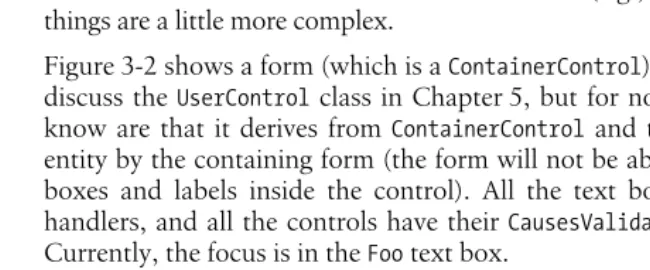
Figure 3-2 shows a form (which is aContainerControl) and aUserControl. We will discuss theUserControlclass in Chapter 5, but for now, the important things to know are that it derives fromContainerControland that it is treated as a single entity by the containing form (the form will not be able to see the individual text boxes and labels inside the control). All the text boxes have Validating event handlers, and all the controls have theirCausesValidationproperties set totrue. Currently, the focus is in theFoo text box.
When the focus moves toBar, the rules of validation say thatFoo must be vali-dated. This is not a problem—both controls are inside the sameContainerControl (MyUserControl). It is responsible for their focus management, so it will ensure that Foois validated. But what would happen if instead the focus moved toQuux?Quux is not inside the user control—its focus is managed by anotherContainerControl, the form.
Figure 3-2. Validation and ContainerControl nesting
Forms, Apps,
Containers
The form knows nothing of the Foo andBar fields—these are just encapsulated
implementation details of the user control. But it will correctly determine that MyUserControlshould be validated because bothMyUserControlandQuuxhave their CausesValidation property set to true. Fortunately, when any ContainerControl (such as aUserControl) is validated, it remembers which of its member controls last had the focus, and validates that. So in this case, when the focus moves fromFooto Bar, the form validatesMyUserControl, which in turn validatesFoo.
Ambient Properties
Regardless of whether your controls are all children of the form, nested inside
group boxes and panels, or nested within aContainerControlfor focus
manage-ment, you will want your application to look consistent. When you modify certain properties of a form’s appearance, all the controls on the form should pick up the same properties. For example, if you change the background color of your form, you will probably want any controls on the form to use the same background color. It would be tedious if you had to set such properties manually on every single control on the form. Fortunately you don’t have to—by default, the main visual properties will propagate automatically.
The properties that behave like this are known as ambient properties. The
ambient properties on the Control class are Cursor, Font, ForeColor, and
BackColor. It is useful to understand exactly how ambient properties work—the Forms Designer in Visual Studio .NET doesn’t show you everything that is going on, and the results can therefore sometimes be a little surprising.
Using the Designer, you could be forgiven for assuming that if you don’t set a visual property of a control, it will just have a default value. For example, the
background color of a button will seem to beSystemColors.Control. However, a
control distinguishes between a property that has had its value set and a property that hasn’t. So when you don’t set theBackColorof a control, it’s not that the BackColor has a default value; it actually has no value at all.
This is obfuscated somewhat by the fact that when you retrieve a control’s BackColor, you will always get a nonempty value back. What is not obvious is that this value didn’t necessarily come from the control in question. If you ask a control for its background color when the background color has not been set on that control, it starts looking elsewhere to find out what its color should be.
If a control doesn’t know what value a particular property should have, the first place it looks is its parent. So if you put a button on a form, then read that button’s BackColor without having set it, you are implicitly reading the form’sBackColor.
But what if there is no parent to ask? AFormmight have no parent, so what does it
do when asked for its BackColor if none has been specified? At this point it
So what impact do these ambient properties have on your application’s behavior? Their effect is that unless you explicitly specify visual properties for your controls, they will automatically pick up appropriate values from their surroundings. If a control is being hosted in some environment that supplies values for these ambient properties, such as Internet Explorer, it will use those. Otherwise, the system-wide defaults will be used.
Some controls deliberately ignore certain ambient properties, either because they have no use for them or because they positively want to use something else. For
example, the TextBox class overrides the BackColor property so that its
back-ground is always the SystemColors.Window color (typically white) by default,
regardless of what the ambient background color is.
Remember that whenever you read an ambient property on a control, you will get back something, but unless that property was set explicitly on that control, the value you get back will have been retrieved from elsewhere. Visual Studio .NET makes it clear when you have modified a property on a control by showing the value of that property in bold type. This is useful, but it does not tell you how the property obtains its value when it has not been set explicitly—the Properties window always shows the effective value, without telling you where that value came from. In some cases, you may need to examine the source code to see exactly what it has done: if the property has not been set explicitly in the InitializeComponent method, the value shown will be the ambient one.
MDI Applications
Many Windows applications use the Multiple Document Interface (MDI). This defines a user interface structure for programs that can display multiple files. The application has a main window, and each document being edited is displayed inside a child window. Windows Forms provides special support for this.
We could just create our document windows as children of the main application window. However, this still leaves us with a certain amount of work to do to manage menus correctly—MDI applications usually present their menus in the main application window, but modify which items are present according to whether a document window is active. Windows Forms is able to manage MDI menus correctly for us, including automatically merging a child window’s menu into the main application window. The details of menu merging are discussed in Chapter 4, but to make this happen automatically, we must tell Windows Forms that we are building an MDI-style application. First of all, we must set the parent
window’s IsMdiContainer property to true. Second, when we display a child
window, we must let Windows Forms know that is should behave as an MDI child, as in the following C# code fragment:
ChildForm cf = new ChildForm( ); cf.MdiParent = this;
cf.Show( );
or in its equivalent VB code fragment:
Forms, Apps,
Containers
By establishing the parent/child relationship with theMdiParentproperty instead
of the normalParent property, we enable automatic menu merging.
Layout
As we saw in the previous chapter, the framework can modify a control’s position and size automatically. We looked at the docking and anchoring facilities, but Windows Forms provides support for other styles of layout. The simplest of these is a fixed layout in a scrollable window. Splitter support is also built in. In this section, we will look at all these styles of layout, and then examine the mechanism in the framework that underpins them all. It is possible to extend the layout facili-ties to provide your own automatic layout strategies. We will look at the standard events that support this, and then see a simple example custom layout engine.
Scrolling
Windows Forms provides a facility for enabling the contents of a control to exceed the control’s size on screen, and for scrollbars to be added automatically to enable the user to access all of it. This functionality is provided by the ScrollableControlclass. This is the base class ofContainerControland ofPanel, which means that this behavior is available to all forms, panels, and user controls.
To enable automatic scrolling management, simply set theAutoScrollproperty to true. If the window is smaller than its contents, scrollbars will be added automati-cally. Of course, the class will need some way of knowing how large the window’s contents are. By default, it will deduce this from its child controls—it will assume that the window’s size should be exactly large enough to hold all the controls.
Because automatic scrolling will make the scrollable area exactly large enough to hold the controls and no larger, the controls will be right up against the edge of the window when it is scrolled as far down or across as it can go. However, you can add some padding by setting theAutoScrollMarginproperty. This property’s type isSize, which enables you to specify the vertical padding and the horizontal
padding separately. So specifying a margin ofnew Size(10, 20)would leave 10
units of blank space to the right of the right-most control and 20 units of blank space beneath the lowest control.
Alternatively, you can set the scroll size explicitly with the AutoScrollMinSize property, which is also of typeSize. The space occupied by the controls will still be calculated as described above, but if theAutoScrollMinSizeproperty is larger, its value will be used instead. (In fact, each dimension is used individually—the effective window size will be wide enough for the controls and any padding speci-fied withAutoScrollMargin, and at least as wide asAutoScrollMinSize.Width, and it will be tall enough for the controls and any padding, and at least as tall as AutoScrollMinSize.Height.)
You should not use both docking (discussed in the following section) and scrolling in a single control. If you wish to have controls docked to the edge of a
scrolling window, you should add a child Panel control and make that do the