Smartphone
Jason R. Rich
0-07-226435-7
The material in this eBook also appears in the print version of this title: 0-07-225674-5.
All trademarks are trademarks of their respective owners. Rather than put a trademark symbol after every occurrence of a trademarked name, we use names in an editorial fashion only, and to the benefit of the trademark owner, with no intention of infringement of the trademark. Where such designations appear in this book, they have been printed with initial caps.
McGraw-Hill eBooks are available at special quantity discounts to use as premiums and sales promotions, or for use in corporate train-ing programs. For more information, please contact George Hoare, Special Sales, at [email protected] or (212) 904-4069.
TERMS OF USE
This is a copyrighted work and The McGraw-Hill Companies, Inc. (“McGraw-Hill”) and its licensors reserve all rights in and to the work. Use of this work is subject to these terms. Except as permitted under the Copyright Act of 1976 and the right to store and retrieve one copy of the work, you may not decompile, disassemble, reverse engineer, reproduce, modify, create derivative works based upon, transmit, distribute, disseminate, sell, publish or sublicense the work or any part of it without McGraw-Hill’s prior consent. You may use the work for your own noncommercial and personal use; any other use of the work is strictly prohibited. Your right to use the work may be terminated if you fail to comply with these terms.
THE WORK IS PROVIDED “AS IS.” McGRAW-HILL AND ITS LICENSORS MAKE NO GUARANTEES OR WARRANTIES AS TO THE ACCURACY, ADEQUACY OR COMPLETENESS OF OR RESULTS TO BE OBTAINED FROM USING THE WORK, INCLUDING ANY INFORMATION THAT CAN BE ACCESSED THROUGH THE WORK VIA HYPERLINK OR OTHERWISE, AND EXPRESSLY DISCLAIM ANY WARRANTY, EXPRESS OR IMPLIED, INCLUDING BUT NOT LIMITED TO IMPLIED WARRANTIES OF MERCHANTABILITY OR FITNESS FOR A PARTICULAR PURPOSE. McGraw-Hill and its licensors do not warrant or guarantee that the functions contained in the work will meet your requirements or that its operation will be uninterrupted or error free. Neither McGraw-Hill nor its licensors shall be liable to you or anyone else for any inaccuracy, error or omission, regardless of cause, in the work or for any damages resulting therefrom. McGraw-Hill has no responsibility for the content of any information accessed through the work. Under no circumstances shall McGraw-Hill and/or its licensors be liable for any indirect, incidental, special, punitive, consequential or similar damages that result from the use of or inability to use the work, even if any of them has been advised of the possibility of such damages. This limitation of liability shall apply to any claim or cause whatsoever whether such claim or cause arises in contract, tort or otherwise.
magazines and major daily newspapers. He has been writing about computers and technology for more than 17 years.
PART I Get to Know Your Windows Mobile Smartphone
1 Become Smartphone Savvy: Get Familiar with Your Phone . . . 3
2 Select Your Service Provider . . . 37
3 Make Contact with Your Smartphone . . . 59
4 Explore the Wireless Web . . . 79
5 Accessing Mobile Optimized Web Content Using Your Smartphone . . . 101
6 Use Your Smartphone to Send and Receive E-mail . . . 129
Part II There’s So Much More Your Smartphone Can Do 7 Using ActiveSync with Your Smartphone . . . 163
8 Further Enhance Your Smartphone’s Functionality . . . 183
9 Gain Remote Access to Your Desktop Computer . . . 193
10 Stay in Touch with Contact Management and Scheduling Software . . . 201
11 Take Advantage of Financial, Spreadsheet, and Database Management Tools . . . 225
12 Word Processing Applications for Your Smartphone . . . 243
13 PowerPoint Presentations on Your Smartphone . . . 251
14 Tap the Power of Your Smartphone Overseas . . . 269
v
Part III Expand Your Smartphone and Maximize Its Potential
15 Smartphone Fun and Games . . . 287
16 Transform Your Smartphone into a Digital Music Player
and eBook Reader . . . 307
Contents
Acknowledgments . . . xv Introduction . . . xvii
PART I Get to Know Your Windows Mobile Smartphone
CHAPTER 1 Become Smartphone Savvy: Get Familiar with Your Phone . . . 3
Discover What’s Inside the Box You Bought . . . 4 Ten Easy Steps to Get Started Once
You’ve Purchase Your Smartphone . . . 6 Find Your Way Around the Smartphone . . . 7
Discover What the Buttons on Your
Smartphone Actually Do . . . 9 Discover the Built-In Functionality
of Your Smartphone . . . 12 Understand the Icons and Menu
Options on Your Start Screen . . . 12 mMode (AT&T Wireless Only) . . . 13 Store Text and E-mail in Your Smartphone’s Inbox . . . 14 Your Smartphone Can Handle Your Outlook Contacts . . . 14 Enter Text into Your Smartphone . . . 16 Browse the Web with Your Smartphone
and Internet Explorer . . . 22 Use ActiveSync to Transfer Data
from Your Phone to Your PC . . . 23 View Microsoft Office Documents
on Your Smartphone Using OfficeOnline . . . 24 See Whom You’ve Called from the Call History Screen . . 24 Store Your Important Info in an Organized Way
Using File Manager . . . 24 Communicate with Others Using Real-Time Text
Messages with MSN Messenger . . . 24 Use the Settings Option to Customize Your Smartphone . . . 25 Customize Your Smartphone’s Home Screen . . . 25
vii
Gain Instant Access to Your Most Commonly Used
Programs with the Favorites Manager . . . 26
Reach Your Important Contacts Fast with Speed Dial . . . . 27
Manage the Data Stored on Your Phone with the SIM Manager . . . 28
Maintain Your To-Do Lists with the Tasks Application . . . 28
View Multimedia Content on Your Smartphone’s Screen with Windows Media . . . 28
Explore the Online Community Known as Pocket MSN . . . 29
Discover How Your Phone’s Resources Are Being Used with Resource Manager . . . 29
Instantly Record Your Important Ideas Using Voice Recorder . . . 29
Add Accessories to Your Smartphone to Enhance Its Functionality . . . 30
Kick Back and Have Some Fun! Play Games on Your Smartphone . . . 30
Customizing the Profile of Your Smartphone . . . 31
Keep Your Smartphone Charged and Ready for Action . . . 35
Begin Using Your Smartphone Now . . . 35
CHAPTER 2 Select Your Service Provider . . . 37
Choose the Perfect Voice/Data Service Plan for Your Needs . . . 40
Choose the Best Strategy for Selecting Your Service Provider . . . 42
Buy Your Phone and Establish Service for It . . . 43
Understand the Service Plans Before You Sign On . . . 44
Add a Data Plan to Your Voice Plan . . . 45
Discover What to Look for in a Service Plan . . . 48
Protect Your Investment . . . 56
Start Making Contact . . . 57
CHAPTER 3 Make Contact with Your Smartphone . . . 59
Make Your First Call . . . 62
Hey, It Must Be for You…Answering a Call . . . 64
Save a Phone Number . . . 66
Add Personality to Your Phone with a Customized Ringer . . . 69
Retrieve a Saved Phone Number . . . 70
Utilize Your Phone’s Calling Features . . . 71
Use Your Smartphone’s Speakerphone,
Hands-Free, and Mute Features . . . 74
Access Your Call Log (Call History) . . . 76
Track Your Phone Usage . . . 77
More Phone Features from Your Service Provider . . . 77
Surf The Web When You’re Not Talking . . . 78
CHAPTER 4 Explore the Wireless Web . . . . 79
Tap the Power of the Internet from the Palm of Your Hand . . . 80
Use the Favorites Menu to Reach Your Favorite Web Sites Quickly . . . 82
Navigate Your Way Around Web Sites . . . 87
Discover What Internet Explorer for Your Smartphone Has to Offer . . . 90
Find What You Want and Need Online . . . 90
Sometimes You Hit Rough Waters When Surfing . . . 93
Go Beyond Internet Explorer with Add-On Browser Software . . . 96
The Future of Smartphone Web Browsing Offers Limitless Potential . . . 99
It’s All About the Content . . . 99
CHAPTER 5 Accessing Mobile Optimized Web Content Using Your Smartphone . . . 101
Increase Your Productivity with the Wireless Web . . . 103
Discover What’s Available Online . . . 104
Driving Directions and Maps . . . 105
Movie and Entertainment Listings and News . . . 106
News and Information . . . 111
Online Auctions . . . 115
Popular Companies . . . 117
Telephone Directory Assistance . . . 120
Traffic Information . . . 121
Travel-Related Information . . . 122
Weather . . . 123
Tips for Accessing Non–Mobile Optimized Web Content . . . 126
CHAPTER 6 Use Your Smartphone to Send and Receive E-mail . . . . 129
Access Virtually Any E-mail Account from Your Smartphone . . . 130
Access Web-Based E-mail Accounts
from Your Smartphone . . . 136
Access Your America Online E-mail Account(s) . . . 143
Use Your Smartphone’s Inbox Application . . . 143
Read and Manage Incoming E-mail with Inbox . . . 143
Write and Send E-mails from Inbox . . . 145
Use Inbox Speed Reader to Make Sending and Receiving E-mail Easier . . . 147
Send and Receive SMS Text Messages . . . 149
Compose and Send an SMS Text Message . . . 149
Read SMS Text Messages . . . 150
Communicate in Real Time with Instant Messaging . . . 152
Use MSN Messenger from Your Smartphone . . . 154
Instant Messaging Is Easy with IMOV Universal Mobile Messenger Software . . . 159
Your Smartphone Can Do More Than Communicate . . . 159
PART II There’s So Much More Your Smartphone Can Do CHAPTER 7 Using ActiveSync with Your Smartphone . . . . 163
Install ActiveSync onto Your Computer . . . 165
Synchronize Data Between Your Smartphone and PC . . . 167
Utilize Infrared and Wireless Synchronization . . . 171
Synchronize with an Infrared Connection . . . 171
Synchronize with a Wireless Connection . . . 173
Install New Software onto Your Smartphone Using ActiveSync . . . 173
Download and Install a New Smartphone Application . . . . 175
Explore What’s on Your Smartphone Using ActiveSync . . . 177
Delete Applications from Your Smartphone . . . 177
Back Up Your Smartphone Using ActiveSync . . . 179
Use ActiveSync to Perform a Manual Backup . . . 179
Restore Your Data Using ActiveSync . . . 180
Upgrade Your Smartphone’s Software and Operating System . . . 180
Determine What Version of the Operating System Your Smartphone Is Running . . . 181
Discover the Types of Software Available for Your Smartphone . . . 182
CHAPTER 8 Further Enhance Your Smartphone’s Functionality . . . . 183
Transform Your Smartphone into a Wireless Modem . . . 184
Obtain and Install the MPx200 Software You Need
to Use Your Smartphone as a Wireless Modem . . . 186
Obtain and Install the Samsung i600 Software You Need to Use Your Smartphone as a Wireless Modem . . . 187
Use Your Voice to Communicate with Your Smartphone . . . 188
Protect Your Smartphone from Uninvited Users . . . 191
Enable the Phone’s Lock . . . 191
Get the Most Out of Your Smartphone . . . 192
CHAPTER 9 Gain Remote Access to Your Desktop Computer . . . . 193
Who Needs to Synchronize Remotely? . . . 194
The Importance of Staying Synchronized . . . 195
Back Up Data Using ALL-Backup . . . 196
Office Online Keeps Information at Your Fingertips . . . 197
Away from the Office? Wireless Sync Can Keep You in Touch . . 198
System Requirements for Wireless Sync . . . 199
Your Smartphone Is More Than a Powerful Appointment Book . . . 200
CHAPTER 10 Stay in Touch with Contact Management and Scheduling Software . . . . 201
Harness the Power of Microsoft Outlook 2003 . . . 203
Use Your Smartphone to Stay Organized . . . 207
The Secrets of Effective Time Management . . . 208
Take On Responsibilities . . . 211
Synchronize Your Smartphone with Microsoft Outlook . . . 211
Keep Track of Important Notes with SmartphoneNotes . . . 213
Utilize Other Smartphone Applications to Organize Your Time and Information . . . 216
Expand the Power of Your Smartphone with Power Calendar . . . 216
Manage Your To-Do Lists with Power Tasks . . . 219
Keep Track of Time with MobiTimer . . . 221
To-Do Lists Made Easy with ListPro . . . 222
Never Forget Important Passwords with eWallet . . . 223
There’s So Much More Your Smartphone Can Do! . . . 224
CHAPTER 11 Take Advantage of Financial, Spreadsheet, and Database Management Tools . . . . 225
Manage Your Money Using Financial Applications on Your Smartphone . . . 226
ALL-Calculator Smartphone Edition . . . 227
Bills & Reminders Helps to Keep
Your Finances in Order . . . 229 Track Your Loans with Loan Manager . . . 230 Managing Your Portfolio Is Easier
When You Use Your Smartphone . . . 231 Keep Track of Your Investments with Stock Manager . . . . 232 View Live Financial Data and Manage
Your Portfolio with MarketWave . . . 233 Tiny Stocks’ Stock Manager Offers
Big Features for Investors . . . 234 Access and View Spreadsheet
Data on Your Smartphone . . . 235 RepliGo 2.0 Puts Excel Spreadsheets
on Your Smartphone . . . 235 Use ClearVue Worksheet to View
Microsoft Excel Spreadsheet Data . . . 238 Create a Customized Database
Application with FoneDB . . . 240 Utilize Your Smartphone’s Full Potential . . . 241
CHAPTER 12 Word Processing Applications for Your Smartphone . . . . 243
View Microsoft Word Files on Your
Smartphone Using ClearVue Document . . . 245 View Adobe Acrobat (PDF) Files on Your Smartphone
Using ClearVue PDF . . . 246 Transform Your Smartphone into a Text
Editor with Vexxon File Editor Pro . . . 247 Print Files from Your Smartphone Using Jetcet Print . . . 248 Microsoft Office Really Does Fit in the Palm of Your Hand . . . . 249
CHAPTER 13 PowerPoint Presentations on Your Smartphone . . . . 251
Discover What Microsoft PowerPoint Can Do for You . . . 253 Create a Compelling Presentation Using PowerPoint . . . . 253 Transfer Your PowerPoint Files to Your Smartphone . . . 257 PowerPoint Presentations and Your Smartphone . . . 260 Using the Pocket SlideShow Smartphone Software . . . 260 Using the ClearVue Presentation Smartphone Software . . . 267
CHAPTER 14 Tap the Power of Your Smartphone Overseas . . . . 269
Fizz Traveler . . . 275
John Cody’s SmartTIP . . . 276
ListPro . . . 277
Mobile Optimized Web Sites for Travelers . . . 278
Sabre Virtually There . . . 278
Switchboard . . . 279
Fodors.com . . . 280
BostonCoach . . . 280
ClubFONE Nightlife Guide . . . 280
Fidelity Anywhere . . . 281
Keep Your Smartphone Charged While Overseas . . . 282
PART III Expand Your Smartphone and Maximize Its Potential CHAPTER 15 Smartphone Fun and Games . . . . 287
Let the Gaming Begin! . . . 288
Check Out the Growing Library of Smartphone Games Available . . . 290
Bejeweled . . . 290
Cubis . . . 290
Blackjack SP . . . 291
Checkers for Smartphone . . . 292
IntelliGolf for Smartphone: Birdie Edition . . . 293
Lemonade Tycoon . . . 296
PocketGrandMaster for Smartphone (Chess) . . . 297
Pock-Man . . . 298
Pocket Stars . . . 298
Smartpong 2 . . . 299
Trivial Pursuit . . . 300
Transform Your Smartphone into a Digital Photo Album . . . 301
SplashPhoto . . . 302
Customize Your Smartphone’s Home Screen . . . 303
Expand Your Smartphone with Accessories and Peripherals . . . . 305
CHAPTER 16 Transform Your Smartphone into a Digital Music Player and eBook Reader . . . . 307
Transform Your Smartphone into a Powerful MP3 Music Player . . . 308
Start Listening to Music on Your Smartphone . . . 309
Create and Manage Your MP3 and WMA Music Library . . . 311
Transfer Music Files to Your Smartphone . . . 311
Listen to Audio on Your Smartphone . . . 314
Download Music from the Internet . . . 316
Listen to Audio Books and Other
Content Using Your Smartphone . . . 318
Transform Your Smartphone into an eBook Reader . . . 320
Read eBooks with the Tiny eBook Reader Software . . . 320
Use DataViewer to Read a Wide Range of eBook Content . . . 322
Your Smartphone Can Even Display the Bible . . . 323
New Content Is Always Being Made Available . . . 323
CHAPTER 17 Accessorize Your Smartphone . . . . 325
Dozens of Smartphone Accessories Are Available . . . 327
Bluetooth-Compatible Accessories . . . 327
Use a Case to Protect Your Smartphone . . . 327
Chargers and Power Adapters . . . 328
Digital Cameras . . . 328
Power Up with Extra Batteries . . . 329
Avoid Getting Lost with a GPS Receiver . . . 329
Portable Keyboards . . . 330
SD Memory Cards . . . 330
Enjoy Your Music with Stereo Headphones . . . 332
Telephone Headsets Make Chatting on the Phone More Convenient . . . 332
Sync Up with a USB Cable . . . 334
Look, No Hands! Add a Vehicle Hands-Free Kit to Your Car . . . 336
Find the Best Accessories for Your Smartphone . . . 336
Discover the Power of Bluetooth . . . 339
Thanks to everyone at Osborne/McGraw-Hill, particularly Megg Morin, Agatha Kim, Julie Smith, and Roger Stewart, for inviting me to work on this project and allowing me to spend several months playing with the latest Smartphone technology in order to write this book.
Thanks also to Josh Kerwin at Waggener Edstrom Public Relations, Jason Gordon at Microsoft, and to the rest of the folks at Microsoft, Motorola, Samsung, AT&T Wireless, Verizon Wireless, and all of the other companies involved in bringing the various Smartphones to market.
On a personal note, my love and gratitude goes out to my family, as well as to Mark Giordani, Ferras AlQaisi, and the Bendremer family for their endless support.
xv
There are two age-old adages that hold true in today’s business world. First, “Knowledge is power!” and second, “It’s all about who you know.” Lately, however, being able to achieve success is not just about knowing the right people. It’s also about being able to get in touch with the people you need to reach when they’re needed and for you to be reachable at the precise time you’re needed. When contact is made, having the right information readily at your fingertips is critical.
People who have the most knowledge and information available to them are at an advantage in today’s business world. Likewise, those people who know how to obtain the information they need, then communicate it effectively the moment that information is needed, have an even greater edge. Knowing how to utilize information and communicate effectively in today’s fast-paced, deadline-oriented, cut-throat business world are two skills that set successful people apart from the rest.
If you consider yourself to be one of those smart people who strive to be as productive and organized as possible,andyou pride yourself on your ability to communicate, then perhaps you need the ideal communications and productivity
tool—a Smartphone.
Over the years, a range of technologically based tools have been developed to make communications and data management not only easier, but also available to people virtually anywhere. That’s the power of wireless voice and data communications.
The concept of someone being “out of the office” or “unreachable” is no longer a valid excuse for not being available to your business associates, customers, clients, friends, relatives, and acquaintances at the exact moment you’re needed.
The technology we all use to communicate is changing extremely rapidly. These days, having a run-of-the-mill cell phone isn’t enough to keep you on the cutting edge in the business world. To meet the ever-increasing demand business people have for new technology that keeps them connected, a new breed of communications device has been developed. Smartphones are revolutionizing
xvii
the way people communicate, manage data, organize their lives and handle their day-to-day activities.
How to Do Everything with Your Microsoft Windows Mobile Smartphoneis all about helping you harness the incredible power of these new devices by allowing you to easily incorporate a Smartphone into your personal and professional life, starting immediately.
This book will not only get you up and running with your new Smartphone, it’ll focus heavily on customization. You’ll soon learn how to add the specific software applications you need to your new Smartphone in order to truly maximize its functionality.
Using a Smartphone as a tool in your life, you’ll soon be able to:
■ Communicate better with coworkers, clients, customers, friends, family, and acquaintances
■ Better manage your schedule, to-do lists, and appointments
■ Improve your productivity and stay more organized
■ Manage your personal and business contacts
■ Gain access to your personal and/or business email from virtually anywhere
■ Access important information and data from the Internet
■ Carry important data from your desktop computer with you anytime and anyplace without lugging around your laptop computer
■ Better enjoy your downtime by using your Smartphone to listen to music and/or play games
Even if you’ve already read the owner’s manual that came with your Smartphone, chances are you haven’t even begun to tap the surface of what these powerful little devices are capable of. This book will help you better understand what your Smartphone can actually do, starting right now. You’ll also learn how to integrate this powerful new technology into your life by totally customizing your device with optional software applications, peripherals, and accessories.
From this book, you’ll discover how to tap the power of the Internet from your Smartphone and utilize a wide range of wireless applications and “Mobile Optimized” websites that can truly make your life easier, more productive, and more fun.
As you’ll discover from Chapters 4 and 5, a “Mobile Optimized” website is a site designed specifically for use with a Smartphone or other handheld wireless Internet device. These websites sites take into account the small screen size of these devices, plus are designed for quick downloading.
While a very basic understanding of cell phones and the Windows operating system for a PC will be helpful, this book will walk you through everything you need to know using easy-to-understand, step-by-step directions. In other words, you don’t need to be a computer guru to get the most out of your Smartphone.
Chances are, in your day-to-day life, you won’t need to tap all of the features your new Smartphone offers. By understanding what it’s capable of and how it can be fully customized, however, you’ll be in a much better position to make this an indispensable tool in your everyday life, using only the functions you most need or want.
What This Book Offers
How to Do Everything with Your Microsoft Windows Mobile Smartphonestarts off as an informative “how to” guide for choosing the best Windows Mobile-based Smartphone device to meet your needs. Other topics this book delves into include:
■ How to get your Smartphone up and running (Chapter 1)
■ Selecting the best voice and data service and service provider (Chapter 2)
■ Making calls with your Smartphone (Chapter 3)
■ Accessing “Mobile Optimized” websites using your Smartphone (Chapter 5)
■ Using your Smartphone to send and receive email, SMS Text Messages and Instant Messages (Chapter 6)
■ Utilizing ActiveSync to transfer information and data between your computer and your Smartphone (Chapter 7)
■ Using your Smartphone as a wireless modem in conjunction with your computer, plus controlling your Smartphone using the Voice Command software (Chapter 8)
■ Synchronizing data with your computer using the Internet (Chapter 9)
■ Managing your contacts and scheduling with your Smartphone (Chapter 10)
■ Financial tools and database applications for your Smartphone (Chapter 11)
■ Accessing Microsoft Word documents and other text on your Smartphone (Chapter 12)
■ Viewing PowerPoint presentations on your Smartphone (Chapter 13)
■ Using your Smartphone overseas (Chapter 14)
■ Smartphone fun and games (Chapter 15)
■ Transforming your Smartphone into an MP3 player and eBook reader (Chapter 16)
■ Adding accessories and peripherals to your Smartphone (Chapter 17) There are dozens of third-party software applications you can add to your Smartphone (usually for a small fee) that vastly enhance the functionality of your device. There are also accessories and peripherals you can add to further enhance the power and capabilities of these devices, plus there are an ever growing number of websites designed specifically for the small screens of the Smartphones that allow you to tap into a vast amount of information on the Internet.
To bring important Smartphone-related information to your attention, be on the lookout for “Tips” and “Notes” throughout this book. Also, to help you understand how other people around the world are using their Smartphones, you’ll find “Voices from the Community.” These short interviews feature normal people discussing what they love about their Smartphones. Finally, in the “Spotlight” section, you’ll discover even more ways to transform your Smartphone into a tool that can help keep you entertained.
Who Should Read This Book?
How to Do Everything with Your Microsoft Windows Mobile Smartphonewas written for anyone who wants to incorporate this type of wireless communications technology into their lives. It’s ideal for people who have already purchased a Windows Mobile-based Smartphone and who are looking to get the most out of their investment by truly understanding and customizing their device to meet their needs.
Yesterday’s Science Fiction Is Today’s Reality
Back in the mid-1960s, the television showStar Trekpremiered. It was a science fiction program, about a crew aboard a starship that went on constant adventures “exploring strange new worlds, seeking out new life and civilizations, and boldly going where no man had gone before.” Well, assisting Captain Kirk and his crew during their trek across space were then fictional technological devices, like communicators and tricorders.
Today, some forty plus years later, Microsoft Windows Mobile compatible Smartphones look very similar to thoseStar Trekcommunicators and function in much the same way. Plus, when you add the wireless data communication capabilities to these devices (as well as GPS), they also function a lot like those tricorders fromStar Trek.
While we may not be communicating with aliens just yet, yesterday’s science fiction has had a tremendous impact on today’s reality in terms of the design and functionality of the technology we now use.
What’s A Smartphone?
Imagine a wireless communications device that offers all of the popular digital PCS cell phone features you’d ever want or need, like a speaker phone, Caller ID, call waiting, voice mail, conference calling (three-way calling), the ability to store a vast phonebook of contacts, and the ability to manage your incoming and outgoing call logs. Cell phones with these functions aren’t anything special. But this is just the beginning of what Smartphones are capable of.
Instead of just storing dozens of phone numbers in their own built-in digital phone book (like most cell phones), Microsoft Windows Mobile compatible Smartphones allows you to synchronize data with Microsoft Outlook, so all of the related data stored on your PC can now easily be “synched” (transferred) to your handheld device using a program called ActiveSync (supplied with your Smartphone). This includes, contact names, addresses, phone numbers, email addresses, appointments, to-do lists, and other important data.
In addition to working as a fully-featured cell phone, Smartphones are also wireless Internet devices, capable of surfing the web, plus sending and receiving email. You can also send and receive instant messages using popular services, like MSN Messenger, or utilize Short Message Service (SMS), which is compatible with many popular cell phones.
Smartphones are also customizable and expandable. It’s possible to add dozens of different software packages and peripherals to dramatically increase functionality. So, with a relative ease, you can fully customize your device to handle applications never before possible with a basic cellular phone or wireless data device.
The following is a partial list of the functions a Windows Mobile Smartphone is capable of. As you read this list, think about how you’d utilize these functions and communications capabilities in your own life.
Some of the functionality you can expect from your Smartphone includes:
■ A fully featured cellular voice communications tool, with all of the features found in typical cell phones (Caller ID, three-way calling, call waiting, built-in phone directory, customizable ringers, etc.)
■ Sending and receiving email
■ Text messaging (similar to two-way paging)
■ Instant messaging using MSN Messenger
■ The ability to transfer and synchronize data from Microsoft Outlook on your PC directly with your Smartphone. This gives you access to all of your contacts (names, addresses, phone numbers, email addresses, etc.) right on your phone
■ Appointment, scheduling, and to-do list management
■ Built-in calculator
■ Voice recorder (for dictation)
■ Windows Media (MP3 music and video player)
■ The ability to access and view Microsoft Word, Excel, and PowerPoint documents and files using your Smartphone
■ The ability to add a wide range of optional software and peripherals
As the time this book was written, a handful of new Smartphone models had been announced. These new devices, like the Motorola MPx100 and MPx220, for example, were slated for release in late-2004 or in 2005. They will offer added functionality, such as Bluetooth compatibility and a built-in digital camera.
Smartphone technology is relatively new. As a result, various companies that offer these devices define them differently. Since this book is all about Smartphones compatible with the Windows Mobile operating system, here’s how Microsoft’s website (www.microsoft.com) describes these wireless communications devices:
“Microsoft Windows Mobile software for Smartphones opens a new chapter in mobile phone technology by combining the best of mobile voice and data communications with the best of personal information management software…. Windows Mobile introduces an entirely new mobile phone experience through the integration of smart software and small, stylish handsets….Included with Windows Mobile software are all the multimedia features today’s consumers expect,
software is also a great platform for games…Above all, Windows Mobile software is simple to use.”
What really sets Windows Mobile-based Smartphones apart is their ability to be operated using one-hand in order to access and use the devices’ most popular functions and features. This makes it easy to access the information you want and to utilize the phone’s functionality while on the go (like while you’re driving, for example). By adding the optional Microsoft Voice Command software (described later in this book), your Smartphone can be controlled almost entirely using your voice to execute commands, launch applications, and handle many Smartphone-related tasks.
Smartphone Versus Pocket PC Phone Edition—
What’s The Difference?
For years, Microsoft has also offered Pocket PC technology. These are hand-held personal digital assistant devices (PDAs), some of which now utilize the Windows Mobile software and have built-in phone and wireless data functionality. These devices are also extremely powerful and are categorized as Pocket PC Phone Editions.
The biggest difference between Pocket PC Phone Edition devices and Windows Mobile Smartphones is that the Pocket PCs typically have larger screens (with touch screen capabilities), and in some cases, feature some type of small, built-in keyboard.
Pocket PC Phone Edition devices are designed primarily for two-handed operation. Otherwise, much of the functionality is the same. The Pocket PC Phone Editions are also similar to the Palm-OS based Smartphones, like the popular Treo 600 (which also requires two hands to fully utilize).
Fully Integrated Functionality
in the Palm of Your Hand
Benefit Greatly By Allowing
a Smartphone Into Your Life
If you already carry around a cell phone, two-way text pager, MP3 player, appointment book, personal digital assistant (PDA), digital camera, cassette recorder (for dictation), a phone directory, and/or a map to help you navigate from place to place when you’re driving, all of these items can now be replaced with one powerful handheld device.
Define Your Own Smartphone Needs
All Smartphones offer similar functionality, but they’re not all alike. This book focuses on Smartphones that utilize the Microsoft Windows Mobile operating system. These phones have been developed by several different phone manufactures (like Motorola and Samsung) and each offers a unique design, plus features that set them apart. Furthermore, the various Smartphones are compatible only with certain cellular and wireless data service providers (such as AT&T Wireless, Verizon Wireless, Sprint PCS, Cingular, T-Mobile, etc.), and each of these service providers make different features and functions available to the phone at different price points, based upon the service plan you choose and the contract you sign with the service provider.
Typically, you’ll need to make a one or two year commitment with a service provider, although you can change service plans during that time as long as you stay with that provider. Choosing the best wireless voice and data service provider is covered in Chapter 2.
Many Technologies Offer Similar Functionality
When you go to any cellular phone store, kiosk at the mall, or a consumer electronics store (like Best Buy, Circuit City or Radio Shack), you’ll see an assortment of Smartphones available. As you begin to shop around, you’ll quickly discover several distinct categories of Smartphones, each of which utilizes a different operating system.
used to handle virtually all of the same computing applications, but the look of the screens, the user interfaces, and the commands used to make things happen are somewhat different.
This same concept holds true with Smartphones, because there are many different companies manufacturing Smartphones that use different operating systems. They all pretty much run the same types of applications, only they handle them differently. The following is a rundown of the types of Smartphones available that run under the various operating systems.
Windows Mobile Smartphones
Windows Mobile Smartphones are sleekly shaped devices designed primarily for one-handed use that offer voice and data communication from the palm of your hand. It’s these devices that this book primarily focuses on. Smartphones that run using the Windows Mobile operating system (http://www.microsoft.com/ windowsmobile) offer a strong similarity to desktop computers running Windows XP, for example, so you’ll find many of the commands and icons to be similar.
Pocket PC Phone Edition Smartphones
Pocket PC Phone Edition devices also utilize the powerful Windows Mobile operating system (http://www.microsoft.com/windowsmobile), but they’re larger, have a touch screen, look more like traditional PDAs, often have some type of built-in alphanumeric keyboard, and they’re designed primarily for two-handed operation.
Palm OS-Based Smartphones
PalmOne (www.palmone.com) is the current industry leader when it comes to developing and marketing handheld personal digital assistants (PDAs) that offer a wide range of functionality and expandability. This company also offers several devices that nicely combine PDA technology with cell phone and wireless data technology. The Treo 600 is an example of these all-on-one Smartphone devices that use the popular Palm-OS operating system. This operating system looks and functions differently than the Windows Mobile operating system.
Blackberry
highly functional, sleek, and use a proprietary operating system. These are primarily voice and data communication devices with some PDA functionality and a vastly smaller library of add-on software packages and applications available for them.
Choosing the Perfect Smartphone
to Meet Your Needs
Before running out and purchasing a Smartphone, think about what you’ll be using it for. Later in this book, you’ll learn more about specific Smartphone functions, plus learn how to choose the right service provider to meet your needs. Ultimately, your goal should be to choose a Smartphone that meets the needs you have right now in your personal and professional life.
Ideally, you also want a device that you will be able to upgrade and/or expand later in order to adapt to changes in your life and new software/technology developments.
It’s important to choose a Smartphone not based on its flashy look or the fancy bells and whistles it offers, but based on how it can immediately fulfill your needs. Take another look at the list of functions Smartphones are capable of and determine which of these is truly important to you.
Knowing what you want and need a Smartphone for and developing a better understanding of what the technology actually offers (which is what this book will help you do), will allow you to choose a specific Smartphone device that’s perfect for you. For more information, you can also visit the websites described throughout this book and/or visit a Smartphone retailer to see the various units first hand.
Part I
Your Windows
Mobile
Smartphone
Chapter 1
Smartphone Savvy:
Get Familiar with
Your Phone
How To…
■ Get your Smartphone up and running
■ Learn the basic functionality of your Smartphone
■ Understand what’s on the Windows Mobile Welcome screen
■ Discover what the icons and menu options mean
■ Begin personalizing your Smartphone
■ Back up and protect your data
C
ongratulations on purchasing your Windows Mobile Smartphone. No matter which phone model you’ve acquired, you’re about to discover exactly how to get your phone up and running quickly so you can take full advantage of the powerful features it offers and incorporate this new device into your daily life.While there are a growing number of Windows Mobile Smartphone devices on the market—such as the Motorola MPx200 and MPx100, the Samsung i600 (available in the U.S. and overseas), the Orange SPV (available in Europe), and the MiTac’s Mio 8390 or doPod 515 (available in Asia, the South Pacific, and Japan)—they all run using the Windows Mobile operating system. This means the functionality each device offers is basically the same.
Sure, some devices may have built-in Bluetooth compatibility, a built-in digital camera, or a few extra applications bundled with the phone, but in terms of how your Smartphone actually works, the Windows Mobile operating system software (what makes the Smartphone run) is extremely similar among all of the devices.
Discover What’s Inside the Box You Bought
No matter which Smartphone you’ve purchased, it comes in a box that contains everything you need to get your Smartphone up and running. (The accessories your device comes with may vary based on the Smartphone model you’ve purchased.)
■ Motorola MPx200 (AT&T Wireless)
■ Desktop charger and sync cradle
■ Headphones (for listening to audio)
■ Owner’s manual and quick start guide
■ Phone headset
■ SIM card (from the service provider, such as AT&T Wireless)
■ Smartphone handset (the MPx200)
■ Smartphone software for your PC
■ Standard battery
■ Travel charger
■ USB cable for connecting your Smartphone to your computer
■ Samsung i600 (Verizon Wireless)
■ Customer support CD
■ Desktop charger/sync cradle
■ Extended battery
■ Hand strap for the phone handset
■ Hands-free headset
■ Leather case
■ Phone handset (Samsung i600)
■ Samsung companion CD
■ Samsung user guide CD
■ Secure digital card
■ Standard battery
■ Travel charger
■ Wireless sync CD
Ten Easy Steps to Get Started Once
You’ve Purchase Your Smartphone
Okay, so you’re the proud owner of a new Smartphone. Are you ready to start experiencing all that it’s capable of? Even if you’re not technologically savvy, the following ten steps will help you get started using your new device:
1. Remove all of the contents from the box and make sure you have all of the parts and accessories that the owner’s manual or packaging stipulates.
2. Remove the plastic safety coating from the phone’s screens.
3. Insert the SIM card into the phone. (If the battery is already installed, remove it. Place the SIM card with the gold contacts facing downward and the cut corner of the card on the left. Next, slide the retainer cover that’s on the phone over the card to lock it in place.)
4. Write down your Smartphone’s phone number and store your service agreement (from the service provider) in a safe place.
SIM Cards Made Simple
5. Connect the battery to the Smartphone handset. It should slide into place and lock or snap in securely. If you’ve purchased a case for your phone, you can now slip on the protective case.
6. Using either the travel charger or the desktop charger, plug the appropriate end of the charger into an electrical outlet and the opposite end into the phone’s charge port. This port may be located under a rubber cover on the side or bottom of your phone. See your owner’s manual for details.
7. Allow the unit to charge for a full 24 hours before the first use. You can use the phone while it’s charging, but the charging process will take longer.
8. Once the phone is fully charged, remove the charger cable and turn on the phone. On the Motorola MPx200, the power button is located on the left side of the unit, below the jog dial. The Samsung i600’s power button is the red End key found on the phone’s keypad. (Press and hold it for several seconds.)
9. The Windows Mobile default Start screen (also referred to as the Welcome screen) appears within a few seconds after the phone is turned on.
10. Take a few minutes to become acquainted with the layout of your Smartphone handset. From the photographs that follow, you’ll determine where the important buttons are located for the MPx200 and i600, for example. For other phone models, consult the owner’s manual.
If you’ve purchased a used Smartphone and someone else’s data and information is still stored in the phone’s memory, consider doing a hard reset to erase all data and add-on programs stored in the phone and restore all of the manufacturer’s defaults for the various options. To perform a hard reset on the Motorola MPx200, for example, hold down the blue Action button while at the same time, powering on the phone. You will be asked if you wish to erase the phone’s flash memory. To erase all data on the phone, choose Yes.
Find Your Way Around the Smartphone
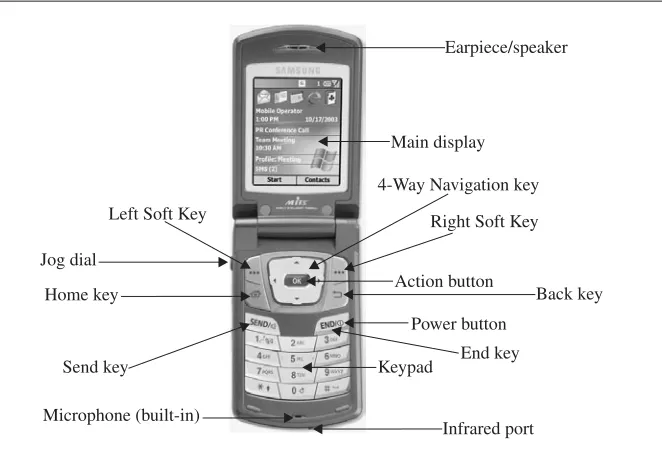
While the layout and design of every Smartphone model is slightly different, the MPx200 shows all of the buttons, ports, and other areas of the phone you’ll need to understand in order to properly use your Windows Mobile Smartphone. Here’s a quick overview of the MPx200’s layout (see Figures 1-1 and 1-2).
FIGURE 1-1 The Motorola MPx200 Windows Mobile Smartphone
FIGURE 1-2 The Samsung i600’s functionality is virtually identical to the Motorola
Earpiece/speaker
Jog dial
Power button Home key
Microphone (built-in)
Infrared port 4-Way Navigation key
Main display
End key Action button
Keypad
Back key Left Soft Key
Send key
Discover What the Buttons on Your
Smartphone Actually Do
Now that you know where the various buttons are located on your phone, let’s take a look at what they do and how to use them:
■ Earpiece/speaker (built-in, above the screen) For listening to the person you’re speaking with on the phone, when you’re not using an optional headset.
■ Left and right Soft Keys On the bottom of the screen, two commands (one on the right and one on the left) are usually displayed. To activate the left command, you press the left Soft Key that’s located just below the screen. To activate the command on the right, press the right Soft Key, also located just below the screen.
■ Send key Once you’ve entered a phone number you wish to dial, press the Send key to initiate a call. You can also use this button to select a number to dial from your call history list or to answer an incoming call. When you’re on the phone and need to place a caller on hold in order to answer Call Waiting, the Send key gets pressed again. Finally, the Send key can also activate the built-in speaker phone feature during a call.
■ Jog dial This dial, located on the side of the phone, can be used to control the speaker volume, record voice memos, quickly mute the incoming ringer, or ignore an incoming call (and send that call to voice mail.) It can be used with or without an optional headset or headphones. (A headset is used to make phone calls and has a built-in microphone, while headphones are used for listening to music and/or audio using Windows Media Player, for example.) Instead of a jog dial, the Samsung i600 offers two buttons located on the left side of the handset. These buttons serve the same purpose as the jog dial on the Motorola MPx200.
■ Home key Pressing this button quickly returns you to the Windows Mobile Start screen (a.k.a. the Welcome screen). This screen is equivalent to the main desktop area of a PC running any version of Microsoft Windows.
■ Power button This button allows you to turn the power of your Smartphone on or off. On the MPx200, it’s located on the left side of the phone’s handset. On the i600, the power can be turned on or off by holding down the End button on the phone’s keypad.
■ Infrared port This port allows your Smartphone to communicate with other devices, including other Smartphones. It can be used for syncing data with a desktop computer or another Smartphone, or in conjunction with wireless printers, keyboards, and other accessories.
■ Microphone (built-in) When speaking on the phone, without the use of a headset, this microphone (located below the keypad) is what you speak into.
■ Main display The main phone display is where you see all of the menus, icons, and graphics that allow your Windows Mobile Smartphone to operate.
■ 4-Way Navigation key This multi-directional button is one of the most used buttons on your phone. It allows you to move around on the main screen, move the cursor (in some applications), and select icons and commands. You can move up, down, left, or right and jump between menu options and text fields, for example.
■ Action button (located in the center of the 4-Way Navigation key) Once you’ve used the 4-Way Navigation key to highlight a specific command or onscreen menu option, press the Action button once to confirm that selection or choose that option. This button is equivalent to pressing the Enter key on your desktop computer’s keyboard or double-clicking your desktop computer’s mouse to activate a program or make a menu section. This button is referred to as the OK button on some Smartphones, such as the Samsung i600.
■ End key To end a voice or data call, press this button once.
■ Back key As you navigate around the menus or surf the Web on your Smartphone screen, the Back key allows you to move to the previous option or screen with the touch of a single button. (It’s similar to the Back button on the Microsoft Explorer web browser.)
■ Keypad The keypad on the Smartphone looks just like a traditional phone, with the numbers from 1 to 9 (plus zero) displayed in order, just like on a regular phone. On your Smartphone’s keypad, however, the asterisk (*), pound (#), and number 1 buttons have multiple uses, depending on what application you’re running.
1
can be stored on optional memory cards. Also on the phone’s outer shell is the external display (located on the front of the closed phone). You’ll also find the sync/charger port (located on the bottom of the phone) and the headset jack (located on the upper-right side of the MPx200 phone and on the upper-left side of the i600). These same ports and jack can be found on virtually all Smartphones, but in slightly different locations.
Smartphone Users Speak Out
■ Marc Pell
■ Job Title: Owner & Operator
■ Company: MS Mobile News (www.MSMobileNews.com)
Marc Pell is a journalist and technophile who enjoys using the latest gadgets. This is what attracted him to the Windows Mobile Smartphones and caused him to launch the MS Mobile News web site in January 2003. Based in Hertfordshire, UK, Pell gets a chance to check out all of the latest Smartphones as they’re released in Europe. The Smartphone model he uses on a day-to-day basis, however, is the Orange SPV E200.
“I love Smartphone technology because it allows me to easily synchronize my contacts and appointments with my computer. The ability to store a huge amount of information for each person in my contact database is also extremely useful to me,” said Pell.
While Pell describes his Smartphone as an extremely valuable device that helps him with his work, he also enjoys using it as an MP3 player and for playing games. For fun, he enjoys creating customized Home Screens using his own photos and graphics.
Discover the Built-In Functionality
of Your Smartphone
Even without adding optional software, your Smartphone is already a powerful communications device for making/receiving calls, sending/receiving e-mail, and surfing the Web. It can also be used for listening to music (MP3 files) and a wide range of other applications, all of which are built into the phone. Later in this book, you discover how to add additional (optional) software applications to the phone to expand its functionality.
The remainder of this chapter, however, focuses on introducing you to the basic applications and functionality built into the Windows Mobile operating system.
First up in this introduction is the Windows Mobile Welcome screen, shown in Figure 1-3, which you’ll see when you turn your Smartphone on. When you see this Welcome screen, your phone is ready for action. On some phones, this is referred to as the Start screen.
Understand the Icons and Menu
Options on Your Start Screen
At the top of the Windows Mobile Start screen, you’ll see several icons, similar to the familiar Windows operating system desktop computer icons. If you’re using an AT&T Wireless compatible Smartphone, one of the icons at the top of this screen
1
is the mMode icon. (You’ll see an m> surrounded by a circle.) This is the wireless
Internet environment created specifically for wireless handheld device users created and operated by AT&T Wireless.
Other icons on the Start screen allow you to quickly access your Inbox (for e-mail and text messages) and Calendar. The familiar blueeicon is for the Windows Mobile version of the Internet Explorer web browser. If you already use Internet Explorer, you’re familiar with IE although here it’s been scaled down to accommodate the phone’s smaller screen and optimized for one-handed operation, primarily using the 4-Way Navigation key, Action button, Back button, and the right and left Soft Keys, as shown in Figure 1-4.
These are the default icons found on the Welcome screen. You’ll soon discover how to easily customize this screen in a number of ways. The following figures illustrate a variety of different looks you can give your Windows Mobile Welcome screen, simply by adjusting the Home screen options found under the Settings menu.
To access any of the Windows Mobile Start screen programs from their icon, use the 4-Way Navigation key to highlight the appropriate icon, and then press the Action button once. The appropriate program launches, giving you a wide range of submenus or other commands.
mMode (AT&T Wireless Only)
The advertising tagline for mMode is “Go beyond voice.” This online environment allows you to seamlessly connect to the wireless Internet using your Smartphone to accomplish a wide range of tasks with the fewest button pushes possible. When you access mMode (see Figure 1-5), you’ll have quick access to downloadable
FIGURE 1-4 The 4-Way Navigation key allows you to scroll around the screen—up, down, left, or right.
Back button Action button
games, customized ring tones, mail, and messaging (including mMode Mail, AOL Mail, POP e-mail accounts, and instant messaging).
While mMode is specifically for AT&T Wireless customers, other service providers offer similar services. Sprint PCS, for example, offers PCS Vision, which offers similar functionality.
Store Text and E-mail in Your Smartphone’s Inbox
Your Inbox is where incoming text messages (SMS text messages) and e-mails can be stored and accessed. From here, you can also activate ActiveSync to compose and send an e-mail or text message. You can find more about sending and receiving e-mails, text messages, and SMS text messages in Chapter 6.
Your Smartphone Can Handle Your Outlook Contacts
Your Smartphone can work seamlessly with Microsoft Outlook, so contacts, appointments, and other information already stored in your desktop computer’s Outlook database can be synced (transferred) to your Smartphone. The phone itself, however, also offers a powerful contact management and database program that can be used on its own.
To learn more about using Outlook in conjunction with your Smartphone, be sure to read Chapter 10.
Whether or not you currently use Outlook to manage your contacts and schedule, your Smartphone has built-in software that can easily help you manage information about hundreds or even thousands of contacts, plus even the busiest person’s schedule.
To add your contacts, highlight the Contacts icon using the 4-Way Navigation button, and then press the Action button. At the top of the screen, the message “Press New to create a new contact” will be displayed. At the bottom of the screen, the commands New and Menu appear. To execute the New command, press the left Soft Key. Likewise, you can press the right Soft Key to access the program’s menu.
The sub-commands under the Menu command allow you to add a new contact (to be stored in the phone’s memory), add a new SIM contact (to be stored on the phone’s SIM card), delete a contact, beam a contact to another phone, or categorize and then filter your contacts.
Selecting New enables you to enter the contact information for a new contact and add that person to your phone’s database. As you’ll see, there are a bunch of input field options available for each contact. You can fill in only those that apply for each contact. These fields are self-explanatory (see Figure 1-6).
To enter alphanumeric text into your phone—to add a contact, for example— highlight the Contacts icon at the top of the main screen and press the Action button. Next, press the left Soft Key (to activate the New command). The Contact subscreen will appear on the phone. You will be prompted to enter the contact’s first name.
1
Enter Text into Your Smartphone
You can enter text into your Smartphone, whether it’s a new contact, appointment, SMS text message, or any other piece of information, in one of several ways. You can enter data directly from the phone’s keypad, or enter your data on your PC, and then sync (transfer) it to your phone later.
Multipress Text Entry Mode
Just like your regular telephone, on the Smartphone’s keypad are the numbers 0 through 9. With the exception of the 1 and 0, each number on the keypad contains three or four letters. See the chart that follows for details.
Button on
Keypad Corresponding Letters
1 Used to add punctuation (such as a period, coma, semicolon, colon, exclamation point, dash, backslash, and so on) when entering alphanumeric text
2 A B C 3 D E F 4 G H I 5 J K L 6 M N O 7 P Q R S 8 T U V 9 W X Y Z
0 No corresponding letters
* Used to shift between upper- and lowercase letters (Aora)
Help With Text Data
1
Using the letters on the phone’s keypad, enter one letter at a time. For example, if the contact’s first name is Jason, you’d press the 5 key once to make aJappear. For theA,you’d press the 2 key once. For theS,you’d need to press the 7 key four times to scroll between the letters (P, Q, R,andS). To add theO,press the 6 key three times. Finally, to add theN,press the 6 key again two times.
To add a space, press the pound (#) button. The asterisk (*) key acts as the shift to switch between upper- and lowercase letters. Entering text into your phone using this method may seem a bit confusing and time-consuming at first, but you’ll quickly get the hang of it.
Make Text Entry Easy with the T9 Text Entry Mode
One of the “smart” features built into your Smartphone is the T9 mode for text entry. In this mode, the phone tries to predict what word you’re entering and finish it for you (based on a built-in dictionary of words). This function is designed to make typing text easier using the phone’s keypad. Whether or not you choose to use the T9 mode is a personal preference.
To access the T9 mode when you’re about to enter alphanumeric text into a field, press and hold the asterisk (*) button until the T9 indicator appears at the top of the display, as shown in Figure 1-7.
Then, enter your text, one letter or number at a time. When a word automatically appears that you want to select, press the pound (#) key to accept it, and then add a space after that word. If the word is incorrect, press the zero (0) key to scroll through a list of other word options. If the word doesn’t appear that you’re trying
to enter, press and hold the asterisk (*) key again to return to the Multipress text entry mode, and then enter the word one letter as a time.
To add punctuation to your text using the Motorola MPx200, press the 1 button to scroll through your options, which include a period (.), comma (,), dash (-), question mark (?), exclamation point (!), single quote (‘), at symbol (@), and colon (:). Using the Samsung i600, press the 1 button to access the punctuation option, and then press zero (0) to scroll through your options.
To switch between upper- and lowercase text, press the asterisk (*) button once (without holding it down) as you enter the text. Adding a space between words is done by pressing the pound key (#) once in between words.
Press and hold down the asterisk (*) button to switch between the Multipress Text Entry mode and T9 Text Entry mode.
Using optional third-party software, which is described in greater detail within Chapter 10, you can further enhance the capabilities of your Smartphone for managing your contacts, address book, phone numbers, and other important data.
Use Your Calendar to Track Appointments and To-Do Lists
Although your Smartphone is fully compatible with the desktop PC version of Microsoft Outlook, this stand-alone application allows you to keep track of your appointments and to-do lists with relative ease. After all, not everyone uses Outlook as their primary contact management and scheduling software.
After selecting the Calendar option by moving the phone’s onscreen cursor to highlight the appropriate icon and then pressing the Action button, you’ll see the day and date displayed in the upper-left corner of the screen. This is the daily Agenda screen. Because you have no appointments yet entered into the phone, the words “No appointments” will appear. Normally, this screen would display your appointments for the current day (as shown in Figure 1-8).
To change the view and see a week’s worth of appointments, press the left Soft Key. In a spreadsheet-like layout, the days of the week are displayed across the top of the screen, while along the left side of the screen are time increments (broken up by hours).
1
Navigation key to move the red box around the screen. When the appropriate day is highlighted, press the Action button.
When you’re ready to input an appointment directly into the phone, select the Menu option at the bottom of the screen by pressing he right Soft Key once. Several menu options will appear. To choose any of these commands, either highlight it with the cursor and press the Action key, or press the corresponding number on the keypad.
Calendar Program Menu Options Your Smartphone’s built-in Calendar program is an ideal tool for keeping track of your day-to-day schedule, whether or not you decide to sync your data with Microsoft Outlook. The following are the main options available when using the Calendar program on your Smartphone:
■ New Enter a new appointment directly into the phone using the phone’s keypad. Use the Multipress Text Entry mode or the T9 Text Entry mode to do this.
■ Delete Delete an appointment that’s stored in your phone.
■ Week View Change the view from a single day overview to a weekly overview of your appointments.
FIGURE 1-8 When you begin entering new appointments into your Calendar, this is what the screen might look like (a); you can view your schedule in a variety of different formats, such as the Month view (b).
■ Month View Change the view from a weekly overview to a monthly overview of your appointments.
■ Go to Today Immediately return to today’s date to view your appointments.
■ Go to Date View your appointments for a specific date by entering the day of your choice.
■ Options This command allows you to further customize the Calendar program that’s built into your Smartphone.
Using the cursor, highlight the New option, or press the number 1 on the keypad. This will cause the New Appointment screen to appear so you can begin entering your appointments.
In addition to entering your appointments directly into the phone, you have the option of using the Sync software that came with your Smartphone. This allows you to enter your appointments on your desktop computer, and then transfer the data to your Smartphone or enter appointments directly on your Smartphone, then sync them with your PC that’s running Microsoft Outlook.
A third alternative is to sync your Microsoft Outlook data to your Smartphone, which is described in detail in Chapter 10.
Entering a New Appointment Directly into Your Smartphone From the New Appointment screen, you can enter details about a new appointment or to-do item by filling in the appropriate data fields on the screen. The information you’ll be prompted to enter includes:
■ Subject This is the subject of your appointment, such as who it’s with.
■ Start Date You can enter in any start date for the appointment. The default option will be today’s date.
■ Start Time You can choose any start time for the appointment to begin.
1
■ End Time End time allows you to pinpoint when the appointment will end (and determine the length of your appointment). By placing a checkmark in the All Day Event submenu option, you can easily block out your entire day for a single appointment. This is done by highlighting the appropriate box and pressing the Action key.
■ Location Using the phone’s keypad, you can enter the location of the meeting or appointment.
■ Reminder Your Smartphone will remind you about your appointment by sounding an alarm in advance. With this option, you determine how much advance notice you’d like. The default is 15 minutes; however, you can set the reminder to be 30 minutes, an hour, several hours, or even one or more days in advance.
■ Occurs If you’re setting an appointment that happens once per day (such as taking medication) or on a weekly or monthly basis, you can set the appointment to automatically repeat itself at whatever time interval you choose, without having to enter the same appointment information repeatedly.
■ Status This option allows you to further customize the information you enter about the appointment. Using the 4-Way Navigation key, choose from default status messages, such as Busy, Out of Office, Free, or Tentative.
Byplacing a checkmark next to the Private icon, you can also make this appointment so nobody else can see it on your phone (or if you sync the data to Outlook, for example).
■ Notes This field allows you to enter text to better describe the appointment, meeting, or to-do list item.
When you’ve completed entering information about your appointment into the appropriate data fields, simply activate the Done menu option by pressing the left Soft Key. This will store the appointment data on your phone. Repeat this procedure for all of your appointments as you schedule them.
■ The First Day of the Week (the default option is Sunday)
■ The Week View (the default is 5 days at a time)
■ The Month View
■ The Default for Reminders (the default is 15 minutes, but you can change it to 30 minutes, 1 hour, 1 day, 1 week, or None) by using the 4-Way Navigation key to highlight the option of your choice and then press the Action button to select it.
Browse the Web with Your Smartphone
and Internet Explorer
One of the most powerful features of your Smartphone is its ability to tap into the World Wide Web wirelessly using a browser program that’s very similar to the version of Microsoft Internet Explorer you’re probably accustomed to using on your desktop computer. From your Smartphone’s main screen, use the 4-Way Navigation key to scroll right until the Explorer option is highlighted. Next, press the Action button on the blueeto activate the program (see Figure 1-9).
When Explorer is running, the first sub-screen you’ll see is a list of your Favorite links. Several links are already built into the phone, which you can later replace with your own, based on the functions and web sites you’ll be visiting often from your Smartphone. To select any of the Favorite links already in the phone, use the
1
4-Way Navigation key to highlight the appropriate link and press the Action button
to access that web site or URL. You can also do this by highlighting the appropriate link and activating the Go command by pressing the left Soft Key.
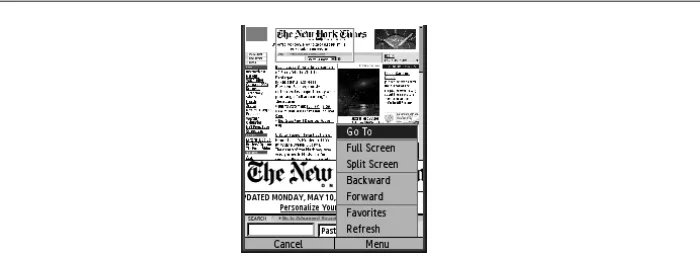
By pressing the right Soft Key, you can access the Explorer menu. From here, you have six options that will allow you to quickly reach whatever web site or URL you’re looking for. Your options under this submenu include the following:
■ Address Bar The address bar allows you to use the phone’s keypad to enter a web site’s URL (such as www.JasonRich.com).
■ Add Favorite If you’ve already surfed to a web site you’d like to save on your Favorites screen, you can use this command to save it. It’s similar to saving a bookmark on the desktop version of Explorer.
■ Add Folder Add Folder allows you to sort your favorite links and web sites into specific folders so you can find them more easily. For example, as you begin to customize your phone, you can create a folder for work-related URLs, personal URLs, travel-work-related URLs, and so on.
■ Edit Once a favorite web site or URL is saved on your phone, its name, address (URL), and folder where it’s stored can be edited using this command.
■ Delete If there’s a stored URL or web site you no longer want to save as one of your Favorites, use this command to delete it.
■ Options By activating the Options submenu, you can further customize Explorer, by choosing whether or not you want pictures from web sites downloaded and displayed, whether or not you want sounds played, whether or not you want to be warned when accessing an unsecured page, and whether or not you want to allow cookies to be saved. You can also choose the language you want Explorer to be displayed in. For English-speaking users, the Western European option is the default. Also under the Options submenu you can adjust various connection settings (which should be left alone once the phone is set up and working); plus you can determine how much memory Explorer can use to store temporary files, cookies, and your web surfing history.