Access
™
2007 Bible
Michael R. Groh, Joseph C. Stockman,
Gavin Powell, Cary N. Prague,
Access
™Access
™
2007 Bible
Michael R. Groh, Joseph C. Stockman,
Gavin Powell, Cary N. Prague,
Access™ 2007 Bible
Published by
Wiley Publishing, Inc. 10475 Crosspoint Boulevard Indianapolis, IN 46256
www.wiley.com
Copyright © 2007 by Wiley Publishing, Inc., Indianapolis, Indiana Published simultaneously in Canada
Library of Congress Control Number: 2006936763 ISBN-13: 978-0-470-04673-9
ISBN-10: 0-470-04673-2
Manufactured in the United States of America 10 9 8 7 6 5 4 3 2 1
1B/RT/RS/QW/IN
No part of this publication may be reproduced, stored in a retrieval system or transmitted in any form or by any means, electronic, mechanical, photocopying, recording, scanning or otherwise, except as permitted under Sections 107 or 108 of the 1976 United States Copyright Act, without either the prior written permission of the Publisher, or authorization through payment of the appropriate per-copy fee to the Copyright Clearance Center, 222 Rosewood Drive, Danvers, MA 01923, (978) 750-8400, fax (978) 646-8600. Requests to the Publisher for permission should be addressed to the Legal Department, Wiley Publishing, Inc., 10475 Crosspoint Blvd., Indianapolis, IN 46256, (317) 572-3447, fax (317) 572-4355, or online at http://www.wiley.com/go/permissions.
LIMIT OF LIABILITY/DISCLAIMER OF WARRANTY: THE PUBLISHER AND THE AUTHOR MAKE NO REPRESENTATIONS OR WARRANTIES WITH RESPECT TO THE ACCURACY OR COMPLETENESS OF THE CONTENTS OF THIS WORK AND SPECIFICALLY DISCLAIM ALL WARRANTIES, INCLUDING WITHOUT LIMITATION WARRANTIES OF FITNESS FOR A PARTICULAR PURPOSE. NO WARRANTY MAY BE CREATED OR EXTENDED BY SALES OR PROMOTIONAL MATERIALS. THE ADVICE AND STRATEGIES CONTAINED HEREIN MAY NOT BE SUITABLE FOR EVERY SITUATION. THIS WORK IS SOLD WITH THE UNDERSTANDING THAT THE PUBLISHER IS NOT ENGAGED IN RENDERING LEGAL, ACCOUNTING, OR OTHER PROFESSIONAL SERVICES. IF PROFESSIONAL ASSISTANCE IS REQUIRED, THE SERVICES OF A COMPETENT PROFESSIONAL PERSON SHOULD BE SOUGHT. NEITHER THE PUBLISHER NOR THE AUTHOR SHALL BE LIABLE FOR DAMAGES ARISING HEREFROM. THE FACT THAT AN ORGANIZATION OR WEBSITE IS REFERRED TO IN THIS WORK AS A CITATION AND/OR A POTENTIAL SOURCE OF FURTHER INFORMATION DOES NOT MEAN THAT THE AUTHOR OR THE PUBLISHER ENDORSES THE INFORMATION THE ORGANIZATION OR WEBSITE MAY PROVIDE OR RECOMMENDATIONS IT MAY MAKE. FURTHER, READERS SHOULD BE AWARE THAT INTERNET WEBSITES LISTED IN THIS WORK MAY HAVE CHANGED OR DISAPPEARED BETWEEN WHEN THIS WORK WAS WRITTEN AND WHEN IT IS READ.
For general information on our other products and services or to obtain technical support, please contact our Customer Care Department within the U.S. at (800) 762-2974, outside the U.S. at (317) 572-3993 or fax (317) 572-4002.
Trademarks:Wiley, the Wiley logo, and related trade dress are trademarks or registered trademarks of John Wiley & Sons, Inc. and/or its affiliates, in the United States and other countries, and may not be used without written permission. Access is a trademark of Microsoft Corporation in the United States and/or other countries. All other trademarks are the property of their respective owners. Wiley Publishing, Inc., is not associated with any product or vendor mentioned in this book. Wiley also publishes its books in a variety of electronic formats. Some content that appears in print may not be available in electronic books.
About the Authors
Michael R. Grohis a well-known author, writer, and consultant specializing in Windows database systems. His company, PC Productivity Solutions, provides information-management applications to companies across the country. Over the last 25 years, Mike has worked with a wide variety of programming languages, operating systems, and computer hardware, ranging from programming a DEC PDP-8A using the Focal interpreted language to building distributed applications under Visual Studio .NET and Microsoft SharePoint.
Mike was one of the first people outside of Microsoft to see Access in action. He was among a select group of journalists and publishers invited to preview the Access 1.0 beta (then called Cirrus) at the 1992 Windows World Conference in Chicago. Since then, Mike has been involved in every Microsoft Access beta program, as an insider and as a journalist and reporter documenting the evo-lution of this fascinating product.
Mike has authored parts of more than 20 different computer books and is a frequent contributor to computer magazines and journals. Mike has written more than 200 articles and editorials over the last 15 years, mostly for Advisor Media (San Diego, CA). He frequently speaks at computer confer-ences virtually everywhere in the world, and is technical editor and contributor to periodicals and publications produced by Advisor Media.
Mike holds a master’s degree in Clinical Chemistry from the University of Iowa (Iowa City, IA) and an MBA from Northeastern University (Boston, MA).
Mike can be reached at [email protected]. Please prefix the e-mail subject line with “AccessBible:” to get past the spam blocker on this account.
Joseph C. Stockmanis an independent consultant, software designer, and author who has been using Microsoft Access since its initial release. He has also developed courseware and taught classes in Access and VBA. Joe developed his first application in Access, and then migrated into Visual Basic and Visual Basic .NET, where he specializes in creating applications for the Windows Mobile platform. He worked for several software companies before forming his consulting business in 2002, where he deals with all types of clients including healthcare, financial, government, manu-facturing, and small business. His ability to turn his customers’ wishes into working applications keeps them satisfied. Joe is also writing the fundamentals column for the Advisor Guide to Microsoft Access magazine.
Gavin Powell is a computer consultant and a writer, with over 20 years of IT experience and over 10 titles to his credit. He has worked as a programmer, analyst, data modeler, database administra-tor, and Unix administrator. Gavin is also a semiprofessional musician, songwriter, and recording engineer, playing multiple instruments and writing prolifically. Gavin can be reached by e-mail at [email protected] [email protected].
include a line of financial software; Business! for Microsoft Office, a mid-range accounting system, POSitively Business! Point of Sale software, the Inventory Barcode manager for mobile data collec-tion, and the Check Writer and General Ledger. Database Creations also produces a line of devel-oper tools including the appBuilder, an application generator for Microsoft Access, the EZ Access Developer Tools for building great user interfaces, appWatcher for maintaining code bases among several developers, and Surgical Strike, the only Patch Manager for Microsoft Access.
Cary also owns Database Creations Consulting, LLC., a successful consulting firm specializing in Microsoft Access and SQL Server applications. Local and national clients include many Fortune 100 companies including manufacturers, defense contractors, insurance, health-care, and software industry companies. His client list includes Microsoft, United Technologies, ABB, Smith & Wesson Firearms, Pratt and Whitney Aircraft, ProHealth, OfficeMax, Continental Airlines, and other Fortune 500 companies.
Formerly, he has held numerous management positions in corporate information systems, includ-ing Director of Managed Care Reportinclud-ing for MetraHealth, Director of Corporate Finance and Software Productivity at Travelers Insurance where he was responsible for software support for 35,000 end users, and Manager of Information Systems support for Northeast Utilities.
He is one of the top best-selling authors in the computer database management market, having written over 40 books that have sold over one million copies on software including Microsoft Access, Borland (Ashton-Tate) dBASE, Paradox, R:Base, Framework, and graphics. Cary’s books include 11 books in the Access Bible series (recently number one on the Ingram Bestselling Database Titles list and in the Amazon.com top 100), Access 97 Secrets, dBASE for Windows Handbook, dBASE IV Programming (winner of the Computer Press Association’s Book of the Year award for Best Software Specific Book), and Everyman’s Database Primer Featuring dBASE IV.He recently completed several books for Access 2003 including Weekend Crash Course in Office Access 2003 Programming. Cary recently sold a product line named eTools for Microsoft Access to MightyWords, a division of FatBrain.com and Barnes and Noble.
Cary is certified in Access as a Microsoft Certified Professional and has passed the MOUS test in Access and Word. He is a frequent speaker at seminars and conferences around the country. He is on the exclusive Microsoft Access Insider Advisory Board and makes frequent trips to Microsoft headquarters in Redmond, WA. He has been voted the best speaker by the attendees of several national conferences. Recently, he was a speaker for Microsoft sponsored conferences in New Orleans, Hawaii, Phoenix, Chicago, Toronto, Palm Springs, Boston, and Orlando. He has also spo-ken at Borland’s Database Conference, Digital Consulting’s Database World, Microsoft’s Developer Days, Computerland’s Technomics Conference, COMDEX, and COMPAQ Computer’s Innovate. He was a contributing editor to Access Advisormagazine and has written for the Microsoft Office Developer’sjournal.
He is active in local town politics serving on the South Windsor, Connecticut Board of Education, Parks and Recreation Commission, and the Board of Assessment Appeals.
Cary holds a master’s degree in computer science from Rensselaer Polytechnic Institute, and an M.B.A and Bachelor of Accounting from the University of Connecticut. He is also a Certified Data Processor.
vi
About the Authors
Michael R. Irwinis considered one of the leading authorities on automated database and Internet management systems today. He is a noted worldwide lecturer, a winner of national and interna-tional awards, best-selling author, and developer of client/server, Internet, Intranet, and PC-based database management systems.
Michael has extensive database knowledge, gained by working with the Metropolitan Police Department in Washington, D.C. as a developer and analyst for the Information Systems Division for over 20 years and assorted Federal Agencies of the United States Government. Since retiring in June 1992, he runs his own consulting firm, named The Irwin Group, and is principal partner in the company - IT in Asia, LLC, specializing in Internet database integration and emphasizing Client/Server and net solutions. With consulting offices in Cincinnati, Ohio, Bangkok, Thailand, and Manila, Philippines, his companies offer training and development of Internet and database applications. His company has the distinction of being one of the first Microsoft Solution’s Providers (in 1992). His local, national, and international clients include many software compa-nies, manufacturers, government agencies, and international companies.
His range of expertise includes database processing and integration between mainframe, minicom-puter, and PC-based database systems, as well as B-2-B and B-2-C integration between back-end databases; he is a leading authority on PC-based databases.
He is one of the top best-selling authors in the computer database management market, having authored numerous database books, with several of them consistently on the best-sellers lists. His books, combined, have sold nearly a million copies worldwide. His most recent works include The OOPs Primer(Borland Press), dBASE 5.5 for Windows Programming (Prentice Hall), Microsoft Access 2002 Bible, Microsoft Access 2002 Bible Gold Edition (co-authored), and Working with the Internet.The Access Bibleseries have constantly been number one on the Ingram Best-selling Database Titles list and is consistently in the Amazon.com and Buy.com top 10. He has also written several books on customs and cultures of the countries of Asia (including China, Japan, Thailand, and India). Two of his books have won international acclaim. His books are published in over 24 languages world-wide. He has been a contributing editor and author to many well-known magazines and journals.
He is a frequent speaker at seminars and conferences around the world and has been voted the best speaker by the attendees of several international conferences.
Michael has developed and markets several add-on software products for the Internet and produc-tivity related applications. Many of his producproduc-tivity applications can be obtained from several of his Internet sites or on many common download sites. Many of his application and systems are dis-tributed as freeware and careware. He has also developed and distributes several development tools and add-ins for a wide range of developer applications.
Jennifer Reardonis considered a leading developer of custom database applications. She has over ten years’ experience developing client/server and PC-based applications. She has accumulated much of her application development experience working as lead developer for Database Creations. She has partnered with Cary Prague developing applications for many Fortune 500 companies.
vii
About the Authors
Her most significant projects include a spare parts inventory control system for Pratt & Whitney’s F22 program, an engineering specifications system for ABB-Combustion Engineering, and an emergency event tracking system for the State of Connecticut. She was also the lead developer of many of the Database Creations add-on software products including Business, Yes! I Can Run My Business, Check Writer, and the User Interface Construction Kit.
She has co-authored Access 2003 Bible, Access 2002 Bible, and Access 2000 Weekend Crash Course. She has also written chapters in other books on subjects including Data Access Pages, the Microsoft Database Engine, the VBA programming environment, creating help systems, and using Microsoft Office 2000 Developer. She has authored chapters in Microsoft Access 97 Bibleand Access 97 Secrets.
Jennifer owns her own consulting firm, Advanced Software Concepts, providing custom applica-tions to both the public and private sectors. She specializes in developing client information sys-tems for state-managed and privately-held healthcare organizations. She has also developed a job costing and project management system for an international construction company. Her corporate experience includes seven years with The Travelers where she was an Associate Software Engineer serving on numerous mission-critical client/server software development projects using Easel, C, SQL Server, and DB2. She has contributed several chapters for books on dBase and Microsoft Access.
Jennifer holds a Bachelor of Science degree from the University of Massachusetts.
viii
About the Authors
ix
Credits
Acquisitions Manager Greg Croy
Project Editor Elizabeth Kuball
Technical Editor Vincent McCune
Copy Editor Elizabeth Kuball
Editorial Manager Jodi Jensen
Vice President & Executive Group Publisher Richard Swadley
Vice President and Publisher Andy Cummings
Editorial Director Mary C. Corder
Project Coordinator Heather Kolter
Graphics and Production Specialists Carrie A. Foster
Brooke Graczyk Denny Hager Joyce Haughey Jennifer Mayberry
Quality Control Technicians Laura Albert
Jessica Kramer Christine Pingleton
Media Development Project Supervisor Laura Moss
Media Development Specialist Kit Malone
Proofreading and Indexing Techbooks
Acknowledgments ...xxxix
Foreword ...xli
Part I: Access Building Blocks . . . 1
Chapter 1: An Introduction to Database Development ...3
Chapter 2: Creating Access Tables ...23
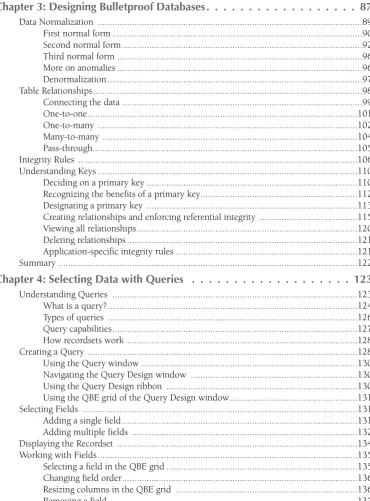
Chapter 3: Designing Bulletproof Databases ...87
Chapter 4: Selecting Data with Queries ...123
Chapter 5: Using Operators and Expressions in Access ...161
Chapter 6: Working with Datasheet View...203
Chapter 7: Creating Basic Access Forms...237
Chapter 8: Working with Data on Access Forms ...269
Chapter 9: Presenting Data with Access Reports...297
Part II: Programming Microsoft Access . . . 345
Chapter 10: VBA Programming Fundamentals ...347
Chapter 11: Mastering VBA Data Types and Procedures ...385
Chapter 12: Understanding the Access Event Model ...417
Chapter 13: Using Expressions in Queries and VBA Code ...443
Chapter 14: Accessing Data with VBA Code...471
Chapter 15: Using the VBA Debugging Tools ...497
Part III: More Advanced Access Techniques . . . 523
Chapter 16: Working with External Data ...525
Chapter 17: Importing and Exporting Data ...555
Chapter 18: Advanced Access Query Techniques ...581
Chapter 19: Advanced Access Form Techniques ...617
Chapter 20: Advanced Access Report Techniques ...647
Chapter 21: Building Multiuser Applications ...685
Chapter 22: Integrating Access with Other Applications ...723
Chapter 23: Integrating Access with SharePoint ...749
Chapter 24: Using ActiveX Controls...769
Chapter 25: Handling Errors and Exceptions ...801
x
Part IV: Professional Database Development . . . 821
Chapter 26: Optimizing Access Applications ...823
Chapter 27: Advanced Data Access with VBA...863
Chapter 28: Bulletproofing Access Applications ...877
Chapter 29: Securing Access Applications ...909
Chapter 30: Using the Windows API ...951
Chapter 31: Using the Access Replication Features ...987
Chapter 32: Object-Oriented Programming with VBA ...1037
Chapter 33: Reusing VBA Code with Libraries ...1079
Chapter 34: Customizing Access Ribbons ...1089
Chapter 35: Distributing Access Applications...1117
Chapter 36: Using Access Macros...1133
Part V: Access as an Enterprise Platform . . . 1163
Chapter 37: Using XML in Access 2007 ...1165
Chapter 38: SharePoint as a Data Source ...1191
Chapter 39: Client/Server Concepts ...1209
Chapter 40: SQL Server as an Access Companion ...1223
Chapter 41: Upsizing Access Databases to SQL Server ...1249
Part VI: Appendixes . . . 1265
Appendix A: Access 2007 Specifications ...1267
Appendix B: What’s on the CD-ROM ...1275
Appendix C: What’s New in Access 2007 ...1279
Index ...1291
Wiley Publishing, Inc. End-User License Agreement ...1362
xi
Acknowledgments. . . xxxix
Introduction . . . xli
Part I: Access Building Blocks
1
Chapter 1: An Introduction to Database Development . . . 3
The Database Terminology of Access ...4
Databases ...4
Tables ...5
Records and fields ...6
Values ...6
Relational Databases ...7
Working with multiple tables ...7
Knowing why you should create multiple tables...7
Access Database Objects and Views ...8
Datasheets ...8
Queries...9
Data-entry and display forms ...9
Reports ...10
Designing the system’s objects ...10
A Five-Step Design Method ...10
Step 1: The overall design — from concept to reality ...11
Step 2: Report design ...13
Step 3: Data design: What fields are required? ...14
Step 4: Table design ...17
Step 5: Form design: Input ...21
Summary ...22
Chapter 2: Creating Access Tables . . . 23
Getting Started with Access 2007 ...23
The Templates section ...24
The File menu ...25
Creating a Database ...26
xiii
The Access 2007 Environment ...29
The Navigation Pane...30
The ribbon ...32
Other relevant features of the Access environment ...33
Creating a New Table ...35
The importance of naming conventions ...36
The table design process ...37
Using the Design ribbon tab ...42
Working with fields ...43
Creating tblContacts...51
AutoNumber fields and Access ...51
Completing tblContacts ...52
Changing a Table Design ...52
Inserting a new field ...52
Deleting a field ...53
Changing a field location ...53
Changing a field name ...53
Changing a field size...54
Data conversion issues ...54
Assigning field properties ...55
Understanding tblContacts Field Properties ...71
Understanding the Lookup Property window ...71
Setting the Primary Key ...72
Understanding unique values ...73
Choosing a primary key ...73
Creating the primary key ...74
Creating composite primary keys ...74
Indexing Access Tables ...75
The importance of indexes ...76
Multiple-field indexes...78
When to index tables ...80
Indexing tblContacts ...80
Printing a Table Design...81
Saving the Completed Table ...82
Manipulating Tables in a Database Window ...82
Renaming tables ...82
Deleting tables ...83
Copying tables in a database...83
Copying a table to another database ...84
Adding Records to a Database Table ...85
Understanding the Attachment Data Type ...85
Summary ...86
xiv
Contents
Chapter 3: Designing Bulletproof Databases . . . 87
Data Normalization ...89
First normal form ...90
Second normal form ...92
Third normal form ...96
More on anomalies ...96
[image:18.531.104.475.88.590.2]Denormalization ...97
Table Relationships...98
Connecting the data ...99
One-to-one...101
One-to-many ...102
Many-to-many ...104
Pass-through...105
Integrity Rules ...106
Understanding Keys ...110
Deciding on a primary key ...110
Recognizing the benefits of a primary key...112
Designating a primary key ...113
Creating relationships and enforcing referential integrity ...115
Viewing all relationships...120
Deleting relationships ...121
Application-specific integrity rules ...121
Summary ...122
Chapter 4: Selecting Data with Queries . . . 123
Understanding Queries ...123
What is a query?...124
Types of queries ...126
Query capabilities...127
How recordsets work ...128
Creating a Query ...128
Using the Query window ...130
Navigating the Query Design window ...130
Using the Query Design ribbon ...130
Using the QBE grid of the Query Design window...131
Selecting Fields ...131
Adding a single field ...131
Adding multiple fields ...132
Displaying the Recordset ...134
Working with Fields ...135
Selecting a field in the QBE grid ...135
Changing field order...136
Resizing columns in the QBE grid ...136
Removing a field...137
xv
Contents
Inserting a field...137
Providing an alias for the field name...137
Showing a field...138
Changing the Sort Order ...139
Displaying Only Selected Records ...141
Understanding selection criteria ...141
Entering simple string criteria...141
Entering other simple criteria ...143
Printing a Query’s Recordset...144
Saving a Query ...145
Adding More Than One Table to a Query...145
Working with the Table/Query Pane...146
The join line ...146
Manipulating the Field List window ...147
Moving a table ...147
Removing a table ...147
Adding more tables ...147
Adding Fields from More Than One Table ...148
Viewing the table names ...148
Adding multiple fields ...149
Understanding Multi-Table Query Limitations ...149
Updating limitations...150
Overcoming query limitations ...151
Creating and Working with Query Joins...151
Joining tables ...153
Specify the type of join ...153
Deleting joins ...155
Understanding Table Join Types ...156
Inner joins (equi-joins) ...156
Changing join properties ...157
Inner and outer joins ...158
Creating a Cartesian product ...159
Summary ...160
Chapter 5: Using Operators and Expressions in Access . . . 161
What Are Operators? ...161
Types of operators...162
Operator precedence ...173
Moving beyond Simple Queries ...175
Using query comparison operators ...176
Understanding complex criteria selection ...177
Using functions in select queries...181
Referencing fields in select queries ...181
Entering Single-Value Field Criteria ...181
Entering character (Text or Memo) criteria ...182
The Like operator and wildcards ...183
xvi
Contents
Specifying non-matching values ...187
Entering numeric (Number, Currency, or Counter) criteria...188
Entering Yes/No (logic) criteria ...189
Entering a criterion for an OLE object ...190
Entering Multiple Criteria in One Field ...190
Understanding an Or operation ...190
Specifying multiple values for a field using the Or operator ...191
Using the Or: cell of the QBE pane ...192
Using a list of values with the In operator...192
Understanding an And query ...193
Specifying a range using the And operator ...193
Using the Between...And operator ...194
Searching for Null data ...195
Entering Criteria in Multiple Fields ...196
Using And and Or across fields in a query ...196
Specifying And criteria across fields of a query ...197
Specifying Or criteria across fields of a query ...198
Using And and Or together in different fields ...199
A complex query on different lines ...199
Creating a New Calculated Field in a Query ...200
Summary ...201
Chapter 6: Working with Datasheet View. . . 203
Understanding Datasheets ...203
The Datasheet Window ...205
Moving within a datasheet ...206
The Navigation buttons ...206
The Datasheet ribbon ...207
Opening a Datasheet ...208
Entering New Data ...208
Saving the record ...210
Understanding automatic data-type validation ...211
Understanding how properties affect data entry ...212
Navigating Records in a Datasheet ...214
Moving between records...214
Finding a specific value ...215
Changing Values in a Datasheet ...217
Replacing an existing value manually ...217
Changing an existing value ...217
Fields that you can’t edit...218
Using the Undo Feature ...219
Copying and Pasting Values ...219
Replacing Values...220
Adding New Records ...221
Deleting Records ...221
xvii
Contents
Displaying Records...222
Changing the field order...222
Changing the field display width ...223
Changing the record display height ...224
Changing display fonts ...225
Displaying cell gridlines and alternate row colors ...226
Aligning data in columns ...228
Hiding and unhiding columns ...228
Freezing columns ...229
Saving the changed layout ...229
Saving a record ...229
Sorting and Filtering Records in a Datasheet ...229
Using the QuickSort feature ...230
Using Filter by Selection...230
Using Filter by Form ...233
Printing Records...233
Printing the datasheet ...234
Using the Print Preview window...235
Summary ...235
Chapter 7: Creating Basic Access Forms . . . 237
Adding Forms Using the Ribbon ...237
Creating a new form ...238
Creating a split form...239
Creating a multiple-items form ...240
Creating a form using the Form Wizard ...241
Creating a datasheet form ...242
Creating a blank form...243
Adding Controls...243
Resizing the form area ...244
Saving the form ...244
Understanding controls ...245
The different control types ...245
The two ways to add a control ...247
Selecting Controls ...252
Selecting a single control ...253
Selecting multiple controls ...253
Deselecting controls ...253
Manipulating Controls ...254
Resizing a control ...254
Sizing controls automatically ...255
Moving a control ...255
Aligning controls ...256
Modifying the appearance of a control ...258
Modifying the appearance of multiple controls ...259
Grouping controls ...259
Deleting a control ...260
xviii
Contents
Attaching a label to a control ...260 Copying a control ...261 Changing the control type ...262 Understanding properties...262 Displaying the Property Sheet...263 Understanding the Property Sheet ...264 Changing a control’s property setting ...264 Summary ...267
Chapter 8: Working with Data on Access Forms . . . 269
Using Form View ...269 The Form ribbon ...271 Navigating between fields ...272 Moving between records in a form ...273 Changing Values in a Form...273 Controls that you can’t edit...274 Working with pictures and OLE objects ...274 Memo field data entry...276 Date field data entry ...276 Using option groups ...277 Using combo boxes and list boxes ...278 Switching to Datasheet View...278 Saving a record ...279 Printing a Form ...279 Using the Print Preview window...280 Working with Form Properties ...280 Changing the title bar text with the Caption property...281 Creating a bound form ...282 Specifying how to view the form...282 Eliminating the Record Selector bar ...284 Other form properties...284 Adding a Form Header or Footer ...290 Changing the Layout ...291 Changing a control’s properties...291 Setting the Tab Order ...292 Aligning controls ...293 Modifying the format of text in a control ...293 Creating a Calculated Control ...295 Converting a Form to a Report ...296 Summary ...296
Chapter 9: Presenting Data with Access Reports . . . 297
Understanding Reports...297 Understanding report types ...297 Distinguishing between reports and forms ...300 Understanding the process of creating a report ...301
xix
Contents
Creating a Report with Report Wizards ...301 Creating a new report ...302 Selecting the grouping levels...303 Defining the group data ...304 Selecting the sort order ...304 Selecting summary options...305 Selecting the layout ...306 Choosing the style ...307 Opening the report design ...307 Using the Print Preview window...308 Viewing the Report Design window ...310 Printing a Report ...310 Saving the Report ...311 Starting with a Blank Form...311 Layout view ...311 Report Design view...312 Banded Report Writer Concepts ...313 The Report Designer sections ...314 Creating a Report from Scratch...317 Creating a new report and binding it to a query ...319 Defining the report page size and layout...320 Placing controls on the report...321 Resizing a section ...322 Working with text boxes and their attached label controls ...324 Changing label and text box control properties ...330 Growing and shrinking text box controls ...331 Sorting and grouping data ...332 Sorting data within groups ...333 Adding page breaks ...337 Making the Report Presentation Quality ...337 Adjusting the Page Header ...338 Creating an expression in the group header ...339 Changing the picture properties and the Detail section...340 Creating a standard page footer ...341 Saving your report ...343 Summary ...343
Part II: Programming Microsoft Access
345
Chapter 10: VBA Programming Fundamentals . . . 347
Understanding the Limitations of Macros ...347 Introducing Visual Basic for Applications ...348 Understanding VBA Terminology ...349
xx
Contents
Migrating from Macros to VBA ...351 When to use macros and when to use VBA...351 Converting existing macros to VBA...352 Using the Command Button Wizard to create VBA code...354 Creating VBA Programs ...356 Understanding events and event procedures...357 Understanding modules ...358 Creating a new module...360 Understanding VBA Branching Constructs ...368 Conditional execution ...369 Repetitive Looping ...372 Working with Objects and Collections ...374 The With statement ...375 The For Each statement ...376 Using Compiler Directives ...377 Access 2007 Options for Developers ...379 Editor tab in Options dialog box ...379 The Project Properties dialog box ...380 Command-line arguments ...383 Summary ...384
Chapter 11: Mastering VBA Data Types and Procedures . . . 385
The Access VBA Editor ...386 Using Variables...389 Naming variables ...390 Declaring variables ...391 Working with Data Types ...395 Comparing implicit and explicit variables...397 Forcing explicit declaration ...399 Using a naming convention ...399 Understanding variable scope and lifetime ...400 Understanding Subs and Functions ...403 Understanding where to create a procedure ...404 Calling VBA procedures ...404 Creating subs ...405 Creating Functions ...409 Handling parameters ...409 Calling a function and passing parameters ...411 Creating a Function to Calculate Taxes...413 Named arguments ...415 Summary ...416
xxi
Contents
Chapter 12: Understanding the Access Event Model . . . 417
Programming Events ...417 How do events trigger VBA code? ...418 Where to trigger event procedures ...419 Common Events...420 Form Event Procedures ...421 Primary form events ...421 Form mouse and keyboard events ...423 Form data events ...423 Form PivotTable events ...424 Form Access Data Project events...425 Control Event Procedures...426 Event Order ...428 Opening a form with an event procedure ...431 Running an event procedure when closing a form ...433 Using an event procedure to confirm record deletion ...434 Using the MsgBox() function ...435 Report Event Procedures ...438 Running an event procedure as a report opens ...438 Report Section Event Procedures ...439 Using the Format event ...440 Summary ...441
Chapter 13: Using Expressions in Queries and VBA Code . . . 443
Understanding Expressions ...443 The parts of an expression ...445 Creating an expression ...448 Special identifier operators and expressions ...451 Special keywords and properties...454 Understanding Functions ...455 Using functions in Access ...455 Types of functions...456 Using the DLookUp() function for lookup tables ...467 Summary ...469
Chapter 14: Accessing Data with VBA Code . . . 471
Understanding SQL ...471 Viewing SQL statements in queries...472 An SQL primer ...473 Creating Programs to Update a Table ...480 Updating fields in a record using ADO ...481 Updating a calculated field for a record ...486 Adding a new record ...490 Deleting a record ...491 Deleting related records in multiple tables ...492 Summary ...495
xxii
Contents
Chapter 15: Using the VBA Debugging Tools . . . 497
Testing and Debugging Your Applications ...498 Understanding the Sources of Errors ...499 Syntactical errors ...499 Logical errors ...501 Runtime errors ...501 Avoiding errors ...502 Using the Module Options ...504 Auto Syntax Check ...504 Break on All Errors ...504 Require Variable Declaration...505 Compile on Demand ...505 Auto List Members ...505 Auto Quick Info ...505 Auto Data Tips ...506 Compiling VBA Code ...506 Traditional Debugging Techniques ...508 Using MsgBox...508 Using compiler directives ...509 Using Debug.Print ...511 Using the Access Debugging Tools ...512 Getting to know the Immediate window...512 Running code with the Immediate window ...512 Suspending execution with breakpoints ...513 Stepping through statements ...515 Using the Locals window ...517 Setting watches...518 Using conditional watches ...520 Using the Call Stack window ...521 Summary ...522
Part III: More Advanced Access Techniques
523
Chapter 16: Working with External Data . . . 525
Access and External Data ...526 Types of external data ...526 Methods of working with external data...526 Linking External Data...529 Linking to external database tables ...530 Limitations of linked data ...532 Linking to other Access database tables ...533 Linking to ODBC data sources ...536 Linking to dBASE databases (tables) ...536 Linking to Paradox tables ...537
xxiii
Contents
Linking to non-database data ...537 Splitting an Access database ...542 Working with Linked Tables...543 Setting view properties ...543 Setting relationships ...544 Optimizing linked tables ...544 Deleting a linked table reference...544 Viewing or changing information for linked tables ...545 Using Code to Link Tables in Access ...546 The Connect and SourceTableName properties...546 Checking links ...552 Summary ...554
Chapter 17: Importing and Exporting Data . . . 555
Types of Imports and Exports ...555 Importing External Data...557 Importing from another Access database ...557 Importing spreadsheet data ...558 Importing a SharePoint list ...561 Importing text file data ...561 Importing an XML document ...569 Importing an HTML document...570 Importing Access objects other than tables ...571 Importing an Outlook folder ...572 Importing through ODBC drivers ...572 Importing non-Access, PC-based database tables ...574 Troubleshooting import errors ...576 Exporting to External Formats ...577 Exporting objects to other Access databases ...577 Exporting through ODBC drivers ...578 Functionality exclusive to exports...579 Summary ...580
Chapter 18: Advanced Access Query Techniques. . . 581
Using Calculated Fields ...581 Finding the Number of Records in a Table or Query ...585 Finding the Top (n) Records in a Query ...585 How Queries Save Field Selections ...587 Hiding (not showing) fields ...587 Renaming fields in queries ...588 Hiding and unhiding columns in Design View ...589 Setting Query Properties...589 Creating Queries That Calculate Totals ...592 Query Wizard summaries ...592 Aggregate queries in Design View ...593 Grand totals in aggregates...595
xxiv
Contents
Subtotals in aggregates ...595 Filtering aggregates with criteria ...597 Crosstab Queries ...599 Duplicate and Unmatched Queries...601 Find Duplicates Query Wizard ...601 Find Unmatched Query Wizard ...603 SQL-Specific Queries ...604 Creating union queries ...604 Creating pass-through queries ...607 Creating data definition queries ...608 Creating SQL subqueries in an Access query ...608 Action Queries ...609 Types of action queries ...609 Viewing the results of an action query ...610 Action queries cannot be reversed ...611 Creating Action Queries ...611 Troubleshooting action queries ...615 Summary ...616
Chapter 19: Advanced Access Form Techniques . . . 617
Setting Control Properties ...617 Customizing default properties...619 Manipulating controls at runtime ...620 Reading control properties ...623 Working with Subforms ...624 Form Design Techniques ...626 Using the Tab Stop property ...626 Tallying check boxes...626 Adding animation...627 Using SQL for a faster refresh ...628 Selecting data for overtyping ...628 Toggling properties with Not ...629 Creating an auto-closing form ...629 Combo box techniques...630 Determining whether a form is open ...631 Advanced Forms Techniques ...632 Page Number and Date/Time controls ...632 Image control ...633 Control “morphing” ...634 Format Painter ...635 Offering more end-user help...635 Adding background pictures ...636 Form events ...638 Using the Tab Control ...638 Using Dialog Boxes to Collect Information ...641 Composing the SQL statement ...643 Adding a default button ...644
xxv
Contents
Setting a Cancel button...645 Removing the control menu ...645 Closing the form...645 Summary ...646
Chapter 20: Advanced Access Report Techniques . . . 647
Hide Repeating Information ...648 Alphabetically Group Data ...650 Group on Date Intervals ...654 Create Numbered Lists ...655 Add Bullet Characters...658 Add Emphasis at Runtime ...660 Hide a Page Header ...662 Avoid Empty Reports ...663 Start a New Page Number for Each Group ...664 Avoid Null Values in a Tabular Report ...664 Add More Information to Report ...665 Add the User’s Name to a Bound Report...666 Add Vertical Lines between Columns ...666 Add a Blank Line Every nRecords ...668 Even-Odd Page Printing ...670 Display All Reports in a Combo Box...672 Use Different Formats in the Same Text Box ...674 Fast Printing from Queried Data...674 Hide Forms during Print Preview ...675 A Few Quick Report Tips ...676 Center the title ...676 Easily align control labels ...676 Micro-adjust controls ...676 Always assign unique names to controls ...677 Use Snaking Columns in a Report ...677 Exploiting Two-Pass Report Processing...682 Summary ...684
Chapter 21: Building Multiuser Applications . . . 685
Network Issues...686 Network performance...686 File location ...686 Data sources ...688 Special network situations ...689 Database Open Options ...690 Splitting Databases for Network Access ...692 Where to put which objects ...696 Using the Database Splitter add-in ...696 Locking Issues ...698 Access’s built-in record-locking features ...699 Default Open Mode ...701
xxvi
Contents
Number of Update Retries ...701 Update Retry Interval ...701 Refresh Interval ...701 ODBC Refresh Interval ...702 Record-Lock Error Handling ...702 A function to handle lock errors ...703 Error 3260: Couldn’t update; currently locked by user . . . ...705 Error 3186: Couldn’t save; currently locked by user x on machine y ...709 What about Error 3188? ...711 Error: 3197: Data has changed; operation stopped ...712 Using Unbound Forms in Multiuser Environments ...714 Creating an unbound form ...715 Making it work ...716 The Tag property ...716 The form Open event ...716 Moving through records ...718 Editing data ...720 Summary ...722
Chapter 22: Integrating Access with Other Applications. . . 723
Using Automation to Integrate with Office ...724 Creating Automation references ...724 Creating an instance of an Automation object...727 Getting an existing object instance ...728 Working with Automation objects ...729 Closing an instance of an Automation object ...730 An Automation Example Using Word...730 Creating an instance of a Word object...735 Making the instance of Word visible ...736 Creating a new document based on an existing template ...736 Using Bookmarks to insert data ...736 Activating the instance of Word ...737 Moving the cursor in Word...737 Closing the instance of the Word object ...737 Inserting pictures by using bookmarks ...737 Using Office’s Macro Recorder ...738 Collecting Data with Outlook 2007 ...740 Creating an e-mail ...740 Managing replies ...743 Summary ...747
Chapter 23: Integrating Access with SharePoint . . . 749
What Is SharePoint? ...749 What is SharePoint Services technology? ...750 What is a SharePoint Portal Server? ...750 SharePoint Applications: Types of Web Sites...751 What Is a SharePoint List? ...754
xxvii
Contents
Introducing a SharePoint Services Web Site ...754 Integrating Access 2007 and SharePoint ...758 Sourcing data from a SharePoint Services Web site ...759 Sourcing data from an Access database ...764 SharePoint and Different Operating Systems ...766 SharePoint Lists as External Data ...767 Summary ...768
Chapter 24: Using ActiveX Controls. . . 769
Understanding Objects...769 Looking at the types of objects ...770 Using bound and unbound objects...770 Linking and embedding ...771 Embedding Objects ...772 Embedding an unbound object ...773 Embedding bound objects ...777 Adding a bound OLE object ...777 Adding a picture to a bound object frame...778 Editing an embedded object ...779 Linking Objects ...780 Creating a Graph or Chart ...782 The different ways to create a graph ...782 Creating graphs using the Toolbox ...783 Embedding a Graph in a Form ...783 Assembling the data ...783 Adding the graph to the form ...784 Customizing a graph ...791 Integration with Microsoft Office ...792 Checking the spelling of one or more fields and records...792 Using OLE automation with Office ...793 Creating an Excel-type PivotTable...793 Summary ...799
Chapter 25: Handling Errors and Exceptions . . . 801
Dealing with Errors ...801 Logical errors ...802 Runtime errors ...802 Which Errors Can Be Detected? ...806 What is an error handle?...806 Setting a basic error trap ...807 Trapping Errors with VBA ...808 The Error event ...809 The ADO Errors collection ...810 The Err object...812 VBA Error statement variations ...813 Summary ...820
xxviii
Contents
Part IV: Professional Database Development
821
Chapter 26: Optimizing Access Applications . . . 823
Understanding Module Load on Demand...823 Organizing your modules ...824 Access 2007 prunes the call tree ...824 Using the Access 2007 Database File Format ...826 Distributing .accde Files ...828 Understanding the Compiled State...829 Putting your application’s code into a compiled state ...830 Losing the compiled state ...831 Distributing applications in a compiled or uncompiled state ...832 Improving Absolute Speed ...836 Opening a database exclusively ...836 Compacting a database ...837 Tuning your system ...838 Getting the most from your tables ...838 Getting the most from your queries ...840 Getting the most from your forms and reports ...842 Getting the most from your modules ...844 Increasing Network performance ...849 Improving Perceived Speed ...849 Using a splash screen ...849 Loading and keeping forms hidden ...851 Using the hourglass ...851 Using the built-in progress meter ...851 Creating a progress meter with a pop-up form ...853 Speeding up the progress meter display ...855 Working with Large Program Databases in Access 2007 ...856 How databases grow in size ...856 Compiling and compacting may not be enough ...857 Rebooting gives you a clean memory map ...857 Fixing a single corrupt form by removing the record source ...857 Creating a new database and importing all objects ...858 Using the decompile option in Access 2007 ...858 Recapping the six steps to large database success ...859 Detecting an uncompiled database and automatically recompiling ...860 Making small changes to large databases — Export ...861 Summary ...862
Chapter 27: Advanced Data Access with VBA . . . 863
Adding an Unbound Combo Box ...863 Using the FindRecord Method ...865 Using the Bookmark to Locate a Record ...867
xxix
Contents
Filtering a Form Using Code ...869 Using a Query to Filter a Form Interactively...871 Creating a parameter query ...871 Creating an interactive dialog box...874 Linking the dialog box to another form ...875 Summary ...876
Chapter 28: Bulletproofing Access Applications . . . 877
What Is Bulletproofing? ...878 Characteristics of Bulletproof Applications ...878 Bulletproofing Goes Beyond Code ...879 Document the code you write...880 Build to a specification ...880 Document the application ...880 Use professional installation tools ...881 Provide the Access runtime module to users...882 Consider the user’s skill and training requirements ...882 Understand the user’s motivations ...884 Check for obvious hardware errors ...884 Continue to improve the product ...885 Principles of Bulletproofing ...885 Make the application easy to start...886 Use startup options...886 Use a login form ...889 Use a splash screen ...890 Add switchboards to the application...891 Control the ribbons ...891 Hide the Navigation Pane and remove menus...892 Display one form at a time ...893 Trap unwanted keystrokes ...893 Build bulletproof forms ...893 Validate user input ...894 Keep the user informed ...894 Maintain usage logs ...894 Develop to a Specification ...895 Securing the Environment ...897 Setting Startup Options in Code...897 Disable Startup Bypass ...898 Setting property values ...900 Getting property values ...901 Providing User Feedback ...902 Creating and using a progress meter ...905 Adding Logging to Applications ...906 Summary ...908
xxx
Contents
Chapter 29: Securing Access Applications . . . 909
Understanding Jet Security ...909 Understanding workgroup files ...910 Understanding permissions ...910 Understanding security limitations ...911 Choosing a Security Level to Implement ...912 Creating a Database Password ...912 Using the /runtime Option ...915 Using the Current Database Options ...917 Using the Jet User-Level Security Model ...919 Enabling security ...920 Working with workgroups ...921 Working with users ...921 Working with groups ...925 Securing objects by using permissions ...929 Using the Access Security Wizard...934 Encrypting/Encoding a Database ...942 Decrypting/Decoding a Database ...943 Protecting Visual Basic Code ...944 Preventing Virus Infections...945 Enabling sandbox mode ...946 The Trust Center...948 Summary ...949
Chapter 30: Using the Windows API . . . 951
What Is the Windows API?...951 Dynamic linking ...952 Why Use the Windows API?...952 Common codebase ...953 Tested and proven code ...953 Cross-platform compatibility ...953 Smaller application footprint ...953 DLL Documentation...953 Where to find documentation...954 Deciphering the documentation ...954 Data types...954 What you can’t do with the API ...957 How to Use the Windows API ...958 The Declare statement ...958 Using wrapper functions ...961 What is this “hwnd” thing? ...962 API Examples ...962 Retrieving system information ...964 General-purpose Windows API functions ...972
xxxi
Contents
Manipulating application settings with the Windows API ...975 Controlling applications with the Registry ...980 Summary ...986
Chapter 31: Using the Access Replication Features . . . 987
Understanding Replication ...988 A Replication Demonstration ...990 Creating the database ...990 Changing the replica...993 Replication Pros and Cons ...995 Introducing the Access Replication Tools ...996 Using Access menus ...997 Replicating through VBA and DAO...997 Creating a Replica Set...997 Using Access replication menus ...998 Programmatic replication ...998 Understanding Database Security in Replication Sets ...998 The Importance of Local Objects ...999 Resolving Replication Conflicts ...1000 Design errors ...1000 Synchronization conflicts ...1001 Manual conflict resolution ...1002 Synchronization errors ...1003 Replication Topologies ...1004 Replication from the Developer’s Perspective ...1005 Understanding the Changes to Database Objects ...1005 Globally unique ID ...1005 New system tables ...1006 New fields ...1009 Changes to AutoNumber fields...1010 Changes to the Design Master Structure ...1011 Changes to data ...1011 Controlling replica creation ...1011 Things to avoid...1013 Programming Replication ...1014 Keeping objects local ...1014 Converting a database to a Design Master...1017 Making new replicas...1021 Synchronizing replicas ...1022 Replication properties...1023 Moving the Design Master ...1023 Scheduling synchronization events ...1024 Partial Replicas ...1025 Using the Partial Replica Wizard...1026 Choosing the type of replica ...1029 Programming partial replication with VBA ...1029
xxxii
Contents
Advanced Replication Considerations...1035 Summary ...1036
Chapter 32: Object-Oriented Programming with VBA . . . 1037
Benefits of Object-Oriented Programming ...1038 Object basics ...1039 Class module basics ...1040 A simple class module ...1042 Adding a class module to a database...1043 Creating simple product properties...1044 Creating methods ...1045 Using the product object ...1046 Create bulletproof property procedures ...1049 Other Advantages of Object-Oriented Programming Techniques ...1050 Object-Oriented Programming Rules ...1053
Never reveal a user interface component, such as a message box,
from a class module...1053 Preserve the class’s interface as the class is updated...1053 Using Property Procedures ...1054 Persisting property values ...1055 Property Let syntax...1056 Property Set syntax ...1056 Property Get syntax ...1057 Property procedure rules ...1057 Extending the Product Class...1059 Retrieving product details ...1059 The new ProductID property ...1060 A new property...1062 Product Methods ...1063 Class Events ...1065 The Class_Initialize event procedure ...1065 The Class_Terminate event procedure ...1066 Adding Events to Class Modules ...1067 An Access events primer ...1068 The need for events ...1068 Creating custom events...1069 Raising events...1070 Trapping custom events ...1071 Passing data through events ...1073 Exploiting Access class module events ...1073 Access forms are objects ...1076 Summary ...1077
Chapter 33: Reusing VBA Code with Libraries . . . 1079
What Are Libraries? ...1080 Traditional Access programming...1081 Sharing code between applications ...1081
xxxiii
Contents
Access library basics ...1082 Access 2007 library database references ...1082 Creating Library Databases ...1085 Create the objects and write the functions ...1085 Save as .accde ...1086 Load the database as a library ...1087 Debugging Library Databases ...1087 Library Database Object References ...1087 Summary ...1088
Chapter 34: Customizing Access Ribbons . . . 1089
Why Replace Toolbars and Menus? ...1090 New controls for Access ribbons...1092 SplitButton ...1092 DropDown ...1092 Gallery ...1093 SuperTips ...1094 Working with the Access 2007 Ribbon...1095 Tabs ...1095 Groups ...1096 Controls ...1096 Managing the ribbon ...1096 Working with the Quick Access Toolbar...1097 Access 2007 Ribbons: The Developer’s Perspective...1098 The ribbon creation process ...1098 Using VBA callbacks ...1098 The Ribbon Hierarchy ...1100 Getting Started with Access 2007 Ribbons ...1100 Step 1: Design the ribbon and build the XML...1101 Step 2: Write the callback routines ...1101 Step 3: Create the USysRibbons table ...1103 Step 4: Add XML to USysRibbons ...1104 Step 5: Specify the custom ribbon property ...1106 The Basic Ribbon XML ...1106 Adding Ribbon Controls...1107 Label control ...1108 Separator ...1108 Check boxes ...1109 DropDown control ...1110 Using Visual Web Developer 2005 ...1112 Managing Ribbons ...1114 Completely Removing the Access 2007 Ribbon ...1115 Summary ...1116
xxxiv
Contents
Chapter 35: Distributing Access Applications . . . 1117
Defining the Current Database Options ...1118 Application Options ...1119 Navigation Options ...1121 Toolbar Options ...1123 Testing the Application before Distribution ...1124 Polishing Your Application ...1126 Giving your application a consistent look and feel ...1126 Adding common professional components ...1127 Bulletproofing an Application...1130 Using error trapping on all Visual Basic procedures ...1130 Separating the tables from the rest of the application ...1131 Documenting the application ...1132 Creating a Help system ...1132 Implementing a security structure ...1132 Summary ...1132
Chapter 36: Using Access Macros . . . 1133
Understanding Macros ...1133 The Hello World macro ...1134 Assign a macro to an event ...1136 Multiaction Macros...1137 Running multiple action queries...1138 Macro Names ...1140 Opening forms ...1140 Using Conditions ...1143 Opening reports using conditions...1143 Multiple actions in conditions ...1146 Using Temporary Variables ...1146 Enhanced Hello World macro...1147 Enhanced reporting macro ...1148 Using temporary variables in VBA ...1150 Handling Errors and Debugging Macros...1151 The OnError action ...1153 The MacroError object ...1155 Debugging macros ...1156 Embedded Macros ...1157 Macros versus VBA Statements ...1159 Converting existing macros to VBA...1160 Summary ...1162
xxxv
Contents
Part V: Access as an Enterprise Platform
1163
Chapter 37: Using XML in Access 2007 . . . 1165
Introducing HTML and XML ...1165 What is HTML? ...1166 What is XML?...1167 What is a DOM? ...1171 Formatting and transforming XSL(T) ...1171 Sharing data using XML ...1175 Some really advanced XML stuff ...1176 XML as a database ...1177 DAO, ADO, ADO.Net, Access 2007, and XML...1179 Summary ...1190
Chapter 38: SharePoint as a Data Source . . . 1191
Building Access Interfaces with SharePoint...1192 Copying from Access to SharePoint ...1193 Building an Access form using SharePoint data...1196 Building an Access report using SharePoint data...1198 SharePoint Application Types ...1200 Tracking applications ...1201 Collaborative applications and databases ...1206 Microsoft SharePoint Designer 2007...1207 Summary ...1208
Chapter 39: Client/Server Concepts . . . 1209
The Parts of Client/Server Architecture...1209 Applications ...1211 The back office ...1212 Multitier Architecture ...1217 Two-tier systems ...1217 Three-tier systems ...1218 What Is an OLTP Database? ...1218 Access, Client/Server, and Multiple Tiers ...1219 Where does Access 2007 fit? ...1219 Summary ...1222
Chapter 40: SQL Server as an Access Companion . . . 1223
Connecting to SQL Server ...1225 What is a listener? ...1225 What is a connection string?...1225 Connecting to SQL Server from Access...1227 SQL Server security ...1236
xxxvi
Contents
Working with SQL Server Objects from Access ...1239 Using SQL Server tables from Access ...1239 Views in SQL Server ...1243 Stored procedures, functions, and triggers ...1245 Summary ...1248
Chapter 41: Upsizing Access Databases to SQL Server . . . 1249
Upsizing Access and the Upsizing Wizard ...1250 Before upsizing an application ...1251 Running the Upsizing Wizard...1252 Working with an Access ADP file ...1257 Comparing Access 2007 to SQL Server data types ...1259 Summary ...1264
Part VI: Appendixes
1265
Appendix A: Access 2007 Specifications . . . 1267
Appendix B: What’s on the CD-ROM . . . 1275
Appendix C: What’s New in Access 2007 . . . 1279
Index . . . 1291
Wiley Publishing, Inc. End-User License Agreement . . . 1362
xxxvii
Contents
W
hen we first saw Access in July of 1992, we were instantly sold on this new-generation database management and access tool. We’ve all spent the last 15 years using Access daily. In fact, we eat, breathe, live, and sleep Access!The fact that we can earn a living from our work with principally one product is a tribute to the Microsoft Access designers. This product has changed the productivity of corporations and private citizens of the world. More people use this product to run their businesses, manage their affairs, track the most important things in their lives, and manage data in their work and play than any other product ever written. It is indeed a privilege to be part of this worldwide community.
Now we have completely rewritten this book for Access 2007, with new examples and more in-depth coverage. We’ve covered every new feature we could think of for the beginning and interme-diate users and especially enhanced our programming section. Over 500,000 copies of our Access Bibles have been sold for all versions of Microsoft Access; for this we thank all of our loyal readers.
Our first acknowledgment is to all the users of Access who have profited and benefited beyond everyone’s wildest dreams.
There are many people who assisted us in writing this book. We’d like to recognize each of them.
To Greg Croy, whom we complain to each day. Thanks for listening, Pilgrim.
To Carole McClendon, the very best literary agent in the business, and all the folks at Waterside Productions for being our agents.
A special thank you to Erik Rucker, Clint Covington, Michael McCormack, Jensen Harris, Shavaj Dhanial, and the rest of the Microsoft Access 2007 Team! You’ve built a terrific product, and we thank you!
Also, thanks to the Fixed Income–IT group at Raymond James Financial: Julie Valdez, Marek Pokropinski, Aalan Elliot, Aly Fernandez, Bernard Brown, Coni Brown, Lilly Dejesus-Normand, Mae Mello, Michel Thiran, Nancy Hawkins, Renee Crumity, and Steven Twors. Thanks so much for your patience during my many absences during this project! Thanks to these wonderful people, we were able to deliver a quality book to our readers. For Pam. You are the one.
—Mike Groh
xxxix
This book is dedicated to my mom, who sadly passed away a few days after I finished the project. She has always supported me and encouraged me in everything that I’ve done. She may not have known what Access is or does, but she knew I loved working with it. I’m sure she’s looking into bookstores everywhere and is proud to see her son’s name. I miss you, mom, and you’ll always be with me. Also, a big thanks to my family and friends, who supported me during this project and the difficult time afterwards.
—Joe Stockman
This book is dedicated to anyone and everyone using Access 2007. My hope is that readers have as much fun exploring the interface and features as I did during the process of work-ing on parts of this book.
—Gavin Powell
xl
Acknowledgments
W
elcome to the Access 2007 Bible, your personal guide to a powerful, easy-to-use database-management system. This book is in its tenth revision and has been totally rewritten for Microsoft Access 2007 with new text, new pictures, and a completely new and improved set of example files.This book examines Access 2007 with more examples than any other Access 2007 book. We strongly believe that Microsoft Access is an excellent database manager and the best desktop and workgroup database-development system available today. Our goal with this book is to share what we know about Access and, in the process, to help make your work and your life easier.
This book contains everything you need in order to learn Microsoft Access to a mid-advanced level. The book starts off with database basics and builds, chapter by chapter, on topics previously covered. In places where it is essential that you understand previously covered topics, we present the concepts again and review how to perform specific tasks before moving on. Although each chapter is an integral part of the book as a whole, each chapter can also stand on its own and has its own example files. You can read the book in any order you want, skipping from chapter to chapter and from topic to topic. (Note that this book’s index is particularly thorough; you can refer to the index to find the location of a particular topic you’re interested in.)
The examples in this book have been well thought out to simulate the types of tables, queries, forms, and reports most people need to create when performing common business activities. There are many notes, tips, and techniques (and even a few secrets) to help you better understand Microsoft Access.
This book easily substitutes for the online help included with Access. This book guides you through each task you need to perform with Access. This book follows a much more structured approach than the Microsoft Access online help, going into more depth on almost every topic and showing many different types of examples. You’re also going to find much more detail than in most other books on Microsoft Access.
Is This Book for You?
We wrote this book for beginning, intermediate, and even advanced users of Microsoft Access 2007. With any product, most users start at the beginning. If, however, you’re already familiar with Microsoft Access and you’ve worked with the sample files or other Access applications, you may want to start with the later parts of this book. Note, however, that starting at the beginning of a book is usually a good idea so you don’t miss out on the secrets and tips in the early chapters.
xli
We think this book covers Microsoft Access 2007 in detail better than any other book currently on the market. We hope you’ll find this book helpful while working with Access, and that you enjoy the innovative style of a Wiley book.
Yes — If you have no database experience
If you’re new to the world of database management, this book has everything you need to get started with Microsoft Access 2007. It then offers advanced topics for reference and learning. Beginning developers should pay particular attention to Part I, where we cover the essential skills necessary for building successful and efficient databases. Your ability as a database designer is con-stantly judged by how well the applications you build perform, and how well they handle data entrusted to them by their users. The chapters in Part I won’t necessarily make you an expert database designer, but we guarantee you’ll be a better developer if you carefully read this material.
Yes — If you’ve used other database
managers like Filemaker
If you’re abandoning another database (such as Filemaker, Paradox, or FoxPro) or even upgrading from an earlier version of Access, this book is for you. You’ll have a head start because you’re already familiar with database managers and how to use them. With Microsoft Access, you will be able to do all the tasks you’ve performed with other database systems — without programming or getting lost. This book will take you through each subject step by step.
Yes — If you want to learn the basics of Visual Basic
for Applications (VBA) programming
We understand that a very large book is needed to properly cover VBA, but we took the time to put together many chapters that build on what you learn in the forms chapters of this book. The VBA programming chapters use the same examples you’ll be familiar with by the end of the book. Part II of this book explains the nuts and bolts — with lots of gritty technical details — of writing VBA procedures and building Access applications around the code you add to your databases. Part II pro-vides everything you need (other than a lot of practice!) to become a bona-fide VBA programmer.
Conventions Used in This Book
The following conventions are used in this book:n When you’re instructed to press a key combination (press and hold down one key while pressing another key), the key combination is separated by a plus sign. Ctrl+Esc, for example, indicates that you must hold down the Ctrl key and press the Esc key; then release both keys.
xlii
Introduction
n Point the mouserefers to moving the mouse so that the mouse pointer is on a specific item. Clickrefers to pressing the left mouse button once and releasing it. Double-click refers to pressing the left mouse button twice in rapid succession and then releasing it. Right-clickrefers to pressing the right mouse button once and releasing it. Dragrefers to pressing and holding down the left mouse button while moving the mouse.
n Italic typeis used for new terms and for emphasis.
n Bold type is used for material you need to type directly into the computer.
n A special typefaceis used for information you see on-screen — error messages, expressions, and formulas, for example.
Icons and Alerts
You’ll notice special graphic symbols, or icons, used in the margins throughout this book. These icons are intended to alert you to points that are particularly important or noteworthy. The follow-ing icons are used in this book:
This icon highlights a special point of interest about the topic under discussion.
This icon points to a useful hint that may save you time or trouble.
This icon alerts you that the operation being described can cause problems if you’re not careful.
This icon points to a more complete discussion in another chapter of the book.
This icon highlights information for readers who are following the examples and using the sample files included on the disc accompanying this book.
This icon calls attention to new features of Access 2007.