A
+
A
+
TETZ, CLARKE, & PHILLIPS
exam-critical concepts and offering hands-on tips that can help you in your real-world IT career. Throughout, they
provide pre-tests, exam-style assessment questions, scenario exercises, and labs—everything you need to master
the material and pass the exam.
Shelving Category:
CertificationReader Level:
Beginning to AdvancedSystem Requirements:
PC running Windows 95 or later, Windows NT 4 or later. See the About the CD Appendix for details and complete system requirements.
ISBN 0-7645-4810-7
$59.99
USA$89.99
Canada£44.99
UK incl. VATMaster
the material
for
CompTIA exams
220-201 and
220-202
Test
your knowledge
with assessment
questions, scenario
exercises, and labs
Practice
on
state-of-the-art
test-preparation software
,!7IA7G4-feibaj!:p;p;T;T;t
w w w . h u n g r y m i n d s . c o m
A U T H O R I T A T I V E W H A T Y O U N E E D
O N E H U N D R E D P E R C E N T
*85555-AHGIDj
Covers the Core Hardware and OS Technology exams
A
+
A
+
Bible
Boson Software-powered test engine on CD-ROM About the AuthorsEd Tetz, A+, MCSE, MCT, has written several guides to MCSE certification. He is an instructor/IT Co-Coordinator at the Halifax, Nova Scotia branch of PBSC, an IBM subsidiary that is one of Canada’s premier computer training companies. Glen E. Clarke, A+, MCSE, MCSD, MCT, CIWCI, is a technical instructor at the Halifax, Nova Scotia branch of PBSC with over 4 years of certification teaching experience. Joseph Phillips, A+, Network+, MCSE, MCT, CTT, has written several books on the MCSE certification path. He is an independent trainer and consultant based in Indianapolis, Indiana.
Ed Tetz, A+, MCSE, MCT
Glen Clarke, A+, MCSE, MCSD, MCT, CIWCI
Joseph Phillips, A+, Network+, MCSE, MCT, CTT
Get complete coverage of Hardware and
OS exam objectives
•
Master hardware basics, from CPU chips, motherboards, and RAM
to ports, cables,and printers
•
Get the scoop on installing and configuring drives, peripherals, and
portable devices
•
Discover all you need to know about hardware maintenance and
troubleshooting
•
Get up to speed on OS basics, from command prompt procedures to
managing files and directories
•
Find out how to install and configure
Windows, device drivers, and applications
•
Get a handle on OS troubleshooting, from
deciphering error codes to running utilities
•
Delve into networking, from cards, cables, and
topographies to configuring Internet access
Hundreds of unique, exam-like questions give you a random set of questions each time you take the exam.
Hungry Minds
Test Engine powered by
Certification
Test Prep Tools on CD-ROM:
A customizable format enables you to define your own preferences for question presentation.
• Hungry Minds test engine powered by top-rated Boson Software • Searchable e-version of
A+ Certification
Bible
Ed Tetz, Glen E. Clarke, Joseph Phillips,
Angshuman Chakraborti, Meeta Gupta,
Mridula Parihar, Rashim Mogha
Hungry Minds, Inc.
Best-Selling Books • Digital Downloads • e-Books • Answer Networks • e-Newsletters • Branded Web Sites • e-Learning
A+ Certification Bible
Published by
Hungry Minds, Inc.
909 Third Avenue New York, NY 10022
www.hungryminds.com
Copyright © 2001 Hungry Minds, Inc. All rights reserved. No part of this book, including interior design, cover design, and icons, may be reproduced or transmitted in any form, by any means (electronic, photocopying, recording, or otherwise) without the prior written permission of the publisher.
Library of Congress Catalog Card No.: 2001090749 ISBN: 0-7645-4810-7
Printed in the United States of America 10 9 8 7 6 5 4 3 2 1
1P/RS/QX/QR/IN
Distributed in the United States by Hungry Minds, Inc.
Distributed by CDG Books Canada Inc. for Canada; by Transworld Publishers Limited in the United Kingdom; by IDG Norge Books for Norway; by IDG Sweden Books for Sweden; by IDG Books Australia Publishing Corporation Pty. Ltd. for Australia and New Zealand; by TransQuest Publishers Pte Ltd. for Singapore, Malaysia, Thailand, Indonesia, and Hong Kong; by Gotop Information Inc. for Taiwan; by ICG Muse, Inc. for Japan; by Intersoft for South Africa; by Eyrolles for France; by International Thomson Publishing for Germany, Austria, and Switzerland; by Distribuidora Cuspide for Argentina; by LR
International for Brazil; by Galileo Libros for Chile; by Ediciones ZETA S.C.R. Ltda. for Peru; by WS
Computer Publishing Corporation, Inc., for the
Philippines; by Contemporanea de Ediciones for Venezuela; by Express Computer Distributors for the Caribbean and West Indies; by Micronesia Media Distributor, Inc. for Micronesia; by Chips
Computadoras S.A. de C.V. for Mexico; by Editorial Norma de Panama S.A. for Panama; by American Bookshops for Finland.
For general information on Hungry Minds’ products and services please contact our Customer Care department within the U.S. at 800-762-2974, outside the U.S. at 317-572-3993 or fax 317-572-4002.
For sales inquiries and reseller information, including discounts, premium and bulk quantity sales, and foreign-language translations, please contact our Customer Care department at 800-434-3422, fax 317-572-4002 or write to Hungry Minds, Inc., Attn: Customer Care Department, 10475 Crosspoint Boulevard, Indianapolis, IN 46256.
For information on licensing foreign or domestic rights, please contact our Sub-Rights Customer Care department at 212-884-5000.
For information on using Hungry Minds’ products and services in the classroom or for ordering examination copies, please contact our Educational Sales department at 800-434-2086 or fax 317-572-4005. For press review copies, author interviews, or other publicity information, please contact our Public Relations department at 317-572-3168 or fax 317-572-4168.
For authorization to photocopy items for corporate, personal, or educational use, please contact Copyright Clearance Center, 222 Rosewood Drive, Danvers, MA 01923, or fax 978-750-4470.
LIMIT OF LIABILITY/DISCLAIMER OF WARRANTY: THE PUBLISHER AND AUTHOR HAVE USED THEIR BEST EFFORTS IN PREPARING THIS BOOK. THE PUBLISHER AND AUTHOR MAKE NO REPRESENTATIONS OR WARRANTIES WITH RESPECT TO THE ACCURACY OR COMPLETENESS OF THE CONTENTS OF THIS BOOK AND SPECIFICALLY DISCLAIM ANY IMPLIED WARRANTIES OF MERCHANTABILITY OR FITNESS FOR A PARTICULAR PURPOSE. THERE ARE NO WARRANTIES WHICH EXTEND BEYOND THE DESCRIPTIONS CONTAINED IN THIS PARAGRAPH. NO WARRANTY MAY BE CREATED OR EXTENDED BY SALES REPRESENTATIVES OR WRITTEN SALES MATERIALS. THE ACCURACY AND COMPLETENESS OF THE INFORMATION PROVIDED HEREIN AND THE OPINIONS STATED HEREIN ARE NOT GUARANTEED OR WARRANTED TO PRODUCE ANY PARTICULAR RESULTS, AND THE ADVICE AND STRATEGIES CONTAINED HEREIN MAY NOT BE SUITABLE FOR EVERY INDIVIDUAL. NEITHER THE PUBLISHER NOR AUTHOR SHALL BE LIABLE FOR ANY LOSS OF PROFIT OR ANY OTHER COMMERCIAL DAMAGES, INCLUDING BUT NOT LIMITED TO SPECIAL, INCIDENTAL, CONSEQUENTIAL, OR OTHER DAMAGES.
Trademarks:are trademarks or registered trademarks of Hungry Minds, Inc. All other trademarks are the property of their respective owners. Hungry Minds, Inc., is not associated with any product or vendor mentioned in this book.
About the Authors
Edward Tetzgraduated from Saint Lawrence College in Cornwall, Ontario with a degree in Business Administration in 1990. He spent a short time in computer sales, which eventually led to a computer support position. He has spent the last eight years performing system and LAN support for small and large organizations. In 1994 he added training to his repertoire. He holds the following certifications: A+,
Microsoft Certified Trainer (MCT), Microsoft Certified Systems Engineer (MCSE), and Chauncey Group’s Certified Technical Trainer (CTT). Over his years of work experience, he has supported Apple Macintosh, IBM OS/2, Linux, Novell NetWare, and all Microsoft operating systems from MS-DOS to Windows 2000. He is currently an Information Technology Coordinator and an Instructor for PBSC, a national train-ing company in Canada. Most of the traintrain-ing that he delivers is Microsoft-certified, but he also delivers technical training outside of that product line. He welcomes comments from his readers and can be contacted at [email protected].
Glen E. Clarkeis a Microsoft Certified Systems Engineer (MCSE), Microsoft
Certified Solution Developer (MCSD), and Microsoft Certified Trainer (MCT). Glen is also an A+ certified technician and holds Prosoft’s Certified Internet Webmaster-Certified Instructor certification (CIWCI). Glen currently works as a technical trainer for PBSC, one of Canada’s largest technical training centers, where he deliv-ers the A+ courses and Microsoft Certified Curriculum for the MCSE and MCSD pro-grams. When he’s not working, Glen loves to spend quality time with his wife, Tanya, and their two children, Sara and Brendon. He is an active member of the martial arts community, where he currently holds his first-degree black belt in Tae Kwon Do. You can contact Glen at [email protected].
Joseph Phillipsis an MCSE, MCT, and CTT, as well as a CompTIA A+ and Network+ Certified Technician. Joseph has taught, consulted on, and written about computer technologies since 1993. When he’s not working with computers, you can find Joseph on the golf course, behind a camera, or on the working end of a fly rod. Sometimes you can catch him at www.josephphillips.com.
Meeta Guptais certified in C++, JAVA, JFC/Swing, Java Script, Visual Basic 5.0–6.0, VBA, HTML, DHTML, SQL, Sybase, MS Access, UML, Windows NT 4.0, Novell
NetWare 4.x, UNIX SCO, and MAC OS 9. She is presently employed as a development executive with NIIT Ltd., with one year of experience in planning, organizing, writ-ing, and maintaining technical documentation. Meeta also possesses 11⁄
2years of experience as a trainer at NIIT Ltd., where she was responsible for conducting inter-active training modules for varied audiences and maintaining hardware and soft-ware including LAN (Novell NetWare).
Mridula Pariharis a Microsoft Certified Solution Developer (MCSD). She has worked with NIIT Ltd. for two years. In her first year, she worked as a technical instructor in the Career Education Group (CEG) division of NIIT Ltd. She has been working with the Knowledge Solutions Business (KSB) group for the last 12 months. Here, Mridula has had the opportunity to work on many technical projects. Her work involves design, development, testing, and implementation of instructor-led training courses. Also, she handles the additional responsibility of ensuring ISO compliance.
Rashim Moghais a Microsoft Certified Solution Developer (MCSD). She has worked for two years at NIIT Ltd. Her first year was spent in the Career Education Group (CEG), where she taught NIIT students, handled computer installation and maintenance, and managed resources. For the past year, she has been working in the Knowledge Solutions Business (KSB) division of NIIT. In the KSB division, Rashim has had the opportunity to work on varied technical assignments. Her work involves design, development, testing, and implementation of instructor-led training courses. Her primary responsibilities include training development executives, project
Credits
Acquisitions Editors Nancy Maragioglio Katie Feltman Project Editors Amanda Munz Keith Cline Technical Editors Brian McCann Trevor Kay Question Writer Joseph Phillips Copy Editors Gabrielle Chosney Maryann Steinhart Kyle Looper Pat O’Brien James Russell Barry Childs-Helton Rebekah Mancilla Editorial Managers Ami Frank Sullivan Kyle LooperProject Coordinators Regina Snyder Emily Wichlinski Joe Shines
Graphics and Production Specialists Amy Adrian LeAndra Johnson Heather Pope Kendra Span Brian Torwelle Jeremey Unger Erin Zeltner
Quality Control Technicians Laura Albert John Greenough Andy Hollandbeck David Faust Susan Moritz Luisa Perez Carl Pierce Nancy Price Marianne Santy Charles Spencer Permissions Editor Laura Moss
Media Development Specialist Brock Bigard
Media Development Coordinator Marisa Pearman
Proofreading and Indexing
I would like to dedicate this book to my wife, Sharon, and my children, Emily and Mackenzie. They have put up with a lot during the writing of this book, especially the loss of my time, which is now gone forever. — Ed
This book is dedicated to my beautiful wife, Tanya, who has shown amazing support throughout the long nights and early mornings of this book. If it were not for your love and understanding, I would not have had the inspiration to write. — Glen
Preface
W
elcome to the A+ Certification Bible. This book is intended to help people who are interested in pursuing their A+ Certification. It covers material that will be found on both of the required A+ Certification Exams (A+ Core Hardware Exam and A+ OS Technologies Exam). The layout of this book has been designed to make the material easy to digest and navigate. We hope that you enjoy your experience with this book.Once you have attained your A+ Certification, you may want to pursue another major industry certification, such as CompTIA’s Network+, CompTIA’s Server+, CompTIA’s Linux+, Microsoft’s MCSE, Novell’s CNE, or Cisco’s CCNA. Any of these certifications will make you more valuable to your current employer or future employers. Good luck on your path to certification.
Who Should Read this Book?
This book is designed as a study aid for people who plan to write their A+ certifica-tion exams from CompTIA. If you are interested in the A+ certificacertifica-tion, this book is the only study guide that you will need. And because it provides more detailed information than is required for the exam, it can be used as a reference at a later date.
What is CompTIA?
CompTIA (Computer Technology Industry Association) is an association whose members come from all areas of the computing industry. It has corporate member-ships, which include more than 10,000 companies; the IT professionals in its mem-bership come from more than 50 countries. Its main goal is to act as a unifying force to create vendor neutral certifications. You can find more information about
CompTIA at http://www.comptia.org.
What is A+?
x
A+ Certification BibleStructure of this Book
This book is broken down into eight parts. Each part focuses on a different set of components from either the A+ Core Hardware exam or the A+ OS Technologies exam. The only exception to this rule is Part VII, which covers the networking com-ponents from both exams.
Part I: A+ Core Hardware Exam — Hardware Basics
Part I covers the basics of all the hardware components that make up your com-puter. The first chapter provides an overview of some of the basic components that will then be examined in subsequent chapters. Components that will be examined include: CPUs, motherboards, RAM, CMOS, ports, cables, and printers. Part I con-cludes with a review of major system resources, such as IRQs, that are used by the major types of devices.Part II: A+ Core Hardware Exam — Installing and
Configuring Hardware
Part II focuses on installation of various devices. It includes an examination of inter-nal hard drives, modems, USB peripherals, FireWire, and components that are included in portable devices.
Part III: A+ Core Hardware Exam — Maintenance and
Troubleshooting
Part III provides information about maintaining computer devices, including pre-ventive maintenance and safety procedures, how to handle and care for computer components, and maintenance specifically related to printers. Part III ends with a chapter that covers basic troubleshooting of each of the major components that make up your computer.
Part IV: A+ Operating System (OS) Technologies
Exam — Operating System Basics
Part V: A+ Operating System (OS) Technologies
Exam — Installing and Configuring Operating Systems
Part V of the book discusses how to get the OS going. It includes chapters on installing and upgrading Windows, how to control the boot process, and how to work with devices and applications. When working with applications, the differ-ences between 16-bit, 32-bit and MS-DOS based applications are discussed.Part VI: A+ Operating System (OS) Technologies
Exam — Troubleshooting Operating Systems
The focus of Part VI is how to troubleshoot problems from the OS perspective. This part examines different tools that can be used to troubleshoot aspects of your oper-ating system and common problems that may arise in day-to-day use of the operat-ing system. Since many computer problems arise from viruses, there is a section that deals with defining and dealing with viruses.
Part VII: A+ Exams — Networking
Part VII deals with networking. An overview of underlying network hardware — including cabling, network cards, and protocols — is provided, as well as a discus-sion about networking from the OS level and Internet access methods.
Appendixes
This book has four appendixes. The appendixes include a description of what is found on the accompanying CD-ROM, an objective mapping table to let you know which chapters cover which exam objectives, a sample exam, and some exam-taking tips.
Chapter Structure
Each chapter in this book follows a common structure:
✦Objectives:A bulleted list that states the specific exam objectives that will be covered in the chapter.
✦Pre-Test: A short test that assesses your knowledge of the material in the chapter. The pre-test questions will help you identify areas to focus on. ✦The body of the chapterfollows the Pre-Test.
xii
A+ Certification Bible✦Study Guide:The study guide in each chapter contains some or all of the fol-lowing elements.
•Assessment Questions: Multiple-choice questions, similar to the ones you will see on the exam, that test your knowledge of material presented in the chapter.
•Scenarios: Exercises that require you to apply your critical thinking skills and understanding of the chapter material to solve a hypothetical problem.
•Labs: Hands-on or paper-based exercises that follow a step-by-step approach. Labs are designed to help you solidify the material that is in the chapter.
•Answersto Pre-Test questions, Assessment Questions, Scenarios, and Labs.
Icons Used in this Book
In order to draw attention to content in the chapter, a number of icons are used. These icons and their uses include the following:
This icon is used when there is something that is discussed or being done in a lab that could have serious consequences to you or your computer.
This icon is used to reference information that is found elsewhere in the book.
This icon is used to provide tips that may help you in the exam. It may also be used to stress points that are important to the exam.
This icon is used to deliver material that discusses practices that are opposite to those presented in the study material and the exam.
This icon denotes test objectives that are to be covered in a section.
This icon is used for tips or facts that are worth noting, but are not related specifi-cally to the exam.
Tip Objective
In the Real World Exam Tip Cross-Reference
Exam Components
The A+ Certification exams can be scheduled at Vue or Prometric testing centers. For more information about scheduling your exam, check the Testing Locations page on CompTIA’s Web site at http://www.comptia.org/certification/ test_locations.htm.
Pricing
As of January 1, 2001, the cost of taking the A+ exams is $82 US per exam for corpo-rate members and $132 US per exam for non-members.
What’s on the exam?
The objectives for the A+ Core Hardware exam are found in Table 1, and the objec-tives for the A+ OS Technologies exam are found in Table 2.
Table 1
A+ Core Hardware Exam (220-201)
Domain % of Examination
1.0 Installation, Configuration and Upgrading 30%
2.0 Diagnosing and Troubleshooting 30%
3.0 Preventive Maintenance 5%
4.0 Motherboard/Processors/Memory 15%
5.0 Printers 10%
6.0 Basic Networking 10%
xiv
A+ Certification BibleTable 2
A+ OS Technologies Exam (220-202)
Domain % of Examination
1.0 OS Fundamentals 30%
2.0 Installation, Configuration and Upgrading 15%
3.0 Diagnosing and Troubleshooting 40%
4.0 Networks 15%
Total 100%
Passing scores
CompTIA uses a scale score to determine the total number of points that each question on the exam will be calculated out of. This scale score is between 100 and 900. In any case, the passing score (not a percentage due to the scale) is 683 or 76% for the A+ Core Hardware exam and 614 or 68% for the A+ OS Technologies exam. The scale score system allows the number of points assigned to questions to vary between each copy of the exam, which makes it harder for test candidates to com-pare scores across exams.
Acknowledgments
I would like to thank Hungry Minds, Inc., especially Nancy Maragioglio, the acquisi-tions editor who got me involved with this project. It has always been great to work with her. That feeling of thanks also goes out to Amanda Munz, the project editor with whom I worked very closely. Both Nancy and Amanda made this process fulfill-ing. Not least, I want to thank the technical editors, copy editors, and other staff at Hungry Minds who helped bring this book to print. — Ed
First, I would like to thank Ed Tetz for getting me involved in this project. I would also like to thank the staff at Hungry Minds, Inc., especially Nancy Maragioglio, Acquisitions Editor, and Amanda Munz, Project Editor. You all have made this expe-rience one of the most enjoyable of my career. — Glen
Contents at a Glance
Preface . . . ix
Acknowledgments . . . xv
Part I: Hardware Basics . . . 1
Chapter 1: Basic Terms, Concepts, and Functions of System Modules . . . 3
Chapter 2: Popular CPU Chips and their Characteristics . . . 21
Chapter 3: Motherboards: Components and Architecture . . . 51
Chapter 4: RAM Terminology . . . 95
Chapter 5: CMOS Basic Parameters . . . 121
Chapter 6: Ports, Cables, and Connectors . . . 141
Chapter 7: Printer Operations and Components . . . 169
Chapter 8: System Resources Used By Devices . . . 193
Part II: Installing and Configuring Hardware . . . 227
Chapter 9: Internal Devices . . . 229
Chapter 10: Installing and Configuring Peripheral Devices . . . 263
Chapter 11: Portable Devices . . . 295
Part III: Maintenance and Troubleshooting . . . 333
Chapter 12: Preventive Maintenance and Safety Procedures . . . 335
Chapter 13: Managing Replaceable Components . . . 363
Chapter 14: Maintaining Printers . . . 395
Chapter 15: Troubleshooting Procedures and Guidelines . . . 423
Part IV: Operating System Basics . . . 463
Chapter 16: Operating System Functions . . . 465
Chapter 17: Command Prompt Procedures . . . 507
Chapter 18: Major System Files and their Purpose . . . 541
Chapter 19: Managing Files and Directories . . . 587
Chapter 20: Managing Disks . . . 623
Part V: Installing and Configuring Operating Systems . . . 663
Chapter 21: Installing and Upgrading Windows . . . 665
Chapter 22: Boot Sequences and Methods . . . 711
Chapter 23: Loading and Configuring Device Drivers . . . 749
Part VI: Troubleshooting Operating Systems . . . 827
Chapter 25: Managing Error Codes and Startup Messages . . . 829
Chapter 26: Managing Common Problems . . . 849
Chapter 27: Using Windows-Based Utilities . . . 875
Part VII: Networking . . . 933
Chapter 28: Basic Networking Concepts . . . 935
Chapter 29: Understanding Networking at the Operating System Level . . . 965
Chapter 30: Configuring Internet Access . . . 1015
Appendix A: What’s on the CD-ROM . . . 1053
Appendix B: Objective Mapping Table . . . 1057
Appendix C: Sample Exams . . . 1075
Appendix D: Exam-Taking Tips . . . 1091
Glossary . . . 1093
Index . . . 1107
Hungry Minds, Inc. End-User License Agreement . . . 1141
Contents
Preface . . . ix
Acknowledgments . . . xv
Part I: Hardware Basics
1
Chapter 1: Basic Terms, Concepts, and Functions
of System Modules . . . 3
System Board . . . 5
Power supply . . . 5
Processor/CPU . . . 6
Memory . . . 6
Firmware . . . 7
BIOS . . . 7
CMOS . . . 7
Storage Devices . . . 8
Monitor . . . 9
Modem . . . 10
LCD and Portable Systems . . . 11
Boot Process . . . 12
Ports . . . 13
PDA (Personal Digital Assistant) . . . 14
Assessment Questions . . . 16
Answers to Chapter Questions . . . 18
Chapter Pre-Test . . . 18
Assessment Questions . . . 19
Chapter 2: Popular CPU Chips and their Characteristics . . . 21
Processor Terminology . . . 23
Processor speed . . . 23
Data bus . . . 23
Address bus . . . 24
Registers . . . 25
Cache memory . . . 26
Math co-processor . . . 27
Chip types . . . 27
Early Intel Processors . . . 28
8086 . . . 29
8088 . . . 29
xx
A+ Certification Bible80386DX . . . 30
80386SX . . . 30
80486DX . . . 30
80486SX . . . 31
Popular Intel Processors . . . 32
CPU voltage and transistor integration . . . 32
Socket . . . 33
Pentium . . . 35
Pentium Pro . . . 38
Pentium II . . . 38
SIMD . . . 39
Celeron . . . 40
Pentium III . . . 40
Physical size . . . 40
Non-Intel Chips . . . 41
K6 . . . 41
K6-2 . . . 41
K6-III . . . 42
Athlon . . . 42
Increasing Performance . . . 42
Assessment Questions . . . 44
Answers to Chapter Questions . . . 47
Chapter Pre-Test . . . 47
Assessment Questions . . . 48
Chapter 3: Motherboards: Components and Architecture . . . 51
Motherboard Components . . . 53
Processor . . . 53
SIMM/DIMM sockets . . . 55
Cache memory . . . 56
Expansion slot . . . 57
Communication ports . . . 58
Parallel port . . . 59
Keyboard/mouse connector . . . 60
Power connector . . . 60
Video adapter . . . 61
Hard disk controller . . . 62
Floppy disk controller . . . 64
SCSI controller . . . 65
BIOS chip . . . 66
Battery . . . 67
Types Of Motherboards . . . 69
Full AT . . . 69
Baby AT . . . 69
ATX . . . 70
Bus Architectures . . . 72
ISA . . . 74
MCA . . . 75
VESA . . . 77 PCI . . . 77 PCMCIA . . . 79 AGP . . . 80 USB . . . 80 Performance Considerations . . . 82 Assessment Questions . . . 84 Scenarios . . . 87 Lab Exercises . . . 88 Answers to Chapter Questions . . . 89 Chapter Pre-Test . . . 89 Assessment Questions . . . 89 Scenarios . . . 91 Lab Exercises . . . 92
Chapter 4: RAM Terminology . . . 95
xxii
A+ Certification BibleChapter 5: CMOS Basic Parameters . . . 121
Complementary Metal-Oxide Semiconductor . . . 123 Basic CMOS Settings . . . 124 Hard disk drive type . . . 124 Floppy disk drive type . . . 124 Memory . . . 125 Parallel ports . . . 125 Serial ports . . . 126 Date/time . . . 126 Boot sequence . . . 126 Passwords . . . 127 Plug-and-Play BIOS . . . 128 Advanced CMOS Settings . . . 128 Globally Unique Identifier . . . 128 BIOS date . . . 129 Universal Serial Bus . . . 129 Built-in network adapter . . . 129 Virus protection . . . 130 On board cache . . . 130 Reserve resources . . . 130 Upgrading the System BIOS . . . 130 Assessment Questions . . . 132 Scenarios . . . 136 Lab Exercises . . . 136 Answers to Chapter Questions . . . 137 Chapter Pre-Test . . . 137 Assessment Questions . . . 137 Scenarios . . . 140
Chapter 6: Ports, Cables, and Connectors . . . 141
Centronics 36 and 50 . . . 155 RJ-11 . . . 156 RJ-45 . . . 157 British Naval Connector . . . 158 PS/2 or MINI-DIN 6 . . . 159 Universal Serial Bus . . . 159 IEEE-1394 (FireWire) . . . 160 Adapters . . . 160 Assessment Questions . . . 163 Answers to Chapter Questions . . . 166 Chapter Pre-Test . . . 166 Assessment Questions . . . 166
Chapter 7: Printer Operations and Components . . . 169
Paper Feeder Mechanisms . . . 171 Continuous form feeders . . . 171 Friction feeders . . . 172 Types of Printers . . . 173 Laser printers . . . 173 The laser printing process . . . 175 Inkjet printers . . . 176 Dot-matrix printers . . . 177 Types of Printer Connections and Configurations . . . 178 Parallel cable connections . . . 178 Serial cable connections . . . 179 Network cable connections . . . 180 Universal Serial Bus . . . 180 Infrared . . . 181 Assessment Questions . . . 183 Scenarios . . . 187 Lab Exercises . . . 188 Answers to Chapter Questions . . . 189 Chapter Pre-Test . . . 189 Assessment Questions . . . 189 Scenarios . . . 192
Chapter 8: System Resources Used By Devices . . . 193
xxiv
A+ Certification BibleAnswers to Chapter Questions . . . 223 Chapter Pre-Test . . . 223 Assessment Questions . . . 223 Scenario . . . 225
Part II Installing and Configuring Hardware
227
Chapter 9: Internal Devices . . . 229
Hard Drive Terminology . . . 231 Disk geometry . . . 231 Read/write process . . . 234 Performance . . . 235 Master boot record . . . 236 IDE Devices . . . 236 IDE overview . . . 237 Installing IDE devices . . . 238 Small Computer System Interface . . . 244 SCSI overview . . . 244 Installing SCSI devices . . . 250 Assessment Questions . . . 253 Scenarios . . . 256 Lab Exercises . . . 257 Answers to Chapter Questions . . . 259 Chapter Pre-Test . . . 259 Assessment Questions . . . 259 Scenarios . . . 261
Chapter 10: Installing and Configuring Peripheral Devices . . . 263
Portables . . . 281 Docking stations . . . 282 Keyboards . . . 282 Mouse . . . 283 Network Interface Card . . . 284 Assessment Questions . . . 286 Scenarios . . . 290 Lab Exercises . . . 291 Answers to Chapter Questions . . . 292 Chapter Pre-Test . . . 292 Assessment Questions . . . 292 Scenarios . . . 294
Chapter 11: Portable Devices . . . 295
xxvi
A+ Certification BibleMemory . . . 321 Removing memory . . . 321 Upgrading memory . . . 322 Assessment Questions . . . 324 Scenarios . . . 328 Answers to Chapter Questions . . . 329 Chapter Pre-Test . . . 329 Assessment Questions . . . 329 Scenarios . . . 331
Part III: Maintenance and Troubleshooting
333
Chapter 12: Preventive Maintenance and Safety Procedures . . . . 335
Preventive Maintenance . . . 337 Preventive Maintenance Tools . . . 339 Materials and equipment . . . 339 Software utilities . . . 342 Preventive Maintenance Procedures . . . 344 Mouse . . . 345 Keyboard . . . 345 Printers . . . 346 Drives . . . 346 High-voltage equipment . . . 346 Disposal of Components . . . 350 Batteries . . . 351 CRTs . . . 352 Toner kits/cartridges . . . 352 Ergonomics . . . 352 Assessment Questions . . . 355 Scenarios . . . 358 Answers to Chapter Questions . . . 358 Chapter Pre-Test . . . 358 Assessment Questions . . . 359 Scenarios . . . 360
Chapter 13: Managing Replaceable Components . . . 363
System Boards . . . 373 Choosing the right system board . . . 374 Upgrading the system board . . . 375 Storage Devices . . . 377 Hard disks . . . 378 Floppy disk drives . . . 381 CD-ROM drives . . . 382 Replacing Input Devices . . . 383 Keyboard . . . 383 Mouse . . . 384 Assessment Questions . . . 387 Scenarios . . . 391 Lab Exercises . . . 391 Answers to Chapter Questions . . . 392 Chapter Pre-Test . . . 392 Assessment Questions . . . 392 Scenarios . . . 393
Chapter 14: Maintaining Printers . . . 395
xxviii
A+ Certification BibleChapter 15: Troubleshooting Procedures and Guidelines . . . 423
Troubleshooting . . . 425 POST . . . 425 CMOS . . . 427 BIOS . . . 428 Motherboard . . . 429 Processor/memory . . . 430 Floppy drive . . . 432 Hard drives . . . 435 LBA, large mode . . . 437 Mouse . . . 438 Sound card/Audio . . . 439 Monitor/Video . . . 439 Modem . . . 442 Parallel ports . . . 445 USB . . . 445 Power supply . . . 446 System covers . . . 447 Troubleshooting tools . . . 447 Troubleshooting Procedures and Good Practices . . . 450 Troubleshooting and problem isolation procedures . . . 450 Determine whether it is a hardware or software problem . . . 451 Gather information from users . . . 452 Assessment Questions . . . 454 Scenarios . . . 458 Answers to Chapter Questions . . . 459 Chapter Pre-Test . . . 459 Assessment Questions . . . 459 Scenarios . . . 461
Part IV: Operating System Basics
463
Chapter 16: Operating System Functions . . . 465
Major Operating System Functions . . . 467 Managing hardware devices . . . 467 Benefiting from the user interface . . . 469 Understanding memory management . . . 470 Working with folders . . . 472 Checking the OS version . . . 475 Major Operating System Components . . . 478 Getting into the architecture . . . 479 Paging your memory . . . 481 Contrasts Between Windows 9x and
Implementing security . . . 487 Managing hardware . . . 490 Which one is right for me? . . . 493 Navigating Around Your Computer . . . 494 My Computer . . . 494 Explorer . . . 496 Control Panels . . . 497 Assessment Questions . . . 501 Answers to Chapter Questions . . . 504 Chapter Pre-Test . . . 504 Assessment Questions . . . 505
Chapter 17: Command Prompt Procedures . . . 507
xxx
A+ Certification BibleAssessment Questions . . . 534 Lab Exercises . . . 537 Answers to Chapter Questions . . . 537 Chapter Pre-Test . . . 537 Assessment Questions . . . 537 Lab Exercises . . . 539
Chapter 18: Major System Files and their Purpose. . . 541
Assessment Questions . . . 577 Lab Exercises . . . 580 Answers to Chapter Questions . . . 585 Chapter Pre-Test . . . 585 Assessment Questions . . . 585
Chapter 19: Managing Files and Directories . . . 587
Filenaming Conventions . . . 589 Long file names . . . 591 File associations . . . 593 File Attributes . . . 606 Changing attributes . . . 606 The basic attributes . . . 610 Windows 2000 attributes . . . 611 Assessment Questions . . . 615 Lab Exercises . . . 618 Answers to Chapter Questions . . . 620 Chapter Pre-Test . . . 620 Assessment Questions . . . 621
Chapter 20: Managing Disks . . . 623
xxxii
A+ Certification BiblePart V: Installing and Configuring
Operating Systems
663
Chapter 21: Installing and Upgrading Windows . . . 665
Preparing for Installation . . . 667 Windows 95/98 . . . 667 Windows NT/2000 . . . 669 Booting for Installation . . . 671 Windows 95/98 startup disk . . . 672 Windows NT/2000 setup disk . . . 672 Understanding Partition Issues . . . 673 Windows 95/98 . . . 673 Windows NT/2000 . . . 674 Understanding Formatting Issues . . . 674 Windows 95/98 . . . 675 Windows NT/2000 . . . 675 Running the Setup Program . . . 675 Windows 95/98 . . . 676 Windows NT/2000 . . . 689 Upgrading Windows . . . 698 Windows 95 to Windows 98 . . . 698 Windows NT to Windows 2000 . . . 699 Dual Booting Windows Operating Systems . . . 701 Assessment Questions . . . 703 Scenario . . . 707 Lab Exercises . . . 707 Answers to Chapter Questions . . . 708 Chapter Pre-Test . . . 708 Assessment Questions . . . 708 Scenario . . . 710
Chapter 22: Boot Sequences and Methods . . . 711
ntoskrnl.exe . . . 725 The device load process . . . 726 The service load process . . . 727 Booting into Safe Mode . . . 727 Entering MS-DOS Mode . . . 728 Other F8 Options . . . 729 Startup Disks for Windows 95 . . . 731 Startup Disks for Windows 98 . . . 734 Setup Disks for Windows NT/2000 . . . 735 Emergency Repair . . . 736 Emergency repair disk . . . 736 Emergency Repair Process . . . 737 Recovery Console . . . 738 Assessment Questions . . . 740 Lab Exercises . . . 744 Answers to Chapter Questions . . . 746 Chapter Pre-Test . . . 746 Assessment Questions . . . 746
Chapter 23: Loading and Configuring Device Drivers . . . 749
Loading Device Drivers . . . 751 Windows 9x . . . 751 Windows 2000 . . . 755 Working with Plug-and-Play . . . 761 Configuring Windows Printing . . . 764 Installing a printer . . . 765 Adjusting your spooler settings . . . 771 The default printer . . . 780 Network printing . . . 781 Assessment Questions . . . 783 Lab Exercises . . . 786 Answers to Chapter Questions . . . 788 Chapter Pre-Test . . . 788 Assessment Questions . . . 788
Chapter 24: Working with Applications . . . 791
xxxiv
A+ Certification BibleRunning MS-DOS-Based Applications . . . 805 PIF settings . . . 807 Incompatibilities . . . 817 Assessment Questions . . . 818 Lab Exercises . . . 821 Answers to Chapter Questions . . . 824 Chapter Pre-Test . . . 824 Assessment Questions . . . 824
Part VI: Troubleshooting Operating Systems
827
Chapter 25: Managing Error Codes and Startup Messages . . . 829
Windows 9x Boot Files . . . 831 Error in CONFIG.SYS line XX . . . 831 HIMEM.SYS not loaded . . . 832 Missing or corrupt HIMEM.SYS . . . 832 Bad or missing COMMAND.COM . . . 833 No operating system found . . . 833 Windows 2000 Boot Files . . . 834 Windows NT and Windows 2000 boot issues . . . 834 SCSI . . . 834 No operating system found . . . 834 Missing boot files . . . 835 Drivers . . . 837 Safe Mode . . . 837 A device referenced in SYSTEM.INI, WIN.INI, Registry is not found . 838 Other Errors . . . 838 Swap file . . . 838 Dr. Watson . . . 839 Failure to start GUI . . . 840 Windows Protection Error . . . 841 Event Viewer — Event log is full . . . 841 Assessment Questions . . . 843 Answers to Chapter Questions . . . 846 Chapter Pre-Test . . . 846 Assessment Questions . . . 846
Chapter 26: Managing Common Problems . . . 849
Solving Other Problems . . . 856 General protection faults . . . 856 Illegal operation . . . 856 Invalid working directory . . . 857 System lock up . . . 858 Optional device will not function . . . 859 Application will not start . . . 860 Network logon problems . . . 862 TSR programs and viruses . . . 863 Application will not install . . . 864 Assessment Questions . . . 866 Lab Exercises . . . 869 Answers to Chapter Questions . . . 872 Chapter Pre-Test . . . 872 Assessment Questions . . . 872
Chapter 27: Using Windows-Based Utilities . . . 875
xxxvi
A+ Certification BibleAssessment Questions . . . 916 Lab Exercises . . . 920 Answers to Chapter Questions . . . 929 Chapter Pre-Test . . . 929 Assessment questions . . . 929
Part VII: Networking
933
Chapter 28: Basic Networking Concepts . . . 935
Chapter 29: Understanding Networking at the
Operating System Level . . . 965
Networking Components . . . 967 Network adapter . . . 968 Network client . . . 973 Protocols . . . 975 Services . . . 978 Configuring TCP/IP . . . 979 IP address . . . 982 Subnet mask . . . 984 Default gateway . . . 984 DHCP . . . 987 Utilities . . . 988 Name resolution . . . 992 Sharing File System Resources . . . 997 Creating shares . . . 1000 Connecting to shares . . . 1002 Sharing Printer Resources . . . 1003 Configuring Browsers . . . 1005 Assessment Questions . . . 1008 Scenarios . . . 1012 Lab Exercises . . . 1012 Answers to Chapter Questions . . . 1014 Chapter Pre-Test . . . 1014 Assessment Questions . . . 1014 Scenarios . . . 1016
Chapter 30: Configuring Internet Access . . . 1015
xxxviii
A+ Certification BibleOther Ways to Access the Internet . . . 1044 Cable . . . 1045 ADSL . . . 1045 ISDN . . . 1045 T1/T3 . . . 1045 Assessment Questions . . . 1047 Answers to Chapter Questions . . . 1051 Chapter Pre-Test . . . 1051 Assessment Questions . . . 1051
Appendix A: What’s on the CD-ROM . . . 1053
CD-ROM Contents . . . 1053 Installing and Using the Software . . . 1053 Adobe Acrobat Reader . . . 1054 Exam test engine . . . 1054 Lab files . . . 1056
Appendix B: Objective Mapping Table . . . 1057
Appendix C: Sample Exams . . . 1075
Exam A . . . 1075 Exam A Answers . . . 1080 Exam B . . . 1082 Exam B Answers . . . 1087
Appendix D: Exam-Taking Tips . . . 1091
The Exam . . . 1091 Arrival . . . 1091 Taking the Exam . . . 1092
Glossary . . . 1093
Index . . . 1107
Hardware Basics
A
s an A+ Certified Technician, not only do you have to understand how to troubleshoot and fix hardware-related problems, you also have to understand an entire new dictionary of terms. These terms are ones used in the computer industry describing a number of different hardware technologies.In Part I, you will explore the common components that are found in a computer system. Then you will be walked through the wonderful world of different hardware technologies, from motherboards, CPUs, and RAM technologies to different types of ports and connectors, as well as printer operations.
At the end of this part, Chapter 8 will cover how to troubleshoot hardware resources. It will discuss some of the common prob-lems that occur when installing devices in a system that deals with conflicting I/O addresses or IRQs.
✦ ✦ ✦ ✦
In This Part
Chapter 1
Basic Terms, Concepts, and Functions of System Modules
Chapter 2
Popular CPU Chips and their Characteristics Chapter 3 Motherboards: Components and Architecture Chapter 4 RAM Terminology Chapter 5 CMOS Basic Parameters Chapter 6
Ports, Cables, and Connectors Chapter 7 Printer Operations and Components Chapter 8 System Resources Used By Devices
✦ ✦ ✦ ✦
I
Basic Terms,
Concepts, and
Functions of
System Modules
EXAM OBJECTIVES
Exam 220-201
✦ A+ Core Hardware✦ 1.1Identify basic terms, concepts, and functions of system modules, including how each module should work during normal operation and during the boot process. Examples of concepts and modules are:
• System board • Power supply • Processor/CPU • Memory • Storage devices • Monitor • Modem • Firmware • BIOS • CMOS
• LCD (portable systems) • Ports
• PDA (Personal Digital Assistant)
1
1
C H A P T E R4
Part I ✦ Hardware BasicsCHAPTER PRE-TEST
1.What computer component stores settings about devices such as hard drives?
2.What are the two major technologies that are used for hard drives in today’s computers?
3.What is the difference between firmware and software?
4.The BIOS of your computer contains settings for the types of hard drives that are installed and for the current time. True or False? 5.All devices receive their power from the system board. True or False? 6.What is the first step in the boot process?
7.Modems perform what type of signal conversion?
8.Name at least two technologies that are generally associated with portable computers.
T
his chapter defines basic terms and provides a brief overview of many topics that will be covered in this book. By the time you finish reading this chapter, you should have a good understanding of the major components of the personal computer, from the motherboard to the monitor.System Board
1.1 Identify basic terms, concepts, and functions of system modules, including how each module should work during normal operation and during the boot process. Content may include the following: System board
The term system boardcan be used to describe any number of circuit boards that make up the internals of your computer, but it is used most often to describe the
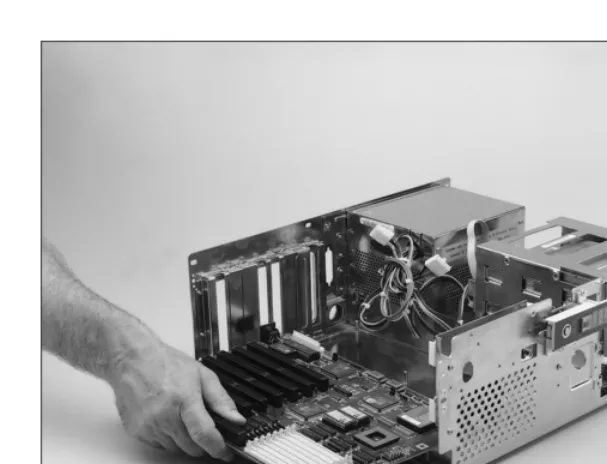
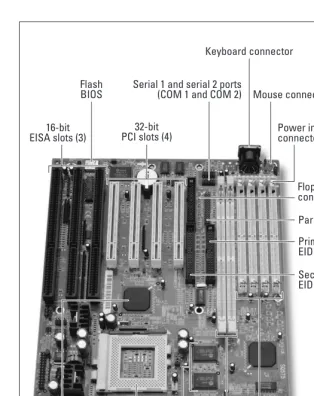
motherboard. The motherboard is the main board in your computer that contains the BIOS chips, RAM, I/O ports, and CPU. This board maintains the electrical path-ways that enable all other components to communicate with each other.
In some computers, you will hear the term daughter boardused. A daughter board is a board that contains some of the chips that should have been put on the mother-board, but were not — perhaps due to space limitations or other reasons.
More information about motherboards is provided in Chapter 3.
Power supply
1.1 Identify basic terms, concepts, and functions of system modules, including how each module should work during normal operation and during the boot process. Content may include the following: Power supply.
The power supply does exactly what its name suggests: supplies power to the rest of the components in the computer. The power supply takes 120 volts or 240 volts (depending on the country you are in) from your building and converts it to output ranging from 5 volts down to 1.5 volts. It contains a number of leads that supply dif-ferent voltages for difdif-ferent types of devices (such as floppy drives and hard drives).
More information about power supplies is provided in Chapter 12.
Cross-Reference
Objective
Cross-Reference
6
Part I ✦ Hardware BasicsProcessor/CPU
1.1 Identify basic terms, concepts, and functions of system modules, including how each module should work during normal operation and during the boot process. Content may include the following: Processor/CPU
The processor is the “brains of the organization,” so to speak. It has been designed to do very few things, but do them extremely fast. The processor performs a limited set of calculations based on requests from the operating system and controls access to system memory. Processor speed is measured in several different ways, including clock cycles, Megahertz (MHz), or millions of instructions per second (MIPS). Either of these measures will give you an estimate of the processor’s power.
The speed of early processors ranged from 4–8MHz, while today’s processors have broken the Gigahertz (GHz) mark.
More information about processors is provided in Chapter 2.
Memory
1.1 Identify basic terms, concepts, and functions of system modules, including how each module should work during normal operation and during the boot process. Content may include the following: Memory
RAM(Random Access Memory)is the computer’s primary working memory. The OS
(Operating System)controls the computer’s functions. When the OS loads, it loads into RAM; when applications load, they load into RAM; when you open documents, they load into RAM; and when you need to send output to your monitor, the output is loaded into RAM before it hits your monitor.
RAM is used in many areas of your computer, and in many different forms. It is used by the base OS in one big chunk that most people think of as RAM, but it is also implemented as processor cache (L1 and L2), video RAM for your video card, and any number of components that claim to have caching.
RAM speeds are usually measured in nanoseconds. One nanosecond is a billionth of a second.
There are many delivery forms for RAM. These include DIMM and SIMM packaging.
More information about memory is provided in Chapter 4.
Cross-Reference
Objective
Cross-Reference
Firmware
1.1 Identify basic terms, concepts, and functions of system modules, including how each module should work during normal operation and during the boot process. Content may include the following: Firmware
It is human nature to want to classify everything we see or work with into cate-gories. Many of these categories seem very distinct until something comes along to challenge our opinions, and then the waters become murky. Take the subject of hardware and software, for example, which at one time were thought to be distinct and separate entities. Softwareis programming code that is stored on your disk, or some other form of media. Hardwarerefers to the physical components — boards, peripherals, and other equipment — that make up your computer. Firmware fills in a middle ground between these two, where the distinct line begins to disappear.
Firmwareis programming code (software) that is contained in or stored on the IC (Integrated Circuit) chips (hardware) on your computer. This combination of hard-ware and softhard-ware makes up the BIOS on several different devices, with potential settings stored in CMOS.
BIOS
1.1 Identify basic terms, concepts, and functions of system modules, including how each module should work during normal operation and during the boot process. Content may include the following: BIOS
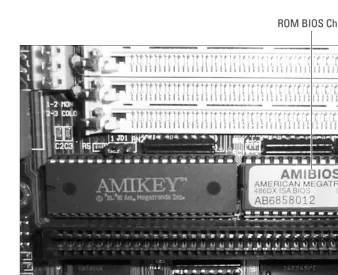
BIOSis short for Basic Input Output System. The BIOS is actually software that is stored in a ROM (Read Only Memory)chip on your motherboard. Most systems today use a Flash EPROM (Erasable Programmable ROM) so that the user can update them.
The BIOS is responsible for controlling or managing the POST (Power On Self Test), the boot process, and the interaction of components on the motherboard. These are all low-level processes that the BIOS is responsible for, but still extremely important to your system.
More information about BIOS is provided in Chapter 3.
CMOS
1.1 Identify basic terms, concepts, and functions of system modules, including how each module should work during normal operation and during the boot process. Content may include the following: CMOS
CMOSis short for Complementary Metal-Oxide Semiconductor, which is the type of manufacturing process that creates most integrated circuits. This development pro-cess is used to create the following:
Objective
Cross-Reference
8
Part I ✦ Hardware Basics✦High-density DRAM (Dynamic Random Access Memory)
✦High-speed processors
✦Low-power devices for mobile use
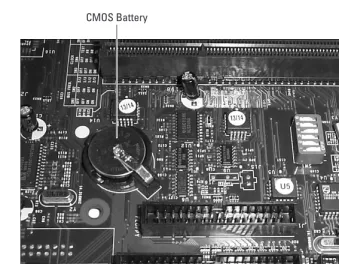
The term complementaryrefers to the fact that these chips use negatively and posi-tively charged transistors (which complement each other) to store information. Most RAM chips rely on CMOS technology to store information, but when dis-cussing CMOS, you will probably be referring to the hardware configuration settings that are saved between reboots of your computer. These settings include:
✦Hard drives and floppy drives
✦Memory
✦Keyboard
✦Mouse
✦Reserved resources (such as IRQ, I/O addresses, and DMA channels)
✦Power on password
✦Date
✦Time
✦ACPI (Advance Configuration Power Interface)
More information about CMOS is provided in Chapter 5.
Storage Devices
1.1 Identify basic terms, concepts, and functions of system modules, including how each module should work during normal operation and during the boot process. Content may include the following: Storage devices
Storage devices on your computer are responsible for storing data, such as the operating system, applications, and actual output of applications or user data. Depending on the amount and type of data, there are three basic types of devices to work with:
✦Floppy drives, including some of the high-capacity formats such as 120MB Superdisks
✦Hard drives, including some of the removable cartridge drives such as SyQuest drives
✦Optical drives, including CD-ROM and DVD drives
Any one of these formats will enable you to read data into your computer, and some can be used for storing data as well.
Objective
When dealing with hard drives, there are two major attachment interfaces: IDE (Integrated Device Electronics) or ATA (AT Attachment), and SCSI (Small Computer System Interface). ATA opens up the IDE interface to accept a wider variety of devices. There has been a long ongoing battle for speed and performance between IDE and SCSI, but in general, SCSI provides faster and more reliable transportation.
IEEE-1394 or FireWire provides a fast enough bus to enable hard drives to be attached to a computer by this method. There are also PCMCIA or PC Card hard drives that can be used with your computer.
The type of drives that you will be attaching to your computer will depend on the types that are supported by your motherboard or I/O cards.
More information about hard drives and storage devices is supplied in Chapter 9.
Monitor
1.1 Identify basic terms, concepts, and functions of system modules, including how each module should work during normal operation and during the boot process. Content may include the following: Monitor
The different types of buses that can be used to provide video services include:
✦ISA, which runs at a speed of 8 MHz
✦PCI, which runs at a speed of 33 MHz
✦AGP, which runs at a speed of 66 MHz
You have probably already guessed that the faster the bus speed, the faster your video card is likely to function. The AGP bus was designed specifically for video. In addition to a fast bus speed, video performance and color depth is provided by RAM or Video RAM. This RAM is found on the video card itself. Some high-end video cards will also have a small processor to handle some of the work of display-ing information on your monitor.
Video cards traditionally allow for color depths that include:
✦4 bit or 16 colors
✦8 bit or 256 colors
✦16 bit or 65 thousand colors
✦24 bit or 16 million colors
✦32 bit or 4 billion colors
Objective
10
Part I ✦ Hardware BasicsScreen resolutions usually include:
✦640 x 480
✦800 x 600
✦1024 x 768
✦1152 x 864
✦1280 x 1024
✦1600 x 1200
Modern video cards follow the SVGA (Super Video Graphics Array) standard, but support at least VGA as well. The VGA standard is output in 16 colors at 640 x 480.
More information about monitors and video is supplied in Chapter 10.
Modem
1.1 Identify basic terms, concepts, and functions of system modules, including how each module should work during normal operation and during the boot process. Content may include the following: Modem
Modemis short for Modulator Demodulator. Modulation refers to the conversion of a digital signal to an analog signal, and demodulation reverses this process. Your computer is digital, while the phone lines that you want to communicate over are analog. In order to allow the digital signal to be passed over the analog lines, you must use a modem.
The speeds at which modems operate have been increasing since their use with computers. They started with transfer rates of 300 bps (bits per second) and have moved up to 115 Kbps.
Today, there are more and more cases where modems have been replaced with other remote connectivity options, such as ADSL, ISDN, and Broadband Cable.
Modems may be connected to your computer through the serial port, the ISA bus, or the PCI bus. Modems may support synchronous or asynchronous communica-tion. Most modems that are purchased for a computer are asynchronous.
More information about modems is provided in Chapter 10.
Cross-Reference
Objective
LCD and Portable Systems
1.1 Identify basic terms, concepts, and functions of system modules, including how each module should work during normal operation and during the boot process. Content may include the following: LCD (portable systems)
Portable, or laptop, systems have a special place in the hardware technology side of computing. Portable systems make use of technologies that are not normally used by desktop or stationary computers.
In addition to standard desktop components such as hard drives, floppy drives, and CD-ROMs, you can expect to find many of the following components in use with your portable system:
✦LCD (Liquid Crystal Display) panels
✦PCMCIA (Personal Computer Memory Card International Association) or PC Card slot
✦Battery
✦Low-power CPU
✦Port Replicator or Docking Station
LCD panels provide a low-power, flat, thin display solution that is required by lap-top systems. This technology is actually making its way into the desklap-top market. There are a few standard types of LCD displays — active matrix, passive matrix, and dual scan — that differ in the way power is supplied to the diodes that make up the display and in the quality of the output.
PC Card slots offer an easy expansion slot for laptop computers. PCI and ISA slots are not suited to portable device use due to their size and lack of hot swapping. Enter PC Card technology. The cards fit the size requirements for portable use since they are about the size of credit cards. They support hot swapping and Plug-and-Play for easy insertion and removal. Most systems come with support for Type I, II, or III cards. One of the differences in the type specification is the height of the cards. PC Cards offer a simple and expandable bus for portable device users, but may be succeeded by USB (Universal Serial Bus) devices for a number of compo-nents. The most used PC Cards have been network cards and modems, which are often integrated onto the motherboard of most new laptops.
Since most portable devices are used remotely, batteries are another technology component that play a big role in the development. Batteries come in three basic flavors:
✦Nickel-Cadmium (NiCad)
✦Nickel-Metal Hydride (NiMH)
✦Lithium-Ion (LiIon)
12
Part I ✦ Hardware BasicsNickel-Metal Hydride batteries replaced Nickel-Cadmium batteries, since they seemed to be less susceptible to developing a charging memory. The charging memory is developed when the battery is regularly charged, and then only used a small amount before recharging. After repeating this usage pattern over several charges, the battery would only last for a short period of time. Lithium-Ion batteries are even more memory-free and do a better job of holding their charge when not in use, and their charge lasts longer when in use.
Battery life in your portable device depends on use, power management, and the battery itself.
In order to extend the battery life of your portable device as much as possible, manufacturers developed low-power versions of their CPUs. These low-power ver-sions were then combined with motherboards that offered enhanced power man-agement. This allowed the speed of the processor to be reduced when not in use, further reducing power consumption.
Since the space inside a portable device is so precious, port replicators and dock-ing stations were created, which allows for a minimum of resources built into the unit. For example, you can purchase an ultra-light portable computer that comes with only one external port, a CD-ROM, and no floppy drive. Such a computer is great when you want to carry it around, but lousy when it comes to getting data in and out of the unit. Enter the port replicator or docking station that connects to the one external (usually proprietary) connector on the back of the unit. The port repli-cator is usually a smaller unit than the docking station, and usually only provides additional ports such as video, serial, parallel, and additional PCMCIA slots; how-ever, it could also provide networking, floppy disk, and additional battery. The docking station is a larger unit that can provide additional hard drives, PCI and ISA slots, and other components that would normally be included in desktop computer.
More information about portable systems is provided in Chapter 11.
Boot Process
1.1 Identify basic terms, concepts, and functions of system modules, including how each module should work during normal operation and during the boot process. Content may include the following: Boot process
The boot process begins with the application of electricity to your computer, which starts the POST (Power On Self Test) and moves through a procedure that locates a bootable device and loads an operating system.
The POST starts the procedure and performs the following tasks:
✦Testing RAM
✦Locating devices, such as hard drives and floppy drives
✦Searching drives for bootable devices
Objective
✦Loading the boot sector from a bootable device
✦Transferring control of computer to operating system
Bootable devices are scanned for in the order of preference that is specified in the computer’s CMOS — usually the A: drive, C: drive, CD-ROM, and network. For each device, the boot sector is examined for a program to load an OS. For hard drives, the boot sector will be on the partition that is marked as active.
The program that is searched for in the boot sector is the boot loader —io.syson Windows 9x computers and ntldron Windows NT and Windows 2000 computers. The boot loader takes control of the computer from the POST process. It is also responsible for locating the files that make up the rest of the OS and loading them, or reporting the errors.
More information about the boot process is provided in Chapter 22.
Ports
Sailing ports provide a location for ships to load and unload goods that are being transferred from one location to another. On your computer, ports act as connec-tion points for cables, enabling the transfer of data between your computer and another device. There are several different types of connectors and cables that are used to join devices together. The list of devices that can be communicated with through the different types of ports is limitless. Some of the basic types of ports and their uses are listed in Table 1-1.
Table 1-1
Basic Types of Ports
Port Use
Serial Connects serial devices, such as modems, to your computer.
Parallel Connects parallel devices, such as printers, to your computer.
Video Connects a monitor to your computer.
USB Connects various types of devices to your computer. This port is being used to connect new versions of devices that would have used other ports in the past. Devices that use this port include: printers, modems, mice, keyboards, and scanners.
Keyboard Connects a keyboard to your computer.
Mouse Connects a mouse to your computer.
14
Part I ✦ Hardware BasicsMore information about the ports on your computer is provided in Chapter 6.
PDA (Personal Digital Assistant)
It was less than twenty years ago when standard computers came with 4K of mem-ory and you loaded programs from audiotape. Ten years ago, you were able to buy a Sharp Electronic Organizer with 256K of memory. The Sharp device was about the size of a bundle of dollar bills (when closed) with a small qwerty keyboard and an eight-line by forty-character display. These devices were capable of storing sched-ules, addresses, and a small database. I used to keep our corporate price list in mine. At the time, I thought that this device was absolutely amazing.
Today, there are two main types of PDA devices on the market: the devices that run the Palm OS and those that run Windows for Pocket PC. Windows for Pocket PC is the evolved cousin of Microsoft’s Windows CE (Consumer Electronics). Both types of devices come with cradles that act as battery charges and allow a connection to a desktop computer through a USB connection. This connection to the computer allows you to synchronize your schedule and e-mail with your office scheduling and e-mail systems.
Current versions of the Palm PDA from Palm Inc. are about half the size of a CD-ROM jewel case. They sport a 65,000 color display, 8MB of RAM, and a propri-etary expansion card slot that allows you to add storage space and applications to your Palm PDA.
Current versions of Pocket PC PDAs — such as the Compaq iPAQ — come with a scaled-back version of Microsoft office (Word and Excel), Internet Explorer, and Microsoft Reader (which supports a new electronic book format). This PDA includes a 206 MHz Intel processor, 64MB of RAM and 16MB of Flash ROM memory. The screen on the PDA supports 4,096 colors, and it supports a PC card (PCMCIA card) and CF card (Compact Flash, which is a storage medium) expansion.
These new PDAs are capable of functioning as mini-extensions of your desktop computer.
Key Point Summary
This chapter provides an overview of the major components found in a computer system, including:
✦The system board, which contains most of the computer circuitry.
✦The power supply, which converts building AC to useable DC for the computer.
✦The processor/CPU, which efficiently executes instructions for the OS.
✦The memory, which is used to hold working data and application code.
✦The storage devices, which are long term storage areas.
✦The monitor, which is used to display data from the computer.
✦The modem, which is used to communicate with other devices.
✦The firmware, which is a crossbreed between hardware and software.
✦The BIOS, which are low-level internal communication routines.
✦The CMOS, which is a storage area for configuration settings.
✦The LCD and portable systems, which contain unique hardware to support portability.
✦The ports, which are used as connection points for other devices.
✦The PDA (Personal Digital Assistant), which is used to place some computing power in your shirt pocket.
STUDY GUIDE
This Study Guide will test your knowledge of the hardware components found in your computer. Unlike the study guides found in other chapters, this study guide will assess your knowledge of concepts and terminology discussed in future chapters — in much the same way as a Chapter Pre-Test. The study guides found in other chap-ters will deal with many of the same areas discussed here, but will cover that material in greater detail. This Study Guide consists of 15 assessment questions.
Assessment Questions
1.Which of the following components is not usually found on a motherboard?
A.Hard drive controller
B.DVD drive controller
C.Memory
D.Video adapter
2.What type of memory is not usually found on a motherboard?
A.CMOS memory
B.L1 Cache
C.L2 Cache
D.DIMM
3.The power supply converts 110 volt AC current to which of the following?
A.3.3 volts and 5 volts
B.3.3 volts
C.6 volts
D.12 volts
4.What is the primary purpose of the processor?
A.To convert digital signals into analog signals
B.To process signals so that they can be displayed on your monitor
C.To carry out instructions from the operating system