Drop and Insert Option
Module
Part Number 1200065L1-1
Trademarks:
MEGACOM is a registered trademark of AT&T SLC96 is a registered trademark of AT&T
901 Explorer Boulevard P.O. Box 140000 Huntsville, AL 35814-4000
(256) 963-8000 © 1999 ADTRAN, Inc.
ADTRAN Year 2000 (Y2K) Readiness Disclosure
ADTRAN has established a Year 2000 program to ensure that our products will correctly function in the new millennium. ADTRAN warrants that all products meet Y2K specifications regardless of model or revision.
Information about ADTRAN’s Y2K compliance program is available at the fol-lowing locations:
ADTRAN Web Site www.adtran.com
Product Matrix www.adtran.com/y2kfax.html
Faxback Document Line
(256) 963-8200
Y2K plans and product certifications are listed in the matrix.
Y2K Project Line (256) 963-2200
iv
Notes provide additional useful information.
Cautions signify information that could prevent service interrup-tion.
Federal Communications Commission Radio
Frequency Interference Statement
This equipment has been tested and found to comply with the limits for a Class A digital device, pursuant to Part 15 of the FCC Rules. These limits are designed to provide reasonable protection against harmful interference when the equip-ment is operated in a commercial environequip-ment. This equipequip-ment generates, uses, and can radiate radio frequency energy and, if not installed and used in accor-dance with the instruction manual, may cause harmful interference to radio fre-quencies. Operation of this equipment in a residential area is likely to cause harmful interference, in which case the user will be required to correct the inter-ference at his own expense.
vi
Important Safety Instructions
When using your telephone equipment, please follow these basic safety precau-tions to reduce the risk of fire, electrical shock, or personal injury:
1. Do not use this product near water, such as near a bath tub, wash bowl, kitchen sink, laundry tub, in a wet basement, or near a swimming pool. 2. Avoid using a telephone (other than a cordless-type) during an
electri-cal storm. There is a remote risk of shock from lightning.
3. Do not use the telephone to report a gas leak in the vicinity of the leak. 4. Use only the power cord, power supply, and/or batteries indicated in
the manual. Do not dispose of batteries in a fire. They may explode. Check with local codes for special disposal instructions.
WARRANTY AND CUSTOMER SERVICE
ADTRAN will replace or repair this product within five years from the date of shipment if the product does not meet its published specifications or if it fails while in service. For detailed warranty, repair, and return information see the ADTRAN Equipment Warranty and Repair and Return Policy Procedure on the inside back page of this manual.
Return Material Authorization (RMA) is required prior to returning equipment to ADTRAN.
Table of Contents
Chapter 1. Introduction ... 1-1 Full Drop and Insert Overview ... 1-1 Functional Description ... 1-2 Features ... 1-2 Interfaces ... 1-2 Full Drop and Insert Option Module Specifications ... 1-3 Physical Description ... 1-4
Chapter 2. Installation ... 2-1 Unpack and Inspect ... 2-1 Shipped by ADTRAN... 2-1 Provided by Customer ... 2-1 Installing The Option module ... 2-1 Placement of the Option Module ... 2-2 Power Connection ... 2-2 Wiring ... 2-3 Power Up Testing ... 2-3 Successful Self Test... 2-3 Failed Self Test ... 2-4 Operation Alarms... 2-4
Table of Contents
x Drop and Insert Option Module User Manual 61200065L1-1
Passthru ... 3-8 In Use ... 3-9 DI Map Conflict ... 3-9 Port Utility (PORT UTIL) ... 3-10 Port Test ... 3-11 TSU Features used with Full Drop and Insert Options ... 3-12 Factory Restore ... 3-12 Run Self Test... 3-12
List of Figures
List of Figures
List of Tables
List of Tables
Chapter 1
Introduction
FULL DROP AND INSERT OVERVIEW
The Full Drop and Insert (D & I) option module is one of the secondary interface option modules available for use with the ADTRAN TSU 100/600 and provides a second T1 interface.
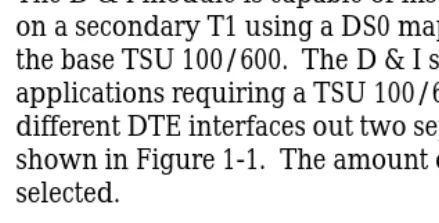
The D & I module is capable of inserting and extracting data on a secondary T1 using a DS0 map, the same as is used for the base TSU 100/600. The D & I should be used in
applications requiring a TSU 100/600 to send data from different DTE interfaces out two separate T1s. An example is shown in Figure 1-1. The amount of bandwidth can be selected.
Figure 1-1. D & I Used With Two Separate T1s
B
A
C
DTE 2
DTE 1
DTE 3
DTE 4
Chapter 1. Introduction
1-2 Drop and Insert Option Module User Manual 61200065L1-1
FUNCTIONAL DESCRIPTION
The Full Drop and Insert is designed to fit in the option slot of the TSU 100/600 and is subject to its operation and control. The D & I is configured from the front panel of the TSU 100/ 600 or by an external personal computer (PC) using the optional controlling software T-Watch. The internal menus for its configuration are a part of the D & I option module and are automatically installed when the D & I is plugged into the unit.
Features
The Full Drop and Insert option module has the following features:
• Operates using 1 to 24 DS0s
• Operates as a Full Drop & Insert or as a passthru module • Accommodates an additional plug-on (piggyback)
interface such as the Nx56/64 or OCU-DP
• Includes an elastic store and controlled frame slip permitting loop timing on the network interface, as well as on the D & I T1 circuit
• Provides timing for the TSU 100/600 as an option • Displays menu options for easy configuration • Includes a configurable DS0 assignment map
• Accumulates performance data on the T1 loop to which it is attached
• Executes an extensive self-test
Interfaces
The Full Drop and Insert option module has the following interfaces:
• Performance per ANSI T1.403 and AT&T 54016. • RJ48C network interface connector
Chapter 1. Introduction
• Line build-out settings: -22.5, -15, -7.5, 0, and automatic • Monitor jacks
• Line loopback (front panel/remote/in-band)
Full Drop and Insert Option Module Specifications
The D & I option module conforms to the following specifications:
Line rate 1.544 Mbps
Capacity 1 to 24 DS0s (can be user configured, con-tiguous or non-concon-tiguous)
Line codes Alternate mark inversion (AMI) Bipolar Return to Zero (B8ZS)
Framing options ESF per ANSI T1.403 and AT&T Publica-tion TR 54016 D4 per AT&T PublicaPublica-tion 62411
Clock source allows secondary T1 to be master timing source
Tests power-on circuit self test line loopback
Chapter 1. Introduction
1-4 Drop and Insert Option Module User Manual 61200065L1-1
PHYSICAL DESCRIPTION
The Full Drop and Insert is an option module which plugs into the option slot in the rear of the TSU 100/600.
See Figure 1-2.
Figure 1-2. Full Drop and Insert Option Module
The D & I rear panel includes a plastic plug over a cutout for a V.35 connector. This allows a V.35 Nx56/64 or an OCU DP interface plug-on board to be added to the D & I card.
The PORT X.1 identification on the rear panel is linked to the port numbering philosophy of the TSU 100/600 product family. The X represents the slot number, and the .1 indicates the port number. For the TSU 100 application, there is only one option slot. Therefore the port designation for the D & I port is 1.1. If added, the Nx56/64 or OCU DP port
designation would be 1.2. These port numbers appear in the front panel LCD menu displays.
PORT X.2 / X.3 SEC. NI PORT X.1
DS-1
Chapter 2
Installation
UNPACK AND INSPECT
Carefully inspect the Full Drop and Insert option module for any shipping damages. If damage is suspected, file a claim immediately with the carrier and then contact ADTRAN Customer Service. If possible, keep the original shipping container for use in shipping the D & I module back for repair or for verification of damage during shipment.
Shipped by ADTRAN
The following items are included in the ADTRAN shipment:
• Full Drop and Insert option module
• User Manual (to be inserted into main TSU 100/600 Manual)
Provided by Customer
The customer must provide a cable for connection to DS1 interface.
INSTALLING THE OPTION MODULE
Chapter 2. Installation
2-2 Drop and Insert Option Module User Manual 61200065L1-1
Placement of the Option Module
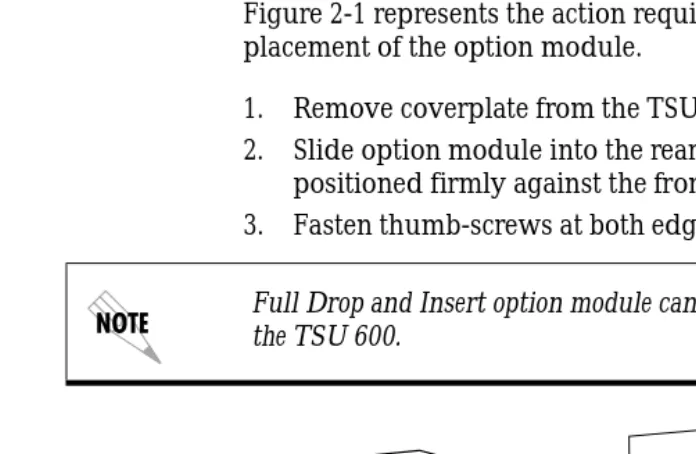
Figure 2-1 represents the action required for proper placement of the option module.
1. Remove coverplate from the TSU 100/600 rear panel. 2. Slide option module into the rear panel until it is
positioned firmly against the front of the TSU 100/600. 3. Fasten thumb-screws at both edges of the option module.
Figure 2-1. Installing Option Module
Power Connection
Each Full Drop and Insert option module derives power from the base TSU 100/600 unit. Power to the TSU 100/600 is supplied by a captive eight-foot power cord.
Full Drop and Insert option module can only be used in slot 6 of the TSU 600.
Cover Plate
Chapter 2. Installation
Wiring
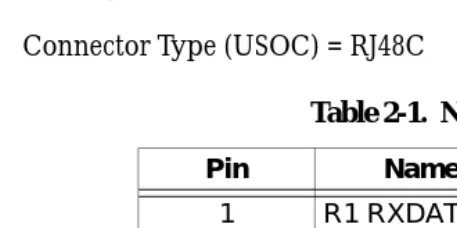
The D & I module offers a single connector for interface to the T1 circuit. The pinout is given in Table 2-1 Network Pinout
Connection.
The required wiring connection is:
Connector Type (USOC) = RJ48C
POWER UP TESTING
The Full Drop and Insert option module executes a self-test during the power-up sequence, as described in the TSU 100/
600 User Manual. No initialization input is required. Any
previously configured setting for the D & I is restored automatically upon power-up.
Successful Self Test
The yellow TEST LED, located with the Module LEDs on the front panel, extinguishes when self-test is completed and the configuration is successfully restored. See Front Panel
Table 2-1. Network Pinout Connection
Pin Name Description
1 R1 RXDATA Receive Data 2 T1 RXDATA Receive Data
3 Unused
-4 R TXDATA Send Data
5 T TXDATA Send Data
-Chapter 2. Installation
2-4 Drop and Insert Option Module User Manual 61200065L1-1
Failed Self Test
If the D & I module fails one or more of the self-tests, a message is displayed in the LCD during power up. See TSU
100/600 User Manual. Specific failures of the D & I module
are identified in the Failure Message listings in the appendix of this manual.
Operation Alarms
Chapter 3
Operation
OVERVIEW
The Full Drop and Insert option module is controlled as part of the TSU 100/600 using the same methods as described in the user manual.
Refer to the TSU 100/600 User Manual for descriptions of front panel indicators and buttons.
Menu Structure
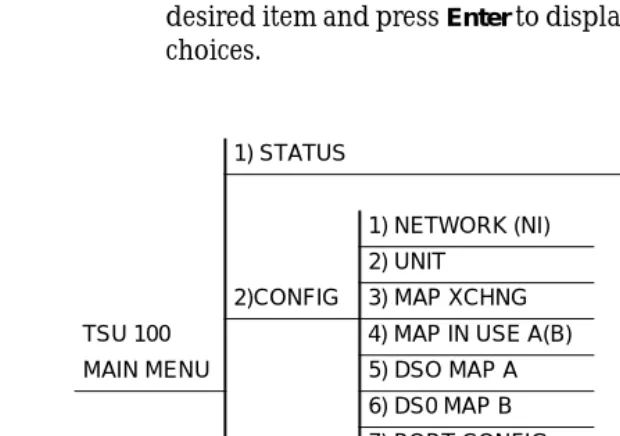
When an option module is installed in the TSU 100/600, the unit adds it to the list of available options under the Port menu items. These menu items are shaded in the limited overview of the TSU 100 menu shown in Figure 3-1. (A complete menu diagram is shown in the appendix of the
TSU 100 User Manual.)
Menu Operation
Chapter 3. Operation
3-2 Drop and Insert Option Module User Manual 61200065L1-1
main menu choices press Enteror a menu number to display the first two submenu items.
Use the up and down arrows to place the cursor on the desired item and press Enterto display the first two submenu choices.
Figure 3-1. TSU 100 Main Menu
1)NI PERF REPORTS
1) STATUS 2) NI ERRORS
3) ACTIVE ALARMS
1) NETWORK (NI) 4) VIEW HISTORY
2) UNIT 5) PORT STATUS
2)CONFIG 3) MAP XCHNG
TSU 100 4) MAP IN USE A(B)
MAIN MENU 5) DSO MAP A
6) DS0 MAP B 1) ENTER PASSCODE
7) PORT CONFIG 2) TIME/DATE
3) FACTORY RESTORE
3) UTIL 4) REINIT UNIT
5) UNIT ID
1) NETWORK TESTS 6) SOFTWARE REV
4) TEST 2) RUN SELF TEST 7) PORT UTIL
3) PORT TEST
Chapter 3. Operation
FULL DROP AND INSERT MENU ITEMS
The Full Drop and Insert menus are accessed from and operated the same as menus for the TSU 100/600. The D & I items are submenu choices of the TSU 100/600 four main menus, as shown (in bold italics) in Figure 3-1 on page 3-2. For information on Factory Restore and Run Self Test see TSU
Features used with Full Drop and Insert Options on page 3-12.
The D & I menu items are as follows:
• Port Status
• Port Configuration • Port Utility • Port Test
Port Status
PORT STATUS, a submenu of the TSU 100/600 main menu item Status, is used to determine the status of the T1 connected to the D & I module. Two submenu items are used:
• Performance Reports • D & I Errors
Figure 3-2. Port Status Menu Path
Performance Reports
The Full Drop and Insert Interface Performance Reports are accessed from the TSU 100/600 main menu STATUS, 1) STATUS
5) PORT STATUS
Chapter 3. Operation
3-4 Drop and Insert Option Module User Manual 61200065L1-1
accumulated over the last 15 minutes and over the last 24 hours. This data is only available when configured for the ESF network format.
With the cursor on main menu item STATUS, activate the menu with Enter or Number 1. The unit displays the first two Status submenu items. Scroll to place the cursor on PORT
STATUS, and activate by pressing Enter.
Only the bottom line of the LCD changes display. Scroll to place the cursor on 1.1 Full D & I and press Enter.
The unit displays the two submenu items of Port Status:
• Drop and Insert Performance Reports (D & I PERF RPTS) • D & I ERRORS
If menu item number 1 is selected, the unit displays the first of five items in the Secondary Interface Performance report. See Figure 3-3. The equal symbol on the right of the item indicates a noneditable field.
Figure 3-3. Secondary Interface Performance Report 15 Minutes
24 Hours
Chapter 3. Operation
Scroll to access the display of the individual report fields, which are as follows.
If insufficient time has passed to collect data or the network format is configured as D4, an NA is displayed.
Continue with standard operating procedures to exit the display.
When this menu is active, performance data can be cleared by pressing Clear (shift 9) on the keypad. Only the user copy of the performance data is cleared.
%AS % of Available seconds %EF % of Error free seconds
ES Number of Errored seconds (1 or more errors/sec-ond)
SES Number of Severely Errored Seconds (more than 320 errors/second)
UAS Number of Unavailable Seconds (10 or more consec-utive seconds)
Chapter 3. Operation
3-6 Drop and Insert Option Module User Manual 61200065L1-1
D & I Errors
The D & I Errors submenu provides current error information about the T1 connected to the D & I module. There are four different errors, as shown in Figure 3-4.
The asterisk (*) above an item indicates the type of errors detected.
Figure 3-4. D & I Errors Display
Chapter 3. Operation
Port Configuration (PORT CONFIG)
PORT CONFIGURATION, a submenu of TSU 100/600 main menu item CONFIGURATION, is used to configure the Full Drop and Insert option module. Three submenu items are used to configure the parameters associated with the secondary interface on the Full Drop and Insert.
• DS 1 Interface • Map A • Map B
Figure 3-5. Port Configuration Menu Path
Place the cursor on CONFIG and press Enter to activate. Use number 7 or scroll down to place the cursor on PORT CONFIGand press Enter to activate the display of available configurations.
Notice that when scrolling through the list only the bottom line of the LCD changes display. When 1.1 Full D & I is displayed, press Enterto access the three submenus.
DS1 Interface
The DS1 interface configuration uses options and settings identical to the network configuration for the TSU 100/600. For a description of these settings refer to the Operation
chapter of the TSU 100/600 User Manual. 2) CONFIG
7) PORT CONFIG 1) DSI
Chapter 3. Operation
3-8 Drop and Insert Option Module User Manual 61200065L1-1
Map A and Map B
Except for the absence of the passthru bit selection the functionality of the map configuration for the Full Drop & Insert are the same as on the TSU 100/600. Refer to the
Operation chapter of the TSU 100/600 User Manual. The screen
for the Full Drop & Insert appears as in Figure 3-6.
Figure 3-6. DS0 Port Assignment
Map Coordination
Coordination of maps between the Full Drop and Insert and the TSU 100/600 is performed automatically.
Passthru
If a DS0 is marked as passthru in the TSU 100/600 map, it is also marked as passthru in the Full Drop and Insert map. This marking is not available for change. The display in Figure 3-7 appears in the LCD.
Chapter 3. Operation
In Use
If a port is in use in the corresponding map on the TSU 100/ 600, it will be unavailable for use in the Full Drop and Insert map. See Figure 3-8.
Figure 3-8. In Use Port Display
DI Map Conflict
If a port that is in use by the Full Drop and Insert is added to the NI map of the TSU 100/600, a conflict message is
displayed. The DS0s on the Full Drop and Insert that were mapped to that port will be changed to IDLE. See Figure 3-9.
Figure 3-9. DI Map Conflict Display
Chapter 3. Operation
3-10 Drop and Insert Option Module User Manual 61200065L1-1
Port Utility (PORT UTIL)
Port Utility, a submenu of the TSU 100/600 main menu item Utilities (UTIL) displays the current software revision for each port installed in the unit. This information is required when requesting assistance from ADTRAN Customer Service or when updates are needed.
Figure 3-10. Port Utility Menu Path
When PORT UTILITYis displayed, place the cursor on it and press Enterto display the first available port.
Scroll to display 1.1 Full D & I, and press Enter to activate. The unit displays the option card name and the software version currently installed. Press Cancel to exit or select another port.
3) UTIL
7) PORT UTIL
FULL D & I
Chapter 3. Operation
Port Test
PORT TEST, a submenu of the TSU 100/600 main menu item
TEST, activates tests of the selected data ports. Selecting Full D & I displays the first two of four loopback tests available for this option module. See Figure 3-11.
• Local Loopback • Remote Loopback • Test Pattern • Pattern Result
The functionality of these items are the same as the Network Tests option on the TSU 100/600. For a full description refer to the Network Tests in the Operation chapter of the TSU 100/
600 User Manual.
Figure 3-11. Port Test Menu Path
When PORT TESTis displayed, place the cursor on it and press Enter to display the first available port. Scroll to select
1.1 FULL D & I and press Enter to activate. Continue with standard operations.
4) TEST
3) PORT TEST 1) LOCAL LOOPBACK
FULL D&I 2) REMOTE LOOPBACK
3) TEST PATTERN
Chapter 3. Operation
3-12 Drop and Insert Option Module User Manual 61200065L1-1
TSU FEATURES USED WITH FULL DROP AND
INSERT OPTIONS
In addition to the Full Drop and Insert menu items, two additional menu items of the TSU 100/600 may be operated in conjunction with the D & I option module. These are
FACTORY RESTORE and RUN SELF TEST.
Factory Restore
FACTORY RESTORE, a submenu of the TSU 100/600 main menu item UTILITIES (UTIL) restores the factory installed default setting for all D & I option module parameters.
When Factory Restore is displayed, place the cursor on it and press Enter. The unit is restored to preset factory defaults and returns to the main TSU 100/600 menu.
Run Self Test
RUN SELF TEST, a submenu of the TSU 100/600 main menu item TEST, executes both the D & I internal test and the TSU 100/600 internal test. The internal test for the TSU 100/600 is the same self-test executed upon power-up. The results of the self-test are displayed in the LCD. For additional information on Self-Test see the TSU 100/600 User Manual.
Appendix A
Failure Messages
FAILURE MESSAGES FROM SELF TEST
The following messages indicate a probable component failure on the Drop and Insert Module:
DROP AND INSERT ALARM MESSAGES
The following messages indicate an alarm condition on the Drop and Insert Module:
DI EPROM CHKSM EPROM checksum error
DI RAM ERROR Static RAM error
EEPROM ERROR Map storage error
TX MAP ERROR TX mapping RAM failed
RX MAP ERROR RX mapping RAM failed
Alarm Description
Red Alarm not able to frame data coming from the DS-1 interface; sometimes referred to as out of frame (OOF)
Yellow Alarm remote alarm indicator (RAI) being re-ceived from the DS-1 Interface
Appendix A. Failure Messages
Index
A
ADTRAN Web Siteiii
ADTRAN Y2K Informationiii
C
Customer Servicevii
Customer Service, Warrantyvii
D
D & I Errors3-6 D & I Overview Features1-2
Functional Description1-2 Interfaces1-2
Physical Description1-4 DS1 Interface3-7
E
E-mail, for Y2K infoiii
F
Factory Restore3-12 Failure Messages
From Self TestA-1
Faxback Document Line, Y2Kiii Features1-2
Federal Communications Commis-sion Radio Frequency Interference
I
Installation2-1
Installing The Option Module2-1 Power Connection2-2
Wiring2-3
Installing The Option Module2-1 Interfaces1-2
M
Map A and Map B3-8 Map Coordination3-8 Menu Operation3-1 Menu Structure3-1
N
Network (NI)
performance data clear3-5
O
Operation Overview3-1 Menu Operation3-1 Menu Structure3-1
P
Performance Reports3-3 Port Configuration3-7
Index
iv Drop and Insert Option Module User Manual 61200065L1-1
Port Status3-3 D & I Errors3-6
Performance Reports3-3 Port Test3-11
Port Utility3-10 Power Connection2-2 Power-Up2-3
Product Matrixiii
Product Matrix, Y2K informationiii
R
repair, and return informationvii
S
Safety Instructionsvi
T
TSU 100 Main Menu, Figure3-2
U
Unpack2-1
W
Warranty and Customer Servicevii Wiring2-3
Y
Y2K Project Lineiii
Product Support Information
Presales Inquiries and Applications Support
Please contact your local distributor, ADTRAN Applications Engineering, or ADTRAN Sales:
Post-Sale Support
Please contact your local distributor first. If your local distributor cannot help, please contact ADTRAN Technical Support and have the unit serial number available.
Repair and Return
If ADTRAN Technical Support determines that a repair is needed, Techni-cal Support will coordinate with the Customer and Product Service (CAPS) department to issue an RMA number. For information regarding equipment currently in house or possible fees associated with repair, con-tact CAPS directly at the following number:
Identify the RMA number clearly on the package (below address), and re-turn to the following address:
ADTRAN, Inc. CAPS Department 6767 Old Madison Pike
Applications Engineering (800) 615-1176 Sales (800) 827-0807
Technical Support (888) 4ADTRAN