Citrix Presentation Server 4 – Printing Enhancements
Introduction
Citrix Presentation Server™4 includes a completely redesigned printing subsystem.
This new subsystem not only delivers some exciting new printing features, but also includes many improvements in usability, security, and performance compared to its predecessors.
The revised printing subsystem features policy based management with substantial improvements in client printer naming and security, enhanced print data stream compression as well as new, more flexible, mechanisms for auto-creating network printer connections during session login.
The new system also includes a new advanced universal printing feature. This new universal printer driver (UPD) leverages Enhanced Metafile (EMF) technology to deliver up to 4 times faster printing than previous generation universal printing solutions. This advanced universal printing feature includes a completely redesigned User Interface (UI) with significantly more flexible handling of printer capabilities and settings ensuring the new UPD is a truly universalprinting solution.
The first section of this document describes the revised software architecture and technical details of the new printing subsystem. If the reader is only interested in what’s new from an administrator or end-user point of view, this section may be skimmed or skipped entirely.
Subsequent sections describe the new printing related features of Presentation Server version 4, highlighting the functional differences with its predecessors. Section 3 describes the policy-based administration model and several new polices that affect the printing domain. Included among these is the Session Printer policy rule which is the new mechanism for automatically connecting and configuring network printers within user sessions based on flexible policy filters.
Section 4 outlines the significant changes in the client printing environment including client printer naming, security, retained/restored client printers, and client printer properties retention.
The last section focuses entirely on the advanced universal printing feature including how it works with an introduction to the server and client side user interfaces.
Contents
1 Introduction ...1
2 Revised Software Architecture ...3
2.1 Architecture Principles...3
2.2 Role of Windows Print Spooler Service ...5
2.3 Presentation Server Printing Subsystem Components ...6
2.4 Citrix Print Manager Service ...7
3 Printing Policies & Configuration ...10
3.1 Client Printing Policies...12
3.2 Printer Driver Policies ...14
3.3 Session Printers Policy Rule ...15
3.4 Other Printing Related Default Settings ...17
4 Client Printing Improvements ...18
4.1 Client Printer Naming and Access Control ...18
4.2 Auto-Created and Retained Client Printers ...23
4.3 Manually Created Client Printers ...25
4.4 Printer Properties Retention...26
5 Advanced Universal Printing...29
5.1 EMF Spooling ...29
5.2 Universal Printer Settings ...31
5.3 Using EMF Preview Utility ...34
5.4 Enabling and Using the Generic Citrix UNIVERSAL Printer ...36
5.5 EMF Spool File Size Considerations ...37
5.6 Windows 9x®and NT®4 Client Compatibility ...38
6 Summary ...39
PR I N T I N G EN H A N C E M E N T S I NCI T R I XPR E S E N TAT I O NSE R V E R™4
List of Figures and Tables
Table A – Gartner ROI Study Benefit Categories ...6
Figure 1 – Print manager service block diagram ...7
Figure 2 – Policy filter selection panel ...10
Figure 3 – Policy tree view with printing related policies expanded ...11
Figure 4 – Auto-creationpolicy rule properties panel...12
Table B – Client printing policies ...12
Table C – Printer driver policies...14
Figure 5 – Session Printerspolicy rule properties panel ...15
Figure 6 – Adding a printer to Session Printers policy by browsing ...16
Figure 7 – New client printer naming convention...18
Figure 8 – Application dialog displaying new client printer names ...19
Figure 9 – Legacy client printer names...20
Figure 10 – Limited access to client printers even for Administrators...22
Figure 11 – Retained and Restored Client Printers ...24
Figure 12 – Advanced UPD Printing Preferences Panel ...32
Figure 13 – Advanced UPD Paper/Quality property sheet...32
Figure 14 – Advanced UPD Advanced Document Settings panel ...33
Figure 15 – Preview on client setting ...34
Figure 16 – Print preview utility ...34
Figure 17 – Fit-to-page view of print preview application...35
Figure 18 – Print preview utility print dialog ...35
Figure 19 – Printing preferences dialog for the generic UPD printer ...36
2 Revised Software Architecture
The new printing software architecture still uses the same ICA®SPL printing virtual channel as its antecedents
with backward compatibility for all older versions of the SPL protocol. Even though the basic client printing protocol remains, just about every software module related to client printing and printer management has either been rewritten or substantially altered for the 4.0 release.
The new software architecture improves functionality in a number of significant ways. The new design is not only substantially more secure and scalable. It also features a modern object based software architecture that has been designed from the ground up. By virtue of the modern design, the new printing subsystem will be easier to test, upgrade, and maintain. Moreover, this new architecture was also designed for growth. The software component design is clean and easy to extend in a number of different ways. Thus, the new platform will serve as an enabler to allow Citrix to deliver even more printing innovations in the future.
To understand how this new print subsystem design helps to deliver new printing features, both now and in the future, the next few sections highlight the key principles of the new architecture in contrast to the previous designs. Beyond that, the key software components and their roles in the subsystem are detailed.
2.1 Architecture Principles
2 . 1 . 1 CE N T R A L I Z E D, STAT E F U L SE S S I O N PR I N T E R MA N A G E M E N T
All session printer management is now handled by new user-mode system service: the Citrix®Print Manager
Service, a.k.a. CPSVC.EXE, or just CpSvc.
In prior releases, printer management was primarily handled by session processes such as WFSHELL.EXE and WINLOGON.EXE. This meant that the algorithms employed had to be stateless as these processes come and go with every new session. Using session processes for these tasks also meant that in the event that a session was reset or a session process exited prematurely, certain printer management cleanup tasks would not be completed resulting in orphaned client printers.
The new design centralizes the management all printer creation and deletion within a secured service process that is always present. CpSvc acts peer to the Windows®print spooler service tracking all active sessions and printers.
It constantly monitors and responds to session events such as logon and logoff, disconnect, reconnect, and session termination. It also monitors manual printer creations within a session and events from the remote client.
2 . 1 . 2 SE C U R E BYDE S I G N
account (Ctx_SmaUser) which gives it only the few special privileges needed to do its work – e.g. those privileges required to create printers and install printer drivers. If the service is ever compromised, this limited account authority dramatically reduces any damage that could be done.
The client printers auto-created in one Presentation Server session are also completely inaccessible to users running in other sessions. Though they can see and manually adjust permissions for any client printer, by default, even administrative users cannot accidentally print to another session’s client printer.
2 . 1 . 3 US E R- MO D E VI R T U A LCH A N N E L ME S S A G EHA N D L I N G
To accommodate many of the new printing features of Presentation Server 4.0, the software team was faced with the choice of where to implement the new server-side protocol features that were needed. Previous generations employed the CDM.SYS kernel mode driver for handling message of the printing virtual channel. As such, they certainly could have chosen to extend this function in place. However, faced with the prospect of adding a great deal more code into an aging and overloaded kernel driver, the idea of a fresh start as a strictly user-mode component seemed very appealing. Moving function from kernel-mode driver to user-mode improves both the scalability and stability of the system. It can also remove certain resource limits that the kernel-mode environment imposes. For example, by moving out of the kernel we can dedicate more (virtual) memory to the history buffers that are used in the compression of print data streams. So rather than extend the existing kernel mode driver, the decision was made to reimplement the server-side printing virtual channel driver as purely user-mode component.
After considering many factors, the decision was made to host the reimplemented user-mode virtual channel driver in the new Citrix print manager service. Thus the print manager service became both the vehicle for delivering the session/printer management services as well as the host process for the virtual channel message handling for all active ICA sessions.
2 . 1 . 4 AB S T R A C T I O N O F VI R T U A L CH A N N E LPR OTO C O L
This decision to host the virtual channel message handling functions in CpSvc also gave Citrix the freedom to design its own service interface. So with an eye to the future, we were able to construct an object based Application Programming Interface (API) for access to remote printing services that is largely protocol neutral. As such, the software design of CpSvc features a modern object-based API for communicating with a printer on a remote printer server which is largely independent of the underlying protocol used to communicate with that print server.
The first (and currently only) implementation of these Server, Printer, and Streamobjects exposed by CpSvc maps the objects onto the messaging services provided by an enhanced version of the ICA SPL virtual channel protocol. Polymorphic versions of these core objects abstract and provide connectivity to down-level clients operating with older versions of the ICA SPL virtual channel protocol. Similarly, new instances of these objects are easily created to provide connectivity via other remote printing protocols.
The key advantage here is protocol neutrality. The isolation provided by the object encapsulation will allow Citrix to easily target other remote printing protocols that may be needed in the future for printing both within and potentially even outside of ICA.
2.2 Role of Windows Print Spooler Service
The Windows print spooler process (spoolsv.exe) still plays a prominent role in printing on Presentation Server systems. Providing the majority of the Windows printing related functions, the spooler service is really just a shell into which different print service providers can be plugged in. Some of these plug-ins are provided by Microsoft®
as part of the base system but many others are provided by Independent Hardware Vendors (IHV) and Independent Software Vendors (ISV). The spooler framework allows ISVs like Citrix to extend the printing functionality of base Windows system in a number of useful ways.
2 . 2 . 1 PR I N T PR O V I D E R S
The print providerabstraction of the spooler provides the highest level mechanism for intercepting spooler functions and routing them to the appropriate service procedures. For example, the Win32 network print provider
provides applications access to printers on other network connected Windows machines.
The built in local print providerprovides the main spooling and despooling functions for printers and ports that spool directly on the local Windows machine. The local print provider also serves as a sort of base class for ISVs to build
partial print providers. Such providers generally implement only a handful of the provider’s possible print service procedures while leveraging the local provider’s default methods to service those that need not be overridden.
Presentation Server includes a client print provider (cpprov.dll) that is responsible for providing enumeration and connection for printers of remote ICA clients. However this module is not involved in normal print job processing. Instead it defers all print spooling and despooling functions to the local print provider (e.g. a partial print provider). Spooling locally on the presentation server allows the application to return more quickly while the print job is processed and downloaded to the client in the background at whatever speed the network will allow.
2 . 2 . 2 PR I N T MO N I TO R S A N D PR I N T PR O C E S S O R S
The local print provider itself can be extended through the addition of print monitorand print processorDLLs. Print processors drive the despooling process of the local print provider pushing the rendered print data streams down the monitor stack to a port monitor. Port monitors provide an abstracted Open/Write/Close interface for both local and remote printer ports, whether real or virtualized.
Presentation Server provides a client printer port monitor (cpmon.dll) that is responsible for forwarding the spooled print job data to other components of the system that route the data to the remote client for printing. The built in Winprint print processor is used for most printing. However, Presentation Server 4 includes a new client print processor DLL (cpproc.dll) that is used exclusively with the new advanced universal printing feature.
2 . 2 . 3 PR I N T E R DR I V E R S
Printer drivers provide the final piece of the puzzle. Drivers are composed of a user interfaceDLL,a graphicsDLL, and other supporting files. The user interface DLL provides the configuration and capabilities logic for specific printer model or family while the graphicsDLL provides the rendering logic needed to create print data streams that are ready to be consumed by a specific model of printer.
PR I N T I N G EN H A N C E M E N T S I NCI T R I XPR E S E N TAT I O NSE R V E R™4
Installing Presentation Server brings with it the installation of several native printer drivers used with older generation universal printing solutions. Also installed are the files of the new Citrix Universal Printerdriver which provides the new advanced universal printing feature.
2.3 Presentation Server Printing Subsystem Components
Although much has changed in the printing subsystem of Presentation Server 4, the mechanisms by used to extend the spooler functionality remain largely intact. As with prior releases, Citrix continues to provide a client print provider, CPPROV.DLL (formerly CDMPROV.DLL), and a client printer port monitor, CPMON.DLL (formerly CPMMON.DLL). These modules extend the print spooler in much way as their predecessors. How they accomplish their work internally however is completely different.
The new software design relies heavily of services provided by the new Citrix Print Manager service – CpSvc.exe. This service operates as a peer and dependent service to print spooler. Hosted in CpSvc are all of the printer management facilities of the Presentation Server as well as abstracted access to the remote print services of the ICA printing virtual channel protocol.
In prior releases, the providers of these services were scattered over a variety of different system components including wfshell.exe, ctxnotif.dll, wsxica.dll, printcfg.exe, cdm.sys, etc. Centralizing all the printing subsystem services within a single service process allows the implementation of the services to share state and synchronize efficiently.
The services provided by the CpSvc.exe are accessed only through the public exports of Ctxprn.dll, which serves to further isolate these services from their underlying implementation. Most of these CtxPrn provided services operate by making remote procedure calls to CpSvc, although actually few operate locally within the DLL.
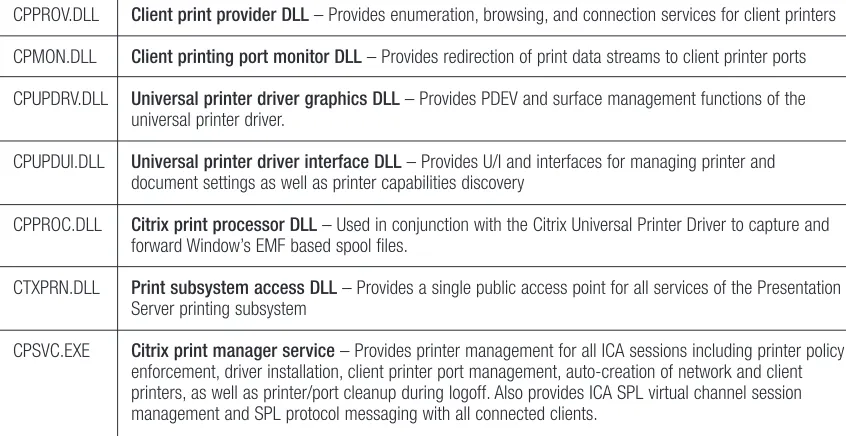
The table below summarizes the role of all components of the Presentation Server printing subsystem.
Table A: Gartner ROI Study Benefit Categories
CPPROV.DLL Client print provider DLL– Provides enumeration, browsing, and connection services for client printers CPMON.DLL Client printing port monitor DLL– Provides redirection of print data streams to client printer ports CPUPDRV.DLL Universal printer driver graphics DLL– Provides PDEV and surface management functions of the
universal printer driver.
CPUPDUI.DLL Universal printer driver interface DLL– Provides U/I and interfaces for managing printer and document settings as well as printer capabilities discovery
CPPROC.DLL Citrix print processor DLL– Used in conjunction with the Citrix Universal Printer Driver to capture and forward Window’s EMF based spool files.
CTXPRN.DLL Print subsystem access DLL– Provides a single public access point for all services of the Presentation Server printing subsystem
2.4 Citrix Print Manager Service
2 . 4 . 1 RO L E O F T H E SE R V I C E
The new print manager service serves a dual role. First it serves the role of the provider of remote printing services to the Presentation Server. It does so by abstracting and managing the ICA SPL virtual channel protocol for all active ICA sessions. As such, it replaces and greatly extends the prior generations SPL protocol support that resided in CDM.SYS, a kernel mode component.
The other role of the print manager service is to provide a single system component that is responsible for all aspects of the ICA session printer management on the Presentation Server. As such it manages the session printing policies and drives the processes that create and delete auto-created printers in response to session logon, reconnect, and logoff.
The Windows print spooler service (plus Citrix provided spooler extensions) still implement the primary Windows printing functions for applications. However the management of all session printers plus all of the backend protocol messaging for client printing is handled exclusively by CpSvc.
2 . 4 . 2 PR I N C I P L E S O F OP E R AT I O N
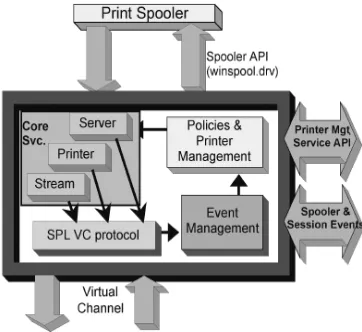
As illustrated in Figure 1 below, the print manager service is composed of four main functional pieces. The core servicecomponent is composed of server, printer, and stream classes which provide the abstraction of the underlying remote printing protocol(s). Concrete instances of these classes exist that map from the core object API onto the facilities of the ICA SPL virtual channel protocol driver.
SPL VC protocolcomponent (ICA SPL virtual channel protocol) handles all the protocol messages sent to and received from the remote client on the CTXCPM virtual channel. It handles the base ICA SPL protocol and all protocol extensions up to and including the latest, version 8.
The event managercomponent is composed of several classes that monitor session and printer events, filtering and feeding important events into the final component,policies and printer management. This component houses the primary session management logic and is responsible for all policy enforcement and printer auto-creation.
2 . 4 . 3 PR E S E N TAT I O N SE R V E R/ S P L VI R T U A LCH A N N E LHA N D L I N G
As ICA clients connect and disconnect, the service binds to and initializes the CTXCPM virtual channel. Although the ICA SPL protocol used on this virtual channel has been extended many times (we are now at version 8), down-level variants of this same basic protocol are used in all modern clients. This protocol provides the mechanism by which printers of the client device are discovered and accessed from the Presentation Server.
In Presentation Server 4, the implementation of this protocol is new, having been reengineered from the ground up, with an emphasis on efficiency, robustness, and security. In addition to supporting all the previous ICA SPL protocol elements, version 8 of ICA SPL protocol adds a number of new capabilities. Among these are:
• A new client/server capabilities negotiation mechanism • An enhanced printer enumeration mechanism
• New commands supporting printer capabilities and properties queries
• New commands supporting extended printer properties exchanges with the client • A new print data stream transport providing more aggressive print data reduction
2 . 4 . 4 PE R- PR I N T ST R E A M CO M P R E S S I O N WI T H LA R G E R RE D U C E R HI S TO R Y BU F F E R
During data reduction, a history buffer is used factor out common strings of the data such that redundancies can be incorporated referentially rather than repeated. Prior to Presentation Server 4, the CTXCPM virtual channel writes were compressed along with all other ICA virtual channels using a single instance of the reducer with a single shared 512K history buffer. All virtual channels use this same reducer instance.
By removing the resource constraints of a kernel mode driver, the print manager service is now able to optimize the reduction process applied to print data. First and foremost, we have the opportunity to use a larger history buffer. Analysis of the print data streams output by a variety real printer drivers using different document types showed substantial gains in compression using a larger history buffer. This was especially true with the worst offenders: large graphical print jobs with many embedded and often redundant images. By default, the server will request an 8MB history buffer for all print jobs. The actual size used is negotiated with the client so that memory constrained clients can request a smaller buffer.
Just as important, every active print job now gets its own reducer instance with this larger history buffer. This avoids any crosstalk with other virtual channels thereby maximizing the potential to find and factor out redundancy in the print data.
2 . 4 . 5 HI S TO R Y BU F F E RRE U S E
In addition to the larger, per-print stream history buffer, client and server now retain the history buffer from the last completed print job. When another print job needs to be sent, the existing history buffer already available on both sides of the connection is reused. Depending upon on how similar the new print job data is to the previous job’s data, a substantial data reduction may be possible.
Print jobs destined for the same printer will often have many repeated elements even if the underlying document is substantially different. If the document is actually very similar (a common occurrence), then the bulk of the print
job may in fact already be sitting in the history buffer on the client side. This can lead to seemingly impossible compression ratios (99% in some cases) for repeated print jobs by simply sending references to offsets in the history buffer rather than the entire document again.
2 . 4 . 6 AC T I V E EV E N T MA N A G E M E N T
The print management component of CpSvc uses an event driven model. The primary function of the management components is simply to monitor and respond to session events (logon, logoff, disconnect, & reconnect) as well as printer events (AddPrinter, DeletePrinter, properties changes, etc).
When a session event occurs, policies for the session are evaluated leading to the (re)initialization or shutdown of the virtual channel plus actions to create or delete printers and ports as needed to enforce the active policies.
Printer events can originate from client-side or server side and are typically the result of a spooler change notification for a printer object being monitored. For example, when an administrator or power user manually creates a printer on the Presentation Server using the Add Printer wizard and chooses to attach the printer to a client printer port, the print manager services notices this printer creation and begins tracking the state of the printer. Depending upon policies, at logout the state of such a printer is captured and sent to the client so that subsequent logins from the same client will can restore the printer exactly as it was originally created.
2 . 4 . 7 PA S S TH R O U G H CL I E N T
3 Printing Policies & Configuration
In Presentation Server 4, configuration of printer management facilities is accomplished through policies created in the Presentation Server management console. Similar in concept to Windows group policies, Presentation server policies provide a mechanism to define a collection of system settings that can be associated with a broader range of criteria than just users, groups, and computers.
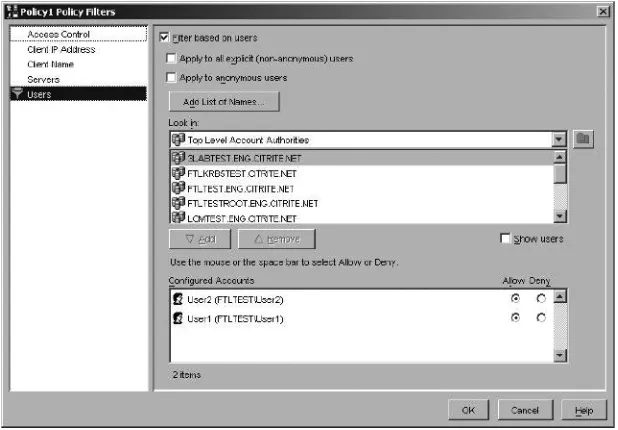
Presentation server policies are assigned through filters that fire the associated rules through any combination of the following criteria:
• User Names or Groups • Client IP address range • Client Name
• Server Name
Client access filters defined in the Citrix Advanced Access Control Option may also be used referentially to further qualify clients and users for the purposes of policy application.
During login, the system searches all defined policies selecting the policy rules that should apply based on the administrator defined filters. Policies are also assigned a numeric priority for resolving conflicts. So when the resultant policy set includes multiple instances of the same policy rule with potentially different settings, conflicts are resolved in favor of the highest priority (lowest numeric value) policy.
PR I N T I N G EN H A N C E M E N T S I NCI T R I XPR E S E N TAT I O NSE R V E R™4
Policies can be easily used to establish farm-wide defaults for settings. However they are also powerful enough to create complex hierarchies of settings that are applied dynamically based on different client, server, and user attributes.
Presentation Server policies are normally used in conjunction with Windows group policies as they control different system settings. However, there is some overlap of settings. In these cases, conflicts between group policies and presentation server policies are resolved in favor of the applicable Presentation Server policies.
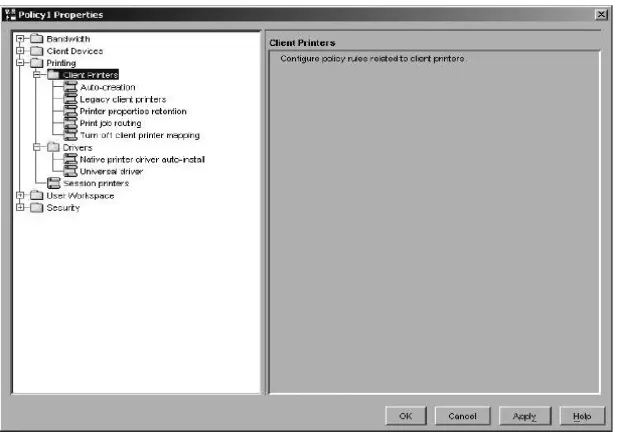
In the management console, policies are organized in a tree view allowing related settings to be grouped together. All printing related policies can be found under the node labeled Printingwith two logical sub-groupings:Client Printing andDrivers
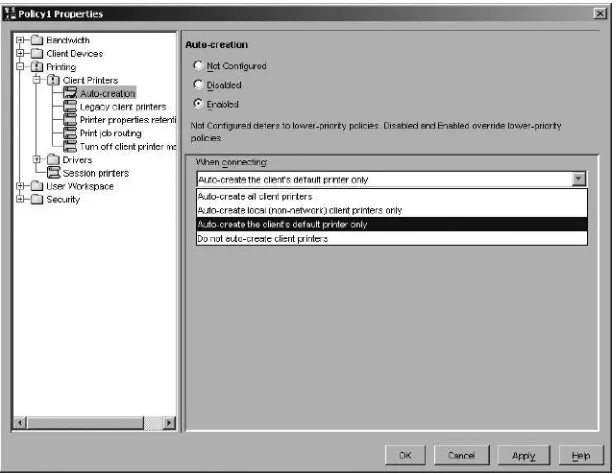
Any of these policy rules may be independently enabled and then assigned a range of possible settings. For example, the Auto-creation rule properties panel is displayed in Figure 4 below. It allows the several choices for which client printers if any should be connected in user sessions for the policy is in force.
PR I N T I N G EN H A N C E M E N T S I NCI T R I XPR E S E N TAT I O NSE R V E R™4
Rules start out in the Not Configuredstate. If rule is enabled, then the operator will have choice of possible settings as above.
A policy can also be explicitly disabled which will effectively overriding other lower priority policies in which the rule had been enabled by turning off the rule. In this case, system default settings will apply.
3.1 Client Printing Policies
Five policies rules are available for controlling behavior of client printers and auto-creation. The table below summarizes these policies with details in the subsequent sections.
Figure 4:Auto-creationpolicy rule properties panel
Policy rule name Settings controlled
Auto-creation Which client printers (if any) should be auto-created
Legacy printers Enable fall back to Presentation Server 3.0 rules for constructing client printer & port names
Printer properties retention Where system should retain modified client printer settings
Print job routing Whether to connect directly to the printer server for network attached client printers or always print indirectly through the client
Turn off client printer mapping Disables client printer mapping
Auto-creation
The Auto-creationrule allows the administrator to define which client printers should be auto-created when user logs on or reconnects from a different client. The range of available settings include:
All- All enumerated client printers
Local only- Locally attached (non-network) client printers only
Default only- Client’s main (default) printer only
None- No client printers are auto-created
If the Auto-creationpolicy rule is not configured or explicitly disabled, then unless overridden by a listener setting, all client printers are connected by default.
Legacy printers
The Legacy printers rule allows an administrator to fall back to the printer and port naming conventions used in the MetaFrame Presentation Server 3.0 release and its predecessors. This can be an important setting if you have applications that expect the old style client printer names or that rely on the sharing of printers between active sessions from the same client.
The policy must be set for either:
Standard- Use session private ports and printer names compatible with base terminal services (unique to each session)
Legacy- Use old-style printer and port names derived from the ICA client name
If the Legacy printerspolicy rule is not configured or explicitly disabled, then standard printer and port names are used.
Printer properties retention
The Printer propertiesretention rule allows the administrator to control where printer properties are retrieved from at login and where settings modified in a user session are saved. Choices are:
Client only- Properties saved to and restored from client only
Profile only- Properties saved to and restored from the server user profile
Client first- Properties saved to and restored from the client if possible. If not, they are saved/restored in the user profile used on the server.
If the Printer properties retentionpolicy rule is not configured or explicitly disabled, then properties will be saved to and restored from the client first, with fall back to user profile on the server (Client first) by default.
Print job routing
the advantage that they behave in the session just like the same printer on the client desktop. Connecting directly also avoids the extra hop of the print job to the client and then to the print server. However, if the connection between Presentation server and print server traverses a WAN, then indirect connections will almost certainly print faster in spite of the extra hop through the client.
The policy must be set for either:
Direct- Try to make a direct connection from presentation server to printer server if possible. If not, fall back to an indirect connection through the client
Indirect only- Always connect indirectly through the client
If the Print job routingpolicy rule is not configured or explicitly disabled, then direct connections will be attempted first for client printers that are actually network printer connections.
Turn off client printer mapping
If enabled, this policy disables the client printer mapping facility completely. If not configured or explicitly disabled, then the corresponding group policy, user setting, or listener default setting is taken instead.
3.2 Printer Driver Policies
The system provides two policies related to printer driver selection and management
Native printer driver auto-install
The Native printer driver auto-install rule allows an administrator to control whether auto-creation of printers may automatically tap into the Windows native printer drivers provided in ntprint.inf/driver.cab. If auto-install is
enabled, printer drivers from the native Windows driver set are installed as needed to auto-create printers (both client and network printers). If auto-install is turned off, no printer drivers will be automatically installed by the printer auto-creation process.
If the Native printer driver auto-installpolicy rule is not configured or explicitly disabled, then auto-install of native printer drivers will be enabled by default.
PR I N T I N G EN H A N C E M E N T S I NCI T R I XPR E S E N TAT I O NSE R V E R™4
Policy rule name Settings controlled
Native printer driver auto-install If printer drivers found in the Windows native driver set should be installed automatically as needed
Universal driver When to use universal printing
Universal driver
The Universal driverrule allows the administrator to control which class of printer drivers should be used for printer auto-creation. Choices are:
Model specific drivers only- Do not use universal driver(s)
Universal drivers only- Use only universal drivers
UPD Fallback- Use universal driver only when a model-specific driver is not
If the Universal Driver policy rule is not configured or explicitly disabled, then UPD fallbackis the used by default.
3.3 Session Printers Policy Rule
Previous versions of Presentation Server/MetaFrame XP included a feature that allowed an administrator to provision network printer connections to their users. In Presentation Server 4.0, a similar but more powerful feature is provided by the Session Printerspolicy rule.
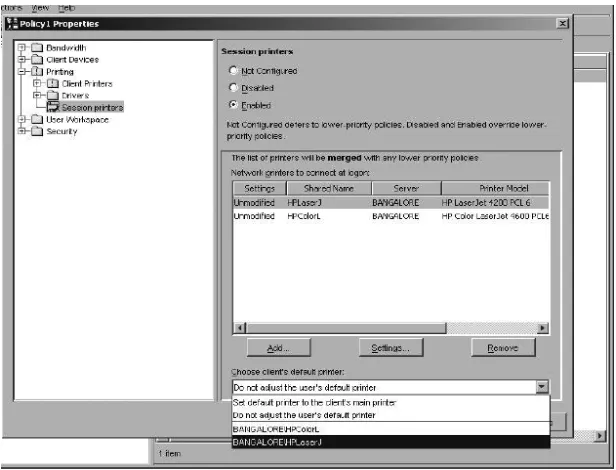
Like other presentation server policy rules, filters are available to assign the rule based on client name, client IP address range, server, user, or group or combinations of these attributes. However, rather than adjusting a system setting, the Session Printerpolicy provides a mechanism for connecting one or more network printer connections at login or during a reconnect based on these standard policy filter criteria. The process is very simple and is illustrated in the next few screen shots. Figure 5 illustrates the main properties panel of typical Session Printers policy rule. When this policy fires in the user session, an attempt will be made to automatically connect to the remote printer \\BANGALORE\HPLaserJemploying the same credentials that the user logged into Presentation Server with.
PR I N T I N G EN H A N C E M E N T S I NCI T R I XPR E S E N TAT I O NSE R V E R™4
In addition to connecting one or more network printers by policy, the administrator can also apply overrides for the default printer settings for each connected network printer and then choose how the default printer should be set all in the same policy rule. The default printer can be set to any of the rule’s associated network printers, the client’s main printer or left completely undisturbed
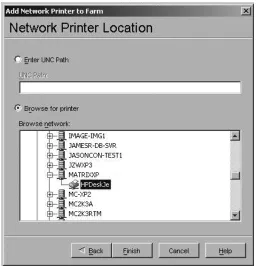
Adding additional printers to a policy is extremely easy. In prior releases, the network printer auto-creation facility that Session Printersrule replaces required that operator had previously imported all the printers from any print server we wished to use. One can still use these imported printer servers to select a printer for assignment to a Session Printers policy rule. However, with the Session Printers rule, the administrator can also just type the UNC path of printer and click OK. Better yet, as shown in Figure 6, it is now possible to browse the network and add discovered printers from anywhere in the network.
3 . 3 . 1 PR O X I M I T Y PR I N T I N G
Since the Session Printersrule can be fired by any of the standard policy filter criteria, it is now possible to construct a customized printer workspace based on who’s connecting from where. The flexible nature of the policy criteria can help make sure the users of the presentation server always get an appropriate and optimized printing environment.
For example, wouldn’t it be nice if users of your Tokyo office automatically gained access to the printers in the Tokyo site but users at other sites were never bothered with these printers even if everyone shares a common server farm in London?
Using Session Printersrule with a client IP address filter can deliver this wish. With some knowledge of the network design, it is often possible to construct a hierarchy of rules that resolve to the nearest printers given where the user is connecting from.
In situations where client ICA workstation names can be controlled, it may also be possible to use a simple naming convention for the clients and assign policies based on the client name. For example, if you have the freedom to name every client on the third floor of the west wing was named 3Wxxxx, then a simple wildcard could be used to fire the session printers rule for such client names. If necessary, one can even assign specific printers for specific clients based on client name.
3.4 Other Printing Related Default Settings
Policies are the normal mechanism for adjusting system printing settings and most of the necessary administrative settings for printing can be controlled through the policies described above.
There are also a handful of system defaults and a few other less popular management settings that are controlled only through the creation of certain registry keys and values. For the most part, these settings not of general interest or they were designed strictly as fail safes to turn off certain behaviors for troubleshooting. That said, adjusting these settings can be useful in some scenarios and there are several places in this document where we point out how.
In particular, the system’s default printing flags (DefaultPrnFlags) provide a number of potentially useful customizations to the Presentation Server printing environment. The details of these settings including the
PR I N T I N G EN H A N C E M E N T S I NCI T R I XPR E S E N TAT I O NSE R V E R™4
4 Client Printing Improvements
4.1 Client Printer Naming and Access Control
4 . 1 . 1 NE W NA M I N G CO N V E N T I O N S FO RAU TO- CR E AT E D CL I E N T PR I N T E R S
One of the most noticeable new features of Citrix Presentation 4 is the new client printer naming convention. By default, Presentation Server 4 now uses the same naming convention as Windows does natively for auto-created client printers. Figure 7 below illustrates some examples of the new client printer naming convention.
There are several reasons for this change but the primary motivation was the desire to avoid the possibility of client printer name collisions between user sessions. Previous versions of Presentation Server used the ICA client name to decorate the printer names leading to the possibility that an auto-created printer might need to be shared between multiple sessions. As a result, if two clients share the same name (bad idea but it happens) and also happen to have the same printer name configured on the client, then the when the second client logs in and prints to this printer, the print job can be misdirected to the printer on the first client. The new naming convention for client printers (and the client printer ports they connect to) include the session ID as part of the name. This simple fact ensures no name collisions thereby greatly enhancing security.
The new convention is also more readable and understandable. For example, it uses spaces instead of slashes to separate component parts of the printer name. Most important, it keeps the most recognizable part of the printer name in the left most part of the auto-created name. This is helpful for applications designed for small screens because the most familiar part of the printer name will be visible even in the smallest print dialogs. Figure 8 illustrates this well. With the old convention, the user might have observed the name Client\MYCLIENT#\HPfor both client printers in the name field giving no idea which printer is the correct one.
4 . 1 . 2 PR I N T E R NA M E S IN PA S S TH R O U G H SE S S I O N S
The new convention also simplifies the names applied to printer in pass through sessions. The old convention simply pre-pended Client\<Intermediate Server>#\to the printers in the intermediate session which already started with Client\<Client Name>#\. This leads to very unwieldy names for printers.
The new convention simply substitutes a different session ID keeping the remainder of the name the same. This allows the user to easily identify the printer and client it is connected from without worrying about which pass through server she might have connected through.
4 . 1 . 3 LE G A C Y PR I N T E R NA M E S
Anticipating that some existing customer applications, login scripts, etc. may not be able to adjust immediately to the new client printer naming convention, a policy rule was created that causes the old familiar client printer names to be used. Figure 9 shows the same printer list from Figure 7 with Legacy Printerspolicy rule enabled and set for old-style printer and port names.
PR I N T I N G EN H A N C E M E N T S I NCI T R I XPR E S E N TAT I O NSE R V E R™4
4 . 1 . 4 EN H A N C E D CL I E N T PR I N T E R SE C U R I T Y
Unlike network printer connections which are private to the user who makes the connection, client printers in a Presentation Server session are actually local printers managed by the local print provider and Citrix spooler extensions. By design, the local print provider maintains a single shared namespace for all local printers on a server. This means that a user’s client printers may be visible, and potentially accessible to users from other sessions on the terminal server.
The changes in client printer names and ports detailed above go long way to solving this problem by avoiding the potential for printers and ports to be shared between sessions. But this change alone does guarantee that users from one session cannot utilize another user’s printer in a different session.
Even with the naming change, members of the Administratorsand Power Usersgroups would still be vulnerable inadvertently printing documents to printers that could be half around the world attached to someone else’s workstation. Members of these two groups are treated specially by the Windows print spooler. For example, administrators always see all local printers in their printers folder and in application dialogs. The default security descriptor provided by Windows also gives Power Users special access rights.
The idea allowing Administratorsand Power Usersfree reign over client printers may not be severe limitation for your organization. But what if one or more of your key applications required administrator or Power User rights to operate properly?
Consider also the security needs of external service provider. For organizations like this, no matter how unlikely, the possibility that sensitive information from one client could be printed to a different client’s office many miles away is simply unacceptable.
For these reasons, client printers really need to be treated as a private resource of the user’s terminal services session.
Beginning with Presentation Server 4, the default security descriptor applied to client printers restricts access to:
1. The account that the print manager service runs in (default: Ctx_SmaUser) 2. Processes running in the SYSTEM account such as the spooler
3. Processes running in the user’s session
Access to the printer from all other processes on the system will be blocked Windows Access Control List (ACL) checks. Furthermore, requests for service that directed to the print manager must originate from a process in the correct session or the spooler or else they will fail. This precludes the possibility of bypassing the spooler and talking to the remote printing interfaces of CpSvc directly.
4 . 1 . 5 AD M I N I S T R ATO R AC C E S S
By default, even members of the Administratorsgroup do not have access to client printers from another session. Since administrator users will always see all local printers, this prevents them from inadvertently printing to printers in some other session and then not knowing where they might have printed it.
Unfortunately, it also prevents access to the printer for other purposes. Again, the reason is that Windows printer privileges are not granular enough to remove the capacity to print without restricting all access.
By virtue of their elevated privilege, administrative users always have the power to take ownership of the printer and add the necessary rights to give themselves access. This can be done manually through the explorer or by script. Figure 10 illustrates when an administrator user attempts to access properties of a client printer created for another session. Clicking OK, and then using the security tab to take ownership of the printer followed by adding appropriate access rights can make the printer accessible.
PR I N T I N G EN H A N C E M E N T S I NCI T R I XPR E S E N TAT I O NSE R V E R™4
4 . 1 . 6 MA N A G E PR I N T E R S PE R M I S S I O N S
As a convenience to users, the permissions granted to client printers on the Presentation Server have always included Manage Printer rights. However, these rights are now restricted somewhat when compared to previous Citrix products.
Manage Printersaccess conveys the right to change various printer settings such as the name, port, driver, print queue state, and device settings such as form tray mappings. Since these permissions were designed for a Windows print server environment, access to these features enforced by the spooler is essentially all or nothing. Allowing regular users to modify some of these settings is useful, but for others it can be dangerous. Because of the risk of misuse, Microsoft does not grant “Manage Printers” to regular users for auto-created printers in RDP sessions. Instead, you must be a member of the Power Users or Administrators groups to obtain these rights.
In Presentation Server 4, the security descriptor for auto-created client printers includes Manages Printers
permission for all session processes. However, Citrix provided spooler extensions prohibit certain operations being applied to client printers unless user is member of Power Usersor Administrators groups. This is accomplished by intercepting and filtering certain local provider functions when they are operating on a printer attached to client printer port.
The local provider filter allows certain SetPrinter() operations and fails others with return code
ERROR_ACCESS_DENIED. SetPrinterData() and SetPrinterDataEx() operations are always allowed meaning that users can always adjust the driver managed device settings for client printers. However for SetPrinter(), only level 0 and level 9 calls are permitted to proceed. All others are failed unless caller is executing in system context or a member of Administratorsor Power Usersgroups. For SetPrinter(), level 0 is used to pause and resume print queues and level 9 is used to modify the user’s private default printing preferences. All other operations such as changing the printer’s name, driver, port, print processor, etc. require membership in Power Usersor
Administratorsgroups.
4.2 Auto-Created and Retained Client Printers
4 . 2 . 1 CL I E N T PR I N T E RAU TO- CR E AT I O N PR O C E S S
The printer creation process is substantially different in Presentation Server 4. First and foremost, the Presentation Server policies are used for administrative control. Second, printer auto-creation is now handled entirely by the Citrix print manager service – CpSvc.exe – on behalf of users logging in and out.
Policies outlined in Section 3 of this document control client printer mapping and naming, which printers connect by default, which drivers to use, and how printer properties associated with these printers are managed. During login, after the user has authenticated, policies are evaluated. Printing policies are evaluated during initial login and remain in force throughout the lifetime of the session. After evaluating these policies printers are enumerated from the client and depending on policies in effect for the session, may be auto-created. After auto-creating the required printers, any retained printer properties for each created are applied to restore the printer state. Depending upon the client and printer properties retention policies in force, these retained properties may come from the client itself or the server-side user profile.
At the time of a disconnect, client printers are put into an off-line state that remains in force until the original client reconnects to the session or the printer is deleted by reconnecting from another client or logging off.
When a client reconnects to a session, existing printers are reenabled if the reconnection is from the same client. If not, client printers associated with the previous client are removed and new client printers are constructed within the session based on the policies that were in force at the time of login. Also during a reconnection,
Session Printerspolicies are reevaluated leading to the potential connection of additional network printers and/or the adjustment of the default printer.
During logout or a session reset, all auto-created client printers for the session are deleted. But before deleting these client printers, printer properties modified during the course of the session are saved for future reference (see section 4.4 below for more details).
Also during logout, network printer connections that were actually constructed by the application of a Session Printerspolicy rule are deleted. This behavior is different from that of the network printer auto-creation facility that Session Printers replaces and consistent with the goal of provisioning printer connections based on policy criteria such as where client is connecting from (Client IP Address range filter). Should you find desirable to make these network printer connections persist thereby preserving personal printer settings, the delete-on-logout behavior can be defeated by a change to the default printing flags in the system registry. Changes to this flag cannot currently be overridden by policies. So the no-delete behavior will apply to all network printers auto-created for future sessions on the server. Furthermore, the printer connection will never be deleted automatically. So if you want the printer connection to disappear, the user will need to delete it in the Explorer or find some other way to remove the correct profile keys under HKCU\Printers\Connections\.
PR I N T I N G EN H A N C E M E N T S I NCI T R I XPR E S E N TAT I O NSE R V E R™4
4 . 2 . 2 RE TA I N E D CL I E N T PR I N T E R S
By default, Presentation Server tries to create client printers in the session for every printer discovered and reported by the ICA client software. However, client printer creation is still a fairly heavyweight activity for the spooler process of the server. As such, using the Auto-creationpolicy to limit printer creations is a common practice that often improves the scalability of heavily loaded servers. A popular choice is to auto-create only the user’s default (main) client printer. This raises the question of how a user might still be able to print to a client printer that was not auto-created by policy.
The simple answer is that the user is free to select other printers for auto-creation themselves. This can be accomplished through the Add Printer wizard by browsing and connecting to printers enumerated through the client network print provider. Many standard print dialogs also support dynamic browsing and connecting of printers making this an option even for sites that do not offer full desktop logins. The ICA client printer configuration utility (PrintCfg.exe) also offers a facility to connect client printers that were not auto-created.
All of above rely on the AddPrinterConnection() service of the client network print provider (cpprov.dll) to discover and optionally create client printers that were not auto-created by policy. Indeed, this service has been provided in every release since 1.8. What is different is that the same mechanism used to retain printer properties in Presentation Server 4 is also used to remember when someone creates a client printer via
AddPrinterConnection(). During subsequent logins, these remembered connections are restored.
When recreating a retained printer, all policies except the Auto-creationpolicy are respected. This means that retained client printers are created exactly as if the Auto-creation policy would have selected them. Such printers will continue to be recreated with every login from the same client until the client printer within the session is deleted manually or the remembered printer connection is removed from the client’s properties store. On a Windows client, the properties store can be found in the user profile under HKCU\Software\Citrix\PrinterProperties.
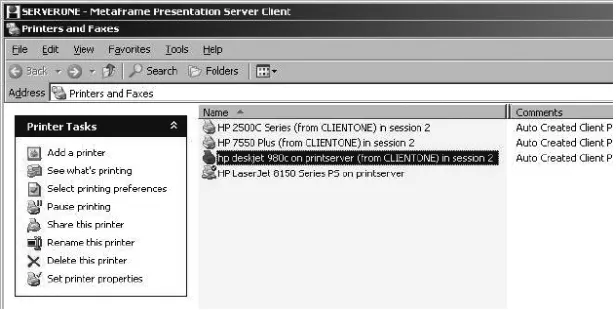
Figure 11 illustrates how a retained client printer might look after logging back in. From the user’s perspective, the only noticeable difference is in the comment associated with the printer which identifies it as “Auto retained” (first printer listed in the screen shot below)
4.3 Manually Created Client Printers
Upon close inspection of Figure 11, one might be left wondering about the third printer listed in the screen shot. This printer has a comment indicating that it is “Auto Restored” instead of “Auto Retained” or “Auto Created”.
This kind of printer can be created by an Administrator or Power User running the Add Printer wizard and manually creating a local printer that is attached to a client printer port. Depending upon the type of client printer port to which the manually created printer is attached it is either a permanent client printer or a printer that will be automatically restored on subsequent logins just like the retained printers described in the previous section.
Whether the printer is permanent or restored depends upon whether it was attached to a legacy-style client printer port tied to the client name or a standard port that is tied to the session ID. Manually created printers attached to legacy client printer ports are permanent and will remain on the server until the printer is manually deleted. Manually created printers attached to standard ports are retained at logoff and recreated during login.
4 . 3 . 1 PE R M A N E N T CL I E N T PR I N T E R S
To create a permanent client printer, create a local printer using the Add Printer wizard and attach the printer to a legacy style client printer port. Legacy client printer ports have names using the following format
client\<CLIENTNAME>\<PRINTERNAME>
where <CLIENTNAME> is the name of the client workstation and <PRINTERNAME> is the name of the printer on the client
Such ports are tied to the client workstation by name. If a manually created printer is attached to one of these ports, both the port and printer become permanent fixtures on the server that they are created on. Whenever the specific client is not connected to the server, the port is marked offline. However, if a session is opened from the client, the port will be marked online and any queued print jobs will begin to print on the specific client printer.
Permanent client printers are particularly useful if you happen to be using client printers directly attached to winterm devices and wish to share them between session users. Simply construct the printer on the server selecting the required driver and appropriate client printer port. After creation, you may adjust the security of the printer to allow all users you’d like to be able to access this client printer.
PR I N T I N G EN H A N C E M E N T S I NCI T R I XPR E S E N TAT I O NSE R V E R™4
4 . 3 . 2 RE S TO R E D CL I E N T PR I N T E R S
To create a manual client printer that will be torn down at logout and rebuilt during login, use the Add Printer wizard to create a printer that is attached to a standard client printer port. Standard client printer ports have names with the format
client:<ID>:<PRINTERNAME>
where <ID> is the session ID number of an active session and <PRINTERNAME> is the name of the printer on the client
Standard ports are tied to a client only through an active session. During a logout, all of the state associated with one of these printers is retained either on the client or in the server user profile client capabilities and in force policies.
Then during a subsequent login, an identical printer is recreated. Restored client printers are recreated exactly as they were created the first time except that the port name is adjusted for the new session and the comment identifies it as “Auto Retained”. The security descriptor applied will be the same as with other auto-created client printer meaning that the restored printer will only be accessible to processes operating in the same session. Aside from these exceptions, all attributes and other metadata associated with the printer are preserved.
As with retained printers, restored printers are monitored by the print manager service. If one of these printers is ever deleted by an agent other than the print manager service itself, the retained printer definition is removed from the properties stores in the user profile and on the client. Thus deleting a restored printer while the session is active causes the retained printer definition to be forgotten.
4.4 Printer Properties Retention
The preceding sections discussing retained and restored client printers represent special cases of a general purpose mechanism for retaining and restoring printer properties. Here the term printer propertiesrefers generically to any of the state data of a printer. Some examples of printer properties include:
• The metadata used to construct the printer, including name, port, driver, print processor, comment, location, printer attributes, etc., These correspond to the fields of the Windows PRINTER INFO 2data structure. • User printing preferences(a.k.a. default document settings) such as orientation, resolution, media-type, etc.
These items are represented by the Windows DEVMODEdata structure. Some of these settings are common for all printers, but much of this data is driver-specific.
• Printer device settings(a.k.a. printer driver data) such as tray-form table or the data representing the state of configured options. These data items are generally kept in the form of named values written by the driver with the SetPrinterData() function. Such values are normally found in the PrinterDriverData
4 . 4 . 1 PR I N T E R PR O P E R T I E S BE F O R E PR E S E N TAT I O NSE R V E R 4 . 0
In MetaFrame Presentation Server 3.0 and earlier products, the properties of auto-created client printers were retained in the server-side user profile. During logout, user printing preferences, printer device settings, and a few other nuggets were written into the HKCU\Printers\Citrix key. During login, retained properties found in the profile were applied to the created client printers effectively recreating the printer exactly as it was the last time the user logged in.
How useful this was depended upon the type of profile that was being used. Roaming profiles obviously worked best since the retained settings would be available no matter which server the user logged in to. With local profiles, the settings would be restored only if the user connected to the same server each time. With mandatory profiles, the settings were always lost leaving the user’s printers with driver default settings at every login.
In addition to the properties retention algorithm described above, MPS 3.0 and earlier servers were also able to read a small set of printer properties from the remote client, assuming of course that the client could provide them. The settings actually read were a subset of the user’s printing preferences for the printer on the client. More specifically, these so called common propertiesare actually the device-independent settings of DEVMODEsuch as orientation, resolution, etc. In the absence of retained properties in the profile during login, the common properties
were always read and used to initialize the auto-created printer. The common properties could also optionally be read and merged with the retained settings from the profile if the administrator configured the system to do so.
4 . 4 . 2 PR I N T E R PR O P E R T I E S RE T E N T I O N WI T H PR E S E N TAT I O N SE R V E R 4
With Presentation Server 4, the printer properties retention feature has been significantly upgraded. By default, retained properties are streamed back to the client where they are more naturally kept and not likely to disappear if roaming profiles are not used. Since not all clients support the new protocol extensions required to service extended properties requests form the 4.0 server, we still fall back retaining properties in the server-side user profile as needed.
The default system behavior is to first try to save/restore properties on the client. If client does not support this operation, then the user profile on the server is used. With the release of Presentation Server 4, support for retaining printer properties on the client (including the retained/restored printers feature) was only available with the 32-bit Windows clients. So sessions from non-Windows clients or even older Windows clients will still end up utilizing the user profiles on the server for properties retention.
The Printer Properties Retentionpolicy rule can be used to change the default behavior described above and force either client side properties retention or server-side properties retention. Enabling this policy allows the administrator to either:
• Force properties to only be saved/restored only on the client
PR I N T I N G EN H A N C E M E N T S I NCI T R I XPR E S E N TAT I O NSE R V E R™4
4 . 4 . 3 SH A R I N G DE V I C E/ DR I V E R SP E C I F I C SE T T I N G S WI T H TH E WI N D O W S CL I E N T
A common question for new end users of Presentation Server is “Why aren’t the client printers in my session configured just the way I like them like the printers on my client PC?” The answer usually boils down to the fact that Windows has historically left the description and management of printer settings to the printer device drivers themselves. Except for a very small set of common document settings, there is no standard representation of printer settings that would allow them to be used interchangeably with different printer drivers.
Fact is, except for the common properties that can already be read from the client when the server needs them, all other printer settings are driver dependent. Windows can get away with treating these device specific settings opaquely because printer drivers are the only entities in the system that understand the actual settings data. The User Interface DLL of the printer driver establishes and manages the user changeable printer settings and the corresponding printer driver graphics DLL understands and acts on the settings. In this case, the driver is both the producer and the consumer of the settings and no other entity needs understand their details.
In order to share settings, the drivers in question must use binary compatible data structures internally. However, there is no reliable method to determine if two drivers can share settings in a binary compatible way. This means that in order for printer driver on terminal server to make any sense of the driver dependent settings of a printer created on the client,the drivers used on both Windows machines must be identical!
Matching drivers by name alone is not enough. The driver used on both client and server needs to be absolutely identical (e.g. the exact same binaries) in order to assure the binary compatibility of its settings data.
In years past, using the same drivers on both client and server would have been nearly impossible to achieve. Printer drivers for Windows 9x are built from a completely different Device Driver Development Kit (DDK) and will not run on the NT-based systems. However, given that Microsoft®has not substantially revised the Version-3 driver
interfaces since they were introduced with Windows 2000, and given that more and more Windows clients running Windows 2000 or XP, the possibility of deploying a common driver set on both clients and servers is very real.
In recognition of these facts, the latest Presentation Server client for Windows not only has support for
reading/writing printer properties to the private properties store, it can also service properties requests from the server directly from the real client printer itself. Of course, this option only makes sense when we know that the driver being used on the server is an exact match for the driver used on the client. Therefore, all properties requests from the server carry a driver checksum that uniquely identifies the server-side driver. When servicing a properties read or write request, the client compares the checksum from the local driver to that from the server. If they match, then properties requests are read from (written to) the real client printer rather than the usual properties store in the user profile.
5 Advanced Universal Printing
Without a doubt, the most important new printing feature of Presentation Server 4.0 is the availability of a completely new universal printing solution. While this feature is available only to Presentation Server 4 users that employ the latest 32 bit Windows clients (9.0), the new UPD features represent a substantial improvement to the previous generations of Citrix provided UPD solutions.
The advanced universal printing solution employs a new Citrix developed universal driver along with the underlying network infrastructure that allows this driver to remotely manipulate all of the settings of a client-side printer. The new Citrix Universal Printer Driveris automatically installed on all Presentation Servers where it acts like a proxy for printer drivers operating on the Windows client. For example, actual printer capabilities and validated printer document settings are retrieved directly from the client (with intelligent caching) to service the application needs of the server.
The universal driver does not understand all of the settings that it is managing, but it does not need to. It simply facilitates the exchange of capabilities and document settings with the remote client. The UPD handles device and driver dependent settings in much the same way Windows operating system does itself — by managing the settings opaquely. When an application ultimately decides to print, all document settings (including the opaque device dependent settings) are placed into the spool file. The spool file is then sent to the client for processing where all of the settings are meaningful.
5 . 1 . 1 E M F SP O O L I N G
The new UPD solution differs from its predecessors in another key way. Prior generations of UPD employed PCL as the format for encapsulating the print job being sent from the server. This means that print jobs were actually being rendered twice. First the server-side driver would translate from DDI primitives to PCL or Postscript. Then once the print job was sent to the client, the PCL print stream was fed into a software interpreter that would re-render the printed page images much like the firmware of PCL equipped laser printer would.
This approach has some drawbacks. First, the rendering to PCL incurs overhead on the server. Second, PCL created by the original UPDs is not device independent. So even though client side software renderer allows the output to be retargeted to any printer on the client, certain things like the page sizes, device resolution, etc. are fixed during the translation to PCL on the server. Last and most important is the fact that the software rendering of PCL on the client incurs substantial overhead in the preparation of the page images and the subsequent processing of these images by client side Windows GDI and printer driver. Using images for output also results in large spool files further slowing print speeds.
PR I N T I N G EN H A N C E M E N T S I NCI T R I XPR E S E N TAT I O NSE R V E R™4
Capturing the print job graphics as EMFs serves two purposes. It allows applications to return from printing quicker because recording the EMF format is extremely efficient. No driver translation overhead is incurred until the despooling process. Second, it keeps the spool file itself largely device independent thereby allowing it to be rendered on a different machine with a different driver if needed.
It should be obvious that a spool file format that is both device independent and very efficiently captured and played back is an ideal intermediate format for a universal printing solution. Indeed, this is format Windows uses itself when spooling remotely to Windows based print servers.
5 . 1 . 2 FA S T E R UN I V E R S A L PR I N T I N G
By now you have probably heard that the new UPD prints 3-4 times faster than it’s predecessors using exactly the same hardware. But it may not be clear how the new solution achieves these performance gains.
The gains in UPD print processing speed come from two places. First, the new solution does no processing of the print job on the server beyond what Windows normally does. This means the EMF spool file recorded on server is sent unmodified to the client. In prior releases, the EMF spool file had to be played through the PCL print driver in order to create the PCL print data stream that our client expected. This slowed the print processing slightly and added overhead to the server. The new approach is more scalable (less processing on the server) and gets the data to the client slightly faster.
The second factor (with by far the greatest impact) comes from how the print data stream is handled after it gets to the client. With the previous generation UPDs, the client receives a PCL print data stream from a specific driver. As it arrives, this PCL data is fed into a software rasterizer that is part of the ICA client. This rasterizer behaves much like the firmware of PCL capable printer internally rendering the PCL objects into a page-sized high resolution bitmap image of each page.
When you consider that a single Letter size bitmap image at 600 DPI with more than 256 colors may need as much as 96 Mbytes to represent the page image with full color fidelity, you start to understand why the older UPD processing on the client incurs substantial overheads. The rendering process actually occurs in small bands to keep the memory requirements low, but the amount of processing is high especially for color data.
On top of the CPU/memory overhead used by the client in preparing the image of each page, the fact that these large page size images at full resolutions are handed to Windows to print means feeding all of this data through the Windows printing pipeline. This is also slow and it results and large spool files that then have to be sent down to the printer often over relatively slow interfaces. Many printers also have constrained memory sizes so they can only handle the image data in smaller chunks, further slowing down printing when the amount of data that needs to be sent to the printer is large. If you’ve ever printed a high-resolution photograph on a printer and compared that to a simple text document, you know how much slower the handling of image data can be.
For all of these reasons, printing with the original UPDs often print slower than traditional printing with standard printer drivers.