ibm.com/redbooks
Redpaper
Front cover
Implementing Windows Terminal
Server and Citrix MetaFrame on
IBM
E
server
xSeries Servers
Darryl Miles
Design a terminal server solution using
xSeries and BladeCenter servers
Learn how to use sizing methodologies
for key server resources
International Technical Support Organization
Implementing Windows Terminal Server and Citrix
MetaFrame on IBM
^
xSeries Servers
First Edition (April 2003)
This edition applies to Windows Terminal Server, a component of Windows Server 2003, and Citrix MetaFrame XP Presentation Server.
© Copyright IBM Corp. 2003. All rights reserved. iii
Contents
Notices . . . .v
Trademarks . . . vi
Preface . . . vii
About the author. . . vii
Become a published author . . . viii
Comments welcome. . . viii
Chapter 1. Introduction to Windows Terminal Server and Citrix MetaFrame . . . 1
1.1 Windows Terminal Server . . . 2
1.2 Microsoft Network Load Balancing and Session Directory . . . 3
1.3 Citrix MetaFrame. . . 3
1.4 Citrix MetaFrame XP Presentation Server . . . 4
1.5 Web Interface . . . 5
1.6 Secure Access Manager . . . 6
1.7 Secure Gateway . . . 6
1.8 Licensing . . . 7
Chapter 2. xSeries thin-client servers . . . 9
2.1 Rack optimized servers . . . 10
2.2 Blade servers . . . 10
2.3 Virtual MetaFrame servers . . . 11
2.4 Larger MetaFrame servers of the future . . . 12
2.5 Which servers to use. . . 13
Chapter 3. Running a Windows Terminal Server and MetaFrame pilot . . . 15
3.1 Pilot phases. . . 16
3.1.1 Testing applications in a multi-user environment . . . 16
3.1.2 Securing the terminal server . . . 16
3.1.3 Choosing a pilot group . . . 17
3.1.4 Performing the pilot . . . 17
3.2 Sizing your server for WTS and MetaFrame . . . 18
3.2.1 WTS performance counters . . . 18
3.2.2 Interpreting your memory and CPU pilot results . . . 20
3.2.3 Interpreting your pilot bandwidth requirements . . . 21
3.2.4 WTS testing tools and scripts . . . 23
3.2.5 Using script results to assess real-world requirements. . . 24
Chapter 4. Examples of Windows Terminal Server and MetaFrame design . . . 27
4.1 Small WTS and MetaFrame environment . . . 28
4.2 Medium WTS and MetaFrame environment . . . 29
4.3 Large WTS and MetaFrame environment . . . 31
4.4 A consolidated MetaFrame environment . . . 33
Chapter 5. Installing and configuring the software . . . 35
5.1 Windows Terminal Server and MetaFrame installation. . . 36
5.2 Group Policy Object (GPO) and profile configuration . . . 37
5.2.1 Windows 2003 profiles . . . 38
5.3 Application installation and configuration . . . 42
5.4 Application installation and configuration examples . . . 43
5.4.1 Microsoft Office 2000 . . . 43
5.4.2 Microsoft Office XP . . . 44
5.4.3 Notes R5 . . . 44
5.4.4 Notes R6 . . . 45
Related publications . . . 47
IBM Redbooks and redpapers . . . 47
Other resources . . . 47
Referenced Web sites . . . 47
Citrix sites . . . 47
Microsoft sites . . . 48
IBM sites . . . 48
How to get IBM Redbooks . . . 48
© Copyright IBM Corp. 2003. All rights reserved. v
Notices
This information was developed for products and services offered in the U.S.A.
IBM may not offer the products, services, or features discussed in this document in other countries. Consult your local IBM representative for information on the products and services currently available in your area. Any reference to an IBM product, program, or service is not intended to state or imply that only that IBM product, program, or service may be used. Any functionally equivalent product, program, or service that does not infringe any IBM intellectual property right may be used instead. However, it is the user's responsibility to evaluate and verify the operation of any non-IBM product, program, or service.
IBM may have patents or pending patent applications covering subject matter described in this document. The furnishing of this document does not give you any license to these patents. You can send license inquiries, in writing, to:
IBM Director of Licensing, IBM Corporation, North Castle Drive Armonk, NY 10504-1785 U.S.A.
The following paragraph does not apply to the United Kingdom or any other country where such provisions are inconsistent with local law: INTERNATIONAL BUSINESS MACHINES CORPORATION PROVIDES THIS PUBLICATION "AS IS" WITHOUT WARRANTY OF ANY KIND, EITHER EXPRESS OR IMPLIED, INCLUDING, BUT NOT LIMITED TO, THE IMPLIED WARRANTIES OF NON-INFRINGEMENT,
MERCHANTABILITY OR FITNESS FOR A PARTICULAR PURPOSE. Some states do not allow disclaimer of express or implied warranties in certain transactions, therefore, this statement may not apply to you.
This information could include technical inaccuracies or typographical errors. Changes are periodically made to the information herein; these changes will be incorporated in new editions of the publication. IBM may make improvements and/or changes in the product(s) and/or the program(s) described in this publication at any time without notice.
Any references in this information to non-IBM Web sites are provided for convenience only and do not in any manner serve as an endorsement of those Web sites. The materials at those Web sites are not part of the materials for this IBM product and use of those Web sites is at your own risk.
IBM may use or distribute any of the information you supply in any way it believes appropriate without incurring any obligation to you.
Information concerning non-IBM products was obtained from the suppliers of those products, their published announcements or other publicly available sources. IBM has not tested those products and cannot confirm the accuracy of performance, compatibility or any other claims related to non-IBM products. Questions on the capabilities of non-IBM products should be addressed to the suppliers of those products.
This information contains examples of data and reports used in daily business operations. To illustrate them as completely as possible, the examples include the names of individuals, companies, brands, and products. All of these names are fictitious and any similarity to the names and addresses used by an actual business enterprise is entirely coincidental.
COPYRIGHT LICENSE:
Trademarks
The following terms are trademarks of the International Business Machines Corporation in the United States, other countries, or both:
BladeCenter™ Domino™
™ IBM®
ibm.com® iSeries™ Lotus Notes® Lotus®
Notes® Redbooks™
Redbooks(logo) ™ xSeries®
The following terms are trademarks of other companies:
ActionMedia, LANDesk, MMX, Pentium and ProShare are trademarks of Intel Corporation in the United States, other countries, or both.
Microsoft, Windows, Windows NT, and the Windows logo are trademarks of Microsoft Corporation in the United States, other countries, or both.
Java and all Java-based trademarks and logos are trademarks or registered trademarks of Sun Microsystems, Inc. in the United States, other countries, or both.
C-bus is a trademark of Corollary, Inc. in the United States, other countries, or both.
UNIX is a registered trademark of The Open Group in the United States and other countries.
SET, SET Secure Electronic Transaction, and the SET Logo are trademarks owned by SET Secure Electronic Transaction LLC.
© Copyright IBM Corp. 2003. All rights reserved. vii
Preface
Windows Terminal Server and Citrix MetaFrame provide a powerful thin-client solution to centralize administration, rapidly deploy applications, and extend the life of existing PC hardware. IBM® provides a range of IBM
~
™ xSeries® thin-client solutions from rack optimized servers, IBM BladeCenter™, and larger multiprocessor servers running many virtual Citrix servers.This IBM Redpaper outlines a thin-client design and deployment methodology. It includes conducting your Citrix pilot, choosing the appropriately sized xSeries technology, and installing, tuning, and securing Windows Terminal Server and Citrix MetaFrame, running on Windows Server 2003. It also explores such topics as virtual MetaFrame servers, disaster recovery, load balancing, and network sizing.
This redpaper provides several thin-client solutions. In addition, it includes tips and tricks gained from our experiences in implementing large MetaFrame solutions.
About the author
This Redpaper was written by Darryl Miles and produced by the International Technical Support Organization, Raleigh Center.
Darryl Miles is an IT Architect with IBM Australia. He has worked at IBM for nine years and
has supported various network operating systems, thin-client solutions, and electronic mail. Darryl is a Citrix Certified Administrator (CCA), Microsoft Certified Systems Engineer (MCSE), Certified Lotus® Professional (CLP), Cisco Certified Network Associated (CCNA), a Certified Novell Engineer (CNE), and an IBM Professional Server Engineer. He holds an honors degree in electrical and computer systems engineering from Monash University, Australia. Currently, his main focus is to provide thin-client solutions for customers in Asia Pacific.
Thanks to the following people for their contributions to this project: Doug Brown
Become a published author
Join us for a two- to six-week residency program! Help write an IBM Redbook dealing with specific products or solutions, while getting hands-on experience with leading-edge technologies. You'll team with IBM technical professionals, Business Partners and/or customers.
Your efforts will help increase product acceptance and customer satisfaction. As a bonus, you'll develop a network of contacts in IBM development labs, and increase your productivity and marketability.
Find out more about the residency program, browse the residency index, and apply online at:
ibm.com/redbooks/residencies.html
Comments welcome
Your comments are important to us!
We want our papers to be as helpful as possible. Send us your comments about this Redpaper or other Redbooks™ in one of the following ways:
Use the online Contact us review redbook form found at:
ibm.com/redbooks
Send your comments in an Internet note to:
Mail your comments to:
IBM Corporation, International Technical Support Organization Dept. HZ8 Building 662
P.O. Box 12195
© Copyright IBM Corp. 2003. All rights reserved. 1
Chapter 1.
Introduction to Windows
Terminal Server and Citrix
MetaFrame
This chapter introduces you to Windows Terminal Server (WTS), a component of Windows Server 2003, and the Citrix MetaFrame XP Presentation Server. This introduction includes an overview of thin-client technology and the features and benefits of the latest WTS and Citrix MetaFrame solutions. It also looks at several additional thin-client solutions such as Citrix MetaFrame’s Web Interface, Secure Access Manager, and Secure Gateway products.
1.1 Windows Terminal Server
Windows Terminal Server, a component of Windows Server 2003 and Windows 2000 Server, is designed to distribute Windows applications by using
thin-client
technology. A thin client is a device that is easy to install and connects to a high-powered server running WTS that provides the computing services the thin client needs. We call the server running WTS theterminal server
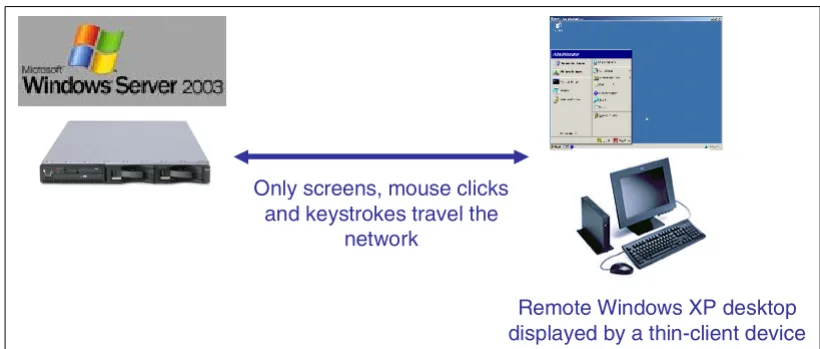
. WTS communicates with a small client program installed on any PC or handheld device.The user starts the client program, which then displays the name of the terminal server. When the user double-clicks the terminal server name, the user sees the server’s logon display, as shown in the example in Figure 1-1. Each user can log on to the terminal server. Then the remote server provides a Windows XP desktop in the client window. Users can interact with this desktop just as if they have their own high-powered Windows XP workstation. However, the processing is performed on the server, not the workstation, which merely provides input from the user and output to the display.
Figure 1-1 Windows Terminal Server and client relationship
Windows Server 2003 has two Terminal Server modes:
Remote Desktop: This allows administrators to remotely log on to the server from remote
workstations. They can enable the Remote Desktop through the system control panel’s Remote page, rather than installing Terminal Services for Remote Administration in Windows 2000 Server. Remote Desktop allows remote administration for a maximum of two concurrent connections. The administrator also has the ability to connect to the server console by running the Remote Desktop Connection client (mstsc.exe) with the
/console
switch.Tip: Windows Terminal Server is often also called Windows Terminal Services. These
terms are largely interchangeable.
Terminal Services
is the name of a family of related technologies, including Remote Desktop Connection (RDC), Remote Desktop Protocol (RDP), Terminal Server, Remote Assistance, and Remote Desktop for Administration.Terminal Server
is the name of the Windows Server 2003 component that enables multi-user access to applications running on Windows Server. It is the name that is applied to the Client Access Licenses.We use the term
terminal server
(all lower case) to indicate the server on which Windows Terminal Server is running.Only screens, mouse clicks and keystrokes travel the
network
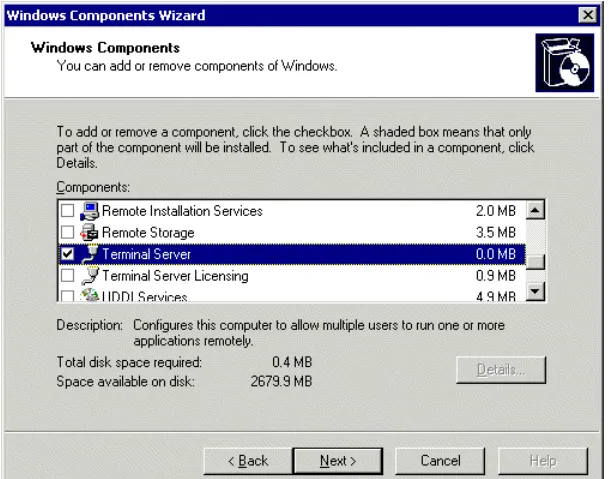
Chapter 1. Introduction to Windows Terminal Server and Citrix MetaFrame 3 Application Server mode: This is where the terminal server allows multiple clients to
access the servers resources for application hosting. This is enabled by adding the “Terminal Server” component using the Windows Components portion of the Add/Remove Programs wizard as shown in Figure 1-2.
Figure 1-2 Adding Terminal Server to enable Application Server mode or application hosting
1.2 Microsoft Network Load Balancing and Session Directory
The Network Load Balancing feature in Windows 2000 Advanced Server is also available in Windows Server 2003, Enterprise Edition or Datacenter Edition. Network Load Balancing is used to distribute work between two or more terminal servers.
Network Load Balancing works by representing a group of terminal servers by one IP address so many servers can be grouped together to support larger numbers of users. A large number of terminal servers is typically called a
server farm
. Server farms can be used to deploy a single Windows desktop through to thousands of users.A new feature of Windows Server 2003 is Session Directory, which is a Windows service that keeps a list of sessions indexed by user name. This allows the user to reconnect to the server where their disconnected session resides and continue working with their applications. Session Directory prevents the user from connecting to another server in the farm and having independent sessions running on multiple servers.
1.3 Citrix MetaFrame
Citrix MetaFrame is an extension to Windows Terminal Server. This software is installed on Windows Server 2003 to allow a broader range of clients such as Java, Linux, OS/2, and numerous other client devices.
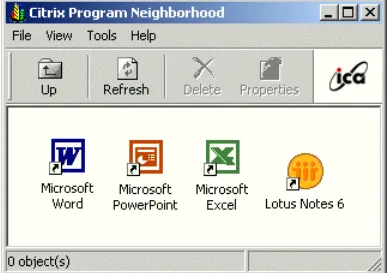
WTS, such as IPX, NetBIOS, and Async (modem) using the Independent Computing Architecture (ICA) protocol. MetaFrame provides essentially the same function set to clients as WTS does, but MetaFrame broadens the client base and manageability of those clients. MetaFrame also provides clients with services such as
published applications
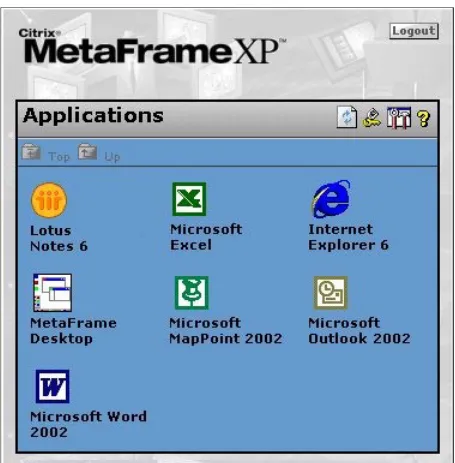
. By publishing an application on the server, an administrator makes the application available to users as a resource. Users of client machines can select an application and launch it for use. Figure 1-3 illustrates a user’s view of a set of published applications.Figure 1-3 Citrix Program Neighborhood with some published applications
Users with Windows 95, 98, NT, 2000, and XP and Java clients (in MetaFrame XP FR3) can run these applications in seamless mode. This means that the remote application looks as if it is running locally. The application window can be resized and moved around a user’s desktop alongside other, perhaps local, applications. The Citrix ICA client can be loaded on Windows clients automatically from a Citrix Web Interface server, making it a quick process for
companies to distribute new applications rapidly across an entire organization.
The benefit to administrators is that they can easily make applications available without visiting users’ computers to install the application software. Managing the application is also simplified since upgrades and patches can be applied centrally.
You may hear this technology dubbed
thin client
. This is because the entire Windows desktop or a Citrix MetaFrame published application is provided by a central high-powered server. It uses a small client program (usually 1 to 2 MB in size) to render the display updates and transmit keyboard and mouse input.1.4 Citrix MetaFrame XP Presentation Server
The Citrix MetaFrame product suite has been simplified from previous versions, removing the need for additional products like Load Balancing Services. Many of these additional services have been integrated into the core product.
Chapter 1. Introduction to Windows Terminal Server and Citrix MetaFrame 5
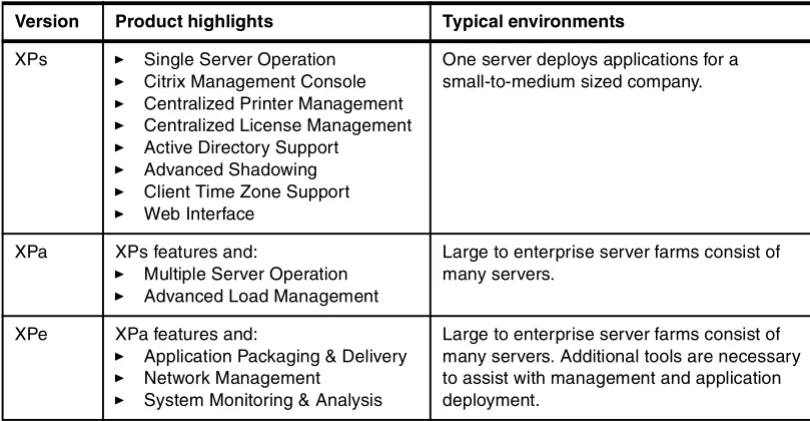
Table 1-1 Differences between MetaFrame XPs, XPa and XPe
Typically if a MetaFrame server farm consists of two or more servers, a customer purchases either Citrix MetaFrame XPa or XPe for its advanced load balancing capability.
Overall performance is improved in multiserver environments by using Load Balancing Services. Using the Windows Calculator program (calc.exe) as a trivial example, if you decide to publish Calculator to your users, you can make it available on two or more servers. Then, when a user wants to use Calculator, the user’s client asks a server, called the Data Collector, to identify those servers that are running the application. The Data Collector (DC) then determines which server is the least busy. It notifies the user’s client software with the name of the server to which it should connect to run the application. You can configure specific load evaluator rules for each application based on parameters such as server user load,
application user load, CPU, and memory utilization.
The user’s workstation then executes Calculator on the least busy server. Of course, this all occurs without the user being aware of it. With Load Balancing, you can specify to consider parameters, such as CPU load, available memory, and so on, at various priority levels by the Data Collector in determining which server is the least busy. We look at the Data Collector when we look at a scalable Citrix solution in 4.3, “Large WTS and MetaFrame environment” on page 31.
1.5 Web Interface
MetaFrame Web Interface, previously known as Citrix NFuse, is a component of MetaFrame. You can download it from the Web at:
http://www.citrix.com
Web Interface allows a user to log on to a Web site to see a personalized list of applications available from the server farm. Figure 1-4 shows an example display.
Version Product highlights Typical environments
XPs Single Server Operation
Citrix Management Console
Centralized Printer Management
Centralized License Management
Active Directory Support
Advanced Shadowing
Client Time Zone Support
Web Interface
One server deploys applications for a small-to-medium sized company.
XPa XPs features and:
Multiple Server Operation
Advanced Load Management
Large to enterprise server farms consist of many servers.
XPe XPa features and:
Application Packaging & Delivery
Network Management
System Monitoring & Analysis
Figure 1-4 Example Web Interface window
Web Interface can automatically install the appropriate Citrix ICA client on the user’s computer. For more information on Web Interface, see:
http://www.citrix.com/site/PS/products/
feature.asp?familyID=19&productID=186&featureID=6903
Citrix Engineer, Doug Brown, provides an excellent source of Web Interface information at:
http://www.dabcc.com/NFuse/
1.6 Secure Access Manager
Citrix MetaFrame Secure Access Manager allows an organization to deliver Web-based content. It also allows an organization to deliver Citrix MetaFrame XP Presentation Server content to users in an easy-to-deploy, easy-to-use, and easy-to-manage Web-based interface. Coupled with the new “out of the box” security product, Secure Gateway, Secure Access Manager allows secure access to all the content to both internal and external users. For more information on Secure Access Manager, see:
http://www.citrix.com/site/PS/products/product.asp?family=19&productID=184
1.7 Secure Gateway
Chapter 1. Introduction to Windows Terminal Server and Citrix MetaFrame 7
You can find an excellent source of information on installing and configuring a Secure Gateway, including video setup examples at:
http://www.dabcc.com/thinsol/csg/
1.8 Licensing
Windows Terminal Server and Citrix MetaFrame operate for a grace period of 120 and 35 days respectively before each product license must be activated. Microsoft licensing has been extended to provide per-user Client Access Licenses (CALs). Citrix licensing in MetaFrame is based on a concurrent user licensing system.
For more information on Microsoft Terminal Services licensing requirements, see:
http://www.microsoft.com/windows.netserver/howtobuy/licensing/overview.mspx
For Citrix MetaFrame, see the following Web site and search on document ID CTX017616:
© Copyright IBM Corp. 2003. All rights reserved. 9
Chapter 2.
xSeries thin-client servers
This chapter discusses how you can use xSeries servers to deploy Citrix MetaFrame thin-client solutions. MetaFrame solutions were traditionally deployed using powerful 1U (1.75-inch)-high dual-processor servers. However, several new technologies, such as virtual machines and blade servers, have expanded the choices that are available.
2.1 Rack optimized servers
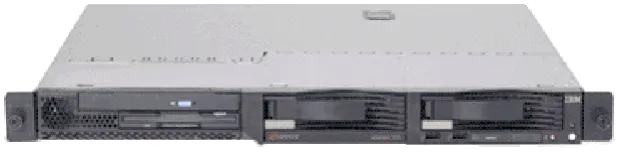
Over the past few years, the physical size of dual processor servers was dramatically reduced to the rack optimized servers of today such as the xSeries 335 (x335). These servers do not sacrifice size for performance. They are fitted with dual Intel Xeon processors, onboard SCSI RAID controller, and onboard management.
Figure 2-1 xSeries 335 dual processor server 1U high
The x335 is a popular choice by Citrix MetaFrame designers for many reasons:
The small form factor of the x335 allows hundreds of thin-client users to be supported with minimal filled rack space. 42 x335 servers can fit into a standard 42U rack.
Extra thin-client capacity is available by installing additional x335 servers into the server farm, or “scaling out” for extra capacity. Capacity can be increased gradually by buying additional smaller servers, as opposed to buying additional larger servers.
Larger servers may not effectively use all of the memory and CPU resources due to application or operating system limitations. 32-bit memory addressing limitations limit the amount of memory used higher than 4 GB.
If a smaller server fails, the number of users affected is much smaller than a large server that supports a larger number of users.
It is used for the following server roles: MetaFrame Servers, Dedicated Data Store, Domain Controllers, Secure Gateway, etc.
You can learn how to determine the number of thin-client users that you can support in your environment in 3.2, “Sizing your server for WTS and MetaFrame” on page 18. After you calculate a number of users per server, you can determine how many servers are required. You should always consider purchasing one or more servers to meet your capacity
requirements in the event of a server failure or a server off-line for maintenance. Consider using additional servers for a thin-client development environment.
To build multiple MetaFrame servers, start with a standard Windows Server 2003 and Citrix MetaFrame server. Use Microsoft’s System Preparation (sysprep) tool to create a master image from which to build additional servers with the same configuration.
Section 9.1 of Doug Brown’s “Methodology in a Box” provides further details about the steps that are required to clone a MetaFrame server. You can find Methodology in a Box on the Web at:
http://www.dabcc.com/miab/
2.2 Blade servers
Chapter 2. xSeries thin-client servers 11
servers can reduce cost with a more efficient use of valuable floor space and simplified management.
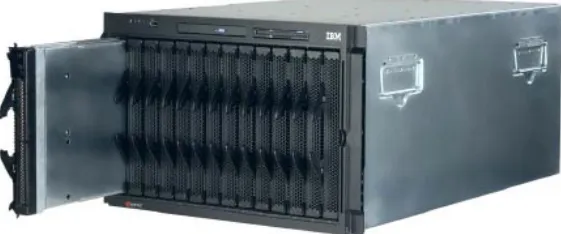
Figure 2-2 IBM BladeCenter fitted with 14 HS20 servers
The key features of the IBM^ BladeCenter and BladeCenter HS20 Servers are:
The rack-optimized, 7U modular design enclosure holds up to 14 hot-swap BladeCenter HS20 blades with up to six enclosures in a 42U rack.
They contain a high availability midplane that supports the hot-swap of individual blades.
A management module lets you manage and control components in the enclosure.
Optional hot-swap redundant Ethernet and Fibre Channel switch modules support up to four network switch modules.
You have a choice between 2.0 or 2.4 GHz Intel Xeon processors with quad-pumped 400 MHz front-side bus and full-speed 512 KB ECC L2 caches.
Each HS20 supports a minimum of 512 MB and a maximum of 4 GB of system memory. With the availability of 2 GB memory DIMMs, the maximum system is 8 GB.
They offers Dual Broadcom Gigabit Ethernet controllers with teaming and failover support.
The ATA-100 IDE controller offers an economical interface for up to two optional 40 GB IDE HDDs.
BladeCenter is equivalent to having 14 individual MetaFrame servers installed in a single chassis, reducing rack space, cabling requirements, and ongoing power savings. Each individual HS20 server provides excellent performance for thin-client purposes. Each server can be fitted with dual Intel Xeon processors and a maximum of 8 GB of RAM.
The IBM Redpaper Deploying Citrix MetaFrame on IBM ^ BladeCenter, REDP3583, is an excellent source of information about the details of the IBM BladeCenter. It includes installation and configuration instructions for Windows 2000 and Citrix MetaFrame.
2.3 Virtual MetaFrame servers
Virtual machines have long been used in IBM’s midrange and mainframe systems to partition development and production environments into separate logical machines on a single physical server. Over the last few years, the use of virtual machines on Intel servers has become increasingly popular through the use VMware’s virtual machine products. VMware offers three products:
VMware Workstation
GSX Server
VMware Workstation is used for development and demonstration purposes. The GSX Server and ESX Server versions are used for consolidating and partitioning systems in
high-performance environments.
Increasing capacity in a Citrix MetaFrame farm is typically through a “scale out” methodology by simply installing extra additional servers. For very large thin-client environments, this may consist of hundreds of MetaFrame servers.
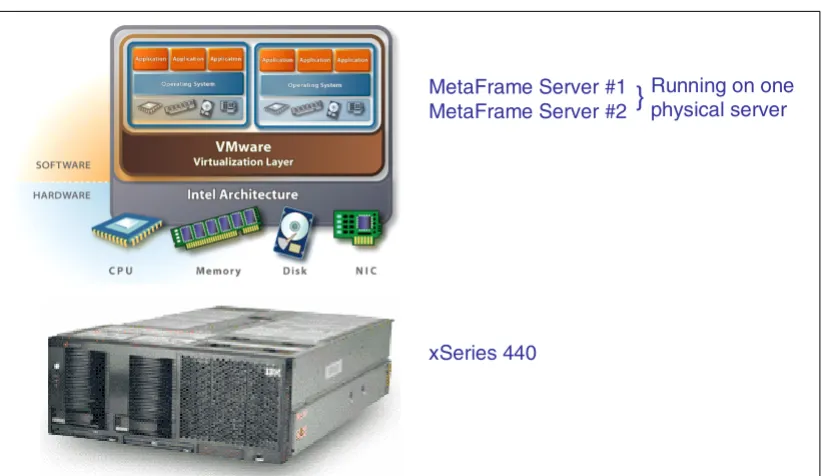
In these large environments, multiple MetaFrame servers can be consolidated to a single xSeries 440 (x440) server running VMware ESX Server. A single x440 server can be expanded to eight processors and 32 GB of RAM.
Figure 2-3 shows an x440 server running multiple MetaFrame Virtual Servers.
Figure 2-3 Virtual MetaFrame servers running on an x440 server
Testing in IBM’s performance laboratories has determined that an 8-way x440 server can support approximately 307
heavy users
. You can learn about heavy users in 3.2.4, “WTS testing tools and scripts” on page 23. That section also provides a link to the IBM Web site where you can download the x440 and VMware performance report.In real-world environments, depending on application usage, the x440 supports 250 to 500 active MetaFrame users using multiple virtual machines. These enterprise environments consist of large servers running one virtual MetaFrame server per processor.
By using VMware, you benefit from rapidly provisioning new servers. For example, a new server can be commissioned by simply taking a copy of an existing virtual machine directory and starting the new virtual machine. You must still prepare the Windows Server 2003 virtual machine using sysprep just as you would do with a traditional server.
2.4 Larger MetaFrame servers of the future
The majority of today’s terminal server environments are dual processor servers or larger servers running virtual machines. The memory limitations of 32-bit Windows applications restrict the amount of memory that these applications can access without using Intel Physical
xSeries 440
MetaFrame Server #1 MetaFrame Server #2
}
Chapter 2. xSeries thin-client servers 13
Addressing Extensions (PAE) or Address Windowing Extensions (AWE). Even with PAE enabled, the underlying architecture of the system is still based on 32-bit linear addresses. The solution is to use the Windows Server 2003 64-bit edition, which allows large servers to effectively scale to many processes and terabytes of RAM. This requires 64-bit versions of today’s 32-bit client applications to run natively in 64-bit mode. However, 32-bit applications can run using an emulation layer, much like Windows Server 2003 can run 16-bit applications today but with the associated emulation overhead.
2.5 Which servers to use
Table 2-1 offers a guide for choosing an appropriate xSeries model for your Citrix MetaFrame farm.
Table 2-1 xSeries guide for a Citrix MetaFrame environment
Rack optimized x335 servers can be used for all environments from several MetaFrame servers through enterprise environments that consist of server farms located across multiple locations. For larger Citrix farms, IBM BladeCenter may be more cost effective and use less rack space. It’s worthwhile to consider the number of MetaFrame servers you need today as well as the number that you may purchase in the years to come.
For large and enterprise Citrix environments, the x440 using VMware may be another way to consolidate the number of MetaFrame servers while providing the same level of performance of smaller dual processor servers in a scale-out design.
Citrix farm size Description xSeries model guide
Small One to two MetaFrame servers supporting less than 100 users
x335
Medium Server farm of two to 10 MetaFrame servers x335 BladeCenter
Large Less than 50 servers x335
BladeCenter x440 and VMware
© Copyright IBM Corp. 2003. All rights reserved. 15
Chapter 3.
Running a Windows Terminal
Server and MetaFrame pilot
Running a thorough Windows Terminal Server and MetaFrame pilot test helps to eliminate surprises after your system is installed in production. It also provides information in regard to:
The stability of the system
How the system can be made fault tolerant
What other network requirements are necessary
How the new solution fits in with the existing infrastructure and user requirements
You can use the methodology outlined in this chapter to determine application characteristics and server sizing requirements. The terminal server resources evaluated during capacity planning testing are processor, memory, and network performance. We recommend that you perform your testing on the same hardware you will use for your final solution. You can extrapolate the load measured on the system during the pilot to estimate overall capacity limits.
If you don't have the time, resources, or budget to perform a Terminal Server pilot, we provide some good sizing “rules of thumb”. These rules of thumb were obtained by combining industry experience with Microsoft and MetaFrame guidelines.
3.1 Pilot phases
A WTS and MetaFrame pilot can be divided into the following phases: 1. Install the applications and test functionality in a multi-user environment. 2. Define the number of users and significant performance factors.
3. Define acceptable performance.
4. Establish baseline Terminal Server performance. 5. Run the pilot with your group of test users.
6. Measure Terminal Server performance during the test. 7. Gather user feedback.
8. Identify capacity limits.
9. Resolve issues found during the pilot.
Using the information gained from the pilot allows you to make sound judgements about the number of servers required and the overall system design.
Consider reviewing Citrix Engineer Douglas Brown’s “Methodology in a Box”. It provides an overall Citrix thin-client methodology that can assist you from the pilot through
implementation. You can find Methodology in a Box on the Web at:
http://www.dabcc.com/miab/default.htm
3.1.1 Testing applications in a multi-user environment
This is one of the most important phases of your Windows Terminal Server pilot. You need to install all of the applications that you want to run on WTS to ensure that they operate as expected in a multi-user environment. To illustrate the importance of testing, we provide a real-life example.
One of our customers wanted to run a Telnet application on WTS. In principle, this is a simple exercise. However, during testing, we found that user authentication was not working
correctly. Analysis showed that the server was authenticating users based on each individual’s IP address. In a WTS environment, all users share a single IP address. The resolution was to transmit the user’s Independent Computing Architecture (ICA) client name to the server for use as a unique identifier.
This example illustrates that, in a WTS environment, you need to ensure that you test all functions of your application thoroughly, especially before a large WTS rollout. You can find information about installation and compatibility for several common applications in 5.4, “Application installation and configuration examples” on page 43.
3.1.2 Securing the terminal server
Windows Terminal Server should be further secured using Group Policy Objects (GPOs). Typical examples include using a GPO to hide a server’s drives from users or to remove a user’s ability to run administrative tools. Use the pilot to test how you will implement GPOs and to ensure they meet your security needs. The power of GPOs to secure and manage your environment is enhanced with Windows Server 2003.
Chapter 3. Running a Windows Terminal Server and MetaFrame pilot 17
AppSense also provides a range of tools to secure your Terminal Server. For more information, see:
http://www.appsense.com/
3.1.3 Choosing a pilot group
Choose a number of users who are willing to test your new terminal server. You want a sufficient number of users to place a moderate load on your server. The actual number varies depending on your server configuration, the application mix, and the sophistication of your users. When selecting a representative set of users, you may ask such questions as:
How many use one application at a time?
How many are power users?
As stated previously, it is important that you run your test on the same hardware that you will use for your final solution. A linear extrapolation to a larger number of users is a reasonable way to approximate the size your server must be.
Table 3-1 shows a list of users that may be involved in a typical Windows Terminal Server and MetaFrame pilot test. It also shows the job category and workstation types that will be tested. Note that we chose a staff with a number of different job roles to get a good cross-section of user types.
Table 3-1 Example pilot members
Be sure to tell each user that their experience will be used to determine the outcome of the pilot test. You may find it useful to give users a prepared set of questions to answer at the end of the test. Some questions you may consider asking include:
How easy was the terminal server to use? (very easy, easy, average, poor, or difficult)
How fast, relative to your existing computer, was the terminal server? (very fast, fast, average, slow, or very slow)
Did you experience any problems? If yes, please give brief details.
Did your computer have any errors or stop working? If so, please give brief details.
What is your overall impression of the terminal server? (excellent, good, average, poor, or very poor)
Your goal is for the pilot group to find WTS easy to use, fast, and convenient. The pilot feedback gives an indication of whether a broader rollout of WTS is feasible.
3.1.4 Performing the pilot
Run the pilot for at least four or five business days. The users in your test group should access a single Windows Terminal Server that you are monitoring with the Windows Performance tool. Be sure to monitor the server at different times each day: during the morning logon load, at lunch time when the server is usually less busy, and perhaps in the evening when batch-type jobs are run. These different sample times give you a feel for how
Current job role Names
Secretary John Smith, Mary Wilson
Administration John Harris, Michelle Sargent
busy the server is and how the load varies over time. The following section discusses the performance counters you should track during your pilot.
At the end of the test period, you can gather the user feedback sheets to determine how well Windows Terminal Server was rated by your users. Also, check that all applications and network services, such as printing, worked as expected.
3.2 Sizing your server for WTS and MetaFrame
Windows Terminal Server provides users with a desktop (operating system), applications, and network resources by way of remote network communications between the client and WTS. In the WTS computing environment, bottlenecks can quickly degrade performance and provide unacceptable response times for users. It is the dramatic user impact of system bottlenecks on a Windows Terminal Server that makes capacity planning a critical part of designing a WTS solution.
Server performance is affected by many interacting factors. The raw CPU performance and the number of processors, the amount of memory installed in the server, disk subsystem performance, and the network bandwidth available to the server all play their part.
The monitoring tool that we recommend you use to record performance parameters is the
Windows Performance tool
. This is integrated in the operating system and does not require you to install additional software components on the WTS system. The following sections provide information about important counters that are used to analyze Windows Terminal Server performance.In most server applications, disk subsystem performance has a strong effect on overall system performance. We recommend that you purchase a high-performance disk subsystem to minimize this effect. Using RAID technology can also improve throughput.
We also recommend that you measure performance counters from a remote workstation to minimize the effect of taking measurements on the server.
3.2.1 WTS performance counters
Measuring the performance of your Windows Terminal Server is similar to recording the performance in both the Windows 2003 Server and Windows XP versions. However, the counters of interest and their baseline values are different.
Use the counter logs in the Windows Performance tool to record the servers performance during the pilot. Record your log files as comma-delimited text files to easily import them into such tools as Microsoft Excel.
Some counters, such as Terminal Services Session, record data only while a user is logged on to the WTS. If a user logs off and their session ends, data is no longer recorded.
Therefore, it is important to monitor who is logged on during the pilot and to start new Counter Logs if and when required.
Chapter 3. Running a Windows Terminal Server and MetaFrame pilot 19
Table 3-2 Windows Server 2003 and Citrix MetaFrame Counters to record in a pilot
Object and counter Instance Description What to see for acceptable user performance in the pilot...
Processor
% Processor Time _Total This shows how much time the CPUs are busy executing a non-idle thread. This parameter can be monitored per CPU by selecting the appropriate CPU instance.
Average values are less than 80%. If the value is constantly more than 80%, you need either a faster CPU or fewer concurrent users per terminal server.
Interrupts/sec _Total The number of interruptions that the CPUs receive.
Low values. The acceptable value depends on the processor type and the workload. You should establish a baseline.
System
Processor Queue Length
--- Instantaneous count of the number of threads waiting to be serviced by a CPU. All the CPUs share the same queue.
Should be smaller than twice the number of processors for acceptable user response.
Memory
Available MB --- Available memory (including virtual memory).
High values. High values mean more memory is available to be used more concurrent users and applications.
Pages/sec --- The number of pages read or written to disk to resolve memory references to pages that were not in memory at the time.
Low values. The value on average should not be more than 20. A constantly high value may indicate a lack of memory.
Terminal services
Active Sessions --- The current number of active users accessing the terminal server. This should be plotted against the other performance values so you can extrapolate your servers performance.
You should try and have a minimum of 10 active users so you can extrapolate some meaningful performance data.
Terminal services session
% Processor Time Remote Desktop Protocol (RDP) or ICA session number. *
The amount of Processor Time for each user session. This per user value can assist you in determining whether one user’s set of applications is more CPU intensive than another.
A small value as a percentage of the total % Processor Time. A larger value for a particular user indicates one user is running a particular CPU intensive application.
Total Bytes (per second)
RDP or ICA session number. *
The ICA or RDP network bandwidth per user transmitted and received on the network between the client and server. You can use Excel to multiply each value by 0.008 to obtain a Kbps value so you can determine terminal server wide area network (WAN) requirements.
3.2.2 Interpreting your memory and CPU pilot results
From your pilot’s Performance Counter Logs, you can determine the final number of users that you can expect to support on your terminal server hardware. Use Excel to graph the Counter Log CSV files. Start by plotting the CPU utilization and the number of Active Sessions on the same graph. This allows you to determine the CPU utilization for various user loads.
Figure 3-1 is a graph from a Citrix pilot. It shows the CPU utilization on a dual processor x335 server with approximately 15 users running Office 2000 and Lotus Notes® 5.
Figure 3-1 Processor utilization and active sessions during the MetaFrame pilot Working Set RDP or
ICA session number. *
The approximate amount of bytes used by each user. Use Excel to convert each value into a MB value so you can interpret more easily.
The more programs a user runs, the larger the per session Working Set is. You can use this per user value to determine your typical users’ memory requirements.
Physical Disk
% Disk Time _Total The average time the disk subsystem has been busy serving a read or write request.
Low values. If this counter is more than 70%, the disk subsystem may be a bottleneck. This should not be a problem on a fast SCSI disk subsystem.
*: Each time a user logs on to WTS, they are allocated a new session number.
Object and counter Instance Description What to see for acceptable user performance in the pilot...
Note: Logical and physical disk performance counters are automatically enabled on
Chapter 3. Running a Windows Terminal Server and MetaFrame pilot 21
This graph shows that the average processor utilization was only 3%. This is well below the average processor guideline of 80%. Based on the CPU results alone in this example, the terminal server can support several hundred concurrent users.
You must also consider the application’s RAM requirements before a final number of users per server. For the user’s RAM requirements, graph the per session Working Set values and Available Memory to determine the average RAM requirements per user. Microsoft’s memory guideline for WTS is to provide a minimum of 10 MB per user. As a general rule of thumb, based on work in IBM’s performance laboratory, we recommend that you configure servers so that average memory utilization
does not exceed
70%. Thirty percent is usually enough extra memory so that the server does not expand storage onto disk or page memory onto disk during periods of peak activity.Using this memory recommendation, you can calculate the maximum number of terminal server users, given a particular amount of server memory. Determine the maximum amount of RAM your production servers will have on your virtual machines. You must use Windows Server 2003, Enterprise Edition, if more than 4 GB of RAM will be installed.
Use the following formula to determine the maximum number of users from your pilot memory results:
Maximum number of users per server (due to RAM limits) =
(Maximum server memory in MB - 128) x 0.7 / per user RAM required in MB
For example, if you determine from your pilot that the average per user RAM requirements is 35 MB and your servers will be installed with 4 GB of RAM, you can calculate the maximum amount of users as:
Maximum amount of users = (4096 - 128) x 0.7 / 35 = 80 users
Based on your application’s RAM requirements, the number of users per server varies depending on the applications installed, how much they are used, and how much memory each application requires.
3.2.3 Interpreting your pilot bandwidth requirements
Bottlenecks in network communications can occur in four different areas:
The client’s network interface
The physical network media
The server’s client-to-server network interface
The server’s network interface for server to server/host communications
Bottlenecks in network communications directly impact the user at the client workstation. When network delays are encountered, the delay in response time on the client workstations is instantaneous. You may consider WTS performance unacceptable because of delays in network communications even though the CPU and memory are available.
A server running Windows Terminal Server communicates with its clients via the RDP over TCP/IP. Citrix MetaFrame communicates with thin clients by the ICA protocol. This protocol can operate using transport protocols such as TCP/IP, NetBEUI, or IPX/SPX.
Both ICA and RDP are
on demand
protocols. This means that when the display is static and no keys presses, mouse movements, or clicks occur, no bandwidth is consumed. This provides for much more efficient use of the network.users at a remote office. These users were connected to the MetaFrame server over a 128 Kbps Committed Information Rate (CIR) frame-relay link.
Figure 3-2 Example pilot bandwidth results
This pilot determined that the average bandwidth requirements were 5 Kbps. Therefore, the bandwidth requirement for 10 users is 50 Kbps. Given the link had a CIR of 128 Kbps, no link upgrade is required to support these remote Citrix users across the WAN. You can see from the graph in Figure 3-2 that the total bandwidth required for ICA traffic “bursts” by nature, as users type on their keyboard, move their mouse, and print to locally attached printers via Citrix.
Citrix recommends that, for optimal performance in an active ICA session, 20 Kbps of bandwidth must be available for each session before the bandwidth becomes a constraint. Bandwidth usage can vary during a session depending on session activity. Latency of 1000 ms or more is likely to be unacceptable.
In practical environments, we found that 20 Kbps per each Citrix user provides excellent performance. For more information on ICA bandwidth requirements, refer to the Citrix online forum and search on the keyword “bandwidth”:
http://support.citrix.com/
Chapter 3. Running a Windows Terminal Server and MetaFrame pilot 23
3.2.4 WTS testing tools and scripts
For situations where you do not have a group of users to pilot your Citrix solution, Microsoft and Citrix provide automated tools to simulate a pilot environment. Microsoft provides such tools as Microsoft RoboServer, RoboClient, and SMClient to assist you with WTS capacity planning. Both tools are included in the Windows Server 2003 Resource kit.
Citrix provides an equivalent tool for MetaFrame, called the
Citrix Server Test Kit
. You can download the kit from the Citrix Developer Network Web site under SDK:http://www.citrix.com/cdn
Both tools use client drivers to send keystrokes, mouse movements, and clicks to a terminal server to simulate real users. You can use these tools to determine the maximum number of terminal server users that your environment will support. Many hardware vendors also supply performance information using one or more of the commonly used scripts listed in Table 3-3. Table 3-3 Windows Terminal Server capacity scripts
The typing rate of your users, measured in WPM, affects the capacity of your server. As the average typing rate increases, the number of users that can be supported by your server decreases. Users who open and close applications, rather than switching between them, also place a greater load on a terminal server.
Vendor Testing script Description
Microsoft Knowledge worker Based on the Gartner Group specification, this script simulates a user that keeps a number of applications open all of the time, switching between them to perform a number of tasks. The user’s typing rate is 35 words per minute (WPM).
Microsoft Structured task worker Based on the Gartner Group specification, the structured task worker script simulates a user who opens and closes applications while moving between different tasks. The user’s typing rate is 60 WPM. This script provides a more stressful test than the knowledge worker script.
Citrix Normal user The normal user script simulates a user running one application at a time. For example, the script may write and save a letter using Microsoft Word.
Citrix Power user This script simulates a user running two or more applications simultaneously. The power user typically uses more system resources than a normal user. For example, a power user script may open Microsoft Word and Microsoft Excel at the same time and merge an address book in Excel with a letter in Word.
IBM Light user The light user script represents task-oriented users who normally use a single data entry type application. In most tests, light users are represented as Microsoft Outlook users who typically send and receive a text message every five minutes.
IBM Medium user This script represents normal users who typically have two or three non-computational applications open in the same session space, with light switching among them. In most tests, medium users are represented as using Microsoft Word to create small documents, Microsoft Excel for simple data entry, Microsoft Outlook for sending and receiving e-mail, and Microsoft Internet Explorer for browsing an intranet site.
You can find IBM benchmarks for Windows Server 2003 and Citrix on the Web at:
http://www.pc.ibm.com/ww/eserver/xseries/benchmarks/series.html
3.2.5 Using script results to assess real-world requirements
An underestimation can occur due to the differences between the benchmark environment in which WTS scripts are run and the real world environment. Scripts generate a synthetic workload that provides repeatability but that is not particularly representative of any specific real-world situation. Repeatability allows comparison of the effects of changes to the server and software configuration. This means that the server may be finely tuned for this specific and stable workload. Production environments are more subject to variation than this. Another important factor is the rate at which the workload is placed on the server. In benchmarks, some effort is made at randomizing the work presented to the server, but real users’ work patterns can create significant peaks and valleys on a daily, weekly, or even longer cyclical basis. For example, daily peaks can be expected when everyone logs on to the system when they arrive in the morning, while workload dips usually occur at lunch time and overnight.
In practice, test results provide appropriate “rules of thumb” for most users who run applications such as Microsoft Office, IBM Lotus Notes, or Microsoft Outlook. For more complicated or custom applications, you should be more conservative in your server sizing and use the results from the structured task workers, power users, or heavy user scripts. For this situation, IBM and other vendors have developed guidelines to map Terminal Server script results to recommended maximum values that customers can use for production servers for particular client workloads.
The following rule of thumb determines the upper bound on the number of production WTS clients actively connected at any one time to your xSeries server:
80% of script result = maximum number of production WTS users
For example, a particular script may be running on a particular server configuration and indicate that a maximum of 100 terminal server users are supported. In this case, you can expect to support up to about 80 users of the type represented by the test script in your production environment.
This rule of thumb provides some spare capacity for your production environment. These guidelines vary from vendor to vendor. However, they all aim to provide a reasonable safety margin in their calculations. With this, you can feel confident that your server can support the load that is quoted and cope with reasonable peaks in demand.
Use the following rule of thumb as a useful guide to provide a minimum estimate for the amount of RAM required for your terminal server if you have not conducted a pilot. The minimum amount of RAM you need in your terminal server is:
128 + 15 x (Concurrent number of terminal server users) MB
Tip: Up to 90 concurrent knowledge workers or medium users can be supported on a dual
Intel Xeon processor terminal server and receive acceptable response times. In practice, this relates to general application use of such products as Microsoft Office and Lotus Notes. Using our rule of thumb, this equates to 90 x 0.8 = 72 concurrent production users or approximately 70 users.
Rule of thumb for WTS users
Chapter 3. Running a Windows Terminal Server and MetaFrame pilot 25
Add an additional 30% of additional RAM so that the server does not expand storage onto disk or page memory onto disk during periods of peak activity.
© Copyright IBM Corp. 2003. All rights reserved. 27
Chapter 4.
Examples of Windows Terminal
Server and MetaFrame design
This chapter discusses several Windows Server 2003 Terminal Services and Citrix MetaFrame design examples. Note that these are
examples
only
. Consider the specifics of your own environment when sizing and implementing your own terminal servers and when you need to purchase the additional services of Citrix MetaFrame. Always consult with your colleagues and management before you make server and configuration decisions.4.1 Small WTS and MetaFrame environment
A customer wanted to install a Windows Terminal Server and Citrix MetaFrame for 20 users at a single location. The customer had a mixture of older computers that did not have the capacity to run Windows 2000 or Windows XP. The customer wanted to reuse these computers by converting them to thin clients and using WTS. All users will run applications such as those in the Microsoft Office suite. The customer also wanted the ability to remotely control users’ desktops and to minimize the amount of end-user training with a thin-client environment.
The solution was to use Windows Server 2003 and Citrix MetaFrame XPa. MetaFrame XPa was chosen because the customer did not expect to install an additional server in the short term. The thin clients were a mixture of DOS clients and published applications to existing Windows 9X clients. TCP/IP was used as the network protocol.
Our choice for this customer was to run Windows Terminal Services and Citrix MetaFrame on an xSeries 335 (x335). The customer did not expect significant growth in the short term and cost constraints prohibited installing an extra processor. The x335 has sufficient performance for this small Citrix network to provide Microsoft Office applications. Given that all users connected to MetaFrame via a 100 Mbps Ethernet network, no bandwidth sizing was necessary.
Using our memory formula, we calculated that we needed a minimum of 428 MB of RAM. The customer wanted to run backup and restore and virus protection software, so another 32 MB of RAM was required, for a total of 460 MB of memory. The server comes standard with 512 MB of memory which met our memory requirements with an additional 10% for headroom. The x335 also allows the customer to fit an extra processor if a greater workload is placed on the system in the future.
Looking at what software and data should be on the server, we made the following recommendations:
The Citrix server should not hold any user data, only the applications to be published to your users. In our example, the Citrix server was installed with the customer’s applications, which included Office XP and Lotus Notes. 16-bit and DOS applications should not be installed on Windows Terminal Server due to their increased system requirements and the possible system instability that they may cause.
Chapter 4. Examples of Windows Terminal Server and MetaFrame design 29
Figure 4-1 A single MetaFrame XPa server
The Windows Terminal Server, Citrix MetaFrame, and applications were installed using the instructions provided in Chapter 5, “Installing and configuring the software” on page 35. The terminal server was installed as a stand-alone server rather than running the additional Domain controller tasks.
The server was a member of the Active Directory Domain, and the server object was placed in its own Organizational Unit (OU). Placing the server object in its own OU allows it to be easily secured by Group Policy Objects. You can see a sample Group Policy Object in 5.2, “Group Policy Object (GPO) and profile configuration” on page 37.
A license server is a Windows 2000 Server on which Terminal Services Licensing is enabled. This server tracks the number of licenses that are purchased and must be installed for WTS to operate.
The customer was running an existing file and print server with several different types of network printers. Our recommendation was to only use the multi-user printer drivers that are shipped with Windows Server 2003. Using third-party printer drivers in a multi-user
environment is known to result in system instability and the well-known blue-screen trap in a Windows Server 2003 environment. For more information, consult the Citrix forum at:
http://www.citrix.com/support/forums.asp
4.2 Medium WTS and MetaFrame environment
Another customer wanted to use Windows Terminal Server and MetaFrame XP to support a total of 200 users for a single client/server application, with the expectation of significant growth in user numbers in the short term. Thirty of the users were located in the customer's headquarters, connected by a switched 10/100 Mbps Ethernet network. The other 30 users were located in a remote overseas office via a 128 Kbps frame-relay wide area network (WAN) link.
The application was to be accessed as a published application allowing users to easily connect to the new client/server application from their Independent Computing Architecture (ICA) clients. For Windows 32-bit clients, the application can be seamlessly accessed as if it is a local application. MetaFrame XPe allows the customer to rapidly roll out this application to all users in the company.
DOS Client
Win9X Client Desktop used by
remote thin-client
xSeries 335
The customer wanted efficient multi-CPU servers with a small form factor with the ability to add additional capacity quickly. Using our guideline of 90 users per server with dual processors, and scaling this value by 80%, we specified a maximum of 70 users per server. IBM BladeCenter was chosen as the appropriate server solution. The customer chose to start with four HS20 servers, to support the existing user load with some additional capacity in the event of a server failure or maintenance. The client/server application was load balanced across the servers by using MetaFrame XPe’s load balancing capability. As additional capacity is required, additional HS20 servers can be installed into BladeCenter.
Figure 4-2 Citrix MetaFrame XPe farm running on IBM BladeCenter
The customer was not able to perform a full-capacity planning pilot for the client/server application. Each HS20 was fitted with dual processors to provide additional scalability. Using our memory formula, we calculated that we needed 1178 MB of RAM (128 MB + 70 x 15 MB). We installed an additional 30% of RAM for short-term requirements. The customer also wanted to run backup and restore and virus protection software. Therefore, another 32 MB of RAM was required. This gave us a total of 1714 MB of RAM as a minimum. Allowing for the granularity of memory packaging, the customer decided to configure the server with 2 GB of RAM.
The customer used Citrix’s bandwidth guideline to size the frame-relay link as a Committed Information Rate (CIR) of 600 Kbps. However, the customer felt that it was unlikely that 30 concurrent users would access the application from the remote office overseas at the same time, so the link CIR was reduced. The customer may increase the frame-relay link speed in the future if their carrier reports high utilization. We informed the customer that users, particularly those working across a WAN, obtain increased performance and user experience by activating bitmap caching on all ICA clients and using SpeedScreen Latency Reduction. The terminal server was installed as a stand-alone server. The server object was placed in its own Organizational Unit in the Active Directory. Placing the server object in its own OU allowed it to be secured by Group Policy Objects. A sample Group Policy Object is provided in 5.2, “Group Policy Object (GPO) and profile configuration” on page 37.
As discussed previously, a license server is a Windows Server 2003 server on which Terminal Services Licensing is enabled. This server tracks the number of licenses that are purchased and must be installed for WTS to operate. It was important this server is not a terminal server in the farm and is always available.
The customer configured the Windows Terminal Server using a drive partitioning scheme that we find useful. The operating system was placed on the C: drive, with data on the D: drive.
Client/server application deployed via Citrix to
remote desktop
IBM BladeCenter with each HS20 blade running Windows Server 2003 and
Chapter 4. Examples of Windows Terminal Server and MetaFrame design 31
Both were formatted using NTFS. A third, FAT, partition formed the E: drive. Using imaging software, such as Symantec Ghost, images of the operating system and data drives can be created and stored on the E: drive.
It is a good idea to make a new image after the initial installation and then prior to any major change to the server. Then, in the event of a system failure, you can rapidly bring the server back online by restoring it from these backup images.
4.3 Large WTS and MetaFrame environment
A large customer needed a reliable, expandable, and centralized Citrix MetaFrame XPe environment for 1,000 users. The customer had several existing servers at their
headquarters, including IBM
~
iSeries™ servers running business applications and Lotus Domino™, and xSeries servers as Windows file and print servers. The customer wanted to maintain this centralization. They wanted to keep major computing resources close to their support staff for better service, manageability, and increased security. The customer wanted Citrix MetaFrame to provide a full-screen desktop and several applications, such as Office XP and Lotus Notes, to their users. The desktop was to be secured and simplified for all users.The customer’s headquarters was running a switched 10/100 Mbps Ethernet network with Gbps backbone and frame-relay links to many remote offices. An implementation requirement was to have the terminal servers join the company’s existing Active Directory so that users could log on to any terminal server using the same account and password. A dedicated Active Directory Domain Controller was assigned to the MetaFrame server farm to authenticate users and to store the users’ roaming profiles. The server also had Terminal Server Licensing enabled, which tracks the number of licenses that the customer had purchased for all of their terminal servers.
The Citrix MetaFrame’s server farm is stored in the data store. The data store can be either an Access, SQL Server, or Oracle database. The function of the data store is to provide a repository of persistent farm information for all servers to reference, such as published application configuration, licenses, and servers in the farm. To ensure a reliable and high performance store, Citrix recommends using enterprise databases such as SQL Server or Oracle for larger MetaFrame server farms. A dedicated server running SQL Server performs the data store function.
We recommended that at least two domain controllers run to provide fault tolerance. The MetaFrame domain controller was installed on an x335 server because it can be rack mounted and has high availability options such as hot swap hard drives and redundant power supplies.
We recommended that the customer implement several small MetaFrame servers rather than one or two large ones. This allows the customer easily to scale the solution as user numbers increase. It also means that fewer users are affected in the event of a system failure. The other servers can support the slightly increased user load if one server is shut down for maintenance or repairs.
Fifteen x335 servers were configured in this way to support 1,000 concurrent MetaFrame users. We recommended a sixteenth server so that, in the event of a server failure, the 1,000 users can be supported without a drop in quality of service. The design can be scaled out by installing additional x335 servers if required.
Figure 4-3 Large MetaFrame XPe farm running on xSeries 335 servers
Each x335 server has two 32 GB, with 15,000 RPM drives connected to the onboard RAID adapter and configured as a RAID-1 logical drive. This gives an effective disk space of 32 GB per server.
One x335 server was installed with Windows Server 2003, Citrix MetaFrame XPe, and the appropriate applications. While building the server, it is important not to join the domain and to keep the local administrative password blank. We then used Microsoft’s sysprep utility to prepare this server as our Master Terminal Server image. Using a disk imaging utility, such as Symantec Ghost, the customer can distribute this image to the other x335 servers. After each server is imaged, each server can join the domain. By using sysprep, large numbers of identical MetaFrame servers can be rapidly installed.
The customer configured the servers using a drive partitioning scheme that we found useful. The operating system was placed on the C: drive, with data on the D: drive. Both were formatted using NTFS. A third FAT partition formed the E: drive. Using imaging software, such as Symantec Ghost, images of the operating system and data drives can be created and stored on the E: drive. It is a good idea to make a new image after the initial installation and then prior to any major change to the server. Then, in the event of a system failure, you can bring the server back online rapidly by restoring the server from these backup images. Only use ghost partition images on the same server from which it is imaged.
When all MetaFrame servers were installed in the Citrix farm, a published application was created using the Citrix Management Console to distribute a Windows desktop. All of the servers in the farm were selected to distribute the Windows desktop published application. Load balancing allows the desktop published application to be available as a single selection for the user rather than the user having 16 desktop applications from which to choose. When the user connects to the Citrix servers, a MetaFrame server in the farm configured as the Data Collector (DC) seamlessly directs them to the least busy server. Several other servers were configured as backup Data Collectors for extra redundancy. From the user’s perspective, connecting to a “server farm” of 16 servers was the same as connecting to a single
MetaFrame server. If a server fails or is made unavailable for maintenance purposes, users connect to one of the remaining servers.
Rack fitted with 19 IBM x335 servers:
• 16 MetaFrame XPe Servers
Chapter 4. Examples of Windows Terminal Server and MetaFrame design 33
The customer desired to provide users with a consistent environment, regardless of which MetaFrame server they log on to. This includes a user’s default printer, last documents accessed, and Web favorites. This is achieved by using roaming profiles, stored on a file server. When a user logs on to one of the MetaFrame servers, the user’s profile is downloaded from the file server and saved back to the server when the user logs off. To secure the 16 terminal servers and to provide a list of application icons for each user, Group Policies are used. All 16 terminal servers are placed in their own Active Directory Organizational Unit, to which a Group Policy is assigned. See 5.2, “Group Policy Object (GPO) and profile configuration” on page 37, for more details on Group Policies.
All user data is stored on separate file servers. Applications are installed identically on each MetaFrame server.
The customer performed network bandwidth capacity planning and found that ICA traffic was on average 5 Kbps for each remote user. For 50 users accessing Citrix from a remote location, the recommended CIR for the frame-relay network is 250 Kbps. Under the ICA client’s Server Group configuration setting, the TCP/IP address of Data Collector server and Backup Data Collector serv