Palm Tcl:
Programming Guide and
Reference
Tcl Programming for Palm OS
DRAFT V0.4
© Ashok P. Nadkarni
Table of Contents
Programming Guide 1
Introduction to Palm Tcl 1
About Palm OS 1
About Tcl 1
Why use Palm Tcl 2
When not to use Palm Tcl 2
Futures and limitations 2
About this manual 2
Other Reading 2
Reading about Palm OS 2
Reading about Tcl 3
Credits 3
The Tcl language 3
The prc-tools C development tools 4
The PilRC resource compiler 4
The par resource database utility 4
Toucan – the Palm TCL Integrated Development Environment 4
Palm OS Features 5
User Interface Elements 5
Resources 5 Forms 6 Menus 7 Titles 8 Labels 8
Text fields 8
Scroll bars 11
Buttons and repeating buttons 11
Check boxes and push buttons 12
Selector triggers 13
Popup triggers 14
Tables 14
Graffiti Shift Indicator 16
Clipboard and Selections 16
Handling user input 17
Time and Date Selectors 18
Playing Sounds 18
Palm OS Events 19
Event handling 19
Event generation 19
Data Manager 20
Data Manager Concepts 20
Database creator ID 20
Database type 20
Database records 20
Working with databases 21
System functions 23
Launching applications 23
Palm OS feature support 23
Conduits 23
Palm Tcl Development Environment 24
The Palm Tcl build process 24
Obtaining a Palm OS Creator ID 25
Creating Palm OS resources 25
Linking resources with the Palm Tcl runtime 26
Testing using the Palm OS emulator 27
Tracing using the Palm Reporter 27
Loading an application into a Palm OS PDA 27
Programming by Example 28
Demo - resource definition file 28
Demo – compiling resources 28
Demo – linking 28
Palm Tcl Reference 29
Palm Tcl compatibility with Tcl 7.6 29
Alphabetical Reference 30
beep 30
beep ?BEEPTYPE? 30
clipboard 30
clipboard 30 clipboard ?text? 30
clock 30
clock clicks ?-rate? 31
clock format CLOCK_VALUE ?-format FORMAT_STRING? ?–gmt BOOLEAN?31
clock seconds 31
clock selectday ?-by MODE? ?-init BINTIME? ?-title TITLE? 31 clock selecttime ?–start STARTTIME? ?-end ENDTIME?-title TITLE? 32
dm 32
dm create NAME CREATOR TYPE ?-rsrc? 33
dm opendb NAME ?options? 33
dm exists NAME 34
dm list ?-all? ?-name NAME? ?-type TYPE? ?-creator CREATOR? 34
dm delete NAME 34
DBHANDLE close 34
DBHANDLE get RECORDINDEX ?VARNAME? 34
DBHANDLE set RECORDINDEX ?-var? VALUE 35
DBHANDLE delete RECORDINDEX? 35
DBHANDLE count 35
DBHANDLE sort ?options? 35
DBHANDLE recinfo?option? 36
emulator 37
emulator 37 emulator log MESSAGE_STRING 37 emulator source FILENAME 37
event key KEYCODE 38 event menu MENUID 38 event system SYSTEMCODE 38
form 38
form ids 39
form handles 39
form load RESID?options? 39
FORMHANDLE unload 40
FORMHANDLE configure ?options?40
FORMHANDLE cget ?options? 40
FORMHANDLE display ?-popup BOOLEAN? 41
FORMHANDLE get RESID?VARNAME? 41
FORMHANDLE set RESID ?-var? VALUE 41
FORMHANDLE getsel RESID?VARNAME? 42
FORMHANDLE setsel RESIDSTARTPOSENDPOS 43
FORMHANDLE focus ?RESID? 43
FORMHANDLE redraw ?-force? 43
FORMHANDLE itemconfig RESID ?options? 43
FORMHANDLE itemcget RESID ?options? 45
FORMHANDLE tget RESID ?RECINDEX COLUMN? … 46
FORMHANDLE tset RESID ?RECINDEX COLUMN VALUE? … 46
info 46 palm 46
palm launch 47
palm keyboard 47
palm graffitihelp 47
source 47
Event Reference 47
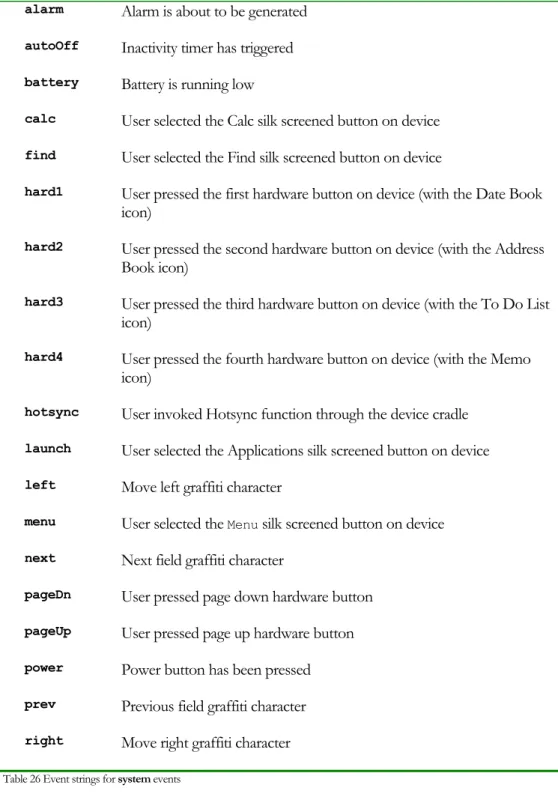
Event Keyword Substitution 47
Appendices 50
Appendix A - Version History 50
Programming Guide
Palm Tcl Programming Guide – DRAFT V0.1
Introduction to Palm Tcl
This chapter gives a high level overview of the Palm Tcl language
and development environment.
Palm Tcl is a high level programming language and development environment for creating applications for handheld devices running the Palm OS operating system. It allows programmers to write applications without requiring them to know the intricacies of the Palm OS runtime environment. Programs written in Palm Tcl are generally an order of magnitude shorter than their C equivalents and can be written in a fraction of the time.
About Palm OS
Palm OS is the operating system running on the most popular series of personal digital assistant (PDA) handheld computers – the Palm Organizer series from 3Com and Palm Computing, the Visor from Handspring and Clie from Sony.
Because it has been custom designed for a PDA environment, Palm OS has some features as well as hardware resource limitations that impose an additional burden on programmers who wish to write applications for this platform.
Palm Tcl’s goal is to simplify and accelerate the process of application development for Palm OS. In its current version (0.3), Palm Tcl supports most form based user interface elements in Palm OS V3.0, as well as support for databases and several system related functions.
Applications written in Palm Tcl require at least V3.0 of Palm OS to run.
About Tcl
John Ousterhout at Berkeley created Tcl, theTool Command Language, in 1988. It
was designed as an open-source scripting language that was easily learned and yet powerful enough to be used in a wide variety of problem domains.
Even readers who never land up using Palm Tcl are strongly encouraged to learn Tcl
application domains ranging from user interfaces to systems integration to distributed processing.
Why use Palm Tcl
Like Tcl, Palm Tcl allows newcomers to Palm OS to be functional in a day, instead of weeks or months. Even experienced programmers are far more productive.
When not to use Palm Tcl
Palm Tcl is interpreted, not compiled, and as such is not suitable for applications that are CPU intensive, for example those that require serious number crunching. Palm OS is not really a suitable platform for these applications anyway.
Futures and limitations
Palm Tcl is still under development and many Palm OS features are not yet supported. These include font and color support, networking and IrDA, and conduits. These will be added in a future release.
About this manual
This manual is a user guide and reference for the Palm Tcl development environment and language. It assumes that the reader is very familiar with the user interface provided by Palm OS and has programmed in Tcl on other platforms.
The manual uses the following typographical conventions:
Palm Tcl program commands and resource definition file keywords that are to be entered verbatim are shown in this bold fixed size font.
Parts of a Palm Tcl command or resource definition file that are placeholders for the actual characters are shown as upper case in this ITALIC FIXED SIZE FONT.
Optional parts of a Palm Tcl command are shown surrounded by question marks as in ?-var VARNAME?.
Other Reading
Reading about Palm OS
concepts and features are described in [5] while the detailed reference is contained in[6].
There are several books on Palm OS programming available, for example [1,2,3]. Naturally, these focus on writing applications in C. Nevertheless, they are useful for understanding the Palm OS environment and some of its features such as user interfaces, databases and conduits. Some of these are explained in better detail in the books than the official Palm OS SDK documentation.
Reading about
Tcl
This manual contains no introductory or reference material about Tcl. It assumes the reader is familiar with the language and only describes how Palm Tcl differs. In addition to detailing the new commands, the differences with respect to the core language are described in Palm Tcl compatibility with Tcl 7.6.
For readers who are new to Tcl, there are a number of excellent books listed in the
References section. Of these, [4] is the most relevant because it describes Tcl 7.6, the version on which Palm Tcl is based. There are several other references listed in
http://starbase.neosoft.com/~claird/comp.lang.Tcl/Tcl_books.html. These describe a newer version of the language but most of the material is still relevant.
In addition to the books, there is a wealth of material available on the Web. The Scriptics Corporation web site at http://www.scriptics.com is the logical starting point for exploring Tcl resources on the Web. Another very useful Web page for the
beginner is http://starbase.neosoft.com/~claird/comp.lang.Tcl/Tcl_tutorials.html
which contains a directory of online Tcl tutorials. A detailed guide to beginning development with Tcl is the Getting Started section at http://dev.scriptics.com.
Credits
The Palm Tcl development environment is built from several free open source utilities.
The
Tcl
language
Obviously, without Tcl, there would be no Palm TCL. In addition to John Ousterhout
The
prc-tools
C development tools
Palm TCL is itself written in C using the prc-tools package. This is a port of the Gnu gcc compiler chain, by John Marshall and others, to support Palm OS applications. Without the availability of a free compiler, Palm TCL would never have come into being.
The
PilRC
resource compiler
Although any Palm OS resource compiler may be used, the one used in sample code and described in this manual is PilRC (PILot Resource Compiler). This is a freely available resource compiler that is downloadable from its official home on the Internet at http://www.ardiri.com/index.php?redir=palm&cat=pilrc . A version of this tool is also included in the Palm TCL distribution.
The
par
resource database utility
The par utility is used to bind the application’s resources to the Palm Tcl runtime
system. This program, written by David Williams, is a general-purpose tool for manipulating Palm OS resource databases and can be downloaded from
http://djw.org/product/palm/par/index.html.
Toucan – the Palm TCL Integrated Development Environment
Toucan is an integrated development environment for Palm TCL written by Mac Cody. Amongst other things, it allows for graphical creation and viewing of form elements, making creation of the latter significantly simpler than editing resource files. Documentation and software for the latest version of Toucan can be downloaded fromPalm OS Features
Provides a short introduction to the Palm OS environment and the features
supported by
Palm Tcl.
Like other operating systems, Palm OS provides a fairly extensive programming interface covering user interfaces, storage, networking and communications. In addition, there are several aspects of Palm OS that are unique, such as conduits and categories. This chapter introduces you to those features of Palm OS that are supported by Palm Tcl. It is not meant to be anything other than a very rudimentary introduction but should be sufficient to get started. Refer to [5] and [6] for a detailed description of Palm OS.
User Interface Elements
Resources
A Palm OS application is stored as a resource database. A resource is a data structure that contains a component of an application, for example its code, or icon, or structures that describe its user interface elements such as forms, menus etc.
The user interface elements in a Palm OS application are generally not created dynamically. Rather, they are defined and created as static structures through a program such as pilrc. These programs take a resource definition file that describes the static
structure of the user interface, such as position and size of the user interface elements, and converts it to a Palm OS resource. The application program code is then responsible for the dynamic aspects of the user interface, such as handling button taps, displaying dynamic content and so on.
All the user interface elements discussed in the rest of this section are defined and created through a resource definition file. Although any resource creation program may be used, the documentation assumes you are using the pilrc (PILot Resource
Compiler) program. This is a free program that is available from the Internet from
http://www.hig.se/~ardiri/development/palmIII/pilrc/index.html. The example Palm Tcl application Demo - resource definition file illustrates some of the basic features of the program. However, this manual does not document all the pilrc
features or the syntax of the resource definition file it uses. Refer to the documentation that comes with that program for a full description.
that is used to distinguish between multiple resources of the same type. Resources are loaded and manipulated using these two items. Generally, the type of resource is implicit in the function being invoked, while the resource id is explicitly specified.
Note that all resource ids above 10000 are reserved by Palm OS for system use.
Moreover, Palm Tcl reserves the use of the resource id 9999. This resource id must be
associated with a string resource that contains the Palm Tcl script to be invoked when the application starts.
Forms
Although Palm OS does provide low level windowing and graphics routines, Palm Tcl is focused on applications that are based on Palm OS forms1. Using terminology from
other windowing systems, a Palm OS form is basically a container window with a title and menu that collects together various user interface elements, such as buttons and text fields, that are functionally related. An application usually consists of a number of these forms that the user navigates through using buttons or menu selections.
Form resources are defined using the FORM keyword in a pilrc resource definition file
and appear at the syntactic top level. User interface elements contained within a form are enclosed within the definition of the parent form.
The following defines a form in a resource definition file.
FORM ID 500 AT (0 0 160 160) MENUID 550
Resource id of the menu associated with the form Defines form position and
NOFRAME Indicates no border to be drawn around form BEGIN
TITLE "Palm TCL Demonstration"
Start of form element defintions
FIELD ID 501 AT (10 20 140 80) FONT 0 NONEDITABLE MULTIPLELINES SCROLLBAR ID 502 AT (150 20 7 80) VALUE 0 MIN 0 MAX 0 PAGESIZE 0 BUTTON "User Interface Demo" ID 503 AT (40 120 AUTO AUTO) FONT 0 BUTTON "Address Book Demo" ID 504 AT (40 140 AUTO AUTO) FONT 0 END End of form definition
In Palm Tcl, loading a form resource through the form load command instantiates a
Tcl command which is used to access or manipulate the form and all the user interface elements contained within it. The following code loads and displays the above form
.
set form [form load 500 –menucmd {menuproc %W %S}]
Loads a form
Function menuproc will be called when a menu item is selected while the form is active
$form set 501 {This is a simple demo} Initializes a form element
$form itemconfig 503 –command {%W unload; loadnextform} $form display
Displays the form
Binds a command to a button on the form to unload the form and call a function to display a different one
As shown in the sample, the normal sequence for displaying a form is
• Load the resource containing the form definition, optionally defining the Palm Tcl procedure to invoke for menus attached to the form
• Initialize the various form elements within the form, including binding commands to be executed when elements such as buttons are selected
• Display the form
Multiple forms may be loaded simultaneously. However, in order to conserve limited resources, it is recommended that forms be unloaded when not in use.
Menus
Menus are defined in a pilrc resource definition file through the MENU keyword. Unlike
most other form elements, menu definitions appear at the top level in the file and not inside a FORM definition. A menu is associated with a form through the MENUID form
attribute (see Forms). This takes a parameter that is the resource id of the menu to be attached to the form.
A single menu definition may be shared between multiple forms by specifying the same menu resource id as the MENUID parameter for all the forms.
Within a MENU definition, the PULLDOWNpilrc keyword may be used define submenus.
Within each submenu, the MENUITEM keyword defines individual menu items that may
be selected by the user. A sample menu definition is shown below:
MENU ID 550 BEGIN
PULLDOWN “Demos” BEGIN
MENUITEM “UI Demo” ID 551
Define an individual menu Defines a submenu pulldown
Defines a menu resource
MENUITEM “Address Book Demo” ID 552 END
END End menu definition End submenu definition
In Palm Tcl, menu selections are handled by associating a script with a form through the –menucmd option to the form load command. This script is run whenever the user
makes a menu selection while the associated form is active. The script may contain event keywords that are substituted before the script is executed as described in Event Keyword Substitution. Two event keywords - %S and %W - are particularly useful for
menu item being selected. The %W keyword is replaced with the active form handle to
which the menu is attached. This is useful when a menu is shared among multiple forms.
The example in Forms showed how a callback function menuproc was registered
through the –menucmd option. The code fragment below shows a possible
implementation of this function:
proc menu {form id} { switch -exact -- $id {
551 {$form unload; source 9997} 552 {$form unload; source 9998}
Corresponds to %W event keyword specified in the –menucmd parameter.
Corresponds to %S event keyword specified in the – menucmd parameter and is the resource id of the selected menu item. The function switch statement executes code based on the menu item selected.
default { fatal "Unknown menu item $id" } }
}
Titles
The TITLE keyword may be used within a FORM definition in a resource definition file to
define the string to be shown as the title of a displayed form. This string is statically defined through the resource file and Palm Tcl does not provide any means of accessing it. See the example in Forms for a sample definition.
Labels
A label resource is used to display noneditable text strings in a form. Labels are defined in a resource definition file through the LABEL keyword.
Palm Tcl does not provide any means of modifying a label and hence labels should not be used to display strings that may change at runtime. The value of a label resource may be obtained through the FORMHANDLEget command.
Use a text field with the NONEDITABLE attribute to display noneditable text
that can be dynamically changed at runtime. However, do not use text fields for static text that does not change since fields take up more memory resources than labels.
Text fields
associated with them such as fonts and alignment. The pilrc keywords for some of
the common attributes are shown in Table 1.
FONT Defines the font number to be used for the field.
LEFTALIGN/RIGHTALIGN Specifies the text alignment within the field.
EDITABLE/NONEDITABLE Controls whether the user can edit the field or not.
SINGLELINE/MULTIPLELINES Specifies whether the field can extend over multiple lines.
UNDERLINED If specified, the whole field is underlined. This is usually set on editable fields as a visual cue to the user that the field can be modified.
MAXCHARS The maximum number of characters that can be allowed in the field. Because of a bug in some versions of pilrc, this attribute must be present for editable fields to work correctly.
HASSCROLLBAR This attribute does not display a scrollbar for the field. It is only used to indicate to Palm OS that additional events related to scrolling should be generated for this field. This attribute is not required with Palm Tcl even if the field needs a scroll bar.
Table 1
The contents of a field may be programmatically retrieved or set using the FORMHANDLE
get and FORMHANDLE set commands respectively.
Field contents may exceed the display area available for the field. In this case, the field must be associated with a scroll bar that must be separately defined in the resource file and positioned appropriately next to the field. Although Palm OS itself does not automatically support a scroll bar for fields as it does for lists, it is easy to support the functionality in Palm Tcl by associating the scroll bar with the field through the FORMHANDLEitemconfig command. This command must be executed after the form is
loaded but before it is displayed on the screen.
The following resource definition lines (assumed to be inside a FORM BEGIN..END
FIELD ID 1401 AT (10 20 140 50) FONT 0 UNDERLINED MULTIPLELINES MAXCHARS 256 SCROLLBAR ID 1402 AT (PrevRight PrevTop 7 50) VALUE 1 MIN 1 MAX 1 PAGESIZE 1
The following code fragment then attaches the scroll bar to the field. Palm Tcl then automatically handles all scrolling.
$form itemconfig 1402 -scroll 1401
Lists
A list is used for displaying a set of choices to the user. It is defined in the resource file by the LIST keyword, which must appear within a FORM definition.
The text strings to be displayed as the choices in the list may be included as part of the
LIST definition. This is preferable if the set of choices is static and does not change.
Alternatively, the set of choices displayed can be dynamically changed through the FORMHANDLE set command and retrieved through the FORMHANDLE get command. Both
these take a Tcl list as an argument.
Users can select a list item by tapping on it. This deselects the currently selected item if any, and highlights the tapped item. The selected item can be retrieved in Palm Tcl through the FORMHANDLEgetsel command. Scripts can be registered for execution in
response to a user selecting a list item. This is done through the –command option to the
FORMHANDLE itemconfig command. The script may contain event keywords that are
substituted before the script is executed as described in Event Keyword Substitution. The following example illustrates some of these techniques. The resource definition lines (assumed to be inside a FORM BEGIN..END block) define a list and a field resource
that will be display the currently selected item in the list. In this example, the list is populated programmatically. If the items in the list were fixed and known before hand, they could simply have been included in the resource definition.
LIST "Dummy" ID 1302 AT (10 10 70 AUTO) FONT 0 VISIBLEITEMS 4
Position the scroll bar right next to the field. The height of the scrollbar should equal that of the field.
Define a scrollbar. Nothing in the resource file associates this with the field
Resource id of field to scroll when scrollbar is moved
Resource id of scrollbar
Defines a list
List elements. In this example, we will programmatically fill the list so we only define a single element here
Indicate that 4 items should be visible at a time Defines a field element that extends over multiple lines
FIELD ID 1304 AT (10 PrevBottom+2 140 20) FONT 0 NONEDITABLE MAXCHARS 255
The following code populates the list and then displays the list item that the user clicks on in the field.
for {set i 0} {$i < 10} {incr i} {
Create a Tcl list in variable items
lappend items "This is item $i" Show the items in
the displayed list
}
$form set 1302 $items
$form itemconfig 1302 -command "$form set 1304 \[$form getsel 1302\]"
Gets the currently selected list item. Note the escaping of the [ and ] characters since we want to get the selectio when the command executes, not when it is bound to the
n Binds a command
to set the field to be executed when an item in the list is selected.
Palm OS will automatically provide scrolling support for a list if required. No special programming needs to be done for this.
In addition to being directly displayed, lists may also be used in conjunction with a
popup triggers to display popup lists that are visible only when the user taps on a control.
Scroll bars
Scroll bars are used in Palm OS in conjunction with fields, lists, and tables when the contents of the user interface element do not fit within the element’s display area. Palm OS only supports vertical scroll bars, not horizontal. Scroll bars are defined in the resource definition file through the SCROLLBAR keyword.
Palm OS automatically handles scroll bars and scrolling for lists but not for fields or tables. It is easy in Palm Tcl to support scroll bars for fields through the command
FORMHANDLE itemconfig SCROLLRESID –scroll FIELDRESID
This takes care of all scrolling requirements for the field. See FORMHANDLE itemconfig
for details. An example of using a scroll bar with a field is shown in Text fields.
The current state of the scroll bar (size, scroll position etc.) can be retrieved and set through the FORMHANDLEget and FORMHANDLEset commands. However, this is rarely
required.
Buttons and repeating buttons
Buttons and repeating buttons display a text string in a (optional) box and can be tapped by the user to invoke a command. They are defined in the resource file through the BUTTON and REPEATBUTTON keywords respectively. Various attributes each keyword
control the visual appearance of the button such as the presence of a surrounding box.
A Palm Tcl program can respond to both types of events by associating a script with the button. This is done through the –command option to the FORMHANDLEitemconfig
command. The script may contain event keywords that are substituted before the script is executed as described in Event Keyword Substitution.
The example below illustrates use of a repeating button. The resource definition lines (assumed to be inside a FORM BEGIN..END block) define a repeating button and a field
that will display a running count of events generated until the stylus is lifted from the button.
AUTO keyword indicates height and width of button is
automatically calculated based
REPEATBUTTON "Repeat" ID 1702 AT (10 10 AUTO AUTO) FONT 0
Defines repeating button resource
FIELD ID 1703 AT (80 PREVTOP 30 30) FONT 0 NONEDITABLE UNDERLINED
The corresponding script registers a command to increment and display the value of a variable as long as the repeat button remains pressed.
global repeat_count set repeat_count 0 $form set 1703 0
Initialize the field Variable to hold count of button events
$form itemconfig 1702 -command {%W set 1703 [incr repeat_count]; %W redraw}
Force screen to be updated right away Callback command to
increment counter and show it in the field on every button press
Note the call to the FORMHANDLE redraw function. This is often required with a
repeating button for the following reason – Palm Tcl redraws the display in the background when there are no events to be handled. This makes for more efficient processing allowing, for example, batching of screen updates. In the case of a repeating button, this can be confusing to the user. In the example above, if the explicit redraw
command were not present, the variable repeat_count would be incremented
continuously as long as the stylus remained on the repeating button. However, the screen would not be updated until the stylus was lifted at which point the final value of
repeat_count would be displayed. The user would not see a continuous change in the
value. Use of the redraw command forces the screen to be updated as the
repeat_count variable changes. The user then sees the value changing incrementally as long as the button remains pressed.
Check boxes and push buttons
Labels are shown next to a check box or inside a push button frame and can be changed through the –label option to the FORMHANDLEitemconfig command.
Check boxes and push buttons are defined in a resource file by the keywords CHECKBOX
and PUSHBUTTON respectively. Their state can be read from Palm Tcl through the
FORMHANDLEget command. Conversely, the state can be toggled by the FORMHANDLEset
command.
You can also associate a Palm Tcl script to be executed when the user taps a check box or push button. This is done through the –command option to the FORMHANDLE
itemconfig command. The script may contain event keywords that are substituted
before the script is executed as described in Event Keyword Substitution.
Palm Tcl also supports grouping of multiple check boxes or push buttons in such a manner that exactly one in a group is on. This is similar to radio buttons in the Windows environment. Adding the GROUP attribute to a CHECKBOX or PUSHBUTTON
definition accomplishes this grouping. The GROUP attribute has an associated parameter
that is the group number. All check boxes or push buttons that belong to the same group should have the same non-zero group number. When a check box or push button in a group is turned on, either programmatically or by a user tap, the others in the group will automatically be turned off. Note that it is not possible (or logical) to turn off a check box or push button that belongs to a group. Attempting to do so will generate a Tcl error exception. You can only turn an element off by turning on some other element in the group.
Selector triggers
A selector trigger displays a label surrounded by a rectangular button frame. The size of the button changes when the text in the button is programmatically modified. These controls are usually used to display a popup dialog from which the user can make a selection. The selected value is then displayed as the selector trigger label. A common use of selector triggers is to display the Palm OS built in day and time selection dialogs.
A selector trigger is defined in a resource file by the keyword SELECTORTRIGGER.
You can also associate a Palm Tcl script to be executed when the user taps a selector trigger. This is done through the –command option to the FORMHANDLE itemconfig
command. The script may contain event keywords that are substituted before the script is executed as described in Event Keyword Substitution. This command may do some computation or display a dialog and then set the label of the selector trigger through the –label option to the FORMHANDLEitemconfig command.
Popup triggers
A popup trigger displays a text label to the right of a graphic icon that indicates that the element controls a popup list. Popup triggers and lists are used in combination. The popup trigger is defined in a resource file through the POPUPTRIGGER keyword and then
associated with a list with POPUPLIST keyword that ties the resource id of the popup
trigger with that of a list resource.
Usually, the label displayed in a popup trigger is automatically set based on the selection made in the popup list. However, it can also be set through the –label option
to the FORMHANDLEitemconfig command.
The list associated with the popup trigger may be either defined in the resource file or dynamically created at run time. If dynamically created, the script should also set the label associated with the control appropriately. The list must have the NONUSABLE
attribute else it will be visible event when the trigger is not tapped.
The following example shows a popup trigger that is associated with a dynamically created list.
LIST "Dummy" ID 1902 AT (PrevLeft PrevBottom+2 70 AUTO) FONT 0 NONUSABLE VISIBLEITEMS 3
POPUPTRIGGER "Demo PopupTrigger" ID 1903 AT (7 82 AUTO AUTO) FONT 0 POPUPLIST 1903 1902
The script itself does not have to do much except populate the dynamic list (see Lists) and set the initial popup trigger label.
Tables
Tables are used to display data in columnar format. Tables consist of cells, each of which is identified by its row and column position within the table. Although Palm OS supports table cells of many types, Palm TCL currently only supports table cells that are contain editable text and checkboxes.
A table is defined in a resource file by the keyword TABLE. The pilrc keywords for
some of the common attributes are shown in Table 2.
COLUMNS Specifies the number of columns in the table.
COLUMNWIDTHS Specifies the width for each column type.
Define the popup trigger element
Associate the popup trigger (1903) with the list (1902)
List resource that will be associated with the popup
ROWS Specifies the number of rows in the table.
Table 2
Tables are amongst the most complex user interface elements to program in Palm OS. Palm TCL hides much of this complexity by providing built in support for features such as scrolling. Nevertheless, tables still require significantly more programming than the other user interface elements.
Conceptually, a Palm TCL table can be thought of as a window into an array of data records. The position of this window in the set of records can be controlled either programmatically by the application or internally by Palm TCL in response to various user input events. Callback routines may be defined to return appropriate records to Palm TCL for display.
When a form containing a table is loaded, the table must first be initialized to set the type of each column. This is done through the –coltypes option to the FORMHANDLE
itemconfig command. This must be done before the form is displayed and cannot be
changed thereafter. Next, the table must be initialized with the number of elements in the record set and the index of the record that is the displayed in the topmost row of the table. This is accomplished through the –num_items and -top options to the
FORMHANDLE itemconfig command. In the simple case where the size of the array is
fixed and equal to the number of rows in the displayed table, these options need to be set only once. An example of this is when a table is used to display the fields of a single record in a database. In more complex tables, where the table displays part of the data array, the -top option may be used to display different portions of the data. Moreover,
if new elements may get added or removed from the data, Palm TCL must be informed of the change through additional calls using the –num_items option.
In most cases, a table needs to be capable of scrolling. This is true even if the size of the data array is fixed and equal to the number of rows in the table. The reason for this is that if any columns contain editable text fields, the area occupied by the text field can grow and shrink causing other rows to be scrolled off the display (or scrolled in). To manage this without a lot of programming on the application’s part, Palm TCL allows association of buttons with a table through the –downscroll and -upscroll options to
the FORMHANDLE itemconfig command. Palm TCL then automatically handles the
scrolling internally. Note that the effect of the buttons is to scroll tables a page at a time, as opposed to line by line scrolling. This is in keeping with the behavior of the built in Palm OS applications.
The contents of the table can be set and retrieved using the FORMHANDLE tset and
FORMHANDLE tget commands. However, if scrolling is enabled in the table, then Palm
TCL needs to have the ability to load the contents of any row on demand. This is done through by specifying a callback script through the -datacmd options to the
to retrieve data from the application to be displayed in the table or when it needs to notify the application to store the data after it has been modified.
Graffiti Shift Indicator
This section to be written.
Clipboard and Selections
Palm OS maintains a clipboard that can be used for cutting, copying and pasting of data between applications. Although Palm OS itself allows three types of data to be stored in the clipboard – text, bitmaps and ink – Palm Tcl only supports storing and retrieval of text data to and from the clipboard.
Access to the clipboard is provided through the clipboard command. Normally, this command should be used in a procedure that is bound to a menu item or keyboard shortcut to allow the user to copy selected data to and from the clipboard.
The clipboard is often used in conjunction with selections. Palm Tcl allows retrieval of the currently selected text with the FORMHANDLE getsel command. This command
returns the currently selected text for field and list form elements. The sample code below shows a procedure that might be bound to a menu item to cut or copy text selected in a field element.
# Cut the current selection to the clipboard # $form is the form handle
# $op is the operation – cut or copy proc cutcopy {form op} {
# Get the current focus and return if no focus set focus [$form focus]
if ![string length $focus] return
# We will only allow cut and paste for fields
if [string compare [$form itemcget $focus -type] field] return # Get the selected range
foreach {start end} [$form getsel $focus temp] break
$temp contains selection
# Nothing selected so nothing to do
$start and $end contain offset of start and end of selected
if ![string length $start] return # Copy selection to clipboard clipboard $temp
# All done if copy operation if [string compare $op cut] return
# Delete selection from current field content set temp [$form get $focus]
incr start –1
set temp "[string range $temp 0 $start][string range $temp $end end]" $form set $focus $temp
Conversely, the following code pastes the current clipboard contents into the field currently having focus.
# Paste the current selection to a field proc paste {form} {
# Get the current focus and return if no focus set focus [$form focus]
if ![string length $focus] return
# We will only allow cut and paste for fields
if [string compare [$form itemcget $focus -type] field] return # Get current clipboard contents
set ins [clipboard]
set inslen [string length $ins] # If clipboard empty, nothing to paste if !$inslen return
# Get current contents of field with focus set text [$form get $focus]
# Find the current insert position … set inspos [$form itemcget $focus -inspos] # …and insert text there
$form set $focus "[string range $text 0 [expr $inspos-1]]$ins[string range $text $inspos end]"
# Finally set insert position to end of pasted text $form itemconfig $focus -inspos [expr $inspos+$inslen] }
Handling user input
In general, applications do not need to be directly concerned with graffiti or user character input. The Palm OS widgets, such as fields, take care of handling input in most cases. Under some circumstances, applications may wish to capture input keys and somehow process these before the default handling of the Palm OS widgets. For example, the application may convert all input lower case characters to upper case. This can be accomplished by establishing an event handler for the form to trap key events. See Event handling for an example.
Users may also interact with the device through the various hardware and silkscreen buttons, such as the power button, the calendar button, the page-up button, the application launcher icon etc. Palm Tcl applications can capture and respond to these actions as well using the common event handling mechanism described in Event handling.
Palm Tcl also supports two utility features provided by Palm OS that are intended to help users with data input:
• The palm keyboard command lets users input characters using an on-screen
• The palm graffitihelp command displays a pop-up table showing the graffiti
strokes for each character.
This section to be written.Graffiti functions
Keyboard popup
Time and Date Selectors
Palm OS provides dialog boxes that allow the user to select time and date ranges. These dialog boxes are flexible enough to support selection in a number of ways; for example, the date selector dialog box allows selection of a day, by day, week or month. Palm TCL provides access to these built-in dialogs through the clock selectday and clock selecttime commands.
An example of using time and date selectors in conjunction with a selector trigger is shown below. Tapping the selector trigger will display a date dialog that allows the user to select a specific date. The date is then displayed as the label of the trigger.
SELECTORTRIGGER "Select Day" ID 1802 AT (10 10 AUTO AUTO) FONT 0
Defines a selector trigger with an initial label Select Day
The currently displayed label will control size of trigger
The script fragment below registers a command to pop up a date selector dialog when the trigger is tapped and displays the user-selected date in the trigger. The dialog returns either the binary time corresponding to the date selected by the user, or an empty string if the user cancelled the dialog.
$form itemconfig 1802 -label "Select a day" -command { set date [clock selectday] Display date selection dialog
if {$date != ""} {%W itemconfig 1802 -label [clock format $date]}
Change selector trigger label based on date selected
}
Playing Sounds
Palm OS Events
Event handling
Palm OS generates several types of events corresponding to graffiti input, hardware button presses and other system events. The Event Reference describes the various types of events that are visible in Palm TCL, and how scripts may be invoked in response to them.
Palm Tcl allows an application to intercept all these various events through event handlers. In the current version of Palm Tcl, event-handling scripts are registered on a per form basis through the –command option to the form load command. It is then the
responsibility of the script to de-multiplex all the events it is passed and handle the ones that are of interest. The example in Event generation illustrates this.
In addition to processing the events themselves, the event handling script may choose to either pass on the event to the default handlers or bypass them.
Note that unlike the mainstream version of Tcl/Tk, Palm Tcl does not allow more than one script to be registered (for a particular form). There is no chainining mechanism as such. Of course an application can always implement its own chaining framework through a single entry point if desired.
Event generation
In addition to handling events, it is also possible for a script to generate an event to simulate data entry or any other system event. This is accomplished through the event
command. For example, the statement
event system power
will cause the system to power off just as if the power off button was pressed.
Event handling and event generation can be used in combination. The following example converts all input characters to a form to upper case. An event handling script is attached to the form when it is loaded. All events will be passed to this script while the form is active. The script checks to see if the event is a key event for a lower case character. If so, it generates a new event with the corresponding upper case character and returns a –break code so that the default handlers for the key event are not run. In
other cases it returns normally to allow the default handlers to process the event.
set script {
if [string compare %E key] return set ch “%A”
Define a multi-line script to handle all events
Ignore all events that are not key events and let default handlers
set uch [string toupper $ch]
if ![string compare $ch $uch] return event key $uch
} end of script
set form [form load $form_resid –menucmd menucmd –command $script]
Register the script to be invoked to handle all events when the form is active
Data Manager
Storage of data in Palm OS does not2 follow the traditional directory/file model generally used in the computing world. Rather, data in Palm OS is stored in databases
that hold records whose format is application dependent. A Palm OS interface known as the Data Manager provides the interface to access and manipulate databases and records. Palm Tcl exposes a considerably simplified version of this interface at the expense of some efficiency and features. Some of the features not supported by this version of Palm Tcl are:
• categories
• secret/hidden records
These features will be added in future versions of Palm Tcl.
Data Manager Concepts
Database creator ID
All databases stored on a Palm OS device are associated with a creator id. Generally, the creator id for a database should be the same as the creator id of the application that created the database. When an application is deleted from a Palm OS device, all databases with the same creator id are also deleted. In Palm Tcl, the creator id for a database is specified at the time it is created through the dm create command.
Database type
Along with the creator id, each database also has a type field that may be used to distinguish between databases with the same creator id. Like the creator id, this must also be a four-character string. A common one to use for databases is simply the string
data. Like the creator id, the type for a database is specified at the time it is created
through the dm create command.
Database records
A database in Palm Tcl can be viewed as a variable size array whose elements (records) are identified and accessed based on their position. The term record index refers to the position of a record in the array. Each record is also associated with a unique id which can be used to track the record even its position (index) in the database changes during
operations such as sorting. The DBHANDLE recinfo command allows mapping between
record indices and their unique id’s.
The value of a record in a Palm Tcl database is simply a Tcl list. An element of the list then becomes a field record. The record is created using the Tcl list command and
individual fields are accessed using the lindex command.
Working with databases
Working with databases in Palm Tcl is fairly simple. Databases are created though the
dm create command. The commands dm list and dm exists may be used to
enumerate databases and to check for existence. The command dm delete may be
used to delete an entire database.
A database has to be opened before it can be accessed. This is done through the dm opendb command, which returns a handle to the opened database. Similar to traditional
file access interfaces, this command allows the caller to specify the mode - read-only, exclusive etc. - in which the database is to be opened.
Once open, the individual records in the database can be read and written through the DBHANDLE get and DBHANDLE set commands respectively (where DBHANDLE is the
handle of the opened database). The following code snippet illustrates use of these commands:
# Create a database (firstname, lastname) dm create testdb TEST data
set db [dm opendb testdb -rw] $db set end [list John Ousterhout] $db set end [list Larry Wall] $db close
# Reopen the database for reading and iterate through the records set db [dm opendb testdb -ro]
for {set i 0} {} {incr i} { set data [$db get $i] if {[llength $data] == 0} { # No more records
break }
# Do something with $data }
$db close
In addition, if the –var VARNAME option is specified with the dm opendb command,
database records may also be directly accessed using the standard TCL syntax for arrays. The array index must be an integer and corresponds to the index of the record in the database. As a special case, the string end may be used to append new records to
# Create a database (firstname, lastname) dm create testdb TEST data
set db [dm opendb testdb –rw –var names] set names(end) [list John Ousterhout] set names(end) [list Larry Wall] $db close
# Reopen the database for reading and iterate through the records set db [dm opendb testdb –ro –var names]
for {set i 0} {} {incr i} { set data $names($i)
if {[llength $data] == 0} { # No more records
break }
# Do something with $data }
$db close
Records may be deleted through the DBHANDLE delete command. Note that when a
record is deleted, the indices of records that follow it in the database are all decremented by one.
Finally, the database is closed by calling the command DBHANDLE close. This releases
any associated resources after closing the database. It is generally good practice to close databases explicitly even though any open databases are automatically closed when a Palm Tcl application exits.
Databases may be sorted using the DBHANDLE sort command. This command provides
various options for the sort criteria including the sort algorithm, the record field to sort on, the sort order, and the record comparison type (integer, string etc.). The sort algorithm may be specified to be either the insertion sort or quicksort. The former should be used when adding or modifying a single record in a database that is already sorted. The latter should be used in all other cases including when changing the sort criteria for the database.
In many cases, an application may need to find the new position of a record (the current working record for example) after a sort. The following example shows a function to do that.
# Resorts the database and returns new index of record at position $recI # dbH is a handle to the database
proc reposition {dbH recI} {
# Get the unique id of the record at position $recI set id [$dbH recinfo getid $recI]
# Resort using insertion sort assuming only one record is changed $dbH sort -method isort -index 0 –stricmp
# Return position of record identified by the unique id $dbH recinfo getindex $id
System functions
Launching applications
The palm launch command invokes the Palm OS system application launcher. There
is no mechanism in the current version of Palm Tcl to invoke any other application. Note that this also ends the current application and in essence is the equivalent of a tradition Tcl exit command.
Palm OS feature support
Not implemented
Conduits
Palm Tcl Development Environment
Describes the tools and process for creating an application using
Palm Tcl.
The Palm Tcl build process
The general process for building an application using Palm Tcl is as follows:
Step 1. Obtain a creator id for your application from Palm Computing (tradema k?)r
Step 2. Using any text editor, create a resource description file that defines the user interface elements. This step is no different than if you were programming Palm OS in C using the gcc based prc-tools development environment. Define a string resource in your resource definition file that points to your Palm Tcl program file(s). The resource id 9999
should refer to the script file that should be executed by the Palm Tcl engine at program startup. See Creating Palm OS resources.
Step 3. Write your Palm Tcl program. Your program need not be contained within a single file, although it is a little more convenient to structure it that way. Make sure the file that contains your startup code has a resource id 9999 in your resource definition file.
Step 4. Convert your resource definitions and Palm Tcl scripts into binary resource files using the pilrc program. This will create several *.bin
files corresponding to your resources. See Creating Palm OS resources.
Step 5. Use the par program to link the user interface and Palm Tcl program
binary resources created in Step 3 with the Palm Tcl runtime engine. You also assign the program name, creator id and version number for the program in this step. The output of par is a Palm OS application .PRC file. See Linking resources with the Palm Tcl runtime.
Step 6. (Optional) Load the created application .PRC file into pose, which is a
Step 7. Load the application .PRC file into your Palm OS PDA using the Palm
Desktop Install Tool or equivalent.
The tools and utilities required for these steps are described in this section.
Obtaining a Palm OS Creator ID
Applications for the Palm OS need to have a unique creator id. This is a four-character code that must be unique amongst all Palm OS applications as it is used internally by Palm OS for various purposes such as associating databases with specific applications. If you are creating an application for your own use, you can use a temporary creator id such as TEST. However, if you want to distribute the application, you should use an
official creator id. You can do this by registering your four-character code at the Palm creator id registration page at http://www.palm.com/devzone/crid/cridsub.html.
Creating Palm OS resources
Creating Palm OS resources is a two-step process.• First, a text file – the resource definition file – is created that describes the various user interface elements. This file has a specific syntax depending on the utility that will be used to process it.
• Second, a resource compiler processes the resource definition file and converts the textual description of the application resources into the binary resource format understood by Palm OS.
There are several tools available to create binary resources for the Palm OS and any of them should work with Palm Tcl. However, this manual assumes the use of pilrc.
Using this tool is very simple – it is invoked as
pilrc RESOURCEFILENAME
where RESOURCEFILENAME is the name of the resource description file. The program creates several binary files, each with a .bin extension, corresponding to each Palm OS
resource defined in the resource description file. These files are used as part of the input to the link step as described in Linking resources with the Palm Tcl runtime. There are a few things that should be included in the resource definition file in addition to the user interface resources:
• A resource of type STRING should be defined for every file that contains a Palm
Tcl script to be included in the application. Moreover, the script to be executed when the program starts up should be associated with the resource id 9999.
The documentation available with the pilrc download provides all the details
regarding syntax of the resource definition file and pilrc command line options. This
manual does not duplicate that information but the sample resource file in Demo - resource definition file should provide a useful starting point.
Linking resources with the Palm Tcl runtime
Once the binary resources are created, they need to be linked to the Palm Tcl runtime system to create an executable Palm OS application, which is itself a resource database file consisting of code resources (the Palm Tcl runtime system), user interface resources (from the resource compiler output), and other resources like icon bitmaps and version strings. The Palm Tcl runtime system is itself shipped as a Palm OS application,
palmTcl.prc, but does not have any resources contained in it except for the runtime
code. There are several programs that may be used to combine the output of the resource compiler with the runtime system. The one described here is the par utility.
To bind the application resources with the Palm Tcl runtime system, the par utility is
invoked as
par r PRCNAME.prc PROGRAMNAME appl CREATORID palmTcl.prc *.bin
A brief explanation of the command follows. More details on the various options available with par can be found in its documentation.
r is a function code to par that tells it to create a new resource database file (the
application itself).
PRCNAME is the base name of the file to be created. The extension specified must always be .prc. The application is created as a file with name PRCNAME.prc. This is the file that
will be registered with the Palm Desktop Install Tool for loading into the PDA.
PROGRAMNAME is the name by which the application will be visible on the PDA.
appl indicates that the resource database being created is actually an executable
application. This is the four-character database type stored with all resource databases in Palm OS.
palmTcl.prc is the resource database shipped with the Palm Tcl development
environment. It contains the runtime system for Palm Tcl. par will extract the code
resources out of this and store them in PRCNAME.prc.
*.bin refers to the binary resource output files generated by the pilrc program. There
is one file per resource and pilrc constructs each file name based on the resource type
and its resource id. Instead of explicitly listing the files, it is usually easier to use the wildcard specification. However, care should be taken that there are no extraneous
.bin files left over from previous versions or build attempts.
The file PRCNAME.prccontains the application code and resources. It may be loaded into
a Palm OS based device.
Testing using the Palm OS emulator
Before loading a Palm OS application into a real device, it may optionally be tested on the Palm OS emulator POSE. This application runs on multiple platforms including
Windows and is available from http://www.palmos.com/dev/tech/tools/emulator. It includes an almost complete emulation of Palm OS. It is very useful for testing purposes as it can emulate several different Palm OS devices and also contains several features that aid in testing. Refer to the documentation that comes with it for details on how to load and test your application in this environment.
Palm TCL provides access to various emulator features through the emulator
command. These are very useful during the development process, for example to load scripts during testing without having to rebuild the application. Note that these commands cannot be used when the application is running on a real Palm device.
Tracing using the Palm Reporter
Another very useful tool for debugging is Palm Reporter. This tool can be used to
display trace messages while running your application inside POSE. The Palm TCL log
command can be used to send execution trace messages to Palm Reporter so that you
can track the execution of your program as it runs.
The Palm Reporter utility can be downloaded from the POSE home page at
http://www.palmos.com/dev/tech/tools/emulator.
Loading an application into a Palm OS PDA
For the Palm series of PDA’s from 3Com or Palm Computing, this utility is the Palm Install Tool in the Palm Desktop program group in Windows. Start the application
and use the Add button on the first dialog box to register your application for
installation into your PDA. Run hotsync to synchronize your PDA and your
application will be downloaded into the device.
Programming by Example
This chapter introduces the reader to the Palm Tcl development environment
through an example.
This chapter introduces you to Palm Tcl through a simple example program – a rudimentary address book. It is assumed that the reader has knowledge of Tcl and only illustrates features that are specific to Palm OS.
Demo - resource definition file
Demo – program
Demo – compiling resources
Palm Tcl Reference
This is the official reference for all Tcl commands that are specific to Palm OS.
This section details the Tcl commands that are specific to Palm Tcl and differences between the standard commands in Palm Tcl and those in the Windows/Unix version of Tcl.
Palm Tcl compatibility with Tcl 7.6
Palm Tcl is based on Tcl 7.6 but has some significant differences. These differences arise for several reasons:
Some commands have been removed because they are not relevant to the Palm OS environment. These commands are – cd exit file flush gets glob load open puts pwd read seek tell.
Dynamic memory and stack space is extremely limited in Palm OS devices. Some commands had to be removed because of their memory usage. Some (memory-optimized) form of these commands may be added in future versions. These commands are: history.
Some commands have not been implemented to reduce the Palm Tcl code footprint. These are: case interp package.
The following commands have not been implemented but will be in a future release:
after close eof flush socket vwait.
The following commands have been partially implemented or modified for various reasons:
• The clock command does not have the scan subcommand but has been
enhanced to add the selectday and selecttime subcommands.
• The source command has been modified to take a Palm OS resource id as a
parameter instead of a file name. The corresponding resource should contain the script to be evaluated.
• The info command has additional options memstat, palmtcl_version and palmtcl_patchlevel
The following new commands have been added to support Palm OS features –
Alphabetical Reference
beep
The beep command allows you to play one of the predefined sounds in Palm OS. It
takes the following form:
beep ?BEEPTYPE? Plays the predefined sound indicated by BEEPTYPE.
Table 3
beep ?BEEPTYPE?
Plays one of several different system sounds. The argument BEEPTYPE indicates the
sound to be played and must be one of the following: info, warning, error, startup, alarm, confirm, or click. If unspecified, the argument defaults to alarm.
clipboard
The clipboard command allows you to retrieve or store text from the Palm OS clipboard. It takes the following form:
clipboard Retrieves contents of the clipboard. clipboard ?text? Stores text into the clipboard.
Table 4
clipboard
Without any arguments, the clipboard command returns the current contents of the
clipboard.
clipboard ?text?
If an argument is specified to the clipboard command, it is stored into the clipboard
overwriting its current contents. An empty string is returned.
clock
The clock implements various time and date related functions. It takes one of the
following forms:
clock clicks ?-rate? Return system dependent integer value representing a
high resolution timer.
clock format CLOCK_VALUE
?-format FORMAT_STRING? ?–gmt BOOLEAN?
Returns a formatted string corresponding to a binary time value.
clock seconds Returns the number of seconds since the beginning of an
unspecified epoch.
clock selectday ?-by
MODE? ?-init BINTIME? ?-title TITLE?
Displays a dialog to the user to allow selection of a day
clock selecttime Displays a dialog to the user to allow selection of a time
range
Table 5
Note that the clock scan command available in TCL 7.6 is not implemented in Palm
TCL.
clock clicks ?-rate?
Without the –rate option being specified, the command returns an integer value
representing the number of clock clicks since some undefined instant. The returned values should be used for relative measurement of intervals. The actual interval corresponding to the each tick may be obtained by specifying the –rate option. In this
case the command returns the number of clicks in one second. The –rate option is
specific to Palm TCL and is not available in the standard TCL 7.6 distribution.
clock format CLOCK_VALUE ?-format FORMAT_STRING? ?–gmt BOOLEAN?
This command returns an ASCII representation of the binary time represented by CLOCK_VALUE. The binary time value is generally that returned by the clock seconds command. An optional formatting string may be specified to control the form and contents of the returned string. This command is unchanged from the standard TCL 7.6 distribution. Refer to the documentation of TCL 7.6 for details.
clock seconds
Returns the number of seconds since some undefined epoch. This can be used to measure intervals or passed to the clock format command for converting to human readable form.
clock selectday ?-by MODE? ?-init BINTIME? ?-title TITLE?
Displays a dialog that allows the user to select a specific date and returns the corresponding number of seconds since the epoch. Returns an empty string if the user cancels the dialog. The returned value can be passed to the clock format command for converting to human readable form.
The -by option is used to specify the mode in which the date selection is allowed: MODE
may have the value day, week or month depending on whether the date selection is by
day, week or month respectively. If the –by option is not specified, it defaults to day.
The –init option allows specification of a specific date to be displayed to the user as
selected. The BINTIME value must be specified as the number of seconds since the epoch. It may have the special value none to indicate no date should be initially