Quick Start Guide
www.zyxel.com
Media Server
NSA Series
Version 4.70
Edition 3
User’s Guide
Default Login Details
Web Address nsa310
nsa310s nsa320 nsa320s nsa325 nsa325-v2
User Name admin
READ CAREFULLY BEFORE USE.
KEEP THIS GUIDE FOR FUTURE REFERENCE.
Screenshots and graphics in this book may differ slightly from your product due to differences in your product firmware or your computer operating system. Every effort has been made to ensure that the information in this manual is accurate.
Related Documentation
• Quick Start GuideThe Quick Start Guide shows how to connect the NSA and get up and running right away. • Web Configurator Online Help
The embedded Web Help contains descriptions of individual screens and supplementary information.
Contents Overview
User’s Guide ... 15
Getting to Know Your NSA ...17
NAS Starter Utility ...21
zCloud ...29
Web Configurator Basics ...41
Tutorials ...63
Technical Reference ... 145
Status Screen ...147
System Setting ...151
Storage ...161
Network ...175
Applications ...185
Packages ...225
Auto Upload ...285
Dropbox ...299
Using Time Machine with the NSA ...303
Users ...307
Groups ...313
Shares ...317
Maintenance Screens ...325
Protecting Your Data ...345
Troubleshooting ...347
Table of Contents
Contents Overview ... 3
Table of Contents ... 5
Part I: User’s Guide ... 15
Chapter 1
Getting to Know Your NSA... 17
1.1 Overview ...17
1.1.1 Hard Disks for 2-Bay Models ...18
1.1.2 Hard Disks for 1-Bay Models ...18
1.1.3 COPY/SYNC Button ...19
1.1.4 RESET Button ...19
Chapter 2
NAS Starter Utility... 21
2.1 Overview ...21
2.2 Starting the NAS Starter Utility ...21
2.3 NAS Seeker Screen ...21
2.4 Main NAS Starter Utility Screen ...23
2.4.1 Directory of the NAS ...24
2.5 Import Files or Folders with zPilot ...25
2.6 Network Drive ...26
2.7 Manage the Device ...27
2.8 Configure System Settings ...27
Chapter 3
zCloud ... 29
3.1 zCloud ...29
3.1.1 Connect zCloud to Your NSA Media Server ...29
3.1.2 NSA Media Music Screens ...31
3.1.3 NSA Media Photo Screens ...33
3.1.4 NSA Media Video Screens ...35
3.1.5 zCloud Uploader ...36
3.1.6 Browse zCloud Downloaded Media ...37
Chapter 4
Web Configurator Basics ... 41
4.1 Overview ...41
4.2 Accessing the NSA Web Configurator ...41
4.2.1 Access the NSA Via NAS Starter Utility ...42
4.2.2 Web Browser Access ...42
4.3 Login ...43
4.4 Playzone Screens ...45
4.4.1 Media Server Screens ...47
4.4.2 Now Playing (Music) ...49
4.4.3 Exif and Google Maps (Photos) ...49
4.4.4 Slideshow (Photos) ...50
4.4.5 File Browser ...51
4.4.6 Share and Folder Names ...54
4.4.7 Application Zone ...55
4.4.8 Playzone Settings ...56
4.5 Administration Screens ...57
4.5.1 Global Administration Icons ...58
4.5.2 Navigation Panel ...59
4.5.3 Main Window ...61
4.5.4 Status Messages ...61
4.5.5 Common Screen Icons ...61
4.5.6 Session Example (Windows) ...62
Chapter 5
Tutorials ... 63
5.1 Overview ...63
5.2 Windows 7 Network ...63
5.2.1 If the NSA Icon Does Not Display ...65
5.2.2 NSA Icon Right-click Options ...66
5.3 Windows 7 Network Map ...67
5.4 Playing Media Files in Windows 7 ...69
5.5 Windows 7 Devices and Printers ...69
5.5.1 Windows 7 Desktop Shortcut ...71
5.6 Creating a Volume in a 2-Bay NSA ...72
5.6.1 Creating a RAID 1 Volume ...72
5.6.2 Migrate Button ...73
5.6.3 Create an Internal Volume Button ...73
5.7 Creating a Volume in a 1-Bay NSA ...74
5.7.1 Creating a RAID 1 Volume ...75
5.7.2 Migrate Button ...75
5.7.3 Create a SATA Volume Button ...76
5.7.4 Creating a PC Compatible Volume ...78
5.9.1 Creating a User Account ...82
5.9.2 Creating a Share ...84
5.9.3 Creating a Group ...86
5.9.4 Accessing a Share From Windows Explorer ...87
5.9.5 Accessing a Share Using FTP ...89
5.9.6 Accessing a Share Through the Web Configurator ...90
5.10 Download Service Tutorial ...91
5.10.1 Copying/Pasting a Download Link ...91
5.10.2 Installing the Link Capture Browser Plugin ...94
5.10.3 Using the Link Capture Browser Plugin ...99
5.10.4 Configuring the Download Service Preferences ...101
5.10.5 Using Download Service Notification ...103
5.11 Broadcatching Tutorial ...106
5.12 Printer Server Tutorial ... 110
5.13 Copy and Flickr Auto Upload Tutorial ... 112
5.14 FTP Uploadr Tutorial ... 113
5.15 Web Configurator’s Security Sessions ... 116
5.15.1 Customizing the NSA’s Certificate ... 117
5.15.2 Downloading and Installing Customized Certificate ... 118
5.15.3 Turn on the NSA’s Web Security ...122
5.16 Using FTPES to Connect to the NSA ...129
5.17 Using a Mac to Access the NSA ...130
5.17.1 Finder ...131
5.17.2 Go Menu ...132
5.18 How to Use the BackupPlanner ...133
5.18.1 Creating an Archive Backup ...133
5.18.2 Creating a Synchronization Backup ...136
5.18.3 Restoring Archived Files by Backup Job ...139
5.18.4 Restoring by Backup Files ...142
Part II: Technical Reference... 145
Chapter 6
Status Screen ... 147
6.1 Overview ...147
6.2 The Status Screen ...147
Chapter 7
System Setting ... 151
7.1 Overview ...151
7.3 What You Need to Know ...151
7.4 The Firmware Upgrade Screen ...153
7.5 Package Management Screen ...153
7.5.1 Displaying the Package Information ...156
7.6 The Server Name Screen ...157
7.7 The Date/Time Screen ...157
Chapter 8
Storage ... 161
8.1 Overview ...161
8.1.1 What You Need to Know About Storage ...161
8.2 The Storage Screen ...162
8.2.1 Disk Replacement Restrictions ...162
8.2.2 Storage Screen ...163
8.2.3 Volume Status ...164
8.3 Creating an Internal (SATA) Volume ...165
8.4 Editing a Volume ...167
8.4.1 Scanning a Volume ...167
8.5 Creating an External (USB) Volume ...168
8.5.1 External Disks ...169
8.6 Storage Technical Reference ...169
8.6.1 Volumes and RAID ...169
8.6.2 Choosing a Storage Method for a Volume ...170
8.6.3 Storage Methods ...170
Chapter 9
Network ... 175
9.1 Overview ...175
9.2 What You Can Do ...175
9.3 What You Need to Know ...175
9.4 The TCP/IP Screen ...176
9.5 UPnP Port Mapping Screen ...179
9.5.1 UPnP and the NSA’s IP Address ...179
9.5.2 UPnP and Security ...180
9.5.3 The NSA’s Services and UPnP ...180
9.5.4 Configuring UPnP Port Mapping ...181
9.6 The PPPoE Screen ...182
9.7 Telnet Screen ...183
Chapter 10
Applications ... 185
10.3 What You Need to Know ...185
10.4 FTP Server ...187
10.5 The Media Server Screens ...188
10.5.1 The Media Server Share Publish Screen ...189
10.5.2 The Media Server SqueezeCenter Screen ...190
10.6 The iTunes Server Screen ...190
10.7 The Download Service Screen ...191
10.7.1 Adding a Download Task ...194
10.7.2 Configuring General Download Settings ...196
10.7.3 Configuring the P2P Download Settings ...198
10.7.4 Edit IP Filter ...200
10.7.5 Selecting Files to Download ...201
10.7.6 Displaying the Task Information ...202
10.8 The Web Publishing Screen ...203
10.9 The Broadcatching Screen ...204
10.9.1 Adding a Broadcatching Channel ...206
10.9.2 Editing a Broadcatching Channel ...209
10.10 The Print Server Screen ...210
10.10.1 Print Server Rename ... 211
10.11 The Copy/Sync Button Screen ...212
10.12 Technical Reference ...213
10.12.1 Sharing Media Files on Your Network ...213
10.12.2 Download Service ...214
10.12.3 Link Capture Browser Plugin ...215
10.12.4 Download Service Notification ...215
10.12.5 P2P Download Security ...216
10.12.6 Web Publishing Example ...218
10.12.7 Web Publishing ...219
10.12.8 Channel Guides for Broadcatching ...220
10.12.9 Printer Sharing ...221
10.12.10 Copying Files ...221
10.12.11 Synchronizing Files ...222
Chapter 11
Packages ... 225
11.1 Overview ...225
11.2 What You Can Do ...225
11.3 SMART Screen ...225
11.3.1 SMART Brief Summary ...227
11.3.2 SMART Full Summary ...228
11.4 DyDNS Screen ...229
11.5 NFS Screen ...230
11.5.2 NFS Session ...232
11.6 Syslog Server Screen ...233
11.7 TFTP Server Screen ...235
11.8 eMule Screens ...236
11.8.1 eMule Server Screen ...236
11.8.2 Add Server ...238
11.8.3 Edit Server ...238
11.8.4 My Info ...239
11.8.5 eMule Task Screen ...240
11.8.6 Add Task ...242
11.8.7 Preferences ...243
11.8.8 Edit IP Filter ...246
11.8.9 Share Browsing ...246
11.8.10 Task Info ...248
11.8.11 eMule Search Screen ...249
11.9 pyLoad Screen ...250
11.10 ownCloud Setup ...251
11.11 Polkast Setup ...254
11.12 GoogleDrive ...257
11.12.1 Account Setting Screen ...257
11.12.2 Account Setting Add Screen ...258
11.12.3 Update Period Screen ...261
11.13 Memopal ...261
11.14 Protect Screens ...264
11.15 Backup Screens ...264
11.15.1 Backup: Step 1 ...265
11.15.2 Backup: Step 2 ...267
11.15.3 Backup: Step 3 ...270
11.15.4 Backup: Step 4 ...271
11.15.5 Edit Job Screen ...272
11.15.6 Edit Job: Step 1 ...272
11.15.7 Edit Job: Step 2 ...273
11.15.8 Restore Archive Screen ...274
11.15.9 Restore Archive: Step 1 ...274
11.15.10 Restore Archive: Step 2 ...275
11.15.11 Restore Archive: Step 3 ...276
11.16 Restore Screen ...276
11.16.1 Restore: Step 1 ...277
11.16.2 Restore: Step 2 ...278
11.16.3 Restore: Step 3 ...279
11.16.4 Restore: Step 4 ...280
Chapter 12
Auto Upload ... 285
12.1 Overview ...285
12.2 What You Can Do ...285
12.3 What You Need to Know ...285
12.4 The Flickr/YouTube Screen ...285
12.4.1 Configuring the Flickr Settings ...286
12.4.2 Configuring the YouTube Settings ...291
12.5 The FTP Uploadr Screen ...294
12.5.1 Adding or Editing an FTP Server Entry ...295
12.5.2 The FTP Uploadr Preferences Screen ...296
Chapter 13
Dropbox ... 299
13.1 Overview ...299
13.2 Dropbox Screen ...299
13.3 How to Use Dropbox with the NSA ...301
Chapter 14
Using Time Machine with the NSA ... 303
14.1 Overview ...303
14.2 Time Machine Screen ...303
14.3 Using Time Machine ...303
Chapter 15
Users... 307
15.1 Overview ...307
15.2 What You Can Do ...307
15.3 The Users Screen ...307
15.3.1 User Icons ...309
15.3.2 Adding or Editing an Account ...309
15.3.3 Usernames ... 311
15.4 Displaying User Info ...312
Chapter 16
Groups ... 313
16.1 Overview ...313
16.2 What You Can Do ...313
16.3 The Groups Screen ...313
16.3.1 Adding or Editing a Group ...314
Chapter 17
Shares... 317
17.1 Overview ...317
17.2 What You Can Do ...317
17.3 The Shares Screen ...317
17.3.1 Adding or Editing Share ...319
17.3.2 Configuring Advanced Share Access ...320
17.3.3 Public and ANONYMOUS Share Access Rights ...321
17.4 The Recycle Bin Configuration Screen ...321
17.4.1 Recycle Bins ...321
17.4.2 Configuring Recycle Bins ...322
17.5 The Share Browser Screen ...322
17.5.1 Moving or Copying Files ...324
Chapter 18
Maintenance Screens ... 325
18.1 Overview ...325
18.2 What You Can Do ...325
18.3 The Power Screen ...325
18.3.1 Notes on NSA-310 ...325
18.3.2 Editing the Power Control Schedule Screen ...328
18.4 The Log Screen ...329
18.4.1 Report Config Screen ...330
18.4.2 Email Setting ...331
18.4.3 Report Setting ...332
18.4.4 Syslog Server Setting ...332
18.5 The Configuration Screen ...333
18.6 SSL Certification ...334
18.6.1 Modifying or Creating a Certificate ...335
18.7 The Shutdown Screen ...336
18.8 Technical Reference ...337
18.8.1 Log Classes ...337
18.8.2 Log Severity Levels ...338
18.8.3 Log Messages ...338
Chapter 19
Protecting Your Data ... 345
19.1 Overview ...345
19.2 Protection Methods ...345
19.3 Configuration File Backup and Restoration ...345
Chapter 20
20.1 Troubleshooting Overview ...347
20.2 Power, Hardware, Connections, and LEDs ...347
20.3 NAS Starter Utility ...349
20.4 NSA Login and Access ...350
20.4.1 Enabling Scripting of Safe ActiveX Controls ...352
20.5 I Cannot Access The NSA ...354
20.6 Users Cannot Access the NSA ...354
20.7 External USB Drives ...356
20.8 Firmware ...356
20.9 File Transfer ...356
20.10 Networking ...357
20.11 Some Features’ Screens Do Not Display ...357
20.12 Media Server Functions ...358
20.13 Download Service and Broadcatching Functions ...360
20.14 Web Publishing ...361
20.15 Auto Upload ...362
20.16 Package Management ...362
20.17 Backups ...363
20.18 Google Drive ...364
Appendix A Customer Support ...365
Chapter 21
Product Specifications ... 371
21.1 LEDs ...371
21.2 Supported Media Server Content Formats ...372
21.3 Supported iTunes Server Content Formats ...372
Appendix B Legal Information...373
P
ART
I
C
H A P T E R
1
Getting to Know Your NSA
1.1 Overview
This chapter covers the main features and applications of the NSA. Use the NSA to do the following.
• Share files between computers on your network. • Back up files from your computers to the NSA.
• Use the COPY/SYNC button to copy or synchronize files between the NSA and USB devices like card readers, MP3 players, mass storage devices, and digital cameras without using a computer. • Have the NSA handle large file downloads.
• Automatically download files from website feeds for convenient viewing.
• Play the NSA’s video, music and photo files on your computers using the included media client software.
• Play the NSA’s video, music and photo files on hardware-based media players. • Use the NSA’s website to share files with remote users.
• Use iTunes on your computer to play video and music files stored on the NSA. • Share printers.
• Automatically upload photo and video files to your FTP server, Flickr and YouTube accounts. Figure 1 Example of the NSA in a Home Network
Above is the NSA in a home network. Users back up and share data on the NSA. The media player plays the NSA’s media files on the TV. A USB hard drive provides extra storage space and files are copied directly from the USB mass storage device to the NSA.
Place the NSA behind a firewall and/or IDP (Intrusion Detection and Prevention) device to protect it from attacks from the Internet.
Refer to the Quick Start Guide for hardware connections and how to install and remove hard drives from the disk trays.
Note: Turn off and disconnect the NSA before you install or remove the internal hard disk or disks.
1.1.1 Hard Disks for 2-Bay Models
The 2-bay NSA models have two internal hard disk bays. Install one or two SATA (Serial Advanced Technology Attachment) hard disks. Note that both SATA hard disks are treated as internal or SATA volumes in the Storage > Volume screen (Section 8.3 on page 165). Any hard disk connected to the USB port(s) is considered an external or USB volume.
1.1.2 Hard Disks for 1-Bay Models
The 1-bay NSA models have one internal hard disk bay and one external SATA (eSATA) port. This allows you to connect one internal SATA (Serial Advanced Technology Attachment) hard disk and one eSATA hard disk (optional).
Initializing the internal hard disk configures it as a JBOD volume by default. JBOD stands for Just a Bunch Of Disk and in this storage method, all disk space is used for your data - none is used for backup. If you are not using an eSATA hard disk, JBOD is the only storage method you can use. If you attach an eSATA (external SATA) hard disk, you can create a RAID 1 volume. RAID 1 allows data recovery in case your hard disk fails. To create a RAID 1 volume on the NSA, you must delete the JBOD volume created by the firmware. Refer to Section 8.3 on page 165 for the Storage screen where you can create the RAID 1 volume.
The eSATA hard disk can also be configured as a JBOD or a PC Compatible Volume. See Section 8.1.1 on page 161 for more information on these storage methods.
Table 1 Model-specific Features
FEATURE MODELS
2 hard disk bays NSA320, NSA320S, NSA325, NSA325 v2 1 hard disk bay NSA310, NSA310S
Telnet NSA310S, NSA320S, NSA325, NSA325 v2 Power Control
Schedule NSA310S, NSA320, NSA320S, NSA325, NSA325 v2 Power On After Power
Failure NSA310S, NSA320, NSA320S, NSA325, NSA325 v2 zCloud App for
accessing and uploading media files
NSA325 v2, NSA325, NSA320S, NSA320, and NSA310S with firmware version 4.61 or higher. See Chapter 3 on page 29 for details.
Note that both SATA and eSATA hard disks are treated as internal or SATA volumes in the Storage screen (Section 8.3 on page 165). Any hard disk connected to the USB port(s) is considered an external or USB volume.
1.1.3 COPY/SYNC Button
Use the COPY/SYNC button on the front panel to copy or synchronize files between a connected USB device and the NSA. See Section 10.11 on page 212 for more details on how to configure the copy/sync settings.
1.1.4 RESET Button
Use the RESET button on the rear panel to restore the NSA’s default settings. Figure 2 The RESET Button
• Press the RESET button until you hear one beep (after about two seconds), then release it. You will hear one more beep after you release the button.
This resets the NSA’s IP address and password to the default values.
• Press the RESET button until you hear two beeps. After the second beep, continue pressing the button for five more seconds, then release it. You will hear three quick beeps after you release the button.
This resets the NSA to the factory default configuration. All settings you have configured on the NSA, including IP address, password, user accounts, groups, and so on will be reset to the factory defaults.
The reset process does NOT affect the volume settings, nor data stored on the NSA.
You should periodically back up your configuration file to your computer (see Section 18.5 on page 333 for details about managing the NSA’s configuration file). You could then restore your
configuration in the event that you or someone else reset the NSA to the factory defaults. Note: Keep the NSA in a secure location in order to prevent unauthorized reset of the
device.
You may need to close and re-open the NAS Starter Utility to discover the NSA. This is because the NSA automatically re-acquires IP address information, so its IP address may change. If no IP address information is assigned, the NSA uses Auto-IP to assign itself an IP address and subnet mask. For example, you could connect the NSA directly to your computer. If the computer is also set to get an IP address automatically, the computer and the NSA will choose addresses for themselves and be able to communicate.
Press 1 Beep 2 Beeps
IP Address
Password Clear All Settings
5 more seconds Release to Release to Reset
C
H A P T E R
2
NAS Starter Utility
Note: Installing this version of the NAS Starter Utility will uninstall previous versions.
2.1 Overview
Use the NAS Starter Utility to find, set up, and manage the NSA as well as copy files to it and access the files on it.
Make sure you have a backup of any existing data in the hard disk before
installing it in the NSA. Using the initialization wizard formats the hard
disk and deletes all data in the process.
The NAS Starter Utility supports Windows XP, Windows Vista, Windows 7, and Windows 8. Click
Help to open a Web Help page about the NAS Starter Utility screens. NAS Starter Utility screens are
shown here as they display with the Windows platform.
Note: Refer to the Quick Start Guide for your NSA’s hardware connections and the steps for installing the NAS Starter Utility.
2.2 Starting the NAS Starter Utility
• The NAS Starter Utility broadcasts a request packet when you first run it. Each NSA has an NAS Starter Utility Agent that always listens and responds to requests from the NAS Starter Utility. The NAS Starter Utility receives the response packet that contains information, such as host name, IP, and so on.
• If you plan to use more than one NSA in your network, configure them with unique server names. This enables you to identify each NSA in the NAS Starter Utility screens.
2.3 NAS Seeker Screen
Use this screen to view the NSAs in your network. The NSA’s Server Name. The default is ‘nsa’ followed by the number of your model (‘nsa320’ for example). See Section 2.8 on page 27 for how to change it to a more recognizable one in your network.
Start the NAS Starter Utility (click the icon in your Desktop or in Start > Programs > ZyXEL >
NAS Starter Utility). The first time you open the NAS Starter Utility the discovery screen appears
as follows.
Figure 3 NAS Seeker
The following table describes the labels in this screen. Table 2 NAS Seeker
LABEL DESCRIPTION
Connect Select a NSA and click this to connect to it.
Refresh Click this to refresh the screen. The NAS Starter Utility does not automatically refresh. Status This shows whether the NSA is Online, Unreachable, Configuring, or Config Failed. Server Name This is the server name you configured for the NSA. If you have more than one NSA in
your network, it is recommended that you give each one a unique name for identification purposes.
2.4 Main NAS Starter Utility Screen
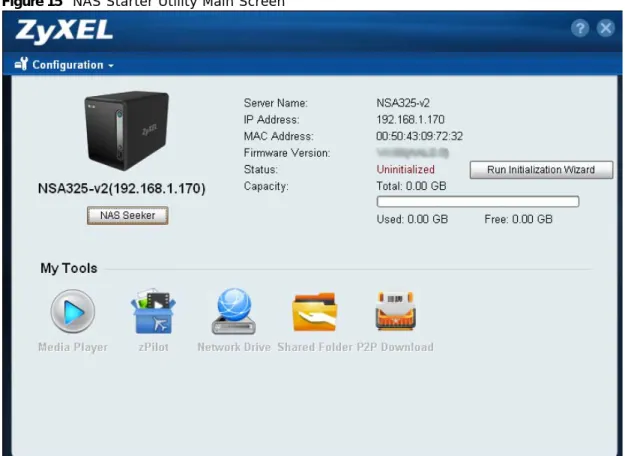
The main NAS Starter Utility screen displays after you select an NSA in the NSA Seeker screen. Figure 4 NAS Starter Utility Main Screen
The following table describes the labels in this screen. Table 3 NAS Starter Utility Main Screen
LABEL DESCRIPTION
? Click this to display the utility help.
Configuration Click this to run the initialization wizard (see the utility help for details), configure system settings (see Section 2.8 on page 27), or go to the NSA’s Web Configurator login screen (see Section 4.3 on page 43).
NAS Seeker Click this to use the NSA Seeker screen (Section 2.3 on page 21) to find and connect to a different NSA on your network.
Server Name This is the server name you configured for the NSA. If you have more than one NSA in your network, it is recommended that you give each one a unique name for identification purposes.
IP Address This is the current IP address of the NSA.
MAC Address This is the NSA’s unique physical hardware address (MAC). Firmware Version This shows the version of firmware the NSA is currently using.
Status This shows whether the NSA is Online, Uninitialized, Unreachable, Configuring, or
Config Failed.
Run Initialization
Wizard This button displays if the NSA detects an installed hard disk that the NSA has not yet configured. Click the button to run the initialization wizard (see the utility help for details).
2.4.1 Directory of the NAS
Click Shared Folder to log into the NSA’s file directory in Windows Explorer. Enter the administrator user name and password and click Login.
Figure 5 Login
Capacity This shows the NSA’s total, in-use, and remaining storage capacity.
Media Player Click this to go to the Playzone screens where you can play media files (see Section 4.4 on page 45 ).
zPilot Click this to launch the zPilot to drag and drop files onto the NSA.
Network Drive Click this to add the NSA as a network drive in your computer’s Windows Explorer. Shared Folder Click this to log into the NSA’s file directory in Windows Explorer.
P2P Download Click this to use the NSA to manage file downloads, including P2P downloads. Dropbox Click this to use your Dropbox account to move files to the NSA and have the NSA
download *.torrent files.
SMART This displays when the NSA has the SMART package installed. Click this to view hard disk health and performance details.
WordPress This displays when the NSA has the WordPress package installed. Click this to create and manage a blog or website. Use the NSA administrator credentials to log in. The
administrator can then create accounts for other users.
eMule This displays when the NSA has the eMule package installed. Click this to use the NSA’s eMule peer-to-peer (P2P) file-sharing console to download and share files from the Internet. See Section 11.8 on page 236 for details.
Gallery This displays when the NSA has the Gallery package installed. Click this to use your NSA to host pictures. You can upload images in your local computer or shares to this application. Use the NSA administrator account to log in to the Gallery console.
pyLoad This displays when the NSA has the pyLoad package installed. Click this to use pyLoad to have the NSA manage your downloads, including those from one-click hosting sites. Table 3 NAS Starter Utility Main Screen
The utility opens the NSA’s directory in Windows Explorer. Figure 6 Directory
2.5 Import Files or Folders with zPilot
In the main NAS Starter Utility screen click zPilot to be able to drag and drop files from your computer to the NSA.
Enter the administrator user name and password and click Login. Figure 7 Login
The zPilot icon displays. Figure 8 zPilot
Drag files onto the zPilot icon to move them to the NSA. zPilot automatically sorts music, photo, and video files into the Music, Photo, and Video folders. zPilot automatically sorts the types of media files listed in Section 21.2 on page 372 (except for the subtitles). Other types of files go to the
Public folder. For folders of files you are prompted to choose the target destination. The zPilot icon
shows the transfer rate.
Figure 9 zPilot Showing Transfer Rate
Double-click the zPilot icon to display status details about the file transfers. Select an entry and click Pause, Resume, or Remove to control the transfer. After the transfer finishes you can select the entry and click Open Destination Folder to see the file on the NSA. Click Clear Completed to clear completed transfers from the list.
Figure 10 zPilot Transfer Details
2.6 Network Drive
In the main NAS Starter Utility screen click Network Drive to add the NSA as a network drive in your computer’s Windows Explorer.
Enter your user name and password and click Login to be able to add the NSA’s shares to which you have access as network drives. Otherwise select Guest and click Login to be able to add the NSA’s public shares as network drives.
Figure 11 Login
Select a share on the NSA and the drive letter on your computer to which you want to map it. The shares that each user can select to map depends on the user’s permissions. For example, if share1 is private to user1, then only user1 is allowed to map share1. The table displays the NSA shares that are already mapped to drive letters on your computer. After you click Apply you can see the
new drive in Windows Explorer (My Computer) where you can access and use it like your computer’s other drives.
Figure 12 Network Drive
2.7 Manage the Device
In the main NAS Starter Utility screen click Configuration > Administration to log into the NSA’s administration screens where you can manage the NSA.
Enter the administrator user name and password and click Login. Figure 13 Login
See Section 4.5 on page 57 for more on the administration screens.
2.8 Configure System Settings
Use these screens to be able to change the NSA’s server name, time zone, PPPoE, IP address, subnet mask, default gateway, or DNS settings.
Click Configuration > System Setting in the main utility screen to display the following screen. Figure 14 NAS Starter Utility > Configuration > System Setting
The following table describes the labels in this screen. Table 4 NAS Starter Utility > Configuration > System Setting
LABEL DESCRIPTION
Server Name Specify a name to uniquely identify the NSA on your network. You can enter up to 15 alphanumeric characters with minus signs allowed but not as the last character. The name must begin with an alphabetic character (a-z) and is case sensitive.
Time Zone Choose the time zone of your location. This will set the time difference between your time zone and Greenwich Mean Time (GMT).
Enable PPPoE
Connection Click this if your Internet connection requires you to enter a user name and password to connect to the Internet. Enter your user name and password Automatically get
IP address Select this if the NSA is automatically assigned an IP address from the ISP or a DHCP server in your network. Manually assign IP
address Select this if you want to assign the NSA a fixed IP address, subnet mask and default gateway.
Note: Do not configure an IP address that is already in use in your network. This results to a network IP address conflict and makes the NSA inaccessible.
Use from DHCP
server Domain Name System (DNS) is for mapping a domain name to its corresponding IP address and vice versa. Select this if the NSA is automatically given DNS information from the ISP or a DHCP server in your network.
DNS Domain Name System (DNS) is for mapping a domain name to its corresponding IP address and vice versa.
Select Use from DHCP server if the NSA is automatically given DNS information from the ISP or a DHCP server in your network.
Select Manually assign DNS server if you were given specific IP address(es) of the DNS server(s). Enter the primary and secondary DNS in the corresponding fields.
C
H A P T E R
3
zCloud
3.1 zCloud
Install the zCloud app from the Apple App store or Google Play on your iOS or Android phone or tablet to access the NSA’s media files from your mobile device and upload media files from your mobile device to the NSA.
Note: The NSA325 v2, NSA325, NSA320S, NSA320, and NSA310S with firmware version 4.61 or higher supports this app.
• Browse your media contents from your NSA directly on your smartphone or tablet • View your photos with the app's built-in slideshow
• Playback your music library • Watch your favorite videos
• Upload your photos to your NSA media server directly from your smartphone or tablet • Compatibility: Requires a smartphone or tablet with iOS 6.0 or later or Android 4.0 or later Note: The iOS version of zCloud has some layout differences from the Android version
shown in this chapter but the same functions.
3.1.1 Connect zCloud to Your NSA Media Server
1 After installing the zCloud app on your mobile device, click the zCloud icon to open it. Tap NAS Media to access NSA music, photo, or video files or upload media files to the NSA. See Section 3.1.6 on page 37 for how to use Downloaded Media to access media files you download to your mobile device from the NSA.
2 Tap Add a NAS and enter your NSA’s IP address and your user name and password and tap
Connect. The next time you use the zCloud NAS media function you can select the NSA from the
list.
3 Go to the NSA’s published music, photo, or video files or upload media files to the NSA.
3.1.2 NSA Media Music Screens
1 Browse the NSA’s published music files by folders, all music files, or by artist.
2 Tap a song to play it or press your mobile device’s menu button to use select-n-go to select multiple files to play or download.
When using select-n-go the top of the zCloud screen has a SELECT ALL option and a three squares menu option with Play Selected and Download Selected options.
The playback screen displays song information and the playback progress and lets you control the playback.
3 Press your mobile device’s menu button to be able to show download and upload details (Show
Download / Upload).
4 When you finish viewing the NSA’s media files you can press your mobile device’s menu button to get the option to log out from the NSA (Logout).
3.1.3 NSA Media Photo Screens
1 Browse the NSA’s published photos by folders, all photos, or by date.
2 Tap a photo to display it or press your mobile device’s menu button to use select-n-go to select multiple files to download.
With a photo displayed, press your mobile device’s menu button to get the option to start a slideshow.
3.1.4 NSA Media Video Screens
1 Browse the NSA’s published video files by folders or all video files.
2 Tap a video to play it or press your mobile device’s menu button to use select-n-go to select multiple files to download.
3.1.5 zCloud Uploader
1 Tap Uploader to upload music, photo, or video files from your mobile device to the NSA. Select a destination folder on the NSA and the photos, music, or video files to upload.
2 For example, if you selected Photo, select the folder containing the photos you want to upload to the NSA. Then select the photos and press your mobile device’s menu button to display the Upload option.
3 Press the mobile device’s menu button for options to select all files (Select All), show download and upload details (Show Download / Upload), and log out from the NSA (Logout). Here is an example of the download and upload details.
3.1.6 Browse zCloud Downloaded Media
1 In the main zCloud app screen, tap Downloaded Media to access music, photo, or video files downloaded from the NSA to your mobile device.
2 Tap the type of downloaded media files to display (photos for example).
Tap a photo to display it or press your mobile device’s menu button to use select-n-go in the options menu to select multiple files to delete.
3 When using select-n-go the top of the zCloud screen has a SELECT ALL option and a three squares menu option with a Delete option. Tap a photo to display it or press your mobile device’s menu button to use select-n-go in the options menu to select multiple files to delete.
4 After you display a photo, you can press your mobile device’s menu button to see the option to start a slideshow.
C
H A P T E R
4
Web Configurator Basics
4.1 Overview
This chapter describes how to access the NSA web configurator and provides an overview of its screens.
The web configurator is an HTML-based management interface that allows easy NSA setup and management using an Internet browser.
Use Internet Explorer 7.0, Mozilla Firefox 3.6, Safari 5, Google Chrome 10, or later versions of these browsers. The recommended screen resolution is 1024 by 768 pixels or higher.
In order to use the web configurator you need to allow:
• Web browser pop-up windows from your device. Web pop-up blocking is enabled by default in Windows XP SP (Service Pack) 2.
• JavaScript (enabled by default).
4.2 Accessing the NSA Web Configurator
Make sure your NSA is properly connected and that your computer is in the same subnet as the NSA (refer to the Quick Start Guide or the appendices).
4.2.1 Access the NSA Via NAS Starter Utility
If you don’t know the IP address of the NSA, then use the NAS Starter Utility to find it. Refer to the Quick Start Guide for how to install and run the NAS Starter Utility. See Chapter 2 on page 21 for more information on the NAS Starter Utility.
Figure 15 NAS Starter Utility Main Screen
4.2.2 Web Browser Access
Configure the server name of your NSA using the Network Configuration screen (Section 2.8 on page 27) of the NAS Starter Utility. Open your browser and type in the server name of the NSA. The default is ‘nsa’ followed by the number of your model (‘nsa320’ for example).
4.3 Login
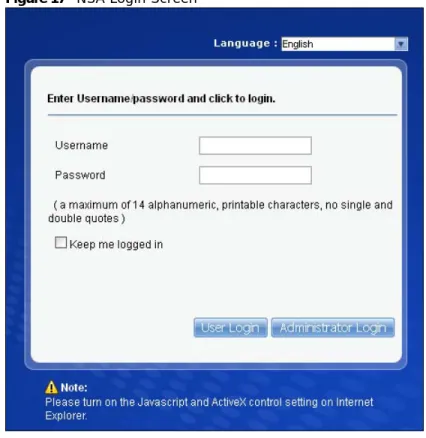
The default username and password are ‘admin’ and ‘1234’ respectively. Enter your username and password. See Chapter 15 on page 307 for how to create other user accounts. If you use the option to stay logged in (assuming you do not log out), make sure you keep your computer secure from unauthorized access. Click User Login to go to the Playzone screens where you can play media files. Click Administrator Login to go to the advanced administration screens.
If you have not done so yet, you should see a screen asking you to change your password (highly recommended) as shown next. Type a new password (and retype it to confirm) and click Apply or click Ignore.
4.4 Playzone Screens
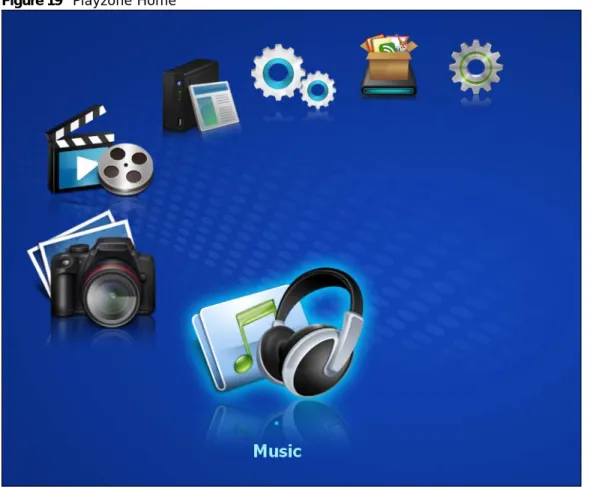
The Playzone Home screen displays after you log in using the User Login button. Figure 19 Playzone Home
Note: The Web Configurator session automatically times out if it is left idle for 15 minutes. Simply log back into the NSA if this happens to you.
The Playzone Home screen displays icons for the various features you can access. Table 5 Playzone Home Screen Icons
ICON DESCRIPTION
Use the Playzone media server screens to view and play media files in the shares that publish them.
Use Music to view and play music files in the shares that publish music. Use Photo to view photos in the shares that publish photos.
Use Video to view and play video files in the shares that publish videos. See Section 10.5 on page 188 for how to configure the media server.
Note: Your browser may need Windows Media Player and VLC plugins installed to play music and video files. To get the VLC plugins, you have to download and install VLC (use the .exe file). To install a VLC plugin for Firefox, when you install VLC, you have to select the Mozilla plugin option.
Current VLC plugins may not support srt file format subtitles when playing videos. Use the icons at the top of most Playzone screens as follows.
Use Playzone Settings to edit general Playzone screen settings and account passwords.
Administrators can use Application Zone to manage the NSA’s applications. Normal users can go to the management page of installed, non-built-in packages.
Administrators can use Administrator to go to the administrator configuration screens. The NSA opens the administrator configuration screens in a new browser window if you click
Administrator while using the Playzone media server to play music.
Table 6 Global Playzone Labels and Icons LABEL/ICON DESCRIPTION
ZyXEL Click this to return to the Playzone Home screen. Help Click this to open Web Help for the current screen. Logout Click this at any time to exit the web configurator. Table 5 Playzone Home Screen Icons (continued)
4.4.1 Media Server Screens
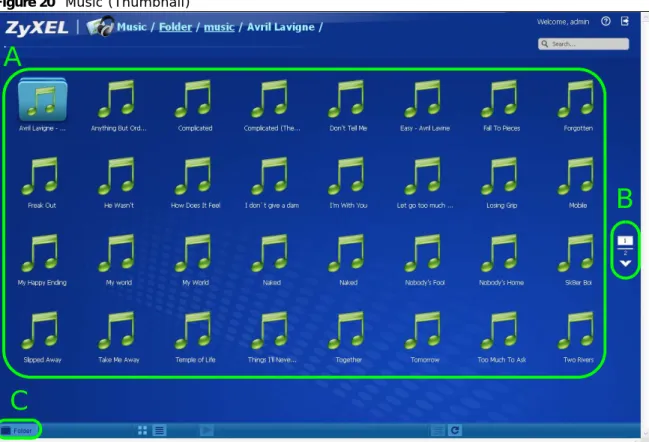
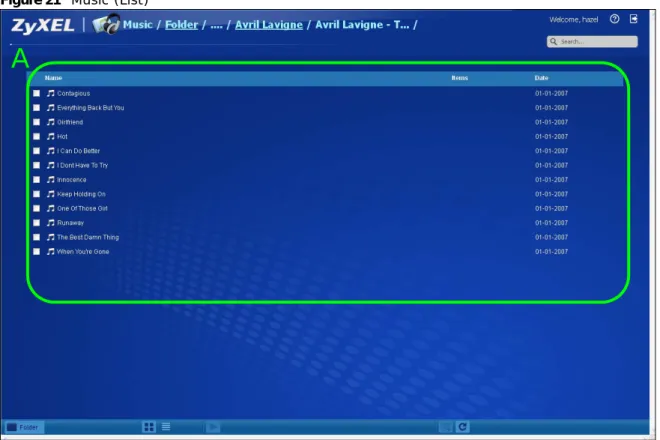
Use the Playzone media server screens to view published photos and play published music and video files. This following figures shows a folder within the Music media server screens with the files as thumbnails and as a list.
Figure 20 Music (Thumbnail)
A
C
Figure 21 Music (List)
This table describes common labels in the Playzone media server screens. Not every item displays in every screen.
Table 7 Playzone Media Server Screens LABEL DESCRIPTION
ZyXEL The path of the current view. Click ZyXEL to return to the Playzone Home screen. Click an underlined link to go to that location in the path.
Music, Photo, or Video indicates the category of files.
Artist, All, Folder, Current Playlist indicates the current view type.
Search Use this to look for a file by name.
A View files. Double-click an item to play it. You can also select check boxes for multiple items when you display the files as a list.
B The current page and total number of pages displays when a category has multiple pages of entries. Click an arrow or type a number to go to another page of entries.
C Select a view type for displaying folders and files:
Artist - Sort music by artist.
All - Display all of the category’s files.
Folder - List the folders containing music files.
Current Playlist - Show the playing and queued songs.
Thumbnail Click this to view the files as thumbnails.
List Click this to view the files as a list. This also provides
Play Click this to play the currently selected file. You can also double-click a file to play it.
4.4.2 Now Playing (Music)
A Now Playing link displays when a song is playing. Click it to display a panel like the following. This screen displays the name of the current song and it’s play progress and lets you control the playback.
Figure 22 Now Playing
4.4.3 Exif and Google Maps (Photos)
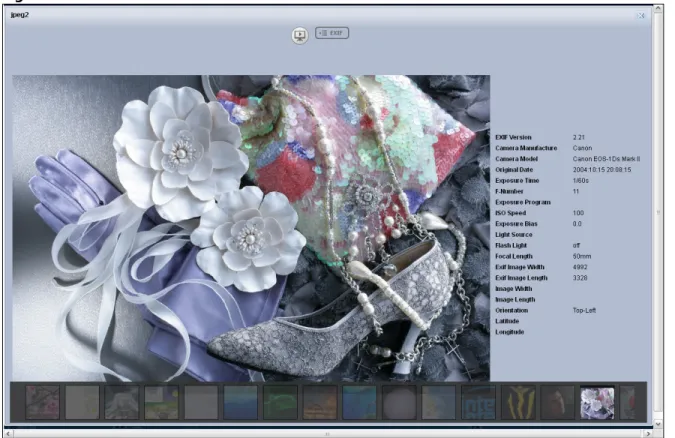
Double-click a photo file to display it. Thumbnails of all photos in the view display across the bottom of the screen. Click a photo’s EXIF button to display or hide the photo’s Exchangeable image file format (Exif) data.
Figure 23 Exif Information Add to Current
Playlist Click this to add the selected music file to the currently playing playlist. Refresh Click this to update the display in the screen.
Now Playing This link is available when a song is playing. Click it to see details about the song that is currently playing.
Table 7 Playzone Media Server Screens LABEL DESCRIPTION
If a photo’s Exif data includes GPS location data, click the latitude or longitude link to display the location in Google Maps. Click Clear to delete the markers of other photos and only display the current photo’s marker.
Figure 24 Google Maps
4.4.4 Slideshow (Photos)
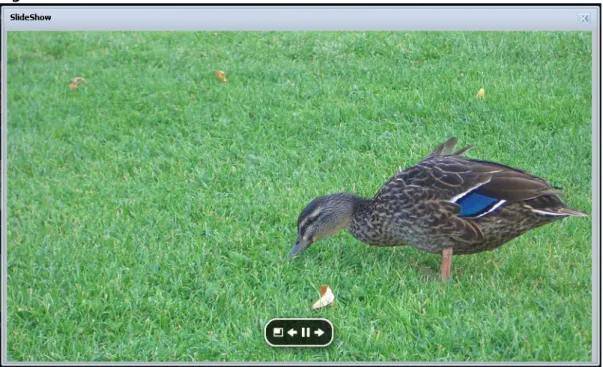
In a Photo menu click the SlideShow button to display the menu’s files as a slideshow. Move your cursor over the slideshow’s screen to display full screen, previous, pause, and next buttons for controlling the slideshow.
Note: Your browser must have the Flash Player plug-in installed to view slideshows. Figure 25 Slideshow
4.4.5 File Browser
Click File Browser to open the following screen. Use the file browsing screens to play, open, upload, and download files. A share is a set of user access permissions for a specific folder on a volume (gives someone access to a folder). It is equivalent to the Windows concept of a shared folder, but the access rights are independent of the folder (you configure the share and the folder separately). You can map a share to a network drive for easy and familiar file transfer for Windows users.
• A folder icon with a hand indicates a share.
• The administrator owns and manages the public shares.
• Double-click a media file to open it. Double-click other types of files to be able to save them. • Click to the right of a file or folder name to select it.
• Use the [SHIFT] key to select a range of entries. Hold down the [CTRL] key to select multiple individual entries.
• Drag and drop files to open a screen that lets you choose whether to copy or move them. • You can upload files of up to 2 GB in size.
• You can download individual files of up to 4 GB in size with Mozilla Firefox and Internet Explorer 7 and later or up to 2 GB in size with Internet Explorer 6.
The following table describes the labels in this screen. Table 8 File Browser
LABEL DESCRIPTION
Up Click this to go to the next higher layer in the share’s folder tree.
Name This column identifies the names of folders and files in the share. Click a file’s file name to open the file or save it to your computer. Click a folder’s name to display the folder’s contents. Size This column displays a file’s size in bytes.
Last Modified This column displays the last time the file or folder was changed (in year-month-day hour:minute:second format).
Create New Folder
Click this to open the following screen where you can create a new folder within the share.
Specify a name to identify the folder. See Section 4.4.6 on page 54 for more information on folder names. Click Apply to create a folder or click Cancel to exit this screen.
Configure
Share Select a share and click this link to open a screen where you can see and configure share management details. Delete Select a file or folder and click this to delete it from the NSA.
Rename Select a file or folder and click this to change its name.
Upload Click this to open the following screen where you can add files to the share.
Use the Browse button to locate your file/s and click Apply to upload the file. Click Cancel to close this screen.
Note: Do not refresh the screen while an upload is going on.
Download Select a file and click this to save the file to your computer.
Note: Do not refresh the screen while a download is going on.
Compress Select files or folders and click this to compress them into a zip file.
Decompress Select a zipped file and click this to create a folder named after the zip file and save the decompressed files into the folder.
4.4.5.1 Configure Share Screen
In the File Browser screen, select a share and click Configure Share to open the following screen where you can see and configure share management details.
Figure 27 File Browser > Configure Share
The following table describes the labels in the this screen.
Restore When you are in a recycle bin folder, select a folder or file and click this to restore it. Refresh Click this to update the information displayed in the screen.
Note: Do not refresh the screen while an upload or download is in progress.
Table 8 File Browser (continued) LABEL DESCRIPTION
Table 9 File Browser > Configure Share LABEL DESCRIPTION
Share Name Configure a name to identify this share. Type a share name from 1 to 239 single-byte (no Chinese characters allowed for example) ASCII characters. The name cannot be the same as another existing local share. See Section 4.4.6 on page 54 for more information on share names. This is not configurable for the NSA’s default admin, music, photo, public, and video shares.
Volume This shows the volume the share is on. It is read-only. Make this share
owned by Select the administrator or user account that is to own (manage) this share. The share owner controls access rights to the share. This is not configurable for the NSA’s default admin and public shares.
Enable This Share Select this option to allow users to access this share. When this option is not selected, you cannot see and access this share.
Enable Recycle Bin Select this option to keep deleted items in a recycle bin. When you delete an item, a recycle folder is created within the share, and the deleted item is stored in the recycle bin. Later if you want to retrieve a deleted item, you can select the item from the recycle folder and move/copy the item to another share.
Publish this share
to Media Server Select this option to make the share’s files available to media clients. When you publish a share, you can also select whether or not to publish music tracks, photos, and videos. Publish this share
4.4.6 Share and Folder Names
The name can only contain the following characters: • Alphanumeric (A-z, 0-9) and Unicode.
The NSA allows FTP access to shares, folders or files with names encoded in the UTF-8 (8-bit UCS/Unicode Transformation Format) format. So your FTP client must support UTF-8 in order to access shares, folders or files on the NSA with Unicode names.
• Spaces
• _ [underscores] • . [periods] • - [dashes]
Other limitations include:
• All leading and trailing spaces are removed automatically. • Multiple spaces within names are converted to a single space.
• Share names must be unique (they cannot be the same as other share names).
• The NSA creates automatic volume names for external (USB) disk volumes. These are a type of share, so the share name you configure cannot conflict with the external (USB) disk volume names. “ExtVol1” or “ExtVol2” are examples of external (USB) disk volume names.
• Folder names must be unique (they cannot be the same as other folder names).
• The minimum character length of a name is one character, that is a name cannot be blank. • The maximum character length of share name is 239 characters.
• Unicode is supported for share names, although your FTP client must support UTF-8. Full support should be available in all Windows versions after Windows 2000.
Share Access Select who can access the files in the share and how much access they are to be given. If you publish the share to the media server or the web, all users will have at least read-only access to the share, regardless of what you configure here.
Select Keep it private to owner to allow only the share owner to read files in the share, delete files in the share and save files to the share.
Select Make it public to allow anyone (with or without a user account on the NSA) to read files in the share, delete files in the share and save files to the share.
Select Advanced to select which individual users can read the share’s files, which users can delete the share’s files, and which users are blocked from doing either.
Apply Click this to save your changes.
Cancel Click this to return to the previous screen without saving. Table 9 File Browser > Configure Share (continued)
4.4.7 Application Zone
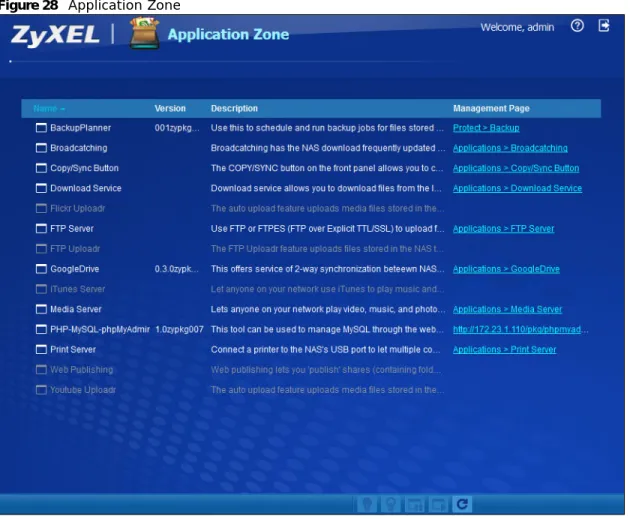
Administrators can click Application Zone to go to a screen where you can enable or disable various applications for file sharing and downloading. Normal users can go to the management page of installed, non-built-in packages.
Figure 28 Application Zone
The following table describes the labels in the this screen. Table 10 Application Zone
LABEL DESCRIPTION
Name This is the name of the application. Version This is the version number of the item.
Description This is a brief description of the application. See Chapter 10 on page 185 for more information.
Management
Page Click this link to go the application’s management page where you can configure settings for it. See Chapter 10 on page 185 for more information. Enable Select a disabled application and click this to turn on the application. Some applications are
always enabled and cannot be disabled.
Disable Select an enabled application and click this to turn off the application. Select the Flickr or Youtube Uploadr entry and click this to cancel all uploading. Some applications are always enabled and cannot be disabled.
Pause Select the Flickr or Youtube Uploadr entry and click this to pause current uploading. Resume will resume current uploading.
4.4.8 Playzone Settings
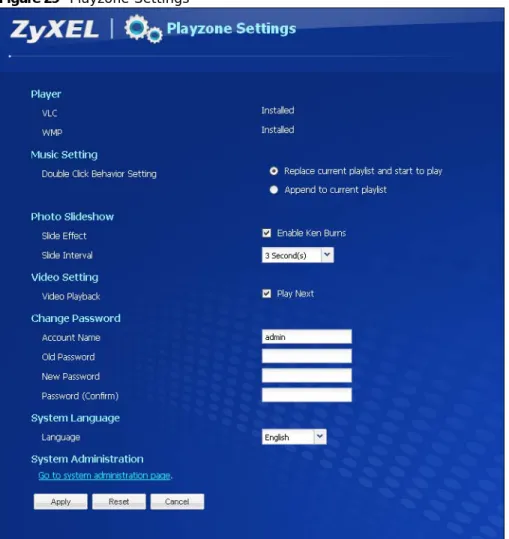
Click Playzone Settings to open the following screen. Use this screen to change general Play zone screen settings and account passwords.
Figure 29 Playzone Settings
The following table describes the labels in this screen.
Resume Select the Flickr or Youtube Uploadr entry and click this to resume current uploading. Refresh Update the list of applications in the screen.
Table 10 Application Zone (continued) LABEL DESCRIPTION
Table 11 Playzone Settings
LABEL DESCRIPTION
VLC This field displays “Installed” if you already have VLC player installed or a link for installing it if you do not already have it installed.
WMP This field displays “Installed” if you already have Windows Media Player installed or a link for installing it if you do not already have it installed.
4.5 Administration Screens
Use the login screen’s Administrator Login button to go directly to the advanced administration screens. An Administration link also displays in the Playzone Home screen when you log into the Playzone as the administrator.
Double Click Behavior
Setting Select Replace current playlist and start to play to have double clicking a song cause the NSA to immediately stop any currently playing song and start playing the double-clicked song.
Select Append to current playlist to have double clicking a song add a song to the end of the current playlist.
Slide Effect Enable the Ken Burns effect to have the NSA automatically pan and zoom photos in slideshows. Disable it to display photos in slideshows normally.
Slide Interval Select how long to display each image in a slideshow before changing to the next. Video Playback Select Play Next to play the rest of the video files in a folder. So for example, a folder
has video files 1~10 and you play video 3. When video 3 finishes the device continues playing the rest of the videos in the folder (4~10). It does not loop back and play videos 1 and 2.
Account Name Type the user name of the account for which you want to change the password. Old Password Type the user’s current password.
New Password Create a new password for the user. You can type from one to 14 single-byte (no Chinese characters allowed for example) ASCII characters.
Password (Confirm) You must type the exact same password that you just typed in the above field. Language Select the web configurator language from the drop-down list box.
Go to system
administration page This link appears when you are logged in as the administrator. Click it to open the advanced administration screens. See Section 4.5 on page 57 for more on the advanced administration screens. The NSA opens the administrator configuration screens in a new browser window if you click Go to system administration page while using the Playzone media server to play music.
Apply Click this to save your changes. Reset Click this to refresh the screen.
Cancel Click this to exit the screen without saving your changes. Table 11 Playzone Settings (continued)
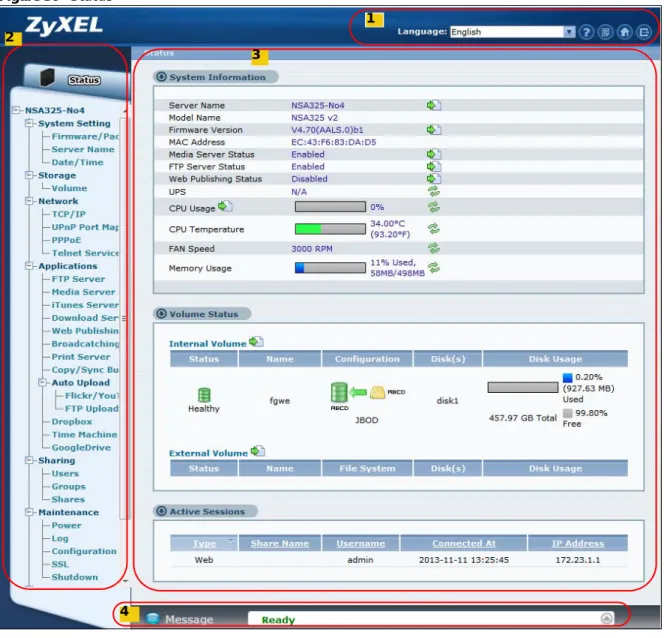
The Status screen is the first advanced administration screen that displays. See Chapter 6 on page 147 for more information about the Status screen.
Figure 30 Status
4.5.1 Global Administration Icons
The icons and language label at the top-right of the screen ( ) are visible from most of the administration screens. The following table describes the ‘global’ icons and labels.
3
4
1 2
Table 12 Global Labels and Icons LABEL/ICON DESCRIPTION
Language Select the web configurator language from the drop-down list box. Help Click this to open Web Help for the current screen.
About Click this to view the model name, firmware version and copyright. 1
4.5.2 Navigation Panel
The navigation panel on the left of the Web Configurator screen ( ) contains screen links. Click a link to display sub-links. There are no sub-links for the Status screen. Certain screens also contain hyper links that allow you to jump to another screen.
The following table describes the navigation panel screens. Home Click this to go to the Playzone Home screen.
Logout Click this at any time to exit the web configurator. This is the same as clicking the Logout link at the bottom of the navigation panel.
Table 12 Global Labels and Icons LABEL/ICON DESCRIPTION
Table 13 Screens Summary
LINK SCREEN FUNCTION
Status This screen shows system information, the status of the volumes, and the users who are currently using the NSA.
System
Setting Firmware/Packages Upload/upgrade new firmware to your NSA and add useful applications. The NSA can download multiple packages/files at once and automatically goes through all the installation steps.
Server Name Specify the NSA’s server name and workgroup name.
Date / Time Chose a time zone and/or allow the NSA to synchronize with a time server. Storage Volume View volume and disk information and create and edit volumes. A volume is a
storage area that can span one or more internal disks or a single external (USB) disk.
S.M.A.R.T Install the SMART package to display this screen you can use to monitor hard disks.
Network TCP/IP Assign the NSA a dynamic or static IP address and DNS information. UPnP Port
Mapping Configure your Internet gateway to allow access from the WAN (Internet) to services on the NSA. PPPoE Configure PPPoE settings for a direct Internet connection.
Telnet Service Enable or disable Telnet access. This applies to the NSA310S, NSA320S, NSA325, and NSA325 v2.
DyDNS Install the DyDNS package to use Dynamic DNS (DDNS) services to use a domain name with a dynamic IP address.
NFS Install the NFS package to display this screen where you can configure NFS (Network File System) file-sharing.
Applications FTP Server Enable FTP file transfer to/from the NSA, set the number of FTP connections allowed, an FTP idle timeout, and the character set.
Media Server Enable or disable the sharing of media files and select which shares to share. iTunes Server Use the iTunes server to share media files with iTunes users on your network. Download
Service Have the NSA handle large file downloads. Web
Publishing Let people use a web browser to access files in shares without logging into the Web Configurator. Broadcatching Subscribe the NSA to feeds to download frequently updated digital content like TV programs, radio talk shows, Podcasts (audio files), YouTube videos, or even P2P downloads.
Print Server View and manage the NSA’s list of printers and print jobs. Copy/Sync
Button Copy or synchronize files between a USB device and the NSA. Auto Upload -
Flickr/YouTube Upload files in selected shares to your Flickr and/or YouTube accounts. Auto Upload -
FTP Uploadr Upload files in selected shares to FTP servers.
Dropbox Use your Dropbox account to easily move files to your NSA and have the NSA download *.torrent files.
Time Machine Use Time Machine in OS X to use your NSA as a backup volume. Memopal Back up files from the NSA to your Memopal account.
GoogleDrive Install the GoogleDrive package to synchronize local user folders on the NSA with Google Drive cloud storage accounts.
Syslog Server Enable the syslog server and select the categories to include in the log report. TFTP Server Configure the NSA to accept log files from TFTP clients.
eMule - Server Configure the eMule server. eMule - Task Manage eMule tasks. eMule -
Search Search for files available in an eMule server using keywords and other parameters, such as file type, file size, and extension names. pyLoad Configure the NAS to use pyLoad to manage your downloads, including those
from one-click hosting sites.
Sharing Users View, create and edit administrator and user accounts to let people use the NSA.
Groups View, create and edit groups. Groups allow you to organize users into specific groups. You can create shares accessible only by the group members. Shares View, create and edit shares. Shares are shared folders to which you can allow
specific users read/write access rights.
Maintenance Power Configure power saving settings for the NSA and have the NSA turn itself off and on or reboot according to the schedules you configure.
Log View the NSA’s logs and configure how you want to receive the log reports. Configuration Back up and/or restore the NSA configuration file.
SSL Configure HTTPS and the NSA’s SSL certificate. Shutdown Restart the NSA or shut it down.
Table 13 Screens Summary (continued)
4.5.3 Main Window
The main window
(
)
shows the screen you select in the navigation panel. It is discussed in the rest of this document.4.5.4 Status Messages
The Message text box at the bottom of the screen
(
)
displays status messages as you configure the NSA.4.5.5 Common Screen Icons
The following table explains some icons that appear in several configuration screens. Protect Backup Create and customize backup jobs.
Restore Restore previous backups made with the NSA.
Logout Click this to exit the web configurator. This is recommended to prevent unauthorized administrator access to the NSA.
Table 13 Screens Summary (continued)
LINK SCREEN FUNCTION
3
4
Table 14 Common Configuration Screen Icons ICON DESCRIPTION
Edit
Click this to go to a screen where you can change the configuration settings of an entry.
Delete
Click this to delete an entry from the list.
Edit
Click this to jump to related item’s configuration screen.
Refresh
Click this to refresh the data for the field or value with which it is associated.
User
See the chapter on user accounts for detailed information on variants of this icon.
Share
See the chapter on shares for detailed information on variants of this icon.
Healthy
This represents a healthy volume.
Degraded
This represents a degraded RAID 1 volume. Replace the faulty disk. If the replacement disk does not contain any partition, the NSA automatically restores the volume. If the replacement disk already contains a volume, you need to delete the volume and then click the Repair icon to fix the degraded RAID volume.
Down
4.5.6 Session Example (Windows)
Open Windows Explorer and type two back slashes followed by the NSA name or IP address. Initially you can only read and write to the Public, Video, Music, and Photo folders until you create other shares on the NSA. This session is then displayed as shown in the following figure. Session Example (Windows)
Scan Disk
Click this to scan a hard disk for file system errors.
Eject
Click this before you remove an external hard drive so that you do not lose data that is being transferred to or from that hard drive.
Locate
Click this to cause the LED on the external storage device to blink.
Repair
If you replace a faulty disk with a disk that contains a volume, you need to delete the volume and then click this to fix the degraded RAID volume.
Table 14 Common Configuration Screen Icons (continued) ICON DESCRIPTION
C
H A P T E R
5
Tutorials
5.1 Overview
This chapter provides tutorials that show how to use the NSA. • Windows 7 Network, see page 63
• Windows 7 Network Map, see page 67
• Playing Media Files in Windows 7, see page 69
• Windows 7 Devices and Printers, see page 69
• Creating a Volume in a 2-Bay NSA, see page 72
• Creating a Volume in a 1-Bay NSA, see page 74
• Deleting a Volume, see page 81
• File Sharing Tutorials, see page 82
• Download Service Tutorial, see page 91
• Broadcatching Tutorial, see page 106
• Copy and Flickr Auto Upload Tutorial, see page 112
• FTP Uploadr Tutorial, see page 113
• Web Configurator’s Security Sessions, see page 116
• Using FTPES to Connect to the NSA, see page 129
• Using a Mac to Access the NSA, see page 130
• How to Use the BackupPlanner, see page 133
5.2 Windows 7 Network
1 Click Start > Control Panel. Set View by to Category and click Network and Internet.
3 The NSA icon displays twice because the NSA is both a media server and a storage device. Double-click either NSA icon to open the Web Configurator login screen.
5.2.1 If the NSA Icon Does Not Display
The network containing the NSA must be set as a home or work network in order for the NSA icons to display. If the network containing the NSA displays as “Public”:
2 Use the Set Network Location screen to set the network’s location to home or work.
5.2.2 NSA Icon Right-click Options
Right-click the NSA’s icon to see these options:
• Install/Uninstall: Click Install to add the NSA as a device in your computer. After you install the NSA you can see it in the computer’s list of devices (see Section 5.5 on page 69. Click
Uninstall to remove the NSA from the list of devices installed in your computer.
• View device web page opens the Web Configurator login screen. • Open Media Player opens the computer’s default media player.
• Properties opens a window of NSA details and troubleshooting information.
• Manufacturer identifies the company that produced the NSA. • Model identifies the NSA model.
•
Model number
identifies the NSA model number.• Device webpage shows the IP address for accessing the Web Configurator. • Serial number is unavailable because the NSA does not have one.
• MAC address is the NSA’s unique physical hardware address (MAC). You need the MAC address to register the product at myZyXEL.com. Customer support may also request it for troubleshooting purposes.
• Unique identifier is a unique UPnP ID that the NSA generated.
• IP address is the NSA’s IP address. It is also the IP address for accessing the Web Configurator.