User’s Guide
MAXTOR SHARED STORAGE II
USER’S GUIDE
© 2006 Maxtor Corporation. All rights reserved. Changes are periodically made to the information herein which will be incorporated in revised editions of this publication. Maxtor may make changes or improvements to the product(s) described in this publication at any time and without notice. Maxtor is a registered trademark of Maxtor Corporation. All other brands or products are trademarks or registered trademarks of their respective holders. Maxtor Corporation, 500 McCarthy Blvd., Milpitas, California 95035 USA
Macintosh Installation
Introduction. . . 20
About this Guide . . . 20
Components . . . 20
Included in Package . . . 21
System Requirements . . . 21
Handling Precautions. . . 21
Maxtor Product Support . . . 21
Installing the Shared Storage II. . . 22
Step 1 - Connect the Drive. . . 22
Step 2 - Power up the Drive. . . 23
Step 3 - Setup the Drive . . . 24
Using the Shared Storage II . . . 25
Using EasyManage . . . 25
Create and Use Shared Folders . . . 25
Creating Shared Folders . . . 25
Drag and Sort™ . . . 28
Backup Settings . . . 29
Editing Backup Settings. . . 30
Advanced Settings . . . 30
SimpleView™ Storage and Backup . . . . 33
Using Media Server . . . 33
Storing Audio . . . 34
Shutting Down Your Shared Storage II . 34 Resetting Your Shared Storage II . . . 34
Security Lock . . . 35
Media Serving . . . 35
Web User Interface Accessing the Web UI . . . 37
Run Set-up Wizard . . . 38
Accounts Management . . . 39
Shared Folders Management. . . 41
Manage Digital Photos, Music, Video. . 43
Shared Folder Backup . . . 43
Advanced Settings . . . 45
Network Settings. . . 46
System Maintenance . . . 47
Configure Your USB Devices . . . 48
System Status . . . 49
Using External USB Drives . . . 50
Using USB Printers . . . 50
Contents
Windows Installation Introduction . . . 1About this Guide. . . 1
Components . . . 1
Included in Package . . . 2
System Requirements. . . 2
Handling Precautions . . . 2
Maxtor Product Support . . . 2
Installing the Shared Storage II . . . 3
Step 1 - Connect the Drive . . . .3
Step 2 - Power up the Drive . . . .4
Step 3 - Setup the Drive . . . .5
Using the Shared Storage II . . . .6
Using EasyManage . . . 6
SimpleView™ . . . 6
Create User Account . . . 7
Settings. . . 10
Backup . . . 12
Backup File Management . . . 12
Restore . . . 14
OneTouch Status Icons . . . .15
Using Media Server . . . .16
Storing Audio . . . 17
Shutting Down Your Shared Storage II 17
Resetting Your Shared Storage II . . . . 17
Security Lock . . . 18
MAXTOR SHARED STORAGE II
WINDOWS INSTALLATION
Introduction
Thank you for selecting the Maxtor Shared Storage II Drive. Connecting this storage solution to your network in a home or small office is a simple and economical way for users to share and backup files. Your new Maxtor Shared Storage II drive offers a winning combination of capacity, simplicity of use and helpful software features that automate configura-tion, privacy and more. The simple installation allows you to start using your drive as quickly as possible. You can also change settings on your drive at any time, and manage user access through web browsers.
Shared Storage II Features
Instantly add storage to your network, back up files across every compatible computer on your network, and stream music, videos and photos from your drive to your home entertainment system.
Simple Installation and Setup
– Automatically configure the drive to your network – Manage the drive using our simple user interface – Connect and share additional hard drives using the
drive’s 2 USB ports
– Easily store and share access to files, photos, music and videos
– Organize files automatically using Drag and Sort™ – Give users full access to public folders, while keeping
others private
– Get backup and storage status for all users with SimpleView™
– Back up user files/folders to an external USB drive – Protect data on all of your networked PCs using
Maxtor® Backup
– Playback of Videos, Music and Photos
– Use our media streaming feature to play digital photos, music and video on a networked home entertainment system - even without turning on your computer – Connect automatically through a UPnP™ AV
compatible digital media adapter
About this Guide
The following symbols and conventions are used in this guide:
Components
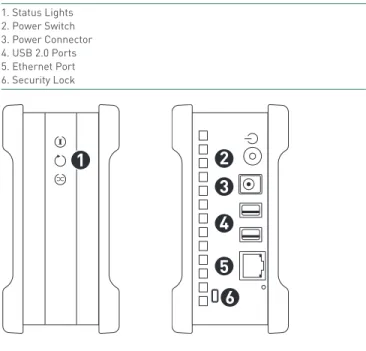
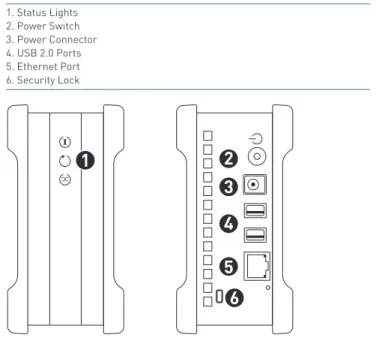
Before installing, review the solution features in Figure 1.
FIGURE 1 SOLUTION FEATURES
1. Status Lights 2. Power Switch 3. Power Connector 4. USB 2.0 Ports 5. Ethernet Port 6. Security Lock
Bold Used for menu, command, and keyboard selections you make and screens you will see.
MAXTOR SHARED STORAGE II
WINDOWS INSTALLATION
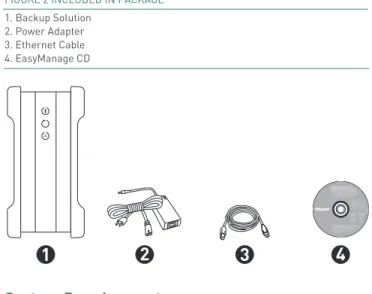
FIGURE 2 INCLUDED IN PACKAGE
1. Backup Solution 2. Power Adapter 3. Ethernet Cable 4. EasyManage CD
System Requirements
– Wired or wireless router with an available 10/100/1000 Ethernet port
– Pentium III, 500 Mhz equivalent processor or higher – Windows® 2000 Professional, XP Professional, or
Media Center
– 256MB RAM (512MB recommended) or more as required by operating system
– Internet connection (for system updates) – Internet Explorer 6.0 or higher
(for management interface of Shared Storage II) – UPnP certified Digital Media Adapter
(if using Media Serving) – CD-ROM/DVD-ROM drive
Handling Precautions
Please handle your new Maxtor Shared Storage II with care! Follow the precautions listed here or you could damage your drive and void the product warranty. Review the Maxtor Limited Warranty for more information.
Follow these precautions to prevent data loss
– Do not bump, move or drop the drive while in operation. – Do not remove the interface cable or power cord
without first disconnecting the drive properly through the operating system.
– Do not set any liquids or drinks on or near the drive. Liquids will damage the internal electronics.
– Do not open the drive enclosure. This can cause loss of data and will void the product warranty.
Maxtor Product Support
Maxtor Corporation provides a comprehensive product support section on its web site, including the latest software drivers, product specifications, a complete troubleshooting section, and the Maxtor Knowledge Base.
Maxtor USA Support
Visit www.maxtorkb.com for the following information:
– Search the Hard Drive Knowledge Base
We store all resolved problems and FAQ’s in our knowledge base. Search by product, category, keywords, or phrases.
– My Stuff
Login to modify or view your FAQ update notifications or update your personal profile.
– Most Popular Help Topics
Top five most frequently asked questions.
– Software Download
Download installation and diagnostic programs for your hard drive or external storage device.
Maxtor Worldwide Support
Visit www.maxtor.com and click worldwide support or
contact us for product support outside of the USA.
Includes:
– Maxtor EasyManage™ Software – Maxtor Backup™ Software – Maxtor Shared Storage II User Guide (English)
© 2006 Maxtor Corporation and its Licensors. Maxtor and the stylized Maxtor logo are registered trademarks,and Maxtor Shared Storage, Maxtor EasyManage, and Maxtor Backup are trademarks of Maxtor Corporation. U.S. patents 5,150,473 and 5,966,730. Other patents pending. Other trademarks are the property of their respective holders. All rights reserved. 06/06 PN: 20337500 WINDOWS English Français Deutsch Español Italiano MACINTOSH English Français Deutsch Installation Software Maxtor Shared Storage™ II
Logiciel d’installation, Installationssoftware, Software di installazione, Installationsprogram, Software de instalación, Installatiesoftware, Asennusohjelma, Software de Instalação,
MAXTOR SHARED STORAGE II
WINDOWS INSTALLATION
Installing the Shared Storage II
Step 1 – Connect the Drive
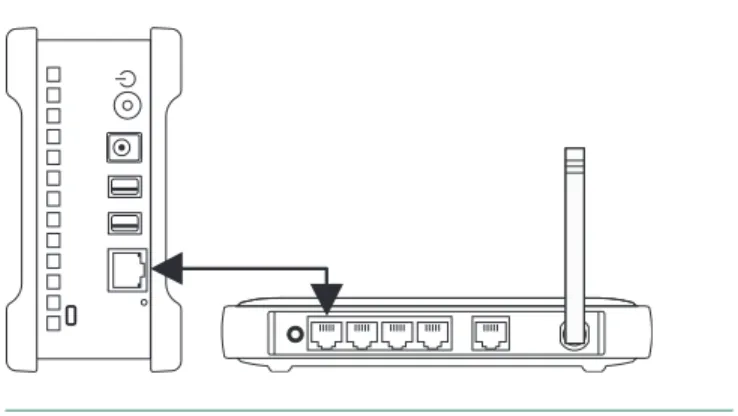
The Maxtor Shared Storage II connects to your computer with a Cat5 Ethernet cable.
Connecting the Ethernet Cable
1. Plug one end of the Ethernet cable into your network, router or switch.
2. Plug the other end of the Ethernet cable into the Ethernet port on your Shared Storage II drive.
3. Once connected, the Ethernet status LED(s) located on either side of the Ethernet port will illuminate:
– If connected through a 10/100 cable/router – the Green LED on the left side of the connector will show activity when the Shared Storage Drive is powered on. This LED will also illuminate when connected to a Gigabit cable/ router too.
– If connected through a Gigabit cable/router – the Amber LED on the right side of the connector will show activity when the Shared Storage Drive is powered on.
FIGURE 3 CONNECTING THE ETHERNET CABLE
Connecting the Power
1. Plug the round female connector from the power adapter into the drive’s power connector.
2. Plug the female connector on the power cord into the power adapter.
3. Plug the standard electrical plug from the power adapter into your power source.
MAXTOR SHARED STORAGE II
WINDOWS INSTALLATION
Step 2 – Power up the Drive
1. Press the round black button on the back panel of your Maxtor Shared Storage Drive. The green LED (light) with illuminate in the center of the power button.
2. Your drive will now start. The startup process can take up to one minute to complete.
Shared Storage Drive Power/Status LED Definitions
Various LED activity will appear on your Shared Storage II Drive when power is applied. The following tables define the meaning/status of each LED on the back and front panels:
Back Panel LEDs
Front Panel LEDs
LED Definition Status
Power LED
(located in center of the power button)
Power switch Illuminated – Power On
Not Illuminated – Power Off
Ethernet LED
(located on bottom side of Ethernet connector)
Shows if the drive is connected through a 10/100 or a 1 Gb Ethernet connection.
Left Green – 10/100 Mbps Ethernet connectivity
Left Amber – 1 Gbps Ethernet connectivity
Illuminated – Power On
Blinking – Network communication is occurring
Not Illuminated – Power Off
Activity LED
(located on top side of Ethernet connector)
A flashing Activity LED indicates that the network connection is functional and that packets are being transmitted or received.
Power Button
Ethernet LED Activity LED
LED Definition Status
Top Power Activity Illuminated – Power On
Blinking – Drive is either powering up or shutting down
Not Illuminated – Power Off
Center Hard Disk Activity Illuminated – Power On
Blinking – Data is being transferred to/from the drive
Not Illuminated – Power Off
Bottom Network Activity Illuminated – Power On
Blinking – Network communication is occurring
Not Illuminated – Power Off
Power Activity
Hard Disk Activity
MAXTOR SHARED STORAGE II
WINDOWS INSTALLATION
Step 3 – Set up the Drive
1. Insert the Maxtor Shared Storage II Installation Software into your CD-ROM drive. The Select Language window will display.
Note: In the event that the CD does not autorun, click
Start ➔ Run. Browse to the drive letter associated with the EasyManage CD. Click on Setup, click Open,and then click OK.
2. The Select Language window opens. Choose your
language (e.g., English).
3. From the main menu, click Install Software. 4. You will be asked if you wish to install the software.
Click OK.
5. The License Agreement screen will appear. Click Yes. 6. The Choose Destination Location screen will appear. If
you wish to change the location of the installation, you may do so by clicking the Browse button and selecting a new location. Click Next.
7. The Setup Status screen will appear as the software is installed, followed by the InstallShield Wizard Complete
screen when the installation is complete. Click Finish to restart your system.
8. After system restart, EasyManage will discover Shared Storage Drive(s) on you network segment.
Note: In the event that No Shared Storage Drives were found, please refer to the Help File for available troubleshooting tips.
A Note About EasyManage
EasyManage is an all encompassing application that will, under specific conditions, allow you to manage both Maxtor OneTouch III and Shared Storage Drive products through one single interface.
This simply means that you can use EasyManage in
conjunction with these products provided one of the following software packages is installed:
– Maxtor OneTouch III USB 2.0
– Maxtor OneTouch III FireWire 400/USB 2.0
– Maxtor OneTouch III FireWire 800/FireWire 400/USB 2.0 – Maxtor OneTouch III Turbo Edition
– Maxtor OneTouch III Mini Edition
Granted, you can use these software packages completely separate from EasyManage. However, it is suggested that you use the EasyManage application with all of these products.
Note: Please refer to Maxtor’s Knowledge Base for examples and more information.
9. Once detected, a window displays informing you that your Shared Storage drive has no security password set for the administrative function.
To set a password for the drive, click Manage. This will launch the Web User Interface (Web UI). Follow the onscreen prompts in you browser to configure your Shared Storage Drive.
Note: See “The Web UI” later in this guide for details on using the Maxtor Shared Storage Web UI. Run Set-up Wizard for more information on configuring these settings.
10. When finished, close your browser to return to the Storage Manager’s Settings screen, and then click the
MAXTOR SHARED STORAGE II
WINDOWS INSTALLATION
Using the Shared Storage II
Using EasyManage
HomeThe EasyManage Home window provides access to the following:
Search for Shared Storage Drives
When selecting this option, EasyManage discovers Shared Storage Drives located on your network segment. When detected, the following information is displayed:
– Hostname (e.g., MSS-000155) – IP Address
– MAC Address – Mounted Share
– Drive (letter assigned to the Mounted Share – e.g. Z:)
Note: Mounted Share and Drive entries will be blank unless a user account is connected.
Detection of Shared Storage Products
EasyManage can detect all Maxtor Shared Storage Drive products located on your network segment. If you select a Shared Storage or Shared Storage Plus Drive, EasyManage will display this image:
If you select a Shared Storage II Drive, EasyManage will display this image:
Note: In the event that no Shared Storage Drives were found, please refer to the Help File for available troubleshooting tips.
SimpleView™
When selected, SimpleView provides the following information:
– Space Used - Total size of all user's files – Last Backup - Date of user's last backup
– Backup Status - Success of user's last backup. This information is displayed via backup status indicators (icons) in the Backup Status column.
Backup Status Indicators Definitions Color Status Meaning
Complete All files successfully backed up
Incomplete Some files backed up
MAXTOR SHARED STORAGE II
WINDOWS INSTALLATION
Backup Log File
You can see the details of a backup by reading the log file. To view the log file, click the colored status indicator in the Backup Status column.
Depending on your operating system, you will be prompted with Open File window. If so, click the Open button.
This will launch your system’s text editor (e.g., Notepad) and show you information regarding the backup in question. Below is an excerpt from a log file:
******************************************* Friday, June 02, 2006, at 09:15
\\MSS-000155\Maxtor\My Backup Destination is not accessible \\MSS-000155\Maxtor\My Backup Destination is not accessible \\MSS-000155\Maxtor\My Backup Destination is not accessible
Create User Account
This feature gives the admin the capability to create user accounts on the Shared Storage drive. The admin can create Public or Private user accounts and further customize these accounts for either Home or Business use.
Account Types
Public
With a public account, all of your files are accessible to anyone who has an account on the Shared Storage Drive.
Private
With a private account, all of your files are password-protected except for those that you place in your “public” folder to share with others.
Home and Business Folders
You can choose a set of folders appropriate for Home or Business use. The folders created are listed below.
Home Folders
Business Folders
Folder Appropriate for
My Backup Backed-up files
My Documents Word processing files
My Library Electronic books
My Movies Home videos
My Music Digital music collection
My Photos Digital photos and artwork
My Sites Web pages
My Software Software storage
Public Sharing files with others
Folder Appropriate for
My Backup Backed-up files
My Documents Word processing files
My Multimedia Audio and video files
My Photos Digital photos and artwork
My Presentations Presentation files
My Projects Project files
My Sites Web pages
My Spreadsheets Spreadsheet files
My Software Software storage
MAXTOR SHARED STORAGE II
WINDOWS INSTALLATION
Naming Conventions
– A User Name may contain 1 - 20 characters
– Users with a Private user account can have a Password that contains 1 - 32 characters
– Both the User Name and Password may contain letters, numbers, and underscores “_”, but no spaces or symbols can be used
To Create a Public Home User Account
1. From the EasyManage home page, click the Create a user account button.
2. The Create a user account screen opens. Click on the
Public and Home buttons.
3. In the Name field, type the name for the user. 4. Click the Create button.
5. At this point, the user is created. A status bar shows the creation of the account. This process may take awhile. 6. When finished, you will be notified that a folder has been
created for the user. A shortcut icon (by default, this shortcut maps to Drive Z: - or the next available drive letter) will appear on the system’s desktop for the user.
7. Click Open to use the folder right away.
8. Click Done to return to the EasyManage Home Window.
Note: The Mounted Share and Drive fields, located in the EasyManage Home window, are now populated with the user account’s information.
To Create a Public Business User Account
1. From the EasyManage home page, click the Create a user account button.
2. The Create a user account screen opens. Click on the
Public and Business buttons.
3. In the Name field, type the name for the user. 4. Click the Create button.
5. At this point, the user is created. A status bar shows the creation of the account. This process may take awhile. 6. When finished, you will be notified that a folder has been
created for the user. A shortcut icon (by default, this shortcut maps to Drive Z: - or the next available drive letter) will appear on the system’s desktop for the user.
7. Click Open to use the folder right away.
8. Click Done to return to the EasyManage Home Window.
Note: The Mounted Share and Drive fields, located in the EasyManage Home window, are now populated with the user account’s information.
MAXTOR SHARED STORAGE II
WINDOWS INSTALLATION
To Create a Private Home User Account
1. From the EasyManage home page, click the Create a user account button.
2. The Create a user account screen opens. Click on the
Private and Home buttons.
3. In the Name field, type the name for the user.
4. In the fields provided, enter a password and confirm the password.
5. Click the Create button.
6. At this point, the user is created. A status bar shows the creation of the account. This process may take awhile. 7. When finished, you will be notified that a folder has been
created for the user. A shortcut icon (by default, this shortcut maps to Drive Z: - or the next available drive letter) will appear on the system’s desktop for the user.
8. Click Open to use the folder right away.
9. Click Done to return to the EasyManage Home Window.
Note: The Mounted Share and Drive fields, located in the EasyManage Home window, are now populated with the user account’s information.
To Create a Private Business User Account
1. From the EasyManage home page, click the Create a user account button.
2. The Create a user account screen opens. Click on the
Private and Business buttons.
3. In the Name field, type the name for the user.
4. In the fields provided, enter a password and confirm the password.
5. Click the Create button.
6. At this point, the user is created. A status bar shows the creation of the account. This process may take awhile. 7. When finished, you will be notified that a folder has been
created for the user. A shortcut icon (by default, this shortcut maps to Drive Z: - or the next available drive letter) will appear on the system’s desktop for the user.
8. Click Open to use the folder right away.
9. Click Done to return to the EasyManage Home Window.
Note: The Mounted Share and Drive fields, located in the EasyManage Home window, are now populated with the user account’s information.
MAXTOR SHARED STORAGE II
WINDOWS INSTALLATION
Connect to a User Account
This feature of EasyManage allows you to select the user account’s share that you wish to use on your PC.
1. Click the Connect to a user account button.
2. The Connect to a user account window is displayed. At this point, EasyManage identifies all user accounts on the Shared Storage drive and lists them in the Name field. 3. Click on the triangle to the right of the Name field and
select a name from the drop-down menu.
4. If you are selecting a Private Account, type the password
for the user in the Password field. 5. Click the Mount button.
6. When finished, you will be notified that you can access the folder for the selected user. A shortcut icon (by default, this shortcut maps to Drive Z: - or the next available drive letter) will appear on the system’s desktop for the user.
7. Click Open to use the folder right away.
8. Click Done to return to the EasyManage Home Window.
Note: The Mounted Share and Drive fields, located in the EasyManage Home window, are now populated with the user account’s information.
What’s New?
Click on this button to go to www.maxtorsolutions.com. There you can find more information on Shared Storage II Drive.
Maxtor Support
Click on this button and your browser will launch to the home page for Maxtor’s Knowledge Base. There you can find com-prehensive articles related to troubleshooting, FAQs and other information for the Shared Storage drive and other Maxtor products.
Settings
Drag and Sort
The Drag and Sort feature automatically sorts files into a set of folders inside your personal folder or the public folder. Every time you drag files to your Shared Storage Drive, each file is sorted into the appropriate folder based on its file type. By default, the Drag and Sort feature is turned On and files will sort into the My Personal folder.
To Disable Drag and Sort Settings
1. Open EasyManage and click on the Settings button. 2. From the Settings screen, click DragandSort. 3. Click the Off button and click Apply.
4. At this point, the Drag and Sort feature is turned Off and you are returned to the Settings window.
To Enable Drag and Sort Settings
1. Open EasyManage and click on the Settings button. 2. From the Settings screen, click Drag and Sort. 3. Click the On button and click Apply.
4. At this point, the Drag and Sort feature is turned On and you are returned to the Settings window.
To Sort Files into Our Public Folder
1. Open EasyManage and click on the Settings button. 2. From the Settings screen, click Drag and Sort. 3. Click the Sort files into “Our” public folder button and
click Apply. At this point, the Drag and Sort feature is configured to copy files to “Our” public folder and you are returned to the Drive Management window.
Sorted File Types
A complete list of default, sorted file types can be found via the Help menu. Click the “Which file types work and how are they sorted?” link for more information. The Sorted File Types list can be configured to meet your needs.
Advanced Web Page
The Advanced Web Page feature launches the Shared Storage Drive’s Web User Interface (aka Web UI).
Note: You must login as the admin user to use the Web UI. To access this feature:
1. Open EasyManage and click on the Settings button. 2. From the Settings screen, click Advanced Web Page. This
will launch the Web UI. If prompted, type the User name
and Password to authenticate.
The admin user can select this option to configure the Shared Storage Drive’s:
– Language
– Network Time Protocol – Date/Time Format – Date – Time – Computer Name – Workgroup Name – Password
Note: See “The Web UI” later in this guide for details on using the Maxtor Shared Storage Web UI. Run Set-up Wizard for more information on configuring these settings.
Folder Tags
By default, this feature adds a special icon to each folder on your computer that is set to be backed up to the Shared Storage Drive.
Example of a Folder Tag denoted by the blue circle with a check.
To Disable Folder Tags
1. Open EasyManage and click on the Settings button. 2. Click on Folder Tags.
3. From the Settings: Folder Tags window, click the Off
button.
4. Click Apply to Disable Folder Tags.
To Re-enable Folder Tags (when it has been shut off)
1. Open EasyManage and click on the Settings button. 2. Click on Folder Tags.
3. From the Settings: Folder Tags window, click the
On button.
Shared Folder Backup
This option will launch your browser and open the Shared Folder Backup portion of the Web UI. From this, you can:
– Format an external USB drive for use as a backup for Shared Folders located on the Shared Storage Drive – Backup and Restore data
Note: See “The Web UI” later in this guide for details on using the Maxtor Shared Storage Web UI - Shared Folder Backup for more information on configuring these settings.
Backup
From this screen, you can:
– Set a backup so that local files from your PC will backup to the Shared Storage Drive
– Begin an immediate backup of your selected files/ folders from your PC to the Shared Storage Drive – Perform file maintenance tasks that delete historical
file versions from the Shared Storage Drive and remove files from the shared Storage Drive if they are no longer on your PC
To Setup a Backup
1. Open EasyManage and click the Backup button.
2. The Backup: Settings Part 1 of 2 – Select Folders window opens. Check the boxes associated with the files and or
folders you want to back up and click Next.
3. The Backup: Settings Part 2 of 2 – Schedule Days/Time window opens. By default, your selected files and/or folders will be backed up daily at 10:00 pm. Click Finish to continue.
4. The Backup Files to My Shared Storage Device Window opens. To launch your first backup, click Back Up Now. The backup will launch copying selected files/folders from your PC to your User Account’s My Backup folder on the Shared Storage Drive. Backup times may vary pending on how much data has to be copied.
Edit My Backup Settings
1. Open EasyManage and click on the Backup button. 2. The Backup: Settings window opens. Check the boxes
associated with the files and or folders you want to back up and click Next.
3. A second Backup: Settings window opens. By default, your selected files and/or folders will be backed up daily at 10:00 pm. Check the days/time that you wish to run your edited backup and click Finish.
4. The Backup Files to My Shared Storage Device window opens. To launch your first backup, click Back Up Now. The backup will launch copying selected files/folders from your PC to your User Account’s My Backup folder on the Shared Storage Drive. Backup times may vary pending on how much data has to be copied.
Backup File Management
Edit Historical VersionsThis option allows you to change the number of Historical File Versions you wish to store on your Shared Storage Drive. You can select between 1 – 10 Historical Versions to save. By default, 5 historical versions of each file are stored. 1. Open EasyManage and click on the Backup button. 2. The Backup Files to My Shared Storage Device window
opens. Click Backup File Management.
3. Click Edit to open the Advanced Settings window. 4. Click on the down arrow of the Historical Versions
drop-down menu.
5. Choose the number of Historical Versions you wish to backup (between 1 – 10) and click Save to return to the Backup File Management window.
Delete Historical Versions
This option will delete all but the most recent Historical File Versions from your user account’s My Backup folder. 1. Open EasyManage and click on the Backup button. 2. The Backup Files to My Shared Storage Device window
opens. Click Backup File Management. 3. Click Delete.
4. A confirmation window opens asking you to confirm the deletion.
Note: All Historical File Versions will be deleted except for the most recent if you continue.
Click Yes to delete the Historical File Versions. 5. Click OK to return to the Backup File Management
window.
Clean Up Deleted Files
This option will remove all files from your user account’s My Backup folder if they have been deleted from your PC. 1. Open EasyManage and click on the Backup button. 2. The Backup Files to My Shared Storage Device window
opens. Click Backup File Management. 3. Click Clean Up.
4. A confirmation window opens asking you to confirm the deletion.
Note: All files will be deleted from the user account’s My Backup folder if you continue.
Click Yes to delete these files.
5. Click OK to return to the Backup File Management window.
Automatic Backups On/Off
You can turn Off/On Automatic Backups on your Shared Storage Drive. Automatic Backups are beneficial because you don’t have to remember to backup your data regularly. However, some users like the flexibility of managing their backups manually.
To Turn Automatic Backups Off
1. Open EasyManage and click on the Backup button. 2. The Backup Files to My Shared Storage Device window
opens. In the upper-right corner of the window you will see that, by default, Automatic Backups is turned On. Click Off to continue. At this point, the Automatic Backup feature is disabled.
Note: When the Automatic Backup feature is turned Off, all backup functionality must be done manually. To manually launch a backup:
– Open EasyManage, click on the Backup button. – The Backup Files to My Shared Storage Device window
opens. To manually launch a backup, click Back Up Now.
or
– Click on the OneTouch Status icon in the System Tray and select Back Up Now from the menu
To Turn Automatic Backups On
1. Open EasyManage and click on the Backup button. 2. The Backup Files to My Shared Storage Device window
opens. In the upper-right corner of the window you will see that Automatic Backups are turned Off. Click On to continue. At this point, the Automatic Backup feature is enabled and you can schedule backups.
Restore
Differences Between Restore Methods
Restore Historical Versions of Individual Backed-up Files
Choosing this option allows you to restore an individual his-torical version of a file, based on the date it was backed up. The number of historical versions available is based on the number selected in the Backup File Management option under Edit Historical Versions. You can select between 1 – 10 Historical Versions to save. By default, 5 historical versions of each file are stored.
Restore Most Recent Files and Folders
Choosing this option will open the “My Backup” folder inside the folder for your user account on the Shared Storage drive. You can then restore multiple files and folders by clicking and dragging them to wherever you want to put them.
Restore Historical Versions of Individual Backed-up Files
1. Open EasyManage and click the Restore button. 2. From the Restore a Backup from my Storage Device
window, click Restore historical versions of individual backed-up files.
Select a File
– Click the plus “++++” sign next to your Shared Storage Drive to reveal the folders stored inside the folder for your account.
– Click the plus “++++” sign next to the My Backup folder and select the file you would like to restore by clicking its checkbox.
Select a Version
Click the checkbox next to the version you would like to restore. Versions are listed by date.
Restore to Folder
Note: “YourUserName” is your account Name. 3. Click Restore to restore files to your computer.
Restore Most Recent Files and Folders
1. Open EasyManage and click on the Restore button. 2. From the Restore a Backup from my Storage Device
window, click the Restore most recent files and folders
button.
3. This will launch a window showing the root directory structure of the My Backup folder for the user connected to the Shared Storage Drive. To restore files, simply browse to the file(s) location and drag and drop (copy and paste) files/folders from the Shared Storage Drive to your computer.
Media Server
This option will launch your browser and open the Manage Digital Photos, Music, and Video portion of the Web UI.
Note: See “The Web UI” later in this guide for details on using the Maxtor Shared Storage Web UI - Manage Digital Photos, Music, and Video for more information on configuring these settings.
Original Restores files to its original folder on
your computer
Temporary
Restores file to the following folder: C:\MyDocuments\YourUserName\MSS
OneTouch Status Icons
The OneTouch Status Icon can:– Report the connectivity of your Shared Storage Drive and or the status of the last backup
– Can be used for accessing certain EasyManage software features
Color Definitions
Features
Access to User Shared Folder
This feature will open up the connected user share in an explorer window.
1. Click on the OneTouch Status icon.
2. Select the share displayed (e.g., Public) at the top of the menu. An explorer window opens showing you the contents of the share’s files and folders.
Backup Now
This feature will launch an immediate backup of selected files and folders to the connected user account’s My Backup folder 1. Click on the OneTouch Status icon.
2. Click on Back Up Now. An immediate backup will be performed. You will notice that the OneTouch Status Icon will turn yellow (denoting backup activity) during the backup process.
Change Account
This feature will launch the EasyManage’s Connect to a user account window.
Note: See “Connect to a User Account” on page 10 for more information regarding the use of these options.
Backup Settings
This feature opens EasyManage’s Backup My Files to My Shared Storage Device window. From which you can Edit Backup Settings, perform Backup file Management tasks (e.g., Edit Historical Versions, Delete Historical Versions, Clean Up files), launch immediate backups and/or Turn On/ Off Automatic Backups.
Note: See “Edit My Backup Settings” on page 12 for more information regarding the use of these options.
Restore
This feature opens EasyManage’s Restore window. From which you can Restore Historical Versions of Individual backed Up Files or Restore Most Recent Files and Folders
Note: See “Restore” on page 14 for more information regarding the use of these options.
MSS Settings
This feature opens EasyManage’s Settings window. From which you can configure Drag and Sort, launch the Web UI, configure Folder Tags, review backup status and disk usage with SimpleView, and launch the Web UI’s Shared Folder Backup options.
Note: See “Settings” on page 10 for more information regarding the use of these options.
Icon Meaning
Gray
No Shared Storage Drive is connected. Green
Last backup completed successfully. Yellow
Last backup completed with errors. Red
Last backup failed. Blue
Exit
This feature exits (closes and removes) the OneTouch Status icon from your System Tray. To exit OneTouch Status: 1. Click on the OneTouch Status icon and select Exit from
the menu.
2. A window appears asking you to confirm this task. Click
Yes to continue. This closes the OneTouch Status application. In the event that the OneTouch Status Icon still appears in the System Tray, simply move your mouse over it to remove it.
To Re-open the OneTouch Status Application
1. Click Start➔Programs (all Programs with Windows XP)
➔Maxtor➔OneTouch Status. The OneTouch Status application will load the icon back into the System Tray.
Using Media Server
Use Media Server to Manage your Digital Photo, Music and Video Collection
If you have a networked home entertainment system, you can use Media Server to manage your digital photo, music and video collection on your Shared Storage Drive and use it with your entertainment system. Media Server can even search your iTunes Music folder for music and video files.
Media Server recognizes files in the following folders on your Shared Storage Drive: Our Photos, Our Music, Our Movies, My Photos, My Music, My Movies or My Multimedia. By placing your files in these folders, they will automatically be available for use with your entertainment system. In order to use Media Server, your entertainment system will need to be compatible with UPnP (Universal Plug and Play).
To enable Media Server on your Shared Storage Drive, click the Media Server button in the main EasyManage screen.
To Enable Media Server
1. From the EasyManage main menu, click the Media Server
button.
2. This will launch your browser. When prompted, type the
User Name and Password to authenticate. 3. Click Login.
This will launch your browser directly to the Manage Digital Photos, Music, and Video page.
Note: See “The Web UI” later in this guide for details on using the Maxtor Shared Storage Web UI - Manage Digital Photos, Music, and Video for more information on configuring these settings.
Storing Audio
Using your computer as an audio jukebox is a very popular application. This allows you to store and play thousands of your favorite songs. You can also create and manage an audio library from your Maxtor Shared Storage II.
Shutting Down Your Shared Storage II Drive
To Shut Down Your Drive1. Press the round black button on the back panel of your Maxtor Shared Storage Drive. Upon doing so, the power status button on the front panel of the Shared Storage Drive will blink rapidly.
The power down sequence will take 1 – 10 seconds to complete. When properly shutdown, all LEDs on the front and back will no longer be illuminated.
Resetting Your Shared Storage II Drive
If you can not access your drive after moving it to another net-work, turning it on after it has been off for a period of time, or if you have forgotten/lost the admin password it may need to be reset.
To Reset Your Drive
1. With the drive turned on, use the tip of a pen or paperclip, then press and hold the reset button on the back of your drive.After a few seconds, the drive will reboot.
2. The power status LED will return to a blink state of about 1 second between blinks. The reset is complete and your drive is ready for use.
After Resetting Your Drive
– The admin password will be removed
– The computer name will reset back to its default name (Example: MSS-000155)
– The workgroup name will be reset to MSHOME Power Button
Power Status Light
Reset Button
Security Lock
Your new Maxtor Shared Storage II includes a security locking slot on the back of the drive. The slot is compatible with most security locking cables.
Media Serving
With the Shared Storage Drive’s Media Serving capabilities, you can view videos or photos and listen to music on your home entertainment center without ever turning on your computer. The Media Server feature is disabled by default on the Shared Storage Drive.
Once your Shared Storage Drive is properly connected to your network, you can copy music, movies, or videos directly to it. Next, connect an UPnP™ AV compatible digital media adapter (DMA) through your router, and your home network becomes a home entertainment center.
Considerations for Home Media Networks
– Some data may not be available for access for up to two (2) hours after being copied to the Shared Storage Drive. To obtain immediate access to these media files, click the Refresh button located in Web UI.
– Take a survey and note all of the wireless devices in your household (e.g., radio’s, stereo’s, speakers, phones, cell phones, microwave ovens, alarms, etc.). – Use of a hand held WiFi detector will help determine
strength and weakness of WiFi signals in your home. – Be suspicious of any wireless devices in the same
general area and remove them from the WiFi paths of your routers and media players.
– In some cases, firewalls may need to be disabled and re-enabled.
– Most wireless devices broadcast a wireless frequency by default. Check the documentation of your wireless media players for configuration (WEP) settings. – Check that your wireless router (WEP) security settings
will allow detection and connection of new devices. – Try moving your media player within a couple of feet of
your wireless router for configuration and connection. – When configuring and detecting wireless devices, keep
an Ethernet cable handy to hard wire the devices together for diagnosis.
– If you continue to have problems with your WiFi connection dropping off line, consider hardwiring the devices with Cat5e Ethernet cabling.
– If you’re still having detection issues, reset all network devices by physically unplugging them from power. Power on all routers, switches, the Maxtor Shared Storage Drive, computers, and finally media players.
MAXTOR SHARED STORAGE II
MACINTOSH INSTALLATION
Introduction
Thank you for selecting the Maxtor Shared Storage II Drive. Connecting this storage solution to your network in a home or small office is a simple and economical way for users to share and backup files. Your new Maxtor Shared Storage II drive offers a winning combination of capacity, simplicity of use and helpful software features that automate configura-tion, privacy and more. The simple installation allows you to start using your drive as quickly as possible. You can also change settings on your drive at any time, and manage user access through Safari or other web browsers.
Shared Storage II Features
Instantly add storage to your network, back up files across every compatible Macintosh on your network, and stream music, videos and photos from your drive to your home entertainment system.
Simple Installation and Setup
– Automatically configure the drive to your network – Manage the drive using our simple user interface – Connect and share additional hard drives using the
drive’s 2 USB ports
– Easily store and share access to files, photos, music and videos
– Organize files automatically using Drag and Sort™ – Give users full access to public folders, while keeping
others private
– Get backup and storage status for all users with SimpleView™
– Back up user files/folders to an external USB drive – Protect data on all of your networked Macs using
Maxtor® Backup
– Playback of Videos, Music and Photos
– Use our media streaming feature to play digital photos, music and video on a networked home entertainment system - even without turning on your Macintosh – Connect automatically through a UPnP™ AV
compatible digital media adapter
About this Guide
The following symbols and conventions are used in this guide:
Components
Before installing, review the solution features in Figure 1.
FIGURE 1 SOLUTION FEATURES
1. Status Lights 2. Power Switch 3. Power Connector 4. USB 2.0 Ports 5. Ethernet Port 6. Security Lock
Bold Used for menu, command, and keyboard selections you make and screens you will see.
MAXTOR SHARED STORAGE II
MACINTOSH INSTALLATION
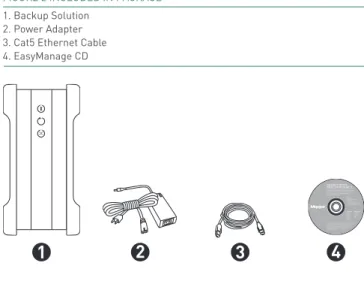
FIGURE 2 INCLUDED IN PACKAGE
1. Backup Solution 2. Power Adapter 3. Cat5 Ethernet Cable 4. EasyManage CD
System Requirements
– Wired or wireless router with an available 10/100/1000 Ethernet port
– Apple G4 processor or greater – Mac OS X (10.3.9 or later)
– 256MB RAM (512MB recommended) or more as required by operating system
– Internet Explorer 6.0 or higher
(for management interface of the Shared Storage II drive) – Internet connection (for system updates)
– UPnP certified Digital Media Adapter (if using Media Serving)
– CD-ROM/DVD-ROM drive
Handling Precautions
Please handle your new Maxtor Shared Storage II with care! Follow the precautions listed here or you could damage your drive and void the product warranty. Review the Maxtor Limited Warranty for more information.
Follow these precautions to prevent data loss
– Do not bump, move or drop the drive while in operation. – Do not remove the interface cable or power cord
without first disconnecting the drive properly through the operating system.
– Do not set any liquids or drinks on or near the drive. Liquids will damage the internal electronics.
– Do not open the drive enclosure. This can cause loss of data and will void the product warranty.
Maxtor Product Support
Maxtor Corporation provides a comprehensive product support section on its web site, including the latest software drivers, product specifications, a complete troubleshooting section, and the Maxtor Knowledge Base.
Maxtor USA Support
Visit www.maxtorkb.com for the following information:
– Search the Hard Drive Knowledge Base
We store all resolved problems and FAQ’s in our knowledge base. Search by product, category, keywords, or phrases.
– My Stuff
Login to modify or view your FAQ update notifications or update your personal profile.
– Most Popular Help Topics
Top five most frequently asked questions.
– Software Download
Download installation and diagnostic programs for your hard drive or external storage device.
Maxtor Worldwide Support
Visit www.maxtor.com and click worldwide support or
contact us for product support outside of the USA.
Includes:
– Maxtor EasyManage™ Software – Maxtor Backup™ Software – Maxtor Shared Storage II User Guide (English)
© 2006 Maxtor Corporation and its Licensors. Maxtor and the stylized Maxtor logo are registered trademarks,and Maxtor Shared Storage, Maxtor EasyManage, and Maxtor Backup are trademarks of Maxtor Corporation. U.S. patents 5,150,473 and 5,966,730. Other patents pending. Other trademarks are the property of their respective holders. All rights reserved. 06/06 PN: 20337500 WINDOWS English Français Deutsch Español Italiano MACINTOSH English Français Deutsch Installation Software Maxtor Shared Storage™ II
Logiciel d’installation, Installationssoftware, Software di installazione, Installationsprogram, Software de instalación, Installatiesoftware, Asennusohjelma, Software de Instalação,
MAXTOR SHARED STORAGE II
MACINTOSH INSTALLATION
Installing the Shared Storage II
Step 1 – Connect the Drive
The Maxtor Shared Storage II connects to your computer with a Cat5 Ethernet cable.
Connecting the Ethernet Cable
1. Plug one end of the Ethernet cable into your network, router or switch.
2. Plug the other end of the Ethernet cable into the Ethernet port on your Shared Storage II drive.
3. Once connected, the Ethernet status LED(s) located on either side of the Ethernet port will illuminate:
– If connected through a 10/100 cable/router – the Green LED on the left side of the connector will show activity when the Shared Storage Drive is powered on. This LED will also illuminate when connected to a Gigabit cable/ router too.
4. If connected through a Gigabit cable/router – the Amber LED on the right side of the connector will show activity when the Shared Storage Drive is powered on.
FIGURE 3 CONNECTING THE ETHERNET CABLE
Connecting the Power
1. Plug the round female connector from the power adapter into the drive’s power connector.
2. Plug the female connector on the power cord into the power adapter.
3. Plug the standard electrical plug from the power adapter into your power source.
MAXTOR SHARED STORAGE II
MACINTOSH INSTALLATION
Step 2 – Power up the Drive
1. Press the round black button on the back panel of your Maxtor Shared Storage Drive. The green LED (light) with illuminate in the center of the power button.
2. Your drive will now start. The startup process can take up to one minute to complete.
Shared Storage Drive Power/Status LED Definitions
Various LED activity will appear on your Shared Storage II Drive when power is applied. The following tables define the meaning/status of each LED on the back and front panels:
Back Panel LEDs
Front Panel LEDs
LED Definition Status
Power LED
(located in center of the power button)
Power switch Illuminated – Power On
Not Illuminated – Power Off
Ethernet LED
(located on bottom side of Ethernet connector)
Shows if the drive is connected through a 10/100 or a 1 Gb Ethernet connection.
Left Green – 10/100 Mbps Ethernet connectivity
Left Amber – 1 Gbps Ethernet connectivity
Illuminated – Power On
Blinking – Network communication is occurring
Not Illuminated – Power Off
Activity LED
(located on top side of Ethernet connector)
A flashing Activity LED indicates that the network connection is functional and that packets are being transmitted or received.
Power Button
Ethernet LED Activity LED
LED Definition Status
Top Power Activity Illuminated – Power On
Blinking – Drive is either powering up or shutting down
Not Illuminated – Power Off
Center Hard Disk Activity Illuminated – Power On
Blinking – Data is being transferred to/from the drive
Not Illuminated – Power Off
Bottom Network Activity Illuminated – Power On
Blinking – Network communication is occurring
Not Illuminated – Power Off
Power Activity
Hard Disk Activity
MAXTOR SHARED STORAGE II
MACINTOSH INSTALLATION
Step 3 - Setup the Drive
1. Insert the Maxtor Shared Storage II Installation Software into your CD-ROM drive and double-click the Install CD icon.
2. Then double-click the MaxtorEasyManage.pkg icon to launch the program.
3. From the Welcome screen, click Continue. 4. Review the License Agreement and click Continue. 5. To accept the terms of the License Agreement, click
Agree.
6. Select a destination to install the EasyManage software and click Continue.
7. To start the installation, click Install.
8. When prompted, type your Name and Password of the user to authenticate.
Click OK to proceed.
9. A restart is required to complete the installation. Click
ContinueInstallation to proceed.
10. The EasyManage software will install on your computer. 11. When finished, click Restart.
12. When the computer is ready, double-click the
EasyManage icon.
13. The EasyManage software will begin locating Shared Storage Drives detected on the network.
14. When found, you will see the Network ID number and IP address for the located drive(s). For example: MSS-0170CA (192.169.1.108).
15. The EasyManage - Shared Storage Administrator Password window will appear for all new drives, allowing you to set administrative security on the Shared Storage drive.
16. Click Yes to launch the Web User Interface and set an administrative password.
Note: See “The Web UI” later in this guide for details on using the Maxtor Shared Storage Web UI - Shared Folder Backup for more information on configuring these settings.
MAXTOR SHARED STORAGE II
MACINTOSH INSTALLATION
Using the Shared Storage II
Using EasyManage
Once installed, you can use your new Maxtor Shared Storage II in the same way you use the other drives on your computer. Some of the basic ways you can use your new drive are:
Select Your Drive
Make sure your Shared Storage Drive is connected to your network and turned on. Its name and IP address will appear in the “Select a Maxtor Shared Storage Drive” list.
1. Double-click the Maxtor EasyManage icon located on your Desktop.
2. Click the name of your Shared Storage Drive in the list. 3. Select a user account.
4. Click Select Drive.
5. If it is a private account, enter the password and click OK. A shortcut to the shared folder for this user account will appear on the desktop of your Macintosh.
Note: If you are already connected to an account and want to connect to another account on your Shared Storage Drive, you do not need to select the drive (step 3, above). If you are set-ting up your Shared Storage Drive for the first time, you will need to create a user account.
Maxtor EasyManage Help
Help can be accessed from:
– The Help Button located on the EasyManage main menu.
– The Help Menu located at the top of the desktop. When selecting one of these options, the Help Menu is displayed.
Create and Use Shared Folders
User Account TypesPublic – With a public account, all of your files are accessible to anyone who has an account on your Shared Storage Drive.
Private – With a private account, all of your files are pass-word-protected except for those which you place in your “Public” folder to share with others.
Name and Password
Length – Name may be up to 20 characters in length. Pass-word may be up to 32 characters in length.
Characters – Both may contain letters, numbers, and under-scores (_), but no spaces or symbols.
Creating Shared Folders
Shared Folder TypesWhile creating a user account you can select a shared folder type to associate with the user. You can choose between three shared folder types:
Home – With this folder type, a series of sub-folders are cre-ated that help with organizing files/folders commonly used in the Home environment (My Music, My Documents, etc.). A shortcut to the Public folder is provided as well.
Business - With this folder type, a series of sub-folders are created that help with organizing files/folder commonly used in a business environment (My Documents, My Spreadsheets, My Presentations, etc.). A shortcut to the Public folder is pro-vided as well.
None - With this folder type, no sub-folders are created; how-ever, there is a shortcut to the Public folder.
Note: The Public account, for all users, contains a set of
folders identical to the Home folders shown above, but using the name “Our.” For example: “Our Music.”
MAXTOR SHARED STORAGE II
MACINTOSH INSTALLATION
Creating a Public/Home User Account
1. From the main EasyManage screen, click the Create a User Account button.
2. Select the Public User Account type. 3. Select the Home Folder type. 4. Type a Name for your shared folder.
5. Click Create. At this point, the account is created (this may take a few minutes to complete).
6. When created, the word “Success” will appear near the help button and a shortcut to the shared folder for this user account will appear on the desktop.
7. Double-click the shortcut to view its contents.
Creating a Public/Business User Account
1. From the main EasyManage screen, click the Create a User Account button.
2. Select the Public User Account type. 3. Select the Business Folder type. 4. Type a Name for your shared folder.
5. Click Create. At this point, the account is created (this may take a few minutes to complete).
6. When created, the word “Success” will appear near the help button and a shortcut to the shared folder for this user account will appear on the desktop.
7. Double-click the shortcut to view its contents.
Creating a Public/None User Account
1. From the main EasyManage screen, click the Create a User Account button.
2. Select the Public User Account type. 3. Select the None Folder type. 4. Type a Name for your shared folder.
5. Click Create. At this point, the account is created (this may take a few minutes to complete).
6. When created, the word “Success” will appear near the help button and a shortcut to the shared folder for this user account will appear on the desktop.
7. Double-click the shortcut to view its contents.
Creating a Private/Home User Account
1. From the main EasyManage screen, click the Create a User Account button.
2. Select the Private User Account type. 3. Select the Home Folder type. 4. Type a Name for your shared folder. 5. Type and re-type a Password.
6. Click Create. At this point, the account is created (this may take a few minutes to complete).
7. When created, the word “Success” will appear near the help button and a shortcut to the shared folder for this user account will appear on the desktop.
MAXTOR SHARED STORAGE II
MACINTOSH INSTALLATION
Creating a Private/Business User Account
1. From the main EasyManage screen, click the Create a User Account button.
2. Select the Private User Account type. 3. Select the Business Folder type. 4. Type a Name for your shared folder. 5. Type and re-type a Password.
6. Click Create. At this point, the account is created (this may take a few minutes to complete).
7. When created, the word “Success” will appear near the help button and a shortcut to the shared folder for this user account will appear on the desktop.
8. Double-click the shortcut to view its contents.
Creating a Private/None User Account
1. From the main EasyManage screen, click the Create a User Account button.
2. Select the Private User Account type. 3. Select the None Folder type.
4. Type a Name for your shared folder. 5. Type and re-type a Password.
6. Click Create. At this point, the account is created (this may take a few minutes to complete).
7. When created, the word “Success” will appear near the help button and a shortcut to the shared folder for this user account will appear on the desktop.
8. Double-click the shortcut to view its contents.
Using Shared Folders to Connect to User Accounts
There are two (2) methods for connecting to User Accounts. This section provides you with the steps for connecting a Public or Private User:
Method 1 – Connect a Public User Account
1. From the main EasyManage screen, click the Connect to a User Account button.
The Connect to User Account window is displayed. 2. Select the Public User Account that you wish to connect. 3. Click Connect. At this point the EasyManage software
connects to the user account.
4. When connected the word “Success” will appear near the help button and a shortcut to the shared folder for this user account will appear on the desktop.
MAXTOR SHARED STORAGE II
MACINTOSH INSTALLATION
Method 2 – Connect a Private User Account
1. From the main EasyManage screen, click the Connect to a User Account button.
The Connect to User Account window is displayed. 2. Select the Private User Account that you wish to connect. 3. Type the Password.
4. Click Connect. At this point, the EasyManage software connects to the user account.
5. When connected the word “Success” will appear near the help button and a shortcut to the shared folder for this user account will appear on the desktop of your Macintosh.
Drag and Sort™
Drag and sort is an easy and powerful way to sort files on your Shared Storage Drive. When you drag a group of files to the Shared Storage Drive icon, each file is automatically sorted into a specific folder, based on its file type.
Enable Drag and Sort
This turns Drag and Sort on or off. It is turned on by default when you install the Shared Storage Drive software. You may also control this setting using the Drag and Sort button in the main EasyManage screen.
Note: Drag and Sort can also be enabled and/or disabled from the Settings – Drag and Sort menu.
Folders and their Sorted File Types
Two types of folder sets exist on your Shared Storage Drive: – “My” folders - a set of folders unique to each user. – “Our” folders - a set of folders for all users.
Files dragged to a user-specific shared folder are sorted into the “My” Personal Folders. Files dragged to the Public shared folder are sorted into the “Our” Public Folders.
“My” Personal Folders and their Sorted File Types * Business user account folders.
Adding Drag and Sort Folders
To add a new folder:
1. Click the plus sign (+) at the bottom of the column. A sheet will drop down where you can enter the new folder name.
2. After clicking OK, the new folder will appear in the list in alphabetical order.
Adding Drag and Sort File Types
To Add a New File Type:
1. Select the folder in which you want to store the new file type.
2. Click the plus sign (+) at the bottom of the File Types column. A sheet will drop down where you can enter a new file type.
3. After clicking OK, the new file type will appear in the list in alphabetical order.
Note: To add a file type, you need to know its extension.
For example: .DOC for a text file.
Backup Settings
To Launch Your First Backup
1. From the EasyManage menu, click Settings.
2. This will launch the EasyManage Settings menu. By default, Backup is selected. If necessary, click the Backup
tab. You will see the following:
Select Folders to Back Up
1. Click the plus sign (+).
2. From the Finder window, select a folder and click Open. Repeat steps 1 and 2 to add additional folders or select multiple folders in a list by holding down the command key while clicking each folder.
3. To launch an immediate backup, click Back Up Now. 4. At this point, the backup will prepare. Files will start
backing up to the Shared Storage Drive.
5. When finished, a message will be displayed notifying you that the backup has completed.
Editing Backup Settings
Set Day and TimeChoose a time for your backup by clicking the arrow buttons or typing. Then choose day(s) by clicking them.
Enable Scheduled Backups
This turns scheduled backups on or off.
You may also control this setting using the Scheduled Backup button in the main EasyManage screen.
Back Up Now
After you've selected the folders to back up, the day and the time, you can back up your folders immediately by clicking
Back Up Now.
Historical Versions
When you back up your files, you have the option to store pre-vious, or “historical,” versions of each file. You can then restore any historical version based on the date when it was backed up.
1. Click the drop menu.
2. Choose the number of historical versions from the menu. By default, 5 historical versions of each file are stored.
Delete History
This deletes all but the most current historical version of each backed-up file, creating extra space on your Shared Storage Drive.
1. Click Delete History. The deletion begins.
2. When finished, the message “Delete history” will display.
Delete Unused
This deletes all backed-up files from your Shared Storage Drive that no longer exist on your Macintosh, creating extra space on your Shared Storage drive.
1. Click Delete Unused. The deletion begins. 2. When finished, the message “Delete Unused has
completed” will be displayed.
Advanced Settings
To open, click Tab Advanced. The following options are displayed:
Wake My Macintosh if it is Asleep
Select this option to automatically wake up your Macintosh, so the backup can take place. If you do not select this option, you will need to manually wake up your Macintosh before backup can start. This option is enabled by default.
Start My Macintosh if it is Not Running
Select this option to automatically start your Macintosh, so that backup can take place.
This requires that the “automatically log in…” option is selected for your Mac OS X user account.
If you currently log in manually and would like to switch to automatic login:
1. Go to the Apple Menu and choose System Preferences. 2. Click Accounts.
3. Click the lock at the bottom of the window. 4. Type your password and click OK.
5. Select your user account. 6. Click Login Options.
7. Click Automatically log in as.
8. Choose your user name from the drop-down list. 9. Type your password and click OK.
10. Click Login.
11. The browser then launches to the Maxtor Shared Storage Drive – home page.
Shut Down My Macintosh when Backup is Finished
This option is only available if the Start My Macintosh if it is Not Running is checked. When selected, your Macintosh will shutdown after a scheduled backup has completed.
Shared Storage Administration
The button launches the Shared Storage Drive’s Web User Interface (Web UI).
Note: You must login as the admin user to use the Web UI.
To Access this Feature
1. Open EasyManage and click on the Settings button. 2. From the Settings screen, click Advanced Web Page. This
will launch the Web UI. If prompted, type the User name and Password to authenticate.
The admin user can select this option to configure the Shared Storage Drive’s:
– Language
– Network Time Protocol – Date/Time Format – Date – Time – Computer Name – Workgroup Name – Password
Note: See “The Web UI” later in this guide for details on using the Maxtor Shared Storage Web UI. Run Set-up Wizard for more information on configuring these settings.
Drag and Sort™
Drag and Sort is an easy and powerful way to sort files on your Shared Storage II Drive. When you drag a group of files to the Shared Storage Drive icon, each file is automatically sorted into a specific folder, based on its file type.
Note: See “Drag and Sort™” on page 31 for more information regarding the use of this feature.
Backup
Connect to My Selected User Account at Login
Select this option if you want to connect to the selected User Account when you login to your Mac computer.
If configured through settings, you can launch a backup from EasyManage.
1. Click the Back Up button. The backup prepares to launch. then starts to backup the files to your Shared Storage Drive.
2. When finished, a screen notifies you that the Backup completed.
Restore
Restore Recent Files and Folders
You can restore the most recent version of backed-up files and folders.
Select a File or Folder
1. From the EasyManage main menu, click the Restore
button.
2. Click the arrow next to the hard drive where the current files are stored to reveal the folders from which files or folders were backed up.
3. Click the arrow next to each folder to reveal its contents until you find the specific files and/or folders you wish to restore.
4. Click the checkbox next to the files and/or folders you wish to restore.
or
To restore a historic version of a file, click the latest drop down menu and select the Historic file version that you wish to restore.
Select a Restore Location
Original: Restores file(s) to their original location, replacing the existing version.
Temporary: Restores files to the temporary location in the Documents folder of the current user. For example: /Users/ John/Documents/Maxtor Restore.
Restore the files and folders
After you've selected the file(s) and the restore location, click Restore.
Historical Versions
When you back up your files, you have the option to store pre-vious, or “historical,” versions of each file. You can then restore any historical version based on the date when it was backed up.
You can choose the number of historical versions from the Historical Versions pop-up menu in the Backup Settings win-dow. By default, 5 historical versions of each file are stored.