Frequency Response Function Extension Module for
the Dynamix 2500 Data Collector
Guidelines for the Application, Installation and Maintenance of Solid State Controls (publication SGI-1.1 available from your local Rockwell Automation sales office or online at http://www.rockwellautomation.com/literature/) describes some important differences between solid-state equipment and hard-wired electromechanical devices. Because of this difference, and also because of the wide variety of uses for solid-state equipment, all persons responsible for applying this equipment must satisfy themselves that each intended application of this equipment is acceptable.
In no event will Rockwell Automation, Inc. be responsible or liable for indirect or consequential damages resulting from the use or application of this equipment.
The examples and diagrams in this manual are included solely for illustrative purposes. Because of the many variables and requirements associated with any particular installation, Rockwell Automation, Inc. cannot assume responsibility or liability for actual use based on the examples and diagrams.
No patent liability is assumed by Rockwell Automation, Inc. with respect to use of information, circuits, equipment, or software described in this manual.
Reproduction of the contents of this manual, in whole or in part, without written permission of Rockwell Automation, Inc., is prohibited.
Throughout this manual, when necessary, we use notes to make you aware of safety considerations.
Allen-Bradley, Rockwell Software, Rockwell Automation, Dynamix, Enpac, Emonitor, and TechConnect are trademarks of Rockwell Automation, Inc. Trademarks not belonging to Rockwell Automation are property of their respective companies.
WARNING: Identifies information about practices or circumstances that can cause an explosion in a hazardous environment, which may lead to personal injury or death, property damage, or economic loss.
ATTENTION: Identifies information about practices or circumstances that can lead to personal injury or death, property damage, or economic loss. Attentions help you identify a hazard, avoid a hazard, and recognize the consequence
SHOCK HAZARD: Labels may be on or inside the equipment, for example, a drive or motor, to alert people that dangerous voltage may be present.
BURN HAZARD: Labels may be on or inside the equipment, for example, a drive or motor, to alert people that surfaces may reach dangerous temperatures.
Preface
Optional Extension Modules. . . 5
Additional Resources . . . 6
Chapter 1
Installing Optional Extension
Modules
Install an Extension Module . . . 8
Uninstall an Extension Module. . . 10
Manage Extension Modules . . . 12
Extension Module Battery Status Indicators . . . 13
Chapter 2
FRF Frequency Response
Function Extension Module
Newton’s Law and Apparent Mass. . . 16
Setting Up an FRF Measurement . . . 16
Test Hardware Setup . . . 16
Avoid Bad Data . . . 17
FRF Module Setup . . . 18
FRF Analysis Set-up Parameters . . . 20
Collect FRF Data . . . 22
Field Calibration . . . 25
Saving, Reviewing, and Deleting FRF Measurements . . . 27
Save an FRF Test Setup and Measurement. . . 27
Importing to ODS Analysis Software.. . . 28
Index
This manual describes the FRF Frequency Response Function Extension Module for the Dynamix 2500 data collector. You install the extension module with the FRF Secure Digital (SD) card.
SeeInstalling Optional Extension Modules on page 7 for installation instructions.
When using the Dynamix 2500 data collector and the FRF Frequency extension module, you can do the following:
• Determine natural frequencies.
• Model the way a structure reacts to forces.
• Capture information about how a machine moves when it’s running. • Illustrate high or low coherence.
Optional Extension
Modules
These are the optional extension modules for the Dynamix 2500 data collector: • 1441-DYN25-4C, 4-channel Activation (1)
The 4-channel activation lets you take 3 and 4 channel magnitude, time waveform, spectra, and Offroute measurements.
• 1441-DYN25-MBMP Bump Test
A bump test (or hammer test) determines the natural frequencies of a machine or a structure.
• 1441-DYN25-MBAL Balancing
Balancing application resolves single-plane, two-plane, and static-couple balances with high precision.
• 1441-DYN25-MFRF Frequency Response Function
The FRF test lets you determine the natural frequencies of a machine as well as sophisticated information about the frequency response of the structure being tested.
• 1441-DYN25-MREC Time Recorder
The Time Recorder test uses a the instrument as a data recorder for real-time data acquisition and analysis.
• 1441-DYN25-MRUC Run Up Coast Down
The RUCD test records and analyzes data from intermittent events and transient vibration signals from non-steady state machines.
SeeAdditional Resources on page 6 for a listing of available publications.
Additional Resources
These documents contain additional information concerning products from Rockwell Automation.You can view or download publications at
http://www.rockwellautomation.com/literature. To order paper copies of technical documentation, see your Allen-Bradley distributor or Rockwell Automation sales representative.
Resource Description
Dynamix 2500 Data Collector User Manual, publication 1441-UM001
Describes the Dynamix 2500 data collector, which provides predictive maintenance by using noise and vibration analysis. Dynamix 2500 Data Collector Bump Test Extension
Module User Manual, publication 1441-UM002
Describes how to determine natural (or resonant) frequencies of a machine or structure.
Dynamix 2500 Data Collector Balancing Extension Module User Manual, publication 1441-UM004
Describes the direct method to balance your rotating machinery in one or two planes. Dynamix 2500 Data Collector Time Recorder
Extension Module Users Manual, publication
1441-UM005
Describes how to use the data collector as a data recorder for real-time data acquisition, post processing, and analysis.
Dynamix 2500 Data Collector Run Up Coast Down Extension Module Users Manual, publication
1441-UM006
Describes how to record and analyze data from intermittent events and transient vibration signals from non-steady state machines. Emonitor User’s Guide, publication
EMONTR-UM001
Describes data management for predictive maintenance services.
Dynamix 2500 Data Collector Kit Release Notes, publication 1441-RN001
Provides important information on the latest updates, for example, firmware, certifications, warnings, and hardware changes for the data collector.
Dynamix 2500 Data Collector Optional Extension Modules Release Notes, publication
1441-RN002
Provides important information on how to install the optional extension modules on to the Dynamix 2500 data collector.
Industrial Automation Wiring and Grounding
Guidelines, publication 1770-4.1 Provides general guidelines for installing a Rockwell Automation industrial system. Product Certifications website, http://www.ab.com Provides declarations of conformity,
Installing Optional Extension Modules
The data collector uses the Extension Manager to install and uninstall extension modules. These extension modules are licensed and ordered separately from the basic entry-level product.
The installation Secure Digital (SD) cards that you receive work with any Dynamix 2500 data collector. Once you have installed an extension module, the card is locked so that it can be used only with that instrument.
You can uninstall extension modules, if required. When uninstalling an extension module, you have the option to free up the license so you can install the extension module on another instrument. This makes the extension module available to be transferred between units.
Topic Page
Install an Extension Module 8
Uninstall an Extension Module 10
Manage Extension Modules 12
Extension Module Battery Status Indicators 13
IMPORTANT One installation SD card is required for each instrument that needs to be upgraded.
IMPORTANT When ever you re-run the OS Loader software, you will re-load only the main OS firmware. The OS loader will backup licence files and data, but not the optional extension modules. Once you have updated the OS firmware, install the latest version of your optional extension modules. See the Dynamix 2500 Data Collector User Manual, 1441-UM001, for more information.
Install an Extension
Module
Follow these instructions to install an extension module.
1. Open the base cover at the bottom of the Dynamix 2500 data collector.
2. Place the extension module Secure Digital (SD) card contact side-up into the unit until it is firmly seated in place.
3. Close the base cover.
4. Apply power to the data collector.
5. From the Main Menu, select Setup Utilityand press Enter.
6. Press 0 (Shift) to display the second set of functions.
The Extension Manager function remains on the screen for about 3 seconds after releasing 0 (Shift).
7. Press F1 (Extn Mgr).
The Extension Manager screen appears showing the current extension module installations.
8. Press 0 (Shift) to display the Install Extension function.
9. Press F2 (Install) to install the new extension module.
When the installation is complete, a confirmation prompt appears.
10. Press F4 (OK).
The new extension module appears in the list.
Uninstall an Extension
Module
Follow these instructions to uninstall an extension module.
1. Press 0 (Shift) from the Setup Utility screen to display the Extension Manager function.
The Extension Manager function remains on the screen for about 3 seconds after releasing 0 (Shift).
2. Press F1 (Extn Mgr).
The Extension Manager screen appears.
3. Select the extension module you want to uninstall and press F3 (Select). F3 (Select) toggles the selection on and off.
Extension Manager.
This screen lists the extension modules currently installed and the on the unit.
A checkmark appears next to that extension module.
4. Press F1 (Uninstall).
A confirmation message appears.
5. Make sure your installation card is inserted into the instrument.
6. Press F2 (Yes) to uninstall the extension module.
7. Press F4 (Esc) to exit the Extension Manager screen.
IMPORTANT The extension module is uninstalled and the license on the card is released so that the card can be used to install the extension module on another Dynamix 2500 data collector.
If the installation card is not inserted in the instrument and no card, you are is found or the card does not have the extension module license for the unit, you are prompted to insert the correct installation card or continue without freeing the license.
Manage Extension
Modules
The Dynamix 2500 data collector lets you to hide installed extension modules from the Main Menu. You may need to hide an advanced extension module icon from an inexperienced user, for example, RUCD and FRF.
Follow these instructions to hide or show an extension module icon on the Main Menu.
1. Press 0 (Shift) on the Setup Utility screen to display the Extension Manager function.
The Extension Manager function should remain on the screen for approximately three seconds after releasing 0 (Shift).
2. Press F1 (Extn Mgr). The Extension Manager screen appears.
The Extension Manager displays a list of installed extensions module.
The F2 (Hide) toggles between Hide and Show depending if the selected extension module is hidden or not.
IMPORTANT Once an extension module is hidden, its icon is not represented on the Main Menu or displayed in the Dynamix 2500 data collector About screen.
TIP You have to exit and re-enter the Extension Manager after hiding an extension module to have the Show function appear.
The extension modules that are hidden are shown in [square brackets].
3. Select the extension module that you want to hide or show and press F2 (Show/Hide).
4. Press F4 (Esc) to exit the Extension Manager.
Extension Module Battery
Status Indicators
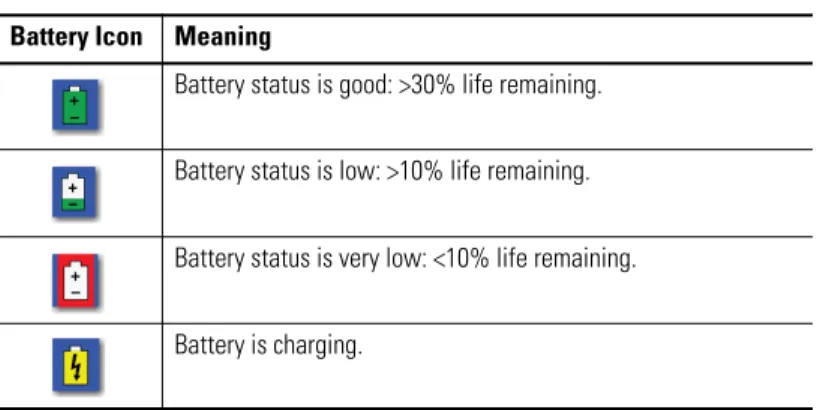
The battery status icons show the strength of the battery.
TIP If you want to show or hide multiple extension modules simultaneously, select each extension module and press F3 (Select).
A checkmark appears next to each selected extension module. If you select multiple extension modules and some are hidden while others are shown, F2 (Show/Hide) reflects the status of the selected extension module.
Table 1 - Extension Module Battery Icon Descriptions
Battery Icon Meaning
Battery status is good: >30% life remaining.
Battery status is low: >10% life remaining.
Battery status is very low: <10% life remaining.
FRF Frequency Response Function Extension
Module
The Frequency Response Function (FRF) extension module is an optional module for the Dynamix 2500 data collector. You install the extension module with the FRF Frequency Response Secure Digital (SD) storage card.
SeeInstall an Extension Module on page 8 for installation instructions.
The Dynamix 2500 data collector FRF extension module lets you determine the natural frequencies of a machine or structure in a more sophisticated manner than the Bump Test module. Rather than simply detecting the frequencies where resonances occur, it captures information about the frequency response of the structure being tested.
• You can use the FRF data in conjunction with a modal analysis software package to model the way the structure reacts to forces applied to it. • You can use the FRF module to capture information about how a machine
moves when it is running. You can use this information with the Operation Deflection Shape (ODS) analysis software.
The FRF module includes the following features:
• Simple selection of measurement type from a list of predefined options, for example, mobility, stiffness, and apparent mass.
• FRF trace colored green or red to illustrate high or low coherence. • Optional automatic parameter setting for input ranges, number of lines,
and windowing.
• Compatibility with ODS analysis software.
Topic Page
Newton’s Law and Apparent Mass 16
Setting Up an FRF Measurement 16
FRF Module Setup 18
Collect FRF Data 22
Field Calibration 25
Saving, Reviewing, and Deleting FRF Measurements 27
IMPORTANT The FRF extension module is for Offroute/unscheduled measurements only. The Emonitor software does not import this type of data.
Newton’s Law and
Apparent Mass
Newton’s Law states that force equals mass x acceleration: F = ma
Rearranging this gives: m = F/a
The units for this are N/m/s2. The definition of a Newton: N = kg x m/s2
So we can see that: N/m/s2 = kg
Setting Up an FRF
Measurement
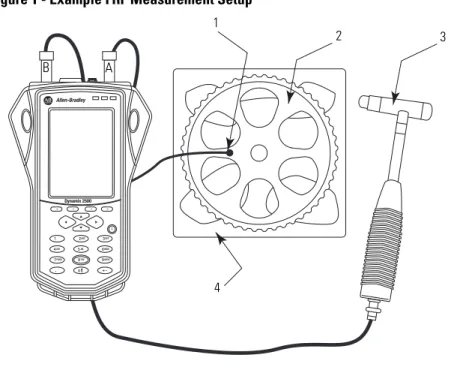
When setting up an FRF measurement, first set up the test hardware before you configure the parameters for the FRF Module.
Figure 1 - Example FRF Measurement Setup
Test Hardware Setup
When setting an FRF test, you need this equipment: • Accelerometer
• Hammer
32159-M
1 Accelerometer connected to connector B 2 Hardware being tested
3 Modally tuned hammer fitted with correct tip connected to connector A 4 Foam support to allow free movement
2 1 3 4 A B
Follow these instructions to set up the FRF test apparatus.
1. Fit the correct tip to a modally tuned hammer.
The hammer is used to create the force that is to be measured in the FRF.
2. Connect the modally tuned hammer to Connector A of the instrument.
3. Support the object being tested, allowing free movement, for example, on a foam support.
4. Select an accelerometer of the correct mass and connect it to Connector B of the instrument.
5. Connect the accelerometer to one of the sides of the object you are measuring.
Avoid Bad Data
An FRF measurement involves placing an accelerometer onto the measurement position and pressing Enter the Dynamix 2500 data collector. Be aware of these items before placing the accelerometer:
• The magnet should be firmly screwed onto the accelerometer. Any looseness between the magnet and accelerometer will corrupt the measurement.
• Gently slide the accelerometer onto the measurement position. Using too much force while placing the transducer onto the machine may cause data overload.
• The magnet should be in firm contact with machine’s surface. Any movement of the magnet will be falsely recorded as vibration data. Try sliding or rotating the magnet until a firm seating is achieved.
• Avoid knocking or disturbing the accelerometer while taking the measurement.
TIP Use a harder tip for higher frequency and a softer tip for lower frequency measurements.
TIP The accelerometer is used to measure the response to the hammer input of the FRF. The accelerometer mass should be low in relation to the test piece, that is, less than 10%.
FRF Module Setup
There are three parameters that have already been configured to make the setup easier. These are the measurement parameters that are already configured for you:• Pre-trigger delay – set to 10% of block length • Trigger level – set to 10% of input range • Good Coherence- 80% threshold
All other settings can be configured on the Setup screen in the FRF extension module.
The FRF menu appears.
2. Select Setup and press Enter. The FRF - Setup screen appears.
FRF Analysis Set-up Parameters
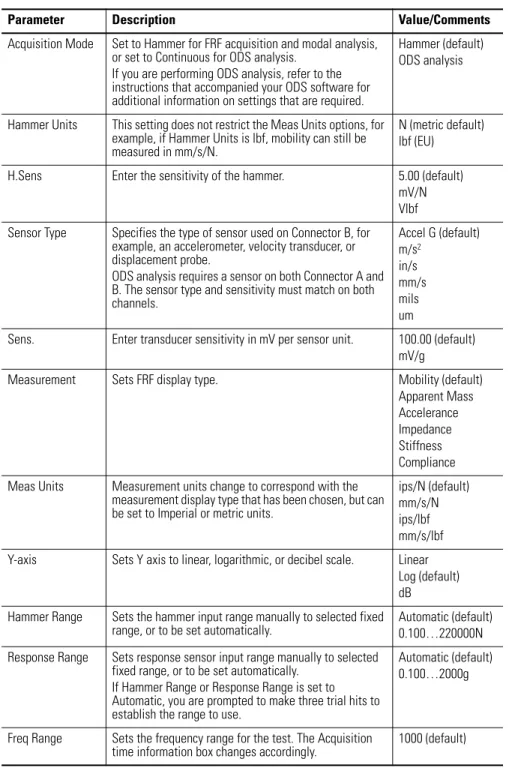
This table describes the FRF set-up parameters. Table 2 - FRF Analysis Set-up ParametersParameter Description Value/Comments
Acquisition Mode Set to Hammer for FRF acquisition and modal analysis, or set to Continuous for ODS analysis.
If you are performing ODS analysis, refer to the instructions that accompanied your ODS software for additional information on settings that are required.
Hammer (default) ODS analysis
Hammer Units This setting does not restrict the Meas Units options, for example, if Hammer Units is lbf, mobility can still be measured in mm/s/N.
N (metric default) lbf (EU)
H.Sens Enter the sensitivity of the hammer. 5.00 (default)
mV/N Vlbf Sensor Type Specifies the type of sensor used on Connector B, for
example, an accelerometer, velocity transducer, or displacement probe.
ODS analysis requires a sensor on both Connector A and B. The sensor type and sensitivity must match on both channels. Accel G (default) m/s2 in/s mm/s mils um
Sens. Enter transducer sensitivity in mV per sensor unit. 100.00 (default)
mV/g
Measurement Sets FRF display type. Mobility (default)
Apparent Mass Accelerance Impedance Stiffness Compliance
Meas Units Measurement units change to correspond with the
measurement display type that has been chosen, but can be set to Imperial or metric units.
ips/N (default) mm/s/N ips/lbf mm/s/lbf
Y-axis Sets Y axis to linear, logarithmic, or decibel scale. Linear
Log (default) dB
Hammer Range Sets the hammer input range manually to selected fixed
range, or to be set automatically.
Automatic (default) 0.100…220000N Response Range Sets response sensor input range manually to selected
fixed range, or to be set automatically. If Hammer Range or Response Range is set to Automatic, you are prompted to make three trial hits to establish the range to use.
Automatic (default) 0.100…2000g
Freq Range Sets the frequency range for the test. The Acquisition
Num of Lines Sets the number of lines of resolution for the FFT. The Acquisition time information box changes accordingly. When set to Automatic, the FRF module automatically chooses the number of lines after three trial hits. This uses a Uniform window if possible and automatically increases the lines of resolution to accommodate the decay time.
If this cannot be achieved, then Force/Exponential is automatically selected. This function is optimized to work for frequency ranges between 200 Hz and 4 kHz. If you select Automatic at a frequency range outside this band, the algorithm attempts to auto select, but may not achieve good results.
400 (default)
Windowing Sets the FFT window type to Uniform or Force/
Exponential.
Force-Exp (default) Uniform
Num of Averages Sets the number of FFT averages. 5 (default)
Accept/Reject When performing a hammer test, the setting Accept/
Reject to Manual displays a dual time trace and presents the choice to accept or reject control. Setting it to Automatic, automatically rejects overloaded data and double impacts.
Manual (default) Automatic
Invert Phase Applies a 180° phase offset to the measured data. It is used when the accelerometer or hammer needs to be inverted at a measurement position.
Off (default) On
Save To You can save to the Internal memory or to the Secure
Digital (SD) card. Internal (default)Card
Good Coherence Enter the threshold at which the FRF plot changes from red (bad coherence) to green (good coherence).
80% (default)
Table 2 - FRF Analysis Set-up Parameters
Collect FRF Data
Once the measurement is set up and the transducers are attached correctly, the next step is to start collecting data for the FRF.Follow these instructions to collect FRF Data.
1. From the Setup screen, press Start.
If you have Hammer Range, Response Range, or Num of Lines set to automatic, a message appears advising you that you will be asked to perform three trial hits. The results of these hits are used to automatically determine the best settings for the associated options.
2. Press OK to start taking data.
If you have been prompted to perform automatic parameter setup, hit the
Automatic Parameter Set-up Hit Count and Number-of-hits count.
When hitting the object, try to make sure that you have one clean tap and that the hammer hits directly opposite of where the accelerometer is located on the object. If this is done correctly, the instrument registers the hit and increases the number-of-hits count displayed at the bottom of the screen.
3. Perform all three hammer strikes.
Once complete, a message box appears showing the calculated values for the applicable settings.
After the automatic parameter setup is complete, you are ready to begin capturing the FRF data.
The data is collected in the same way as when setting up the automatic
parameters, by hitting the hammer against the object on the side opposite to the accelerometer.
How many hits you need to take, based on the Num of Averages setting in FRF – Setup.
The status indicators provide feedback on the hammer hits.
See the Dynamix 2500 Data Collector User Manual, publication 1441-UM001, for more information about the status indicators:
• If the Accept/Reject option in FRF - Setup was set to Automatic, each hammer hit is collected and the Dynamix 2500 data collector
automatically determines if the data is correct. If it is not, a message appears with details on why the hit was rejected.
• If Accept/Reject was set to Manual, the hammer and response time waveforms display for both the hammer and accelerometer outputs, and then an Accept/Reject prompt appears.
4. Review the FRF data and either Accept or Reject the hit.
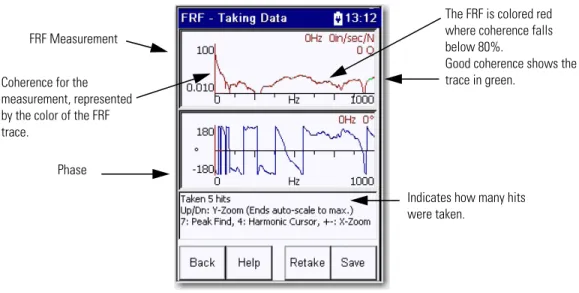
When all the averages are taken, the Taking Data screen updates to show the FRF magnitude/phase traces.
Table 3 - Status Indicators
Status Indicator Description
Red An error, for example, input overrange, during data acquisition.
Amber Instrument is initializing the measurement.
The FRF - Taking Data screen shows frequency, magnitude, phase, and Q factor (where appropriate) at the cursor position.
Field Calibration
Data can be checked for calibration and integrity by carrying out a test on aknown mass, for example, a calibration weight or steel bar of a measured value. Use a calibration weight of 1kg or any other known mass.
Figure 2 - Field Calibration Setup
This is an example of a set-up for Field Calibration.
1. Fit the correct tip to the modally tuned hammer.
Indicates how many hits were taken.
FRF Measurement
The FRF is colored red where coherence falls below 80%.
Good coherence shows the trace in green.
Phase Coherence for the measurement, represented by the color of the FRF trace.
2. Connect the hammer to connector A.
3. Select an accelerometer of correct mass and connect to connector B.
4. Place the accelerometer on mass.
The mass can be hand-held. The use of foam or a supporting structure is not necessary.
5. Set the Measurement parameter to Apparent Mass.
6. Set the Meas Units parameter to N/m/s2.
The instrument displays 1 kg (or other chosen mass), plus the weight of the accelerometer:
M = calibrated mass + accelerometer mass For example: 1 kg + 10.5 g = 1.0105 kg
Saving, Reviewing, and
Deleting FRF
Measurements
You can save measurement setups and measurement results. You can use these for reviewing and recalling stored measurements.
Save an FRF Test Setup and Measurement
You can save the FRF Test set-up parameters and measurements to a file that you can recall at a later time.
Follow these steps to save a file.
1. Press F3 (Save).
The Save screen appears. Depending on where you are in the measurement process, a Save Setup or Save Reading appears.
2. Save the measurement.
• Select the file and press F3 (Save) to save the data to an existing file. • Press F2 (Yes) to overwrite the existing file.
• Press F3 (No) to return to the Save screen without overwriting the file. Follow these instructions to save the data to a new file.
1. Select ‘save reading as’ and press F3 (Save).
2. Enter a file name by using the keypad or accept the default file name (current date timestamp).
3. When the entry is complete, press F2 (OK).
IMPORTANT The set-up parameters are saved along with the measurement when you press F4 (Save) on the Bump Test - Save Data screen.
Importing to ODS Analysis
Software.
Operating Deflection Shapes (ODS) analysis is used for determination of the vibration pattern of a structure under certain operating conditions. Vibration measurements can be performed at different locations and in different directions on a structure and the vibration pattern can be shown as an animated geometry model of the structure or listed in a shape table.
An ODS is a combination of the forcing function acting on the structure and the dynamic properties of the structure. The forcing function depends on the operating conditions, which for machinery could be influenced by, for example, engine speed, load, pressure, temperature and flow. Ambient forces from waves, wind and traffic may also apply for civil engineering structures.
You can import measurements taken by the FRF extension module into ODS analysis software such as Vibrant Technology, Inc.’s ME’scopeVESTM. Follow these instructions to import FRF data into analysis software.
1. Collect data using the FRF extension module.
2. Create a an FRF Data folder on your computer.
3. Connect the instrument to your computer using the supplied USB cable. For information about the USB cable and ActiveSync, see the Dynamix 2500 Data Collector User Manual, publication 144-UM001.
4. Start an ActiveSync session.
5. In the ActiveSync window, select Tools > Explore.
6. Browse to the \Internal Disk\FRF folder on the instrument.
This is where the Frequency Response Function module data is stored.
7. Select the appropriate data file (*.csv) readings.
8. Copy the data files into the FRF data folder you created on your computer.
9. Select all the (*.csv) files and import them into the ODS analysis software. TIP The import function in the ODS analysis software may refer to
B
bad dataavoid17
battery
status icons13
battery status icons13
C
calibration25 coherence15,
18,
21,
25E
Emonitor15 Extension Manager7F
FFT21 frequency15 freq range20 FRF setup20I
install extension module8
L
licenseextension module11
M
manage extension modules12 hide and show12
measurement corrupt17 offroute15 modal analysis15
N
Newton’s Law16O
Operation Deflection Shape15
P
parameters20 phase25 pre-trigger delay18R
response range20S
sensor20 status indicators24T
test equipment accelerometer16,
26 hammer16,
17,
20,
22,
26 trigger level18U
Rockwell Otomasyon Ticaret A.Ş., Kar Plaza İş Merkezi E Blok Kat:6 34752 İçerenköy, İstanbul, Tel: +90 (216) 5698400
Rockwell Automation provides technical information on the Web to assist you in using its products.
At http://www.rockwellautomation.com/support/, you can find technical manuals, a knowledge base of FAQs, technical and application notes, sample code and links to software service packs, and a MySupport feature that you can customize to make the best use of these tools.
For an additional level of technical phone support for installation, configuration, and troubleshooting, we offer TechConnect support programs. For more information, contact your local distributor or Rockwell Automation representative,
or visit http://www.rockwellautomation.com/support/.
Installation Assistance
If you experience a problem within the first 24 hours of installation, review the information that is contained in this manual. You can contact Customer Support for initial help in getting your product up and running.
New Product Satisfaction Return
Rockwell Automation tests all of its products to ensure that they are fully operational when shipped from the manufacturing facility. However, if your product is not functioning and needs to be returned, follow these procedures.
Documentation Feedback
Your comments will help us serve your documentation needs better. If you have any suggestions on how to improve this document,
complete this form, publication RA-DU002, available at http://www.rockwellautomation.com/literature/.
United States or Canada 1.440.646.3434
Outside United States or Canada
Use the Worldwide Locator at http://www.rockwellautomation.com/support/americas/phone_en.html, or contact your local Rockwell Automation representative.
United States Contact your distributor. You must provide a Customer Support case number (call the phone number above to obtain
one) to your distributor to complete the return process.