Stratix 6000 Ethernet Managed Switch
Solid-state equipment has operational characteristics differing from those of electromechanical equipment. Safety Guidelines for the Application, Installation and Maintenance of Solid State Controls (publication SGI-1.1 available from your local Rockwell Automation sales office or online at http://www.rockwellautomation.com/literature/) describes some important differences between solid-state equipment and hard-wired electromechanical devices. Because of this difference, and also because of the wide variety of uses for solid-state equipment, all persons responsible for applying this equipment must satisfy themselves that each intended application of this equipment is acceptable.
In no event will Rockwell Automation, Inc. be responsible or liable for indirect or consequential damages resulting from the use or application of this equipment.
The examples and diagrams in this manual are included solely for illustrative purposes. Because of the many variables and requirements associated with any particular installation, Rockwell Automation, Inc. cannot assume responsibility or liability for actual use based on the examples and diagrams.
No patent liability is assumed by Rockwell Automation, Inc. with respect to use of information, circuits, equipment, or software described in this manual.
Reproduction of the contents of this manual, in whole or in part, without written permission of Rockwell Automation, Inc., is prohibited.
Throughout this manual, when necessary, we use notes to make you aware of safety considerations.
Allen-Bradley, Rockwell Software, Rockwell Automation, RSLinx, RSLogix, Logix5000, FLEX I/O, RSLogix 5000, Stratix 6000, and TechConnect are trademarks of Rockwell Automation, Inc. Trademarks not belonging to Rockwell Automation are property of their respective companies.
WARNING: Identifies information about practices or circumstances that can cause an explosion in a hazardous environment, which may lead to personal injury or death, property damage, or economic loss.
ATTENTION: Identifies information about practices or circumstances that can lead to personal injury or death, property damage, or economic loss. Attentions help you identify a hazard, avoid a hazard, and recognize the consequence.
SHOCK HAZARD: Labels may be on or inside the equipment, for example, a drive or motor, to alert people that dangerous voltage may be present.
BURN HAZARD: Labels may be on or inside the equipment, for example, a drive or motor, to alert people that surfaces may reach dangerous temperatures.
This manual contains new and updated information. Changes throughout this revision are marked by change bars, as shown to the right of this paragraph.
Topic Page
Preface
Studio 5000 Environment . . . 9
Terminology. . . 10
Additional Resources . . . 11
Chapter 1
Basic Configuration
Access the Home Page . . . 13
Access Basic Configuration Options . . . 15
Set the IP Address. . . 15
Set the IP Address with BOOTP . . . 17
Set Security . . . 17
Work with Miscellaneous Settings . . . 18
Status Indicators . . . 20
Chapter 2
Network Services Setup
SNMP . . . 21
Supported MIBs. . . 22
SNMP Configuration . . . 23
IGMP. . . 25
IGMP Product Support. . . 25
IGMP Querier . . . 26
IGMP Configuration . . . 27
DHCP . . . 30
Dynamic IP Address Assignment by IP Address Pool . . . 30
Dynamic IP Address Assignment by Port . . . 31
DHCP Address Table . . . 32
MAC Address Labels . . . 33
Email Configuration . . . 33
SMS Configuration. . . 35
Send Email via a Logix Controller-initiated Message Instruction . 35
Enter the Text of the Email Message . . . 39
Send an SMS from the Logix Controller. . . 40
Modify the SMTP Server Setup in a Logix Controller Program. . . 40
Email and SMS Error Codes. . . 41
Chapter 3
Diagnostics
Device Utilization. . . 44
RSTP Report . . . 45
IGMP Report. . . 45
Chapter 4
Switch Management
STP/RSTP . . . 53
Spanning Tree Protocol . . . 53
Rapid Spanning Tree Protocol . . . 54
STP/RSTP Configuration . . . 55
VLAN Configuration. . . 57
Port Configuration . . . 59
Mirror Configuration. . . 61
MAC ID Management . . . 63
Port Segmenting . . . 64
QoS Setup . . . 65
Appendix A
Upgrade Firmware
Upgrade with the Web Management Interface . . . 67
Appendix B
User Name and Password Rules
User Name and Password Characters . . . 69
Other Rules. . . 69
Appendix C
Factory Reset
Access the Reset Button. . . 71
Reset IP Address . . . 72
Change Settings to Default . . . 72
Appendix D
Data Layout
DINT Input . . . 73
DINT Output . . . 74
Appendix E
Add the Switch to Software
Generic Profile . . . 75
Add-on Profile . . . 77
Enter General Information . . . 78
Enter Connection Information . . . 79
View Identification and Status Information . . . 80
Configure Network and Port Settings . . . 80
View Port Diagnostic Information . . . 82
Configure IGMP . . . 83
Configure DHCP . . . 84
Configure Bandwidth and MAC ID Management Alarming . . . 85
Appendix F
Download or Upload a Configuration
Upload Configuration. . . 87
Download Configuration . . . 87
Appendix G
Available SFP Modules and Cables
Available SFP Modules . . . 89
SFP Module Cable Specifications. . . 89
This manual is intended for users of the switch. We assume you are familiar with the procedures in the Stratix 6000™ Ethernet Managed Switch Installation Instructions, publication 1783-IN004.
Read and understand this manual before using the products. Consult your Rockwell Automation representative if you have any questions or comments. For information about the features supported in your firmware revision, refer to the firmware release notes, publication 1783-RN003.
Studio 5000 Environment
The Studio 5000™ Engineering and Design Environment combines engineering and design elements into a common environment. The first element in the Studio 5000 environment is the Logix Designer application. The Logix Designer application is the rebranding of RSLogix™ 5000 software and will continue to be the product to program Logix5000™ controllers for discrete, process, batch, motion, safety, and drive-based solutions.The Studio 5000 environment is the foundation for the future of Rockwell Automation® engineering design tools and capabilities. It is the one place for design engineers to develop all of the elements of their control system.
Terminology
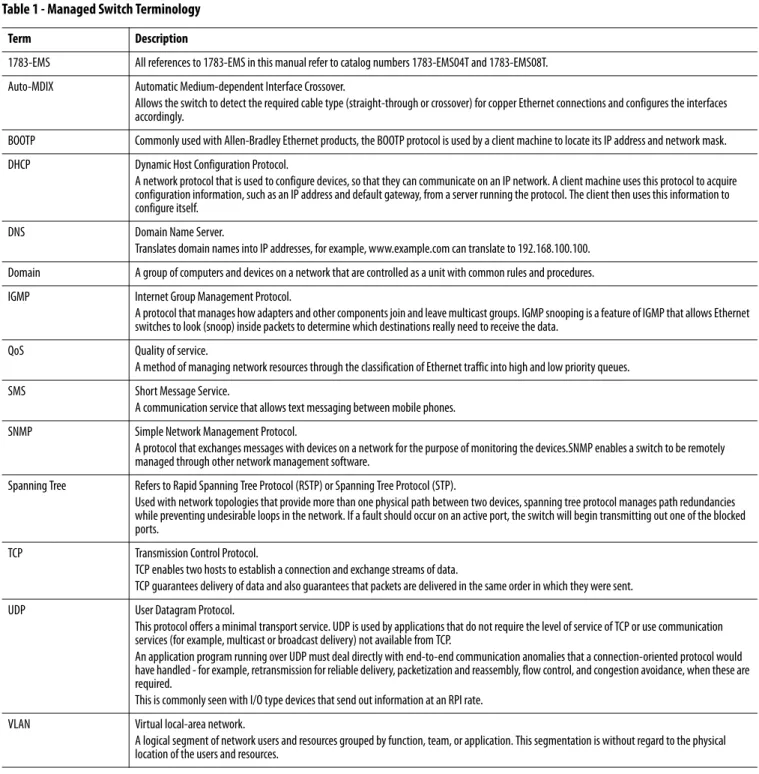
Refer to this table for terms used in this publication.Table 1 - Managed Switch Terminology
Term Description
1783-EMS All references to 1783-EMS in this manual refer to catalog numbers 1783-EMS04T and 1783-EMS08T. Auto-MDIX Automatic Medium-dependent Interface Crossover.
Allows the switch to detect the required cable type (straight-through or crossover) for copper Ethernet connections and configures the interfaces accordingly.
BOOTP Commonly used with Allen-Bradley Ethernet products, the BOOTP protocol is used by a client machine to locate its IP address and network mask. DHCP Dynamic Host Configuration Protocol.
A network protocol that is used to configure devices, so that they can communicate on an IP network. A client machine uses this protocol to acquire configuration information, such as an IP address and default gateway, from a server running the protocol. The client then uses this information to configure itself.
DNS Domain Name Server.
Translates domain names into IP addresses, for example, www.example.com can translate to 192.168.100.100. Domain A group of computers and devices on a network that are controlled as a unit with common rules and procedures. IGMP Internet Group Management Protocol.
A protocol that manages how adapters and other components join and leave multicast groups. IGMP snooping is a feature of IGMP that allows Ethernet switches to look (snoop) inside packets to determine which destinations really need to receive the data.
QoS Quality of service.
A method of managing network resources through the classification of Ethernet traffic into high and low priority queues.
SMS Short Message Service.
A communication service that allows text messaging between mobile phones. SNMP Simple Network Management Protocol.
A protocol that exchanges messages with devices on a network for the purpose of monitoring the devices.SNMP enables a switch to be remotely managed through other network management software.
Spanning Tree Refers to Rapid Spanning Tree Protocol (RSTP) or Spanning Tree Protocol (STP).
Used with network topologies that provide more than one physical path between two devices, spanning tree protocol manages path redundancies while preventing undesirable loops in the network. If a fault should occur on an active port, the switch will begin transmitting out one of the blocked ports.
TCP Transmission Control Protocol.
TCP enables two hosts to establish a connection and exchange streams of data.
TCP guarantees delivery of data and also guarantees that packets are delivered in the same order in which they were sent. UDP User Datagram Protocol.
This protocol offers a minimal transport service. UDP is used by applications that do not require the level of service of TCP or use communication services (for example, multicast or broadcast delivery) not available from TCP.
An application program running over UDP must deal directly with end-to-end communication anomalies that a connection-oriented protocol would have handled - for example, retransmission for reliable delivery, packetization and reassembly, flow control, and congestion avoidance, when these are required.
This is commonly seen with I/O type devices that send out information at an RPI rate. VLAN Virtual local-area network.
A logical segment of network users and resources grouped by function, team, or application. This segmentation is without regard to the physical location of the users and resources.
Additional Resources
These documents contain additional information concerning related products from Rockwell Automation.You can view or download publications at
http://www.rockwellautomation.com/literature/. To order paper copies of technical documentation, contact your local Allen-Bradley distributor or Rockwell Automation sales representative.
Resource Description
Stratix Ethernet Switch Specifications, publication 1783-TD001
Provides technical specifications for Stratix Ethernet switches. Stratix 6000 Ethernet Managed Switch Installation
Instructions, publication 1783-IN004
Provides detailed specifications and information related to installation of the switch.
Industrial Automation Wiring and Grounding Guidelines, publication 1770-4.1
Provides general guidelines for installing a Rockwell Automation industrial system.
Product Certifications website, http://www.ab.com Provides declarations of conformity, certificates, and other certification details.
Internet Engineering Task Force website, http://www.ietf.org
Provides access to documents such as the RFC (request for comment), public documents on networking topics and protocols, Internet standards documents, best current-practices information, and related informational documents.
Basic Configuration
This chapter covers how to access the switch’s web interface home page. It also includes information about how to set an IP address and security, work with miscellaneous options, and understand status indicators.
Access the Home Page
Use these steps to access the web interface home page for the switch.1. Connect the switch to your computer’s LAN card.
This connection is required before you can access the home page. For information about how to establish this connection, see the Stratix 6000 Ethernet Managed Switch Installation Instructions, publication
1783-IN004.
2. Open your web browser once the connection is established.
3. In the address bar of your web browser, type your switch's IP address. For example, to use the default IP address, type http://192.168.1.1.
4. From the user name and password dialog box, leave the user name empty and type the following case-sensitive password: PASSWORD
If the web browser does not open, verify this information:
• The IP address of the switch. The default IP address is 192.168.1.1.
• Your connection setup. Refer to the Stratix 6000 Ethernet Managed Switch Installation Instructions, publication 1783-IN004.
• Whether the switch has power. The green power-status indicator should be on.
• Whether the cable is connected. A green or yellow status indicator should be lit on the Ethernet port.
• A proxy server is not preventing you from accessing the switch.
5. When the home page appears, refer to Table 2 for information about the
IMPORTANT Before connecting to the network, set the IP address of the switch as described in Set the IP Address.
Table 2 - Items on the Home Page
Value Description
Device Name You provide this entry to identify the switch. See page 18 for instructions on entering the switch’s name.
Spanning Tree Indicates the current Rapid Spanning Tree Protocol (RSTP) mode of the switch. Possible values are Enabled (RSTP), Enabled (STP Compatibility), or Disabled. For more about setting the RSTP mode, see page 55.
VLAN 802.1Q Indicates whether the virtual local-area network (VLAN) feature is enabled on the switch, as described on page 57. Note that the VLAN feature used in earlier firmware revisions has been renamed port segmenting. As of firmware revisions 0.11 and 0.53, a new VLAN feature is provided for only the 1783-EMS08T switch.
IGMP Snooping Filtering mechanism for multicast traffic should be used when I/O is running on the Ethernet network. For more about IGMP snooping, see page 25.
Port Mirroring Allows traffic on one port to be copied and sent (mirrored) to another port so that an Ethernet protocol analyzer can capture it. For more about port mirroring, see page 61.
QoS When enabled, the switch can prioritize packet delivery to a certain port or MAC address. For more about QoS, see page 65. MAC ID Management Determines if a MAC ID is authorized on the network by checking the allowed MAC IDs and notifies the switch’s controller when an
unauthorized node appears on the network. For more about MAC ID management, see page 63. Product Type Shows the part number of the switch.
Serial Number Unique to every switch.
MAC Address Indicates the Ethernet address of the switch. Firmware Revision Check our website to make sure you are up to date.
This file updates product firmware. The web interface must be updated separately. Web Revision Check our website to make sure you are up to date.
This file updates your web interface. For related information, see Appendix A.
Uptime This setting indicates the switch’s running time. This timer is reset when the switch is powered up. Link (Port Status) Possible values are ON and OFF.
ON is if a device is connected to the port and has power. ON corresponds to the Link State Status indicator on the switch port being either solid or flashing green.
Access Basic Configuration
Options
From the home page, click the Basic Configuration folder to expand the menu bar in the left pane to show these tabs:
• Network Configuration
• Set Security
• Miscellaneous
Set the IP Address
You normally need to change your IP address to install the switch into your Ethernet network.Use these steps to change the IP address.
1. Find an available IP address on your subnet.
2. Connect the switch to your computer’s LAN card.
For additional information, refer to the Stratix 6000 Ethernet Managed Switch Installation Instructions, publication 1783-IN004.
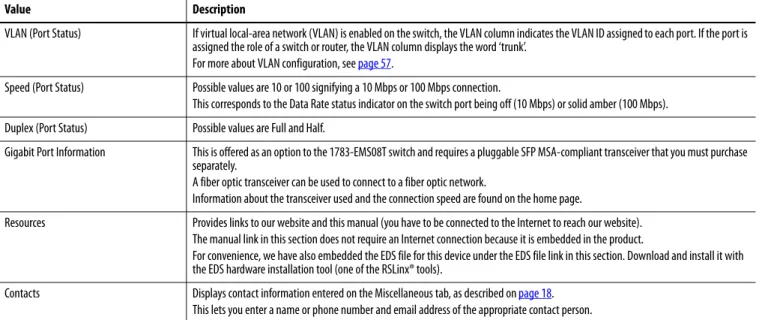
3. From the navigation pane, expand the Basic Configuration folder and select Network Configuration to display the Network Configuration tab. VLAN (Port Status) If virtual local-area network (VLAN) is enabled on the switch, the VLAN column indicates the VLAN ID assigned to each port. If the port is
assigned the role of a switch or router, the VLAN column displays the word ‘trunk’. For more about VLAN configuration, see page 57.
Speed (Port Status) Possible values are 10 or 100 signifying a 10 Mbps or 100 Mbps connection.
This corresponds to the Data Rate status indicator on the switch port being off (10 Mbps) or solid amber (100 Mbps). Duplex (Port Status) Possible values are Full and Half.
Gigabit Port Information This is offered as an option to the 1783-EMS08T switch and requires a pluggable SFP MSA-compliant transceiver that you must purchase separately.
A fiber optic transceiver can be used to connect to a fiber optic network.
Information about the transceiver used and the connection speed are found on the home page.
Resources Provides links to our website and this manual (you have to be connected to the Internet to reach our website). The manual link in this section does not require an Internet connection because it is embedded in the product.
For convenience, we have also embedded the EDS file for this device under the EDS file link in this section. Download and install it with the EDS hardware installation tool (one of the RSLinx® tools).
Contacts Displays contact information entered on the Miscellaneous tab, as described on page 18. This lets you enter a name or phone number and email address of the appropriate contact person.
Table 2 - Items on the Home Page (continued)
4. Type your new IP address.
5. Change the subnet mask and default gateway, if needed.
6. Turn off BOOTP Client to prevent dynamic IP address assignment. If using host names on the network, Name Resolution must be turned on and the DNS server addresses must be configured (usually required if using the email function).
7. Click Apply Changes to change the IP and subnet.
8. Cycle power.
Once the IP and subnet are changed, you must cycle power to load the new address. Power can be cycled remotely through the management interface by expanding the Diagnostics folder and clicking Controller Restart. This restarts the 1783-EMS switch and does not restart the controller. All communication through the switch is interrupted.
IMPORTANT The switch does not load the new IP and subnet address until power is cycled.
Set the IP Address with
BOOTP
The 1783-EMS switch ships with the BOOTP client enabled by default. To assign an address, use this procedure.
1. Put the switch on a network with a BOOTP server.
2. Cycle power to the switch.
The 1783-EMS switch attempts to obtain an IP address several times from the server before timing out and defaulting to the factory preset address of 192.168.1.1.
Set Security
We recommend changing the administrator and read-only password before youplace the switch in service.
The administrator password is used for the management interface (HTTP session), Telnet, and the FTP interface (used to upgrade the firmware). The user name is verified for the FTP session only. The user name for the HTTP session is not checked (therefore can be anything). The read-only password is used for read-only access to the management interface (HTTP session).
Use these steps to change your administrative or read-only user name and password.
1. From the navigation pane, expand the Basic Configuration folder and select Set Security to display the Set Security tab.
IMPORTANT The MAC address of the switch is on the home page.
2. Change the user name and password. See Appendix B for recommendations.
3. Click Apply Changes.
4. Cycle power to the switch to load the new user name and password. The administrative password applies to Telnet, FTP, and the web browser interface.
Work with Miscellaneous
Settings
Use these steps to configure miscellaneous switch settings.
1. From the navigation pane, expand the Basic Configuration folder and select Miscellaneous to display the Miscellaneous tab.
2. Use the information in Table 3 to configure the settings.
3. Click Apply Changes.
IMPORTANT The 1783-EMS switch does not load the new settings until power is cycled.
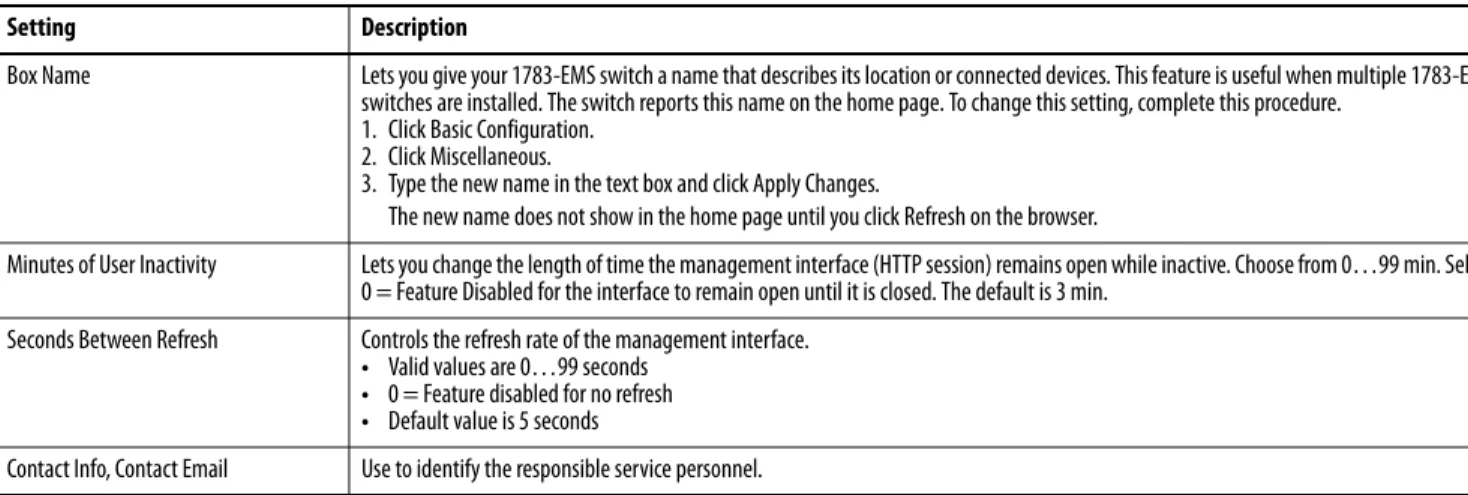
Table 3 - Miscellaneous Switch Settings
Setting Description
Box Name Lets you give your 1783-EMS switch a name that describes its location or connected devices. This feature is useful when multiple 1783-EMS switches are installed. The switch reports this name on the home page. To change this setting, complete this procedure.
1. Click Basic Configuration. 2. Click Miscellaneous.
3. Type the new name in the text box and click Apply Changes.
The new name does not show in the home page until you click Refresh on the browser.
Minutes of User Inactivity Lets you change the length of time the management interface (HTTP session) remains open while inactive. Choose from 0…99 min. Select 0 = Feature Disabled for the interface to remain open until it is closed. The default is 3 min.
Seconds Between Refresh Controls the refresh rate of the management interface. • Valid values are 0…99 seconds
• 0 = Feature disabled for no refresh • Default value is 5 seconds
Status Indicators
The figures and table show the status indicators.Item Indicator State Description 1 Link state(1)
(1) Appears on all copper Ethernet ports.
Solid green Ethernet link exists.
Flashing green Valid link is present and transmitting data. 2 Data rate(1) Solid amber 100 Mbit link is present.
Off 10 Mbit link is present. 3 PWR Solid green Power to the switch is present.
4 STA Flashing green This heartbeat indicator normally flashes at a slow rate. It flashes at a faster rate when the switch is being upgraded or set back to factory default settings by using the button on the back of the switch.
5 UPL Solid green Fiber transceiver present.
Flashing green Flashing indicates data is being transmitted over the gigabit link on the 1783-EMS08T switch that has a gigabit fiber transceiver on the bottom of the switch.
1783-EMS08T 1783-EMS04T 1 2 3 4 1 2 3 4 5
Network Services Setup
This chapter covers information related to network services setup using the switch’s web interface, including how to configure these protocols:
• Simple Network Management Protocol (SNMP)
• Internet Group Management Protocol (IGMP)
• Dynamic Host Configuration Protocol (DHCP)
For information about how to access the web interface for the switch, refer to Chapter 1.
SNMP
Simple Network Management Protocol (SNMP) specifies the diagnostic datathat a host computer must maintain for network management software. Hosts typically keep statistics on the status of their network interfaces, incoming and outgoing traffic, dropped datagrams, and error messages generated. Network management protocols let network management software access these statistics. SNMP is based on three concepts:
• SNMP managers, also known as client software or SNMP browsers
• SNMP agents, also known as network devices or SNMP servers
• Management Information Base (MIB)
The SNMP manager runs SNMP management software. Network devices to be managed, such as bridges, routers, servers, and workstations, have an agent software module. The agent provides access to a local MIB of objects that reflects the resources and activity of the device. The agent also responds to manager commands to retrieve values from the MIB. The agent and the MIB are on the switch. To configure SNMP on the switch, you define the relationship between the manager and the agent.
The Stratix 6000 switchsupports SNMP versions 1 and 2.
• SNMP versions 1 and 2 are generally used for network monitoring without network control.
• The supported versions use a community-based form of security. SNMP managers can access the agent MIB through passwords referred to as
Supported MIBs
The Stratix 6000 switch supports the MIBs listed below.
• MIB-II—The published definition of MIB-II has been modified for the Stratix 6000 switch, as described in MIB-II Modifications below. For a detailed definition of MIB-II, refer to RFC 1213 at http://www.ietf.org/ rfc/rfc1213.txt.
• ETHERLIKE-MIB—For a detailed definition, refer to RFC 1643 at http://tools.ietf.org/html/rfc1643.
• RMON-MIB—The Stratix 6000 supports only the Ethernet Statistics Group in the RMON-MIB. For a detailed definition, refer to RFC 2819 at http://tools.ietf.org/html/rfc2819.
MIB-II Modifications
Standard read-write access has been changed to read-only access for the MIB-II variables listed below.
interface.if Table.ifEntry.ifAdminStatus
(Fixed value—device is UP)
at.atTable.atEntry.atIfIndex at.atTable.atEntry.atPhysAddress at.atTable.atEntry.atNetAddress
(The ARP cache table cannot be modified)
ip.ipForwarding (Fixed value, not-forwarding, not acting as a gateway)
ip.ipDefaultTTL (Fixed value IP_DTTL - 60s)
ip.ipRouteTable.ipRouteEntry.ipRouteDest ip.ipRouteTable.ipRouteEntry.ipRouteIfIndex ip.ipRouteTable.ipRouteEntry.ipRouteMetric1 ip.ipRouteTable.ipRouteEntry.ipRouteMetric2 ip.ipRouteTable.ipRouteEntry.ipRouteMetric3 ip.ipRouteTable.ipRouteEntry.ipRouteMetric4 ip.ipRouteTable.ipRouteEntry.ipRouteNextHop ip.ipRouteTable.ipRouteEntry.ipRouteType ip.ipRouteTable.ipRouteEntry.ipRouteAge ip.ipRouteTable.ipRouteEntry.ipRouteMask ip.ipRouteTable.ipRouteEntry.ipRouteMetric5
ip.ipNetToMediaTable.ipNetToMediaEntry.ipNetToMediaIfIndex ip.ipNetToMediaTable.ipNetToMediaEntry.ipNetToMediaPhysAddress ip.ipNetToMediaTable.ipNetToMediaEntry.ipNetToMediaIpAddress ip.ipNetToMediaTable.ipNetToMediaEntry.ipNetToMediaType
(A static entry cannot be added into the ARP cache table)
tcp.tcpConnTable.tcpConnEntry.tcpConnState
(An established or pending TCP connection cannot be reset)
SNMP Configuration
Enable SNMP if you want to run SNMP on your network. SNMP is disabled by default.
Before configuring SNMP settings, understand these concepts:
• Community names—Community names are passwords to the switch Management Information Base (MIB) that allow a remote manager read-only or read-write access to the switch. The Stratix 6000 switch supports one read-only community name and one read-write community name. You can change the default names.
• SNMP traps—SNMP traps are unsoliticited messages sent to a remote manager from an agent. Traps are an efficient way to inform managers that are connected to a large number of devices with many objects. By
providing unsolicited messaging, traps can reduce SNMP polling by a manager. The Stratix 6000 switch supports two destination traps that can be enabled or disabled. By default, both traps are disabled.
Use these steps to configure SNMP.
1. From the navigation pane, expand the Network Services Setup folder and select SNMP Configuration.
2. From the SNMP Enabled pull-down menu, choose Enabled to use SNMP.
3. Change the deault case-sensitive community names if desired.
• The read-only community enables the switch to validate Get (read-only) requests from a network management station. If you set the SNMP read community, users can access MIB objects, but cannot change them.
• The read-write community enables the switch to validate Set (read-write) requests from a network management station.
4. In the System Info area, provide optional information about the switch for informational purposes only.
a. In the Location field, type the physical location of the switch, such as the building where the switch is locatd.
b. In the Contact field, type the switch name or network administrator.
5. Identify up to two trap destinations by completing the fields below.
6. Click Apply Changes.
The changes will take effect immediately without requiring you to cycle power to the switch.
Trap Destination Field Description
Enabled Check to enable trap messages to be sent. IP Address Type the IP address of the SNMP trap recipient. Port Type the UDP port number to which traps will be sent.
The default port number is 162.
Community Type the read-only or read-write SNMP community name to be used in traps sent to the destination.
Community names are case-sensitive. SNMP Version Choose the SNMP version to use.
IGMP
Internet Group Management Protocol (IGMP) snooping sorts multicasting devices into groups. This limits the multicast packets received by hosts that do not need the information and makes the network more efficient anddeterministic.
By default, IGMP is disabled. Enable IGMP snooping when I/O is running on your network. IGMP helps to isolate this UDP traffic to ports that need to receive it. When it is not used, other devices may be slowed down by the continuous flow of UDP packets.
IGMP Product Support
Rockwell Automation products support IGMP, version 2.
When using the Logix Designer application to configure your switch, consider the following:
• Settings on the IGMP page in the Add-on Profile overwrite settings made on the web management interface.
• If you are scanning the 1783-EMS switch with the Logix Designer application, use the IGMP page in the Add-on Profile to configure IGMP to avoid confusion. See Appendix E for more information.
The switch manages a report of IGMP information, including multicast groups, querier information, and IGMP states per virtual local-area network (VLAN). The report is available through the web interface. For more information about this report, refer to IGMP Report on page 45.
Option Description
Broadcast Without IGMP snooping, an I/O module acts like a broadcasting device and all devices on the subnet are flooded with I/O traffic.
Multicast IGMP snooping filters the I/O traffic from devices that are not in the intended multicast group.
Unicast A message instruction from one Logix controller to another is an example of unicast; it contains one source and one destination address.
IGMP Querier
The IGMP querier function can be enabled to query your network for group information at a specified time interval. The configuration options available for IGMP querier depend on whether VLANs are enabled on your network.
• If you plan to use VLANs on your network, the IGMP querier function can be enabled for only one VLAN per switch. The IP address of the querier may be different on each VLAN.
You can choose to assign the querier to the management VLAN or a custom VLAN. The querier is assigned to the management VLAN by default.
– If the querier is assigned to the management VLAN, the querier IP address is the IP address defined on the Network Configuration tab, as described in Set the IP Address on page 15.
– If you want to assign the querier to a custom VLAN, you must first set up the custom VLAN on the VLAN Configuration tab, as described in VLAN Configuration on page 57. Assigning the querier to a custom VLAN requires you to know which IP address you want to assign to the querier.
• If you do not plan to use VLANs on your network, you can enable or disable a single querier instance on the network. The querier function is enabled by default. If more than one querier instance is detected on the network, only the querier with the lowest IP address is active. All other queriers are silent.
IGMP Configuration
Use these steps to configure IGMP.
1. From the navigation pane, expand the Network Services Setup folder and select IGMP Configuration.
2. From the IGMP Snooping pull-down menu, choose Enabled to use IGMP snooping.
When you enable IGMP snooping, additional configuration options appear on the screen.
3. From the IGMP Version menu, choose version 1 or 2.
Version 2 is the default when IGMP snooping is enabled and is the recommended setting. Per the IGMP definition, hosts and routers implementing differing IGMP versions will interoperate correctly on the network.
4. If VLAN is not enabled on the switch, choose to enable or disable the IGMP querier function from the Querier Mode pull-down menu. or
If VLAN is enabled on the switch, choose one of these options from the Querier Mode pull-down menu:
• Disabled—The IGMP querier function is disabled on all VLANs.
• Enabled on Management VLAN—The IGMP querier function is enabled and assigned to the management VLAN only. This is the default setting. For more information about setting up the management VLAN, refer to VLAN Configuration on page 57.
• Enabled on Custom VLAN—The IGMP querier function is enabled and assigned to a custom VLAN. If you choose this option, you must also specify the querier VLAN and IP address as described in step 6.
5. In the Querier Period field, specify a time interval in minutes, 1…60, to determine how often your network is queried for group information. The default querier period is 2 minutes.
6. If you chose the Enabled on Custom VLAN querier mode, complete the fields described below.
• Querier VLAN—Choose the custom VLAN to which to assign the querier.
• Querier IP Address—Type the IP address of the querier running on the custom VLAN.
IMPORTANT Specify the same number of minutes on all switches in the network. The querier period must be specified even if the querier function is disabled.
Additional fields appear when you choose the Enabled on Custom VLAN querier mode.
7. In the Router Ports Configuration area, choose the methods to use for detecting when a multicast router is connected to a switch port.
When a multicast router, including IGMP querier, is connected to a switch port, all multicast packets and IGMP reports are forwarded on that port. This behavior is important for the proper functioning of IGMP snooping. You can enable one or both of the following options:
• Autodetect—Accept the default setting of Enabled if you want the switch to automatically determine whether an end station or multicast router is connected to its ports. To determine which type of device is connected to a port, the switch uses Cisco Discovery Protocol (CDP) or Multicast Router Discovery (MRD).
• Manual—Enable this setting if you need to connect a switch from a different vendor that does not support CDP or MRD protocols. When you enable the Manual setting, a series of checkboxes appears, so you can specify which ports will be connected to a router that does not support CDP or MRD protocols.
8. From the Multicast Packets Forwarding pull-down menu, choose where to forward multicast packets.
• To Listeners Only—The switch forwards multicast packets to ports in the Listening state only.
• To Listeners and Uplink Port—The switch forwards multicast packets to ports in the Listening state and the uplink port. This is the default setting.
• To Listeners and All Snooper Ports (Standard)—The switch forwards multicast packets to ports in the Listening state and to all multicast routers, or snoopers. Use this setting if you want multicast traffic to be filtered only on ports where end stations are connected and not between switches.
9. From the Uplink Port pull-down menu, choose Autodetect (Querier) if you want the Stratix 6000 switch to automatically determine the uplink port. Otherwise, set the uplink port manually by choosing a specific port.
10. Click Apply Changes.
The changes will take effect immediately without requiring you to cycle power to the switch.
TIP This setting is useful if you need to route multicast packets between two networks.
DHCP
The 1783-EMS switch can function as a Dynamic Host Configuration Protocol (DHCP) or BOOTP server.Dynamic IP Address Assignment by IP Address Pool
The 1783-EMS switch has the ability to assign IP addresses to 32 nodes. Use these steps to configure DHCP settings.
1. Establish a connection with the 1783-EMS switch.
2. From the navigation pane, expand the Network Services Setup folder and select DHCP Configuration.
3. From the DHCP Server pull-down menu, choose On—Assigned from Pool.
This setting enables DHCP server functionality. By default, this setting is off.
IMPORTANT Do not confuse this with the BOOTP/DHCP client, which lets the 1783-EMS switch receive an address from a DHCP/BOOTP server.
IMPORTANT Keep this feature shut off if this device is on a larger IT-controlled network. Company networks typically have DHCP servers in place to service the computers on the network with IP addresses. This device can conflict with the existing DHCP servers on the network and prevent them from assigning addresses.
4. Type your subnet and gateway addresses for the network.
5. Type the primary and secondary DNS server addresses.
6. Type the domain name, if applicable.
7. Use DHCP Pool From and DHCP Pool To to assign a range of addresses. The switch assigns an address within the specified range.
8. Enable Dynamic BOOTP to answer BOOTP requests.
9. Type the number of days to specify the default lease time for DHCP requests.
The default value is 7 days.
10. Click Apply Changes and cycle power for the changes to take effect.
Dynamic IP Address Assignment by Port
The 1783-EMS switch has the ability to assign IP addresses based on the port where the device is connected. When used properly, this feature provides for easy replacement of Ethernet equipment on the factory floor.
Use these steps to set up dynamic IP address assignment by port.
1. Establish a connection with the 1783-EMS switch.
2. Click Network Services Setup and DHCP Configuration.
3. From the DHCP Server pull-down menu, choose On - Assigned by Port. By default, this setting is off.
IMPORTANT If multiple devices are connected to a port with an uplink to another switch, the IP address is sent to the first device to request it from the port. If a field is set to an address of 0.0.0.0, a DHCP request on the port is ignored.
Most applications with programmable controllers do not require changes to the DNS, domain name, and lease time fields. If these functions do not apply to your network, leave these fields at their default value.
4. Type your subnet and gateway addresses for the network.
5. Type the primary and secondary DNS server addresses.
The domain name is automatically populated if the 1783-EMS switch resides on a domain.
6. Type an IP addresses for each port.
7. Click Apply Changes and cycle power for the changes to take effect.
DHCP Address Table
The DHCP Address table is populated when the server is set to assign an IP address from a pool. This table details which IP address is assigned to a device.MAC Address Labels
MAC address labels let you associate a user-friendly label to a MAC ID within the 1783-EMS user interface. When a label is associated with a MAC ID, it is reflected in the MAC ID table and the MAC ID management interface. This feature eases troubleshooting a network. The labels are reflected in the MAC Address Report and the MAC ID Management Configuration page.To access the MAC Address Label tab, from the navigation pane, expand the Network Services Setup folder and select MAC Address Labels.
Email Configuration
The 1783-EMS switch includes an embedded email client that uses an email relay server or gateway message server to send email and text messages to a mail recipient, mobile telephone, or portable wireless device.The network gateway address and DNS information must be entered on the Network Configuration tab. This setup is required once and is stored in 1783-EMS nonvolatile memory. See Set the IP Address for help setting up the network addresses. For help locating these IP addresses, see your network administrator.
IMPORTANT If you do not intend to use symbolic names, for example, [email protected], but rather only IP addresses to access your mail server, you can leave the DNS configuration empty.
Use these steps to set up SMTP server parameters.
1. From the navigation pane, expand the Network Services Setup folder and select Email Configuration.
2. In the IP or Hostname field, type your SMTP server name or IP address.
3. If authentication is used, as required by most ISPs, check SMTP Authentication and type your user name and password.
Basic authentication, compatible with POP servers, is supported, and the name and password entered here are those associated with your outgoing email account.
4. Test sending an email message from the Send an Email web page making sure that the 1783-EMS switch is connected to a network that has access to your email server, which may require access to the Internet.
IMPORTANT A status message providing the result of this operation is displayed at the bottom of the page. Detailed error descriptions let you identify a potential anomaly.
SMS Configuration
If you intend to use a Short Message Service (SMS) gateway service to send text messages to a mobile telephone or portable wireless device, use this procedure.
1. From the navigation pane, expand the Network Services Setup folder and select SMS Configuration.
2. In the SMS GW Server field, type the email address of your SMS gateway provider.
3. Type your account ID.
4. Type your user name and password.
5. Test this setup by using the Send an Email page, making the To: field the phone number of the device to receive the message.
Send Email via a Logix Controller-initiated Message Instruction
A Logix controller can send a generic CIP message to the 1783-EMS switch instructing it to send an email message to an SMTP email server. This is useful to communicate Logix controller data, network alerts, and application conditions to appropriate personnel. You need two controller-scoped string tags.One tag contains the email text and the other contains the status of the email transmission (the result code). These tags contain as many as 520 characters. You
IMPORTANT Most newer cell phones accept email directly. If your phone accepts email, you do not need to use an SMS gateway service to get text messages from the 1783-EMS switch. See your cell phone provider website to get the email address of your cell phone.
EMS_EMAIL. Create a second controller-scoped tag of this new data type to contain the transmission status named EmailDstStr.
Both of these tags are of the type EmailString.
Use these steps to send an email via a Logix controller-initiated message instruction.
1. Open the Logix Designer application.
2. From the Controller Organizer, expand Data Types and Strings.
3. Create an EmailString type and note the initial LEN field.
When you edit this tag, its length is inserted by the RSLogix editor. When you send email with MSG instructions, the length of the LEN field must be added to the string length, as shown in the program example.
4. Open tags and click the Edit tab.
Both tags are of the type EmailString. These tags can be created later when the MSG instruction is inserted. The text of the email does not have to be static. You can program a Logix controller project to collect specific data to be sent in an email. For more information on using ladder logic to
manipulate string data, see the Logix5000 Controllers Common Procedures Programming Manual, publication 1756-PM001.
6. Create a tag of the type MESSAGE.
The example uses a tag named SendEmail_EDM.
7. Set the message type to generic CIP, service code object class 32f, instance 1, attribute 0.
Note that the source length is the length of the string in the EMS_EMAIL tag + 4.
If an error occurs, you see the Error Code (Extended Error Code). The result code from the SMTP server is stored in the EmailDstStr tag. See page 41 for a table of status codes.
IMPORTANT Be sure to enter the correct communication path. Click the
Communication tab and then Browse. Select the name associated with your 1783-EMS switch from the I/O tree and click Apply.
In this example, the name is Stratix6K. For more information on configuring the path of a MSG instruction, see the Logix Controllers General Instructions Reference Manual, publication 1756-RM003.
8. Open your routine window (for example, MainRoutine) and insert an MSG instruction.
9. Select the SendEmail MESSAGE tag.
10. Double-click the MSG block and choose source (EMS_EMAIL) and destination (EmailDstStr) tags.
In our example, we have GetAttributeValue and SetAttributeValue tags and GetAttribute/SetAttribute MESSAGE tags for individual attribute handling.
Message sending is triggered by the trigger_send BOOL tag. The message is sent when you press Ctrl+T in the rung or set the tag value to 1.
The figure shows an example of a program that sends an email when any unauthorized MAC is detected by the 1783-EMS switch.
Enter the Text of the Email Message
Use the string browser to enter the text of the email. In the example, you enter the email text into the EWEB_EMAIL tag. To include To, From, and Subject fields in the email, use <CR><LF> symbols to separate each of these fields. The To and From fields are required. The Subject field is optional. Use a second set of <CR><LF> symbols after the last one of these fields you enter.
The maximum length of an email message is 520 characters. An additional 4-byte string-length value is added to the tag. As a result, the maximum source length is 524 characters.
EXAMPLE To: email address of recipient $r$l From: email address of sender$r$l Subject: subject of message $r$l$r$l body of email message
Send an SMS from the Logix Controller
Text messages are sent in the same way as a normal email message. The only difference is the recipient in the To: field is a telephone number instead of an email address.
The email format for sending text messages by using a SMS gateway service is as follows: • api_id:nnnnnnn$r$l • user:xxxxx$r$l • password:ppppp$r$l • to:cell_phone#$r$l • text:Simple text$r$l • text:on all$r$l • text:3 lines. $r$l • text:Sms signature - 1234567890123456$r$l
Modify the SMTP Server Setup in a Logix Controller Program
You can modify the SMTP server you use to send email by setting class 32f, attribute #5.IMPORTANT Set Attribute Single uses service code 10.
Email and SMS Error Codes
Examine the destination element of the email MSG to see if the email was successfully delivered to the mail relay server.
This indicates that the mail relay server placed the email message in a queue for delivery. It does not mean the intended recipient successfully received the email message.
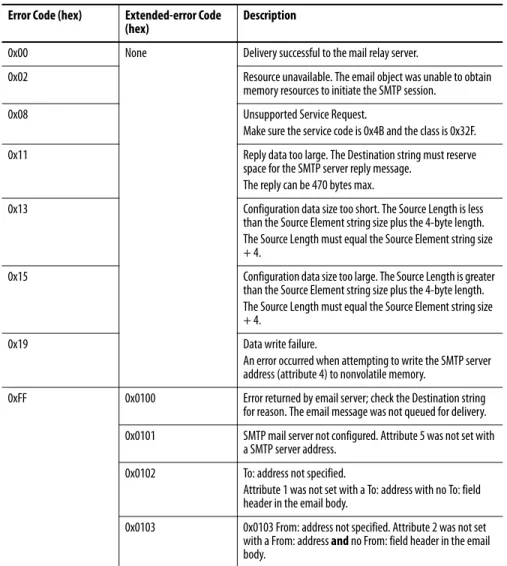
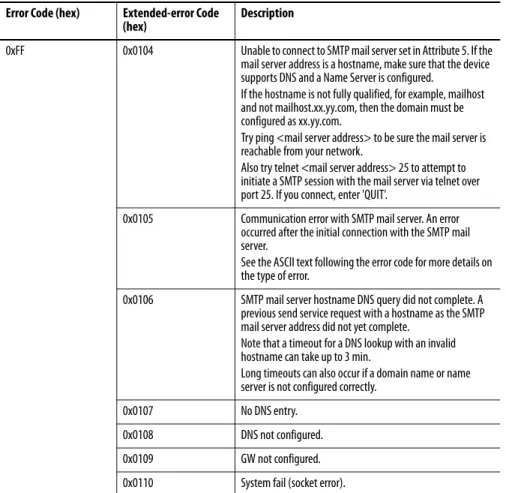
This table shows possible codes that could be in this destination element.
Table 4 - Error Codes
Error Code (hex) Extended-error Code (hex)
Description
0x00 None Delivery successful to the mail relay server.
0x02 Resource unavailable. The email object was unable to obtain memory resources to initiate the SMTP session.
0x08 Unsupported Service Request.
Make sure the service code is 0x4B and the class is 0x32F. 0x11 Reply data too large. The Destination string must reserve
space for the SMTP server reply message. The reply can be 470 bytes max.
0x13 Configuration data size too short. The Source Length is less than the Source Element string size plus the 4-byte length. The Source Length must equal the Source Element string size + 4.
0x15 Configuration data size too large. The Source Length is greater than the Source Element string size plus the 4-byte length. The Source Length must equal the Source Element string size + 4.
0x19 Data write failure.
An error occurred when attempting to write the SMTP server address (attribute 4) to nonvolatile memory.
0xFF 0x0100 Error returned by email server; check the Destination string for reason. The email message was not queued for delivery. 0x0101 SMTP mail server not configured. Attribute 5 was not set with
a SMTP server address. 0x0102 To: address not specified.
Attribute 1 was not set with a To: address with no To: field header in the email body.
0x0103 0x0103 From: address not specified. Attribute 2 was not set with a From: address and no From: field header in the email body.
0xFF 0x0104 Unable to connect to SMTP mail server set in Attribute 5. If the mail server address is a hostname, make sure that the device supports DNS and a Name Server is configured.
If the hostname is not fully qualified, for example, mailhost and not mailhost.xx.yy.com, then the domain must be configured as xx.yy.com.
Try ping <mail server address> to be sure the mail server is reachable from your network.
Also try telnet <mail server address> 25 to attempt to initiate a SMTP session with the mail server via telnet over port 25. If you connect, enter 'QUIT'.
0x0105 Communication error with SMTP mail server. An error occurred after the initial connection with the SMTP mail server.
See the ASCII text following the error code for more details on the type of error.
0x0106 SMTP mail server hostname DNS query did not complete. A previous send service request with a hostname as the SMTP mail server address did not yet complete.
Note that a timeout for a DNS lookup with an invalid hostname can take up to 3 min.
Long timeouts can also occur if a domain name or name server is not configured correctly.
0x0107 No DNS entry.
0x0108 DNS not configured. 0x0109 GW not configured. 0x0110 System fail (socket error).
Table 4 - Error Codes
Error Code (hex) Extended-error Code (hex)
Diagnostics
This chapter provides information about these switch diagnostic features available through the web interface:
• Device utilitization
• Rapid Spanning Tree Protocol (RSTP) report
• Internet Group Management Protocol (IGMP) report
• MAC address report
• Alarm setup
• PLC configuration
• Automatic email alerts
• Email queue status
• Switch controller restart
• Display switch counters
For information about how to access the web interface for the switch, refer to Chapter 1.
Device Utilization
The Device Utilization tab provides a way to download these files that may be useful to send to Technical Support for diagnostic purposes:• Device utilization file—Includes various performance metrics about how the memory and processor is affected by your network.
• Device configuration file—Includes all of the switch’s configuration settings.
To download device files to your computer, use these steps.
1. From the navigation pane, expand the Diagnostics folder and click Device Utilization to display the Utilization tab.
2. To download the device utilization file, click Save Device Utilization and then browse to the location on your computer where you want to download the file.
3. To download the switch’s configuration file, click Save Device
Configuration and then browse to the location on your computer where you want to download the file.
RSTP Report
If Rapid Spanning Tree Protocol (RSTP) mode is set to Enabled or STPCompatible on the RSTP Configuration tab, the STP/RSTP status for all switch ports appears on the RSTP Report tab.
To access the RSTP Report tab, from the navigation pane, expand the
Diagnostics folder and click RSTP Report. The Clear Statistics button lets you reset the data on the page without having to cycle power after testing.
For more information about configuring STP/RSTP, refer to STP/RSTP on page 53.
IGMP Report
Internet Group Management Protocol (IGMP) manages membership in IPmulticast groups. Only hosts in that group receive the packet. IGMP prevents a multicast packet from behaving like a broadcast (transmitted to all network hosts).
The switch manages a report of IGMP groups and hosts belonging to those groups, along with querier information, IGMP states per VLAN, and neighboring routers.
To access the report, from the navigation pane, expand the Diagnostics folder and click IGMP Report.
MAC Address Report
All Ethernet equipment has a MAC address (hardware address). To access a list of these addresses, from the navigation pane, expand the Diagnostics folder and click MAC Address Report.A pool of MAC addresses is assigned to each Ethernet product manufacturer. For example, Allen-Bradley Ethernet equipment MAC addresses usually begin with 00:00:BC.
Alarm Setup
The Alarm Setup tab displays the bandwidth on each port. To access the AlarmSetup tab, from the navigation pane, expand the Diagnostics folder and click Alarm Setup.
The bar turns red when the bandwidth is out of range. The Alarm Setup tab also displays these items:
• Refresh—Used to refresh your screen with the latest information, the screen automatically refreshes at the rate configured under Basic Configuration and Refresh Rate.
• Save Traffic Reference—Used as a benchmark for the system network. Click this button when the network is running as it should in production. The switch calculates the difference between the reference point and the current levels of traffic for each port. If it varies to an alarm state, it sends an input to the switch’s controller indicating the port number. See Appendix D for the complete I/O table for the 1783-EMS switch.
• Bandwidth Alarm—Disabled by default, when enabled calculates the difference between the reference point of the network and the current rate of traffic. If a variation exceeding the allowed traffic difference occurs, it sends an input to the switch’s controller indicating the port number where the bandwidth shortage is occurring.
• Scaling Factor—Most applications have such a small amount of traffic that the bandwidth is only a fraction of a percent. The scaling factor provides a more visual representation of the traffic on each port. See the detailed information link on the Alarm Setup page for more information on how the bandwidth is calculated.
• Time Factor—The length of time packets are counted to determine the bandwidth percentage for each port. See the detailed information link on the Alarm Setup page for more information on how the bandwidth is calculated.
• Allowed Traffic Difference—The percentage that the current traffic level can vary in either direction, from the stored reference value, before an input is sent to the switch’s controller.
PLC Configuration
The PLC Configuration tab display read-only information about the 1783-EMS switch relating to the PLC connection. Information includes the EDS file name, multicast address used by the 1783-EMS switch, and status information on the 1783-EMS switch.To access the PLC Configuration tab, from the navigation pane, expand the Diagnostics folder and click PLC Configuration.
Automatic Email Alerts
The 1783-EMS switch can be configured to automatically send system alert messages via the email client to a recipient’s email address, mobile telephone, or portable wireless device.This can be useful in a critical control network to alert network personnel of an anomaly in the network as it occurs.
Events in the network like unauthorized MAC ID’s, bandwidth utilization alarms, or port down can be communicated automatically to the responsible supervisor.
To enable this capability, use this procedure.
1. From the navigation pane, expand the Diagnostics folder and select Automatic Alerts.
2. From the Automatic Alerts pull-down menu, choose Enabled.
3. Specify the recipients for the alerts by typing up to six email addresses or mobile telephone numbers.
4. Specify which alerts you want to automatically trigger a message by checking the checkbox next to each alert.
You can select any number of automatic alerts from the list.
Email Queue Status
Use the Email Queue Status tab to view these email statuses:• Number of emails sent successfully
• Any dropped messages
• Pending messages
To access the Email Queue Status tab, from the navigation pane, expand the Diagnostics folder and click Email Queue Status.
Switch Restart
You can restart 1783-EMS switch on the Controller Restart tab. Restarting theswitch is useful when making configuration changes. The switch must be restarted for some changes to take effect.
To restart the switch, from the navigation pane, expand the Diagnostics folder and click Restart Controller. When a message prompts you to confirm, click OK.
Display Switch Counters
To access various counts, from the navigation pane, expand the Diagnostics folder, and then expand the Switch Counters - Single Port or Switch Counters - All Ports folder. Navigate to the menu item for the counters you want to view.Counters are displayed in hex where an octet equals 8 bits. Table 5 lists Transmit (Tx) counters.
Table 5 - Tx Counters
Counter Description
Tx Octet Count Total of transmitted good octets from the selected port. Tx Drop Pkts Count Packet is not acknowledged by the receiving host. Tx BroadcastPkts Count Number of good packets sent with destination of
everyone. Receivers are unspecified.
Tx MulticastPkts Count Packets sent to members of multicast group. One terminal to many hosts.
Tx UnicastPkts Count In contrast with multicast, consists of one terminal transmitting to one host.
Tx Collisions Count Two terminals transmit packets at the same time causing them to collide. Collision Count should be very low. Collisions could indicate a faulty device on the network. Tx SingleCollision Count Packet collides with one other terminal’s transmitted
packet.
Tx MultipleCollision Count Packet collides with more than one terminal’s transmitted packets.
Tx DeferredTransmit Count Number of packets delayed because the network is busy. The higher the number, the less deterministic your network.
Tx LateCollision Count Collision is detected later than the 512 bits into the packet transmission.
Tx ExcessiveCollision Count Network device is not acting in compliance with a flow control request.
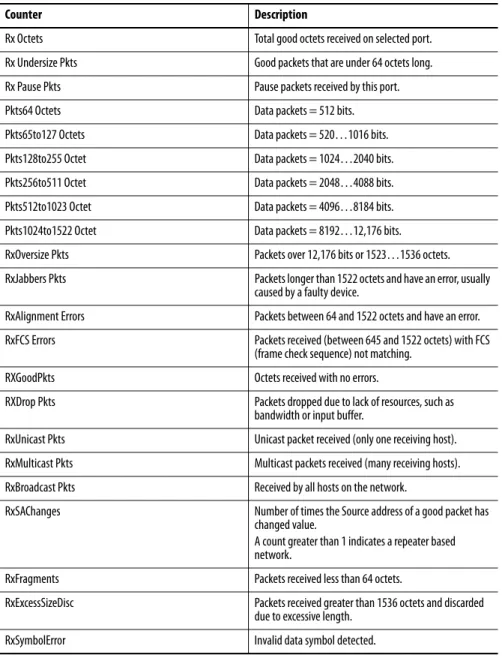
Table 6 lists Receive (Rx) counters.
Table 6 - Rx Counters
Counter Description
Rx Octets Total good octets received on selected port. Rx Undersize Pkts Good packets that are under 64 octets long. Rx Pause Pkts Pause packets received by this port.
Pkts64 Octets Data packets = 512 bits.
Pkts65to127 Octets Data packets = 520…1016 bits. Pkts128to255 Octet Data packets = 1024…2040 bits. Pkts256to511 Octet Data packets = 2048…4088 bits. Pkts512to1023 Octet Data packets = 4096…8184 bits. Pkts1024to1522 Octet Data packets = 8192…12,176 bits. RxOversize Pkts Packets over 12,176 bits or 1523…1536 octets. RxJabbers Pkts Packets longer than 1522 octets and have an error, usually
caused by a faulty device.
RxAlignment Errors Packets between 64 and 1522 octets and have an error. RxFCS Errors Packets received (between 645 and 1522 octets) with FCS
(frame check sequence) not matching.
RXGoodPkts Octets received with no errors.
RXDrop Pkts Packets dropped due to lack of resources, such as bandwidth or input buffer.
RxUnicast Pkts Unicast packet received (only one receiving host). RxMulticast Pkts Multicast packets received (many receiving hosts). RxBroadcast Pkts Received by all hosts on the network.
RxSAChanges Number of times the Source address of a good packet has changed value.
A count greater than 1 indicates a repeater based network.
RxFragments Packets received less than 64 octets.
RxExcessSizeDisc Packets received greater than 1536 octets and discarded due to excessive length.
Switch Management
This chapter provides information about switch management options provided through the switch’s web interface. The web interface provides these management options: • STP/RSTP configuration • VLAN configuration • Port configuration • Mirror configuration • MAC ID management • Port segmenting • QoS setup
For information about how to access the web interface for the switch, refer to Chapter 1.
STP/RSTP
The switch supports these network protocols to prevent loops in redundantnetwork topologies:
• Spanning Tree Protocol (STP), as defined in IEEE 802.1D
• Rapid Spanning Tree Protocol (RSTP), as defined in IEEE 802.1w By default, STP and RSTP are disabled.
To view the STP/RSTP status for all switch ports, use the RSTP report as described on page 45.
Spanning Tree Protocol
Spanning Tree Protocol (STP) is a Layer 2 link management protocol that provides path redundancy while preventing loops in the network. For a Layer 2 Ethernet network to function properly, only one active path can exist between any two stations. Multiple active paths among end stations cause loops in the network. If a loop exists in the network, end stations might receive duplicate
STP uses a spanning-tree algorithm to select one switch of a redundantly connected network as the root of the spanning tree. The algorithm calculates the best loop-free path through a switched Layer 2 network by assigning a role to each port based on the role of the port in the active topology:
• Root—A forwarding port elected for the spanning-tree topology
• Designated—A forwarding port elected for every switched LAN segment
• Alternate—A blocked port providing an alternate path to the root bridge in the spanning tree
• Backup—A blocked port in a loopback configuration
The switch that has all of its ports as the designated role or as the backup role is the root switch. The switch that has at least one of its ports in the designated role is called the designated switch.
Spanning tree forces redundant data paths into a standby (blocked) state. If a network segment in the spanning tree fails and a redundant path exists, the spanning-tree algorithm recalculates the spanning-tree topology and activates the standby path. Switches send and receive spanning-tree frames, called bridge protocol data units (BPDUs), at regular intervals. The switches do not forward these frames but use them to construct a loop-free path. BPDUs contain information about the sending switch and its ports, including switch and MAC addresses, switch priority, port priority, and path cost. Spanning tree uses this information to select the root switch and root port for the switched network and the root port and designated port for each switched segment.
Rapid Spanning Tree Protocol
Rapid Spanning Tree Protocol (RSTP) is an enhanced version of STP that uses point-to-point wiring and provides rapid convergence of the spanning tree. When a point-to-point connection fails, the alternate connection transitions to the forwarding state.
RSTP is implemented on the switch in these ways:
• You can enable RSTP or STP mode on the RSTP Configuration tab. By default, both RSTP and STP are disabled.
• A single instance of RSTP exists for the entire network, regardless of the number of VLANs. This implementation is known as Common Spanning Tree (CST).
• RSTP parameters are port-dependent, or used for determining a specific port’s behavior.
• If port mirroring is configured on a port, or a port becomes disabled via the switch’s web interface, RSTP becomes disabled on the port.
STP/RSTP Configuration
To configure the switch for STP or RSTP, use the following procedure.
1. From the navigation pane, expand the Switch Configuration folder and select RSTP Configuration to display the RSTP Configuration tab.
2. Configure bridge parameters as described in the table below. Bridge Parameter Description
RSTP Mode Choose one of the following network modes:
• Disabled—The switch does not run RSTP or STP. This is the default mode. • Enabled (RSTP)—The switch runs RSTP.
• Enabled (STP Compatibility)—Enables the switch to be manually configured to run STP.
Bridge Priority (hex) Type a hex value from 0000…F000 to determine which switch on the network is assigned the role of root bridge.
The default value is 8000.
The spanning tree algorithm uses the following rules to determine the root bridge: • The switch with the lowest priority becomes the root bridge.
• If two switches have the same priority, then the switch with the lowest MAC address becomes the root bridge.
Max Age (sec) Type a value in seconds from 6…40 to specify the maximum time that a BPDU is saved before expiring.
The default value is 40.
Forward Delay (sec) Type a value in seconds from 4…30 to specify the time spent in the Listening and Learning states.
The default value is 15.
Transmit Hold Count (-) Type a value from 1…10 to configure the number of BPDUs that can be transmitted within the Hello Time interval.
3. Configure port parameters as described in the table below.
4. Click Apply Changes.
The changes will take effect immediately without requiring you to cycle power to the switch.
Port Parameter Description
Priority Type a hex value from 00h…F0h to specify the port priority. The port priority is used in conjunction with the path cost to determine which redundant port on the network will be blocked.
The default value for each port is 80.
Auto Cost Check this box to automatically configure the path cost according to the port speed. The port speed can be 10 MB/s, 100 MB/s, or 1 GB/s depending on the connected device. Auto Cost is the default configuration setting.
Manual Cost If you cleared the Auto Cost checkbox, type a value from 1…200,000,000 to manually configure the path cost.
The default value is 200,000,000.
Edge Port Click the method for determining whether the port identifies itself as an edge port. Because edge ports cannot create bridging loops in the network, they transition directly to the forwarding state and function much faster than a normal spanning tree port. • OFF—The port functions as a normal spanning tree port. When an end station is
connected to the port, the port begins forwarding after the Max Age + Forward Delay = 20 + 15 = 35 seconds.
• Auto—The switch automatically identifies whether the port is connected to an end station or switch. This is the default setting.
– If an end station is connected to the port, the port is identified as an edge port after 3 seconds and begins forwarding BPDUs.
– If a switch is connected to the port and a BPTU is received, the port immediately loses edge port status and becomes a normal spanning tree port. When BPTUs are no longer received after 3 seconds, the port regains edge port status.
• ON—The switch automatically identifies whether the port is connected to an end station or switch. If an end station is connected to the port, the port is immediately identified as an edge port.
IMPORTANT: Only use the ON mode for ports connected to a single host. Connecting hubs, concentrators, switches, or bridges to a port in ON mode can cause temporary bridging loops. Use this setting with caution.