SAP BusinessObjects Data Services
Tutorial
© 2009 SAP AG. All rights reserved.SAP, R/3, SAP NetWeaver, Duet, PartnerEdge, ByDesign, SAP Business ByDesign, and other SAP products and services Copyright
mentioned herein as well as their respective logos are trademarks or registered trademarks of SAP AG in Germany and other countries. Business Objects and the Business Objects logo, BusinessObjects, Crystal Reports, Crystal Decisions, Web Intelligence, Xcelsius, and other Business Objects products and services mentioned herein as well as their respective logos are trademarks or registered trademarks of Business Objects S.A. in the United States and in other countries. Business Objects is an SAP company.All other product and service names mentioned are the trademarks of their respective companies. Data contained in this document serves informational purposes only. National product specifications may vary.These materials are subject to change without notice. These materials are provided by SAP AG and its affiliated companies ("SAP Group") for informational purposes only, without representation or warranty of any kind, and SAP Group shall not be liable for errors or omissions with respect to the materials. The only warranties for SAP Group products and services are those that are set forth in the express warranty statements accompanying such products and services, if any. Nothing herein should be construed as constituting an additional warranty.
Contents
Introduction 11
Chapter 1
Audience and assumptions...12
SAP BusinessObjects information resources...12
Tutorial objectives...14
Tutorial prerequisites...15
Preparation for this tutorial...15
Environment required...15
Tutorial setup...16
Tutorial structure...23
Exiting the tutorial...25
To exit the tutorial...25
To resume the tutorial...26
Product Overview 27 Chapter 2 Product features...28
Product components...29
Using the product...31
System configurations...32
Windows implementation...33
UNIX implementation...33
The Designer window...33
SAP BusinessObjects Data Services objects...35
Object hierarchy...36
Object-naming conventions...40
New terms...40
Section summary and what to do next...42
Defining Source and Target Metadata 43 Chapter 3
Logging in to the repository...44
To log in to the Designer...44
Defining a datastore...45
To define a datastore for the source (ODS) database...46
To define a datastore for the target database...48
Importing metadata...49
To import metadata for ODS source tables ...49
To import metadata for target tables...50
Defining a file format...50
To define a file format...51
New terms...53
Summary and what to do next...53
Populating the SalesOrg Dimension from a Flat File 55 Chapter 4 Objects and their hierarchical relationships...57
Adding a new project...57
To add a new project...57
Adding a job...58
To add a new batch job...58
Adding a work flow...58
To add a work flow...60
About data flows...60
Adding a data flow...61
Defining the data flow...63
Validating the data flow...66
Addressing errors...67
Saving the project...68
Executing the job...68
To execute a job...68
About deleting objects...70
New terms...71
Summary and what to do next...71
Populating the Time Dimension Using a Transform 73 Chapter 5 Retrieving the project...74
To open the Class_Exercises project...75
Adding the job and data flow...75
To add the job and data flow...75
Defining the time dimension data flow...75
To specify the components of the time data flow...76
To define the flow of data...76
To define the output of the Date_Generation transform...77
To define the output of the query...78
Saving and executing the job...80
Summary and what to do next...80
Populating the Customer Dimension from a Relational Table 83 Chapter 6 Adding the CustDim job and work flow...85
To add the CustDim job...85
To add the CustDim work flow...85
Adding the CustDim data flow...85
To add the CustDim data flow object...85
Defining the CustDim data flow...85
To bring the objects into the data flow...86
To define the query...86
Validating the CustDim data flow...87
To verify that the data flow has been constructed properly...87
Executing the CustDim job...88
SAP BusinessObjects Data Services Tutorial 5
Using the interactive debugger...89
To set a breakpoint in a data flow...89
To use the interactive debugger...90
To set a breakpoint condition...91
Summary and what to do next...91
Populating the Material Dimension from an XML File 93 Chapter 7 Adding MtrlDim job, work and data flows...95
To add the MtrlDim job objects...95
Importing a document type definition...95
To import the mtrl.dtd...95
Defining the MtrlDim data flow...95
To add the objects to the data flow...96
To define the details of qryunnest...96
Validating the MtrlDim data flow...98
To verify that the data flow has been constructed properly...99
Executing the MtrlDim job...99
To execute the job...99
Leveraging the XML_Pipeline ...100
To setup a job and data flow that uses the XML_Pipeline transform..100
To define the details of XML_Pipeline and Query_Pipeline...101
Summary and what to do next...104
Populating the Sales Fact Table from Multiple Relational Tables 105 Chapter 8 Exercise overview...107
Adding the SalesFact job, work flow, and data flow...107
To add the SalesFact job objects...107
Defining the SalesFact data flow...108
To define the data flow that will generate the sales fact table...108
Defining the details of the Query transform...109
To define the details of the query, including the join between source
tables...109
Defining the details of the lookup_ext function...110
To use a lookup_ext function for order status...111
Validating the SalesFact data flow...113
Executing the SalesFact job...113
Using metadata reports...113
Enabling metadata reporting...113
Viewing Impact and Lineage Analysis...115
Summary and what to do next...118
Changed-Data Capture 121 Chapter 9 Exercise overview...122
Adding and defining the initial-load job...123
Adding the job and defining global variables...123
Adding and defining the work flow...124
Adding and defining the delta-load job...127
To add the delta-load data flow...127
To add the job and define the global variables...128
To add and define the work flow...128
To define the scripts...129
Executing the jobs...129
To execute the initial-load job...130
To change the source data...130
To execute the delta-load job...131
Summary and what to do next...131
Data Assessment 133 Chapter 10 Viewing profile statistics ...134
To obtain profile statistics...135
SAP BusinessObjects Data Services Tutorial 7
Defining a validation transform based on data profile statistics...136
To set up the job and data flow that will validate the data format...136
To define the details of the Validation transform to replace incorrectly formatted data ...137
Auditing a data flow...139
To audit a data flow...139
Viewing audit details in Operational Dashboard reports...143
To view audit details in the Operational Dashboard...143
Summary and what to do next...144
Recovery Mechanisms 145 Chapter 11 Creating a recoverable work flow manually...146
Adding the job and defining local variables...147
To add the job and define local variables...147
Specifying a recoverable job...147
Creating the script that determines the status...148
Defining the recoverable data flow with a conditional...150
Adding the script that updates the status...152
Specifying job execution order...153
Status of the exercise...153
Executing the job...154
To execute the job...154
Data Services automated recovery properties...154
Summary and what to do next...155
Multiuser Development 157 Chapter 12 Introduction...158
Exercise overview...159
Preparation...160
To create a central repository...161
Creating two local repositories...161
Associating repositories to your job server...162
Defining connections to the central repository...163
Working in a multiuser environment...164
Importing objects into your local repository...164
Activating a connection to the central repository...166
Adding objects to the central repository...167
Checking out objects from the central repository...169
Checking in objects to the central repository...171
Undoing check out...172
Comparing objects...173
Checking out without replacement...175
Getting objects...177
Using filtering...179
Deleting objects...180
Summary and what to do next...181
Extracting SAP Application Data 183 Chapter 13 Defining an SAP Applications datastore...184
Defining an SAP Applications datastore...185
Importing metadata for SAP application source tables...185
To import metadata for individual SAP application source tables...186
Repopulating the customer dimension table...187
Adding the SAP_CustDim job, work flow, and data flow...187
Defining the SAP_CustDim data flow...188
Defining the ABAP data flow...190
Validating the SAP_CustDim data flow...194
Executing the SAP_CustDim job...194
About ABAP job execution errors...195
Repopulating the material dimension table...196
Adding the SAP_MtrlDim job, work flow, and data flow...196
SAP BusinessObjects Data Services Tutorial 9
Defining the DF_SAP_MtrlDim data flow...196
Defining the data flow...197
Executing the SAP_MtrlDim job...201
Repopulating the SalesFact table...202
Adding the SAP_SalesFact job, work flow, and data flow...202
Defining the DF_SAP_SalesFact data flow...202
Defining the ABAP data flow...203
Validating the SAP_SalesFact data flow and executing the job...210
New Terms...211
Summary...211
Running a Real-time Job in Test Mode 213 Chapter 14 Exercise...214
Index 217
Introduction
Welcome to theTutorial. This tutorial introduces core features of SAP BusinessObjects Data Services. The software is a component of the SAP BusinessObjects information management solutions and allows you to extract and integrate data for analytical reporting and e-business.
Exercises in this tutorial introduce concepts and techniques to extract, transform, and load batch data from flat-file and relational database sources for use in a data warehouse. Additionally, you can use the software for real-time data extraction and integration. Use this tutorial to gain practical experience using software components including the Designer, repositories, and Job Servers.
SAP BusinessObjects information management solutions also provide a number of Rapid Marts packages, which are predefined data models with built-in jobs for use with business intelligence (BI) and online analytical processing (OLAP) tools. Contact your sales representative for more information about Rapid Marts.
Audience and assumptions
This tutorial assumes that:• You are an application developer or database administrator working on data extraction, data warehousing, data integration, or data quality. • You understand your source data systems, DBMS, business intelligence,
and e-business messaging concepts.
• You understand your organization's data needs.
• You are familiar with SQL (Structured Query Language). • You are familiar with Microsoft Windows.
SAP BusinessObjects information
resources
A global network of SAP BusinessObjects technology experts provides customer support, education, and consulting to ensure maximum business intelligence benefit to your business.
Introduction
Content Address
Information about Technical Customer Assur-ance programs, as well as links to technical ar-ticles, downloads, and online forums. Consulting services can provide you with information about how SAP BusinessObjects can help maximize your business intelligence investment. Educa-tion services can provide informaEduca-tion about training options and modules. From traditional classroom learning to targeted e-learning sem-inars, SAP BusinessObjects can offer a training package to suit your learning needs and pre-ferred learning style.
Customer Support, Consulting, and Education services
http://service.sap.com/
Get online and timely information about SAP BusinessObjects Data Services, including tips and tricks, additional downloads, samples, and much more. All content is to and from the com-munity, so feel free to join in and contact us if you have a submission.
SAP BusinessObjects Data Services Commu-nity
https://www.sdn.sap.com/irj/boc/ds
Search the SAP BusinessObjects forums on the SAP Community Network to learn from other SAP BusinessObjects Data Services users and start posting questions or share your knowledge with the community.
Forums on SCN (SAP Community Network https://www.sdn.sap.com/irj/scn/forums
Blueprints for you to download and modify to fit your needs. Each blueprint contains the neces-sary SAP BusinessObjects Data Services project, jobs, data flows, file formats, sample data, template tables, and custom functions to run the data flows in your environment with only a few modifications.
Blueprints
http://www.sdn.sap.com/irj/boc/blueprints
SAP BusinessObjects product documentation. Product documentation
http://help.sap.com/businessobjects/
SAP BusinessObjects Data Services Tutorial 13
1
Introduction SAP BusinessObjects information resourcesContent Address
Get information about supported platforms for SAP BusinessObjects Data Services. In the left panel of the window, navigate to Documentation > Supported Platforms/PARs > SAP BusinessObjects Data Services > SAP BusinessObjects Data Services XI 3.x. Click the appropriate link in the main window. Supported Platforms (formerly the Products
Availability Report or PAR)
https://service.sap.com/bosap-support
Tutorial objectives
The intent of this tutorial is to introduce core Designer functionality. After completing this tutorial you should be able to:
• Describe the process for extracting, transforming, and loading data using SAP BusinessObjects Data Services
• Identify Data Services objects • Define Data Services objects to:
• Extract flat-file, XML, and relational data from your sources • Transform the data to suit your needs
• Load the data to your targets
• Use Data Services features and functions to: • Recover from run-time errors
• Capture changed data
• Verify and improve the quality of your source data • Run a real-time job
• View and print metadata reports
• Examine data throughout a job using the debugger • Set up a multiuser development environment
Introduction
1
Tutorial objectivesTutorial prerequisites
This section provides a high-level description of the steps you need to complete before you begin the tutorial exercises.
Preparation for this tutorial
Read the sections on logging in to the Designer and the Designer user interface in theSAP BusinessObjects Data Services Designer Guide to get an overview of the Designer user interface including terms and concepts relevant to this tutorial.
This tutorial also provides a high-level summary in the next section,Product Overview.
Environment required
To use this tutorial, you must have Data Services running on a supported version of Windows XP or Windows Server 2003 and a supported RDBMS (such as Oracle, IBM DB2, Microsoft SQL Server, or Sybase ASE).
You can install Data Services product components (Designer, Administrator, Job Server, Access Server) on a single computer or distribute them across multiple computers. In the simplest case, all components in the following diagram can reside on the same computer.
SAP BusinessObjects Data Services Tutorial 15
1
Introduction Tutorial prerequisitesTutorial setup
Ensure you have access to a RDBMS; contact your system administrator for assistance.
To set up your computer for this tutorial you must do the following tasks: • Create repository, source, and target databases on an existing RDBMS • Install SAP BusinessObjects Data Services
• Run the provided SQL scripts to create sample source and target tables
The following sections describe each of these tasks.
Create repository, source, and target databases on an existing RDBMS
To create the databases
1. Log in to your RDBMS.
2. (Oracle only). Optionally create a service name alias.
Set the protocol to TCP/IP and enter a service name; for example, training.sap. This can act as your connection name.
3. Create three databases—for your repository, source operational data store (ODS), and target. For each, you must create a user account and password.
The recommended values used in the tutorial SQL scripts are:
Introduction
Target Source Repository target ods repo User name target ods repo Password
4. Grant access privileges for the user account. For example for Oracle, grant CONNECT and RESOURCE roles.
5. Make a note of the connection names, database versions, user names and passwords in the following table. You will be asked to refer to this information throughout the tutorial.
Target Source Repository Value Database con-nection name (Oracle) OR Database server name AND Database name (MS-SQL Serv-er) Database ver-sion User name
SAP BusinessObjects Data Services Tutorial 17
1
Introduction Tutorial prerequisitesTarget Source
Repository Value
Password
Install SAP BusinessObjects Data Services
For detailed information about system requirements, configuration, and installing on Windows or UNIX, See theInstallation Guide for Windowsor
Installation Guide for UNIX.
Be prepared to enter the following information when installing the software: • Your Windows domain and user name
• Your Windows password
• Your Windows computer name and host ID • product keycode
• Connection information for the local repository and Job Server
When you install the software, it sets up a Windows service for the Job Server. To verify that the service is enabled, open theServicesControl Panel and ensure that all Data Services services are configured for a Status ofStartedand Startup TypeAutomatic.
The default installation creates the following entries in theStart>Programs
>SAP BusinessObjects XI 3.2>SAP BusinessObjects Data Services
menu:
Introduction
Function Command
Submenu includes documentation such as Technical Manuals, Release Summary, Release Notes, the Tutori-al, and Migration Considerations. Data Services Documentation
Opens the Designer. Data Services Designer
Allows you to specify the language, territory, and code page to use for the repository connection for Design-er and to process job data
Data Services Locale Selector
Opens a launch page for the Data Services Web applications including the Administrator and metadata and data quality reporting tools.
Data Services Management Console
Opens a dialog box to configure the Metadata services that collects metada-ta from the SAP BusinessObjects En-terprise Repository and stores it in the SAP BusinessObjects Data Services repository.
Data Services Metadata Integrator
Opens a dialog box that you can use to update repository connection infor-mation.
Data Services Repository Manager
Opens a dialog box that you can use to configure Job Servers and Access Servers.
Data Services Server Manager
SAP BusinessObjects Data Services Tutorial 19
1
Introduction Tutorial prerequisitesFunction Command
Displays license information. SAP BusinessObjects License
Man-ager
To create a local repository
1. In the Repository Manager window, enter the database connection information for the local repository.
2. Typerepofor bothUserandPassword.
3. For Repository type clickLocal.
4. ClickCreate.
The installation process takes you into the Server Manager to define a Job Server. Then, you can optionally create an Access Server if you want to use web-based batch job administration.
To define a job server and associate your repository to it
1. In the SAP BusinessObjects Data Services Server Manager window, click
Edit Job Server Config.
2. In the Job Server Configuration Editor window, clickAddto add a Job Server.
3. In the Job Server Properties window:
a. Enter a unique name inJob Server name.
b. ForJob Server port, enter a port number that is not used by another process on the computer. If you are unsure of which port number to use, increment the default port number.
c. You do not need to complete the other job server properties to run the exercises in this Tutorial.
4. UnderAssociated Repositories, enter the local repository to associate with this Job Server. Every Job Server must be associated with at least one local repository.
a. ClickAddto associate a new local or profiler repository with this Job Server.
b. Under Repository information enter the required connection information
Introduction
c. Typerepofor bothUsernameandPassword.
d. Select theDefault repositorycheck box if this is the default repository for this Job Server. You must specify exactly one default repository. e. ClickApplyto save your entries. You should seerepo_repoin the
list of Associated Repositories.
5. ClickOKto close the Job Server Properties dialog.
6. ClickOKto close the Job Server Configuration Editor.
7. ClickRestarton the Server Manager dialog box.
8. ClickOKto confirm that you want to restart the Data Services Service. Run the provided SQL scripts to create sample source and target tables
Data Services installation includes a batch file
(CreateTables_databasetype.bat) for each supported RDBMS (indicated by the suffix databasetype). The batch files run SQL scripts that create and populate tables on your source database and create the target schema on the target database.
To run the scripts
1. Using Windows Explorer, locate the CreateTables batch file for your RDBMS in your Data Services installation directory inLINK_DIR \Tutorial Files\Scripts.
2. Open the appropriate script file and edit the pertinent connection information (and user names and passwords if you are not using ods/ods and target/target).
The Oracle batch file contains commands of the form:
sqlplus username/password@connection @scriptfile.sql > outputfile.out
The Microsoft SQL Server batch file contains commands of the form: isql /e /n /U username /S servername
/d databasename /P password
/i scriptfile.sql /o outputfile.out Note:
UseCreateTables_MSSQL2005.batfor Microsoft SQL Server 2008.
SAP BusinessObjects Data Services Tutorial 21
1
Introduction Tutorial prerequisitesThe output files provide logs that you can examine for success or error messages.
3. Double-click on the batch file to run the SQL scripts.
4. Use an RDBMS query tool to check your source ODS database. The following tables should exist on your source database after you run the script. These tables should include a few rows of sample data.
Table Name in Database Descriptive Name ods_customer Customer ods_material Material ods_salesorder Sales Order Header
ods_salesitem Sales Order Line Item
ods_delivery Sales Delivery ods_employee Employee ods_region Region
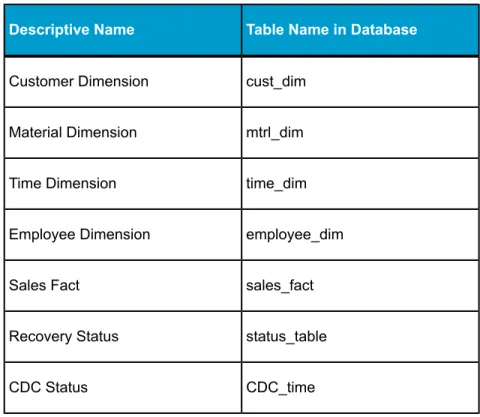
5. Use an RDBMS query tool to check your target data warehouse. The following tables should exist on your target database after you run the script.
Table Name in Database Descriptive Name
Introduction
Table Name in Database Descriptive Name cust_dim Customer Dimension mtrl_dim Material Dimension time_dim Time Dimension employee_dim Employee Dimension sales_fact Sales Fact status_table Recovery Status CDC_time CDC Status
Tutorial structure
The goal of the tutorial exercises is to demonstrate SAP BusinessObjects Data Services features using a simplified data model. The model is a sales data warehouse with a star schema that contains one fact table and some dimension tables.
SAP BusinessObjects Data Services Tutorial 23
1
Introduction Tutorial structureSections build on jobs you create and skills learned in previous sections. You must complete each exercise to begin the next.
Note:
The screens in this guide are for illustrative purposes. On some screens, the available options depend on the database type and version in the
environment.
This tutorial is organized as follows.
Product Overviewintroduces the basic architecture and the user interface for Data Services.
Defining Source and Target Metadataintroduces working with the Designer. Use the Designer to define a datastore and a file format, then import metadata to the object library. After completing this section, you will have completed the preliminary work required to define data movement specifications for flat-file data.
Populating the SalesOrg Dimension from a Flat Fileintroduces basic data flows, query transforms, and source and target tables. The exercise populates the sales organization dimension table from flat-file data.
Populating the Time Dimension Using a Transformintroduces Data Services functions. This exercise creates a data flow for populating the time dimension table.
Introduction
1
Tutorial structurePopulating the Customer Dimension from a Relational Tableintroduces data extraction from relational tables. This exercise defines a job that populates the customer dimension table.
Populating the Material Dimension from an XML Fileintroduces data extraction from nested sources. This exercise defines a job that populates the material dimension table.
Populating the Sales Fact Table from Multiple Relational Tablescontinues data extraction from relational tables and introduces joins and the lookup function. The exercise populates the sales fact table.
Changed-Data Captureintroduces a basic approach to changed-data capture. The exercise uses variables, parameters, functions, and scripts.
Data Assessmentintroduces features to ensure and improve the validity of your source data. The exercise uses profile statistics, the validation transform, and the audit data flow feature.
Recovery Mechanismspresents techniques for recovering from incomplete data loads.
Multiuser Developmentpresents the use of a central repository for setting up a multiuser development environment.
Extracting SAP Application Dataprovides optional exercises on extracting data from SAP application sources.
Running a Real-time Job in Test Modeprovides optional exercises on running a real-time job in test mode.
Exiting the tutorial
You can exit the tutorial at any point after creating a sample project (see Adding a new project).
To exit the tutorial
1. From theProjectmenu, clickExit.
If any work has not been saved, you are prompted to save your work.
2. ClickYesorNo.
SAP BusinessObjects Data Services Tutorial 25
1
Introduction Exiting the tutorialTo resume the tutorial
1. Open Data Services and log in to the repository in which you saved your work.
The Designer window opens.
2. From theProjectmenu, clickOpen.
3. Click the name of the project you want to work with, then clickOpen. The Designer window opens with the project and the objects within it displayed in the project area.
Introduction
1
Exiting the tutorialProduct Overview
This section provides an overview of SAP BusinessObjects Data Services. It introduces the product architecture and the Designer.
Product features
SAP BusinessObjects Data Services combines industry-leading data quality and integration into one platform. With Data Services, your organization can transform and improve data anywhere. You can have a single environment for development, runtime, management, security and data connectivity. One of the fundamental capabilities of Data Services is extracting, transforming, and loading (ETL) data from heterogeneous sources into a target database or data warehouse. You create applications (jobs) that specify data mappings and transformations by using the Designer.
Use any type of data, including structured or unstructured data from databases or flat files to process and cleanse and remove duplicate entries. You can create and deliver projects more quickly with a single user interface and performance improvement with parallelization and grid computing. Data Services RealTime interfaces provide additional support for real-time data movement and access. Data Services RealTime reacts immediately to messages as they are sent, performing predefined operations with message content. Data Services RealTime components provide services to web applications and other client applications.
Data Services features
• Instant traceability with impact analysis and data lineage capabilities that include the data quality process
• Data validation with dashboards and process auditing
• Workflow design with exception handling (Try/Catch) and Recovery features
• Multi-user support (check-in/check-out) and versioning via a central repository
• Administration tool with scheduling capabilities and monitoring/dashboards • Transform management for defining best practices
• Comprehensive administration and reporting tools
• Scalable scripting language with a rich set of built-in functions
Product Overview
2
Product features• Debugging and built-in profiling and viewing data • Broad source and target support
• applications (for example, SAP)
• databases with bulk loading and CDC changes data capture • files: comma delimited, fixed width, COBOL, XML, Excel
For details about all the features in Data Services, see theBusinessObjects Data Services XI 3.2 Reference Guide.
Product components
The Data Services product consists of several components including: • Designer
The Designer allows you to create, test, and execute jobs that populate a data warehouse. It is a development tool with a unique graphical user interface. It enables developers to create objects, then drag, drop, and configure them by selecting icons in a source-to-target flow diagram. It allows you to define data mappings, transformations, and control logic. Use the Designer to create applications specifying work flows (job execution definitions) and data flows (data transformation definitions). • Job Server
The Job Server is an application that launches the Data Services processing engine and serves as an interface to the engine and other components in the Data Services suite.
• Engine
The Data Services engine executes individual jobs defined in the application you create using the Designer. When you start your application, the Data Services Job Server launches enough engines to effectively accomplish the defined tasks.
• Repository
The repository is a database that stores Designer predefined system objects and user-defined objects including source and target metadata and transformation rules. In addition to the local repository used by the Designer and Job Server, you can optionally establish a central repository for object sharing and version control.
SAP BusinessObjects Data Services Tutorial 29
2
Product Overview Product componentsThe Designer handles all repository transactions. Direct manipulation of the repository is unnecessary except for:
• Setup before installing Data Services
You must create space for a repository within your RDBMS before installing Data Services.
• Security administration
Data Services uses your security at the network and RDBMS levels. • Backup and recovery
You can export your repository to a file. Additionally, you should regularly back up the database where the repository is stored. • Access Server
The Access Server passes messages between web applications and the Data Services Job Server and engines. It provides a reliable and scalable interface for request-response processing.
• Administrator
The Web Administrator provides browser-based administration of Data Services resources, including:
• Scheduling, monitoring, and executing batch jobs • Configuring, starting, and stopping real-time services
• Configuring Job Server, Access Server, and repository usage • Configuring and managing adapters
• Managing users
• Publishing batch jobs and real-time services via Web services
The following diagram illustrates Data Services product components and relationships.
Product Overview
2
Product componentsUsing the product
You use Data Services to design, produce, and run data movement applications.
Using the Designer, you can build work flows and data flows that cleanse your data and specify data extraction, transformation, and loading processes. In Data Services RealTime, you have the added capability to build real-time data flows that support e-business transactions.
You create jobs to contain, organize, and run your flows. You create projects to organize the jobs.
Refine and build on your design until you have created a well-tested, production-quality application. In Data Services, you can set applications to run in test mode or on a specific schedule. Using Data Services RealTime, you can run applications in real time so they immediately respond to web-based client requests.
SAP BusinessObjects Data Services Tutorial 31
2
Product Overview Using the productSystem configurations
You can configure SAP BusinessObjects Data Services in various ways. The following diagram illustrates one possible system configuration.
When integrating Data Services into your existing environment, consider: • The servers shown in the diagram can be separate physical computers,
or they can be installed on a single computer.
• For peak performance, install and create the Data Services local repository on either the same computer as the Data Services Job Server or on the same computer as the target data warehouse.
In either of the previous configurations, the computer should be on the same LAN segment as the rest of the Data Services components. As shown in the diagram, most Data Services components—the Designer, Job Server, and Access Server—can run on the same Windows system, or you can install the Job Server on a UNIX system running Hewlett Packard
Product Overview
2
System configurationsWindows implementation
You can configure a Windows system as either a server or a workstation. A large-memory, multiprocessor system is ideal because the multithreading, pipelining, and parallel work flow execution features in Data Services take full advantage of such a system.
You can create your target data warehouse on a database server that may or may not be a separate physical computer.
You can use a shared disk or FTP to transfer data between your source system and the Data Services Job Server.
UNIX implementation
You can install the Data Services Job Server on a UNIX system. You can also configure the Job Server to start automatically when you restart the computer.
The Designer window
The following illustration shows the key areas of the Designer window.
SAP BusinessObjects Data Services Tutorial 33
2
Product Overview The Designer windowThe key areas of the Data Services application window are:
1. Project area — Contains the current project (and the job(s) and other objects within it) available to you at a given time. In Data Services, all entities you create, modify, or work with are objects.
2. Workspace — The area of the application window in which you define, display, and modify objects.
3. Local object library — Provides access to local repository objects including built-in system objects, such as transforms and transform configurations, and the objects you build and save, such as jobs and data flows.
4. Tool palette — Buttons on the tool palette enable you to add new objects to the workspace.
Product Overview
2
The Designer windowSAP BusinessObjects Data Services
objects
In SAP BusinessObjects Data Services, all entities you add, define, modify, or work with are objects. Objects have:
• Options that control the object. For example, to set up a connection to a database, defining the database name would be an option for the connection.
• Properties that describe the object. For example, the name and creation date. Attributes are properties used to locate and organize objects. • Classes that determine how you create and retrieve the object. You can
copy reusable objects from the object library. You cannot copy single-use objects.
The following diagram shows transform objects in the Data Services object library.
When you widen the object library, the name of each object is visible next to its icon. To resize the object library area, click and drag its border until you see the text you want, then release.
SAP BusinessObjects Data Services Tutorial 35
2
Product Overview SAP BusinessObjects Data Services objectsObject hierarchy
The following illustration shows the hierarchical relationships for the key object types within Data Services.
Product Overview
In the repository, the Designer groups objects hierarchically from a project, to jobs, to optional work flows, to data flows. In jobs:
• Work flows define a sequence of processing steps. Work flows and conditionals are optional. A conditional contains work flows, and you can embed a work flow within another work flow.
SAP BusinessObjects Data Services Tutorial 37
2
Product Overview SAP BusinessObjects Data Services objects• Data flows transform data from source(s) to target(s). You can embed a data flow within a work flow or within another data flow.
Projects and jobs
A project is the highest-level object in the Designer window. Projects provide you with a way to organize the other objects you create in Data Services. Only one project is open at a time (where "open" means "visible in the project area").
A “job” is the smallest unit of work that you can schedule independently for execution.
Work flows and data flows
Jobs are composed of work flows and/or data flows:
• A “work flow” is the incorporation of several data flows into a coherent flow of work for an entire job.
• A “data flow” is the process by which source data is transformed into target data.
A work flow orders data flows and operations that support them; a work flow also defines the interdependencies between data flows. For example, if one target table depends on values from other tables, use the work flow to specify the order in which you want Data Services to populate the tables. Also use work flows to define strategies for handling errors that occur during project execution. You can also use work flows to define conditions for running sections of a project.
The following diagram illustrates a typical work flow.
Product Overview
A data flow defines the basic task that Data Services accomplishes, which involves moving data from one or more sources to one or more target tables or files. You define data flows by identifying the sources from which to extract data, the transformations that the data should undergo, and targets.
Blueprints
We have identified a number of common scenarios that you are likely to handle with Data Services. Instead of creating your own job from scratch, look through the blueprints. If you find one that is closely related to your particular business problem, you can simply use the blueprint and tweak the settings in the transforms for your specific needs.
For each scenario, we have included a blueprint that is already set up to solve the business problem in that scenario. Each blueprint contains the necessary Data Services project, jobs, data flows, file formats, sample data, template tables, and custom functions to run the data flows in your
environment with only a few modifications.
You can download all of the blueprints or only the blueprints and other content that you find useful from the SAP BusinessObjects Community Network. Here, we periodically post new and updated blueprints, custom functions, best practices, white papers, and other Data Services content. You can refer to this site frequently for updated content and use the forums to provide us with any questions or requests you may have. We have also provided the ability for you to upload and share any content that you have developed with the rest of the Data Services development community.
Instructions for downloading and installing the content objects are also located on the SAP BusinessObjects Community Network at
http://www.sdn.sap.com/irj/boc/blueprints.
SAP BusinessObjects Data Services Tutorial 39
2
Product Overview SAP BusinessObjects Data Services objectsObject-naming conventions
Data Services recommends that you follow a consistent naming convention to facilitate object identification. Here are some examples:
Example Object Suffix Prefix JOB_SalesOrg Job JOB WF_SalesOrg Work flow WF DF_Currency Data flow DF ODS_DS Datastore DS
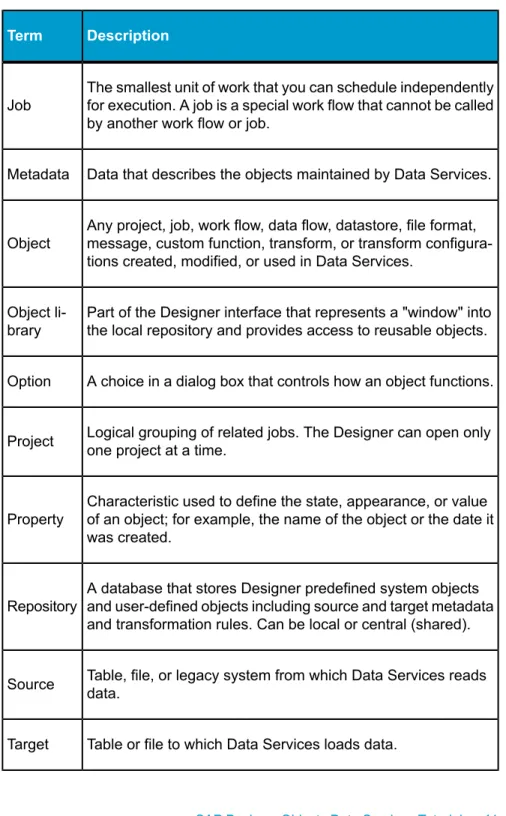
New terms
Description TermProperty that can be used as a constraint for locating objects. Attribute
Contains steps to define how source data becomes target data. Called by a work flow or job.
Data flow
Logical channel that connects Data Services to source and target databases.
Datastore
Product Overview
2
New termsDescription Term
The smallest unit of work that you can schedule independently for execution. A job is a special work flow that cannot be called by another work flow or job.
Job
Data that describes the objects maintained by Data Services. Metadata
Any project, job, work flow, data flow, datastore, file format, message, custom function, transform, or transform configura-tions created, modified, or used in Data Services.
Object
Part of the Designer interface that represents a "window" into the local repository and provides access to reusable objects. Object
li-brary
A choice in a dialog box that controls how an object functions. Option
Logical grouping of related jobs. The Designer can open only one project at a time.
Project
Characteristic used to define the state, appearance, or value of an object; for example, the name of the object or the date it was created.
Property
A database that stores Designer predefined system objects and user-defined objects including source and target metadata and transformation rules. Can be local or central (shared). Repository
Table, file, or legacy system from which Data Services reads data.
Source
Table or file to which Data Services loads data. Target
SAP BusinessObjects Data Services Tutorial 41
2
Product OverviewDescription Term
Contains steps to define the order of job execution. Calls a data flow to manipulate data.
Work flow
Section summary and what to do next
This section has given you a short overview of the Data Services product and terminology. For more information about these topics, see theGetting Started Guideand theDesigner Guide.Product Overview
Defining Source and Target
Metadata
In this section you will set up logical connections between Data Services, a flat-file source, and a target data warehouse. You will also create and import objects into the local repository. Storing connection metadata in the repository enables you to work within Data Services to manage tables that are stored in various environments.
Logging in to the repository
When you use Data Services, you save your work in the local repository. So, when you open Data Services, a login window for the local repository opens.
To log in to the Designer
1. From theStartmenu, clickPrograms>SAP BusinessObjects XI 3.2
>SAP BusinessObjects Data Services>Data Services Designer. As Data Services starts, a repository login screen appears. A sample login window (for the Microsoft SQL Server environment) appears as follows.
Defining Source and Target Metadata
3
Logging in to the repository2. Supply the appropriate login information for your repository, then click
OK.
See Create repository, source, and target databases on an existing RDBMSfor login information.
Data Services connects to the specified repository, then opens the Designer.
In the next section you will define datastores (connections) for your source and target.
Defining a datastore
Datastores:• Provide a logical channel (connection) to a database • Must be specified for each source and target database
• Are used to import metadata for source and target databases into the repository.
SAP BusinessObjects Data Services Tutorial 45
3
Defining Source and Target Metadata• Are used by Data Services to read data from source tables and load data to target tables
The databases to which Data Services datastores can connect include: • Oracle • IBM DB2 • Microsoft SQL Server • Sybase ASE • Sybase IQ • ODBC
Metadata consists of: • Database tables
• Table name • Column names • Column data types • Primary key columns • Table attributes
• RDBMS functions
• Application-specific data structures
Connection metadata is defined in the object library as datastores (for tables) and file formats (for flat files).
The next task describes how to define datastores using the Designer. Note that while you are designating the datastores as sources or targets, datastores only function as connections. You will define the actual source and target objects when you define data flows later in the tutorial.
To define a datastore for the source (ODS) database
1. From theDatastorestab of the object library, right-click in the blank areaand clickNew.
Defining Source and Target Metadata
3
Defining a datastoreThe Create New Datastore window opens. A example for the Oracle environment appears as follows:
2. In theDatastore namebox, typeODS_DS.
This datastore name labels the connection to the database you will use as a source. The datastore name will appear in the local repository. When you create your own projects/applications, remember to give your objects meaningful names.
3. In theDatastore typebox, clickDatabase.
4. In theDatabase typebox, click the option that corresponds to the database software being used to store the source data.
The remainder of the boxes on the "Create New Datastore" window depend on the Database type you selected.
The following table lists the minimum options to configure for some commonDatabase types. Enter the information you recorded in Create repository, source, and target databases on an existing RDBMS.
SAP BusinessObjects Data Services Tutorial 47
3
Defining Source and Target MetadataSybase ASE MS SQL Server DB2 Oracle Database ver-sion Enable CDC Enable CDC Enable CDC Database server name Database ver-sion Database ver-sion Database ver-sion Database name Database server name Data source Connection name User name Database name User name User name Password User name Password Password Password 5. ClickOK.
Data Services saves a datastore for your source in the repository.
To define a datastore for the target database
Define a datastore for the target database using the same procedure as for the source (ODS) database.
1. UseTarget_DSfor the datastore name.
2. Use the information you recorded in Create repository, source, and target databases on an existing RDBMS.
Defining Source and Target Metadata
3
Defining a datastoreImporting metadata
With Data Services, you can import metadata for individual tables using a datastore. You can import metadata by:
• Browsing
• Name
• Searching
The following procedure describes how to import by browsing.
To import metadata for ODS source tables
1. In theDatastorestab, right-click the ODS_DS datastore and clickOpen. The names of all the tables in the database defined by the datastore named ODS_DS display in a window in the workspace.
2. Move the cursor over the right edge of theMetadatacolumn heading until it changes to a resize cursor.
3. Double-click the column separator to automatically resize the column.
4. Import the following tables by right-clicking each table name and clicking
Import. Alternatively, because the tables are grouped together, click the first name, Shift-click the last, and import them together. (Use Ctrl-click for nonconsecutive entries.)
• ods.ods_customer • ods.ods_material • ods.ods_salesorder • ods.ods_salesitem • ods.ods_delivery • ods.ods_employee • ods.ods_region
Data Services imports the metadata for each table into the local repository.
Note:
In Microsoft SQL Server, the owner prefix might be dbo instead of ods.
5. In the object library on the Datastores tab, under ODS_DS expand the Tables node and verify the tables have been imported into the repository.
SAP BusinessObjects Data Services Tutorial 49
3
Defining Source and Target MetadataTo import metadata for target tables
1. Open the Target_DS datastore.2. Import the following tables by right-clicking each table name and clicking
Import. Alternatively, use Ctrl-click and import them together • target.status_table • target.cust_dim • target.employee_dim • target.mtrl_dim • target.sales_fact • target.salesorg_dim • target.time_dim • target.CDC_time
Data Services imports the metadata for each table into the local repository.
Note:
In Microsoft SQL Server, the owner prefix might be dbo instead of target.
3. In the object library on the Datastores tab, under Target_DS expand the Tables node and verify the tables have been imported into the repository.
Defining a file format
If the source or target RDBMS includes data stored in flat files, you must define file formats in Data Services. File formats are a set of properties that describe the structure of a flat file.
Data Services includes a file format editor. Use it to define flat file formats. The editor supports delimited and fixed-width formats.
You can specify file formats for one file or a group of files. You can define flat files from scratch or by importing and modifying an existing flat file. Either way, Data Services saves a connection to the file or file group.
Note:
Data Services also includes a file format (Transport_Format) that you can use to read flat files in SAP applications.
Defining Source and Target Metadata
3
Defining a file formatIn the next section, you will use a flat file as your source data. Therefore, you must create a file format and connection to the file now.
To define a file format
1. In the object library, click theFormatstab, right-click in a blank area of the object library, and clickNew>File Format.
The file format editor opens.
2. UnderGeneral, leaveTypeasDelimited. Change theNameto
Format_SalesOrg.
3. UnderData Files, click the Files folder icon and navigate in your Data Services install directory to%LINK_DIR%\Tutorial
Files\sales_org.txt. ClickOpen.
Note:
The file format editor initially displays default values for the file schema. When you select a file, a prompt asks you to verify that you want to overwrite the current schema with the schema from the file you selected. ClickYes.
The file format editor displays sample data from the sales_org.txt file in the (lower right) Data Preview pane.
4. UnderDefault Format, changeDatetoddmmyyyy.
The source data contains dates with a two-digit day number followed by a two-digit month number, a four-digit year (ddmmyyyy), and no time value. (Note that the sample dates do not contain a delimiter between values. Using an unsupported format string such as ddmmJJJJ will result in incorrect dates, and no error message will appear.)
5. The first row contains the names of the column headings. Under
Input/Output, changeSkip row headertoYes.
Data Services removes the first row and uses these column heading values for the field names in the upper-right Column Attributes pane.
Note:
A prompt asks you to verify that you want to overwrite the current schema with the schema (column headings) from the file you selected. ClickYes.
6. In the upper-right Column Attributes pane, clickDateOpenand change the data type toDate.
SAP BusinessObjects Data Services Tutorial 51
3
Defining Source and Target MetadataThe column types and lengths should appear as follows: Field Size Data Type Field Name Int SalesOffice 2 VarChar Region Date DateOpen 7 VarChar Country
7. ClickSave & Close.
Defining Source and Target Metadata
3
Defining a file formatNew terms
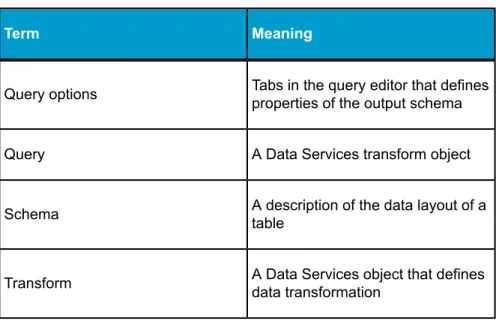
The terms examined in this section included: Meaning
Term
Connection from Data Services to tables in source or target databases. Stored as an object in the repository.
Datastore
Data that describes objects maintained by Data Services. Metadata that Data Services stores in its local repository in-cludes:
• Table name
• Column name
• Column data types
• Primary key columns
• Table attributes
• RDBMS functions Metadata
The GUI part of the Designer representing the local repository. Object
li-brary
A set of properties that define the table structure for a flat file. Stored as an object in the repository.
File for-mat
Summary and what to do next
At this point, you have finished all the preparatory work to define data movement specifications for a flat-file data source to a target data warehouse. In this section you have:
SAP BusinessObjects Data Services Tutorial 53
3
Defining Source and Target Metadata• Defined a datastore from Data Services to your target data warehouse • Imported metadata from target tables into the local repository so that you
can use the Designer to work with these tables
• Defined file formats and a connection to flat-file source data
You are now ready to create a new project and define jobs that will populate the target tables with source data. You will do that for the sales organization dimension table in the next section.
You can now exit Data Services or go on to the next section. The information you have created in this section has been saved in the local repository and will be automatically available to you the next time you use Data Services. For more information about the topics in this section, see theDesigner Guide.
Defining Source and Target Metadata
3
Summary and what to do nextPopulating the SalesOrg
Dimension from a Flat File
In this section, you will populate the sales organization dimension table in your target data warehouse with data from a flat file calledFormat_Sale sOrg.
The concepts and tasks in this section include: • Objects and their hierarchical relationships • Adding a new project
• Adding a job • Adding a work flow • About data flows • Saving the project • Executing the job • About deleting objects • New terms
• Summary and what to do next Populating the SalesOrg Dimension from a Flat File
4
Objects and their hierarchical relationshipsObjects and their hierarchical
relationships
Everything in Data Services is an object. The key objects involved in data movement activities (like projects, jobs, work flows, and data flows) display in the Designer project area according to their relationship in the object hierarchy.
The following figure shows a display of the types of objects you will be creating while you are working in this section.
1. Project
2. Job
3. Workflow
4. Dataflow
Object hierarchies are displayed in the project area of the Designer.
Adding a new project
Projects group and organize related objects. Projects display in the project area of the Designer and can contain any number of jobs, work flows, and data flows.
To add a new project
1. In the Designer, from theProjectmenu clickNew>Project.
2. Name the projectClass_Exercises.
3. ClickCreate.
SAP BusinessObjects Data Services Tutorial 57
4
Populating the SalesOrg Dimension from a Flat FileThe project name appears as the only object in the project area of the Designer.
Next, you will define the job that will be used to extract the information from the flat-file source.
Adding a job
A job is a reusable object. It is also the second level in the project hierarchy. It contains work flows (which contain the order of steps to be executed) and data flows (which contain data movement instructions). You can execute jobs manually or as scheduled.
In this exercise you will define a job called JOB_SalesOrg.
To add a new batch job
1. Right-click in the project area and clickNew Batch Job.
2. Right-click the new job and clickRename. Alternatively, left-click the job twice (slowly) to make the name editable.
3. TypeJOB_SalesOrg.
4. Left-click or pressEnter.
The job appears in the project hierarchy underClass_Exercisesand in the project tab of the object library.
Adding a work flow
A work flow is a reusable object. It executes only within a Job. Use work flows to:
• Call data flows • Call another work flow
• Define the order of steps to be executed in your job • Pass parameters to and from data flows
Populating the SalesOrg Dimension from a Flat File
4
Adding a job• Specify how to handle errors that occur during execution
Work flows are optional.
The Data Services objects you can use to create work flows appear on the tool palette: Programming Analogy Component Button Procedure Work flow Declarative SQL select statement Data Flow
Subset of lines in a pro-cedure
Script
If/then/else logic Conditional
A sequence of steps that repeats as long as a condition is true While Loop
Try block indicator Try
Try block terminator and exception handler Catch
Description of a job, work flow, data flow, or a diagram in a
workspace Annotation
SAP BusinessObjects Data Services Tutorial 59
4
Populating the SalesOrg Dimension from a Flat FileTo add a work flow
1. With JOB_SalesOrg selected in the project area, click the work flow button on the tool palette.
2. Click the blank workspace area.
A work flow icon appears in the workspace. The work flow also appears in the project area on the left under the job name (expand the job to view).
Note:
You can place a work flow anywhere in the workspace, but because flows are best viewed from left to right and top to bottom, place it near the top left corner.
3. Change the name of the work flow toWF_SalesOrg.
4. Click the name of the work flow.
An empty view for the work flow appears in the workspace. You will use this view to define the elements of the work flow. Notice the title bar changes to display the name of the work flow.
About data flows
A data flow defines the flow of data from sources to targets. It is used to:
Populating the SalesOrg Dimension from a Flat File
4
About data flows• Define the transformations that you want to perform on the data • Identify the target table to which you want to load data
A data flow is a reusable object. It is always called from a work flow or a job. The first data flow you need to create for this tutorial reads sales organization data from a flat file and loads the data into the sales organization dimension table in the target data warehouse.
Adding a data flow
The following procedure creates a data flow named DF_SalesOrg inside the work flow WF_SalesOrg.
To add a data flow
1. Make sure the work flow window is open in the workspace. If it is not, click the WF_SalesOrg work flow in the project area.
2. Click the data flow button on the tool palette.
3. Click the workspace.
A representation of a data flow appears in the workspace. The data flow also appears in the project area.
4. Change the name of the data flow toDF_SalesOrg.
Notice the project, job, work flow, and data flow objects display in hierarchical form in both the project area and the object library. To navigate to these levels, click their names in the project area.
SAP BusinessObjects Data Services Tutorial 61
4
Populating the SalesOrg Dimension from a Flat File1—Data flow in the workspace 2—Data flow in the project area 3—Data flow in the local object library
5. Click the data flow name.
A definition area for the data flow appears in the workspace. This area will be used to define the data flow as described in the next section.
Populating the SalesOrg Dimension from a Flat File
4
About data flowsDefining the data flow
Inside the data flow, you must specify the instructions to transform source data into the form you want for the target table. In this case, you will define the data flow instructions for building the sales organization dimension table using the following objects:
• An object representing the source file
• An object defining a query transform (or query). A query transform maps columns from source to target. With a query transform, you can:
• Select row sets • Create joins
• Group and order by data values • Create data set filters
• Execute functions
• An object representing the target table into which the data loads
The next three exercises guide you through the steps necessary to define a dataflow's content:
1. Add objects to the data flow.
2. Connect them in the order that data will flow through them.
3. Define the query that maps the source columns to the target columns. To add objects to a data flow
1. Verify the DF_SalesOrg data flow is open in the workspace. In the object library, click theFormatstab.
2. The source for this data flow will be the flat file Format_SalesOrg. Click and drag the Format_SalesOrg object to the workspace.
3. Drop the Format_SalesOrg object on the left side of the workspace to leave room for more objects on the right.
4. ClickMake Sourcefrom the shortcut menu that appears when you drop the object.
SAP BusinessObjects Data Services Tutorial 63
4
Populating the SalesOrg Dimension from a Flat File5.
Click the query button on the tool palette.
6. Click to the right of the source file in the workspace.
7. In the object library, click theDatastorestab and expand the datastore named Target_DS.
8. The target for this data flow will be the table SALESORG_DIM. Click and drag the SALESORG_DIM object to the workspace and drop it to the right of the query.
9. ClickMake Targetfrom the shortcut menu that appears when you drop the table. Data Services creates a table with the same schema as the query output schema.
All the elements necessary to create the sales organization dimension table are now in the workspace. In the next section, you will connect the steps in the correct order.
To define the order of steps in a data flow
You now need to define the sequence for the data flow. The steps execute in left-to-right order.
1. Click the square on the right edge of the source file and drag it to the triangle on the left edge of the query transform.
2. Use the same drag technique to connect the query transform to the target table.
Populating the SalesOrg Dimension from a Flat File
4
About data flowsThe next section introduces the query transform and the query transform editor.
To define a query transform that maps a source to a target
1. Click the name of the query in the project area or in the workspace. The query editor opens showing the source schema, the target schema (which has automatically been copied from the target table metadata to the output pane of the query), and options for defining the query. There are four columns in the source schema: SalesOffice, Region, DateOpen, and Country. You will specify that three of them (SalesOffice, Region, and DateOpen) be copied to the target table.
2. Map the source columns to target columns by dragging and dropping each source column name onto the corresponding column for the target schema. Notice that the column icon next to the source column changes to an arrow when dragged to the target, which indicates that the column has been mapped.
Also notice that when you select a column in the target schema, the Mapping tab in the query options shows the mapping relationship for that column. You can also view the mapping relationship by scrolling the Schema Out pane to the right to show the Mapping column.
SAP BusinessObjects Data Services Tutorial 65
4
Populating the SalesOrg Dimension from a Flat File1—Target schema 2—Source schema 3—Query options
4—Column mapping definition
3. Validate the query by clicking theValidate Currentbutton on the toolbar. The Output window appears with tabs for Errors, Warnings, and
Information. The Warning tab indicates that Data Services will convert the data type for the SALESOFFICE column.
4.
Close the Output window and click theBackarrow on the tool bar to close the query editor and return to the data flow view.
Validating the data flow
Next you will verify that the data flow has been constructed properly (which does not guarantee that the job will run or produce the correct data). TheValidationmenu provides design-time validation options. These options check for syntax errors, not run-time errors. Run-time validation occurs while the job executes.
Related Topics
Populating the SalesOrg Dimension from a Flat File