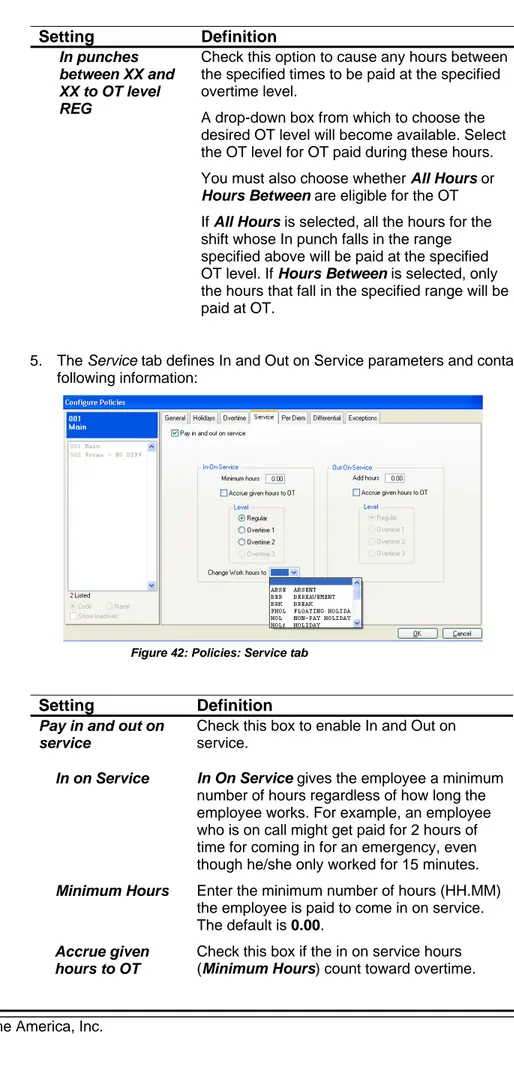
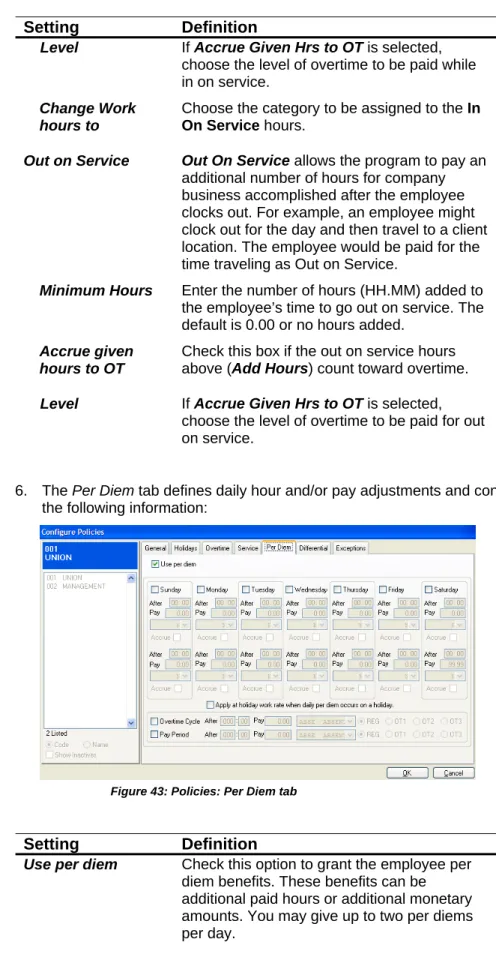
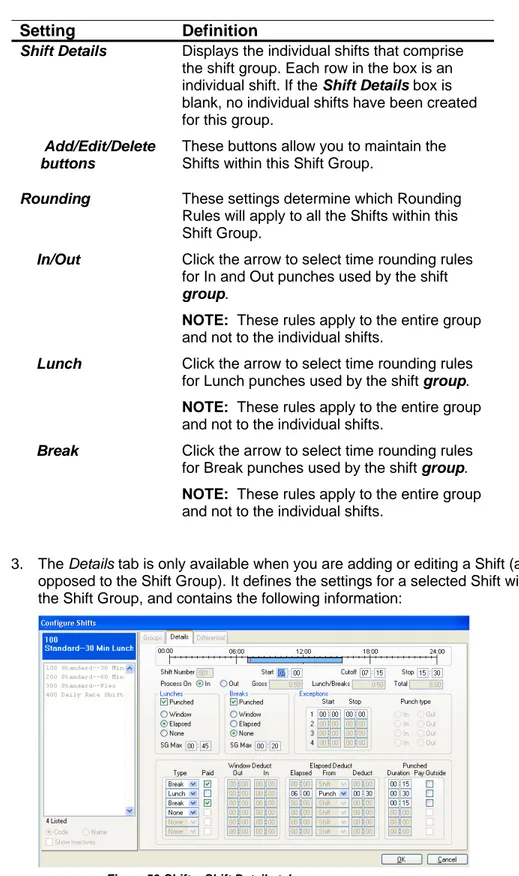
GENESIS PRO
User’s Guide
Read This First
Welcome
Welcome to Time America’s Genesis Pro User’s Guide. This manual is shipped with each new Genesis Pro software package and is intended solely for use by the licensee. This User Guide describes the installation and operation of the Genesis Pro system.
Accuracy of Information
The content of this manual is subject to change without notice. Before using this manual, verify that the information contained in it is current. Proper installation, configuration, and operation of the software are contingent upon reading and following the procedures contained in the latest revision of the manual.
Additional Copies
Additional copies of this manual may be obtained from our website at www.timeamerica.com or from your local Time America dealer.
User Comments
Every effort is made to ensure that the information contained in this manual is accurate at the time of publication. If you find an error or omission while reading this manual, direct your comments to:
Time America, Inc.
Attn: Technical Publications 15990 N. Greenway Hayden Loop Suite D-500
Scottsdale, AZ 85260 Or you can send emails to:
[email protected] We welcome your comments and suggestions.
Software Release Version
TABLE OF CONTENTS
CHAPTER I ABOUT THIS MANUAL...10
DISCLAIMER...10
TECHNICAL SUPPORT...10
When Calling Technical Support for Assistance ...10
CHAPTER II INSTALLATION...11
SYSTEM REQUIREMENTS...11
INSTALLING THE SYSTEM...11
HARDWARE KEYS...17
Main System Key ...17
Polling Key ...17
Demo Key ...18
CHAPTER III GETTING STARTED ...19
STARTING GENESIS PRO AND LOGGING IN...19
Note on User Accounts ...19
Launching and Logging In to Genesis Pro ...19
Exiting the System...20
TIPS AND TECHNIQUES...21
USING THE KEYBOARD...21
Underlined Letters ...22
Hot Keys ...22
Additional Keyboard Access...22
HELP...23
Access the Online Help Window...23
Use Help Contents ...23
Use the Help Index ...23
Use Help Find...24
Return to the Help Topics Window ...24
Print a Help Topic ...24
CONFIGURING THE SYSTEM ENVIRONMENT...25
Play Bell Tones ...25
Change Screen Background ...25
Navigation Selection...26
CHAPTER IV CONFIGURATION...27
MAIN COMPANY...28
DIVISIONS...36
Configure Divisions ...36
Add a Division ...37
Edit a Division ...37
Delete a Division ...37
CATEGORIES...39
Configure Categories...40
Add a Category ...43
Edit a Category...44
Delete a Category ...44
ATTENDANCE CODES...45
Configure Attendance Codes ...45
Delete an Attendance Code ...47
POLICIES...48
Configure Policies ...48
Add a Policy...63
Edit a Policy ...64
Delete a Policy...64
ROUNDING...65
Configure Rounding Rules...65
Add a Rounding Rule ...70
Edit a Rounding Rule...70
Delete a Rounding Rule ...70
SHIFTS...72
Configure a Shift Group ...72
Add a Shift Group ...80
Edit a Shift Group...80
Delete a Shift Group ...81
Add a Shift ...81
Edit a Shift ...81
Delete a Shift ...82
HOLIDAYS...83
Configure Holidays...83
Add a Holiday...84
Edit a Holiday...84
Delete a Holiday ...85
HOLIDAYS GROUPS...85
Configure Holiday Groups ...85
Add a Holiday Group...86
Edit a Holiday...86
Delete a Holidays Groups ...87
GROUPS...87
Configure Groups ...87
Add a Group ...88
Edit a Group ...89
Delete a Group ...89
JOB COSTING...91
Departments...92
Jobs...97
Steps...102
Operations ...107
Tasks ...112
BELL SCHEDULES...117
Configure Bell Schedules...117
Add a Bell Schedule ...118
Edit a Bell Schedule...119
Delete a Bell Schedule ...119
PROFILE LOCKOUTS...121
Configure Profile Lockouts...121
Add a Profile Lockout...123
Edit a Profile Lockout...124
Delete a Profile Lockout ...124
REASONS...125
Configure Reasons...125
Configure Security Levels...127
Add a Security Level ...139
Edit a Security Level...139
Delete a Security Level ...140
User Maintenance...140
Who's Logged In ...146
Change Password ...146
BENEFIT ACCRUALS...146
Configure Benefit Accruals...147
Configure Benefit Accumulators...149
Add a Benefit Accruals Policy ...152
Edit a Benefit Accruals Policy ...154
Delete a Benefit Accruals policy...154
Update to Current...155
OCCURRENCE RATINGS...155
Configure Occurrence Ratings ...155
Add an Occurrence Rating ...157
Edit an Occurrence Rating ...158
Delete a Occurrence Rating ...158
Add Category and Attendance Infractions...158
Edit a Category and Attendance Infraction ...160
Delete a Category and Attendance Infraction ...160
Add Attendance Notices...160
Edit an Attendance Notice ...162
Delete a Category and Attendance Infraction ...162
Printing and Viewing Attendance Notices ...162
CHAPTER V OPTIONAL MODULES ...165
JOB COSTING...165
BELL SCHEDULES...165
PROFILE LOCKOUTS...166
BENEFIT ACCRUALS...166
OCCURRENCE RATINGS...166
PCCLOCK...167
WEBCLOCK...167
VIDEX DURATRAX...167
THIRD PARTY TERMINALS...167
CHAPTER VI ADDITIONAL EMPLOYEE FEATURES...168
EMPLOYEE REVIEWER...168
Accessing Employee Reviewer...168
Employee Timecard Tab ...169
Employee Schedules Tab ...173
EMPLOYEE TRANSACTIONS TAB...175
Description ...175
Employee Benefits Tab ...177
EMPLOYEE TIMESHEETS...178
Accessing Employee Timesheets...178
Using Employee Timesheets ...178
PCCLOCK...181
Who Can Clock In and Out with PC Clock?...181
Accessing PC Clock...181
Default Settings to Use PC Clock ...181
Default Keys ...182
Who Can Clock In and Out with WebClock?...184
Accessing WebClock...184
Clock Functions...185
The Extras...191
Supervisor Functions ...200
CHAPTER VII EMPLOYEE MAINTENANCE ...204
CONFIGURE EMPLOYEE...204
EMPLOYEE LIST...205
EMPLOYEE TIMECARD (DESCRIPTION)TAB...207
EMPLOYEE SCHEDULE TAB...211
Configure Employee Schedules ...211
Assign or Edit an Employee Schedule ...213
Delete a Schedule ...215
Create a Rotating Schedule ...215
Create an Employee Schedule Template...217
Copy an Employee Schedule Template ...217
EMPLOYEE TRANSACTIONS TAB...220
Description ...220
EMPLOYEE STATUS TAB...221
Configure Employee Status...221
Add Employee Status ...222
Edit Employee Status ...223
Delete Employee Status ...223
EMPLOYEE BENEFITS TAB...224
Benefit Entitlement: Configure ...224
Benefit Entitlement: Employee Benefit Details...225
Benefit Entitlement: Grant Benefit Time...226
Benefit Entitlement: Delete a Detail ...226
Benefit Accruals: Configure ...227
Benefit Accruals: Update Employee Benefits ...228
Benefit Accruals: Employee Benefit Details ...228
Benefit Accruals: Manual Benefit Adjustment ...230
Benefits Accrual: Delete a Manual Adjustment...231
EMPLOYEE MESSAGES TAB...231
Configure ...231
Add a Message...232
Edit a Message...233
Delete a Message...233
EMPLOYEE WAGES...234
Configure Employee Wages...234
Add a Global Wage...236
Edit a Global Wage ...236
Delete a Global Wage...236
Add an Employee Level Wage ...237
Edit an Employee Level Wage ...238
EMPLOYEE BADGES TAB...239
Configure Employee Badges...239
Add a Badge...239
Edit a Badge ...240
Delete a Badge...240
EMPLOYEE PROFILES TAB...240
EMPLOYEE CLOCKS TAB...243
Configure Hand Readers ...243
Configure TA7000 ...244
EMPLOYEE DETAILS TAB...245
Configure Employee Details...245
Add an Employee ...248
Edit an Employee...249
Delete an Employee ...249
CHAPTER VIII TIMECARD AND TRANSACTION MAINTENANCE...251
ONLINE TIMECARD...251
Accessing the Online Timecard from the Configure Employee Screen ...251
Accessing the Online Timecard from the Approval Editor ...252
NAVIGATING IN THE ONLINE TIMECARD TAB...252
NAVIGATING IN THE TRANSACTIONS TAB...253
ADDING AND EDITING TRANSACTIONS...253
Add Transaction ...254
Add Miscellaneous Transaction...255
Edit a Transaction ...257
Edit/Add Start ...258
Edit/Add Stop...259
Multiple Miscellaneous...259
From Schedule...262
DELETE A TRANSACTION...263
AUDIT TRAILS...263
Print the Audit Trails ...264
APPROVAL EDITOR...266
TASK ORGANIZER...270
CHAPTER IX GLOBAL COMMANDS ...272
SELECTING EMPLOYEES IN GLOBAL OPERATION DIALOG BOXES...272
Select Employees Individually ...272
Select Employees Globally ...272
Select Employees by Group ...272
Select Employees by Division ...273
GLOBAL MESSAGE ASSIGNMENT...273
GLOBAL PROFILE ASSIGNMENT...274
GLOBAL IPACCESS...275
GLOBAL SCHEDULE ONE DAY ASSIGNMENT...276
GLOBAL SCHEDULE COPY...277
GLOBAL STATUS ASSIGNMENT...279
MULTIPLE SCHEDULE ADJUSTER...280
GLOBAL ADD TRANSACTION...282
CHAPTER X REPORTS ...284
IMPORTANT INFORMATION ON PRINTING REPORTS...284
Configure Printer ...284
RUNNING A REPORT...285
Running a Report by Range ...285
Running a Report by Individual...290
ON SCREEN REPORT PREVIEW...295
EMAILING A REPORT...297
REPORT EDITOR...298
Report Maintenance...299
Modify a Report ...302
Delete a Copied Report ...303
CHAPTER XI TERMINAL CONFIGURATION...304
TYPES OF CONNECTIONS...304
TA500,TA600 AND TA7000SERIES (TA520/530,TA620,TA7000) ...305
Configure a TA500/TA600/TA7000 Series Clock ...305
TA715,TA777 AND TA780SERIES...321
Configure a TA715/TA777/TA780 Series Clock ...321
PCCLOCK...335
Configure a PC Clock...336
WEBCLOCK...342
Configure a WebClock...342
Configuring TimeSheet Submittal...346
TASC...350
Configure a TASC Clock ...350
ATSSERIES CLOCKS...357
Configure ATS Clocks...357
HAND READER CLOCKS...362
Configure a Hand Reader Clock ...362
CUSTOMIZING FUNCTION KEYS...370
Pre-Defined Function Keys ...371
Available Functions ...371
Available Classes...372
Customize Function Keys ...375
ADD A CLOCK...379
EDIT A CLOCK...380
DELETE A CLOCK...380
VIDEX DATA COLLECTORS...382
ADD A DATA COLLECTOR...384
EDIT A DATA COLLECTOR...385
DELETE A DATA COLLECTOR...386
SET DATE AND TIME...386
CHAPTER XII TERMINAL POLLING AND AUTOPROCESSING ...388
POLLING...388
Polling Time Clocks...388
Polling Videx DuraTrax ...390
CONFIGURE AN AUTOPROCESS...392
Run as Service ...393
Add an AutoProcess...393
Edit an Auto Process ...398
Delete an AutoProcess...399
Replicate an AutoProcess ...399
CHAPTER XIII UTILITIES ...400
IMPORTING...400
Advanced Import...400
Import Benefits ...402
EXPORTING DATA...404
SYSTEM UTILITIES...406
Reindex Database ...407
Change Employee Number Width...409
Print Barcodes...410
Set Reprocess Date ...413
Fix Unassigned Badges ...414
Restore Original Reports...415
Repost from R-Files ...415
Purge R-Files...416
Post Historical Data ...417
Archive...417
Restore Archive...419
System Backup ...420
System Restore...421
ADDITIONAL UTILITIES...422
Calculator...422
About...423
System Configuration...423
Conversion Table...424
Chapter I
About this Manual
This section describes how to use this manual. In addition to providing you with step-by-step knowledge for performing various procedures, this manual will help you get the most out of Genesis Pro.
Disclaimer
Every attempt is made to keep this manual up-to-date. However, software enhancements do occur, and the content of this manual is subject to change without notice. Before using this manual, verify that the information contained in it is current. Proper installation, configuration, and operation of the software are contingent upon reading and following the procedures contained in the latest version of the manual.
Technical Support
If you encounter a problem or need technical support after reading this manual, please contact your local Sales and Service Representative. Your local representative has received training in the areas of software installation, configuration, operation, and advanced troubleshooting. They are qualified to provide you with the highest level of technical support.
When Calling Technical Support for Assistance
If possible, contact your authorized local Sales and Service Representative while at the computer experiencing the problem so you can quickly answer questions and implement the solutions suggested by your representative.
Before calling, gather the following information. Your local Sales and Service Representative will need this information to assist you.
• The version and serial number of your Genesis Pro software.
• The name and version of the Operating System. The type of network being used (if applicable).
• The model number and EPROM revision of the data collection terminal(s) used with the Genesis Pro software.
• The name of all software options and/or modules installed. • The make and model of the host computer (PC).
• The operations being performed when the problem occurred. • A printout of any error message that was displayed.
Chapter II
Installation
This section describes how to install the Genesis Pro software, the Sentinel System Driver, and attach the hardware key.
System Requirements
To use the Genesis Pro system, the following are the recommended minimum system requirements must be present.
• Windows 95/98/2000/NT/ME/XP. • Pentium III 500 or better.
• 128MB of total memory (RAM).
• A mouse, trackball, or other pointing device. Additional Requirements
• 500MB of available disk space either on a workstation or accessible on a network drive.
• NOTE: A dedicated database server is not required.
• Additional disk space and an enhanced wide-area network connection may be required based on the number of employees, network distance, communication method, and the amount of live data contained in the system.
Polling PC
• An available serial port with a default address and interrupt. • An available parallel port.
Installing the System
NOTE: Do not launch or run any other applications during the installation process. 1. Insert the Genesis Pro Installation CD into the CD ROM drive of the
computer on which you wish to install the software. The InstallShield Wizard should automatically appear.
2. If the InstallShield does not automatically run, you may start the installation by navigating to My Computer and double-clicking the icon for GENPRO.
Figure 1: My Computer
Figure 2: Genesis Pro Setup Wizard
4. Click the Next button to advance to the next screen. The License Agreement screen will appear.
Figure 3: Genesis Pro License Agreement
5. Click Yes to accept the License Agreement. The Choose Destination Location screen will appear.
Figure 4: Choose Destination Location
6. Genesis Pro will be installed in the C:\GENPRO directory by default. If you wish to install to a different directory, click the Browse and select the directory to which you wish to install. Click the Next button when you are ready to proceed. The Setup Type screen will appear.
Figure 5: Setup Type
7. Choose the type of installation you wish to perform.
a) “Full” will install both the software and the database files on this computer. (Typical)
b) “Workstation” will install just the software.
8. Click the Next button to continue with the installation. The Select Program Folder screen will appear.
Figure 6: Select Program Folder
9. The Genesis Pro folder will be created automatically. You may type a new folder name if you wish. Click Next to continue. The installation will begin.
Figure 7: Genesis Pro Installation Progress
10. When the installation is finished, the InstallShield Wizard Complete screen will appear. Click the Finish button to proceed.
11. If you selected "Full" in the Setup Type screen, the Sentinel System Driver installation will begin automatically. If you selected "Workstation," the installation will end at this point.
Figure 8: Sentinel Driver Installation
12. The Sentinel System Driver—InstallShield Wizard will appear. The Sentinel System Driver is necessary for Genesis Pro to be able to access the database files.
Figure 9: Sentinel InstallShield Wizard
13. Click the Next button to begin the Sentinel System Drive Installation. The Setup Type screen will appear.
Figure 10: Sentinel Driver Setup Type
14. Verify that Complete is selected and click Next to continue. The Ready to Install screen will appear.
Figure 11: Ready to Install
15. Click Install to begin the installation.
Figure 12: Sentinel Drive Installation
16. When the installation is finished, the InstallShield Wizard Complete screen will appear. Click the Finish button to proceed.
Figure 13: Installation Complete
17. This concludes the installation. The Installation Complete message will appear.
Figure 14: FoxPro LIB Installation
18. The FoxPro LIB—InstallShield Wizard will appear. The FoxPro LIB is for the Genesis Pro database files.
Figure 15: FoxPro InstallShield Wizard
19. Click the Next button to begin the FoxPro LIB installation. The Ready to Install screen will appear.
Figure 16: FoxPro LIB Installation
desktop.
22. You must attach a hardware key to the computer's parallel port prior to being able to start and operated Genesis Pro. See Hardware Keys.
Hardware Keys
When the installation is complete, a hardware key must be attached to the computer’s parallel port in order to start and operate the Genesis Pro software. There are three types of hardware keys - each designed for a specific purpose.
• Main System Key • Polling Key • Demo Key
Attach the hardware key to the computer’s parallel port. If you have a printer attached to the parallel port, place the hardware key between the computer’s parallel port and the printer cable as shown in Figure 17: Using a Hardware Key with a Printer Cable below.
Figure 17: Using a Hardware Key with a Printer Cable
When the system is first launched, Genesis Pro searches for and verifies the presence of a hardware key. If a key is not found, the system will not start.
Main System Key
The Main System Key is shipped with each new software package. One key per system is required. The Main System Key allows you to start and operate the software as well as poll your time clock(s). The Main System Key is identified by the code 4HJDAB-B on the outer shell.
Polling Key
The Polling Key allows Genesis Pro to communicate with time clocks from a workstation other than where the Main System Key resides. This key is identified by the code 4EQSGH-B on the outer shell.
On local or wide-area networks, a remote workstation can launch and operate the software as long as the Main System Key is detected somewhere on the network. However, the
Demo Key
The Demo Key is an accessory for resellers of Genesis Pro systems. This key is identified by the code 4EIWEH-B on the outer shell.
The following restrictions are present when Genesis Pro detects the Demo Key: • The Genesis Pro software is limited to five employees and two users. • NOT FOR RESALE is displayed on all screens.
Chapter III Getting Started
This section explains how to launch the Genesis Pro system, including logging on and off, using Help, using the keyboard instead of the mouse and customizing the Genesis Pro environment.
Starting Genesis Pro and Logging In
Note on User Accounts
When starting Genesis Pro, you will be prompted for a User ID and password. The User ID and password are used to determine who is able to login and what areas of the program are accessible. These "User Accounts" are defined in the Security Access portion of Genesis Pro, which will be covered later in this manual.
SYSOP
There is a built-in administrator account that grants full access to all parts of the application. The User ID for this account is SYSOP and the initial password is
"password." (This password can and should be changed.) This account will be referred to as SYSOP throughout this manual.
The first time you login, you must use the SYSOP account, as no other accounts exist. You will also use this account to perform system maintenance, etc. The SYSOP account can perform all functions within Genesis Pro, including certain database management functions that no other account can access.
Launching and Logging In to Genesis Pro
The instructions in this section assume that you already know the User ID and password to be used. Check with your system administrator if you are unsure of which User ID to use.
23. Click the Start, Programs, Genesis Pro, Genesis Pro, or double-click the Genesis Pro Icon on the Desktop.
24. Genesis Pro will open and display the Login screen.
key to advance to the Password field.
26. Type your password in the Password field and press either ENTER, TAB or click OK to access Genesis Pro.
27. The Main Window will open.
Exiting the System
You can use any of the following methods to close or exit out of Genesis Pro. • Click File, Exit on the menu bar.
• Click the Exit button on the toolbar.
• Click the Windows Close button (the X at the far right of the menu bar). • Press ALT+ F4 on the keyboard.
Scheduling Maintenance
Poll Terminals
View Status Reports and Listings Automated Processes Help
Approval Editor
Task Organizer Exit
Tips and Techniques
Genesis Pro is designed to be user-friendly, and as such there are common techniques to making working in Genesis Pro easier. Some of these tips are listed below.
Setting Definition
Apply You may click the Apply button in any screen to commit the changes you have made without exiting the current screen. This allows you to "save as you go" and is a good practice.
Name vs. Number listing
You will notice that most of the configuration dialog boxes provide a list of the existing items at the side of the screen. (For example, the Divisions dialog box gives you a list of Divisions.) These lists can be sorted according to Name or Number, depending upon your preference.
Show Inactives Check this button to show inactive items in the list at the side of any dialog box.
Print You may click the Print button in any dialog to print the report associated with the current screen. For example, clicking the Print button in the Configure Category dialog box prints the Category Listing report.
Cancel You may click the Cancel button in any dialog box to close the screen without saving changes.
NOTE: The Employee Maintenance, Status Board and Multiple Schedule Adjuster sections will resize themselves according to the monitor resolution.
Using the Keyboard
Genesis Pro system is designed so you can perform all operations from your keyboard as well as with the mouse.
Underlined Letter
Underlined Letters
All menus, menu items, and buttons have an underlined letter, which allows keyboard access to that item.
• To access a menu, press the ALT key in conjunction with the letter that is underlined. • To access an item on the menu, first open the menu and then press the letter that is
underlined.
• To select a button, press the CTRL key in conjunction with the letter that is underlined
Keyboard Usage Examples
To: Do This:
Select an item from the Main Window.
Press ALT and the underlined letter. For example, press ALT+F to open the File menu.
Select a menu command. Press the underlined letter only. This is true for submenus too.
For example, type S to select Security.
Select a button. Press CTRL plus the underlined letter. For example, press CTRL+E to choose the Edit button.
Hot Keys
Some menus, such as the Help menu, are accessible using Hot Keys. These keys or key combinations correspond to a menu item. Instead of typing the underlined letter in the command, you can simply press the Hot Key. For example, to view your system
configuration, press F11. Also, all date fields have a calendar dropdown, to access right click on the date.
Additional Keyboard Access
Other keys and key combinations are available in the system. They are explained below
To: Press: Exit the current function or window without
saving the data.
ESC Display the Help topic associated with the
current window.
F1
Display the Calculator. F2
Display the Calendar/Diary. F3
Display the Help > About menu window. F9
Display Conversion Table. F12
Activate the menu bar in the Main Window. F10 or ALT
Help
Genesis Pro incorporates an Online Help system to answer questions about functions, procedures, and commands.
You can access context-sensitive Help from anywhere in the application by pressing the F1 function key. You will automatically be taken to the Help topic appropriate for the screen that you are in currently.
You may also access the Online Help feature through the Help menu, from which you can
perform searches and browse the Help topics. There are three ways you can look for information: Browse the Contents, Search the Index, or do a text Find. There are three tabs across the top of the Help Topics window to access each of these methods.
Access the Online Help Window
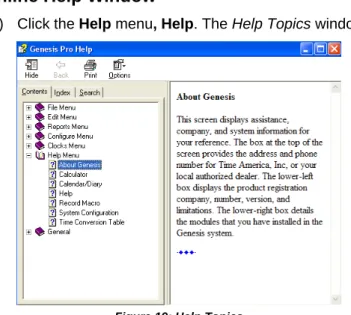
1) Click the Help menu, Help. The Help Topics window will open
Figure 19: Help Topics
Use Help Contents
28. In the Help Topics window, click the Contents tab.
29. Double-click the topic you wish to browse. This will expand the sub-topics below it.
30. If necessary, double-click the sub-topic you wish to browse.
31. When you find the article you are interested in, double-click it to open the article.
Use the Help Index
32. In the Help Topics window, click the Index tab. 33. Type in the topic you are looking for.
34. When you find the article you are interested in, double-click it to open the article.
Use Help Find
35. In the Help Topics window, click the Find tab. 36. Type in the topic you are looking for.
37. If necessary, select a word from the list of suggestions.
38. When you find the article you are interested in, double-click it to open the article.
Return to the Help Topics Window
After reading an article, you may return to the Help Topics window by clicking the Help Topics button on the toolbar.
Figure 20: Help Article
Print a Help Topic
You can print any help topic by clicking the Print button on the toolbar.
Figure 21: Help Article
39. Click the Print button on the Genesis Pro Help toolbar. The Print window will open.
Figure 22: Print
40. Select the printer to which you wish to print and click the Print button. The topic will print.
Configuring the System Environment
Environmental settings control various display and functional characteristics of your system. The default settings can be modified. Bell, Background and Large Toolbar are available
environment options. A check mark (9) in front of the option means that the option is activated.
Figure 23: Environment Menu
Play Bell Tones
You can customize Genesis Pro to play a tone at the end of a field when entering data. 1. Click the File menu, Environment, Bell. This will cause a bell tone to play
whenever you come to the end of a field when entering data. NOTE: To remove follow Step 1.
Change Screen Background
You can customize the Genesis Pro background to display a graphic of your choice. The graphic must be in bitmap (.bmp) format.
1. Click the File menu, Environment, Background. The Select Background window will open.
Figure 24: Select Background
2. Choose the graphics file you wish to use for your background.
• Click the directory or file to select it.
• Click the […] icon to go to a previous directory. 3. Click OK to accept the selected file.
4. Your graphic will appear on the background of Genesis Pro. NOTE: To reset the background settings to the defaults:
Click the File menu, Environment, Background. The Select
Background window will open.
Click the Defaults button. Gradient Background Option
You can activate the gradient background for all forms in Genesis Pro.
Navigation Selection
You can customize the main toolbar to display a small button toolbar, large button toolbar, show center screen shortcut, side bar or zoom bar.
1. Click the File menu, Environment, Navigation Selection. The buttons on the toolbar will enlarge.
Chapter IV Configuration
This section explains how to configure and customize Genesis Pro for your company's requirements. To make this chapter easier to follow, the topics in this section are arranged in the sequence that Time America recommends completing them. This also happens to be the order in which they appear on the Configure menu in the Genesis Pro Main Window. This order is:
• Main Company • Divisions (optional) • Categories
• Attendance • Policies • Rounding • Shifts • Holidays
• Groups (optional) • Job Costing • Security • Bell Schedules • Profile Lockouts • Reasons
Main Company
The Main Company window is where you identify your company, define the overall configuration of the system, and specify the payroll service to which time and attendance data will be exported.
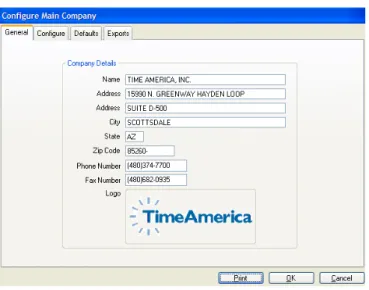
1. Click the Configure menu, Company, Main Company. The Main Company window will open and the General tab will be selected by default.
Figure 25: Main Company: General tab
2. Fill in the settings as appropriate:
Setting Definition
Name Enter your company's name. This field is required and can contain up to 30 characters. Address Enter the first line of your company's primary
address. This field can accept up to 30 characters.
NOTE: Divisions can be used to allow for additional branch addresses.
Address Enter the second line of your company's primary address (such as suite number.) This field can accept up to 30 characters and may be left blank.
City Enter your company's primary address City. This field can accept up to 30 characters. State Enter the two-character code for your
company's State. Genesis Pro automatically capitalizes your entry.
Zip Enter your company's zip code. You may enter the 5 or 9 digit zip code.
NOTE: The bitmap file must be created and saved as companylogo.bmp. The file is located in the Genesis Pro folder. This logo can also be viewed in Reports. Locate the ReportsLogo.exe file. Run the file and then select the reports to include the logo.
3. When all settings are complete, click the Configure tab. The Configure screen will appear.
Figure 26: Main Company: Configure tab
4. Fill in the settings as appropriate
Setting Definition
Daylight savings Check this box if your company is in a state that observes daylight savings time. Typically you will check this box.
Divisions Check this box to enable the Divisions feature. A Division is a "subset" of the main company, such as a branch, different location, or subsidiary company.
TIP: Companies who submit multiple company codes to their payroll service may want to use Divisions.
Department Check this box to enable the Departments feature. Departments reflect the business units within your company and are the top level of Job Costing.
NOTE: You will have the opportunity to customize this nomenclature in the next screen.
Setting Definition
Job Check this box to enable the Job level. Jobs are the second level of Job Costing.
NOTE: You will have the opportunity to customize this nomenclature in the next screen.
Step This option will only be available if you have purchased the Job Costing Module.
Check this box to enable the Steps level of the Job Costing feature. Steps are the third level of Job Costing.
NOTE: You will have the opportunity to customize this nomenclature in the next screen.
Operation This option will only be available if you have purchased the Job Costing Module.
Check this box to enable the Operation level of the Job Costing feature. Operation is the fourth level of Job Costing.
NOTE: You will have the opportunity to customize this nomenclature in the next screen.
Task This option will only be available if you have purchased the Job Costing Module.
Check this box to enable the Task level of the Job Costing feature. Task is the fifth level of Job Costing.
NOTE: You will have the opportunity to customize this nomenclature in the next screen.
Use level wage before default assignment wage
"Level Wage" refers to the hourly rate associated with a department, job, step, operation or task. The "default assignment wage" refers to the wage associated with an individual employee.
Check this box if you wish the Level Wage for the department an employee works in to take precedence over the Default Assignment Wage when calculating an employee's earnings.
Paid lunches and breaks do not accrue toward overtime
Check this box if paid lunches and breaks are not considered in calculating hours for overtime.
Setting Definition
Wages Check this box to enable the wages features throughout Genesis Pro. This makes it possible to enter wage information in the Employee Maintenance screen.
Overtime Level 2 Up to three levels of overtime may be defined in Genesis Pro. One overtime level (OT1) is always available. To use a second overtime level (OT2), click the Overtime Level 2 check box.
Overtime Level 3 To use a third overtime level (OT3) in the system, click the Overtime Level 3 check box. This level is not available unless Overtime Level 2 is selected.
Use Swipe and Go Check this option to allow employees to swipe the clock without punching any keys. The system then determines whether the individual punch was an In, Out, Out for Lunch, In from Lunch, etc., based on the employee’s last punch and the employee's schedule. Use (am-pm) Format Check this option to have reports and the
online timecard use an AM/PM format instead of 24-hour format (military time.)
Do not use Floater for shift selection
Check this option to suppress all floaters from each shift group.
Editable Pay Periods, plus days
This option controls the number of pay periods and days in which it is possible to edit
transactions in the Genesis Pro system. For instance, Figure 26 specifies that two pay periods of transactions can be modified. Approval Editor Pay
Periods Back
This option controls the number of pay periods in which it is possible to edit transactions from the Approval Editor.
Use SMTP for E-mail
This option allows you to define the e-mail configuration per user in security.
Multiple poll This feature will allow you to poll multiple clocks simultaneously.
INI Settings This option allows for custom features to be turned on.
Auto logout-minutes
This option will define the number of minutes a user can be idle in Genesis Pro before it automatically logs them out.
Auto logout-time This option will define a specific time all users will automatically be logged out of Genesis Pro.
Currency Name Enter the type of currency Genesis Pro should use. The default is "Dollars."
Setting Definition
Date Format Select the manner in which dates should be displayed. The options are American (MM/DD/YYYY) and European (DD/MM/YYYY).
Date Delimiter Enter the character with which to delimit dates. The default is a slash (/).
5. When all settings are complete, click the Defaults tab to select it. The Defaults screen will appear.
Figure 27: Main Company: Defaults Screen
6. Fill in the settings as appropriate:
Setting Definition
Employee Enter the term you would like to use to refer to employees. (i.e., Employees, Associates, Members, etc.) The default is "Employees." Length Enter the maximum number of digits for the
Employee ID.
Type Choose the data type for the Employee ID. The options are Numeric and Alphanumeric. Department Enter the term you would like to use to refer to
the business units within your organization. (i.e., Departments, Business Unit, Cost Center, etc.) The default is "Department."
Length Enter the maximum number of digits for the Department ID.
Type Choose the data type for the Department ID. The options are Numeric and Alphanumeric.
Setting Definition
Job Enter the term you would like to use to refer to the second level of job costing in your
organization. (i.e., Job, Project, Client, etc.) The default is "Job."
Length Enter the maximum number of digits for the Job ID.
Type Choose the data type for the Job ID. The options are Numeric and Alphanumeric. Step Enter the term you would like to use to refer to
the third level of job costing in your organization. (i.e., Job, Project, Client, etc.) The default is "Step."
NOTE: This option will only appear if you have installed the Job Costing module.
Length Enter the maximum number of digits for the Step ID.
Type Choose the data type for the Step ID. The options are Numeric and Alphanumeric. Operation Enter the term you would like to use to refer to
the fourth level of job costing in your
organization. (i.e., Job, Project, etc.) The default is "Operation."
NOTE: This option will only appear if you have installed the Job Costing module.
Length Enter the maximum number of digits for the Operation ID.
Type Choose the data type for the Operation ID. The options are Numeric and Alphanumeric. Task Enter the term you would like to use to refer to
the fifth level of job costing in your organization. (i.e., Project, Task, etc.) The default is "Task." NOTE: This option will only appear if you have installed the Job Costing module
Length Enter the maximum number of digits for the Task ID.
Type Choose the data type for the Task ID. The options are Numeric and Alphanumeric. User Defined Fields Genesis Pro allows you to define up to six
user-defined fields. Enter the names of the fields you would like to define (if any). If you do not need any custom fields, you may leave these blank. The default values are License, Spouse, and License 2, but you may modify or delete these as desired.
Setting Definition
Badges Length Enter the number of characters (from 2 to 10) that will be read from the employee badge. For example, if the badge number is 10 characters long but you want to read only the last five characters, enter a 5 in this field. The number of digits here must match the actual number of digits on the physical badges given to
employees, and must also match the settings programmed into the badge reader clocks. Offset*
* only available when using TA620 terminals
Enter the number of digits from the left that the clock should "offset" before reading the numbers. This tells the clock how many characters to skip before starting to read the numbers. For example, if you have a badge number that is 10 characters long (say
1234567890) and you want to read the last five numbers only (67890), the offset would be 5. Maximum Type the maximum number of characters (from
2 to 64) on an employee’s badge. Any badge longer than this number will be rejected by the time clock.
Type Choose the data type for the Badge number. The options are Numeric and Alphanumeric. Most – though not all – badges will be Numeric. Badge
Assignment
Genesis Pro can assign badge numbers automatically when adding a new employee. You can manually change automatic
assignments later if necessary.
Choose No Automatic Assignment to bypass the automatic assignment and be allowed to enter the badge number manually.
Choose Next Numeric Available to have Genesis Pro assign the next sequential available badge number.
Choose Same as Employee Number to have Genesis Pro assign a badge number that is identical to the employee's ID number. External Report
Writer
If you will be using a third-party report editor/writer to create and/or modify Genesis Pro reports, specify the path name (drive and directory) of the report writer in this field.
7. When all settings are complete, click the Exports tab to select it. The Exports screen will appear.
Figure 28: Main Company: Exports Tab
8. Select the payroll provider to which you wish to export data. You may be prompted for additional information specific to the payroll application selected. For example, when ADP is selected, you are asked for the Company Code of your main company. Click Display only this export to have this payroll company listed as the only export available via reports.
NOTE: If the payroll provider you will be using does not appear in the list, simply choose either “Generic Numeric” or “Generic Alpha” depending on the Pay Code type your provider requires (contact your payroll provider to obtain this information.)
9. When all settings are complete, click OK to save the changes and exit the Main Company configuration dialog box.
Divisions
Divisions are subsets of the main company. For example, a division can be a remote office or separate business unit. Divisions are not required and will only be available if the Divisions option is selected in Main Company Configure screen.
Configure Divisions
From the divisions dialog box, you may add, edit and delete Divisions.
1. Click the Configure menu, Company, Divisions. The Configure Divisions dialog box will open.
Figure 29: Divisions
2. The Divisions window includes the following information: Setting Definition
Number This is a required field. Enter a 4-digit number to identify the division.
NOTE: Do not use 0000 since this number is assigned to the main company and cannot be used for divisions.
Name This is a required field. Type the division name (up to 30 characters) as you want it to appear in the system and on reports.
Active Click the Active check box to indicate that the division is currently in use. Uncheck this box if the division is not being used at this time. Address Enter the first line address of the division. Up to
30 characters may be entered in each line. Address Enter the second line address of the division (if
applicable). Up to 30 characters may be entered in each line.
City Type the name of the city (up to 30 characters) for the division.
Setting Definition
State Type thetwo-character state abbreviation. Zip Enter the five or nine-digit postal zip code of the
division.
Phone Number Enter the telephone number for this division. Fax Number Enter the fax number for this division. Additional
Information
You may be prompted for additional information based upon the payroll application selected in the Export screen of the Main Company configuration. For example, if ADP is selected in the Export screen, you will be prompted for the company number of this division.
Add a Division
1. Click the Configure menu, Company, Divisions. The Configure Divisions dialog box will open.
2. Click the Add button. The General screen will become available for you to add the new Division.
3. Fill in the settings as described in the Configure Divisions section. 4. Click OK to commit the changes and return to the Configure Divisions
screen.
5. Click Close to exit the Configure Divisions window.
Edit a Division
1. Click the Configure menu, Company, Divisions. The Configure Divisions dialog box will open.
2. Highlight the Division you wish to edit from the list at the side of the screen. 3. Click the Edit button. The General screen will become available for you to
edit the selected division.
4. Edit the settings as described in the Configure Divisions section. NOTE: The Division number cannot be changed.
5. Click OK to commit the changes and return to the Configure Divisions screen.
6. Click Close to exit the Configure Divisions window.
Delete a Division
Divisions that are in use cannot be deleted.
1. Click the Configure menu, Company, Divisions. The Configure Divisions dialog box will open.
Figure 30: Deletion Confirmation
4. Click OK to confirm the deletion.
Categories
Categories are used to track and report types of time or money. The built-in categories are: • Absent
• Adjustment • Break • Bereavement • Holiday • Jury Duty • Lunch
• Military Leave • Sick – NonPaid • Other Paid Time • Personal Day • Per Diem #1 • Per Diem #2 • Sick – Paid • Cash Tips • Charge Tips • Banquet Tips • Other Tips • Vacation • Worked Time
You may edit and delete built-in categories (other than Work), as well as add custom categories specific to your organization, such as Floating Holidays, Family Leave, etc.
Configure Categories
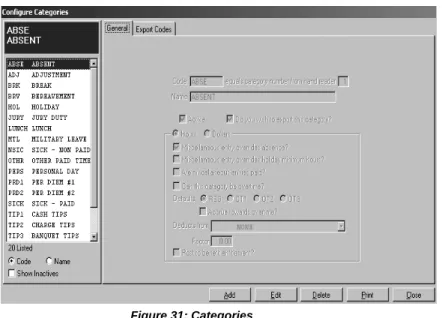
1. Click the Configure menu, Categories. The Configure Categories dialog box will open.
Figure 31: Categories
2. The Configure Categories screen displays the following information: Setting Definition
Code This is a required field. Enter a code (up to 4
alphanumeric characters) to identify the category. Once saved, this code cannot be changed.
Equals category number from hand reader.
When entering a Category into a Hand Reader, only a numerical value can be entered. Use this field to assign a number representing the Category Code.
Name This is a required field. Enter the category name, as it will appear in the system and on reports. The category name can be up to 30 characters long.
Active Click the Active check box to indicate that the category is currently in use. Clear this check box if the category is not being used at this time.
Do you wish to export this category?
This indicates whether this category will be included in the export information created for your payroll service. If this option is selected, the Export tab will become available. You must configure the Export tab settings to specify field mappings for your payroll export. (See Step 3.)
Hours/Dollars This is a required field. Select either Hours or Dollars to indicate the category type. For example, the category VACATION collects hour amounts, while the categories TIP1 and TIP2 collect dollar amounts.
Setting Definition
Miscellaneous entry
overrides absence?
Select this option to allow a Miscellaneous entry of this category to override an absence. (Miscellaneous refers to an entry other than Work.)
Miscellaneous entry overrides holiday minimum hours?
Allows time in this category to count toward the minimum hours worked requirement for allocating paid holiday time. (Miscellaneous refers to an entry other than Work.)
Are
miscellaneou s entries paid?
Allows time in this category to be treated as “paid time.” Select this option if employees will be paid when receiving a miscellaneous entry using this category. (Miscellaneous refers to an entry other than Work.) Can this
category be overtime?
This option will only be available if miscellaneous entries are paid. Select this option to accrue time in this category towards overtime. Clearing this option causes the system to prohibit overtime calculation on this category. If the category can be overtime, it is also possible to default to a specific level as well as enable it to accumulate towards overtime.
Defaults Determines to which pay factor this category should default. The options are Regular, OT1, OT2, and OT3. Deducts from Enables you to select a benefit entitlement "bucket" from
which to deduct time posted to this category. For
example, you might have a category called Family Illness that deducts from the Sick time entitlement. This enables you to itemize the specific type of time taken, while still tracking the time against a generic entitlement.
This option is mutually exclusive with the Post to benefit entitlement (which causes the category to become its own benefit entitlement entry.)
Factor This setting works with the Deducts from setting. Enter the factor at which this category's time should be
deducted. (i.e., a factor of 1 would indicate that for every one hour worked, one hour would be deducted. A factor of 2 would indicate that for every one hour worked, two hours would be deducted.)
Post to benefit entitlement?
Select this option to post accrued time in this category to company benefits. Checking this option makes it possible to configure benefit entitlement and/or rules for this pay type. Also, any time posted to this category will be deducted from the available entitlement for this category.
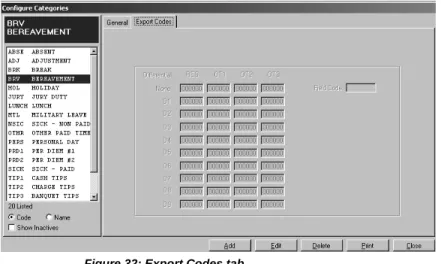
3. The Export Codes tab will be available only if the Do you wish you to export this category option is checked.
configured fully and accurately. The information in these fields must be obtained from the payroll service specified in Company Setup. Contact your payroll service representative or software manual for the information requested, if necessary.
Figure 32: Export Codes tab
4. The Export Codes tab includes the following information: Setting Definition
Differential: None This line of information will specify the codes for hours that do not have differential
adjustments.
Differential: D1-D9 These lines of information will specify the codes used by hours allocated to each Shift Differential.
REG Regular Hours are hours paid at "straight time." Enter the code your payroll application uses to refer to Regular hours.
OT1 OT1 hours are hours paid at the factor defined for OT1 in the Payroll Policy. Enter the code your payroll application uses to refer to hours paid at the OT1 factor.
OT2 OT2 hours are hours paid at the factor defined for OT2 in the Payroll Policy. Enter the code your payroll application uses to refer to hours paid at the OT2 factor.
NOTE: This option will only appear if OT2 has been selected on the Configure tab of the Main Company configuration dialog box. OT3 OT3 hours are hours paid at the factor defined
for OT3 in the Payroll Policy. Enter the code your payroll application uses to refer to hours paid at the OT3 factor.
Setting Definition
Field Code Enter the code that indicates which field of your payroll software this category will be mapped to.
This code differentiates between categories of time that use the same field number. For example, regular (REG) hours for VACATION and HOLIDAY may both use field number 16. By assigning a field code V to the VACATION category and H to the HOLIDAY category, vacation hours are reported in field 16V, while holiday hours are reported in 16H. If no field code was assigned, you could not differentiate between vacation and holiday hours.
Add a Category
1. Click the Configure menu, Categories. The Configure Categories dialog box will open.
2. Click the Add button to add a new Category. The General tab will become available.
Figure 33: Adding a new Category
3. Fill in the settings as described in the Configure Categories section. 4. Click OK to commit the changes and close the Categories dialog box. 5. Click Close to exit the Configure Categories window.
Edit a Category
1. Click the Configure menu, Categories. The Configure Categories dialog box will open.
2. Highlight the Category you wish to edit from the list at the side of the screen. 3. Click the Edit button. The General screen will become available for you to
edit the selected category.
4. Edit the settings as described in the Configure Categories section. 5. Click OK to commit the changes and return to the Configure Categories
screen.
6. Click Close to exit the Configure Categories window.
Delete a Category
Categories that are in use cannot be deleted.
1. Click the Configure menu, Categories. The Configure Categories dialog box will open.
2. Highlight the category you wish to delete from the list at the side of the screen.
3. Click the Delete button. You will be prompted:
Figure 34: Deletion Confirmation
4. Click OK to confirm the deletion.
Attendance Codes
Attendance codes are used to indicate time rounding and employee attendance on reports. These codes are used in conjunction with the Rounding Rules. (See Rounding Rules, page 65.) Some examples of attendance codes are:
• In Late (IL) • In Early (IE) • Break Long • Lunch Short • Out Early
Configure Attendance Codes
1. Click the Configure menu, Attendance. The Configure Attendance dialog box will open.
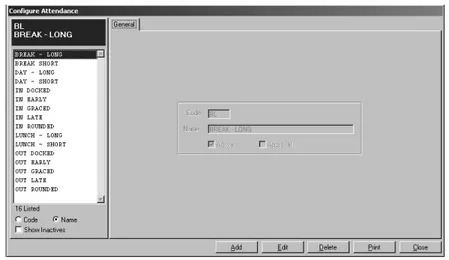
Figure 35: Configure Attendance
2. The Configure Attendance dialog box contains the following information:
Setting Definition
Code This field is required. Enter a user-defined attendance code up to 5 alphanumeric characters in length. Once saved, this code cannot be changed.
Name This field is required. Type the attendance code name as you want it to appear in the system and on reports. The attendance description can be up to 30 characters long.
Setting Definition
Active Click the Active check box to indicate an active attendance code. Clear this check box if the code is inactive. Rather than deleting an attendance code from the system, simply mark it inactive in the event you wish to use it again at a later date.
Approval Check this box to cause attendance
infractions marked with this Attendance code to appear in the Approval Editor. (The
Approval Editor permits a supervisor to review and process attendance infractions prior to producing time and attendance reports. For more information on the Approval Editor, see page 266.)
Add an Attendance Code
1. Click the Configure menu, Attendance. The Configure Attendance dialog box will open.
2. Click the Add button. The General screen will become available for you to add the new Attendance Code.
Figure 36: Add an Attendance Code
3. Fill in the settings as described in the Configure Attendance Codes section. 4. Click OK to commit the changes and return to the Configure Attendance
screen.
5. Click Close to exit the Configure Attendance window.
Edit an Attendance Code
1. Click the Configure menu, Attendance. The Configure Attendance dialog box will open.
2. Highlight the Attendance code you wish to edit from the list at the side of the screen.
5. Click OK to commit the changes and return to the Configure Attendance screen.
6. Click Close to exit the Configure Attendance window.
Delete an Attendance Code
Attendance Codes that are in use cannot be deleted.
1. Click the Configure menu, Attendance. The Configure Attendance dialog box will open.
2. Highlight the Attendance code you wish to delete from the list at the side of the screen.
3. Click the Delete button. You will be prompted:
Figure 37: Deletion Confirmation
4. Click OK to confirm the deletion.
Policies
Policies are used to store and apply the business or payroll rules governing overtime, holidays, etc. It is possible to have more than one set of rules within an organization, so Genesis Pro makes it possible to create many Policies. Each employee is assigned to the Policy that applies for him or her.
Configure Policies
1. Click the Configure menu, Policies. The Configure Policies dialog box will open.
Figure 38: Configure Policies
2. There are several tabs in the Configure Policies dialog box, each with its own settings. The first tab, General tab defines general payroll policy parameters and contains the following information:
Setting Definition
Code This field is required. Enter a code (up to 3 alphanumeric characters) to identify the policy. Once saved, this code cannot be changed. Name This field is required. Type the company policy
name, as it will appear in the system and on reports. The policy name can be up to 30 characters long.
Active Click the Active check box to indicate that the policy is currently in use. Clear this check box if the policy is not being used at this time. Pay Period Select the appropriate pay period information
for your company.
Weekly Check this option if wages are paid weekly. Bi-weekly Check this option if wages are paid every other
week.
Semimonthly Check this option if wages are paid twice a month.
Monthly Check this option if wages are paid once a month.
Start Date Enter the starting date of the pay period (using MM/DD/YYYY format). This is used for
calculations and represents the starting date of an entire payroll period. The day of the week (Sunday, Monday, etc.) that corresponds to the starting date is used to determine when the cycle begins.
NOTE: This date should be the first of a month in the past that corresponds to the day of the week that the pay period starts on.
Number of Days in semimonthly period
If the pay period is semimonthly, specify the number of days in the first half of the policy’s semi-monthly period. Click the down arrow next to the entry field to select a number from 1 to 28.
Process on Indicates how the employee’s time (for lunches, breaks, time rounding, etc.) is processed for this policy. The options are Actual and Schedule. Typically you will choose Schedule.
Actual: Time is processed under the shift rules in effect when the employee actually punched In.
Schedule: Time is processed under the rules of the employee’s scheduled shift.
Setting Definition
Punch Defaults The settings in this section define how punches are processed.
Auto close at pay period end (midnight)
Select this option to have over midnight hours split between two pay periods.
Auto close at overtime cycle end (midnight)
Select this option to have over midnight hours split between two overtime cycles.
Ignore use of duplicate function key punches within
Enter the number of minutes (up to 59) during which duplicate punches on the time clock are ignored. When duplicate punches are made within this time frame, only the last punch is used for calculations.
Ignore use of opposing function key punches within
Enter the number of minutes (up to 59) in which opposing (i.e. sequential In/Out) punches on the time clock are ignored. For example, if 3 minutes is entered here and an employee accidentally punches Out instead of In, the employee can enter the In punch within 3 minutes to correct the error and Genesis Pro will ignore the Out punch entirely.
Missing Out punch limit
Enter the number of hours (in HH.MM format) that can pass after the In punch before the system assumes the employee has forgotten to punch out and flags the time and attendance reports. For example, if 10.00 is entered in this field, the system expects an Out punch to be recorded no later than 10 hours after the shift’s In punch. The default for this field is 18.00 or 18 hours.
Will default the Work total to
Enter the time (in HH.MM format) to be recorded when the employee is flagged with a Missing Out Punch.
For example, assume an employee is scheduled to work 8 hours and forgets to punch Out. If 8.00 is entered in this field, the system recognizes the missing Out punch yet totals 8 hours for the employee. The default for this field is 00.00 (indicating that no time will be totaled for a Missing Out Punch).
Setting Definition
Maximum Out punch link back to In punch
Enter the maximum time an employeewho has punched Out canpunch back In and still have the new time included in the previous total when calculating daily overtime.
For example, assume that the Maximum Out Punch Link-Back is defined as 2.00 and overtime is paid after working 8 hours in a single day. If an employee punches In at 8:00 A.M. and Out at 5:00 P.M. (with a one hour unpaid lunch) then punches back In at 6:30 P.M. (within the 2-hour link-back) and Out again at 9:30 P.M., the daily total shows 8 hours of regular time and 3 hours of overtime. Do not link over
day end
Check this option if the out punch link back should stop at the end of the day.
First Change Punch accrues to In punch
Check this option if the first department and/or job transfer after the In punch should be retroactive to the In punch.
Stops After Enter the number hours you want the above rule to be effective.
Reset Swipe & Go
This option allows you to accept either 12a, 1a, 2a, 3a or 4a as a reset time.
3. The Holidays tab defines the rules for paying Holidays and contains the following information:
Figure 40: Policies: Holidays tab
Setting Definition
Pay Holidays Check this option if you wish the program to pay holidays. You will specify the dates of the holidays in a separate dialog box. (See Holidays, page 83.)
Holiday Eligibility These settings define the prerequisites for being paid for the holiday.