User Manual
V1.0 2008.10.23
Certifications
FCC
This equipment has been tested and found to comply with Part 15 of the FCC Rules. Operation is subject to the following two conditions:
(1) This device may not cause harmful interference
(2) This device must accept any interference received, including interference that may cause undesired operation.
CE
This equipment is in compliance with the requirements of the following regulations: EN 55022: CLASS B
RoHS
All contents of this package, including products, packing materials and documentation comply with RoHS.
C o n t e n t s
1. Product Overview ... 7
1.1 Introduction ... 7
1.2 Main Feature ... 7
2. Installation and Start up ... 8
2.1 Package Checklist ... 8
2.2 Product Views ... 8
2.3 System Requirements ... 9
2.4 When the server is up and running ... 9
2.5 When the server is dead ... 9
2.6 Installation ... 10
3. Configuration ... 12
3.1 Initial IP Configuration via Network ... 12
3.2 Configuration Setup via Serial Console ... 15
3.3 Keyboard, Mouse, and Video configuration ... 16
3.3.1 IP-KVM keyboard settings ... 16
3.3.2 Remote Mouse Settings ... 16
3.3.3 Automatic mouse speed and mouse synchronization ... 16
3.3.4 Host system mouse settings ... 17
3.3.5 Single and Double Mouse Mode ... 17
3.3.6 Recommended Mouse Settings ... 18
3.3.7 Video Modes ... 18
4. Usage ... 19
4.1 Prerequisites ... 19
4.2 Login into the IP-KVM and logout ... 20
4.2.1 Login into the IP-KVM ... 20
4.2.2 Login out from the IP-KVM... 22
4.3 The Remote Console ... 23
4.3.1 Main Window of Remote Console ... 23
4.3.2 Control Bar of Remote Console ... 24
4.3.3 Status Line of Remote Console ... 34
5. Menu Options ... 35 5.1 Remote Control ... 35 5.1.1 KVM Console ... 36 5.1.2 Telnet Console ... 36 5.2 Virtual Media ... 38 5.2.1 Floppy Disk ... 39 5.2.2 CD–ROM Image ... 41 5.2.3 Drive redirection ... 45
5.2.3.1 Driver Redirection Utility Installation ... 47
5.2.3.2 Built-in Java Drive Redirection ... 52
5.2.4 Options ... 54
5.2.5 Creating an Image... 54
5.2.5.1 Creating Floppy Images ... 54
5.2.5.2 Creating CD ROM/ISO Images ... 55
5.3 User Management ... 57
5.3.1 Change Password ... 57
5.3.2 Users and Groups ... 58
5.4 KVM Settings ... 59 5.4.1 User Console ... 60 5.4.2 Keyboard/Mouse ... 64 5.4.3 Video... 66 5.5 Device Settings ... 67 5.5.1 Network ... 67 5.5.2 Dynamic DNS ... 70 5.5.3 Security ... 73 5.5.4 Certificate ... 76 5.5.5 Serial Port ... 79 5.5.6 Date / Time ... 81 5.5.7 Event Log ... 82 5.6 Maintenance ... 85 5.6.1 Device Information ... 85 5.6.2 Even log ... 86 5.6.3 Update Firmware ... 87 5.6.4 Unit Reset ... 88 6. Technical Specifications ... 89 7. Troubleshooting ... 90 8. FAQ ... 92 9. Addendum ... 94 A. Key Codes ... 94 B. Video Modes ... 95
C. User Role Permissions ... 95
D. IP-KVM TCP port number ... 96
E. Bandwidth Consumption ... 96
F. Well-Known TCP/UDP Port Numbers ... 97
F i g u r e s
Figure 2-1 Product View ... 8
Figure 2-2 Front Panel View ... 8
Figure 2-3 Cable Connections... 11
Figure 4-1 The Internet Explorer displaying the encryption key length ... 20
Figure 4-2 Remote Console Control Bar ... 24
Figure 4-3 Remote Console Options Menu ... 25
Figure 4-4 Remote Console Exclusive Mode ... 26
Figure 4-5 Remote Console Options Menu:Scaling ... 26
Figure 4-6 Remote Console Options Menu:Cursor ... 28
Figure 4-7 Video Settings Panel ... 29
Figure 4-8 Soft Keyboard ... 30
Figure 4-9 Soft Keyboard Mapping ... 30
Figure 4-10 Remote Console Confirmation Dialog ... 31
Figure 4-11 Encoding Compression ... 32
Figure 4-12 Predefined Compression ... 32
Figure 4-13 Lossy Compression ... 33
Figure 4-14 Encoding Color depth... 33
Figure 4-15 Status line ... 34
Figure 4-16 Status line transfer rate ... 34
Figure 5-1 KVM Console ... 36
Figure 5-2 Telnet Console ... 36
Figure 5-3 Virtual Media - Floppy Disk ... 39
Figure 5-4 Virtual Media – CD-ROM Image ... 42
Figure 5-5 Explorer context menu ... 44
Figure 5-6 Share configuration dialog ... 45
Figure 5-7 Options of Drive Redirection ... 46
Figure 5-8 Drive Redirection Setup ... 47
Figure 5-9 Drive Redirection dialog ... 48
Figure 5-10 Built-in Java Drive Redirection... 52
Figure 5-11 USB mass storage option ... 54
Figure 5-12 RawWrite for Windows selection dialog ... 55
Figure 5-13 Nero selection dialog ... 56
Figure 5-14 Setting Password ... 57
Figure 5-15 User Console Setting ... 61
Figure 5-16 Keyboard and Mouse Settings ... 64
Figure 5-17 Video Settings ... 66
Figure 5-18 Network Settings ... 68
Figure 5-20 Dynamic DNS Scenario ... 71
Figure 5-21 Device Security ... 73
Figure 5-22 Chain Rules of IP Filtering ... 74
Figure 5-23 IP Filter Settings ... 75
Figure 5-24 Certificate Settings ... 76
Figure 5-25 SSL Certificate Upload ... 77
Figure 5-26 CSR string ... 77
Figure 5-27 Serial Port ... 79
Figure 5-28 Date / Time ... 81
Figure 5-29 Event Log ... 82
Figure 5-30 Device Information ... 85
Figure 5-31 Connected Users ... 86
Figure 5-32 Event Log List ... 86
Figure 5-33 Update Firmware ... 87
1.
Product Overview
1.1
Introduction
The KVM-over-IP (hereafter call IP-KVM for simplicity) redirects local keyboard, mouse and video data to a remote administration console. It allows you to control one or many computers locally at the server site or remotely via the Internet using a standard browser. You can securely gain BIOS level access to systems for maintenance, support, or failure recovery over the Internet.
Communication is secure via SSL authentication and encryption. Use in conjunction with a KVM switch for multiple-server access.
The IP-KVM provides convenient, remote KVM access and control via LAN or Internet. It captures, digitizes, and compresses video signal and transmits it with keyboard and mouse signals to and from a remote computer. IP-KVM provides a non-intrusive solution for remote access and control. Remote access and control software runs on its embedded processors only but not on
mission-critical servers, so that there is no interference with server operation or impact on network performance.
1.2
Main Feature
■ Manage servers around the world.
■ KVM (keyboard, video, and mouse) access over IP or analogous telephone line (modem needed).
■ Full control under any OS, in BIOS mode, during boot, at Blue Screens
■ No additional software necessary on servers
■ SSL Certificate management
■ 256-bit SSL encryption of all transmitted data
■ Automatically senses video resolution for best possible screen capture
■ High-performance mouse tracking and synchronization
■ Automatic adjustment of data rate to transmission line
■ Remote mass storage control and redirection
■ Can be remote controlled over java-enabled Browsers
■ Firmware update via web interface
■ Port to connect a user console for direct analogous access to KVM switch
2. Installation and Start up
2.1 Package Checklist
The IP-KVM package consists of the followings items: The IP-KVM module
CD-ROM (software utilities and User’s manual)
2.2 Product Views
Figure 2-1 Product View
LEDs
Ethernet Port Serial port
USB port
Figure 2-2 Front Panel View
LEDs on the Ethernet Connector:
■ Orange LED -- 10BaseT Ethernet connection established ■ Green LED -- 100BaseT Ethernet connection established ■ Blinking: data in activity
2.3
System Requirements
Hardware
Item Description Local Host side One Computer or Server or the console port of the KVM switch
Remote Console side One Computer or Multiple Computers are linked into the network
Software
Item Description Local Host side <No additional software necessary>
Remote Console side (1) Java Runtime Environment : version 1.4.2 or above
(2) Browser: Microsoft Internet Explorer version 6.0 or above or Netscape or Mozilla or Safari
2.4
When the server is up and running
The IP-KVM gives you a full control over the remote server. The Management Console allows you to access the remote server’s graphics, keyboard and mouse and to send special commands to the server. You can also perform periodic maintenance of the server. Using the Console Redirection Service, you are able to do the following:
I. Reboot the system II. Watch the boot process.
III. Boot the system from a separate partition to load the diagnostic environment. IV. Run special diagnostic programs
2.5
When the server is dead
Obviously, fixing hardware defects is not possible through a remote management device.
Nevertheless IP-KVM gives the administrator valuable information about the type of a hardware failure. Serious hardware failures can be categorized into five different categories with different chances to happen:
I. Hard disk failure 50%
II. Power cable detached, power supply failure 28% III. CPU, Controller, main board failure 10%
IV. CPU fan failure 8% V. RAM failure 4%
Using IP-KVM, administrators can determine which kind of serious hardware failure has occurred
Type of failure Detected by
Hard disk failure Console screen, CMOS set-up information
Power cable detached, power supply failure
Server remains in power off state after power on command has been given.
CPU Controller, main board failure. Power supply is on, but there is no video output.
CPU fan failure By server specific management software
RAM failure Boot-Sequence on boot console
2.6
Installation
Please follow the following steps: 1. Power down your KVM switch
2. Slide in the module into the module rack of the KVM switch, and make sure the module insert into backplane firmly, and then screw and secure the module on the KVM metal panel.
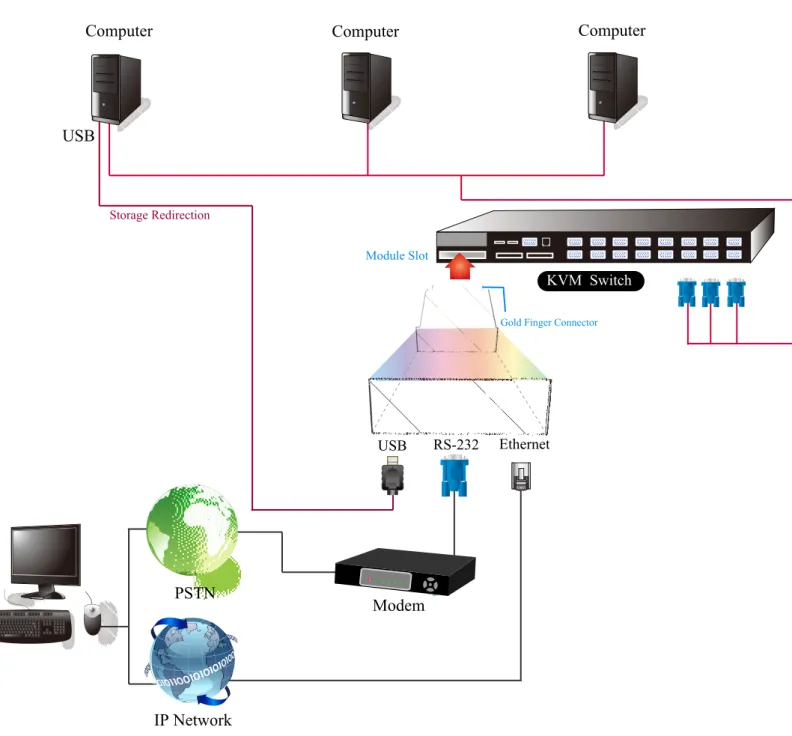
3. (Optional) Connect the USB connectors of USB A-mini cable to the host computer and the IP-KVM module while for remote mass storage control.
The figure below depicts the cable connections.
Figure 2-3 Cable Connections
Connect cables to the Host and Console devices as the figure depicts above. Leave the Serial interface open for now. After applying power to the unit, it’d take about 60 seconds to complete the startup processes, and then enter normal running state.
Computer
USB
Storage Redirection
Gold Finger Connector
Module Slot IP Network PSTN Modem USB RS-232 Ethernet Computer Computer KVM Switch
3.
Configuration
3.1
Initial IP Configuration via Network
The Factory default settings for the IP-KVM unit are as below: DHCP: Disable
Default IP address: 192.168.0.70 Default Net Mask: 255.255.255.0
If DHCP mode is enabled (IP auto configuration = DHCP), the IP-KVM will try to contact a DHCP server in the subnet to which it is physically connected. If a DHCP server is found, it may provide a valid IP address, gateway address and net mask. Before you connect the device to your local subnet, be sure to complete the corresponding configuration of your DHCP server. It is recommended to configure a fixed IP assignment to the MAC address of the IP-KVM. You can find the MAC address labeled on the bottom side of the metal housing.
There is a Network Setup Software tool (PSetup) for setting up the network configuration (IP address, Subnet mask, DHCP, etc).It is useful when you want to change the network settings or you will not be able access to the unit due to not knowing the network settings of the unit. In this case, you can view or change the settings via this utility.
IP-KVM Setup Tool
If this initial configuration does not meet your local requirements, use the setup tool to change the configurations to your needs. The setup tool PSetup can be found on the CD ROM delivered with this package. You can follow the procedures described below.
DHCP
If you have installed the IP-KVM on a network that enables DHCP, you can use the PSetup to find out the IP-KVM’s IP.
(1) Plug Ethernet cable to IP-KVM. IP-KVM will get an IP via DHCP. (2) Using PSetup to look for IP-KVM.
a. Click Refresh Devices button to detect connected devices
b. Select MAC address of the IP-KVM in “Device MAC address” box. You can find the MAC address labeled on the bottom side of the IP-KVM module. MAC address is detected as connection from computer and IP-KVM is valid through USB or network.
Notes:
BOOTP, a static configuration protocol, uses a table that maps IP addresses to physical addresses.
DHCP, an extension to BOOTP that dynamically assigns configuration information. DHCP is backward compatible with BOOTP.
Setup fixed IP
a. Setup “IP auto configuration” as “None” ; setup IP address and Subnet mask b. Enter Super user login and password for Authentication (default : super/pass) c. Click Setup Device. If super login was authenticated, it’ll show “Successfully configured device”. Otherwise it’ll show “Permission Denied”.
Authentication
To adjust the authentication settings, enter your login as a super user, and change your password.
Super user login
Enter the login name of the super user. The initial value is “super”. All characters are in lower case.
Super user password
Enter the current password for the super user. This initial value is “pass”. All characters are in lower case.
New super user password
Enter the new password for the super user. New password (confirm)
Re-type the new password for the super user for confirmation.
To close the window and accept the changes, press the “OK” button; otherwise press the “Cancel” button.
3.2
Configuration Setup via Serial Console
For using serial terminal, the IP-KVM has a serial line interface (host side). This connector is compliant with the RS-232 serial line standard. The serial line has to be configured with the parameters given in Table below.
Parameter Value Bits/second 115200
Data bits 8
Parity No
Stop bits 1
Flow Control None
When configuring with a serial terminal, e.g., Hyper Terminal, reset the IP-KVM and
immediately press the “ESC” key. You will see some device information, and a “=>” prompt. Enter “config”, press “Enter” key and wait for a few seconds for the configuration questions to appear.
As you proceed, the following questions will appear on the screen. To accept the default values shown in square brackets below, press “Enter” key.
IP auto configuration: None IP address: [192.168.0.70] Net mask: [255.255.255.0]
Gateway: [0.0.0.0] -- (0.0.0.0 for none)
IP auto-configuration
With this option, you can specify whether the IP-KVM should get its network settings from a DHCP or BOOTP server. For DHCP, enter “dhcp”, and for BOOTP enter “bootp”. If you do not specify any of these, the IP auto-configuration is disabled and subsequently you will be asked for the following network settings.
IP address
The IP address the IP-KVM. This option is only available if IP auto-configuration is disabled.
Net mask
The net mask of the connected IP subnet. This option is only available if IP auto-configuration is disabled.
Gateway address
The IP address of the default router for the connected IP subnet. If you do not have a default router, enter 0.0.0.0. This option is only available if IP auto-configuration is disabled.
3.3
Keyboard, Mouse, and Video configuration
Between the IP-KVM and the host, there are two interfaces available for transmitting
keyboard and mouse data: USB and PS/2. The correct operation of the remote mouse depends on several settings which will be discussed in the following subsections.
3.3.1 IP-KVM keyboard settings
The IP-KVM settings for the host's keyboard type have to be corrected in order to make the remote keyboard work properly. Check the settings in the IP-KVM Web front-end for details.
3.3.2 Remote Mouse Settings
A common seen problem with KVM devices is the synchronization between the local and remote mouse cursors. The IP-KVM addresses this situation with an intelligent
synchronization algorithm. There are two mouse modes available on the IP-KVM: Auto mouse speed
The automatic mouse speed mode tries to detect the speed and acceleration settings of the host system automatically. See the section below for a more detailed explanation. Fixed mouse speed
This mode just translates the mouse movements from the Remote Console in a way that one pixel move will result in n-pixel moves on the remote system. This parameter n is adjustable with the scaling. Please note that this works only when mouse acceleration is turned off on the remote system.
3.3.3 Automatic mouse speed and mouse synchronization
The automatic mouse speed mode performs the speed detection during mouse synchronization. Whenever the local and remote mouse cursors move synchronously or not, there are two ways for re-synchronizing local and remote mouse cursors:
Fast Sync
The fast synchronization is used to correct a temporary, but fixed skew. Choose the option using the Remote Console options menu or press the mouse synchronization hotkey sequence in case you defined one.
Intelligent Sync
If the fast sync does not work or the mouse settings have been changed on the host system, use the intelligent resynchronization. This method takes more time than the fast one and can be accessed with the appropriate item in the Remote Console option menu. The intelligent synchronization requires a correctly adjusted picture. Use the auto adjustment function to setup the picture, and make sure that there are no window at the
the normal state. The Sync mouse button on top of the Remote Console can behave differently, depending on the current state of mouse synchronization. Usually pressing this button leads to a fast sync, except in situations where the KVM port or the video mode changed recently.
Note: At first start, if the local mouse pointer is not synchronized with the remote mouse pointer, press the Auto Adjust Button once.
3.3.4 Host system mouse settings
The host's operating system knows various settings from the mouse driver.
Note: The following limitations do not apply in case of USB and Mouse Type “Windows >= 2000, MacOSX”.
While the IP-KVM works with accelerated mice and is able to synchronize the local with the remote mouse pointer, there are the following limitations, which may prevent this
synchronization from working properly:
Special Mouse Driver
There are mouse drivers that influence the synchronization process and lead to desynchronized mouse pointers. If this happens, make sure you do not use a special vendor-specific mouse driver on your host system.
Windows XP Mouse Settings
Windows XP knows a setting named “improve mouse acceleration”, which has to be deactivated.
Active Desktop
If the Active Desktop feature of Microsoft Windows is enabled do not use a plain background. Instead, use some kind of wallpaper. As an alternative, you could also disable the Active Desktop completely.
Navigate your mouse pointer into the upper left corner of the applet screen and move it slightly forth and back. Thus the mouse will be resynchronized. If re-synchronizing fails, disable the mouse acceleration and repeat the procedure.
3.3.5 Single and Double Mouse Mode
The information above applies to the Double Mouse Mode, where remote and local mouse pointers are visible and need to be synchronized. The IP-KVM also features another mode, the Single Mouse Mode, where only the remote mouse pointer is visible. Activate this mode in the open Remote Console and click into the window area. The local mouse pointer will be hidden and the remote one can be controlled directly. To leave this mode, it is necessary to
define a mouse hotkey in the Remote Console Settings Panel. Press this key to free the captured local mouse pointer.
3.3.6 Recommended Mouse Settings
For the different operating systems we give the following advices:
MS Windows
In general, we recommend the usage of a mouse via USB. Choose USB without Mouse Sync. For a PS/2 mouse choose Auto Mouse Speed. For XP disable the option “enhance pointer precision” in the Control Panel.
SUN Solaris
Adjust the mouse settings either via xset m 1 or use the CDE Control Panel to set the mouse to “1:1, no acceleration”. As an alternative you may also use the Single Mouse Mode.
MAC OS X
We recommend using the Single Mouse Mode.
3.3.7 Video Modes
The IP-KVM recognizes a limited number of common video modes. When running X11 on the host system, please do not use any custom mode lines with special video modes. If you do, the IP-KVM may not be able to detect them. We recommend using any of the standard VESA video modes, instead.
4.
Usage
4.1
Prerequisites
The IP-KVM features an embedded operating system and applications offering a variety of
standardized interfaces. This chapter will describe both these interfaces, and the way to use them in a more detailed manner. The interfaces are accessed using the TCP/IP protocol family, thus they can be accessed using the LAN port of the device.
The following interfaces are supported:
■ HTTP/HTTPS
Full access is provided by the embedded web server. The IP-KVM environment can be entirely managed using a standard web browser. You can access the IP-KVM using the insecure HTTP protocol, or using the encrypted HTTPS protocol. Whenever possible, use HTTPS.
■ Telnet
A standard Telnet client can be used to access an arbitrary device connected to the IP-KVM's serial port via a terminal mode.
The primary interface of the IP-KVM is the HTTP interface. This is covered extensively in this chapter. Other interfaces are addressed in subtopics.
In order to use the Remote Console window of your managed host system, the browser has to come with a Java Runtime Environment version 1.4.2 or above. If the browser has no Java support (such as on a small handheld device), you are still able to maintain your IP-KVM using the
administration forms displayed by the browser itself.
For secure connection to the IP-KVM, we recommend the following browsers versions:
■ Microsoft Internet Explorer version 6.0 or higher
■ Netscape Navigator 7.0 or Mozilla 1.6 or higher
In order to access the remote host system using a securely encrypted connection, you need a
browser that supports the HTTPS protocol. Strong security is only assured by using a key length of 128 Bit. Some of the old browsers do not have a strong 128 Bit encryption algorithm.
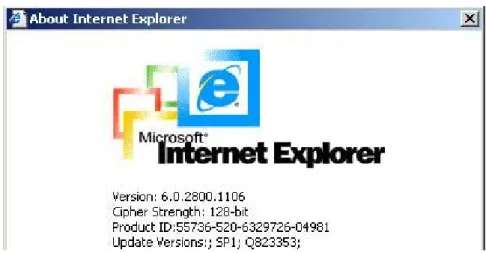
Using the Internet Explorer, open the menu entry “?” and “Info” to read about the key length that is currently activated. The dialog box contains a link that leads you to information on how to upgrade your browser to a state of the art encryption scheme. Figure below shows the dialog box presented by the Internet Explorer 6.0.
Figure 4-1 The Internet Explorer displaying the encryption key length Newer web browsers generally support strong encryption on default.
4.2
Login into the IP-KVM and logout
4.2.1 Login into the IP-KVM
Launch your web browser. Direct it to the address of your IP-KVM, which you configured during the installation process. The address used might be an IP address or a domain name, in the case where you have given your IP-KVM a symbolic name in the DNS. For instance, type the following in the URL field of your browser when establishing an unsecured connection:
http://<IP address of IP-KVM>
When using a secure connection, type in: https://<IP address of IP-KVM>
This will lead you to the IP-KVM login page as shown below
The IP-KVM has a built-in super user that has all permissions to administrate your IP-KVM:
Warning
The user “super” is not allowed to login via the serial interface of the IP-KVM.
Warning
Please make sure to change the super user password immediately after you have installed and accessed your IP-KVM for the first time. Unchanging of the password for the super user is a severe security risk and might result in unauthorized access to the IP-KVM and to the host system including all possible consequences!
Warning
Your web browser has to accept cookies, or else login is not possible.
Navigation
Having logged into the IP-KVM successfully, the main page of the IP-KVM appears. This page consists of three parts; each of them contains specific information. The buttons on the upper side allow you to navigate within the front end. Within the right frame, task-specific information is displayed that depends on the section you have chosen before.
The Buttons of the front end:
Return to main page of IP-KVM access page
Open the IP-KVM remote console
Exit from the IP-KVM front end. Warning
If there is no activity for 30 minutes, the IP-KVM will log you out, automatically. A click on one of the links will bring you back to the login screen.
Remote Console Preview
Click on Click to open to start the remote console redirection Click on Refresh to refresh the picture.
4.2.2 Login out from the IP-KVM
This link logs out the current user and presents a new login screen. Please note that an automatic logout will be performed in case there is no activity for 30 minutes.
4.3
The Remote Console
The Remote Console is the redirected screen, keyboard and mouse of the remote host system that IP-KVM controls.
The Remote Console window is a Java Applet that tries to establish its own TCP connection to the IP-KVM. The protocol that is running over this connection is neither HTTP nor HTTPS, but RFB (Remote Frame Buffer Protocol). As default, RFB tries to establish a connection to TCP port number 443. Your local network environment has to allow this connection to be made, i.e. your firewall and, in case you have a private internal network, your NAT (Network Address Translation) settings have to be configured accordingly.
In case the IP-KVM is connected to your local network environment and your connection to the Internet is available using a proxy server only without NAT being configured, the Remote Console is very unlikely to be able to establish the desired connection. This is because today's web proxies are not capable of relaying the RFB protocol.
In case of problems, please consult your network administrator in order to provide an appropriate networking environment.
4.3.1 Main Window of Remote Console
To open the KVM console either click on the icon Console or Remote Control > KVM Console of the menu entry on the left or Click to open of the console picture on the right.
Starting the Remote Console opens an additional window. It displays the screen content of your host system. The Remote Console will behave exactly in the same way as if you were sitting locally in front of the screen of your remote system. That means keyboard and mouse can be used in the usual way. However, be aware of the fact that the remote system will react
to keyboard and mouse actions with a slight delay. The delay depends on the bandwidth of the link to which you use to connect to the IP-KVM.
With respect to the keyboard, the very exact remote representation might lead to some confusion as your local keyboard changes its keyboard layout according to the remote host system. If you use a German administration system, and your host system uses a US English keyboard layout, for instance, special keys on the German keyboard will not work as expected. Instead, the keys will result in their US English counterpart. You can circumvent such
problems by adjusting the keyboard of your remote system to the same mapping as your local one.
The Remote Console window always tries to show the remote screen with its optimal size. That means it will adapt its size to the size of the remote screen initially and after the screen resolution of the remote screen has been changed. However, you can always resize the Remote Console window in your local window system as usual.
Warning
In difference to the remote host system, the Remote Console window on your local window system is just one window among others. In order to make keyboard and mouse work, your Remote Console window must have the local input focus.
4.3.2 Control Bar of Remote Console
The upper part of the Remote Console window contains a control bar. Using its elements you can see the state of the Remote Console and adjust the local Remote Console settings. A description for each control follows.
Figure 4-2 Remote Console Control Bar
Ctrl+Alt+Delete
Special button key to send the “Control Alt Delete” key combination to the remote system (see also section 6.4.1 for defining new button keys).
Auto Adjust button
If the video display is of bad quality or distorted in some way, press this button and wait a few seconds while the IP-KVM tries to detect the video mode of VGA port to the
Sync mouse
Activates the mouse synchronization process. Choose this option in order to synchronize the local with the remote mouse cursor. This is especially necessary when using
accelerated mouse settings on the host system. In general, there is no need to change mouse settings on the host.
Single/Double mouse mode
Switches between the Single Mouse Mode (where only the remote mouse pointer is visible) and the Double Mouse Mode (where remote and local mouse pointers are visible and need to be synchronized). Single mouse mode is only available if using SUN JVM 1.4.2 or higher.
Options
To open the Options menu, click on the button “Options”.
Figure 4-3 Remote Console Options Menu
A short description of the options as follows. • Monitor Only
Toggles the Monitor only filter on or off. If the filter is switched on no remote console interaction is possible, and monitoring is possible.
If a user has the appropriate permission, he or she can force the Remote Consoles of all other users to close. No one can open the Remote Console at the same time again until this user disables the exclusive access, or logs off.
A change in the access mode is also visible in the status line.
Figure 4-4 Remote Console Exclusive Mode • Scaling
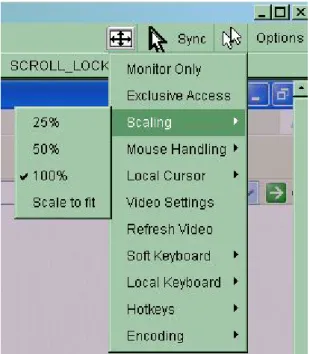
Allow you to scale down the Remote Console. You can still use both mouse and keyboard, however the scaling algorithm will not preserve all display details.
When you designate 25%, 50%, or100% scaling, the size of Remote Console window is calculated according to the remote host video setting with scaling algorithm execution. When you designate “Scale to fit”, the remote video displaying is scaled to fit the size of Remote Console window.
Figure 4-5 Remote Console Options Menu:Scaling • Mouse Handling
The submenu for mouse handling offers two options for synchronizing the local and the remote mouse cursors.
Fast Sync --
The fast synchronization is used to correct a temporary, but fixed skew.
Intelligent Sync --
Use this option if the fast sync does not work or the mouse settings have been changed on the host system.
Warning
This method takes more time than the fast one and requires a correctly adjusted picture. Use the auto adjustment function to setup the picture.
• Local Cursor
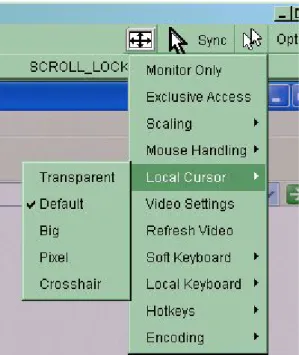
Offers a list of different cursor shapes to choose from for the local mouse pointer. The selected shape will be saved for the current user and activated the next time this user opens the Remote Console. The number of available shapes depends on the Java Virtual Machine; a version of 1.4.2 or above offers the full list.
Figure 4-6 Remote Console Options Menu:Cursor
• Video Settings
Opens a panel for changing the IP-KVM video settings. IP-KVM features two different dialogs, which for adjusting the video settings.
Video Settings through the HTML-Frontend
To enable local video port, select this option. This option decides if the local video output of IP-KVM is active and passing through the incoming signal from the host system.
The option Noise Filter defines how IP-KVM reacts to small changes in the video input signal. Turning on the noise filter can help reduce video flickering that is often caused by distortions, as well as lowering unnecessary bandwidth consumption. A large filter setting needs less network traffic and leads to a faster video display, but small changes in some display regions may not be recognized immediately. A small filter displays all changes instantly but may lead to a constant amount of network traffic even if display content is not really changing (depending on the quality of the video input signal). All in all the default setting should be suitable for most
Video Settings through the remote console
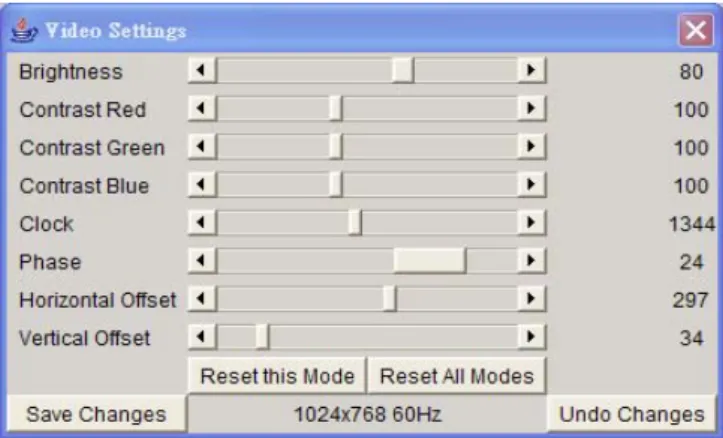
Figure 4-7 Video Settings Panel Brightness Controls the brightness of the picture Contrast Controls the contrast of the picture
Clock Defines the horizontal frequency for a video line and depends on the video mode. Different video card types may require different values here. The default settings in conjuction with the auto adjustment procedure should be adequate for all common configurations. If the picture quality is still bad after auto adjustment you may try to change this setting together with the sampling phase to achieve a better quality.
Phase Defines the phase for video sampling, used to control the display quality together with the setting for sampling clock.
Horizontal Position Use the left and right buttons to move the picture in horizontal direction while this option is selected.
Vertical Position Use the left and right buttons to move the picture in vertical direction while this option is selected.
Reset this Mode Reset mode specific settings (Clock , Phase and Position) to the factory-made defaults.
Reset all Modes Reset all settings to the factory-made defaults. Save changes Save changes permanently
Undo Changes Restore last settings • Refresh Video
Click to run this menu item for retrieving the whole video again from the controlled host and displayed on Remote Console. In normal situation, only changed parts of video will
be packed and sent from IP-KVM, for saving network bandwidth. This function is mainly used for troubleshooting purpose where some old video fragments are displayed as not updated in time for some reason; for example, noise filter for VGA is setting too large.
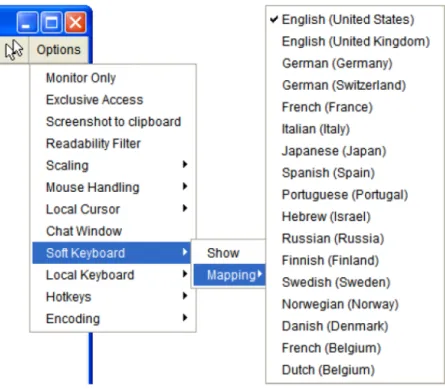
• Soft Keyboard
Figure 4-8 Soft Keyboard Opens up the Menu for the Soft-Keyboard.
Show
Pops up the Soft-Keyboard. The Soft-Keyboard is necessary in case your host system runs a completely different language and country mapping than your administration machine.
Mapping
Used for choosing the specific language and country mapping of the Soft-Keyboard.
• Local Keyboard
Used to change the language mapping of your browser machine running the Remote Console Applet. Normally, the applet determines the correct value automatically. However, depending on your particular JVM and your browser settings this is not always possible. A typical example is a German localized system that uses an US-English keyboard mapping. In this case you have to change the Local Keyboard setting to the right language, manually.
• Hotkeys
Opens a list of hotkeys defined before. Choose one entry, the command will be sent to the host system.
A confirmation dialog can be added that will be displayed before sending the selected command to the remote host. Select “OK” to execute the command on the remote host.
Figure 4-10 Remote Console Confirmation Dialog • Encoding
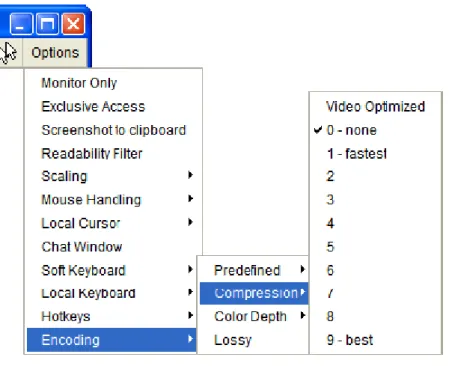
These options are used to adjust the encoding level in terms of compression and color depth. They are only available unless "Transmission Encoding" is determined
automatically (see the Section called Transmission Encoding in Chapter 6).
Compression Level
You may select a value between 1 and 9 for the desired compression level with level 1 enabling the fastest compression and level 9 the best compression. The most suitable compression level should always be seen as a compromise between the network bandwidth that is available, on your video picture to be transferred, and on the number of changes between two single video pictures. We recommend to use a higher
compression level if the network bandwidth is low. The higher the compression level the more time is needed to pack and unpack the video data on either side of the connection. The compression quality depends on the video picture itself, e.g. the number of the colors or the diversity of pixels. The lower the compression quality, the more data have to be sent and the longer it may take to transfer the whole video picture.
The option "Video Optimized" has its advantages if transferring high-quality motion pictures. In this case the video compression is disabled, completely and all video data is transferred via network as full-quality video snippets. Therefore, a high amount of bandwidth is required to ensure the quality of the video picture.
Figure 4-11 Encoding Compression
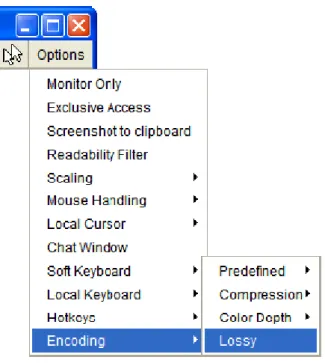
The next two options allow you to set the compression level to a predefined level OR to set a level for "lossy" compression. This compresses well, but leads to degradation in image quality.
Figure 4-13 Lossy Compression Color Depth:
Set the desired color depth. You may select between 8 or 16 bit for Video
Optimized/compression level 0, or between 1 and 8 bit for compression level 1 to 9. The higher the color depth, the more video information has to be captured and to be transferred.
Note: If displaying motion pictures on a connection with low speed you may achieve an improvement regarding the video transfer rate by lowering the color depth and disabling the option "Video Optimized". As a general result, the data rate is reduced (less bits per color). Furthermore, the OPMA module will not have to do any video compression. In total, this will lead to less transfer time of the motion picture.
4.3.3 Status Line of Remote Console Status line
Shows both console and the connection state. The size of the remote screen is
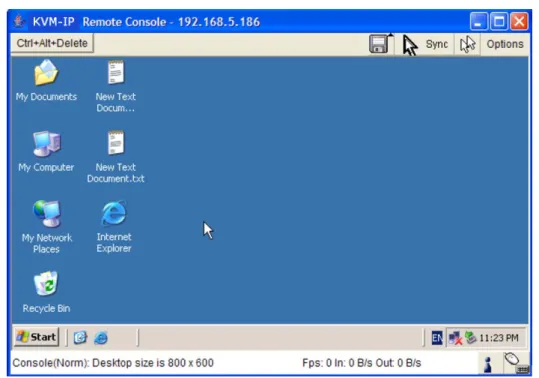
displayed. Figure belowwas taken from a Remote Console with a resolution of 800x600 pixels. The value in brackets describes the connection to the Remote Console. “Norm” means a standard connection without encryption, “SSL” means a secure connection.
Figure 4-15 Status line
Furthermore, both the incoming (“In:”) and the outgoing (“Out:”) network traffic are visible (in kb/s). If compressed encoding is enabled, a value in brackets displays the compressed transfer rate.
Figure 4-16 Status line transfer rate
5.
Menu Options
5.1
Remote Control
The Remote Console is the redirected screen, keyboard and mouse of the remote host system that IP-KVM controls. The Remote Console window is a Java Applet that tries to establish its own TCP connection to the IP-KVM.
Starting the Remote Console opens a new window displays screen movement of host system, with its size automatically adjusted to optimum. Keyboard and mouse are redirected to control the host system simultaneously. A slight delay may present depending on the bandwidth of network.
5.1.1 KVM Console
Figure 5-1 KVM Console
To open the KVM console either click on the icon Console or Remote Control > KVM Console of the menu entry on the left or Click to open of the console picture on the right.
5.1.2 Telnet Console
The IP-KVM firmware features a Telnet server that enables a user to connect via a standard Telnet client. In case the Telnet program is using a VT 100, VT 102 or VT 220 terminal or an according emulation, it is even possible to perform a console redirection as long as the
IP-KVM host machine is using a text mode screen resolution.
Connecting to the IP-KVM is done as usual and as required by the Telnet client, for instance in a UNIX shell:
telnet 192.168.0.70
Replace the IP address by the one that is actually assigned to the IP-KVM. This will prompt for username and password in order to log into the device. The credentials that need to be entered for authentication are identical to those of the web interface. That means, the user management of the Telnet interface is entirely controlled with the according functions of the web interface.
Once you have successfully logged into the IP-KVM a command line will be presented and you can enter according management commands.
In general, the Telnet interface supports two operation modes: the command line mode and the terminal mode. The command line mode is used to control or display some parameters. In terminal mode the pass-through access to serial port 1 is activated (if the serial settings were configured accordingly). All inputs are redirected to the device on serial port 1 and its answers are displayed on the Telnet interface.
The following list shows the according command mode command syntax and their usage.
help
Displays the list of possible commands
cls
Clears the screen
quit
Exits the current session and disconnects from the client
version
Displays the release information
terminal
Starts the terminal passthrough mode for serial port 1. The key sequence esc exit switches back to the command mode.
5.2
Virtual Media
Before go ahead with this setup, both remote user computer and local computer (the one connected with the IP-KVM unit) would have to have Operating System Win2000, XP or above. This function would not work on other platforms at this moment.
Before using Virtual Media, please connect the USB cable from IP-KVM to host computer. After connecting the USB cable, you can see a “Removable Disk” on the host computer. Below is the host computer screen (the computer which connected with IPKVM).
5.2.1 Floppy Disk
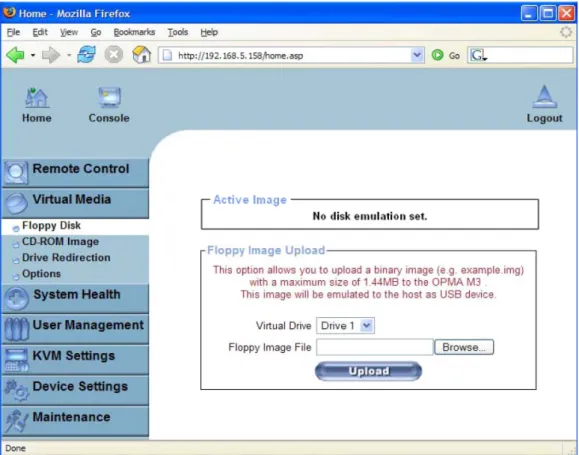
Figure 5-3 Virtual Media - Floppy Disk
1. You need to create the floppy to an image file first.
2. For this example, we use RawWrite software (or any other image-creator software) to create floppy image. Please use licensed software for this purpose.
1. Click “Read” column
2. Choose the image file saving path
3. Click “Read”
3. You can find an image file saved at desire destination after you created it with RawWrite.
4. Open the browser to log into the IP-KVM. Click Virtual Media > Floppy Disk. Click the Browse button to choose the image file.
computer that connect to IP-KVM
You may create a floppy image size up to 1.44Mb. This drive would be in read-only mode and would not allow you to write any information on this drive but copying only. This drive would be bootable under DOS mode if the motherboard/BIOS on the host computer supporting USB BOOTABLE function.
Notes:
1. If using other image-creator software, the output image extension file name has to be ‘img’, e.g. floppy_vir.img.
2. The uploaded image file will be kept in the onboard memory of the IP-KVM until the end of the current session, as you logged out, or initiated a reboot of the IP-KVM.
5.2.2 CD–ROM Image
Use Image on Windows Share (SAMBA)
Figure 5-4 Virtual Media – CD-ROM Image
Operation Procedures:
1. Please run Nero or any CD imaging tool to create CD-ROM ISO image.
2. Please create a folder and share this folder. (Please make sure password has to be setup with the authorized user during Sharing => Permission settings)
3. Copy the CD-ROM ISO image file to this sharing folder. 4. Please fill in the sharing information as below picture.
Fill in the IP address of sharing/remote computer
Please fill in the ‘Sharing Folder Permission’ username and password
5. Image file set successfully.
6. Open the remote console, you can see the virtual CD as below picture.
Note: the output image extension file name has to be ‘iso’, e.g. CD-Rom_vir.iso.
You may create an ISO image size up to 650Mb. This drive would be in read-only mode and would not allow you to write any information on this drive but copying only. This drive would be bootable under DOS mode if the motherboard/BIOS on the host computer supports USB BOOTABLE function. For emulating DVD Drive, please use Drive Redirection function.
Note: The above information has to be given from the point of view of IP-KVM with correct IP address and device name. Administrative permission is required as regular user may not have the right to access. Please login as a system administrator (or as “root” on UNIX systems).
The following information has to be given to mount the image properly:
Share host -- The server name or its IP address.
Image file name -- The name of the image file on the share folder.
User name -- If necessary, specify the user name for the share named in advance. If
unspecified, and a guest account is activated, this guest account information will be used as your login.
Password -- If necessary, specify the password for the given user name.
To register the specified file image and its location click on the button “Set”.
The specified image file is supposed to be accessible from the IP-KVM. The information above has to be given from the point of view of the IP-KVM. It is important to specify correct IP addresses, and device names. Otherwise, IP-KVM may not be able to access the referenced image file.
Furthermore, the specified share has to be configured correctly. Therefore, administrative permissions are required. As a regular user you may not have these permissions. You should either login as a system administrator (or as “root” on UNIX systems), or ask your system administrator for help to complete this task.
MS Windows
Open the Explorer, navigate to the directory (or share), and press the right mouse button to open the context menu.
Figure 5-5 Explorer context menu Select “Sharing” to open the configuration dialog.
Figure 5-6 Share configuration dialog Adjust the settings for the selected directory.
• Activate the selected directory as a share. Select “Sharing this folder”.
• Choose an appropriate name for the share. You may also add a short description for this folder (input field “Comment”).
• If necessary, adjust the permissions (button “permissions”). • Click “OK” to set the options for this share.
UNIX and UNIX-like OS (Sun Solaris, and Linux)
If you like to access the share via SAMBA, SAMBA has to be set up properly. You may either edit the SAMBA configuration file /etc/samba/smb.conf, or use the Samba Web Administration Tool (SWAT) or WebMin to set the correct parameters.
5.2.3 Drive redirection
The Drive Redirection is another possibility to use a virtual disc drive on the remote computer. With Drive Redirection you do not have to use an image file but may work with a drive from your local computer on the remote machine. The drive is hereby shared over a TCP network connection. Devices such as floppy drives, hard discs, CD ROMs and other removable devices like USB sticks can be redirected. It is even possible to enable a write support so that for the remote machine it is possible to write data to your local disc.
Figure 5-7 Options of Drive Redirection
Please note that Drive Redirection works on a level which is far below the operating system. That means that neither the local nor the remote operating system is aware that the drive is currently redirected, actually. This may lead to inconsistent data as soon as one of the operating systems (either from the local machine, or from the remote host) is writing data on the device. If write support is enabled the remote computer might damage the data and the file system on the redirected device. On the other hand, if the local operating system writes data to the redirected device the drive cache of the operating system of the remote host might contain older data. This may confuse the remote host’s operating system. We recommend to use the Drive Redirection with care, especially the write support.
Disable Drive Redirection
If enabled the Drive Redirection is switched off.
Force read-only connections
If enabled the Write Support for the Drive Redirection is switched off. It is not possible to write on a redirected device.
Click Apply to submit your changes.
There are two methods of Drive Redirections: 1. External Drive Redirection Utility
5.2.3.1Driver Redirection Utility Installation
Please follow the Drive Redirection Setup Wizard step by step to install the driver from the attached CD ROM.
Drive Redirection Settings
Figure 5-9 Drive Redirection dialog
Drive Redirection Utility:
Device
This is the address (either the DNS name or the IP address) of the IP-KVM you would like to connect to.
Drive
The local drive you want to share with the remote computer, which could be Floppy disc, CD-ROMs, USB-Sticks and hard drives.
Port
This is the network port. By default, IP-KVM uses the remote console port (#443) here. You may change this value if you have changed the remote console port in your IP-KVM’s network settings.
may reduce the connection speed.
Select the drive you would like to redirect. All available devices (drive letters) are shown here. Please note that the whole drive is shared with the remote computer, not only one partition. If you have a hard disc with more than one partition all drive letters that belong to this disc will be redirected. The Refresh button may be used to regenerate the list of drive letters, especially for an USB stick.
Warning
Please be cautious that if “Allow Write Support” is selected, all data on the shred media might be destroyed.
Write Support
This feature may be enabled here. Write support means that the remote computer is allowed to write on your local drive. As you can imagine, this is very dangerous. If both the remote and the local system try to write data on the same device, this will certainly destroy the file system on the drive. Please use this only when you exactly know what you are doing.
Device Authentication
The factory default Username is “super” and the default Password is “pass”. Click Connect to redirect drive
Warning
1. Drive Redirection is only possible with Windows 2000 or later versions.
2. The Drive Redirection works on a low SCSI level and the SCSI protocol cannot recognize partitions; therefore the whole drive selected will be shared instead of any particular partition.
3. While connecting to a legacy KVM switch, please select PS/2 mouse for Keyboard/Mouse setting from webpage. Otherwise you will not be able to use Hot-key.
Navigation Buttons:
Connect/Disconnect
To establish the drive redirection, please press the Connect button once. If all the settings are correct, the status bar displays that the connection has been established, the Connect button is disabled and the Disconnect button is enabled.
On an error, the status line shows the error message. The drive redirection software tries to lock the local drive before it is redirected. That means that it tries to prevent the local operating system from accessing the drive as long as it is redirected. This may also fail, especially if a file on the drive is currently open. In the case of a locking failure, you will be prompted if you want to establish the connection anyhow. This should not be a serious problem when the note above is respected. If the write support is enabled, a drive which is not locked might be damaged by the Drive Redirection.
With the Disconnect button, a connection via Drive Redirection connection is stopped.
Exit/Hide
If the Exit button is pressed, the Drive Redirection software is closed. If a Drive Redirection connection is active, the connection will be closed before the application terminates.
Using the Hide to Tray button the application is hidden, but not terminated completely. That means that an active connection will be kept active until it is closed explicitly. You can access the software by its tray icon. The tray icon also shows whether a connection is established or not. A double click on the icon shows the application window, or with a right click you may access a small menu
Operation Procedures:
1. Please install Drive Redirection Software on remote computer first then run Drive Redirection application and fill in information accordingly:
1. Type the IP address of IP-KVM 2. Choose the hard drive on remote computer you intended to share 3. Type the username and password of ‘IP-KVM’
4. Click ‘Connect’ to create virtual drive on host computer 2. Open the remote and you can see the virtual hard drive as below picture.
Virtual Drive has been created
Please note that Virtual Drive creation is by Device manner not by Partition. Which means it looks for I/O in BIOS and sends the corresponding signal to host computer. This way, you are
sending the entire hard drive (may consist of ‘X’ numbers of partitions) and emulate whatever number of partitions on host computer. You may also emulate a DVD-Drive with the same procedure. However, this DVD-Drive Does NOT support Bootable function like Floppy and CD-Rom emulation.
5.2.3.2Built-in Java Drive Redirection
1. Run Remote Control > KVM Console.
2. Click “Floppy” icon
3. Click Connect Drive or Connect ISO
4. Select a drive to redirect (if Connect Drive)
5.2.4 Options
Figure 5-11 USB mass storage option
Set this option to disable the mass storage emulation (and hide the virtual drive) if no image file is currently loaded. If unset, and no file image will be found it may happen that the host system will hang on boot due to changes in the boot order, or the boot manager (LILO, GRUB). This case was reported for some Windows versions (2000, XP), other OS might not be fully excluded. This behavior depends on the BIOS version used in that machine.
To set this option, press the button “Apply”.
5.2.5 Creating an Image 5.2.5.1Creating Floppy Images
UNIX and UNIX-like OS
To create an image file, make use of “dd”. This is one of the original UNIX utilities and is included in every UNIX-like OS (UNIX, Sun Solaris, and Linux).
To create a floppy image file, copy the contents of a floppy to a file. You can use the following command:
dd [ if=/dev/fd0 ] [ of=/tmp/floppy.image ]
dd reads the entire disc from the device /dev/fd0, and saves the output in the specified output file /tmp/floppy.image. Adjust both parameters exactly to your needs (input device etc.)
MS Windows
You can use the tool “Raw Write for Windows”. It is included on the CD ROM shipped with IP-KVM.
Figure 5-12 RawWrite for Windows selection dialog
From the menu, select the tab “Read”. Enter (or choose) the name of the file in which you would like to save the floppy content. Click on the button “Copy” to initiate the image creation process.
For related tools you may have a look at www.fdos.org
5.2.5.2Creating CD ROM/ISO Images
UNIX and UNIX-like OS
To create an image file, make use of “dd”. This is one of the original UNIX utilities and is included in every UNIX-like OS (UNIX, Sun Solaris, and Linux).
To create a CDROM image file, copy the contents of the CDROM to a file. You can use the following command:
dd [ if=/dev/cdrom ] [ of=/tmp/cdrom.image ]
dd reads the entire disc from the device /dev/cdrom, and saves the output in the specified output file /tmp/cdrom.image. Adjust both parameters exactly to your needs (input device etc.).
MS Windows
To create the image file, use your favorite CD imaging tool. Copy the whole contents of the disc into one single image file on your hard disk.
For example, with “Nero” you choose “Copy and Backup”. Then, navigate to the “Copy Disc” section. Select the CD ROM or DVD drive you would like to create an image from. Specify the filename of the image, and save the CD ROM content in that file.
5.3
User Management
5.3.1 Change Password
Figure 5-14 Setting Password
Change password of currently logged in user: Old Password: type in current password New Password: type in new password
Confirm New Password: re-type new password for verification Click “Apply” to submit your changes.
5.3.2 Users and Groups
There are three kinds of levels of user accounts:
■
Super -- Has all possible rights to configure the device■
Administrator -- Has partial rights to change configuration apart from critical settings■
User -- Has permission to access basic function of open Remote ConsoleYou can choose the desired level from the selection box role.
The IP-KVM comes with 1 pre-configured user account that has fixed permissions. The
account “super” has all possible rights to configure the device and to use all functions IP-KVM offers.
Upon delivery, the account “super” has the password “pass”. Make sure to change password immediately after you have installed and on initial access of your IP-KVM.
Existing users
Select an existing user for modification. Once a user has been selected, click the lookup button to see the user information.
New User name
The new user name for the selected account.
Password
The password for the login name. It must be at least three characters long.
Email address This is optional.
Mobile number
This information may be optionally provided.
Role
Each user can be a member of a group (named a “role” ) – there kinds can be shose from: super, administrator, or an regular user.
To create an user press the button Create. The Modify button changes the displayed user settings. To delete an user press the button Delete.
Note:The IP-KVM is equipped with an host-independent processor and memory unit which both have a limitation in terms of the processing instructions and memory space. To guarantee an acceptable response time we recommend not to exceed the number of 15 users connected to the IP-KVM at the same time. The memory space that is available onto the IP-KVM mainly depends on the configuration and the usage of the IP-KVM (log file entries etc.). That’s why we recommend not to store more than 150 user profiles.
5.4.1 User Console
The following settings are user specific. That means, the super user can customize these settings for every users separately. Changing the settings for one user does not affect the settings for the other users.
User select box
This selection box displays the user ID for which the values are shown and for which the changes will take effect. You may change the settings of other users if you have the required privileges.
Transmission Encoding
The Transmission Encoding setting allows changing the image-encoding algorithm that is used to transmit the video data to the Remote Console window. It is possible to optimize the speed of the remote screen processing depending on the number of users working at the same time and the network bandwidth of the connection line (Modem, ISDN, DSL, LAN, etc.).
Automatic detection
The encoding and the compression level is determined automatically from the available bandwidth and the current content of the video image.
Pre-configured
The pre-configured settings deliver the best result because of optimized adjustment of compression and colour depth for the indicated network speed.
Manually
Allows to adjust both compression rate and the colour depth individually. Depending on the selected compression rate the data stream between the IP-KVM and the Remote Console will be compressed in order to save bandwidth. Since high compression rates consum more computing power of IP-KVM, they should not be used while several users are accessing the IP-KVM simultaneously.
The standard color depth is 16 Bit (65536 colors). The other color depths are intended for slower network connections in order to allow a faster transmission of data.
Therefore compression level 0 (no compression) uses only 16 Bit color depth. At lower bandwidths only 4 Bit (16 colors) and 2 Bit (4 gray scales) are recommended for typical desktop interfaces. Photo-like pictures have best results with 4 Bit (16 gray scales). 1 Bit color depth (black/white) should only be used for extremely slow network connections.
Remote Console Type
Specifies, which Remote Console Viewer to use. Default Java-VM
Uses the default Java Virtual Machine of your Browser. This may be the Microsoft JVM for the Internet Explorer, or the Sun JVM if it is configured this way. Use of the
Sun Microsystems Java Browser Plugin
Instructs the web browser of your administration system to use the JVM of Sun Microsystems. The JVM in the browser is used to run the code for the Remote Console window, which is actually a Java Applet. If you check this box for the first time on your administration system and the appropriate Java plug-in is not already installed on your system, it will be downloaded and installed automatically. However, in order to make the installation possible, you still need to answer the according dialogs with “yes” . The download volume is around 11 Mbytes. The advantage of downloading Sun's JVM lays in providing a stable and identical Java Virtual Machine across different platforms. The Remote Console software is optimized for this JVM versions and offers wider range of functionality when run in SUN's JVM. Please make sure that you are installing Sun JVM 1.4.2 or above to your client system.
Miscellaneous Remote Console Settings Start in Monitor Mode
Sets the initial value for the monitor mode. By default the monitor mode is off. In case you switch it on, the Remote Console window will be started in a read only mode. Start in Exclusive Access Mode
Enables the exclusive access mode immediately at Remote Console startup. This forces the Remote Consoles of all other users to close. No one can open the Remote Console at the same time again until this user disables the exclusive access or logs off.
Mouse hotkey
Allows to specify a hotkey combination which starts either the mouse synchronization process if pressed in the Remote Console, or is used to leave the single mouse mode.
Remote Console Button Keys
Button Keys allow simulating keystrokes on the remote system that cannot be generated locally. The reason for this might be a missing key or the fact, that the local operating system of the Remote Console is unconditionally catching this keystroke already. Typical examples are “Control+Alt+Delete” on Windows and DOS, what is always caught, or “Control+Backspace” on Unix or Unix-like OS for terminating the X-Server. The syntax to define a new Button Key is as follows:
[confirm] <keycode>[+|-[*]<keycode>]*
“confirm” requests confirmation by a dialog box before the key strokes will be sent to the remote host.
“keycode” is the key to be sent. Multiple key codes can be concatenated with a plus, or a minus sign. The plus sign builds key combinations, all keys will be pressed until a minus sign or the end of the combination is encountered. In this case all pressed keys should be
released in reversed sequence. The minus sign builds single, separate key presses and releases. The star inserts a pause with duration of 100 milliseconds.
5.4.2 Keyboard/Mouse
Figure 5-16 Keyboard and Mouse Settings Host Interface
Enables a certain interface the mouse is connected to. You can choose between “Auto” for automatic detection, “USB” for an USB mouse, and “PS/2” for a PS/2 mouse.
Warning
To use the USB and/or PS/2 interface you need a correct cabling between the managed host and the managing device. If the managed host has no USB keyboard support in the BIOS and you have connected the USB cable only then you will have no remote keyboard access during the boot process of the host. If USB and PS/2 are both
connected and you selected “Auto” as host interface, then the card will select “USB” if available or otherwise falls back to “PS/2”.
To get USB remote keyboard access during the boot process of the host, the following conditions must be fulfilled: