Tmedia
TMG3200 System Installation Guide
9010-00179-1A, Issue 3.3permission of TelcoBridges. TelcoBridges may have patents or pending patent applications, trademarks, copyrights, or other intellectual property rights covering subject matter in this document. The furnishing of this document does not give you license to these patents, trademarks, copyrights, or other intellectual property except as expressly provided in any written license agreement from TelcoBridges.
The information provided in this document is intended as a guide only. For the latest detailed engineering specifications, please contact TelcoBridges Customer Support. TelcoBridges is committed to continually improving product designs; as a result, product specifications may be subject to change without notification.
© 2003-2011 TelcoBridges. All rights reserved.
TelcoBridges, Tmedia, TMP6400, TMG3200, TMP800, TMG800, TMS1600 Switch, Toolpack API, On a Blade, System-Blade, 1+1 Solution, 16-E1/T1/J1, TB640-DS3, TB640-E1/T1/J1, TB640-OC3/STM-1, 8-E1/T1/J1, IVR Mezzanine, TB-Multi-Blade, TB-Multi-Blade Mezzanine, TB-N+1-15 Solution, TB-N+1-3 Solution, TB-StreamServer, TB-Video, TB-VoIP Mezzanine, TM-1000 Network Probe are trademarks of TelcoBridges Inc. All rights reserved 2003-2011. All other trademarks are property of their owners. This information is subject to change without notice.
HEAD OFFICE
91 rue de la Barre, Suite 01 Boucherville, Quebec J4B 2X6, Canada T +1 450 655 8993 F +1 450 655 9511 [email protected] [email protected] Document Title: TMG3200 System Installation Guide
iii
About this Guide
This guide describes the installation and setup of the Tmedia TMG3200-RJ, TMG3200-TE, TMG3200-DS3, and TMG3200-STM1 VoIP gateways and the connections to voice, and IP networks.
Conventions
Contact Us
If you have comments about this guide or any other TelcoBridges technical documentation, please send an E-mail to [email protected].
Terminology Description
Tmedia Management Interface
This is the interface used to configure and manage the TMG3200. Tmedia Unit A generic reference to the family of Tmedia VoIP Gateways
TMG3200 A generic reference to the variations of the TMG3200 VoIP Gateway. This term is used when information applies to the TMG3200-RJ, TMG3200-TE, TMG3200-DS3, and TMG3200-STM1.
Table of Contents v
Table of Contents
Chapter 1
Introduction ... 1
1.1 Installation Overview ... 2 1.2 Installation Prerequisites ... 31.3 Preventing Electrostatic Discharge Damage... 3
1.4 Recommended Reading ... 4
Chapter 2
Equipment Connections ... 5
2.1 TMG3200 Package Contents... 6
2.2 Rack mounting the TMG3200 ... 7
2.2.1 Prerequisites ... 7
2.2.2 Vertical Placement of Tmedia Equipment ... 7
2.2.3 Mounting the TMG3200 ... 8
2.3 Connecting to the Tmedia Management Interface ... 9
2.3.1 Prerequisites ... 9
2.3.2 Interconnections ... 9
2.4 Connecting to a VoIP Network ... 10
2.4.1 Prerequisites ... 10
2.4.2 Connections ... 11
2.5 Connecting to the PSTN ... 12
2.5.1 Prerequisites ... 12
2.5.2 RJ48C Type Interface (T1/E1/J1)... 13
2.5.3 SCSI Interface (T1/E1/J1) ... 15
2.5.4 Dual BNC Interface (DS3)... 17
2.5.5 Optical Interface (OC3/STM-1)... 18
2.6 Powering Up... 19
2.6.1 Prerequisites ... 19
2.6.2 Connecting to AC Power... 19
2.6.3 Connecting to DC Power... 20
2.6.4 Verifying the LED Status Indications ... 21
2.7 Powering Down ... 23
Chapter 3
Initial System Configuration ... 25
3.1 Connecting to the TMG3200 ... 26
3.2 Retrieving TMG3200 Information ... 26
3.3 Changing the TMG3200 Management Port IP Address... 26
3.4 Changing TMG3200 Management Port Passwords... 27
3.5 Setting the Time Zone... 27
3.6 Configuring the TMG3200 Using the Web Portal ... 27
3.7 Changing VoIP Interface Addresses ... 27
Chapter 4
System Upgrades... 29
vi
Chapter 5
Troubleshooting Tools... 31
5.1 Connecting to the Serial Port of the TMG3200 ... 32
5.2 Configuring the Terminal Emulator Application ... 34
5.3 Reporting a Problem ... 35
5.4 Setup Information... 35
5.5 Tbdebug Dump Files (Mandatory)... 35
5.6 Application Logs ... 36
5.7 Backdoor Tools ... 36
5.7.1 tbx_cli_tools_remote ... 36
5.7.2 Line/Trunk Status (Tbshowls)... 37
5.7.3 VoIP Traffic Capture... 37
5.7.4 Network Analysis Tools... 38
5.7.4.1 Wireshark (formerly called Ethereal) ... 38
5.7.4.2 tcpdump ... 38
5.7.5 Tbstreamlisten... 38
5.7.6 Stream Server Audio Packets to Wave File ... 38
1
Chapter 1
Introduction
This chapter provides an introduction to the installation and setup of a TMG3200 VoIP Gateway.
The following topics are covered: • Installation overview
• Installation prerequisites • Other recommended reading
2
1.1
Installation Overview
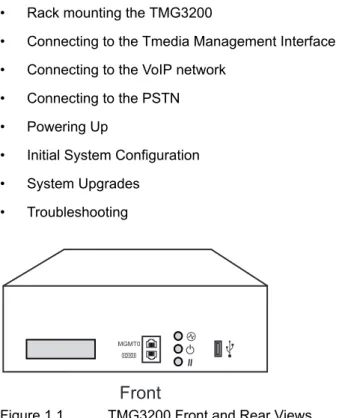
The installation and setup of a TMG3200, shown in figure 1.1 on page 2, is described by a series of chapters presenting installation tasks in the following order:
• Rack mounting the TMG3200
• Connecting to the Tmedia Management Interface • Connecting to the VoIP network
• Connecting to the PSTN • Powering Up
• Initial System Configuration • System Upgrades
• Troubleshooting
Figure 1.1 TMG3200 Front and Rear Views
Front
Rear
ETH VoIP TMS 0 1 0 1 0 1 MGMT0 1 8 7 6 5 4 3 2 9101112131415 0Introduction
3
1.2
Installation Prerequisites
For the TMG3200 installation to proceed without interruption, it is important that you verify that you have on hand all of the necessary materials. Prior to beginning the installation, you should have prepared for the following:
• Adequate space for the installation of your TMG3200. Consider that you will need to mount the TMG3200 on a 19” customer-provided equipment rack.
• Adequate power supply and power connections.The TMG3200 will require one to two power connections. To guarantee an uninterrupted supply, each power connection must be fed by a dedicated power source.
• The TMG3200 requires one IP address for the management port. To avoid delays, you should have the IP address, netmask and gateway addresses on hand. Take note that the management port supports DHCP, see Section 2.3 “Connecting to the Tmedia Management Interface” on page 9 for further information.
1.3
Preventing Electrostatic Discharge Damage
Electrostatic discharge (ESD) can damage equipment and impair electrical circuitry. It may occur if electronic printed circuit cards are improperly handled and may cause complete or intermittent failure.
Attention
Always follow ESD prevention procedures when removing and replacing modules:• Ensure that the TelcoBridges Tmedia units are electrically connected to earth ground. • Wear an ESD-preventive wrist strap and ensure that it makes good contact with your
skin. Connect the wrist strap clip to an unpainted surface of the Tmedia unit or the grounded equipment rack in order to channel away all ESD voltage safely to ground. To guard against ESD damage and shocks, the wrist strap and cord must be in proper working condition.
• If no wrist strap is available, and you must work with Tmedia units, ground yourself by touching a metal part of the chassis.
4
1.4
Recommended Reading
This document assumes that you are well versed in the installation of the TelcoBridges Tmedia units and have been trained to work with the equipment. If you have any technical questions, please contact TelcoBridges technical support or send an E-mail to [email protected].
Other documents exploring various aspects of the Tmedia system are available on the TelcoBridges TB Wiki at: http://docs.telcobridges.com/mediawiki/index.php/Main_Page
5
Chapter 2
Equipment Connections
This chapter provides the connection procedures for the TMG3200 as follows: • Rack mounting the TMG3200
• Connecting to the Tmedia management interface • Connecting to a VoIP network
• Connecting to a PSTN Network • Connecting Power
6
2.1
TMG3200 Package Contents
In the TMG3200 box, you will find: • One TMG3200
• One set of mounting brackets with screws. These are used for mounting a TMG3200 on a 19” rack. • One DB-9 to RJ-45 adapter. Allows you to interface the serial port of your computer with the RJ-45
console port of the TMG3200.
• SCSI cables and patch panels. This is optional and only provided for the TMG3200-TE, which features SCSI connectors.
• Three CAT5 Ethernet straight cables (male-male), three meters in length. • One warranty sheet
• One packing slip
• One TMG3200 Quick Installation guide (a 1-page sheet that provides a pictorial view of equipment setup).
Not included with the TMG3200:
• No power cords are supplied for AC units. Only in the case of DC units, are two DC power cables supplied.
Equipment Connections
7
2.2
Rack mounting the TMG3200
The TMG3200 is mounted on a customer provided equipment rack using the mounting hardware packaged in the box.
2.2.1
Prerequisites
To rack mount the TMG3200, you will need:
• One 19” customer provided equipment racks. The rack must be solidly anchored to the floor with appropriate support at the top of the racks.
• Climate controlled room: 0 to +50 Celsius, 0 to 95% non-condensing humidity.
2.2.2
Vertical Placement of Tmedia Equipment
The TMG3200 is housed in a 2U chassis, as tabulated in table 2.1 on page 7. It is important that you provide for enough room on the equipment rack to allow for the installation of the TMG3200. Consider the available space on your equipment rack and the height of the TMG3200. Due to the rear-exhaust heat vents and the efficient heat dissipation design, there is no need to leave any physical vertical space above or below the placement of the TMG3200 on the equipment rack.
Table 2.1 TMG3200 Physical Height
Tmedia Model Number Vertical Height
TMG3200 2U (3.5 inches or 89.10 mm)
Patch Panelsa
a. TMG3200-TE models configured with a 32 to 64 T1/E1 TDM module require one patch panel for each 32 E1/T1 line grouping.
8
2.2.3
Mounting the TMG3200
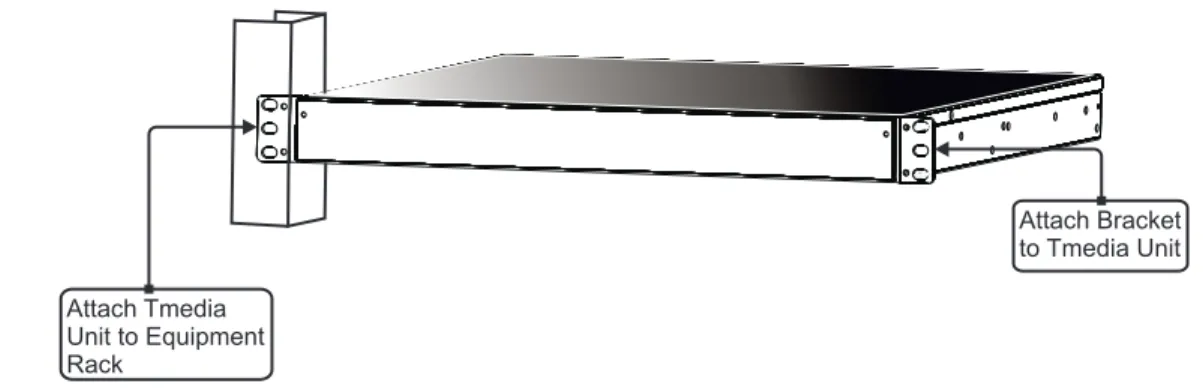
The TMG3200 is mounted on the 19” equipment rack using the angle brackets and screws provided in the box.
To mount the TMG3200 proceed as follows:
1. Using two metal screws, attach one angle bracket to the front, left-hand side of the TMG3200 when viewed from the front, as shown in figure 2.1 on page 8. Do the same for the angle bracket on the right-hand side.
2. Start mounting equipment at the top-most position of the rack, keeping in mind the space required on the equipment rack as described in Section 2.2.2 “Vertical Placement of Tmedia Equipment” on page 7.
Figure 2.1 Mounting the TMG3200
Attach Bracket to Tmedia Unit Attach Tmedia
Unit to Equipment Rack
Equipment Connections
9
2.3
Connecting to the Tmedia Management Interface
The Tmedia Management Interface enables administrators to perform management tasks on the TMG3200.
2.3.1
Prerequisites
To communicate with the Tmedia Management Interface for a TMG3200, the following is needed: • One CAT5 Ethernet cable with RJ45 male-male terminations.
2.3.2
Interconnections
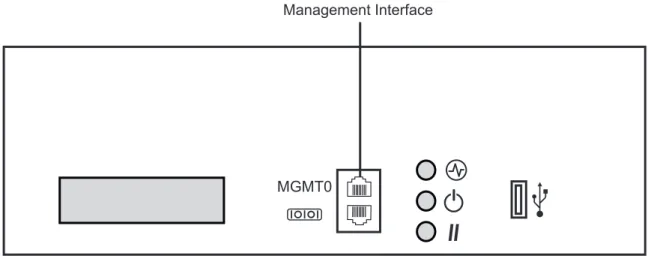
The TMG3200 provides a Tmedia Management Interface, using one Gigabit Ethernet network link, as shown in figure 2.2 on page 9.
To communicate with the Tmedia Management Interface:
1. Connect the supplied CAT5 Ethernet cable to the port labelled “MGMT0” at the front of the TMG3200.
Figure 2.2 Tmedia Management Interface
Note
The management port is configured using DHCP by default. Refer to Section 5.1 Section 5.1 “Connecting to the Serial Port of the TMG3200” on page 32, to change the IP address.Management Interface
10
2.4
Connecting to a VoIP Network
The TMG3200 features dual GigE ports for connection to different VoIP networks. This provides an access point to manage VoIP traffic. Should one of the IP networks fail, the TMG3200 will continue to manage VoIP traffic using the alternate network.
Note:
Certain configurations of the TMG3200 will exceed 100 Mbps, therefore
1000 Mbps is recommended.
2.4.1
Prerequisites
To connect the TMG3200 to the VoIP network, you will need:
• Gigabit Ethernet switch. A second one is required to support redundancy of the VoIP interface. • One or two CAT5 Ethernet cables with RJ45 male-male terminations.
Equipment Connections
11
2.4.2
Connections
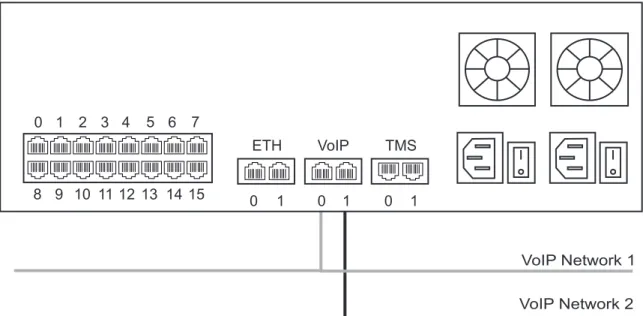
The TMG3200 is connected to the VoIP network by one or optionally two Ethernet GigE network links, as shown in figure 2.3 on page 11.
To connect the TMG3200 to the VoIP network:
1. Connect a CAT5 Ethernet cable to VoIP0 at the rear of the TMG3200. Connect the other end of the same CAT5 cable to the Gigabit Ethernet switch.
2. If your system employs a second Gigabit Ethernet switch for redundancy, connect a second CAT5 Ethernet cable to VoIP1 at the rear of the TMG3200. Connect the other end of the same CAT5 cable to the second Gigabit Ethernet switch.
Figure 2.3 Connecting to the VoIP Network
VoIP Network 1 VoIP Network 2 ETH VoIP TMS 0 1 0 1 0 1 1 8 7 6 5 4 3 2 9 10 1112 13 1415 0
12
2.5
Connecting to the PSTN
The TMG3200 features a variety of interfaces to the PSTN network.
2.5.1
Prerequisites
To connect the TMG3200 to the PSTN network, you must comply with one of the following:
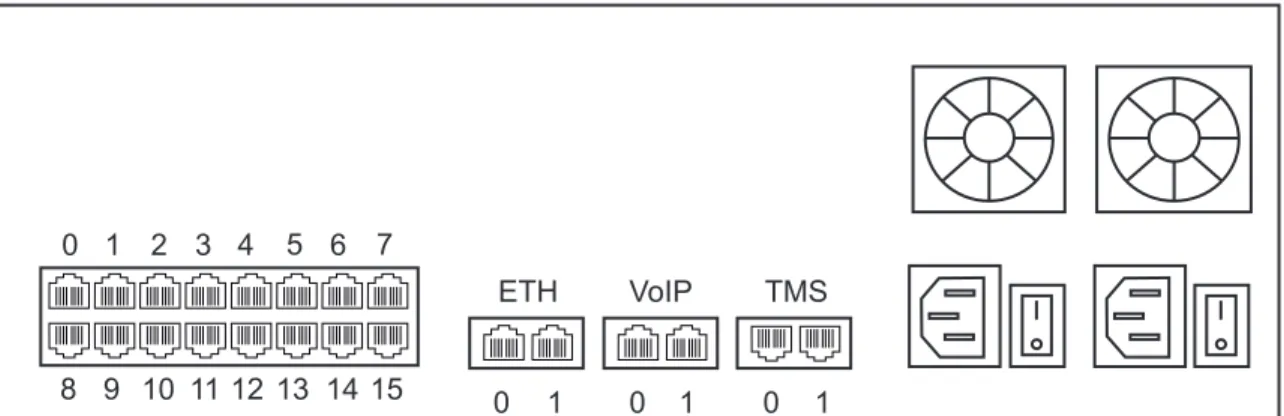
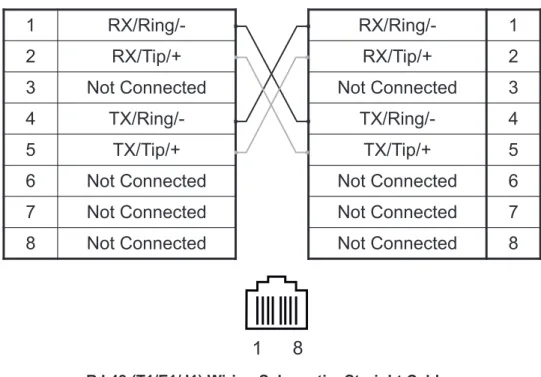
• Your TMG3200-RJ features 16 modular 8-conductor RJ48C type jacks for connection to T1/E1/J1 lines. You will need one cable for each (T1/E1/J1) interface on the TMG3200. If you are making your own cables, refer to figure 2.5 on page 14 for crossover or straight cable wiring connections. • Your TMG3200-TE features SCSI connectors for connection to T1/E1/J1 lines. You will require one
patch panel for each 32 line grouping of T1/E1/J1 line interfaces on the TMG3200.
• Your TMG3200-DS3 features BNC connectors for connection to DS3 lines. You will require two coaxial cables for each DS3 interface.
• Your TMG3200-STM1 features electrical or optical STM-1 connectors. You will require two fibre optic cables for the STM-1 interface of the TMG3200.
Equipment Connections
13
2.5.2
RJ48C Type Interface (T1/E1/J1)
A TMG3200-RJ with 16 RJ48C type ports enables the connection to T1/E1/J1 lines. The termination impedance is set at 100 ohms for T1 lines and 120 ohms for E1 lines. It is possible to connect an external balun in order to convert to 75 ohms. See figure 2.4 on page 13. If you are making your own cables, refer to figure 2.5 on page 14 for crossover or straight cable wiring connections.
Note
All ports may not be active. T1/E1/J1 ports are activated by software license; the number of active ports depends on the licenses purchased.To connect the TMG3200-RJ (RJ48C type) to the PSTN:
1. Start with port 0 located at the top and left-most position. Connect one cable between this port and the T1/E1/J1 line (figure 2.4 on page 13).
2. Repeat step 1, using the next available port.
Figure 2.4 16-Port Interface to the PSTN
ETH VoIP TMS 0 1 0 1 0 1 1 8 7 6 5 4 3 2 9 10 1112 13 1415 0
14
Figure 2.5 RJ48C Wiring Schematic
1
RX/Ring/-2
RX/Tip/+
3
Not Connected
4
TX/Ring/-5
TX/Tip/+
6
Not Connected
7
Not Connected
8
Not Connected
RJ 48 (T1/E1/J1) Wiring Schematic: Crossover Cable
1
8
RX/Ring/-
1
RX/Tip/+
2
Not Connected
3
TX/Ring/-
4
TX/Tip/+
5
Not Connected
6
Not Connected
7
Not Connected
8
1
RX/Ring/-2
RX/Tip/+
3
Not Connected
4
TX/Ring/-5
TX/Tip/+
6
Not Connected
7
Not Connected
8
Not Connected
RJ 48 (T1/E1/J1) Wiring Schematic: Straight Cable
RX/Ring/-
1
RX/Tip/+
2
Not Connected
3
TX/Ring/-
4
TX/Tip/+
5
Not Connected
6
Not Connected
7
Not Connected
8
Equipment Connections
15
2.5.3
SCSI Interface (T1/E1/J1)
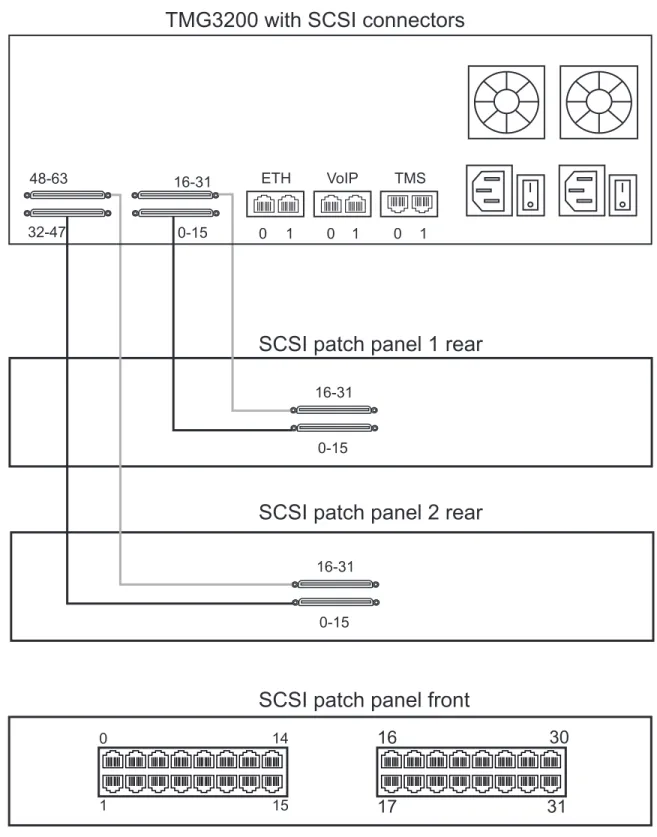
A TMG3200-TE with 4 SCSI connectors enables the connection to T1/E1/J1 lines. The termination impedance is set at 120 ohms. It is possible to connect an external balun in order to convert to 75 ohms. See figure 2.6 on page 16
Note
All ports may not be active. T1/E1/J1 ports are activated by software license; the number of active ports depends on the licenses purchased.To connect the TMG3200 (SCSI) to the PSTN:
1. Start with the SCSI ports 0-15 located at the bottom right as shown in figure 2.6 on page 16. Connect one SCSI cable between this port and SCSI patch panel number 1, ports 0-15. Connect SCSI ports 16-31 to patch panel number 1, ports 16-31.
2. Repeat step 1, using lines 32-63 and a second patch panel. Connect lines 32-47 to patch panel 2, ports 0-15. Connect lines 48-63 to patch panel 2, ports 16-31.
16
Figure 2.6 SCSI Interface to the PSTN
0 1 14 15
16
17
30
31
TMG3200 with SCSI connectors
48-63 32-47 16-31 0-15 16-31 0-15 16-31 0-15
SCSI patch panel 1 rear
SCSI patch panel 2 rear
SCSI patch panel front
ETH VoIP TMS
Equipment Connections
17
2.5.4
Dual BNC Interface (DS3)
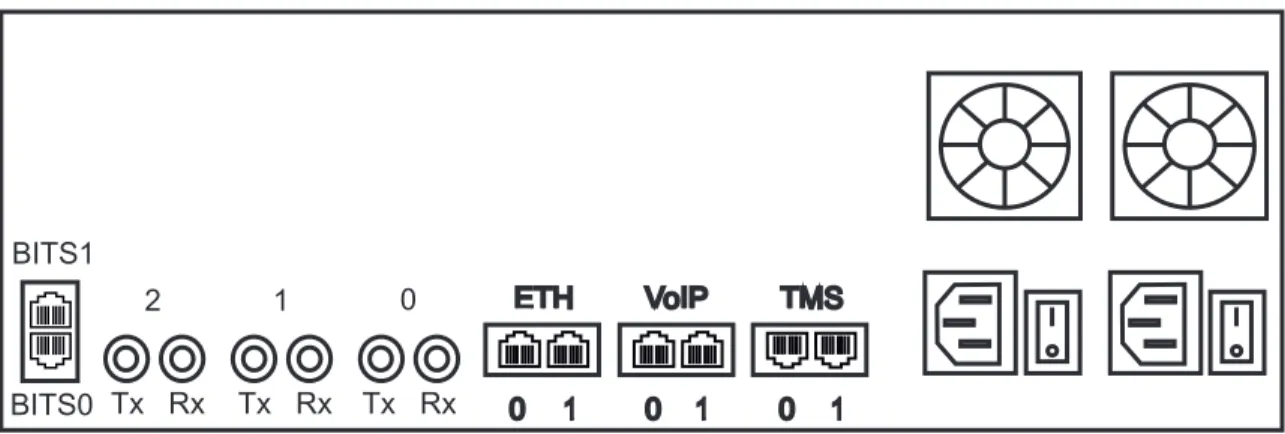
A TMG3200-DS3 with 3 sets of BNC connectors enables the connection to DS3 lines. See figure 2.7 on page 17
Note
All ports may not be active. DS3 ports are activated by software license; the number of active ports depends on the licenses purchased.To connect the TMG3200-DS3 to the PSTN:
1. Start with the Dual BNC port pair #0 (right-most) as shown in figure 2.7 on page 17. Connect one pair of BNC cables between this port and the DS3 line.
2. Repeat step 1, using the next available pair of BNC PSTN interface ports.
Figure 2.7 DS3 Interface to the PSTN
Rx Tx BITS0 BITS1 Rx Tx Rx Tx 2 1 0 ETH VoIP TMS 0 1 0 1 0 1
18
2.5.5
Optical Interface (OC3/STM-1)
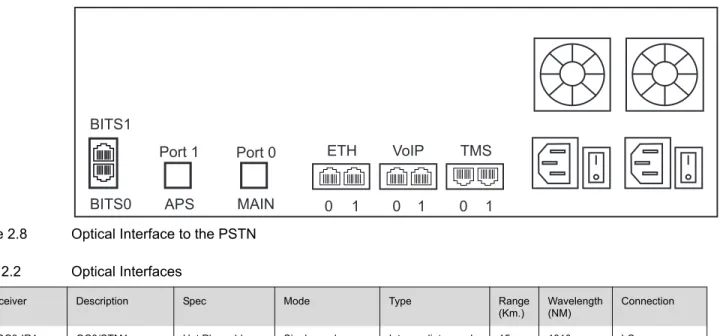
A TMG3200-STM-1, with one main and one backup OC3 or STM1 port enables connection to OC3/STM1 lines. See figure 2.8 on page 18. Refer to table 2.2 on page 18 for a listing of optical interfaces. The default SFP module for OC3/STM1 connection is SMF, intermediate reach, (SFP-OC3-IR1) 1310 nm with LC type connectors.
Note
Please make certain that the correct SFP model is selected at the time of ordering. If your installation requires a different model from the one that has been provided, you must replace it.Automatic Protection Switching
The APS port is used for OC3/STM1 redundancy. Switchover occurs automatically based on
configurable parameters. It is recommended that APS be used if the installation provides this feature.
To connect the TMG3200-STM1 (Optical Interface) to the PSTN:
1. Connect a fiber optic cable between the Port 0 (Main) port and OC3/STM1 line, as shown in figure 2.8 on page 18.
2. Connect a fiber optic cable between the Port 1 (APS) port and OC3/STM1 line.
Figure 2.8 Optical Interface to the PSTN Table 2.2 Optical Interfaces
BITS0 BITS1 APS MAIN ETH VoIP TMS 0 1 0 1 0 1 Port 1 Port 0 Transceiver
Model Description Spec Mode Type Range (Km.) Wavelength (NM) Connection
SFP-OC3-IR1 OC3/STM1 Hot Pluggable Single-mode Intermediate reach 15 1310 LC SFP-STM1E STM1E (Electrical) Hot Pluggable 75 ohms Cooper Max 180m a
a. Variable range
Equipment Connections
19
2.6
Powering Up
The TMG3200 is furnished with two AC or DC power connections. Only once all other equipment installation work has been completed should the TMG3200 be powered up.
2.6.1
Prerequisites
To power the TMG3200, you will need: • A power source.
• Two power cables for the TMG3200.
2.6.2
Connecting to AC Power
The TMG3200 AC model is furnished with two AC power connectors.
To connect the TMG3200 to AC Power:
1. Connect an AC power cable between the AC connector of the TMG3200 and an AC supply. See figure 2.9 on page 19.
Note
If the TMG3200 features a second power supply and it is not connected to an AC power source, press the green button located at the rear of the unit to disable the audible alarm. See figure 2.9 on page 19.2. Power up the TMG3200 by turning on its power switch(es).
Figure 2.9 AC Power Connection
To power To power Power switch Power socket Audible alarm button ETH VoIP TMS 0 1 0 1 0 1 1 8 7 6 5 4 3 2 9 10 1112 13 1415 0
20
2.6.3
Connecting to DC Power
The TMG3200 DC models are furnished with two DC power connection ports. In addition, each DC powered TMG3200 is supplied with two DC power cables.
To connect the TMG3200 to DC power:
1. Connect one DC cable, supplied with the TMG3200, as shown in figure 2.10 on page 20, to the DC outlet at the rear of the TMG3200.
Note
Two types of cable with different coloring are available. Refer to figure 2.10 on page 20 for the appropriate wiring information.2. Connect one lead of the DC power cable to the positive terminal of the DC power source, as shown in figure 2.10 on page 20.
3. Connect the other lead of the DC power cable to the negative side of the DC power source. 4. Repeat steps 1-3 for the second power DC power source.
Figure 2.10 TMG3200 DC wiring diagram
0V/Ground -48V
NOTE: DC power cable supplied with TMG3200 (Two types: Black/Red and Yellow/Black) -48V
Cable Type
Voltage
Ov/Ground -48V
Yellow/Black Black Yellow
Red/Black Red Black 0V/Ground ETH VoIP TMS 0 1 0 1 0 1 1 8 7 6 5 4 3 2 9 10 1112 13 14 15 0
Equipment Connections
21
2.6.4
Verifying the LED Status Indications
When the TMG3200 has been powered, verify the front panel of the unit to determine that all indications are normal.
Once the TMG3200 has run successfully through its system boot procedures, the following will be displayed in an alternating fashion as described in table 2.3 on page 21:
Table 2.3 TMG3200 Displays
Figure 2.11 Front display and LEDs
If the reset button is pressed a software menu will appear on the display at the front of the unit. Press the function button to select one of the three actions listed in table 2.4 on page 22. Once your selection is made, press the reset button to acknowledge your choice.
Display Order Display
First Screen IP 0:
<ip address of eth0. E.g. 192.168.0.2> IP 1:
<ip address of eth1 E.g. 192.168.0.3>
Second Screen <board type.. eg. TMP-STM1, TMS-16, TMP-DS3, TMP-16, TMP-32, TMP-64>
<adapter name e.g. TB002821> <serial number e.g. TB002821> <release used e.g V2.2.0 RC1>
Pwr Reset Function
MGMT0
22
Table 2.4 Reset Menu Options Menu Choices Description M | Options:
e | >Shutdown Graceful shutdown of the TMG3200. This takes a few minutes. Press the reset button to restart the TMG3200.
n | Rst telecom Reboots the telecom platform of the TMG3200. u | Rst host Reboots the linux host of the TMG3200
Equipment Connections
23
2.7
Powering Down
Powering down the TMG3200 requires that the Linux embedded host be shut down. In order to do this, you must connect to the management interface using SSH, and enter:
shutdown -hp now
Note
As an alternate method to this procedure, refer to Section 2.6.4 “Verifying the LED Status Indications” on page 21, to power down the TMG3200 with the reset button.DO NOT TURN OFFthe power to the TMG3200 using the power switch located at the rear, unless the Linux host has been properly shut down beforehand, using the reset button display, or manually using the shutdown command. Allow enough time for the Linux host to shut down before turning the power to the TMG3200 off (e.g. 1 min). Be aware that the shutdown procedure of the unit is logged and traceable for support and warranty purposes.
25
Chapter 3
Initial System Configuration
This chapter provides the initial procedures that are required in order for you to configure the TMG3200.
The following topics are covered: • Connecting to the TMG3200 • Retrieving TMG3200 Information
• Changing the TMG3200 Management Port IP Address • Changing the TMG3200 Management Port Passwords • Setting the TMG3200 Time Zone
• Configuring the TMG3200 Using the Web Portal • Changing VoIP IP Interface Addresses
26
3.1
Connecting to the TMG3200
The TMG3200 is shipped with the TMG-CTRL preinstalled. In order to make changes to the system configuration, you must connect the port labelled MGMT0 at the front of the TMG3200 to a terminal. To access the TMG3200, you must use an SSH connection. The password is set at the factory and is indicated on the shipment sheet.
Figure 3.1 Tmedia Management Interface
3.2
Retrieving TMG3200 Information
The TMG3200 enables you to retrieve system information with the following shell commands: • tbproduct (retrieve the Tmedia product type). See
http://docs.telcobridges.com/mediawiki/index.php/TMG:Get_Product_Type, for further information. • tbserial (retrieve the Tmedia serial number). See
http://docs.telcobridges.com/mediawiki/index.php/TMG:Get_Serial_Number, for further information.
3.3
Changing the TMG3200 Management Port IP Address
The management port of the TMG (labeled MGMT0) is configured using DHCP by default. It can be modified it using the following shell script:
• tbchangeip. See
http://docs.telcobridges.com/mediawiki/index.php/TMG:Change_Management_IP_Address, for further information.
Management Interface
Initial System Configuration
27
3.4
Changing TMG3200 Management Port Passwords
Once logged you are logged on to the TMG3200, type “passwd”, to change the password being used. The following information will be displayed:
[root@TB003540 ~]# passwd Changing password for user root. New UNIX password:
Retype new UNIX password:
passwd: all authentication tokens updated successfully.
3.5
Setting the Time Zone
You can change the time zone of the TMG3200 using the tbtimezone shell command. For information and examples about changing time zones refer to:
http://docs.telcobridges.com/mediawiki/index.php/TMG:Change_Time_Zone
3.6
Configuring the TMG3200 Using the Web Portal
To change the default configuration of the Toolpack system using the Web Portal, follow the steps described in the Web Portal System Configuration Tutorial Guide. This document can be obtained from TelcoBridges TB Wiki at:
http://docs.telcobridges.com/mediawiki/index.php/Web_Portal
The Web Portal can be accessed with a Web browser. The default url is: http://[Tmedia MGMT0 IP address]:12358
The default login information for the Web Portal application is: • Username: root
• Password: root
3.7
Changing VoIP Interface Addresses
The default address of the VoIP interfaces of the TMG3200 can be modified. To learn how this is done, refer to the Web Portal tutorial guide on the Telcobridges TB Wiki at:
28
29
Chapter 4
System Upgrades
Refer to the TB Wiki for information about system upgrades at: http://docs.telcobridges.com/mediawiki/index.php/Tmedia_Upgrade
4.1
Installing a New License
In order to install a new license on a Tmedia system, follow the steps described at the following link:
http://docs.telcobridges.com/mediawiki/index.php/Add/Change_Licenses
Note:
A license upgrade may require an interruption of service. A timeextension of a temporary license will not cause a service interruption, however changing features will.
31
Chapter 5
Troubleshooting Tools
This chapter provides guidance on the actions to take when encountering system problems, prior to contacting TelcoBridges Customer Support.
The following topics are covered:
• Connecting to the Serial Port of the TMG3200 • Configuring the Terminal Emulator application • Reporting a Problem
• Preparing your setup information • TbDebug Debug Dump Files • Application Logs
• Backdoor Tools
32
5.1
Connecting to the Serial Port of the TMG3200
The serial port interface enables administrators to perform management tasks on the TMG3200.
To connect to the serial port of a TMG3200:
1. Connect a CAT5 RJ-45 (male-male) cable (supplied with unit) between the com port of your computer and the serial port (labelled 1010) of the TMG3200 as shown in figure 5.1 on page 32. See figure 5.3 on page 33 for a RJ-45 pinout description.
2. If your computer’s serial port features a DB9 connector, use the DB9 to RJ-45 adapter supplied with your TMG3200. If your computer's serial port features a USB connector, you will need to provide a USB to DB9 adaptor. Refer to figure 5.2 on page 32.
Figure 5.1 Computer to TMG3200 Serial Port Connection
Figure 5.2 Conceptual View of a Serial Connection from the TMG3200 to a Computer
Serial port to the computer MGMT0
Tmedia
RJ45 DB9
Troubleshooting Tools
33 Figure 5.3 Console pinout
1
N/C
2
Rx
3
Tx
4
N/C
5
GND
6
N/C
7
N/C
8
N/C
9
N/C
1
N/C
2
N/C
3
N/C
4
GND
5
Tx
6
Rx
7
N/C
8
N/C
DB 9 RJ 452 3
5
1
8
34
5.2
Configuring the Terminal Emulator Application
Before communicating with the Tmedia Management Interface, you must first configure a terminal emulator or console application to communicate with the TMG3200 in order to configure initial settings. Available terminal emulation software includes:
• HyperTerminal • Putty
• Minicom
To configure the terminal emulator application:
1. Set the baud rate (bits per second) to 9600
2. Set the data rate to 8 bits
3. Set the parity to None
4. Set the stop bits to 1
Troubleshooting Tools
35
5.3
Reporting a Problem
TelcoBridges has developed extensive tools to gather information about a Tmedia system to solve problems quickly. Users MUST gather all related logs before reporting a problem to TelcoBridges Support via Email or MSN. Various logging methods are described in the following sections.
Once information is gathered and sent to the TelcoBridges Support group ([email protected]), the Support group will assign a tracking number to the problem. All follow-up correspondence, whether it be by E-mail, MSN, or phone call must refer to the tracking number to which the problem has been assigned.
5.4
Setup Information
The setup information must include:
• Physical connections. If necessary, describe it in a network diagram. • Specifying that your product is a TMG3200.
• Telecommunication connectivity diagram (for example: E1/T1/J1, DS3, STM-1/OC-3, VoIP Ethernet switch, etc)
• Remote access to system (SSH, VPN, VNC, Remote desktop, etc.) • For a signaling-related problem, specify which side is initiating the call
5.5
Tbdebug Dump Files (Mandatory)
The tbdebug copies information about Telcobridges libraries and TMG3200 to log files. This includes the software release running on the host, the firmware release running on the TMG3200, and other TMG3200 information, such as: available features, configuration, and status information.
The tbdebug files must be sent when a problem is reported. If the problem is reproducible, the tbdebug dump files are verified before and after the problem is reproduced. This will aid in identifying the problem quickly.
For further information about Tbdebug, refer to Telcobridges TB Wiki at:
36
5.6
Application Logs
All Toolpack applications will produce logs. The trace level can be set to vary the amount of logs that are received from the system. Trace level 0 is the most verbose and 4 is the least. Important errors are always logged. To learn about:
• Application logs, see:
http://docs.telcobridges.com/mediawiki/index.php/Web_Portal_Sections:Logs • Database backups, see:
http://docs.telcobridges.com/mediawiki/index.php/Web_Portal_Sections:Backups
Note
This data is collected by tbdegub.5.7
Backdoor Tools
A number of backdoor tools are available as follows: • tbx_cli_tools_remote
• tbshowls
• VoIP Traffic Capture • Wireshark
• tbstreamlisten
• Stream server audio packets to wave file • tbsigtrace
5.7.1
tbx_cli_tools_remote
The tbx_cli_tools_remote tool can be used to get the text-based GUI control of TB applications like Toolpack_Engine, Toolpack_sys_manager, tbstreamserver, and others which are run in background. For further information about tbx_cli_tools, refer to Telcobridges TB Wiki at:
Troubleshooting Tools
37
5.7.2
Line/Trunk Status (Tbshowls)
tbshowls (/tb/bin/release/[OS version]/)
tbshowls can be used to show trunk alarm and performance counters. The tool will check the trunk status periodically to show the most updated trunk status. Users can use the up/down/left/right arrow keys to show the performance data on different trunks. Use a-s-d-x to scroll and view other line services.
Options 'G' and 'S' enable you to get and set the trunk interface parameters. Option 'R' can be used to reset the performance counter value to zero.
It is also possible to allocate all line interfaces in different configurations. This is useful for DS3 and OC3/STM-1 configurations, in order to help users understand the configuration.
Note
Trunk status and alarms can be viewed from the Status menus of the Web Portal.5.7.3
VoIP Traffic Capture
When troubleshooting VoIP related issues, you can use to use VoIP port mirroring to capture all incoming and outgoing network packets from a VoIP network interface using the other VoIP interface. A direct physical connection can be established with a host's Gigabit Ethernet interface and the other VoIP interface of the TMG3200. Wireshark or tcpdump is used on the host to capture network packets.
To capture VoIP Traffic from VoIP0 using VoIP1, do the following:
1. Connect the VoIP1 interface to the Ethernet port of a server 2. Connect to the telecom platform
2a. Using telnet, for example: [root@TB005375]# telnet 172.31.1.1 or
2b. Using minicom, for example: [root@TB005375]# minicom 3. Enter the following command:
mv88eMonitor 0x4 0x4 3
4. Start pcap capture on the server Ethernet port (either wireshark or tcpdump) 5. To stop the tracing:
mv88eMonitor 0 0 3
For further information, refer to the TelcoBridges TB Wiki at:
38
5.7.4
Network Analysis Tools
The following network analysis tools may be used: • Wireshark
• tcpdump
5.7.4.1
Wireshark (formerly called Ethereal)
Wireshark is useful for capturing both VoIP traffic as well as IP-based protocol packets This program is available at this site: www.wireshark.org
5.7.4.2
tcpdump
tcpdump is a packet analyzer for Linux systems. This tool is available using your Linux distribution package manager.
This program is available at this site: www.tcpdump.org
5.7.5
Tbstreamlisten
tb\apps\tbstreamlisten\release\[OS version]
This allows for the recording of the raw data from a TDM stream. Please ask customer support for instructions regarding this function.
5.7.6
Stream Server Audio Packets to Wave File
You can capture all audio packets transmitted to and from the Stream Server and convert them into wave files for analysis. You can use Wireshark or tcpdump on the server running the tbstreamserver application.
The conversion tool, streamserver_pkt_to_wav can be found at the following location: /tb/bin/release/[OS version].
5.7.7
tbsigtrace Signaling Traces
The tbsigtrace program is a tool used to capture TDM-based (SS7, ISDN, CAS) and IP-based (SIP, SIGTRAN, H.248/MEGACO) protocols packets.