Avaya Solution & Interoperability Test Lab
Application Notes for configuring NICE IEX Workforce
Management R4.6 with Avaya Call Management System
R16.3 with the IEX-RTA and Historical Interfaces – Issue
1.0
Abstract
These Application Notes describe the configuration steps required to integrate NICE IEX Workforce Management with Avaya Call Management System R16.3 using the IEX-RTA and Historical interfaces. Avaya Call Management System captures ACD call center data from Avaya Aura® Communication Manager over an established link and stores it in its database. The IEX-RTA interface is used to extract real-time agent state information from Avaya Call Management System and send it to NICE IEX Workforce Management. The IEX Historical Interface is used to obtain historical data from the Avaya Call Management System database and send it to NICE IEX Workforce Management. The data can then be parsed by NICE IEX Workforce Management and displayed on the NICE IEX Workforce Management Supervisor Workstation. The Call Management System interfaces are provided by Avaya Professional Services.
Information in these Application Notes has been obtained through DevConnect compliance testing and additional technical discussions. Testing was conducted via the DevConnect Program at the Avaya Solution and Interoperability Test Lab.
1. Introduction
These Application Notes describe the configuration steps required to integrate NICE IEX Workforce Management with Avaya Call Management System (CMS) using the IEX-RTA and Historical interfaces. Avaya CMS captures ACD call center data from Avaya ® Communication Manager over an established link and stores it in its database. The IEX-RTA interface is used to extract real-time agent state information from Avaya CMS and send it to NICE IEX Workforce Management. The IEX Historical Interface is used to obtain historical data from the Avaya CMS database and send it to NICE IEX Workforce Management, The data can then be parsed by NICE IEX Workforce Management and displayed on the NICE IEX Supervisor Workstation. The interfaces are provided by the Avaya Professional Services group.
NICE IEX Workforce Management software provides a centralized platform for optimizing the performance of a contact center. It supplies real-time information to better manage the
performance of the people in the contact center. The real-time and historical agent reports received from Avaya CMS can be viewed from the NICE IEX Workforce Management Supervisor Workstation.
The real-time agent data is received by NICE IEX Workforce Management from Avaya CMS. The IEX-RTA interface utilizes a client-server model with Avaya CMS being the “client” and NICE IEX being the “server”. NICE IEX Workforce Management runs a TCP “listener” process to accept the data connection from the RTA interface of Avaya CMS.
Avaya Professional Services installs and configures the IEX-RTA and Historical interfaces on Avaya CMS and provides the TCP port number associated with the RTA session for configuring NICE IEX Workforce Management. The Historical interface is configured to FTP interval data using a path and credentials provided by the NICE IEX Workforce Management Implementation Engineer. NICE IEX Workforce Management parses the raw data received and makes the data available on the NICE IEX Workforce Management system.
2. General Test Approach and Test Results
The interoperability compliance test included feature and serviceability testing. The feature testing focused on verifying that IEX Workforce Management can receive, parse and display the agent state and historical data sent by Avaya CMS. In addition, the accuracy of the Avaya CMS agent state and historical data was also verified.
The serviceability testing focused on verifying the ability of NICE IEX Workforce Management to recover from adverse conditions, such as disconnecting the network interface and restarting the IEX-RTA interface from Avaya CMS.
DevConnect Compliance Testing is conducted jointly by Avaya and DevConnect members. The jointly-defined test plan focuses on exercising APIs and/or standards-based interfaces pertinent
DevConnect members, nor is it to be construed as an endorsement by Avaya of the suitability or completeness of a DevConnect member’s solution.
2.1. Interoperability Compliance Testing
The feature test cases were performed manually. Incoming calls were made to the measured ACD/Skill and VDN groups and routed to available agents. This allowed the agents’ work mode to change and be sent to IEX Workforce Management. In addition, manual work mode changes were made from the agent telephones to generate agent state changes and populate specific fields in the agent data streams.
The accuracy of the real-time agent and historical skill and agent data was verified by comparing reports from CMS and IEX Workforce Management.
The serviceability test cases were performed manually by stopping and restarting the RTA interface, and by disconnecting and reconnecting the LAN cable to the IEX Workforce Management server.
2.2. Test Results
All test cases were executed and passed.
2.3. Support
Web: http://www.nice.com Phone: 972-301-1768
3. Reference Configuration
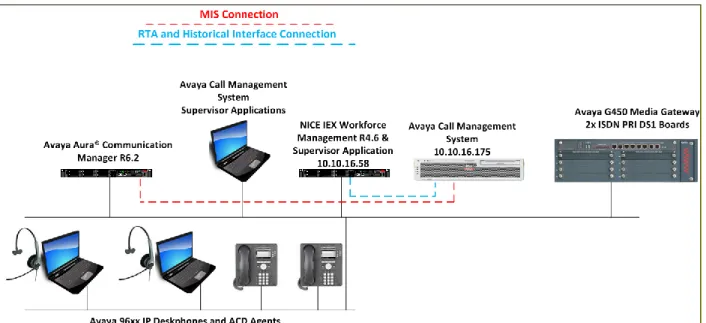
These Application Notes assume the configuration and MIS connectivity between Avaya Aura ® Communication Manager and Avaya Call Management System is already in place and will not be described.
During the testing, the Avaya CMS Supervisor and the NICE IEX Workforce Management Supervisor shown in Figure 1 were used for report verification purposes.
Figure 1: NICE IEX Workforce Management with Avaya Call Management System
4. Equipment and Software Validated
The following equipment and software were used for the sample configuration provided: Equipment/Software Release/Version
Avaya Aura® Communication Manager running on Avaya S8800 Server
R6.2 SP3 build R016x.02.0.823.0-20001 Avaya Call Management System running
on Sun Oracle X4270
i386 r16.3eg.a
IEX-RTA Interface Version 6.1.4, pl:2 Historical Interface Version 6.1.4 NICE IEX Workforce Management
running on NICE provided hardware
5. Configure Avaya Call Management System
The detailed administration of contact center resources and connectivity between
Communication Manager and Call Management System are not the focus of these Application Notes and will not be described. For administration of contact center resources and connectivity to Avaya Call Management System, refer to the appropriate documentation listed in Section 9. This section provides the procedures for how to verify the configuration of, and start the IEX-RTA and Historical interfaces.
5.1. View Configuration of IEX-RTA Interface
The IEX-RTA Interface requires the hostname of the IEX Workforce Management server to be configured in the hosts file of the CMS server. From the command line of CMS enter the command more /etc/hosts to verify the IP address and hostname of the IEX Workforce Management server are configured.
127.0.0.1 localhost 10.10.16.175 cms cms.devconnect.local loghost 192.168.1.1 cmssvr-c 192.168.2.2 switch 10.10.16.1 router 10.10.16.58 iex
The configuration of the IEX-RTA interface is defined in the rta.conf file, enter the command more /export/home/pserv/rta_iex/rta.conf and verify the HOST1, PORT1, ACD1,
MONITOR_LIST1 and REFRESH1 are configured. Explanations of these values are shown below. The port defined should match that configured by the IEX Workforce Management Implementation engineer.
#
# rta.conf - set configuration variables #
set -a # export all variables set in this file
HACMS=no # change to yes if HA CMS and auto-failover desired #
#--- Session 1 --- #--- (with EXAMPLE settings, NOT defaults) ---
HOST1=iex # the receiving server's host name in /etc/hosts
PORT1=6996 # the receiving server's port
ACD1=1 # ACD being monitored OPTS1="" # applicable command line options
REPORT1=rta_iex # respective custom report name
MONITOR_LIST1="1-2000" # skills to monitor
5.2. View Configuration of Historical Interface
The Historical Interface also requires the hostname of the IEX Workforce Management server to be configured in the hosts file of the CMS server. The configuration of the Historical interface is defined in the iex.conf file, enter the command more /export/home/pserv/iex6/iex.conf and verify the ACD, INTERVAL, TYPE, DIR, DEST, USER and PASS are configured. Explanations of these values are shown below. The TYPE, DIR, USER and PASS defined should match that configured by the IEX Workforce Management Implementation engineer.
# see configure instructions on Kona for more information # make a backup of this file before modifying
SESSIONS=2 # number of sessions
HACMS=no # look for HA cms lockfile
# copy entire section and change session number for additional feeds
ACD[1]=1 # ACD number
OFFSET[1]=0 # ACD offset from CMS
INTERVAL[1]=30 # ACD Interval 15, 30, or 60
REPORT[1]=0100 # Time to run adherence (OFF or HHMM) NAME[1]=#mon#day#yr2.#intr # File name
FORMAT[1]=old # Use new or old formatted reports
TYPE[1]=ftp # ftp, ldc or sftp
DIR[1]=switches/12 # Destination directory
APPN[1]=put # put or append (only put for sftp)
DEST[1]=iex # ftp/sftp server name or IP address
USER[1]=tvsys # ftp/sftp username
PASS[1]=Iex.prm$ # ftp password (not used for sftp)
5.3. Start IEX-RTA Interface
Navigate to the /export/home/pserv/rta_iex/ directory and execute the ./startrta command, follow the onscreen instructions to start the RTA interface.
1238FMK00K# ./startrta
Which IEX-RTA interface session do you want to start? [1-32] [all] all
Starting IEX-RTA session 1, please wait... 1238FMK00K#
5.4. Start Historical Interface
The historical interface uses FTP to transfer the interval statistics to IEX Workforce
Management, this process is executed from the crontab. As the cms user execute the command crontab –l and ensure the line below is shown. This is executed at 30 minute intervals which must match the INTERVAL value in the iex6.conf file.
6. Configure IEX Workforce Management
IEX Workforce Management is installed and configured by the IEX Workforce Management implementation team. Customers are provided with training on how to configure resources to map to the resources on Communication Manager and Call Management System, and on how to use the IEX Workforce Management Supervisor.
The procedure for installing and configuring IEX Workforce Management is outside the scope of these Application Notes and will not be covered. For detailed information on installation and configuration, refer to the appropriate documentation listed in Section 9.
These Application Notes assume that the IEX Workforce Management server has already been installed and configured with the connection and agent information from CMS. It is also
assumed that an FTP service is running on the IEX Workforce Management server (not detailed). This section describes the steps to display the configuration on the IEX Workforce Management Supervisor.
6.1. View Call Management System Historical Connection Information
The information used for the FTP of historical data can be viewed in the r_swxifacejobparms table on the IEX Workforce Management server database, as shown below. Note that the inputPath relates to the local directory on the server, the last part of which matches to the configuration in the iex.conf file, in this instance /switches/12
6.2. View Call Management System Real-Time Connection Information
The connection information for connection to the IEX RTA interface on CMS is configured within an XML file on the IEX Workforce Management Server. The filename and location will vary depending on implementation, for the purpose of the Application Note the information contained within the file C:\totalview\tvsys\ch2.xml is shown below. Notice the PORT matches that configured in rta.conf and the address is that of the CMS server.
- <set>
- <channel>
<id>1</id>
<name>Definity</name> <enabled>true</enabled>
<channelType>SOCKET_SERVER</channelType>
<deviceTypeSupported>DEFINITY</deviceTypeSupported> - <channelParameters>
- <entry>
<string>PORT</string> <string>6996</string> </entry> </channelParameters> - <connections> - <connection> <id>1</id> - <devicePaths> - <devicePath> <id>1</id> <address>10.10.16.175</address> - <device> <id>1</id>
<name>Avaya CMS</name> <deviceParameters /> </device> </devicePath> </devicePaths> </connection> </connections> </channel> </set>
7. Verification Steps
This section provides the tests that can be performed to verify proper configuration of Avaya Call Management System and NICE IEX Workforce Management.
7.1. Verify IEX-RTA Interface is Connected
From the CMS command line navigate to the /export/home/pserv/rta_iex directory and execute the ./menurta command. Enter the option to Check Status and verify the service is running and connected. 1238FMK00K# ./menurta --- IEX-RTA Menu --- 1) Start IEX-RTA 2) Stop IEX-RTA 3) Check Status
4) View Maintenance Log 5) Show Version
6) Show Licensed Authorizations 7) Show Staffed Agents Count
8) Change Split(s)/Skill(s) and/or ACD 9) Show Configuration
0) Exit
============= Choice ==> 3
From the IEX Workforce Management Server, enter the command netstat –an|grep 6996 where 6996 is the port configured in rta.conf. Verify that there is a connection from the IP address of CMS ESTABLISHED.
7.2. Verify Real Time Adherence Display
From the IEX Workforce Management Supervisor, navigate to the operations management menu and select the Real-Time Adherence option. Click on the Management Unit container in which the relevant ACD agents have been configured and verify the information displayed reflects the true status of the ACD Agents.
7.3. Verify Historical Interface Activity Log
Navigate to the /export/home/pserv/iex6 directory and, as the cms user, enter the command ./menu. Select the option to View log (new to old) and verify agent report and skill reports display a value for row(s) unloaded and FTP SUCCESS is displayed, indicating successful transfer of the raw ACD data to IEX Workforce Management. Also take a note of the file: value, in this case 112212.1230
1238FMK00K# su cms
1238FMK00K# ./menu
iex Reports Interface
1) Display configuration information ---
2) Recover one interval 3) Recover one day
4) Recover multiple intervals 5) Recover multiple days ---
6) View log (new to old) 7) View log (old to new) ---
Q) Quit Selection: 6
11/22/12-13:05:01 508 Session 2 LDC SUCCESS, file: /export/home/iex/112212.1230 bytes: 1449
2 row(s) unloaded.
11/22/12-13:05:01 457 Session 2 Running skill report for 11/22/2012 1230 4 row(s) unloaded.
11/22/12-13:05:01 410 Session 2 Running agent report for 11/22/2012 1230 11/22/12-13:05:01 321 Session 1 FTP SUCCESS, file: 112212.1230 bytes: 1449 2 row(s) unloaded.
11/22/12-13:05:01 271 Session 1 Running skill report for 11/22/2012 1230 4 row(s) unloaded.
11/22/12-13:05:00 224 Session 1 Running agent report for 11/22/2012 1230
On the IEX Workforce Management server, navigate to the FTP directory, in this case
/switches/12 and confirm the file noted above has been received. Note, this must be done before the IEX Workforce Management system processes the data.
7.4. Verify Historical Reports
Using the IEX Workforce Management Supervisor application, view the historical report information and verify its accuracy against a report provided by the CMS application. An example of a CMS report is shown below.
8. Conclusion
These Application Notes describe the configuration steps required for NICE IEX Workflow Management to successfully interoperate with Avaya Call Management System and Avaya Aura® Communication Manager via the historical interface for historical data and the IEX-RTA-interface for real-time data. All test cases were completed successfully. Please refer to Section 2.2 for test results and observations.
9. Additional References
This section references documentation relevant to these Application Notes. The Avaya product documentation is available at http://support.avaya.com where the following documents can be obtained.
[1] Administering Avaya Aura® Communication Manager, Release 6.2, Issue 7.0, July 2012
Document ID 03-300509
[2] Avaya Call Management System Software Installation, Maintenance, and
Troubleshooting, Release 16.3, November 2012
All information on product installation and configuration for NICE Interaction Management can be obtained by visiting http://www.nice.com
©2013 Avaya Inc. All Rights Reserved.
Avaya and the Avaya Logo are trademarks of Avaya Inc. All trademarks identified by ® and ™ are registered trademarks or trademarks, respectively, of Avaya Inc. All other trademarks are the property of their respective owners. The information provided in these Application Notes is subject to change without notice. The configurations, technical data, and
recommendations provided in these Application Notes are believed to be accurate and
dependable, but are presented without express or implied warranty. Users are responsible for their application of any products specified in these Application Notes.
Please e-mail any questions or comments pertaining to these Application Notes along with the full title name and filename, located in the lower right corner, directly to the Avaya