Secure
and manage
mobile laptops
About the Key
Project Design
Guide
The Citrix Key Project Design
Guide provides an overview of
the solution architecture and
implementation used in the key
project on secure and manage
mobile laptops. This design has
been created through architectural
design best practices obtained
from Citrix Consulting Services and
thorough lab testing, and is intended
to provide guidance for solution
evaluation and the introduction
of proofs of concept (POCs).
The Key Project Design Guide
incorporates generally available
products, and employs repeatable
processes for the deployment,
operation and management of
components within the solution.
Organizations are becoming more dispersed
and employees are increasingly choosing to work
from anywhere, in any environment. For example,
nearly one in five workers worldwide frequently
telecommutes.
1Such flexible workstyles are driving
increasing numbers of employees to work offline
and outside the corporate network.
However, disconnected or offline laptops are
difficult for organizations to deploy, manage and
secure. Currently, many address these challenges
by introducing large numbers of different tools,
personnel, and processes to manage and secure
their laptops, or by choosing between IT control
or user freedom. These approaches lead to
headaches for IT, with problems such as malware
and corruptions from failed patches or updates,
leakage of corporate data on lost or stolen laptops,
reduced user productivity due to locked-down
environments on mobile laptops, and slow recovery
from malware or virus infections for mobile workers.
Citrix offers a better approach for deploying, managing and securing corporate laptops while enabling mobile workstyles. Citrix XenClient is a simple, low-cost solution that gives users freedom and mobility and gives IT admins centralized management and control by extending the benefits of Citrix XenDesktop to mobile laptops. With XenClient, IT can simplify laptop management and protect critical company data, even while users are off the corporate network. Meanwhile, users receive a seamless experience with the ability to easily move from a laptop to a smartphone or tablet through ongoing synchronization of their profiles, apps, and data between local and hosted VMs. This entire solution is included as part of XenDesktop, which provides desktop virtualization for every use case in an organization.
Solution objectives
World Wide Co. (WWCO) is a medium-size business that supplies all employees with static IT-issued PCs and laptops. WWCO currently has 500 employees, 300 who are mobile or work remotely and 200 who work at headquarters. The company’s IT department has stressed that simplifying laptop management as well as securing laptops are critical. WWCO was looking at XenDesktop and wanted to extend the benefits of desktop virtualization to mobile laptops using XenClient so employees can work from anywhere, at any time—even when offline—and achieve exceptional flexibility and productivity.
The objective of this guide is to outline the business challenges that WWCO encountered, how XenClient addressed them and the architectural design decisions and implementation that supported a simple, low-cost solution for securing and managing mobile laptops.
WWCO business objectives
• Simplify laptop deployment and management. WWCO is looking for an
easier, more effective way to deploy and manage corporate laptops
• Protect critical company data. Sensitive corporate data is at risk every time
a laptop is lost or stolen. WWCO needs to protect the valuable data on these laptops
• Enable mobile workstyles with complete control and security – even
when users are offline. To work efficiently, mobile users need access to their
desktops in any scenario, even while offline or disconnected from the corporate network
• Provide in-field disaster recovery for mobile users. Recovery of remote or
mobile users’ laptops and data is challenging since they cannot easily be visited by IT. Mobile workers need quick access to their virtual desktops after a disaster, loss or failure.
WWCO technical objectives
• Provide failsafe provisioning, patching and updates. Provision thousands
of laptops as easily as one, eliminate patch failures and achieve 100 percent success rates on updates
• Provide secure, locked-down, personalized desktops. Secure laptops with
full-disk encryption, a protected VM image for instant recovery from malware or corruption, and network isolation
• Ensure PC execution for local use cases. Provide local execution for
situations such as distributed offices, limited network bandwidth, etc.
• Ensure high reliability and rapid recovery. Deliver high reliability with zero
patch failures, transparent backup, rapid recovery and instant, full migration to new PCs in case of hardware failure.
Secure and manage mobile laptops with XenClient
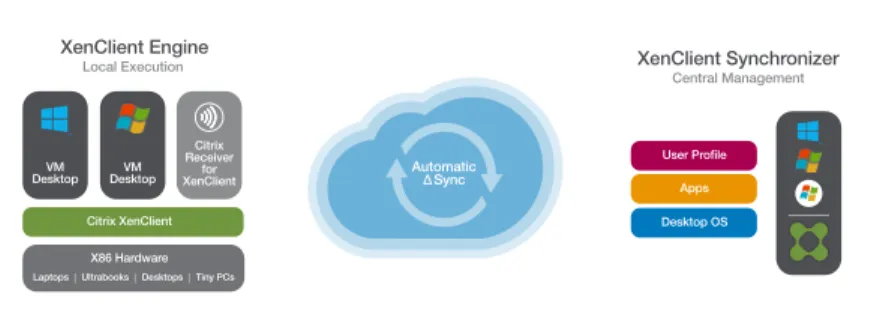
WWCO selected XenClient as its security and management solution for mobile laptops to extend the benefits of desktop virtualization to corporate laptops and give IT new levels of security, reliability and control, as well as simplified laptop management. The XenClient deployment consisted of two primary components: XenClient Synchronizer (server) and XenClient Engine on the physical laptop (see Figure 1).
Figure 1. XenClient centrally manages a local virtual desktop
• XenClient Engine. XenClient Engine is a true Type-1 client hypervisor that
runs on bare metal and provides high performance and security. The Engine lets users run multiple local virtual desktops simultaneously, side-by-side and in complete isolation. Users of laptops powered by XenClient can access their various virtual desktops anywhere, anytime—even while disconnected from the network.
• XenClient Synchronizer. XenClient Synchronizer enables PCs with XenClient
Engine to download centrally managed virtual desktops and run them locally. Using the Synchronizer, IT can centrally back up user data through a secure connection whenever the user connects to the Internet, define security policies, disable lost or stolen PCs and restore a user’s virtual desktop on any XenClient-based device.
These Citrix components communicate with each other to deliver a superior management experience to the physical computer from the user’s device.
Secure and manage mobile laptops architecture
Once WWCO had completed its assessment and concluded that XenClient was the ideal solution to meet its objectives, the IT team quickly moved into the design phase. Speed of delivery was imperative and WWCO determined the hardware and storage sizing to support the implementation based on the needs of its users, the existing environment and application requirements. WWCO’s existing environment consisted of a single location with 500 devices and a single datacenter supporting 300 mobile devices.
Automatic Δ Sync VM
Desktop DesktopVM Citrix Receiver for XenClient Local Execution XenClient Engine Citrix XenClient X86 Hardware Laptops Ultrabooks Desktops Tiny PCs
Central Management
XenClient Synchronizer
Desktop OS Apps User Profile
Optimized Local Execution True-Type 1 Client Hypervisor
Centrilized Control
Policy-driven Management Server
Organizations implementing virtual desktops and applications often leverage
Citrix Project Accelerator, an open, web-based tool featuring best practices of Citrix’s top consultants, which can assist with user assessment and environment design.
Architectural considerations
• High availability and business continuity are important, so WWCO chose an “N+1” configuration to ensure the solution sizing included a spare server to handle user capacity in the event of a failure.
• Any personal device must connect over an encrypted connection to meet WWCO’s very strict regulatory compliance requirements.
• The desktop virtualization solution must integrate with existing infrastructure for Active Directory, DNS/DHCP and SQL Server.
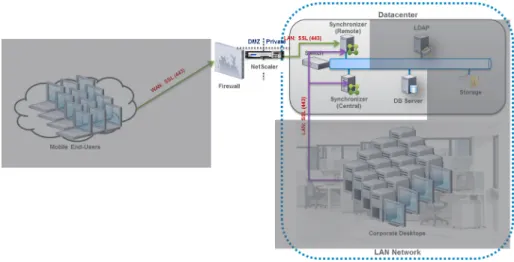
• Several mission-critical financial applications with high-performance requirements could not run in the datacenter and thus must be run locally. Figure 2 depicts the complete secure and manage mobile laptops architecture. It represents WWCO’s 500-seat deployment of XenClient and remote access, hardware and infrastructure requirements.
Figure 2: Secure and Manage Mobile Laptops architecture for WWCO
Each layer of the architecture diagram is discussed in detail below:
Desktop layer
The desktop layer hosts VM guests, optimizes them, and is the display mechanism of the secure and manage mobile laptops solution. Figure 3 depicts the Desktop Layer of the secure and manage mobile laptops architecture for WWCO’s 500-seat deployment of XenClient. XenClient Engine is installed on individual computers and provides a virtual platform to run each VM image. An image contains a VM of an operating system plus any included applications. The Engine may have more than one image on a computer. The image definition includes its RAM and storage requirements. Managing memory use is performed by the Engine.
More than one VM can be running at once, and the user can switch between VM images, or between an image and the Engine in a single key press. XenClient Engine also performs the security and management tasks on the laptop by
• Checking that the user password is correct (otherwise no access to the computer is permitted)
• Providing optional disk encryption services
• Establishing network connections (wireless and/or wired, including built-in and USB-based 3G modems)
• Communicating securely (through SSL) with XenClient Synchronizer and
checking for updated VMs, changes to policies or virtual applications and Engine updates
• Downloading and preparing new versions of VMs and the Engine as a background task
• Uploading (and tracking) backups to the Synchronizer. • Maintaining local backup.
While XenClient Engine does communicate securely with XenClient Synchronizer, that communication is not a requirement for operation. The Engine runs
independently on an individual computer and can run one or more loaded VM image(s). However, to experience the full power of the solution, Citrix recommends pairing the Engine with the centralized management paradigm provided by the Synchronizer.
WWCO’s solution required the following component to provide secure access to the Desktop Layer:
• Corporate laptop. XenClient Engine runs on a wide variety of personal
computers. See Table 1 for technical specifications for the Engine. If you install onto the whole disk, the Engine uses the full hard drive, replacing any natively installed operating systems and files. The whole disk is available for the Engine and any VMs.
Citrix makes it easy to determine if your computer will work with XenClient Engine. Access the XenClient Platform Check on the Citrix website to verify if your existing Windows machine supports the virtualization required to run the Engine.
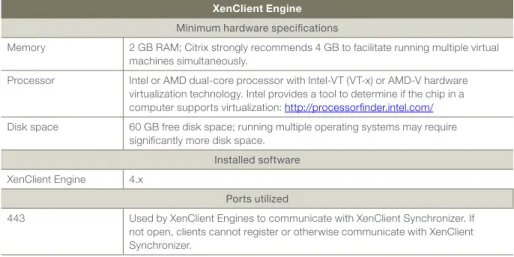
Table 1. XenClient Engine specifications
Access layer
The access layer consists of appliances responsible for providing connectivity to the XenClient environment. It controls connectivity across multiple XenClient Synchronizers within the control layer.
To provide secure remote access to the Synchronizers, the solution needs a public access point on the Internet that allows each user to be securely authenticated against the corporate Active Directory domain while leveraging SSL data encryption to protect the devices’ interactions with the Synchronizers. The following component is required to provide remote access:
• Citrix NetScaler. NetScaler is a secure application and data access solution
that gives administrators granular application- and data-level control while empowering users with remote access from anywhere. IT administrators gain a single point of management for controlling access and limiting actions within sessions based on user identity and the endpoint device. The results are better application security, data protection and compliance management.
XenClient Engine
Minimum hardware specifications
Memory 2 GB RAM; Citrix strongly recommends 4 GB to facilitate running multiple virtual machines simultaneously.
Processor Intel or AMD dual-core processor with Intel-VT (VT-x) or AMD-V hardware virtualization technology. Intel provides a tool to determine if the chip in a computer supports virtualization: http://processorfinder.intel.com/ Disk space 60 GB free disk space; running multiple operating systems may require
significantly more disk space.
Installed software
XenClient Engine 4.x
Ports utilized
443 Used by XenClient Engines to communicate with XenClient Synchronizer. If not open, clients cannot register or otherwise communicate with XenClient Synchronizer.
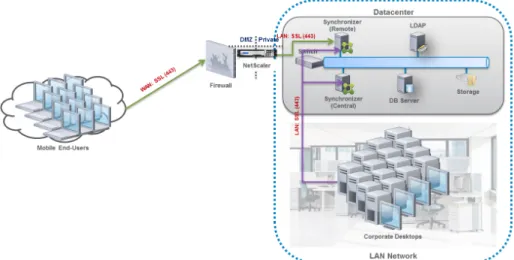
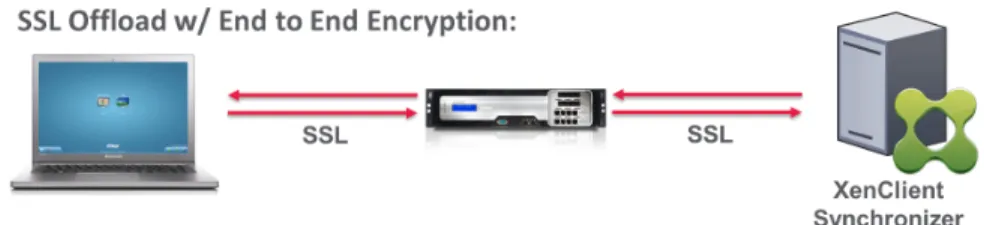
Leveraging NetScaler SSL offloading with end-to-end encryption or NetScaler SSL bridging enables IT to expose the Synchronizer to the public Internet with peace of mind. With NetScaler in the fold, WWCO now has two options for offering central image management to mobile users:
• Option A. NetScaler SSL offloading with end-to-end encryption ensures the
communication from XenClient Engine to XenClient Synchronizer is protected. By configuring SSL offloading by re-encrypting the clear text data and using secure SSL sessions to communicate with the Synchronizer, WWCO can ensure traffic coming from the public Internet is secured. In parallel, WWCO will gain some scalability due in part to the NetScaler appliance’s offloading of SSL encryption/decryption traffic.
Figure 4. Using NetScaler SSL offloading with end-to-end encryption to encrypt traffic
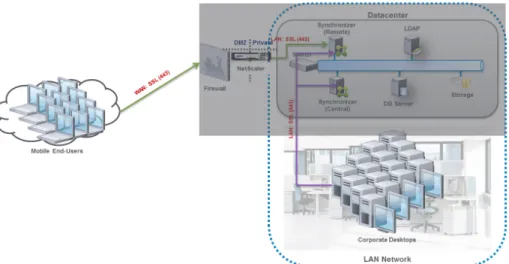
• Option B: NetScaler SSL bridging enables the appliance to bridge all secure
traffic directly to the web server. In this scenario, NetScaler does not offload or accelerate the bridged traffic as SSL offloading with end-to-end encryption does. This option is simple and appropriate for organizations that do not feel the need to leverage the offload feature but want another layer of network security.
Figure 5. Bridge traffic directly to a web server with SSL Bridging
Both scenarios can protect against network-level attacks, such as SYN and HTTP DOS attacks. WWCO can also leverage NetScaler access control lists (ACLs) to secure the traffic further. The company can also leverage features like surge protection and rate limiting to control inbound connections and avoid overloading the Synchronizer.
Citrix recommends installing NetScaler in the network DMZ, where it participates on two networks: a private network and the Internet with a publicly routable IP address. You can also use NetScaler to partition local area networks (LANs) internally for access control and security. You can create partitions between wired
The Citrix NetScaler Gateway MPX appliance supports versions 9.2, 9.3, and 10 of the NetScaler Gateway software. Click here for detailed specifications of the NetScaler Gateway MPX appliance.
Control layer
The control layer contains all the infrastructure components required to support and manage the desktop layers. Figure 6 depicts the Control Layer of the secure and manage mobile laptops architecture for WWCO’s 500-seat deployment of XenClient. WWCO was able to utilize many existing infrastructure components for its 500-user XenClient deployment. This approach helped reduce overall solution costs and complexity while expediting delivery.
XenClient Synchronizer runs on a Windows 2008 R2 server, providing the administration to support each XenClient Engine. A single Synchronizer can administer hundreds of Engines (laptops or PCs), although two are recommended: a central Synchronizer and a remote Synchronizer.
Figure 6: Control layer
WWCO’s solution required the following Citrix and Microsoft infrastructure components to provide a seamless integration into their architecture:
• Active Directory. XenClient utilizes Microsoft Active Directory for
authentication and policy enforcement for both users and computers. WWCO leveraged its existing Active Directory 2008 R2 environment for the XenClient implementation.
SQL Server database. This database provides the foundation for the XenClient
central server by storing all configurations and desktop and utilization information. WWCO had an existing SQL Server 2008 R2 mirror that could be leveraged for the XenClient environment. The mirror was configured with a witness server to ensure high availability.
XenClient Synchronizer performs all the administrative tasks for the solution. It keeps a database of all objects in the XenClient solution:
• Users: The users to whom computers, VMs, policies, virtual applications, and backups for each VM are assigned
• Groups: Collections of users, used for VM, policy, and virtual application assignments
• VMs: OS and version, which are assigned to groups and users and have policies enforced on them
• Policies: Polices such as backup frequency, USB and other device control, VM and computer access control, and more
• Software: Library of ISO images, VMs, virtualized applications and XenClient Engine updates
• Computers: Devices that are assigned to users
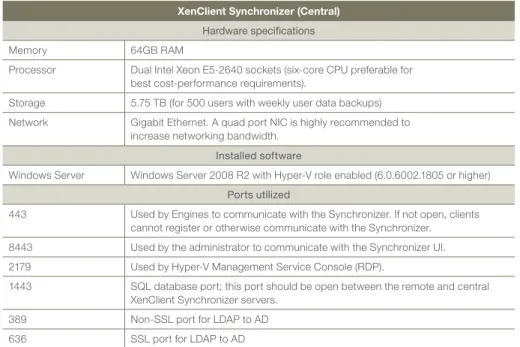
• Events: Detailed audit trail of actions for each object in XenClient Synchronizer XenClient Synchronizer builds the VMs, manages users and groups, handles integration with Active Directory and assigns VMs to users. When contacted by an Engine, it sends down updated VMs, virtual applications or policies and restored user data, or accepts (backs up) appropriate files and holds them as needed. XenClient Synchronizer can restore a user’s data from backup onto the same computer or a different one. It can be backed up and restored using conventional backup tools. Using the Synchronizer, the administrator can request information about the computer running a VM (disk use, type of hardware and diagnostics). Table 2 focuses on the solution infrastructure machines required to support a central Synchronizer. (Note: Active Directory and SQL Server were existing infrastructure
XenClient Synchronizer (Central)
Hardware specifications
Memory 64GB RAM
Processor Dual Intel Xeon E5-2640 sockets (six-core CPU preferable for best cost-performance requirements).
Storage 5.75 TB (for 500 users with weekly user data backups) Network Gigabit Ethernet. A quad port NIC is highly recommended to
increase networking bandwidth.
Installed software
Windows Server Windows Server 2008 R2 with Hyper-V role enabled (6.0.6002.1805 or higher)
Ports utilized
443 Used by Engines to communicate with the Synchronizer. If not open, clients cannot register or otherwise communicate with the Synchronizer.
8443 Used by the administrator to communicate with the Synchronizer UI. 2179 Used by Hyper-V Management Service Console (RDP).
1443 SQL database port; this port should be open between the remote and central XenClient Synchronizer servers.
The remote Synchronizer allows an administrator to install multiple instances of the Synchronizer software on separate Windows 2008 R2 server systems. Those servers can exist on the same LAN or across a wide area network. Using this functionality, each user can register to the central Synchronizer server or to a remote Synchronizer server. Each remote Synchronizer shares the same instance of the central server’s database. Table 3 focuses on the solution infrastructure required to support a remote Synchronizer. (Note: Active Directory and SQL Server were existing infrastructure.)
Table 3. XenClient Remote Synchronizer specifications
Management and operations
For day-to-day administration, WWCO leverages XenClient Synchronizer to manage and support XenClient users. Support staff and administrators were granted access to the console, enabling them to manage and troubleshoot users on XenClient devices.
Centralized management is performed through the Synchronizer. This component is responsible for guest image and application deployment, policy, updates and simplified backups. The Synchronizer also integrates with Active Directory so images and policy can be assigned to users, OUs or computers directly. The Synchronizer approaches the deployment of these items in a unique manner. Instead of the traditional deployment of locally executed installation files (.exe, .msi, etc.), the administrator can use a WYSIWIG (What You See is What You Get) approach by creating and manipulating the OS images centrally through integration with Microsoft Hyper-V, which presents a running version of the OS image for the administrator to manipulate.
XenClient Synchronizer (Remote)
Hardware specifications
Memory 64GB RAM
Processor Dual Intel Xeon E5-2640 sockets (six-core CPU preferable for best cost-performance requirements).
Storage 5.75 TB (for 500 users with weekly user data backups) Network Gigabit Ethernet. A quad port NIC is highly recommended to
increase networking bandwidth.
Installed software
Windows Server Windows Server 2008 R2
Ports utilized
443 Used by XenClient Engines to communicate with XenClient Synchronizer. If not open, clients cannot register or otherwise communicate with XenClient Synchronizer.
8443 Used by the administrator to communicate with the Synchronizer UI. 2179 Used by Hyper-V Management Service Console (RDP).
1443 SQL database port; this port should be open between the remote and central XenClient Synchronizer servers.
389 Non-SSL port for LDAP to AD
The administrator can add updates directly to the central image and only the delta differences are deployed to the clients, where they are added with the base images to create the updated image. Essentially, the system is simply copying updates as an image instead of relying on imperfect installation logic trees, which lead to unforeseen edge cases that can cause deployments or updates to fail.
Optimizations
Several parameters need to be sized: • Central SQL Server database
– Typical storage used is 1.5MB/year/user. Measured on a production server in use for 2+ years
• Server disk storage
– VM image for deployment (rule of thumb: number of VMs x VM disk size x 2.5) – User disk backup (Shared VM scenario) [Rule of thumb per VM assigned
per user: (U: drive size + (n-1)*m) x 50% x 1vm)]
• Network utilization
– All transfers done are compressed to approximately 50-75 percent of actual size sent
– Bandwidth policies in XenClient will be used to control network utilization
Sizing example
Category Resource Total Comment
(1) Central SQL Server database
1.5 MB/year/user 1.5MB x 500 users =
750MB/year for 500 users
Size of data repository for user information per year. # of VMs on
laptop/desktop
1 VM (Windows 7) Single VM image size
(golden image)
40 GB (on Synchronizer)
Includes Win 7, Office suite. # of versions of
golden image
10 Rule of thumb: 2-4 versions
on XenClient Synchronizer.
(2) Server disk storage for VM image for deployment
Number of VMs x VM Disk Size x 2.5 = 10 x 40GB x 2.5 = 1 TB
Average size of user U: drive (for Shared image VM)
20 GB
Average size of user backup (m)
1GB
About Citrix
Citrix (NASDAQ:CTXS) is the cloud company that enables mobile workstyles—empowering people to work and collaborate from anywhere, easily and securely. With market-leading solutions for mobility, desktop virtualization, cloud networking, cloud platforms, collaboration and data sharing, Citrix helps organizations achieve the speed and agility necessary to succeed in a mobile and dynamic world. Citrix products are in use at more than 260,000 organizations and by over 100 million users globally. Annual revenue in 2012 was $2.59 billion. Learn more at www.citrix.com.
Copyright © 2013 Citrix Systems, Inc. All rights reserved. Citrix, XenClient, NetScaler, NetScaler Gateway and XenDesktop are trademarks of Citrix Systems, Inc. and/or one of its subsidiaries, and may be registered in the U.S. and other countries. Other product and company names mentioned herein may be trademarks of their respective companies.
Corporate Headquarters Fort Lauderdale, FL, USA Silicon Valley Headquarters Santa Clara, CA, USA EMEA Headquarters Schaffhausen, Switzerland
India Development Center Bangalore, India
Online Division Headquarters Santa Barbara, CA, USA Pacific Headquarters Hong Kong, China
Latin America Headquarters Coral Gables, FL, USA UK Development Center Chalfont, United Kingdom
Sizing example (cont)
Conclusion
WWCO was able to leverage Citrix XenClient to deliver a simple, low-cost solution for turning PCs and laptops into centrally managed, secure virtual appliances. XenClient extended the benefits of desktop virtualization to corporate laptops by combining the power of centralized management with the flexibility of local execution.
References
XenClient documentation: http://support.citrix.com/product/xc/ev4.5/#tab-doc
1 Ipsos survey for Reuters News in 2012 (link)
Category Resource Total Comment
Number of user backups kept (n)
4 (one per week) User backup frequency Weekly
Storage per user backup
1 user [U: drive size + (n-1)*m] x 50% x 1vm = [20+((4-1)x1)] x 0.5 x1 = 11.5 GB/user
n = number of user backups kept m = average size of user backup
(3) Server disk storage for all user disk backup
500 users 500 x 11.5 GB = 5.75 TB
Network bandwidth 1 GbE A single isolated 1GbE LAN
can provision Win7 VM to ~1100 PCs per day
Assuming bandwidth can be used as much as possible