CHAPTER 31
Recovering from Crashes,
Data Loss, and Other
Problems
In This Chapter:
.
Application Crashes
.
System Crashes
.
Fixing Hard Drive Problems
.
Resetting PRAM
.
Restoring a Lost Administrator Password
.
Reinstalling System Software
In this chapter, you learn ways to react to application and system crashes and ways to be proactive about virus protection. You also learn to use your Mac OS X installation DVD to reset your password and, in times of widespread system failure, to reinstall your operating system.
Application Crashes
Sometimes, out of the blue, the application you’re trying to use freezes up or disappears altogether. These events are commonly referred to as crashes.
578
CHAPTER 31:
Recoving from Crashes, Data Loss, and Other Problems
If you experience a lot of crashes in a specific application, you might want to see whether you can download a software update from the developer’s website— frequently, software companies release a free patch to correct an instability prob-lem. In addition, preference files associated with an application are sometimes corrupted, which can cause an application to operate erratically—such as when an application simply won’t run, even if you’re hardly doing anything that requires machine effort. If a preference file is causing a problem, you can correct it by deleting the file from your computer and resetting your preferences. Typically, preference files are stored in the systemwide Library folder inside another folder called Preferences.
Application Unexpectedly Quits
One of the more common kinds of crashes involves an application quitting. Suddenly, without warning, the document window disappears from the screen, and you see a message similar to the one shown in Figure 31.1.
Did you
Know?
FIGURE 31.1 This unfriendly message might some-times appear when you’re working in an application.
Unfortunately, when a program quits while you’re working on a document, all the work you’ve done since the last time it was saved is gone—unless the application has a recovery feature that automatically saves, such as Microsoft Word. For that reason, get in the habit of saving your documents often so that you don’t lose much if something goes wrong.
Mac OS X is designed to be stable despite localized problems with applications, so if one application unexpectedly quits, you can continue to work in others without having to restart.
Force Quit
Not all crashes cause an application to quit. Sometimes the application just stops running. The mouse might freeze, or it might move around but not do anything.
By the
Way
Sometimes an application appears to be unresponsive because it is in the middle of a resource-intensive task. The keyboard shortcut Command-. (period) can be used to interrupt active processes in some applications to return your system to your control. If an application isn’t responding because it’s busy, you might want to try this command, or let the application finish its task, instead of force-quitting it—just be sure that the application you want to interrupt is the one you have selected.
If this happens, follow these steps to force quit the application so that you can restart it:
If you must force quit an application, you lose unsaved changes because the application is not functioning well enough to save. Yet another reason to save often!
1. From the Finder, press the Command-Option-Esc keys simultaneously, or choose Force Quit from the Apple menu. A window appears containing a list of applications you can force quit, as shown in Figure 31.2.
By the
Way
Watch
Out!
FIGURE 31.2 Choose the application to force quit from this window.
2. Normally, the application you were just running is selected. If not, select the application in the list.
3. Click Force Quit. Over the next few seconds, Mac OS X should make the pro-gram quit. If it fails to occur, try again. Sometimes it takes two tries for the system to get the message.
4. If the program really doesn’t quit, go to the Apple menu and choose Restart. At this point, there might be systemwide instability, and it doesn’t hurt to restart the entire system.
580
CHAPTER 31:
Recoving from Crashes, Data Loss, and Other Problems
A kernel panicis an occasional Mac OS X system error.When this type of error occurs, instructions in several languages to restart your computer appear onscreen. Use the instructions in the “System Crashes” section, next, to force a system restart.
System Crashes
At times, your computer might freeze up altogether—refusing to let you interact with any applications or shut it down. This is known as a system crash.
An occasional system crash can happen, regardless of how well you maintain your system. However, if you encounter crashes several times a day, something is definite-ly wrong. Your system might be having a conflict with some new software or hard-ware you’ve installed, or might be experiencing the initial symptoms of a dying hard drive. Fortunately, there are ways to check for the cause of such problems. Consider the following:
.
Recent software installations—What did you do just before your computerbegan to crash? If you just installed some new software, maybe one of those files is causing a conflict. You’ll want to check the program’s documentation (or Read Me file, if there is one) to see whether the publisher is aware of any problems.
.
Recent hardware upgrades—If you just installed a RAM upgrade on yourcomputer and it is now crashing, maybe the RAM module you installed is defective. It’s always possible and not easy to test for. You might want to con-sider removing the RAM upgrade, strictly as a test. Then work with your Mac to see whether the crashes go away. If they do, contact the dealer for a replacement module. If you’ve installed an extra drive, scanner, or other device, disconnect it and turn off its software to see whether the problem dis-appears.
.
Hardware defects—As with any electronic product, there’s always a slightchance that one or more of the components in your computer might fail. In the vast majority of cases, however, a software conflict (or defective RAM) causes constant crashes. If you’ve tested everything and your Mac still won’t work reliably, don’t hesitate to contact Apple Computer or your dealer and arrange for service.
By the
Way
Hard drive failure can be difficult to predict. The best course of action is to have a regular backup plan in place so that you don’t lose important files. See Chapter 30, “Maintaining Your System,” for more information about backing up your data using traditional tools or Leopard’s new Time Machine feature.
Forcing a Shutdown
If your computer refuses to shut down or restart in the normal fashion, you have to force the process. Forcing shutdown is done in different ways on different models of Mac. On modern machines, pressing and holding down the power button for 6 sec-onds shuts down the system. After the computer shuts down, turn it on as you nor-mally would.
On some older Macs, you might have to locate a tiny Reset button labeled with a triangle-shaped icon and then press it. On even older models, you might have to use the point of a pencil or a straightened paperclip to press the button. As soon as you press and release the reset button, your Mac should restart normally.
If attempting to reset your Mac fails, your only remaining option is to unplug it, wait 30 seconds, plug in your Mac again, and turn it on. Because it’s much more drastic, consider this action only if the process described earlier doesn’t work. At this point, you should be able to start normally, except that you might find the startup process pauses for some extra seconds at the Checking Disks prompt on the Mac OS X startup screen. A forced shutdown can cause minor disk directory damage, which is fixed during the startup process. This should not be any cause for concern.
Fixing Hard Drive Problems
Leopard comes with a tool that can check for and repair minor hard drive problems. The program is Disk Utility, and you’ll find a copy in the Utilities folder inside the Applications folder. Although Disk Utility is something you will hopefully very sel-dom use, it is also a very important tool for recovering from drive-related issues.
One of the best tools for monitoring your hard drive is your hearing. Hard drives are moving parts, and the sound they make can change or grow louder as they wear. Experienced computer users know to be concerned if their computer begins clicking or whining when saving or reading files because these are signs of a fail-ing drive. (Some sounds are normal—drastic change is worrisome!) You don’t always get these audible warning signs, but if you do hear something unusual, it is time to back up your data and to run hard disk checks.
By the
Way
By the
Way
582
CHAPTER 31:
Recoving from Crashes, Data Loss, and Other Problems
Repairing File Permissions
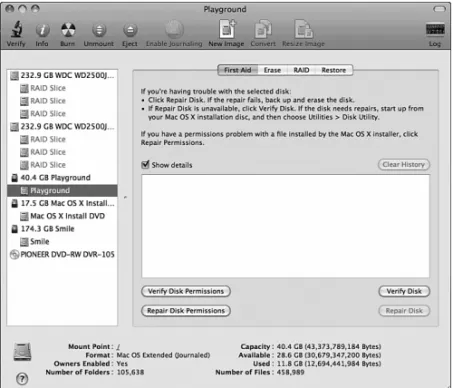
If you begin to see system errors related to denied permissions or failures to access needed components, you can run the First Aid component of Disk Utility to verify or repair file permissions. To do so, open Disk Utility from the Utilities folder. Select the drive you want to examine and then click the First Aid button (see Figure 31.3). Verifying permissions displays any anomalies in your file system, but does not fix them. Repair, on the other hand, finds and fixes any issues. These processes might take several minutes, but you can watch as Disk Utility lists all the files on your computer for which the current permissions don’t match what they should be.
FIGURE 31.3 The First Aid component of Mac OS X’s Disk Utility can check your drive for basic direc-tory problems and fix them.
After you install software, you might want to use Disk Utility to repair file permissions—sometimes software installers make changes to file ownership or permissions that result in slower system performance or even failures by other applications.
Finding and Repairing Hard Disk Damage
In addition to identifying and fixing permissions problems, Disk Utility can verify and repair drives. You can use this feature for preventive maintenance. If you repair your hard drive periodically, you might avoid the “sudden” appearance of a larger
Did you
Know?
hard drive failure. Hard drives, as storage devices that are continuously in use, can develop localized problems before a user becomes aware of them.
You cannot repair directory problems on a startup drive (the drive from which the operating system is running) from the Disk Utility application on your hard drive. If you need to repair your main drive, you must boot from your system installation DVD and run a version of Disk Utility from that disk. To do this, insert the DVD and restart your computer while holding down the C key. When your system is booted, choose Open Disk Utility from the Installer application menu.
After Disk Utility has started, select the disk you want to repair, and then click the First Aid button to display the repair options. You can choose Verify Disk to check for potential problems without repairing them, or choose Repair Disk to check for errors and repair them, if found, all at once.
The nice thing about Disk Utility is that it’s free, but it’s not a 100% solution. Several popular commercial programs offer to go beyond Disk First Aid in checking your drive and repairing catalog damage. Here’s a brief description of several hard drive diagnostic programs and an explanation of what each program does:
.
DiskWarrior—This single-purpose program is from Alsoft (www.alsoft.com), apublisher of several Mac utility products. Its stock in trade is the capability to rebuild, rather than repair, a corrupted hard drive directory file. It checks the original catalog to locate the files on your drive and then uses that informa-tion to make a new directory to replace the damaged one.
.
TechTool Pro—In addition to hard drive repairs, TechTool Pro (www.micromat.com) can optimize the drive and even run a wide range of diagnos-tic checks on all your computer’s hardware and attached devices. One great feature is the capability to perform an extended test of your computer’s RAM. This might be helpful if you suddenly face a lot of crashes after doing a RAM upgrade. To add to its bag of tricks, TechTool Pro can also do virus checks. To check a Mac OS X drive, you have to restart from your TechTool Pro CD.
.
Drive Genius—Drive Genius (www.prosofteng.com/) is a one-stop shop foreverything “disk” related. From drive repair to partitioning and backup, this tool provides a wide range of common disk tools within a single package. Drive Genius is a newcomer compared to DiskWarrior and TechTool Pro, but is arguably the best all-around disk utility available.
If you choose any of the disk repair packages, be sure to use them as directed in the instructions. These tools operate at a low level and can potentially cause damage to your drives if used improperly.
Watch
Out!
584
CHAPTER 31:
Recoving from Crashes, Data Loss, and Other Problems
Optimizing Your Hard Drive
In the course of normal use of your Mac, the computer continually writes various files, deletes others, and fits them into unallocated spaces on the hard drive. Over time, the hard drive fragments;that is, a single file splits into sections and the differ-ent parts spread out wherever they fit.
The demands that large files such as digital video place on the hard drive can cause this fragmentation to have a significant impact on the length of time needed to read or save a file. Defragmentingtakes the various parts of each file from different sections of the hard drive and reassembles them into one contiguous block. Doing so allows the computer to read the file without having to jump around the hard drive. The good news is that Leopard automatically attempts to defragment large files as it writes them to the disk. The bad news is that as your drive fills up, automatic defragmentation becomes less and less effective. Over time, you might want to invest in a third-party defragmentiation solution. Both the TechTool Pro and Drive Genius products discussed in the previous section offer this feature.
There is some debate about whether optimizing drives running Mac OS X is beneficial for typical users. Although there might be some small benefit immedi-ately after optimizing a fragmented drive, crowding all the files together during optimization means that any subsequent changes to the files result in new frag-mentation that negates prior optimization. On the other hand, if you work with large files in iMovie or iDVD, disk optimization might benefit you enough to make it worth your while.
Resetting PRAM
PRAM(pronounced P-RAM) is a nonvolatile portion of your computer’s memory where default settings for basic functions (including video display and what’s con-nected to certain types of ports) and some system preferences (including the startup disk) are stored. If, on starting your computer, the picture doesn’t display properly or other basic functions such as the time don’t reflect the preferences you’ve set, you might have to reset the PRAM.
If you frequently have to reset your PRAM or your clock resets itself each time you shut down, it might be time to replace your computer’s internal battery.
By the
Way
By the
Way
To reset, or zap, the PRAM, restart your computer while holding down the keys Command-Option-P-R. Wait for your computer to chime twice before releasing the keys. The screen also flashes when the PRAM resets.
Although resetting the PRAM is sometimes necessary, remember that doing so resets many of your Mac’s essential preferences and might result in the loss of some settings. The bottom line is that you do not want to do this without a good reason such as those mentioned at the beginning of this section.
Restoring a Lost Administrator
Password
If the Mac OS X administrator password is forgotten or misplaced, Apple provides a function for restoring a password. Boot your computer from the Mac OS X install DVD (hold down the C key while turning on your computer with the DVD in the optical drive). After the Installer application starts, choose Reset Password from the Installer application menu. A list of detected Mac OS X volumes appears along the top of the window. To reset a password, follow these steps:
1. Click the main boot drive to load the password database for that volume. 2. Next, use the pop-up menu to choose the user account that you want to reset. 3. Fill in the new password in both of the password fields.
4. Finally, click Save to store the new password.
After rebooting your system, you can immediately log in with the new password.
You might have just realized that anyone can reset your password if that person has a Leopard install disk. If you want to protect valuable files, you have the option to encrypt them with FileVault, as discussed in Chapter 29, “Securing Your Computer.” Remember, however, that there is no wayto reset the password for FileVault because that would defeat the purpose of encryption.
Watch
Out!
Did you
Know?
586
CHAPTER 31:
Recoving from Crashes, Data Loss, and Other Problems
Reinstalling System Software
Why do you want to reinstall system software? Perhaps your Mac is unstable, no matter what you do, and all your efforts to clean things up have failed. There is a drastic method to fix everything, but it’s not something you would do normally— run your Mac Restore DVD (or CDs, depending on the model).
Reinstalling Mac OS X does not necessarily replace your system accounts, informa-tion, or configuration. There are, however, a few drawbacks. Most notably, the system updates are replaced by the original version of the operating system. After running the Mac OS X Installer to recover a damaged system, you must force an update on your computer by going to the Software Update setting of System Preferences and clicking the Check Now button, or by choosing Software Update from the Apple menu. Here are the steps you need to follow to reinstall Mac OS X with your System Installer DVD:
1. Find and insert the System Installer DVD into your Macintosh.
2. Restart your Mac while holding down the C key. If need be, force a restart as described previously. The installer launches automatically.
3. After your system installation finishes, restart the computer and check that everything works properly.
Summary
System crashes and application quits can be inconvenient, but you learned in this chapter that you are not helpless against them. You learned to force quit unrespon-sive applications and to restart unresponunrespon-sive computers. You discovered the secret of resetting your password with your System Installer DVD. You also learned about some disk repair options. Finally, you explored how to reinstall your operating sys-tem in case your computer begins to experience widespread failures.