'-•
.
,INSIDE MACINTOSH DOClI1ENTATION
Th1s set used to cons1st of
:5
b1nders. The or1g1nal
documentation has been rev1sed,
and
rewritten, and
now f1ts 1nto
2
b1nders.
The Pascal Workshop documentatIon and
softw~e15 now
ava11able from your local Apple Dealer.
The Apple part number 1s A6D0201 .
Note - presently
there
Is no Information behind the
Introduction,
as
Utl1tttes,
and
Other
as
tabs. Also In the
-Road
Map"
section, please disregard any references to
Core Edit - this does not exist.
-.---.---SOFTWARE SUPPLEMENT
Note - thIs Installs on the base L 1sa Pascal WorkshOp.
This supplement lncludes 6 diskettes, with two
INTENTIONALLY
LEFT BLANK.
WHEN A V AILABLE.
IT WILL BE SUPPLIED
AS PART OF THE
Macintosh User Interface Guidelines
See Also:
Modification History: First Draft
Rearranged and Revised Total Redesign
Second Edition Prerelease Second Edition
USER.INTERFACE/NEWUIDOC
Hoffman 3/17/82 Espinosa 5/11/82 Espinosa 5/21/82 Espinosa 7/11/82 Espinosa 10/11/82
ABSTRACT
One of the major factors in making a system pleasant and easy to use is the system's consistency. This specification's purpose is to set down our agreements about the way programs will interact with userst so that
we have a common method for dealing with interface problemst and so that
5 5 6 6 8 9 CONTENTS Introduction
Software Developers' Responsibility Macintosh's Commitment
About Modes
The Graphic Screen Icons
11 Accepting User Input 11 The Mouse
12 Mouse Actions
13 Double-Clicking 13 Changing Pointer Shapes 14 The Keyboard
14 Character Keys 15 Modifier Keys 15 The COMMAND Key 15 Special Keys
16 Typeahead, Auto-repeat, and Audio Feedback 16 Versions of the Keyboard
17 The Numeric Keypad
18 Conceptual Models: Tools and Documents 19 Files
19 Tools 20 Documents
21 Resources
22 The DeskTop Model of Organization 22 The Desk
24 Windows
24 Opening and Closing Windows 25 The Active Window
25 Document Windows 25 Scroll Bars
27 Multiple Windows
27 Moving a Window
28 Changing the Size of a Window 29 Splitting a Window
30
Desk Accessories 31 Who's on Top?32 Inside Documents
32 Structure of Documents 33 The Visual Structure
33 Graphics in Documents
34 Appearance of Text
35 Typefaces, Typesize and Fonts
36 Typestyles
36 Proportional vs. Monospaced Fonts
37 Standard Fonts
38 Working with Macintosh
38 Direct Manipulation: Controls
38 Buttons
39 Check-Boxes
39 Dials
40
Selecting Information40
The Selection43 Selection by Command
43 Automatic Scrolling during Selection
44
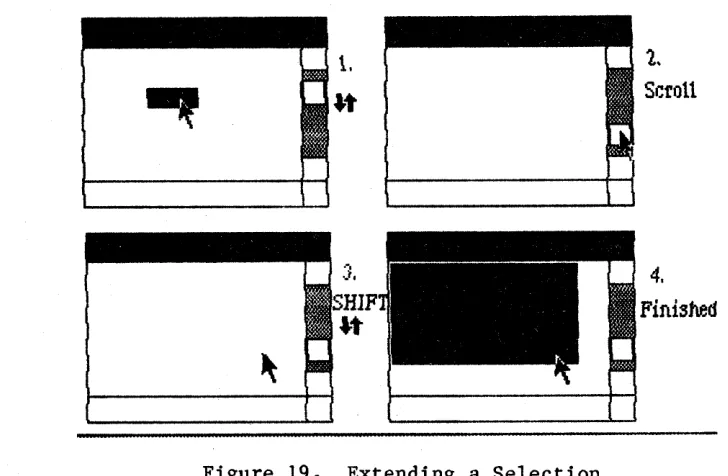
Extending a Selection45 Making a Discontiguous Selection
48 Commands
48 The Menu Bar
48 Of Mice and Menus
49 Notes on General Properties of Menus
51 The Standard Menus
51 The Apple Menu
52 The Edit Menu
53 The File Menu
53 Keyboard-Invoked Commands
55 What Commands Are and Aren't
Basic Editing Paradigms The Selection
The Scrap
The Cut and Copy Commands Paste
Undo
Inserting and Replacing Text Backspacing
Cutting and Pasting Between Documents
INSIDE CHARACTERS WORKING SELECTING COMMANDS EDITING 56 56 56 57 58 58 58 58 59 59 59
Between Two Documents with the Same Principal Tool Between Two Documents with Different Principal Tools
61 Special Conditions BOXES
61 Dialog Boxes
62 The Alert Mechanism
63 Alert Boxes
66 Appendix A. Thou-Shalt-Nots of a
Friendly User Interface FRIENDLY
67 Appendix B. Pointer Shapes POINTERS
68 Appendix
c.
Hardware Specifications HARDWARE70 Appendix D. Keyboard Layouts and LAYOUTS Character Assignments
73 Appendix E. Guide to Icons
75 Appendix F. Unresolved Issues
76 Technical Lexicon GLOSSARY
INTRODUCTION
Macintosh is intended to be the first mass-market personal computer. It is designed to appeal to an audience of non-programmers, including people who have traditionally feared and distrusted computers. To achieve this goal, Macintosh must be friendly. The system must, once and for all, dispel any notion that computers are difficult to use. Two key ingredients combine in making a system easy to use:
familiarity and consistency.
Familiarity means that the conceptual underpinnings of a system are based on premises or procedures our users already know and employ. Most Macintosh applications are oriented towards common tasks:
writing, graphics and paste-up work, ledger sheet arithmetic, chart and graph preparation, and sorting and filing. The actual environment for performing these tasks already exists in people's offices and homes; we mimic that environment to an extent which makes users comfortable with
the system. Extensive use of graphics plays an important part in the creation of a familiar and intuitive environment.
Consistency means a uniform way of approaching tasks across
applications. For example, when users learn how to insert text into a document, or how to select a column of figures in one application, they should be able to take that knowledge with them into other applications and build upon it. Uniformity and consistency in the user interface reduces frustration and makes a user more amenable to trying new techniques and new software to solve problems.
Consistency and familiarity are by no means orthogonal concepts. Familiar models should be used in a consistent manner to avoid confusion, and consistency should not lead to unfamiliar behavior.
Software Developers'~R_e_s~p_o_n_s~i_b_1_·l_1_·t_y~~~ ____ ~ ____________ ~ __________ --Preservation of a truly consistent working environment requires some deliberate and conscious effort on the part of applications
programmers.
If Macintosh is to be successful as a truly mass-market personal computer, software developers must maintain consistency throughout applications by conforming to a common user interface.
(hand)
It is the responsibility of everyone who writes software for Macintosh to preserve the integrity of the system.
Years of software development, testing, and research have gone into the definition of the Macintosh user interface. The mechanisms outlined in this document have been shown to be well-suited for a variety of
Macintosh's Commitment
On many other computers, since little or no user interface aids are built in, each applications programmer invents a new and original interface for each program--which leads to hundreds of different, conflicting, and confusing interfaces.
We hope to avoid this situation on Macintosh by building tools for a versatile, well-tested user interface and placing them in ROM to be used by all applications programs. There's no strict requirement that an applications program must use all or any of the supplied interface tools; but programmers who create their own interface do so at the expense of their own development time, the user's data space, and the entire system's coherency.
Consistency in the user interface is most important in three areas:
- Data selection and editing;
Command invocation;
- Performance of common system-wide functions.
These are common to all applications. But each application also has its unique requirements, all of which we cannot forsee. To accommodate each application's specific needs, most of the features of the user interface are extensible: a programmer can "customize" the appearance or function of a common interface feature to suit the application.
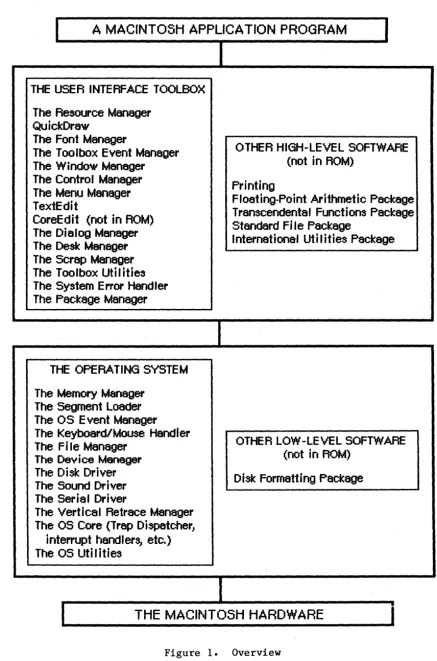
Macintosh system software is designed to make the implementation of the user interface as simple as possible for the programmer. Most of the recommended user interface features outlined below are implemented with simple calls to the User Interface ToolBox or the Operating System. The substantial documentation available for those packages should serve as an introduction to implementing the user interface described in this document.
About Modes
"A good man will prefer that mode, by which he can produce the greatest effect."
-- Paley, 1794
We adhere to the principles of modeless hehavior. Larry Tesler defines a mode as follows:
INTRO
A mode of an interactive computer system is a state of the user interface that lasts for a period of time, is not associated with any particular object, and has no role other than to place an interpretation on operator input.
Modes are most confusing when you're in the wrong one. Unfortunately, this is the most common case. Being in the wrong mode is confusing because it makes future actions contingent upon past ones; it changes the behavior of familiar objects and commands; and it makes habitual actions cause unexpected results.
We advocate avoidance of modes whenever possible. Of course,
exceptions must be made, however; there are certain tradeoffs among modality, usefulness, and implementability that must be considered. There are three cases in which modal behavior is generally tolerated:
- Long-term modes with a procedural basis: doing word processing vs. graphics editing, etc. Each application program in Macintosh is a mode.
Short-term "spring-loaded" modes, in which the user is constantly doing something to perpetuate the mode. Holding down a button or key is the most common example of this kind of mode.
Alert modes, where the user must rectify an unusual situation before proceeding. Such situations, however, should have been avoided in the first place.
Other modes are acceptable if they meet the following requirements:
They emulate a familiar real-life model which is itself modal, like picking up different-sized paintbrushes in a graphics editor; or
They change only the attributes of something, and not its
behavior, like the boldface and underline modes of text entry; or
They block most other normal operations of the system to emphasize the modality, as in error conditions incurable through software ("There's no diskette in the disk drive", for example).
THE GRAPHIC SCREEN
Macintosh distinguishes itself from all other personal computers by its high-resolution graphic screen. While other computers posess similar or greater graphics resolution or ability, no other applies its graphic powers as widely and generally as Macintosh.
Macintosh has a purely graphic display: machine at all. Text, to Macintosh, is graphics. Problems of mixing text with
they're really the same thing.
there is no "text mode" in the merely a special kind of
graphics go away because
Other computers don't do this because of inherent limitations in their processor speed and data path width, and because of a lack of software support of graphics. Not only does Macintosh have a Motorola MC68000 microprocessor (running at a nominal 7 MHz with a 16-bit data path, giving it several times the bandwidth of the Apple II's 6502), but it also has Bill Atkinson's QUICKDRAW graphics package, revolutionary in its speed and ability.
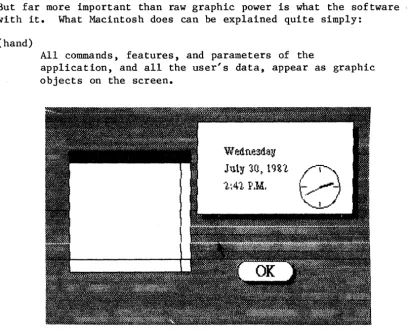
But far more important than raw graphic power is what the software does with it. What Macintosh does can be explained quite simply:
(hand)
All commands, features, and parameters of the
application, and all the user's data, appear as graphic objects on the screen.
Wedfle3da
u
Jll.l'!J lCl) 19~"1.·1~41 k'.M.
Figure 1. Objects on the Screen
Objects, whenever applicable, resemble the familiar material objects they emulate. Objects that act like pushbuttons "light up" when pressed; objects that act like tab stops look like their counterparts
[image:11.621.95.503.330.665.2]on a typewriter. Dozens of objects, some emulating everyday objects and some unique to Macintosh, are defined in the User Interface Tool Box.
Objects are designed to look beautiful on the screen. Using the graphic patterns in QuickDraw can give objects a shape and texture beyond simple line graphics. Placing a drop-shadow slightly below and to the right of an object can give it a three-dimensional appearance. The highest aesthetic sensibilities should be used in the design, placement, and animation of objects.
Graphics can distinguish different states of the same object. Many objects on the screen have two states: a "normal" state and a
"special" state. Most objects in their normal state are predominantly white, with detail (lettering, symbols, etc.) in black. Inverting the polarity of the object, to make it black with white detail, will
highlight the object to represent its special state.
Icons
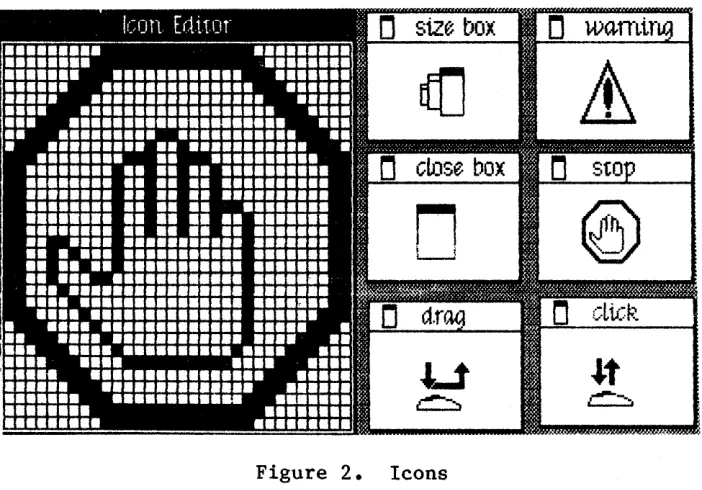
A fundamental object in Macintosh software is the icon, a small, 32-by-32 square graphic that can be drawn, edited, and moved easily. The Icon Manager has facilities for drawing icons on the screen and setting or resetting bits within them.
Figure 2. Icons
[image:12.612.135.486.387.632.2]Icons are by no means unique to the software; thy appear on'the Macintosh main unit itself, on the shipping materials, unpacking
instructions, and in the user manuals. The standard icons used to denote various parts of the Macintosh hardware are shown in the Appendix on icons.
---
ACCEPTING USER INPUT--All meaningful interaction between a Macintosh and its user takes place via a piece of hardware built in or connected to the main unit. The principal devices for original input to the Macintosh are the mouse and the keyboard; the Macintosh responds to these devices by displaying images on the screen or making sounds with its speaker. No other action of the Macintosh (such as spinning its disk drive, etc.) constitutes a meaningful message to the user.
The Mouse
The mouse is a smali device the size of a deck of playing cards,
connected to the computer by a long, flexible cable. There is a square button on the top of the mouse. The user holds the mouse and rolls it on a flat, smooth surface.
,.
...---.1
Figure 3. The Mouse and Pointer
A pointer on the screen follows the motion of the mouse. Simply moving the mouse results only in a corresponding movement of the pointer and no other action. Most actions take place when the user positions the focus of the pointer (which should be intuitive, like the point of an arrow or the center of a crosshairs) over an object on the screen and presses the mouse button.
The purpose of the mouse is to allow high-resolution specification of elements on a graphic screen. Many researchers, at Apple and
Mouse Actions
The three basic mouse actions are:
- Clicking: Positioning the pointer with the mouse, and briefly pressing and releasing the mouse button without moving the mouse;
Pressing: Positioning the pointer with the mouse, and pressing and holding the mouse button without moving the mouse; and
Dragging: Positioning the pointer with the mouse, pressing and holding the mouse button down, moving the mouse to a new position, and releasing the button.
Clicking something with the mouse performs an instantaneous action: selecting a location within the user's document or activating an object.
Pressing an object usually has the same effect as clicking it
repeatedly. For example, clicking a scroll arrow causes a document to scroll one line; pressing a scroll arrow causes the document to scroll repeatedly until the mouse button is released.
Dragging can have different effects, depending upon what is under the pointer when the button is pressed. Beginning a drag inside the document frequently results in selection of data. Beginning a drag over an object usually moves that object on the screen. Only certain objects are draggable; large draggable objects have a special area with which the user drags the entire object. Our tests show that users understand dragging an object by a well-marked area rather than by a large, general area.
; Pressing
, ~
,
r-
~--"--~} I
- --=.I:! I
CDcking
~1J
-,,:C
d
Dragging
~
l'
..£_- - -..
-"'--J
--\
Figure 4. Clicking, Pressing, and Dragging
Dragging is also used to choose an item from a menu, as described below.
(hand)
In general, pushing the mouse button indicates intention, while releasing the button confirms the action.
Dragging an object attaches a flickering outline of the object to the pointer. The outline follows the pointer around the screen while the mouse button is being held down. When the user releases the mouse button, the object moves to the position of the flickering outline, and the outline vanishes.
Every object is restricted to certain boundaries. If the user tries to drag an object out of its natural boundaries, the flickering outline disappears when the pointer travels out of those boundaries. If the user moves the pointer back inside the boundaries with the button still held down, the outline reappears under the pointer and dragging
resumes. If, however, the user releases the button while the outline is invisible, the object being dragged does not move; in this way the user can cancel a drag in progress.
Double-Clicking
A variant of clicking involves performing a second click shortly after the end of an initial click. If the downstroke of the second click follows the upstroke of the first by 700 milliseconds or less, the second click should be considered not an independent event, but rather an extension of the first: this action is called "double-clicking". Its most common use is as an optimized means of performing an action that can be performed in another, slower, manner.
(hand)
To allow the software to distinguish efficiently between single clicks and double-clicks on objects that respond to both, a function invoked by double-clicking an object must be an enhancement, superset, or extension of the feature invoked by single-clicking that object.
Changing Pointer Shapes
The pointer may change shape to give feedback on the range of
activities that make sense in a particular area of the screen, in a current mode, or both.
1. The results of any mouse action depend on the item under the pointer when the mouse button is pressed. To emphasize the
differences among mouse actions, the pointer may assume different appearances in different areas to indicate the mouse's behavior in each area.
different modes. To accent the difference in behavior in these two modes, the pointer may change shape.
The facility to change the pointer appearance to convey modal
information is not a unilateral endorsement of modal behavior; see the discussion "About Modes" on page 6 of this document.
The Keyboard
Connected to the Macintosh main unit by a six-foot coil cord is a compact alphanumeric keyboard. The keyboard is used mainly for text and numeric entry.
The keys on the keyboard are arranged in familiar typewriter fashion; there is a utility program with which the user can change the positions of the keys or the characters they generate.
OPTION COMMAND
Figure 5. The Macintosh Keyboard
In terms of functionality, the keys are divided into three sets:
character keys, modifier keys, and special keys. Character keys enter characters into the computer; modifier keys, in conjunction with
character keys, choose among different characters on a key; and special keys give special instructions to the computer.
Character Keys
The alphabetic, numeric, and symbolic keys, and the space bar, enter characters into the computer. Any character key may be associated (and/or labeled) with more than one character; the modifier keys choose among the different characters on each key.
The Basic Editing Paradigms (see that section) define the ways in which characters are typed into a document. All text, whether it be a
file name, part of a document, or a search pattern, is typed in and can be edited in exactly the same way.
The keyboard hardware scans the character keys such that it can recognize any two character keys being pressed simultaneously. This feature is called "two-key rollover".
Modifier Keys: SHIFT, CAPS LOCK, OPTION, and COMMAND
Six keys on the keyboard--two labeled SHIFT, two labeled OPTION, one labeled CAPS LOCK, and one labeled COMMAND--change the interpretation of keystrokes or other inputs to the computer. When one of these keys is held down, the behavior of the other keys (and occasionally that of the mouse button) may change. A program can enquire the status of the modifier keys at any time.
The SHIFT and OPTION keys choose among the characters on each character key. SHIFT gives the upper character on two-character keys, or the uppercase letter on alphabetic keys. OPTION gives an alternate
character set interpretation, for foreign characters, special symbols, etc. SHIFT and OPTION can be used in combination.
CAPS LOCK latches in the down position when pressed, and releases when pressed again. When down it gives the uppercase letter on alphabetic keys. The operation of CAPS LOCK on alphabetic keys is parallel to that of the SHIFT key, and the CAPS LOCK key has no effect whatsoever on any of the other keys. CAPS LOCK and OPTION can be used in
combination on alphabetic keys.
The keyboard hardware can sense any or all of the modifier keys being pressed simultaneously.
The COMMAND key
Pressing a key while holding down the COMMAND key signals that the keypress is not data input, but rather a command invocation (see the section on Commands).
(hand)
As the OPTION and COMMAND keys are unfamiliar features to 11sers familiar with typewriters, their use should be restricted to expert functions not normally encountered by novice users.
Special keys: ___ ENTER, TAB, RETURN, and BACKSPACE
When the user enters or edits information, the ENTER key confirms that entry. When ENTER is pressed, the compu~er checks and validates the current entry and allows the user to proceed to a different one.
Commonly used to confirm the entry of text, ENTER tells the computer to accept changes made to a field or form (such as a spreadsheet formula or a new file name).
The RETURN key is another signal to proceed, but it defines a different type of motion than TAB. A press of the RETURN key signals movement to the leftmost field one step down (just like a carriage return on a typewriter). RETURN also can carry the implicit meaning of ENTER before it performs the movement.
(hand)
In applications such as the word processor, the TAB and RETURN keys not only perform immediate actions, but store those actions in the text; in such applications the
RETURN and TAB keys may be considered character keys.
BACKSPACE is used to delete characters from text, usually in the course of typing that text. The exact use of BACKSPACE is described in the section on the Basic Editing Paradigms.
Typeahead, Auto-Repeat, and Audio Feedback
If the user types at a time when Macintosh is unable to process the keypresses immediately, or the user types more quickly than Macintosh can process, the precocious keystrokes are queued for timely
processing. As keystrokes are handled as events through the Operating System's event mechanism, the only limit on the number of characters that can be typed ahead of time is the length of the system's event queue.
Normally, Macintosh "clicks" slightly at every keystroke. This audio feedback in typing is a global preference that the user can change at any time (see the Preferences description, in the section on Desk Accessories).
When the user holds down a key for a certain amount of time, it starts repeating automatically. The delays and the rates of repetition are global preferences that can be changed by the user at any time.
All printable characters, the space bar, the BACKSPACE key, and the RETURN key, inherently have the auto-repeat ability. The auto-repeat ability of each key is a characteristic of the keyboard that the user can change with the same utility program that alters the keyboard layout.
Auto-repeat does not function during typeahead; it only operates when the application is ready to accept keyboard input.
Versions of the Keyboard
There are two physical versions of the keyboard: American and European. The European version has one more key than the American. The key layout on the European version is designed to conform to the ISO standard; the American key layout mimics that of common American office typewriters.
The American keyboard contains 49 character keys (including the space bar and RETURN) that produce all the printable ASCII characters. In
addition, there are the following modifier and special keys: SHIFT, CAPS LOCK, COMMAND, OPTION, ENTER, TAB, and BACKSPACE.
The European keyboard contains 50 character keys; the special and modifier keys are equivalent to those on the American keyboard, but
their labels denote their functions symbolically.
(hand)
As the keyboard interface is a general-purpose clocked bidirectional serial port, other devices (such as a music keyboard, etc.) may eventually be attached to this port.
The Numeric Keypad
An optional numeric keypad is offered that connects between the --main unit and the standard keyboard. The keypad contains 18 keys that, while labeled similarly to keys on the main keyboard, return different keycodes to the main unit. An application can thus determine the origin of a keystroke. If desired, the keypad keys can be assigned ASCII codes equivalent to their counterparts on the main keyboard.
The character keys on the keypad are labeled with the digits 0 through 9, a decimal point, the four standard arithmetic operators for plus, minus, times, and divide, and a comma. The keypad also contains the special keys ENTER and CLEAR; it has no modifier keys.
The keys on the numeric keypad follow the same rules for typeahead, auto-repeat, and audio feedback as the main keyboard.
Four keys on the numeric keypad are labeled with "field-motion" symbols: small rectangles with arrows exiting them in various
directions. Some applications may use these keys to move an object or indicator orthogonally around the screen, and require the user to use the SHIFT key to obtain the four characters (+
* / ,)
normallyavailable on those keys.
(hand)
As the numeric keypad is optional equipment, no
CONCEPTUAL MODELS
Macintosh, as an appliance computer, has one purpose only: to manipulate information. With it, a user can access, display, interpret, modify, transfer, replicate, and destroy information. Consequently, the central concepts on which the Macintosh system is built deal with things relating to information:
- The container of information, which we call a file;
- The manipulator of information, which we call a tool;
- The presenter and interpreter of information, which we call a window;
- The working environment, which we call the desk top; and
- The information itself, which we call a document.
On the continuum between pure concept and pure object, each of these has its own place. We hope to present our users with only the physical objects that represent these concepts, so that they can grasp the
concepts by inference; we will not require them to know the concepts before they encounter any of the objects.
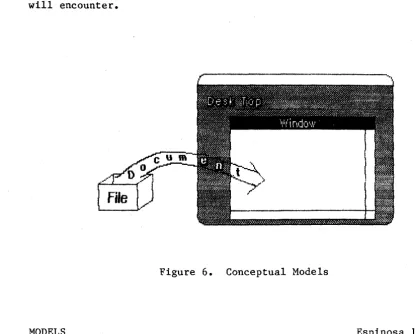
Of the above, files are the most conceptual; we will use the term internally here to mean a generic container of information. As described below, files have many distinct incarnations that the user will encounter.
Figure 6. Conceptual Models
[image:21.617.58.474.424.758.2]The desk top, documents, and windows are the most concrete of the above group: users will see these as objects and not as concepts at all.
Tools are somewhere in the middle: although they have certain
distinguishable physical attributes, most of their importance is in the conceptual realm.
Files
A file is a container of information. All the texts, pictures, charts, and address lists that the user puts into Macintosh are stored in
files. Files also store information that the user didn't create: information usually more intelligible to the computer than the user.
There are three general classifications for files: those containing documents, those containing tools, and those containing resources. Documents are created by users and can be viewed and modified by users. Tools are created by application programmers; the user can use them but can't modify them. Resources are also created by application
programmers, but can be edited by a resource editor to change the way in which a tool communicates with the user (see RESOURCE FILES, below).
Regardless of its contents, a file has many important attributes. Every file has a type that describes its contents and determines which
tools can manipulate it; a size that describes how large its contents are; a name by which the user refers to the file; and a label on which the user-can put additional information about the file. It also has the dates on which it was created and last modified.
Tools
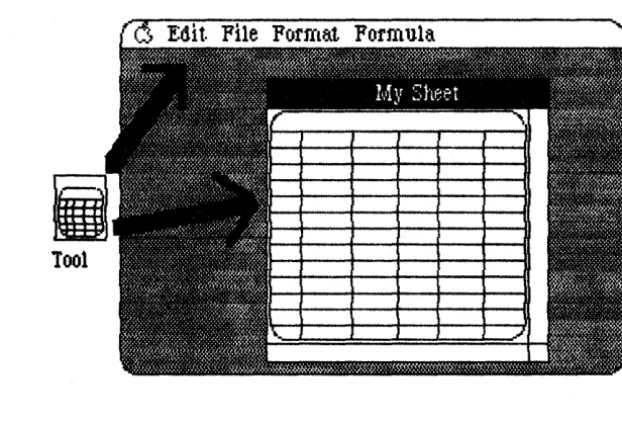
.---.----What we call a "tool" is generally known as an application program: an interactive set of procedures and data structures for manipulating information. Writing, drawing, charting, filing, analysis, and BASIC programming are the fundamental tools Macintosh provides; there are also several other "housekeeping" tools, like using a pocket
Figure 7. A Typical Tool
Tools, being themselves information (but intelligible to the computer rather than to the user), are stored in files.
(hand)
Only one tool can be in use at any given time.
Documents
Documents are the information that the user has created or wishes to manipulate. Documents can exist inside a file on a diskette or inside the memory of Macintosh. A document comprises a coherent set of
different kinds of information.
- Most documents comprise only ~ kind of information: all text, or one picture, or a series of charts, for example. The user manipulates the information and prints it out as a whole. Every document thus has a principal "type" of information; this type is determined by the tool that formed it.
- A document can comprise more than one kind of information, but it must still form a coherent whole. The user can take information
of one kind and add it to a document of another kind. But the document still retains its principal type, and the user can manipulate only the information of that type.
Associated with each kind of document is a principal tool: the tool most appropriate to manipulate that document. The principal tool of any document is usually the tool that created it. Other tools may be able to read and interpret the document; for example, the BASIC
language can read word processor documents anticipating the text of a program. Such tools are the document's secondary tools. The
distinction is important only when selecting files from the desk.
[image:23.618.127.438.76.286.2]Resources
Some files contain information that is neither a tool nor the user's information. This information is usually fonts, system programs, configuration information, etc. Although such information may have principal tools (such as a font editor for fonts), it's most commonly used by a tool.
THE DESK TOP MODEL OF ORGANIZATION
The entire Macintosh working environment is based on familiar and intuitive concepts. The Macintosh screen represents a working surface or a desk top. Papers, writing or drawing utensils, and other common desk accessories have their place on this desk top just as on any other. Whenever possible, the objects on the desk top resemble their real-life counterparts: for example, all papers are white with black lettering.
Figure 8. The Desk Top
The Desk
The desk top metaphor is reinforced by the central tool of the
Macintosh system, a tool called the Desk. While most tools manipulate the documents contained in files, the Desk manipulates the files
themselves, often regardless of their contents. The basic functions of the Desk are as follows:
- Get, Print, Examine, Delete, or Copy any file or group of files;
- Initialize a diskette;
- Rename or rearrange the files on a diskette;
- Select which diskettes, network diskettes, and peripheral devices to work with.
On the Desk, files are represented by icons, with each file's name as a caption to its icon. The icons can be dragged around the desk asnd positioned in any order or arrangement. Other parts of the system are also represented by icons on the desk: disks and disk drives,
printers, etc.
The central purpose of the Desk is to allow the user to manipulate files, and to call up the appropriate tools to work on the documents the files contain. The user invokes a tool from the Desk, and returns to the Desk when finished.
Once using a tool, the user can call up a subset of the standard Desk functions, to choose a new file to work with or to specify a
destination for the new work. This subset as presently defined
WINDOWS
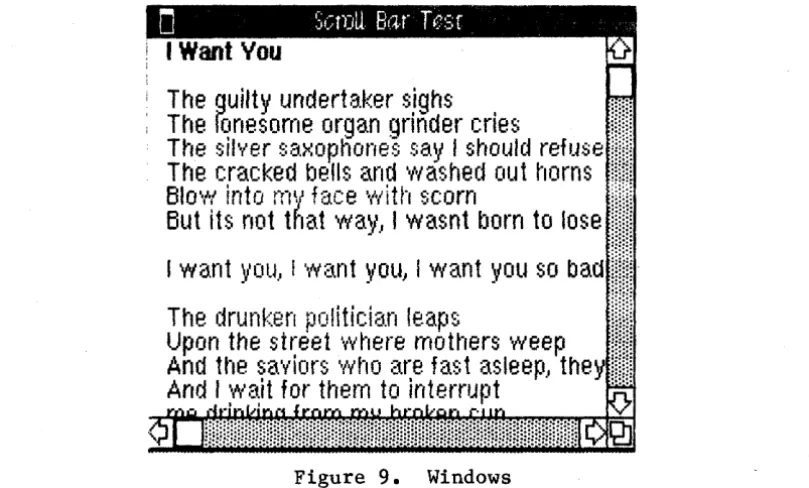
Windows are objects on the desk that display information. The
information can be a user's document, an error message, or a request for more information. Any number of windows can be present on ·the desk at any time. As on a real desk, if more windows are placed on the desk than reasonably can fit, the windows "overlap" each other: the windows in front partially or completely obscure those behind them.
The guilty underta.ker sighs
The fonesorne organ grinder cries
The silver
~;a.xophones ~;ayI should refuse
The cracked bells
anci
'washed
out
to,orns
810v·/ into
rnv
face "Nith
scorn
But its not
that
wa~l.,I
wasnt
born
to lose
Iwant
~lou} i "Na.nt ~/OU} Iwant you so
badThe
cirunken
politician leap8
Upon the street '-('y'here trtotto,ers "Neep
Anci
UOle
saviors
"/v't"tOare fast
asleep) the
And I
v'la;it
for thern to interrupt
Figure 9. Windows
Each window "floats" in its own plane. Think of a number of plates of glass stacked on top of the desk: each plate contains one and only one window, and the plates can be moved to make the windows appear in
different places on the desk. Each window can overlap those behind it, and can be overlapped by those in front of it. The frontmost window cannot be overlapped. Even when windows do not overlap, they retain their front-to-back ordering.
Opening and Closing Windows
Windows come up onto the screen in different ways appropriate to the purpose of the window. Some windows are created automatically: for example, when the user wants to work with a document, the tool being used creates a document window in which to present that document.
Many windows have an icon that, when double-clicked, makes the window go away: this icon is called the close box. (This icon is double-clicked, rather than singly-double-clicked, because of the disturbing
consequences of accidentally clicking the icon). The application in control of the window determines what is done with the window when the close box is double-clicked: it can
[image:27.617.108.513.211.455.2]1. make the window invisible, to be retrieved later; or
2. remove and destroy the window and any information it contained.
If an application wishes not to support closing its window with a close boxe, it should not place the box on the window.
The Active Window
At any given time, one window is of greater importance to the user than any other. Usually, the most important window is presenting the
current document; at other times, an error message or information request may be more important. Thus this general rule:
- The most important window at any given time is always frontmost.
Naturally, there must be rules to determine which window is most important at any given time.
- Newly-created windows are usually brought to the front.
- If the user positions the pointer with the mouse inside any window that is not in front, and then clicks the mouse button, that
window is brought to the front.
Being in front has more consequences for an window than merely being more visible. The frontmost window is said to be active, and all others, inactive.
- A window's active state is visibly distinct from its inactive stat.e; usually, the title or header of the window is highlighted.
- Clicking or dragging inside the active window may perform a useful function; clicking or dragging inside an inactive window merely brings that window to the front.
- All command and data input is handled by the program that is in control of the active window.
Document Windows
Although windows display many kinds of information and requests, the most common appearance of a window is to display the document currently being worked on. Windows displaying documents have parts not usually seen in other windows: scroll bars to move the document under the window; a size box to change the size of the window; and split bars to divide the window into several panels.
Scroll Bars
A scroll bar is a light gray shaft, capped on each end with square boxes labeled with arrows; inside the shaft is a white rectangle. The shaft represents one dimension of the entire document; the white
rectangle (called the thumb) represents the portion of the document currently visible inside the window. As the user moves the document under the window, the position of the rectangle in the shaft moves correspondingly.
There are three ways to move the document under the window: by sequential scrolling, by "paging" screenful by screenful through the document, and by directly positioning the thumb.
Clicking a scroll arrow moves the document in the direction of the scroll arrow. For example, when the user clicks the top scroll arrow, the document moves down, bringing the view closer to the top of the document. The thumb moves towards the arrow being clicked.
Each click in a scroll arrow causes movement a distance of one unit in the chosen direction, with the unit of distance being appropriate to the tool: one line for the word processor, one row or column for the spreadsheet, etc. Pressing the scroll arrow causes continuous movement in its direction.
Clicking the mouse anywhere in the gray area of the shaft advances the document by screenfuls. The thumb moves toward the place where the user clicked, and the document moves in the opposite direction; clicking below the thumb, for example, brings the user the next screenful towards the bottom of the document. Pressing in the gray area keeps screenfuls flipping by until the user releases the button or the thumb reaches the pointer.
In both the above schemes the user moves the document incrementally until it is in the proper position under the window; as the document moves, the thumb moves accordingly. The user can also move the document directly to any position simply by moving the thumb to the corresponding position in the shaft. To move the thumb, the user
presses on the thumb and drags it along the shaft; a flickering outline of the thumb follows the pointer. When the mouse button is released, the thumb jumps to the position last held by the flickering outline, and the document jumps to the position corresponding to the new position of the thumb.
If the user starts dragging the thumb, and then moves the pointer a certain distance outside the scroll bar, the thumb detaches itself from the pointer and stops following it; if the user releases the mouse button, the thumb returns to its original position and the document remains unmoved. But if the user still holds the mouse button and drags the pointer back into the shaft, the thumb reattaches itself to the pointer and can be dragged as usual.
Multiple Windows
Some tools may be able to keep several windows on the desk at the same time, as part of the same logical document. Different windows can represent:
- Different parts of the same document, such as the beginning and end of a long term paper;
- Different interpretations of the same document, such as the tabular and chart forms of a set of numerical data;
- Different parts of a logical whole, like the listing, execution, and debugging of a BASIC program;
- Separate documents being viewed and/or edited simultaneously.
~·vrittt~n. t;1~J
p,rLJ.i.i~ H€~ftzf~~la..
p,prU.
16~19;:;2
Figure 10. Multiple Windows
Each tool may deal with the meaning and creation of multiple windows in its own way.
There are occasionally better ways to perform the above functions than with multiple windows. Showing different parts of the same document can be done better by splitting the' window (see below)'. Different interpretations of the same document occasionally merit two panes in the same window, rather than two separate windows. The implementation decision can best be made by experimentation and testing on actual users.
Moving a Window
mouse button. At the release of the button the full window is drawn in its new location.
A window always moves in its own plane; while it's being dragged
around t the flickering outline is visible over the windows below it but is hidden under the windows above. Notice that clicking in the title area does not make a window active or bring it to the top.
(hand)
Moving a window does not affect what portion of the document it is displaying.
A window can never be moved off the screen; specificallYt it can't be
moved such that the visible area of the title bar is less than four pixels square.
Moving a window is fully supported by the Window Manager t and is easily performed with one procedure call; an application program need not care where on the screen its window is placed.
Changing the Size of a Window
If a window has a certain icon in its lower right corner t where the scroll bars come together, the user can change the size of the window--enlarging or reducing it to the desired size. The box that contains the icon is called the size box.
Dragging the size box drags a flickering outline of the window. The outline's top left corner stays fixed, while the bottom right corner follows the pointer. When the mouse button is released, the entire window is redrawn in the size and form of the flickering outline.
-!
.
\, ••••••••••••••••••• , ... 1
t::::::::::::::::::::::::::::::::::::::::::::::::t~ ~----"'-R'
Figure 11. Moving and Sizing a Window
Sometimes it's not appropriate to size a window; some tools may not support this ability. In this case, the size box is empty and clicking
in it produces no effect. If a tool does support sizing a window, however, changing the window's size leaves the document's size
unchanged; the window simply displays a larger or smaller portion of the document.
(hand)
Sizing a window does not affect its contents, or change the position of the top left corner of the window over the document; only the portion of the view that is visible inside the window.
At its maximum size, a window is still small enough that a seven pixel square area of the size box is visible on the screen.
The minimum size window consists of only a title bar the width of the title itself, a horizontal scroll bar (or a blank rectangle of
equivalent size), and the size box. If a window is made so small that its title will no longer fit in the title bar, the title is truncated to show as many of its initial characters as possible.
Sizing a window is fully supported by the Window Manager, and is easily performed with one procedure call; an application program need not care about the size of a window.
Splitting a Window
Sometimes it is desirable to be able to see disjoint parts of a document simultaneously. Tools that accommodate such a capability allow the window to be split into independently scrollable panels.
Tools that support split panes place split bars at the top of the vertical scroll bar and at the left of the horizontal one, if present. Pressing a split bar attaches it to the pointer. Dragging the
Figure 12. Split Views
The document appears the same, save for the split bar lying across it. But there are now separate scroll bars for each pane; whith these, the user can scroll each pane independently of the other.
Dragging a split bar back to its original position reunites the window in that direction; the left or top view (and its scroll bar)
disappears, leaving the right or bottom view.
The number of views in a document does not alter the number of selections per document: i.e., one. The active selection appears highlighted in all views that present it.
Desk Accessories
Macintosh does not allow two tools to be running at once. However, there are several mini-applications that are available while using any tool.
At any time the user can issue a command to call up one of several desk accessories. The basic ones provided include:
Calculator Alarm Clock Note Pad
Telegram Form and In-Box (AppleGram)
Accessories are disk-based: only those accessories available on-line can be used. The list of accessories is expanded or reduced according to what's available at any given time. The application can support all accessories in the system with calls to the Desk Manager. On disk, accessories are stored in resource files. More than one accessory can be on the desk at any given 'time.
Who's on Top? __ ~ __ ~~ __ ~ __ ~ ________ ~ __ ~ ______ ~~ __________ ~~ __ With a virtual three-dimensional screen it is essential to manage the third dimension so that important items or objects requiring immediate attention are not obscured accidentally. Hence. in order from front to back:
- The pointer
- An ale rt box
- A dialog box
- The menu bar and all pull-down menus
- The active window
- All other windows
INSIDE DOCUMENTS
(hand)
We strongly subscribe to the doctrine of preservation of visual fidelity, i.e., what you see is what you get.
It's important that a document as seen through a window on the desk closely resemble the same document when committed to paper. The differences (and there will be differences) must be natural and unsurpr1s1ng. Naturally, the ruler and graph paper used to create a report on Tuesday morning won't be distributed with that report when it's presented that afternoon; printing a document shall not carry the vestiges of the tool that created that document.
Any given tool should be able to manipulate, in some way, everything in the document it presents~ Macintosh eventually will have many
different tools, and we do not pretend to foresee the needs of all. However, we do provide standard means of manipulating the constituent elements of most documents.
Structure of Documents
In order to discuss the appearance of information inside documents, it is necessary first to digress a bit into the structure of documents.
A document is a collection of information. Each piece of information has its own position in the document, and its own positional
relationship to the' information around it.
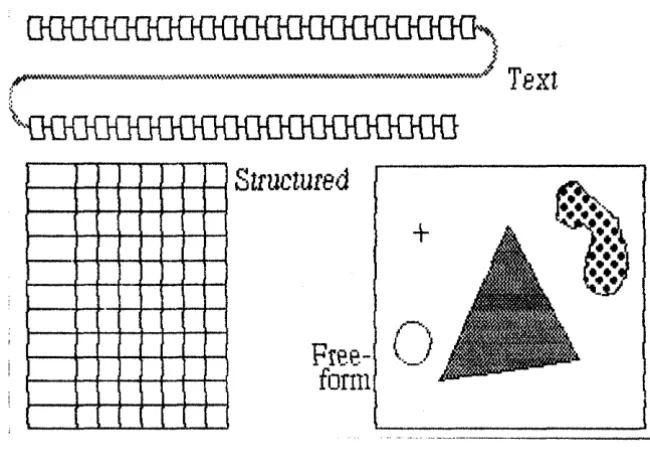
In terms of structure, there are three principal types of documents: texts, free-form documents, and structured documents.
1. Texts consist of a string of information (in this case,
characters) that appears two-dimensional but is really linearly ordered. More characters can be inserted anywhere within the text or added onto the end of the text. There is an inherent order to the characters in a text, and definite positions between
characters.
2. Free-form documents start completely empty and unstructured, like a blank piece of paper. Information can be placed anywhere within the document; each piece of information has its own position. There may be large, empty spaces in the document that contain no information. There is no inherent ordering among the information in a free-form document. Pictures drawn in the graphics editor are free-form documents.
3. Structured documents have predefined cells to contain information. There is a fixed maximum number of cells per document; no cells can be added, nor can they be removed. Cells are usually arranged in rows and columns; a given cell is a member of one row and one column. There is a definite position between two adjacent cells,
and a position at the corner of a group of four cells. A spreadsheet is a structured document.
' \
-.
.:;w"'YM"_""...,W.,,'''''w,..''W.W.w.,''''''' ... WNNM ... W''.IWMV.W.W.w'''''''''' .... " ... v-"""""W'-OYl.Yl.Yl.V.V.
hi
T e
Xl
\
v..+
l-"~
Fr
ee-
t._.J
fonn
Figure 13. Types of Documents
The type of a document affects many things--mostly how a user selects information inside the document. For example, information in a text can be selected character-by-character, but information in a structured document is selected cell by cell. The exact details ot the selection process are described in the section "Selecting Information".
The Visual Structure
The structure can manifest itself visibly inside the document. For example, the rows-and-columns arrangement of a spreadsheet can be clarified by adding graphic grid lines between the cells. These lines are not part of the user's data, but they are part of the document. Such supporting graphics are usually static elements within the document, and cannot be moved or altered. Those that can be altered usually affect only the presentation of the user's data, not the data itself.
At the tool's discretion, the supporting graphics in a document mayor may not appear when the document is printed. The grid lines on a spreadsheet might very well appear, while the rulers in a word processor document will probably not be printed.
Graphics in Documents
Not only does Macintosh use graphics to show the-structure of a
[image:36.615.142.467.123.356.2]charts, pie charts, hi-Io graphs, etc. from a numerical data base).
Graphic documents are usually free-form: each graphic item in the document has its own position within the document, and there is no inherent relationship among the items (although the tool can define such a relationship). But there's no reason that graphic documents can't be structured. For example, a graphic programming language mught have a text-like or other structure.
Figure 14. Graphic Documents
Graphics inside documents are produced using the QuickDraw graphics package. The package can draw seven fundamental graphic forms--lines, rectangles, ovals, rounded-corner rectangles, wedges, polygons, and arbitrary regions--either in outline or filled with a solid pattern. It can also place and manipulate images defined bit-by-bit. A tool can give the user the ability to draw anything from simple line drawings to finely textured halftone pictures.
The tool must itself determine how to respond to the mouse and keyboard in creating and manipulating graphics.
Appearance of Text
Most people, even bibliophobes, are confronted with a wide variety'-~ pr,inted matter on daily basis. Our eyes are so accustomed to seeing a
myriad of typestyles, typesizes and typefaces used in publications to embellish or emphasize the content, that we no longer take special note. Developing eye-catching and pleasing typefaces has been an art unto itself since Gutenberg. Appropriate and aesthetically embued typesetting has been traditionally the domain of tooled craftsmen. By contrast, the repertoire of currently available computer 'typefaces' is thoroughly devoid of aesthetic nuances and provides but a bleak parody of the printed world.
Macintosh documents can contain characters in a number of different typefaces, typestyles, and typesizes. Type can abut closely or appear loosely packed; parts of some characters (such as the curl of a y) can reach back under or up over adjacent characters; and text can freely intermix with graphics. After all, text is just a specialized form of graphics.
Note that in this context, numbers are considered text: to users, the external appearance of digits is the same as that of other text
characters. The following discussion thus pertains to numerical information as well as natural-language text.
- For more information on the aesthetics of type design, see a good typography book; David Gates' Type is recommended. For
implementation details on how to place characters on the screen, see the Macintosh User Interface ToolBox manual
QuickDraw: A Programmer's Guide.
Typefaces, Typesize, and Fonts
A typeface is a set of typographical characters composed with a
coherent "feel" and consistent design. Things that relate characters in a typeface include the thickness of vertical and horizontal lines, the degree and position of curves and swirls, the use of serifs, etc. Typefaces have names, usually historical: Bodoni, Goudy, Tile, etc. The identity of a typeface is independent of its size or any particular typestyle it may conform to (see below).
Typesize in the printing world is measured in points, a point being reasonably close to 1/72 inch. The resolution (in points per inch) of the Macintosh screen is quite close to this, but not close enough to keep accurately to printers' measurements. But we do describe typesize loosely in "points", which have no correlation to the mathematical entity of a point in the QuickDraw graphics package, or to anything else for that matter. In talking about type, we use points as a rough indication of vertical size.
Tifne:: iO.11lan 10,
Bolt\.
J~~ill.J~·,~ UrlljerHj'1ed,-~ iIIIgfItifip.T
irnes Roman
14, .EbId
j.lJl!ir.
HeJvetica 10,
J.miiD
~Helvetica
1 4,
IIlJIJI . . "
Type 1 O'V,
fOl11mUm
~~Cacha 12,
/JlglI!fJ
llfIrtJ'll _
ffJNflin
'{b
t,tl\llis·fJ
18
Hochlin 36v
Figure 15. Type
Typestyles
Macintosh does not require the use of separate fonts to accommodate different styles of the same typeface. A character of any font may be subjected to a group of transformations that modify its general
appearance: such a modification is called a typestyle. There are five fundamental typestyles: bold characters, italic (slanted) characters, outlined characters, underlined characters, and shadowed characters. Any combination of these typestyles can be used, but Macintosh cannot be held accountable for any aesthetic atrocities that may be
perpetrated by an insensitive user.
Proportionally Spaced vs. Monospace Fonts
Most printing fonts are proportionally spaced (also known as variable pitch). This means that, for example, the "i" is narrower than an "m"; the
"w"
wider than the"J".
In a monospace (fixed pitch) font, all characters are of the same width. Monospace fonts are generally less attractive than
proportionally spaced fonts. Monospace fonts are sometimes called "typewriter" fonts.
Monospace fonts are appropriate for some applications, such as COBOL
coding forms, but generally discouraged in Macintosh. As monospaced fonts are merely a degenerate case of proportional fonts, they can be used just as easily as proportional fonts, when they are needed. It's necessary, for example, for proportional fonts to have monospaced numerals, so that columns of numbers line up neatly when aligned at decimal tab stops.
Standard Fonts
Macintosh uses a distinct system font when presenting its labels, messages, and lists to the user. System-provided text in this font cannot be edited. The Macintosh system font is Creaml0j users and tools may not use this font.
There is always a standard font in which all information the user has entered will appear: the user font is Helvetica10, a nice, sans serif, reasonably compact face.
WORKING WITH MACINTOSH
So far, this document has described many things about the Macintosh user interface: how it accepts inpout from the user, how it displays information on its screen, and how the conceptual underpinnings of the system control the structure of interactions. But nothing has been said about how these things work together.
This section describes how input affects output: how Macintosh works. It discusses the methods the user will use to perform actions, select information, and choose commands to operate on that information.
Direct Manipulation: Controls
---"Piaget has hypothesized that infants first learn about
causation by realizing that they can directly manipulate objects around them--pull off their blankets, throw their bottles, drop
toys... Such direct manipulations, even on the part of infants, involve certain shared features that characterize the notion of direct causation that is so integral a part of our constant everyday functioning in our environment--as when we flip light switches, button our shirts, open doors, etc."
-- Lakoff & Johnson, 1980
Friendly systems act on direct causation--they do what they're told. Performing actions on a system in an indirect fashion (by typing words and pressing RETURN, or by obediently choosing one item from the
currently displayed list) reduces the sense of direct manipulation that is basic to the feeling of causation. To give Macintosh users the feeling that they are in control of their machines, many of a tool's features are implemented with controls: graphic objects that, when directly manipulated by the mouse, cause instant action with graphic results.
Three kinds of controls are supported by the Control Manager in the User Interface ToolBox: buttons, check-boxes, and dials.
Buttons
Buttons are small objects, usually inside a window (but occasionally on the desk top), labeled with words or an icon. Clicking or pressing a button performs the instantaneous or continuous action described by the button's label.
Buttons usually perform instantaneous actions, like opening or closing windows, or acknowledging error messages. Occasionally, they can also perform continuous action: the scroll arrows on a scroll bar are continuous-action buttons.
The Control Manager defines one kind of button, an instantaneous or continuous pushbutton, labeled with a verbal title. A tool may include a procedure to define a custom button, which can be linked in to the Control Manager and used just like the standard button.
Check-Boxes
Check-boxes are a variant of buttons. Where buttons perform
instantaneous or continuous actions, check-boxes display a state that the user can change. Most commonly seen when filling out a form or setting parameters, check-boxes are small squares that appear either empty or filled in with a check-mark. The boxes are usually adjacent to a word or icon that describes the meaning of the box.
Clicking in a check-box flips its state, from checked to unchecked or vice-versa. Dragging through a field of check-boxes flips the state of the first and assigns the new state to all other boxes dragged through.
A check-box may belong to a group of boxes. If there are no
interrelationships among the boxes, they are checked and unchecked as above. But if the boxes are related such that one and only one must be checked at any given time, they work like "radio buttons": clicking in an unmarked box marks that box and unmarks the previously marked box. Such groups should be labeled clearly, "Choose one of the following:". The checked appearance of this kind of box is visually distinct from normal, ungrouped check-boxes.
I' .... ,
(Bu t tOft
1/
'"", .. ,:
o
Cjleci: -Box 1o
Check-,Box 1.Dials
Dials display the value, magnitude, or position of something in the tool or system, and optionally allow the user to alter that value. Dials are predominantly analog devices, displaying their values graphically and allowing the user to change the value by dragging an indicator; dials may also have a digital display.
The best example of a dial is the shaft of a scroll bar. The indicator of the scroll bar is the thumb; it represents the position of the
window over the length of the document. The user can drag the thumb to change that position.
Just as with buttons, there are a few standard dials defined in the ROM, but a programmer can implement a custom dial and link it in with the control mechanism.
Selecting Information
A previous section mentioned that Macintosh has one purpose only: to manipulate information. If this is true, then there is a simple operational paradigm to cover all situations:
(hand)
First select some information, then manipulate it.
This paradigm minimizes modality in basic operations. By selecting the information first, the user is free to select different information without being committed to a certain manipulation.
The following sections describe the two parts of this basic paradigm: how to select information in a document, and how to choose commands to manipulate that information.
The Selection
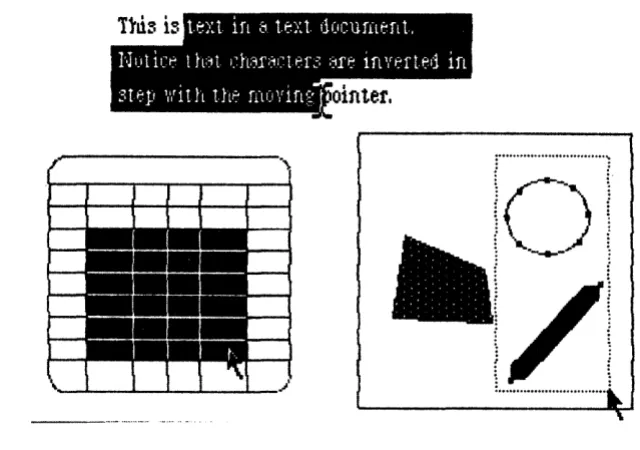
The selection is the collection of information that will be acted upon by the next command. There is always one and only one active selection in the active window. The selection can be so large as to enclose all the information in the document, or it can be so small as to merely indicate the position between two pieces of information, enclosing nothing at all; the latter selection is called an insertion point. The insertion point indicates the position at which newly entered
information will be placed.
Positioning the pointer over the user's information in the active document and pressing the mouse button usually begins a selection. Once the button is pressed, the selection can be completed in two ways:
1. Clicking selects one piece of information or a position between pieces of information.
2. Dragging selects a group of information.
[";=)
...
j
~
\..,
~
i/"--"-'
i
;
j
; ;
; i
:
...
:- - _
.... _ ... _ .... .Figure 17. Selecting Information
The exact behavior of clicking and dragging to make the selection depends on the structure of the document.
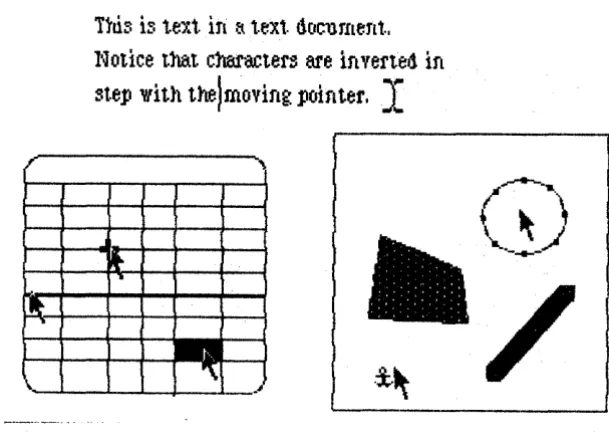
- Clicking in text selects the position between the two characters nearest the pointer; this position becomes the insertion point. The insertion point in text is represented by a blinking vertical bar.
Clicking in a structured document selects either the cell under the pointer, the position between two adjacent cells, or the corner of four cells. The latter two selections are insertion points, and are represented by blinking vertical or horizontal bars, or by a blinking cross.
Clicking in a free-form document selects the it