i
Abstract
ii
Declaration of Originality
I declare that this thesis is my original work except where stated.
iii
Table of Contents
Abstract
i
Declaration of Originality
ii
Table of Contents
iii
List of Tables
vi
List of Figures
vii
Glossary
viii
Conventions
ix
Chapter 1 Introduction
1
1.1
Aims
1
1.2
Motivation
1
1.3
Requirements
3
1.4
Project Planning
3
1.4.1 Research 3
1.4.2 Development 4
1.4.3 Trials 4
1.5
Report overview
5
Chapter 2 Background
6
2.1
Introduction
6
2.1.1 Macular Degeneration (MD) 6
2.1.2 Reading with macular degeneration 7
2.2
Reading Aids
8
2.2.1 Traditional LVAs 8
2.2.2 CCTV 9
2.2.3 Text to speech 10
2.2.4 PCs as Low Vision Aids 11
2.3
A PC based LVA: Motivation
11
2.3.1 LVA for computer use 11
iv
2.4
Summary
13
Chapter 3 Text Scroller Design
14
3.1
Introduction
14
3.2
Software Specification
14
3.2.1 A Generic Class Framework 14
3.2.2 Adapting The MFC Framework 15
3.3
Application Design in MFC
17
3.3.1 GDI 17
3.3.2 Formatting 17
3.3.3 Rendering onto display 18
3.4
Naïve Method for Scrolling
18
3.4.1 Rendering to memory (double buffering) 19
3.4.2 Protecting the buffer 19
3.5
Improved Methods for Scrolling
20
3.5.1 Alphabet Buffer Scrolling 20
3.5.2 Scrolling Window 21
3.6
Scrolling Text Implementation
22
3.6.1 CReaderDoc Initialisation 22
3.6.2 CView Initialisation 22
3.6.3 Calling the scroller 22
3.6.4 Displaying the text 23
3.6.5 Updating the scroll buffer 23
3.6.6 Controlling the application 24
3.7
Analysis
25
3.7.1 Improvements 26
3.8
Summary
26
Chapter 4 Smoothing the Scroller
27
4.1
Introduction
27
4.2
Problem Description
27
4.2.1 Line Tearing 27
4.2.2 Rendering Overheads 28
4.3
Generic Solutions
28
4.3.1 Triple Buffering 29
4.3.2 Refresh Synchronisation 30
v
4.4.1 GDI 31
4.4.2 OpenGL 31
4.4.3 DirectDraw 34
4.5
Revised Text Scroller
37
4.5.1 The DDGraphics class 37
4.5.2 The DDGraphics back buffer 38
4.5.3 The CreaderView Class 41
4.6
Analysis
41
4.7
Chapter Summary
42
Chapter 5 Feedback
43
5.1
Introduction
43
5.2
A recent development
43
5.3
Feedback on Supernova
43
5.3.1 Interface and control 44
5.3.2 Full screen 44
5.3.3 Text scrolling with speech 44
5.4
Further recommendation
45
5.5
Summary
45
Chapter 6 Summary and Discussion
46
6.1
Project Summary
46
6.2
Still to do
46
6.3
Should have done
47
6.4
Future Work
47
6.4.1 Medical trials 47
6.4.2 Adaptive scrolling 48
6.4.3 Control methods 49
6.4.4 Capture methods 49
vi
Acknowledgements
51
References
52
Appendix A.1 Initial Scroller Code
54
Appendix A.2 OpenGL Based Code
58
Appendix A.3 DirectDraw Based Code
60
Appendix A.4 Mission Statement
70
List of Tables
Table 3.1 Responsibilities and collaborators for View class CReaderView 16 Table 3.2 Responsibilities and collaborators for Document class CReaderDoc 16 Table 3.3 Responsibilities and collaborators for Frame class CMainFrame 16
vii
List of Figures
Figure 1.1 Map on an eye showing location of the retina and macula 2
Figure 2.1 Fundus image of the retina showing the macula area 6
Figure 2.2 Fundus image of healthy retina (left) compared with macular
degeneration case (right)3. 7
Figure 2.3 Reading view of someone with severe macular degeneration – the left image
showing normal text, the right showing magnified. 7
Figure 2.4 Typical binocular LVA 8
Figure 2.5 CCTV for reading (left) and head mounted for everyday use (right) 10
Figure 2.6 PC with screen magnifier application 12
Figure 3.1 Simple UML Class diagram for reader application 16
Figure 3.2 Typical MFC modal dialogue for changing text font and colour 18 Figure 3.3 Alphabet buffer method for rendering a string of text 20 Figure 3.4 Scrolling window method for rendering and scrolling a string of text 21 Figure 3.5 Maintaining continuous scrolling text before and after a render 24
Figure 3.6 Screenshot of the initial LVA reader application 25
Figure 4.1 Single thread execution of text scroller application 28 Figure 4.2 Single thread execution of scroller with immediate return blit 29 Figure 4.3 Execution of text scroller with rendering performed in a separate thread 29 Figure 4.4 Video architecture for Windows 95 – indicating both GDI and DD interfaces
between applications and hardware 34
Figure 4.5 Page flipping with three surfaces in DirectDraw 36
Figure 4.6 Simplified UML class diagram including DDGraphics 37
viii
Glossary
ASCII American Standard Code for Information Interchange API Application Programming Interface
blit An operation that copies a block of bits CCTV Closed Circuit Television
CRT Cathode Ray Tube –used for computer monitors
DD DirectDraw
DDI Device Driver Interface
EOG Electro-oculography – tracking minute electrical pulses around the eye Fundus image Medical image of the back of an eye (retina)
GDI Graphics Display Interface – usually with reference to Win32 GDI
HEL Hardware Emulation Layer
html Hypertext mark-up language
HUD Head-Up Display
LCD Liquid Crystal Display – flat-screen displays
LVA Low Vision Aid
MD Macular Degeneration
MFC Microsoft Foundation Classes OO Object Oriented (Programming)
PAEP Princess Alexandra Eye Pavilion, Edinburgh
PC Personal Computer
PRL Preferred Retinal Loci
UI User Interface
UML Unified Modelling Language
ix
Conventions
Coding
Any coding referred to in the main body of text is highlighted in Italic. The coding convention adopted in the Appendices is as follows:
• Different font used is Courier New
• Keywords and return types in Bold
• Comments in Italic and preceded by a double slash (//)
The code provided in the Appendices is merely intended as supplementary examples to the main text, as such code for dealing with errors and assertions has been removed to aid clarity. The complete code listing is in the accompanying CD.
Footnotes
Introduction 1
Chapter 1
Introduction
1.1
Aims
The initial aim of this project was to research and develop a novel aid for people with low vision. In particular the low vision aid (LVA) was to be designed specifically for the task of reading. The key elements of the aid were that it should be:
• Effective – it should function at least as well as existing aids.
• Cheap – making use of ‘off the shelf’ technology to be as affordable as possible.
• Useable – convenient and easy to use.
Research into existing aids available for low vision reading was required in order to help build a specification for the new LVA. An analysis of existing technologies, particularly with displays and methods of capturing text for reading was also required. The approach was then to build the text display part of the aid in software on a PC running Windows 95. Following from this it was planned to perform medical trials of the program on low vision patients at the Princess Alexandra Eye Pavillion (PAEP.)
Early on in the software implementation phase however, it became apparent that development of the LVA display would require more work than initially anticipated. Unforeseen problems, relating to the way in which a PC deals with scrolling graphics, posed a new, more software-oriented challenge. The aim of the project shifted away from the more general LVA design towards solving the problems with the display.
1.2
Motivation
Introduction 2
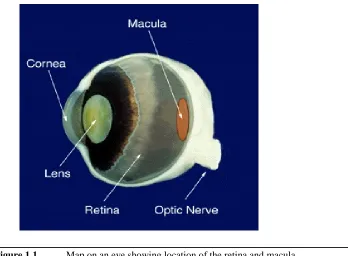
[image:11.595.168.516.163.419.2]In order to see properly, sufferers must make greater use of their peripheral or side vision. The problem with this is that peripheral vision lacks the acuity of forward vision, and as such cannot make out details such as text or far-off objects. Loss in detail can be partially compensated for by enlarging or magnifying the article to be viewed. This is the job of the low vision aid.
Figure 1.1 Map on an eye showing location of the retina and macula
Traditional aids such as the telescopic monocular, consisting merely of lenses and a tube (much like a small hand-held telescope), can be used to magnify objects for viewing, albeit at the cost of a restricted viewing field. More modern aids based on closed-circuit television, or CCTV technology help address many of the problems associated with lens based aids, but often at the price of being too bulky or expensive to use.
The advent of the home computer, together with continual miniaturisation of technology may hold the key to a better solution. Hardware and software for scanning, processing and displaying text is relatively cheap – particularly when included as part of a ‘multimedia package’ with most new home PCs. In addition to scanning paper-based text, the Internet provides a vast source of text already in electronic form.
Introduction 3
1.3
Requirements
The LVA application shall be based around scrolling large text across a screen. Initial requirements of the LVA are outlined below:
• Real-time navigation – should allow dynamic interactions for moving around the text. In particular changing speed and direction of the text flow.
• Text fully customisable – attributes such as size, font, contrast and colour can be altered either dynamically at run-time, or as part of the program set-up procedure.
• Suitable interface - should be designed with a low vision user in mind. Ideally, use of visual controls, such as buttons and pull-down menus should be kept to a strict minimum.
Some possible future additions to the application may include further navigation features, such as letter, word or paragraph jumps and or a find/search facility. Some form of audio feedback should also be considered.
1.4
Project Planning
The project was initially broken into roughly three stages: research, development and trials. In practice, these stages overlapped, with much of the research continuing right up until the end of the project. The outcome of each stage is outlined below.
1.4.1 Research
Introduction 4
1.4.2 Development
Based on the requirements obtained from the preliminary research into low vision aids, an initial specification was drawn up in accordance with the project Mission Statement. The initial software development was carried out using the Java development package. This was chosen due to the inherent cross-platform appeal of Java. This would have allowed the final application to be run on a variety of platforms, ideally leaving scope for a Java applet implementation that could be used as a web based LVA.
Unfortunately, early into the project it became apparent that the application would be fairly demanding both processor and memory wise due to the full screen graphics involved. Java was deemed inappropriate for such intense system usage, and so the lower-level C++ based Win32/MFC platform was adopted instead.
The first LVA application was then built using the Microsoft Foundation Classes (MFC) on a Windows 95 based PC. It was at this stage that complications began to surface with the standard Windows Graphics Device Interface (GDI).
In an effort to find a solution to these complications, the OpenGL and DirectDraw graphics libraries where investigated at length. Two separate implementations of the application were developed using these respective libraries. In the end, DirectDraw was chosen for the final implementation.
1.4.3 Trials
Introduction 5
1.5
Report overview
This report is split into six chapters. The contents of which are outlined in brief below: Chapter 1: Introduction
This chapter introduces the aims and motivations for development of a software LVA. Outlines the project structure and design process, and gives the application requirements.
Chapter 2: Background
This chapter goes into more detail on the problem of macular degeneration and the problems with existing reading aids. Supplementary research relevant to the problem is discussed, together with a brief look at some of the technology available. It also looks at how this may eventually be utilised for developing LVA.
Chapter 3: Text Scroller Design
This documents the main body of work in the development of the initial scrolling text application. The specification is given in detail and from this a basic program structure devised. The implementation of each key element in the design is then summarised, together with support for decisions made and reference to actual code where relevant. The operation of the working LVA application is analysed and problems highlighted.
Chapter 4: Smoothing the Scroller
This chapter deals mainly with solving the problems highlighted in Chapter 3. In particular the problem of line tearing on the display refresh is discussed. Possible solutions to the problem are considered, which includes a comparison of the OpenGL and DirectDraw graphic libraries. The design of a revised text scroller application is given and analysed accordingly.
Chapter 5: Feedback
This is a brief chapter discussing feedback from preliminary trials of a similar program. Some possible improvements to any future development of the application are suggested.
Chapter 6: Summary and Discussion
Background 6
Chapter 2
Background
2.1
Introduction
This chapter attempts to provide some background into the problems associated with reading in low vision sufferers. Existing reading aids are investigated, and the motivations for development of a new software based aid given.
2.1.1 Macular Degeneration (MD)
Macular degeneration (MD) is one of the most common reasons for severe visual impairment. Sufferers range from having ‘blurry’ vision to almost complete blindness. In most cases, the disorder does not prevent them from going about their daily lives, but if the condition deteriorates, ability to read becomes harder. Although the condition affects many people as they get older, it can develop at any age through a variety of causes, such as diabetes.
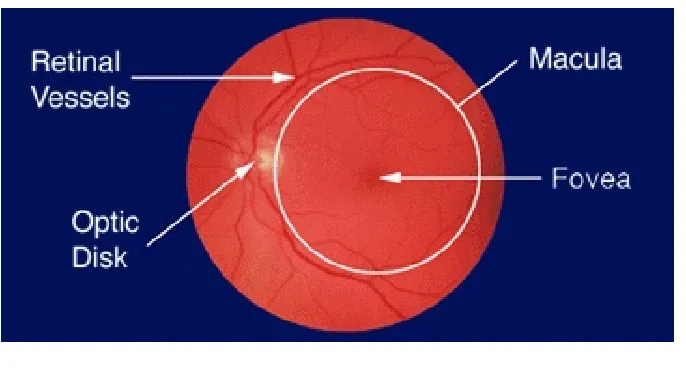
[image:15.595.138.481.552.736.2]The macula is the area of the retina where most of our central vision is dealt with. A healthy retina has a large concentration of light receptive cones in the macula; this corresponds to a high resolution in vision. The highest concentration of these cones is in the centre of the macula at the fovea, this is where vision is most acute. Blood vessels on the retina tend to flow around the edges of the macula. Here cones are sparse and hence resolution is low. This is the part that deals with peripheral (side) vision. Figure 2.1 shows a fundus image from a healthy retina.
Background 7
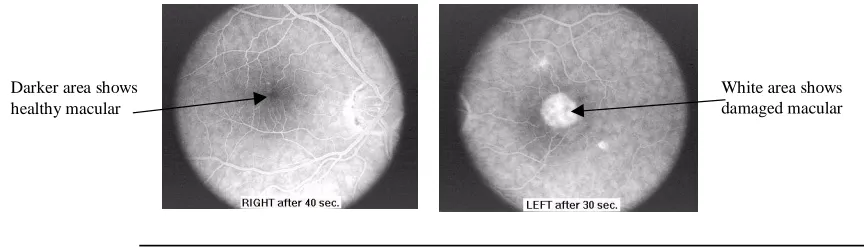
In cases where the macula has become damaged or obscured, the resolution and contrast sensitivity of the macula deteriorates and frontal vision suffers as a result. Figure 2.2 shows a comparison between the fundus image of a healthy retina and that of one with macular degeneration (MD).
White area shows damaged macular Darker area shows
[image:16.595.91.523.165.290.2]healthy macular
Figure 2.2 Fundus image of healthy retina (left) compared with macular degeneration case (right)3.
2.1.2 Reading with macular degeneration
[image:16.595.162.503.528.678.2]It is the brain’s responsibility to direct images to the best suited part of the retina—the Preferred Retinal Loci (PRL)8. In normal healthy eyes, the PRL is fixed on the central macula and is used for most vision tasks—particularly with reading, where high resolution is desirable. In cases where the macula is obscured or damaged, the PRL is forced to fixate on less acute areas of the retina. This loss in visual acuity can effectively render tasks such as reading almost impossible. Figure 2.3 shows the likely view of someone with macular degeneration reading both normal and magnified text.
Figure 2.3 Reading view of someone with severe macular degeneration – the left image showing normal text, the right showing magnified.
Background 8
2.2
Reading Aids
There is a surprisingly small range of aids available for people with severe vision problems. Although there are a few electronic (e.g. CCTV) aids, the most common involve antiquated optical lens technology such as eyeglasses and telescopes. People with macular disorders use such aids to magnify images onto their lower resolution periphery. The magnification compensates for loss in visual acuity, but this is usually at the expense of a reduced field of view – particularly when using monocular LVAs. Another problem with increased magnification is the corresponding increase in image motion. This can disorientate the brain causing so-called image slips9, where even the slightest movements can cause visual acuity to suffer - in some case inducing severe motion sickness.
2.2.1 Traditional LVAs
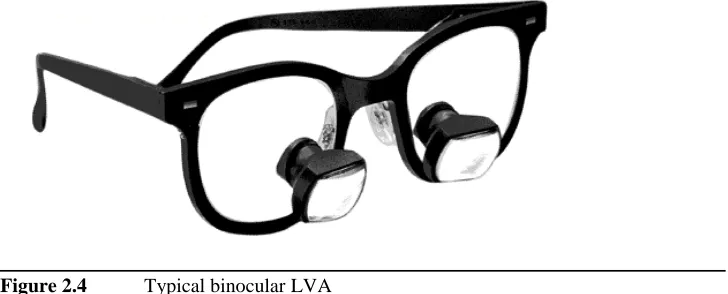
[image:17.595.162.526.522.669.2]Traditional lens based reading aids are typically available in monocular or binocular form. These are small telescopes that can be handheld or fixed to a sturdy set of spectacle frames, as shown in Figure 2.4. The magnitude of such aids is typically in the range of x2 to x7. These are used by people with a wide range of vision disorders and rarely provide a ‘perfect’ solution. Generally, the fixed focal length of (say) a monocular requires that in order to read, the user must hold the text at a constant distance from the lens. Finding the correct distance is one problem, finding the text itself—especially with a magnification greater than x3 -- can be another. It often takes much effort to get used to such a device—some people never get used to them.
Figure 2.4 Typical binocular LVA
Background 9
that the brain becomes preoccupied with text recognition and hence suffers in understanding. At the end of a line of text, the reader may even have forgotten what was at the beginning.
Further complications arise at the end of a line. In normal reading conditions the eye moves in saccades, progressively fixating at points along a line, before jumping to the start of the next line – the carriage return10. The brain deliberately blocks reading during this jump so as not to disrupt the flow of reading. When reading through a monocular, the carriage return must be made more carefully so as not to cause image slip and loose track of the line. This has the knock-on effect of introducing a break in reading flow during which extra text may be read causing confusion.
Invariably the reader may suffer from some form of arthritis, nerve problem or loss of motor skills: both holding the device and scanning the paper (or book) for any length of time becomes a very difficult task. Sadly, for some people whose vision deteriorates, the mental and physical fatigue of reading becomes all too much. What once may have been a leisurely and enjoyable pursuit, can quickly become an unbearable chore. Fortunately, in many more cases, these inadequacies are overcome. People can learn to adapt with the help of even the most primitive LVA devices.
2.2.2 CCTV
Background 10
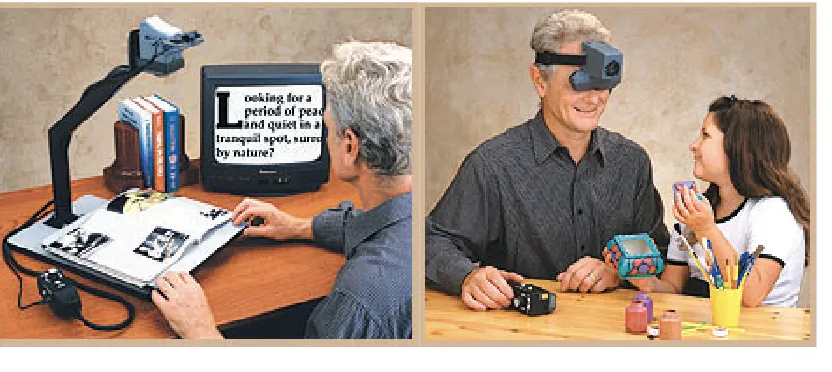
Figure 2.5 CCTV for reading (left) and head mounted for everyday use (right)12
Despite these benefits, CCTV is not as widely used as optical devices. Part of the problem with CCTV technology is that it has been, until recently, fairly bulky in size. A large TV screen and camera may be somewhat of an inconvenience for day-to-day use when compared with a small hand-held monocular. There are smaller and lighter head-mounted based CCTVs available, incorporating advanced features such as automatic focus13, but these tend to use specialised technology and can be very expensive. See head mounted CCTV in Figure 2.5. Advances in technology, driven by the lucrative home entertainment markets, have brought the size and price of such systems down, but there is still some way to go.
Another factor of quality is in ease-of-use. People suffering from low vision tend to be elderly, and as such less willing to learn how to use new ‘gadgetry’. If the use of an LVA does not ‘feel’ natural or convenient, people will inevitably go back to using what they are used to – despite the failings.
2.2.3 Text to speech
Advances in text-to-speech technology has brought many benefits for low vision users. Stand-alone text-to-speech readers are available that can scan any source of paper based text, from newspapers, magazines to books and bills. The text is extracted and read out to the user. Text can be navigated using a simple keypad, with feedback provided vocally by the machine14.
Background 11
2.2.4 PCs as Low Vision Aids
A solution to the expense problem of electronic low vision aids can be found in the use of the home PC. Many PCs these days come packaged with facilities for scanning paper based image and text. Once scanned, images can be manipulated in many ways: magnification, colour, contrast enhancement, and even text extraction. There are several software based ‘PC CCTV’ packages available specifically for the low vision computer user. Together with relatively inexpensive text-to-speech software the home PC can be used both as a CCTV and a text-text-to-speech reader combined. The only real cost involved is with the software15,16
.
PC based LVAs are still in their infancy however, and there are many problems associated with their use. These will have to be overcome before such aids are useable enough for widespread acceptance.
2.3
A PC based LVA: Motivation
Much of the motivation for this project comes from the much neglected potential of merging existing ‘off the shelf’ technology with medical applications. There is already a wealth of cheap video technology driven by the massive potential in the home entertainment market. Miniature video cameras and high resolution displays are just some of the products that with minimal adjustment could be used to build high-tech low vision aids of the future.
The use of an electronic low vision aid can be split into two categories: aid for using a computer, and computer based aid for reading. Although this project shall focus on development of an aid for reading, some of the wider problems associated with aids for computers shall be discussed.
2.3.1 LVA for computer use
Most of the so-called PC CCTV systems available are developed with a general purpose day-to-day computer user in mind. Such aids are essential as it is becoming increasingly necessary for computers to be accessible to all, such is the growing importance of computers in everyday life. The problem is that often these software aids are no more than mere add-on ‘hacks’ that fit uneasily on top of the existing computer interface. These rarely provide an efficient and practical solution to the needs of a low vision user.
Background 12
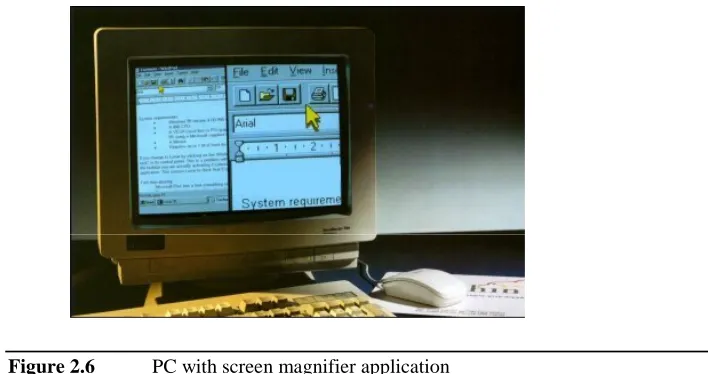
[image:21.595.158.512.164.351.2]area of the screen. The user can move around the screen by dragging the mouse beyond the magnified area’s boundary. This can work quite effectively if the user is only working with one part of the screen, but what if an error message appears on another section of screen? It is likely that the user will not see the error message until he/she scrolls the magnified area over it.
Figure 2.6 PC with screen magnifier application
There are many more such problems with this and other software based LVAs. The problem seems to lie with the fact that existing computer interfaces, such as the Window’s desktop metaphor, were simply not designed with low vision users in mind.
2.3.2 LVA for reading only
Falling short of a complete re-design of the standard Window’s interface, the approach used in this project concentrates on the specific task of reading. It is hoped that by narrowing the domain down to a reading specific software application, a more effective solution can be built. If fruitful, this may yet lead the way to a more general purpose aid.
Other issues in the general design of a PC based LVA for reading are identified as follows:
• Where does the text to be read come from
• How should the text be displayed for optimal low vision viewing, and
• How can it all be controlled
2.3.2.1 Where does the text come from?
Background 13
It may be the case that today most of our reading tasks are carried out using paper based sources, but with ever increasing use of the Internet, more and more information is becoming available electronically. Most national newspapers are already available ‘on-line’, as are many books. Increasing use of email is already taking over the traditional postal service as a means of communication. Some telephone and electricity companies have already started billing customers by email. As the text is already available electronically, it may be extracted and displayed using the software LVA with minimal fuss.
2.3.2.2 How should the text be displayed?
There have been many advances in digital displays over the last few years. It is now possible to have a fairly large, full colour, high resolution LCD flat-screen display for a relatively inexpensive price.
For portability and ease of use, there are already head-mounted displays available, in some cases weighing less than a pair of bifocals. Video glasses, such as the Sony Glasstron, developed primarily for the home entertainment market allow a direct link-up to a portable PC17. Some PCs, in particular the so-called ‘wearables’ are so small they can be sewn in to the lining of a jacket.18
2.3.2.3 How should it be controlled?
The standard mouse and keyboard is an effective interface for computers. If the application is to be made for wider non-computer use as an LVA, these devices are unnecessarily complicated. Particularly when designed for use by elderly or non-computer literate low vision sufferers.
From the point of view of control, a simpler control may be all that is required, such as a simple button for controlling text flow, or a joystick/control pad as used with video games.
2.4
Summary
Text Scroller Design 14
Chapter 3
Text Scroller Design
3.1
Introduction
This chapter outlines the design of a text scrolling application for use as a low vision reading aid. A specification is given based on some of the requirements and low vision needs discussed previously. A suitable user interface (UI) is also identified. From this, an initial program structure is devised and implemented. Issues arising from this initial implementation are discussed and any major problems identified.
3.2
Software Specification
An Object-oriented (OO) approach was used in the design of the text scroller application. Based on the perceived requirements for an electronic low vision aid, as discussed in the last chapter, a preliminary software specification was put together using UML (Unified Modelling Language19) use cases and class diagrams.
3.2.1 A Generic Class Framework
When choosing a set of classes for an OO design, it often helps to base the high-level class structure on an abstraction of some relevant ‘real world’ situation. Individual classes and their responsibilities can be chosen from the key parts of that abstraction. It seemed natural to base the design abstraction for this application on a traditional monocular LVA. The main components of a text reading scenario where a monocular is being used is the document being read, the lenses and the telescope holder.
Use-cases were drawn up and used to identify the main components used in a typical low vision-reading scenario.
Text Scroller Design 15
• The lenses are responsible for magnifying and altering the View of the text in a way that is useful for the reader. Magnification is changed by adjusting the distance between the lenses, and or replacing the lenses themselves. The lenses may be tinted using filters if necessary, e.g. to assist partially colour blind users.
• The telescope holder (or Frame) allows the user to adjust the distance between lenses. It also gives the user a handle to control the positioning and movement of the device.
From an object-oriented programming point of view the Document, View and Frame abstract of the telescopic monocular provides a good basis for any future class structure.
3.2.2 Adapting The MFC Framework
The Microsoft Foundation Classes (MFC) that come packaged with the Visual Studio C++ development suite was used in development of this application.
Built on top of the Win32 API (Application Programming Interface), MFC provides a collection of useful skeleton classes for building Windows based applications. Much of the code for setting up windows and interpreting user commands is already provided. Classes for reading and writing to files is also provided. MFC allows straightforward development of applications without the distraction of having to code commonly used window interface features.
An advantage of using MFC was that it already had an application framework that correlated nicely with the monocular abstraction given in section 3.2.1. The basic Frame class (CMainFrame) provides a mechanism for handling user interactions and passing them on to the relevant classes for processing. The Document class (CDocument) provides a basic mechanism for reading and writing to files. The View (CView) class provides mechanisms for processing and writing the application’s display.
Text Scroller Design 16
Class name: CReaderView Collaborator(s):
Responsibility:
• Format text (font, size, colour)
• Render text (position, actual screen format and size) • Show text on screen
• Scroll text across screen • Retrieve text from Document
[image:25.595.112.527.65.493.2]CReaderDoc
Table 3.1 Responsibilities and collaborators for View class CReaderView
Class name: CReaderDoc Collaborator(s):
Responsibility:
• Load text from file
• Translate to plaintext
[image:25.595.122.523.69.200.2][ file system ]
Table 3.2 Responsibilities and collaborators for Document class CReaderDoc
Class name: CMainFrame Collaborator(s):
Responsibility:
• Handle user input
• Display controls and menus
• Forward commands to Doc and View objects
CReaderView CReaderDoc
Table 3.3 Responsibilities and collaborators for Frame class CMainFrame
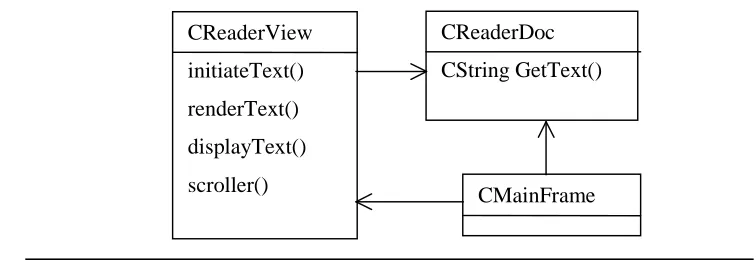
[image:25.595.148.526.579.709.2]The corresponding class diagram, showing proposed member functions is shown below using UML notation in Figure 3.1.
Figure 3.1 Simple UML Class diagram for reader application CReaderView
initiateText() renderText() displayText() scroller()
CReaderDoc CString GetText()
Text Scroller Design 17
3.3
Application Design in MFC
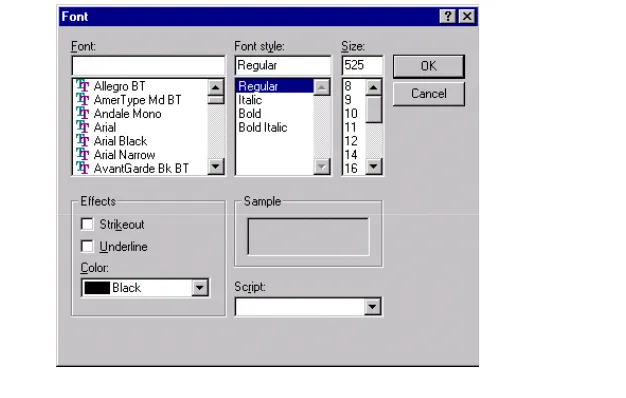
Due to the predominantly graphical nature of the scrolling text application, most of the interactions handled by the Frame class are passed onto CReaderView for processing. Part of the appeal of using MFC is that the user interface comes almost ‘for free’. Indeed most of the setting up of menus, control buttons and shortcut keys are handled automatically using the API’s ‘Class Wizard’. Additionally, MFC provides standard pop-up or modal dialogue boxes for changing attributes such as colour and font.
Most of the implementation details of dealing with files and text sources are dealt with already using the CDocument based class. This can easily be adapted to deal with many different formats of input file. It can be linked with external libraries of code that are written specifically for parsing different formats of text into plain text ASCII. This means that the scroller application itself only ever has to handle plain text.
3.3.1 GDI
The Win32 Graphics Display Interface, or GDI, provides a wide variety of functions for formatting and then rendering to display. It allows programming of applications using low-level display functions without being bogged down by device specifics. Most of the calls to GDI will be carried out in the CView class as this is where display work for the application is dealt with.
3.3.2 Formatting
The GDI provides many useful functions for formatting text. The size and font details can all be stored within a LOGFONT structure. This structure can be kept active throughout the View’s runtime by specifying it as a member variable, m_logfont. The specific details of the font, such as line spacing and character widths can be taken care of by using the MFC class CFont. This sets up a LOGFONT structure with suitable default values, while allowing changes if necessary using its member functions. The colour of the text and its background can be set in a similar manner.
Text Scroller Design 18
Figure 3.2 Typical MFC modal dialogue for changing text font and colour
3.3.3 Rendering onto display
The GDI provides an abstraction from the device specifics of the display in the form of a device context. A device context is a section of memory that can be mapped to output devices such as printers as well as portions or the entire display screen. The GDI provides functions for easy manipulation of device contexts.
When rendering an image or text to screen, a pointer to the screen’s device context is required. Calling the GDI’s GetDC from within the CReaderView class returns a pointer to the client window’s device context. This is the portion of screen within the current View window. The current font and size can then be selected into the device context using the SelectObject function. Similarly, the background and text colours can be set using the functions SetBackgroundColor and SetTextColor.
A string of text can be rendered into position on screen context using the function TextOut. Its position can be specified using x and y co-ordinates relative to the client screen. The colours and font previously selected are applied automatically to the rendered text. Bitmap and images can be rendered in a similar manner.
3.4
Naïve Method for Scrolling
Text Scroller Design 19
efficiently by creating a rectangle the same size as the text region and colour of the background and selecting it onto the device context before each call to TextOut.
In practice, the continual clearing and rendering of text causes a noticeable ‘flicker’ on screen. Additionally, the rendering process initiated by TextOut is fairly processor intensive and can take several tens or hundreds of milliseconds. With this delay imposed by rendering on each refresh, the scrolling becomes noticeably slow and jerky. This is unacceptable for any practical usage.
3.4.1 Rendering to memory (double buffering)
One solution to the redraw ‘flicker’ is to create an off-screen device context in memory. The memory device context is made compatible with the screen context using the GDI function GetCompatibleDC. It acts as a buffer to which text can be rendered to in a similar manner as with
directly to screen. This technique is known as double buffering.
The GDI provides a BitBlt function for blitting, or bit copying, between display contexts. The off-screen buffer is copied directly onto the off-screen only when rendering has finished. This can be carried out much faster than rendering directly to screen, and as only a complete image is copied each time, the ‘flicker’ caused by screen redraw can be reduced.
3.4.2 Protecting the buffer
An issue that arises with multitasking platforms such as Windows is ‘who owns what?’ In Windows, a device context can be accessed by any of the running programs. As there may be several programs running at any one time, including the window manager, the chance of a newly rendered context being overwritten is high.
Win32 applications are responsible for updating their own windows. This includes their visible portion of a screen as well as any buffers in memory. To allow for other applications also making use of off-screen buffer space, the application should be set up to make a ‘backup’ copy of its buffer space each time it is rendered to.
One way of making a backup is to copy the buffer onto a bitmap image. The GDI function SelectObject can be used to select a bitmap in and out of the device context. When a new bitmap
Text Scroller Design 20
Whenever the buffer is required again, the bitmap is simply reselected, overwriting any unwanted information in the buffer that was left over from other applications.
3.5
Improved Methods for Scrolling
Using BitBlt from an off-screen buffer may help remove flicker from screen redraw, but it does not remove the need to render a complete image on each iteration, and so the rendering overheads remain. Two different approaches were taken to this problem; these are best described as the “Alphabet Buffer” and “Scrolling Window” algorithms.
3.5.1 Alphabet Buffer Scrolling
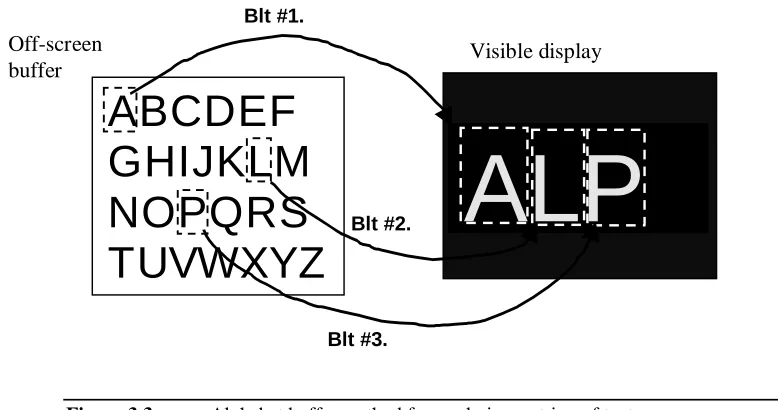
One approach to reducing rendering time would be to render a complete alphabet onto the off-screen buffer. This would effectively require rendering once only. A suitable blit operation can then be used to select individual letters as required and copy them in position to the screen. This is shown in Figure 3.3.
ALP
ABCDEF
GHIJKLM
NOPQRS
TUVWXYZ
Blt #1.
Blt #3. Blt #2. Off-screen
[image:29.595.129.518.384.589.2]buffer Visible display
Figure 3.3 Alphabet buffer method for rendering a string of text
This method makes use of a variation to GDI’s BitBlt function, StretchBlt. StretchBlt expands the content of the source rectangle to fill the destination. This magnification results in a loss of text resolution, but this can be minimised if the buffer is sufficiently big and the rendered font being used is large enough.
Text Scroller Design 21
Colour changes do not necessitate re-rendering as text and background colours can be selected directly into the screen context. The off-screen buffer can be configured to store the image as a monocolour bitmap. The StretchBlt operation can then be configured to merge copy this bitmap with the colours specified for the destination screen. This method of rendering has a further advantage of reducing the memory used by the buffer.
The disadvantages of this method come with the added processor overheads of StretchBlt and the need to call a blit for each character being displayed. This leads to a noticeable degradation in scrolling speed. Additionally, the time differences between each call to StretchBlt causes the characters to jitter disturbingly.
3.5.2 Scrolling Window
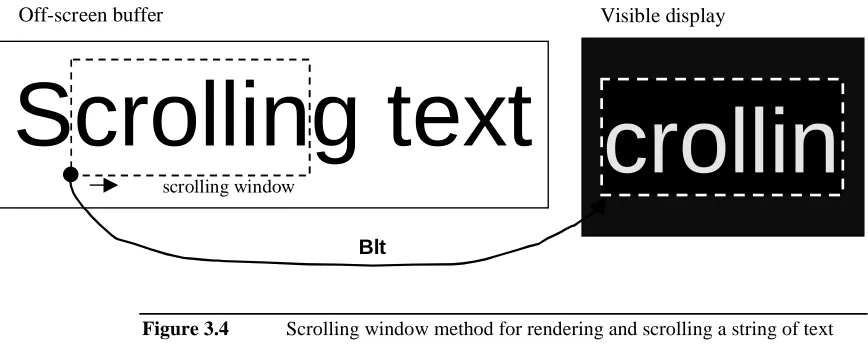
An alternative way of coping with the overheads of rendering is to create an off-screen buffer that is much wider than the screen and using a smaller clipper window to copy to display. GDI’s BitBlt allows copying between sub-rectangles of the source and destination device contexts. This means that a large section of text can be rendered to the off-screen buffer, with a small sub window being used to copy portions of the buffer to screen. The scrolling can be achieved by incrementing the starting x co-ordinate of this source window and calling BitBlt. See Figure 3.4.
crollin
Scrolling text
Blt
Off-screen buffer Visible display
[image:30.595.91.525.440.613.2]scrolling window
Figure 3.4 Scrolling window method for rendering and scrolling a string of text
Text Scroller Design 22
3.6
Scrolling Text Implementation
The general algorithm for the initial text scroller application is fairly straightforward. This section gives a short description of the structure and methods used for implementing the scroller using MFC. The application follows the class diagram shown earlier in Figure 3.1. It may help to consult the code samples given in Appendix A.1.
3.6.1 CReaderDoc Initialisation
The CReaderDoc loading mechanism extracts strings of up to 256 characters serially into elements of the CStringArray member, m_textStrArray. The GetText member function can then be used to return a string of text from this. In the initial implementation, m_textStrArray behaves like a circular stack. Calling GetText ‘pops’ the top string from the stack and ‘pushes’ it onto the bottom.
3.6.2 CView Initialisation
The CReaderView::initiateText function is responsible for retrieving the initial string of text from CReaderDoc by calling GetText. Using the default font and size attributes, the pixel width of the
text string is calculated. This is carried out using GetCharWidths, which calculates each individual character width in the current font. These are then used by GetStringWidth to determine the pixel length of the entire string, m_textStrPixelLen. This is used later in the scrolling process to determine exact pixel locations of characters being displayed.
Setting up the off-screen buffer and rendering text to it is carried out by the renderText function. Using the “Scrolling Window” algorithm detailed above, this function can be called in three situations: directly after initialisation; at the end of the each displayed section of text, when new text is loaded; and whenever the screen becomes invalidated. The screen becomes invalidated whenever a window is moved or resized – when the device context of one application interferes with another. Thus the View’s OnSize and OnDraw functions are simply overridden to call renderText.
3.6.3 Calling the scroller
The scroller function is called from out with CReaderView by the application framework’s handle function OnIdle. Care must be taken to ensure that the application cannot call this function before CReaderView itself has been created and initialised.
Text Scroller Design 23
across different systems. The implementation given in Appendix A.1 attempts to regulate the scrolling loop by using a counter within OnIdle. The counter only allows scroller to be called on every n counts. This method works well for development purposes, but use of a multimedia timer is recommended for any further work.
3.6.4 Displaying the text
The main thing scroller does is call displayText, which handles all of the blitting between off-screen buffer and off-screen. The displayText function blits a window of the current visible off-screen size (m_screenSize) from the larger buffer (m_bufferSize) onto the display. See method for “Scrolling Window” in Section 3.5.2. The member m_pos.x is used to keep track of the current x-coordinate of the bottom-left point on the source window. Before each call to displayText, the scroller increments m_pos.x by an integral number of pixels (m_scrollerIncrement).
Hence on each call to displayText the source window of the buffer is moved along and blitted to screen, thus creating the effect of scrolling text.
3.6.5 Updating the scroll buffer
Once the scroller reaches the end of the current buffer, new text should then be rendered. The displayText function checks for when m_pos.x reaches the point exactly one visible screen width
before the end of a section of text – assuming forward scrolling from left to right. When this is reached, the m_bRenderText flag is set, signalling scroller to call renderText.
This is where m_textStrPixelWidth comes in handy. Function renderText uses m_textStrPixelWidth to determine at exactly which point in the string the currently visible text
Text Scroller Design 24
Scrolling text
Off-screen buffer - before renderg text
Visible displayg text for you
render
[image:33.595.90.520.77.327.2]Off-screen buffer - after render
Figure 3.5 Maintaining continuous scrolling text before and after a render
In the initial implementation, no provision has been made for reverse scrolling. This is something that should be rectified for any future release.
3.6.6 Controlling the application
Any changes to the flow of scrolling or to the size and format of the display may be made through both menu and button controls, or via keyboard shortcuts. The handler functions for each user interaction generally make some change to the relevant member variable. For example, pressing the ‘up’ arrow key increases the scrolling speed by incrementing the variable m_scrollerIncrement. Similarly the ‘down’ key decrements the variable.
Text Scroller Design 25
[image:34.595.113.515.124.425.2]A typical screenshot of the working reader application is shown in Figure 3.6. The executable for the reader is included on the accompanying CD.
Figure 3.6 Screenshot of the initial LVA reader application
3.7
Analysis
For this initial implementation it was decided that the “Scrolling Window” approach gave better results. With a buffer of about seven times the screen width, reasonably smooth scrolling could be obtained. Memory overheads were kept to a minimum by using monocolour bitmaps.
Despite these improvements, the scroller continued to halt whenever renderText was called. This was noticeable and occurred frequently, particularly with large text. Some further investigation was required to speed up the rendering process and or stop the scroller from being interrupted.
Text Scroller Design 26
3.7.1 Improvements
Other than the operational problems identified above, there is much scope for improvement to this initial implementation. Notably, navigational features such as letter/word/sentence jump and a search facility remain to be implemented. More essentially, backward scrolling should also be dealt with. Additionally the document class should be extended to deal with larger files than just 256 by 256 characters.
From a low vision user’s point of view, the use of standard MFC dialogues is not ideal. One future improvement would be to redesign these dialogues to something more appropriate. For example, the text colour selection dialogue could be with fewer but bigger colour selection buttons.
These suggested improvements will not be implemented in the context of this project, but should be noted for any future work.
3.8
Summary
Smoothing the Scroller 27
Chapter 4
Smoothing the Scroller
4.1
Introduction
This chapter attempts to investigate the display problems encountered with the text-scrolling algorithm outlined in Chapter 3. Some possible solutions are discussed and means of implementing them for this application considered. In particular, a specialised graphics class is proposed for interfacing the application to some suitable graphics library. Two popular graphic libraries for the Win32 API are assessed, namely OpenGL and DirectDraw. The implementation of the specialised graphics class using the DirectDraw API is described, as is an improved algorithm for displaying smoothly scrolling text.
4.2
Problem Description
There are two basic problems described in the last chapter. The first is the effect so-called ‘line tearing’ – the visually disturbing effect observed as the scrolling display is moved across the screen. The second is the effects of rendering overheads – observed as momentary halts in scrolling whenever a new display is being rendered. Both of these problems raise issues with the scrolling text application that are far from trivial. Particularly when implemented using a Win32 GDI based platform.
4.2.1 Line Tearing
The line-tearing problem is essentially one of synchronisation. In particular, the software screens refresh synchronisation with that of the display hardware. Although the Windows operating system itself has its screen refresh in sync with the display hardware, characterised by there being no such tearing observed when a window is moved, the GDI functions do not. This means that whenever a GDI BitBlt is called the data is copied to the screen regardless of whether there is a physical screen refresh in progress or not.
Smoothing the Scroller 28
It follows from this description that in order to be able to solve line tearing, the scroller must somehow be synchronised with the physical display refresh. An investigation into possible ways of attacking this problem is detailed later in this chapter. A working solution is also presented.
4.2.2 Rendering Overheads
[image:37.595.123.522.312.455.2]In any graphical application, before displaying to screen an image must firstly be rendered. The current implementation of the text scroller, using an off-screen buffer with scrolling window, requires an image to be rendered whenever the end of buffer is reached. When implemented in a single program execution sequence (thread) the scrolling display update must temporarily halt while the rendering is carried out. This can cause a noticeable halt in the scrolling, as shown in Figure 4.1.
Main App. displayText
renderText Location
Time
Figure 4.1 Single thread execution of text scroller application
4.3
Generic Solutions
Smoothing the Scroller 29
Main App. displayText renderText
Location
h/w Blit op.
[image:38.595.142.519.77.259.2]Time
Figure 4.2 Single thread execution of scroller with immediate return blit
[image:38.595.129.524.459.607.2]A second approach would be to execute the rendering code ‘simultaneously’ with the scroller. This can be achieved on a single processor PC using a separate thread of execution, as shown in Figure 4.3. The threads effectively enable multiprocessing at a low level, giving the appearance of simultaneous execution. Implementing threads using Java is relatively straightforward20. With Win32 however the opposite is true. MFC does provide classes for implementing threads, but using them is non-trivial. A full investigation of threads shall not be carried out in this report due to time restrictions. The implementation given in this chapter does however leave scope for possible future addition of threads.
Main App. displayText begin render thread
renderText STOP
Time
Figure 4.3 Execution of text scroller with rendering performed in a separate thread
4.3.1 Triple Buffering
Smoothing the Scroller 30
i.e. one off-screen buffer is handed to display for blitting, while the other is made available for rendering. This technique is known as triple buffering.
4.3.2 Refresh Synchronisation
Moving the blit to hardware does not necessarily imply that the operation will be speeded up. Speeding up the execution of a blit depends both on the display hardware and the number of tasks that blit must perform. Any additional operations, such as magnification or colour translations can significantly slow down the blit.
A one-to-one blit between same size buffers resident in display memory, as opposed to system memory, can increase the speed of operation significantly. This can help to reduce the effects of tearing. Unfortunately it cannot completely remove them. To do this, the screen update initiated by the blit must be fully synchronised with display hardware. Due to its device independent nature, this cannot be achieved using the standard Wind32 GDI. Instead a much closer interface to the hardware is required.
Unfortunately any closer interfaces to hardware comes with the added complexity of having to deal with device specifics. The GDI deals with differences between display devices by interfacing to the hardware through the given device driver interface (DDI) for that device. Often, manufacturers develop their DDI with GDI in mind, so any additional functionality would require bypassing both GDI and the given device interface. This involves dealing with many low level parameters and functions specific to each device. To deal with the multitude of display technologies available, as well as anticipating new ones is a task neigh on impossible. Some mid-way solution is therefore required.
4.4
Investigation of Graphics Libraries
Various graphics libraries are available for providing an improved interface to display hardware. As well as providing lower level blit-style operations, these libraries provide added capabilities for off-screen buffers and can make better usage of advanced graphics hardware. These libraries provide a higher-performance graphics interface, while maintaining at least some of the device independence provided by GDI.
Smoothing the Scroller 31
This investigation covers two of the graphics libraries available for Win32. These are OpenGL21 and DirectDraw22. For completeness the Win32 GDI shall also be considered.
4.4.1 GDI
As already shown in the last chapter, the GDI graphics library provides many useful features for 2D graphics manipulation. Although these have proved insufficient for low level display operations, such as fast blitting and display memory buffering, there are many GDI functions that may still be of use to this application.
GDI provides a host of tools for creating and manipulating graphics objects. These objects include brushes, pens, bitmaps, pixels and text. The attributes of these objects, such as fills, thickness, font and colour, can be specified and changed using object member functions.
Off-screen buffering can be provided using the GDI device contexts. Device contexts provide a canvas onto which GDI objects can be assigned and manipulated. As shown in the initial scroller implementation with the renderText function (Appendix A.1) these functions provide a convenient way of manipulating text with different system fonts and attributes. Bypassing this capability for lower level code would introduce increased complexity with a huge increase in necessary coding.
4.4.2 OpenGL
OpenGL is an open standard graphics library that may be used on a variety of platforms. Although designed for 3D applications, OpenGL can be tailored for 2D. This platform was chosen for a possible implementation of the scroller’s graphics class due to the wide support available for it. Additionally, its inherent cross-platform appeal meant that any future implementations of the text scroller on another platform would reap the benefits of minimal required alteration.
Smoothing the Scroller 32
4.4.2.1 Initialising OpenGL
Due to the inherent 3D nature of OpenGL, initialisation for even a basic 2D application is non-trivial. The view is treated as a 3D co-ordinate space and as such requires prior setting up for 2D emulation.
Before rendering can begin, the back buffer must be set up with the correct screen pixel format and other device parameters. Setting up OpenGL to be compatible with the current device must be carried out manually. This involves using glGet function to probe the current device for its capabilities and fill them into an appropriate structure for use by the OpenGL engine.
Much of the code for initialising OpenGL for use in this application is irrelevant to the context of this report, but can be found in the accompanying CD.
4.4.2.2 Rendering text with OpenGL
The support for rendering to the back buffer is where OpenGL’s strengths lie. Fast manipulation of 3D and 2D polygonal images, texture mapping from bitmaps onto polygons, and fast view translations, rotations and inversions are all possible. The caveat however, is with OpenGL’s ability to render text.
The Win32 version of OpenGL available for use in this project did not allow the use of GDI functions directly onto the back buffer. This meant GDI could not be used to format and render text.
To get around this, the OpenGL function wglUseFontBitmaps was used. When the application is set up, or whenever the font or text size is changed, this function is called to generate an array of bitmaps. Each bitmap element corresponds to a fully rendered glyph of the desired font.
The process for formatting text in OpenGL is outlined below:
• Prepare GDI font using CFont object
• Obtain the main OpenGL device context using wglGetCurrentDCψ
• Select the CFont into device context in usual GDI way
• use wglUseFontBitmaps specifying the device context to create bitmap array
ψ Note the device context returned corresponds to the screen only – it cannot be used as a
Smoothing the Scroller 33
The method employed for rendering is effectively the same as that used in the Alphabet Buffer algorithm described in previous chapter. When a string of text is to be displayed, the desired glyphs from the array are chosen and placed in position onto the back drawing buffer. This is carried out using the function glCallLists, specifying the string as a parameter; the function glTranslate must also be used to specify the position in 3D co-ordinate space.
Once the drawing has been fully rendered, SwapBuffers can be called to transfer the entire drawing buffer onto the screen device context.
4.4.2.3 Scrolling text with OpenGL
In practice, after the desired glyphs are converted into real-size bitmaps and listed as an array of pointers, accessing them and rendering to buffer became quite slow. Swapping the buffer to screen could be carried out quickly, but there is no easy way of translating (horizontally shifting) a selection of the drawing buffer onto screen without completely redrawing the buffer again. The resultant scrolling was very slow and jumpy.
As the SwapBuffers function provided no facility to specify a source window, or even to translate the view, the Scrolling Windows approach was not possible for this implementation.
If some OpenGL ‘tricks’ are employed however, the process of translating the display quickly during scrolling can be partially realised. One idea is to alter the OpenGL view co-ordinates on each scroller increment, as opposed to the drawing raster position. Although a simple enough idea, this proved tricky to implement. The bitmaps must still be redrawn on each scroll step, but as the parameters to glTranslate and glCallLists do not change the redraw should not take much time. In practice however, the speed improvements were slight and the scroller continued to run very slowly.
4.4.2.4 Analysis of OpenGL
The OpenGL implementation failed to solve the problems of either line tearing or rendering speed. Surprisingly, the rendering time for a string of text was even slower than using GDI alone. The likely cause of this is not with OpenGL itself, but with the limitations imposed by the particular Win32 implementation of OpenGL used.
Smoothing the Scroller 34
4.4.3 DirectDraw
DirectDraw, from Microsoft’s DirectX software development family, provides a more optimistic route. As with OpenGL, DirectDraw can be made cross-platform. However, as its name suggests DirectDraw provides a more direct interface to hardware. In particular it can be configured to make effective use of device memory, and is able to synchronise screen refresh with hardware. Another advantage of DirectDraw API is that it can be used alongside GDI. Figure 4.4 shows the relationship between the DirectDraw hardware emulation layer (HEL) and the device driver interface (DDI) compared with GDI.
Windows Graphics Device
Interface (GDI)
Windows Device Driver Interface
(DDI)
DirectDraw Hardware Abstraction Layer (HAL) /
Device Driver Interface DirectDraw Hardware Emulation
Layer (HEL) Windows Application
DIBENG Emulator
[image:43.595.169.491.270.580.2]Display Hardware
Figure 4.4 Video architecture for Windows 95 – indicating both GDI and DD interfaces between applications and hardware
4.4.3.1 Surfaces and Double Buffering
Access to video memory in DirectDraw is provided through surface objects. As there are many different kinds of video memory, so there also many kinds of surfaces available through DirectDraw.
Smoothing the Scroller 35
includes the entire screen. This means that care must be taken when writing to it so as to avoid overwriting the display space of other applications.
Buffering can be achieved in DirectDraw using one or more off-screen surfaces. Surfaces can be manipulated directly as a contiguous section of memory. Alternatively, a handle to the surface can be obtained using a GDI compatible device context. This allows GDI graphics rendering functions to be used.
4.4.3.2 Fast Blitting
The DirectDraw API provides a Blt function for blitting between surfaces. A DDBLT_WAIT flag can be set to specify whether the Blt function should wait until the blit operation has been completed before returning. If Blt is called without this flag, it will post the blit operation to display hardware and return immediately.
The blit operation itself can be carried out considerably faster than with GDI if all surfaces involved are held in display memory. This is one of the ways in which DirectDraw makes good use of the hardware resources available.
4.4.3.3 Page Flipping
Using Blt alone does not ensure synchronisation with hardware. To achieve this DirectDraw must be set up in page flipping mode.
Page flipping uses a number of surfaces, all with the same size and format. One surface is assigned as a front buffer, the rest as back buffers. Whenever a Flip command is called, one of the back buffer surfaces becomes the front buffer and the surface acting as front buffer is flipped into a back buffer. Note that it is the pointers to the surfaces that are copied and not the contents. Additionally, the Flip operation waits until just before the hardware begins refreshing the screen before flipping the buffers. The effect is an almost instantaneous display refresh, without any tearing.
Smoothing the Scroller 36
1
2
3
back buffer 1 back buffer 2 front buffer
DD Surfaces
Flip pointers
Flip
[image:45.595.116.527.65.305.2]( currently visible )
Figure 4.5 Page flipping with three surfaces in DirectDraw
4.4.3.4 Caveat: full-screen mode
Unfortunately page flipping can only be used in full-screen mode. This is because Windows itself does not use Page Flipping. Any application making use of Page Flipping therefore becomes responsible for the entire display. Windows GDI does not recognise the back buffers used in Page Flipping and as such is unable to maintain a useable windows interface. Any user interaction or windowing features must be dealt with by the application itself.
Another problem with page flipping is that only entire surfaces can be flipped. This means that sub windows of a surface cannot be singled out for display. This problem can be overcome, but at the expense of an extra (non-flip) surface and Blt operation.
4.4.3.5 Analysis of DirectDraw
DirectDraw provides a far superior API for the scrolling text application than either GDI alone or OpenGL. The speed increase of Blt and the provision for multiple off-screen surfaces in display memory is ideal for fast display refresh. The ability to use existing GDI rendering functions is also beneficial from the point of view of development time.
Smoothing the Scroller 37
text. With full-screen operation, the display can be optimised for reading text, with a minimal set of interface features geared towards low vision use.
4.5
Revised Text Scroller
A revised scrolling text application was implemented using the DirectDraw graphics API. The scrolling algorithm employed is Scrolling Windows, as described in the previous chapter. Most of the changes to the CReaderView class are in relation to switching from using GDI to a new class, DDGraphics that implements the main graphic features required for this application.
4.5.1 The DDGraphics class
A new class was defined specifically for providing a basic interface to the DirectDraw library. The responsibilities for this graphics class are given in Table 4.1:
Abstract Class name: DDGraphics Collaborator(s): Responsibility:
• Initialise display interface
• Create off-screen buffers
• Means of drawing to buffers • Blitting between buffers and screen • Releasing display interface
[image:46.595.119.523.324.465.2][ classes from graphics library ]
Table 4.1 DDGraphics class responsibilities and collaborators
A full listing of the DDGraphics class code can be found in Appendix A.3. The revised class diagram for the application is shown in Figure 4.6. The following sections in this chapter deal with the operation and methods of this class.
CReaderView initiateText() renderText() displayText() scroller()
CReaderDoc CString GetText()
CMainFrame DDGraphics
Initialise () GetBackSurface() Blt()
ReleaseBackSurface()
[image:46.595.115.524.560.693.2]