8964DEC/-FS
4-CH NTSC/PAL TO SDI DECODER MODULE
Instruction Manual
Software Version 1.1.0
071820805 JANUARY 2012
CERTIFICATE
Certificate Number: 510040.001The Quality System of:
Grass Valley USA, LLC and its Grass Valley Affiliates
Headquarters:400 Providence Mine Road Nevada City, CA 95945 United States 15655 SW Greystone Ct. Beaverton, OR 97006 United States Brunnenweg 9 D-64331 Weiterstadt Germany Kapittelweg 10 4827 HG Breda The Nederlands
2300 So. Decker Lake Blvd. Salt Lake City, UT 84119 United States
Including its implementation, meets the requirements of the standard:
ISO 9001:2008
Scope:
The design, manufacture and support of video and audio hardware and software products and related systems.
This Certificate is valid until: June 14, 2012 This Certificate is valid as of: December 23, 2010 Certified for the first time: June 14, 2000
H. Pierre Sallé President
KEMA-Registered Quality
The method of operation for quality certification is defined in the KEMA General Terms And Conditions For Quality And Environmental Management Systems Certifications. Integral publication of this certificate is allowed.
KEMA-Registered Quality, Inc. 4377 County Line Road Chalfont, PA 18914 Ph: (215)997-4519 Fax: (215)997-3809
Accredited By:
8964DEC/-FS
4-CH NTSC/PAL TO SDI DECODER MODULE
Instruction Manual
Software Version 1.1.0
071820805 JANUARY 2012
Contacting Grass Valley
Copyright © Grass Valley USA, LLC. All rights reserved.
This product may be covered by one or more U.S. and foreign patents.
Grass Valley Web Site
The www.grassvalley.com web site offers the following:
Online User Documentation — Current versions of product catalogs, brochures, data sheets, ordering guides, planning guides, manuals, and release notes in .pdf format can be downloaded.
FAQ Database — Solutions to problems and troubleshooting efforts can be found by searching our Frequently Asked Questions (FAQ) database. Software Downloads — Download software updates, drivers, and patches. International Support Centers France 24 x 7 +800 8080 2020 or +33 1 48 25 20 20 United States/Canada 24 x 7 +1 800 547 8949 or +1 530 478 4148 Local Support Centers (available during normal business hours) Asia
Hong Kong, Taiwan, Korea, Macau: +852 2531 3058 Indian Subcontinent: +91 22 24933476
Southeast Asia/Malaysia: +603 7805 3884 Southeast Asia/Singapore: +65 6379 1313
China: +861 0660 159 450 Japan: +81 3 5484 6868
Australia and New Zealand: +61 1300 721 495 Central/South America: +55 11 5509 3443
Middle East: +971 4 299 64 40 Near East and Africa: +800 8080 2020 or +33 1 48 25 20 20
Europe
Belarus, Russia, Tadzikistan, Ukraine, Uzbekistan: +7 095 2580924 225 Switzerland: +41 1 487 80 02
S. Europe/Italy-Roma: +39 06 87 20 35 28 -Milan: +39 02 48 41 46 58 S. Europe/Spain: +34 91 512 03 50
Benelux/Belgium: +32 (0) 2 334 90 30 Benelux/Netherlands: +31 (0) 35 62 38 42 1 N. Europe: +45 45 96 88 70
Contents
Preface
. . . 7About This Manual . . . 7
8964DEC/-FS 4-Channel
NTSC/PAL to SDI Decoder
. . . 9Introduction . . . . 9
Installation . . . 10
Gecko 8900 Frame . . . 10
Frame Capacity. . . 10
Module Placement in the Gecko 8900 Frame. . . 11
GeckoFlex Frame . . . 13
Module Installation Precautions . . . 13
Rear Module Installation . . . 14
Front Module Installation . . . 15
Cabling . . . 16
Inputs . . . 17
Outputs . . . 17
Reference Loop-through Input . . . 17
Power Up . . . 18
Operation Indicator LEDs . . . 18
Configuration. . . 20
Configuration Summary. . . 20
Video Processing Controls . . . 20
Video Timing and Freeze Controls . . . 24
Picture Enhancer Controls . . . 25
Local Onboard Module Configuration. . . 26
Configuration Switches and Controls. . . 26
Onboard Jumpers. . . 28
8964DEC Module Onboard Configuration Settings . . . 29
Remote Configuration . . . 32
8900NET Module Information . . . 32
Newton Control Panel Configuration. . . 32
Web Browser Interface . . . 33
8964DEC Links and Web Pages . . . 36
Status Web Page . . . 37
I/O Config Web Page . . . 40
Functional View Web Page. . . 41
EDH Insertion. . . 41
Module Configuration Web Pages . . . 42
Video Composite In Web Page . . . 43
Video Processing Web Page . . . 45
VBI Web Page . . . 47
Timing Web Page . . . 49
Contents
E-MEM Web Page . . . 52
OSD Control Web Page . . . 56
Slot Config Web Page . . . 57
Software Updating . . . 60
Module Option Upgrade. . . 60
Specifications. . . 61
Status Monitoring. . . 63
External Frame Alarm . . . 63
LED Reporting. . . 64
Web Browser Interface . . . 64
SNMP Reporting. . . 64
Service . . . 65
Power-Up Diagnostic Failure . . . 65
Troubleshooting . . . 65
Module Repair. . . 66
Contacting Grass Valley . . . 66
Preface
About This Manual
This manual describes the features of a specific 8900 module as part of the Gecko and GeckoFlex Signal Processing System families As part of this module family, it is subject to Safety and Regulatory Compliance described in the Gecko 8900 Frames Instruction Manual and the GeckoFlex Frames 8900FX/FF/FFN Signal Processing System Instruction Manual.
These manuals can be found on-line in PDF format at this link: www.grassvalley.com/docs/modular
8964DEC/-FS 4-Channel
NTSC/PAL to SDI Decoder
Introduction
The 8964DEC module offers four independent, full-function, high-density decoders on one module. With 10-bit A-to-D and full-adaptive decoding, it provides high quality conversion of NTSC/PAL video to broadcast quality component 4:2:2 signal despite the noisiest inputs (satellite and microwave links). A frame synchronization version is also available (8964DEC-FS). The 8964DEC features:
• 4 NTSC/PAL to 270 Mb/s SDI decoders with independent controls for: • Line sync mode for horizontal timing,
• Frame sync (option) adding vertical timing and freeze modes, • Automatic gain and chroma controls (AGC and ACC),
• Monochrome In signal support, • Processing amplifier,
• Line-by-line VBI processing with remote control,
• Test signal generator (color bars and pathological signal outputs), • EDH insertion for error tracking, and
• Picture detail enhancement.
• User adjustable 2D adaptive comb decoding,
• An OSD (On Screen Display) can be keyed in and out of video output, • Analog color black NTSC/PAL reference inputs,
• Up to 10 8964DEC decoders in an 8900 Gecko video frame or a GeckoFlex frame providing up to 40 decoders in one frame, and • Remote interface with the 8900NET module (version 4.3.0 or later):
• Web browser configuration and control, • SNMP traps for use with NetCentral, and • Newton Control Panel interface.
Installation
Installation
The 8964DEC and 8964DEC-FS module can be installed in either an 8900 Gecko or a GeckoFlex frame. An 8900V-R rear module is required for use in the GeckoFlex frame.
Gecko 8900 Frame
Installation of the 8964DEC module in a Gecko 8900 frame is a process of:
1. Placing the module in the proper frame slot, and
2. Cabling and terminating signal ports.
The 8964DEC module can be plugged in and removed from a Gecko 8900 video frame with power on. When power is applied to the module, LED indicators reflect the initialization process (see Power Up on page 18).
Frame Capacity
The 8964DEC module can be installed in all Gecko 8900 video frames but with varying maximum quantities determined by frame cooling capacity. Table 1 provides the power capacity, cooling capacity, and maximum module count for each frame type.
Note Module capacity figures assume no other modules are in the frame.
X = Not recommended without forced air cooling.
Using the latest 8900NET (Net Card) module (version 4.3.0 or later), a link to the 8900 Frame Status web page (Figure 11 on page 34) then select the link to the Power Supply/Demand web page for determining the power capacity for the frame. Using this function, the 8900NET module will deter-mine how much power is being consumed and report back when power has been exceeded.
Table 1. Video Frame Power Capacity
Capacity Calculated 8900TX Frame 8900TF Frame 8900TFN Frame
Power (W) 100 100 100
Recommended Module Cooling (W) 30 90 90
Installation
Module Placement in the Gecko 8900 Frame
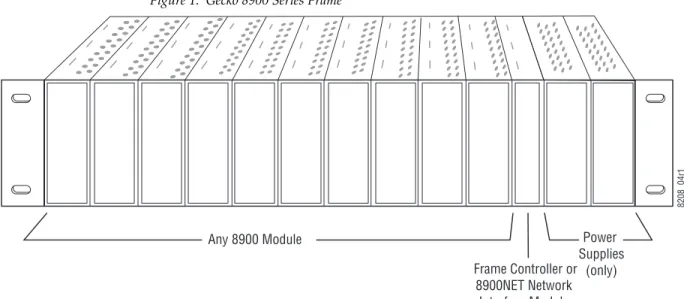
There are ten cell locations in the frame to accommodate either analog or digital modules. These are the left ten locations. Refer to Figure 1.
The two cells on the right are allocated for the power supplies. For addi-tional information concerning the Power Supply module, refer to the 8900 Gecko Frames or the GeckoFlex Frames Manual.
The third cell from the right is allocated for the Frame Monitor or 8900NET Network Interface module. These modules provide health monitoring and control options.
Note If using an 8900NET module in the frame, it must be running software
version 4.3.0 or higher for full networking functionality and proper remote operation of the 8964DEC module.
Figure 1. Gecko 8900 Series Frame
Frame Controller or 8900NET Network Interface Module Any 8900 Module Power Supplies (only) 8208_04 r 1
Installation
8900 module slots are interchangeable within the frame. There are 10 BNC connectors in each slot’s I/O group. The functional assignment of each con-nector in a group is determined by the module that is placed in that slot. The maximum number of modules a Gecko 8900 frame can accept is ten. Figure 2 illustrates the rear connector plate for a Gecko 8900 frame.
Figure 2. Gecko 8900 Series Frame Rear Connector
To install a module in the frame:
1. Insert the module, connector end first, with the component side of the module facing to the right and the ejector tab to the top.
2. Verify that the module connector seats properly against the backplane.
3. Press in the ejector tab to seat the module.
0543-03 J1 J2 J3 J4 J5 J6 J7 J8 J9 J10 IN DA1 J2 J4 J6 J8 J1 J2 J3 J4 J5 J6 J7 J8 J9 J10 IN DA3 J1 J2 J3 J4 J5 J6 J7 J8 J9 J10 IN DA5 J1 J2 J3 J4 J5 J6 J7 J8 J9 J10 IN DA2 J1 J2 J3 J4 J5 J6 J7 J8 J9 J10 IN DA7 J1 J2 J3 J4 J5 J6 J7 J8 J9 J10 IN DA9 J1 J2 J3 J4 J5 J6 J7 J8 J9 J10 IN DA4 J2 J4 J6 J8 J1 J2 J3 J4 J5 J6 J7 J8 J9 J10 IN DA6 J2 J4 J6 J8 J1 J2 J3 J4 J5 J6 J7 J8 J9 J10 IN DA8 J2 J4 J6 J8 J1 J2 J3 J4 J5 J6 J7 J8 J9 J10 IN DA10 O U T O U T O U T O U T O U T O U T O U T O U T O U T O U T
Installation
GeckoFlex Frame
Installation of the 8964DEC/FS module in a GeckoFlex frame includes:
1. Installing the 8900V-R rear module into the rear of the frame,
2. Placing the 8964DEC/FS module in the corresponding front frame slot, and
3. Cabling and terminating signal ports.
Module Installation Precautions
Please read and follow the precautions listed below before installing the front and rear modules:
• Use standard anti-static procedures during installation. As modules can be installed or removed when the GeckoFlex frame is powered up, before removing the cover, please use an anti-static bracelet or heel strap tied to a metal part of the frame.
• Install the rear module first, then install the front module.
• When installing or removing a rear module, loosen or tighten the screws holding the retainer clips to the frame manually with the retainer clip tool provided inside the front cover of the frame or use a 2 mm (5/64”) hex screwdriver. Please do not use an electric screw-driver.
Note On newer 751- version GeckoFlex frames, a Rear Retainer Clip removal tool
and 2 extra retainer clips and screws for installing them are provided on the inside of the frame cover.
• Make every effort to leave the screws holding the retainer clips in place (do not remove them completely). They are very small and can easily drop into other equipment causing a shorting hazard. (Two turns of the screw should be enough to loosen the screws, 3 turns or more will remove it.)
• When installing a rear module, tighten the screws on the retainer clips just until snug. Do not apply more force than is necessary to seat the rear module. Do not use an electric screwdriver. Refer to the rear retainer screw torque specification in the Mechanical section of Table 7 on page 61.
Installation
Rear Module Installation
All unused rear slots in a GeckoFlex frame should have a blank rear adapter cover installed.
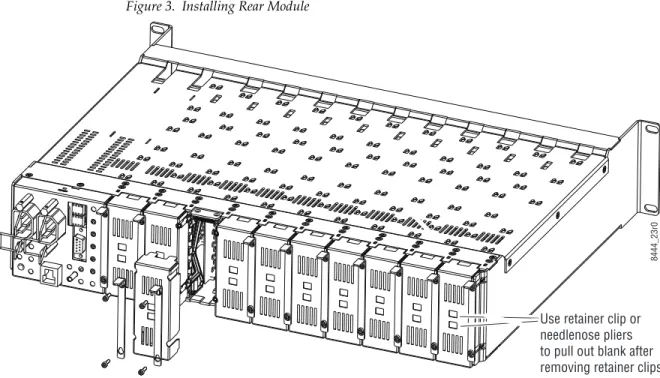
1. Each 8900V-R rear module or blank rear adapter cover is held in place by two retainer clips as shown in Figure 3. Loosen (but do not remove completely) the two screws holding each retainer clip to the frame with a 2 mm (5/64”) hex screwdriver or the Rear Retainer Clip tool provided (751- frames only). Pull up on the retainer to remove it, leaving the screws in place.
CAUTION Be careful to leave the screws in place as they can be easily lost or fall into equipment below the frame creating a shorting hazard.
2. Remove the blank rear adapter cover by inserting needlenose pliers into the slots in the top and bottom of the blank and pulling it off.
Note To remove a rear module already installed, follow the same steps. It is helpful
to first remove the front module so the rear can be pulled out more easily.
3. Insert the rear module into the empty slot.
4. Replace each retainer clip over the two screws on both sides of the module and push down to seat the retainer.
5. Tighten the screws for each retainer clip just until they are snug. Do not force or torque the screws too tightly.
Figure 3. Installing Rear Module
8444_23 r 0 Use retainer clip or needlenose pliers to pull out blank after removing retainer clips
Installation
Front Module Installation
After installing the rear module, install the front module as follows:
1. Remove the front cover of the frame if required.
2. Locate the corresponding front slot.
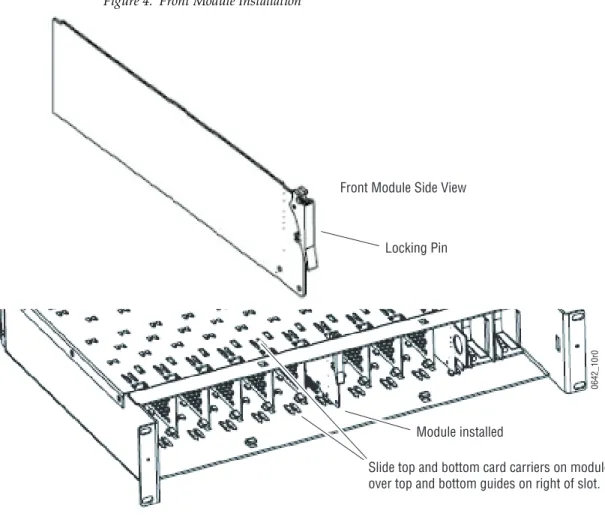
3. Insert the front module so that the plastic card guides on the module top and bottom edges go over the upper and lower raised rail guides on the right of the top and bottom of the slot (Figure 4).
4. Carefully slide the module into the rear connector.
5. Lock the front module ejector tab into the locking pin.
Figure 4. Front Module Installation
Slide top and bottom card carriers on module over top and bottom guides on right of slot.
Module installed Locking Pin
Front Module Side View
Installation
Cabling
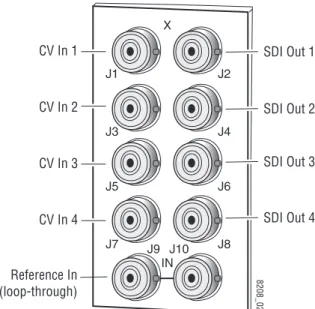
Cabling to and from the module is done at the back of the Gecko frame (Figure 5) and the 8900V-R rear module on a GeckoFlex frame (Figure 6) as described below for both frame types.
Figure 5. 8964DEC Gecko Frame Connectors
Figure 6. 8964DEC 8900V-R Rear Module Connector
J2 J4 J6 J8 J1 J9 J10 IN X J3 J5 J7 J2 J4 J6 J8 8208_02 Reference In (loop-through) SDI Out 1 CV In 1 CV In 2 CV In 3 CV In 4 SDI Out 2 SDI Out 3 SDI Out 4 J1 J2 J3 J4 J5 J6 J7 J8 J9 J10 Loop-Through GPI Not Used Not Used GPI Output Output SDI Input 8900V-R
Installation
Inputs
Four analog composite video inputs are provided at BNCs J1, J3, J5, and J7. The inputs are non-looping and internally terminated.
Note If feeding a monochrome signal to a channel, select Monochrome In with the
Composite In controls. Refer to Table 8 on page 67 control summary.
Outputs
Four corresponding serial digital video outputs are provided at BNCs J2, J4, J6, and J8 as shown in Figure 5 and Figure 6. There is no audio tracking output on the output of the module.
Reference Loop-through Input
Connect an NTSC/PAL analog color black reference source to one of the loop-through reference connectors, J9 or J10. Terminate the unused con-nector into 75 ¾ if the signal is not looped to other equipment.
Note The line rate for the module (all four decoder channels) will be auto-detected
Power Up
Power Up
The front LED indicators and configuration switches are illustrated in Figure 7. Upon power-up, the green PWR LED should light and the yellow CONF LED should illuminate for a few seconds for the duration of module initialization.
Operation Indicator LEDs
With factory default configuration and a valid input signal connected, the green PWR LED and one of the green signal standard LEDs (525 or 625) should illuminate (refer to Table 2 on page 19 to see the possible operating indicator combinations).
Video input presence on each decoder channel is indicated by the CH1–CH4 green LEDs on.
Figure 7. LEDs and Configuration Switches
FUNCTION FAUL T 525 625 CM1 CM0 2ND UP DOWN CSM CH1 CH2 CH3 CH4 COMM CONF PWR 8208_05 2ND LED One LED will be on to indicate 525 or 625 line reference is present
PWR – Green LED on indicates power OK. FAULT – Red LED is off during normal operation.
COMM – Yellow LED on indicates frame bus traffic. CONF – Yellow LED on indicates module is initiating, changing operating mode, orupdating firmware.
Module Configuration Switches and LEDs. CH 1 – CH4 Green LEDs on indicates
signal present on CH1, 2, 3 and 4. 525 – Green LED
625 – Green LED
Module Configuration
Active Channel Control Indictors
CM1 – Yellow LED CM0 – Yellow LED
Power Up
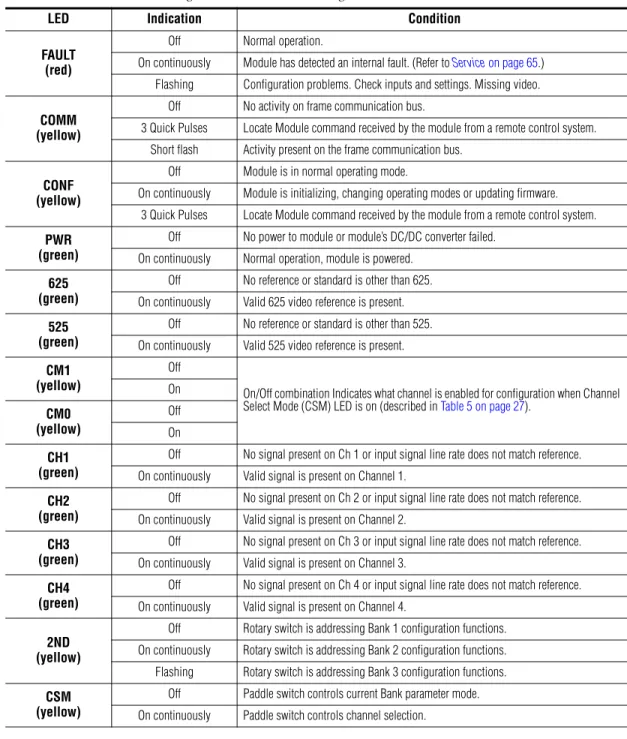
Table 2. Board Edge LED Names and Meaning
LED Indication Condition
FAULT (red)
Off Normal operation.
On continuously Module has detected an internal fault. (Refer to Service on page 65.)
Flashing Configuration problems. Check inputs and settings. Missing video.
COMM (yellow)
Off No activity on frame communication bus.
3 Quick Pulses Locate Module command received by the module from a remote control system.
Short flash Activity present on the frame communication bus.
CONF (yellow)
Off Module is in normal operating mode.
On continuously Module is initializing, changing operating modes or updating firmware.
3 Quick Pulses Locate Module command received by the module from a remote control system.
PWR (green)
Off No power to module or module’s DC/DC converter failed.
On continuously Normal operation, module is powered.
625 (green)
Off No reference or standard is other than 625.
On continuously Valid 625 video reference is present.
525 (green)
Off No reference or standard is other than 525.
On continuously Valid 525 video reference is present.
CM1 (yellow)
Off
On/Off combination Indicates what channel is enabled for configuration when Channel
Select Mode (CSM) LED is on (described in Table 5 on page 27).
On CM0 (yellow) Off On CH1 (green)
Off No signal present on Ch 1 or input signal line rate does not match reference.
On continuously Valid signal is present on Channel 1.
CH2 (green)
Off No signal present on Ch 2 or input signal line rate does not match reference.
On continuously Valid signal is present on Channel 2.
CH3 (green)
Off No signal present on Ch 3 or input signal line rate does not match reference.
On continuously Valid signal is present on Channel 3.
CH4 (green)
Off No signal present on Ch 4 or input signal line rate does not match reference.
On continuously Valid signal is present on Channel 4.
2ND (yellow)
Off Rotary switch is addressing Bank 1 configuration functions.
On continuously Rotary switch is addressing Bank 2 configuration functions.
Flashing Rotary switch is addressing Bank 3 configuration functions.
CSM (yellow)
Off Paddle switch controls current Bank parameter mode.
Configuration
Configuration
The 8964DEC can be configured locally using onboard switches or
remotely using the 8900NET network interface GUI or a networked control panel.
Refer to the following sections for configuration instructions: • Configuration Summary (page 20)
• Local Onboard Module Configuration (page 26) • Remote Control and Monitoring (page 32)
Operation of these control types is explained in detail in their respective sections of this manual. Table 8 on page 67 provides a summary in table format of all parameters and their ranges, default values, and remote, local, and control panel function names and locations for setting each value.
Configuration Summary
This section provides a summary of all parameters that can be configured on the 8964DEC module. The video processing configuration is described by what line types will be affected by the adjustments or choices made. Use this section in conjunction with the specific configuration method instruc-tions for each configuration type.
Video Processing Controls
The 8964DEC provides video processing controls for the decoding process for all four channels independently. How the video data is processed depends on what line the video is on. Some processing affects all lines, other processing affects just the active picture lines, programmable VBI lines or the fixed VBI lines.
Line Categories
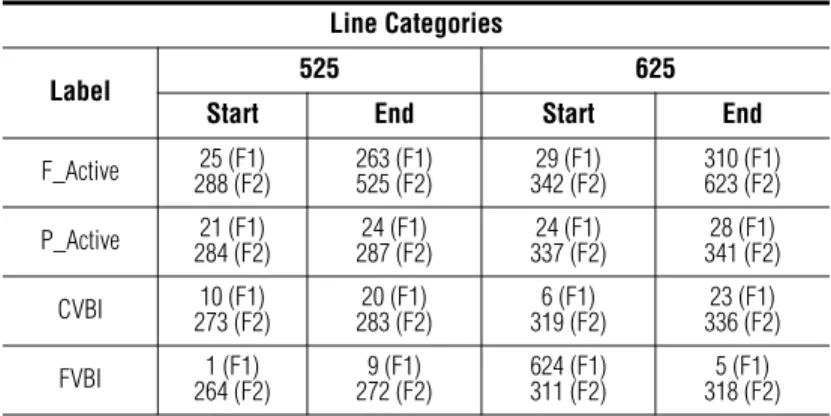
The line categories used in the configuration of the video signal for the 8964DEC are defined as follows:
• F_Active Lines – the portion of the active video that is fixed and always treated by the module as carrying active video (not programmable). • P_Active Lines – lines in the active video that can be configured by the
user to carry either active video or be reserved for carrying user data. • CVBI – the lines in the vertical interval that can be configured by the
user.
• FVBI – the line in the vertical blanking interval that are fixed and are not configurable.
Configuration
The line numbers for each category above are defined in Table 3 for both 525 and 625 line rates on the 8964DEC module.
Note The categories may not match the line definition as specified in the applicable
standard.
Line pairs in the P_Active line category can be reserved for carrying data by configuring Data Line Pairs with local or remote controls. Refer to Table 4 for a listing of the Data Line Pairs lines that are available with each setting.
All Lines – Composite In Video Path Processing
The incoming video composite signal path for each channel can be pro-cessed before decoding. These processing functions affect all lines of video at once, both active picture lines and VBI lines.
The following processing functions are available for the video composite input signals:
• AGC and ACC on or off – the Auto Gain Control (AGC) and Auto Chroma Control (ACC) are set to default to the off condition (Enable AGC and ACC checkboxes not checked). This is the recommended state and provides the following controls for video and chroma gain:
• Input Video Gain – adjust the input video gain in percent relative to 100% (100% = 1 V p-p). AGC operation is based on sync tip.
Table 3. Line Numbers for 8964DEC Line Categories
Line Categories
Label 525 625
Start End Start End
F_Active 25 (F1) 288 (F2) 263 (F1) 525 (F2) 29 (F1) 342 (F2) 310 (F1) 623 (F2) P_Active 284 (F2)21 (F1) 287 (F2)24 (F1) 337 (F2)24 (F1) 341 (F2)28 (F1) CVBI 10 (F1) 273 (F2) 20 (F1) 283 (F2) 6 (F1) 319 (F2) 23 (F1) 336 (F2) FVBI 264 (F2)1 (F1) 272 (F2)9 (F1) 624 (F1)311 (F2) 318 (F2)5 (F1)
Table 4. Lines Reserved for Carrying Data
525 Line Selection
Data Line Pairs Reserved
625 Line Selection
Data Line Pairs Reserved
None None None None
21/284 21/284 24/337 24/337
22/285 21/284 – 22/285 25/338 24/337 – 25/338
23/286 21/284 – 23/286 26/339 24/337 – 26/339
24/287 21/284 – 24/287 27/340 24/337 – 27/340
Configuration
Note Manually adjusting Input Video Gain may shift picture position slightly
(± 1 clock).
• Input Chroma Gain – adjust the percentage of chroma gain relative to 100%.
Checking the Enable AGC or Enable ACC checkbox will enable the respective automatic gain settings.
• Monochrome In – check this box when a monochrome input signal (or any signal that does not contain burst) is being fed to a channel. This checkbox must be checked for the module to recognize the signal as valid and light the corresponding input LED. This will also enable the Chroma Kill function on the Video Proc page, changing it to a read-only state.
Active Picture Lines – Video Path Processing
The video processing functions described below affect all active picture lines (F_Active lines and the P_Active the user has chosen to be part of the active picture).
The available video path processing controls are the following:
• Contrast/Y Gain – adjusts the percentage of luminance relative to white.
• Saturation/Chroma Gain – adjusts percentage of saturation and chroma gain relative to 100% saturation.
• Brightness/Y Offset – adjusts amount of brightness/Y offset in mV. • Hue/Chroma Phase – adjusts hue/chroma phase in degrees for both
line rates (525 and 625).
• Remove Setup – set to NO when no setup is present (Japanese NTSC), or YES when setup is present (NTSC). Available in 525 mode only.
• TSG (100% Color Bars) – when on, enables the internal test signal gen-erator to output a 100% Color Bars test signal to the channel output. • TSG (Pathological) – when on, enables the internal test signal generator
to output a Pathological test signal to the channel output.
Note Test signals are not adjustable in the Video Processing controls.
• On Screen Display (OSD) – enables or disables the On Screen Display on the selected channel output. Jumper JP3 on module must be set to enable control. Refer to 8964DEC Module Onboard Configuration Settings
on page 29.
• Chroma Kill – removes all chroma from the signal (black and white). This is a global control, affecting chroma on all lines of active video and includes the VBI.
Configuration
• EDH insertion – allows EDH to be inserted in any of the four channel outputs (available in Remote mode only).
• Decode Mode – select the type of decoding (filtering) for each input from comb adaptive, comb non-adaptive or notch. Adaptive decoding is 3-line in NTSC and 4-line in PAL.
Programmable VBI and Active Picture Lines – Composite Input
Programmable lines in the composite input vertical blanking interval include the configurable VBI lines (CVBI). Programmable active picture lines (P_Active) are the lines reserved for carrying data (Data Lines) (refer to Table 4 on page 21). Both of these line pair types can be configured for the following:
• Decode Mode – select from Notch Decode or Pass Through (blank U and V). (Global control – all line pairs are affected in the same manner.)
Note When Notch Decode is selected, active picture lines reserved for data are
actually comb decoded with potential artifacts.
• Chroma Kill – removes all chroma on VBI and P_Active lines reserved for data. (Global control – all line pairs are affected in the same manner.)
Note This control has no affect when Chroma Kill is already enabled on the Video
Proc web page.
• Remove Setup from VBI – with local onboard controls, select YES to remove setup or NO to not remove setup from all lines of CVBI (global). In remote mode on the web page, setup can be removed on a
line-by-line basis.
Note When Remove Setup from active video is not selected on the Video
Com-posite In web page (No removal), the VBI Setup Removal function will have
no affect.
• Blank – in local mode, select YES to blank all lines of CVBI or NO to not blank. In remote mode, lines can be blanked on a line-by-line basis with the web page (toothed blanking).
Configuration
Video Timing and Freeze Controls
With a standard 8964DEC module with no Frame Sync enabled the fol-lowing Line Sync timing adjustment is available:
• Horizontal Timing – adjusts the horizontal delay on the channel output in pixels. This will add an additional delay of up to one line.
Note For the 8964DEC (Line Sync) model: The timing between the incoming
com-posite video start of lines for all four input channels must be within
±31μs ±1μs in relation to start of lines of the black burst external reference to
the module. This is because there is a very short timing zone at ±32μs ±1μs
where a line jump in the output timing may be produced after jitter has occurred or after a power up cycle. To avoid this, make sure the composite input timing in relation to the external black burst reference is within the safe
zone of ±31μs ±1μs for stable output timing.
With an 8964DEC-FS module (8964DEC with Frame Sync enabled, see Module Option Upgrade on page 60), the following Frame Sync timing adjustments can be made:
• Horizontal Timing – identical to the line sync timing above. • Vertical Timing – adjusts vertical delay in line increments.
Also available with the 8964DEC-FS are the following freeze controls: • None – when signal is lost, no automatic freeze occurs and no manual
freeze is activated.
• AutoBlue – when AutoBlue is enabled on a channel, the output will automatically freeze to a blue screen when the input signal is lost on that channel.
• AutoFreeze – when AutoFreeze is enabled on a channel, the output will automatically freeze on the last valid field when the input signal is lost on that channel.
• Field 1 – manually freezes the output signal on field 1 of the last frame. • Field 2 – manually freezes the output signal on field 2 of the last frame. • Frame – manually freezes the output signal on the last frame.
A field freeze provides less resolution and no motion artifacts in the output. In frame mode, the resolution is higher since both fields are present, but the presentation of the two fields can cause motion artifacts.
Configuration
Picture Enhancer Controls
The Picture Enhancer feature is standard on the 8964DEC and 8964DEC-FS modules. This feature allows separate picture enhancement control on each channel output. Picture enhancement affects all lines of video.
Use the following controls for picture enhancement:
• Disable – the Picture Enhancer process can be turned off by selecting Disable.
• Picture enhancement can be enabled by selecting one of three settings, Low, Medium, or High. Amount of adjustment will depend on picture type and noise level.
Configuration
Local Onboard Module Configuration
The 8964DEC module can be configured locally using the rotary and paddle switches. Several LEDs interact with the switches to indicate status of the configuration process.
Configuration Switches and Controls
Each of the four decoder channels is adjusted separately. Selection of each channel is done with the paddle switch while in Channel Select Mode as explained below. Refer to Figure 8 on page 27 for the following descrip-tions. Use the onboard configuration components as follows:
• SW1 Function (rotary) switch – this switch accesses a desired function for configuration (see Table 6 on page 30). The switch addresses three banks of functions; each bank has 16 possible positions (0 through 9 and A through F). Not all positions are used.
The next bank of functions is accessed each time the Function switch makes a complete revolution past zero (or back through F): While in Bank 1, a complete revolution past zero accesses Bank 2; while in Bank 2, a complete revolution past zero accesses Bank 3. The yellow 2ND LED indicates which bank is currently being accessed.
Note The Function switch should be kept in position 0 in any bank (parked) when
not in use to avoid any inadvertent change in configuration. Position 0 in each bank is inactive.
• 2ND (second Function) yellow LED – when off, indicates that the rotary switch is addressing the first bank of functions. When on, indicates that the rotary switch is addressing the second bank of functions. When flashing, indicates that rotary switch is addressing the third bank of functions.
• SW4 (paddle) switch – actuates or selects the desired setting or channel selection for the selected function when the switch is held momentarily in either the up or down position. Switch between Parameter and Channel Select Mode with pushbutton SW4.
• CSM (Channel Select Mode) yellow LED – when on, paddle switch is in Channel Select Mode. Use the paddle switch to select channel 1, 2, 3, or 4. When off, paddle switch is in Parameter mode.
• CM1 and CM0 LEDs – indicate what channel is active for adjustment. Refer to Table 5 on page 27.
• SW2 (pushbutton) switch – press to toggle assignment of paddle switch SW2 between Parameter mode (CSM LED off) and Channel Select Mode (CSM LED on).
• CONF (configuring) yellow LED – when on, indicates the module is ini-tializing or processing configuration information.
Configuration
Figure 8. Onboard Configuration Components – Front View
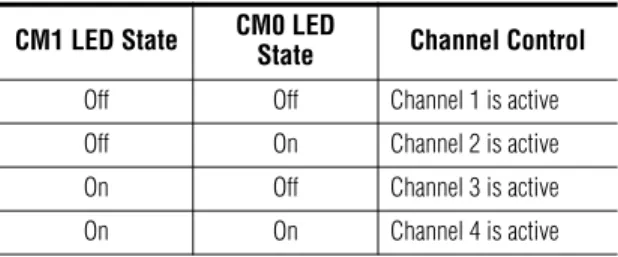
Refer to Table 5 for reading the CM1 and CM0 active channel LED indica-tors.
Table 5. CM1 and CM0 LED Table
CM1 LED State CM0 LED
State Channel Control
Off Off Channel 1 is active
Off On Channel 2 is active
On Off Channel 3 is active
On On Channel 4 is active
SW1 16-position Functionrotary switch – accesses 3 banks of controls. Bank selected is indicted by state of 2ND LED.
SW4 Paddle switch for incrementing parameter values (Parameter mode) orselecting active channel (CSM, Channel Select Mode)
SW2 – Pushbuttonswitch to toggle between Parameter
and CSM modes
Ejector Tab
2ND LED – Bank 1 = Off , Bank 2 = On, Bank 3 = flashing
8208_07 r 1 0 12 3 45 6 78 9 A B CD E F
CONF – Yellow LED on indicates module is initiating, changing operating mode, orupdating firmware
CM1 – Yellow LED
CSM LED – on in Channel Select Mode (use paddle to select channel) CM0 – Yellow LED Indicate active channel control (see table in text)
Configuration
Onboard Jumpers
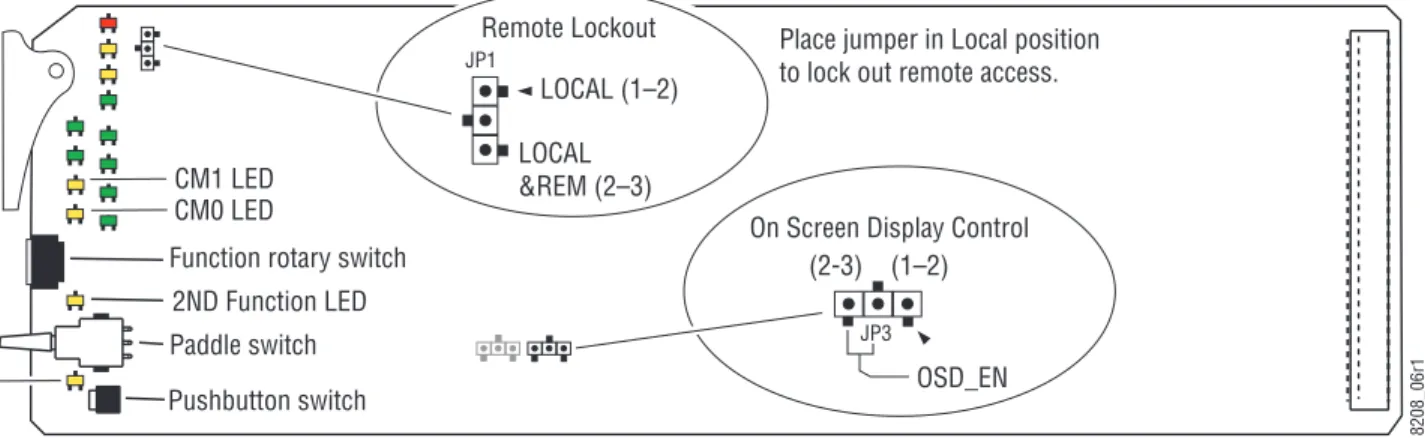
Two onboard jumpers (Figure 9) must be set for the following: • Jumper JP1 allows or locks out (Local) remote control.
• Jumper JP3, OSD enables (OSD_EN pins 2-3) or disables (pins 1-2) control of the OSD (On Screen Display).
The On Screen Display (OSD) graphic can be enabled on the output of each channel to allow viewing of the currently selected Rotary switch function and the currently assigned parameters. The OSD is provided for an aid in configuring the module in local mode and should be turned off on each channel with either the local or remote controls before broadcasting the signal. When control is enabled with jumper JP3, the OSD for each channel can be turned on or off with either local or remote controls.
Figure 9. Module Configuration Switches and LEDs
8208_06
r
1
Place jumper in Local position
to lock out remote access.
Functionrotary switch 2ND Function LED CM1 LED CM0 LED Pushbuttonswitch Paddle switch LOCAL &REM (2–3) CSM LED Remote Lockout LOCAL (1–2) JP1 On Screen Display Control JP3 (1–2) (2-3) OSD_EN
Configuration
8964DEC Module Onboard Configuration Settings
Onboard configuration is done on a channel-by-channel basis, there is no gang mode (apply settings to all channels). You may use an on-screen display on the output of each channel to view the parameters being adjusted.
Control of the OSD function must first be enabled locally by setting jumper JP3 (Figure 9 on page 28) to either disabled (pins 1-2), or enabled (pins 2-3, labeled OSD_EN). Once OSD control has been enabled with JP3, it can be turned on or off with individual local channel controls (Bank 1/Position 1) or through the web browser (refer to OSD Control Web Page on page 56). To make a configuration setting:
1. Select the channel to be adjusted by pressing pushbutton SW4 to toggle to the Channel Select Mode (yellow CSM LED on). This allows using the paddle switch to increment through the channel selections. The currently selected channel is indicated by the state of the CM1 and CM0 LED. Refer to Table 5 on page 27 for reading LED states.
2. When the desired channel is active, use pushbutton SW4 to toggle back to Parameter mode (CSM LED off).
3. Rotate the Function switch to Bank 1 (2ND LED off) or Bank 2 (2ND LED on) or Bank 3 (2ND LED slow flash) and to the desired function within that bank.
4. Move the paddle switch to the up or down position and hold momentarily to set the desired function (refer to Table 6 on page 30).
Note Holding the paddle switch in the up or down position for more than a half
second will automatically accelerate through the value range for parameters with 256 or more values. The full range can be accessed in about 10 seconds.
Configuration
Table 6. Local Rotary and Paddle Switch Functions
Function Switch Setting Paddle Switch Up Paddle
Switch Down Function Description OSD Text Summary
Bank 1 (2ND LED off)
Adjust individual channels for input video path and video processing.
Bank 1 (2ND
LE
D off)
0 – – Default position for normal operation (parked)
Ch#, Channel Name 1:0 (bank/#) Model #
HW ver x.x SW ver x.x FW: xx SN: xxxxxxxxxx
1 On Off Turn OSD (on screen display) on or off
Ch#, Channel Name 1:1 Video: rate or NO Ref: rate or NO On Screen Disp: (current state) Choices or scroll bar
2 Yes No Remove setup in composite input video 1:2 Remove Setup (525 only)
3 On Off Turn AGC (Auto Gain Control) on or off 1:3 AGC
4 Increase Decrease Adjust input video gain (% relative to 1 V p-p) 1:4 Input Video Gain
5 Increase Decrease Adjust input chroma gain 1:5 Input Chroma Gain
6 Increase Decrease Adjust contrast/Y gain 1:6 Contrast/Y Gain
7 Increase Decrease Adjust brightness/Y offset 1:7 Bright/Y Offset
8 Increase Decrease Adjust saturation/chroma gain 1:8 Sat/Chroma Gain
9 Increase Decrease Adjust hue/chroma phase 1:9 Hue/Chroma Phase
A Comb Notch Select decoding mode 1:A Decoding mode
B Adaptive Fixed In Comb mode, select type of filtering 1:B Comb Type
C On Off Turn Global Chroma Kill on or off 1:C Chroma Kill
D On Off Turn output test signal generator on or off 1:D Vid Proc
E Bars Pathological When test signal on, select signal type 1:E Test Sig
F – Recall Recall factory defaults 1:F Factory Default
Bank 2 (2ND LED on)
Bank 2 ( 2 ND LED o n )
0 – – Default position for normal operation (parked). 2:0 (parked position information)
1 None 21/284 or 24/337
Select P_Active lines to reserve for data (525 or
625). See Table 4 on page 21.
2:1 Rsv For Data
2 22/285 or 25/338 23/286 or 26/339 2:2 Rsv For Data
3 24/287 or 27/340 28/341 (625 only) 2:3 Rsv For Data
4 On Off Turn VBI Chroma Kill on or off (all VBI lines). 2:4 VBI Chroma Kill
5 On Off Turn VBI blanking on or off (all VBI lines). 2:5 VBI Blanking
6 Pass Thr Notch Select VBI decoding mode (all VBI lines). 2:6 VBI mode
7 Yes No Remove VBI setup (525 only). 2:7 Remove VBI Setup
8 >2s Learn Recall
Hold paddle for more than 2 seconds to learn cur-rent channel settings into E-MEM register. select
down to Recall. 2:8 EMEM
9 On Off Turn ACC (Auto Chroma Control) on or off 2:9 ACC
A On Off Turn Monochrome In on or off 2:A Monochrome In
B-E – – Not used
Configuration
Bank 3 (2ND LED flashing)
Adjust Frame Sync (8964DEC-FS) and Picture Enhancer functions.
Bank
3 (2ND LED flashing)
0 – – Default position for normal operation (parked). 3:0 (parked position information)
1 Increase Decrease Adjust vertical timing 3:1 Vertical Timing 1
2 None AutoBlue Select None or Autoblue freeze type 3:2 Frz mode 1
3 Field 1 Field 2 Select Field 1 or Field 2 manual freeze 3:3 Frz mode 1
4 Frame AutoFreeze Select Frame manual freeze or AutoFreeze 3:4 Frz mode 1
5 – A – – Not used
B Disable Low Disable or enable Picture Enhancer to Low 3:B PE Level
C Medium High Set Picture Enhancer to Medium or High 3:C PE Level
1 These controls are active only in the 8964DEC-FS model.
Table 6. Local Rotary and Paddle Switch Functions
Function Switch Setting Paddle Switch Up Paddle
Configuration
Remote Configuration
The 8964DEC and 8964DEC-FS configuration and monitoring can also be performed remotely using a web browser interface or a networked Newton Control Panel with an 8900NET Network Interface module present in the GeckoFlex frame (8900FFN). Each of these interfaces is described below. A summary table of all module parameters including defaults, ranges, and Newton Control Panel controls is given in Table 8 on page 67.
8900NET Module Information
Refer to the 8900NET Network Interface Module Instruction Manual (software version 4.3.0) for information on the 8900NET Network Interface Module and setting up and operating the GeckoFlex 8900 frame network.
Note Upgrade software and instructions for the 8900NET can be downloaded from
the Grass Valley web site. Refer to Contacting Grass Valley on page 4.
Newton Control Panel Configuration
A Newton Control Panel (hard or soft version) can be interfaced to the GeckoFlex frame over the local network. Refer to the documentation that accompanies the Newton Modular Control System for installation, config-uration, and operation information.
Control panel access offers the following considerations for module config-uration and monitoring:
• Ability to separate system level tasks from operation ones, minimizing the potential for on-air mistakes.
• Ability to group modular products—regardless of their physical loca-tions—into logical groups (channels) that you can easily manipulate with user-configured knobs.
• Recommended for real-time control of module configuration parame-ters, providing the fastest response time.
Note Not all module functions are available with the control panel, such as factory
Configuration
An example of the Newton Configurator is shown in Figure 10.
Figure 10. Newton Configurator Example
Web Browser Interface
The web browser interface provides a graphical representation of module configuration and monitoring.
Use of the web interface offers the following considerations (some func-tions depend on individual module functionality):
• Provides complete access to all module status and configuration func-tions, including naming of inputs and outputs, factory parameter and name default recalls, Save/Load module configuration functions, slot configurations, and SNMP monitoring controls.
• Web access will require some normal network time delays for pro-cessing of information.
• Configuration parameter changes may require pressing Apply button or Enter, upload processing time. A manual screen refresh is recommended after changing parameters.
• Web interface recommended for setting up module signal and slot names, and reporting status for SNMP and monitoring.
Refer to the Status web page shown in Figure 11 on page 34. The 8900 modules can be addressed by clicking either on a specific module icon in the frame status display or on a module name or slot number in the link list on the left.
Configuration
Note The physical appearance of the graphics on the web pages shown in this
manual represent the use of a particular platform, browser and version of 8900NET module software. They are provided for reference only. Web pages will differ depending on the type of platform and browser you are using and the version of the 8900NET software installed in your system. This manual reflects an 8900NET module with software version 4.3.0, using Internet Explorer, the recommended web browser, and Windows XP operating system.
For information on module status, fault monitoring and reporting shown on the Status web page, refer to Status Web Page on page 37.
Figure 11. Frame Status Web Page
8038_09
r
3
The Links section lists the frame and its current modules. The selected link's Status page is first displayed and the sub-list of links for the selection is opened. The sub-list allows you to select a particular information page for the selected device.
Content display section displays the information page for the selected frame or module (frame slot icons are also active links).
Refresh button for manual update of page
Configuration
Web Page Operations and Functional Elements
The following conventions and functional elements (shown at left) are used in web page operations. (The examples shown throughout this manual rep-resent 8900NET software version 4.3.0):
• Pulldown menus allow you to choose selections from a list.
• Clicking on a button performs an immediate action such as recall of defaults, clearing of states, learning configurations, and selecting all or none of a selection.
• Radio buttons are used to make a choice of one parameter in a group. • Check boxes are used when a selection can be enabled or included in a
group. Multiple check box selections or enables can be made for some parameters.
• A Refresh button (circular arrow) is provided at the top of each web page for manual refresh to view recently changed parameters.
• Each numerical adjustment control has a Coarse adjust button (left and right top double arrows) which increases or decreases the step value by a factor of 10. The Fine adjust button (left and right inside single arrows) increases or decreases the step value by 1.
To change a value, use the arrow button controls or enter a value into the number field and select the Enter button (*) or use the Enter key on your keyboard. The Status Indicator bar will follow the value selected. Use the Low and HighLimit buttons to go directly to the lowest and highest limits for the parameter.
After a parameter has been changed, it will take approximately 10 seconds for the change to be entered into the module backup memory. Allow the module enough time to update the change before removing the module from its slot.
• An entry field allows naming of various module functions such as input or output signals, asset tag, and slot identification.
• The Status LED icon indicates module status and is a link to the module Status web page where status is reported.
LED colors indicate:
• Green = Pass – no problems detected • Yellow = Configuration error warning
• Red = Fault condition detected (presence of at least one alarm)
Pulldown Menus Check box Refresh button Coarse Adjust Fine Adjust Enter Status LED Entry Field High Limit Status Indicator Low Limit Radio button 8341_13 Button
Configuration
8964DEC Links and Web Pages
The 8900 GUI provides the following links and web pages for the 8964DEC module (Figure 12):
• Status – reports input and reference signal status and module informa-tion (page 37),
• I/O Config – shows a graphic representation of inputs and outputs to the module and allows naming of each input (page 40),
• Functional View – shows a block diagram of the module with links to each configuration web page (page 41),
• Module Configuration web pages for setting up the module (page 42), • E-MEM – provides Learn and Recall functions for up to 5 E-MEM
reg-isters along with Save to and Load from file operations (page 52),
• OSD Control – provides controls to enable or disable the OSD for each channel (page 56), and
• Slot Config – provides a Locate Module function, Slot Identification, and Slot Memory in addition to links to the Frame Reporting, LED Reporting and SNMP Reporting web pages (page 57).
Configuration
Status Web Page
Use this link
The Status web page (Figure 13 on page 38 for the 8964DEC-FS and Figure 14 on page 39 for the 8964DEC (Line Sync)) shows the input signal status of each of the decoder channels and the reference input. Color coding of the display indicated the signal status. Refer to Status Monitoring on page 63 for an explanation of the color coding.
Status of the OSD displays on each output is also shown. A link to the OSD Control web page is provided so the OSD can be enabled or disabled from the browser. For more information on enabling or disabling an OSD display through the web browser, refer to OSD Control Web Page on page 56. Information about the module, such as part number, serial number, hard-ware revision and softhard-ware and firmhard-ware versions are given in a read-only section at the bottom of the display. Enabled options are also reported. An Asset Tag identifier can be assigned to the module on the Slot Config web page (see Slot Config Web Page on page 57).
Clicking on the model number in the center box will take you to the Func-tional View web page illustrating a block diagram overview of the module with links to each of the configuration web pages.
Configuration
Configuration
Configuration
I/O Config Web Page
Use this link
The I/O Config web page (Figure 15) shows the rear input and output con-nections to the module and allows you to name each input. Type the desired input name (up to 10 characters) into the corresponding box. The status of each input is indicated by the color of the display.
Note Outputs are not monitored in this application.
SNMP trap reporting of each channel input can be enabled or disabled by selecting or deselecting the corresponding checkbox in the Reporting
column. The Reporting column will appear only when an SNMP monitoring application such as NetCentral is installed.
Refer to Troubleshooting on page 65 for an explanation of the color coding and using an SNMP monitoring application.
Configuration
Functional View Web Page
Use this link
The Functional View web page (Figure 16) illustrates a block diagram of the 8964DEC module showing module functions and signal paths that are active or inactive in the current configuration and provides control for EDH insertion. It can be used as a link map for configuring module functions. Each block has a link to the configuration web page for that function. Color coding indicates active functions and signal flow. Grayed compo-nents are inactive due to hardware and/or software constraints. Under-lined module functions are links to the web page for that function.
Use the Functional View to configure the 8964DEC module in the order of the signal flow. Refer to each of the module configuration web pages given in the next section.
EDH Insertion
Select the corresponding Insert checkbox to insert EDH into the SDI output for each channel. Uncheck the box to not insert EDH.
Configuration
Module Configuration Web Pages
Module configuration is provided for the following functions with the GUI interface:
• Video Composite In (page 43) • Video Processing (page 45) • VBI (page 47)
• Timing (page 49)
• Picture Enhancer (page 51)
Read-only information about the module is given on the top of each web page including model name and description, frame and slot location and last E-MEM register recalled.
When a channel is selected to configure, the input name (as defined on the I/O Config web page) will be displayed under the selected channel or will show the default name in bold type. Each channel will show the signal ref-erence type (NTSC or PAL).
After making a change, click on Apply to activate settings in each selection then click on the Refresh button at the top of the display to see the changes. Each of the four decoder channels can be adjusted separately or settings can be applied to other or all channels. Use the Apply Setting To (Channel 1, 2, 3 or 4 as applicable)or All buttons to apply the same values to the other channels selected or all channels.
To reset the current channel or all channels to factory defaults, select the Reset defaults for Current Channel or All Channels buttons.
Select the Back, Functional View, or Next link to navigate to the next function or use the links on the left of the web page.
Configuration
Video Composite In Web Page
Use this link
The Video Composite In web page provides adjustments for the video com-posite input signals prior to decoding. Refer to Table 8 on page 67 for a summary of controls, defaults, parameter ranges and what lines of video are affected by each control.
Select the channel to be adjusted from the Channel 1 – 4 buttons. Configure the following for each channel:
• The Enable AGC and EnableACC are set to default to disabled as shown in Figure 17 on page 44 and provide the following corresponding gain controls:
• Input Video Gain – adjust the percentage of gain relative to 100%. • Input Chroma Gain – adjust the percentage of gain relative to 100%.
When either checkbox is selected (enabled), the automatic gain or chroma controls will be enabled, setting the display to a read-only condition (100%) as shown in Figure 18 on page 44.
Note The setting of the ACC affects the status of the Sat/Chroma control on the
Video Proc web page (see page 45).
• Report Signal Loss checkbox– checking this selection enables the SNMP status reporting of all input signals to the module. Leave this box unchecked to disable reporting of all inputs in SNMP and on web page indicators.
Individual inputs can also be enabled or disabled for SNMP reporting on the I/O Config web page (see I/O Config Web Page on page 40). • Monochrome In checkbox – select this checkbox when the input signal to
this channel is a monochrome signal. This must be checked for the module to recognize a signal with no burst as a valid signal and light the respective input LED.
• Remove setup from active video checkbox – for NTSC signals only, select the checkbox when setup is present (NTSC). Leave the box unchecked (no removal) when no setup is present (Japanese NTSC).
Note When Remove active video from setup is unchecked (no removal), setup
removal is disabled on the VBI web page.
• Decode Mode – select the type of decoding for the input signal with one of the radio buttons.
Configuration
Figure 17. 8964DEC Video Composite In Web Page with AGC and ACC Disabled
Configuration
Video Processing Web Page
Use this link
The Video Proc web page (Figure 19 on page 46) provides access to pro-cessing amplifier controls for each channel. Refer to Table 8 on page 67 for a summary of controls, defaults, parameter ranges and what lines of video are affected by each control.
Select the channel to be adjusted from the Channel 1 – 4 buttons. Configure the following for each channel:
• Video Processing – enable or disable video processing for the channel or select a test signal (100% Color Bars or Pathological).
Note Test signals are not adjustable with the video processing controls. The video
processing controls can be changed while using the test signals but will have no affect on the test signal output.
• Chroma Kill – select this checkbox to shut off chroma on the channel output. This control will also affect the VBI lines.
If the channel is assigned as a monochrome signal (seeVideo Composite In Web Page on page 43), the Chroma Kill function will be forced to a read-only state as shown in Figure 20 on page 46. If the monochrome status is turned off, the checkbox will return to its previous state. When the Enable button is checked in the Video Processing section, the fol-lowing controls will be active:
• Contrast/Y Gain – adjusts the percentage of luminance relative to white.
• Saturation/Chroma Gain – when ACC is enabled on the Video Com-posite In web page, adjust the percentage of saturation and chroma gain relative to 100% saturation. When ACC is disabled (the default), this control will be a read-only value (100%).
• Brightness/Y Offset – adjusts amount of brightness/Y offset in mV. • Hue/Chroma Phase – adjust hue/chroma phase in degrees for both
line rates.
Note The Contrast Y Gain control interacts with the Brightness/Y Offset control.
Adjusting the former will affect the latter in order to maintain optimum per-formance and range. This is normal operation and part of the design of these controls.
Configuration
Figure 19. 8964DEC Video Proc Web Page
Figure 20. 8964DEC Video Proc Web Page with Monochrome Signal ACC control on
Video Composite In web page must be enabled
Configuration
VBI Web Page
Use this link
Use the VBI web page (Figure 21 on page 48 for 525 line rate or Figure 22 on page 48 for 625 line rate) to configure the programmable line pairs in the vertical blanking interval of each channel. Refer to Programmable VBI and Active Picture Lines – Composite Input on page 23 for information on VBI lines. Table 8 on page 67 gives a summary of controls, defaults, parameter ranges and what lines of video are affected by each control.
Select the channel to be adjusted from the Channel 1 – 4 buttons. The current line rate for the selected channel will appear in the upper left of the display. The display will show each of the programmable VBI line pairs available for that line rate and any Data Line Pairs that have been reserved for car-rying data.
Configure the VBI Line Pairs in each channel for the following:
• Decode Mode – select the type of decoding for the channel VBI and Data Line Pairs as Notch Decode or Pass Through. This is a global control and affects all lines of programmable VBI lines.
• Chroma Kill – select this checkbox to shut off chroma on the mable VBI lines. This is a global control and affects all lines of program-mable VBI lines.
Note This control has no affect when Chroma Kill has already been enabled on
Video Proc web page.
The following controls can be applied to each programmable VBI Line Pair on a line selectable basis:
• Remove Setup (525 only) – select to remove setup on the selected line pair.
Note Only adjustable when Remove active video from setup is checked on Video
Composite In web page. When Remove active video from setup is unchecked (no removal), setup removal has no affect on the VBI web page. • Blank – select to blank the line pair.
• Data Line Pairs – check one of the Reserved for Data selections to reserve the line pair for carrying data. Line pairs reserved for data will be graphically displayed.
Configuration
Figure 21. 8964DEC VBI Web Page in 525 Line Rate
Refer to Figure 22 for the web page display in 625 line rate.
Configuration
Timing Web Page
Use this link
Timing adjustments are provided on all models of the 8964DEC. When no Frame Sync option is enabled, the Timing web page will display a Line Sync adjustment for horizontal timing (Figure 23). Refer to the note on page 24 for important information about the composite video input timing relationship to the black burst reference timing to ensure stable output timing in line sync mode.
When Frame Sync is enabled (8964DEC-FS), the Timing web page will include horizontal and vertical timing as well as freeze controls. Table 8 on page 67 gives a summary of controls, defaults, parameter ranges and what lines of video are affected by each control.
Select the channel to be adjusted from the Channel 1 – 4 buttons. For the 8964DEC model with Line Sync (Figure 23), adjust the Horizontal Timing control in pixels for the correct timing output for each channel.
Configuration
When the Frame Sync option is enabled (8964DEC-FS), the Timing web page (Figure 24) will also include a Vertical timing adjustment and Freeze controls.
Select the channel to be adjusted from the Channel 1 – 4 buttons and adjust the following Frame Sync timing controls:
• Horizontal Timing (in pixels) • Vertical Timing (in lines)
Select one of the following buttons from Freeze Mode: • None – no manual or auto freeze enabled.
• AutoFreeze – auto freeze to last valid field will occur upon loss of signal. • AutoBlue – auto freeze to blue screen will occur upon loss of signal. • Field 1, Field 2, or Frame – selecting one of these buttons performs an
immediate manual freeze on the selected channel output.
Configuration
Picture Enhancer Web Page
Use this link
The Picture Enhancer function can be enabled to adjust picture detail or can be disabled for each channel on the web page shown in Figure 25.
Select the channel to be adjusted from the Channel 1 – 4 buttons. • Select the Disable button to turn off picture enhancement.
• Select the Low, Medium, or High button to enable the amount of picture enhancement on the channel output.
Configuration
E-MEM Web Page
Use this link
The E-MEM web page provides local operations for learning and recalling configurations into E-MEM registers. File operations are also available for saving or loading the learned E-MEM files to and from a hard disk or other accessible media.
Factory default settings for all channels can be recalled by selecting the Recall factory settings button. To return the module to the factory signal names (such as the signal inputs), select the Recall factory names button.
There are two E-MEM view selections: Standard and Advanced.
In Standard view (Figure 26), any one of five learned E-MEMs can be recalled by selecting the corresponding Recall button in the Local Opera-tions window. This will place the configuration for all four channels learned into that E-MEM into the 8964DEC. This change will occur imme-diately upon recall. The name of the last recalled E-MEM will appear in the top header of each web page for the module.
To learn an E-MEM select the Advanced button in the View Selection section. This will open the Advanced view (Figure 27 on page 53).
Configuration
The Advanced View (Figure 27) includes a File Operations section to Learn a configuration into E-MEM (Learn), save a file to a disk location (Save to...) or load a file from a disk location (Load from...).
To learn an E-MEM:
1. Open the Advanced view.
2. When the configuration is complete for all channels on the module, type a descriptive name for the configuration into an unused E-MEM register (or overwrite an existing one).
3. Learn the E-MEM to memory by selecting the corresponding Learn button. All channel configurations are learned at once and stored in the same register. This register is now learned and ready for recall.
Configuration
To Save an E-MEM configuration to a file on a hard drive or other accessible media:
1. Select the corresponding Save to... button.
2. This will bring up a File Download screen (not shown). To continue, select the Save button.
3. In the resulting Save As screen (Figure 28), the file name default to the E-MEM name. Browse to the folder where you want to save the configuration and select Save. The file saves as a .bin file type.
Figure 28. Save As Screen
Note You may rename the file during the Save process but the E-MEM name
entered into the Local Operations window will not change on the web page to
match the Save As name. Best practice is to leave the Save As file name the
Configuration
To load a saved E-MEM from a location
1. Select the Load from ... button.
2. This will bring up the Load E-MEM web page (Figure 29).
Figure 29. Load E-MEM Web Page
3. Select the Browse button to bring up the Choose File screen (Figure 30).
Figure 30. Choose File Screen
4. Locate the directory in which the E-MEM files are saved.
5. Select the file to be loaded, then the Open button to load the file or enter the filename and path in the Enter filename box.
Configuration
6. Once the correct path and filename is loaded, select the Load button on the Load E-MEM page.
7. This should place the recalled E-MEM file into the corresponding E-MEM window. Select the corresponding Recall button to invoke this configuration.
OSD Control Web Page
Use this link
The OSD Control web page (Figure 31) allows enabling and disabling of the OSD on any of the four channel outputs. It also displays the status of the onboard OSD jumper, JP3 (see 8964DEC Module Onboard Configuration Set-tings on page 29).
Jumper JP3 on the module enables control of the OSD by either the local onboard controls or this OSD Control web page. Once the OSD control is enabled, it can be turned on and off for each channel with the controls in this display or with the local onboard controls.
Configuration
Slot Config Web Page
Use this link
Use the Slot Config web page (Figure 32) to perform the following func-tions on the module:
• Locate Module • Slot Identification • Slot Memory
• Frame Health Reports link • LED Reports link
• SNMP Trap Reports link
Note This web page reflects an 8900NET module running version 4.3.0 in the
frame with the NetCentral monitoring application installed on the 8900NET (Net Card) module. Other 8900NET versions will vary in the appearance of this web page.