To learn more about this book, visit Microsoft Learning at
http://www.microsoft.com/MSPress/books/11842.aspx
C H A P T E R 2
Hyper-V Overview
n Hyper-V Background 28n Hyper-V Core Features 30 n Reviewing Hyper-V 41
n Virtual Machine Hardware Environment 41 n Using the Hyper-V Manager Console 47 n Outlining the WMI API 67
n Summary 68
n Additional Resources 68
T
his chapter contains an overview of the Hyper-V features available as a role in a full installation of Windows Server 2008, as a Server Core role, and in Microsoft Hyper-V Server 2008 . In order to provide a robust virtualization platform that abstracts physical hardware dependencies and scales to support numerous concurrent workloads, Hyper-V is based on a hypervisor-based architecture that enables standard services and resources to create, manage, and execute virtual machines . Hyper-V offers a standard virtual hardware environment, virtual hard disks (VHD), and virtual networks that enable virtual machine execution, storage, and communications, respectively . Integration Services (IS) and Integration Components (IC) support critical processes and enhance the perfor-mance of virtual machines . Hyper-V Manager, a Microsoft Management Console (MMC) snap-in, is available to perform Hyper-V management and virtual machine configuration functions . The Hyper-V Manager provides a primary interface to create, inspect, and configure virtual machines, virtual hard disks, and virtual networks, as well as to assign virtual machine memory and processor allocations . Hyper-V properties are also modified through the Hyper-V Manager . Virtual Machine Connection (VMC) is integrated into the Hyper-V Manager to provide remote access to virtual machines from within the console and is also available as a stand-alone application . In addition, Hyper-V offers an exten-sive Windows Management Instrumentation (WMI) interface that you can leverage using various scripting and development languages, including PowerShell, to programmati-cally and remotely control the deployment, administration, and configuration of virtual machines .C O n T E n T S
Chapter 2
27
Hyper-V Overview
Hyper-V Background Hyper-V Core Features
AMD-V and Intel VT Support
Full Installation and Server Core Installation Support Microsoft Hyper-V Server 2008
Access Control Using Authorization Manager Live Backup with Volume Shadow Copy Service High Availability Using Failover Clustering Quick Migration
Integration Services
Virtual Machine Import and Export Virtual Hard Disk Management Virtual Machine Snapshots Virtual Machine Connection Host Operating System Support Guest Operating System Support Reviewing Hyper-V
Virtual Machine Hardware Environment Virtual Hard Disks
Pass-Through Disks Virtual IDE Interface Virtual SCSI Interface iSCSI Disks
Virtual Networks
Virtual Network Adapters Using the Hyper-V Manager Console
Managing Multiple Hyper-V Servers Managing Virtual Machines Managing Virtual Hard Disks Managing Virtual Networks
Virtual Machine Connection Application Managing Hyper-V Settings
Outlining the WMI API Summary
Hyper-V Background
In February 2003, Microsoft entered the virtualization arena with the acquisition of Connectix software virtualization technology . In October 2004, Microsoft released Virtual Server 2005, an enterprise infrastructure virtualization solution for the x86 platform with support for 32-bit virtual machines . Virtual Server 2005 represents a hosted virtualization architecture because it runs in conjunction with a host Windows operating system and depends on it to arbitrate hardware resource access . In November 2005, Virtual Server 2005 Release 2 (R2) was released with several performance-enhancing features, as well as support for x64 host operating systems, iSCSI connectivity, Non-Uniform Memory Access (NUMA), Pre-Execution Environ-ment (PXE) booting, and Virtual Server host clustering . The last major release, Virtual Server 2005 R2 Service Pack 1 (SP1), occurred in June 2007 . In this release, Microsoft added support for Intel VT and AMD-V processors and provided the ability to control hardware virtualiza-tion on an individual virtual machine (VM) basis . Finally, in May 2008, an update was released (KB948515) to extend Virtual Server 2005 R2 SP1 support to Windows XP SP3, Windows Vista SP1, and Windows Server 2008, both as host and guest operating systems .
In parallel with Virtual Server 2005 R2 SP1, Microsoft worked on the development of its next generation enterprise virtualization product, Windows Server 2008 Hyper-V, released in June 2008 . Figure 2-1 shows the basic Hyper-V architecture, which is based on a 64-bit microkernel hypervisor, the Windows Hypervisor . The Windows Hypervisor runs directly above the hardware, enables multiple operating systems to run concurrently within partitions, and ensures strong isolation between the partitions by enforcing access policies for critical system resources such as memory and processors . Unlike Windows operating systems such as Windows Server 2003 and earlier versions, the Windows Hypervisor does not contain any third-party device drivers or code, which minimizes its attack surface and provides a more secure architecture .
NOTE Based on the microkernel architecture of the Windows Hypervisor, including the fact that it does not encompass Windows drivers, the Windows Hypervisor is less than 1 megabyte (MB) in size.
In addition to the Windows Hypervisor, there are two other major elements in Hyper-V: a parent partition and child partitions . The parent partition is a special virtual machine that runs Windows Server 2008, controls the creation and management of child partitions, and maintains direct access to hardware resources . This requires that device drivers for physical devices be installed in the parent partition . Finally, the role of a child partition is to provide a virtual machine environment for the installation and execution of guest operating systems and applications .
NOTE Based on the microkernel architecture of the Windows Hypervisor, including the NOTE Based on the microkernel architecture of the Windows Hypervisor, including the NOTE
fact that it does not encompass Windows drivers, the Windows Hypervisor is less than 1 megabyte (MB) in size.
Applications Parent Partition Windows Server 2008 Windows Kernel VSP Drivers VMBus Applications
Child Partition Child Partition Child Partition
Supported Windows OS Windows Kernel VSC VMBus Applications Non–Hypervisor Aware OS Emulation
Applications User Mode Ring 3 Kernel Mode Ring 0 Ring -1 Xen-Enabled Linux Kernel Hypercall Adapter VMBus Linux VSC Windows Hypervisor Server Hardware
FIGURE 2-1 Basic Hyper-V architecture
Hyper-V allows high-speed communication between the parent and child partitions through the VMBus . The VMBus supports dedicated point-to-point channels for secure interpartition communications between Virtualization Service Providers (VSP) in the parent partition and Virtualization Service Clients (VSC) in the child partitions . VSPs are software components that manage input/output (I/O) requests from the VSCs in the virtual machines and channel the requests to physical hardware through the device drivers . VSCs are synthetic drivers, basically software components without physical counterparts that provide high-performance access to networking, video, storage, and human-interface devices in virtual machines . In the current release of Hyper-V, VSCs are available for a subset of Windows operating systems and for Suse Linux Enterprise Server 10, which has a Xen hypervisor-aware kernel . When running on Hyper-V, Suse Linux Enterprise Server 10 uses a Hypercall Adapter to translate Xen hypervisor calls (hypercalls) into Hyper-V hypervisor calls, enabling high-performance execution .
MORE INFO For a complete list of the Windows operating systems that support VSCs, refer to Chapter 5, “Hyper-V advanced Features.”
Virtual machines that run guest operating systems without VSC support use emulation (or legacy) drivers to provide access to virtualized hardware devices . The parent partition moni-tors and intercepts I/O requests to virtualized hardware devices and channels the requests to physical hardware .
MORE INFO For a complete list of the Windows operating systems that support VSCs, refer to Chapter 5, “Hyper-V advanced Features.”
MORE INFO For a detailed description of the Hyper-V architecture, refer to Chapter 3, “Hyper-V architecture.”
Hyper-V Core Features
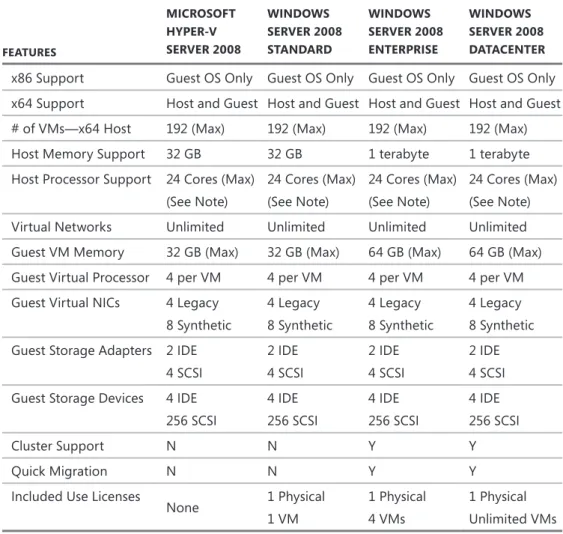
Table 2-1 summarizes the basic features found in Windows Server 2008 Hyper-V editions and Hyper-V Server 2008 . Hyper-V VMs support both 32-bit and 64-bit guest operating systems and the allocation of up to four virtual processors and 64 gigabytes (GB) of memory for Hyper-V servers running on Windows Server 2008 Enterprise or Datacenter edition . In its original release, Hyper-V supported 16 processor cores and 128 virtual machines . However, a subsequent update (KB956710) increased Hyper-V support to 24 logical processors and a maximum of 192 concurrent virtual machines .
TABLE 2-1 Hyper-V Basic Features Comparison
FEATURES MICROSOFT HyPER-V SERVER 2008 WInDOWS SERVER 2008 STAnDARD WInDOWS SERVER 2008 EnTERPRISE WInDOWS SERVER 2008 DATACEnTER
x86 Support Guest OS Only Guest OS Only Guest OS Only Guest OS Only x64 Support Host and Guest Host and Guest Host and Guest Host and Guest
# of VMs—x64 Host 192 (Max) 192 (Max) 192 (Max) 192 (Max)
Host Memory Support 32 GB 32 GB 1 terabyte 1 terabyte
Host Processor Support 24 Cores (Max) (See Note) 24 Cores (Max) (See Note) 24 Cores (Max) (See Note) 24 Cores (Max) (See Note)
Virtual Networks Unlimited Unlimited Unlimited Unlimited
Guest VM Memory 32 GB (Max) 32 GB (Max) 64 GB (Max) 64 GB (Max)
Guest Virtual Processor 4 per VM 4 per VM 4 per VM 4 per VM
Guest Virtual NICs 4 Legacy 8 Synthetic 4 Legacy 8 Synthetic 4 Legacy 8 Synthetic 4 Legacy 8 Synthetic Guest Storage Adapters 2 IDE
4 SCSI 2 IDE 4 SCSI 2 IDE 4 SCSI 2 IDE 4 SCSI Guest Storage Devices 4 IDE
256 SCSI 4 IDE 256 SCSI 4 IDE 256 SCSI 4 IDE 256 SCSI Cluster Support N N Y Y Quick Migration N N Y Y
Included Use Licenses
None 1 Physical 1 VM 1 Physical 4 VMs 1 Physical Unlimited VMs MORE INFO For a detailed description of the Hyper-V architecture, refer to Chapter 3, “Hyper-V architecture.”
NOTE If you are going to install and use Hyper-V on a physical server with 24 cores, you must download and install KB956710 for Windows Server 2008 Hyper-V from
http://support.microsoft.com/kb/956710.
IMPORTANT The Windows license allows you to run one virtual machine in Windows Server 2008 Standard, four VMs in Windows Server 2008 enterprise, and an unlimited num-ber of VMs in Windows Server 2008 Datacenter. Because Microsoft Hyper-V Server 2008 is not a Windows edition, you do not receive any Windows licenses with it, and therefore you must have a valid Windows license for each Windows-based VM running on it.
aMD-V and Intel VT Support
Hyper-V requires an x64 AMD-V or Intel VT processor that supports hardware-assisted virtu-alization and hardware-based Data Execution Prevention (DEP) . You must ensure that both of these options are enabled in the Basic Input/Output System (BIOS), as they may be disabled by default . Specifi cally for DEP, you must enable the AMD No-Execute (NX) bit, or Intel Exe-cute-Disable (XD) bit, which assists in preventing buffer overfl ow exploits . Other advantages of running on an AMD-V or Intel VT x64 platform include access to a larger address space and a higher partition density . Hyper-V does not support Itanium or x86-based systems .
NOTE you may have to shut down and restart after you enable the aMD NX of Intel XD bit on your physical system for the change to take effect.
Full Installation and Server Core Installation Support
Hyper-V can be installed as a role in either a full installation or a Server Core installation of 64-bit Windows Server 2008 Standard, Enterprise, and Datacenter editions . In a full installa-tion of Windows Server 2008, you can use the Initial Confi gurainstalla-tion Tasks or the Server Man-ager to add the Hyper-V role to your system . The Windows Hypervisor is present and enabled only after the Hyper-V role is installed on Windows Server 2008 . Furthermore, when you select and add the Hyper-V role, all of the Hyper-V components are installed on your system . This also includes Hyper-V management tools such as the Hyper-V Manager MMC snap-in and the Virtual Machine Connection application, which allows you to remotely access virtual machines . Installing the Hyper-V role in a full installation of Windows Server 2008 requires that you restart the computer before it will boot the Windows Hypervisor .
Windows Server 2008 Server Core is a new feature that allows you to install a minimal server confi guration that includes only the subset of binaries that are required to run one of the supported roles . A key advantage of Server Core is the reduction in operating system
NOTE If you are going to install and use Hyper-V on a physical server with 24 cores, NOTE If you are going to install and use Hyper-V on a physical server with 24 cores, NOTE
you must download and install KB956710 for Windows Server 2008 Hyper-V from
http://support.microsoft.com/kb/956710.
IMPORTANT The Windows license allows you to run one virtual machine in Windows IMPORTANT The Windows license allows you to run one virtual machine in Windows IMPORTANT
Server 2008 Standard, four VMs in Windows Server 2008 enterprise, and an unlimited num-ber of VMs in Windows Server 2008 Datacenter. Because Microsoft Hyper-V Server 2008 is not a Windows edition, you do not receive any Windows licenses with it, and therefore you must have a valid Windows license for each Windows-based VM running on it.
NOTE you may have to shut down and restart after you enable the aMD NX of Intel XD NOTE you may have to shut down and restart after you enable the aMD NX of Intel XD NOTE
maintenance (i .e ., fewer updates) and management requirements based on the smaller num-ber of fi les and services included in the installation .
There are nine Server Core roles: Hyper-V, File Services, Active Directory Domain Services, Active Directory Lightweight Directory Services, DHCP Server, DNS Server, Print Services, Streaming Media Services, and Web Server . The default management interface for a Win-dows Server 2008 Server Core installation is a command prompt, since it does not install the Explorer shell graphical user interface (GUI) . Therefore, you must rely on command-line options to enable the Hyper-V role in a Server Core installation . However, a Windows Server 2008 Server Core installation can be managed remotely using the standard MMC tools from a server with a full installation of Windows Server 2008 . You can also use the Remote Server Administration Tools (RSAT) to manage your Server Core installations from 32-bit and 64-bit editions of Windows Vista Business with Service Pack 1 (SP1), Windows Vista Enterprise with SP1, and Windows Vista Ultimate with SP1 .
NOTE If you are going to install and use RSaT to manage a Windows Server 2008 Server Core installation, you must download and install KB941314 from
http://support.microsoft.com/kb/941314.
MORE INFO For detailed installation procedures of the Hyper-V role in either a full installation or Server Core installation of Window Server 2008, refer to Chapter 4, “Hyper-V Installation and Confi guration.”
Microsoft Hyper-V Server 2008
Microsoft Hyper-V Server 2008 is a stand-alone product based on the same virtualization architecture available in Windows Server 2008 Hyper-V . However, it has been simplifi ed and optimized to run Hyper-V only . Similar to a Server Core installation of Windows Server 2008, it provides only a command-line user interface and can be administered remotely using the Hyper-V management tools and RSAT .
Microsoft Hyper-V Server 2008 is available as a free download from the Microsoft Web site . It is a good choice for single virtualization host deployments that do not require enter-prise-class features such as high availability, and for virtual machines that need less than 32 GB of memory . You may also want to consider using Windows Hyper-V Server 2008 in non-production, development, and test environments . There is no software upgrade path from Microsoft Hyper-V Server 2008 to Windows Server 2008 Hyper-V . However, virtual machines are compatible between the two products and can be migrated using Hyper-V virtual ma-chine export and import features, which will be discussed later in this chapter .
NOTE If you are going to install and use RSaT to manage a Windows Server 2008 NOTE If you are going to install and use RSaT to manage a Windows Server 2008 NOTE
Server Core installation, you must download and install KB941314 from
http://support.microsoft.com/kb/941314.
MORE INFO For detailed installation procedures of the Hyper-V role in either a full installation or Server Core installation of Window Server 2008, refer to Chapter 4, “Hyper-V Installation and Confi guration.”
NOTE If you are interested in Windows Hyper-V Server 2008, it is available for download from http://www.microsoft.com/servers/hyper-v-server/how-to-get.mspx.
Microsoft Hyper-V Server 2008 includes a command-line, menu-driven confi guration tool called HVConfi g .cmd to permit the confi guration of basic connectivity and features required to use it in a managed environment . HVConfi g .cmd supports the following confi guration and actions:
n Domain or workgroup membership n Computer name
n Network settings n Local administrators n Windows Update settings
n Download and install Windows Updates n Remote Desktop
n Regional and language options n Date and time
n Log Off User n Restart Server n Shut Down Server n Exit To Command Line
HVConfi g .cmd actually executes a Visual Basic Script fi le called HVConfi g .vbs that contains all the functionality . HVConfi g .cmd launches every time that you log on to the system .
access Control Using authorization Manager
Hyper-V leverages Authorization Manager (AzMan) to provide role-based access control to Hyper-V and virtual machines . This allows you to create job defi nitions and translate them into a role with a limited set of operations and tasks . You can assign individual users or groups to appropriate roles, allowing them to fulfi ll their job responsibilities while restricting their access to only the required Hyper-V resources, operations, and tasks .
MORE INFO For more details on how to use azMan with Hyper-V and the types of roles that might be useful to defi ne for Hyper-V and virtual machine management, refer to Chapter 6, “Hyper-V Security.”
NOTE If you are interested in Windows Hyper-V Server 2008, it is available for download NOTE If you are interested in Windows Hyper-V Server 2008, it is available for download NOTE
from http://www.microsoft.com/servers/hyper-v-server/how-to-get.mspxhttp://www.microsoft.com/servers/hyper-v-server/how-to-get.mspxhttp://www.microsoft.com/servers/hyper-v-server/how-to-get.mspx..
MORE INFO For more details on how to use azMan with Hyper-V and the types of roles that might be useful to defi ne for Hyper-V and virtual machine management, refer to Chapter 6, “Hyper-V Security.”
Live Backup with Volume Shadow Copy Service
Volume Shadow Copy Service (VSS) support in Hyper-V provides stateful, host-side backups, eliminating the need to load an agent in each virtual machine . Any VSS-aware application, such as System Center Data Protection Manager (DPM) 2007 SP1, can leverage this function-ality to provide VSS snapshot backup services if it utilizes the VSS writer interface implement-ed in Hyper-V . Any virtual machine running a VSS-aware guest Windows operating system (Windows Server 2003 and later) can be backed up in a live state . Any other guest operat-ing system (Windows 2000, Linux, and so on) will need to be in saved state prior to the VSS snapshot . Because VSS snapshots are performed through an extremely fast process (they take seconds), virtual machine downtime is minimized . Additionally, with VSS support, the number of steps involved in archive or restore operations is reduced and the consistency of the data is ensured .
MORE INFO For more details on performing live backups using VSS, refer to Chapter 13, “Hyper-V Backup and Recovery.”
High availability Using Failover Clustering
Hyper-V supports Windows Failover Clustering to implement a high-availability strategy that can manage both unplanned and planned downtime . There are two levels at which you can implement a failover cluster with Hyper-V: at the guest operating system level, and at the virtualization host level . A guest operating system failover cluster requires cluster-aware ap-plications running in virtual machines . In addition, you have to run an operating system in the virtual machine that supports failover clustering, such as Windows Server 2003 (for up to an 8-node cluster) or Windows Server 2008 Enterprise or Datacenter edition (for up to a 16-node cluster) . The second failover cluster option consists of two or more Windows Server 2008 Hyper-V servers, each confi gured as a cluster node . This type of confi guration allows you to provide a high-availability solution for both non-cluster-aware guest operating systems and applications that run in virtual machines .
MORE INFO For more details on how to confi gure guest and host failover clusters, refer to Chapter 5.
Quick Migration
Hyper-V also supports Quick Migration, the ability to move a virtual machine across cluster nodes without data loss and with minimal service interruption . To accomplish this, a virtual machine is placed in saved state, active memory and processor state are captured to disk, and storage resources ownership is transferred to another node in the cluster . On the new MORE INFO For more details on performing live backups using VSS, refer to Chapter 13, “Hyper-V Backup and Recovery.”
MORE INFO For more details on how to confi gure guest and host failover clusters, refer to Chapter 5.
node, the virtual machine active memory and processor state are reloaded and processing is resumed . Depending on the underlying storage and the size of the state data, the entire process can take place in a matter of seconds or minutes .
MORE INFO For more details on Quick Migration, refer to Chapter 14, “Server Migration Using System Center Virtual Machine Manager.”
Integration Services
In Hyper-V, Integration Services (IS) provide support for fi ve unique components that require a secure interface between a parent and child partition . These functions are:
n Time synchronization n Heartbeat
n Shutdown
n Key/value pair exchange
n Volume Shadow Copy Service (VSS)
Integration Services target very specifi c areas that enhance the functionality or manage-ment of supported guest operating systems . In addition to these services, Integration Services provide the synthetic or high-performance drivers for networking, video, storage, and human-interface devices . If you install Windows Server 2008 in a virtual machine, the Integra-tion Services are pre-installed . However, you should update them to the latest version . For other operating systems, you should install the Integration Services after the operating sys-tem installation is complete . It is important to note that only a subset of Integration Services may be supported for some legacy or non-Windows guest operating systems .
MORE INFO For more details on Integration Services, refer to Chapter 3 and Chapter 5.
Virtual Machine Import and export
The import and export features in Hyper-V are meant to move and copy virtual machines between Hyper-V servers . These features do not provide a solution to export or import virtual machines between other virtualization applications like Virtual Server 2005 R2 . In addition, you can export only a virtual machine that is in saved state or that is shut down .
Virtual Hard Disk Management
Hyper-V provides several options to manage virtual hard disks (VHD), accessible through the Hyper-V Manager console . The VHD management options include:
MORE INFO For more details on Quick Migration, refer to Chapter 14, “Server Migration Using System Center Virtual Machine Manager.”
n Compact Provides the ability to shrink the size of a VHD by removing blank space that remains after data is deleted from the VHD fi le
n Convert Provides the ability to transfer a dynamically expanding VHD to a fi xed-size VHD or vice versa
n Expand Provides the ability to increase the storage capacity of a dynamically expanding VHD or fi xed-size VHD
n Merge Provides the ability to combine the content of a child differencing disk with the parent differencing disk
n Reconnect Provides the ability to reconnect a child differencing disk to the parent disk The options that are available depend on the type of VHD that you select and also on the status of that VHD .
MORE INFO For more details on the VHD management options, refer to Chapter 5.
Virtual Machine Snapshots
The Hyper-V snapshot feature allows you to capture the confi guration and state of a virtual machine at any particular point in time, and provides you with the ability to reload any exist-ing snapshot within a matter of seconds . Hyper-V snapshots can be extremely useful in sce-narios for which you need to make incremental changes to a virtual machine with the ability to roll back to a previous state . The Hyper-V snapshot feature is principally designed for use in test and development environments, not in a production infrastructure .
MORE INFO For more details on virtual machine snapshots, refer to Chapter 5.
Virtual Machine Connection
Virtual Machine Connection (VMC) is a remote administration tool provided with Hyper-V . VMC uses the Widows Remote Desktop Protocol to allow remote access to the guest operat-ing system runnoperat-ing in a virtual machine . It is embedded in the Hyper-V Manager MMC and is available as a stand-alone application . VMC provides access to the video frame buffer of the video machine from the moment a virtual machine is powered on so that you have access during the boot process .
MORE INFO For more details about using VMC, refer to Chapter 11, “Hyper-V Single Server Management.”
MORE INFO For more details on the VHD management options, refer to Chapter 5.
MORE INFO For more details on virtual machine snapshots, refer to Chapter 5.
MORE INFO For more details about using VMC, refer to Chapter 11, “Hyper-V Single Server Management.”
DIRECT FROM THE SOURCE
Windows Server 2008 R2 Hyper-V Features
Vijay Tewari, principal program Manager
Windows Virtualization
M
icrosoft has made a big investment in developing Windows Server 2008 Hyper-V, a virtualization platform that provides fl exibility and performance for IT organizations to consolidate their workloads. although this book provides an excellent in-depth look at various aspects of the Hyper-V platform, Microsoft con-tinues to enhance and evolve Hyper-V with features and capabilities. Here is a sneak peek at some capabilities of Windows Server 2008 R2 Hyper-V, the next release of the Windows Server Virtualization platform.Live Migration of Virtual Machines
Windows Server 2008 provides Quick Migration to move VMs between hosts in a cluster with minimal service interruption. However, this capability requires pausing the virtual machine momentarily while the saved state is moved from the source to the destination node. a virtual machine in saved state does not run during this period (called the “blackout” period), in effect causing downtime for the virtual machine. In today’s IT environment, downtime even for short periods is problematic. In order to address this issue, Microsoft is enhancing the Hyper-V product with the Live Migration capability. With Live Migration, there is no perceived downtime in the workloads running in the VM, and network connections to and from the migrated VM stay connected. as with Quick Migration, Live Migration will be possible be-tween nodes within a failover cluster. In effect, the infrastructure investment made in order to use Quick Migration will be enhanced through Live Migration. In addi-tion, Microsoft is adding Clustered Shared Volumes to failover clusters, which allow multiple VHDs for different VMs to be stored on a single Logical Unit Number (LUN). This not only simplifi es management of shared storage for a cluster, it also provides a signifi cant reduction in the blackout period for VMs moved through Live Migration.
Support for Enhanced Hardware Virtualization Features
Over the years, hardware vendors such as aMD and Intel have made signifi cant en-hancements (such as aMD-V and Intel VT) to processors and chipsets with capabili-ties specifi cally targeting virtualization. Continuing with these enhancements, aMD and Intel support Nested page Tables (NpT) and extended page Tables (epT), respec-tively. These capabilities improve the performance of memory address translations. Without these hardware enhancements, each time a guest page faults, it requires a context switch to the hypervisor to handle the page fault. With NpT and epT, a guest can handle page faults directly, eliminating the need for a costly context switch to the hypervisor and reducing virtualization overhead for memory translations.
DIRECT FROM THE SOURCE
Windows Server 2008 R2 Hyper-V Features
Vijay Tewari, principal program Manager
Windows Virtualization
M
icrosoft has made a big investment in developing Windows Server 2008 Hyper-V, a virtualization platform that provides fl exibility and performance for IT organizations to consolidate their workloads. although this book provides an excellent in-depth look at various aspects of the Hyper-V platform, Microsoft con-tinues to enhance and evolve Hyper-V with features and capabilities. Here is a sneak peek at some capabilities of Windows Server 2008 R2 Hyper-V, the next release of the Windows Server Virtualization platform.Live Migration of Virtual Machines
Windows Server 2008 provides Quick Migration to move VMs between hosts in a cluster with minimal service interruption. However, this capability requires pausing the virtual machine momentarily while the saved state is moved from the source to the destination node. a virtual machine in saved state does not run during this period (called the “blackout” period), in effect causing downtime for the virtual machine. In today’s IT environment, downtime even for short periods is problematic. In order to address this issue, Microsoft is enhancing the Hyper-V product with the Live Migration capability. With Live Migration, there is no perceived downtime in the workloads running in the VM, and network connections to and from the migrated VM stay connected. as with Quick Migration, Live Migration will be possible be-tween nodes within a failover cluster. In effect, the infrastructure investment made in order to use Quick Migration will be enhanced through Live Migration. In addi-tion, Microsoft is adding Clustered Shared Volumes to failover clusters, which allow multiple VHDs for different VMs to be stored on a single Logical Unit Number (LUN). This not only simplifi es management of shared storage for a cluster, it also provides a signifi cant reduction in the blackout period for VMs moved through Live Migration.
Support for Enhanced Hardware Virtualization Features
Over the years, hardware vendors such as aMD and Intel have made signifi cant en-hancements (such as aMD-V and Intel VT) to processors and chipsets with capabili-ties specifi cally targeting virtualization. Continuing with these enhancements, aMD and Intel support Nested page Tables (NpT) and extended page Tables (epT), respec-tively. These capabilities improve the performance of memory address translations. Without these hardware enhancements, each time a guest page faults, it requires a context switch to the hypervisor to handle the page fault. With NpT and epT, a guest can handle page faults directly, eliminating the need for a costly context switch to the hypervisor and reducing virtualization overhead for memory translations.
Addition and Removal of Virtual Storage
Virtualization decouples the software running on a system from the hardware and makes it convenient for IT organizations to deploy and manage their environments. With this fl exibility, it is inevitable that customers also seek the ability to expand and reduce storage coupled with virtual machines. With Windows Server 2008 R2 Hyper-V, Microsoft is adding the ability to add and remove virtual hard disks from a virtual machine while it is in operation. This capability opens up a range of pos-sibilities for backup storage solutions and so on.
networking Enhancements
Networking vendors have also made enhancements to hardware that benefi t virtualized platforms. Two such key technologies are TCp Offl oad engine (TOe) and Virtual Machine Queues (VMQ).
TCp Offl oad engine refers to the offl oading of TCp/Ip processing to the network interface card (NIC). This technology is not specifi c to virtualized platforms, as non-virtualized operating systems and applications can also benefi t by using it. a gener-ally well-accepted rule of thumb is that 1 Hertz (Hz) of CpU processing is required to send or receive 1 bit of TCp/Ip data. For high speed NICs, the overhead associated with processing TCp/Ip traffi c can be substantial. Windows Server 2008 R2 Hyper-V will support offl oading the TCp/Ip processing from virtual machines onto supported NICs, reducing the overhead for network processing. This has the benefi t to free up processor cycles for additional work.
VMQ provides multiple queues and sorting algorithms in the NIC. One or more queues can be assigned by the hypervisor to individual virtual machines. The NIC sorts incoming network traffi c and places it in the appropriate queues for the virtual machines. Since this processing happens in the NIC hardware, it reduces the hyper-visor overhead and again frees up processor cycles for other work.
In addition, Microsoft is also adding support for jumbo frames that enable large send and receive payloads. a jumbo frame is an ethernet frame with up to 9000 bytes of data payload as opposed to the traditional 1500 bytes. This reduces the overhead incurred per transferred byte. Coupled with large send offl oad (LSO), which is the ability of the operating system to transfer large chunks of data to the NIC to create ethernet frames, and large receive offl oad (LRO), which allows the creation of a single large data buffer from multiple incoming ethernet frames, this provides additional reductions of network processing overhead.
Power Management Enhancements
Recognizing the fact that data center power distribution and cooling infrastructure for the computing infrastructure are uppermost in IT staff minds, the next genera-tion of the Windows Hypervisor has enhancements to reduce the power footprint of virtualized workloads. These capabilities include the use of “core parking,”
Addition and Removal of Virtual Storage
Virtualization decouples the software running on a system from the hardware and makes it convenient for IT organizations to deploy and manage their environments. With this fl exibility, it is inevitable that customers also seek the ability to expand and reduce storage coupled with virtual machines. With Windows Server 2008 R2 Hyper-V, Microsoft is adding the ability to add and remove virtual hard disks from a virtual machine while it is in operation. This capability opens up a range of pos-sibilities for backup storage solutions and so on.
networking Enhancements
Networking vendors have also made enhancements to hardware that benefi t virtualized platforms. Two such key technologies are TCp Offl oad engine (TOe) and Virtual Machine Queues (VMQ).
TCp Offl oad engine refers to the offl oading of TCp/Ip processing to the network interface card (NIC). This technology is not specifi c to virtualized platforms, as non-virtualized operating systems and applications can also benefi t by using it. a gener-ally well-accepted rule of thumb is that 1 Hertz (Hz) of CpU processing is required to send or receive 1 bit of TCp/Ip data. For high speed NICs, the overhead associated with processing TCp/Ip traffi c can be substantial. Windows Server 2008 R2 Hyper-V will support offl oading the TCp/Ip processing from virtual machines onto supported NICs, reducing the overhead for network processing. This has the benefi t to free up processor cycles for additional work.
VMQ provides multiple queues and sorting algorithms in the NIC. One or more queues can be assigned by the hypervisor to individual virtual machines. The NIC sorts incoming network traffi c and places it in the appropriate queues for the virtual machines. Since this processing happens in the NIC hardware, it reduces the hyper-visor overhead and again frees up processor cycles for other work.
In addition, Microsoft is also adding support for jumbo frames that enable large send and receive payloads. a jumbo frame is an ethernet frame with up to 9000 bytes of data payload as opposed to the traditional 1500 bytes. This reduces the overhead incurred per transferred byte. Coupled with large send offl oad (LSO), which is the ability of the operating system to transfer large chunks of data to the NIC to create ethernet frames, and large receive offl oad (LRO), which allows the creation of a single large data buffer from multiple incoming ethernet frames, this provides additional reductions of network processing overhead.
Power Management Enhancements
Recognizing the fact that data center power distribution and cooling infrastructure for the computing infrastructure are uppermost in IT staff minds, the next genera-tion of the Windows Hypervisor has enhancements to reduce the power footprint of virtualized workloads. These capabilities include the use of “core parking,”
which allows the hypervisor to proactively consolidate idle workloads onto fewer cores. The unused processors can then be put into a deep sleep state, effectively reducing the power consumption of the server. In addition, the virtual management infrastructure, more specifi cally System Center Virtual Machine Manager (SCVMM), also can assist through optimal workload placement that reduces the overall power consumption of workloads.
Remote Desktop Connection Broker
The Remote Desktop Connection Broker creates a unifi ed administrative experience for traditional session-based (i.e., Terminal Services) remote desktops and for virtual machine-based remote desktops in a Virtual Desktop Infrastructure (VDI). The two key deployment scenarios supported by the Remote Desktop Connection Broker are persistent (permanent) VMs and pooled VMs. Using a persistent VM, a user is as-signed a dedicated VM that can be personalized and customized, and that preserves any changes made by the user. With a pooled VM, a single VM image is replicated as needed for users. User state can be stored using profi les and folder redirection, but it does not persist on the VM after the user logs off.
Host Operating System Support
The following list includes all the currently supported 64-bit host operating systems for Hyper-V:
n Windows Server 2008 Standard Edition n Windows Server 2008 Enterprise Edition n Windows Server 2008 Datacenter Edition n Microsoft Hyper-V Server 2008
Guest Operating System Support
The following list includes all the supported x86 guest operating systems that can be used with Windows Server 2008 Standard, Enterprise, and Datacenter editions, as well as Microsoft Hyper-V Server 2008:
n Windows 2000 (support for one virtual processor)
•
Windows 2000 Server with SP4•
Windows 2000 Advanced Server with SP4n Windows Server 2003 x86 (support for one or two virtual processors)
•
Windows Server Web Edition with SP2•
Windows Server Standard Edition with SP2which allows the hypervisor to proactively consolidate idle workloads onto fewer cores. The unused processors can then be put into a deep sleep state, effectively reducing the power consumption of the server. In addition, the virtual management infrastructure, more specifi cally System Center Virtual Machine Manager (SCVMM), also can assist through optimal workload placement that reduces the overall power consumption of workloads.
Remote Desktop Connection Broker
The Remote Desktop Connection Broker creates a unifi ed administrative experience for traditional session-based (i.e., Terminal Services) remote desktops and for virtual machine-based remote desktops in a Virtual Desktop Infrastructure (VDI). The two key deployment scenarios supported by the Remote Desktop Connection Broker are persistent (permanent) VMs and pooled VMs. Using a persistent VM, a user is as-signed a dedicated VM that can be personalized and customized, and that preserves any changes made by the user. With a pooled VM, a single VM image is replicated as needed for users. User state can be stored using profi les and folder redirection, but it does not persist on the VM after the user logs off.
•
Windows Server Enterprise Edition with SP2•
Windows Server Datacenter Edition with SP2n Windows Server 2003 R2 x86 (support for one or two virtual processors)
•
Windows Server Web Edition with SP2•
Windows Server Standard Edition with SP2•
Windows Server Enterprise Edition with SP2•
Windows Server Datacenter Edition with SP2n Windows Server 2003 x64 (support for one or two virtual processors)
•
Windows Server Standard Edition with SP2•
Windows Server Enterprise Edition with SP2•
Windows Server Datacenter Edition with SP2n Windows Server 2003 R2 x64 (support for one or two virtual processors)
•
Windows Server Standard Edition with SP2•
Windows Server Enterprise Edition with SP2•
Windows Server Datacenter Edition with SP2n Windows Server 2008 x86 (support for one, two, or four virtual processors)
•
Windows Server 2008 Standard Edition•
Windows Server 2008 Enterprise Edition•
Windows Server 2008 Datacenter Edition•
Windows Web Server 2008 Edition•
Windows Server 2008 Standard Edition without Hyper-V•
Windows Server 2008 Enterprise Edition without Hyper-V•
Windows Server 2008 Datacenter Edition without Hyper-Vn Windows Server 2008 x64 (support for one, two, or four virtual processors)
•
Windows Server 2008 Standard Edition•
Windows Server 2008 Enterprise Edition•
Windows Server 2008 Datacenter Edition•
Windows Web Server 2008 Edition•
Windows Server 2008 Standard Edition without Hyper-V•
Windows Server 2008 Enterprise Edition without Hyper-V•
Windows Server 2008 Datacenter Edition without Hyper-Vn Windows HPC Server 2008 (support for one, two or four virtual processors) n Suse Linux Enterprise Server 10 x86 (support for one virtual processor)
•
SUSE Linux Enterprise Server 10 with SP2n Suse Linux Enterprise Server 10 x64 (support for one virtual processor)
•
SUSE Linux Enterprise Server 10 with SP1•
SUSE Linux Enterprise Server 10 with SP2 n Windows XP Professional x86•
Windows XP Professional with SP2 (support for one virtual processor)•
Windows XP Professional with SP3 (support for one or two virtual processors) n Windows XP Professional x64•
Windows XP Professional with SP2 (support for one or two virtual processors) n Windows Vista x86 (support for one or two virtual processors)•
Windows Vista Business Edition with SP1•
Windows Vista Enterprise Edition with SP1•
Windows Vista Ultimate Edition with SP1n Windows Vista x64 (support for one or two virtual processors)
•
Windows Vista Business Edition with SP1•
Windows Vista Enterprise Edition with SP1•
Windows Vista Ultimate Edition with SP1Reviewing Hyper-V
Windows Server 2008 Hyper-V and Microsoft Hyper-V Server 2008 are both hypervisor-based virtualization platforms . Hyper-V is multithreaded and concurrently runs one or more virtual machines (workloads), each in its own thread of execution . Each virtual machine presents a set of virtualized or synthetic devices to the guest operating system and applications that abstracts the underlying physical hardware, providing workload portability between dissimilar physical servers running Hyper-V .
Virtual Machine Hardware Environment
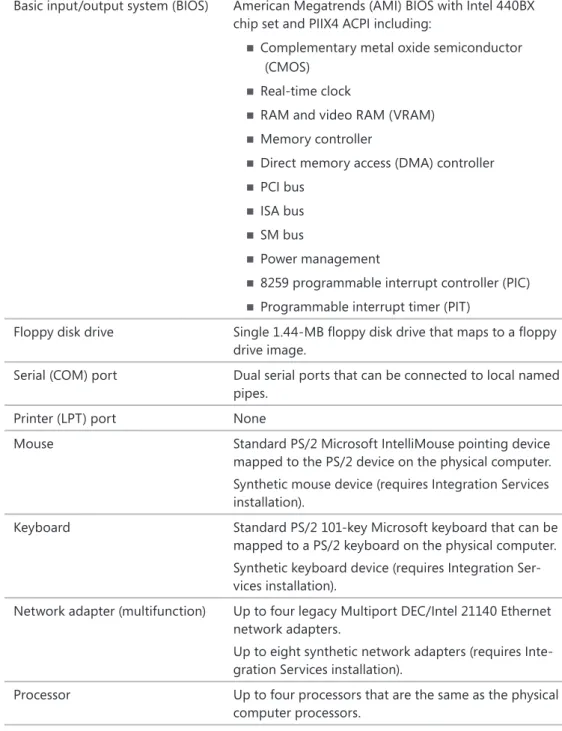
Table 2-2 lists the standard set of virtualized components that a virtual machine exposes to a guest operating system and application stack . These devices are detected and appear to be the physical hardware resources available to the running workload . When a virtual machine workload requests access to the virtualized resources, Hyper-V works in conjunction with the parent partition to translate the requested operation from the virtual hardware environ-ment to the physical hardware, and access is achieved via the standard kernel device drivers installed in the parent partition . This approach provides virtual machine workloads the ability to run across a wide variety of server hardware without requiring any modifications to the workload configuration .
TABLE 2-2 Virtualized Hardware Components
COMPOnEnT VIRTUALIzED HARDWARE
Basic input/output system (BIOS) American Megatrends (AMI) BIOS with Intel 440BX chip set and PIIX4 ACPI including:
n Complementary metal oxide semiconductor (CMOS)
n Real-time clock
n RAM and video RAM (VRAM) n Memory controller
n Direct memory access (DMA) controller n PCI bus
n ISA bus n SM bus
n Power management
n 8259 programmable interrupt controller (PIC) n Programmable interrupt timer (PIT)
Floppy disk drive Single 1 .44-MB floppy disk drive that maps to a floppy drive image .
Serial (COM) port Dual serial ports that can be connected to local named pipes .
Printer (LPT) port None
Mouse Standard PS/2 Microsoft IntelliMouse pointing device
mapped to the PS/2 device on the physical computer . Synthetic mouse device (requires Integration Services installation) .
Keyboard Standard PS/2 101-key Microsoft keyboard that can be
mapped to a PS/2 keyboard on the physical computer . Synthetic keyboard device (requires Integration Ser-vices installation) .
Network adapter (multifunction) Up to four legacy Multiport DEC/Intel 21140 Ethernet network adapters .
Up to eight synthetic network adapters (requires Inte-gration Services installation) .
Processor Up to four processors that are the same as the physical computer processors .
COMPOnEnT VIRTUALIzED HARDWARE
Memory Up to 32 GB of RAM per virtual machine for Windows
Server 2008 Hyper-V Standard Edition and Microsoft Hyper-V Server 2008 .
Up to 64 GB of RAM per virtual machine for Windows Server 2008 Hyper-V Enterprise and Datacenter editions .
Video card VESA compatible emulated graphics adapter with 4 MB
of VRAM, VGA, and SVGA support compliant with VESA 1 .2, 2-D graphics accelerator and hardware cursor, and support for DirectX .
Synthetic video adapter (requires Integration Services installation) .
IDE/ATAPI storage Dual IDE channels that support hard drives, CD-ROM or DVD-ROM drives, and ISO images . Each IDE channel supports two disks .
SCSI storage Up to four synthetic SCSI adapters, each supporting 64 disks (requires Integration Services installation) .
Sound card None
A few limitations are imposed on virtual machine workloads based on the virtual hardware environment . Operating systems or applications that require direct access to a hardware device that is not listed in Table 2-2 cannot execute in a virtual machine . Because virtual machines expose only four CPUs to a hosted workload, applications that require symmetric multiprocessing (SMP) can be assigned one, two, or four processors in a virtual machine .
Virtual Hard Disks
Virtual hard disks (VHDs) are single file representations of a physical hard disk that encapsu-late virtual machine data . Virtual hard disks reflect the same internal structure as a physical hard disk, including block allocation tables, data blocks, and sectors . Table 2-3 provides a list of virtual hard disk types available in Hyper-V .
TABLE 2-3Virtual Hard Disk Types DISK TyPE DESCRIPTIOn
Fixed Virtual hard disk file with all data blocks allocated on the host disk sub-system at creation time . A 10-GB fixed disk consumes 10 GB on the host physical disk where it is created .
DISK TyPE DESCRIPTIOn
Dynamically Expanding
Virtual hard disk fi le that is preallocated with no data blocks reserved and grows as data is written until it reaches full size . A 10-GB dynamically expanding disk takes less than 2 MB initially and grows to 10 GB in 2-MB data block increments .
In Hyper-V, the maximum size for this VHD type is 127 GB .
Differencing Virtual hard disk fi le that is tied to an existing “parent” virtual hard disk fi le as an overlay . All writes are made to the differencing disk, the “child,” whereas reads come from the parent and the child . Differencing disks are created as dynamically expanding disks .
Linked A physical disk volume that you want to convert to a virtual hard disk . Linked disks exist only to perform the migration from physical to virtual hard disk .
Within a virtual machine, a virtual hard disk is represented as a physical disk . On a Hyper-V server physical disk, a virtual hard disk is stored as a fi le with a .vhd extension . Virtual ma-chines connect to a virtual hard disk through a virtualized Integrated Drive Electronics (IDE) or Small Computer System Interface (SCSI) adapter . Hyper-V is responsible for mapping the virtual hard disk to the .vhd fi le on the physical disk . A VHD can be stored on any IDE, SCSI, iSCSI, storage area network (SAN), or Network-Attached Storage (NAS) storage system sup-ported by the Windows Server 2008 operating system .
Virtual hard disks are created using either the Hyper-V Manager or through the WMI application programming interface (API) . A virtual machine can support a maximum of 260 virtual hard disks through a combination of IDE and SCSI-connected VHDs .
NOTE Virtual hard disk specifi cations are independent of the bus type used to connect to the virtual machine. However, the bus type does impose a size limitation on virtual hard disks. Virtual hard disks connected via IDe cannot exceed 127 GB. Virtual hard disks con-nected via SCSI cannot exceed 2040 gigabytes.
pass-Through Disks
Using Hyper-V, you can expose a disk to a virtual machine that is connected to the physical server without creating a volume on it . This is referred to as a pass-through disk . Pass-through disks can be physically connected to the Hyper-V server or as a LUN on a SAN . One of the advantages of pass-through disks is that they are not subject to the 2040-gigabyte size limi-tation that is imposed on VHDs . In contrast, pass-through disks do not support dynamically expanding VHDs, differencing VHDs, or Hyper-V snapshots .
Virtual IDe Interface
A virtual machine provides built-in primary and secondary virtual IDE interfaces . In Hyper-V, you can boot a virtual machine only from a virtual hard disk that is connected through the virtual IDE interface . Each virtual IDE interface can support two devices attached to it, for a
NOTE Virtual hard disk specifi cations are independent of the bus type used to connect NOTE Virtual hard disk specifi cations are independent of the bus type used to connect NOTE
to the virtual machine. However, the bus type does impose a size limitation on virtual hard disks. Virtual hard disks connected via IDe cannot exceed 127 GB. Virtual hard disks con-nected via SCSI cannot exceed 2040 gigabytes.
total of four IDE devices for every virtual machine . Either virtual hard disks or virtual CD-ROMs can be connected to an IDE interface . By default, the first virtual CD-ROM is attached to the secondary interface as the master device .
Virtual SCSI Interface
Contrary to the built-in virtual IDE interfaces exposed within the virtual machine environment, virtual SCSI interfaces are optional components that must be installed in a virtual machine before they can be used . A virtual machine supports up to four virtual SCSI adapters . Each virtual SCSI adapter can have up to 64 devices attached, for a total of 256 SCSI devices for every virtual machine .
Because virtual SCSI adapters are implemented as synthetic devices that load after the guest operating system loads, SCSI-attached VHDs cannot be used to boot a virtual machine .
iSCSI Disks
Another option to expose storage devices to a virtual machine is to install an iSCSI initiator in the guest operating system and connect directly to an iSCSI target . However, Hyper-V does not support booting from iSCSI-connected disk; therefore, you will still need to connect your boot disk through the virtual IDE interface . Using iSCSI-connected disks requires that you dedicate a NIC in the Hyper-V server for iSCSI communications .
Virtual Networks
A virtual network is a software emulation of a Layer 2 network switch with unlimited ports and a switched uplink that can connect to an external physical network through a physical network adapter or remain disconnected to create an isolated internal network . For each virtual network that you create in Hyper-V, a new software-based switch is created . In ad-dition, each virtual network port simulates a 10-gigabit Ethernet port . Hyper-V supports an unlimited number of virtual networks with an unlimited number of ports for virtual machine connections .
Hyper-V provides three types of virtual networks: External, Private, and Internal . An exter-nal virtual network is used to provide connectivity to a physical network . When you create a new external virtual network, a virtual NIC is created in the Hyper-V parent partition with all the basic network bindings . The virtual NIC connects to a new virtual network switch, and the virtual network switch connects to the physical NIC that you select . If there are multiple phys-ical NICs installed in a Hyper-V server, you can choose the one to bind to the new external virtual network . The physical NIC will have all network bindings removed with the exception of the Microsoft Virtual Network Switch Protocol . When a new virtual machine is connected to the external virtual network, a new network port is added to the virtual network switch .
An internal virtual network provides a means to allow virtual machines to communicate with the Hyper-V server, but it does not provide access to physical networks . In this case, a virtual NIC is again created in the Hyper-V parent partition and is connected to a port on a
of the physical NICs installed in the Hyper-V server . When a new virtual machine is connected to the internal virtual network, a new network port is added to the virtual network switch .
A private virtual network allows multiple virtual machines to communicate with each other, but not with the Hyper-V server or with any host connected on an external physical network . Essentially, when you create a new private virtual network, a new virtual network switch is cre-ated, but no virtual NIC is created in the Hyper-V parent partition . As you add new virtual ma-chine connections to the new virtual network switch, additional network ports are added to it .
All three types of virtual network can be created through the Hyper-V Manager MMC or using WMI .
Virtual Network adapters
There are two types of supported virtual network adapters in Hyper-V: legacy (emulated) and synthetic . A legacy network adapter emulates a virtual Multiport DEC 21140 network adapter . Using a legacy network adapter will increase the processor overhead because device access requires context switching that is not required with the synthetic network adapter . A syn-thetic network adapter provides higher performance because virtual machine device access requests are made through the high-speed VMBus to the parent partition . In order to use a synthetic network adapter, the guest operating system in the virtual machine must support the installation of Integration Services .
Virtual machines support a maximum of four virtual legacy network adapters and eight synthetic network adapters . Only the legacy network adapter supports the Pre-boot Execu-tion Environment protocol (PXE), allowing virtual machines to be provisioned using standard image-deployment tools such as Windows Deployment Services (WDS) or other third-party applications . This is the case because the synthetic network adapter is loaded only after the virtual machine has booted .
When a legacy network adapter is added to a virtual machine, you can defi ne the virtual network to connect it to or leave the virtual machine disconnected from any virtual network . Hyper-V allocates a new dynamic media access control (MAC) address to the new virtual network adapter from its pool of available addresses . It is also possible to provide a virtual network adapter with a static MAC address that is manually confi gured . With Hyper-V, both legacy and synthetic network adapters provide support for virtual LAN (VLAN) identifi cation .
IMPORTANT although the virtual Multiport DeC 21140 network adapter defi nes a 10/100 megabit ethernet interface, there is no network bandwidth limitation imposed on virtual machine workloads. If the underlying physical network adapter is capable of achieving higher network performance (for example, gigabit speed), the virtual machine workload has the ability to exceed the 100-megabit specifi cation.
IMPORTANT although the virtual Multiport DeC 21140 network adapter defi nes a IMPORTANT although the virtual Multiport DeC 21140 network adapter defi nes a IMPORTANT
10/100 megabit ethernet interface, there is no network bandwidth limitation imposed on virtual machine workloads. If the underlying physical network adapter is capable of achieving higher network performance (for example, gigabit speed), the virtual machine workload has the ability to exceed the 100-megabit specifi cation.
Using the Hyper-V Manager Console
The Hyper-V Manager MMC is installed when the Hyper-V role is confi gured in a full instal-lation of Microsoft Windows Server 2008 . It is the default graphical user interface that allows you to manage and confi gure Hyper-V servers and virtual machines . It is also available for Microsoft Vista with SP1 (x86 and x64) as a download from the Microsoft Web site .
NOTE If you are interested in running Hyper-V Manager on Microsoft Vista with Sp1, it is available for download from http://support.microsoft.com/kb/952627.
The Hyper-V manager allows an administrator to manage multiple Hyper-V servers; however, it is meant to be the primary management tool only for small virtualization deploy-ments . If you are deploying Hyper-V in a large or complex environment, you should use an enterprise-class management application like System Center Virtual Machine Manager .
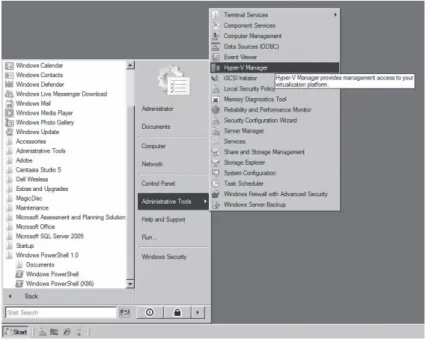
You can launch Hyper-V Manager from the Start menu by selecting Hyper-V Manager from the Administrative Tools menu as shown in Figure 2-2 . In a default full installation of Windows Server 2008, you can also invoke it using the Start menu Run option or from a com-mand prompt by typing C:\Program Files\Hyper-V\virtmgmt.msc .
FIGURE 2-2 Launching Hyper-V Manager from the Start menu
NOTE If you are interested in running Hyper-V Manager on Microsoft Vista with Sp1, it is NOTE If you are interested in running Hyper-V Manager on Microsoft Vista with Sp1, it is NOTE
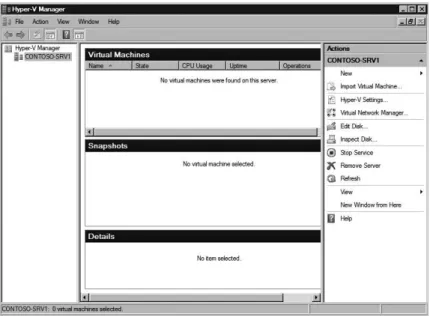
As shown in Figure 2-3, the Hyper-V Manager console is divided into three sections . The left pane displays the tree view of managed Hyper-V servers . The center pane displays exist-ing virtual machines and their state, as well as a tree view of existexist-ing snapshots and a mini-mized view of the virtual machine console when a virtual machine is selected . The right pane contains the list of actions available to manage the Hyper-V servers and virtual machines . The list of virtual machine actions is displayed only after a virtual machine is created or added on the Hyper-V server .
FIGURE 2-3 Hyper-V Manager default view
Managing Multiple Hyper-V Servers
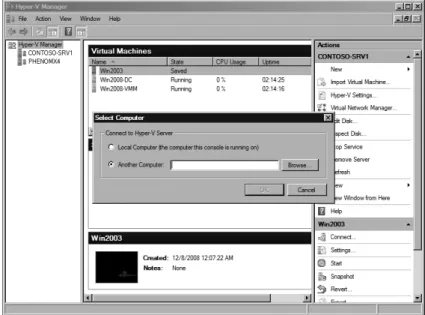
Although the Hyper-V Manager allows only a single Hyper-V server to be managed at a time, it is a simple matter to connect to and switch the management focus to a different Hyper-V server . Figure 2-4 shows the Select Computer dialog box that is displayed when you right-click Hyper-V Manager in the left tree view pane and select Connect To Server . This dialog box is where you can specify the name or IP address of a Hyper-V server that you would like to manage .
FIGURE 2-4 Hyper-V Manager server selection
In this dialog box, you also have the option to select Another Computer and browse for Hyper-V servers that you want to manage from your console .
Managing Virtual Machines
The Hyper-V Manager allows you to create, delete, export and import, or configure virtual machines on the managed Hyper-V server . You manage the virtual machines by selecting the desired management option and then providing or changing information through simple wizards .
Creating Virtual Machines
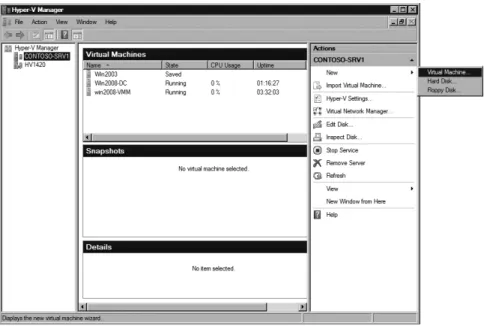
In order to create a new virtual machine, you can select the New option directly under the Hyper-V server name in the Actions pane and then choose the Virtual Machine menu option, as shown in Figure 2-5 .
FIGURE 2-5 Creating a new virtual machine in Hyper-V Manager
Hyper-V provides the New Virtual Machine Wizard, shown in Figure 2-6, to guide you through the process of configuring and creating a new virtual machine .
FIGURE 2-6 Hyper-V Manager New Virtual Machine Wizard
The wizard gathers basic information about the new virtual machine configuration, includ-ing the virtual machine name and storage location, memory to assign to the virtual machine, the virtual network to connect to the virtual machine, and whether you want to create a new virtual hard disk, use an existing virtual hard disk, or attach a virtual hard disk at a later time . Finally, you can specify the guest operating system installation options that include
install-ing the guest operatinstall-ing system later, installinstall-ing the guest operatinstall-ing system from a boot CD or DVD-ROM, installing the guest operating system from a boot floppy disk, or installing a guest operating system from a network-based installation server . When you have made your selec-tions, you will have an opportunity to review the settings and select whether or not to start the virtual machine after it is created .
When the information in the wizard is submitted to Hyper-V, a new virtual machine config-uration file ( .xml) that contains the settings information is created . The new virtual machine is registered and visible in the Hyper-V Manager; a new virtual hard disk is created, if specified; and a virtual network adapter is connected to the virtual machine . The new virtual machine is then ready to boot and install a new operating system or load an existing operating system .
Virtual Machine export and Import
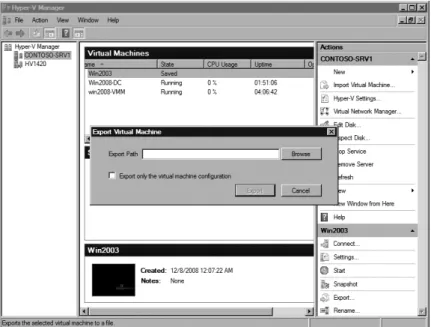
If you want to export a virtual machine, right-click the virtual machine in Hyper-V Manager or select the Export option from the Actions pane . You will then see the Export Virtual Machine dialog box shown in Figure 2-7 . It is important to note that you can export only a virtual machine that is in a saved state or is powered off .
FIGURE 2-7 The Export Virtual Machine dialog box in Hyper-V Manager
In the Export Virtual Machine dialog box, you can browse to specify the location to save the virtual machine export files . There is also an option to export only the virtual machine configuration file ( .exp), but not other files, such as saved state files or VHDs .
After you have moved or copied the virtual machine export files and you are ready to import the virtual machine into Hyper-V, select the Import Virtual Machine option from the
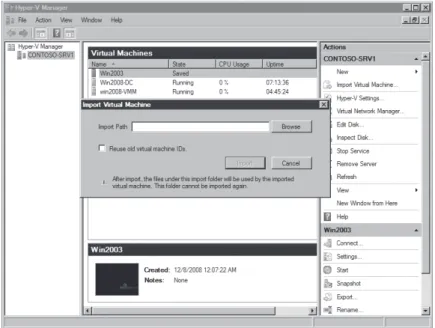
Actions pane under the server name . As shown in Figure 2-8, you must enter the path to the export fi les in the Import Virtual Machine dialog box or browse to select it .
FIGURE 2-8 The Import Virtual Machine dialog box in Hyper-V Manager
You also need to decide whether or not to reuse the VM ID, which is the Global Unique Identifi er (GUID) assigned when a new VM is created . If you are making a copy of an existing virtual machine, you should generate a new virtual machine ID and will leave this option unchecked . If you are moving a virtual machine or restoring a backup copy of a virtual machine, then you should reuse the old virtual machine ID .
NOTE If you select to reuse the old virtual machine ID and the original virtual machine is still present on the Hyper-V server, the import operation will fail because the virtual machine ID has to be unique.
When you import a virtual machine, it will be left in the import path location, and it will not be possible to move the virtual machine after import . Therefore, you should ensure that you move the exported virtual machine fi les to the destination storage location before you import the virtual machine .
Virtual Machine Snapshots
The Hyper-V snapshot feature allows you to capture the confi guration and state of a vir-tual machine at any point in time and return it to that state without noticeable interruption . Hyper-V allows you to create a snapshot whether the virtual machine is running, in saved state, or powered off .
NOTE If you select to reuse the old virtual machine ID and the original virtual machine NOTE If you select to reuse the old virtual machine ID and the original virtual machine NOTE
is still present on the Hyper-V server, the import operation will fail because the virtual machine ID has to be unique.
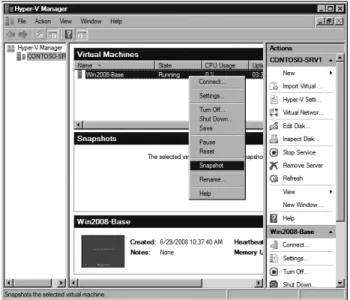
In order to create a snapshot of a virtual machine in Hyper-V Manager, right-click the vir-tual machine and select the Snapshot option from the menu, as shown in Figure 2-9 .
FIGURE 2-9 Creating a virtual machine snapshot using the Hyper-V Manager console
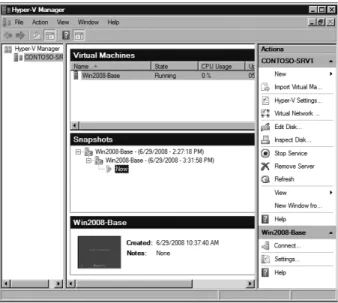
Figure 2-10 illustrates the changes in the Hyper-V Manager console when the snapshot completes . The Snapshots section in the center pane now displays a tree structure that re-flects the virtual machine snapshot hierarchy . The root node of the tree is the snapshot that was just created and includes the creation time stamp . Under the root node, there is a child named Now that represents the running version of the virtual machine .
As you make changes to the configuration of a virtual machine, you can create and save additional snapshots . Figure 2-11 shows that another snapshot was generated after the initial one, and they are displayed in a parent and child hierarchy that also reflects the relationship of the differencing disks that are created for each snapshot to capture changes to the virtual machine operating system, applications, and data .
FIGURE 2-11 Snapshot hierarchy display in the Hyper-V Manager console
If after making a series of changes to a virtual machine, you decide that you want to reload the previous snapshot, use the Hyper-V Revert option, as shown in Figure 2-12 . After the Re-vert option is applied to a virtual machine, the resulting configuration and state of the virtual machine are returned to the settings saved in the snapshot files .
If you want to reload a snapshot that is two or more levels higher than the running virtual machine (represented by the Now marker in the Snapshot pane), you can right-click the snap-shot and choose the Apply option from the menu, as shown in Figure 2-13 .
FIGURE 2-12 The Snapshot Revert Option in the Hyper-V Manager console
If you decide that you no longer need a snapshot or snapshot subtree, Hyper-V provides two different Delete options (shown in Figure 2-14) to permanently remove one or more snapshots from the snapshot hierarchy .
FIGURE 2-14 The Delete Snapshot and Delete Snapshot Subtree options in the Hyper-V Manager console You can choose to delete a single snapshot or a snapshot subtree, as you can see in the shortcut menu shown in Figure 2-14 . Deleting a single snapshot will not affect other snap-shots in the hierarchy; however, it will immediately delete the configuration file and save state files associated with the snapshot . Deleting a snapshot subtree immediately deletes the configuration and save state files associated with all the snapshots in the subtree .
Virtual Machine State
Virtual machine state can be changed through the Hyper-V Manager . Figure 2-15 shows the menu options that are available after you right-click a running virtual machine . The menu op-tions will differ based on the state of a virtual machine . For example, if a virtual machine is in the Off or Saved state, the Start option will appear on the menu .