Appeon Performance Tuning Guide
LAST REVISED: November 2010
Copyright © 2010 by Appeon Corporation. All rights reserved.
This publication pertains to Appeon software and to any subsequent release until otherwise indicated in new editions or technical notes. Information in this document is subject to change without notice. The software described herein is furnished under a license agreement, and it may be used or copied only in accordance with the terms of that agreement.
No part of this publication may be reproduced, transmitted, or translated in any form or by any means, electronic, mechanical, manual, optical, or otherwise, without the prior written permission of Appeon Corporation.
Appeon, the Appeon logo, Appeon Developer, Appeon Enterprise Manager, AEM, Appeon Server and Appeon Server Web Component are trademarks or registered trademarks of Appeon Corporation.
Sybase, Adaptive Server Anywhere, and PowerBuilder are trademarks or registered trademarks of Sybase, Inc.
All other company and product names used herein may be trademarks or registered trademarks of their respective companies.
Use, duplication, or disclosure by the government is subject to the restrictions set forth in subparagraph (c)(1)(ii) of DFARS 7013 for the DOD and as set forth in FAR 52.227-19(a)-(d) for civilian agencies.
Appeon Corporation, 1/F, Shell Industrial Building, 12 Lee Chung Street, Chai Wan District, Hong Kong.
1 About This Book ... 1
1.1 Audience ... 1
1.2 How to use this book ... 1
1.3 Related documents ... 1
1.4 If you need help ... 2
2 Appeon Performance ... 4
2.1 Expected performance level ... 4
2.2 Automatic performance boosting ... 4
2.3 Impact of the Internet and slow networks ... 5
2.4 Impact of heavy client-side logic... 6
2.5 Impact of large data transmission... 7
3 Identifying Performance Bottlenecks ... 8
3.1 Overview ... 8
3.2 Heavy window report ... 8
3.3 Appeon Performance Analyzer... 8
3.3.1 Getting Started ... 8
3.3.2 Working with Appeon Performance Analyzer ... 13
4 Performance-Related Settings ... 36
4.1 Overview ... 36
4.2 Appeon Developer performance settings ... 36
4.3 Appeon Enterprise Manager performance settings ... 37
4.3.1 Timeout settings ... 37
4.3.2 DataWindow data caching ... 38
4.3.3 Multi-thread download settings ... 38
4.3.4 Custom libraries download settings ... 38
4.3.5 Log file settings ... 38
4.4 Internet Explorer performance settings ... 39
4.5 Web and application server performance settings... 39
4.5.1 Sybase EAServer ... 39
4.5.2 Microsoft IIS Server* ... 40
4.6 Database performance settings... 44
4.6.1 Recommended database driver ... 44
4.6.2 Recommended Database setting ... 44
5 Tuning: Excessive Server Calls ... 45
5.1 Overview ... 45
5.2 Technique #1: partitioning transactions via stored procedures ... 45
5.3 Technique #2: partitioning non-visual logic via NVOs ... 47
5.4 Technique #3: eliminating recursive Embedded SQL ... 49
5.5 Technique #4: grouping multiple server calls with Appeon Labels ... 51
6 Tuning: Heavy Client ... 55
6.3 Technique #2: thin-out “heavy” UI logic ... 55
6.3.1 Manipulating the UI in loops ... 55
6.3.2 Triggering events repeatedly... 56
6.3.3 Performing single repetitive tasks ... 56
6.3.4 Initializing “heavy” tabs ... 57
6.3.5 Using ShareData or RowsCopy/RowsMove for data synchronization ... 57
6.3.6 Using computed fields ... 57
6.3.7 Using DataWindow expressions ... 58
6.3.8 Using complex filters ... 58
6.3.9 Using RowsFocusChanging/RowsFocusChanged events ... 58
6.4 Technique #3: offload “heavy” non-visual logic ... 58
7 Tuning: Large Data Transmissions ... 59
7.1 Overview ... 59
7.2 Technique #1: retrieving data incrementally ... 59
7.2.1 For Oracle database server ... 59
7.2.2 For all other database servers ... 60
7.3 Technique #2: minimizing excessive number of columns ... 60
8 Conclusion ... 61
Appeon Performance Tuning Guide Page 1
1 About This Book
1.1 Audience
This book is intended to help developers plan what steps they will take, and how much time they will invest in improving the performance of a PowerBuilder application deployed to the Web with Appeon 6.5. It is also intended to guide PowerBuilder architects and developers on how to build new PowerBuilder applications that perform well when deployed to the Web or a WAN.
1.2 How to use this book
There are eight chapters in this book: Chapter 1: About This BookA general description of the contents of this document. Chapter 2: Appeon Performance
Describes current runtime performance levels of Appeon 6.5 and primary reasons for performance issues (if any).
Chapter 3: Identifying Performance Bottlenecks
Describes approach for identifying areas in the Web application that may suffer from runtime performance issues. Also, describes the Appeon Developer performance reporting tool - Heavy Window Report and the Appeon Performance Analyzer tool. Chapter 4: Performance-Related Settings
Documents key Appeon, Web browser, application server, and database settings that should be configured from default values to ensure optimal performance of your Web system.
Chapter 5: Tuning: Excessive Server Calls
Introduces the performance tuning concept “Excessive Server Calls” with several techniques to optimize your PowerBuilder code to achieve good Web performance. Chapter 6: Tuning: Heavy Client
Introduces the performance tuning concept “Heavy Client” with several techniques to optimize your PowerBuilder code to achieve good Web performance.
Chapter 7: Tuning: Large Data Transmissions
Introduces the performance tuning concept “Large Data Transmissions” with several techniques to optimize your PowerBuilder code to achieve good Web performance. Chapter 8: Conclusion
Final thoughts and recommendations on performance tuning of your PowerBuilder applications for the Web.
1.3 Related documents
Appeon Performance Tuning Guide Page 2 PowerBuilder and its capabilities:
AppeonDemo Applications Tutorial:
Introduces Appeon’s demo applications, including the Appeon Sales Application Demo, Appeon Code Examples, Appeon ACF Demo, and Appeon Pet World, which show Appeon’s capability in converting PowerBuilder applications to the Web.
Appeon Developer User Guide (or Working with Appeon Developer Toolbar) Provides instructions on how to use the Appeon Developer toolbar in Appeon 6.5.
Working with Appeon Developer Toolbar is an HTML version of the Appeon Developer User Guide.
Appeon Server Configuration Guide
Provides instructions on how to configure Appeon Server Status Monitor, establish connections between Appeon Server and Database Server, and configure AEM for maintaining Appeon Server and Appeon deployed Web applications.
Appeon Supported Features Guide (or Appeon Features Help):
Provides a detailed list of what PowerBuilder features are supported and can be converted to the Web with Appeon 6.5 and what features are unsupported.
Appeon Features Help is an HTML version of the Appeon Supported Features Guide. Appeon Installation Guide:
Provides instructions on how to install Appeon for PowerBuilder successfully. Appeon Migration Guide:
A process-oriented guide that illustrates the complete diagram of the Appeon Web migration procedure and various topics related to steps in the procedure, and includes a tutorial that walks the user through the entire process of deploying a small PowerBuilder application to the Web.
Appeon Performance Tuning Guide:
Provides instructions on how to modify a PowerBuilder application to achieve better performance with its corresponding Web application.
AppeonTroubleshooting Guide:
Provides information about troubleshooting issues, covering topics such as product installation, Web deployment, AEM, Web application runtime, etc.
Introduction to Appeon:
Guides you through all the documents included in Appeon 6.5 for PowerBuilder.
New Features Guide (or What’s New in Appeon ):
Introduces new features and changes in Appeon 6.5 for PowerBuilder. What’s New in Appeon is an HTML version of the New Features Guide.
1.4 If you need help
Each Sybase installation that has purchased a support contract has one or more designated people who are authorized to contact Sybase Technical Support or an Authorized Sybase
Appeon Performance Tuning Guide Page 3 Support Partner. If you have any questions about this product or if you need assistance during the installation process, ask the designated person to contact Sybase Technical Support or an Authorized Sybase Support Partner based on your support contract. You may access the Technical Support Web site at http://www.sybase.com/support.
Appeon Performance Tuning Guide Page 4
2 Appeon Performance
2.1 Expected performance level
When comparing a PowerBuilder application to the performance of a Web application deployed by Appeon to a LAN environment, generally speaking the performance of the two will be quite similar. In some cases (for certain operations) Appeon may actually be even faster than PowerBuilder.
The reason is that Appeon has been tuned for nearly a decade to offer the best performance possible for real-life PowerBuilder applications:
Large PowerBuilder applications up to 600MB (of PBLs) including several thousand DataWindows and thousands of Windows.
Complex screens containing as much as 80 DataWindows in a single Window
Complex tabs (including nested tabs and dynamically created tabs)
Dynamically created objects (DataWindows, UserObjects, etc.)
PFC and other high-overhead frameworks similar to PFC
2.2 Automatic performance boosting
Appeon has a number of features built into its infrastructure/framework to instantly or
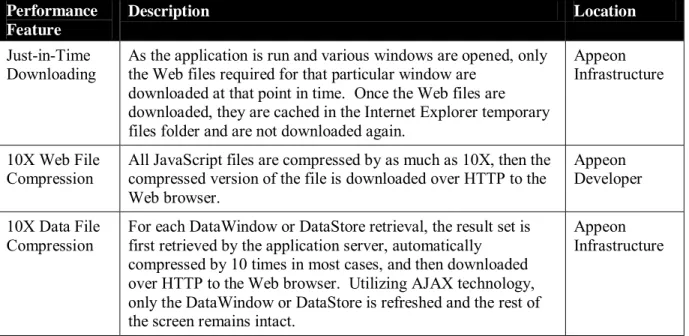
automatically boost the performance of PowerBuilder applications when deployed to the Web. Many of these features are always on and transparently working in the background to boost performance. Other features are user-selectable and must be configured. Table 2-1 is list of these features and the configuration of these features is covered in Chapter 4: Performance-Related Settings.
Table 2-1: Appeon Performance Boosting Features Performance
Feature
Description Location
Just-in-Time
Downloading As the application is run and various windows are opened, only the Web files required for that particular window are downloaded at that point in time. Once the Web files are downloaded, they are cached in the Internet Explorer temporary files folder and are not downloaded again.
Appeon Infrastructure
10X Web File
Compression All JavaScript files are compressed by as much as 10X, then the compressed version of the file is downloaded over HTTP to the Web browser.
Appeon Developer 10X Data File
Compression For each DataWindow or DataStore retrieval, the result set is first retrieved by the application server, automatically compressed by 10 times in most cases, and then downloaded over HTTP to the Web browser. Utilizing AJAX technology, only the DataWindow or DataStore is refreshed and the rest of the screen remains intact.
Appeon Infrastructure
Appeon Performance Tuning Guide Page 5
DataWindow
Data Caching For each DataWindow or DataStore, the developer has the option of enabling caching of the result set. Appeon enables caching at the application server, Web server, and Web browser so every tier of the Web architecture is benefiting from the best performance and scalability possible.
Appeon Enterprise Manager Merge files Merges multiple JavaScript files into a single file to reduce the
number of HTTP requests and corresponding overhead. Appeon Developer Multi-thread
Downloading Downloads are multi-threaded to boost the application runtime performance. Appeon Enterprise Manager Custom
Libraries Downloading
Any custom libraries can be automatically downloaded and installed with your Web application, or if the libraries are very large in size, you can disable this feature and distribute the libraries some other fashion.
Appeon Enterprise Manager Database Connection Pooling
By deploying to a true n-tier Web environment with Appeon, you can take advantage of Database Connection Pooling, a feature of most application servers. Connection Pooling does exactly that, it establishes a pool of connections to your database, which is shared among your clients. So rather than each client having its own dedicated connection to the database, a fewer number of connections can be rotated among all the users. For large deployments with thousands of clients this can boost database scalability noticeably.
Appeon Infrastructure
2.3 Impact of the Internet and slow networks
Although Appeon pushes the envelope to deliver unparalleled performance from standard Web technologies (e.g. XML, JavaScript, HTML, Java or C#), which are typically
significantly slower than PowerBuilder, slow and latent network connections rob performance from even the best applications!
Network chatter and network-intensive code really highlight the weakness of a poor network connection. Any code that results in a HTTP request (i.e. server call) when executed multiple times sequentially has potential to create network chatter. There are mainly two categories of code that result in server calls - data access related and remote method invocations. Here are several common examples so you can familiarize yourself:
Embedded SQL (Select, Insert, Delete, Update, Cursor) including Dynamic SQL;
Invoking stored procedures or database functions;
DataWindow/DataStore Functions (Retrieve, Update, ReselectRow, GetFullState, SetFullState, GetChanges, SetChanges);
DataWindow/DataStore Events (SQLPreview);
Invoking a method of a server-side object, such as a PowerBuilder NVO, Java EJB, or .NET Component; or
Invoking a Web Service.
Each of the above statements will generate one call to the server utilizing HTTP, with exception of SQLPreview event that will generate one call for each line of code handled by the event. If any of the above statements are contained in a loop or recursive function, well
Appeon Performance Tuning Guide Page 6 depending on the number of loops, even though its just one statement it would be executed multiple times generating multiple server calls. Needless to say, loops and recursive functions are some of the most dangerous from a performance perspective.
The reason it is important to minimize server calls is because it can take 100 or even 1,000 times longer to transmit one packet of data over the Internet compared to a LAN. Imagine an event handler is triggered, for example handling an “onClick” event, whose execution will result in 80 synchronous server calls over a LAN with latency of 2 milliseconds (ms). In such scenario the slow-down attributed to network latency would be 0.16 seconds (80 x 2 ms). Now imagine this same event handler running over a WAN with latency of 300 ms. The slow-down attributed to the network latency would be a whopping 24 seconds (80 x 300 ms)! And depending on the amount of data transmitted there could be additional slow-down due the bandwidth bottlenecks.
It is imperative for the developer to be conscious that PowerBuilder applications deployed to the Web may not be running in a LAN environment, and as such there will be some degree of performance degradation. How much depends on how the code is written, but in most cases the performance degradation still falls within acceptable limits without much performance optimization.
Should you find that certain operations in your application are unacceptably slow, the good news is there are numerous things that you can do as PowerBuilder developers to ensure your PowerBuilder applications perform well in a WAN environment (e.g. Internet) or on slower networks. At a high-level, your code needs to be written such that the server calls and other performance intensive code is minimized or relocated to the middle-tier or back-end. This will be covered in more detail in the following chapters. Some changes are actually quite simple while others may require increased effort. Nonetheless, in all cases optimizing the performance of your applications in PowerBuilder is just a fraction of the effort to work with typical low-productivity Web tools such as VisualStudio.NET and Eclipse.
2.4 Impact of heavy client-side logic
Most PowerBuilder applications are developed utilizing a 2-tier architecture. In other words, all the PowerScript and embedded SQLs are coded in the Visual objects, for example
Window, CommandButton, etc. In contrast, a 3-tier architecture would encapsulate all non-visual logic in PowerBuilder NVOs (Non-Visual Objects). The reality is even if your application utilizes NVOs, chances are it is not a pure 3-tier application if PowerBuilder NVOs are not exclusively utilized to encapsulate all non-visual logic. But don’t rush to partition your application just yet!
Most applications developed as a 2-tier architecture perform great in Appeon. In fact, there are many situations that a 2-tier application when deployed by Appeon will actually perform faster than a 3-tier application. The reason is if a PowerBuilder NVO is deployed to the middle-tier or application server, time must be spent to call the server and get the results back to the client. Of course, your non-visual logic running on an application server will run faster than at the Web browser. The key question is how much performance do you gain by
running a particular block of code on the application server vs. how much performance do you lose due to the server calls.
As a rule of thumb, it is recommended to partition your non-visual logic to the middle-tier only when the particular block of code runs unacceptably slow at the Web browser. In such cases, it is likely that the application performance will benefit, and as such, it is worthwhile to invest the time to partition such logic. However, if the non-visual logic is only slightly
Appeon Performance Tuning Guide Page 7 sluggish, it may be possible to optimize the code without having to partition it to the
application server.
2.5 Impact of large data transmission
When you first open a Window there are two types of files downloaded. The first type is the HTML and JavaScript files (“Web files”) that contain the UI and UI logic of the application Window. The second type is data files that contain the result set, for example for a
DataWindow retrieve. The time to download these files is affected by two factors: 1) the network connection and 2) the size of the files to be downloaded.
The Web files do not impact performance because of their small size and the enhanced ability of the browser to "cache" them. The Web files for a given PowerBuilder Window are
typically between 25-75 KB. Because these Web files are static in nature, once a given application Window has been opened, the Web files will be cached on the Client computer. As such, once these Web files are cached, their impact on performance is essentially non-existent.
Under most circumstances, these Web files are not re-downloaded when the Window is reopened. The only exceptions are if 1) the temporary Internet files folder has been emptied or 2) the application has been updated and redeployed to the server. If the latter has
happened, Web files for only those Windows that have been modified will be automatically downloaded from the Web server.
Only the data files containing the result sets may or may not be cached (depending on whether you have enabled DataWindow caching). A result set of 50 records would typically result in a 12 KB data file. Every 5 records would typically add another 1.2 KB to the data file size. So, for example, a 500-record result set would typically correspond to a 120 KB data file. If DataWindow caching is not enabled, the data files corresponding with such DataWindows will be downloaded from the server each time a DataWindow retrieve is invoked.
The good news is that Appeon has built-in 10X data compression for DataWindow result set to essentially eliminate the time spent downloading these data files. The same 500-record result set that would normally correspond to a 120 KB data file would only result in the download of a 12 KB data file from the server. This compression feature makes even the largest of result sets quick to transfer.
In conclusion, due to Web file caching feature of the Web browser, Appeon’s built-in DataWindow caching technology and 10X data compression technology, generally speaking neither the Web files nor data files should have any noticeable impact on the performance of your Web application.
Appeon Performance Tuning Guide Page 8
3 Identifying Performance Bottlenecks
3.1 Overview
There are several methods to identify performance bottlenecks in your application. You can manually test your application or utilize Appeon’s built-in performance reporting tool. Manually testing is the most time-consuming but also the most comprehensive and accurate. Nonetheless, the performance reporting tool, Heavy Window Report, can help to identify most problematic Windows without a lot of work.
3.2 Heavy window report
The Heavy Window Report is a tool in Appeon Developer to help identify “Heavy” Windows. Heavy Windows are Windows in the PowerBuilder application, which are likely to affect the performance of the deployed Web application. These Windows tend to be stuffed with data-intensive objects and code, such as DataWindows and Embedded SQL.
This is essentially a “yellow flag” tool to identify Windows that may exhibit performance issue. Generally speaking, Heavy Windows will only exhibit performance issues on slow and high-latency networks. Once a Heavy Window is identified, it is recommended to test such Window over the Web to confirm whether in fact the Window exhibits performance issues. When performing this Web testing, it is important to mimic your users’ environment (e.g. network connection, hardware, etc.) as much as possible, to get an accurate reflection of what your users will ultimately experience.
The Heavy Window report is fully configurable so that you can adjust it to the demands of your network connection. You can specify how “heavy” a Window can be and what PowerBuilder features make the Window “heavy”. Refer to the Appeon Developer User Guide for more information.
3.3 Appeon Performance Analyzer
Appeon Performance Analyzer is a tool in Appeon Server Web Component to help diagnose application performance by analyzing script calls, application RPC calls and application downloads, and thereby calculate the time used by function calls or object calls.
Considering the practical need, Appeon Performance Analyzer also enables you to filter functions or objects, so that you only focus on the unfiltered functions or objects with Appeon Performance Analyzer.
3.3.1 Getting Started
Before we start to work with Appeon Performance Analyzer, let's learn how to start it and what it looks like first.
Enabling Appeon Performance Analyzer
Starting Appeon Performance Analyzer
Knowing Appeon Performance Analyzer
Appeon Performance Tuning Guide Page 9 3.3.1.a Enabling Appeon Performance Analyzer
Appeon Performance Analyzer is turned on or off at application level. If you want to analyze an application by using Appeon Performance Analyzer, you need to deploy the application in a mode compliant with Performance Analyzer. To do this:
Step 1 -- Select the Performance Analyze compliance option in the Application Profile Configuration tool in Appeon Developer. It is not selected by default.
Step 2 -- Deploy the application using the Appeon Deployment Wizard in Appeon Developer. The application files are deployed and generated in a mode compliant with the Performance Analyzer tool.
Note: as the data is not encrypted during transmission at runtime, therefore, the Performance Analyze compliance option is recommended to use only at the test or development stage. When the application is ready to go live in a production environment, turn off this option and then re-deploy the application, to ensure data is encrypted during transmission.
3.3.1.b Starting Appeon Performance Analyzer
Performance Analyzer is a Web tool that can only be launched side by side with the Web application you want to analyze.
Notes:
1) Appeon Performance Analyzer can only run on a 32-bit operating system.
2) For the first time to run it, users should login Windows as an administrator and turn off UAC (if using Windows Vista, Windows 7 etc.). To turn off UAC, go to Windows Control Panel | User Accounts, click Turn User Account Control on or off, then uncheck the check box of Use User Account Control (UAC) to help protect your computer.
Appeon Performance Tuning Guide Page 10 You can start Appeon Performance Analyzer by the following steps:
Step 1 -- Run the Web application you want to analyze. The URL of the Web application should look like this: http://hostname:port/applicationname/x32_index.htm.
Note: Hostname indicates the IP address or machine name of the Web Server, and port indicates the HTTP port number of the Web Server. Port is optional and specifies the port number that your Web Server accepts for HTTP connections. If it is not specified, the default port is 80. If several Web Servers are running on the same machine, make sure that the port specified is a port of the Appeon Web Server.
Step 2 -- When the application has started up, append "?performance=1" to the application URL in the address bar and press Enter to refresh the application.
So the complete URL should look like
http://hostname:port/applicationname/x32_index.htm?performance=1 or http://localhost/pet_world/x32_application.htm?performance=1.
Then the main window of the Performance Analyzer pops up.
Note: A prompt window pops up if Performance Analyzer is run for the first time.
Click Yes to close the browser running the Web application; then re-do Step 1 and 2; Appeon Performance Analyzer will start up side by side with the Web application. Or click No, to let the Web application continue to run as it is.
Appeon Performance Tuning Guide Page 11 Appeon Performance Analyzer will automatically open when the Web application runs by URL http://hostname:port/applicationname/x32_index.htm?performance=1, unless you deselect the Show window when started option in the Appeon Performance Analyzer Configuration dialog (from menu System | Config). See System Configuration for details. 3.3.1.c Getting to know Appeon Performance Analyzer
Appeon Performance Analyzer window includes three parts: 1-The menu bar
The menu bar includes all the settings for Performance Analyzer. You can get detailed information from the sections below.
2- Analyzing panel
The Analyzing panel displays the data analyzed by the Performance Analyzer in a treeview. Each item of the tree represents a JS call, AX call, RPC call or Download.
Appeon Performance Tuning Guide Page 12 3- Detail view panel
The detail view panel shows the detailed information of the selected tree item, and also shows the statistics and search results.
3.3.1.d Removing Appeon Performance Analyzer
In order to remove Appeon Performance Analyzer completely, you can follow the steps below:
Step 1: Make sure that the user has administrator permission, and then turn off UAC and IE. Step 2: Open the command window and enter the following commands one by one:
regsvr32 -u "%systemroot%\downloaded program files\APBPanalysis.dll" del "%systemroot%\downloaded program files\APBPanalysis.dll"
del "%systemroot%\downloaded program files\APBPanalysis.inf" del "c:\performance\EonTracer.ini"
del "c:\performance\EonTracer.log" rd "c:\performance"
After all the commands above are run, the Appeon Performance Analyzer is removed completely.
Appeon Performance Tuning Guide Page 13 3.3.2 Working with Appeon Performance Analyzer
This section will talk about the following topics:
System Configuration
Calling Analysis
Downloading Analysis
Additional Functions 3.3.2.a System Configuration
In order to make Appeon Performance Analyzer more convenient for future use, you can make some configurations in the System menu.
Click menu System | Config. The Appeon Performance Analyzer Configuration dialog opens: Enable Tracing
This option controls if Appeon Performance Analyzer works or not. If you want to work with Appeon Performance Analyzer to analyze an application program, the option must be
selected. By default it is selected. Instant update
By selecting Instant update, the analyzing data in the analyzing panel can be updated
instantly when operation changes. When Instant update is not selected, Performance Analyzer will work faster; but users will need to manually click menu View | Update to see the latest data.
Restore to default location
By selecting this option, the main window of Appeon Performance Analyzer always opens at the default position. By unselecting this option, Appeon Performance Analyzer will
remember its last position on the screen when it exits, and will open at the last location on the screen when it starts next time. By default, this option is selected.
Show window when started
By selecting this option, Appeon Performance Analyzer will automatically start when the Web application runs. You can deselect this option to disable the automatic starting of Appeon Performance Analyzer, and manually start Appeon Performance Analyzer by pressing Ctrl + Shift + F12. By default it is selected.
Appeon Performance Tuning Guide Page 14 If you want to save the analyzing log in the local machine, select Enable log file. And the log file will be created after the Web application is closed.
As shown above, the default destination is in C:\ disk. You can specify a different location by clicking Browse...to select an existing folder on your computer.
Clear previous log files when tracer started
This option becomes selectable when Enable log file is selected. If you want to clear the analyzing log files saved in the last starting of Appeon Performance Analyzer, select this option.
After you finish the configuration, click OK to close the dialog. 3.3.2.b Calls Analysis
Appeon Performance Analyzer enables you to perform the following analysis easily:
JavaScript calls analysis
ActiveX calls Analysis
Remote Procedure Calls (RPC) analysis
No matter what operation you execute on the Web application, e.g. a click on a button to open a dialog in the Web application, a root item Root will show in the first line of the analyzing panel to show the total executing time consumed by the operation.
By expanding Root, you can view the time consumed by different callings.
By default, the JS Calls, Ax Calls, RPC, Download, Detail View buttons are selected, which means, information related with them will be automatically displayed in the analyzing panel and the detail view panel.
Appeon Performance Tuning Guide Page 15 JavaScript Calls Analysis
By default, the View | View JS Calls menu item is selected, so the JavaScript calls are automatically listed in the analyzing panel. If you do not want to view the JavaScript calls in the analyzing panel, you can click View JS Calls menu itemto unselect it. If you want to view the JavaScript calls only, you can click the other menu items in the View menu to unselect them, as shown in the figure below.
You can expand the sub-nodes in the JavaScript calls list to further find out the time consumed by each JavaScript function calls.
Appeon Performance Tuning Guide Page 16 ActiveX Calls Analysis
By default, View AX Calls menu item in the View menu is selected, so the ActiveX calls are automatically listed in the analyzing panel. If you do not want to view the ActiveX calls in the analyzing panel, you can click View AX Calls menu item to unselect it. If you want to view the ActiveX calls only, you can click the other optional menu items in the View menu to unselect them, as shown in the figure below.
You can click the sub-nodes in the ActiveX calls list to find out the time consumed by each ActiveX calls.
Appeon Performance Tuning Guide Page 17 Remote Procedure Calls Analysis
By default, View RPC in the View menu is selected,so the RPC calls are automatically listed in the analyzing panel. If you do not want to view the RPC calls in the analyzing panel, you can click View RPC menu item to unselect it. If you want to view the RPC calls only, you can click the other optional menu items in the View menu to unselect them, as shown in the figure below.
Appeon Performance Tuning Guide Page 18 3.3.2.c Download Analysis
By default, View Download in the View menu is selected, so the downloads are
automatically listed in the analyzing panel. If you do not want to view the downloads in the analyzing panel, you can click the View Download menu item to unselect it. If you want to view the downloads only, you can click the other optional menu items in the View menu to unselect them, as shown in the figure below.
Appeon Performance Tuning Guide Page 19 3.3.2.d View Detail
By default, the View | View Detail menu item is selected, so the View Detail panel is automatically displayed beneath the analyzing panel. If you do not want to see the View Detail panel, you can click the View Detail menu item to unselect it.
The detail view panel enables you to view the details and statistics of calls. View details of JavaScript calls in the Detail View panel:
Display the View Detail panel by clicking View Detail menu item in the View menu. Click View JS Calls menu item in the View menu to display the JavaScript calls in the analyzing panel, then select a JavaScript call, the details of the selected call are displayed in the Details tab of the detail view panel.
Appeon Performance Tuning Guide Page 20 In the Statistics tab of the detail view panel, it shows the calls statistics as below:
Appeon Performance Tuning Guide Page 21 View details of ActiveX calls in the detail view panel in a similar way as JavaScript calls:
Appeon Performance Tuning Guide Page 22
View statistics of ActiveX calls in the detail view panel in a similar way as JavaScript calls:
Appeon Performance Tuning Guide Page 23 View details of RPC calls in the detail view panel in a similar way as JavaScript calls: The sending and receiving procedure is roughly displayed in the Details tab, to help you check the RPC process.
Appeon Performance Tuning Guide Page 24 View details of downloads in the detail view panel:
The Details tab shows the download URL on the Web server and the storage location of the downloaded file.
Appeon Performance Tuning Guide Page 25 View statistics of root items in the detail view panel:
Appeon Performance Tuning Guide Page 26 Apart from the above, the Detail View panel can also show the search results. Refer to the Search function for details.
3.3.2.e Additional Functions
Appeon Performance Analyzer also provides the following additional functions:
Filter Function
Find Function
Save As XML Function
New Root Item Function Filter function
Appeon Performance Analyzer enables you to filter the functions or objects which you do not want to focus on temporarily. Here, in Appeon Performance Analyzer, to filter means to remove.
Appeon Performance Tuning Guide Page 27 Click System | Filter…menu item and the Filter Configuration dialog opens. Select Enable Filter.
Note: To enable the Filter function, you must make sure Enable Tracing is selected in System Configuration dialog.
If you want to analyze all the functions or objects in the application, make sure that Enable Filter is not selected.
Filter function for ActiveX calls analysis
Go through the steps below to learn how to filter objects and functions for ActiveX calls analysis.
Step 1 – Select View AX Calls under the View menu, all the ActiveX functions and objects called in the operation are listed.
Appeon Performance Tuning Guide Page 28 Step 2 – Click menu System | Filter…. In the Filter Configuration dialog, select Enable Filter.
Appeon Performance Tuning Guide Page 29 Step 4 -- Select the functions and/or objects in the Unselected list. Click the arrow button
to move the selected items to the Selected list. Click OK to close the dialog.
The double-arrow buttons and are used to move all items from one list to the other.
Now, the selected items are in the Filter window.
Note that they are in Group 1. You can have different groups for storing different selected items. The different groups can be all functions, all objects, or mixed with functions and objects.
Appeon Performance Tuning Guide Page 30 Step 5 -- In Option, select Filter Unselected. This will display the selected items only, and hide the unselected items. If you select Filter Selected, it will hide the selected items, and display the unselected items.
Step 6 -- Click OK to close the dialog.
If Filter Unselected is selected, the analyzing panel is refreshed to show the selected items only (and hide the unselected items).
Appeon Performance Tuning Guide Page 31 If Filter Selected is selected, the analyzing panel is refreshed to show the unselected items only (and hind the selected items).
Appeon Performance Tuning Guide Page 32 Find function
You can find functions or objects by typing part of or complete name of the function or object.
If you click menu System | Find…,a dialog box will pop up as below:
For example, typing "applica" in the Find field, then click Find.
Appeon Performance Tuning Guide Page 33 Save As XML Function
The Performance Analyzer allows you to save the analysis contents in the Analyzing panel as XML files.
Appeon Performance Tuning Guide Page 34 Input the file name and select the path, and then click the Save button to save the xml file. New Root Item Function
To obverse analysis data easily, you can click menu View | Clear All to clear the original analysis data, or create new root items.
If you click menu System | New Root Item…,a dialog box will pop up as below:
Input a item name (eg. new) and click the OK button, and then a new root item named “ new” is added in the Analysis panel.
Appeon Performance Tuning Guide Page 35 default Root item.
Appeon Performance Tuning Guide Page 36
4 Performance-Related Settings
4.1 Overview
Performance settings need to be configured in Appeon Developer, Appeon Enterprise Manager, Web browser and your application server to ensure good performance in a production environment. If you identify any performance bottlenecks, it is strongly
recommended that you first ensure all performance-related settings are correctly configured. Only if the performance issues still persist after the performance settings are configured correctly, then it is recommended to consider optimizing your PowerBuilder code.
4.2 Appeon Developer performance settings
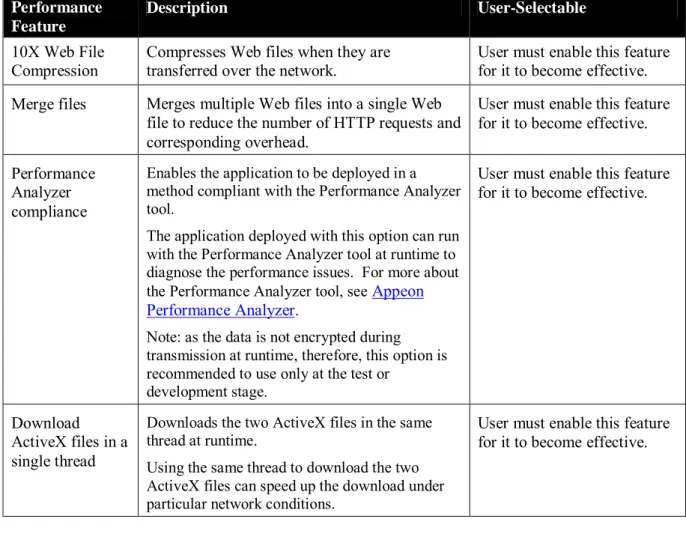
Table 4-1 lists the Appeon performance settings that the developer can configure (in the application profile) of Appeon Developer to boost performance. To make a performance setting effective for an application, enable the option in the application profile and then perform a “Full Deployment” of the application.
Table 4-1: Performance settings in Appeon Developer Performance
Feature
Description User-Selectable
10X Web File
Compression Compresses Web files when they are transferred over the network. User must enable this feature for it to become effective. Merge files Merges multiple Web files into a single Web
file to reduce the number of HTTP requests and corresponding overhead.
User must enable this feature for it to become effective. Performance
Analyzer compliance
Enables the application to be deployed in a method compliant with the Performance Analyzer tool.
The application deployed with this option can run with the Performance Analyzer tool at runtime to diagnose the performance issues. For more about the Performance Analyzer tool, see Appeon Performance Analyzer.
Note: as the data is not encrypted during transmission at runtime, therefore, this option is recommended to use only at the test or
development stage.
User must enable this feature for it to become effective.
Download ActiveX files in a single thread
Downloads the two ActiveX files in the same thread at runtime.
Using the same thread to download the two ActiveX files can speed up the download under particular network conditions.
User must enable this feature for it to become effective.
Appeon Performance Tuning Guide Page 37
4.3 Appeon Enterprise Manager performance settings
4.3.1 Timeout settings
By setting proper values for Timeout Detection Interval and Timeout Settings in AEM, Appeon Server can release the timeout and invalid database connections in time, thus can avoid database deadlock or malfunctions, so that the concurrent processing ability and the running stability of Appeon Server for .NET can be greatly enhanced.
4.3.1.a Session Timeout Detection Interval
The Session Timeout Detection Interval setting is to specify the interval (in seconds) to check whether sessions have timed out.
It is recommended that the value is smaller than the Session Timeout value. The default value is 30 seconds. The value recommended by the system is based on your Session Timeout values, if the Session Timeout values are different from applications, the system will multiply the smallest value with 0.15 to get the recommended value.
4.3.1.b Transaction Timeout Detection Interval
The Transaction Timeout Detection Interval setting is to specify the interval (in seconds) to check whether transactions have timed out.
It is recommended that the value is smaller than the Transaction Timeout value. The default value is 30 seconds. The value recommended by the system is based on your Transaction Timeout values, if the Transaction Timeout values are different from applications, the system will multiply the smallest value with 0.15 to get the recommended value.
4.3.1.c Session timeout
Session timeout ends the user session and rolls back all database updates since the last commit for a user session. The default value is 3600 seconds. Session Timeout should be larger than the Transaction Timeout setting. Generally speaking, Session Timeout should not be smaller than 3600 seconds.
4.3.1.d Transaction timeout
Transaction timeout rolls back all database updates since the last commit in a transaction. The default value is 120 seconds. Transaction Timeout should be less than Session Timeout. If transaction timeout in the application database is set to 1800 seconds, then Transaction Timeout in AEM should be set to 1810 or larger.
If transaction timeout in the application database is not set, then Transaction Timeout in AEM should be set to a number greater than the maximum time needed to execute regular database operations for the Web application, suppose the most time-consuming table query operation takes 3600 seconds to complete, then Transaction Timeout should be set to 3610 or larger.
4.3.1.e Rollback Completion time
Specifies the maximum time (in seconds) to complete a rollback of a transaction. If the time to roll back transaction exceeds the specified value, the transaction rollback will be
terminated. The default value is 3 seconds.
Appeon Performance Tuning Guide Page 38 4.3.1.f Maximum Rollback Retries
The maximum times to retry a rollback of a transaction. Appeon Server executes a rollback if a transaction times out. If the rollback fails, Appeon Server will keep retrying until this maximum value is reached. Setting this value to 0 will disable this feature. The default value is 3.
It is recommended that it is set to a number smaller than 10. 4.3.2 DataWindow data caching
Appeon Enterprise Manager (AEM) provides a DataWindow data cache mechanism for caching the frequently used DataWindow data. It is recommended that you enable the cache for the DataWindow objects whose data is relatively static. Any DataWindow objects whose data is fairly dynamic should remain unchecked, otherwise you will experience overhead from the caching mechanism without the true benefits of the caching.
NOTE: DataWindow Data Cache will not be effective until you fulfill all the configuration requirements that are detailed in the DataWindow Data Cache Section, in the Appeon Server Configuration Guide. Also, this feature is only supported on Windows servers. It is not supported on Unix/Linux environments.
4.3.3 Multi-thread download settings
Multi-thread downloads boost the application runtime performance. However, if there are many threads competing for the processing power of Web server, it may slow down the performance of Web server. Therefore, you should not specify an unnecessarily large number of threads in AEM. It may take some trial and error to fine-tune the performance. 4.3.4 Custom libraries download settings
If your application utilizes a customer library (e.g. DLL, OCX, etc.), you can specify in AEM how the custom library should be downloaded to the client:
In most situations you should set the install mode to “Install automatically without asking user” or “Confirm with user, then install automatically”. With these options, the custom libraries will be automatically downloaded and seamlessly installed to the Web browser.
However, if the file size of the custom libraries is extremely large (e.g. tens of megabytes), you should set the install mode to “Install manually (no automatic installation)”. With this option, Appeon does not automatically download and install the custom libraries. As such, you must distribute the custom libraries to users and your users need to install it manually.
For more details about the custom libraries download settings, refer to the Modifying Custom Libraries Install Settings Section in the Appeon Server Configuration Guide.
4.3.5 Log file settings
Once your application is fully tested and ready to move to a production environment, it is recommended to disable the AEM log functionality. Writing log files incurs disk activity, which can impact performance. Generally, the impact is small but nonetheless it will not hurt to disable this.
Appeon Performance Tuning Guide Page 39
4.4 Internet Explorer performance settings
For optimal performance, it is recommended that the Web file caching functionality of Internet Explorer be fully utilized. This will significantly reduce the time required to load and start an application following the initial load. The configuration outlined below will ensure that you realize the best performance while safeguarding your application from becoming “stale”.
STEP 1 – Open Internet Explorer and select Tools | Internet Options. Verify that the Empty Temporary Internet Files folder when browser is closed option is not checked under the Security section of the Advanced tab of Internet Options.
STEP 2 – Click the Settings button under the General tab to configure the Temporary Internet Files settings.
STEP 3 – Select the Automatically radio button and verify that the Amount of disk space to use scroll box is set to a reasonable number, such as 200 MB or more.
Now the browser is set to automatically check for newer versions of the Web application.
4.5 Web and application server performance settings
4.5.1 Sybase EAServer
The core processing of your Web application happens on the application server. As such, the better EAServer performs the better your Web application will perform. This section
highlights several key performance settings you should definitely consider. You may refer to the EAServer Performance and Tuning Guide for details on how to extensively tune EAServer.
4.5.1.a JVM startup option
When starting EAServer, the -jvmtype switch specifies whether the client, server, or classic Java VM be used. It is recommended that you set the switch to the Java server VM. 4.5.1.b Configuring connection caches
JDBC driver used by EAServer connection cache
You should avoid using any JDBC-ODBC driver. Instead, use the Native-protocol/all-Java driver. The only exception is Sybase ASA, which provides the iAnywhere JDBC driver that actually performs remarkably well. For detailed information on configuring JDBC drivers refer to the JDBC driver preparation Section in the Appeon Server Configuration Guide. Configuring the cache size
By default, EAServer is configured to establish 10 database connections. For applications with many several hundred or several thousands of users, this number is often too small. If not increased, it will hurt the performance of your application since your users will be waiting in a queue for an available database connection. On the other hand, if your Web deployment is few hundred users or less, you should not specify an unnecessarily large number as it will consume more server resources and possibly negatively affect performance.
The maximum pool size property, “com.sybase.jaguar.conncache.poolsize.max”, defines the maximum number of connections to be held in the connection pool. The size property is generally set to 10%-20% of the maximum number of concurrent users. However, it is
Appeon Performance Tuning Guide Page 40 possible to use the FORCE option when connecting to obtain additional connections outside of the pool if none are available. Refer to the EAServer Performance and Tuning Guide for details on tuning the cache size.
4.5.1.c HTTP properties
You should configure the EAServer http.maxthreads and server.maxconnections properties such that it can handle the expected concurrent user load for the Web Server. If these
properties are improperly configured, it may result in poor performance and possibly result in failed HTTP requests. The httpstat.dat file keeps track of cumulative hits on http objects. Set the http.maxthreads property to the estimated average number of concurrent HTTP requests (including Servlets and any other server pages). For example, if it is expected that there will be 100 concurrent requests, set the http.maxthreads slightly higher (for example, 120). This will give you a margin of safety. Similarly, set the server.maxconnections to accommodate the average number of concurrent IIOP requests that are expected.
Another property you should pay attention to is server.maxthreads. Set this property to equal the combined value of http.maxthreads and server.maxconnections, and add 50 as a margin of safety (http.maxthreads + server.maxthreads + 50). However, if you are using an older version of PowerBuilder components with a bind thread set, you should increase this number as outlined in the EAServer Performance Tuning Techniques document.
Since each application and environment is unique, these are starting points that need to be monitored and adjusted for optimal results. Load and stress testing your application will help you to identify any issues prior to moving your Web application to a production environment. 4.5.2 Microsoft IIS Server*
* Only for .NET edition which is available in Appeon Distribution, but not available in Sybase Distribution. For differences of distributions, refer to the Distributions section in Introduction to Appeon.
Tune the IIS server will help you to avoid some common errors and gain a better performance of Web applications. This section highlights the key performance settings of IIS. You can refer to the IIS Operation Guide for details on how to extensively tune IIS server.
4.5.2.a Recommendations for avoiding common errors on IIS
IIS should be tuned to avoid the contention, poor performance, and deadlocks for the Web applications. Following are some samples of commons error that you may find in
Application log, System log or even log in the Web browser. Event Type: Error
Event Source: ASP.NET Event ID: 1003
Description: aspnet_wp.exe (PID: <xxx>) was recycled because it was suspected to be in a deadlocked state. It did not send any responses for pending requests in the last 180 seconds.
Event Type: Warning
Event Source: W3SVC-WP Event ID: 2262
Description: ISAPI
Appeon Performance Tuning Guide Page 41 unhealthy for the following reason: 'Deadlock detected'.
Event Type: Warning Event Source: W3SVC Event ID: 1013
Description: A process serving application pool 'DefaultAppPool' exceeded time limits during shut down. The process id was '<xxxx>'.
You may receive the exception error message: “System.InvalidOperationException: There were not enough free threads in the ThreadPool object to complete the
operation.”
In the browser, you may also receive the exception error message: “Request timed out".
To avoid such problems, you can configure ASP.NET according to the suggestions below so to best fit your situation and make the Web application perform better. Details on how to configure the ASP.NET can be found at Advanced thread settings.
1. Limit the number of .NET requests that can execute at the same time to approximately 12 per CPU.
2. Permit Web service callbacks to freely use threads in the ThreadPool.
3. Select an appropriate value for the maxconnection parameter. Base your selection on the number of IP addresses and AppDomains that are used.
4.5.2.b Advanced thread settings
The following settings are the most-Appeon-related settings in ASP.NET.
When you call an Appeon web application from IIS, you may experience contention, poor performance, and deadlocks. Clients may report that requests stop responding (or "hang") or take a very long time to execute.
This problem might occur because ASP.NET limits the number of worker threads and completion port threads that a call can use to execute requests. If there are not sufficient threads available, the request is queued until sufficient threads are free to make the request. Therefore, .Net will not execute more than following number of requests at the same time:
(maxWorkerThreads*number of CPUs)-minFreeThreads
Note: The minFreeThreads parameter and the minLocalRequestFreeThreads parameter are
not implicitly multiplied by the number of CPUs.
maxWorkerThreads and maxIoThreads
.NET uses the following two configuration settings to limit the maximum number of worker threads and completion threads that are used:
<processModel maxWorkerThreads="20" maxIoThreads="20" />
The maxWorkerThreads parameter and the maxIoThreads parameter are implicitly multiplied by the number of CPUs, the default value of these two parameters are both 20. If for some reason your application is slow, perhaps waiting for external resources, you could try to increase the number of threads to a value less than 100. For example, if you have two
Appeon Performance Tuning Guide Page 42
minWorkerThreads
The setting determines how many worker threads may be made available immediately to service a remote request. By default, the minWorkerThreads parameter is not present in either the Web.config file or the Machine.config file at
C:\WINDOWS\Microsoft.NET\Framework\v2.0.50727\CONFIG. You need to manually add the following line to make the setting work.
<processModel minWorkerThreads="1" />
Threads that are controlled by this setting can be created at a much faster rate than worker threads that are created in other ways. The default value for the minWorkerThreads parameter is 1. The setting is recommended to set in the following way.
minWorkerThreads = maxWorkerThreads / 2
Note: This setting is implicitly multiplied by the number of CPUs.
minFreeThreads and minLocalRequestFreeThreads
The two settings determine how many worker threads and completion port threads must be available to start a remote request or a local request:
<httpRuntime minFreeThreads="8" minLocalRequestFreeThreads="8" />
The default value is 8. If there are not sufficient threads available, the request is queued until sufficient threads are free to make the request. Therefore, .NET will not execute more than the following number of requests at the same time:
(maxWorkerThreads*number of CPUs)-minFreeThreads
Note: The minFreeThreads parameter and the minLocalRequestFreeThreads parameter are not implicitly multiplied by the number of CPUs.
maxconnection
The maxconnection parameter determines how many connections can be made to a specific IP address. The parameter appears as follows:
<connectionManagement>
<add address="*" maxconnection="2" />
<add address="65.53.32.230" maxconnection="12" /> </connectionManagement>
The maxconnection parameter setting applies to the AppDomain level. By default, because this setting applies to the AppDomain level, you can create a maximum of two connections to a specific IP address from each AppDomain in your process.
execution Timeout
The setting limits the request execution time: <httpRuntime executionTimeout="90" /> The default is 110 seconds.
Appeon Performance Tuning Guide Page 43 Note: If you increase the value of the executionTimeout parameter, you may also have to modify the processModel responseDeadlockInterval parameter setting.
Recommended thread settings
For most applications, you can use and apply the recommended changes in the Machine.config file as below, which can be found at
C:\WINDOWS\Microsoft.NET\Framework\v2.0.********\CONFIG:
1. Set the values of the maxWorkerThreads parameter and the maxIoThreads parameter to 100.
2. Set the value of the maxconnection parameter to 12*N (N is the number of CPUs that you have).
3. Set the values of the minFreeThreads parameter to 22*N and the minLocalRequestFreeThreads parameter to 19*N.
4. Set the value of minWorkerThreads to 50. Remember, minWorkerThreads is not in the configuration file by default. You must add it.
If you have hyperthreading enabled, you must use the number of logical CPUs instead of the number of physical CPUs.
Note: If you have a server with one processors, when you use this configuration, you can execute a maximum of 78 .NET requests at the same time because 100-22=78. Therefore, at least 22*N worker threads and 22*N completion port threads are available for other uses (such as for the Web service callbacks).
For example, if you have a server with four processors and hyperthreading enabled, then n=4*8. Based on these formulas, you would use the following values for the configuration settings that are mentioned in this section.
<system.web>
……
<processModel maxWorkerThreads="100" maxIoThreads="100" minWorkerThreads="50" /> <httpRuntime minFreeThreads="176" minLocalRequestFreeThreads="152" />
<connectionManagement>
<add address="[ProvideIPHere]" maxconnection="96"/> </connectionManagement>
……
</system.web>
Also, if you use this configuration, 12 connections are available per CPU per IP address for each AppDomain, and you can execute a maximum of 624 .NET requests at the same time because 8* 100 - 176= 624.
Appeon Performance Tuning Guide Page 44
4.6 Database performance settings
4.6.1 Recommended database driver
The following database drivers are recommended for Appeon for PowerBuilder .NET:
Database Type Recommended Driver
ASA Native Driver
ASE ODBC Driver
SQL Server Native Driver Oracle Native Driver Informix Native Driver
4.6.2 Recommended Database setting
Setting appropriate values for the database parameters based on the actual needs can reduce the occurrence of database deadlock and block hence can improve the concurrency and stability of the Web application.
4.6.2.a Command Timeout
Specify the timeout period for the commands. In the following table, it shows how to set Command Timeout to 120 seconds in different databases.
Database Type Parameter Remark
ASA BLOCKING_TIMEOUT
Execute the following command:
SET OPTION Public.BLOCKING_TIMEOUT = 120000
ASE lock wait period
Execute the following command: sp_configure "lock wait period", 120 SQL Server
Modify the Command Timeout parameter in Edit Connection Cache page of AEM. Command Timeout = 120
Oracle IDLE_TIME
Execute the following command:
ALTER PROFILE default LIMIT IDLE_TIME 2;
Informix DEADLOCK_TIMEOUT
Modify the DEADLOCK_TIMEOUT parameter in ONCONFIG.std file. DEADLOCK_TIMEOUT = 120
Appeon Performance Tuning Guide Page 45
5 Tuning: Excessive Server Calls
5.1 Overview
Excessive server calls in a given operation can create performance issues for that operation on slow and high-latency networks. If you are not familiar with the concept of “server calls”, please refer to Section 2.3: Impact of the Internet and slow networks and then proceed with this section.
This section will provide four different techniques including code examples to minimize server calls and thereby optimize the performance of your PowerBuilder application for a WAN or the Internet.
1. Partition transactions utilizing stored procedures
2. Partition non-visual logic utilizing server-side non-visual objects (NVOs) 3. Eliminating Recursive Embedded SQL
4. Group multiple server calls into one “group” call with Appeon Labels
5.2 Technique #1: partitioning transactions via stored procedures
Imagine your PowerBuilder client contains the following code:long ll_rows, i
decimal ldec_price, ldec_qty, ldec_amount ll_rows = dw_1.retrieve(arg_orderid) for i = 1 to ll_rows
dw_1.SetItem(i, "price", dw_1.GetItemDecimal(i, "price")*1.2) next if dw_1.update() < 0 then rollback; return end if for i = 1 to ll_rows
ldec_price = dw_1.GetItemDecimal(i, "price") ldec_qty = dw_1.GetItemDecimal(i, "qty") if ldec_price >= 100 then
ldec_amount = ldec_amount + ldec_price*ldec_qty end if
Next
ll_rows = dw_2.Retrieve(arg_orderid)
dw_2.SetItem(dw_2.GetRow(), "amount", ldec_amount) If dw_2.update() = 1 then
Commit; else
rollback; end if
Appeon Performance Tuning Guide Page 46 This is not only problematic from a runtime performance perspective since there would be numerous server calls over the WAN, but also it could result in a “long transaction” that would tie up the database resulting in poor database scalability.
The business logic and the data access logic (for saving data) are intermingled. When the first “Update( )” is submitted to the database, the related table in the database will be locked until the entire transaction is ended by the “Commit( )”. The longer a transaction is the longer other clients must wait, resulting in fewer transactions per unit of time.
To improve the performance and scalability of the application, the above code can be partitioned in two steps:
1. First, move the business logic (or as much possible) outside of the transaction. In other words, the business logic should appear either before all Updates of the
transaction or after Commit of the transaction. This way the transaction is not tied up while the business logic is executing.
2. Second, partition the transaction whereby all the Updates are moved into a stored procedure. The stored procedure will be executed on the database side and only return the final result. This would eliminate the multiple server calls from the multiple updates to just one server call over the WAN for saving all the data in one shot. It is generally best to actually divide the original transaction into three segments or procedures: “Retrieve Data”, “Calculate” (time-consuming logic), and “Save Data”. The “Retrieve Data” procedure retrieves all required data for the calculation. This data usually would be cached in a DataWindow(s) or a DataStore(s). In the “Calculate” procedure, the data cached in DataStore will be used to perform the calculation instead of retrieving data directly from the database. The calculation result would be cached back to a DataStore and then saved to the database by the “Save Data” procedure.
Example of the new PB client code partitioned into three segments and invoking a stored procedure to perform the Updates:
long ll_rows, i
decimal ldec_price, ldec_qty, ldec_amount //Retrieve data
dw_2.Retrieve(arg_orderid)
ll_rows = dw_1.retrieve(arg_orderid) //Calculate (time-consuming logic) for i = 1 to ll_rows
dw_1.SetItem(i, "price", dw_1.GetItemDecimal(i, "price")*1.2) next
for i = 1 to ll_rows
ldec_price = dw_1.GetItemDecimal(i, "price") ldec_qty = dw_1.GetItemDecimal(i, "qty") if ldec_price >= 100 then
ldec_amount = ldec_amount + ldec_price*ldec_qty end if
Next
Appeon Performance Tuning Guide Page 47 //Save data
declare UpdateOrder procedure for up_UpdateOrder @OrderID = :arg_orderid,
@amount = :ldec_amount; execute UpdateOrder;
Example of code for the stored procedure to Update the database: create procedure up_UpdateOrder(
@orderid integer, @amount decimal(18, 2) )
as begin
update order_detail set price = price*1.2 where ordered = @orderid
if @@error <> 0 begin
rollback
return dba.uf_raiseerror() end
update orders set amount = @amount where ordered = @orderid
if @@error <> 0 begin rollback return dba.uf_raiseerror() end commit end
In summary, with the above performance optimization technique, the performance and scalability is improved since the transaction is shorter. The server call-inducing Updates are all implemented on the server-side rather than the client-side, improving the response time. Secondly, moving the business logic out of the transaction further shortens the transaction. If the business logic cannot be moved out of the transaction, one may want to consider
implementing the business logic together with the transaction as a stored procedure. In summary, shorter transactions equals better scalability and faster performance.
5.3 Technique #2: partitioning non-visual logic via NVOs
Partitioning non-visual logic and encapsulating it within PowerBuilder NVOs has been a long-time best practice among PowerBuilder developers. What’s relatively new, however, is utilizing middleware or application server, such as Sybase EAServer, Microsoft IIS, IBM