Banking Back-Office
Processing
Portfolio Management
Guide
The names, places, and/or events used in this publication are not intended to correspond to any individual, group, or association existing, living or otherwise. Any similarity or likeness of the names, places and/or events with the names of any individual, living or otherwise, or that of any group or association is purely coincidental and unintentional.
NO WARRANTIES OF ANY NATURE ARE EXTENDED BY THIS DOCUMENT.
Any product and related material disclosed herein are only furnished pursuant and subject to the terms and conditions of a duly executed Program Product License or Agreement to purchase or lease equipment. The only warranties made by Unisys, if any, with respect to the products described in this document are set forth in such License or Agreement. Unisys cannot accept any financial or other responsibility that may be the result of your use of the information in this document or software material, including direct, indirect, special or
consequential damages.
You should be very careful to ensure that the use of this information and/or software material complies with the laws, rules, and regulations of the jurisdictions with respect to which it is used.
The information contained herein is subject to change without notice. Revisions may be issued to advise of such changes and/or additions.
All registered trademarks are acknowledged.
Correspondence regarding this publication should be forwarded to Unisys Corporation, Bakers Court, Bakers Road, Uxbridge, Middlesex, UB8 1RG, United Kingdom.
About This Guide
Purpose
This guide describes the Client Portfolio module of the Unisys e-@ction Banking Back-Office
Processing product.
The information contained in this guide is also available as online help.
Scope
The guide describes the client portfolio functionality and the associated data entry screens.
Examples of the screens are shown and instructions for use are given.
Audience
This guide is for personnel preparing information for data entry.
Prerequisites
The audience should understand banking terminology. Users of this guide should have read the
Starter’s Guide that provides instruction in the use of the system.
How To Use This Guide
This guide should be used as a reference tool when preparing information for data entry. Use the
guide in conjunction with a copy of your Guide to Setting Up and the Core Functions and
Inquiries Guide. Refer to the On-Demand Reports Guide for instructions on how to select and run
About This Guide
iv
3937
1026-940
About Urbis
The usage of the product name Urbis is due to be phased out as part of the Unisys re-branding
exercise. The replacement will be the generic term "Banking Back-Office Processing" solution or
"Banking Back-Office" for short. To provide continuity with existing product documentation, the
name Urbis is used within this document, but is synonymous with Banking Back-Office
Processing.
Organisation
This guide consists of three sections.
Section 1. Introduction to Portfolio Management
This section provides an introduction to the Portfolio Management module.
Section 2. Portfolio Management Screens
This section describes the screens associated with defining portfolios for your institution, your
institution's clients and third parties. Each of the associated screens is illustrated and a short
description is given.
Section 3. Definition of Field Names
About This Guide
Related Product Information
Product Overview (3937 0234)
This document describes the capabilities and benefits of the modules of the Banking Back-Office
Processing system. It consists of an overview of the system, and a description of each of the
modules and interfaces available. It is intended for use by senior management.
Operations Reference Card (3937 0986)
This document is a single card that provides a list of screen names and their mnemonics. The list
is organised according to the menu structure of the Graphical User Interface. The card also
describes how to log on and off the system, enter data, make inquiries and print reports. These
instructions are relevant to the Graphical User Interface only.
Starter’s Guide (3937 0531)
This guide describes how to enter data and make online inquiries. It also includes a description
and example of commonly used data entry and inquiry screens. This guide is intended for all new
and inexperienced personnel who need to enter data and make inquiries.
Guide to Setting Up (3937 0945)
This guide describes how to set up parameters that govern the operating environment of the
system. It describes the procedures for setting up the business and operational tables, and setting
up usercodes and access security. The procedures for setting up blueprint parameters are provided
with a description of each parameter. It should be used by all persons involved in installation,
implementation and maintenance of these system parameters.
Core Functions and Inquiries Guide (3937 0952)
This guide describes the kernel functions that are used regularly for the maintenance of
information utilised by a number of modules. It describes the procedures for setting up and
maintaining data, such as market rates and dealers. It also describes inquiries that are common to
all contracts. This guide is relevant to all users.
About This Guide
vi
3937
1026-940
Settlements Guide (3937 0366)
This guide describes the processes associated with settlements and customer transfers. It details
how to administer the settlement queues. This guide also describes how to use the Straight
Through Processing and Netting functions. It should be used by personnel managing the
settlements department.
General Ledger Administration Guide (3937 0457)
This guide describes the data entry screens associated with General Ledger transactions. This
should be used by personnel preparing information for data entry.
Risk Management Administration Guide (3937 0358)
This guide describes the data entry screens associated with setting up limits and exposures. The
guide also describes the screens associated with portfolios. The amounts that represent book and
market values are listed by module in an appendix. This guide is intended for personnel preparing
information for data entry and those concerned with controlling risk.
Commercial Loans Administration Guide (3937 0150)
This guide describes the data entry screens associated with Commercial Loan transactions. This
includes entry of commitments, various types of drawdown and contract schedules. An appendix
gives the calculations used in the processing of Commercial Loan transactions. This guide is
intended for personnel preparing information for data entry.
Foreign Exchange and Money Market Administration Guide (3937 0135)
This guide describes the data entry screens associated with Foreign Exchange and Money Market
transactions. An appendix gives the calculations used in the processing of Foreign Exchange and
Money Market transactions. This guide is intended for personnel preparing information for data
entry.
Forward Rate Agreements and Interest Rate Swaps Administration Guide (3937 0168)
This guide describes the data entry screens and some related inquiries associated with Forward
Rate Agreement and Interest Rate Swaps transactions. An appendix gives the calculations used in
the processing of Forward Rate Agreement and Interest Rate Swap transactions. This guide is
intended for personnel preparing information for data entry.
Futures Administration Guide (3937 0176)
This guide describes the data entry screens associated with Futures transactions and some related
inquiries. An appendix gives the calculations used in the processing of Futures transactions. This
guide is intended for personnel preparing information for data entry.
About This Guide
Options Administration Guide (3937 0184)
This guide describes the data entry screens associated with Options transactions. An appendix
gives the calculations used in the processing of Options transactions. This guide is intended for
personnel preparing information for data entry.
Securities Administration Guide (3937 0341)
This guide describes the data entry screens associated with Interest Bearing Securities,
Discounted Securities and Repurchase Agreements transactions and some related inquiries. An
appendix gives the calculations used in the processing of Securities transactions. This guide is
intended for personnel preparing information for data entry.
Trade Finance Administration Guide (3937 0119)
This guide describes the data entry screens used by the Trade Finance department. This guide is
intended for personnel preparing information for data entry.
Generalised Fees Administration Guide (3937 0374)
This guide describes the data entry screens associated with Fee transactions and supporting
business table. This guide is intended for personnel preparing information for data entry.
Core On-Demand Reports (3937 0853)
This guide describes how to run online reports that are provided in the core of the Banking
Back-Office Processing system and which will be relevant to most implementations. Any options
available when producing a report are detailed as well as any specific calculations.
On-Demand Reports Guide (3937 0937)
This guide describes on-demand reports in alphabetical order. Any options available when
producing a report are detailed as well as any specific calculations. Note: core reports are
described in the Core Demand Reports Guide; retail reports are described in the Retail
On-Demand Reports Guide.
About This Guide
viii
3937
1026-940
Guide to Interfaces with External Systems (3937 0911)
This guide describes the running of all the interfaces between your Banking Back-Office system
and external systems. This guide is intended for personnel involved in setting up and running
external interfaces.
Stock Exchange and Securities Management (3937 1000)
This guide describes how to set up and maintain the securities master file, allowing you to record
details of stock exchange securities. This guide also describes how to create, maintain and inquire
on contracts based on stock exchange securities, including the necessary static data.
Order Transport Management System (3937 1018)
This guide describes how to enter stock exchange securities contracts using the Order Transport
and Management System. The screens in this guide allow users to add, maintain and inquire on
deals, convert deals into stock exchange securities contracts, and liaise with brokers to complete
settlement of a deal. This guide is intended for personnel preparing information for data entry.
Loan Administration System Guide (3937 0994)
This guide describes the data entry screens associated with Syndicated Loans. It includes entry of
facilities, and contracts such as drawdowns, guarantees and acceptances and their schedules. The
screens in this guide allow users to enter data using workflows. This guide is intended for
personnel preparing information for data entry.
Static Database Reports Guide (3937 0085)
This guide provides examples of the master data information used in the establishment and
production of the static database. It should be used by persons who are familiarising themselves
with the systems functionality.
Static Database Transaction Input Guide (3937 0093)
This guide, in conjunction with the static database, enables users to evaluate the functions and
features of many of the modules. It should be used by persons who are familiarising themselves
with the systems functionality.
Contents
About This Guide
... iii
Section 1
Introduction to Portfolio Management
Portfolio Prerequisites
...
1–2
Portfolio Types ...
1–2
Clients for Portfolios ...
1–2
Contract Types ...
1–3
Portfolio Templates
...
1–4
Defining Portfolios
...
1–4
Portfolio Hierarchies
...
1–4
Charges Applicable to Portfolios
...
1–6
Valuation Rules
...
1–7
Client Portfolio Valuation Inquiries
...
1–8
Bank Portfolio Inquiries
...
1–9
Linkage to MFT
...
1–9
Section 2
Portfolio Management Screens
Introduction to Portfolio Management Screens
...
2–1
Portfolio Type Maintenance (PFTM)
...
2–2
Portfolio Definition (PFDFM)
...
2–3
Portfolio Generation for Client (PFGCM)
...
2–5
Portfolio Tree Maintenance (PFTRM)
...
2–7
Portfolio Valuation Inquiry (PFVL1)
...
2–8
Portfolio Contract Valuation (PFVL2)
...
2–10
Portfolio Positions Valuation (PFVL3)
...
2–12
Bank Portfolio Components (PFALL)
...
2–14
Section 3
Definition of Field Names
Contents
Figures
1–1 Example of Bank Portfolio Hierarchy ...
1–5
1–2 Valuation Rules Used During Valuation Inquiries ...
1–7
1–3 Inquiring on a Portfolio ...
1–8
2–1 Portfolio Type Maintenance screen ...
2–2
2–2 Portfolio Definition screen ...
2–4
2–3 Portfolio Generation for Client screen ...
2–6
2–4 Portfolio Tree Maintenance screen ...
2–7
2–5 Portfolio Valuation Inquiry screen ...
2–9
2–6 Portfolio Contract Valuation screen ...
2–11
2–7 Portfolio Positions Valuation screen ...
2–13
2–8
Bank Portfolio Components screen ...
2–15
Figures
Tables
Tables
Section 1
Introduction to Portfolio
Management
Portfolios are used to group together the assets and liabilities of the owner of the portfolio. The
information in the portfolio can then be used for management and tracking purposes, with a wide
range of inquiries available to view the data in the portfolio.
The following types of owner are allowed for portfolios:
•
Bank
– the portfolio is owned by a section of your institution
•
Client
– the portfolio is owned by a client of your institution
•
Third Party
– the portfolio is owned by a third party who deals with your institution, for
example a broker
The following types of asset can be recorded in a portfolio:
•
Contracts
– many of the banking contract types that are not yet matured can be included in a
portfolio as an asset. See "Contract Types" later in this section for a full list of the contract
types that can be included in a portfolio
•
Stock Exchange Securities
– securities held in a portfolio, which have been traded using the
Stock Exchange Securities functionality. See the Stock Exchange and Securities
Administration Guide for more information
•
Cash
- belonging to the owner of the portfolio. This information is taken from accounts held
at your institution
•
Other Portfolios
– assets held under another portfolio that has been linked to a portfolio in a
hierarchy are counted as assets of the primary portfolio. This is only available for Bank
portfolios
Client and Third Party portfolios can have data extracted and passed to a third party asset
management tool called Investor Workstation and Global Performance. This software is produced
by Montclair Financial Technology (MFT). See "Linkage to MFT" later in this section for more
information.
Introduction to Portfolio Management
1–2
3937
1026-940
Portfolio Prerequisites
Before you can create portfolios, you must have set up the following information:
•
Portfolio Types
•
Clients for Portfolios
•
Contract Types
Portfolio Types
Portfolio types are used to group together similar portfolios, and also to assign the basic
characteristics of a portfolio. The most important characteristic defined by the portfolio type is the
"Portfolio Category". This determines the type of owner of the portfolio and can be either:
•
Bank – the portfolio is owned by a section of your institution
•
Client – the portfolio is owned by a client of your institution
•
Third Party – the portfolio is owned by a third party who deals with your institution, for
example a broker
There can be many portfolio types defined for a portfolio category, set up on the Portfolio Type
Maintenance (PFTM) screen, described in Section 2 of this guide.
The three portfolio types have slightly different functionality, including the following:
•
Hierarchies – bank and client portfolios use different methods to create hierarchies. Third
party portfolios cannot have hierarchies established for them. See "Portfolio Hierarchies"
later in this section for more information
•
Valuation Inquiries – bank and client portfolios use different screens to inquire on the assets
of a portfolio. See "Client Portfolio Valuation Inquiries" and "Bank Portfolio Inquiries" later
in this section for more information
Clients for Portfolios
Before a portfolio can be created, a client must have been set up to represent the owner, and
provide necessary basic details. If your institution is using the stock exchange securities
functionality, then a client must be set up to represent your institution before you create a
portfolio for your bank. This client can have limited details and no accounts.
See the "Creating a Client" in the Clients and Accounts Administration Guide for information on
creating and maintaining a client.
Introduction to Portfolio Management
Contract Types
The following contract types can be viewed as an asset or liability in a portfolio:
•
All Money Market (MM)
•
All Futures (FU)
•
All Options (OP)
•
Forward Rate Agreement (FRAC)
•
Interest Rate Swaps (SWPS)
•
Foreign Exchange Market (FXM)
•
Foreign Exchange Swaps (FXS)
•
Stock Exchange Securities (SX)
•
Client Accounts (CA)
For each of the contract types above, you must define which contract group they are to be
displayed in on the portfolio valuation screens. This is done in the General Purpose Narrative
(GNARR) table, type CX, described in the Guide to Setting Up.
Introduction to Portfolio Management
1–4
3937
1026-940
Portfolio Templates
Portfolio templates allow the creation of many portfolios based on a single template. The template
is created on the Portfolio Definition (PFDFM) screen, using the "Template" field to mark it as a
template. A template can contain default values for all the fields on this screen, which will be
applied to all portfolios created from that template. However, the Client Shortname and Client
City cannot be entered for a template.
For each template you can also define a portfolio suffix range. When creating a portfolio based on
the template, a portfolio identifier can be automatically assigned to the new portfolio. If the
portfolio suffix range is used, then the next unused number in the range will be added to the end
of the automatically assigned portfolio identifier, to individualise the identifier.
To create a portfolio from a template, you must use the Portfolio Generation by Client (PFGCM)
screen. See "Defining Portfolios" later in this section for more information.
Defining Portfolios
You can create a portfolio in two ways:
•
Direct Portfolio Creation
- A single portfolio can be directly created for a single owner on
the Portfolio Definition (PFDFM) screen, described in Section 2 of this guide. The portfolio
identifier must be manually assigned during creation.
•
Portfolio Creation via a Template
- A portfolio or portfolios can be created for a single
owner based upon a template. The template must have been set up using the Portfolio
Definition (PFDFM) screen, while the individual portfolios are created using the Portfolio
Generation for Client (PFGCM) screen. The portfolio identifier can either be manually
assigned, or defaulted to the Client Shortname followed by an automatically generated suffix
Once a portfolio has been created, using either of the above methods, it is given the status of
"Active".
Portfolio Hierarchies
Portfolios can be ordered into hierarchies in a parent/child relationship. The method of creating a
hierarchy is different depending on the category of the portfolio. Client category portfolios use
one method, while bank category portfolios use a different method. Hierarchies can be created for
the following portfolio categories:
Client and Third Party Portfolio Hierarchies
Hierarchies can be established for client and third party portfolios. The hierarchy information is
then passed to the MFT reporting program where it is used in preparing portfolio information.
None of the hierarchy information is used for processing, and the portfolios are not shown as
linked in any of the inquiry screens.
To create client and third party hierarchies, you should use the Portfolio Tree Maintenance
(PFTRM) screen, described in Section 2 of this guide. You can create as many levels in a
hierarchy as are necessary.
Introduction to Portfolio Management
Bank Portfolio Hierarchies
Bank portfolio hierarchies can be created using the "Parent Portfolio" field on the Portfolio
Definition (PFDFM) screen, described in Section 2 of this guide. Each portfolio can have one
parent. Circular portfolios are not allowed, that is a portfolio may not have as one of its
components a portfolio that is higher in the structure.
When inquiring on a portfolio it is possible to see any child portfolios linked to that portfolio as
assets or liabilities.
The diagram below shows a simple portfolio structure. The "House" portfolio is at the top of the
hierarchy, and is named using the blueprint parameter BP-HOUSE. See "Blueprint Parameters" in
the Guide to Setting Up for more information on this blueprint.
The following figure is an example of a bank portfolio hierarchy, showing the different levels that
can be constructed.
Figure 1–1. Example of Bank Portfolio Hierarchy
House
FX MarketsCapital MM
Dealer Book 1
Investments Trading Lending Borrowing Derivatives
Spot Forward Swaps
Dealer Book 2 Book 3Dealer
Strategy 1 Strategy 2 Strategy 3
Introduction to Portfolio Management
1–6
3937
1026-940
Charges Applicable to Portfolios
If your institution is using the stock exchange securities contracts functionality, you may identify
which charges are to be applied to the portfolio. The two types of charges that can be defined at
this stage are:
Commission
– a charge applied to every stock exchange securities contract entered into for the
portfolio. The charge is levied by either your institution, or a broker, and the charge is payable by
the owner of the portfolio. Commission can be calculated using either a commission category or a
commission table, and a percentage discount or surcharge can be applied to the final commission
figure. Commission categories are set up on the Commission Tables by Category (CTCM) screen,
while commission tables are set up on the Commission Table Maintenance (COMMM) screen
Supplementary
– these charges are normally applied as one-off charges, unique to a contract. By
entering a supplementary charge when defining a portfolio, the charge will be applied to every
stock exchange securities contract created for the portfolio. Supplementary charges are set up on
the Supplementary Charges Maintenance (SUPCM) screen
For more information on how these charges are created, see "Charges Applicable to Stock
Exchange Securities" in the Stock Exchange and Securities Administration Guide.
Introduction to Portfolio Management
Valuation Rules
For the different contract groups that can be displayed during a valuation inquiry, the following
valuation rules apply:
Contract type Book Value Market Value Money Market (MM)
Loan/Deposit
Principal + Accrued Interest Principal + Accrued Interest Foreign Exchange Market
(FXM) and Swaps (FXS)
Zero Mark to Market valuation
Forward Rate Agreements (FRAC)
Zero Mark to Market valuation
Interest Rate Swaps (SWPS) Zero Net Present Valuation
Futures (FU) Zero Unrealised Profit/Loss (Product of
difference of closing price, dealt price and quantity)
Options (OP) Premium Paid Market Premium Value/ Premium
calculated by Black & Scholes method Equities and Securities (SX) Average Book Cost of Holdings Market Value of Holdings
Cash in Client Accounts (CA) Trade dated balance in account currency and historic balance in portfolio currency
Traded dated balance in account currency and current valuation in the portfolio currency
Table 1–2. Valuation Rules Used During Valuation Inquiries
For more information on the valuation of individual contract types, see the relevant user guide.
For example the Foreign Exchange and Money Market Administration Guide has more
information on the mark to market valuations applicable to foreign exchange contracts.
Introduction to Portfolio Management
1–8
3937
1026-940
Client Portfolio Valuation Inquiries
There are various inquiry screens available to inquire on portfolios. These allow you to view the
assets and liabilities of a portfolio. The screen Portfolio Valuation Inquiry (PFVL1) is the first
screen in a chain of screens designed to make the inquiry process easier. On this screen, the assets
and liabilities are grouped together into the following:
•
Contracts
•
Stock Exchange Securities
•
Cash Account
All contract groups must be defined on the General Purpose Narrative (GNARR) table, type CX,
described in the Guide to Setting Up. A contract group can consist of one or more contract types.
See "Contract Types" earlier in this section for a description of the contract types that can be
included in a contract group.
By selecting one of these contract groups, you can link to other inquiry screens for more detailed
information. The diagram below shows the inquiry screens used for each contract group.
Inquire on a Portfolio
Portfolio Valuation Inquiry(PFVL1)
Inquire on a
Contract Type
Portfolio Contract Inquiry (PFVL2)
Inquire on
Stock Exchange
Securities
Portfolio Positions Inquiry (PFVL3)
Inquire on a
Cash Account
Client Account Summary (CAASI)
Inquire on Further
Details of a Contract
Contract Details for example Foreign Exchange Market Inquiry (FXMKI)Valuation Details for example
Swaps Valuation (SWPVI) Futures Valuation (FTVAI)
Inquire on Further
Stock Exchange
Securities Details
Holdings Inquiry (SAPNI) Holding Transaction Inquiry (SAPSI)
Inquire on Further
Client Account
Details
for example: Client Account Inquiry(CAACI) Postings Inquiry by
Number (POSTN) Account History Inquiry
(HISTA)
Introduction to Portfolio Management
Bank Portfolio Inquiries
For bank portfolios, the method of inquiring on the assets in a portfolio is different than for client
portfolios. The Bank Portfolio Components (PFALL) screen allows you to view all assets of a
portfolio, whether this is contracts, or other portfolios. High level information for each asset is
shown. If you require greater detail, you can "drill down" to the corresponding contract inquiry
screen, or portfolio inquiry. If you wish to assign an asset to a different portfolio, the system links
to the corresponding change screen where you can change the portfolio assignment.
Linkage to MFT
To enhance the inquiry, management and performance measurement of portfolios, a linkage is
supplied to the Investor Workstation software produced by Montclair Financial Technology
(MFT). Information is extracted from the system database and passed across to the MFT
software. The link is one way only, and to view the information in the MFT software database,
you must use the MFT software.
For a description of how to operate the MFT software, please refer to the appropriate user guide.
For technical information on the operation of the MFT Linkage, please refer to MFT Interface in
the Guide to Interfaces with External Systems.
The following asset and liability information is extracted for all portfolios (including those
belonging to clients, your bank and third parties):
•
Positions of stock exchange securities
•
Cash contained in client accounts related to a client
•
Un-matured contracts of the following types; FXMK, FXSW, MMLN, MMDP, MMBL,
MMID, MMIL, and MMDL
The data extraction process is carried out by the TIBMFT - MFT Interface report, described in the
On-Demand Reports Guide. The report can be run either as a sleeping, overnight or on-demand.
The report passes the extracted data to the MFT software via a middleware publisher called
Rendezvous, created by TIBCO.
Introduction to Portfolio Management
Section 2
Portfolio Management Screens
Introduction to Portfolio Management Screens
This section provides a description of the following Portfolio Management screens:
Portfolio Static Data
•
Portfolio Type Maintenance (PFTM)
Portfolio Entry
•
Portfolio Definition (PFDFM)
•
Portfolio Generation for Client (PFGCM)
Hierarchy Definition for MFT
•
Portfolio Tree Maintenance (PFTRM)
Portfolio Inquiry
•
Portfolio Valuation Inquiry (PFVL1)
•
Portfolio Contract Valuation (PFVL2)
•
Portfolio Positions Valuation (PFVL3)
•
Bank Portfolio Components (PFALL)
A full description of the fields on the screens, and valid entries, is given in Section 3, "Definition
of Field Names".
Portfolio Management Screens
2–2
3937
1026-940
Portfolio Type Maintenance (PFTM)
This screen allows you to define the portfolio types used by your institution. The portfolio type
allows similar portfolios to be grouped together, and applies basic characteristics to each. The
most important characteristic is the portfolio category. This defines whether the portfolio belongs
to your institution, one of your clients or a third party. See "Portfolio Types" in Section 1 of this
guide for more information.
When you are defining a portfolio using the Portfolio Definition (PFDFM) screen, you must enter
the portfolio type.
The following figure is an example of the Portfolio Type Maintenance (PFTM) screen:
Portfolio
Management
Screens
Portfolio Definition (PFDFM)
This screen is used to define a single portfolio for either a client, your institution or a third party.
See Portfolio Types in Section 1 of this guide for descriptions of the usage of these different
portfolios. You can also use this screen to define portfolio templates, used when creating multiple
portfolios.
When entering a new portfolio, you must complete the following fields:
•
Portfolio – this is the identifier of the portfolio
•
Portfolio Type – this groups the portfolios in your system into different portfolio types. This
also assigns the "Portfolio Category"
•
Name – this is a description of the portfolio
•
Client Shortname – this is the client the portfolio is being created for. Clients must have been
set up to represent the owner, and provide necessary basic details. If your institution is using
the stock exchange securities functionality, then a client must be set up to represent your
institution before you create a portfolio for your bank
•
Status – this is the status of the portfolio, and should be set to "Active" to activate the
portfolio
•
Preferred Currency – this is the default currency for displaying values on reports and
inquiries
For client portfolios you should enter a Portfolio Manager, who will be responsible for the
operation of the portfolio. The Portfolio Manager must have been previously set up as an officer
of your institution on the Dealers and Officers (DEALR) screen, described in the Core Functions
and Inquiries Guide.
For any portfolio that will be trading in stock exchange securities, you must complete the Custody
Model field. The fields contained under the Settlement and Commission Charges headings are
also relevant, and supply default values to stock exchange contracts.
To create a template portfolio, you must enter the Template and Portfolio Suffix Range fields. A
template must not have a client shortname or city defined. The suffix range fields are used when
automatically creating a portfolio identifier for a portfolio. Once a template has been defined, you
can create portfolios based on it using the Portfolio Generation for Client (PFGCM) screen.
Portfolio Management Screens
2–4
3937
1026-940
The following figure is an example of the Portfolio Definition (PFDFM) screen:
Portfolio
Management
Screens
Portfolio Generation for Client (PFGCM)
This screen allows you to create one or more portfolios based on portfolio templates. Before you
can use this screen, you must have created a portfolio template on the Portfolio Definition
(PFDFM) screen. See "Portfolio Templates" in Section 1 of this guide for more information.
The portfolio template used when creating portfolios on this screen can be defaulted based on the
client type, and the currency of portfolio required. Set up the default values on the Client
Accounts and Portfolio Definitions for Client Type (CAACM) screen, described in the Clients
and Accounts Administration Guide
To create a portfolio from a template, you must identify the owner using the Client Shortname
and Client City fields. Identify the portfolio template to use by entering its Portfolio Identifier and
Currency. If you are creating multiple portfolios, different templates can be used for each. Other
information you must enter for the new portfolio includes:
•
Portfolio Reference – this will become the Portfolio Identifier of the new portfolio. If left
blank it will be created automatically, based on the client shortname, and a suffix. The suffix
is the next one in the range defined by the Portfolio Suffix Range fields on the Portfolio
Definition (PFDFM) screen
•
Portfolio Manager
•
Portfolio Name
Once you have entered the details of the new portfolio, you can enter the details into the database.
To do this:
á Switch On the Update field adjacent to the new portfolio(s) and click the
Add
button.
Portfolio Management Screens
2–6
3937
1026-940
The following figure is an example of the Portfolio Generation for Client (PFGCM) screen:
Portfolio
Management
Screens
Portfolio Tree Maintenance (PFTRM)
This screen allows you to define the relationships between portfolios owned by clients and third
parties. The relationships formed are in the form of parent/child hierarchies. There is no limit to
the number of levels in a hierarchy. The hierarchies established using this screen are solely for the
use of the MFT portfolio management software. They are not used for any processing within the
system. Portfolios in a hierarchy must be of the same Portfolio Category.
To create a hierarchy, you must enter the parent portfolio in the Portfolio field. Any portfolios
beneath the parent portfolio should be entered in the Linked Portfolio field.
To remove a linked portfolio from a hierarchy:
á Switch On the Delete field adjacent to the linked portfolio you want to remove and click the
Delete
button.
T
Enter "Y" in the Delete field adjacent to the linked portfolio you want to remove and press
Transmit
Portfolio Management Screens
2–8
3937
1026-940
Portfolio Valuation Inquiry (PFVL1)
This screen allows you to view the assets held in a portfolio. The assets are grouped together into
contract groups, based on the contract type. The "Client Account Postings" contract group is the
balances held in any client accounts related to the client of that portfolio. The "Asset Positions"
contract group shows the total of the individual stock exchange securities held for that portfolio.
You can link to other screens to find out more details of the assets that make up a contract group.
A contract group is a collection of one or more contract types. See "Contract Types" in Section 1
of this guide for more information. To inquire on a contract group:
á Highlight a Contract Group and click the
Details
button
T
Enter "1" in the link field adjacent to the Contract Group on which you want more information
and press
Transmit
For most contract groups you will be taken to the Portfolio Contract Valuation (PFVL2) screen. If
you selected the "Asset Positions" group you will be taken to the Portfolio Positions Valuation
(PFVL3) screen and if you selected the "Client Account Positions" group you will be taken to the
Client Account Summary (CAASI) screen, described in the Clients and Accounts Administration
Guide.
Portfolio
Management
Screens
The following figure is an example of the Portfolio Valuation Inquiry (PFVL1) screen:
Portfolio Management Screens
2–10
3937
1026-940
Portfolio Contract Valuation (PFVL2)
This screen allows you to view the contracts underlying a contract group for a portfolio. This
screen can be reached either from the Portfolio Valuation Inquiry (PFVL1) screen, or opened
directly. If you are reaching this screen from another screen, the Portfolio, Currency and Contract
Group fields will be pre-filled.
You can limit this inquiry by using either or both of the Start Product Type and Start Contract
Number fields. Entering a value in either of these fields will limit the inquiry to contracts starting
from the value entered.
From this screen you can link to other screens for more information on a contract. You can either
link to a valuation screen or contract screen relevant to the contract group you have inquired
upon. For example, performing a contract inquiry on a foreign exchange contract would link you
to the Foreign Exchange Market Inquire/Delete (FXMKI) screen and performing a valuation
inquiry on an options contract would link you to the Options Contract Valuation (OPVAI) screen.
To link to another screen:
á Highlight a contract and click either the
Valuation Inquiry
or
Contract Inquiry
button
T
Enter "1" or "2" in the Link field adjacent to a contract and press
Transmit
to see either a
valuation inquiry or contract inquiry respectively
Portfolio
Management
Screens
The following figure is an example of the Portfolio Contract Valuation (PFVL2) screen:
Portfolio Management Screens
2–12
3937
1026-940
Portfolio Positions Valuation (PFVL3)
This screen allows you to view the stock exchange securities held within a portfolio. You can link
to this screen from the Portfolio Valuation Inquiry (PFVL1) screen, or open it directly. If you link
to this screen, the Portfolio and Currency fields will be pre-filled.
If any transaction has affected a security or there has been a price change since the last overnight
run, then a "Yes" will be displayed in the Updated field. However, the Market Value and Income
Yield will remain as they were at the last overnight run. You can update the valuations, which
will automatically recalculate up-to-date figures in these fields. To do this:
á Switch On the Current Position field and click the
OK
button
T
Enter "Y" in the Current Position field and press
Transmit
From this screen you can link to the following screens to obtain further information on an
individual security, or to enter a new stock exchange securities order based on that security:
•
SX Holding Inquiry (SAPNI)
•
SX Transaction Inquiry (SAPSI)
•
Orders – Single Client (OTSC), or Orders – Single Client Multi Stock (OTSCM) if more than
one security is selected. On the Graphical User Interface, to select a security, single click on
it. To de-select a security, double click on it.
For more information on these screens, and stock exchange securities in general see the Stock
Exchange and Securities Administration Guide.
Portfolio
Management
Screens
The following figure is an example of the Portfolio Positions Valuation (PFVL3) screen:
Portfolio Management Screens
2–14
3937
1026-940
Bank Portfolio Components (PFALL)
Use this screen to inquire on the assets that are included within a bank portfolio. All assets can be
seen including contracts and other portfolios.
Linked inquiry functionality enables you to display details of any asset. If the asset is a contract,
the system displays the relevant contract inquiry screen with details of the contract. If the asset is
a portfolio, the system will redisplay the Bank Portfolio Components (PFALL) screen showing
the assets that belong to that portfolio. To display the relevant inquiry screen:
á
Select the asset and click
Details
T
Enter “1” in the link field beside the relevant asset and press
Transmit
Linked change functionality enables you to move assets to a different portfolio. This works in the
same way as the linked inquiry functionality. If you select a contract, the system displays the
relevant contract change screen and allows you to change the identifier of the portfolio to which it
belongs. If the selected asset is a portfolio, the system displays the Portfolio Definition (PFDEF)
screen and allows you to change the identifier of the portfolio to which it belongs. To display the
relevant change screen:
á Select the asset and click
Change
Portfolio
Management
Screens
The following figure shows an example of the Bank Portfolio Components (PFALL) screen:
Portfolio Management Screens
Section 3
Definition of Field Names
Introduction
This section provides a definition of all the field names on Portfolio Management screens. The
fields are listed alphabetically according to their full name and details of valid entries are given.
If the field is prefilled with a value on the screen, or defaults to a value if left blank, these values
are also given.
Many of the codes and mnemonics given in this section may be changed when the system is
installed at your institution.
Table 3–1. Definition of Field Names
Field Definition
Action This is a two character code representing the deal action. It is primarily used for Securities, Futures and Options:
DP Deposit IS Issue LN Loan MK FX Market PU Purchase RE Repurchase RR Reverse Repurchase SL Sale
Amount This is the nominal of the contract.
Bank Portfolio The identifier of the bank portfolio you want to inquire on.
Book Value This is the book cost of the asset, calculated using the Average Book Cost method.
Definition of Field Names
3–2
3937
1026-940
Field Definition
Category This identifies a commission category to be used when applying commission charges to stock exchange contracts created for this portfolio. This field should not be entered if a value is entered in the Table Code field.
Commission categories are defined on the Commission Tables by Category (CTCM) screen, described in the Stock Exchange and Securities Administration Guide.
Client City The city of residence of the client who owns this portfolio. Cities are set up on the General Purpose Narratives (GNARR) table, type CI, described in the Guide to Setting Up.
Client Number This is a unique number used to represent a client. It is assigned after the client has been set up on the Client Details – Banking (CIWSL) screen, described in the Clients and Accounts Administration Guide.
Client Shortname The client shortname of the owner of this portfolio.
If the owner of a portfolio is to be a client of your institution or a third party, this is their current client shortname. If the portfolio is to be owned by your institution then a dummy client must be created
Client shortnames are defined for a client on the Client Details – Banking (CIWSL) screen, described in the Clients and Accounts Administration Guide.
Component This identifies the component. If it is a contract, the Contract Number is displayed, if it is a portfolio, the Portfolio Identifier is displayed.
Continuation Indicator
This field controls whether continuation commission can be used for this portfolio. Continuation commission involves modifying the commission paid on a portfolio's contracts during a period, based on the total consideration amount of all the contracts.
The period over which commission is calculated is defined by the blueprint parameter BP-EQ-CNTPRD and has values of, for example, 1, 2 or 3 days. See "Blueprint Parameters" in the
Guide to Setting for more information. Allowed values in this field are:
á
On Allow continuation commission Off Do not allow continuation commissionT
Y Allow continuation commission N Do not allow continuation commission Contract Currency This is the currency that the contract was created in.Definition of Field Names
Field Definition
Contract Group This is a grouping of similar assets of the portfolio. The following contract groups are allowed:
•
All contracts of one type belonging to this portfolio, for example all Money Market contracts•
All cash accounts belonging to this portfolio•
All stock exchange assets belonging to this portfolio On the Portfolio Valuation (PFVL1) screen, this is the contract group related to the displayed Book Value and Market Value. Only contract groups that have outstanding contracts or assets in that portfolio will be displayed.On the Portfolio Contract Valuation (PFVL2) screen, this limits the inquiry to contracts belonging to this group.
See "Contract Types" in Section 1 of this guide for more information.
Contract Note Addresses
This is a nine-digit code referring to the nine possible postal addresses, which can be set up for a client. Using this you can specify how many copies of contract notes will be produced and sent to each of the nine addresses. Contract notes are produced by the SXCNOTE – SX Contract Note report, described in the On-Demand Reports Guide.
For example the code "201000000" would result in two copies of any documentation being sent to the first address and one copy of any documentation being sent to the third address set up for a client.
Client addresses are set up on the Names and Addresses (NAMDM) screen, described in the Clients and Accounts Administration Guide.
Contract Number This is the contract number of the contract, assigned after the contract has been entered into the system.
Currency This defines the currency in which the values on this screen are displayed. If left blank, this defaults to the currency defined for the portfolio.
On the Portfolio Contract Valuations (PFVL2) screen, this is the currency in which the values on this screen are displayed. If left blank, the values for each contract will be displayed in the currency of that contract.
Definition of Field Names
3–4
3937
1026-940
Field Definition
Current Position If a transaction or price change has taken place that will affect the market value displayed on this screen for a security, you can re-value the security to get current valuation information. A security requiring re-valuation will have a "Y" displayed in the "Updated" field adjacent to it.
To re-value the security:
á
Switch On and click OkT
Enter "Y" in this field and press TransmitCustody Model This is the custody model linked to a portfolio, which specifies where the various securities in the portfolio are to be held. Custody Models are defined on screen Custody Model Maintenance (SXCMM) screen, described in the Stock Exchange and Securities Administration Guide.
Dealing Flag This defines whether portfolios of this type are allowed to create stock exchange securities orders and contracts.
á
On Allowed to create orders and contracts Off Not allowed to create orders and contractsT
Y Allowed to create orders and contracts N Not allowed to create orders and contracts Delete This allows you to remove a "Linked Portfolio" from a hierarchy.To do this:
á
Switch On this field adjacent to the linked portfolio you want to remove and click the Delete buttonT
Enter "Y" in this field adjacent to the linked portfolio you want to remove and press TransmitDescription On the Portfolio Type Maintenance (PFTM) screen, this is a description of the portfolio type.
Discount/Surcharge %
This is a percentage discount or surcharge applied to the commission for stock exchange securities contracts created for this portfolio. The commission is calculated using either the commission category or commission table entered in the Category or Table Code fields respectively.
Definition of Field Names
Field Definition
Discretionary This is a documentary only field defining how the portfolio manager will handle the account.
á
On Portfolio Manager controls the account Off Portfolio Manager can advise the client, whocontrols the account
T
Y Portfolio Manager controls the account N Portfolio Manager can advise the client, whocontrols the account
Income A forecast for the asset positions for this portfolio. This information comes from the securities master file, and can be in the form of dividends, or accrued interest.
Income Payment Indicator
This determines how any payments from corporate action events are received by this portfolio. This can either be:
Paid via Asset Manager (Y) - The payment is made through your institution
Not Paid via Asset Manager (N) - The payment is not made through your institution
Mandated Direct to Client Account (M) - The payment is a mandated payment, for example a standing order. The payment is calculated but not processed
Instrument Identifier For Securities, Futures and Options contracts, this is the Identifier of the instrument traded by the contract. A list of Securities instruments can be obtained from the MISTHLST - Securities Static Header Structure report. Futures and Options instruments are listed on the FTPRMLST - Futures/Options Instrument List report. (See the On-Demand Reports Guide for details of these reports.)
For contracts other than Securities, Futures and Options, this field displays the product type traded by the contract.
Linked Portfolio This is a portfolio to be linked in a hierarchy beneath the parent portfolio. The parent portfolio is defined in the "Portfolio" field.
Market Value This is the current market value of the asset.
Definition of Field Names
3–6
3937
1026-940
Field Definition
Payment Made This determines whether payments are to be made gross or net. If entered, the value in this field will be used for all entitlements affecting this portfolio. Entitlements are created during corporate action events, see Corporate Actions in the
Stock Exchange and Securities Administration Guide for more information.
á
Gross NetT
G Gross N NetPortfolio This is the identifying name given to a portfolio on the Portfolio Definition (PFDFM) screen.
On the Portfolio Tree Maintenance (PRTFM) screen, this is the parent portfolio to which portfolios are to be linked. Portfolio Category This identifies the owner of a portfolio linked to this portfolio
type. This can be either:
Client – a portfolio belonging to a client of your institution
Bank – a portfolio belonging to your institution
Third Party – a portfolio belonging to a third party who deals with your institution.
See Portfolio Types in Section 1 of this guide for more information.
á
Client Bank Third PartyT
C Client B Bank T Third PartyPortfolio Identifier This is the portfolio identifier of the template you will be using to create a new portfolio. Portfolio templates are created on the Portfolio Definition (PFDFM) screen.
Portfolio Manager This is the officer of your institution responsible for this portfolio. Portfolio managers are defined on the Dealers and Officers (DEALR) screen, described in the Core Functions and Inquiries Guide.
Portfolio Name This will be the name of the portfolio you are creating.
Portfolio Reference This will be the portfolio identifier of the new portfolio you are creating. If left blank, this field will be defaulted to the "Client Shortname" and a suffix. The suffix is the next number in the range defined by the "Portfolio Suffix Range" fields on the Portfolio Definition (PFDFM) screen.
Definition of Field Names
Field Definition
Portfolio Suffix Range
These fields are only used when creating a portfolio template. They define a range of numbers to be used as suffixes when portfolio identifiers of a new portfolio are created
automatically.
Portfolio Type This is used to group the portfolios together, and to define the basic characteristics of a portfolio. Each portfolio must be assigned a portfolio type, on the Portfolio Definition (PFDFM) screen.
Portfolio Types are set up on the Portfolio Type Maintenance (PFTM) screen.
Post Mark to Market For bank portfolios not engaged in stock exchange securities contracts, this indicates the method used to value the portfolio. It may be marked to market or compared against the zero coupon yield curve.
á
On Mark to Market Off Zero Coupon Yield CurveT
Y Mark to Market N Zero Coupon Yield CurvePreferred Currency This is the currency to which all positions held in the portfolio are converted when a consolidated position is displayed. Price This is the current price of the security as recorded in the
Securities Master File. See the Stock Exchange and Securities Administration Guide for more information Product Type This identifies the product being traded for this contract. For
example, Treasury Bonds, Gilts, Foreign Exchange Spot Deal. Product definitions are held on the Product Types
Maintenance (PRTPM) screen, described in the Core Functions and Inquiries Guide.
Quantity This is the quantity of the security held in this portfolio.
Scrip Dividend Election
This field is for future use.
Security This is the identifier of the security. This can either be the security identifier as defined in the securities master file, or one of the instruments defined for this security on the Security
Definition of Field Names
3–8
3937
1026-940
Field Definition
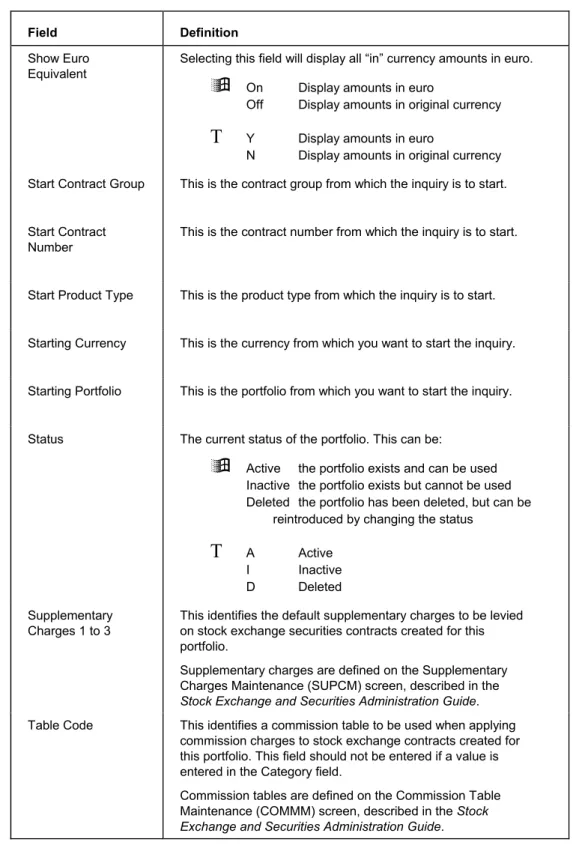
Show Euro Equivalent
Selecting this field will display all “in” currency amounts in euro.
á
On Display amounts in euroOff Display amounts in original currency
T
Y Display amounts in euroN Display amounts in original currency Start Contract Group This is the contract group from which the inquiry is to start.
Start Contract Number
This is the contract number from which the inquiry is to start.
Start Product Type This is the product type from which the inquiry is to start.
Starting Currency This is the currency from which you want to start the inquiry.
Starting Portfolio This is the portfolio from which you want to start the inquiry.
Status The current status of the portfolio. This can be:
á
Active the portfolio exists and can be used Inactive the portfolio exists but cannot be used Deleted the portfolio has been deleted, but can be reintroduced by changing the statusT
A Active I Inactive D Deleted SupplementaryCharges 1 to 3
This identifies the default supplementary charges to be levied on stock exchange securities contracts created for this portfolio.
Supplementary charges are defined on the Supplementary Charges Maintenance (SUPCM) screen, described in the
Stock Exchange and Securities Administration Guide. Table Code This identifies a commission table to be used when applying
commission charges to stock exchange contracts created for this portfolio. This field should not be entered if a value is entered in the Category field.
Commission tables are defined on the Commission Table Maintenance (COMMM) screen, described in the Stock Exchange and Securities Administration Guide.
Definition of Field Names
Field Definition
Template This field defines whether you are creating a portfolio template, or a single portfolio.
á
On Creating a template Off Creating a single portfolioT
Y Creating a template N Creating a single portfolioType This is the portfolio type of the current portfolio. Portfolio types are set up on the Portfolio Type Maintenance (PFTM) screen. Update This controls which portfolios will be created:
á
Switch "On" this field adjacent to all portfolios you want to createT
Enter "Y" in this field adjacent to all portfolios you want to createUpdated A "Yes" will be displayed here if any transaction has affected a security or there has been a price change since the last overnight run that affects the displayed values of the security. You can revalue those figures that need updating using the "Current Position" field.
Value Date This shows the date for which the values are displayed. This field is non-enterable, and defaults to the last day for which the values were updated in the overnight run.
Valuation Exchange Group
This is the exchange rate group used when displaying valuations on inquiry screens. Exchange rate groups are defined on the Exchange Rates (EXCHM) screen, described in the Core Functions and Inquiries Guide.
Yield This is the percentage of the Income accumulated for the security divided by the Market value of the security.