96
GUIDELINES ON HOW TO USE APPLICATION SOFTWARE: INKODO
Noor Azizah Mazeni, Nur Azimah Idris, Norshuhada Samsudin, Sharifah Sarimah Syed Abdullah
[email protected], [email protected], [email protected], [email protected]
Jabatan Sains Komputer & Matematik (JSKM),
Universiti Teknologi MARA Cawangan Pulau Pinang, Malaysia
ABSTRACT
The government of Malaysia announced the Movement Control Order (MCO) when Malaysia was hit with high number of COVID-19 cases which has forced the closure of schools and higher education institutions temporarily. This situation challenged the education system and forced educators to shift their teaching mode from face to face to an open distance learning method. In order to support and enhance virtual learning, educators need to adapt to various online teaching methods including preparing compact and dynamic notes for the students. This article focused on writing application softwares (apps) which is Inkodo. It can be conveniently downloaded through Microsoft Store and plus, it is a free app. The objective of this article is to share a helpful guideline to new users. This includes on how to create a book and also descriptions on most of the icons in the page editor. Inkodo is a user-friendly apps where users can annotate on empty sheets, documents as well as images. Ink it with the help of stylus and writing pads and users will surely be satisfied with all the features in this apps.
Keywords: Inkodo, apps Introduction
Due to the widespread of Coronavirus disease (COVID-19) in China, following the government's requirements of “nonstop teaching and learning,” most universities began to shift to online learning platforms. Higher education institutions are now changing from face-to-face
teaching and learning to various methods of open distance learning. Gurley (2018) states that
teaching in blended and an online learning environment requires different pedagogical approaches than teaching in face-to-face learning environments. In a short time span, lecturers need to adapt using technologies and teaching virtually while students learning all the courses through the internet at the comfort of their home.
97
Inkodo, KAMI, DocHub, Microsoft OneNote and Notability that can be used as tools in online teaching and learning. These apps are really great assistance for educators to create more fascinating and interactive materials to share with their students.
The Application Software: Inkodo
Microsoft store offers various application software (apps) from free to paid apps for users to take notes, annotate pdf and pictures as well as doodle creatively according to ones’ imaginations. The most common apps that have been readily installed is Microsoft One Note. This article will focus on Inkodo apps that is free, easily downloaded via Microsoft store and offers more flexibility for users’ imaginative works. This app can also be upgraded to Pro version which offers more features and templates.
The Features and its descriptions
There are a lot of features that can be used to edit PDF files and pictures according to users’ need. It is fun and interesting to explore all the options that Inkodo has to create a fascinating and informative file. The pages and books can be saved as pictures or by exporting the page or books to PDF file.
There are a lot of features that can be used to edit PDF files and pictures according to users’ need. It is fun and interesting to explore all the options that Inkodo has to create a fascinating and informative file. The pages and books can be saved as pictures or by exporting the page or books to PDF file.
98
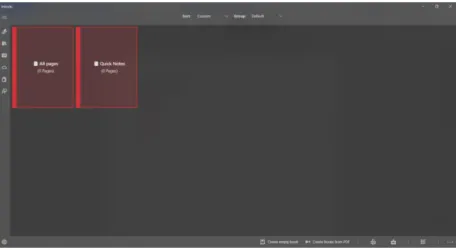
Figure 1: The view for archives
Figure 1 above shows the first interface that will appear when opening Inkodo apps. The functions for icons on the vertical left side and also at the bottom of the interface will be described in Table 1.
Table 1: Description of the icon in the first interface
No Icon Description
1 It is a page editor icon where the user will be directed to the workspace.
2 An archive for all pages in each particular book.
3 User can view the pages in each book and display them for a presentation.
4 All the files can be sync and backup in Microsoft OneDrive either online as well as any folder in the computer.
5 This icon gives user an opportunity to upgrade to a Pro version
6 Help button to assist user whenever problems occur.
99
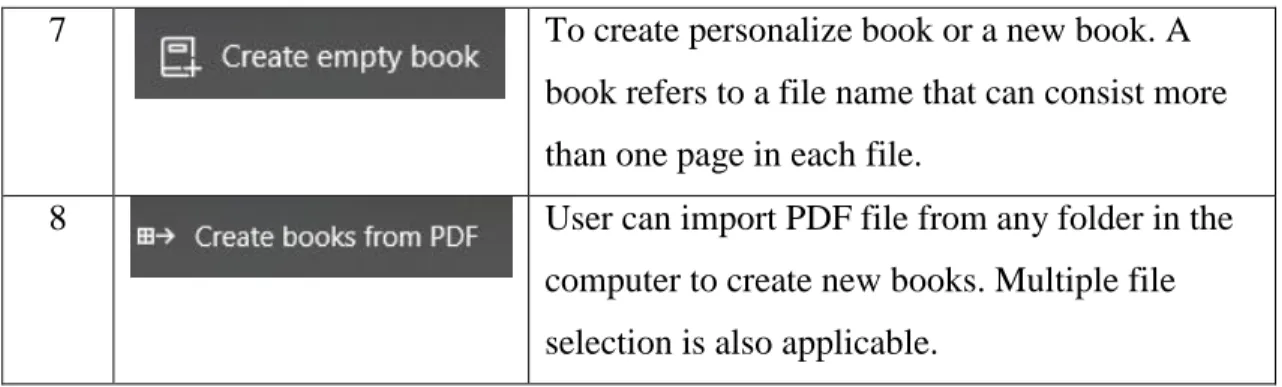
After creating books from PDF, simply double click the book to edit or add notes in the imported PDF. The other option which is creating empty book gives user opportunity to create a new file from scratch. Table 2 describes the two main icons in creating a new book.
Table 2: Description of main icons in creating a new book
No. Icon Description
1 User will be directed to a new blank page.
2 An option to insert pages from pictures or PDF
documents or variety of templates such as lined sheet, graph paper and even a music sheet.
Next, Inkodo also allows user to write down ideas, drawings and sketches using various pen tools in page editor. By clicking the icon of page editor, the interface as Figure 2 will appear.
100
Figure 2: The interface of page editor
Below is the description for the button of the upper side of the Figure 2.
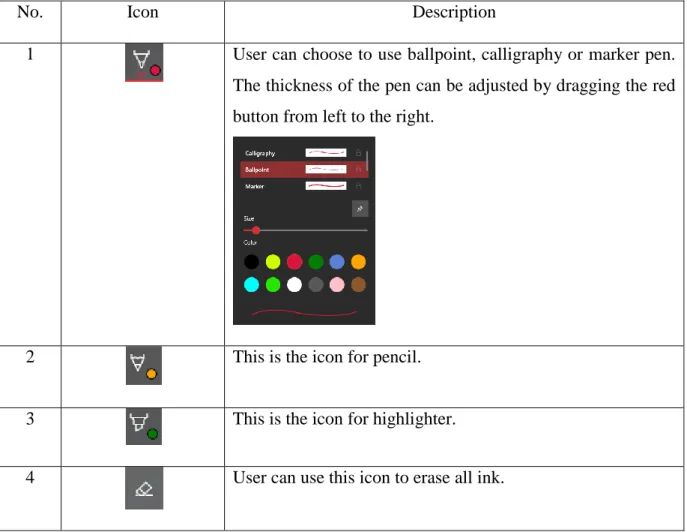
Table 3: Description of icon in page editor
No. Icon Description
1 User can choose to use ballpoint, calligraphy or marker pen. The thickness of the pen can be adjusted by dragging the red button from left to the right.
2 This is the icon for pencil.
3 This is the icon for highlighter.
101
6 User can insert photos, videos, audios records, stickers, and
shapes on the whiteboard from user’s device, clipboard, camera, or web page.
7 User can use the realistic ruler and protractor tools to draw perfect lines and circles. The angle for the ruler and the size of the protractor can be adjusted by scrolling the mouse.
8 It is a colour palette where user can change the colour of ballpoint, marker pen, pencil and object such as triangle.
102
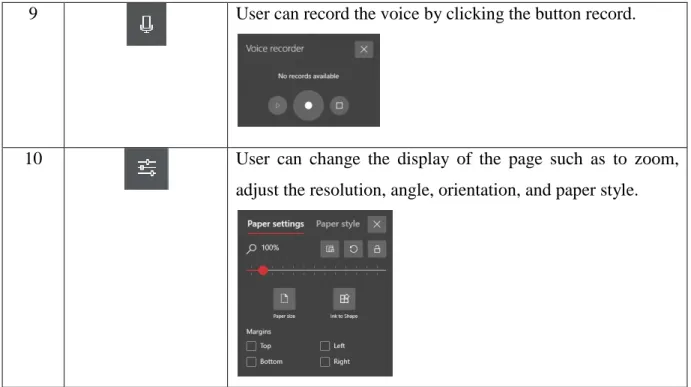
9 User can record the voice by clicking the button record.
10 User can change the display of the page such as to zoom, adjust the resolution, angle, orientation, and paper style.
Figure 3 is an example of handwritten notes using Inkodo.
Figure 3: An example of handwritten note Conclusion
In conclusion, Inkodo apps has variety of useful features for users to be innovative and creative while writing and editing notes. It is easily download from Microsoft Store and free. User has an option to upgrade to Pro version in order to enjoy more options in the apps. Editing PDF documents and images will be smooth for first time user with the explanations for most of the
103
similar to Inkodo. It is recommended to try other apps offered in Microsoft Store such as FlowPad for drawing and to annotate on pictures. Microsoft Store has many apps that can help users to take notes, organizing notes including fancy and interesting planners. All in all, the authors will definitely recommend Inkodo for educators to use during open distance learning and even after the pandemic is over.
References:
Gurley, Lisa E. 2018. “Educators’ Preparation to Teach, Perceived Teaching Presence, and Perceived Teaching Presence Behaviors in Blended and Online Learning Environments.” Online Learning Journal 22(2): 197–220.
Niess, M. L. (2006). Guest Editorial: Preparing teachers to teach Mathematics with technology. Contemporary Issues in Technology and Teacher Education, 6(2). Retrieved from http://www.cite journal.org/vol6/iss2/mathematics/article1.cfm Paterson, A. (2020).
Perienen, A. (2020). Frameworks for ICT Integration in Mathematics Education - A Teacher’s Perspective. Eurasia Journal of Mathematics, Science and Technology Education, 16(6). https://doi.org/ 10.29333/ejmste/7803 Roy, D. (2020).