ColdFusion 11 Lockdown Guide
Pete Freitag
Contents
Introduction ... 6
Default File Paths and Usernames ... 6
Operating Systems and Web Servers ... 6
ColdFusion Version ... 6
Scope of Document ... 6
Applying to Existing Installations ... 6
Naming Conventions ... 6
ColdFusion on Windows ... 7
Installation Prerequisites ... 7
ColdFusion Installation ... 7
Install ColdFusion Hotfixes and Updates ... 13
Create User Accounts ... 14
Setup Permissions for ColdFusion User ... 16
Registry Permissions ... 18
Specify Log On User for ColdFusion Services ... 20
Setup Web Root Folder Structure ... 20
Setup Web Root Permissions ... 22
Table 2.8.1 Web Root Content Security Permissions ... 22
Add Required IIS Roles & Role Services ... 24
Configure IIS ... 26
Configure Request Filtering ... 26
Table 2.10.1 : CFIDE URIs ... 27
Table 2.10.2: Additional URIs to consider blocking: ... 29
Configure Application Pool Defaults ... 31
Remove X-Powered-By Response Header ... 31
Remove ASP.NET ISAPI Filters ... 31
Create ColdFusion Administrator Web Site ... 32
Remove Request Filtering Rule for ColdFusion Administrator Site ... 33
Add Sites to IIS ... 34
Run the ColdFusion Web Server Configuration Tool ... 35
Run the ColdFusion WebSocket Proxy Configuration Tool ... 35
Remove Unused Handler Mappings ... 36
Create alias for /CFIDE/scripts ... 36
Add IP Restrictions to /CFIDE ... 37
Remove the /CFIDE Virtual Directories ... 37
Update the JVM to the latest supported version ... 37
ColdFusion on Linux ... 39
Linux Installation Prerequisites ... 39
Create a Dedicated User Account for ColdFusion ... 39
ColdFusion Installation ... 40
Install ColdFusion Hotfixes / Updates ... 40
Configure Apache ... 41
Install or Update Apache... 41
Remove unneeded modules ... 41
Add apache user to webusers group ... 42
Setup directories for web roots ... 42
Specify permissions on web root directories ... 42
Configure Default Site ... 43
Create an alias for /CFIDE/scripts ... 43
Lock Down CFIDE and other URIs ... 44
Specify permissions for ColdFusion Directories ... 45
Install Apache Connector ... 45
Setup ColdFusion Administrator Web Site ... 47
Update Java Virtual Machine ... 48
Setup Auditing ... 49
Add umask to startup script ... 49
ColdFusion Administrator Settings ... 50
Server Settings > Settings... 50
Server Settings > Request Tuning ... 55
Server Settings > Client Variables ... 56
Server Settings > Memory Variables ... 57 Adobe documentation - Confidential
Server Settings > Mappings ... 58
Server Settings > Mail ... 58
Server Settings > WebSocket ... 58
Data & Services > Data Sources ... 59
Data & Services > ColdFusion Collections ... 59
Data & Services > Flex Integration ... 59
Data & Services > PDF Service ... 60
Debugging & Logging > Debug Output Settings ... 60
Debugging & Logging > Debugger Settings ... 60
Debugging & Logging > Logging Settings ... 60
Debugging & Logging > Remote Inspection Settings ... 61
Event Gateways > Settings ... 61
Event Gateways > Gateway Instances ... 61
Security > Administrator ... 62
Security > RDS ... 62
Security > Sandbox Security ... 62
Security > User Manager ... 62
Security > Allowed IP Addresses ... 63
Security > Secure Profile ... 63
Server Update > Updates > Settings ... 63
Additional Lockdown Measures ... 65
Configure or Disable the Builtin Web Server ... 65
To Disable the Builtin Web Server ... 65
To Create a new Alias for /CFIDE/scripts in the built-in web server ... 65
To Configure the Builtin Web Server to listen on a single IP Address ... 66
Configure Sandbox Security ... 66
Lockdown IIS Connector Virtual Directories ... 66
Lockdown File Extensions ... 67
Blocking by File Extension with Apache ... 67
Blocking by File Extension on IIS ... 68
File Extension Whitelisting ... 68
File Extension Whitelisting on IIS ... 68 Adobe documentation - Confidential
Optionally Remove ASP.NET ... 68
Change the Tomcat Shutdown Port ... 68
Add a connector shared secret ... 69
Disable Unused Servlet Mappings ... 69
Additional Tomcat Security Considerations ... 72
Additional File Security Considerations ... 72
Adding ClickJacking Protection ... 73
Restricting HTTP Verbs ... 73
Whitelisting HTTP Verbs in Apache ... 73
Whitelisting HTTP Verbs in IIS ... 73
Security Constraints in web.xml... 73
Limit Request Size ... 74
Limit Request Size in IIS ... 74
Limit Request Size in Apache ... 74
Patch Management Procedures ... 75
Appendix A: Sources of Information ... 76
Introduction
The ColdFusion 11 Server Lockdown Guide is written to help server administrators secure their ColdFusion 11 installations. In this document, you will find several tips and suggestions intended to improve the security of your ColdFusion server. The reader is strongly encouraged to test all recommendations on an isolated test environment before deploying into production.
Default File Paths and Usernames
This guide will provide example file system paths for installation, you should not use the same example installation paths provided in this guide.
Operating Systems and Web Servers
This guide focuses on Windows 2012 / IIS 8, and Redhat Enterprise Linux (RHEL) 6.5 / Apache 2.2. Many of the suggestions presented in this document can be extrapolated to apply to similar Operating Systems and Web Servers.
ColdFusion Version
This guide was written for ColdFusion 11 Enterprise Edition.
Scope of Document
This document does not detail security settings for the Operating System, the Web Server, or Network Firewalls. It is focused on security settings for the ColdFusion server only.
All suggestions in this document should be tested and validated on a non-production environment before deploying to production.
Applying to Existing Installations
This guide is written from the perspective of a fresh installation. When possible consider performing a fresh installation of the operating system, web server and the ColdFusion server. If an attacker has compromised the existing server in any way you should start with a fresh operating system installation on new hardware.
Naming Conventions
In this guide we will refer to the ColdFusion installation root directory as {cf.root} it corresponds to the directory that you select when installing ColdFusion. The ColdFusion instance root is referred to as {cf.instance.root} in this guide, enterprise installations may have multiple instances, but the default instance is {cf.root}/cfusion/
ColdFusion on Windows
This section covers the installation and configuration of ColdFusion 11 on a Windows 2012 server. If you are running Linux you may skip to section 3.
In this section we will perform the following: • Installation Prerequisites
• Install ColdFusion
• Check for, and install any ColdFusion hotfixes.
• Create dedicated user account(s) for ColdFusion to run as.
• Create dedicated user account(s) for IIS Application Pool Identities. • Configure file system permissions.
• Run the web server configuration tool to connect ColdFusion to IIS • Configure IIS
• Update the JVM
Installation Prerequisites
Before you begin the installation process perform the following steps:
• Configure a network firewall (and / or configure Windows firewall) to block all incoming public traffic during installation.
• Read the Microsoft Windows Security Compliance Manager guidelines and documentation: http://www.microsoft.com/en-us/download/details.aspx?id=16776
• Create a separate partition / drive for ColdFusion Installation and website assets. This mitigates the successfulness of path traversal attacks.
• Remove or disable any software on the server that is not required.
• Run Windows Update and ensure all software running on the server is fully patched. • Ensure that all partitions use NTFS to allow for fine grained access control.
• Download ColdFusion from adobe.com
• Verify that the MD5 checksum listed on adobe.com download page matches the file you downloaded. To use the Microsoft File Checksum Integrity Verifier (FCIV) utility, download http://support.microsoft.com/kb/841290 and run the following in a Command Prompt: FCIV -md5 installer-file-name.exe
ColdFusion Installation
Run the installer exe. On the Installer Configuration view select Server configuration unless youare
deploying to an external JEE server (such as JBoss, Weblogic or Websphere).
Select Production Profile + Secure Profile, and specify IP addresses which may access ColdFusion Administrator.
The Secure Profile option provides a more secure foundation of default settings. You can review the settings it toggles here:
https://wikidocs.adobe.com/wiki/display/coldfusionen/Administering+ColdFusion+Security#Administeri ngColdFusionSecurity-AdministratorsettingsaffectedbyenablingSecureProfile
As of ColdFusion 11 the Secure Profile settings can also be toggled from the ColdFusion Administrator.
Next select only the Sub-components which are required for your application(s). Check each servlet that is not needed to disable it. See Section 5 for more info. If you installed the PDFG or Solr service you can optionally specify which IP addresses can access these services. Keeping the Access Add-on Services Remotely checkbox unchecked will run the services so they are accessible from localhost only. Select a non standard installation directory, ideally on a dedicated drive, this path is referred toas
{cf.root} throughout the rest of the guide.
Select the Built-in web server, we will run the web server configuration utility later in this guide to
connect ColdFusion to IIS.
When the built-in web server is selected you will be prompted for a port to run the Built-in web server, select a port number different from the default 8500.
For Administrator Credentials, select a unique username (not admin) and a strong password.
Install ColdFusion Hotfixes and Updates
Login to the ColdFusion administrator via the built-in web server. For example:
http://127.0.0.1:8500/CFIDE/administrator/ (replace 8500 with your port you selected during installation).
Click on Server Updates > Updates if any hotfixes are available select the latest hotfix, and click Download.
Verify the integrity of the download by running FCIV -md5 on the hotfix_XXX.jar file, see that the
checksum matches the value found in Adobe ColdFusion update feed: https://www.adobe.com/go/coldfusion-updates
If the md5 checksum matches install the hotfix:
x:\cf11\jre\bin\java -jar x:\cf11\cfusion\hf-updates\hotfix_XXX.jar
Replace hotfix_XXX.jar with the filename of the hotfix jar you are installing, replace c:\cf11 with the directory you selected for ColdFusion installation, {cf-root}, follow the prompts. The installer will typically attempt to restart ColdFusion when complete. After installation login to ColdFusion administrator again and verify that the hotfix was installed.
Visit: http://www.adobe.com/support/security/ and read any pertinent ColdFusion Security Bulletins. Confirm that all required security patches have been applied.
Create User Accounts
Create a windows user account (in Computer Management) for ColdFusion to run as. In thisguide, we
use cfuser, but you should select a unique user name.
Next create a user for the IIS Application pool identity.
For each user created in this section right click and select Properties. In the Remote Desktop Services Profile tab check the box that says Deny this user permission to log on to Remote Desktop Session Host server.
If the new users were added to any default groups (such as Users) remove them from that group.
If you are setting up multiple instances of ColdFusion you may consider creating dedicated user accounts for each instance to isolate them from each other. In addition each IIS application pool can have a dedicated user account, typically each website in IIS is assigned its own application pool.
Setup Permissions for ColdFusion User
Grant the user you created for ColdFusion to run as (cfuser in our example) and the Administrators group full control over the ColdFusion installation directory. Remove all other user and group permission from this directory.
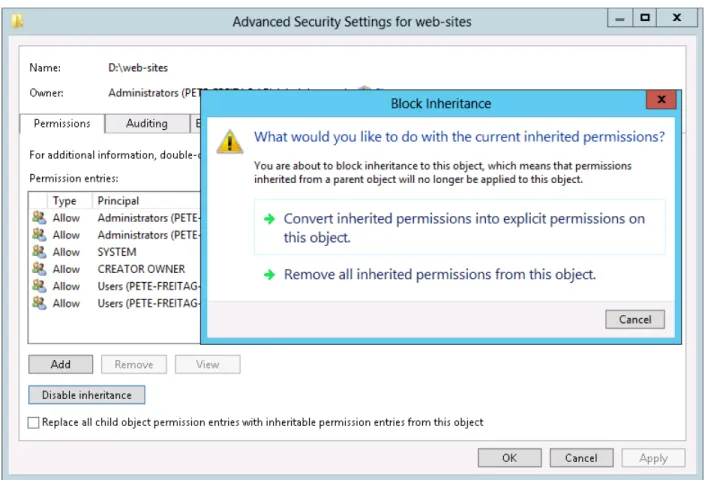
Right click on your {cf.root} directory in Windows Explorer and select Properties. Click on the Security tab then click Advanced. On the Permissions tab click the Disable inheritance button and select Remove all inherited permissions from this object. This clears all permissions from the parent folder and allows you
to define a new set of permissions.
Click the Add button, in the Permission Entry dialog click Select a principal. Enter the cfuser as the principal. Check Full control and click OK. Click Add again, and grant Full control to the Administrators group.
Check the checkbox to Replace all child object permission entries with inheritable permission entries from this object. Click OK to apply these permissions.
For maximum security you should consider a more detailed permission structure for the ColdFusion installation directory to prevent runtime changes to certain resources or configuration. Restrictive permissions may however break features like security hotfix installation from within ColdFusion administrator. If you run the ColdFusion Hotfix installer asdescribed in section 2.3, the installer will
execute under your Administrative user account instead of the user account that ColdFusion runs as (cfuser), allowing for more restrictive file system permissions.
The IIS Application Pool user (iisuser in our examples) must also have permission access the Tomcat IIS connector. Grant this user permission to the{cf.root}/config/wsconfig/ directory in your ColdFusion installation directory. Because we have not installed the connector yet you will need to create an empty wsconfig directory.
Folder Principal Permission
{cf.root} Administrators Full Control
{cf.root} cfuser Full Control
Folder Principal Permission
{cf.root}/config/wsconfig/ IUSR, iisuser Read & execute
List folder contents Read
{cf.root}/config/wsconfig/n/isapi_redirect.log iisuser Read Write
{cf.root}/config/wsproxy/ IUSR, iisuser Read & execute
List folder contents Read
{cf.instance.root}/wwwroot/CFIDE IUSR, iisuser Read & execute List folder contents Read
The ColdFusion IIS connector writes logs to a file called isapi_redirect.log - the IIS Application Pool user (iisuser in our example) needs write permission to this file. You may consider changing the location of this file, which is defined in the isapi_redirect.properties file to a non default directory.
Note: if you choose to run Anonymous Authentication through the Application Pool user then IUSR does not need permission to these files.
Note: if you are setting up multiple instances of ColdFusion or multiple connectors you will need to repeat this step for each connector. Each connector instance is placed in a subdirectory of
{cf.root}/config/wsconfig/n/ where n is a number (starting with 1 by default).
The {cf.root}/config/wsproxy/ is used for the WebSocket proxy, you may need to create an empty wsproxy directory here as well if you plan on using WebSockets. The directory is populated similar to the wsconfig directory when the wsproxyconfig.exe is run later in this guide.
Registry Permissions
Next open regedit.exe and navigate to the registry key
HKEY_LOCAL_MACHINE\SYSTEM\CurrentControlSet\Services\ and locate each key matching a Adobe documentation - Confidential
ColdFusion service, for example ColdFusion 11 Application Server. Right click on each key and select Permissions and grant the ColdFusion user account read permission.
If your application makes use of Client variables and uses the registry the ColdFusion user will need Full Permission to the HKEY_LOCAL_MACHINE\SOFTWARE\Macromedia\ColdFusion\CurrentVersion\Clients key (this key will not exist until client variables have been used).
Specify Log On User for ColdFusion Services
Open the Services Manager and change the user the service runs as to be the user you created (cfuser
in the guide example). The installation creates a service named ColdFusion 11 Application Server which runs the initial ColdFusion instance. Right click the service, click Properties and select the Log On tab to
specify the username and password for the account you created. Restart the ColdFusion 11 Services. If you installed any optional subcomponents (such as Solr, .NET or the PDF Generation Service) ensure that their respective Windows Service is configured to run as the ColdFusion user account as well. If you installed a subcomponent but are not using it, change the service Startup type to Disabled and stop the service.
Setup Web Root Folder Structure
Create a directory to contain your web sites, for example d:\web-sites\ and then create a sub directory to house each web site. If possible, use a dedicated partition and drive letter to decrease the success of directory traversal attacks.
Setup Web Root Permissions
Right click on the web site partition folder (eg d:\web-sites\), and select Properties. Select the Security tab and click the Advanced button. In the Permissions tab click the Disable inheritance button, then
select Remove all inherited permissions from this object.
Click Add, then click Select a principal and use table 2.8.1 to select the appropriate permissions for each Principal listed.
Table 2.8.1 Web Root Content Security Permissions
Principal (User / Group)
Permissions
Administrators (or equivalent users and groups) Full Control
issuser (Your Application Pool Identity User)
Read & execute List folder contents ReadPrincipal (User / Group)
Permissions
IUSR (the anonymous authentication account)
Read & execute List folder contents Readcfuser (Your ColdFusion Service Identity)
Read & execute List folder contents Read(Add additional permissions as needed, for example if CFFILE is used to write image files in an images folder under the webroot, grant write permission to the images folder).
Check Replace all child object permission entries with inheritable permission entries from this object and click OK.
Add Required IIS Roles & Role Services
Open the Windows Server Manager application, under the Manage menu select Add Roles and Features. If IIS is not already installed check Web Server (IIS).
The following represents a common minimal set of IIS Role Services:
•
Common HTTP Features: Default Document•
Common HTTP Features: HTTP Errors•
Common HTTP Features: Static Content•
Health and Diagnostics: HTTP Logging•
Security: Request Filtering•
Security: IP and Domain Restrictions•
Security: Windows Authentication•
Application Development: .NET Extensibility 4.5 (or latest version)•
Application Development: ASP.NET 4.5 (or latest version)•
Application Development: CGI•
Application Development: ISAPI Extensions Adobe documentation - Confidential•
Application Development: ISAPI Filters•
Management Tools: IIS Management ConsoleIf you use WebSockets you should also install Application Development: WebSocket Protocol.
Configure IIS
Open IIS, expand Sites and remove any sites that you do not need, for example the Default Web Site. Configure Request Filtering
Open the Internet Information Services (IIS) Manager application and click on the root node above Sites. Click on Request Filtering and the select the URL tab. Click on Deny Sequence and enter
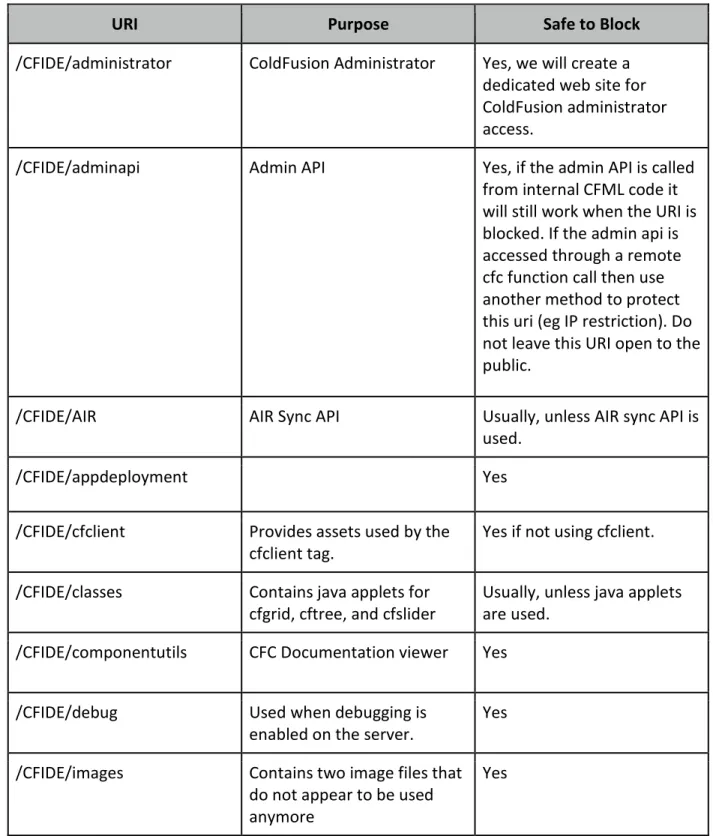
/CFIDE/administrator to block access to it. Consult table 2.10.1 and 2.10.2 and block all URIs that are not needed. If all /CFIDE URI’s are safe to block for your application you may simply block /CFIDE instead of entering each one.
Note: Request Filtering was added to IIS7.0, the user interface in the IIS manager to configure request filtering was added in IIS 7.5. If you are using IIS 7.0 request filtering can be configuredin the
applicationHost.config and web.config files.
Table 2.10.1 : CFIDE URIs
URI
Purpose
Safe to Block
/CFIDE/administrator
ColdFusion Administrator
Yes, we will create a
dedicated web site for
ColdFusion administrator
access.
/CFIDE/adminapi
Admin API
Yes, if the admin API is called
from internal CFML code it
will still work when the URI is
blocked. If the admin api is
accessed through a remote
cfc function call then use
another method to protect
this uri (eg IP restriction). Do
not leave this URI open to the
public.
/CFIDE/AIR
AIR Sync API
Usually, unless AIR sync API is
used.
/CFIDE/appdeployment
Yes
/CFIDE/cfclient
Provides assets used by the
cfclient tag.
Yes if not using cfclient.
/CFIDE/classes
Contains java applets for
cfgrid, cftree, and cfslider
Usually, unless java applets
are used.
/CFIDE/componentutils
CFC Documentation viewer
Yes
/CFIDE/debug
Used when debugging is
enabled on the server.
Yes
/CFIDE/images
Contains two image files that
do not appear to be used
anymore
Yes
URI
Purpose
Safe to Block
/CFIDE/multiservermonitor-access-policy.xml
Used to set a policy for
allowing viewing the server
monitor from multiple
domains.
Yes - the server monitor now
runs on its own web server
on port 5500.
/CFIDE/orm
Contains interfaces used with
ORM. These interfaces do not
need to be accessible
through the web server.
Yes
/CFIDE/portlets
Contains API for building
portlets with 286,
JSR-168 or WSRP. The API does
not need to be accessible
through the web server.
Yes
/CFIDE/probe.cfm
You can configure probes in
the ColdFusion administrator
which are used to monitor a
URL for failures. This will
throw an exception if not run
over 127.0.0.1.
Yes, however if you want to
use probes you should create
a web site that only listens on
127.0.0.1 and remove this
block.
/CFIDE/scheduler
Contains an interface for
scheduled task event
handlers. Does not need to
be accessible through the
web server.
Yes
/CFIDE/scripts
Contains JavaScript and other
assets for several ColdFusion
features cfform, cfchart, ajax
tags, etc. ColdFusion
Administrator makes use
some of these features.
Yes - we will create a new,
non-default URI for this
folder, and specify the new
URI in the ColdFusion
administrator.
/CFIDE/ServerManager
Contains the AIR application
binary for the Server
Manager.
Yes
URI
Purpose
Safe to Block
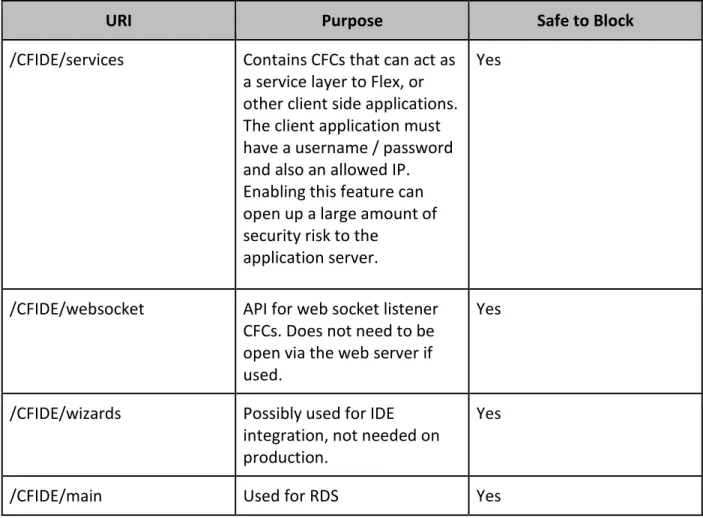
/CFIDE/services
Contains CFCs that can act as
a service layer to Flex, or
other client side applications.
The client application must
have a username / password
and also an allowed IP.
Enabling this feature can
open up a large amount of
security risk to the
application server.
Yes
/CFIDE/websocket
API for web socket listener
CFCs. Does not need to be
open via the web server if
used.
Yes
/CFIDE/wizards
Possibly used for IDE
integration, not needed on
production.
Yes
/CFIDE/main
Used for RDS
Yes
Table 2.10.2: Additional URIs to consider blocking:
URI Purpose Safe to Block
/Application.cf Block Application.cfc and Application.cfm requests which result in an error when accessed directly.
Yes
/WEB-INF WEB-INF contains configuration
data used by the java
application server. The Tomcat connector will block this already, but you can block it at the web server level as well.
Yes
/cfformgateway Used for <cfform format=flash> Only if Flash Forms are not used.
URI Purpose Safe to Block
/flex2gateway
Flex Remoting
Only if Flex Remoting is not
used.
/cfform-internal
Used for <cfform
format=flash>
Only if Flash Forms are not
used.
/flex-internal
Flex Remoting
Only if Flex Remoting is not
used.
/cffileservlet
Serves dynamically generatedassets. It supports the cfreport, cfpresentation, cfchart, and cfimage
(with action=captcha and action=writeToBrowser) tags
Only if cfreport,
cfpresentation, cfchart and
cfimage are not used.
/rest/
Used for Rest web services
support.
Only if CF10 REST web
services are not used.
/WSRPProducer
Web Services Endpoint for
WSRP.
Usually, unless WSRP is used.
.svn
If you use subversion to
deploy your ColdFusion
applications you can block
the .svn folders, which may
allow source code disclosure.
Yes
Configure Application Pool Defaults
Click on Application Pools, remove any unused or unnecessary Application Pools that may exist. Click on Set Application Pool Defaults. Change .NET Framework Version to No Managed Code. Under Process Model, change the default Identity. Select Custom account and specify the user name you created in Section 2.4
Remove X-Powered-By Response Header
Double click on HTTP Response Headers under the root IIS node. Click on X-Powered-By and select Remove if present.
Remove ASP.NET ISAPI Filters
If you do not require ASP.NET functionality, in the IIS root node click on ISAPI Filters and remove all ASP.NET ISAPI filters. Next click on ISAPI and CGI Restrictions click on each ASP.NET ISAPI filter and click Deny.
Create ColdFusion Administrator Web Site
In this section we will create an IIS site which will be used exclusively for accessing the ColdFusion administrator. An alternate approach is to access the ColdFusion administrator from the built-in web
server instead. Please read Section 5.1 for additional consideration.
First create a self signed certificate (or preferably utilize a certificate from a trusted certificate authority) by clicking on the Server Certificates icon under the IIS root. Click on the link to Create Self-Signed Certificate on the right under Actions.
Create an empty directory for the web site root of the ColdFusion administrator web site (e.g. d:\web-sites\cfadmin\).
Next click on Sites and Add Web Site to create a new website for ColdFusion Administrator, point the web root or content directory to the directory you just created. Bind the new site to 127.0.0.1 (or another IP address only accessible to system administrators). Select HTTPS for the protocol, and select the self signed certificate.
Click the Test Settings… button to verify that permissions are setup correctly.
Consider disabling anonymous access to this site and require web server authentication for an additional layer of protection and auditing.
Next Require SSL for this website by double clicking on the SSL Settings icon for the cfadmin site and check the Require SSL checkbox.
Visit https://127.0.0.1/ and ensure that it requires SSL and authentication. If you choose a self-signed certificate you will receive a SSL warning.
Remove Request Filtering Rule for ColdFusion Administrator Site
Because we have specified that the URI /CFIDE/administrator or /CFIDE is blocked on a global level (using IIS Request Filtering, configured in section 2.10), we need to enable that URI only on our cfadmin web site. To do this click on the cfadmin website under sites, and click on Request Filtering. Select the URL tab and click on the rule matching /CFIDE/administrator or /CFIDE and click the Remove button.
If you blocked /CFIDE globally in section 2.10, add request filtering rules to block all the /CFIDE uri’s
except /CFIDE/administrator (see table 2.10.1).
Add Sites to IIS
At this point it is a good time to add your website(s) to IIS so they can be configured by the web server configuration tool in the next step.
Important: It is important to note that because ColdFusion has not been connected to IIS yet, requests to cfm, cfc, etc. files may allow downloading of these files. You should make sure that your network firewall is blocking access to the ports IIS listens on to prevent serving of your CFML over IIS.
If you have sites that do not require ColdFusion, you can wait to add those sites to IIS until after running the ColdFusion Web Server Configuration Tool.
Run the ColdFusion Web Server Configuration Tool
Right click on wsconfig.exe, located in {cf.instance.root}/runtime/bin/ and selectRun as Administrator.
Click the Add... button.
Under Web Server make sure Internet Information Server (IIS) is selected. For IIS Web Site, you can either install the connector for All sites on IIS or select only certain sites. Select individual sites if you are going to isolate application pool identities or run dedicated instances of ColdFusion for each site. Edit {cf.root}/config/wsconfig/n/isapi_redirect.properties and set the log_file to a location that the
IIS application pool identity (iisuser for example) has permission to write to.
Run the ColdFusion WebSocket Proxy Configuration Tool
ColdFusion 11 has added support for proxying WebSocket traffic directly in IIS via the IIS 8 WebSocket Protocol role service (installed in section 2.9). If you do not use WebSockets skip this section.
Right click on wsproxyconfig.exe in {cf.instance.root}/bin/ and select Run As Administrator. Click Add and select the appropriate options for your required configuration and click Ok.
Sites that use the ColdFusion WebSocket proxy must change the .NET Framework Version in Application Pool Settings from No Managed Code to a version of .NET that supports WebSockets (v4+).
Remove Unused Handler Mappings
In IIS under the root/global configuration node double click Handler Mappings. You will see several handler mappings defined by both ASP.NET and the ColdFusion Web Server Configuration Tool. You can remove all the handler mappings that your web applications do not require.
The ColdFusion Web Server Server Configuration Tool defines several handler mappings, which are used for serving default documents and custom error handlers. A minimal configuration would be to remove all handler mappings except StaticFile, ISAPI-DLL, and cfmHandler.
Additional mappings are specified in the {cf.root}/config/wsconfig/n/uriworkermap.properties file. Any unnecessary URI patterns could be removed from this file.
Create alias for /CFIDE/scripts
In a prior section we blocked the URI /CFIDE/scripts with request filtering. If your web sites leverage certain tags or features you can change this URI to a non default URI outside of /CFIDE.
Here’s a short list of tags or features that may require assets in /CFIDE/scripts: cfajaxproxy, cfcalendar, cfchart (HTML5), cfdiv, cfform, cfgrid, cflayout,cfmediaplayer, cfmap, cfmenu cftextarea,cfpod,
cfprogressbar, cfslider, cftooltip, cfwindow. If you do not use any of these tags you can continue to the next section. If you are not sure if your applications use these tags review the web server logs for requests containing /CFIDE/scripts/ in the URI.
In IIS right click on each website that uses the tags listed above and select Add Virtual Directory. For alias, specify a new name for this folder, for example /cfscripts-random and set the physical path to {cf.instance.root}/wwwroot/CFIDE/scripts.
Once the virtual directory is in place you can update the ColdFusion administrator to specify the new URI for /CFIDE/scripts under the Server setting page:
Replace /CFIDE/scripts/ with the new virtual directory URI, eg: /cfscripts-23432/
If your server has a lot of virtual directories you can use appcmd.exe from Command Prompt: appcmd list app /path:"/" /xml | appcmd add vdir -in /path:/cfscripts-23432
/physicalPath:c:\cf11\cfusion\wwwroot\CFIDE\scripts
Add IP Restrictions to /CFIDE
In IIS expand the ColdFusion Administrator site you created and select the CFIDE folder. Click on Edit
Feature Settings… and specify Access for unspecified clients: Deny, and Deny Action Type: Not Found Click Add Allow Entry… and enter IP addresses that are allowed to access /CFIDE for example 127.0.0.1. Next, if you use any of the tags listed in section 2.16, browse to the /CFIDE/scripts folder in IIS and specify Access for unspecified clients: Allow.
Set Access for unspecified clients: to Allow for any other sub folders that may require public access.
Remove the /CFIDE Virtual Directories
The ColdFusion Web Server Configuration Tool adds a /CFIDE virtual directory to each website that is configured, in most cases you will not need this defined on every web site.
If your server has a lot of sites configured it can be tedious to remove each manually, you can use appcmd.exe to remove all CFIDE virtual directories by running this following:
appcmd list vdir /path:"/CFIDE" -xml | appcmd delete vdir -in You will then need to add the /CFIDE alias back to your ColdFusion administrator site.
Update the JVM to the latest supported version
The Java Virtual Machine (JVM) included with the ColdFusion installer may not contain the latest java security hotfixes. You must periodically check with Oracle for JVM security hotfixes.
Visit
java.oracle.com
and download the latest Java Runtime Environment (JRE) supported by ColdFusion 11.Before editing, create a backup of the jvm.config file located in the {cf.instance.root}/bin/ directory. Open the file with a text editor to locate the line beginning with java.home= for example:
java.home=C:\\CF11\\jre
Change that line to the path of the new JRE, for example: java.home=C:/java/jdk1.7.0_XX/jre
Note: The path must use forward slashes / or escaped backslashes \\ otherwise ColdFusion will not start.
Restart ColdFusion. Visit the System Information page of ColdFusion administrator to confirm that the JVM has been updated. To revert to the default jvm replace jvm.config with your backup and restart
ColdFusion again.
ColdFusion on Linux
This section covers installation of ColdFusion on Linux with Apache, Windows/IIS readers may skip to Section 4. To install ColdFusion 11 on Linux we will perform the following steps:
•
Perform installation prerequisites•
Create a Dedicated User Account for ColdFusion to run as.•
Install ColdFusion•
Check for, and install any ColdFusion hotfixes.•
Configure Apache•
Configure file system permissions.•
Run the web server configuration tool to connect ColdFusion to Apache•
Setup ColdFusion Administrator Site•
Update the JVMLinux Installation Prerequisites
Before you begin the ColdFusion installation process perform the following steps:
•
Configure a network firewall (and / or configure a local firewall using iptables) to block all incoming public traffic during installation.•
Read the Red Hat Enterprise Linux 6 Security Guide:https://access.redhat.com/site/documentation/en-
US/Red_Hat_Enterprise_Linux/6/pdf/Security_Guide/Red_Hat_Enterprise_Linux-6-Security_Guide-en-US.pdf
•
Install RedHat Linux with minimal packages, you do not need to install a graphical desktop environment.•
Enable SELinux Enforcing mode during installation.•
Remove or disable any software on the server that is not required.•
To see what packages are installed run: yum list installed | more•
For example: yum erase php•
Run yum update and ensure that all software running on the server is fully patched.•
Download ColdFusion from adobe.com•
Verify that the MD5 checksum listed onadobe.com
download page matches the file you downloaded. You can run the following in a Command Prompt: md5sum installer-file-name.exeCreate a Dedicated User Account for ColdFusion
Create a new group which will contain both ColdFusion users and apache’s user, in this guide we will name this group webusers please choose a unique name.
# groupadd webusers
Create a user for ColdFusion to run as, in this guide we use cfuser, but consider picking a unique username:
# adduser -g webusers -s /sbin/nologin -M -c ColdFusion cfuser Specify a strong password for the new user:
# passwd cfuser
If you are running multiple instances of ColdFusion consider creating a dedicated user account for each instance to run as.
ColdFusion Installation
•
Run the installer as root or using sudo.•
Installer Configuration: Choose #1 - Server configuration•
If you are deploying ColdFusion a JEE server such as WebSphere, WebLogic, JBoss, etc. select an EAR or WAR file, otherwise choose option 1 Server configuration.•
Select ColdFusion Server Profile: Production Profile (Secure)•
Enable the Secure profile to install with more secure defaults. As of ColdFusion 11 you can enable secure profile from ColdFusion administrator as well.•
IP Addresses allowed: 127.0.0.1,::1 comma separate any other IP addresses that need to access ColdFusion Administrator.•
Sub-components Installation•
1) Solr Service - the Solr service is needed only if you are using cfsearch, cfcollection, cfindex tags. Disable the Solr service if not needed.•
2) Admin component for Remote Start/Stop - disable.•
3) Start ColdFusion on system init - enable.•
Disabling unused servlets•
Uncheck RDS, JS Debug•
Uncheck WSRP if not using Web Services for Remote Portlets•
Uncheck CFSWF and Flash Forms if not using Flash Forms•
Choose Installation Folder•
Select a non default installation folder, in this guide we will use /opt/cf11/•
Configure Web Servers
•
Continue with installation - do not install the web server connector yet.
•
Runtime User
•
Enter the name of the user created in the previous section: cfuser
•
Configure ColdFusion with OpenOffice
•
Skip - OpenOffice integration is used by cfdocument to convert Word documents to
PDF or PowerPoint presentations to PDF/HTML.
•
Administrator Credentials
•
Enter username: select a unique username (not
admin
)
•
Server Updates
•
Y automatically check for server updates.
Install ColdFusion Hotfixes / Updates
Because Apache is not configured yet you will need to login to the ColdFusion administrator via the built-in web server, eg http://127.0.0.1:8500/CFIDE/administrator/
Click on Server Updates > Updates and then select the latest hotfix, and click Download.
Verify the integrity of the download by performing an md5sum on the hotfix_XXX.jar file, see that it matches the value found in Adobe ColdFusion update feed: https://www.adobe.com/go/coldfusion-updates
If the md5 checksum matches install the hotfix:
/opt/cf11/jre/bin/java -jar /opt/cf11/cfusion/hf-updates/hotfix_XXX.jar
Replace hotfix_XXX.jar with the filename of the hotfix jar you are installing, and follow the prompts. The installer will typically attempt to restart ColdFusion when complete. After installation login to
ColdFusion administrator again and verify that the hotfix was installed.
Visit: http://www.adobe.com/support/security/ and read any pertinent ColdFusion Security Bulletins. Confirm that all security patches have been applied.
Configure Apache
In this section we will setup Apache httpd web server and connect ColdFusion to it. Install or Update Apache
If Apache (httpd) web server has not yet been installed, install it using yum: If Apache (httpd) has not yet been installed, install it using yum:
# yum install httpd
If Apache (httpd) was already installed, ensure that the latest version is installed: # yum update httpd
Remove unneeded modules
Ensure that the latest version of openssl and mod_ssl are installed as well using similar yum commands as above.
Remove any unneeded modules, for example: # yum erase php*
Edit the /etc/httpd/conf/httpd.conf and remove or comment out (by placing a # at the beginning of the line) any LoadModule lines that load unnecessary modules. You can easily find a list of these module by running:
# fgrep LoadModule /etc/httpd/conf/httpd.conf
Some modules that you may be able to remove (or comment out by placing a # at the beginning of the line) include: mod_imap, mod_info, mod_userdir, mod_status, mod_cgi, mod_autoindex.
Add apache user to webusers group
The Apache web server runs as user apache by default (consider changing this username to a non default username) on Red Hat Enterprise Linux. Add the apache user to the webusers group we created in section 3.2:
# usermod -a -G webusers apache
See the Appendix for more information on securing the Apache Web Server installation. Setup directories for web roots
Create a directory on the server to house the web root for your websites, in this guide we will use /www please choose a unique directory name.
# mkdir /www
Create a directory for the default web site. # mkdir /www/default
# mkdir /www/default/wwwroot Create a index.html file in the default site:
# echo 'Hello' > /www/default/wwwroot/index.html Create a directory for the ColdFusion administrator site:
# mkdir /www/administrator
# mkdir /www/administrator/wwwroot
Specify permissions on web root directories # chown -R cfuser:webusers /www # chmod -R 550 /www
The permission 550 specifies that the owner (cfuser) has r-x permission, the group (webusers) has r-x permission, and all other users have no permission to this directory. With this setup ColdFusion will not be able to create, edit or delete any files under the web root by default. If your site example.com needs to write files to /www/example.com/uploads/ then you must give the cfuser permission to write to that directory, for example:
# chmod -R 750 /www/example.com/uploads/ Adobe documentation - Confidential
SELinux requires permissions to allow apache to read the web root, we will copy the permissions from /var/www (the default apache web root on RHEL 6, using the --reference flag) and apply it to /www (our web site partition).
# chcon -R --reference=/var/www /www
Note: When you add new files to the web root be sure that the permissions are correct. Configure Default Site
Edit httpd.conf and change the DocumentRoot from /var/www/html to your new default site root /www/default/wwwroot
Next tell apache that it is ok to serve files to the public from /www by adding: <Directory "/www">
Options None
AllowOverride None Order allow,deny Allow from all </Directory> Restart apache:
service httpd restart
Test apache installation by visiting http://127.0.0.1/index.html Create an alias for /CFIDE/scripts
The /CFIDE/scripts uri is used by ColdFusion to serve static assets such as JavaScript, css utilized by tags that provide client side functionality. See Table 2.x for a listing of tags that require assets in
/CFIDE/scripts, if your ColdFusion applications do not utilize these features you can move on to Lock Down CFIDE and other URIs.
Create an alias in httpd.conf using the following:
Alias /cf-scripts /opt/cf11/cfusion/wwwroot/CFIDE/scripts/ In the above line we have created a virtual alias /cfide-scripts/ and pointed it to the file path corresponding to the /CFIDE/scripts/ directory.
Restart Apache and browse to /cf-scripts/cfform.js and ensure that a JavaScript file loads.
If you plan to use the built-in web server for accessing ColdFusion administrator then you must also add an alias by adding a Context tag inside the Host tag of server.xml located:
/opt/cf11/cfusion/runtime/conf/server.xml
<Context path="/"
docBase="/opt/cf11/cfusion/wwwroot"
WorkDir="/opt/cf11/cfusion/runtime/conf/Catalina/localhost/tmp" aliases="/cfide-scripts=/opt/cf11/cfusion/wwwroot/CFIDE/scripts" /> Next you must specify the URI alias you used in the ColdFusion administrator under the Default ScriptSrc Directory on the Server Settings > Settings Page.
Lock Down CFIDE and other URIs
First lets tell apache to deny all requests to /CFIDE except those from 127.0.0.1 (or some other administrator IP address).
<LocationMatch "(?i).*/CFIDE"> Order Deny,Allow
Deny from all
Allow from 127.0.0.1 </LocationMatch>
To block a URI for all IPs (including 127.0.0.1) you can use the RedirectMatch directive to instruct
Apache to return a 404 or 403 error page, for example the following uris may never need to be accessed: RedirectMatch 404 (?i).*/CFIDE/adminapi.* RedirectMatch 404 (?i).*/CFIDE/appdeployment.* RedirectMatch 404 (?i).*/CFIDE/componentutils.* RedirectMatch 404 (?i).*/CFIDE/wizards.* RedirectMatch 404 (?i).*/CFIDE/scripts.* RedirectMatch 404 (?i).*/CFIDE/debug.* RedirectMatch 404 (?i).*/CFIDE/probe.* RedirectMatch 404 (?i).*/CFIDE/main.*
Repeat the above steps for any other URIs within /CFIDE that you need to allow public access to. See Table 2.1 for a list of URIs under /CFIDE that you may want to allow. Ensure that any URI you want to allow public access to does not match one of the RedirectMatch patterns above.
There are several additional URIs that ColdFusion serves outside of /CFIDE by default. See Table 2.2 to determine which URIs you may be able to block.
RedirectMatch 404 (?i).*/WEB-INF.* RedirectMatch 404 (?i).*/cfformgateway.* RedirectMatch 404 (?i).*/flex2gateway.* RedirectMatch 404 (?i).*/cfform-internal.* RedirectMatch 404 (?i).*/flex-internal.* RedirectMatch 404 (?i).*/cffileservlet.* RedirectMatch 404 (?i).*/flashservices.* RedirectMatch 404 (?i).*/JSDebugServlet RedirectMatch 404 (?i).*/rest/.*
RedirectMatch 404 (?i).*/WSRPProducer.* Restart apache and test URIs that should be blocked.
Specify permissions for ColdFusion Directories
Next we will make cfuser the owner and root the group of the installation directory recursively. chown -R cfuser:root /opt/cf11/
chmod -R 750 /opt/cf11/
You should consider a more restrictive file permission structure which removes any unnecessary write permissions. The permissions specified above will allow ColdFusion to have full control over the files in its own directories as needed by the CF administrator or hotfix installer - a more restrictive approach while more secure may cause errors in ColdFusion administrator or elsewhere. If you do not make changes in the ColdFusion administrator and only run the hotfix installer by root you can setup more restrictive file security.
Now to allow access Apache to serve files in the /CFIDE we need to ensure that apache has execute permissions on all parent folders so that it can traverse the directory structure:
chgrp webusers /opt/cf11/ chgrp webusers /opt/cf11/cfusion/ chgrp webusers /opt/cf11/cfusion/wwwroot/ chgrp -R webusers /opt/cf11/cfusion/wwwroot/CFIDE/ chmod 710 /opt/cf11/ chmod 710 /opt/cf11/cfusion/ chmod 510 /opt/cf11/cfusion/wwwroot/ chmod 550 /opt/cf11/cfusion/wwwroot/CFIDE/
chcon -R --reference=/var/www /opt/cf11/cfusion/wwwroot/CFIDE
Install Apache Connector
As root run the connector installer utility called wsconfig with the following options: /opt/cf11/cfusion/runtime/bin/wsconfig -ws Apache \
-dir /etc/httpd/conf/ \
-cfide /opt/cf11/cfusion/wwwroot/CFIDE/ \ -bin /usr/sbin/httpd \
-script /etc/init.d/httpd
At this point you will find that with SELinux enabled Apache will fail to start because the mod_jk (the Tomcat connector module for Apache) module does not have sufficient permissions, the error may look something like this:
Starting httpd: httpd: Syntax error on line 1033 of /etc/httpd/conf/httpd.conf: Syntax error on line 2 of /etc/httpd/conf/mod_jk.conf: Cannot load
/opt/coldfusion10/config/wsconfig/1/mod_jk.so into server:
/opt/coldfusion10/config/wsconfig/1/mod_jk.so: failed to map segment from shared object: Permission denied
If you are not running SELinux you can skip any commands that begin with chcon or setsebool. First create an empty log file:
touch /opt/cf11/config/wsconfig/1/mod_jk.log And an empty shared memory file:
touch /opt/cf11/config/wsconfig/1/jk_shm Now let’s grant permission to Apache for the connector directory:
chown -R cfuser:apache /opt/cf11/config/wsconfig/1/ chmod -R 640 /opt/cf11/config/wsconfig/1/
chmod 750 /opt/cf11/config/wsconfig/1/mod_jk.so chmod 660 /opt/cf11/config/wsconfig/1/mod_jk.log chmod 660 /opt/cf11/config/wsconfig/1/jk_shm
Next we need to apply SELinux context to the mod_jk.so module, we’ll do this by referencing another apache module, we’ll pick mod_rewrite.so - just make sure whatever you pick is installed:
chcon --reference=/etc/httpd/modules/mod_rewrite.so /opt/cf11/config/wsconfig/1/mod_jk.so
We must also apply the proper SELinux context to the files that mod_jk writes to: chcon --reference=/var/log/httpd/access_log
/opt/cf11/config/wsconfig/1/mod_jk.log
chcon --reference=/var/log/httpd/access_log /opt/cf11/config/wsconfig/1/jk_shm
Finally we need to allow Apache to make network connections so mod_jk can talk to ColdFusion. We can allow Apache to connect to any port by running:
setsebool httpd_can_network_connect 1
A more restrictive and secure approach is to only add the port that the ColdFusion connector is using to facilitate communications between Apache and ColdFusion. This port is listed in the workers.properties file in the /opt/cf11/config/wsconfig/1/ folder in the worker.cfusion.port property, by default it will be 8014.
Turn off httpd_can_network_connect if enabled: setsebool httpd_can_network_connect 0
Next we will use the semanage utility (you may need to run yum install policycoreutils-python) to add port 8014 to the list of ports httpd can connect to.
semanage port -a -t http_port_t -p tcp 8014 Restart apache and test accessing a cfm file.
Setup ColdFusion Administrator Web Site
In this section we will create an Apache virtual host which will be used exclusively for accessing the ColdFusion administrator. An alternate approach is to access the ColdFusion administrator from the builtin web server instead. Please read Section 5.1 for additional consideration.
To use SSL on apache make sure you have mod_ssl installed by running: yum install mod_ssl
Next add the following to the bottom of your httpd.conf file: NameVirtualHost 127.0.0.1:443 <VirtualHost 127.0.0.1:443> ServerName localhost DocumentRoot /www/administrator/wwwroot/ SSLEngine on SSLCertificateFile /etc/pki/tls/certs/localhost.crt SSLCertificateKeyFile /etc/pki/tls/private/localhost.key SSLProtocol +SSLv3 +TLSv1 SSLCipherSuite RSA:!EXP:!NULL:+HIGH:-MEDIUM:-LOW ErrorLog logs/cfadmin.ssl.error.log
CustomLog logs/cfadmin.ssl.access.log common </VirtualHost>
The above creates a virtual host allowing you to access the ColdFusion administrator at https://localhost/CFIDE/administrator/
In our example we use the self signed certificate generated during openssl installation, it is recommended that you use a certificate signed by a trusted certificate authority instead. Next let’s tell apache that SSL is required for the URI /CFIDE/administrator:
<LocationMatch "(?i).*/CFIDE/administrator"> SSLRequireSSL
</LocationMatch>
Finally, let’s require authentication for the /CFIDE/administrator URI, this will allow you to audit which administrators have made changes to the administrator settings. In this example we use Digest authentication, which requires a modern web browser (IE 6 and below may not work correctly) and mod_auth_digest installed on the server side. First we need to create a password file:
# /usr/bin/htdigest -c /etc/httpd/cfadmin.digest.pwd cfadmins petefreitag
The above command will create or overwrite password file in the specified location, and create a user named petefreitag in group cfadmins. To add more users omit the -c flag.
Next let’s specify permissions such that only root can write to this file, and apache can only read it: # chown root:apache /etc/httpd/cfadmin.digest.pwd
# chmod 640 /etc/httpd/cfadmin.digest.pwd Now add the following to the httpd.conf file:
<LocationMatch "(?i).*/CFIDE/administrator"> AuthType Digest AuthName "cfadmins" AuthDigestProvider file AuthUserFile /etc/httpd/cfadmin.digest.pwd Require valid-user </LocationMatch>
Restart Apache and visit https://localhost/CFIDE/administrator/ and ensure that you are prompted with a password, and that SSL is required.
Update Java Virtual Machine
The Java Virtual Machine included with the ColdFusion installer may not contain the latest java security hotfixes. You must periodically check with Oracle for JVM security hotfixes.
Download the RPM for the latest supported JRE from java.oracle.com. Install the rpm: rpm -ivh jre-7uXX-linux-x64.rpm
After you run the binary the JVM is installed in /usr/java/ a symbolic link is created pointing to the latest installed version /usr/java/latest/ you point ColdFusion to this path to simplify future JVM updates. Verify that the version of Java in /usr/java/latest/ is a version supported for ColdFusion 11. At the time of this writing Java 1.7 is the latest supported major version of Java. See this page for current
information about JVM version support: http://helpx.adobe.com/coldfusion/kb/upgrading-java-coldfusion.html
# /usr/java/latest/bin/java -version
Locate the jvm.config file, (by default it is located in /opt/coldfusion10/cfusion/bin/) and make a backup:
# cp jvm.config jvm.config.backup
To update using ColdFusion Administrator: click on Server Settings > Java and JVM and then add /usr/java/latest/ to the Java Virtual Machine Path text box.
To update via shell: Edit jvm.config in a text editor to locate the line beginning with java.home= for example:
java.home=/opt/cf11/jre
Change that line to:
java.home=/usr/java/latest
Restart ColdFusion for the new JVM to take effect. Visit the System Information page of ColdFusion administrator to confirm that the JVM has been updated. To revert to the default jvm replace jvm.config with jvm.config.backup and restart ColdFusion again.
Setup Auditing
First ensure that auditd is installed and configured to meet your requirements in /etc/audit/auditd.conf Use auditctl to add auditing to file system operations, for example:
auditctl -w /opt/cf11 -p wax -k cf11
The above will audit all write, attribute change and execute operations on the path /opt/cf11/ and tag all entries with the filter key cf11. Now that the filter key is setup you can query the audit log using ausearch -k cf11
Keep in mind that the above might get a bit noisy if ColdFusion is writing a lot of log files, placing the log files elsewhere will reduce this noise.
Add umask to startup script
Edit the /etc/init.d/coldfusion11 startup script and add the line near the top but below the #description comment:
umask 007
Consider setting a more restrictive umask on the group permission.
ColdFusion Administrator Settings
In this section several recommendations are made for ColdFusion server settings. It is important to understand that changes to some of these settings may affect how your website functions, and performs. Be sure to understand the implications of all settings before making any changes.
Server Settings > Settings
Setting Default Recommendation Description
Timeout Requests
after Checked / 60 Sec. Checked / 5 Sec. Set this value as low as possible. Any templates (such as scheduled tasks) that might take longer, should use the cfsetting tag. For example: <cfsetting requesttimeout="60">
Use UUID for
cftoken Unchecked Checked The default cftoken values are sequential and make it fairly easy to hijack sessions by guessing a valid CFID / CFTOKEN pair. This setting is not necessarily required if J2EE session are enabled, however it doesn’t hurt to turn it on anyways. Disable CFC Type
check Unchecked Unchecked Developers may rely on the argument types, enabling this setting might allow attackers to cause new exceptions in the application. This setting may be enabled if the developer(s) have built the application to account for this.
Disable access to internal ColdFusion Java components
Unchecked Checked The internal ColdFusion Java components may allow administrative duties to be performed.
Some developers may write code that relies on these components. This practice should be avoided as these components are not
documented.
Setting Default Recommendation Description Prefix serialized
JSON with Unchecked: // Checked: // This setting helps prevent JSON hijacking, and should be turned on. ColdFusion AJAX tags and functions automatically remove the prefix. If developers have written CFC functions with returnformat=”json” or use the SerializeJSON function, the prefix will be applied, and should be removed in the client code before processing.
Developers can override this setting at the application level.
Maximum Output
Buffer size 1024KB Lower A lower output buffer size may reduce the memory footprint in some applications. Keep in mind that once the output buffer is flushed tags that modify the response headers will throw an exception.
Enable In-Memory
File System Checked Unchecked if not used If your applications do not require in memory file system uncheck this checkbox.
Memory Limit for In-Memory Virtual File System
200MB Tuned based on
JVM heap size and feature usage
Ensure that you have allocated sufficient JVM heap space to accommodate the memory limit.
Memory Limit per Application for In-Memory Virtual File System
100MB Tuned based on
JVM heap size and feature usage
Ensure that you have sufficient JVM heap space to accommodate the memory limit.
Setting Default Recommendation Description Watch configuration
files for changes (check every N seconds)
Unchecked Unchecked If your configuration requires this setting to be enabled (if using WebSphere ND vertical cluster for example), increase the time to be as large as possible.
If an attacker is able to modify the configuration of your ColdFusion server, their changes can become active within a short period of time when this setting is enabled. Enable Global Script
Protection Unchecked Understand limitations, Checked
This setting provides very limited protection against certain Cross Site Scripting attack vectors. It is
important to understand that enabling this setting does not protect your site from all possible Cross Site Scripting attacks. When this setting is turned on it uses a regular expression defined in the file neo-security.xml to replace input variables containing following tags: object, embed, script, applet, meta with InvalidTag. This setting does not restrict any JavaScript strings that may be injected and executed, iframe tags, or any XSS obfuscation techniques.
Disable creation of unnamed
applications
Unchecked Checked Applications should have a name so they can be isolated from each other.
Allow adding
application variables to Servlet Context
Unchecked Unchecked Keep unchecked to improve
application isolation.
Setting Default Recommendation Description Default ScriptSrc
Directory /CFIDE/scripts/ /somewhere-else/ See section 2.16 (Windows) or 3.4 (Linux). Because the scripts directory also contains CFML source code (such as FCKeditor), you should move this directory to a non-default location. Allowed file
extensions for CFInclude tag
Empty Empty This setting restricts the file
extensions which get compiled (executed) by a cfinclude tag. By default cfm files are allowed but all other file extensions unless
specified here are statically included, any CFML source code would not be executed. Take care to ensure that you have specified any file extensions of files that contain CFML code and are included with cfinclude.
Missing Template
Handler Blank or /CFIDE/administr ator/templates/m issing_template_e rror.cfm
Specified The missing template handler HTML should be equivalent to the 404 error handler specified on your web server.
When blank, the missing template handler is not specified a potential attacker may get a rough idea of the ColdFusion version in use.
Site-wide Error
Handler Blank or /CFIDE/administr ator/templates/se cure_profile_erro r.cfm
Specified When blank, the site-wide error handler may expose information about the cause of exceptions. Specify a custom site-wide error handler that discloses the same generic message to the user for all exceptions. Be sure to log and monitor the actual exceptions thrown.
Setting Default Recommendation Description Maximum number of POST request parameters 100 50 or as low as your application allows.
Set this to the maximum number of form fields you have on any given page. Allowing too many form fields may allow for a DOS attack known as HashDOS. See
http://www.petefreitag.com/item/8 08.cfm
Maximum size of
post data 100MB As low as possible If your application does not deal with large HTTP POST operations (such as file uploads, or large web service requests), reduce this size to 1MB.
If the application does allow uploads of files set this to the maximum size you want to allow.
You should also be able to specify a HTTP Request size limit on your web server.
Request Throttle
Threshold 4MB 1MB ColdFusion will throttle any request larger than this value. If your application requires a large number of concurrent file uploads to take place, you may need to increase this setting.
Request Throttle
Memory 200MB 100MB on 32 bit installations. On a 32 bit installation the default value would be close to 20% of the heap. 64 bit servers allow for much larger heap sizes. Aim for 10% of the maximum heap size as an upper limit for this setting.
Server Settings > Request Tuning
The Request Tuning settings can help mitigate the ability to perform a successful Denial of Service (DOS) attack on your server.
Setting Default Recommendation Description
Maximum number of simultaneous Template requests 25 Tuned based on hardware capabilities, and application characteristics.
When this setting is too high or too low the ability to perform a denial of service attack increases. When too low requests will be queued when the server is placed under load. When too high requests may not be queued under load causing the CPU time of all requests to increase significantly (known as context switching). Find a good medium by performing load tests against your production
environment, use the value that has the ability to serve the most
requests per second. Maximum number
of simultaneous Flash Remoting requests
5 1 if not using Flash
Remoting, otherwise tuned.
If your applications do not use flash remoting set this value to 1. If you do use flash remoting use a load testing approach to find the optimal value for this setting. Note that the Server Monitor feature in Enterprise makes use of flash remoting.
Maximum number of simultaneous Web Service requests 5 1 if not publishing SOAP web services, otherwise tuned
If your applications do not publish SOAP web services set this value to 1. Otherwise tune this setting using load tests.
Setting Default Recommendation Description Maximum number of simultaneous CFC function requests 15 1 if not using Remote CFC function requests, otherwise tuned.
This setting applies only to CFC functions that have access=remote specified, when they are invoked via a HTTP request, for example: /example.cfc?method=MethodNam e. The ColdFusion AJAX proxy uses this method to invoke CFCs.
If your applications do not make use of this feature set to 1. Otherwise use load testing to find the optimal value for this setting.
Maximum number of simultaneous Report threads
1 1 Keep this value at 1 unless you are
using cfreport heavily.
Maximum number of threads available for CFTHREAD 10 1 if not using cfthread, tuned otherwise.
Set this value to 1 if you are not using cfthread. If you do use
cfthread setting a value too high can lead to context switching.
Timeout requests waiting in queue after
60 seconds 5 seconds (Match
Request Timeout) This setting can generally be set equivalent to the Timeout Requests After value specified in the Settings section. A lower setting here can mitigate the effectiveness of DOS attacks.
Request Queue
Timeout Page Blank or /CFIDE/administr ator/templates/re quest_timeout_er ror.cfm
Specified Specify a HTML file giving the user a message to wait and retry their request again. The message should not disclose the fact that the queue timed out.