Worcester Polytechnic Institute
Digital WPI
Major Qualifying Projects (All Years)
Major Qualifying Projects
December 2015
Using Mobile Devices to Customize ASSISTments
Skill Builder Problem Sets
Anthony Joseph Ruffa
Worcester Polytechnic Institute
Follow this and additional works at:
https://digitalcommons.wpi.edu/mqp-all
This Unrestricted is brought to you for free and open access by the Major Qualifying Projects at Digital WPI. It has been accepted for inclusion in Major Qualifying Projects (All Years) by an authorized administrator of Digital WPI. For more information, please [email protected].
Repository Citation
Ruffa, A. J. (2015).Using Mobile Devices to Customize ASSISTments Skill Builder Problem Sets. Retrieved from https://digitalcommons.wpi.edu/mqp-all/1345
Using Mobile Devices to Customize ASSISTments Skill Builder
Problem Sets
A Major Qualifying Project Report Submitted to the Faculty of
Worcester Polytechnic Institute
in partial fulfillment of the requirements for the Degree of Bachelor of Science
By
___________________________
Anthony J. Ruffa
December 17, 2015
Approved By
_________________________________
Professor Neil T. Heffernan, Advisor
Table of Contents
Acknowledgments ... 1
Introduction ... 2
Design ... 2
Overview ... 2
Selecting Problem Sets to Customize ... 2
Displaying Problems to the User ... 3
Adding Video Hints to Problems ... 4
Assigning Problem Sets ... 5
Implementation ... 5
Overview ... 5
Selecting Problem Sets to Customize ... 6
Displaying Problems to the User ... 7
Adding Video Hints to Problems ... 7
Assigning Problem Sets ... 9
Use Cases ... 11
Direct Assign ... 11
Customize Problem Then Assign ... 12
Future Work ... 13
Appendix ... 14
Important Links ... 14
Contact Information ... 14
Source Code ... 14
Java Code ... 14
XML Code ... 57
Figure 1 Answer display for multiple choice problem ... 3
Figure 2 Answer display with multiple correct answers ... 4
Figure 3 Answer display for one correct answer ... 4
Figure 4 The tab bar as it appears to a teacher ... 6
Figure 5 Example of a video preview ... 8
Figure 6 Problem display with video hint ... 9
Figure 7 Dialog to set assignment release and due dates ... 9
Figure 8 Date and time value spinners ... 10
1
Acknowledgments
First, I would like to express my sincere gratitude to my advisor, Professor Neil Heffernan.
Additionally, I would like to acknowledge the people that worked on the iOS version of this
application, Fan Yang and Xu Han, for their collaboration throughout the duration of this project.
I would also like to thank Fangming Ning for his work on the ASSISTments mobile server.
Lastly, I would like to thank the ASSISTments development team for their help on the
requirements and design of the mobile application.
2
Introduction
People use mobile devices for a variety of tasks, ranging from surfing the internet to
email to social media and even to education. My advisor for this project, Professor Neil
Heffernan, has been searching for ways to improve user experience with mobile devices for
ASSISTments, an online skill building and teaching tool he founded and currently owns.
Currently, ASSISTments possesses a mobile application for the iOS
1and Android
2mobile platforms that allows users to view information pertaining to the classes they are
registered for through ASSISTments. The application also has a “scratch pad” feature that
enables users to write out an explanation to a problem in the application and turn in what they
wrote. Professor Heffernan wanted to add the ability to use the mobile device’s video camera to
record a hint to a problem and assign the problem set with the new problem customization
included.
The end goal of this project was to improve the current ASSISTments mobile app to
allow teachers to customize skill builder problem sets and assign them to students. We also
wanted to apply this project in a way that Professor Heffernan and the ASSISTments team can
run experiments on the videos that teachers provide using the application to help determine what
kinds of video hints are most effective. The implementation in the scope of this project only
extended to mathematics skill builders, but it will extend to more subjects as they become
available through the mobile server.
Design
Overview
The design of the application involved several factors. First and foremost, we considered
how the users would use the application and what features they would want to see. We wanted
to make it as simple as possible for teachers to customize and assign problem sets to students
without requiring too many steps in the process. To help make it easier for teachers to adapt
more easily from the ASSISTments web application, we made the look and feel of the mobile
application as similar to the ASSISTments web application as possible.
Second, we thought about how the ASSISTments team was going to use the application.
The ASSISTments team performs randomized experiments with their tools and how people make
use of them in order to optimize learning for the students and teaching for the teachers.
Selecting Problem Sets to Customize
To make the application more user-friendly, the user needs to be able to view all the
problem sets that they can customize. Our design allowed the teachers to view and customize
mathematics skill builder problem sets. When the teacher selects a grade and a problem set they
1 https://itunes.apple.com/us/app/assistments/id721911528 2
3
want to customize, they are given the option of either assigning it directly or customizing it and
then assigning it. If the user indicates that they want to customize the problem set, the
application will query the ASSISTments mobile server and return a medium difficulty problem
from the server. Then it will show the problem and its answer(s) to the user.
Displaying Problems to the User
To effectively display the problem and its contents in an easy-to-understand way to the
user, we decided to show only the problem information the teacher needed to see in order to
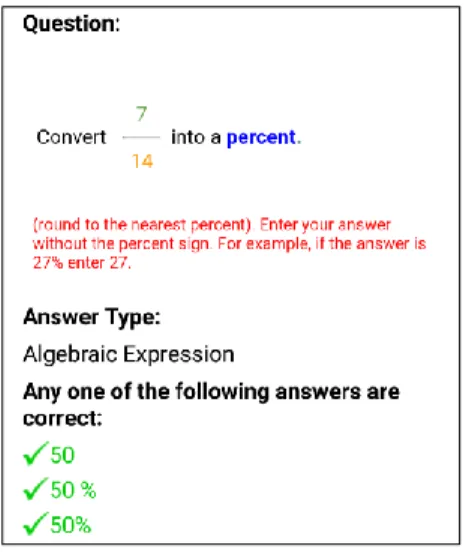
make a useful video hint. This included the problem title, the question body, the answer type,
and the answers. Because we wanted to be consistent with the ASSISTments web application
when displaying answers, we made each right answer in green text with a green checkmark next
to it, and each wrong answer in red text with a red checkmark next to it. Also, we showed
different answers depending on the answer type. For answer types that were “Multiple Choice”
or “Check All That Apply”, we show the correct answer and all the incorrect answers. For all
other answer types, we display only the correct answers. Because a student answering a question
that is not of the answer type “Check All That Apply” or “Multiple Choice” and that has multiple
correct answers only needs to put in one of the correct answers to get the problem right, we also
set the answer header text in a way that helped teachers better understand correct and incorrect
answers they could receive from the student, relative to the answer type.
4
Figure 2 Answer display with multiple correct answersFigure 3 Answer display for one correct answer
Adding Video Hints to Problems
For adding video customizations, we decided to use the built-in functionality of the
device’s camera, in order to simplify the design. We wanted to give users the option of
recording a new video or selecting one from their device storage, since there is a definite
possibility that a teacher may want to reuse a video hint they had previously created and saved
on their device.
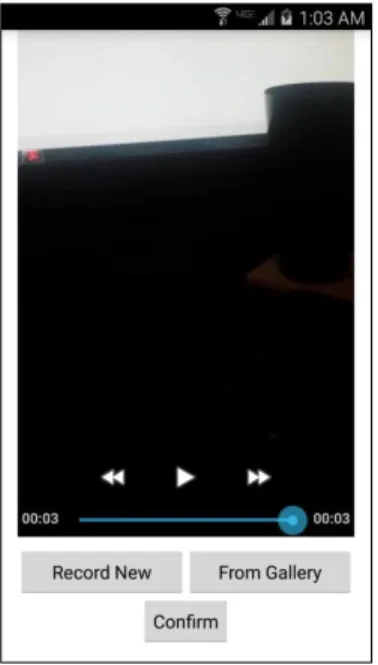
In addition, we decided to include a feature of previewing a video they selected before
adding it as a hint to the problem, as some users may select a video and change their minds later
about it. It also gives the teacher an idea what their students will see and what information the
video is giving them. While previewing, we gave the options of replacing the video or
confirming it to be used as a video hint. If they want to replace it, they can touch the button that
corresponds to where they want to obtain the new video, and upon selection, the new video will
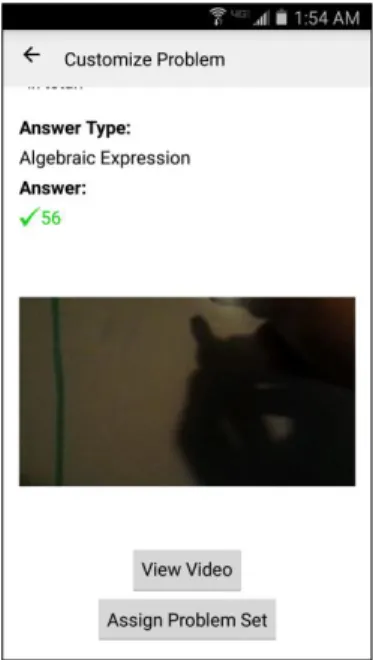
replace the old one in the preview. If the user decides to confirm it, they will be taken back to
the problem view and there will be a screenshot of the video and buttons for viewing the video,
which will show the video in fullscreen mode, and assigning the problem set.
5
Assigning Problem Sets
In order to assign a problem set, a significant amount of information needs to be obtained
for the server. Specifically, the class to assign the problem set and the desired release date and
due date for the assignment needed to be provided for the mobile server to assign a problem set.
The release date and due date are not required in order for ASSISTments to assign a problem set,
but we needed to include the option of specifying those dates because the ASSISTments web
application has that capability for assignments, and we tried to make the mobile and web clients
as close as possible for users. The class information, on the other hand, is the default class for
the teacher in ASSISTments, and it was provided to the application by the mobile server when
the user logged in.
For assigning problem sets, we implemented 2 options for teachers. The first option is to
directly assign a problem set without customizing it. Here, the user simply needs to select the
release date and the due date for the assignment, and then it assigns the problem set to the
teacher’s default class in ASSISTments. This option provides a quick and straightforward way
for teachers who want to simply assign skill builders to students without modifying them.
The second assignment option we included was assigning the problem set with a
customized video hint added to a problem. For this option, when the user assigns the problem,
they are asked a short 2 question survey about their video. They are asked whether or not the
problem gives the final answer and if their video is general enough where it can be used for
similar problems. Then, the video they created is uploaded to YouTube, with their survey
answers as YouTube keywords for the video. After the video has been uploaded, a new problem
set with all the same problems is created, with the video hint they added embedded into an
iframe as the first hint to the problem they customized, and the customized problem being the
first problem in the set. The teacher then selects the release and due dates, much like the first
option of assigning a problem. Then, the new problem set is assigned to all of the students in the
teacher’s default class, with the customized problem either being first or third in the set, and the
video hint being the first hint of the problem.
Implementation
Overview
Because the existing ASSISTments mobile application has versions for both iOS and
Android systems, our application needed to be implemented separately for each operating
system, as it was essentially an add-on to the current ASSISTments mobile application. I
worked on the Android version for this project, while two graduate students in Professor
Heffernan’s graduate class on online learning, Xu Han and Fan Yang, implemented the iOS
version of the application. As was the intention from the start of the project, the two versions are
almost exactly the same in terms of their design and functionality. There were some slight
6
differences between the two because of the fact that the iOS and Android systems, and
consequently their native applications, do not behave the same way.
Native Android applications are typically written in Java and XML. The behavior and
functionality of the app is handled by the Java code. The static layouts, static behaviors such as
custom styles and animations, and Android resource values are written as XML files. Google
has made several resources available for programming Android applications, including an
application programming interface (API), tutorials, code samples, and an integrated development
environment (IDE).
3Selecting Problem Sets to Customize
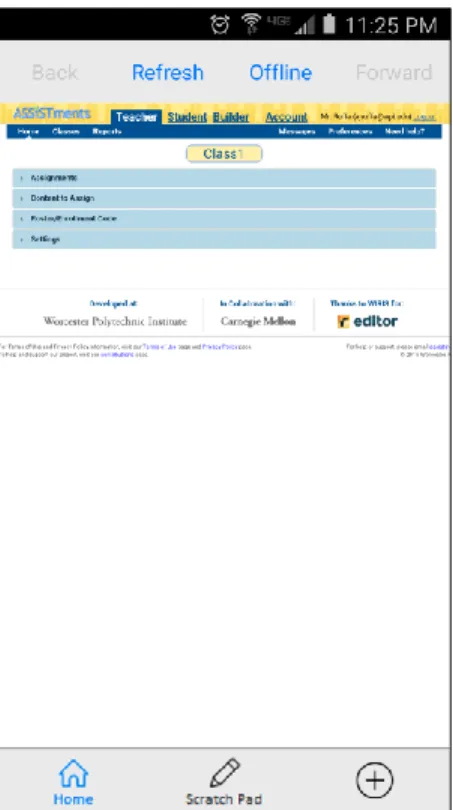
Before this project started, when a teacher logs in to ASSISTments using the mobile
application, there would be a gray tab bar with two tabs on the bottom of the screen. The tabs
are for the main ASSISTments view and for the application’s scratch pad. For this project, we
added a third tab to the tab bar, which is for customizing skill builder problem sets. This tab is
only accessible to teachers, meaning if a student logs in to the mobile application, they will not
see this tab at all.
Figure 4 The tab bar as it appears to a teacher
When this tab is clicked, the application will fetch the problem set lists from the mobile server
and display them as layers of lists to the user. The first layer is the subjects, which for this
project only consists of math, but will later be extended for more subjects as they gain support
3
7
for the mobile server. The second layer is grades, ranging from 2nd grade to college readiness
skill builders. The third layer is the problem sets for the corresponding grade and subject. The
titles for the problem sets are displayed as red text, while the grades and subjects are in black
text, in order to remain consistent with the ASSISTments web display of problem set titles.
From the problem set list, the teacher can click on a problem set they want to customize,
and a dialog will appear asking them if they want to customize the problem set. From here, they
can close the dialog and return to the list view, directly assign the problem set without changing
it, or customize the problem set and then assign it.
In addition, we also implemented the problem set list interface in a way that, should they
decide to navigate to another tab in the tab bar and back to the problem customization tab, they
will not have to navigate again to the grade and problem set list they had been viewing. The
application will also not have to fetch the problem set lists again from the server until the user
exits the application entirely, saving time and making the application perform more efficiently.
Displaying Problems to the User
When the user selects that they want to customize a problem set, they are directed to a
screen that displays the problem information, including the question, the answer type, and the
answer(s). The question body is in HTML format, the answer type is in plain text, and the
answers can either be in plain text or in HTML.
Because of the fact that the default Android HTML parser cannot handle images or
tables, and many skill builder problems have HTML tables with background images. As a result,
I decided to use an Android WebView to display the question body, since a WebView takes a
web page or HTML and displays it as it would on a web browser.
The answers can be either in HTML or plain text, and for this I decided to use Android’s
default HTML parser and use a custom image parser for images. This is because, in cases of
displaying multiple answers where there is a list of answers, displaying the answers as Android
TextViews rather than having multiple WebViews was less complicated and was simpler to
format for the user. For the answer display, if the answer type is either “Multiple Choice” or
“Check All That Apply”, it will display the correct answer in green text with a green checkmark
image next to it, and the incorrect answers in red text with a red X image next to it.
If the answer type is not “Multiple Choice” or “Check All That Apply”, it will display
only the correct answer(s) to the teacher, and it will set the answer text header to say that “any
one of the following answers are correct” for instances with multiple correct answers, to make it
more clear to the teachers that the student needs any one of the listed answers to get the problem
right. Below the answers, there is a button that, when clicked, will start the process for adding a
video hint to the problem.
Adding Video Hints to Problems
When the user selects that they want to add a video hint, a dialog will appear to ask the
teacher to either record a new video or select an existing one, and then it will open a new
8
Android activity to add the video. Here, the video preview activity will start and obtain a video
based on what the user selected. If a new video is to be recorded, it will open the device’s
camera and allow the user to record the video. If the user wants to select an existing video, the
device’s video gallery will open, from which the user can select a video to use.
Once a video is chosen, the application goes back to the preview activity with the video
and inserts it into a preview box. There are also options for the user to either record a new video,
select another video from the device, or confirm the currently selected video.
Figure 5 Example of a video preview
When a user confirms the video, they are taken back to the problem display, and a thumbnail
image of the video will appear, along with buttons for the options to view the video in fullscreen
mode or to assign the problem set.
9
Figure 6 Problem display with video hintAssigning Problem Sets
When a user wants to assign a problem set with a customization, they are given a small
survey to answer related to their video hint. The answers will be uploaded as tags (YouTube
keywords) with the video to YouTube, and they will also be pushed to the server for
experimentation. After the video is uploaded, the server will create a new problem set and then a
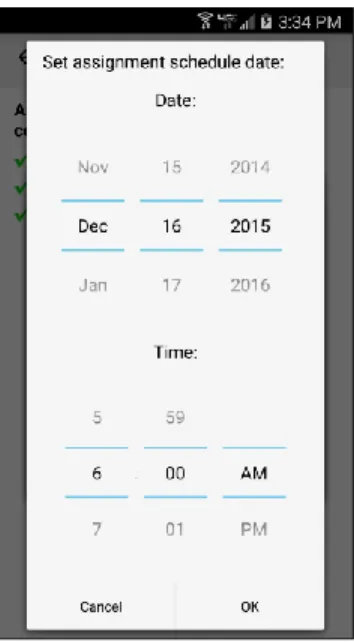
dialog will appear to let the user optionally add a release date and due date to the assignment. To
set a date, the user clicks the corresponding button and a series of spinners will appear to let the
user modify the date as needed. When they confirm their date, it will show as text right above
the corresponding button. If no date was selected, the date will show as “None”.
10
Figure 8 Date and time value spinnersOnce the dates are confirmed, the problem will be pushed to the server and assigned to students
in the teacher’s default class.
When a teacher wants to assign a problem set without customizing it, the same date and
time picker dialog will appear for scheduling a release date and a due date, and then the skill
builder set will be assigned to students. The only difference here is that the main date and time
picker dialog has a button allowing the user to cancel, whereas for the other case, there is no
cancel button. This is due to the fact that at that point, their video has already been uploaded to
YouTube and a new problem set has already been created, and enforcing assignment of a
problem set after uploading a video is a good way to prevent too much unused data from getting
pushed to YouTube.
Once a problem set is assigned, the teacher can log in to their ASSISTments account and
they can see the problem set under “Assignments Folder” in their assignments. If they test drive
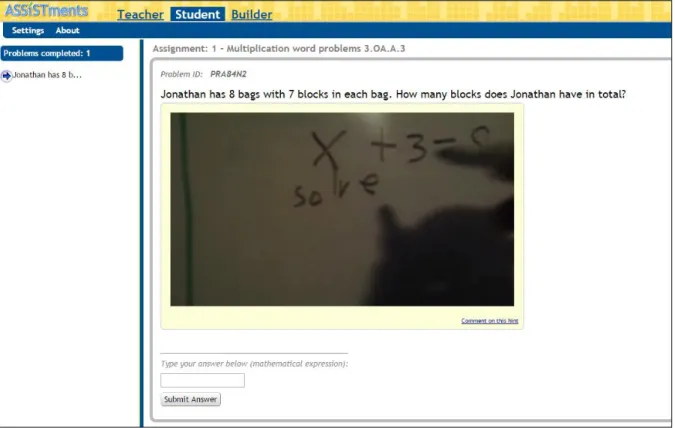
the problem set, they will see that their customized problem is either first or third in the set. In
addition, the students in the class will also see the new assignment and be able to start working
on it. The placement of the problem involves conditions that the server implements for giving
the problem set to the student, as well as randomized control trials that ASSISTments will be
performing using the video hints created with this application.
11
Figure 9 A problem and video hint added from a mobile device on ASSISTmentsUse Cases
Direct Assign
1.
The teacher logs in to the application.
2.
The teacher clicks third tab on bottom tab bar.
3.
The skill builder lists load from the server and display to the user.
4.
The teacher selects the subject from the displayed lists (initially only Math).
5.
The list of grades show up, from which the teacher selects the desired grade.
6.
The list of problem sets for that grade show up.
7.
The teacher selects a problem set they want to assign.
8.
A dialog asking the teacher “Do you want to customize this problem set?” appears, with
buttons to Cancel, Assign, or Customize and Assign.
9.
The teacher clicks the Assign button.
10. A confirmation dialog asking the teacher “Do you want to assign this problem set?”
appears, with buttons to Cancel or Assign.
11. The teacher clicks the Assign button on the confirmation dialog.
12. A dialog instructing the teacher to optionally select a release date and a due date for the
assignment, with buttons for each date and text above each button displaying the
currently set release/due date, initially set to “None”. The dialog also contains buttons
12
for canceling assignment and assigning the problem set, which can be done without
setting dates.
13. If the teacher wants to set release and/or due dates, they click the button corresponding to
which date they want to set.
14. A dialog with spinners for date and time values appears to the teacher.
15. The teacher selects the date and time they want to set.
16. If the teacher wants to cancel the time selection, they click the Cancel button. If they
want to confirm the time, they click the OK button.
17. The time the teacher has set appears above the respective button to show them the current
time that is set for that date, whether it is the release date or the due date.
18. When the teacher is satisfied with the times they set, they click Assign.
19. The problem set is pushed to the server and a dialog indicating the status is shown to the
teacher. The text says “Problem set assigned” if assigned successfully or “Problem set
could not be assigned.” if there was an error in assigning the problem.
20. The teacher clicks the OK button and the dialog closes, returning the teacher to the
problem set list they were viewing.
Customize Problem Then Assign
1.
The teacher logs in to the application.
2.
The teacher clicks third tab on bottom tab bar.
3.
The skill builder lists load from the server and display to the user.
4.
The teacher selects the subject from the displayed lists (initially only Math).
5.
The list of grades show up, from which the teacher selects the desired grade.
6.
The list of problem sets for that grade show up.
7.
The teacher selects a problem set they want to assign.
8.
A dialog asking the teacher “Do you want to customize this problem set?” appears, with
buttons to Cancel, Assign, or Customize and Assign.
9.
The teacher clicks the Customize and Assign button.
10. The server retrieves a medium difficulty problem from the problem set and shows it to
the teacher in a new activity.
11. The teacher clicks the Add Video Hint button displayed below the answers.
12. A dialog pops up to the user asking if they want to record a new video or select an
existing one.
13. If the teacher decides to record a new video, the device camera opens. If they decide to
select an existing video, the device’s video gallery opens.
14. The teacher records or selects the video, then a video preview screen pops up, with the
video playing in a video player, and buttons to replace the video or to confirm it.
15. Once the teacher is satisfied with their video, they click the Confirm button.
16. The preview activity closes, and the teacher is returned to the problem view, with a
thumbnail for the video and options to view the video or assign the problem set present.
13
17. The teacher clicks the Assign Problem Set button.
18. A dialog appears, with a short message explaining the survey and the first question for
the survey, to which the user can answer Yes or No.
19. The second survey question appears in a new dialog, with options for Yes or No.
20. A dialog appears informing the user that the video is being uploaded to YouTube, with a
progress bar displaying the progress of the upload.
21. When the video finishes uploading, a dialog pops up, with a progress spinner and text
informing the teacher that the upload is complete and a new problem set with the video
hint is being created.
22. A dialog instructing the teacher to optionally select a release date and a due date for the
assignment, with buttons for each date and text above each button displaying the
currently set release/due date, initially set to “None”. The dialog also contains a button
for assigning the problem set, which can be done without setting dates.
23. If the teacher wants to set release and/or due dates, they click the button corresponding to
which date they want to set.
24. A dialog with spinners for date and time values appears to the teacher.
25. The teacher selects the date and time they want to set.
26. If the teacher wants to cancel the time selection, they click the Cancel button. If they
want to confirm the time, they click the OK button.
27. The time the teacher has set appears above the respective button to show them the current
time that is set for that date, whether it is the release date or the due date.
28. When the teacher is satisfied with the times they set, they click Assign.
29. The problem set is pushed to the server and a dialog indicating the status is shown to the
teacher. The text says “Problem set assigned” if assigned successfully or “Problem set
could not be assigned.” if there was an error in assigning the problem.
30. The teacher clicks the OK button and the dialog closes, closing the problem view and
returning the teacher to the problem set list they were previously viewing.
Future Work
Because of the limited amount of time I had to work on this project, there are a number of
features I was unable to implement. One such feature is showing a teacher some examples of
videos made using this application, either to give them an idea of a good video to create for a
problem set they want to customize, or to even use those examples directly and insert them as
hints for their problem sets. To do this, one option is to further utilize the YouTube API for
organizing videos. For example, we could create a playlist for each skill builder based on its
sequence ID. We could then use the playlist to show teachers videos other teachers made for that
specific skill builder problem set.
In addition to showing example videos to teachers, we would also like to give the option
of inserting a video hint using the scratch pad feature that the mobile application has. Some
14
teachers may feel they can best give a hint for a specific problem using the scratch pad feature,
and thus we want to enable them to use the scratch pad for that purpose.
Furthermore, we want to have a web version of the functionality implemented in the
mobile application. The main reason for this is to give teachers options for how to use the
customization functionality. Video recording is usually easier on a mobile device because many
smartphones and tablets have cameras and it is easy with a smartphone or a tablet to move the
camera as needed to take a video. However, some teachers may prefer recording videos using
the web with a computer webcam instead of using the camera on their smartphone or tablet.
Lastly, we would potentially want to allow the teacher to test a problem from the mobile
app from a student’s perspective. The ASSISTments web application allows teachers to “test
drive” a problem set before they assign it to students. That feature on the mobile application
could come in handy if the teacher wants to see what their customization looks like to the
students that would be working on these problems.
Appendix
Important Links
ASSISTments mobile application on the Google Play store:
https://play.google.com/store/apps/details?id=com.wpi.assistment
Contact Information
For any questions, please email
[email protected]
Source Code
Only new and modified code is listed here. The method signatures for the methods containing
any modified code are also listed. Unchanged code in a file or method is represented by the
following symbol: //…..//
Java Code
java/com/wpi/assistment/TeacherProblemActivity.java
package com.wpi.assistment; import android.app.Activity; import android.app.AlertDialog; import android.app.ProgressDialog; import android.content.DialogInterface; import android.content.Intent; import android.database.Cursor; import android.graphics.Bitmap; import android.graphics.Color; import android.graphics.drawable.Drawable; import android.media.ThumbnailUtils; import android.net.Uri; import android.os.AsyncTask;15
import android.os.Bundle; import android.provider.MediaStore; import android.text.Html; import android.util.Log; import android.view.MenuItem; import android.view.View; import android.webkit.WebView; import android.widget.Button; import android.widget.ImageView; import android.widget.LinearLayout; import android.widget.RelativeLayout; import android.widget.TextView; import android.widget.Toolbar; import org.apache.http.HttpStatus; import org.json.JSONArray; import org.json.JSONException; import org.json.JSONObject; import java.io.BufferedInputStream; import java.io.DataOutputStream; import java.io.IOException; import java.net.HttpURLConnection; import java.net.MalformedURLException; import java.net.SocketTimeoutException; import java.net.URL;public class TeacherProblemActivity extends Activity {
private int VIDEO_REQUEST = 1;
private Button addVideoHint; private Button viewVideoButton;
private ImageView videoHintScreenshot;
private RelativeLayout videoLayout;
private LinearLayout problemAnswersLayout;
private WebView problemQuestion; private TextView problemAnswersHeader;
private String problemJsonString; private String problemId; private String contentCreatorId; private int sequenceId;
private String classId; private String className;
private String firstPostQuestionOption = ""; private String secondPostQuestionOption = "";
private String username; private String password;
16
@Override
protected void onCreate(Bundle savedInstanceState) { super.onCreate(savedInstanceState);
setContentView(R.layout.activity_teacher_problem);
username = getIntent().getStringExtra("username"); password = getIntent().getStringExtra("password");
contentCreatorId = getIntent().getStringExtra("contentCreatorId"); sequenceId = getIntent().getIntExtra("sequenceId", -1);
classId = getIntent().getStringExtra("classId"); className = getIntent().getStringExtra("className");
Toolbar problemToolbar = (Toolbar) findViewById(R.id.problemToolbar); setActionBar(problemToolbar);
enableMenuNavigation();
// Store the JSON for the problem.
problemJsonString = getIntent().getStringExtra("problemJson");
// Display the problem set title.
TextView problemSetTitle = (TextView) findViewById(R.id.problemSetTitle); problemSetTitle.setText(getIntent().getStringExtra("problemSetTitle"));
problemId = getIntent().getStringExtra("problemId");
problemQuestion = (WebView) findViewById(R.id.problemQuestion); problemQuestion.getSettings().setBuiltInZoomControls(true);
problemQuestion.getSettings().setDisplayZoomControls(false); problemQuestion.getSettings().setLoadWithOverviewMode(true); problemQuestion.getSettings().setJavaScriptEnabled(true);
problemAnswersHeader = (TextView) findViewById(R.id.problemAnswersHeader); TextView problemAnswerType = (TextView) findViewById(R.id.problemAnswerType);
videoHintScreenshot = (ImageView) findViewById(R.id.videoHintScreenshot); videoHintScreenshot.setVisibility(View.GONE);
addVideoHint = (Button) findViewById(R.id.addVideoHint); addVideoHint.setOnClickListener(videoHintButtonListener());
viewVideoButton = (Button) findViewById(R.id.viewVideoButton);
videoLayout = (RelativeLayout) findViewById(R.id.videoPlayerLayout); videoLayout.setVisibility(View.GONE);
problemAnswersLayout = (LinearLayout) findViewById(R.id.problemAnswersLayout);
String problemText = getIntent().getStringExtra("problemQuestion"); String problemAnswers = getIntent().getStringExtra("problemAnswers");
if (problemText != null && problemAnswers != null) {
// Show the answer type header in bold and the answer type not in bold. String answerType = getIntent().getStringExtra("problemAnswerType");
17
problemAnswerType.setText(answerType);
showProblemContent(problemText, answerType, problemAnswers); }
}
@Override
public void onBackPressed() { super.onBackPressed(); finish();
overridePendingTransition(R.anim.slide_in_left, R.anim.slide_out_right); }
/**
* Set the action bar title and enable menu navigation. */
public void enableMenuNavigation() {
getActionBar().setDisplayHomeAsUpEnabled(true);
Drawable arrow = getResources().getDrawable(R.drawable.abc_ic_ab_back_mtrl_am_alpha); arrow.mutate();
arrow.setTint(Color.BLACK);
getActionBar().setHomeAsUpIndicator(arrow); getActionBar().setTitle("Customize Problem"); }
@Override
public boolean onOptionsItemSelected(MenuItem item) { // Handle action bar item clicks here. The action bar will // automatically handle clicks on the Home/Up button, so long // as you specify a parent activity in AndroidManifest.xml. int id = item.getItemId(); //noinspection SimplifiableIfStatement if (id == android.R.id.home) { finish(); overridePendingTransition(R.anim.slide_in_left, R.anim.slide_out_right); return true; }
return super.onOptionsItemSelected(item); }
/**
* Show the content for the given problem. *
* @param questionText the question, as HTML
* @param problemAnswerType the problem's answer type * @param problemAnswers the answers, as a JSON string */
public void showProblemContent(String questionText, String problemAnswerType, String problemAnswers) { try {
String metaScale = "<meta name=\"viewport\" content=\"width=device-width, initial-scale=1.0, user-scalable=yes\"/>";
String imgScale = "<style>img, iframe { max-width: 100%; }</style>";
String answerHtml = "<head>" + metaScale + imgScale + "</head><body>" + metaScale + questionText +
"</body>";
18
boolean includeMultipleAnswers = hasMoreThanOneCorrectAnswer(problemAnswerType, problemAnswers); boolean includeIncorrectAnswers = false;
if (includeMultipleAnswers) {
if ("Multiple Choice".equals(problemAnswerType)
|| "Check All That Apply".equals(problemAnswerType)) { // Pluralize the header since there will be multiple answers displayed. problemAnswersHeader.setText(R.string.multiple_answers_header); includeIncorrectAnswers = true;
} else {
// Change the header text to make the answers display more clear to the user. problemAnswersHeader.setText(R.string.multiple_correct_answers_header); }
}
// Get the answer(s) and display each of them below the question. JSONArray answerListJSON = new JSONArray(problemAnswers);
for (int i = 0; i <= answerListJSON.length() - 1; i++) {
JSONObject answerJSON = answerListJSON.getJSONObject(i);
String value = answerJSON.getString("value");
boolean isCorrect = answerJSON.getBoolean("isCorrect");
TextView answerView = new TextView(this);
answerView.setText(Html.fromHtml(value, new HTMLImageParser(TeacherProblemActivity.this, answerView),
null));
answerView.setTextAppearance(this, android.R.style.TextAppearance_Medium);
LinearLayout.LayoutParams answerViewParams = new LinearLayout.LayoutParams(
RelativeLayout.LayoutParams.MATCH_PARENT, RelativeLayout.LayoutParams.WRAP_CONTENT); answerViewParams.setMargins(0, 0, 0, 10);
answerView.setId(i);
// Include the proper images and change the text color if needed. if (includeMultipleAnswers) { if (isCorrect) { answerView.setCompoundDrawablesWithIntrinsicBounds(R.drawable.check, 0, 0, 0); answerView.setTextColor(Color.parseColor("#02cd07")); answerView.setLayoutParams(answerViewParams); problemAnswersLayout.addView(answerView); } else { if (includeIncorrectAnswers) { answerView.setCompoundDrawablesWithIntrinsicBounds(R.drawable.x, 0, 0, 0); answerView.setTextColor(Color.parseColor("#cd0202")); answerView.setLayoutParams(answerViewParams); problemAnswersLayout.addView(answerView); } } } else { if (isCorrect) { answerView.setCompoundDrawablesWithIntrinsicBounds(R.drawable.check, 0, 0, 0); answerView.setTextColor(Color.parseColor("#02cd07")); answerView.setLayoutParams(answerViewParams); problemAnswersLayout.addView(answerView); break; }
19
} } } catch (Exception e) { e.printStackTrace(); } } /*** Check if a problem has more than one right answer. *
* @param problemAnswerType the answer type * @param problemAnswers the answers
* @return true if there is more than one right answer, false otherwise */
private boolean hasMoreThanOneCorrectAnswer(String problemAnswerType, String problemAnswers) { if ("Multiple Choice".equals(problemAnswerType)
|| "Check All That Apply".equals(problemAnswerType)) { return true;
}
try {
JSONArray answerListJSON = new JSONArray(problemAnswers); int numCorrect = 0;
for (int i = 0; i < answerListJSON.length(); i++) {
JSONObject answerJSON = answerListJSON.getJSONObject(i); if (answerJSON.getBoolean("isCorrect")) { numCorrect++; } } return numCorrect > 1; } catch (Exception e) { e.printStackTrace(); } return false; } /**
* Show dialog allowing the teacher to select options for adding a video. */
protected void showVideoOptionsDialog() {
final AlertDialog.Builder videoOptions = new AlertDialog.Builder(TeacherProblemActivity.this, AlertDialog.THEME_HOLO_LIGHT);
final Intent videoIntent = new Intent(this, VideoPreviewActivity.class);
String[] options = new String[2]; options[0] = "Record from camera"; options[1] = "Select an existing video";
videoOptions.setItems(options, new DialogInterface.OnClickListener() { @Override
public void onClick(DialogInterface dialogInterface, int i) { // Indicate whether to record a new video or select an existing one. switch (i) {
case 0:
20
break; case 1:
videoIntent.putExtra("recordNewVideo", false); break; default: break; } startActivityForResult(videoIntent, VIDEO_REQUEST); } }).create().show(); } /**
* Set options for video playback and manipulation. *
* @param data the uri of the video */
protected void setVideoPlaybackOptions(final Uri data) {
viewVideoButton.setOnClickListener(new View.OnClickListener() { @Override
public void onClick(View view) { // Play the video.
Intent playVideoIntent = new Intent(TeacherProblemActivity.this, VideoPlayerActivity.class); playVideoIntent.setData(data); startActivity(playVideoIntent); } }); } @Override
protected void onActivityResult(int requestCode, int resultCode, final Intent data) { super.onActivityResult(requestCode, resultCode, data);
if (requestCode == VIDEO_REQUEST && resultCode == RESULT_OK) { final Uri videoUri = data.getData();
videoHintScreenshot.setVisibility(View.VISIBLE); videoHintScreenshot.setImageBitmap(getVideoThumbnail(videoUri)); videoLayout.setVisibility(View.VISIBLE); setVideoPlaybackOptions(videoUri); setButtonToAssign(videoUri); } } /**
* Generate an image thumbnail from a video. *
* @param videoUri the uri of the video * @return the generated image bitmap */
private Bitmap getVideoThumbnail(Uri videoUri) { String videoPath;
String[] filePathColumn = {MediaStore.Images.Media.DATA};
21
if (cursor != null) { cursor.moveToFirst();
int columnIndex = cursor.getColumnIndexOrThrow(filePathColumn[0]); videoPath = cursor.getString(columnIndex);
cursor.close(); } else {
videoPath = videoUri.getPath(); }
return ThumbnailUtils.createVideoThumbnail(videoPath, MediaStore.Images.Thumbnails.MINI_KIND); }
/**
* Set the video hint button to assign the problem. *
* @param videoUri the uri of the video hint. */
private void setButtonToAssign(final Uri videoUri) {
// Change the add video button to have it post the problem to the server. addVideoHint.setText(R.string.assign_problem_set);
addVideoHint.setOnClickListener(assignButtonListener(videoUri)); }
/**
* The listener to show the video options to the user. *
* @return the listener */
private View.OnClickListener videoHintButtonListener() { return new View.OnClickListener() {
@Override
public void onClick(View view) { showVideoOptionsDialog(); }
}; }
/**
* The listener to assign the problem set and upload the video. *
* @param videoUri the uri of the video to upload * @return the listener
*/
private View.OnClickListener assignButtonListener(final Uri videoUri) { return new View.OnClickListener() {
@Override
public void onClick(View view) { showAssignConfirmDialog(videoUri); }
}; }
private void showAssignConfirmDialog(final Uri videoUri) {
AlertDialog.Builder assignConfirmDialog = new AlertDialog.Builder(TeacherProblemActivity.this, AlertDialog.THEME_HOLO_LIGHT);
22
assignConfirmDialog.setPositiveButton(R.string.assign, new DialogInterface.OnClickListener() { @Override
public void onClick(DialogInterface dialogInterface, int i) { showProblemFeedbackDialogs(videoUri);
}
}).setNegativeButton(android.R.string.cancel, new DialogInterface.OnClickListener() { @Override
public void onClick(DialogInterface dialogInterface, int i) { dialogInterface.cancel(); } }); assignConfirmDialog.create().show(); } /**
* Get the full string path for the given uri. *
* @param contentUri the uri to check * @return the real string path */
public String getRealPathFromURI(Uri contentUri) { Cursor cursor = null;
String path = null; try {
String[] proj = { MediaStore.Images.Media.DATA };
cursor = getContentResolver().query(contentUri, proj, null, null, null); if (cursor != null) {
cursor.moveToFirst();
int columnIndex = cursor.getColumnIndexOrThrow(proj[0]); path = cursor.getString(columnIndex); } } finally { if (cursor != null) { cursor.close(); } } return path; } /**
* Async task to upload the video to YouTube and assign the problem set after. *
* @param data the uri of the video */
private void uploadVideoToYouTube(final Uri data) { new AsyncTask<Void, Integer, String>() {
final ProgressDialog progressDialog = new ProgressDialog(TeacherProblemActivity.this, ProgressDialog.THEME_HOLO_LIGHT);
@Override
protected void onPreExecute() {
progressDialog.setProgressStyle(ProgressDialog.STYLE_HORIZONTAL); progressDialog.setTitle("Please wait");
progressDialog.setMessage("Uploading video to YouTube..."); progressDialog.setCancelable(false);
progressDialog.show();
progressDialog.setCanceledOnTouchOutside(false); }
23
@Override
protected String doInBackground(Void... voids) {
YoutubeUploadRequest uploadRequest = new YoutubeUploadRequest(); String absPath = getRealPathFromURI(data);
if (absPath != null) {
uploadRequest.setStrUri(absPath); } else {
uploadRequest.setUri(data); }
uploadRequest.setTitle("SQ[" + sequenceId + "] P[" + problemId + "] CC[" + contentCreatorId + "]"); uploadRequest.setCategory("Education");
uploadRequest.setDescription("ProblemID: " + problemId);
// Set the appropriate video tags based on the post-customization answers. StringBuilder builder = new StringBuilder();
builder.append(uploadRequest.getTags()); if (!"".equals(firstPostQuestionOption)) { builder.append(","); builder.append(firstPostQuestionOption); } if (!"".equals(secondPostQuestionOption)) { builder.append(","); builder.append(secondPostQuestionOption); } uploadRequest.setTags(builder.toString());
return YoutubeUploader.upload(uploadRequest, new YoutubeUploader.ProgressListner() { @Override
public void onUploadProgressUpdate(int progress) { publishProgress(progress);
}
}, TeacherProblemActivity.this); }
@Override
protected void onProgressUpdate(Integer... values) { progressDialog.setProgress(values[0]); if (values[0] == 100) { progressDialog.dismiss(); } } @Override
protected void onPostExecute(String result) { if (result == null) {
progressDialog.dismiss();
showAssignmentErrorDialog("Unable to upload the video.", new DialogInterface.OnClickListener() { @Override
public void onClick(DialogInterface dialogInterface, int i) { uploadVideoToYouTube(data);
24
}); } else { try {
JSONObject problemJson = new JSONObject(problemJsonString);
String hintBody = "<p><iframe src='https://www.youtube.com/embed/" + result + "?autoplay=1&rel=0&showinfo=0' width='560' height='315' frameborder='0' allowfullscreen='allowfullscreen'></iframe></p>";
boolean givesAnswer = firstPostQuestionOption.equals("gives-answer-yes");
boolean genericExplanation = secondPostQuestionOption.equals("generic-explanation-yes");
// Add and remove fields from the JSON as needed. problemJson.put("video_hint", hintBody);
problemJson.put("content_creator_id", Integer.parseInt(contentCreatorId)); problemJson.put("sequence_id", sequenceId);
problemJson.put("gives_answer", givesAnswer);
problemJson.put("generic_explanation", genericExplanation); problemJson.remove("body"); problemJson.remove("answer"); problemJson.remove("problem_type"); createProblemSetWithVideoHint(problemJson); } catch (Exception e) { e.printStackTrace(); } }
Log.d("TeacherProblemActivity", "Video URL: https://www.youtube.com/watch?v=" + result); }
}.execute(); }
/**
* Show the dialogs that ask the teacher certain questions regarding their customization. *
* @param videoUri the video URI to upload after the user is done answering the questions */
private void showProblemFeedbackDialogs(final Uri videoUri) { // Show the dialogs and retrieve the input selections.
String firstMessage = getResources().getString(R.string.thankYouMessage) + "\n\n" + getResources().getString(R.string.customizeQuestion1);
showQuestionDialog(firstMessage, new DialogInterface.OnClickListener() { @Override
public void onClick(DialogInterface dialogInterface, int i) { switch(i) { case DialogInterface.BUTTON_POSITIVE: firstPostQuestionOption = "gives-answer-yes"; break; case DialogInterface.BUTTON_NEUTRAL: firstPostQuestionOption = "gives-answer-no"; break; default: break; } showQuestionDialog(getResources().getString(R.string.customizeQuestion2), new DialogInterface.OnClickListener() { @Override
25
public void onClick(DialogInterface dialogInterface, int i) { switch(i) { case DialogInterface.BUTTON_POSITIVE: secondPostQuestionOption = "generic-explanation-yes"; break; case DialogInterface.BUTTON_NEUTRAL: secondPostQuestionOption = "generic-explanation-no"; break; default: break; }
alertDialogManager.showAlertDialog(TeacherProblemActivity.this, "", "Thank you for your feedback!",
null,
new DialogInterface.OnClickListener() { @Override
public void onClick(DialogInterface dialogInterface, int i) { uploadVideoToYouTube(videoUri); } } ); } }); } }); } /**
* Show a dialog to get input from the user for the given question. *
* @param question the question to ask the user
* @param listener the button listener, which is the same for both the yes and no buttons */
private void showQuestionDialog(String question, DialogInterface.OnClickListener listener) {
final AlertDialog.Builder questionDialog = new AlertDialog.Builder(this, AlertDialog.THEME_HOLO_LIGHT);
questionDialog.setCancelable(false); questionDialog.setMessage(question); questionDialog.setPositiveButton(R.string.yes, listener); questionDialog.setNeutralButton(R.string.no, listener); questionDialog.create().show(); } /**
* Post the problem JSON and assign it to students. *
* @param problemJSON the JSON for the problem to assign */
private void createProblemSetWithVideoHint(final JSONObject problemJSON) {
new AsyncTask<Void, Integer, String>() {
final ProgressDialog progressDialog = new ProgressDialog(TeacherProblemActivity.this, ProgressDialog.THEME_HOLO_LIGHT);
@Override
protected void onPreExecute() {
progressDialog.setProgressStyle(ProgressDialog.STYLE_SPINNER); progressDialog.setTitle("Please wait");
26
progressDialog.setMessage("Video upload complete. Creating problem set...");
progressDialog.setButton(DialogInterface.BUTTON_NEGATIVE, "Cancel", new
DialogInterface.OnClickListener() { @Override
public void onClick(DialogInterface dialogInterface, int i) { progressDialog.cancel();
} });
progressDialog.setOnCancelListener(new DialogInterface.OnCancelListener() { @Override
public void onCancel(DialogInterface dialogInterface) { cancel(true);
showAssignmentErrorDialog("Problem set could not be assigned.", new DialogInterface.OnClickListener() { @Override
public void onClick(DialogInterface dialogInterface, int i) { createProblemSetWithVideoHint(problemJSON); } }); } }); progressDialog.show();
progressDialog.setCanceledOnTouchOutside(false); }
@Override
protected String doInBackground(Void... voids) { String response = null;
HttpURLConnection connection = null;
try {
// Open the connection and set the content type.
URL connectionUrl = new URL("https://test1.assistments.org/mobile/createproblemset"); connection = (HttpURLConnection) connectionUrl.openConnection();
connection.setConnectTimeout(30000); connection.setReadTimeout(30000); connection.setDoOutput(true);
connection.setRequestProperty("Content-Type", "application/json");
// Pass in the data, and remove the backslashes in the JSON string.
DataOutputStream outputStream = new DataOutputStream(connection.getOutputStream()); outputStream.writeBytes(problemJSON.toString().replace("\\", ""));
outputStream.flush(); outputStream.close();
int responseCode = connection.getResponseCode();
if (responseCode == HttpStatus.SC_OK) {
response = ServerProblemHelper.readResponse(new BufferedInputStream(connection.getInputStream()));
JSONObject resultJson = new JSONObject(response); return Integer.toString(resultJson.getInt("sequence_id")); } else {
Log.v("TeacherProblemActivity", "Skill Builder JSON Response Code: " + responseCode); }
27
} catch (SocketTimeoutException e) { // If the request times out, inform the user.
showAssignmentErrorDialog("Request to assign problem set timed out.", new
DialogInterface.OnClickListener() { @Override
public void onClick(DialogInterface dialogInterface, int i) { // Try creating the problem set again.
createProblemSetWithVideoHint(problemJSON); } }); } catch (MalformedURLException e) { e.printStackTrace(); } catch (IOException e) { e.printStackTrace(); } catch (JSONException e) { e.printStackTrace(); } finally { if (connection != null) { connection.disconnect(); } } return response; } @Override
protected void onPostExecute(final String result) { progressDialog.dismiss();
if (result == null) {
showAssignmentErrorDialog("Unable to assign the problem set.", new DialogInterface.OnClickListener() { @Override
public void onClick(DialogInterface dialogInterface, int i) { // Try creating the problem set again.
createProblemSetWithVideoHint(problemJSON); }
}); } else {
ServerProblemHelper.assignProblemSet(TeacherProblemActivity.this, result, classId, className, username, password, false,
new DialogInterface.OnClickListener() { @Override
public void onClick(DialogInterface dialogInterface, int i) { finish(); } } ); } } }.execute(); } /**
* Show an error if the problem set could not be assigned, and allow the user to retry or assign without customizing. *
* @param message the error message to display to the user * @param retryListener the listener for the retry button */
private void showAssignmentErrorDialog(String message, DialogInterface.OnClickListener retryListener) { AlertDialog.Builder failDialog = new AlertDialog.Builder(TeacherProblemActivity.this,
28
failDialog.setIcon(R.drawable.fail); failDialog.setMessage(message);
// Invoke the retry functionality given as the method parameter. failDialog.setPositiveButton(R.string.retry, retryListener);
failDialog.setNeutralButton("Assign With No Customization", new DialogInterface.OnClickListener() { @Override
public void onClick(DialogInterface dialogInterface, int i) { // Assign the problem set with no customization.
ServerProblemHelper.assignProblemSet(getParent(),
Integer.toString(sequenceId), classId, className, username, password, true, new DialogInterface.OnClickListener() {
@Override
public void onClick(DialogInterface dialogInterface, int i) { finish();
} } ); }
}).setNegativeButton(android.R.string.cancel, new DialogInterface.OnClickListener() { @Override
public void onClick(DialogInterface dialogInterface, int i) { // Cancel assignment of the problem set.
dialogInterface.cancel(); } }); failDialog.create().show(); } }
java/com/wpi/assistment/TeacherProblemListActivity.java
package com.wpi.assistment; import android.app.Activity; import android.app.AlertDialog; import android.app.ProgressDialog; import android.content.DialogInterface; import android.content.Intent; import android.graphics.Color; import android.graphics.drawable.Drawable; import android.os.AsyncTask; import android.os.Bundle; import android.view.MenuItem; import android.view.View; import android.view.ViewGroup; import android.widget.AdapterView; import android.widget.ArrayAdapter; import android.widget.ListView; import android.widget.RelativeLayout; import android.widget.TextView; import android.widget.Toast; import android.widget.Toolbar; import org.json.JSONObject;29
import java.net.URLEncoder;import java.util.ArrayList;
import java.util.Iterator;
import java.util.List;
public class TeacherProblemListActivity extends Activity {
private ListView problemList; private JSONObject jsonObject;
private TeacherProblemNavigatorActivity navigation;
private String contentCreatorId; private String classId;
private String className;
private String username; private String password;
private int ASSIGN_REQUEST = 100;
@Override
protected void onCreate(Bundle savedInstanceState) { super.onCreate(savedInstanceState);
setContentView(R.layout.activity_teacher_problem_list);
contentCreatorId = getIntent().getStringExtra("contentCreatorId"); classId = getIntent().getStringExtra("classId");
className = getIntent().getStringExtra("className");
username = getIntent().getStringExtra("username"); password = getIntent().getStringExtra("password");
navigation = (TeacherProblemNavigatorActivity) getParent();
// Set the main toolbar for menu navigation.
Toolbar toolbar = (Toolbar) findViewById(R.id.mainToolbar); setActionBar(toolbar);
enableMenuNavigation();
problemList = (ListView) findViewById(R.id.listProblemSets);
String problemListData = getIntent().getStringExtra("teacherJson");
if (problemListData.equals("")) {
// Indicate to the user if there is no content.
RelativeLayout layout = (RelativeLayout) findViewById(R.id.problemListLayout); layout.removeView(problemList);
TextView emptyDirectoryText = new TextView(this);
emptyDirectoryText.setTextAppearance(this, android.R.style.TextAppearance_DeviceDefault_Large); emptyDirectoryText.setText(R.string.no_content);
RelativeLayout.LayoutParams textViewLayoutParams = new RelativeLayout.LayoutParams(
ViewGroup.LayoutParams.WRAP_CONTENT, ViewGroup.LayoutParams.WRAP_CONTENT); textViewLayoutParams.addRule(RelativeLayout.CENTER_HORIZONTAL);
30
emptyDirectoryText.setLayoutParams(textViewLayoutParams); layout.addView(emptyDirectoryText); } else { setListValues(problemListData); } } @Overridepublic boolean onOptionsItemSelected(MenuItem item) { int id = item.getItemId();
if (id == android.R.id.home) { navigation.closeActivity(); return true;
}
return super.onOptionsItemSelected(item); }
/**
* Set the action bar title and enable menu navigation. */
public void enableMenuNavigation() {
String currentFolder = getIntent().getStringExtra("folderName");
if (currentFolder == null) { currentFolder = "Skill Builders"; } else {
getActionBar().setDisplayHomeAsUpEnabled(true);
Drawable arrow = getResources().getDrawable(R.drawable.abc_ic_ab_back_mtrl_am_alpha); arrow.mutate(); arrow.setTint(Color.BLACK); getActionBar().setHomeAsUpIndicator(arrow); } getActionBar().setTitle(currentFolder); } /**
* Set the values for the problem list given a JSON string *
* @param jsonString the JSON string */
public void setListValues(String jsonString) { boolean atProblemSets = false;
try {
jsonObject = new JSONObject(jsonString); } catch (Exception e) {
e.printStackTrace(); }
final Iterator<String> jsonKeys = jsonObject.keys(); List<String> keys = new ArrayList<>();
31
String key = jsonKeys.next(); if (key.contains("ProblemSet")) { atProblemSets = true;
String title = null; try {
JSONObject problemSetObject = jsonObject.getJSONObject(key); title = problemSetObject.getString("Title");
} catch (Exception e) { e.printStackTrace(); } keys.add(title); } else { keys.add(key); } }
// Set the list text color as needed, changing it to red for problem sets. final boolean changeColor = atProblemSets;
problemList.setAdapter(new ArrayAdapter<String>(TeacherProblemListActivity.this, android.R.layout.simple_list_item_1, keys) {
@Override
public View getView(int position, View convertView, ViewGroup parent) { TextView textView = (TextView) super.getView(position, convertView, parent); if (changeColor) { textView.setTextColor(Color.parseColor("#cc0000")); } return textView; } });
final boolean selectedProblemSet = atProblemSets;
problemList.setOnItemClickListener(new AdapterView.OnItemClickListener() { @Override
public void onItemClick(AdapterView<?> adapterView, View view, int i, long l) { Intent intent;
String item = adapterView.getItemAtPosition(i).toString(); if (selectedProblemSet) {
int problemId = getProblemId(item); if (problemId != -1) {
showCustomizationDialog(problemId, item); } else if (classId == null && className == null) {
new AlertDialogManager().showAlertDialog(getParent(), "Error!", "You must have an active class to customize a problem set.", false);
} else {
Toast.makeText(getParent(), "An error occurred while trying to fetch the problem set.", Toast.LENGTH_LONG).show();
} } else {
intent = new Intent(TeacherProblemListActivity.this, TeacherProblemListActivity.class); intent.putExtra("folderName", item);
try {
String jsonItem = (jsonObject.getString(item) != null) ? jsonObject.getString(item) : ""; intent.putExtra("teacherJson", jsonItem);
intent.putExtra("username", username); intent.putExtra("password", password);
intent.putExtra("contentCreatorId", contentCreatorId); intent.putExtra("classId", classId);
32
} catch (Exception e) { e.printStackTrace(); }
navigation.replaceActivity(item, intent, true);
overridePendingTransition(R.anim.slide_in_right, R.anim.slide_out_left); } } }); } /**
* Get the ID of a problem set, given its title. *
* @param title the title of the problem set * @return the problem set's ID
*/
private int getProblemId(String title) {
final Iterator<String> jsonKeys = jsonObject.keys();
while (jsonKeys.hasNext()) { String key = jsonKeys.next(); try {
JSONObject problemSetObject = jsonObject.getJSONObject(key); if (title.equals(problemSetObject.getString("Title"))) {
return problemSetObject.getInt("Id"); } } catch (Exception e) { e.printStackTrace(); } } return -1;