C
ONTENTS
Preface ... 4
Additional Documentation ...4 Topic Navigation ...5 Text Conventions...5Installation ... 6
System Overview ...7Software Version Compatibility...8
System Installation Overview... 10
System Installation Overview for Remote Sites... 12
Recommended Installation Sequence... 13
Planning Your System and Network Configuration... 15
About Modes of Operation... 15
IP Addresses and Connectivity... 16
Extension Assignments... 17
Connecting Analog Devices to the ATA ... 18
Overhead Paging Overview... 20
Door Phones Overview... 23
Site Preparation... 26
Network Requirements... 26
Placement Considerations... 26
Power Considerations ... 27
Other Preparations... 27
Assigning Telephone Lines and Extensions... 28
Providing Limited Telephone Service During AC Power Outages ... 28
Analog Line Connection Order on PSTN Gateways... 28
ATA Fax Line Configuration... 29
Gateway and ATA Placement... 31
Rack Mounting ... 31 Wall Mounting... 32 Grounding ... 33 Gateway Installation ... 35 Deskset Installation... 38 SB67050 ATA Installation ... 45
Connecting a Fax Machine ... 46
Connecting an Overhead Paging System (OHP) ... 47
Connecting a Music on Hold Source ... 49
SB67040 Cordless Handset Installation... 50
Charger Installation... 50
Battery Installation... 51
Battery Charging ... 52
TL7600 Cordless Headset Installation ... 53
Charger Installation... 53 Battery Installation... 54 Battery Charging ... 55
Getting Started...56
PSTN Gateway Features... 57 T1 Gateway Features... 59SIP Gateway Features ... 61
Gateway Front Panel Interface... 63
Gateway Configuration... 64
Upgrade Gateway Software ... 65
ATA Features... 67
ATA Front Panel Interface ... 69
ATA Configuration... 70
Upgrade ATA Software ... 70
Resetting Devices... 72
Deskset IP Settings... 74
Set/Edit Static IP ... 75
IP Status... 76
Upgrade Deskset Software ... 77
System Configuration...78
WebUI Overview... 79
Log in as Administrator... 80
Error Handling... 82
System Settings... 83
Configuring a Trunk Port (FXO) Door Phone... 85
Line Calibration Configuration... 90
Updating Devices... 91
Product Registration ... 94
Troubleshooting ...95
Common Troubleshooting Procedures... 96
Resetting Devices... 96
Resolving General Functional Issues... 97
Initial Installation...105 Display Messages...106 T1 Gateway Indicators...109 PSTN Gateway Setup...111 WebUI...112 Administrator WebUI ...112 System Upgrade...117 User WebUI ...118 PC/Deskset Interaction ...119
Other Deskset Features...120
SB67050 Analog Terminal Adapter...123
General Troubleshooting...123
Music on Hold (MoH) ...125
Overhead Paging (OHP)...128
Fax Configuration ...137
Analog Phone...140
Group Mailbox...142
Appendixes... 143
Appendix A: Technical Specifications...143
Appendix B: Default Settings...146
Appendix C: Part Lists ...150
SB67010 PSTN Gateway Parts List ...150
SB67060 T1 Gateway Parts List ...151
SB67070 SIP Gateway Parts List...152
SB67050 Analog Terminal Adapter (ATA) Parts List ...153
SB67020 Deskset Parts List...154
SB67030/031 Deskset Parts List ...155
SB67040 Cordless Handset Parts List ...156
TL7600 Cordless Headset Parts List...157
Appendix D: Maintenance...158
Appendix E: Important Safety Instructions ...159
P
REFACE
This Installation Guide provides instructions for installing and setting up your Synapse system with software version 2.0 or later. See page 8 for instructions on checking the software version on the Gateway, the Deskset, and the ATA.
Before using this AT&T product, please read “Appendix E: Important Safety Instructions” on page 159. Please read this guide thoroughly for all the information necessary to install your new AT&T product.
Additional Documentation
Downloadable copies of all Synapse documents, including user’s and administrator’s guides, installation instructions and quick-start guides, are available at www.telephones.att.com/synapseguides.
For customer service or product information, contact the person who installed your system. If your installer is unavailable, visit our web site at
www.telephones.att.com/smb
or call1 (888) 916-2007
. In Canada, dial1 (888) 883-2474
.Topic Navigation
This Synapse Installation Guide features easy navigation between topics and the ability to return to your original topic.
Text in blue indicates a link to another page in the document.
Bold text in blue
indicates a hyperlink to an external web site.You can also click the arrows at the bottom of the page to move around this document.
Text Conventions
Table 1 lists text formats and describes how they are used in this guide. Go back to the last page viewed.
Go to the previous page. Go to the next page.
Table 1. Description of Text Conventions
Text Format Description
Screen Identifies text that appears on a device screen or a WebUI page in a title, menu, or prompt.
HARD KEY or DIAL-PAD KEY Identifies a hard key, including the dial-pad keys.
Identifies a soft key.
[PSTN], [T1], [ATA], [Handset], [Headset] Identifies information about devices and capabilities beyond the basic configuration of a Gateway and Desksets.
Line Appearance
mode T1 Gateway
Text in the left-hand margin identifies a step or paragraph that applies to a specific configuration or Synapse device.
Example of a Note.
Example of a Caution. CallFwd
Notes provide important information about a feature or procedure.
A caution means that loss of data or unintended circumstances may result.
C
H A P T E R
1
I
NSTALLATION
This section describes the physical installation of the Synapse devices. Each system must include at least one PSTN Gateway, one T1 Gateway, or one SIP Gateway. Each PSTN Gateway supports up to four analog telephone lines. Up to four PSTN Gateways can support up to 16 analog telephone lines. The T1 Gateway supports up to 23 T1 PRI voice channels.
“System Overview” on page 7
“Recommended Installation Sequence” on page 13
“Planning Your System and Network Configuration” on page 15 “Site Preparation” on page 26
“Assigning Telephone Lines and Extensions” on page 28
“Gateway and ATA Placement” on page 31
“Gateway Installation” on page 35 “Deskset Installation” on page 38 “SB67050 ATA Installation” on page 45
“SB67040 Cordless Handset Installation” on page 50 “TL7600 Cordless Headset Installation” on page 53.
System Overview
AT&T SB67010 PSTN Gateway — Each PSTN
Gateway provides access to up to four analog outside telephone lines. The system can have up to four PSTN Gateways, supporting up to 16 telephone lines. Information that is only about the PSTN Gateway is designated by [PSTN] in this guide.
AT&T SB67060 T1 Gateway — The T1 Gateway
supports the T1 PRI (Primary Rate Interface) that provides access to up to 23 voice channels to support up to 23 simultaneous calls. The system can have only one T1 Gateway. Information that is only about the T1 Gateway is designated by [T1] in this guide.
AT&T SB67070 SIP Gateway — The SIP Gateway
enables calls using a SIP Trunk Service Provider. If the Provider supports PSTN connections, then calls can be made to a remote party. The system can have only one SIP Gateway. Information that is only about the SIP Gateway is designated by [SIP] in this guide.
AT&T SB67020 Deskset — A Deskset with a standard screen and
Programmable Feature Keys. The system can have up to 100 Desksets, and you can combine SB67020 and SB67030/031 Desksets. Information that is only about the SB67020 Deskset is designated by [020] in this guide.
AT&T SB67030/031 Deskset — A Deskset with a large screen and
a DECT 6.0 radio to host the optional Cordless Handset and Headset accessories. The system can have up to 100 Desksets, and you can combine SB67030/031 and SB67020 Desksets. Information that is only about the SB67030/031 Deskset is designated by [030/031] in this guide.
AT&T SB67040 Cordless Accessory Handset (Optional, requires
SB67030/031 Deskset) — The Cordless Handset duplicates many of the Deskset features and provides a high degree of mobility. Information that is only about the Cordless Handset is designated by [Handset] in this guide.
AT&T TL7600 Cordless Accessory Headset (Optional, requires
SB67030/031 Deskset) — The Headset lets you work while you talk. Information that is only about the Cordless Headset is designated by [Headset] in this guide.
AT&T SB67050 Analog Terminal Adapter (ATA - Optional)— The ATA allows the integration of non-Synapse devices, such as analog telephones, a fax machine, overhead paging equipment, and a music-on-hold source into the Synapse system. It also provides Group Mailboxes to allow different people to access the same Mailbox. The system can have only one ATA. Information that is only about the ATA is designated by [ATA] in this guide.
Web User Interface (WebUI) — The WebUI
provides the ability to customize your system for your business from a PC that is on the same Local Area Network. The WebUI resides on the Gateways, ATA, and Desksets, and is updated with device software updates. See “Updating Devices” on page 91.
Software Version Compatibility
Systems with software versions 2.0 and later support the features described in this guide.
All Gateways, ATAs and Desksets must have compatible software versions installed.
To determine the software version of Gateways and the ATA from the device front panel, from idle, press SELECT, SELECT, and then DOWN. The software version appears.
You can register only one AT&T SB67040 Cordless Handset and only one AT&T TL7600 Cordless Headset to a SB67030/031 Deskset. Up to five SB67030/031 Desksets can have cordless accessories, although this number can increase depending on your office environment. Factors such as proximity of Desksets, number of simultaneous calls, and structural obstacles affect how many Desksets can have cordless accessories. When a Deskset has cordless accessories, they are all part of the same extension, and only one extension device can be used at a time.
To integrate the Headset into the system, see “User Settings” in the SB67030/031 Deskset and Accessories User’s Guide at
www.telephones.att.com/synapseguides
, rather than the manual that is packaged with the Headset.Device Info
SW Ver: 2.0 FW Ver: Z003
To determine the SB67030/031 Deskset software version, press MENU, then 4. See the P Firmware version.
To determine the software version of all installed devices, log in as administrator. See
“Log in as Administrator” on page 80. Then click to see the
software versions and other information. There may be a delay as the system gathers this information.
System Installation Overview
Figure 1 illustrates how the Synapse system differs from conventional telephone systems in that calls are not coordinated by a central controller. Instead, the system uses a distributed control system over a new or existing LAN.
Figure 1. Sample System Network
A system must have at least one PSTN Gateway, one T1 Gateway, or one SIP Gateway. There can be up to four PSTN Gateways, and a system can include a T1 Gateway, SIP Gateway, and PSTN Gateways. Figure 2 illustrates the minimum components needed to make the system work (blue line = telephone; red lines = Ethernet).
The system uses a Local Area Network (LAN) for system communication. It uses Public Switched Telephone Network (PSTN) connections for outside calls.
System Installation Overview with Optional Analog Terminal Adapter
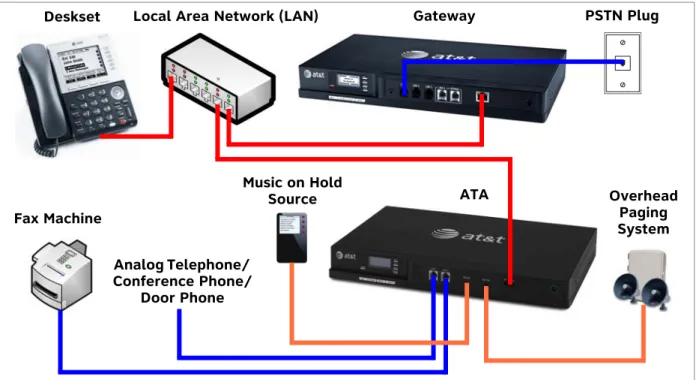
If you have analog devices that you want to attach to the system, you will need an AT&T SB67050 Analog Terminal Adapter (ATA). The Synapse system supports one ATA per system. The ATA allows you to attach hardware such as conference phones, overhead paging equipment, a fax machine, or a source for Music On Hold (MoH) to Synapse. Figure 3 illustrates a more complex installation (blue lines = telephone; red lines = Ethernet; orange lines = audio), but there are different options for attaching some of the equipment to the ATA.
Install the ATA after you have installed at least one Gateway and the Desksets.
Figure 3. Example of a System Featuring an ATA ATA
PSTN Plug Gateway
Local Area Network (LAN) Deskset Overhead Paging System Music on Hold Source Analog Telephone/ Conference Phone/ Door Phone Fax Machine
System Installation Overview for Remote Sites
If two separate Synapse systems both have SIP Gateways, then they can communicate with each other as “Remote Sites” on a privately managed network. Remote Sites allow users to make extension-to-extension calls between Synapse sites, thus avoiding long-distance charges. Users can also call external numbers at a Remote Site by routing a call through a remote Gateway, thereby completing a long-distance call as a local call. To use Remote Sites, you must set up a dedicated router-to-router Virtual Private Network (VPN) between each site. This type of installation requires the following at each site:
A router that supports simultaneous VPNs and IPsec. AT&T recommends using IPsec VPN.
A static Wide Area Network (WAN) IP address at both sites Each Synapse site should be on a different LAN subnet. See also “SIP Gateway Static IP Configuration” on page 16.
Configuring Remote Sites requires some coordination between the system administrators for each site. To configure Remote Sites, you must configure one Remote Site SIP Account for every other remote site. For more information, see “Configuring Remote Sites” in the Synapse Administrator‘s Guide at
www.telephones.att.com/synapseguides.
Figure 4. Example of Remote Site Installation
Ensure that you configure the VPN to allow communication between the two SIP Gateways by entering each Gateway’s private IP address into the VPN setup.
Recommended Installation Sequence
1. Prepare your site for installation. See “Site Preparation” on page 26. 2. Install the Gateway(s). See “Gateway Installation” on page 35.
3. If you have only one Gateway, install the first Deskset. See “Deskset Installation” on page 38. This Deskset is assigned extension number 200 with no Direct Inward Dialing.
4. If necessary, use the WebUI to change the mode of operation from Call Appearance mode to Line Appearance mode. See “About Modes of Operation” on page 15.
5. Configure the Dial Plan Settings and [T1/SIP] Direct Inward Dialing (DID). Unless you do this, the other Desksets will be assigned sequential three-digit extension numbers starting with 201 and without DID numbers.
For more information about Dial Plan and DID configuration, see the Synapse Administrator’s Guide at www.telephones.att.com/synapseguides. Use the WebUI to change the Dial Plan Settings if you want the first extension digit to be something other than 2, possibly to correspond to the DID numbers, or if you want the parked-call extension numbers to start with a digit other than 1.
After changing the Number of Digits and Default Phone Extension Prefix, manually change the extension number of the first Deskset you installed, and manually set its DID number.
Changing the number of extension digits after installing some Desksets may result in undesired extension number re-assignment, where the last three digits of previous extension numbers may not be preserved.
6. Install the other Desksets. See “Deskset Installation” on page 38.
7. Optional: Install the AT&T SB67050 Analog Terminal Adapter (ATA). See “SB67050
ATA Installation” on page 45. If you install the ATA with phones or a fax machine connected to an FXS port before installing a Deskset, that device will default to being the operator. Install the ATA after installing at least one Deskset so that a Deskset is the default operator.
8. Connect any analog device such as a fax machine, paging system, or door phone to the ATA. For more information, see:
“Connecting Analog Telephones” on page 45 “Connecting a Fax Machine” on page 46
“Connecting an Overhead Paging System (OHP)” on page 47 “Station Port (FXS) Door Phone Support” on page 23.
9. Configure the system using the WebUI.
You cannot enable Line Appearance mode if a T1 Gateway or SIP Gateway is installed in your system. Line Appearance mode is not compatible with the T1 Gateway and SIP Gateway.
See “System Configuration” on page 78 and the Synapse Administrator’s Guide at
www.telephones.att.com/synapseguides
.10. Complete post-installation tasks.
If you have set the system to use Call Appearance mode, ask all users to record their user names on their Desksets.
See “Name Recording for the Auto Attendant Directory” in the Synapse Administrator’s Guide at
www.telephones.att.com/synapseguides
. If you have set the system to use Call Appearance mode, distribute and register any Cordless Handsets or Headsets. Synapse Cordless Handsets are not
compatible with Line Appearance mode. See “SB67040 Cordless Handset Installation” on page 50 and “TL7600 Cordless Headset Installation” on page 53. Check for software upgrades and register your Synapse system products. See
Planning Your System and Network Configuration
This section describes several important configuration options that you should be aware of before you install the Synapse system. These options include Operation Mode (Call Appearance versus Line Appearance), IP addresses and connectivity, extension number assignments, analog bypass lines and analog telephones in the Synapse system.
About Modes of Operation
The system administrator can configure the Synapse system to operate in one of two different modes: Call Appearance mode and Line Appearance mode. The operation mode affects how Deskset users make, answer, and manage calls. Each mode provides a unique set of configurable features.
Before beginning the installation, you and the system administrator should decide which mode will work best for the site.
Call Appearance Mode
In Call Appearance mode, each Deskset has virtual “lines” (5 on SB67030/031 Desksets, and up to 10 on SB67020 Desksets) for calls to and from external numbers
(232-555-0176, for example) or other extensions (Extension 220, for example). These virtual lines are called Call Appearances.
Systems using Call Appearance mode can have any combination of PSTN Gateways, T1 Gateway, SIP Gateway, and an optional ATA. In Call Appearance mode, SB67030/031 Desksets can have SB67040 Cordless Handsets and TL7600 Cordless Headsets.
Line Appearance Mode
In Line Appearance mode, each line that Deskset users can access corresponds to an actual physical line connected to the PSTN Gateway (the Synapse system can have up to four PSTN Gateways providing up to 16 lines). Incoming lines are mapped to
Programmable Feature Keys on Desksets. You can assign different lines to different Desksets or groups of Desksets. You can configure SB67020 Desksets to access up to 9 lines and SB67030/031 Desksets to access up to 4 lines.
Other Desksets in the system can share these lines and display the line status. Incoming calls on a line ring at all Desksets that share that line. Users at Desksets that share lines can see when lines are ringing, busy, or on hold.
Systems using Line Appearance mode must use PSTN Gateways only. An optional ATA is also compatible with Line Appearance mode. For more information, see “ATA Fax Line Configuration” on page 29. A system using Line Appearance mode cannot support the T1 Gateway, SIP Gateway, Ring Groups, Call Queue and some Deskset-specific features.
For more information, see the Synapse Administrator’s Guide at
www.telephones.att.com/synapseguides
.In Line Appearance mode, SB67030/031 Desksets cannot use SB67040 Cordless Handsets, although TL7600 Cordless Headsets are compatible with Line Appearance mode.
IP Addresses and Connectivity
An IP address is an individual numeric identification assigned to devices on a computer network. At least one Synapse device needs a network-assigned IP address on the subnet shared with any computers that will allow access to the WebUI. Valid IP addresses on the same subnet allow devices on the network to identify each other and enable
communication.
This IP address may be assigned from a Dynamic Host Configuration Protocol (DHCP) server, or set statically to the same subnet, and will be separate from the self-assigned 169.254.xxx.xxx link-local address that the Synapse devices use to communicate with each other. When setting up the IP address on a Synapse device, this network IP address used for WebUI connectivity is the only address you can change.
The network IP addresses can be assigned in two ways:
1. The Synapse device can request a network server to automatically assign an IP address. This IP address is a dynamic assignment; the address is on lease from the server. The lease is renewed as long as the device remains connected and there is no change to the network. However, if the device is disconnected, or if there is a network or AC power interruption, the lease may not be renewed (that is, the IP address expires) and a new IP address may be assigned.
Most LANs use servers to automatically assign IP addresses. Synapse defaults to assuming that this automatic assignment will occur.
2. The Synapse Administrator can manually assign a static system IP address. This IP address does not change, even when there are network or AC power interruptions. Some installations will require manual static IP assignment. You can assign a static IP address for a Gateway or ATA using the device front panel interface. See “Gateway Configuration” on page 64.
A switched-network topology is recommended. This topology refers to the network virtual shape or structure and does not necessarily reflect the physical layout. Switched networks involve connecting the network components to switches rather than hubs; this improves network communication.
SIP Gateway Static IP Configuration
If your SIP service provider requires static registration for a SIP Gateway, please ensure that:
The SIP Gateway uses the same IP address, preferrably via a static mapping in the DHCP Server. If this is not possible, you can configure a static IP address
Some servers have default settings that limit the number of network IP addresses assigned to devices on the network. You should log in to your server to confirm that the IP range is sufficient to accommodate at least one of the Synapse devices that you are adding as at least one Synapse device needs an assigned IP address to enable WebUI configuration activities. Consult the IT department if you need help checking the server.
SIP ALG (application-level gateway) functionality may be required if the SIP service provider does not use hosted NAT traversal.
Extension Assignments
The system assigns the first Deskset to join the network as extension 200. At this point you can use the Dial Plan Settings page in the WebUI to set a different first digit for extension numbers for Desksets that will be connected to the network. The WebUI calls this the Default Phone Extension Prefix. If desired, you should also change the number of digits from three to four at this point.
The system automatically assigns each additional Deskset an extension number in ascending order as it is connected to the LAN.
Once the Desksets are connected to the same network, they find each other through Peer-to-Peer (P2P) discovery protocols and automatically self-configure. Additional telephony and network configuration is administered through the WebUI.
Even if you unplug a unit, its extension number is reserved. If you want to remove an extension from the network, you must delete the extension number using the WebUI Device Management menu. Deletion ensures that the Deskset does not tie up an extension. You can use the WebUI to change or delete extension numbers.
If your site is one of several Remote Sites using SB67070 SIP Gateways, depending on your dial plan and other configuration, you may want to ensure that extension numbers do not overlap with the Remote Sites. You can prevent overlap either by choosing a unique first digit (Default Phone Extension Prefix) or by restricting your extension numbers to a range. For example, your site uses 200 to 249, while another site uses 250 to 299.
For more information, see the Synapse Administrator’s Guide at
www.telephones.att.com/synapseguides
.Connecting Analog Devices to the ATA
The ATA allows you to attach the following analog devices to the ports and jacks identified in Figure 23 on page 45. Most options require the system administrator to configure the feature in the WebUI. If you are planning to install more than one type of analog equipment, make sure there are suitable ATA ports available and configured.
Analog telephones, including conference phones
If not used for a fax machine or for Overhead Paging, the two FXS station ports on the ATA allow for connecting standard POTS (Plain Old Telephone Service) analog telephones and conference phones. When an ATA is added to the Synapse system, the FXS ports are automatically assigned extension numbers that can be changed by the system administrator using the WebUI. Users can make and receive calls on those analog telephones, but system features such as Hold, Call Forward, and Transfer are not supported. You can use the WebUI to assign features such as Ring Group, Auto Attendant menus, and Call Forward–No Answer targets to an analog telephone.
An analog telephone connected to an FXS port can be used for Private Line Automatic Ringdown (PLAR). When you enable the PLAR feature through the WebUI, an analog telephone or device connected to an ATA FXS port will ring a destination when it goes off hook.
For more information about configuring a PLAR destination, see “PLAR Setup” in the Synapse Administrator’s Guide at
www.telephones.att.com/synapseguides
. A single fax machine to share your general telephone lines instead of using a dedicated fax line
See “ATA Fax Line Configuration” on page 29. One of the two FXS station ports can be configured to support a fax machine. The system administrator must configure the Fax mode in the WebUI.
For more information about fax configuration and ATA configuration, see the Synapse Administrator’s Guide at
www.telephones.att.com/synapseguides
. Overhead Paging Equipment (OHP)See “Overhead Paging Overview” on page 20. The ATA provides three options to connect OHP. The system administrator must configure the OHP in the WebUI. Single-zone paging with OHP equipment connected to the ATA Aux Out jack Single-zone paging with OHP equipment connected to one of the FXS station
ports
Multi-zone paging with OHP equipment connected to one of the FXS station ports.
Loud Ringers
Loud Ringer devices must be connected to an FXS port assigned as Voice (default setting). Loud Ringers can be used for alerting users of an incoming call via a loud speaker and are treated within Synapse as a regular analog phone instead of OHP equipment. This type of overhead alerting can only be done by including the voice FXS port in a Ring Group.
A source for Music On Hold (MoH)
You can use the ATA to route MoH audio input to outside held, parked, or queued calls. When external callers are placed on hold, parked, or enter a call queue, they hear the audio source provided by the MoH input. The system administrator must configure the MoH in the WebUI. For more information, see “Connecting a Music on Hold Source” on page 49.
For MoH WebUI configuration, see “Hold Settings and Music on Hold (Requires ATA)” in the Synapse Administrator’s Guide at
www.telephones.att.com/synapseguides
. Door phoneOverhead Paging Overview
You can set up either single or multi-zone external overhead paging (OHP), as shown in Table 2, but only one OHP system can be connected to the ATA. You can also use a loud ringer device, either on its own or with your existing OHP paging system, if supported. For more information, see “Loud Ringers” on page 19.
Synapse supports most OHP systems that can connect to PBX Analog Station (FXS) ports as well as those that support direct Audio Input detection, also known as VOX Detect. This overview describes the differences between OHP systems and is intended to help you determine how your system connects to the ATA. You should also refer to your OHP system's product documentation for installation and configuration instructions or contact your OHP equipment provider.
If your OHP is single-zone, you will have to decide whether it requires an FXS connection or an AUX OUT connection. You can only connect a multi-zone OHP to an ATA FXS port, i.e. a multi-zone OHP system cannot be connected to the AUX OUT port.
Equipment that can interface with the AUX OUT jack can have no “intelligence” in its audio output. It doesn't require any exchange of signals to be ready to broadcast. Equipment that uses an FXS port must be able to go on and off hook, because the FXS ports use telephone signals to exchange information. The OHP generally includes some sort of controller or telephone interface, which often requires setting up, for example,
Table 2. Single- vs. Multi-Zone Overhead Paging Systems
Single-Zone Paging Multi-Zone Paging
Broadcasts to all overhead speakers at once. Broadcasts to speakers grouped into separate zones.
Can be included in a Synapse Paging Zone. Cannot be included in a Synapse Paging Zone because the multi-zone OHP cannot be paged together with Desksets.
Does not appear in the Deskset Paging Zones menu unless you add Single-Zone paging to a paging zone you create.
Automatically appears in the Deskset Paging Zones menu as Overhead Paging.
Requires no additional user input to initiate a
page. Requires using the Deskset dial pad to enter digits to address the OHP paging zone. For a connection through a FXS port, requires you
to set a delay determined by trial and error. This delay, which starts after the user presses
, gives the paging equipment time to prepare to broadcast the message. It is required for every page, even if the OHP is not the chosen paging zone.
There is no programmed delay as the paging equipment provides feedback to the user when to start speaking.
Can be connected to an FXS port or the AUX Out
jack. Must be connected to the FXS port.
To install an OHP system, see “Connecting an Overhead Paging System (OHP)” on page 47. There are three possible OHP configurations.
For OHP WebUI configuration, see “Overhead Paging Overview (ATA Required)” and “Creating, Editing and Deleting Paging Zones” in the Synapse Administrator’s Guide at www.telephones.att.com/synapseguides.
Single-Zone Paging
Single-zone paging means that all speakers connected to the OHP system are activated together (that is, they are in the same zone).
Single-Zone OHP equipment connected to the AUX OUT jack:
Use this configuration to connect single-zone paging equipment that uses a 3.5 mm audio jack as input. For example, use this configuration if the OHP device is just an amplified speaker. See Figure 26 on page 48 for connection details. Verify that the OHP input levels are compatible with ATA level. See “Appendix A: Technical Specifications” on page 143. Only single-zone paging is supported in this configuration.
Figure 5. Single-Zone Overhead Paging on AUX OUT Jack Single-Zone OHP equipment connected to one of the FXS ports:
Use this configuration to connect paging equipment that interfaces through a telephone line. Typically, any OHP that connects to an FXS port has some intelligence to go off and on hook or otherwise send a signal back to the pager. These are generally controllers or telephone interfaces with controls and settings.
In this configuration, you can specify a paging delay on the WebUI to compensate for the fixed delay introduced by the OHP system. This delay ensures that the paging tone is played simultaneously on both Desksets and on the OHP system.
Even if the OHP has no RJ-11 jack, it may still have a Tip/Ring interface, requiring hard wiring. Whenever possible, try both the AUX OUT jack and an FXS port to find the best configuration for your needs.
Figure 6. Single-Zone Overhead Paging on FXS Port Multi-Zone Paging
Broadcasts to speakers grouped into separate zones. Since the multi-zone OHP systems require zone selection, they cannot be combined into one zone together with Synapse Desksets.
Multi-Zone OHP equipment connected to one of the FXS ports:
When paging is configured as a multi-zone OHP, a dedicated Overhead Paging zone automatically appears as the last entry in the Deskset paging menu.
Figure 7. Multiple-Zone Overhead Paging on FXS Port
Overhead paging cannot be added to Synapse-specific paging zones because the multi-zone OHP cannot be paged together with Desksets.
The OHP system may have settings that need to be adjusted to work with Synapse. Refer to your OHP system’s product documentation for installation and configuration instructions.
Desksets and single-zone OHPs can be included in the same zone. In the case of a single-zone OHP connected to the FXS port, this Paging System and the Desksets generate different paging tones. Note that users hear both tones at the same time if the paging delay is set properly in the WebUI settings.
Verified Overhead Paging Devices
Table 3 lists OHP systems that have been demonstrated to work with the Synapse System as of the publication of this document. More OHP systems may also have qualified for this list. For more information, call
1 (888) 916-2007
. In Canada, dial1 (888) 883-2474
.Door Phones Overview
Door phones and their associated door-entry mechanisms have become a common accessory in business phone systems. Door phone systems provide an easy method for Deskset users to attend to someone who is present at a door elsewhere. Synapse supports two types of door phones: Station Port (FXS) and Trunk Port (FXO). The system lets you select which Desksets will be notified by the door phone.
A Deskset user can send DTMF digits from the Deskset to the door phone to activate associated door-latch and relay mechanisms. How the door phone operates using a Deskset and the method to control a door latch varies with the door phone model.
Station Port (FXS) Door Phone Support
This type of door phone emulates a regular analog phone and can be connected to either FXS1 or FXS2 of a Synapse SB67050 ATA as shown in Figure 8. For single-button door phones a feature called Private Line Automatic Ringdown (PLAR) is supported. With PLAR configured in Synapse, as soon as the phone goes off-hook it will cause the configured extension(s) to ring with a pre-set Caller ID. Any Synapse extension can call the associated extension of the ATA port connected to the Doorphone.
In Call Appearance mode, you can configure PLAR to ring either a single extension or group of extensions (a Ring Group) when the door phone goes off hook. In Line Appearance mode, you can configure PLAR to ring a single extension.
Table 3. [ATA] Verified Overhead Paging Devices
Single Zone Multi Zone
Aux Out Jack
Bogen TPU35B Valcom 1030c FXS Port
Bogen TAMB Bogen TPU15A
Bogen TPU35B (alternate to TPU15A) Viking CPA-7B
Valcom V-9940 (expandable for multi-zone) Valcom V-9941A (with talkback)
FXS Port
Bogen PCM 2000 Bogen PCM TAMB
Bogen TPU15A or TPU35B Bogen ZPM3
Figure 8. Station Port (FXS) Door Phone Connection
Trunk Port (FXO) Door Phone Support
You can connect a Trunk Port (FXO) door phone to any one of the four Line (FXO) ports on a Synapse SB67010 PSTN Gateway as shown in Figure 9. The FXO door phone can be configured to call either a single extension or a group of extensions (a Ring Group). You can use the WebUI to configure an FXO door phone. For more information, see
“Configuring a Trunk Port (FXO) Door Phone” on page 85.
In Call Appearance mode, Synapse requires a dedicated door phone line to be Trunk Reserved to a spare Deskset in order for other Desksets not to seize that line for outbound calls. If there are no extra Desksets available for Trunk Reservation, the door phone should be connected to the last, or closest to last, line of the last Gateway to limit the chance of the door phone line being seized.
In Line Appearance mode, the Deskset user must be aware not to use the assigned line key for regular outbound telephone calls. Desksets automatically select a line when going off-hook, so the Deskset will seize an assigned door phone line if all other lines are busy.
ATA FXS 1 & FXS 2
FXS Door Phone
FXO Door Phone Bypass Phone
PSTN Gateway #1
FXO Lines 1–4 PSTN Gateway #2
FXO Lines 5–8
Tested Door Phone Models
Table 4 lists door phones that have been demonstrated to work with the Synapse System as of the publication of this document. More door phones may also have qualified for this list. For more information, call
1 (888) 916-2007
. In Canada, call1 (888) 883-2474
.Table 4. Verified Door Phones
PSTN Gateway Compatible
Trunk Port (FXO) Door Phones ATA CompatibleStation Port (FXS) Door Phones
ALGO 3226 Trunk Port Door Phone (with 3201 Digital Door Station)
Valcom V-2900 Trunk Port Door Phone Valcom V-2901 Trunk Port Door Phone
ALGO 3008 Station Port Door Phone (with 3106 Door Control Module)
Site Preparation
This section describes how to prepare your site for a successful Synapse system installation.
Network Requirements
For more information on the network configuration, see“Planning Your System and Network Configuration” on page 15.
A switched network topology is recommended for your LAN (using standard 10/100 Ethernet switches that carry traffic at a nominal rate of 100 Mbit/s). The office LAN infrastructure should use Cat.-5 (or better) cable.
The LAN connections to Synapse devices should all be wired. However, wireless connections to other devices (such as laptops) in your office network that are not part of the Synapse system will not impede performance.
All devices in the Synapse system must reside on a single subnet.
A DHCP server is recommended and must be on the same subnet as the Synapse system so that IP addresses can be auto-assigned. If no DHCP server is present, you can assign static IPs if desired. DHCP or static IPs are only required if the system is to be managed from a routable network and/or automatic time updates from an NTP server are desired. Synapse devices will self-assign link-local IP addresses for all voice communication in addition to any DHCP or static IPs that are assigned for management purposes.
Unless you want to manually set the Synapse clock and manually upgrade Synapse software, an Internet connection to the LAN is required.
A DNS server is recommended to resolve the path to the Internet and to the AT&T server for software upgrades.
If a routing path to the Internet is not available, the system administrator can download the upgrade files and use the WebUI to upgrade the software manually.
For users whose computers require a GigE Ethernet frame rate (a gigabit per second), use separate Ethernet connections for the Deskset and the computer. The Ethernet connection through a Deskset is limited to 100 Mbits/s.
Placement Considerations
Avoid placing any Synapse component too close to the following:
Communication devices, such as television sets, DVD players, or other cordless telephones
Extremely low temperature
Mechanical vibration or shock, such as on top of the washing machine or workbench.
ATA Placement Considerations
You can install the optional ATA near the Gateway, or near one of the third-party devices that are being used with it. For example, it might be easier to connect the ATA to the fax machine in the room with the fax machine instead of running a telephone line connection from the fax to an ATA located in a telephone equipment cabinet.
Power Considerations
Ensure that there is an electrical outlet not controlled by a wall switch within 6 feet (1.83 m) of each device location.
SB67020 Desksets and SB67031 Desksets are also compatible with Power over Ethernet (PoE). To use PoE, your network needs a switch that provides PoE. Using PoE simplifies your installation by eliminating the need to route separate power cords. It also allows you to protect your system from power outages by connecting an Uninterruptible Power Supply (UPS) to your PoE switch, Gateways, and ATA. For power requirement
specifications, see page 144.
Other Preparations
Before installing the Gateway and Desksets, the following preparations may need to be taken:
All PSTN lines must be gathered into one access point situated no more than 9 feet (2.74 m) from the Gateway location. If rewiring is required, contact your telephone service provider and request the help of a qualified technician. You may need one or more network switches set up to ensure there are sufficient
ports available for other devices in the network (such as a DSL modem). If you plan to use the emergency bypass feature on the PSTN Gateway, you will
need an analog phone.
An Ethernet Port must be available within 9 feet (2.74 m) of each Deskset location. Each Deskset is capable of sharing an Ethernet port with a PC. If one Ethernet port already exists at a workstation, another port is not necessary unless you need a GigE Ethernet frame rate. Use a separate Ethernet connection for the Deskset and the computer.
Assigning Telephone Lines and Extensions
This section discusses various telephone line configuration issues to consider.
Providing Limited Telephone Service During AC Power Outages
PSTN Gateway
The fourth line on each PSTN Gateway is a Bypass port that works during AC power failures. If you have a PSTN line plugged into LINE 4, connect a line-powered analog telephone to the RJ-11 jack labeled BYPASS for telephone service during power failures. When power returns, a relay disconnects this emergency bypass line so that the bypass line cannot be used to eavesdrop on normal calls.
If your telephone lines are part of a hunt group (a telephone company feature that allows calls to a busy phone number to roll over to the next available telephone line), connect the line with your main (pilot) telephone number to PSTN Gateway LINE 4.
If your system features both PSTN Gateways and a T1 Gateway, outbound calls are placed first through the T1 channels by default.
T1 Gateway and SIP Gateway
The T1 Gateway and SIP Gateway provide no analog bypass port. To provide telephone communication during power outages, either subscribe to at least one analog phone line and install a PSTN Gateway or use uninterruptible power supplies to provide power to your computer network, the Synapse T1 Gateway or SIP Gateway, and one or more system Desksets.
Analog Line Connection Order on PSTN Gateways
For outgoing calls, the system first seizes the lowest idle PSTN port numbers (as labeled on the PSTN Gateway). PSTN phone lines should be connected to your system with your busiest incoming line placed in the highest port number on the highest numbered PSTN Gateway, so that incoming calls are less likely to receive busy signals. For instance, if your customer service team receives many calls, you would want to plug their phone lines into higher-numbered PSTN ports.
ATA Fax Line Configuration
To support fax on the Synapse system, you should consider where the fax is, and which telephone line will be used for incoming faxes. Fax line configuration for the Synapse system differs depending on whether you are using a PSTN Gateway or a T1 or SIP Gateway.
For more information about fax configuration and ATA configuration, see the Synapse Administrator’s Guide at
www.telephones.att.com/synapseguides.
Figure 10. Fax Machine Connected to FXS Port
PSTN Gateway
The PSTN fax line can be connected to any FXO port (LINE 1–4) on the PSTN Gateway. However, trunks for outgoing calls are seized in ascending order (LINE 1 then LINE 2, and so on). To avoid using the fax line for outgoing voice calls, make the fax line the highest possible numbered line on the highest numbered Gateway. Use the Fax Configuration page in the WebUI to select a telephone line on the PSTN Gateway as the fax line.
If your office has heavy fax volume, the fax line should be a separate dedicated line, and not part of a hunt group.
Call Appearance mode only—If your office has low fax volume, your telephone service
provider may be able to include your fax line in the hunt group. This way, you can save on the expense of a separate fax line. In this scenario, you can maximize your system for voice usage while maintaining the capacity to send or receive the occasional fax. You should consider the following issues when fax and voice calls share a PSTN Gateway line:
Incoming calls that get routed through the PSTN Gateway fax line are automatically checked by the system for a fax signal. If the system detects incoming fax tones, it routes the call through the configured ATA FXS port to the fax machine. Voice callers will experience a delay of up to eight seconds before the call is connected to the Auto Attendant or Operator. In addition, during the
Line Appearance mode only—Do not assign the PSTN fax line to any
Programmable Feature Keys on Desksets.
For more information, see the Synapse Administrator’s Guide at
www.telephones.att.com/synapseguides
.delay, the ringback tone generated by the CO (Central Office) is no longer heard by the caller. Instead, the caller hears the ringback tone generated by the Gateway.
For outgoing calls, the caller ID of the fax number may be sent instead of the primary business telephone number. If the recipient returns a missed call via their caller ID log, the caller will then experience the eight-second delay mentioned above.
T1 Gateway and SIP Gateway
When a T1 Gateway and/or SIP Gateway is installed, you can assign a DID number for the fax machine on the DID Assignments WebUI page. Incoming faxes are routed directly to that DID number (with no eight-second delay).
Gateway and ATA Placement
You can place the Gateway or ATA on a tabletop, mount it into a standard 19-inch metal rack, or wall mount it. The PSTN Gateway must be installed within three feet of the building ground point. Install each device using the following instructions.
Rack Mounting
To mount the Gateway or ATA into a standard 19-inch rack:
1. Remove the two mounting brackets and six screws from the packing tissue. 2. Position a bracket at the front of the device.
3. To align the screw holes, place the bracket on the device so that the locating indent on the bracket matches the indent on the device.
4. Insert each of the three screws into the holes provided and tighten securely. Repeat the process for the other bracket.
5. Position the chassis into the 19-inch metal rack.
6. Insert a top mounting screw (not included) in one side and turn it several turns to establish support. Repeat for the other side.
7. Tighten the screws.
Wall Mounting
You can mount the Gateway or ATA to a wall using the two mounting slots on the bottom of the device. Ensure that the device is oriented as shown in Figure 11 to allow air to flow vertically through the ventilation holes on each side of the device.
Figure 11. Wall Mount Orientation
To mount the Gateway or ATA to a wall:
1. Install two pan-head screws (with ¼-inch diameter head) 7 ⅞ inches (20 cm) apart. The screw shaft diameter should be ⅛-inch (3.2 mm). Ensure you use anchors appropriate for your mounting surface. Leave about ⅛-inch (3.2 mm) clearance between the screw head and the wall.
2. Position the device with the mounting slot centers aligned over the mounting screws. Carefully bring the device down onto the screws.
3. Slide the device downwards so that the screws go into the mounting slots on the device. Ensure the device is secure.
Grounding
The SB67010 PSTN Gateway, SB67060 T1 Gateway, SB67070 SIP Gateway, and the SB67050 Analog Terminal Adapter must be connected to reliable earth ground. The connection to earth ground must be verified by qualified personnel.
The SB67010 PSTN Gateway must be connected to reliable earth ground using the supplied ground wire connected to a terminal on the back of the Gateway chassis. The SB67060 T1 Gateway and SB67070 SIP Gateway must be connected to reliable earth ground through a separate ground wire connected to a terminal on the back of the Gateway chassis before connecting the T1 cable or LAN cable.
The SB67050 Analog Terminal Adapter is connected to earth ground through a properly grounded wall outlet. Additional grounding may be necessary for the ATA if you need to improve immunity to Electrostatic Discharge (ESD) and to minimize the possibility of electrical interference when using third-party audio equipment.
To provide additional grounding, the ATA can be connected to reliable earth ground through a separate ground wire connected to a terminal on the back of the ATA chassis.
To ground the Gateway or ATA:
1. Acquire a grounding cable of 18 AWG or greater gauge. For the PSTN Gateway, use the supplied grounding cable.
2. Locate the device near the building ground point, usually located at the electrical breaker box. The PSTN Gateway must be within three feet (91.4 centimeters) of the building ground point.
3. Loosen the grounding terminal screw on the back of the device, as identified in Figure 12 and Figure 13.
Figure 12. PSTN Gateway Grounding
Figure 13. T1 Gateway, SIP Gateway, and ATA Grounding
4. Insert the end of the grounding cable under the grounding terminal.
If you are unsure about the location of the building ground point or how to ground the device, contact the facilities manager.
Grounding Terminal
5. Tighten the screw.
6. Connect the other end of the grounding cable to the building ground point, usually located at the electrical breaker box.
Gateway Installation
To install the Gateway:
1. Install a Gateway first. Plug the AC plug into an electrical outlet not controlled by a wall switch and the DC plug into the DC jack, as shown in Figure 14. Wait up to one minute until the screen lights up.
2. Plug a gray Cat.-5 LAN cable for the PSTN Gateway or SIP Gateway or yellow Cat.-6 LAN cable for the T1 Gateway into the Ethernet port marked LAN. Use the supplied cables or a comparable substitute. Plug the other end of the cable into your office LAN. The T1 Gateway is Gigabit Ethernet (GigE) capable, so it has a Cat.-6 LAN cable. The Desksets and other devices require only Cat.-5 cables.
Figure 14. Gateway Power and LAN Connections
The Gateway takes about a minute to power up.
After another Synapse device is installed, and after the Gateway has found the network and the other Synapse device, Synchronized appears on the third line of the display as shown in Figure 15 (PSTN Gateway shown). This is the Idle screen.
Figure 15. Gateway Idle Screen, Synchronized
The time and date may not be correct. You can set the time and date on the System Basic Settings page in the WebUI or using the Deskset Admin Settings menu.
PSTN Gateway
T1 Gateway
LAN DC Power
For more information, see the Synapse Administrator’s Guide at
www.telephones.att.com/synapseguides
.To connect the PSTN Gateway telephone lines:
1. Remove the plastic covers from the Gateway PSTN (telephone) jacks to be used, marked LINE 1 through LINE 4 and BYPASS, as shown in Figure 16.
Figure 16. PSTN Gateway Telephone Line Connections
2. Plug up to four telephone lines from the telephone wall jacks into the Gateway. The line LEDs blink for up to 15 seconds during initialization.
Figure 17. DSL Connection
DC 5.1V LINE 1 LINE 2 LINE 3 LINE 4 BYPASS
LAN RESET LINE 1 LINE 2 LINE 3 LINE 4 POWER SELECT CANCEL DOWN UP + -BYPASS LINE 1 through LINE 4
PSTN Line LEDs
If your service provider uses Centrex lines, you must use the WebUI to enter a line access code to allow calibration to take place. Before connecting the PSTN lines, see “Line Calibration Configuration” on page 90.
If you subscribe to Digital Subscriber Line (DSL) high-speed Internet service through your telephone line, you must plug each telephone line with DSL service into a DSL filter. Then plug the DSL filter into the telephone wall jack, as identified in Figure 17.
For customer service or product information, visit our website at
www.telephones.att.com/smb
or call1 (888) 916-2007
. In Canada dial1 (888) 883-2474
.To connect the T1 Gateway T1 cable:
Plug the black T1 cable into the Gateway T1 Port, as shown in Figure 18, and into your T1/PRI network device from your service provider.
Figure 18. T1 Gateway Line Connections
Do not make any calls until the POWER and the SYN/ACT LEDs are green. See “T1 Gateway Features” on page 59.
T1 Port T1 Status Indicators
The SB67060 T1 Gateway must use only No.26 AWG or larger Telecommunications line cord to reduce the risk of fire.
For customer service or product information, visit our website at
www.telephones.att.com/smb or call
1 (888) 916-2007
. In Canada dial1 (888) 883-2474
.Deskset Installation
Figure 19 identifies the features on the bottom and side of the Deskset. You can install the Deskset on a desktop or mount it on a wall. Figure 19 represents the SB67030/031 Deskset. Although the SB67020 Deskset is slightly different, its features have the same basic layout.
Figure 19. Deskset Connections
The SB67031 Deskset is compatible only with Synapse systems with software version 1.9.5 and later. Ensure you have upgraded your system to software version 1.9.5 or later before installing an SB67031 Deskset.
1. Network Port The two LEDs next to each network port indicate network
status and AC power status.
The green LED is on when the Deskset is connected to the network and has AC power.
The yellow LED flashes when there is network activity.
2. PC Port
3. Reset Button Restarts the Deskset when pressed momentarily.
Restores factory defaults when pressed and held for more than five seconds with the LAN cable not connected.
1 2
3
4 5
6 7
To attach the Desktop Stand for desktop installation:
1. Select a Deskset position. The desktop setup requires the Deskset Stand and provides two positions, Option 1 at 45° and Option 2 at 60°, as shown in Figure 20. If you use Option 2, rotate the Handset tab as explained in “To rotate the Handset tab for wall and Deskset Option 2 installation:” on page 40.
Figure 20. Deskset Stand Options
2. Place the Deskset on a flat surface with the power and network ports facing you, as illustrated in Figure 22.
3. Place the stand, illustrated in Figure 21, on the base with the flexible tab side away from you.
Figure 21. Deskset Stand Tabs
4. Insert the solid tabs of the stand into the Option 1 or Option 2 slots on the base that are marked in red in Figure 22.
5. Corded Headset
Jack Actual jack location may be different than shown 6. Corded Handset
Jack
7. Wall-Mount Slots See“To install the Deskset on a wall:” on page 42.
Option 1 Option 2
Figure 22. Deskset Stand Installation
5. Rotate the stand away from you until it rests against the base and you hear a click as the flexible tabs lock into place.
To rotate the Handset tab for wall and Deskset Option 2 installation:
1. Press the switch hook and slide the Handset Tab toward the top of the base, asshown.
2. Rotate the Handset Tab 180° so that the “hook” is at the top. Flexible tabs Flexible tabs Solid tabs Solid tabs Option 1 Option 2 Switch hook Handset Tab
To connect the Cat.-5 LAN cable to the Deskset:
With a PC:
If there is a networked computer and no extra Ethernet wall jacks near the Deskset, then plug the PC Ethernet cable into the Deskset so the Deskset and PC share the same network connection.
1. Unplug the Cat.-5 Ethernet cable from your computer.
2. Plug that Cat.-5 Ethernet cable into the Network port on the back of the Deskset, as shown below.
3. Plug another Cat.-5 Ethernet cable into the PC port on the Deskset.
4. Plug the other end of the second Cat.-5 Ethernet cable into your computer.
If a GigE network is being used, a computer connected through the Deskset will be limited to 100 Mbits/s. If you require a GigE Ethernet rate, use separate Ethernet connections for the Deskset and the computer so that the computer can take advantage of the greater bandwidth.
If a PC is connected to your LAN through a Deskset, any Deskset resets and power or network interruptions will disrupt the PC’s connection to the network.
“Hook”
PC Network
The PC port on the Deskset is intended for connection to an end-user PC only.
Do not use the PC port to connect to a PC with a heavy bandwidth load
(such as a network server PC or a hub, switch, or router).
Do not use the PC port to extend the network. The end-user PC should be
Without a PC:
If the Deskset has a dedicated network connection, then connect the Deskset to the network connection only.
1. Plug a Cat.-5 Ethernet cable into the Network port on the back of the Deskset. 2. Plug the other end into the Ethernet wall jack.
To connect power:
[020/031] If you are using PoE, connecting the Deskset to the network also connects the power.
If you are using the supplied power adapter:
1. Plug the power adapter (blue tag) into the DC Power jack on the back of the Deskset.
2. Plug the power adapter into an outlet not controlled by a wall switch. The display screen illuminates within about a minute.
If the user's computer is plugged into an uninterruptible power supply (UPS), consider plugging the Deskset into it, too.
To install the Deskset on a wall:
1. Plug the Ethernet cable into the port on the back of the Deskset. (See “To connect the Cat.-5 LAN cable to the Deskset:” on page 41.)
2. Plug the power adapter into the jack on the back of the Deskset. Skip this step if using POE. (See “To connect power:” on page 42.)
3. Place the Deskset base over the mounting plate above the mounting studs as shown in .
4. Slide the Deskset base down as shown in .
5. Plug the Ethernet cable into the wall jack.
6. Plug the power adapter into a power outlet not controlled by a wall switch. Skip this step if using PoE.
7. Make sure the Handset tab is in Wall position, as described in “To rotate the Handset tab for wall and Deskset Option 2 installation:” on page 40.
8. Connect the corded handset to the handset jack on the left side of the Deskset.
Wall-Mount Screws
To connect the corded handset and an optional corded headset:
Connect the corded handset:
1. Plug the coiled end of the handset cord into the handset jack on the left side of the Deskset.
2. Plug the end of the handset cord with the longer straight portion into the handset, then hang up.
Connect an optional corded headset:
Plug an optional corded headset or cordless headset base into the RJ-9 connector on the bottom of the Deskset, as shown.
SB67030/031 A headset plugged into this jack takes precedence over a registered AT&T TL7600 Cordless Headset.
Handset Jack On Deskset Handset Jack on Handset
Optional Headset Jack
SB67050 ATA Installation
To install the ATA:
1. After installing at least one Deskset, plug the AC plug into an electrical outlet not controlled by a wall switch and the DC plug into the DC jack, as shown in Figure 23. Wait up to one minute until the screen lights up.
2. Plug a Cat.-5 Ethernet cable into the port marked LAN. Plug the other end of the Ethernet cable into your office LAN.
Figure 23. ATA Power, LAN, and Station Port Connections
The ATA takes about a minute to power up.
After the ATA has found the network and the Gateway, Synchronized appears on the third line of the ATA Idle screen.
3. Remove the plastic covers from the FXS station ports that you are using.
Connecting Analog Telephones
To install analog telephones:
1. Remove the plastic covers from the FXS 1 and FXS 2 (telephone) ports to be used on the ATA.
2. Plug up to two telephone lines from analog telephones into the ATA FXS 1 and
FXS 2 ports, as shown in Figure 24 on page 46.
To prevent the loss of ATA-supported services during power outages, plug the AC power plug into an Uninterruptible Power Supply (UPS).
Station Ports
Figure 24. ATA Analog Telephone Connections
Connecting a Fax Machine
To install a fax machine:
1. Remove the plastic covers from the FXS 1 or FXS 2 (telephone) port to be used on the ATA.
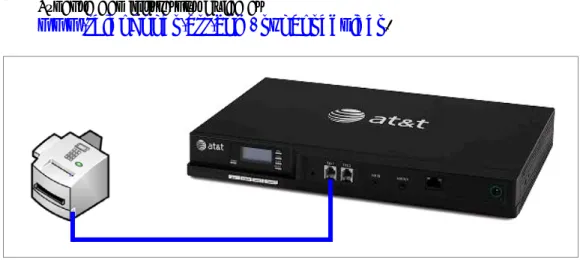
2. Plug a telephone line from the fax machine into the ATA FXS 1 or FXS 2 port, as shown in Figure 25.
3. Configure the fax connection in the WebUI.
For information on configuring the ATA to work with your fax machine, see the Synapse Administrator’s Guide at
www.telephones.att.com/synapseguides.
Figure 25. ATA Fax Machine Installation ATA Analog Telephone/ Conference Phone Analog Telephone/ Conference Phone Fax Machine ATA
If you are connecting your fax machine to the ATA and your Synapse Dial Plan uses a number for external line access, such as 9, you should inform users that they need to dial this number when sending faxes.
Connecting an Overhead Paging System (OHP)
A Single Zone or Multi-Zone system can be integrated into an existing Synapse network. The control unit or analog amplifier for the Overhead Paging system connects directly to the ATA via an FXS or the AUX OUT jack, depending on the type of paging system. Synapse supports most OHP systems that support PBX station ports or auxiliary audio-out connections to a PBX. Some settings for the OHP may have to be changed to work with Synapse.
If you don't know whether your OHP is Single Zone or Multi Zone, see “Overhead Paging Overview” on page 20. There are so many types of paging equipment that you may need to contract with a communications equipment professional to install the OHP.
Whether you are replacing a phone system and using an existing, functional OHP, or installing a new OHP, the paging system may have settings that need to be adjusted to work with Synapse.
OHPs that are “Line Mode” that cannot be set to “Station Mode” cannot be used with Synapse.
If you want to connect a single-zone paging system to the AUX OUT jack, you may need to buy or make a custom cable.
To install an overhead paging system:
1. Remove the plastic cover from the FXS 1 or FXS 2 port to be used on the ATA. 2. Plug the telephone line from the OHP device into the FXS 1 or FXS 2 port, or plug
an audio cable from the OHP device into the ATA AUX OUT port, as shown in Figure 23 on page 45, depending on the requirements of the paging system. If you need to hard-wire a connection between your OHP device and the ATA AUX OUT jack, you can use the supplied auxiliary audio cable as follows:
a. Remove the 3.5 mm plug from one end of the cable.
b. Strip enough shielding from the cable to expose the three wires inside.
c. Identify the Tip (Left channel) and Ground wires. Depending on the cable, the Tip wire may be white, the Ground wire may be bare/unshielded, and the Ring (Right channel) wire may be red, as shown in Figure 26. You can use a voltmeter to properly identify the wires.
Figure 26. Hard-Wiring a Stereo Cable to the OHP
d. Trim the Ring (Right channel) wire to ensure it does not contact other wires or terminals.
e. Connect the Ground wire to the negative terminal and the Tip wire to the positive terminal on the OHP device.
f. Plug the 3.5 mm plug on the other end of the cable into the AUX OUT port on the ATA.
3. Enable the OHP device in the WebUI.
For information on setting up OHP, see the Synapse Administrator’s Guide at
www.telephones.att.com/synapseguides.
3.5 mm stereo plug to ATA AUX OUT
Ground Tip (Left Ch.) Ring (Right Ch.) (Do not wire to OHP)
Connecting a Music on Hold Source
To install a music on hold source:
1. Use the supplied auxiliary audio cable to plug a streaming audio source, such as a radio or MP3 music player, into the ATA AUX IN port as shown in Figure 27. If the supplied cable does not connect to your music source, use another cable that will connect your device to the 3.5 mm AUX IN port. This audio source must have a volume control. The volume adjustment on the audio device should be set to obtain the preferred level of music on hold within the system.
2. Enable Music on Hold under Hold Settings in the WebUI.
For more information, see “Hold Settings and Music on Hold (Requires ATA)” in the Synapse Administrator’s Guide at
www.telephones.att.com/synapseguides
.Figure 27. ATA Music on Hold Source Installation
The ATA AUX IN port is set up to receive headset-out audio signals. Do not connect to a “Line-Out” audio source or to speaker outputs.
On-hold music functionality should only be used in conjunction with music specifically licensed for on-hold use. Licensed on-hold music is available from many third-party suppliers. AT&T disclaims any liability arising from the failure to obtain such a license.
ATA Music on Hold