Page 1
Building an
ExpressionEngine Site
for Small Business
Page 2
Copyright & Credits
Building an ExpressionEngine Site for Small Business by Michael BoyinkCopyright © 2008 Michael Boyink Last Updated: 2/6/2008 9:37 AM All rights reserved.
If this book was purchased as a digital download the author grants the purchaser permission to reproduce a single copy (print or download) of the book without prior permission.
If this book was purchased in printed form, no part of this book shall be reproduced or re-transmitted by any means, electronic, mechanical, photocopying, recording, or otherwise without written permission from the author.
ExpressionEngine® is a Registered Trademark of EllisLab – http://www.ellislab.com
The design template used in this book is published under a Creative Commons Attribution 3.0 by http://www.free-css-templates.com/
While every precaution has been taken in the preparation of this book, the author assumes no responsibility for errors or omissions, or for damages resulting from the use of the information contained herein.
Page 3
About the Author
Michael has over a dozen years experience building "stuff on screens" — starting in TV news production, moving to software and finally the web.
He has worked for small consultancy firms and Fortune 500 companies. In 2002 Michael founded Boyink Interactive which provides internet consulting, strategy development, information architecture and complete website development for clients around the globe. 2002 was also the year Michael discovered EllisLab and pMachinePro and he's been pogo-sticking through the community ever since. Michael has been involved in the build of over two dozen ExpressionEngine-based sites and has been a frequent contributor to the EE community.
Michael is a married father of two and, when not at the keyboard, can usually be found in the garage grinding, welding, drilling and painting on a large mass of metal that is slowly starting to resemble an actual, drivable 1964 Jeep.
Page 4
Chapters
Overview 5
1 Loading a Static Template and Stylesheet 8
2 Chunking up the Main Template into a Collection of Embedded Templates
16
3 Moving into the Index Template and Designing a Data Structure 23 4 Implementing a Weblog and Custom Field Group to Hold Home Page
Content
29
5 Editing Content, Implementing a Miscellaneous Content Weblog, and Embedded Variables
42
6 Moving Footer Content, EE Conditionals, and Implementing the About Section
50
7 Building Page Titles and Setting Navigation Active State Dynamically 61
8 Products Data Structures and Test Content 66
9 Starting on the Products Templates 73
10 Adding Category Images and Custom Category Fields 81
11 Adding Product Category Pages 87
12 Adding Product-Specific Pages 93
13 Using a Plethora of Plugins to Make Content Management Easier 99
14 Implementing the Services Section 107
15 Using Categories to Display Services Related to Products and Vice-Versa 118 16 Implementing the Weblog, Global Variables, and Passing Variables in
Variables
123
17 Implementing the “Latest News” Sidebar Widget, a Contact Form, and the Search Engine
144
Page 5
Overview
Why This Book?ExpressionEngine from EllisLab is a very powerful content management system that's been around for a few years now and has thousands of users. However, what's been missing is a cohesive book or series of tutorials on building a complete site using ExpressionEngine (EE).
After seeing a number of requests in the support forums for such a tool, I started a series on my weblog called "Building an ExpressionEngine Site." The series comprises 17 chapters, and took roughly five months to publish end to end – with segments getting completed in between client work and life as we know it.
This book is a re-purposing of that series, keeping the same overall build approach and structure but different in the following ways:
• The sample site is assembled on its own (rather than as part of Boyink.com) which allowed me to organize the templates better.
• The Weblog names are semantic and simpler.
• Image paths are simpler
• I've added dozens of screen captures to make processes clearer.
• EE variable names, EE tags, and HTML appear in more complete form
• The content has been revised and edited for clarity and accuracy.
Who Is This Book For?
This book was written for someone who is already familiar with building web sites using (X)HTML and CSS, and is just new to ExpressionEngine.
If you aren’t comfortable editing CSS selectors, using div tags, or don’t know how to use the W3C CSS and (X)HTML validators then this tutorial series may not be for you. A good share of the issues I’ve worked through with people using this series are straight
Page 6
HTML or CSS related - missing div tags, extra spaces in CSS files, etc. So the more comfortable and experienced you are at solving those problems, the easier it will be to make the jump to ExpressionEngine.
And of course, the more you've already explored the existing ExpressionEngine resources such as the support forums, the knowledge base, and the wiki, etc., the easier time you'll have grokking the code and build approach in this book.
So What's the Plan?
In this book we'll take a free CSS site template and work through the process of bringing it into ExpressionEngine from start to finish. I’m planning on a typical, genericized small-business site architecture of:
• Home • About • Products • Services • Weblog • Contact • Search
Please do not use any of the default templates that install with ExpressionEngine as your basis for the templates in this book. Nothing against them - they just have some
advanced features that make it hard to use them as a simple starting point. I also think the practice of using a static, non-EE template is closer to how many EE sites get developed.
Details and Conventions
• The code is from a sample site I've built locally, using a WAMP setup.
• The book assumes you are using a commercial copy ExpressionEngine 1.6.1. Most of the book will work with EE core however.
Page 7
Template Name (in the format of template group name/template name)
Sample code Sample code Sample code
Name and location of template in Companion Files (if available)
• If you've purchased the digital version of this book, I'd suggest using the
companion files as the source for any copy/pasting you do into EE, as the chance of getting any odd characters is minimal to none.
A Note Before You Begin
The EE integration approach used in this book should be viewed as "one way to do it" – not necessarily the "only" way. ExpressionEngine is incredibly flexible, and there are always at least a couple of different ways to implement the same thing. What I tried to do in this book was demonstrate a good way to build out a small business website, using a simple/clean approach favoring native EE functionality, while also showing some of what I feel are good foundational coding practices that will set you up well for learning more advanced techniques later on.
Make sense? No? No worries, there is help/support available. Flip to the last page in the book for the details.
Yes? Cool. Let's get to it.
Page 8
Chapter 1
Loading a Static Template and Stylesheet
In this first chapter, we download the template files and bring the HTML and CSS into ExpressionEngine, getting EE to serve up the static template.
Download the Template
This tutorial series will be using the free website template found on the web at: http://www.free-css-templates.com/preview/greenbusiness/
The zip file containing the template images, HTML and CSS code can be found at: http://www.free-css-templates.com/downloads/44/greenbusiness.zip
Download and unzip the template archive onto your local hard drive. Got it? Good.
Upload the Template Images
Now you’ll need to figure out where on the server you want to put the images. Using an FTP client, make a directory on the server.
For this tutorial I’ve created a new subdirectory in the default EE images directory – so my images are at: site root/images/interface/. I uploaded all the images from the template archive there.
Edit Image to Add the Site URL Variable
OK - now to the CSS file. I’m picky - I don’t like my CSS statements all on one line as it’s tough to scan and modify the file. I went through the CSS for this template and put in all the carriage returns and tabs using TopStylePro. I know there are more automated ways to do this, but I like doing it manually as it helps me get familiar with the CSS and look for any trouble spots like content with fixed heights.
Regardless of how you like your CSS formatted, you will need to edit the paths to any images. My standard approach is to give them a complete path, but using the {site_url} variable for the root so that it changes when my site goes from its temporary URL to the final live URL.
Page 9
{site_url}, unless you’ve specified otherwise in your EE path.php file, takes it’s value from the homepage setting under CP Home > Admin > System Preferences > General Configuration.
I use the Find and Replace function in TopStylePro, and in this case changed image paths from:
images/topbg.jpg
to
{site_url}images/interface/topbg.jpg
Note that there is a fully updated stylesheet in the companion files at Chapter_1/updated_stylesheet.css
Create a Main Template Group
In this tutorial I want to use a Template Group called “site” to hold the site index template, the CSS template, and some other templates.
You’ll note, however, that EE installs with a group by that name already. You can choose to do two things with the default site Template Group – delete it or rename it. I don’t recommend deleting the default group, however – especially if you are new to EE. The default templates – even though we don’t really want them for this tutorial - are great examples to save for picking apart in the future. The templates are available on
ExpressionEngine.com, however, so if you want to delete them now and need them later you can always re-download them. To delete the entire default site group, just select it in the left column and click Delete Group in the middle column.
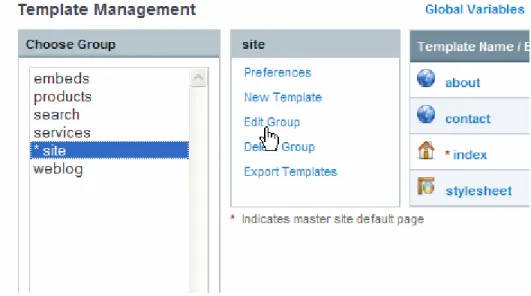
To rename them – the option I suggest – select the site Template Group in the left column and click Edit Group. I usually rename the group to “zz_site” so that alphabetically it will sort to the bottom of the Templates interface. Enter your new name and click Update.
Page 10
Figure 1.1: Clicking Edit Group to Rename a Template Group
Figure 1.2: Entering a New Template Group Name
Create a CSS Template
We can now start to load up that new Template Group with templates. The first one we’ll put there is the stylesheet for the site:
1. Select the site Template Group in the left column. 2. Click New Template in the center column.
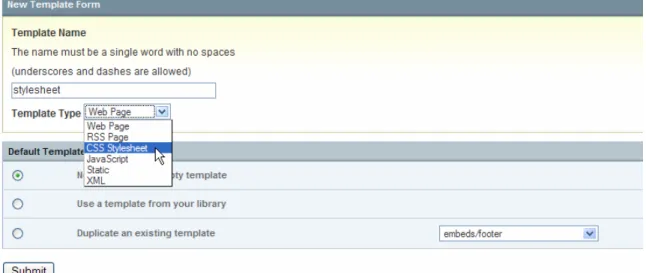
3. Give it a name (I’ve called mine “stylesheet"). 4. Set the Template Type to “CSS Stylesheet.”
Page 11
5. Click Submit.
Figure 1.3: Creating a CSS Template
Copy/Paste In the CSS Code
Now you’ll have a new empty template. Click the new template name to edit it, and copy/paste in the CSS code that you edited earlier. Save the template by clicking Update.
Turn on Template Revision History
EE will save revisions of your templates as you make changes. This is a great feature that will save your hide at some point – it’s just a matter of when. It’s not enabled by default, however, so let’s get it turned on:
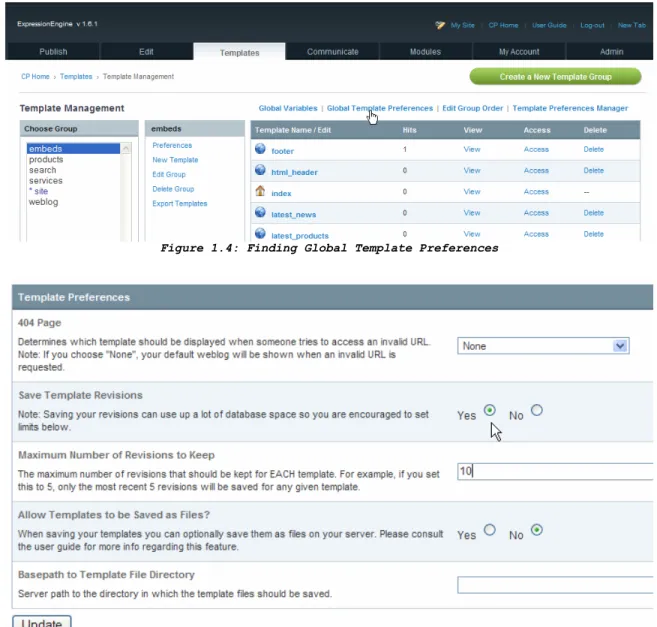
1. Click the Templates tab in the Control Panel. 2. Click Global Template Preferences.
3. Check Save Template Revisions to Yes.
4. Choose the number of revisions you want to keep (I usually keep 10). 5. Click Update.
Page 12
Figure 1.4: Finding Global Template Preferences
Figure 1.5: Turning on Template Revisioning
Edit Image Paths in HTML
OK - now for updating the HTML file that came with the template you downloaded. You’ll need to edit the image paths in the HTML to reflect the folder structure we’ve created for EE, and to include the {site_url} variable.
Page 13
They’ll need to change from this form:
images/img2.gif
to this form:
{site_url}images/interface/img2.gif
Loading the HTML into EE
Once you have the images paths edited in your template’s HTML file, it is now ready to bring into EE as a new template.
Since EE will create a blank “index” template anytime you create a new Template Group, we can just use the existing index template in the new site Template Group.
Click the index template title to edit it, and copy/paste in the index.html from your edited HTML file. Click Update.
Edit the CSS Link in the HTML File
There is one more thing to do in order to have EE serving up our static HTML and CSS - and that’s to edit the link to the CSS file in the HTML.
In the HTML, the default link is:
<link rel="stylesheet" href="stylesheet.css" type="text/css" />
This needs to change to the EE style of link:
<link rel='stylesheet' type='text/css' media='screen' href='{stylesheet=site/stylesheet}' />
If you’ve used different names for either the Template Group or the stylesheet template name, you’ll need to make sure the path after the “href stylesheet” reflects those changes. (Note: There is an updated HTML file available in the Companion Files,
chapter_1/updated_index.html.)
Page 14
I’ve had some feedback that the single quotes mentioned here weren’t working and had to be replaced by double quotes, IE:
<link rel="stylesheet" type="text/css" media="screen" href="{stylesheet=site/stylesheet}” />
So if you have issues with content not getting styled, that might be one thing to try.
The Results
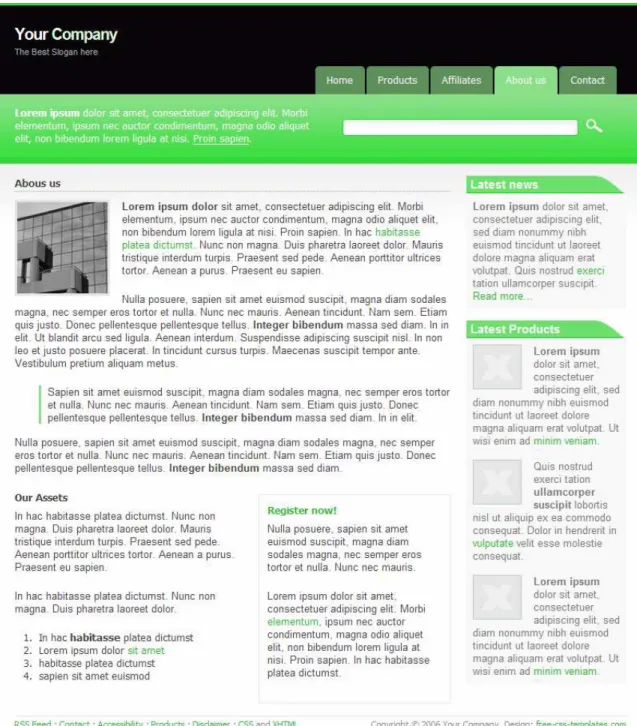
If you’re still in the template editing screen you can now click View Rendered Template. You should—barring any typos in your path statements - get the static HTML and CSS as served up by EE.
Page 15