350 East Plumeria Drive San Jose, CA 95134 USA
April 2012 202-10684-04 v1.0
NETGEAR ProSafe
VPN Client
©2010–2012 NETGEAR, Inc. All rights reserved.
No part of this publication may be reproduced, transmitted, transcribed, stored in a retrieval system, or translated into any language in any form or by any means without the written permission of NETGEAR, Inc.
For GNU General Public License (GPL) related information, please visit http://support.netgear.com/app/answers/detail/a_id/2649
Technical Support
Thank you for choosing NETGEAR. To register your product, get the latest product updates, get support online, or for more information about the topics covered in this manual, visit the Support website at
http://support.netgear.com.
Phone (US & Canada only): 1-888-NETGEAR
Phone (Other Countries): Check the list of phone numbers at http://support.netgear.com/app/answers/detail/a_id/984
Trademarks
NETGEAR, the NETGEAR logo, and Connect with Innovation are trademarks and/or registered trademarks of NETGEAR, Inc. and/or its subsidiaries in the United States and/or other countries. Information is subject to change without notice. Other brand and product names are registered trademarks or trademarks of their respective holders. ©2010–2012 NETGEAR, Inc. All rights reserved.
Statement of Conditions
To improve internal design, operational function, and/or reliability, NETGEAR reserves the right to make changes to the products described in this document without notice. NETGEAR does not assume any liability that may occur due to the use, or application of, the product(s) or circuit layout(s) described herein.
Revision History
Publication Part Number Version Publish Date Comments
202-10684-04 v1.0 March 2012 Minor new features and improvements such as the Remote Sharing pane.
202-10684-03 v1.0 May 30, 2011 Major revision to document the new format of the user interface and some new features such as the enhanced capability to change languages.
202-10684-02 v1.1 December 2010 Minor editorial changes and addition of an index.
202-10684-02 v1.0 December 2010 Reorganization and revision of the entire manual.
Contents
Chapter 1 Introduction
Linux Appliance Support . . . 7
VPN Client Features. . . 8
VPN Client Licenses. . . 10
Chapter 2 Installation
Software Installation . . . 12Trial Software Evaluation . . . 13
Software Activation. . . 15
Software Activation Wizard. . . 15
Troubleshooting Activation . . . 17
Software Upgrade . . . 19
Software Uninstallation. . . 20
Chapter 3 User Interface Overview
User Interface Elements . . . 21System Tray Popup Screens . . . 23
Keyboard Shortcuts . . . 24
Connection Panel Screen. . . 24
Configuration Panel Screen . . . 25
Main Menu . . . 26
Status Bar. . . 26
About Screen . . . 26
Options Screen. . . 27
Wizards. . . 32
VPN Console Active Screen. . . 33
Chapter 4 Basic Tasks
Open a VPN Tunnel . . . 34Easily Import a VPN Configuration . . . 35
Specify a Certificate for User Authentication . . . 35
Open a VPN Tunnel before Windows Logon . . . 37
Chapter 5 Connection Panel Screen Tasks
Chapter 6 Configuration Panel Screen Tasks
Use the Configuration Wizard to Create a VPN Tunnel Connection . . . 41Manually Create a VPN Tunnel Connection. . . 44
Authentication or Phase 1 . . . 45
Configure Authentication . . . 45
Configure Advanced Authentication . . . 47
IPSec or Phase 2 . . . 52
Configure IPSec . . . 52
Advanced IPSec Configuration. . . 55
Script Configuration . . . 57
Remote Sharing . . . 59
Global Parameters . . . 60
USB Mode . . . 62
Enable a New USB Drive with a VPN Configuration . . . 62
Automatic Opening of Tunnels . . . 66
Certificate Management . . . 66
Assign Certificates . . . 67
View Certificate Details. . . 68
Import Certificates . . . 69
Use Certificates from USB Tokens and Smart Cards. . . 73
Certificate Troubleshooting. . . 74
VPN Configuration Management . . . 76
Import or Export a VPN Configuration . . . 76
Merge VPN Configurations. . . 78
Split a VPN Configuration. . . 78
Embed Your Own VPN Configuration in a VPN Client Software Setup . 80 Demo VPN Configuration . . . 80
Chapter 7 VPN Client Software Setup and Deployment
Embedded VPN Configuration . . . 81VPN Client Software Setup Commands. . . 82
Software Setup for GUI Mode . . . 83
Software Setup for GUI Mode with Access Control . . . 83
Software Setup for System Tray Menu Items. . . 84
Other Software Setup Options . . . 85
Command-Line Interface Commands . . . 87
Open or Close VPN Tunnels . . . 87
Stop the VPN Client . . . 88
Import, Export, Add, or Replace the VPN Configuration . . . 88
Support for ATR Codes (Using Smart Cards) . . . 89
Chapter 8 Configure the VPN Client with a NETGEAR Router
Introduction. . . 91Sample VPN Network Topology. . . 92
Configure the SRX5308 VPN Router . . . 93
Use the VPN Wizard to Configure a Client-to-Router VPN Connection . 93 Manually Configure a Client-to-Router VPN Connection . . . 99
Configure the VPN Client . . . 103
NETGEAR ProSafe VPN Client
Manually Configure the VPN Client . . . 108
Establish a VPN connection . . . 114
Chapter 9 VPN Troubleshooting
Overview. . . 116Resolving Firewall Interference . . . 117
Typical Errors . . . 117
“PAYLOAD MALFORMED” Error (Wrong Phase 1 [SA]) . . . 117
“INVALID COOKIE” Error . . . 117
“no keystate” Error . . . 118
”received remote ID other than expected” Error . . . 118
“NO PROPOSAL CHOSEN” Error (Phase 1) . . . 119
“NO PROPOSAL CHOSEN” Error (Phase 2) . . . 119
“INVALID ID INFORMATION” Error . . . 119
Other Common Problems. . . 120
There Is No Response to a Phase 1 Request . . . 120
The Console Shows Only “SEND” and “RECV” . . . 121
There Is No Response to a Phase 2 Requests . . . 121
A Tunnel No Longer Opens . . . 121
A VPN Tunnel Is Up but You Cannot Ping the Remote Endpoint. . . 121
View the Logs . . . 122
Appendix A VPN Client Software Setup Deployment
and Command-Line Interface Guide
Overview. . . 125VPN Client Software Setup Deployment . . . 126
Silent Installation. . . 126
Create a Silent VPN Client Software Setup . . . 126
Deploy a VPN Client Software Setup from a CD-ROM . . . 127
Run a VPN Client Software Setup from a Shortcut (Double-Click an Icon) . . . 128
Deploy a VPN Client Software Setup Using a Batch Script . . . 128
Deploy a VPN Client Software Setup from a Network Drive. . . 129
Deploy a VPN Client Software Update . . . 130
Customize VPN Client Software for End Users . . . 130
Limit Usage of the VPN Client to the Connection Panel. . . 130
Specify Display of the Connection Panel Screen in a VPN Client Software Setup . . . 131
Limit Usage to the Connection Panel Screen in a VPN Client Software Setup . . . 131
Limit Usage of the VPN Client to the System Tray Icon Menu in a VPN Client Software Setup . . . 132
VPN Configuration Deployment . . . 132
Embed a VPN Configuration in the VPN Client Software Setup. . . 132
Export and Deploy a New VPN Configuration . . . 133
VPN Automations . . . 133 Create a Batch or Script That Automatically Opens or Closes a
Tunnel. . . 133
Automatically Open a Web Page When a VPN Tunnel Opens . . . 134
Open a Tunnel with a Double-Click on a Desktop Icon . . . 134
Software Setup Command Reference . . . 135
Command-Line Interface Command Reference. . . 139
Appendix B Generating Certificates With Microsoft
Certificates Services and OpenSSL
Microsoft Certificates Services . . . 143Install Microsoft Certificate Services. . . 143
Generate a User Certificate with Microsoft Certificate Services. . . 147
Sign a Certificate Request . . . 149
Export Certificates . . . 150
OpenSSL . . . 152
Generate a Certificate with OpenSSL . . . 153
Displaying Certificate Information Using TgbSmallPKI Tools. . . 156
Appendix C References and Useful Websites
1
1.
Introduction
The VPN Client supports all Windows versions and allows you to establish secure connections over the Internet usually between a remote worker and the corporate Intranet. IPSec is the most secure way to connect to the enterprise as it provides strong user authentication and strong tunnel encryption with the ability to work with existing network and firewall settings.
This chapter includes the following sections:
• Linux Appliance Support • VPN Client Features • VPN Client Licenses
Note: For more information about the topics covered in this manual, visit the Support website at http://support.netgear.com.
Linux Appliance Support
The VPN Client supports several versions of Linux IPSec VPN such as StrongS/WAN and FreeS/WAN. The VPN Client is compatible with most of the IPSec routers and appliances that are based on those Linux implementations.
Introduction
VPN Client Features
The VPN Client has the following features.
Table 1. List of features
Feature Specifications
Windows versions • Windows 2000 32-bit • Windows XP 32-bit
• Windows Server 2003 32-bit • Windows Server 2008 32/64-bit • Windows Vista 32/64-bit • Windows 7 32/64-bit
Languages Arabic, Chinese (simplified), Czech, Danish, Dutch, English, Finnish, French, German, Greek, Hindi, Hungarian, Italian, Japanese, Norwegian Polish, Portuguese, Russian, Serbian, Slovenian, Spanish, Thai, and Turkish.
Connection modes • Operates in a peer-to-peer VPN mode as well as point-to-multiple mode without a gateway or server. All connection types such as dial-up, DSL, cable, GSM/GPRS, and Wi-Fi are supported.
• Allows IP range networking.
• Runs in a Remote Desktop Protocol (RDP) connection session.
Tunneling protocols • Full Internet Key Exchange (IKE) support: the IKE implementation is based on the OpenBSD 3.1 implementation (ISAKMPD). This provides the best compatibility with existing IPSec routers and gateways.
• Full IPSec support:
- Main mode and aggressive mode
- MD5, SHA-1, and SHA-256 hash algorithms - Change IKE port
NAT Traversal • NAT Traversal Draft 1 (enhanced), Draft 2, and Draft 3 (full implementation), including:
- NAT OA support - NAT keep-alive
- NAT-T aggressive mode • Forced NAT-Traversal mode
SIP/VoIP support Support for Session Initiation Protocol (SIP) and Voice over IP (VoIP) traffic in a VPN tunnel (Window Vista and WIndows 7 only).
Encryption Provides the following encryption algorithms: • 3DES, DES, and AES 128/192/256-bit encryption
• Support for Diffie-Hellman group 1 (768 bits), group 2 (1024 bits), group 5 (1536 bits), and group 14 (2048 bits)
Introduction NETGEAR ProSafe
VPN Client
User authentication Supports the following user authentication methods:
• Preshared keying and X509 certificate support. Compatible with most of the currently available IPSec gateways.
• Extended authentication (AUTH).
• Flexible certificates: PEM, PKCS#12 certificates can be directly imported from the user interface. Ability to configure one certificate per tunnel.
• Hybrid authentication method.
Certificate storage capabilities: • USB token and smart card support • Personal Certificate Store support • VPN configuration file
Remote login:
Vista Credential Providers support (also known as GIna on Windows 2000 and Windows XP) to enable Windows logon using a VPN tunnel or choose to log on to a local machine.
Dead Peer Detection Dead Peer Detection (DPD) is an IKE extension (RFC3706) for detecting a dead IKE peer.
Redundant Gateway The Redundant Gateway feature provides a highly reliable secure connection to a corporate network. The Redundant Gateway feature allows the VPN Client to open an IPSec tunnel with an alternate gateway if the primary gateway is down or not
responding.
Mode Config Mode Config is an IKE extension that enables the VPN gateway to provide LAN configuration to the remote user’s machine (that is, the VPN Client). With Mode Config, you can access all servers on the remote network by using their network name (for example, \\myserver\marketing\budget) instead of their IP address.
USB drive You can save VPN configurations and security elements (certificates, preshared key, and so on) to a USB drive to remove security information (for example, user
authentication) from the computer. You can automatically open and close tunnels when plugging in or removing the USB drive. You can attach a VPN configuration to a specific computer or to a specific USB drive.
Smart card and USB token
The VPN Client can read certificates from smart cards to make full use of existing corporate ID or employee cards that carry digital credentials.
You can easily import smart card ATR codes to enable new smart card and USB token models that are not yet in the software.
Log console All phase messages are logged for testing or staging purposes.
Flexible user interface
• Silent install and invisible graphical interface allow network administrators to deploy solutions while preventing user misuse of configurations.
• Small Connection Panel screen and VPN Configuration Panel screen can be available to end users separately with access control.
• Drag and drop VPN configurations into the VPN Client. • Keyboard shortcuts to easily navigate the VPN Client. Table 1. List of features (continued)
Introduction
VPN Client Licenses
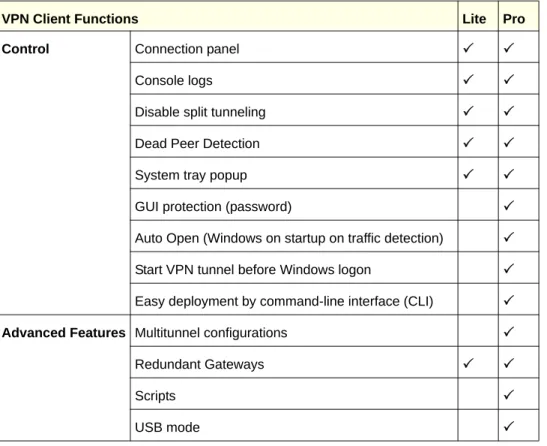
NETGEAR products can include a license for the VPN Client Lite or for a 30-day trial copy of the VPN Client Professional, or for both. The following table lists the features that are
included in the VPN Client Lite and VPN Client Professional versions. When you launch the VPN Client, you are given the opportunity to purchase a license for the Professional VPN Client and to activate (register) either the VPN Client Professional or VPN Client Lite. The following table compares the features of the VPN Client Professional and VPN Client Lite.
Scripts Scripts or applications can be launched automatically on events (for example, before and after a tunnel opens, or before and after a tunnel is closed).
Configuration management
• User interface and command-line interface (CLI). • Password-protected VPN configuration file.
• Specific VPN configuration file can be provided within the setup.
• Embedded demo VPN configuration to test and debug with online servers. • Ability to prevent software upgrade or uninstallation if protected by password.
Live update Ability to check for online updates.
Table 2. Feature comparison between VPN Client Lite and VPN Client Professional
VPN Client Functions Lite Pro
Configuration Configuration wizard
X-Auth
Mode Config
DNS/WINS server manual configuration
Hybrid mode
IKE/NAT-T ports can be modified
Table 1. List of features (continued)
Introduction NETGEAR ProSafe
VPN Client
Control Connection panel
Console logs
Disable split tunneling
Dead Peer Detection
System tray popup
GUI protection (password)
Auto Open (Windows on startup on traffic detection)
Start VPN tunnel before Windows logon
Easy deployment by command-line interface (CLI)
Advanced Features Multitunnel configurations
Redundant Gateways
Scripts
USB mode
Table 2. Feature comparison between VPN Client Lite and VPN Client Professional (continued)
2
This chapter describes installation of the VPN Client and related processes. This chapterincludes the following sections:
• Software Installation • Trial Software Evaluation • Software Activation • Software Upgrade • Software Uninstallation
Software Installation
The VPN Client software installation does not require specific information and is
self-explanatory. After completing the installation, you are asked to reboot your computer. However, if your operating system is Windows 7 or Windows Vista, you can install the VPN Client software without rebooting your computer.
After you have rebooted and logged in to your computer, the VPN Client Activation Wizard screen displays. The information about how to proceed depends on whether you want to use a trial license or activate a permanent license:
• If you downloaded a free trial software version, see Trial Software Evaluation on page 13.
• If you purchased a permanent license, see Software Activation on page 15.
To launch the VPN Client after software installation, use one of the following three methods:
• On your desktop, double-click the VPN Client shortcut.
• In the taskbar, click the VPN Client icon.
• From the Start menu, select the path to the VPN Client, for example, Start > Programs > Netgear > NETGEAR VPN Client.
Note: If your operating system is Windows 7 or Windows Vista, you can select a check box to automatically run the VPN Client after software installation.
Installation NETGEAR ProSafe
VPN Client
Note that the VPN Client creates new rules in the Windows firewall (Vista and later operating systems) so that VPN traffic is enabled: UDP ports 500 and 4500 are authorized both for authentication (phase 1) traffic and for IPSec (phase 2) traffic.
If you use an earlier Windows operating system or another firewall, you might have to create firewall rules to enable the VPN Client. For information, see Resolving Firewall Interference
on page 117.
Trial Software Evaluation
The following figure shows the Software Activation screen while the evaluation period is active.
Figure 1.
To use the VPN Client during the evaluation period (usually limited to 30 days): 1. Select the I want to evaluate the software radio button. You do not need to enter a
license number and email address to activate the trial software.
2. Click Next.
During the evaluation period, the Software Activation screen displays each time that you start the VPN Client. The remaining days of the evaluation period is displayed next to the calendar icon on the right of the screen.
When the evaluation period expires, the following occurs:
• The I want to Activate the software radio button is automatically selected.
• The I want to Evaluate the software radio button is masked out.
• The message Evaluation period expired is displayed.
Installation
In order for you to use the VPN Client, you need to purchase and activate a permanent license. You can click the Buy a license link to purchase a permanent license.
The following figure show the Software Activation screen after the evaluation period has expired:
Figure 2.
During the evaluation period, the Software Activation screen is accessible by selecting ?>Activation Wizard from the main menu on the Configuration Panel screen (see Software Activation on page 15). You can purchase and activate a permanent license while you are still in the evaluation period or after the evaluation period has expired.
You can see the remaining time of the evaluation period on the About screen by selecting ? > About from the main menu of the Connection Panel screen.
Installation NETGEAR ProSafe
VPN Client
Figure 3.
Software Activation
When you purchase a permanent license, you are required to activate it before you can use the VPN Client.
Software Activation Wizard
In order for you to use the VPN Client beyond the evaluation period, the VPN Client license need to be activated on your computer. You need the license number or key and an email address.
To transfer a license to a new computer, you need to uninstall the software from the old computer. Deactivation of the license on the old computer occurs automatically if the computer is connected to the Internet. The license can then be used to activate the VPN Client on a new computer.
To activate your software using the Activation Wizard: 1. Make sure you are connected to the Internet.
2. Launch the Activation Wizard from the VPN Client by selecting ?>Activation Wizard from the main menu on the Configuration Panel screen. The following figure shows a situation in which the evaluation period has not yet expired.
Installation Figure 4.
3. Select the I want to Activate the software radio button.
4. Enter your permanent license number.
5. Enter your email address, which will be used to send you the activation confirmation.
Note: The email address might not be required. If the network
administrator suppresses display of the Email address field during the software setup, it will not be displayed by the Software Activation Wizard. Suppression can be used to centralize all software
activation confirmation emails to a single email address.
6. Click Next. The Activation Wizard attempts to automatically connect to the activation server to activate the VPN Client software. The progress bar shows the activation progress. When the activation is complete, the screen shows whether or not the activation was successful and displays messages associated with the outcome (see also Troubleshooting Activation
Installation NETGEAR ProSafe
VPN Client
Figure 5.
7. Click Run to open the VPN Client with the new license.
Tip: After activation, save the license key number. You might need it again to reactivate your software in case of a problem. Also, keep the CD label for technical support.
Note: You can change the license number at any time, but you first need to uninstall the VPN Client.
Note: A license number is attached to a single computer after activation. However, you can deactivate the license number and transfer it to another computer.
Troubleshooting Activation
Errors can occur during the activation process. Each activation error type is displayed on the Software Activation screen. Click the More information about this error link at the bottom of the screen for information about the error and recommendations. The following two figures show examples of activation errors.
Installation Figure 6.
Figure 7.
You can resolve most of errors by carefully checking the following:
• Verify that you entered the correct license number. (Error 031 indicates that the license number was not found.)
• Your license number could already be activated (Error 033). Contact NETGEAR support. • Your license number cannot be used for activation (Error 034). Contact NETGEAR
Installation NETGEAR ProSafe
VPN Client
• Communication with the activation server might be blocked by a firewall (error 053 or error 054). Find out if a personal or corporate firewall is blocking communications. • The activation server might be temporarily unreachable. Wait a few minutes and try
again.
All activation errors are listed at www.netgear.com/support.
Software Upgrade
Note: The VPN Client must be activated after each software upgrade. Depending on your maintenance contract, a software upgrade activation might be rejected. Carefully read the recommendations in this section and check the current status of your software release by selecting ? > Check for Update from the main menu of the
Connection Panel screen.
The success of a software upgrade activation depends on your maintenance contract:
• During the maintenance period (which starts from your first activation), all software upgrades are allowed.
• If the maintenance period has expired or if you have no maintenance contract, only maintenance software upgrades are allowed. Maintenance software upgrades are identified by the last digit of a version.
Example: Your maintenance period has expired and your current software release is 3.12. You can upgrade to releases 3.13 through 3.19 but not to release 3.20, 3.30, 4.00, or 5.00.
If you want to subscribe or extend your maintenance period, please contact NETGEAR by email at [email protected].
Note: The VPN configuration is saved during a software upgrade and automatically reenabled within the new release.
Note: If you have specified a password in the access control Configuration screen (see View Pane: Access Control and Hidden Interface on page 27), you need to enter it to be able to upgrade the software.
Installation
Software Uninstallation
If you need to, you can uninstall the VPN Client.
To uninstall the VPN Client, use one of the following two methods:
• Open the Windows Control Panel, double-click Add or Remove Programs, select NETGEAR VPN Client, and then select Remove.
• From the Start menu, select the path to the VPN Client, for example, Start > Programs > Netgear > NETGEAR VPN Client, and then the uninstall option.
When you uninstall the VPN Client, make sure that your computer is connected to the Internet. If your computer is not connected to the Internet, contact NETGEAR support by email at [email protected] or call the technical center to inactivate your license key.
Tip: After uninstallation, save the license key number. You might need it again to reactivate your software. Also, keep the CD label for technical support.
3
3.
User Interface Overview
This chapter describes the user interface for the VPN Client. This chapter includes the following sections:
• User Interface Elements • System Tray Popup Screens • Keyboard Shortcuts
• Connection Panel Screen • Configuration Panel Screen • VPN Console Active Screen
User Interface Elements
The VPN Client is fully autonomous and can start and stop tunnels without user intervention, depending on traffic to certain destinations. However, it requires a VPN configuration.
The VPN Client configuration is defined in a VPN configuration file. The software user interface allows creating, modifying, saving, exporting, or importing the VPN configurations together with security elements such as a preshared key or certificates.
The user interface consists of several elements:
• Configuration Panel
• Connection Panel
• Main menus
• System tray icon and popup screens
• Status bar
• Wizards
• Preferences
You can launch the VPN Client by double-clicking the application icon on the desktop or Windows Start menu or by single-clicking the application icon in the system tray. Once launched, the VPN Client displays an icon in the system tray that indicates whether or not a tunnel is opened, using a color code.
User Interface Overview Figure 8.
Right-click the VPN Client icon in the system tray to open the system tray menu.
Figure 9.
The system tray menu shows the following items from top to bottom:
• Configured tunnels with their current status. You can open or close tunnels by selecting Open '<gateway name-tunnel name>' or Close '<gateway name-tunnel name>'.
• Console. Shows the VPN Console Active screen.
• Connection Panel. Opens the Connection Panel screen, which lets you open and close VPN tunnels and displays information about VPN tunnels.
• Configuration Panel. Opens the Configuration Panel screen, which lets you create and configure VPN tunnels.
• Quit. Closes all established VPN tunnels, then closes the VPN Client. Purple icon:
no VPN tunnel opened. Green icon:
User Interface Overview NETGEAR ProSafe
VPN Client
System Tray Popup Screens
When a VPN tunnel opens or closes, a small popup screen comes out from the system tray icon and shows the following:
• VPN tunnel opening with different phases. The popup screen disappears after 6 seconds unless you move the mouse over the screen.
Figure 10.
• VPN tunnel closing, followed by tunnel closed.
Figure 11.
• If the VPN tunnel cannot open, the screen might display a warning with a link to more information.
User Interface Overview
Keyboard Shortcuts
The user interface supports the following keyboard shortcuts.
Connection Panel Screen
The Connection Panel screen enables you to open, close, and receive clear information about every tunnel that has been configured. If a network administrator has configured the VPN tunnels, the end user needs access to the Connection Panel screen only to open and close tunnels.
The Connection Panel screen consists of the following components:
• An animated network diagram that shows information about the current tunnel (at the top of the screen)
• A list of all configured tunnels with buttons to open and close the tunnels (below the network diagram)
• A link back to the Configuration Panel screen (at the left bottom of the screen)
You can switch back and forth between the Connection Panel screen and the Configuration Panel screen by using the Ctrl + Enter shortcut.
Figure 13.
Table 3. Keyboard shortcuts
Shortcut Action
Ctrl + Enter Lets you switch back and forth between the Configuration Panel and the Connection Panel. If the Configuration Panel is protected with a password, you are asked for this password when you switch to the Configuration Panel.
Ctrl + D Lets you opens the VPN Console for network debugging.
User Interface Overview NETGEAR ProSafe
VPN Client
Configuration Panel Screen
The Configuration Panel screen enables you to configure VPN tunnels, and consists of the following components:
• Main menu (at the top of the screen)
• The Save and Apply buttons in the left column of the screen
• A tree list pane (in the left column of the screen) that contains the Global Parameters button and all authentication phase names (that is, phase 1 names) with their associated IPSec configuration names (that is, phase 2 names)
• A configuration pane (in the right column of the screen) that shows the associated settings for each tree level
• Status bar (at the bottom of the screen)
Figure 14.
You can drag and drop a VPN configuration file (that is, a file with a .tgb extension) onto the Configuration Panel screen to easily apply a new VPN configuration. If a tunnel is configured to be opened when the VPN Client starts (see Advanced IPSec Configuration on page 55), the tunnel is immediately opened when you click Save or Apply to apply the new VPN configuration.
User Interface Overview
Main Menu
The main menu lets you make the following selections:
• Configuration. Lets you import and export a VPN configuration, select the location of the VPN configuration (locally stored on the computer or on a USB drive), access the
configuration wizard, and quite the VPN Client.
• Tools. Lets you access the Connection Panel, access the Console screen, reset the IKE settings, and configure miscellaneous preferences such as the way the VPN Client starts and the language of the VPN Client.
• ?. Lets you access online help, check for software updates, connect to the NETGEAR website to purchase a license online, access the Activation Wizard, and access the About screen.
Note: Some selections that are available from the Configuration menu are also available by right-clicking a component of the tree list pane in the Configuration Panel screen.
Status Bar
The status bar at the bottom displays the following information:
• The radio button indicates whether or not the VPN Client is ready for use. (Green indicates ready; gray indicates not ready.)
• The text to the right of the radio button provides the status of the VPN Client (for example, VPN Client Ready, or Apply VPN configuration).
• The progress bar at the very right displays the progress when you apply or save the configuration.
About Screen
The About screen that you can access by clicking ? on the main menu provides the VPN Client software release number and software activation information. There is also a URL to the NETGEAR website.
User Interface Overview NETGEAR ProSafe
VPN Client
Figure 15.
Options Screen
Note: This screen is not available in the VPN Client Lite.
The Options screen, which you access by selecting Tools > Options from the main menu, has three tabs that provide access to the View pane, General pane, and Language pane.
View Pane: Access Control and Hidden Interface
Access control is a feature that is intended for use by a network administrator. It allows you to restrict access to the Connection Panel screen and the system tray menu with a password and to lock access to the Configuration Panel screen to prevent users from modifying the VPN configuration. Only the Configuration Panel screen can be password protected; the Connection Panel screen cannot.
When access control is enabled, you are asked for the password under the following circumstances:
• When you click (or double-click) the VPN Client icon in the system tray.
• When you switch from the Connection Panel screen to the Configuration Panel screen.
User Interface Overview Figure 16.
You can also configure this password as an option of the software setup (see VPN Client Software Setup Commands on page 82).
The View pane also lets you configure the system tray menu items such as the Console, Connection Panel, and Configuration Panel, and the pop-up screens in the system tray (which are referred to as the systray sliding popup). In this way a network administrator can restrict the software access from full access to a completely hidden interface.
Figure 17.
To remove access control:
1. Clear the Password and Confirm fields
User Interface Overview NETGEAR ProSafe
VPN Client
Note: The Quit check box for the system tray menu is disabled in the standard version of the software. You can remove this check box during the software setup through the menuitem software setup command (see Software Setup for System Tray Menu Items on page 84).
When access control is enabled, you cannot open the Configuration Panel screen by
double-clicking the desktop icon or by using the Start menu; when you right-click the system tray icon, the options are limited to accessing the VPN Console, opening and closing the configured tunnels, and closing the VPN Client.
Figure 18.
General Pane
The General Pane lets you specify the following:
• VPN Client startup modes:
- Start the VPN Client after you have logged in to Windows.
- Do not start the VPN Client after you have logged in to Windows. In this case, you need to manually start the VPN Client or use a script to start it.
Note: You can also configure these modes in the software setup (see VPN Client Software Setup Commands on page 82).
• Enable or disable the detection of the interface disconnection feature. When you disable the detection of interface disconnection, the VPN Client keeps tunnels open when the network interface disconnects momentarily. This type of behavior occurs when the interface that is used to open tunnels is unstable, such as Wi-Fi, GPRS, and 3G interfaces.
User Interface Overview Figure 19.
Language Pane
The Language pane lets you change the VPN Client language without having to restart the VPN Client. You can also manually edit the translation in a very easy way, or even translate an existing language into another language that is not yet supported on the VPN Client to create a new localization.
User Interface Overview NETGEAR ProSafe
VPN Client
Figure 20.
To edit the translation:
1. Click Edit language. The Edit language screen displays (see the next figure).
2. Select a row. A popup screen displays and shows the following four columns:
• line number
• ID. The name of the string.
• Original. The string in English.
• Translation. The translated string.
3. Enter your alternate translation in the popup screen, and click Ok.
4. Click Save to save the .lng file in the Language folder of the VPN Client software directory. Click Apply to immediately show the new translation in the user interface.
Note: The saved file is added as a new selection in the language drop-down list of the Language pane. The name of the new selection is the name of the original language followed by an exclamation mark. For example, if you make changes to the English language file, the new language option that is shown in the drop-down list is English!
User Interface Overview
During translation, do not change the following characters, which are generic expressions:
• “%s” is replaced by a string
• “%d” is replaced by a number
• “\n” stands for carriage return
• “&” underlines the characters that follow it
IDS_DATE_FORMAT is “%m-%d-%Y”. Modify the date only if you know the appropriate syntax. Do not translate IDS_SC_P11_3.
Figure 21.
Wizards
There are several wizards available:
• VPN Configuration Wizard. Access this wizard by selecting Configuration > Wizard from the main menu (for more information, see Use the Configuration Wizard to Create a VPN Tunnel Connection on page 41).
• Software Activation Wizard. Access this wizard by selecting ?>Activation Wizard from the main menu (for more information, see Software Activation Wizard on page 15).
User Interface Overview NETGEAR ProSafe
VPN Client
• USB Mode Wizard. Access this wizard by selecting File>Move to USB Drive from the main menu (for more information, see USB Mode on page 62).
• Certificate Export Wizard. Access this wizard by selecting View Certificate on the Certificate pane, selecting the Details tab on the View Certificate screen, and then selecting Copy to File (for more information, see View Certificate Details on page 68).
VPN Console Active Screen
You can access the VPN Console Active screen from the system tray menu, from the
Console button on the Configuration Panel screen, or by selecting Tools > Console from the main menu of the Console Panel screen. Use the VPN Console Active screen to analyze VPN tunnels, which can be useful if you are a network administrator and have to set up a network.
Figure 22.
The buttons on the VPN Console Active screen have the following functions:
• Save. Saves the current logs in a file without overwriting previous logs.
• Start or Stop. Starts or stops the collection of logs. Only one of these buttons is displayed onscreen at a time.
• Clear. Removes the content from the screen.
• Reset IKE. Restarts the IKE process.
Note: To enable debug mode, which is also referred to as trace mode, press Ctrl+Alt+D. Note that the trace logs become large rather quickly.
4
This chapter describes some basic tasks of the VPN Client. These tasks are described in more detail in other chapters. This chapter includes the following sections:• Open a VPN Tunnel
• Easily Import a VPN Configuration
• Specify a Certificate for User Authentication • Open a VPN Tunnel before Windows Logon
Open a VPN Tunnel
You can open a tunnel only after the VPN configuration has been specified.
To open a tunnel, use one of the following five methods:
• Configuration Panel screen. In the tree list pane of the Configuration Panel screen, perform one of the following tasks:
- Click the IPSec configuration name (by default, Tunnel) and press Ctrl + O. - Right-click the IPSec configuration name (by default, Tunnel) and select Open
tunnel.
For more information, see Chapter 6, Configuration Panel Screen Tasks.
• Connection Panel screen. On the main menu of the Configuration Panel screen, select Tools > Connection Panel to open the Connection Panel screen. Perform one of the following tasks:
- Double-click the connection name (by default, Gateway-Tunnel).
- Right-click the connection name (by default, Gateway-Tunnel) and click Open tunnel.
- Click the connection name (by default, Gateway-Tunnel) and press Ctrl + O. For more information, see Chapter 5, Connection Panel Screen Tasks.
• System-tray icon. Right-click the system tray icon and click the IPSec configuration name (by default, Tunnel). For more information, see User Interface Elements on page 21.
Basic Tasks NETGEAR ProSafe
VPN Client
• VPN configuration icon. Double-click on a VPN configuration icon on your desktop or in an email attachment. For information about how to create a VPN configuration icon, see
VPN Configuration Management on page 76.
• CLI. Use the command-line interface (CLI). For more information, see Open or Close VPN Tunnels on page 87.
To enable a tunnel to be opened automatically, select one or more of the following check boxes on the Advanced IPSec pane of the Configuration Panel screen: • Automatically open this tunnel when the VPN Client starts after login
• Automatically open this tunnel when USB stick is inserted
• Automatically open this tunnel on traffic detection
For more information, see Advanced IPSec Configuration on page 55.
Easily Import a VPN Configuration
You can create various VPN configurations on the Windows desktop and open a tunnel by double-clicking a VPN configuration icon (that is, a file with a .tgb extension).
To create a VPN configuration shortcut icon on the desktop:
1. Configure a tunnel on the Configuration Panel screen (see Use the Configuration Wizard to Create a VPN Tunnel Connection on page 41 or Manually Create a VPN Tunnel Connection on page 44).
2. Configure the tunnel to automatically open when the VPN Client starts after login (see
Advanced IPSec Configuration on page 55).
3. Export the VPN configuration onto your computer desktop (see Import or Export a VPN Configuration on page 76).
Specify a Certificate for User Authentication
To configure new authentication settings (phase 1 settings) and an associated IPSec configuration (phase 2 settings), and then specify a certificate for the tunnel:
1. Create new authentication settings (phase 1 settings, see Configure Authentication on page 45) and configure the advanced settings (see Configure Advanced Authentication
Basic Tasks Figure 23.
2. Add a new IPSec configuration (phase 2 settings, see Configure IPSec on page 52) and configure the advanced settings (see Advanced IPSec Configuration on page 55).
Figure 24.
3. Go back to the Authentication pane, and select the Advanced tab. The Advanced authentication pane displays.
4. Select the Certificate radio button.
Figure 25.
The Certificate pane displays automatically (see the following figure).
5. From the list of certificates, specify a certificate by selecting its radio button (see Assign Certificates on page 67). You can also click Import Certificate to import a new certificate (see Import Certificates on page 69), and then click OK.
6. Click Apply to use the new settings immediately, and click Save to keep the settings for future use.
Basic Tasks NETGEAR ProSafe
VPN Client
Figure 26.
Open a VPN Tunnel before Windows Logon
You can manually or automatically open one or more VPN tunnels before Windows login by using a Windows logon technology that is referred to as Credential Providers in Vista and later releases and as Gina mode in Windows 2000 and Windows XP.
To manually open a VPN tunnel before Windows logon:
Settings VPN Client Behavior
1. Open the Advanced IPSec pane. 2. Select the Enable before Windows
logon check box.
3. Ensure that the Automatically open this tunnel on traffic detection check box is cleared.
For more information, see Advanced IPSec Configuration on page 55.
Before Windows logon, the following popup screen displays to allow you to open the required VPN tunnel.
The popup screen lists all VPN tunnels for which you have selected the Enable before Windows logon check box on the Advanced IPSec pane.
Basic Tasks
To automatically open a VPN tunnel before Windows logon:
Note: To enable a VPN tunnel to automatically open on traffic detection after Windows logon, select the Automatically open this tunnel on traffic detection check box and ensure that the Enable before Windows logon check box is cleared.
The following information applies to tunnels for which you have selected the Enable before Windows logon check box on the Advanced IPSec pane:
• You cannot hide the popup screen that appears before Windows logon.
• If two tunnels have been configured to automatically open on traffic detection but only one tunnel is configured to be enabled before Windows logon, both tunnels might open automatically before Windows logon when the IKE services are running.
• Scripts that you might have configured are disabled.
• The VPN Client cannot function in USB mode (see USB Mode on page 62).
• The Mode Config feature is disabled, so you might have to specify DNS or WINS server addresses (see Advanced IPSec Configuration on page 55).
• When extended authentication (XAUTH) is enabled (see Extended Authentication on page 51), a popup screen displays when tunnels open to enable you to enter the login name and password.
• When you use a USB token or smart card, a popup screen displays when tunnels open to enable you to enter the PIN code.
Settings VPN Client Behavior
1. Open the Advanced IPSec pane. 2. Select the Enable before Windows
logon check box.
3. Select the Automatically open this tunnel on traffic detection check box. For more information, see Advanced IPSec Configuration on page 55.
Before Windows logon, the following popup screen displays to show the VPN tunnels that are opened automatically.
The popup screen lists all VPN tunnels for which you have selected the Enable before Windows logon check box on the Advanced IPSec pane.
5
5.
Connection Panel Screen Tasks
This chapter describes the Connection Panel screen basics.
The Connection Panel screen enables you to open and close each tunnel that has been configured. If a network administrator has configured the VPN tunnels, the end user needs access only to the Connection Panel to open and close tunnels.
To open the Connection Panel screen, use one of the following two methods: • Select Tools > Connection Panel from the main menu on the Configuration Panel
screen.
• Right-click the system tray icon and select Connection Panel.
Figure 27.
The Connection Panel screen consists of the following components:
• For each tunnel, the following components:
- An icon that shows whether or not the tunnel is open: a small circular gray icon indicates that the tunnel is closed; a large circular green icon with an arrow in the middle indicates that the tunnel is open.
- A rectangular traffic gauge that shows the traffic volume passing through the tunnel.
- The connection name (tunnel name) in the format authentication phase name–IPSec configuration name.
• Three icons in the upper right corner:
- ?. Opens the About screen.
- +. Opens the Configuration Panel screen.
- x. Closes the Connection Panel screen.
You can switch back and forth between the Connection Panel screen and the Configuration Panel screen by using the Ctrl + Enter shortcut.
Connection Panel Screen Tasks
To open a selected connection (tunnel), use one of the following three methods: • Double-click the tunnel (anywhere, the icon, gauge, or name).
• Right-click the tunnel and then click Open tunnel.
• Click on the tunnel and press Ctrl + O.
To close a selected connection (tunnel), use one of the following three methods: • Double-click the tunnel (anywhere, the icon, gauge, or name).
• Right-click the tunnel and then click Close tunnel.
6
6.
Configuration Panel Screen Tasks
This chapter describes the Configuration Panel screen. This chapter includes the following sections:
• Use the Configuration Wizard to Create a VPN Tunnel Connection • Manually Create a VPN Tunnel Connection
• Authentication or Phase 1 • IPSec or Phase 2
• Global Parameters • USB Mode
• Certificate Management
• VPN Configuration Management
Use the Configuration Wizard to Create a VPN Tunnel
Connection
The VPN Client provides a Configuration Wizard that lets you create a VPN configuration in three easy steps. This Configuration Wizard is designed for remote computers that need to be connected to a corporate LAN through a VPN gateway and for peer-to-peer connections. The configuration in the following figure has the following characteristics:
• The remote computer has a dynamically provided public IP address.
• The remote computer connects to the corporate LAN behind a VPN gateway that has a DNS address with the name gateway.mydomain.com.
• The corporate LAN address is 192.168.1.xxx, that is, the remote computer must reach a server with the IP address 192.168.1.100.
Configuration Panel Screen Tasks Figure 28.
To create a VPN tunnel connection between the remote computer and the corporate LAN:
1. From the main menu on the Configuration Panel screen, select Configuration > Wizard. The VPN Client Configuration Wizard Step 1 of 3 screen displays:
Figure 29.
2. Select the equipment to connect to. The options are Another computer and A router or a VPN gateway. In this configuration, select the A router or a VPN gateway radio button.
Configuration Panel Screen Tasks NETGEAR ProSafe
VPN Client
Figure 30.
4. Specify the following VPN tunnel parameters:
• IP or DNS public (external) address of the remote equipment. The public (WAN) IP address of the remote gateway. In this example, enter gateway.mydomain.com.
• Preshared key. The preshared key that must also be defined on the remote gateway.
• IP private (internal) address of the remote network.The IP address of the remote network. In this example, enter 192.168.1.0.
5. Click Next. The VPN Client Configuration Wizard Step 3 of 3 screen displays:
Configuration Panel Screen Tasks
This screen is a summary screen of the new VPN configuration. If required, you can specify other settings such as certificates and virtual IP addresses on the Configuration Panel screen.
6. Click Finish.
To open the newly created tunnel:
1. From the main menu on the Configuration Panel screen, select Tools > Connection Panel.
2. Double-click the newly created tunnel (Gateway-Tunnel), or right-click the newly created tunnel, and then click Open Tunnel.
Manually Create a VPN Tunnel Connection
To manually create a VPN tunnel from the Configuration Panel screen:
1. In the tree list pane of the Configuration Panel screen, right-click VPN Configuration and select Reset.
Figure 32.
2. In the tree list pane of the Configuration Panel screen, right-click VPN Configuration and select New Phase 1.
Figure 33.
3. The Authentication pane displays in the right column of the Configuration Panel screen. Configure the authentication that enables you to connect to the remote gateway or computer as explained in Authentication or Phase 1 on page 45.
Configuration Panel Screen Tasks NETGEAR ProSafe
VPN Client
4. In the tree list pane of the Configuration Panel screen, right-click Gateway (which is the default name of the new phase 1 configuration) and select New Phase 2.
Figure 34.
5. The IPSec pane displays in the right column of the Configuration Panel screen. Specify the IPSec configuration that enables the VPN Client to communicate securely with the remote gateway or computer as explained in IPSec or Phase 2 on page 52.
6. Click Apply for immediate use.
7. Click Save for future use.
8. Right-click the tunnel that you just configured, and click Open Tunnel to open the new VPN tunnel.
Authentication or Phase 1
The Authentication pane that opens in the Configuration Panel screen lets you specify the settings for the authentication phase, which is also referred to as phase 1 or as the Internet Key Exchange (IKE) negotiation phase. The purpose of phase 1 is to negotiate IKE policy sets, authenticate the peers, and set up a secure channel between the peers. As part of phase 1, each end system must identify and authenticate itself to the other.
You can specify settings for several authentication phases, enabling one computer to establish IPSec VPN connections with several gateways or other computers (peer-to-peer connections).
Configure Authentication
To create new authentication settings or edit existing authentication settings: 1. Take one of the following actions:
• Create new authentication settings: In the tree list pane of the Configuration Panel screen, right-click VPN Configuration, select New Phase 1, and then click on the new authentication phase name.
• Edit existing authentication settings: In the tree list pane of the Configuration Panel screen, select an existing authentication phase name (for example, Gateway in the following figure).
Configuration Panel Screen Tasks
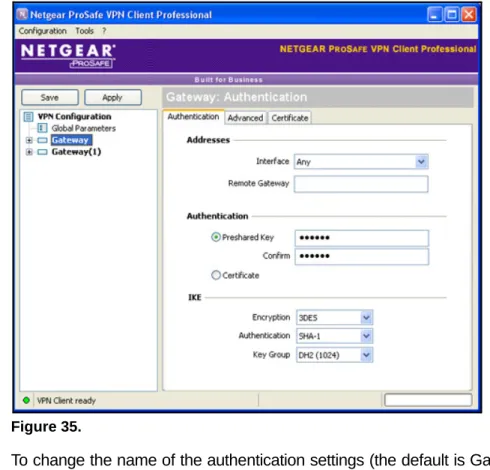
The Authentication pane displays in the Configuration Panel screen, with the Authentication tab selected by default.
Figure 35.
2. To change the name of the authentication settings (the default is Gateway): a. Right-click the authentication phase name.
b. Select Rename. c. Enter a new name.
d. Click anywhere in the tree list pane.
3. Configure the settings as explained in the following table.
Table 4. Authentication settings (phase 1 settings)
Setting Description
Interface From the Interface drop-down list, select the IP address of the network interface of the computer through which the VPN connection is established. If the IP address changes (when it is received dynamically from an ISP or router), select Any.
Note: If your selection of the Interface drop-down list refers to an IP address that does not exist on the computer, Any is used automatically.
Remote Gateway
Enter the IP address or DNS address of the remote gateway (in the example onscreen, myrouter.dyndns.org). This field is mandatory.
Preshared Key
Enter the password or key that is shared with the remote gateway. You need to enter the same password or key in the Confirm field.
Configuration Panel Screen Tasks NETGEAR ProSafe
VPN Client
4. Click Apply to use the new settings immediately, and click Save to keep the settings for future use.
Configure Advanced Authentication
Note: For authentication settings (phase 1 settings), the advanced
configuration settings apply to all its associated IPSec configurations (phase 2 settings).
To configure advanced authentication settings:
1. In the tree list pane of the Configuration Panel screen, click the authentication phase name for which you want to configure the advanced settings (for example, Gateway in the following figure). The Authentication pane displays.
2. In the Authentication pane, click the Advanced tab. The Advanced authentication pane displays:
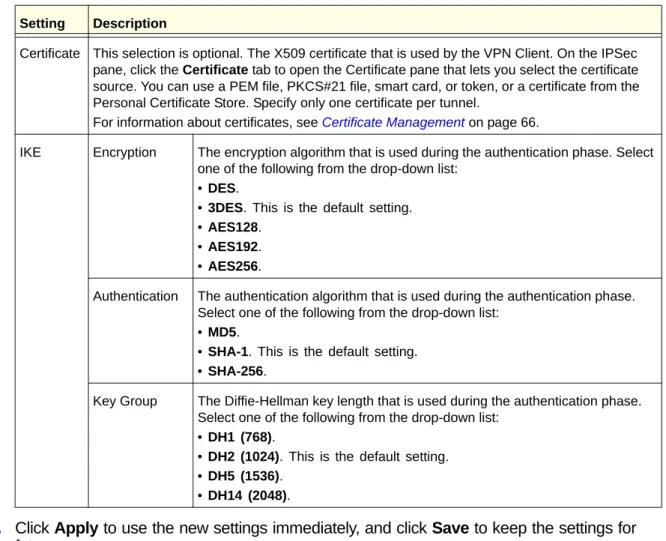
Certificate This selection is optional. The X509 certificate that is used by the VPN Client. On the IPSec pane, click the Certificate tab to open the Certificate pane that lets you select the certificate source. You can use a PEM file, PKCS#21 file, smart card, or token, or a certificate from the Personal Certificate Store. Specify only one certificate per tunnel.
For information about certificates, see Certificate Management on page 66.
IKE Encryption The encryption algorithm that is used during the authentication phase. Select one of the following from the drop-down list:
• DES.
• 3DES. This is the default setting. • AES128.
• AES192. • AES256.
Authentication The authentication algorithm that is used during the authentication phase. Select one of the following from the drop-down list:
• MD5.
• SHA-1. This is the default setting. • SHA-256.
Key Group The Diffie-Hellman key length that is used during the authentication phase. Select one of the following from the drop-down list:
• DH1 (768).
• DH2 (1024). This is the default setting. • DH5 (1536).
• DH14 (2048).
Table 4. Authentication settings (phase 1 settings) (continued)
Configuration Panel Screen Tasks Figure 36.
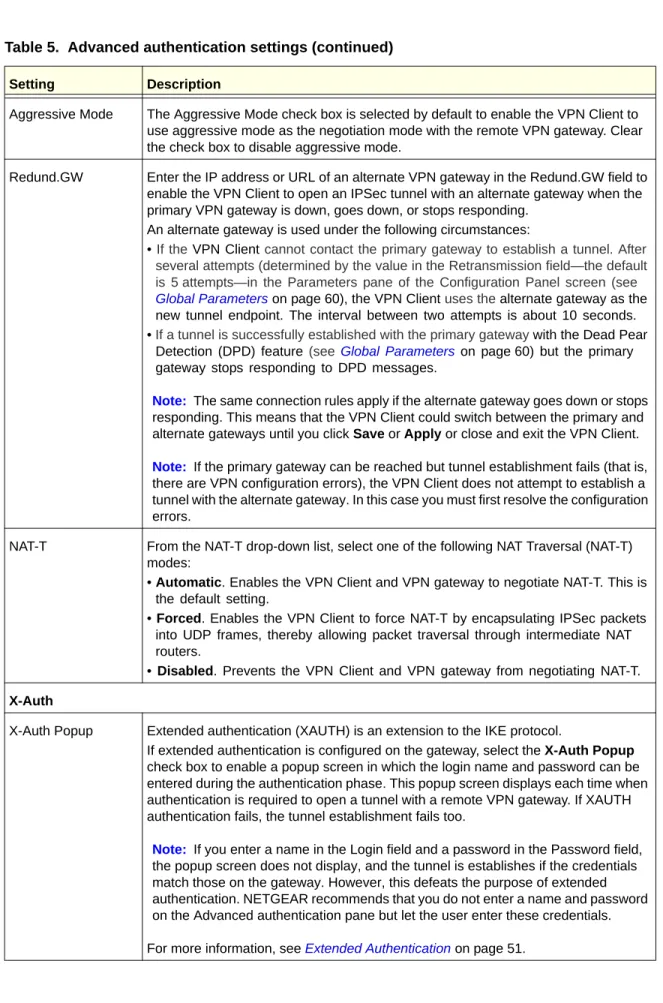
3. Configure the settings as explained in the following table.
Table 5. Advanced authentication settings
Setting Description
Advanced features
Mode Config Select the Mode Config check box to enable the Mode Config feature that allows the VPN Client to receive VPN configuration information from the remote VPN gateway. (The remote VPN gateway must support the Mode Config feature.) When the Mode Config feature is enabled, the following information is negotiated between the VPN Client and the remote VPN gateway during the authentication phase:
• Virtual IP address of the VPN Client • DNS server address (optional) • WINS server address (optional)
Note: The virtual IP address that is issued by the remote VPN gateway is displayed in the VPN Client Address field on the IPSec pane with the IPSec tab selected.
Note: If the Mode Config feature is not available or not supported on the remote VPN gateway, see the information in Advanced IPSec Configuration on page 55 to manually specify the DNS and WINS server addresses on the VPN Client.
Configuration Panel Screen Tasks NETGEAR ProSafe
VPN Client
Aggressive Mode The Aggressive Mode check box is selected by default to enable the VPN Client to use aggressive mode as the negotiation mode with the remote VPN gateway. Clear the check box to disable aggressive mode.
Redund.GW Enter the IP address or URL of an alternate VPN gateway in the Redund.GW field to enable the VPN Client to open an IPSec tunnel with an alternate gateway when the primary VPN gateway is down, goes down, or stops responding.
An alternate gateway is used under the following circumstances:
• If the VPN Client cannot contact the primary gateway to establish a tunnel. After several attempts (determined by the value in the Retransmission field—the default is 5 attempts—in the Parameters pane of the Configuration Panel screen (see Global Parameters on page 60), the VPN Client uses the alternate gateway as the new tunnel endpoint. The interval between two attempts is about 10 seconds. • If a tunnel is successfully established with the primary gateway with the Dead Pear
Detection (DPD) feature (see Global Parameters on page 60) but the primary gateway stops responding to DPD messages.
Note: The same connection rules apply if the alternate gateway goes down or stops responding. This means that the VPN Client could switch between the primary and alternate gateways until you click Save or Apply or close and exit the VPN Client.
Note: If the primary gateway can be reached but tunnel establishment fails (that is, there are VPN configuration errors), the VPN Client does not attempt to establish a tunnel with the alternate gateway. In this case you must first resolve the configuration errors.
NAT-T From the NAT-T drop-down list, select one of the following NAT Traversal (NAT-T) modes:
• Automatic. Enables the VPN Client and VPN gateway to negotiate NAT-T. This is the default setting.
• Forced. Enables the VPN Client to force NAT-T by encapsulating IPSec packets into UDP frames, thereby allowing packet traversal through intermediate NAT routers.
• Disabled. Prevents the VPN Client and VPN gateway from negotiating NAT-T.
X-Auth
X-Auth Popup Extended authentication (XAUTH) is an extension to the IKE protocol.
If extended authentication is configured on the gateway, select the X-Auth Popup check box to enable a popup screen in which the login name and password can be entered during the authentication phase. This popup screen displays each time when authentication is required to open a tunnel with a remote VPN gateway. If XAUTH authentication fails, the tunnel establishment fails too.
Note: If you enter a name in the Login field and a password in the Password field, the popup screen does not display, and the tunnel is establishes if the credentials match those on the gateway. However, this defeats the purpose of extended authentication. NETGEAR recommends that you do not enter a name and password on the Advanced authentication pane but let the user enter these credentials.
For more information, see Extended Authentication on page 51. Table 5. Advanced authentication settings (continued)
Configuration Panel Screen Tasks
4. Click Apply to use the new settings immediately, and click Save to keep the settings for future use.
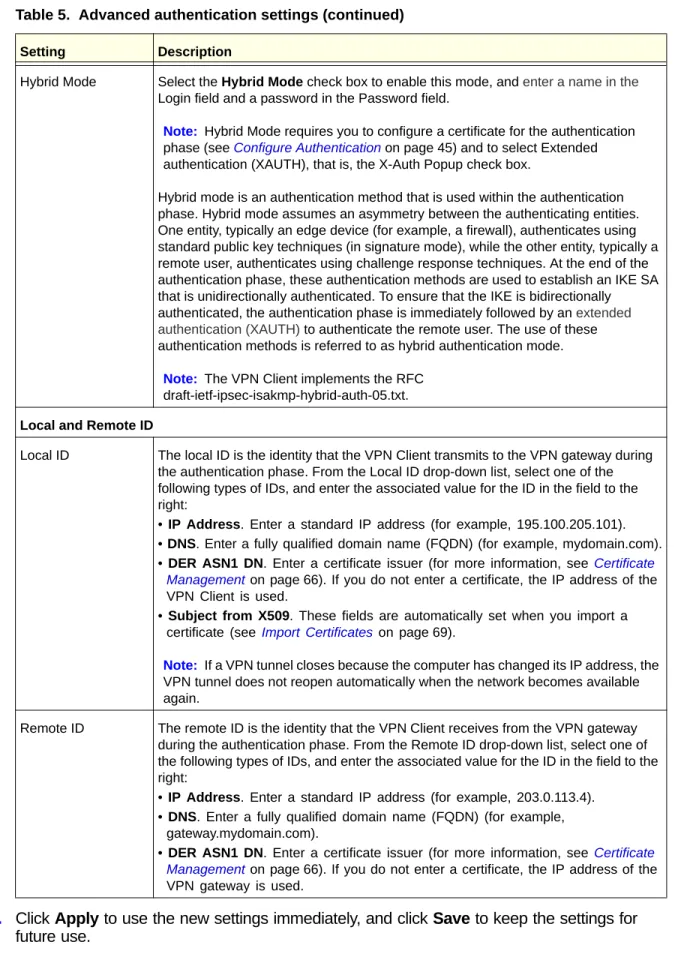
Hybrid Mode Select the Hybrid Mode check box to enable this mode, and enter a name in the Login field and a password in the Password field.
Note: Hybrid Mode requires you to configure a certificate for the authentication phase (see Configure Authentication on page 45) and to select Extended authentication (XAUTH), that is, the X-Auth Popup check box.
Hybrid mode is an authentication method that is used within the authentication phase. Hybrid mode assumes an asymmetry between the authenticating entities. One entity, typically an edge device (for example, a firewall), authenticates using standard public key techniques (in signature mode), while the other entity, typically a remote user, authenticates using challenge response techniques. At the end of the authentication phase, these authentication methods are used to establish an IKE SA that is unidirectionally authenticated. To ensure that the IKE is bidirectionally authenticated, the authentication phase is immediately followed by an extended authentication (XAUTH) to authenticate the remote user. The use of these authentication methods is referred to as hybrid authentication mode.
Note: The VPN Client implements the RFC draft-ietf-ipsec-isakmp-hybrid-auth-05.txt.
Local and Remote ID
Local ID The local ID is the identity that the VPN Client transmits to the VPN gateway during the authentication phase. From the Local ID drop-down list, select one of the following types of IDs, and enter the associated value for the ID in the field to the right:
• IP Address. Enter a standard IP address (for example, 195.100.205.101). • DNS. Enter a fully qualified domain name (FQDN) (for example, mydomain.com). • DER ASN1 DN. Enter a certificate issuer (for more information, see Certificate
Management on page 66). If you do not enter a certificate, the IP address of the VPN Client is used.
• Subject from X509. These fields are automatically set when you import a certificate (see Import Certificates on page 69).
Note: If a VPN tunnel closes because the computer has changed its IP address, the VPN tunnel does not reopen automatically when the network becomes available again.
Remote ID The remote ID is the identity that the VPN Client receives from the VPN gateway during the authentication phase. From the Remote ID drop-down list, select one of the following types of IDs, and enter the associated value for the ID in the field to the right:
• IP Address. Enter a standard IP address (for example, 203.0.113.4). • DNS. Enter a fully qualified domain name (FQDN) (for example,
gateway.mydomain.com).
• DER ASN1 DN. Enter a certificate issuer (for more information, see Certificate Management on page 66). If you do not enter a certificate, the IP address of the VPN gateway is used.
Table 5. Advanced authentication settings (continued)
Configuration Panel Screen Tasks NETGEAR ProSafe
VPN Client
Extended Authentication
IKE is an important element of the Public Key Infrastructure (PKI) that defines how security credentials are exchanged over the IPSec tunneling protocol. For extended authentication (XAUTH), IPSec negotiation requires the definition of a login name and password on the remote VPN gateway. The VPN Client supports several authentication protocols, including CHAP and one-time password (OTP).
To configure XAUTH and enable a user enter credentials:
1. Configure extended authentication on the remote VPN gateway.
2. Select the X-Auth Popup check box on the Advanced authentication pane of the VPN Client.
3. Click Apply to use the new settings immediately, and click Save to keep the settings for future use.
4. The user opens a tunnel.
5. The user enters credentials on the XAUTH popup screen (see the following figure). The credentials need to match those on the remote VPN gateway.
Note: The XAUTH popup screen displays each time when authentication
is required to open a tunnel with a remote VPN gateway. If XAUTH authentication fails, the tunnel establishment fails too.
Note: In a multiple VPN tunnel configuration, the name of the VPN tunnel displays in the popup screen.
Figure 37.
The user has some time to enter the credentials. If the time allowed to enter XAUTH credentials expires, a warning screen displays and the user has to reopen the VPN tunnel. The expiration time depends on the settings of the X-Auth timeout field on the Parameters pane of the Connection Panel screen (see Global Parameters on page 60).