Release 175 Graphics Drivers
Release Notes
Version
175.16
for Windows XPNVIDIA Corporation
May 6, 2008
NVIDIA Corporation 2701 San Tomas Expressway Santa Clara, CA 95050
Notice
ALL NVIDIA DESIGN SPECIFICATIONS, REFERENCE BOARDS, FILES, DRAWINGS, DIAGNOSTICS, LISTS, AND OTHER DOCUMENTS (TOGETHER AND SEPARATELY, “MATERIALS”) ARE BEING PROVIDED “AS IS.” NVIDIA MAKES NO WARRANTIES,
EXPRESSED, IMPLIED, STATUTORY, OR OTHERWISE WITH RESPECT TO THE MATERIALS, AND EXPRESSLY DISCLAIMS ALL IMPLIED WARRANTIES OF NONINFRINGEMENT, MERCHANTABILITY, AND FITNESS FOR A PARTICULAR PURPOSE.
Information furnished is believed to be accurate and reliable. However, NVIDIA Corporation assumes no responsibility for the consequences of use of such information or for any infringement of patents or other rights of third parties that may result from its use. No license is granted by implication or otherwise under any patent or patent rights of NVIDIA Corporation. Specifications mentioned in this publication are subject to change without notice. This publication supersedes and replaces all information previously supplied. NVIDIA Corporation products are not authorized for use as critical components in life support devices or systems without express written approval of NVIDIA Corporation.
Trademarks
NVIDIA, the NVIDIA logo, 3DFX, 3DFX INTERACTIVE, the 3dfx Logo, STB, STB Systems and Design, the STB Logo, the StarBox Logo, NVIDIA nForce, GeForce, NVIDIA Quadro, NVDVD, NVIDIA Personal Cinema, NVIDIA Soundstorm, Vanta, TNT2, TNT, RIVA, RIVA TNT, VOODOO, VOODOO GRAPHICS, WAVEBAY, Accuview Antialiasing, the Audio & Nth Superscript Design Logo, CineFX, the Communications & Nth Superscript Design Logo, Detonator, Digital Vibrance Control, DualNet, FlowFX, ForceWare, GIGADUDE, Glide, GOFORCE, the Graphics & Nth Superscript Design Logo, Intellisample, M-BUFFER, nfiniteFX, NV, NVChess, nView, NVKeystone, NVOptimizer, NVPinball, NVRotate, NVSensor, NVSync, the Platform & Nth Superscript Design Logo, PowerMizer, Quincunx Antialiasing, Sceneshare, See What You've Been Missing, StreamThru, SuperStability, T-BUFFER, The Way It's Meant to be Played Logo, TwinBank, TwinView and the Video & Nth Superscript Design Logo are registered trademarks or trademarks of NVIDIA Corporation in the United States and/or other countries. Other company and product names may be trademarks or registered trademarks of the respective owners with which they are associated.
Intel, Indeo, and Pentium are registered trademarks of Intel Corporation.Microsoft, Windows, Windows NT, Windows Vista, Direct3D, DirectDraw, and DirectX are trademarks or registered trademarks of Microsoft Corporation. OpenGL is a registered trademark of Silicon Graphics Inc. PCI Express, PCI-SIG, and the PCI-SIG design marks are registered trademarks and/or service marks of PCI-SIG. DisplayPort is a trademark of the Video Electronics Standards Association (VESA).
Other company and product names may be trademarks or registered trademarks of the respective owners with which they are associated.
Copyright
1. Introduction to
Release Notes
Structure of the Document . . . . 1
Changes in this Edition . . . . 1
2. Changes in the Release 175
Driver for Windows XP
Version 175.16 Highlights . . . . 4What’s New in Release 175 . . . . 4
What’s New in Version 175.16 . . . . 4
Changes in Version 175.16 . . . . 5
Fixed Issues–Windows XP 32-bit . . . . 5
Fixed Issues–Windows XP 64-bit . . . . 6
Open Windows XP Issues in Version 175.16 . . . 7
NVIDIA Recommendations. . . . 7
Windows XP 32-bit Issues . . . . 7
Windows XP 64-bit Issues . . . 10
Not NVIDIA Issues . . . 11
Application Issues . . . 11
Not NVIDIA Issues–SLI Mode . . . 19
Known Product Limitations . . . 23
Full-screen Video Mirror not Supported on GeForce 8 Series and Later GPUs. . . 24
GeForce 6 and 7 Series Cards Cannot Output Interlaced Signals in SLI Mode. . . 24
Image Sharpening Control not Available with GeForce 8 Series and Later GPUs. . . 24
Display Output Selection not Available on “Bridgeless” SLI . . . 24
DirectX Fails When Detaching/Reattaching Displays in Dualview Mode. . . 25
OpenGL Viewport Scaling Problem in Horizontal Span Mode . . . 25
Video Playback in nView Clone and Span Modes . . . 25
No Antialiasing of 3DMark03 Image Quality Screen Captures . . . 26
Medal of Honor Under Windows XP / Windows 2000 . . . 26
Windows XP/2000 Issue with Settings Tab Monitor Positioning. . . 27
Antialiasing Problems With Certain Applications 27 Poor Quality S-Video Output on Some TVs . 28 AGP and PCI-E Programs May Hang With AMD K7 and K8 Processors . . . 28
Desktop Manager Does Not Re-Center Logon Screen . . . 29
Issues with Video Mirror–Windows XP/2000 29
3. The Release 175 Driver for
Windows XP
Hardware and Software Support . . . 31Supported Operating Systems. . . 31
Supported NVIDIA Products. . . 32
Supported Languages. . . 35
Driver Installation . . . 36
System Requirements . . . 36
Installation Instructions . . . 36
NVIDIA Driver History. . . 39
A. Mode Support for Windows
General Mode Support Information. . . 42Default Modes Supported by GPU for Windows XP 43 Understanding the Mode Format . . . 43
GeForce 9 Series, GeForce 8 Series, GeForce 7 Series, GeForce 6 Series, and GeForce FX Family GPUs. . . 44
GeForce 8300/8200/8100 GPUs . . . 52
nForce 630a GPUs . . . 56
Modes Supported by TV Encoders . . . 62
C
H A P T E R
I
NTRODUCTION
TO
R
ELEASE
N
OTES
This edition of Release Notes describes the Release 175 ForceWare Graphics Drivers for
Microsoft® Windows® Vista. NVIDIA provides these notes to describe performance
improvements and bug fixes in each documented version of the driver.
Structure of the Document
This document is organized in the following sections:
• “Changes in the Release 175 Driver for Windows XP” on page 3 gives a summary of
changes, and fixed and open issues in this version.
• “The Release 175 Driver for Windows XP” on page 31 describes the NVIDIA
products and languages supported by this driver, the system requirements, and
how to install the driver.
• “Mode Support for Windows” on page 41 lists the default resolutions supported by
the driver.
Changes in this Edition
This edition of the Release Notes for Windows XP includes information about NVIDIA
ForceWare graphics driver version 175.16, and lists changes made to the driver since
version 174.74. These changes are discussed beginning with the chapter “Changes in
C
H A P T E R
C
HANGES
IN
THE
R
ELEASE
175 D
RIVER
FOR
W
INDOWS
XP
This chapter describes open issues for version 175.16, and resolved issues and
driver enhancements for versions of the Release 175 driver up to version 175.16.
The chapter contains these sections:
•
“Version
175.16
Highlights”
on
page 4
•
“Open
Windows
XP
Issues
in
Version
175.16”
on
page 7
•
“Changes
in
Version
175.16”
on
page 5
•
“Not
NVIDIA
Issues”
on
page 11
Version 175.16 Highlights
This section provides highlights of version 175.16 of the NVIDIA Release 175 Driver.
•
What’s
New
in
Release
175
•
What’s
New
in
Version
175.16
What’s New in Release 175
• Added
product
support
for
the
following
NVIDIA
products:
• GeForce 9800 GX2• GeForce 9800 GTX • GeForce 9600 GT • GeForce 9600 GSO • GeForce 8300
• GeForce 8200/NVIDIA nForce 730a • GeForce 8100/NVIDIA nForce 720a
• Added
the
following
new
Pure
Video
HD
features
for
the
GeForce
9800
GX2,
9800
GTX,
9600
GT,
and
9600
GSO:
• Dynamic Contrast Enhancement• Dynamic Blue, Green & Skin Tone Enhancements
• Dual‐Stream Decode Acceleration1
• NVIDIA
Control
Panel
Adjust Video Color Settings
page:
Moved
the
Edge
Enhancement,
Noise
Reduction,
and
Inverse
Telecine
controls
to
the
new
Adjust Video Image Settings
page.
What’s New in Version 175.16
• Added
support
for
the
GeForce
9600
GSO.
• Added
support
for
the
GeForce
9800
GTX.
• See
“Changes
in
Version
175.16”
on
page 5
for
a
list
of
resolved
issues.
1. Users will require updated software from third-party movie players to experience the new Dual-Stream decode acceleration.
Changes in Version 175.16
The following sections list the changes made and issues resolved since driver
versions 174.4.
•
“Fixed
Issues–Windows
XP
32
‐
bit”
on
page 5
•
“Fixed
Issues–Windows
XP
64
‐
bit”
on
page 6
The NVIDIA bug number is provided for reference.Fixed Issues–Windows XP 32-bit
Fixed Single-GPU Issues
GeForce
9
Series
GPUs
• GeForce 9800 GTX: With HDMI connected and enabled, the Resize HDTV
Desktop option is missing from the NVIDIA Control Panel Change
Resolution page. [400144]
• GeForce 9600 GT: With TV connected in Dualview mode, the ʺAdjust video
color settingsʺ page and “Adjust Television color settings” contrast and
saturation setting values go to zero when switching back to Dualview mode
from DVI single‐display mode. [388313]
GeForce
8
Series
GPUs
• GeForce 8800 GTS: The NVIDIA Control Panel Run Television Setup wizard
crashes with HD‐DVI connected. [404180]
• GeForce 8600: Tiger Woods PGA Tour 2007–the game hangs with the default
game settings during the loading screen. [333405]
• GeForce 8100/NVIDIA nForce 720a: There is desktop corruption when
moving the CRT screen position. [399838]
GeForce
7
Series
GPUs
• GeForce 7300 GT: Lego Star Wars 2 ‐ the application crashes after going to
the game menu video options. [369638]
NVIDIA Issues—SLI Mode
GeForce
8
Series
GPUs
• [SLI], GeForce 8800‐Ultra: Sid Meierʹs Railroads! ‐ the system crashes when
in‐game antialiasing is switched between ‘8x’ and ‘noneʹ at 1024x768
• [SLI], GeForce 8300/840/8500: Multiple games ‐ tearing occurs after enabling
V‐Sync either from the game controls or through the NVIDIA Control Panel.
[400888]
GeForce
7
Series
GPUs
• [SLI], GeForce 7950 GX2 Quad NVIDIA SLI: Black and White 2–there is
flickering and water corruption. [242484/239460]
Fixed Issues–Windows XP 64-bit
NVIDIA Issues—Single GPU
• GeForce 8800: Portal ‐ the main menu appears corrupt after launching the
game with default settings. [399317]
NVIDIA Issues—SLI Mode
• [SLI], GeForce 8300/840/8500: Multiple games ‐ tearing occurs after enabling
V‐Sync either from the game controls or through the NVIDIA Control Panel.
Open Windows XP Issues in Version 175.16
As with every released driver, version 175.16 has open issues and enhancement
requests associated with it. This section includes lists of issues that are either not fixed
or not implemented in this version. Some problems listed may not have been
thoroughly investigated and, in fact, may not be NVIDIA issues. Others may have
workaround solutions.
• “NVIDIA Recommendations” on page 7 • “Windows XP 32‐bit Issues” on page 7 • “Windows XP 64‐bit Issues” on page 10
NVIDIA Recommendations
• Single display modes such as TV only, DFP/LCD only or CRT only provide the best
performance and quality from Windows Media Center Edition.
Dual display modes such as Dualview and nView Clone and Span modes are not recommended.
Windows XP 32-bit Issues
All
GPUs
• Counter Strike–the application crashes to the desktop if the resolution or bit‐depth
is changed from the in‐game video options menu.
The problem does not occur if you change the resolution or bit‐depth from the game’s main menu and not while in a game.
GeForce
8
Series
GPUs
• GeForce 8 Series, GeForce 6600: HQV DVD shows corruption when played using
Windows Media Player.[302235]
• GeForce 8800: The desktop color becomes dark after switching displays in multi‐
display mode. [353737]
• GeForce 8800 GTX: Blue‐screen crash occurs when changing resolutions while
Direct3D, OpenGL, and video applications are open at the same time.[262074] • GeForce 8800 GTX: Counter Strike ‐ the game fails to run in windowed mode with
resolutions higher than 1280x1024. [403638]
• GeForce 8800 GTX: Half‐Life 2 Episode 1–purple textures appear with 16xQ CSAA
• GeForce 8600 GT: Call of Duty 2–the game crashes under the following settings: in‐
game settings of 1920x1200 resolution and 2x antialiasing, NVIDIA Control Panel
enhanced antialiasing mode set to 16xQ. [312949]
• GeForce 8600: Serious Sam 2–performance drop at 1280x1024 with HDR and
antialiasing enabled. [340691]
• GeForce 8300/8400/8500: Sid Meierʹs Railroads!–tearing occurs at the default
settings. [354200]
GeForce
7
Series
GPUs
• GeForce 7 Series: 709 color space is not present during playback of Blu‐ray discs or
HD DVDs.[263124]
• GeForce 7950 GX2, GeForce 7600 GT, NVIDIA Control Panel: When starting
playback of a Blue‐ray disc or HD DVD while the Adjust Video Color Settings page
is open, the ‘Incompatible graphics driver’ warning message appears.[261644] • GeForce 7800 GTX, Windows XP: Need for Speed Underground 2–when changing
to a resolution higher than 1024x768 on a 1920x1200 widescreen flat panel, the game
attempts to select the next higher resolution, which is 1280x960 and not supported
by most flat panels.[171938]
A known workaround is to manually add the mode 1280x960 from NVIDIA's Custom Timings control panel and then continue to select the resolution needed.
• GeForce 7600 GT: ʺThe Battle Of The Middle Earth IIʺ–corruption occurs when
loading the game.[261274]
• GeForce 7600 GT, NVIDIA Control Panel: Desktop Color settings are getting
applied even after clicking Cancel.[261019]
• GeForce 7600 GT, Dual‐link display: When playing a Blu‐ray disc at resolutions
greater than 1280x800 on a dual‐link display, the Cyberlink warning message
erroneously appears saying to reduce the resolution to less than 1920x1080.[260489] • GeForce 7300 GT: Test Drive Unlimited–blue‐screen crash occurs while changing
antialiasing settings in the game. [317480]
• GeForce 7300 GT: Command & Conquer 3 Tiberium Wars–some object are not
rendered when using the high graphics setting. [316633]
• GeForce 7300 GS: Lost Planet : Extreme Condition–color corruption appears after
launching with the default settings. [359015]
• 2xGeForce 7300 GS: The NVIDIA Control Panel provides TV as a display option
GeForce
6
Series
GPUs
• GeForce 8 Series, GeForce 6600: HQV DVD shows corruption when played using
Windows Media Player.[302235]
• GeForce 6800 256MB: Counter‐Strike–text in the in‐game control panel is corrupt
when NVIDIA Control Panel antialiasing settings are enabled.[247877]
• GeForce 6600: TV signal formats based on country cannot be set from the NVIDIA
Control Panel‐>Change signal or HD format page. [373501]
• GeForce 6200 128MB: The Television Setup wizard erroneously lets you change the
display mode while playing a video file.[209367]
NVIDIA Issues—SLI Mode
All
GPUs
• [SLI], The NVIDIA Control Panel prompts you to reboot the system after enabling
SLI while in Dualview mode.[220320]
• [SLI]: Far Cry–flickering and shifting sky occurs in the Research level when SLI is
enabled. [265091]
This issue does not occur with V-Sync enabled.
GeForce
9
Series
GPUs
• [SLI], GeForce 9 Series, Geforce 8 Series: There is no display after switching the SLI
display to the slave GPU. [357511]
GeForce
8
Series
GPUs
• [SLI], GeForce 8600 GT: The NVIDIA logo in the Adjust Image Settings with
Preview page does not rotate and shows corruption after switching to the display
connected to the SLI slave GPU. [402589]
• [SLI], GeForce 8600: 3DMark06–the benchmark crashes to the desktop when run at
1600x1200 resolution and with 8x antialiasing enabled. [324430]
• [SLI], GeForce 8600: Splinter Cell Double Agent–the game crashes to desktop at
1600x1200 resolution and with 32xQ SLIAA enabled.[306223]
• [SLI], GeForce 8600: Half Life 2–white patches appear in the sky when 8xAA is
enabled from the NVIDIA Control Panel (Enhanced mode) in conjunction with
2xMSAA enabled from the game control panel.[306259]
• [SLI], GeForce 8600 GT: Battlefield 2–there is texture corruption on the wall in ʺGulf
• [SLI], GeForce 8300/8400/8500/8600: Blue‐screen crash occurs when using the Set
SLI Output control to switch from a display on the SLI master GPU to a display on
the SLI slave GPU.
This occurs with “bridgeless” SLI configurations. When there is no SLI bridge connector, you can use only the displays connected tothe SLI master GPU.
GeForce
7
Series
GPUs
• [SLI], GeForce 7 and 6 Series, Quad NVIDIA SLI: Tomb Raider–with SLI mode
enabled, there is stuttering and banding corruption.[226727]
GeForce
6
Series
GPUs
• [SLI], GeForce 6600 w/TurboCache: The driver is unable to be installed with this
hardware setup.[325700]
Windows XP 64-bit Issues
NVIDIA Issues—Single GPU
• GeForce 8600: Serious Sam 2–performance drop at 1280x1024 with HDR and
Not NVIDIA Issues
This section lists issues that are not due to the NVIDIA driver. • “Application Issues” on page 11
Application Issues
All GPUs
• Dual Core CPU: Counter Strike 1.6 hangs if you play Cheating Death 4.33.4 at same
time.
This application does not properly recognize dual-core CPUs. • Counter‐Strike Source frame rate is jumpy.
Jittery/lagging movement has been seen when starting a game after running the Video Stress Test.
Smooth movement is restored after exiting and then restarting the application. The issue does not appear when creating a new game, disconnecting, and then creating another new game.
• HQV DVD playback is bobbing when running in overlay mode.[272289]
This is not an NVIDIA bug, but rather an issue with the Intervideo decoder in WinDVD 8. • During DVD and HD DVD/Blu‐ray playback, a white screen may appear over video
when toggling from windowed to full‐screen mode. [263449]
This issue was reported in driver v96.94 as an NVIDIA driver issue, but now appears to be an application issue with PowerDVD. NVIDIA is working with the application developer to provide a fix.
• Sims 2–“Smooth Edges (AA)” option is not available with Release 100
drivers.[272477]
This occurs because of an incorrect driver version check in the application.
NVIDIA has worked around this issue in the operating system by changing the way the driver version is reported to this application.
• Warhammer 40k Dawn of War (all versions) does not run with Release 100
drivers.[273154]
This occurs because of an incorrect driver version check in the application.
NVIDIA has worked around this issue in the operating system by changing the way the driver version is reported to this application.
• S.T.A.L.K.E.R. Shadow of Chernobyl: This application is not compatible with the
Override any application setting or Enhance the application setting antialiasing modes
from the NVIDIA Control Panel Manage 3D Settings page.
Please use the in‐game antialiasing options.
• Splinter Cell Double Agent crashes when loading a single player game.[270517] This is an application issue. You can work around this issue by creating a shortcut to launch the game as follows:
1 Navigate to the game install directory, then change to the sub‐folder
\SCDA‐Offline\system.
2 Create a shortcut to splintercell4.exe.
3 Add ʺ‐llʺ to the command line of the shortcut.
4 Use this shortcut to launch the single player version of the game. • HQV DVD playback is bobbing when running in overlay mode.[272289]
This is not an NVIDIA bug, but rather an issue with the Intervideo decoder in WinDVD 8. • Age of Empires 3: Setting application to 1600x1200 with shader quality set to ‘very
high’ causes menus and game to become corrupted.
This issue can be fixed by installing the v1.07 game patch.
• Company of Heroes: Dark transparent band appears when running the in‐game
performance test.
This is an application issue and can be reproduced on NVIDIA GeForce 7900 and ATI Radeon X1950 GPUs.
• Elder Scrolls 4 Oblivion: Running at 2560x1600 with NVIDIA Enhanced Application
mode 16xQ, extremely rare 1‐2 second pauses occur during some fighting. [262685]
This appears to be an application issue in how large textures are created during the in‐game fighting.
• Far Cry: Water reflection on Archive level is not correct. [253431]
This appears to be an application issue. NVIDIA is working with the application developer to try to patch their application
• Half‐Life 2 Lost Coast: Color corruption occurs in the video stress test after
changing the display mode.
This is a known application issue.
• Half‐Life 2 Episode One: Gravity Gun has z‐fighting problems on certain portions
• Quake4: Random pauses occur during gameplay. [260029]
This appears to be an application issue that affects testing on Quake4 with dual‐core optimizations turned on. Turning off the SMP value in Quake4 eliminates this problem. • During DVD and HD DVD/Blu‐ray playback, a white screen may appear over video
when toggling from windowed to full‐screen mode.[263449]
This issue was reported in driver v96.94 as an NVIDIA driver issue, but now appears to be an application issue with PowerDVD. NVIDIA is working with the application developer to provide a fix.
• Age of Empires 3: Vertical sliver appears near the right side of the introduction
videos. [221738]
• Battlefield 1942 hangs after playing for a few minutes.[265230]
This is an application issue with dual‐core CPUs.
GeForce 8 Series GPUs
• GeForce 8800 GT: EverQuest 2–the introduction video does not display when
antialiasing is enabled and the resolution is higher than 1600x1200. [355649]
• GeForce 8800 GTX/GeForce 7900 GTX: Neverwinter Nights 2–the minimap loses its
background when the resolution is changed.[273788]
• GeForce 8800 GTX: Tabula Rasa–in‐game antialiasing does not work. [353867] • GeForce 8600: Flight Simulator X–corruption appears after restoring from minimize
at the default settings. [354345]
• Half‐Life 2 Lost Coast: GeForce 8800 GTX fog looks different than GeForce 7900
GTX fog, and dynamic shadows look solid black. [262215]
The GeForce 8800 GTX image quality matches the Microsoft Reference Rasterizer. This issue may affect other Half‐Life 2 based engines such as Counter‐Strike Source and Half‐Life Episode 1. NVIDIA is working with the application developer to try to patch their
application.
• GeForce 8500/8400/8300: Video corruption occurs when playing the Blu‐ray disc
title ʺTom Cruise the Last Samuraiʺ in IVI. [321632]
This is not an NVIDIA bug, but rather an issue with the application.
• GeForce 8800 GTX: Star Wars: Battlefront 2–there is corruption during the training
mission when played at high resolutions. [310721]
GeForce 7 Series GPUs
• GeForce 7950 GT, GeForce 7900 GT/GS, GeForce 7600 GT: Dragging the Cyberlink
application between the primary and secondary Dualview displays results in
Cyberlink error message.[251639]
• GeForce 7950 GX2‐single card: Half‐Life 2–screen corruption occurs after exiting
from the game. [358059]
• GeForce 7900 256MB: WinDVD video is corrupt when playing a DivX file. This is not an NVIDIA bug, but rather an issue with the application.
• GeForce 7 and 6 Series: Prey has non‐functioning application antialiasing when the
desktop color depth is at 16 bpp.
This is an application issue and not an NVIDIA bug. Enabling 32-bpp desktop color depth fixes this problem.
• GeForce 7 Series, GeForce 6 Series GPUs: Textures are not rendered in Age of
Empires 3 at 1600x1200 and higher resolutions. This is an issue with the application.
• GeForce 7950 GX2, Quad NVIDIA SLI: World of Warcraft–Changing antialiasing
modes in the NVIDIA control panel does not improve image quality.
This is not a bug, but an issue with the application’s “Glow” effect. When the Glow effect is enabled, the NVIDIA Control Panel antialiasing settings do not work. Please use in-game antialiasing.
• GeForce 7950 GX2, NVIDIA Control Panel: The Overclocking Configuration ‐ Test
button does not appear to have any effect.
This is not a bug. The test is being performed, but there is no visual indicator.
• GeForce 7950 GX2: The Age of Empires introduction video has a vertical sliver on
the right side.
This is not an NVIDIA bug, but rather an issue with the application.
• GeForce 7800 GTX 512 MB: Windows Media Player 10 crashes after playing a DVD
for a few minutes.
This is not an NVIDIA bug, but rather an issue with the application.
• GeForce 7800 GTX/GT: The Chronicles of Riddick does not render correctly at
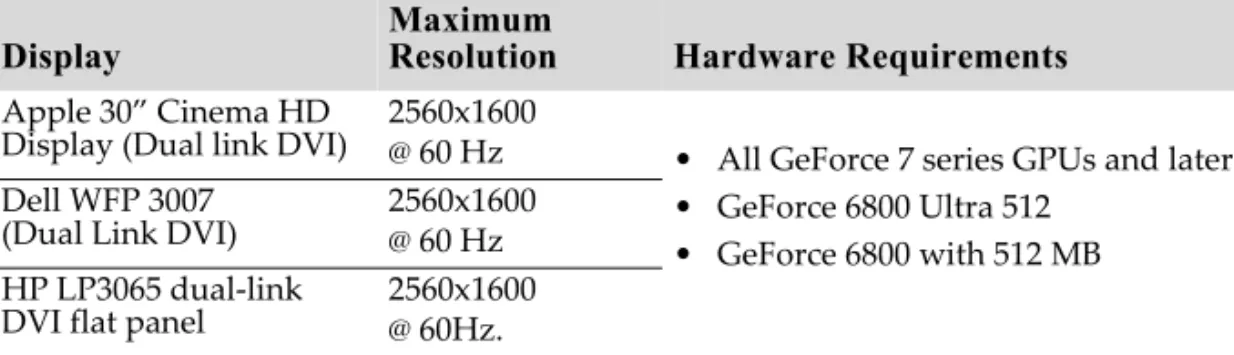
2560x1600 on the Apple 30ʺ Cinema display. This is an issue with the application.
• GeForce 7800 GTX, Windows XP Media Center Edition 2005 Update2: When
running in window mode, there is tearing in the video on the top of the screen
This is an application issue with Media Center and does not occur if you run Media Center in full-screen mode.
• GeForce 7800 GTX/GT: Transparency antialiasing does not work with Grand Theft
Auto San Andreas.
The driver does not apply Transparency antialiasing to triangles that are alpha-blended. Applications with alpha blending do not benefit from Transparency antialiasing.
• GeForce 7800 GT/GTX: Graphics are corrupted at the title screen in Age of Empires
3.
This is not an NVIDIA bug, but an issue with the application.
• GeForce 7800 GT/GTX: F.E.A.R. Demo has blocky explosion effects. This is not an NVIDIA bug, but an issue with the application.
• GeForce 7800 GTX: Age of Empires 3 demo fails to run when connected to a DVI flat
panel.
This is not an NVIDIA bug, but an issue with the application. Demo versions of the
application attempt to set a mode that is not supported on the flat panel. To work around the issue, locate the file newprofile.xml and change the resolution setting to 1024x768.
This is fixed in final versions of the game.
• GeForce 7800 GTX/GT, GeForce 6800: Textures are not rendered in Age of Empires
3 at 1600x1200 and higher resolutions.
This is not an NVIDIA issue, but rather a bug in the application.
• GeForce 7800/GeForce 6800 GT: Shadow corruption/soft shadows appear after
changing video settings in F.E.A.R.
This is an issue with the application and is documented as such in the demo’s release notes.Disabling antialiasing fixes the soft shadow corruption.
• GeForce 7800 GTX / GeForce 6 Series: The Chronicles of Riddick: Escape from
Butcher Bay does not run under OpenGL.
This issue is resolved by downloading and installing the game's 1.1 patch available at http:/ /www.vugames.com/file_list.do?gamePlatformId=1839. This problem occurs as a result of the application checking the NVIDIA OpenGL driver for a version 1.5 instead of 2.0. • GeForce 7800 GTX, GeForce 6800/6800 Ultra, GeForce 6600 GT: Explosion effects in
the game Pariah result in full‐screen corruption.
This is an issue with the application. To work around the issue, set the variable HasNvidiaTexM32Tex in the file pariah.ini to (1). ((0) is the default.)
• GeForce 7800 GTX / GeForce 6800 Ultra: Age of Empires 3 demo v1.0 has corruption
on the title screen when running at high resolutions (1600x1200) with antialiasing
set to Medium or High, Shader Quality set to Very High, and Shadow Quality set to
This is an issue with the application.
GeForce 6 Series GPUs
• GeForce 6600 128MB, Windows XP Media Center Edition 2005:The MCE screen
does not appear when switched to full‐screen mode. This is an issue with the application.
• GeForce 7 Series, GeForce 6 Series GPUs: Textures are not rendered in Age of
Empires 3 at 1600x1200 and higher resolutions. This is an issue with the application.
• GeForce 7800 GT/GTX, GeForce 6800/6800 Ultra/GT: When selecting Detect Optimal
Frequencies in the control panel, the desktop refresh rate switches to 60Hz. • GeForce 7800 GTX/GT, GeForce 6800: Shadows fail to render in Splinter Cell 1. • GeForce 7800 GTX/GT, GeForce 6800/6600: Ground and water textures are
corrupted when zooming out in Civilization 4.
• GeForce 6800 PCI‐E: The top of the video tears when watching a transport stream
clip in VMR mode with Windows Media Player.
• GeForce 6800: Corruption occurs on certain vehicles in Joint Operations: Typhoon
Rising.
• GeForce 6800: Command and Conquer Generals: Zero Hour displays green tint. • GeForce 6800: Flickering corruption appears around the mouse cursor in Dungeon
Siege 2.
• GeForce 6800, Windows XP Media Center Edition: Blue‐screen crash occurs when
dragging Windows Media Player 10 window from the primary to the secondary
display.
• GeForce 6800 PCI‐E: When played in Overlay mode, there is an initial hesitation
during the Galaxy Quest menu ship flyby.
• GeForce 7800 GTX / GeForce 6800 Ultra: Age of Empires 3 demo v1.0 has corruption
on the title screen when running at high resolutions (1600x1200) with antialiasing
set to Medium or High, Shader Quality set to Very High, and Shadow Quality set to
Very High.
This is an issue with the application.
• GeForce 6800 / 6200: Battlefield 1942 has shimmering textures.
Battlefield 1942 uses negative LOD intensively in the game, but this should not be used in conjunction with anisotropic filtering.
To reduce shimmering, set the advanced option "negative LOD bias" to CLAMP, and then the image settings slider to High Quality.
• GeForce 7800/GeForce 6800 GT: Screen corruption may occur with F.E.A.R. when
antialiasing and soft shadows are enabled.
This is an issue with the application and is documented as such in the demo’s release notes.Disabling antialiasing fixes the soft shadow corruption.
• GeForce 7800 GTX, GeForce 6800/6800 Ultra, GeForce 6600 GT: Explosion effects in
the game Pariah result in full‐screen corruption.
This is an issue with the application. To work around the issue, set the variable HasNvidiaTexM32Tex in the file pariah.ini to (1). ((0) is the default.) • GeForce 6800: Shadows are not rendering correctly in Ground Control 2.
This is not an NVIDIA bug, but an issue with the application.
• Geforce 6800: Half‐Life 2 fog is different when using ATI hardware. This is not an NVIDIA bug, but rather an issue with the application.
• GeForce 6800: Aspect ratio is incorrect when movie transitions from 4:3 to 16:9
playback using PowerDVD5 Trail (download from the Cyberlink Web site).
This is an application issue, and does not occur with other DVD players.
• GeForce 6800 Ultra, Windows XP: Movies are choppy in Prince of Persia Warrior
Within. However, gameplay is not affected.
This is not an NVIDIA bug, but rather an issue with the application.
• GeForce 6800 Ultra PCI‐E: Shadows are not rendering correctly in Ground Control
2.
• GeForce 6600/6800 (128MB): 3D Mark 2003 demo mode results in an out of memory
error at 1600x1200x32 with 4x antialiasing enabled.
This is not a bug. The problem occurs because there is not enough memory to run 3D Mark03 in this mode with a 128MB board.
• GeForce 6600: The 3D Pipes screen saver crashes when previewed with the desktop
rotated 90 degrees and then switched back to 0 degrees (no rotation). This is not an NVIDIA bug, but rather an issue with the application.
• GeForce 6600 GT: Antialiasing doesn’t work with Serious Sam II Demo.
This is not a bug. HDR in Serious Sam II is not supported by the NVIDIA control panel antialiasing.
• GeForce 6600 (128 MB): The game Hitman—Contracts refuses to start with graphics
This is not an NVIDIA bug, but an issue with the application.
• GeForce 6600, GeForce FX 5600 Ultra: There is intermittent corruption on the first
warning screen of some DVD titles.
A patch for this issue is available from Microsoft.
• GeForce 6600: Artifacts appear in the introduction videos and during game play in
Tomb Raider: Angel of Darkness at 1600x1200 and with 4x antialiasing enabled. This is not an NVIDIA bug.
• GeForce 6200 256 MB: Windows Media Player 10 hangs when the desktop is
rotated.
This is an application issue and not an NVIDIA bug.
• GeForce 6200 (16MB/32MB): Game‐loading errors occur with Tomb Raider Angel of
Darkness.
This is an issue with the application. You can work around this issue by switching off the
video using the command line switch “-no_fmv”.
• GeForce 6200 with TurboCache (16MB): A Direct3D out‐of‐memory error occurs in
Unreal Tournament 2003 when using the HardOCP Benchmark Utility version 2.1. This is not an NVIDIA bug.
• GeForce 6 Series: Stuttering occurs in the game EverQuest II.
NVIDIA has optimized performance in the 77.72 drivers to reduce stuttering related
to the GPU and drivers. However, in‐game stuttering can still occur as the result of
the following system conditions:
• Using high‐quality/maximum‐visual game settings on a PC with less than 1.5 GB
of system memory—EverQuest IIʹs highest quality settings are extremely
hardware intensive (graphics, memory, and CPU).
• Misconfigured AGP aperture settings and fragmented hard disks can also
contribute to in‐game stuttering.
• GeForce 6 Series, Windows XP: There is no difference in lighting after turning the
flashlight on and off a few times in Half‐Life 2, resulting in darkness even with the
flashlight on.
This is not an NVIDIA bug, but rather an issue with the application.
GeForce FX Series GPUs
• GeForce FX 5950 Ultra: Call of Duty 2 crashes when ʺoptimal system settingsʺ is
chosen in the game options menu.
• GeForce FX 5950 Ultra: Homeworld2 antialiased performance is slow.
This is not an NVIDIA bug, but is a known issue with the application. A game patch 1.1 is available at ftp://ftp.sierra.com/pub/sierra/homeworld2/updates/
homeworld2_update_en_10_11.exe .
• GeForce FX 5600 Ultra, GeForce 6600: There is intermittent corruption on the first
warning screen of some DVD titles.
A patch for this issue is available from Microsoft.
• GeForce FX Series: Stuttering occurs in the game EverQuest II.
NVIDIA has optimized performance in the 77.72 drivers to reduce stuttering related
to the GPU and drivers. However, in‐game stuttering can still occur as the result of
the following system conditions:
• Using high‐quality/maximum‐visual game settings on a PC with less than 1.5 GB
of system memory
EverQuest IIʹs highest quality settings are extremely hardware intensive
(graphics, memory, and CPU).
• Misconfigured AGP aperture settings and fragmented hard disks can also
contribute to in‐game stuttering.
Not NVIDIA Issues–SLI Mode
• [SLI], GeForce 8800 GTX: Neverwinter Nights 2– flickering occurs between screen
transitions when SLI is enabled.[296352]
• GeForce 7950 GX2 Quad NVIDIA SLI, GeForce 7900, GeForce 6800: NHL 2006–with
SLI mode enabled, the screen flickers several times when exiting back to the menu
from gameplay.
This is not an NVIDIA bug, but rather an issue with the application.
• GeForce 7900 GT/GS, Dual‐Core System, SLI: With SLI mode enabled, the game
Flat Out stops responding after starting a game.
This is not an NVIDIA bug, but an issue with the OS. To resolve the issue, install the Windows Dual‐Core patches.
• GeForce 7800 GTX/GT, SLI: The load balancing line is corrupted when playing
Civilizations 4 at 2560x1600.
This is not an NVIDIA bug, but a visual effect resulting from the interaction between the frame rate and the update rate of the split line.
• SLI mode does not appear capable of being enabled with City of Villains. This issue occurs because City of Heroes and City of Villains share the same executable name.
You can work around this issue by either • modifying the City of Heroes application profile (this will create a second City of Heroes profile) to enable SLI AFR mode, or • set AFR as the rendering mode in Global Profile. For more information on customizing SLI profiles, visit www.slizone.com and navigate to Learn More‐>How‐to Guides.
• GeForce 6 and 7 Series, SLI: SLI does not work with OpenGL applications when the
SLI control panel page is open.
This is the correct behavior with SLI rendering. If you need to adjust SLI settings for an OpenGL application you must adjust the NVIDIA control panel settings with the application closed, then close the control panel and open the application.
• GeForce 6 and 7 Series, SLI, Windows XP: With SLI enabled, Call of Duty 2
performance appears to be slow.
For optimal SLI performance in Call of Duty 2, you must select ʹYESʹ for ʹOptimize for SLIʹ in the Graphics section of System Settings.
• GeForce 6 and 7 Series, SLI, Windows XP: After selecting 'YESʹ for ʹOptimize for
SLIʹ in the Graphics section of System Settings when playing Call of Duty 2, the
setting resets to ‘No’ every time you restart the game.
The problem is that the setting does not get saved to the playerʹs config file. You must make sure ʹYESʹ is selected each time you launch the application or you can ensure the setting gets written to the config file in one of the following ways:
•
Type "seta r_multiGpu 1" in the console, or
•Add "seta r_multiGpu 1" to the shortcut, or
•
Add "seta r_multiGpu 1" directly to your config.cfg and config_mp.cfg files in
your directory under the "main/players" folder.
• With SLI enabled, the SLI split line does not appear when VSync is forced on. This is not a bug, and the applications are, in fact, running in SLI mode. The SLI split line/ load bar is not supposed to appear when Vsync is enabled in SLI mode.
• GeForce 6800/6600 GT: Slow performance with World of Warcraft in SLI mode. This is not an NVIDIA bug, but instead the result of a recent patch for World of Warcraft to reduce mouse lag on slower computers by synchronizing the GPU(s). This change is unnecessary for NVIDIA users, and particularly for users with SLI configurations. For optimal performance when playing World of Warcraft in SLI mode:
• Disable vertical sync within the World of Warcraft in‐game video options. • Enable ʺhardware mouseʺ acceleration and disable ʺsmooth mouseʺ within the
ʺSmooth mouseʺ reduces mouse lag when the frame rate is low and ʺhardware
Known Product Limitations
This section describes problems that will not be fixed. Usually, the source of the
problem is beyond the control of NVIDIA. Following is the list of problems and where
they are discussed in this document:
• “Full‐screen Video Mirror not Supported on GeForce 8 Series and Later GPUs” on
page 24
• “GeForce 6 and 7 Series Cards Cannot Output Interlaced Signals in SLI Mode” on
page 24
• “Image Sharpening Control not Available with GeForce 8 Series and Later GPUs”
on page 24
• “Display Output Selection not Available on “Bridgeless” SLI” on page 24 • “DirectX Fails When Detaching/Reattaching Displays in Dualview Mode” on
page 25
• “OpenGL Viewport Scaling Problem in Horizontal Span Mode” on page 25 • “Video Playback in nView Clone and Span Modes” on page 25
• “No Antialiasing of 3DMark03 Image Quality Screen Captures” on page 26 • “Medal of Honor Under Windows XP / Windows 2000” on page 26
• “Windows XP/2000 Issue with Settings Tab Monitor Positioning” on page 27 • “Antialiasing Problems With Certain Applications” on page 27
• “Poor Quality S‐Video Output on Some TVs” on page 28
• “AGP and PCI‐E Programs May Hang With AMD K7 and K8 Processors” on
page 28
• “Desktop Manager Does Not Re‐Center Logon Screen” on page 29 • “Issues with Video Mirror–Windows XP/2000” on page 29
Full-screen Video Mirror not Supported on GeForce 8
Series and Later GPUs
Full‐screen video mirroring is not supported on graphics cards based on the GeForce 8
series and later GPUs.
Compliance with Microsoft’s Certified Output Protection Protocol (COPP) for content‐
protected media has prompted NVIDIA to remove this feature for all video.
GeForce 6 and 7 Series Cards Cannot Output Interlaced
Signals in SLI Mode
• Problem
Rendering problems and instability occur when outputting interlaced modes (480i,
576i and 1080i) over the Y Pr Pb component and DVI outputs.
• Explanation
This is a hardware limitation in SLI mode only and cannot be fixed via a driver
update.
• Resolution
Due to this issue, starting in driver version 162.18 in Windows XP, the driver will
automatically disable SLI mode when using the 480i, 576i and 1080i modes over all
connectors on the GeForce 6 and 7 series GPUs.
To re‐enable SLI mode, you must choose a non‐interlaced output mode and reboot
your computer.
• GeForce 8 series GPUs do not have this hardware limitation and you can output
all HDTV interlaced and progressive scan outputs in SLI mode.
• The 480p, 576p, 720p, and 1080p progressive scan modes do not have this issue in
SLI mode and are not affected by this change.
Image Sharpening Control not Available with GeForce 8
Series and Later GPUs
With GeForce 8 Series and later graphics cards, the Image sharpening slider on the
NVIDIA Control Panel‐> Display‐>Adjust Desktop Color Settings page is grayed out. This control is intentionally disabled because image sharpening is not supported on
GeForce 8 series and later GPUs.
Display Output Selection not Available on “Bridgeless” SLI
On graphics cards that can operate in SLI mode without the SLI connector (such as theGeForce 6600), you cannot select which monitor to display the output. On the SLI
DirectX Fails When Detaching/Reattaching Displays in
Dualview Mode
This problem can be duplicated as follows: 1 Enable both displays in Dualview mode. 2 Detach monitor 2 and apply settings. 3 Reattach monitor 2 and apply settings.
DirectX runtime fails on monitor 1.
This is not an NVIDIA bug, but a limitation in the operating system where DirectX does not enumerate the second device. DirectX can be restored to both displays by rebooting the system
OpenGL Viewport Scaling Problem in Horizontal Span
Mode
With nView Horizontal Span mode enabled, when opening an OpenGL model in a
viewport, the model image is scaled too large to fit in the viewport. The problem
occurs with such applications as Maya 5.0 and 3D Studio MAX 4.26.
This is not an NVIDIA bug, but a limitation in the application’s ability to properly maintain the aspect ratio in Horizontal Span mode.
Video Playback in nView Clone and Span Modes
• Problem
With nView Clone or Span mode enabled, video playback appears on only one
display under the following conditions:
• Under nView Clone mode, when full‐screen video mirror is not used. • Under nView Span mode, when full‐screen video mirror is not used and the
video is positioned to span across both monitors.
• Explanation
With applications that render using the hardware overlay—such as DirectX
applications—the default driver behavior is to enable the hardware overlay when
nView Clone or Span mode is enabled.
Because the driver supports only one hardware overlay, the video appears on only one display.
No Antialiasing of 3DMark03 Image Quality Screen
Captures
• Problem
After enabling antialiasing from the NVIDIA Properties page, 3DMark03 screen
captures—obtained using the application’s screen capture function—might not be
antialiased.
• Explanation
This is not an NVIDIA bug, but rather a result of different methods used to render
antialiased images.
Depending on a combination of factors, the driver may take advantage of the
NVIDIA hardware’s ability to bypass the front buffer while rendering an
antialiased image. In this case, the front buffer does not contain antialiased data, so
if an application takes data from the front buffer—as is the case with 3DMark03’s
Image Quality screen captures—then the resulting image is not antialiased. To accommodate applications that request use of the front buffer, the NVIDIA
software can provide the antialiased data in a buffer to the application. Since this
negates the advantages of the NVIDIA hardware capability, this support is enabled
only when antialiasing is enabled within the application, and not from the NVIDIA
control panel.
In all cases when antialiasing is enabled, screen images as well as screen captures obtained using the Print Screen key are always antialiased.
Medal of Honor Under Windows XP / Windows 2000
• Problem
The Electronic Arts game Medal of Honor uses a hard coded buffer to parse the
OpenGL extension string. This can cause a system crash under Windows XP and
Windows 2000.
• Workaround
NVIDIA has implemented Medal of Honor application detection to work around
Windows XP/2000 Issue with Settings Tab Monitor
Positioning
• Problem
In the Windows Display Properties > Settings tab, the secondary monitors cannot
be positioned directly above monitor #1 without snapping horizontally to a position
diagonal to monitor #1.
• When the Problem Occurs
The problem occurs when four monitors are connected to the graphics adapter card,
but only two of them are enabled.
• Cause and Workaround
This is a Microsoft—not an NVIDIA—bug, and there is no workaround to correct
the positioning of the monitor icons. However, the actual positioning of the
displays on the desktop can be corrected using the nView Desktop Manager
window as follows:
1 Under the Tools tab in the Desktop Manager windows, make sure Automatically
Align Displays is checked.
2 In the Settings tab, position the appropriate monitor icon above monitor #1, then
click Apply.
The mouse cursor movement between monitor desktops will correspond to a
vertical orientation of the monitors, even though the monitor icons in the Settings
tab are diagonal to each other.
Note:
This will be the case even if the monitor icons are deliberately positioned
diagonal to each other.
Antialiasing Problems With Certain Applications
Antialiasing in the NVIDIA Direct3D driver requires each new frame to be rendered
from scratch. This requirement adversely affects applications that render only that
portion of the content that has changed since the last frame. A common symptom of
this problem is geometric structures that incorrectly disappear and re‐appear as the
Poor Quality S-Video Output on Some TVs
NVIDIA drivers differentiate an S‐video TV from a composite TV by searching for 75‐
Ohm loads on the chrominance and luminance lines. If the driver detects only one
such load, it assumes that it has a composite TV and drives both chroma and luma
onto that line. This approach allows both types of TV to display in color.
Unfortunately, some S‐video TVs do not apply the correct load to both lines, causing
the driver to detect an S‐video TV as a composite. The driver, in turn, sends the lower
quality signal to the S‐video TV. To work around this problem, use the Control Panel
to override the Auto‐select feature. This can be done following these steps: 1 In the Settings tab of the Display Properties Control Panel, click Advanced. 2 In the nView tab, click Device Settings and click Select Output Device. 3 In the Device Selection tab, click the TV option.
4 Change the Video output format to S‐video.
AGP and PCI-E Programs May Hang With AMD K7 and K8
Processors
• Issue
Microsoft® Windows® 2000 and Windows XP systems using AMD K7 and K8
processors can hang when an AGP or PCI‐E program is used.
• Root Cause
There is a known problem with Microsoft® Windows® 2000 and Windows XP
systems using AMD K7 and K8 CPUs that results in the Microsoft operating system
allocating overlapping 4M cached pages with 4k write‐combined pages. This
condition results in undefined behavior and data corruption, and is explicitly
disallowed by the AMD CPU manual.
This problem can affect any device driver in the system that allocates write‐
combined system memory, but is usually most easily reproduced with graphics
drivers since graphics drivers generally make heavy use of write‐combined system
memory for performance reasons.
• Resolution
Microsoft has a knowledge base article on the issue, the text of which is
unfortunately quite outdated. While the article only mentions Windows 2000, AGP,
and K7, both the root cause and resolution also apply to Windows 2000 or Windows
XP, AGP or PCI‐E, and AMD K7 or K8. The article can be found at http:// support.microsoft.com/?id=270715.
The issue is resolved by applying an operating system registry key as described in
the referenced article that instructs the Microsoft operating system to not use the
4M pages, thus avoiding the conflict.
The registry key is automatically applied by installation of the latest NVIDIA
nForce platform driver package (including 4.57 SMBUS or later). It is imperative for
the package to be installed or for the registry key to be applied before the NVIDIA
graphics driver or any other device drivers are installed. The registry key takes
Desktop Manager Does Not Re-Center Logon Screen
On Windows XP multi‐display systems that are set to nView Span mode, theWindows logon screen is centered on the extended desktop. This usually causes it to
be split across two displays, which users may find annoying. Although users can
normally use the Desktop Manager to restrict a window’s appearance to one display,
security restrictions in the operating systems prevent this in the case of the logon
screen.
Issues with Video Mirror–Windows XP/2000
Table 2.1 lists current known issues with NVIDIA Video Mirror functionality. Table 2.1 Known Issues with Video Mirror
Video Mirror is not yet implemented for applications using Video Port Extensions
(VPE).
If Video Mirror is enabled but a full‐screen display does not appear, one of the
following problems may have occurred:
Video Mirror can only function when overlay is being used. The video player may not be able to create an overlay if another application is using the overlay, or the desktop display resolution is too high. You can lower the desktop resolution, pixel depth, or refresh rate. Video Mirror requires some extra memory to run. Try closing other DirectX or OpenGL applications that may be running.
You may need to close and restart your video application for Video Mirror enabling or disabling to take effect.
Some video players that cannot detect the presence of Video Mirror stop playing if
they are minimized or completely obscured by another window. For example, Media
C
H A P T E R
T
HE
R
ELEASE
175 D
RIVER
FOR
W
INDOWS
XP
This chapter covers the following main topics:
•
“Hardware
and
Software
Support”
on
page 31
•
“Driver
Installation”
on
page 36
•
“NVIDIA
Driver
History”
on
page 39
Hardware and Software Support
Supported Operating Systems
This Release 175 driver includes drivers designed for the following Microsoft®
operating systems:
• Microsoft Windows® XP
• Windows XP Media Center Edition 2005 Update Rollup2 • Windows XP Media Center Edition 2005
• Windows XP Media Center Edition 2004 • Windows XP Professional
• Windows XP Home Edition
Supported NVIDIA Products
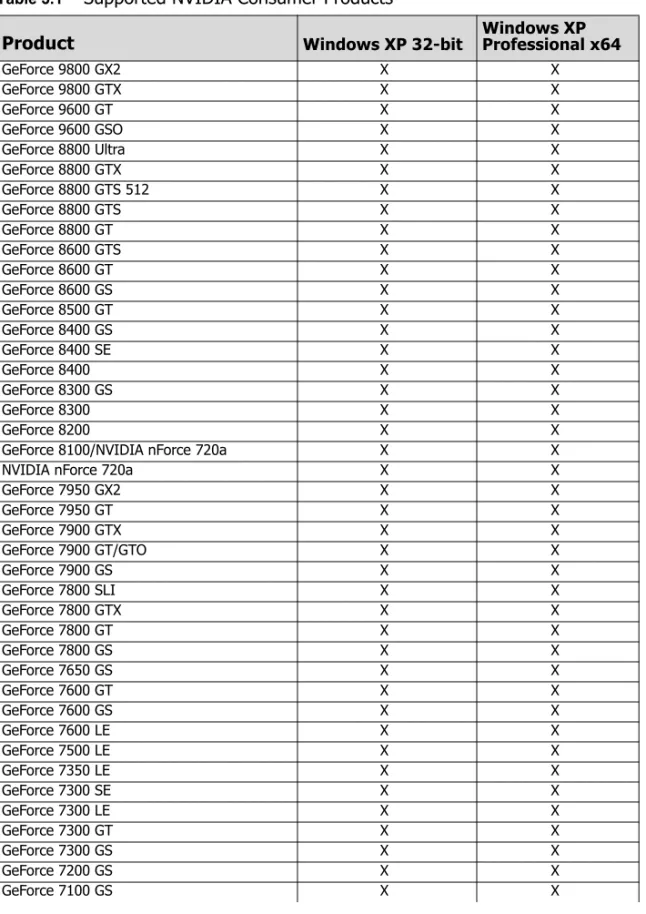
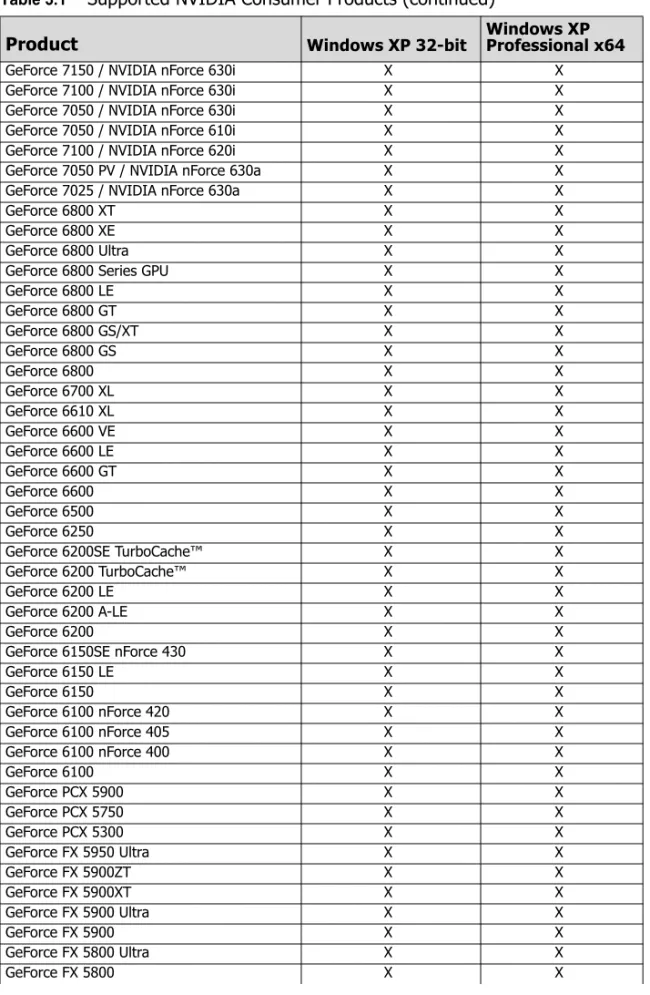
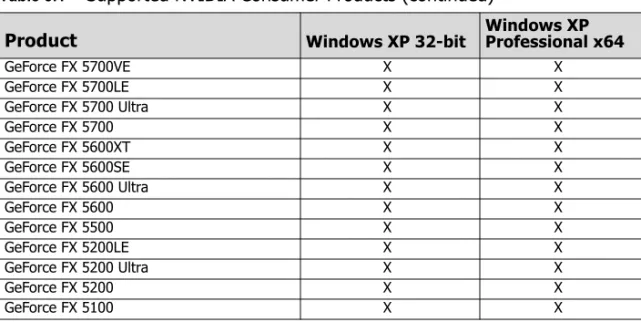
Table 3.1 lists the NVIDIA GPUs supported by this Release 175 driver.
Table 3.1 Supported NVIDIA Consumer Products
Product Windows XP 32-bit Windows XP Professional x64
GeForce 9800 GX2 X X GeForce 9800 GTX X X GeForce 9600 GT X X GeForce 9600 GSO X X GeForce 8800 Ultra X X GeForce 8800 GTX X X GeForce 8800 GTS 512 X X GeForce 8800 GTS X X GeForce 8800 GT X X GeForce 8600 GTS X X GeForce 8600 GT X X GeForce 8600 GS X X GeForce 8500 GT X X GeForce 8400 GS X X GeForce 8400 SE X X GeForce 8400 X X GeForce 8300 GS X X GeForce 8300 X X GeForce 8200 X X
GeForce 8100/NVIDIA nForce 720a X X
NVIDIA nForce 720a X X
GeForce 7950 GX2 X X GeForce 7950 GT X X GeForce 7900 GTX X X GeForce 7900 GT/GTO X X GeForce 7900 GS X X GeForce 7800 SLI X X GeForce 7800 GTX X X GeForce 7800 GT X X GeForce 7800 GS X X GeForce 7650 GS X X GeForce 7600 GT X X GeForce 7600 GS X X GeForce 7600 LE X X GeForce 7500 LE X X GeForce 7350 LE X X GeForce 7300 SE X X GeForce 7300 LE X X GeForce 7300 GT X X GeForce 7300 GS X X GeForce 7200 GS X X GeForce 7100 GS X X
GeForce 7150 / NVIDIA nForce 630i X X GeForce 7100 / NVIDIA nForce 630i X X GeForce 7050 / NVIDIA nForce 630i X X GeForce 7050 / NVIDIA nForce 610i X X GeForce 7100 / NVIDIA nForce 620i X X GeForce 7050 PV / NVIDIA nForce 630a X X GeForce 7025 / NVIDIA nForce 630a X X
GeForce 6800 XT X X
GeForce 6800 XE X X
GeForce 6800 Ultra X X
GeForce 6800 Series GPU X X
GeForce 6800 LE X X GeForce 6800 GT X X GeForce 6800 GS/XT X X GeForce 6800 GS X X GeForce 6800 X X GeForce 6700 XL X X GeForce 6610 XL X X GeForce 6600 VE X X GeForce 6600 LE X X GeForce 6600 GT X X GeForce 6600 X X GeForce 6500 X X GeForce 6250 X X
GeForce 6200SE TurboCache™ X X
GeForce 6200 TurboCache™ X X
GeForce 6200 LE X X
GeForce 6200 A-LE X X
GeForce 6200 X X
GeForce 6150SE nForce 430 X X
GeForce 6150 LE X X GeForce 6150 X X GeForce 6100 nForce 420 X X GeForce 6100 nForce 405 X X GeForce 6100 nForce 400 X X GeForce 6100 X X GeForce PCX 5900 X X GeForce PCX 5750 X X GeForce PCX 5300 X X GeForce FX 5950 Ultra X X GeForce FX 5900ZT X X GeForce FX 5900XT X X GeForce FX 5900 Ultra X X GeForce FX 5900 X X GeForce FX 5800 Ultra X X GeForce FX 5800 X X
Table 3.1 Supported NVIDIA Consumer Products (continued)
GeForce FX 5700VE X X GeForce FX 5700LE X X GeForce FX 5700 Ultra X X GeForce FX 5700 X X GeForce FX 5600XT X X GeForce FX 5600SE X X GeForce FX 5600 Ultra X X GeForce FX 5600 X X GeForce FX 5500 X X GeForce FX 5200LE X X GeForce FX 5200 Ultra X X GeForce FX 5200 X X GeForce FX 5100 X X
Table 3.1 Supported NVIDIA Consumer Products (continued)
Supported Languages
The Release 175 Release 175 Graphics supports the following languages in the main
driver Control Panel:
English (USA) German Portuguese (Euro/Iberian)
English (UK) Greek Russian
Arabic Hebrew Slovak
Chinese (Simplified) Hungarian Slovenian Chinese (Traditional) Italian Spanish
Czech Japanese Spanish (Latin America)
Danish Korean Swedish
Dutch Norwegian Thai
Finnish Polish Turkish
Driver Installation
System Requirements
The hard disk space requirement is minimum 62.9 MB for English‐only, and 79 MB for
International.
Installation Instructions
Before You Begin
• If NVIDIA nTune is already installed
If you have previously installed NVIDIA nTune, NVIDIA recommends that you
uninstall nTune before installing this driver. After the driver install is complete, you
can reinstall nTune.
• If you do not have System Administrator access privileges, it is assumed that the
appropriate person with System Administrator access in your organization will set
up and install the NVIDIA graphics driver software on your computer.
• The installation process copies all necessary files for operation into the appropriate
directories.
• The nView system files are copied to your Windows\System directory. • nView Desktop Manager Profile files (*.tvp) are saved in the Windows\Nview
directory.
Depending on the version of the NVIDIA driver previously installed, profiles may
also be located in the Documents and Settings\All Users\Application Data\ nView_Profiles directory.
• As part of the install process, an uninstall is registered in your system.
• Under Windows XP, the NVIDIA driver is installed in “Dualview mode” display.
However, note that the second display is not activated by default, but must be