Request Compensation Change
Contents
Request Compensation Change Business Process ... 3
Request Compensation Change ... 5
Attach Documentation (for Acting Capacity or Advanced Step requests) ... 12
Request Compensation Change Business Process
Business Process Overview
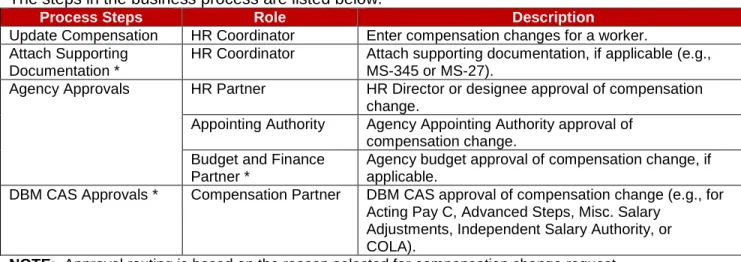
The Request Compensation Change business process is used to update the compensation for State employees (workers that are paid directly by the State). The steps in the business process are listed below.
The steps in the business process are listed below.
Process Steps Role Description
Update Compensation HR Coordinator Enter compensation changes for a worker.
Attach Supporting Documentation *
HR Coordinator Attach supporting documentation, if applicable (e.g.,
MS-345 or MS-27).
Agency Approvals HR Partner HR Director or designee approval of compensation
change.
Appointing Authority Agency Appointing Authority approval of
compensation change. Budget and Finance
Partner *
Agency budget approval of compensation change, if applicable.
DBM CAS Approvals * Compensation Partner DBM CAS approval of compensation change (e.g., for
Acting Pay C, Advanced Steps, Misc. Salary Adjustments, Independent Salary Authority, or COLA).
NOTE: Approval routing is based on the reason selected for compensation change request. Events and Reasons
You must select a reason when performing a Request Compensation Change request. The tables below list both Agency and central DBM reasons.
NOTE: DBM will perform Mass Annual Increment updates and Salary Plan updates. DBM reasons should not be selected by Agency HR users.
Table 1: Agency Reasons
Event
Reason
Use
Request Compensation Change
(Agency Reasons)
Allowance Plan Add/Change > Acting Pay A
Temporary Absence of incumbent. Allowance Plan Add/Change > Acting Pay
B
Vacant Position. Allowance Plan Add/Change > Acting Pay
C
Additional duties are assigned. Allowance Plan Add/Change > Clothing
Allowance
Clothing Allowance for uniform employees only.
Allowance Plan Add/Change > Contract NTE$
Contract not to exceed dollars. Salary Adjustment > COLA/Increment
Retro Adjustment
Use this reason when an employee has
received an increase in pay retroactively but the employee’s compensation record has not been updated with the most recent COLA/Increment event(s).
Salary Adjustment > Miscellaneous Adjustment
Any other adjustment needed that is not currently listed. Request Compensation Change (DBM ONLY Reasons)
Increment > Annual Increment Annual Increment.
Increment > Executive Annual Increment Increment for Executive Service. Salary Plan Add/Change > Abolish
Schedule
Inactive Schedules.
Salary Plan Add/Change > ASR Annual Salary Review.
Salary Plan Add/Change > Bargaining MOU
For Union Agreements.
Salary Plan Add/Change > COLA Cost of Living Adjustment.
Salary Plan Add/Change > Correction/Modification
Corrections/Modifications. Salary Plan Add/Change > Executive
Order
Changes by Executive Orders. Salary Plan Add/Change > Need or
Requirement
Required changes by DBM.
Salary Plan Add/Change > PPA Pay Plan Amendment.
Salary Plan Add/Change > Salary Reduction
Salary Reduction. Salary Plan Add/Change > Salary
Structure Neutral
Structural changes.
Salary Plan Add/Change > Schedule Structure Decrease
Structural Decrease. Salary Plan Add/Change > Schedule
Structure Increase
Structural Increase.
Before you begin…
You will need the following information to update compensation for an employee:
Employees name or employee ID.
Effective date of compensation update (when the change should take effect)
Supporting documentation (e.g., completed MS-345 Acting Capacity Pay Request form or MS-27
Request Compensation Change
Procedure:
1. Type the employee’s name or employee ID in the Search field.
2. Click the search icon.
Search Results
Search Results
Request Compensation Change
5. Click the Calendar icon and select the next pay period start date in the Effective Date field.
IMPORTANT!! Effective Dates for Retroactive COLA or Increments
You must complete the Edit Position Restriction event for the position with the retroactive effective date first. Then, complete the Change Job event for the employee also with the retroactive effective date. If the employee has had other compensation changes since that retroactive effective date (COLA or Increments), you must process the compensation change events with the compensation change retroactive COLA or Increment reason. After each salary retroactive event for retro dates have been processed, the last Request Compensation Change event must be a future effective date, start of a pay period, so that the new salary will be sent to CPB. All salary changes must be entered into Workday with the appropriate effective date, starting with the oldest to the most recent. This will allow the system to calculate the retroactive payment for the employee after we have Timekeeping in the system in March 2016. At this time, your payroll office should calculate any retroactive pay due to the employee and enter into the ETR.Request Compensation Change
6. Type or use the prompt to select the Reason.
Information: Refer to Table 1: Agency Reasons in the Events and Reasons section above for valid reasons.
7. Update the appropriate row as follows:
If Then
Employee is paid on the Standard Salary Schedule or
any schedule that has a Grade Profile and Step... – Click the Edit icon in the Guidelines Row. – Select/Enter the Step.
– Click Save. Note:
Compensation defaults are based on the job profile. Choosing Step 10 or above requires additional approvals. Refer to Standard Pay Guidelines and Executive Pay Guidelines for more information.
Employee is paid on the Executive Schedule...
– Click the Edit icon in the Salary Row. – Enter the Amount.
– Click Save.
Employee Type is Contractual –Hourly
- Click the Add button in the Hourly row.
- Enter pay rate in the Amount field.
- Click Save. Employee Type is Contractual – Contract (i.e., fixed
term contractual)... - Click Add button in the Allowance row.
- In the Compensation Plan field, type or use prompt to select Contract NTE$ from the list, if not already selected.
- Enter the contract not to exceed amount (Contract NTE$) in the Amount field.
- Click Save. Enter Acting Capacity Pay for an employee...
NOTE: You are entering an “allowance” only and not
changing the employee’s Grade or permanant salary. – Click the Edit icon to update an existing allowance or Add button to add a new allowance row.
– In the Compensation Plan field, verify or select Acting Pay.
– Enter the Amount.
– Expand the Additional Details section. Then enter/select the Expected End Date. – Click Save.
Enter Clothing Allowance for an employee...
– Click the Edit icon to update an existing allowance or Add button to add a new allowance row.
– In the Compensation Plan field, verify or select
Clothing Allowance. – Enter the Amount. – Click Save.
Request Compensation Changed
Request Compensation Change
9. Click the Done button.
Attach Documentation
(for Acting Capacity or Advanced Step requests)
If you are submitting an Acting Capacity or an Advanced Step request you need to attach the appropriate form(s) to complete your Request Compensation Change request. You may access this task directly after submitting the initial request or from you inbox. Follow the procedure below.
Procedure: Attach Document
1. Click the Attach button.
Tip: If you have not already completed and saved the form, you can obtain a copy of the form on the Documents page (e.g., the MS-345 Acting Capacity Pay Request form or MS-27 Exception Salary Guide Request form).
To download the file...
1. Click the document link in the top left corner of the page. 2. Open the file.
File Selection
2. Search for and upload the file.
3. Enter a comment for the attachment, if desired.
4. Click the Submit button.
Next Step: HR Partner Approval
5. Click the Done button.
Information: The compensation change must be approved. The approval routing is based on the reason code selected for the compensation change.