HP ProLiant DL140 Server
Setup and Installation Guide
November 2003 (Second Edition) Part Number 349109-002
This guide provides IT administrators and technicians setup and installation requirements, precautions, and instructions pertaining to the servers. The guide explains how to install hardware options for enhanced system performance, how to install and configure memory, how to install expansion boards, how to install the server in the rack, and how to cable and configure the servers.
2003 Hewlett-Packard Development Company, L.P.
Microsoft® and Windows NT® are U.S registered trademarks of Microsoft Corporation.
Hewlett-Packard Company shall not be liable for technical or editorial errors or omissions contained herein. The information in this document is provided “as is” without warranty of any kind and is subject to change without notice. The warranties for HP products are set forth in the express limited warranty statements accompanying such products. Nothing herein should be construed as constituting an additional warranty. HP ProLiant DL140 Server Setup and Installation Guide
November 2003 (Second Edition) Part Number 349109-002
Contents
ABOUT THIS GUIDEINTENDED AUDIENCE...V
Important Safety Information...v
Symbols on Equipment ...v
Rack Stability...vi
Symbols in Text ...vi
Text Conventions ... vii
Related Documents ... vii
Getting Help... vii
HP Technical Support ... vii
HP Website... vii
HP Authorized Reseller... viii
Reader’s Comments ... viii
CHAPTER 1...1
SERVER FEATURES...1
HP ProLiant DL140 Server Features ...1
Warranties...1
Server Configuration and Management ...1
Security ...1
CHAPTER 2...2
PLANNING THE SERVER INSTALLATION...2
Server Installation Overview ...2
Optimum Environment ...2
Space and Airflow Requirements ... 2
Temperature Requirements ... 3
Power Requirements ... 3
Grounding Requirements ... 4
Rack Warnings and Cautions ...4
Server Warnings and Cautions...5
Server Shipping Contents ...6
CHAPTER 3...7
INSTALLING HARDWARE OPTIONS...7
Accessing Internal Server Components ...7
Identifying System Board Components ...10
Installing Additional Memory...11
Installing an Expansion Board ...12
Removing the PCI Riser Board Assembly ... 12
Installing the Expansion Board ... 13
Installing ATA Hard Drives...15
Installing a CD-ROM Drive Assembly...17
CHAPTER 4...24
SERVER INSTALLATION...24
Server Installation Procedures ...24
Installing the Rack Rails... 24
Connecting the Peripheral Device Cables and the Power Cord ...26
Powering Up the Server ...27
Installation Sequence ...27
Operating System Purchased Separately ... 27
Preconfigured Operating System... 28
Registering the Server...28
Routine Maintenance ...29
Optional Installation Service...29
CHAPTER 5...30
SERVER CONFIGURATION AND UTILITIES...30
BIOS Setup ...30
Starting Setup ... 30
Recording Your Setup Settings ... 30
Navigating Setup Utility Screens ... 30
Setup Screens ... 31
Automatic Server Recovery ...34
Power-On Self-Test ...34
System BIOS Update ...35
IPMI Event Log ...35
BIOS Beep Codes ...36
APPENDIX A...37
REGULATORY COMPLIANCE NOTICES...37
Regulatory Compliance Identification Numbers...37
Federal Communications Commission Notice...37
Class A Equipment... 37
Class B Equipment ... 38
Declaration of Conformity for Products Marked with the FCC Logo – United States Only ... 38
Modifications ... 39
Cables... 39
Canadian Notice (Avis Canadien)...39
Class A Equipment... 39
Class B Equipment ... 39
European Union Notice...39
Japanese Notice...40 KOREAN NOTICE ...40 Class A Equipment... 40 Class B Equipment ... 40 BSMI Notice ...41 Laser Devices...41
Laser Safety Warnings ... 41
Compliance with CDRH Regulations... 41
Compliance with International Regulations ... 41
Laser Product Label ... 42
Laser Information... 42
Battery Replacement Notice ...42
Power Cords...43
APPENDIX B...44
ELECTROSTATIC DISCHARGE...44
Preventing Electrostatic Damage ...44
Grounding Methods ...44
APPENDIX C...45
TROUBLESHOOTING...45
When the Server Does Not Start ...45
Diagnosis Steps...46
Problems After Initial Startup ...50
Other Troubleshooting Resources...51
APPENDIX D...52
LEDS AND SWITCHES...52
Status Indicators...52
Front Panel LED Indicators... 52
Switches ...53
System Configuration Switch (SW1) ... 53
Clearing and Resetting System Password Settings... 54
Clearing and Resetting System Configuration Settings... 54
Setting the NIC Operating Mode... 55
APPENDIX E...56
SERVER SPECIFICATIONS...56
About This Guide
This guide is designed to be used as step-by-step instructions for installation and as a reference for operation, troubleshooting, and future upgrades for the HP
ProLiant DL140 server.
Intended Audience
This guide is intended for anyone configuring a ProLiant DL140 server. A moderate level of server-based knowledge and experience is assumed.
Important Safety Information
Before installing this product, read the Important Safety Information document provided.
Symbols on Equipment
The following symbols may be placed on equipment to indicate the presence of potentially hazardous conditions:
WARNING: This symbol, in conjunction with any of the following symbols, indicates the presence of a potential hazard. The potential for injury exists if warnings are not observed. Consult your documentation for specific details.
This symbol indicates the presence of hazardous energy circuits or electric shock hazards. Refer all servicing to qualified personnel.
WARNING: To reduce the risk of injury from electric shock hazards, do not open this enclosure. Refer all maintenance, upgrades, and servicing to qualified personnel.
This symbol indicates the presence of electric shock hazards. The area contains no user or field serviceable parts. Do not open for any reason. WARNING: To reduce the risk of injury from electric shock hazards, do not open this enclosure.
This symbol on an RJ-45 receptacle indicates a network interface connection. WARNING: To reduce the risk of electric shock, fire, or damage to the
equipment, do not plug telephone or telecommunications connectors into this receptacle.
This symbol indicates the presence of a hot surface or hot component. If this surface is contacted, the potential for injury exists.
WARNING: To reduce the risk of injury from a hot component, allow the surface to cool before touching.
Weight in kg Weight in lb
This symbol indicates that the component exceeds the recommended weight for one individual to handle safely.
WARNING: To reduce the risk of personal injury or damage to the equipment, observe local occupational health and safety requirements and guidelines for manual material handling.
Rack Stability
WARNING: To reduce the risk of personal injury or damage to the equipment, be sure that:
• The leveling jacks are extended to the floor.
• The full weight of the rack rests on the leveling jacks.
• The stabilizing feet are attached to the rack, if it is a single-rack
installation.
• The racks are coupled together in multiple-rack installations.
• Only one component is extended at a time. A rack may become unstable if
more than one component is extended for any reason.
Symbols in Text
These symbols may be found in the text of this guide. They have the following meanings. WARNING: Text set off in this manner indicates that failure to follow directions in the warning could result in bodily harm or loss of life.
CAUTION: Text set off in this manner indicates that failure to follow directions could
result in damage to equipment or loss of information.
IMPORTANT: Text set off in this manner presents clarifying information or specific
instructions.
Text Conventions
This document uses the following conventions:
• Italic type is used for complete titles of published guides or variables. Variables include information that varies in system output, in command lines, and in command parameters in text.
• Bold type is used for emphasis, for onscreen interface components (window titles, menu names and selections, button and icon names, and so on), and for keyboard keys.
• Monospace typeface is used for command lines, code examples, screen displays, error messages, and user input.
• Sans serif typeface is used for uniform resource locators (URLs).
Related Documents
For additional information on the topics covered in this guide, refer to the following
documentation either on the Startup, Documentation and Utilities CD, on the HP website or included with the server.
• HP ProLiant DL140 Server Maintenance and Service Guide
• HP ProLiant DL140 Server Hardware Installation and Configuration Poster
• General online reference and specifications: www.compaq.com/quickspecs
Getting Help
If you have a problem and have exhausted the information in this guide, you can get further information and other help in the following locations.
HP Technical Support
In North America, call the HP Technical Support Phone Center at 1-800-652-6672. This service is available 24 hours a day, 7 days a week. For continuous quality improvement, calls may be recorded or monitored. Outside North America, call the nearest HP Technical Support Phone Center. For telephone numbers of worldwide Technical Support Centers, go to
www.hp.com
HP Website
For information on this product, as well as the latest drivers and flash ROM images, go to www.hp.com.
HP Authorized Reseller
For the name of your nearest HP authorized reseller:
• In the United States, call 1-800-345-1518.
• In Canada, call 1-800-263-5868.
• Elsewhere, refer to www.hp.com for locations and telephone numbers.
Reader’s Comments
HP welcomes your comments on this guide. Please send your comments and suggestions by
1
Server Features
HP ProLiant DL140 Server Features
For a list of features which are standard on the server, refer to
www.compaq.com/quickspecs
Warranties
The server is equipped with several standard warranties. For more information, refer to the Important Warranty Information card shipped with the server.
Server Configuration and Management
The server offers features to support effective server management and configuration. Refer to Chapter 5 for detailed information on each of these utilities.
Security
Security features for this server include the following:
• Power-on password
• Setup password
Most security features are established through BIOS Setup. Refer to Chapter 5 for detailed information on BIOS Setup. For additional information concerning server security features, refer to the documentation CD included in the shipping box.
2
Planning the Server Installation
Server Installation Overview
The following steps give an overview of the required procedures for installing the ProLiant DL140 server:
IMPORTANT: Before beginning the following procedures, refer to the Important Safety Information guide that shipped with the server.
1. Select an appropriate site for the server.
2. Unpack the server and rack-mounting hardware.
3. Install other options.
Refer to Chapter 3, “Installing Hardware Options.” Other options include additional memory, hard drives, expansion boards, and external storage devices.
4. Set internal switches, if necessary. For detailed information on relevant switches, refer to
Appendix D, “LEDs and Switch”
5. Install the rack rails. Refer to “Installing the Fixed Rack Rails,” in Chapter 4, “Server Installation.”
6. Mount the server in the rack. Refer to “Inserting the Server into the Rack,” in Chapter 4,
“Server Installation.”
7. Connect the power cord and peripheral devices. Refer to “Connecting the Peripheral Device
Cables and the Power Cord,” in Chapter 4, “Server Installation.”
Optimum Environment
When installing these servers in a rack, select a location that meets the environmental standards described in the following paragraphs.
Space and Airflow Requirements
To allow for servicing and adequate airflow, observe the following spatial requirements when deciding where to install an HP, Compaq, Telco, or third-party rack:
• Leave a minimum clearance of 63.5 cm (25 inches) in front of the rack.
• Leave a minimum clearance of 76.2 cm (30 inches) behind the rack.
• Leave a minimum clearance of 121.9 cm (48 inches) from the back of the rack to the rear of
HP servers draw in cool air through the rack front door and expel warm air through the rack rear door. Therefore, the front and rear rack doors must be adequately ventilated to allow ambient room air to enter the cabinet and warm air to escape from the rear of the cabinet.
IMPORTANT: Do not block the ventilation openings.
NOTE: It is recommended that rows of racks be arranged where front panels on one row face
the front panels of opposite rows and the back panels of racks face the backs of racks in opposite rows.
When there is any vertical space in the rack not filled by servers or rack components, the gaps between the components cause changes in airflow through the rack and across the servers. Cover all gaps with blanking panels to maintain proper airflow.
Compaq branded Rack 9000 and Rack 10000 Series products provide proper server cooling from flow-through perforations in the front and rear doors that provide 64 percent open area for ventilation.
CAUTION: When using a Compaq branded Rack 7000 Series rack, the high airflow
rack door insert must be installed [P/N 327281-B21 (42U) and P/N 157847-B21 (22U)] to provide proper front-to-back airflow and cooling.
CAUTION: If a third-party rack is used, observe the following additional
requirements to ensure adequate airflow and to prevent damage to the equipment:
• Front and rear doors: if the 42U server rack includes closing front and rear doors, 5,350 sq cm (830 square inches) of holes evenly distributed from top to bottom must be available to permit adequate airflow (equivalent to the required 64 percent open area for ventilation).
• Side panels: The clearance between the installed rack component and the side panels of the rack must be a minimum of 7 cm (2.75 inches).
CAUTION: Always use blanking panels to fill empty vertical spaces in the rack. This
arrangement ensures proper airflow. Using a rack without blanking panels results in improper cooling that can lead to thermal damage.
Temperature Requirements
To ensure continued safe and reliable equipment operation, install or locate the system in a well-ventilated, climate-controlled environment.
The maximum recommended ambient operating temperature (TMRA) for this server is 35°C
(95°F). The temperature in the room where the rack is located must not exceed 35°C(95°F).
Power Requirements
WARNING: To reduce the risk of personal injury, fire, or damage to the equipment, do not overload the AC supply branch circuit that provides power to the rack. Consult the electrical authority having jurisdiction over the facility’s wiring and installation requirements.
The installation of this equipment shall be in accordance with local/regional electrical regulations governing the installation of information technology equipment by licensed electricians. This equipment is designed to operate in installations covered by NFPA 70, 1999 Edition (National Electric Code) and NFPA 75, 1992 Edition (code for Protection of Electronic Computer/Data Processing Equipment). For electrical power ratings on options, refer to the product’s rating label or the user documentation supplied with that option.
When installing more than one server, additional power distribution devices may be required to safely provide power to all devices. Observe the following guidelines:
• The power load must be balanced between available AC supply branch circuits.
• The overall system AC current load must not exceed 80 percent of the branch circuit AC
current rating.
Grounding Requirements
For proper operation and safety, the server must be properly grounded. In the United States, you must install the equipment in accordance with NFPA 70, 1999 Edition (National Electric Code) Article 250, as well as any local and regional building codes. In Canada, the equipment must be installed in accordance with Canadian Standards Association, CSA C22.1, Canadian Electrical Code. In all other countries, the installation must follow any regional or national electrical wiring codes, such as the International Electrotechnical Commission (IEC) 364, parts 1 through 7. Furthermore, you must ensure that all power distribution devices used in the installation—such as branch wiring and receptacles—are listed or certified grounding-type devices.
Because of the high ground leakage currents associated with multiple servers connected to the same power source, HP recommends the use of a power distribution unit (PDU) that is either permanently wired to the building’s branch circuit or includes a non-detachable cord that is wired to an industrial-style plug. NEMA locking-style plugs or those complying with IEC 60309 are considered suitable for this purpose. HP does not recommend using common power outlet strips for this equipment.
Rack Warnings and Cautions
Before installing a rack, carefully review the following warnings and cautions: WARNING: To reduce the risk of personal injury or equipment damage, always ensure that the rack is adequately stabilized before extending a component out of the rack. Extend only one component at a time. A rack may become unstable if more than one component is extended for any reason.
WARNING: To reduce the risk of personal injury or equipment damage, ensure that:
• The leveling jacks are extended to the floor.
• The full weight of the rack rests on the leveling jacks.
• The stabilizers are attached to the rack for single-rack installation.
• The racks are coupled together in multiple-rack installations.
WARNING: When installing the server in a Telco rack, ensure that the rack frame is adequately secured to the top and bottom of the building structure.
WARNING: To reduce the risk of personal injury or equipment damage, at least two people are needed to safely unload the rack from the pallet. An empty 42U rack can weigh as much as 115 kg (253 lb), can stand more than 2.1 m (7 ft) tall, and may become unstable when moved on its casters. Never stand in front of the rack when it is rolling down the ramp from the pallet; always handle the rack from both sides.
CAUTION: Always begin by mounting the heaviest item on the bottom of the rack.
Continue to populate the rack from the bottom to the top.
Server Warnings and Cautions
Before installing the server, carefully review the following warnings and cautions: WARNING: To reduce the risk of personal injury from hot surfaces, allow the drives and the internal system components to cool before touching them.
WARNING: To reduce the risk of electric shock or damage to the equipment: • Do not disable the power cord grounding plug. The grounding plug is an
important safety feature.
• Plug the power cord into a grounded (earthed) electrical outlet that is easily
accessible at all times.
• Unplug the power cord from the power supply to disconnect power to the
equipment.
CAUTION: Protect the server from power fluctuations and temporary interruptions
with a regulating uninterruptible power supply (UPS). This device protects the hardware from damage caused by power surges and voltage spikes and keeps the system in operation during a power failure.
CAUTION: Do not operate the server for long periods without the access panel.
Operating the server without the access panel results in improper airflow and improper cooling that can lead to thermal damage.
Server Shipping Contents
Unpack the server box and locate the materials and documentation for installing the server. All rack-mounting hardware for installing the server into the rack are included with the rack or the server.
In addition to these supplied items, the following additional items may be needed:
• Application software diskettes
• Options to be installed
3
Installing Hardware Options
This chapter provides information and procedures for installing hardware options on ProLiant DL140 server. For additional instructions, refer to the installation documentation shipped with each option kit,
To streamline the installation process, read the installation instructions for all of the hardware options and identify similar steps before beginning installation.
After installing all hardware options, proceed with the server installation procedures in Chapter 4.
Accessing Internal Server Components
This section defines standard procedures to access internal server components. Procedures will vary depending on whether the server is in the rack and powered on.
When the server is not installed in the rack, accessing internal components requires removal of the access panel.
Shutting down and removing the server from the rack
1. Power down the serverand remove it from the rack.
a. Shut down the operating system as directed in the operating system instructions.
CAUTION: Whenever installing hardware or performing maintenance
procedures requiring access to internal components, it is recommended that all server data be backed up to avoid loss.
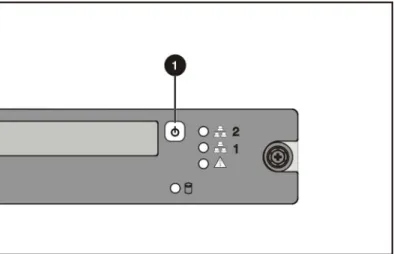
b. Press the server Power On/Off switch (1) to power down the server. The Power On/Off
Figure 3-1: Powering down the server
c. Disconnect any cabling attached to the rear of the server.
d. Move to the front of the rack and loosen the thumbscrews securing the server in the rack
(1).
e. Grasp the front panel thumbscrews, and extend the server from the rack. The rail release
latches engage automatically.
f. Press in and hold the rail release latches (2).
g. Holding the rail release latches, extend the server until the latches clear the rack. h. Pull the server completely out of the rack (3) and set it on a flat, level surface.
Figure 3-2: Removing the server from the rack
Removing the Access Panel
WARNING: To reduce the risk of personal injury from hot surfaces, allow the internal system components to cool before touching them.
CAUTION: Before removing the server access panel, be sure that the server is
powered down and that the power cord is disconnected from the server or the electrical outlet.
CAUTION: Electrostatic discharge can damage electronic components. Be sure you
are properly grounded before beginning any installation procedure.
1. Unscrew the rear access panel retention screw
2. Slide the access panel toward the rear of the unit, about 1.25 cm (0.5 inch), and lift the panel to remove it.
Identifying System Board Components
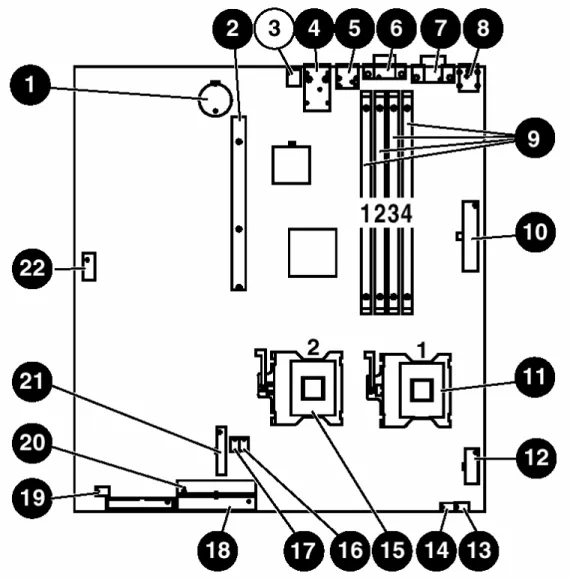
Use the following figure and table to identify the system board connectors and components for option installation or service events.
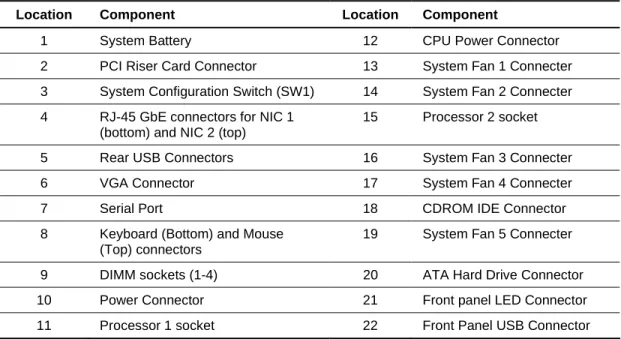
Table 3-1: System Board Connectors and Components
Location Component Location Component
1 System Battery 12 CPU Power Connector
2 PCI Riser Card Connector 13 System Fan 1 Connecter
3 System Configuration Switch (SW1) 14 System Fan 2 Connecter
4 RJ-45 GbE connectors for NIC 1 (bottom) and NIC 2 (top)
15 Processor 2 socket
5 Rear USB Connectors 16 System Fan 3 Connecter
6 VGA Connector 17 System Fan 4 Connecter
7 Serial Port 18 CDROM IDE Connector
8 Keyboard (Bottom) and Mouse
(Top) connectors
19 System Fan 5 Connecter
9 DIMM sockets (1-4) 20 ATA Hard Drive Connector
10 Power Connector 21 Front panel LED Connector
11 Processor 1 socket 22 Front Panel USB Connector
Installing Additional Memory
Server memory can be expanded by installing Double Data Rate Synchronous DRAM (DDR SDRAM). The system supports up to four PC2100 ECC registered DDR SDRAM Dual Inline Memory Modules (DIMMs) installed in four sockets on the system board. Memory can be added one module at a time.
Refer to Figure 3-3 and to Table 3-1 for DIMM slot location and socket numbers. This information is also available on the hood label.
The server memory can be expanded to 4 GB. In the maximum memory configuration, all four DIMM sockets are populated with 1-GB, PC2100 ECC registered DDR SDRAM DIMMs. Observe the following guidelines when installing additional memory:
• DIMMs installed in the server must be PC2100 registered DDR SDRAM, 2.5 V, 64 bits wide,
and ECC.
• All DIMMs installed must be the same speed. Do not install DIMM modules supporting
different speeds, for example, 266 MHz and 200 MHz.
• Install the DIMMs in descending sequential order, starting with DIMM socket 4.
• Use only HP recommended DIMMs. DIMMs from other sources can adversely affect data
integrity
Refer to www.compaq.com/quickspecs for DIMM option kits.
CAUTION: Electrostatic discharge can damage electronic components. Be sure you
are properly grounded before beginning any installation procedure. Refer to Appendix B, “Electrostatic Discharge,” for more information.
To install a DIMM onto the system board:
1. Access internal server components. Refer to the “Accessing Internal Server Components”
section earlier in this chapter.
2. Open the DIMM socket latches.
3. Align the key slot in the bottom edge of the DIMM with the tab in the DIMM socket.
IMPORTANT: Misaligned DIMMs do not seat.
4. Press down firmly on the DIMM while pushing the latches inward until the latches snap into
place.
5. Reverse the procedures performed in the “Accessing Internal Server Components” section
earlier in this chapter.
Installing an Expansion Board
Server I/O can be expanded by installing PCI or PCI-X expansion boards. The system supports one full-length PCI or PCI-X expansion board.
Observe the following guidelines when installing expansion boards:
• Expansion boards installed in the server must be PCI or PCI-X, 3.3 V, 32 or 64 bits wide, and
33, 66, 100 or 133MHz frequency.
• Use either half length or full-length expansion boards.
Refer to www.compaq.com/quickspecs for supported PCI and PCI-X option kits. To install an expansion board, complete the procedures described in the following subsections.
Removing the PCI Riser Board Assembly
To remove the PCI riser board assembly:CAUTION: To avoid damaging the system or expansion boards, remove all AC
power cords before installing or removing an expansion board. When the front panel power switch is in the Off position, auxiliary power is still connected to the PCI expansion slot and may damage the card.
1. Access internal server components. Refer to the “Accessing Internal Server Components”
section earlier in this chapter.
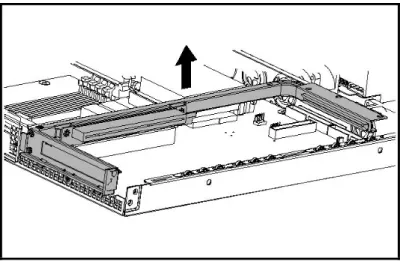
2. Lift the PCI riser board assembly from the server chassis.
NOTE: If the PCI slot retention screw located near the slot cover is installed, it must be removed prior to removal of the PCI riser board.
Figure 3-4: Removing the PCI riser board assembly (expansion board removed for clarity)
Installing the Expansion Board
To install an expansion board:1. Remove the slot cover screw (1).
2. Remove the slot cover (2).
Figure 3-5: Removing the slot cover
CAUTION: Do not discard the slot cover. If the PCI expansion board is removed in
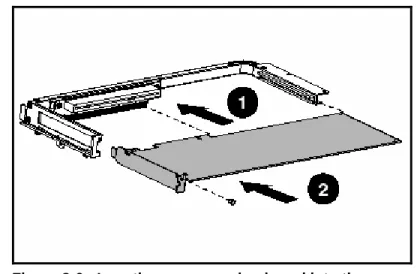
3. Insert an expansion board into the expansion slot by aligning the expansion board with the board guide and slide the expansion board into the slot until the board seats firmly (1).
4. Tighten the slot cover screw (2).
Figure 3-6: Inserting an expansion board into the expansion PCI riser board assembly
5. Install the PCI riser board assembly:
a. Place the PCI riser board assembly in the chassis and align the rear tab into the chassis.
b. Press down firmly above the expansion slot until the assembly is seated in the expansion
slot.
c. Replace the access panel.
Installing ATA Hard Drives
This server model is designed to support two 1-inch ATA hard drives. When installing ATA hard drives, observe the following guidelines:
• Access internal server components. Refer to the “Accessing Internal Server Components”
section earlier in this chapter.
• Always populate hard drive bays starting with the lowest ATA device number.
• Verify the jumpers on both ATA drives are set to Cable-Select mode. Doing so enables the
ATA cable to set a unique address, such as Device 0 or Device 1, for each hard drive. CAUTION: Installing unsupported hard drives may damage the system by
consuming power and generating heat in excess of the server’s operating tolerance. This condition may result in a loss of system and/or data integrity.
CAUTION: Whenever installing hardware or performing maintenance procedures
requiring access to internal components, it is recommended that all server data be backed up to avoid loss.
• Identify the hard drive tray for ATA hard drive installation. ATA hard drives in the server
appear as Devices 0 and 1, from right to left when viewed from the front of the server. Refer to Figure 3-11.
To remove an ATA hard drive tray:
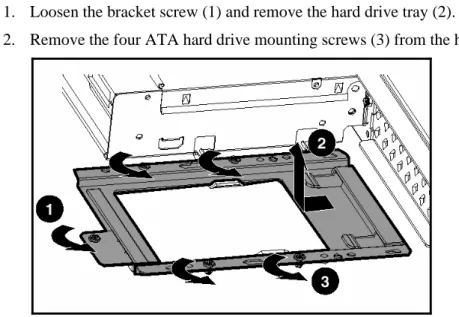
1. Loosen the bracket screw (1) and remove the hard drive tray (2).
2. Remove the four ATA hard drive mounting screws (3) from the hard drive tray.
To install an ATA hard drive:
1. Align the ATA hard drive on the hard drive tray (1) and secure it with the four hard drive mounting screws (2).
NOTE: Arrows on the hard drive tray indicate which holes to install the hard drive tray onto the drive.
Figure 3-9: Installing a drive onto the hard drive tray
To install an ATA hard drive assembly in the chassis:
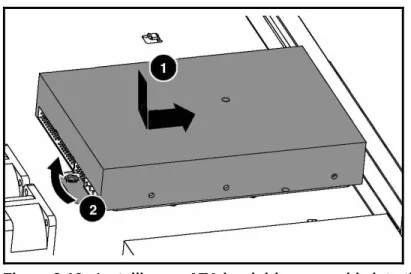
1. Place the ATA hard drive assembly into the chassis.
2. Align the tabs under the retainers and slide the assembly toward the front of the server until it is seated in place (1).
3. Tighten the hard drive tray screw (2).
IMPORTANT: When installing the hard drive tray screw, ensure all cables are clear of the hard drive tray.
Figure 3-10: Installing an ATA hard drive assembly into the chassis
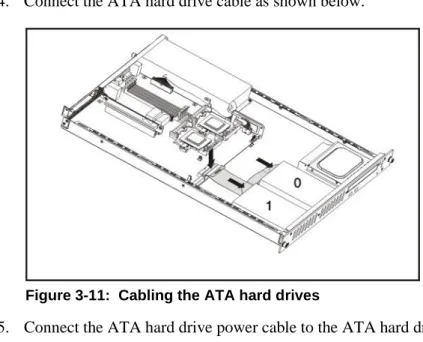
4. Connect the ATA hard drive cable as shown below.
Figure 3-11: Cabling the ATA hard drives
5. Connect the ATA hard drive power cable to the ATA hard drives.
IMPORTANT: Make sure the ATA hard drive cables are routed so as to not block airflow
to the fan inlets.
6. Replace the access panel.
Installing a CD-ROM Drive Assembly
CAUTION: Do not operate the server without a bezel blank or the CD-ROM drive
assembly installed. Improper cooling can damage the system.
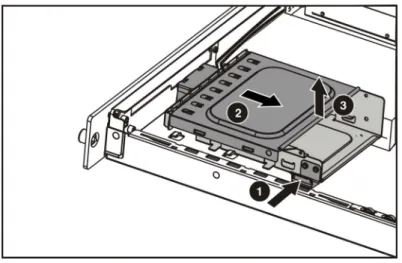
To Remove the CD-ROM tray from the chassis:
1. Press in and hold the CD-ROM latch (1).
2. Slide the tray toward the rear of the server until the USB connectors are visible (2).
Figure 3-12: Removing the CD-ROM tray
To Remove the CD-ROM tray top cover: 1. Lift the top cover (1).
2. Loosen two the CD-ROM blank screws (2) from the empty tray and remove the CD-ROM
blank (3).
Figure 3-13: Removing the CD-ROM tray top cover
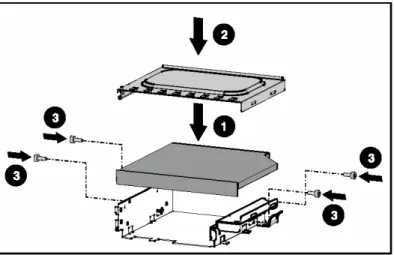
To Install the CD-ROM drive in the tray:
1. Align CD-ROM drive (1) and the top cover (2) along the tray and Press down firmly above
the tray until they are seated in place.
Figure 3-14: Installing a CD-ROM drive in the tray
Install the CD-ROM drive assembly in the chassis:
1. Place the CD-ROM drive assembly into the chassis (1).
2. Align the tabs along the chassis with the retainers then depress the CD-ROM latch (2).
3. Slide the assembly toward the front of the server (3) until the CD-ROM latch locks the
assembly.
4. Cable the CD-ROM drive assembly (4).
Figure 3-15: Installing a CD-ROM drive assembly in the chassis
5. Connect the CD-ROM power cable and the CD-ROM drive data cable to the CD-ROM drive.
IMPORTANT: Make sure the CD-ROM drive cable is routed so as to not block airflow to
the fan inlets.
6. Replace the Access cover.
NOTE: The CD-ROM drive assembly can be removed to prevent unwanted software installation or for use in another ProLiant DL140 server.
Figure 3-16: Cabling the CD-ROM drive cable
Installing a Processor
Use these instructions to install a Processor into the server. For additional information about installing the processor refer to the server hood label.
WARNING: To reduce the risk of personal injury from hot surfaces, allow the internal system components to cool before touching them.
WARNING: Eliminate the risk of electrical shock by removing all AC power from your system before installing or replacing any non-hot-plug hardware option to the server. Disconnect all power cords to completely remove power from the server.
CAUTION: Properly ground yourself before beginning any installation procedure. Electrostatic discharge can damage electronic components.
CAUTION: Handle the processor and heatsink with care. Damage to either may affect processor performance.
z Do not bend or damage the pins beneath the processor. Installation and Upgrade Requirements
Processor socket 1 must always be populated. If the processor is missing from socket 1, the system will not respond.
Preparing the Server for Installation Before installing the processor:
• Back up all server data.
• Be sure that the server has the most recent ROM version.
CAUTION: Failure to flash the ROM before installing processors can cause system failure.
WARNING: Remove all power from the system, including disconnecting the power cord, before installing any hardware option to the server.
Installing the Processor
1.Locate the processor socket on the system board.
Figure 3-17: Locating the processor socket
2.Open socket lever completely (1).
3.Insert the processor into the socket (2). 4.Close socket lever (3).
WARNING: Observe the processor and socket key markings (4) to assure the processor is installed in the correct orientation.
5.Remove the protective cover (1) from the heatsink (2).
Figure 3-19: Remove the protective cover from heatsink
WARNING: The thermal interface material (3) on the heatsink must be present and evenly spread. Missing or damaged thermal interface can lead to processor damage.
6.Install the heatsink onto the processor (1) and engage the retaining clips on eachside of the heatsink (2).
Prepare the Server for Operation: 1.Reinstall the access panel.
2.Replace the server back into the rack. 3.Reconnect all external cables.
4.Power up the server.
5.Be sure that the Server Status LED on the front of the chassis is not illuminated, indicating proper server operation.
NOTE: If the Server Status LED on the front of the chassis is illuminated red, refer to the
4
Server Installation
Server Installation Procedures
To install the rack-mounted server into an HP branded rack, complete the procedures described in the following subsections:
Installing the Rack Rails
Use the following procedures to install the rack rails to the rack:
1. From the rear of the rack, identify the inside front holes that are used to secure the front tabs of the fixed rack rail.
IMPORTANT: Ensure that the inner side of the rack rail (rail guide) faces the inside of the
rack.
2. Carefully align the two front tabs on the front of the fixed rack rail with the holes identified at the front of the rack.
Figure 4-1: Aligning and inserting the rack rail
3. Insert the front tabs of the rack rail into the rack.
4. Compress the rack rail toward the front of the rack until the rear tabs are aligned with the
inner holes at the back of the rack
5. Insert the rear tabs into the rear holes, and release the rail. The rail should lock in place securely.
Inserting the Server into the Rack
CAUTION: To avoid destabilizing the rack, install multiple servers starting from the
bottom of the rack.
To insert the server into the rack:
1. Align the rear end of the server rails on the sides of the server with the front end of the rack rails.
WARNING: To avoid personal injury, press the rail release latches and slowly slide the server into the rack. The rail release latches can pinch your fingertips.
2. Insert the server fully into the rack (1), ensuring that the fixed server rails slide inside the fixed rack rails.
CAUTION: Keep the server parallel to the floor when sliding the fixed server rails
into the slide rails. Tilting the server can damage the rails.
3. Tighten the thumbscrews on the front panel to secure the server to the rack (2).
Figure 4-2: Aligning the rear end of the server rails with the front end of the rack rails
After installing the server in the rack, begin the procedure for “Connecting the Peripheral Device Cables and the Power Cord.”
Connecting the Peripheral Device Cables and the Power Cord
WARNING: To reduce the risk of electrical shock or fire, do not plugtelecommunications/telephone connectors into the NIC connectors.
Use the following figure and table to identify connectors. Connect the power cord last.
Figure 4-3: Rear panel connectors on the server
Table 4-1: Rear Panel Connectors and Connection Order Location Connector
1 Power connector
2 Mouse connector
3 Rear USB 1.1 connectors
4 RJ-45 GbE Ethernet connector for NIC 2 (WOL/PXE capable)
5 PCI-X Expansion slot
6 RJ-45 GbE Ethernet connector for NIC 1 (WOL/PXE capable)
7 Video connector
8 Serial connector
9 Keyboard connector
CAUTION: Connect the power cord last or electrical damage to peripheral devices
Powering Up the Server
To power up the server:1. Press the Power On/Off button.
2. Confirm a successful power on sequence by ensuring that the Power On/Off LED is
illuminated green.
After the server has successfully powered up, begin the configuration process. Refer to Chapter 5, “Server Configuration and Utilities.”
If the server does not power up successfully, or if it indicates a fault, refer to Appendix D, “Troubleshooting.”
Installation Sequence
CAUTION: To install an operating system on the server, use the installation
instructions in the following section. Otherwise, follow the instructions in the “Preconfigured Operating System” section later in this chapter.
Operating System Purchased Separately
If the operating system was purchased separately, install the operating system by following the instructions provided with your server. Refer to the Startup, Documentation and Utilities CD for instructions on using the software.
When setting up the server for the first time:
IMPORTANT: To reduce the risk of damage to the server, complete the installation process
by following the procedures provided later in this chapter. When installing other hardware options as part of the server installation, be sure to follow all procedures as defined in Chapter 3, “Installing Hardware Options.”
1. Power up the server. Refer to “Powering Up the Server” earlier in this chapter.
IMPORTANT: The Startup, Documentation and Utilities CD or BIOS Setup that is
embedded in the server ROM can be used to configure certain system features. Step 2 applies only to users who choose to configure their servers with the Startup, Documentation and Utilities CD.
IMPORTANT: The optional CD-ROM drive assembly or other supported USB storage
device must be installed to use the software.
2. Place the Startup, Documentation and Utilities CD in the CD-ROM drive and power up the
server. Follow the instructions to complete the server initialization process. For Startup, Documentation and Utilities CD initialization procedures, refer to the Server Setup and Management pack shipped with the server or refer to Chapter 5, “Server Configuration and Utilities.”
3. Run BIOS Setup by pressing the DEL key when prompted if configuration is desired. Use BIOS Setup to set the date and time and to configure any other BIOS features. For
information on using BIOS Setup to configure other server features, refer to Chapter 5.
4. Install the operating system.
5. Install any application software needed.
6. Register the server. Refer to the “Registering the Server” section later in this chapter.
Preconfigured Operating System
WARNING: To reduce the risk of electric shock or damage to the equipment: • Do not disable the power cord grounding plug. The grounding plug is an
important safety feature.
• Plug the power cord into a grounded (earthed) electrical outlet that is easily
accessible at all times.
• Disconnect power from the server by unplugging the power cord from
either the electrical outlet or the server.
• Do not place anything on power cords or cables. Arrange them so that no
one can accidentally step on or trip over them. Do not pull on a cord or cable. When unplugging the cord from the electrical outlet, grasp the cord by the plug.
If the server was ordered with the operating system factory-installed, everything required to install the operating system is already on the server. Refer to the steps provided in the HP Factory-Installed Operating System Software User Guide for more information on using the operating system.
To complete the installation process with a pre-configured operating system:
1. Power up the server. Refer to “Powering Up the Server” earlier in this chapter.
2. Follow the on-screen instructions to complete the factory-installed operating system
initialization process. After initialization is complete, the server will automatically reboot.
3. After the server configuration is complete, back up the server.
4. Install any application software.
5. Register the server. Refer to “Registering the Server” later in this chapter.
Registering the Server
For server registration information, refer to the Server Setup and Management pack that ships with the server, or register the server online at
Routine Maintenance
For information concerning routine maintenance and safety precautions, refer to the Startup, Documentation and Utilities CD included in the Reference Information pack shipped with the server.
Optional Installation Service
HP offers an optional installation service for installing rack products. The installation service can be customized to meet the specific requirements of the customer, or it can be ordered as an HP Services Care Pack. The installation service covers the entire hardware installation process, from unpacking the components to routing the cables and running a system test.
Hardware installation service is available in all countries where HP has a direct or indirect service
presence. Service can be ordered fromand directly provided byan HP authorized service
reseller. In the United States, service can be requested by calling 1-800-652-6672. In the United States, HP makes all of the arrangements for complete rack system installation by qualified Guaranteed Service Providers. An order form with pricing information is available from PaqFax, the fax retrieval service, at 1-800-345-1518.
5
Server Configuration and Utilities
This chapter provides information about the utilities and support tools included with the HP ProLiant DL140 server.
BIOS Setup
This section describes the BIOS Setup Utility, which is used to change the server configuration defaults. You can run the utility with or without an operating system present on the server. Setup stores most of the configuration values in battery-backed CMOS and the rest in flash memory. The values take effect when you boot the server. The BIOS uses these values to configure the hardware. If selected values and the hardware do not agree, POST generates an error message and you must then run Setup to specify the correct configuration.
Run Setup to view or modify such server board features as:
• Configuring system devices and installed options
• Viewing system information
• Selecting the boot device and boot order
Starting Setup
To start Setup during the power-on sequence, follow these steps:
1. Press the power on/off button on the front panel of the server. .
2. When POST shows the message “Press <DEL> if you want to run SETUP,” press
Del. If the server has an administrator password configured, the system prompts you to enter
the password. If the server does not have a password configured, the main screen of the BIOS Setup Utility appears.
Recording Your Setup Settings
Before you make any changes, record the current values. If the default values need to be restored later, such as after a CMOS clear, you must run Setup again. Referring to recorded original settings could make your task easier.
Navigating Setup Utility Screens
The BIOS setup utility consists of five primary menus (not all BIOS menus are covered in the guide): Main: Displays details on BIOS, processor and System Memory, and lets you configure the
system time and date.
Advanced: Lets you configure peripheral devices, SuperIO, IPMI 1.5 and Remote Access, and disable CPU and USB information.
Boot: Lets you configure Boot settings. Security: Lets you set a password.
Each menu occupies a single screen and presents a list of menu items. Some menu items are sub-menus, while others are settings that you can change from the screen.
Table 5-1 describes how to navigate between the utility screens and menus. Table 5-1. Setup Screen Navigation
Press To
← Scroll left through the main menu screens.
→ Scroll right through the main menu screens.
ENTER Select a sub-menu item or accept a drop-down choice. TAB Select a field within a value (for example, date field). F9 Select the default value.
F10 Save your changes and exit Setup. ESC Go back to a previous screen.
↑ Scroll up through menu items or value lists.
↓ Scroll down through menu items or value lists.
Setup Screens
MainTable 5-2 describes the menu items available on the Main screen. Default values appear in brackets. Table 5-2. BIOS Setup Main Screen Menu Items
Primary Menu Item
Sub
Menu Items Value Description
Version N/A Build Date N/A AMIBIOS
ID N/A
The currently loaded AMIBIOS information. You cannot change this value. It appears for informational purposes only.
Type N/A Processor
Speed N/A
The currently loaded Processor information. You cannot change this value. It appears for
informational purposes only. System
Memory
Size N/A The currently loaded System Memory. You cannot
change this value. It appears for informational purposes only.
System Time HH:MM:SS Set the System Time in hour:minute:second format.
Advanced
Table 5-3 describes the menu items available on the Advanced screen. Seven menu items exist on this screen. Each of these items contains sub-menus that in turn can also lead to subsequent sub-menus. Default values appear in brackets.
Table 5-3. BIOS Setup Advanced Screen Menu Items Primary
Menu Item
Sub
Menu Items Value Description
SuperIO Configuration Serial Port 1 Address Disabled [3F8/IRQ4] 3E8/IRQ4 2E8/IRQ3
Allows BIOS to select serial port 1 base addresses.
Remote Access Enabled [Serial]
Select remote access type
Serial Port Number [COM1] COM2 Serial Port Mode [115200 8, n ,1] 57600 8, n, 1 19200 8, n, 1
Select serial port settings
Flow Control [None] Hardware Software
Select flow control for console redirection.
Redirection After BIOS POST [Disabled] Boot Loader Always
Disabled: Turns off the redirection after POST
Boot Loader: Redirection is active during POST and during Boot Loader.
Always: Redirection is always active. (Some OSs may not work if set to Always)
Remote Access Configuration
Terminal Type [ANSI] VT100 VT-UTF8
Select the target terminal type
VT-UTF8 Combo Key
Support
[Disabled] Enabled
Boot
Table 5-4 describes the menu items available on the Boot screen. Seven menu items exist on this screen. Each of these items contains sub-menus that in turn can also lead to subsequent sub-menus. Default values appear in brackets.
NOTE: Setting wrong values in below sections may cause system to malfunction.
Table 5-4. BIOS Setup Boot Screen Menu Items Primary
Menu Item
Sub
Menu Items Value Description
Quick Boot [Disabled] Enabled
Allows BIOS to skip certain tests while booting. This will decrease the time needed to boot the system. AddOn ROM
Display Mode
Force BIOS [Keep Current]
Set display mode for option ROM.
Bootup Num-Lock
Off [On]
Select power-on state for Numlock
Typematic Rate
Slow [Fast]
Select keyboard typematic rate
Wait For ‘F1’ If Error
Disabled [Enabled]
Wait for F1 key to be pressed if error occurs.
Boot Settings Configuration
Embedded NIC PXE ROM Support
[NIC 1] NIC 2
Select the current NIC
Boot Device Priority Enabled
Disabled
specifies the Boot Device Priority Sequence.
Hard Disk Drives Enabled
Disabled
Specifies the boot device priority sequence from available Hard Drives
Removable Drives Enabled
Disabled
Specifies the boot device priority sequence from available Removable Drives
ATAPI CDROM Drives Enabled
Disabled
Specifies the boot device priority sequence from available ATAPI CDROM Drives
Security
Table 5-5 describes the menu items available on the Security screen. Table 5-5. BIOS Setup Security Screen Menu Items
Menu Item Default Value Description
User Password None The currently loaded User Password. You
cannot change this value. It appears for informational purposes only.
Change User Password [Enter] Install or change the password. Clear User Password [Enter] Immediately clears the user password
Exit
Table 5-6 describes the menu items available on the Exit screen. Default values appear in brackets. Table 5-6. BIOS Setup Exit Screen Menu Items
Menu Item Description
Save Changes and Exit Exit system setup after saving the changes F10 key can be used for this operation Discard Changes and
Exit
Exit system setup without saving any change ESC key can be used for this operation
Discard Changes Discards changes done so for to any of the setup questions. F7 key can be used for this operation
Load Defaults Load optimal default values for all the setup questions F9 key can be used for this operation
Automatic Server Recovery
The Watchdog Timer is a feature of these servers that resets the system in the event of a catastrophic operating system error like a blue-screen, ABEND (abnormal end), or panic. A system failsafe timer, the Watchdog Timer, is started when the System Management driver, also known as the health driver, is loaded. The timer is reset periodically during normal operation, but in the event of operating system failure, the timer expires and restarts the server. The Watchdog Timer increases server up time by restarting the server within a predetermined amount of time after the system stops responding. The System Management driver notifies the user in the event of an Watchdog Timer restart.
IMPORTANT: The System Management driver must be installed for the Watchdog Timer to
function.
Power-On Self-Test
Power-On Self-Test (POST) is a series of diagnostic tests that checks firmware and assemblies to ensure that the system is functioning properly. This utility runs automatically every time the server is powered up.
Refer to Appendix D, “Troubleshooting,” for the normal power-up sequence and diagnosis of problems encountered during POST.
System BIOS Update
The server provides three modes for system BIOS upgrade with flash tools 1. DOS mode
2. Recovery Mode
The steps for DOS mode BIOS ROM upgrade
1. Extract the current BIOS ROM image to a 1.44MB bootable floppy disk. 2. Insert the floppy disk into a USB floppy drive and attach drive to the system. 3. Make sure that the floppy drive is the first in the boot priority.
4. Reboot the system.
5. Follow the steps outlined in the accompanying readme.txt file
6. Do not turn off the system or break execution during flash process executing. These abnormal actions will cause the ROM to become corrupt.
7. After the ROM upgrade is finished, remove power to the system and reboot.
The steps for use of Recovery Mode (general procedure-see readme.txt for specific information) 1. Obtain a floppy disk and format it(i.e. format a:)
2. Copy or extract the .ROM file onto the floppy disk.
3. Set DIP switch SW1-3 to the ON position.
4. Install the recovery diskette into a USB floppy drive.
5. Boot-up the system through the USB floppy drive, the system will automatically execute the
recovery mode ROM flash.
6. When complete, the server will beep 4 times.
7. Set DIP switch SW1-3 back to the OFF position.
8. Cycle AC power and reboot the server.
IPMI Event Log
The IPMI Event Log is a log that is generated by management controllers when they detect significant or critical system management events. This includes messages for events such as ‘temperature threshold exceeded’, ‘voltage threshold exceeded’, ‘power fault’, etc. The Event Log generator (the device generating an Event Log) notifies the system of the event by sending an “Event Request Log” to the Event Receiver Device.
Refer to Intelligent Platform Management Interface (IPMI) Specification v1.0, Document Revision 1.1, November 15, 1999
BIOS Beep Codes
The following table describes the beep codes that are used by AMIBIOS:
Number of Beeps Description
1 Memory refresh timer error.
2 Parity error
3 Main memory read / write test error.
4 Motherboard timer not operational
5 Processor error
6 Keyboard controller BAT test error.
7 General exception error.
8 Display memory error.
9 ROM checksum error
10 CMOS shutdown register read/write error
A
Regulatory Compliance Notices
Regulatory Compliance Identification Numbers
For the purpose of regulatory compliance certifications and identification, the HP ProLiant DL140 server is assigned a regulatory model number. The regulatory model number for this product is: HSTNS-2100. This server regulatory model number can be found on the product label, along with the required approval markings and information. When requesting certification
information for this product, always refer to this regulatory model number. This regulatory model number should not be confused with the marketing name or model number for the ProLiant DL140 server.
Federal Communications Commission Notice
Part 15 of the Federal Communications Commission (FCC) Rules and Regulations has
established Radio Frequency (RF) emission limits to provide an interference-free radio frequency spectrum. Many electronic devices, including computers, generate RF energy incidental to their intended function and are, therefore, covered by these rules. These rules place computers and related peripheral devices into two classes, A and B, depending upon their intended installation. Class A devices are those that may reasonably be expected to be installed in a business or commercial environment. Class B devices are those that may reasonably be expected to be
installed in a residential environment (i.e., personal computers). The FCC requires devices in both classes to bear a label indicating the interference potential of the device as well as additional operating instructions for the user.
The rating label on the device shows which class (A or B) the equipment falls into. Class B devices have an FCC logo or FCC ID on the label. Class A devices do not have a FCC logo or FCC ID on the label. Once the class of the device is determined, refer to the following
corresponding statement.
Class A Equipment
This equipment has been tested and found to comply with the limits for a Class A digital device, pursuant to Part 15 of the FCC Rules. These limits are designed to provide reasonable protection against harmful interference when the equipment is operated in a commercial environment. This equipment generates, uses, and can radiate radio frequency energy and, if not installed and used in accordance with the instructions, may cause harmful interference to radio communications. Operation of this equipment in a residential area is likely to cause harmful interference, in which case the user will be required to correct the interference at personal expense.
Class B Equipment
This equipment has been tested and found to comply with the limits for a Class B digital device, pursuant to Part 15 of the FCC Rules. These limits are designed to provide reasonable protection against harmful interference in a residential installation. This equipment generates, uses, and can radiate radio frequency energy and, if not installed and used in accordance with the instructions, may cause harmful interference to radio communications. However, there is no guarantee that interference will not occur in a particular installation. If this equipment does cause harmful interference to radio or television reception, which can be determined by turning the equipment off and on, the user is encouraged to try to correct the interference by one or more of the following measures:
• Reorient or relocate the receiving antenna.
• Increase the separation between the equipment and receiver.
• Connect the equipment into an outlet on a circuit different from that to which the receiver is
connected.
• Consult the dealer or an experienced radio or television technician for help.
Declaration of Conformity for Products Marked with the FCC Logo –
United States Only
This device complies with Part 15 of the FCC Rules. Operation is subject to the following two conditions: (1) this device may not cause harmful interference, and (2) this device must accept any interference received, including interference that may cause undesired operation.
For questions regarding this server, contact: Hewlett-Packard Company
P. O. Box 692000, Mail Stop 530113 Houston, Texas 77269-2000
or call 1-800-652-6672. (For continuous quality improvement, calls may be recorded or monitored.)
For questions regarding this FCC declaration, contact: Hewlett-Packard Company
P. O. Box 692000, Mail Stop 510101 Houston, Texas 77269-2000
or call 281-514-3333.
To identify this product, refer to the part, marketing name, or regulatory model number found on the product.
Modifications
The FCC requires the user to be notified that any changes or modifications made to this device that are not expressly approved by Hewlett-Packard Company may void the user's authority to operate the equipment.
Cables
Connections to this device must be made with shielded cables with metallic RFI/EMI connector hoods in order to maintain compliance with FCC Rules and Regulations.
Canadian Notice (Avis Canadien)
Class A Equipment
This Class A digital apparatus meets all requirements of the Canadian Interference-Causing Equipment Regulations.
Cet appareil numérique de la classe A respecte toutes les exigences du Règlement sur le matériel brouilleur du Canada.
Class B Equipment
This Class B digital apparatus meets all requirements of the Canadian Interference-Causing Equipment Regulations.
Cet appareil numérique de la classe B respecte toutes les exigences du Règlement sur le matériel brouilleur du Canada.
European Union Notice
Products bearing the CE marking comply with the EMC Directive (89/336/EEC) and the Low Voltage Directive (73/23/EEC) issued by the Commission of the European Community and if this product has telecommunication functionality, the R&TTE Directive (1999/5/EC).
Compliance with these directives implies conformity to the following European Norms (in parentheses are the equivalent international standards and regulations):
• EN 55022 (CISPR 22) – Electromagnetic Interference
• EN55024 (IEC61000-4-2, 3, 4, 5, 6, 8, 11) – Electromagnetic Immunity
• EN61000-3-2 (IEC61000-3-2) – Power Line Harmonics
• EN 60950 (IEC 60950) – Product Safety
Japanese Notice
KOREAN NOTICE
Class A Equipment
BSMI Notice
Laser Devices
All HP systems equipped with a laser device comply with safety standards, including International Electrotechnical Commission (IEC) 825. With specific regard to the laser, the equipment complies with laser product performance standards set by government agencies as a Class 1 laser product. The product does not emit hazardous light; the beam is totally enclosed during all modes of customer operation and maintenance.
Laser Safety Warnings
WARNING: To reduce the risk of exposure to hazardous radiation:
• Do not try to open the laser device enclosure. There are no user-serviceable
components inside.
• Do not operate controls, make adjustments, or perform procedures to the
laser device other than those specified herein.
• Allow only HP authorized service technicians to repair the laser device.
Compliance with CDRH Regulations
The Center for Devices and Radiological Health (CDRH) of the U.S. Food and Drug
Administration implemented regulations for laser products on August 2, 1976. These regulations apply to laser products manufactured from August 1, 1976. Compliance is mandatory for
products marketed in the United States.
Compliance with International Regulations
All HP systems equipped with laser devices comply with appropriate safety standards including IEC 825.
Laser Product Label
The following label or equivalent is located on the surface of the HP supplied laser device.
This label indicates that the product is classified as a CLASS 1 LASER PRODUCT. This label appears on a laser device installed in the server.
Laser Information
Laser Type Semiconductor GaAIAs
Wave Length 780 nm +/- 35 nm
Divergence Angle 53.5 degrees +/- 0.5 degrees
Output Power Less than 0.2 mW or 10,869 W·m-2 sr-1
Polarization Circular 0.25
Numerical Aperture 0.45 inches +/- 0.04 inches
Battery Replacement Notice
This server is provided with an internal Lithium battery or battery pack. There is a danger of explosion and risk of personal injury if the battery is incorrectly replaced or mistreated. For more information about battery replacement or proper disposal, contact an HP authorized reseller or your authorized service provider.
WARNING: This server contains an internal Lithium Manganese Dioxide, or a Vanadium Pentoxide, or an alkaline battery pack. There is risk of fire and burns if the battery pack is not handled properly. To reduce the risk of personal injury:
• Do not attempt to recharge the battery.
• Do not expose to temperatures higher than 60°C.
• Do not disassemble, crush, puncture, short external contacts, or dispose of
in fire or water.
• Replace only with the HP spare parts designated for this product. Batteries, battery packs, and accumulators should not be disposed of together with the general household waste. To forward them to recycling or proper disposal, please use the public collection system or return them to HP, an authorized HP Partner, or their agents.
Power Cords
The power cord set included in the server meets the requirements for use in the country where the server was purchased. If this server is to be used in another country, purchase a power cord that is approved for use in that country.
The power cord must be rated for the product and for the voltage and current marked on the product's electrical ratings label. The voltage and current rating of the cord should be greater than the voltage and current rating marked on the product. In addition, the diameter of the wire must be a minimum of 1.00 mm² or 18 AWG, and the length of the cord must be between 1.8 m (6 feet) and 3.6 m (12 feet). If you have questions about the type of power cord to use, contact an
authorized service provider.
IMPORTANT: Route power cords so that they will not be walked on or pinched by items
placed upon or against them. Pay particular attention to the plug, electrical outlet, and the point where the cords exit from the product.
Mouse Compliance Statement
This device complies with Part 15 of the FCC Rules. Operation is subject to the following two conditions: (1) this device may not cause harmful interference, and (2) this device must accept any interference received, including interference that may cause undesired operation.