AL; Reviewed: SPOC 1/10/2008
Solution & Interoperability Test Lab Application Notes ©2008 Avaya Inc. All Rights Reserved.
1 of 13 MSFT-McAF-FW
Avaya Solution & Interoperability Test Lab
Sample Configuration for Microsoft Firewall and McAfee
Desktop Firewall 8.5 to Support Avaya IP Softphone
– Issue 1.0
Abstract
These Application Notes describe the steps for configuring Microsoft Firewall and McAfee Desktop Firewall to interoperate with Avaya IP Softphone.
1. Introduction
These Application Notes describe a solution for configuring both Microsoft Firewall and McAfee Desktop Firewall to interoperate with Avaya IP Softphone. By default, both the Microsoft Firewall and the McAfee Desktop Firewall are enabled to automatically prompt the user to either Unblock/Allow or Block/Deny the necessary services needed for Avaya IP
Softphone. Once the user selects to Unblock/Allow the needed service for Avaya IP Softphone, both firewalls will automatically configure the appropriate firewall policy to permit the operation of Avaya IP Softphone. Where applicable, these Application Notes will highlight areas where optimization can be made in either firewall policies for better intrusion prevention.
2. Configuration
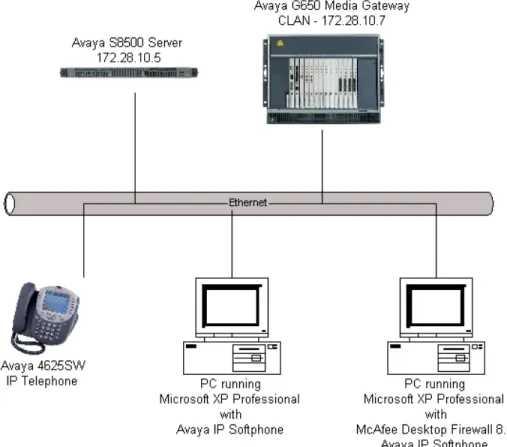
Figure 1 illustrates the configuration used in these Application Notes. All IP addresses are statically administered. The Avaya IP Telephone and Avaya IP Softphones are registered with Avaya Communication Manager shown in Figure 1. All telephone extensions belong to ip-network-region 1 in Avaya Communication Manager. Avaya IP Softphone version R5 and R6 are individually verified using the same sample network.
AL; Reviewed: SPOC 1/10/2008
Solution & Interoperability Test Lab Application Notes ©2008 Avaya Inc. All Rights Reserved.
3 of 13 MSFT-McAF-FW
3. Equipment and Software Validated
The following equipment and software/firmware were used for the sample configuration:
DEVICE DESCRIPTION VERSION TESTED
Avaya S8500 Server with Avaya G650 Media Gateway
Avaya Communication Manager R4.0.1 (R014x.00.1.731.2)
Avaya 4625SW IP Telephone R2.8.3 (H.323)
Avaya IP Softphone R5 SP3
Avaya IP Softphone R6.0.0.25
Microsoft Windows XP Professional with SP2
Microsoft Firewall Built-in
McAfee Desktop Firewall Product Version 8.5
Build Number 260 IDS Signature 101
4. Configure McAfee Desktop Firewall
This section describes the configuration for the McAfee Desktop Firewall in Figure 1. The configuration shown in this section assumes that McAfee Desktop Firewall is in the default initial configuration. The auto configuration mechanism of McAfee Desktop Firewall is used to create the initial policies and then manually edited to optimize security.
1. Initiate McAfee Desktop Firewall via Start Æ Program Æ McAfeeDesktop Firewall
Æ McAfee Desktop Firewall, and verify that the McAfee Desktop Firewall is enabled (default).
2. Initiate Avaya IP Softphone via Start Æ Programs Æ Avaya IP Softphone Æ Avaya IP Softphone. This will cause the following three pop-up windows to appear. Click
Allow on each of the pop-up Window.
Note: If this is the first time Avaya IP Softphone being initiated, there are parameters such as Extension, Password, Call Server Address, etc. that must be entered (not shown). Please refer to reference [1] and [4] for additional information.
AL; Reviewed: SPOC 1/10/2008
Solution & Interoperability Test Lab Application Notes ©2008 Avaya Inc. All Rights Reserved.
5 of 13 MSFT-McAF-FW
3. Three additional policies should now appear under the Firewall Policy tab in the McAfee Desktop Firewall. At this point, Avaya IP Softphone will be able to register with Avaya Communication Manager and will be able to function fully.
4. Double click on the newly defined firewall Rule 1 in Step 3 to display the Firewall Rule pop-up window. Change the Local Service and Remote Service port range to fall within the values set in the ip-network-region form in Avaya Communication Manager shown in
Section 6, Step 1. The sample configuration uses port range of 2048 to 3229. (This step is to close down un-used ports, and is optional.)
AL; Reviewed: SPOC 1/10/2008
Solution & Interoperability Test Lab Application Notes ©2008 Avaya Inc. All Rights Reserved.
7 of 13 MSFT-McAF-FW
5. Double click on the newly defined firewall Rule 3 in Step 3 to display the Firewall Rule pop-up window. Change the Remote Service field to Single for the value of 1720 port, and Address to Single with IP address of the CLAN, 172.28.10.7. (This step is to close down un-used ports and IP addresses, and is optional.)
6. The final firewall policy should look as follow.
5. Configure Microsoft Firewall
This section shows the steps for configuring the Microsoft Firewall.
1. Open the Windows Firewall window by clicking on Start Æ Control Panel Æ Windows Firewall and turn on Windows Firewall by selecting the On radio button.
AL; Reviewed: SPOC 1/10/2008
Solution & Interoperability Test Lab Application Notes ©2008 Avaya Inc. All Rights Reserved.
9 of 13 MSFT-McAF-FW
2. Initiate Avaya IP Softphone via Start Æ Programs Æ Avaya IP Softphone Æ Avaya IP Softphone. This will cause the following three pop-up windows to appear. Click
Unblock on the pop-up Window.
Note: If this is the first time Avaya IP Softphone being initiated, there are parameters such as Extension, Password, Call Server Address, etc. that must be enter (not shown). Please refer to reference [1] and [4] for additional information.
3. Avaya IP Softphone will be able to register with Avaya Communication Manager upon the completion of Step 2. Avaya IP Softphone should be automatically added under the exceptions tab as shown below.
6. Configure Avaya Communication Manager
The following shows the configuration of Avaya Communication Manager relevant to the firewall configuration. For detailed information on the installation, maintenance, and
configuration of Avaya Communication Manager, please consult references [1], [2], [3] and [4]. 1. Use the “display ip-network-region” command to display the UDP Port Min and UDP
Port Max values used for ip-network-region 1 using the System Access Terminal (SAT). These values are used to defined the firewall policy in Section 4, Step 4.
display ip-network-region 1 Page 1 of 19 IP NETWORK REGION
Region: 1
Location: 1 Authoritative Domain: Name:
MEDIA PARAMETERS Intra-region IP-IP Direct Audio: yes Codec Set: 1 Inter-region IP-IP Direct Audio: yes UDP Port Min: 2048 IP Audio Hairpinning? n
UDP Port Max: 3229
DIFFSERV/TOS PARAMETERS RTCP Reporting Enabled? y Call Control PHB Value: 46 RTCP MONITOR SERVER PARAMETERS Audio PHB Value: 46 Use Default Server Parameters? y Video PHB Value: 26
802.1P/Q PARAMETERS
Call Control 802.1p Priority: 6 Audio 802.1p Priority: 6
Video 802.1p Priority: 5 AUDIO RESOURCE RESERVATION PARAMETERS H.323 IP ENDPOINTS RSVP Enabled? n H.323 Link Bounce Recovery? y
Idle Traffic Interval (sec): 20 Keep-Alive Interval (sec): 5 Keep-Alive Count: 5
AL; Reviewed: SPOC 1/10/2008
Solution & Interoperability Test Lab Application Notes ©2008 Avaya Inc. All Rights Reserved.
11 of 13 MSFT-McAF-FW
7. Verification Steps
The following steps may be used to verify the configuration:
• Place and receive a call using Avaya IP Softphone, verify whether the call can be established successfully and the call has two-way audio. For McAfee, if a call failed to establish, verify that Rule 3 in Section 4, Step 3 is defined. If a call can be established but fails to provide two-way audio, verify that Rule 1 in Section 4, Step 3 is defined.
• The following is the version of Microsoft Windows used in the sample network.
• The following shows the version of McAfee Desktop Firewall used in the sample network.
• The following shows the versions of Avaya IP Softphone used in the sample network.
8. Conclusion
These Application Notes have described the administration steps required to configure McAfee Desktop Firewall and Microsoft Firewall to support Avaya IP Softphone R5 and Avaya IP Softphone R6.
9. Additional References
Product documentation for Avaya products may be found at http://support.avaya.com
[1] Administrator Guide for Avaya Communication Manager, Doc # 03-300509, Issue 3.1,
February 2007
[2] Avaya Communication Manager Advanced Administration Quick Reference, Doc #
03-300364, Issue 3, February 2007
[3] Administration for Network Connectivity for Avaya Communication Manager, Doc #
555-233-504, Issue 12, February 2007
[4] Avaya IP Softphone Release 6.0 User Reference, Issue 1, May 2007
Product documentation for Microsoft Networks products may be found at
http://www.microsoft.com
AL; Reviewed: SPOC 1/10/2008
Solution & Interoperability Test Lab Application Notes ©2008 Avaya Inc. All Rights Reserved.
13 of 13 MSFT-McAF-FW ©2008 Avaya Inc. All Rights Reserved.
Avaya and the Avaya Logo are trademarks of Avaya Inc. All trademarks identified by ® and ™ are registered trademarks or trademarks, respectively, of Avaya Inc. All other trademarks are the property of their respective owners. The information provided in these Application Notes is subject to change without notice. The configurations, technical data, and recommendations provided in these Application Notes are believed to be accurate and dependable, but are
presented without express or implied warranty. Users are responsible for their application of any products specified in these Application Notes.
Please e-mail any questions or comments pertaining to these Application Notes along with the full title name and filename, located in the lower right corner, directly to the Avaya Solution & Interoperability Test Lab at [email protected]