CONTACT
DATABASES IN
MICROSOFT
OUTLOOK™
September 2007
A Davton Consulting Whitepaper
Microsoft Outlook has become the standard desktop tool for
managing business email. This paper shows how Microsoft
Outlook™ can be used to provide a sophisticated corporate
contacts database.
Copyright Davton Limited 2007. All Rights Reserved Page 1
CONTENTS
CONTENTS 1
USING MICROSOFT OUTLOOK™ AS A CONTACT DATABASE 2
OUTLOOK CONTACTS 3
SIX REASONS FOR USING OUTLOOK™ FOR YOUR CONTACTS DATABASE 4 FOUR BENEFITS OF BUILDING A BUSINESS CONTACT DATABASE 5
VIEWING INFORMATION 6
THE TOP TWO ENHANCEMENTS TO A BASIC CONTACT DATABASE 7
SHARING INFORMATION 8
SYNCHRONIZING CONTACTS FOR OFFLINE AND MOBILE USE 8 THE TOP EIGHT USES FOR A SHARED CONTACT DATABASE 9
EXPORTING AND REPORTING 10
CUSTOMISING OUTLOOK 10
CASE STUDIES – RECENT CONTACT SOLUTIONS DEVELOPED BY DAVTON 11 EXAMPLE 1 – ASSETT MANAGEMENT COMPANY 11 EXAMPLE 2 – HEALTHCARE SERVICE COMPANY 13 EXAMPLE 3 – FINANCIAL SERVICES COMPANY 15 EXAMPLE 4 – PROPERTY COMPANY 16 EXAMPLE 5 – SALES OPPORTUNITY TRACKING 18
ABOUT DAVTON CONSULTING 19
Microsoft Outlook and Microsoft Exchange are trademarks of Microsoft Corporation.
Copyright Davton Limited 2007. All Rights Reserved Page 2
Contact Databases in Microsoft
Outlook™
U S I N G M I C R O S O F T O U T L O O K ™ A S Y O U R C O R P O R A T E D A T A B A S E
USING MICROSOFT OUTLOOK™ AS A CONTACT DATABASE
Supporting and Enhancing Business Relationships
The Relationships between a business and its customers and between the individuals who work for the customer and the supplier, are a fundamental part of every business. Managing those relationships is a key aspect of every stage and every department of the business. Whether its in prospecting for potential customers, delivering the product or service purchased, or obtaining payment, the Relationship is key. Fundamental to managing that Relationship is a database of information on prospects and customers. This ensures that the relationship can be truly between the business and its customers, and not just between one individual and another. It ensures that information obtained by one person can be used by another person. And it enables different individuals and departments to provide a high level of personalised service to the customer.
CRM Systems – Customer Relationship Management – have become a ‘must have’ tool for many organisations, and its possible to spend a very large sum of money on implementing such a system. Unfortunately these large implementations which look excellent on paper have a fairly low success rate in delivering what they have promised.
The ‘Keep It Simple’ approach to Development
The alternative is to take a more simplistic approach. Start small, make incremental changes, and get each stage working before looking at the next stage. This offers a low investment, high return model, where a small development can provide big returns quickly.
Microsoft Outlook is a perfect tool for such a project. It is already on the desktop of most staff, and is intuitive to use. Microsoft have built in all the hooks to make it customisable, and developments are
relatively simple and quick. When you are satisfied that the first stage of the development is working well, the next stage can be added - providing incremental value to your system.
First things First – The Contact Database
The central foundation of any Relationship system is the contact database. This paper takes a look at what a Contact Database might look like in Outlook, and offers some examples of how it might be put together and used.
Copyright Davton Limited 2007. All Rights Reserved Page 3
OUTLOOK CONTACTS
Outlook has been designed to store and share contact information. It includes many standard fields to store information, and can be enhanced with many custom fields and features. Lets look at some of the features which make it so useful.
Standard Fields
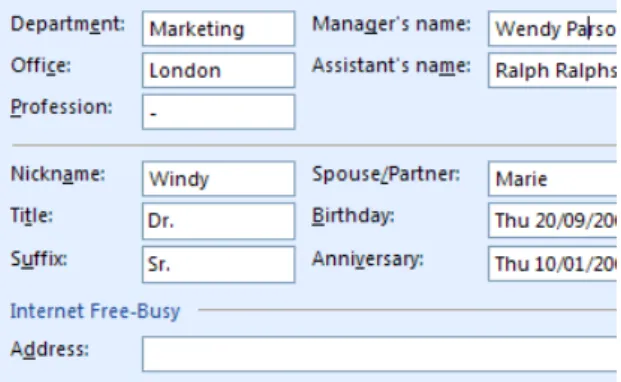
Microsoft Outlook comes with over 100 standard fields for contacts. These include:
• 3 different addresses: business, home, other • 20 phone and fax fields
• Personal fields for names of spouse, children, hobbies • Various fields for company ID numbers, Government
ID numbers, Customer ID numbers
• Fields for tracking Billing and Mileage information
Custom Fields
Outlook also allows you to create custom fields, and while there is a limit, you can safely add an
additional 100 or so custom fields to a contact if required. Their uses are limitless – but here is a selection of possibilities:
• Products Purchased
• Subscription to Mailing Lists, Christmas Card Lists, Newsletters or other
Regular Mailing
• Lead source • Call back dates
• Contract status or expiry dates • Categorisation – contact type
• Name of Account Manager with responsibility for this contact. • Notes on recent calls or ‘Next Action’
• Specific tasks in progress for this contact – with task status • History of recent communications
• Links to other contacts (or tasks/appointments/journals) This is covered in
more detail further on. These can be formatted as:
• Free form text fields • Drop down selection boxes • Date fields
• Currency values • Tick-boxes
• Multi-value selection boxes
FIGURE 1 STANDARD OUTLOOK FIELDS
FIGURE 2 EXAMPLES OF CUSTOM FIELDS
Copyright Davton Limited 2007. All Rights Reserved Page 4
Applying Rules and Formatting
Sometimes it is necessary to make sure certain information is always entered – either to make sure thet database remains useful, or for compliance. For example it might be necessary to make sure that the contact is always categorized into ‘prospect, customer or supplier’ when it is created. The contact form can be cstomised to enforce these rules so that the database integrity and usefulness is maximized.
Linking Items Together
Adding Links to Contacts
Often there may be several contacts belonging to the same company. Outlook offers the opportunity to provide links from one item to another – and potentially to copy information from one item to another, or find information for one item from another.
So for example it is possible to set up:
• Linking Contacts to ‘Company’ level cards • Linking Contacts to other associated contacts
• Linking Contacts to associated tasks or appointments
• Linking Contacts to Journals – records of phone conversations or meetings • Linking information to external databases
• Linking contacts to a file folder or other document storage facility
SIX REASONS FOR USING OUTLOOK™ FOR YOUR
CONTACTS DATABASE
There are many places a central contact database could be created. Here are some key reasons why Outlook is a good place.
1. Outlook is already on most peoples desktop
• No new software to buy and support
2. Outlook is already used daily by most staff
• You won’t have to persuade people to use it. 3. Outlook is intuitive to use
• Training requirements are reduced.
4. Outlook already has most of the features you need for a centralised database
• Customisation requirements are minimised • Development costs can be kept low.
5. Outlook has a wealth of other productivity features which add further value
• Sending email
• Creating tasks and tracking tasks • Creating and sharing appointments
• recording journals of telephone conversations and meetings 6. Outlook provides an interface to synchronize your contact data directly to
your phone, PDA or Blackberry.
Copyright Davton Limited 2007. All Rights Reserved Page 5
Creating Linked Journals, Tasks and Appointments
Outlook has a native capability to find other items that are associated with a contact. The ‘Show Activities’ tab looks in the user’s mailbox for any items that may be associated with a particular contact. So for example it will find emails sent to and received from that person, and also appointments made with that person (if the appointment contains a link to that person.)
This facility can be extended to look outside the user’s individual mailbox – say to a shared email history public folder, but can only look at one folder at a time in this mode. Of course it is also possible to create a small programme to find linked items from several folders, and of varying types.
Copying Information from other Items
Once you have links to other items, it is also possible to build the capability to find and copy information from one item to another. For example if there is a master contact for a company, other contacts linked to that master contact could share product information so that it would only need to be entered once on the master contact. Or address information could be copied from the master contact when a new linked contact is created.
FOUR BENEFITS OF BUILDING A BUSINESS CONTACT
DATABASE
There are many benefits from using a centralised shared Contact Database. Here are 4 of the key ones:
1. Ease of Access to Customer data for all relevant staff • Everyone has access to the latest information. • Everyone has access to the whole picture 2. Easy to keep Information up to date
• Each department can keep their information up to date for everyone else • Letters get sent to the correct person, and have names and addresses
spelt correctly.
• Updates and changes only need to be made once in one place 3. ONE place to consolidate information - one place to track all details for each
contact
• Everyone uses the same information
• Information is shared between departments – Sales, Marketing, Operations, Accounts
• Internal co-ordination of activities for each customer is enhanced • Customer is known and treated individually by each department • Easy to record who should get Christmas cards and News-letters • Sending letters and marketing materials is straight forward.
• Customers are less likely to be missed from being sent key information 4. Reporting and Tracking is made simpler
• Consolidating information for reporting easier • Track marketing effectiveness, repeat sales, etc
Copyright Davton Limited 2007. All Rights Reserved Page 6
VIEWING INFORMATION
Once the contact data has been created, with potentially several different useful pieces of information stored with each contact, understanding how best to extract and view that information becomes a requirement.
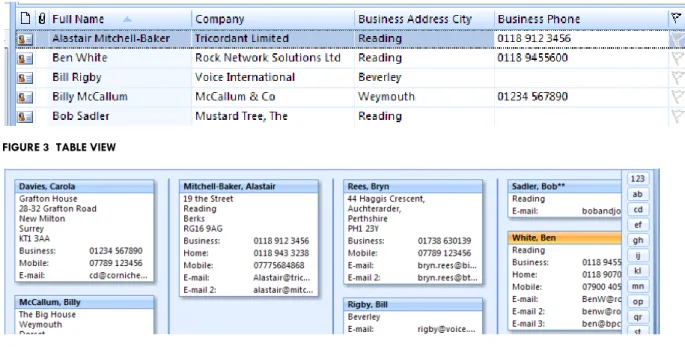
Outlook is very capable in this area too. There are several standard views so that you can view contacts as contact cards (like a Business Card) or in a table view (like an excel spreadsheet). You can choose which fields are shown in each view, and how they are sorted and filtered. Since it is likely that you may want to view your information several different ways for different scenarios, you can save your view for later use, and then create or switch to another view.
So for example it may be that you normally want to work with a filtered group of contacts who are linked to a relevant project. However you may occasionally want to work with a different set of contacts
associated with a different project, or all of the contacts sorted and grouped by their company. Outlook allows you to create and save each of these views and switch between them with a single click.
Types of View
There are several types of view. The two key types for contacts are shown below. Both are useful in different usage situations.
FIGURE 3 TABLE VIEW
FIGURE 4 CARD VIEW
Grouping, Sorting and Filtering Views
Views of data in Outlook folders can be set up so that the data is filtered, sorted and grouped. The picture (right) shows a filter being defined so that only contacts with a category of customer are shown.
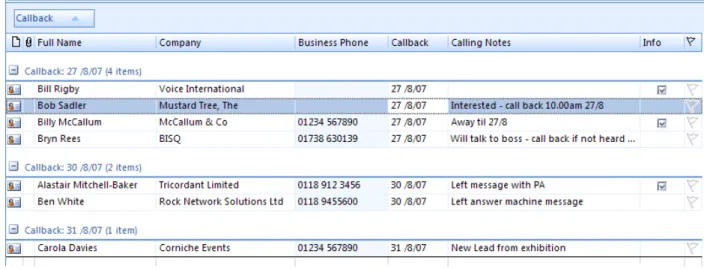
Copyright Davton Limited 2007. All Rights Reserved Page 7 Below is a typical view for a user making multiple calls to contacts. Contacts have been ‘Grouped’ by call-back date, and show calling notes and a tick box to say whether an information pack has been sent yet.
Creating your own view
Views can be created and saved so that the user can select from several different views of the same data – depending on the activity they are carrying out. So the above telephone contact data might also have a different view filtered just on people who need the information pack sent out, ready for a direct mail to be sent. The user can switch between any number of saved views at the click of a mouse.
Publishing Views
Useful views can be published to a folder so that everyone in the organisation can use the view without having to go through the process of re-creating it. Views can also be saved and restored
programmatically so that buttons on forms can set particular views of data.
Google Maps
Another great feature is to add a button to a contact form which uses the postcode of the contact to open a ‘Google Map’ showing the location of your contact. Very simple, but a nice time saving feature none the less.
FIGURE 6 A CUSTOM VIEW USED WHEN CALLING LEADS OR CLIENTS
THE TOP TWO ENHANCEMENTS TO A BASIC CONTACT DATABASE
For users who have graduated from a basic Outlook Contact Database – these are the top additional features utilised
1. Email/Phone Call/Meeting Tracking
• Keep shared copies of relevant emails sent to the contact. • Keep shared records of phone conversations and meetings 2. Project Tracking
• Keep records on relationships with projects and sales opportunities • Create and track tasks associated with projects and contacts
Copyright Davton Limited 2007. All Rights Reserved Page 8
SHARING INFORMATION
Sharing Made Easy with Exchange Public Folders
When Outlook is used in combination with Microsoft Exchange, sharing information is made extremely simple. Many users can contribute to, and keep information up to date. Different permissions can be set for different groups of users so that some can contribute and edit, some can just read and not edit or copy, and some may have no access at all.
Public Folders are available with Hosted Exchange services as well as in-house Exchange servers, so businesses who don’t want to invest in a full exchange server could get the same benefits by renting a mailbox on a hosted solution.
Non – Exchange based sharing
There are third party solutions which enable personal folders to be shared between computers without using Microsoft Exchange. These can be useful when only two or three people wish to share information. The customisation methods for contacts work equally well in this scenario, although it is a little more complex to make sure everyone has up to date copies of the forms on their PC.
How-ever, Public Folders offer many benefits over non exchange based sharing – primarily in the simplicity of setting up, managing and maintaining a solution.
SYNCHRONIZING CONTACTS FOR OFFLINE AND MOBILE USE
For users who spend time out of the office, it is useful to have a copy of relevant phone numbers, addresses and other data when travelling. If the user is carrying a laptop, the system can be set up to take an ‘offline’ copy of any shared public folder, which can be accessed as normal when away from the office. Any changes are synchronised back to the Public Folder when the user is next connected to the network.
Synchronizing Public Folders to Personal Folders
If the user is not taking a laptop, but just a PDA or Blackberry when they travel, the solution is to synchronise the public folder to your personal contacts folder. Unfortunately the standard ‘Outlook’ solution - ActiveSync will only synchronise contacts between the users personal contacts folder and the PDA.
The solution is to use a third party solution to do this. Davton Consulting have some ‘freeware’ software which can do this, and Davton can also supply customised versions which for example allow you to synchronise only items in a certain category, or from two or more public folders.
Synchronizing with an external database
Sometimes it is desirable to keep a contacts database available within Outlook, but to have it synchronized to an external database. This can have benefits in giving ease of access to contact information, while enabling the power of a database system to be operating in the background.
Copyright Davton Limited 2007. All Rights Reserved Page 9
THE TOP EIGHT USES FOR A SHARED CONTACT DATABASE
A good place to start with any development, is at the End. What do you need to get out of the system when it is complete? By understanding what we want to get out of the system – we can make sure that we include all the right hooks to enable the goals to be achieved. Conversely we can also make sure that the solution is not over-engineered, and that it remains as simple and easy to use as possible.
These are the top 8 uses for a contact database we have seen are: 1. Direct Mail
• Send personalised news letters, product information, emails, brochures, Christmas Cards.
• Track responses and monitor follow up
• Keep records of who has received which mailings 2. Tele-Marketing
• Track records of calls and call-backs, information sent. • Measure response rates, call rates, campaign effectiveness 3. Customer Records
• Record products purchased, dates of contracts, history of changes, problems encountered, interest expressed, notes on meetings, etc etc 4. Accountability/Standardisation
• Enforce rules on data recorded
• Prove compliance with industry standards
• Track changes
5. Reporting
• Management reports, dashboards, trends, sales management, service management etc
6. Project Management
• Allocate and Track Tasks
• Track emails and phone conversations • Provide up to date status information 7. Sales Management
• Sales Pipeline Management
• Sales Activity Management and Tracking • Sales Reports
8. Service/Operations Management
• Service Call Management
• Call Tracking
Copyright Davton Limited 2007. All Rights Reserved Page 10
EXPORTING AND REPORTING
Importing and Exporting standard information into and out of Outlook is relatively straight forward. However when you introduce custom fields, Outlook does not give you the tools to easily move the
information around. This is when third party applications by Davton or other providers enable custom data to be imported and exported.
This is particularly important if more complex reporting is required. Outlook does not provide any reporting beyond what can be achieved using custom views. It is therefore necessary to use third party tools to be able to get the information out of Outlook and into another programme such as Excel or Access where there are more powerful reporting facilities available.
Getting a formatted print-out
It is possible to add a button to a contact form which when pressed will create a Word or Excel Report containing data from your contact. This inserts the data from your contact into a Word or Excel template formatted to contain your required standard or custom fields.
CUSTOMISING OUTLOOK
Microsoft have built in three levels of customisation capability which can be taken advantage of to build a contact database.
1. A Custom form layout can be created with extra fields for useful information, or a layout more relevant to your work processes.
2. Code can be written behind the forms to add functionality. This might include creating buttons to fetch information, or update one field when another changes value
3. Special Programs can be written (called COM add-ins) which start running when Outlook is
opened. These are more powerful again and give potential for faster searching, linking, adding of toolbar buttons and responding to new contacts being added or messages being sent.
FIGURE 9 CUSTOM TOOLBAR
These customisation capabilities have been specifically included by Microsoft so that Outlook can be tailored and used more effectively for your business. They are available with every Outlook installation, so getting additional value from your existing software is within reach of every system.
FIGURE 7 CUSTOM FORM LAYOUT
FIGURE 8 ADDING BUTTONS TO A FORM
Copyright Davton Limited 2007. All Rights Reserved Page 11
CASE STUDIES – RECENT CONTACT SOLUTIONS
DEVELOPED BY DAVTON
The paper has talked in general terms about what can be done. This final section shows examples of how the needs of real companies have been met.
EXAMPLE 1 – ASSETT MANAGEMENT COMPANY
This asset management company use their contact database to keep records of:
• Which contacts have been personally met
• Which products they are potentially interested in • Who they have relationships with
• Which mailing lists they are subscribed to
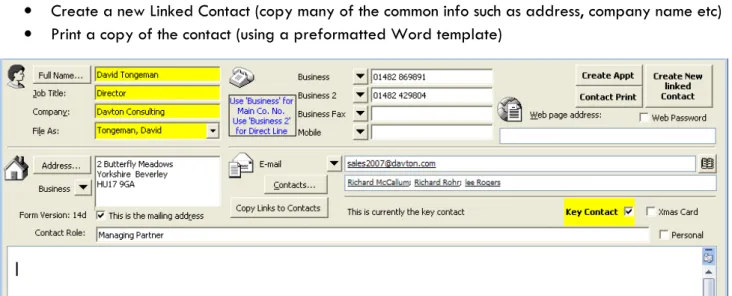
Since they potentially deal with multiple contacts within a company, they have set a ‘key contact’ for each company, against whom most of the key information is stored. This key information is then copied to other contacts.
There are buttons on the front sheet to:
• Create a Linked Appointment (with a link back to this contact)
• Create a new Linked Contact (copy many of the common info such as address, company name etc) • Print a copy of the contact (using a preformatted Word template)
Copyright Davton Limited 2007. All Rights Reserved Page 12
Marketing Tab
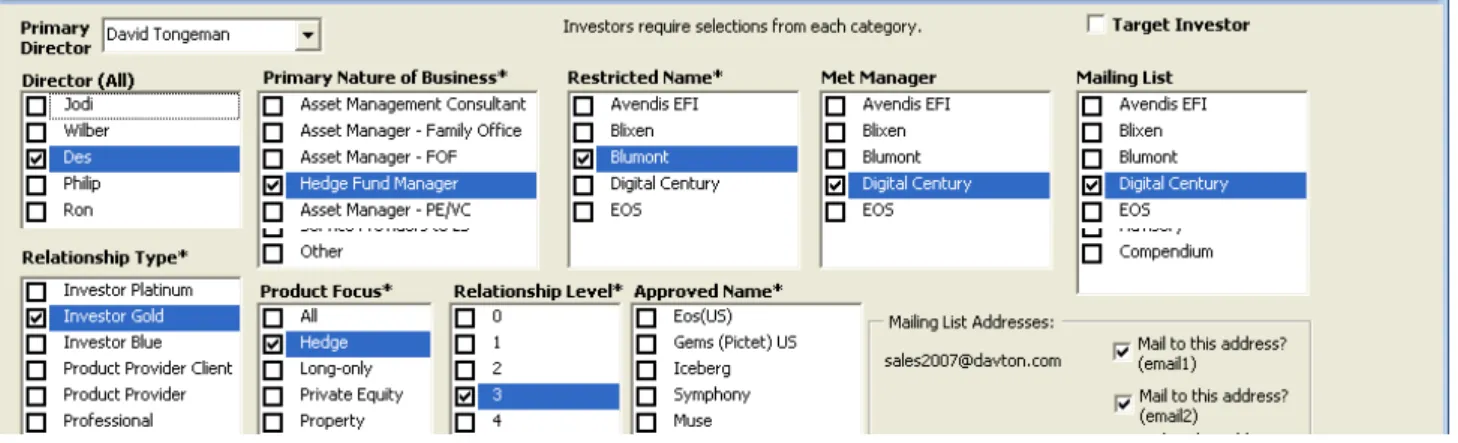
The Marketing Tab consists of a number of tick boxes in which one or more items can be ticked – to set which Director holds the primary relationship, which mailing lists this contact belongs to, etc. It also contains a field to say which of up to three email addresses should be used for the mailing.
FIGURE 11 EASY SELECTION AND VIEWING OF DATA WITH LIST BOXES
Notes Tab
The notes tab is used to track comments and notes against different funds – along with who made the comment.
FIGURE 12 DETAILED NOTES ON MULTIPLE PRODUCTS
Links Tab
Finally there is a links tab which tracks other contacts linked with this contact, and shows all their roles.
Copyright Davton Limited 2007. All Rights Reserved Page 13
EXAMPLE 2 – HEALTHCARE SERVICE COMPANY
This healthcare services company uses their contact database to track details of each of the clients in their care, together with the other professionals who may need to be contacted (Doctors, Social Workers, etc). At the end of each call, their community health staff are able to:
• Make notes on the client visited
• Copy notes to other relevant contacts (for example other carers, clients or healthcare personnel) • Create and assign tasks
Contacts Tab
The contacts tab has contact details for all the key contacts which may be required. The information in these fields is pulled from the relevant contact card in a separate ‘Professionals’ contact folder.
FIGURE 14 DETAILS FROM ALL RELEVANT PARTIES ARE COPIED FROM THE RELEVANT CARDS BUT STORED LOCALLY
Notes
The front page has room for the usual contact details – name, address etc. It also has a separate panel for notes. Once notes have been entered on this panel, they can be copied to the main notes panel (automatically dated and signed).
These notes may be relevant to other workers – or might require an action. So the notes can be copied to another client’s or carer’s contact card, and more importantly can be used to create a task. See the task tab below for details of how this works.
Copyright Davton Limited 2007. All Rights Reserved Page 14
Task Tab
The task tab contains spaces to create and assign tasks associated with this contact. So any actions required as a result of the visit can be recorded, allocated and tracked really easily.
FIGURE 16 TASKS CAN BE LOGGED - AND OUTLOOK TASKS CREATED
Clicking the ‘Create Task’ button creates a new Outlook task containing the details entered, and already assigned and ready to send to the relevant person. This task is sent to the person via email, and will appear in their Outlook task list when they accept it. Outlook includes an option for the person creating and assigning the task to be notified when the task is updated or completed.
The contact card itself includes a due date, and task completed option. This makes it possible to track open tasks, and for assignees to close tasks when they are completed. This allows for excellent reporting and tracking of tasks by management and staff – so tasks are less likely to be forgotten.
Copyright Davton Limited 2007. All Rights Reserved Page 15
EXAMPLE 3 – FINANCIAL SERVICES COMPANY
This financial services company regularly talk to their contacts via the telephone. They wanted an easy way of both logging calls, and ensuring their contacts were not called too often.
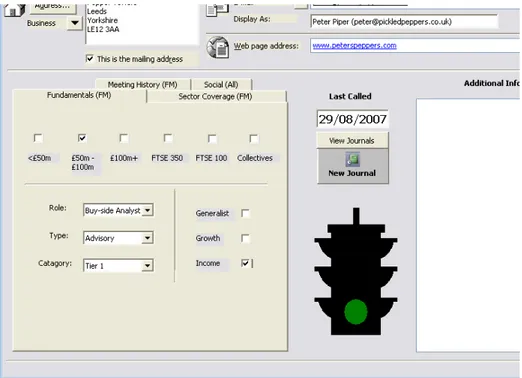
They used their IP phone system, to automatically create Outlook journals associated with each call. These journals were then copied to a public folder (using small piece of software added to Outlook). When a contact is opened it uses the journal record to automatically show the last date the client was called. The Traffic light on the form shows visually whether this contact can be called today. (Green Light means OK, Red Light means don’t call, they have already been called very recently.)
FIGURE 18 THE CARD CHECKS THE LAST CONTACT DATE WHEN OPENED
Journal Tab
The journal tab contains a list of all the journals associated with this contact, with the most recent at the top. Double clicking will open the journal so that the details can be read.
Copyright Davton Limited 2007. All Rights Reserved Page 16
EXAMPLE 4 – PROPERTY COMPANY
This property company have a list of many potentially interested parties to whom they send details of properties. They use a number of database features to make their system useful:
• Separate Folder for Companies
• Tracking of Parent Companies and Subsidiaries • Allocating Sectors and Sub-sectors
• Obtaining Account Manager and Location information from Active Directory Records
Contact Card
The front tab contains most of the basic information required
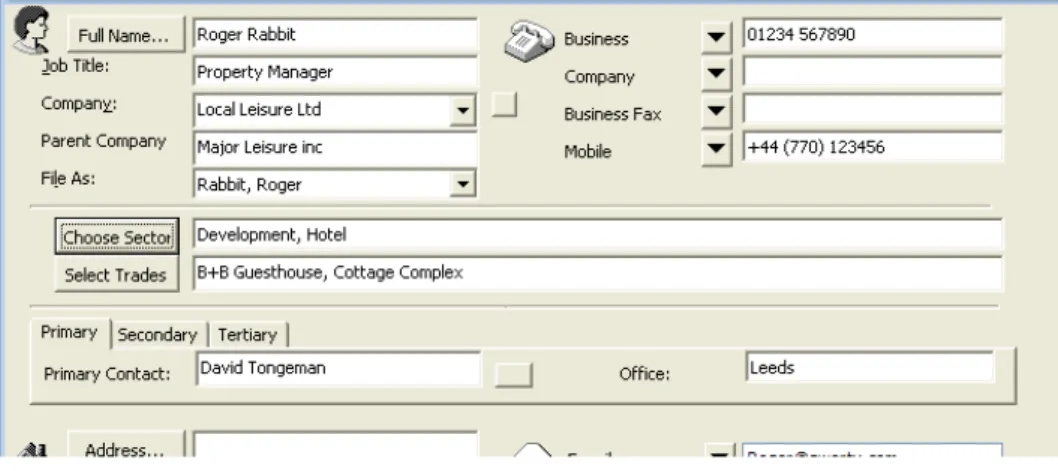
The Contact’s associated company is selected from a drop down list of possible companies, and any parent company is automatically entered from information on the Company card.
FIGURE 20 CONTACTS ARE LINKED TO THE RELEVANT COMPANY AND PARENT COMPANY IF PART OF A GROUP
The trades and sectors can be selected from tick boxes which appear when required. Only sub sectors (trades) associated with the selected sectors are offered.
The relationships between Sectors and Sub-sectors is held in a
separate folder, which can be manually updated by an administrator when-ever a change is required
Copyright Davton Limited 2007. All Rights Reserved Page 17
Company Card
The company card has a drop down selection box for setting the parent company.
There is also a tab which shows the
relationships of the Company to parent and subsidiary companies, together with a list of contacts in this company.
FIGURE 22 PARENT COMPANY IS SELECTED FROM A DROP DOWN MENU OF EXISTING COMPANIES
FIGURE 23 A HIERARCHY OF PARENT AND SUBSIDIARY COMPANIES CAN BE SHOWN
Copyright Davton Limited 2007. All Rights Reserved Page 18
EXAMPLE 5 – SALES OPPORTUNITY TRACKING
This company wanted to track sales opportunities in addition to contacts. They use a customised task form to track key details of each sales opportunity. The form includes the ability to:
• Record Sales Cycles Stage
• Record Opportunity Owner / Account Manager • Record dates of quotation
• Record Projected Revenue, costs and gross profit
• Record the next strategic action in the sales process – and create a linked Outlook task. The task
can be assigned and tracked using standard Outlook features.
• Record the prospects next action
• Add a timed, dated and signed note to the form
FIGURE 24 USING A CUSTOMISED TASK FORM TO TRACK SALES OPPORTUNITIES
Copyright Davton Limited 2007. All Rights Reserved Page 19
ABOUT DAVTON CONSULTING
Outlook Based Solutions
Davton Consulting provides business solutions built in to Microsoft Outlook™. These include standard applications that run in Outlook, and tailored solutions with custom features designed and built by Davton.
Training
Davton offers training on using outlook more productively. In just a few hours, Outlook™ Productivity Training will give your team a step jump in productivity, by showing them how to use Microsoft Outlook™ to plan, prioritise, organise, co-ordinate, communicate and collaborate more effectively.
Davton also offers an Introduction to Customising Outlook™ workshop to get you started with developing custom applications.
Support
Davton makes use of the latest remote access technology to install and support software via telephone and the internet, so geographical distance is not a problem. Davton can work with customers anywhere as long as there is a reasonable speed internet connection. In fact around 50% of our business is with
customers based outside the UK who we may never have met face to face.
In 2003, I was looking for a better solution to manage and track the activities of my Sales and Marketing team. I discovered a solution which worked ‘inside Outlook™’, enhancing rather than changing the way my team worked. I was so impressed with the results that I set up an organisation to sell and support Outlook based solutions.
As time has moved on, I have seen more and more ways that Outlook can make significant contributions to the efficiency and effectiveness of organisations of any size. I have become passionate about using Outlook to solve business problems. I hope that you too will see the benefits that can result from a relatively small investment of time and energy in Microsoft Outlook.
If you have a requirement that you want to achieve within Outlook, send us an email or give us a call, and we can talk about how to make Outlook work the way you want it to. We believe you will be pleased with the results.
David Tongeman
Founder – Davton Consulting sales2007 @davton.com UK - 01482 869891 +44 1482 869891
Microsoft Outlook and Microsoft Exchange are trademarks of Microsoft Corporation.