Using Avaya one-X
®
Agent
Release 2.0
November 2009
© 2009 Avaya Inc. All Rights Reserved.
Notice
While reasonable efforts were made to ensure that the information in this document was complete and accurate at the time of printing, Avaya Inc. can assume no liability for any errors. Changes and corrections to the information in this document might be incorporated in future releases.
Documentation disclaimer
Avaya Inc. is not responsible for any modifications, additions, or deletions to the original published version of this documentation unless such modifications, additions, or deletions were performed by Avaya. Customer and/or End User agree to indemnify and hold harmless Avaya, Avaya's agents, servants and employees against all claims, lawsuits, demands and judgments arising out of, or in connection with, subsequent modifications, additions or deletions to this documentation to the extent made by the Customer or End User.
Link disclaimer
Avaya Inc. is not responsible for the contents or reliability of any linked Web sites referenced elsewhere within this documentation, and Avaya does not necessarily endorse the products, services, or information described or offered within them. We cannot guarantee that these links will work all the time and we have no control over the availability of the linked pages.
Warranty
Avaya Inc. provides a limited warranty on this product. Refer to your sales agreement to establish the terms of the limited warranty. In addition, Avaya’s standard warranty language, as well as information regarding support for this product, while under warranty, is available through the Avaya Support Web site: http://www.avaya.com/support
Licenses
USE OR INSTALLATION OF THE PRODUCT INDICATES THE END USER'S ACCEPTANCE OF THE TERMS SET FORTH HEREIN AND THE GENERAL LICENSE TERMS AVAILABLE ON THE AVAYA WEB SITE http://www.avaya.com/support/LicenseInfo/ ("GENERAL LICENSE TERMS"). IF YOU DO NOT WISH TO BE BOUND BY THESE TERMS, YOU MUST RETURN THE PRODUCT(S) TO THE POINT OF PURCHASE WITHIN TEN (10) DAYS OF DELIVERY FOR A REFUND OR CREDIT.
Avaya grants End User a license within the scope of the license types described below. The applicable number of licenses and units of capacity for which the license is granted will be one (1), unless a different number of licenses or units of capacity is specified in the Documentation or other materials available to End User. "Designated Processor" means a single stand-alone computing device. "Server" means a Designated Processor that hosts a software application to be accessed by multiple users. "Software" means the computer programs in object code, originally licensed by Avaya and ultimately utilized by End User, whether as stand-alone Products or pre-installed on Hardware. "Hardware" means the standard hardware Products, originally sold by Avaya and ultimately utilized by End User.
License type
Concurrent User License (CU). End User may install and use the Software on multiple Designated Processors or one or more Servers, so long as only the licensed number of Units are accessing and using the Software at any given time. A "Unit" means the unit on which Avaya, at its sole discretion, bases the pricing of its licenses and can be, without limitation, an agent, port or user, an e-mail or voice mail account in the name of a person or corporate function (e.g., webmaster or helpdesk), or a directory entry in the administrative database utilized by the Product that permits one user to interface with the Software. Units may be linked to a specific, identified Server.
Copyright
Except where expressly stated otherwise, the Product is protected by copyright and other laws respecting proprietary rights. Unauthorized reproduction, transfer, and or use can be a criminal, as well as a civil, offense under the applicable law.
Third-party components
Certain software programs or portions thereof included in the Product may contain software distributed under third party agreements ("Third Party Components"), which may contain terms that expand or limit rights to use certain portions of the Product ("Third Party Terms"). Information identifying Third Party Components and the Third Party Terms that apply to them is available on the Avaya Support Web site:
http://www.avaya.com/support/ThirdPartyLicense/
Preventing toll fraud
"Toll fraud" is the unauthorized use of your telecommunications system by an unauthorized party (for example, a person who is not a corporate employee, agent, subcontractor, or is not working on your company's behalf). Be aware that there can be a risk of toll fraud associated with your system and that, if toll fraud occurs, it can result in substantial additional charges for your telecommunications services.
Avaya fraud intervention
If you suspect that you are being victimized by toll fraud and you need technical assistance or support, call Technical Service Center Toll Fraud Intervention Hotline at +1-800-643-2353 for the United States and Canada. For additional support telephone numbers, see the Avaya Support Web site: http://www.avaya.com/support/
Suspected security vulnerabilities with Avaya Products should be reported to Avaya by sending mail to: [email protected].
Trademarks
Avaya, the Avaya logo, one-X are either registered trademarks or trademarks of Avaya Inc. in the United States of America and/or other jurisdictions.
All non-Avaya trademarks are the property of their respective owners.
Downloading documents
For the most current versions of documentation, see the Avaya Support Web site: http://www.avaya.com/support
Contact Avaya Support
Avaya Inc. provides a telephone number for you to use to report problems or to ask questions about your product. The support telephone number is 1-800-242-2121 in the United States. For additional support telephone numbers, see the Avaya Web site: http:// www.avaya.com/support
Contents
Chapter 1: Introduction...9
Supported languages for Avaya one-X Agent...9
Chapter 2: Familiarizing with the Avaya one-X Agent UI...11
Avaya one-X Agent main window...11
Top bar...11
Message-waiting indicator...12
Agent status and system messages...12
Common controls...14
System Options...15
UI controls...16
Work List window...16
Work item controls and functionalities...17
Work Item controls...18
View Work Item Information...19
Media appearance states...19
Media controls...20
Action bar...22
New Work menu...22
Work Options menu...23
Secondary windows...24
Chapter 3: Getting started...25
Logging on to Avaya one-X Agent...25
Chapter 4: Setting up the initial configuration...29
Configuring phones for different locations...29
Setting up the My Computer configuration...29
Setting up the Desk Phone configuration...31
Setting up the Other Phone configuration...32
Configuring the agent settings...34
Configuring IM settings...34
Setting up the dialing rules...35
Configuring the Work Handling options...37
Configuring the incoming call appearance...38
Configuring incoming instant message appearance...38
Configuring incoming TTY appearance...39
Setting the audio options...40
Defining an agent profile...42
Integrating the voice mail system...43
Activating a recorded greeting...43
Defining a reason code...44
Defining reason codes for work...45
Defining reason codes for logging out...46
Defining reason codes for auxiliary...47
Viewing the phone display on the main window...48
Answering a call...51
Answering a call manually...51
Answering a call automatically...52
Making a call...53
Making a call from the Text Input field...53
Making a call from the Contact List window...54
Making a call from the Work Log window...54
Making a call using the Speed Dial list...55
Making a call to your supervisor...56
Making a call from the Dialpad window...56
Putting a call on hold...58
Putting a call on hold manually...59
Putting a call on hold automatically...60
Making a conference call...60
Making a direct conference call...61
Making a consultative conference call...62
Transferring a call...63
Making a direct transfer...64
Making a consultive transfer...65
Alternating between live calls...66
Muting and unmuting your workstation...66
Ending a call...67
Chapter 6: Managing Instant Messaging and Presence...69
IM window...70
Viewing presence status...72
Sending instant message from Text input field...72
Sending instant messages to contacts from your contact list...73
Sending instant messages from the Work Log window...74
Starting IM interaction on a voice call...74
Ending an IM interaction...75
Chapter 7: Handling TTY calls...77
TTY window...77
Answering a TTY call...79
Using abbreviations in TTY calls...79
Ending a TTY call...80
Chapter 8: Performing common tasks...81
Changing the answer settings...81
Changing the agent work status...81
Playing recorded greetings manually...82
Viewing the Work Item details...83
Assigning a work code...84
Completing the work...84
Monitoring the audio quality and VoIP traffic...86
Accessing your voice mails...86
Launching an external application...87
Viewing the VuStats Monitor window...87
Using the Click-to-Dial feature...88
Signing out as an agent...89
Closing the Avaya one-X Agent application...89
Chapter 9: Managing the Contact List window...91
Viewing individual contacts...91
Creating a new contact...92
Contact Details dialog box field descriptions...92
Adding a contact from the Work Log window...94
Importing a contact...94
Importing a contact from a directory...94
Importing a contact from Outlook Contacts...95
Modifying contact details...96
Finding a contact...96
Tagging a contact as favorite...97
Adding a contact to the Speed Dial list...97
Removing contacts from the Contact List window...98
Chapter 10: Managing the Work Log window...99
Viewing the Work Log window...99
Viewing additional log details...100
Viewing interaction transcripts... ... 101
Removing the work log records... ... 101
Clearing the work log history... ... 102
Finding a work log record...102
Searching a work log using the Advanced Search window... ... 103
Chapter 11: Managing Launch Application... ... 105
Adding a launch item... ... 105
Rearranging the launch item... ... 106
Removing a launch item...106
Chapter 12: Managing the VuStats Monitor window...109
Configuring an extension for VuStats...109
Chapter 13: Managing the Dial Pad window...111
Viewing the Dialpad window...111
Dialpad window button descriptions...112
Creating Touch Tone shortcuts...113
Customizing the favorite buttons... ... 114
Favorite Buttons dialog Box field descriptions...114
Chapter 14: Managing video calls...117
Initiating a video call...117
Answering a video call...118
Acquiring or releasing the remote camera...118
Changing the video view settings...118
Sharing your computer desktop...119
Sharing a video file...119
Muting or unmuting the video...120
Closing the video window...120
Previewing the video window...120
Adjusting the video quality...121
Configuring the video broadcast settings...122
Optimizing the video performance...122
Chapter 15: Managing greetings...125
Recording an agent greeting... ... 125
Setting Greeting Triggers activation criteria...127
Modifying a greeting...128
Deleting a greeting...128
Avaya Switcher II headset support for Desk phone and Other phone...129
Chapter 16: Managing Screen Pops...131
Creating a screen pop... ... 131
Activating a screen pop... ... 133
Modifying a screen pop... ... 133
Deleting a screen pop... ... 134
Chapter 17: Managing Public Directory and Outlook Contacts...135
Defining a Public Directory service... ... 135
Configuring Outlook Contacts... ... 136
Outlook Contacts panel field descriptions... ... 137
Deleting a public directory service...137
Organizing the Advanced Search fields...138
Chapter 18: Managing phone numbers... ... 139
Adding a new phone number...139
Modifying the phone number... ... 140
Deleting a phone number...140
Chapter 19: Sharing the desktop... ... 141
Starting desktop sharing... ... 141
Sharing applications on the desktop... ... 142
Ending desktop sharing... ... 143
Chapter 20: Supervisor desktop...145
Observing agent service... ... 146
Sending a quick alert... ... 146
Coaching an agent...147
Barging into an agent call...148
Performing an ad hoc transfer... ... 148
Remotely logging out an agent... ... 148
Viewing the agent work log and transcripts... ... 149
Chapter 21: Agent preferences and controls...151
Audio panel field descriptions... ... 151
Audio Basic tab field descriptions... ... 151
Audio Advanced tab field descriptions...153
Video panel field descriptions...153
Video Basic tab field descriptions... ... 154
Video Advanced tab field descriptions...155
Call Handling panel field descriptions... ... 156
Record Greetings panel field descriptions...157
User Interface panel field descriptions...158
Chapter 22: System administration and controls... ... 161
Login panel field descriptions...161
Telephony Login panel field descriptions...161
Agent Login panel field descriptions... ... 163
IM login field descriptions... ... 164
Phone Numbers panel field descriptions... ... 164
Work Handling panel field descriptions... ... 165
Greetings Triggers panel field descriptions... ... 166
VuStats panel field descriptions...168
Screen Pop panel field descriptions...169
Launch Applications panel field descriptions...171
Directory panel field descriptions...173
Work Log panel field descriptions... ... 174
Desktop Integration panel field descriptions... ... 175
Voice Mail Integration panel field descriptions...176
Reason Codes panel field descriptions... ... 177
Event Logging panel field descriptions...178
Outlook Contacts panel field descriptions... ... 179
Dialing Rules field descriptions... ... 179
Touch Tone Shortcuts panel field descriptions...181
Profiles panel field descriptions... ... 182
Audio Monitor dialog box field descriptions... ... 182
Call Confirmation dialog box field descriptions... ... 184
Index...185
Chapter 1: Introduction
Avaya one-X Agent Release 2.0 is an integrated telephony softphone solution that provides seamless connectivity to at-home agents, remote agents, outsourced agents, contact center agents, and agents interacting with clients having vocal and hearing impairment. This is the second release of Avaya one-X Agent and has number of enhancements in addition to the features available in the Release 1.0.
Agent collaboration, supervisory support, and central administration capabilities are the main enhancements of Avaya one-X Agent Release 2.0. These enhancements are supported by Presence Services, System Manager, and Communication Manager. Avaya one-X Agent Release 2.0 also relies on the Call Center features of Communication Manager.
In addition to the features present in release 1.0, Avaya one-X Agent now supports new features such as instant messaging, hot-desking, supervisor monitoring, central management, TTY interaction, desktop sharing, and single sign on. The availability of new features depends on the type of Avaya one-X Agent license used for deployment.
All the enhancements are achieved maintaining the same user interface to help users adapt quickly to the new features presented in this release.
Related topics:
Supported languages for Avaya one-X Agent on page 9
Supported languages for Avaya one-X Agent
Avaya one-X Agent 2.0 supports the following languages on the UI. The localized interface should be available with the upcoming service pack release.
• Simplified Chinese • Traditional Chinese • Dutch
• French • German • Italian • Japanese • Korean
• Russian • Spanish Introduction
Chapter 2: Familiarizing with the Avaya
one-X Agent UI
Avaya one-X Agent main window
Avaya one-X Agent occupies as little space as possible on your computer screen and provides a common look-and-feel providing a flexible GUI configuration option to match the type of work an agent performs. The main window provides complete access to all features of Avaya one-X Agent.
The following illustration explains most of the components of the main window.
1 Top bar on page 11
2 Work List window on page 16 3 Action bar on page 22
Note:
Certain features will not be available in the application if you have not logged into the Automatic Call Distribution (ACD) service in Communication Manager.
Top bar
The top bar appears on top of the main window. The top bar provides the system status and main controls to operate Avaya one-X Agent. The following illustration explains the different parts of the top bar.
1 Message-waiting indicator on page 12
2 Agent status and system messages on page 12 3 Common controls on page 14
4 System Options on page 15 5 UI controls on page 16
Message-waiting indicator
A message-waiting indicator appears only if voice mail system is integrated with Avaya one-X Agent.
A waiting indicator notifies that the voice mailbox contains messages. The message-waiting indicator appears at the top left corner of the top bar. The indicator changes its state when you have an unread voice message in your voice mail system. The following is the voice mail indicators that appear on the top bar:
Icon Name Description
No Messages This icon appears when there are no new messages in the voice mail system. You can also click the blank icon to the voice mail system, if available.
Unread
Messages This icon appears when there is an unread message inthe voice mail system. Clicking the icon will connect to the voice mail system, if available.
Agent status and system messages
The agent status icons appear on the right corner of the top bar with the corresponding agent status. You will also see an agent's name or extension number with the corresponding system status. Further, you may see temporary messages including system error, network failure, or scheduled backup, as appropriate. The following is the possible agent status icons that appear on the top bar:
Icon Name Description
Ready This icon appears when you choose the agent status to Ready from the Change Agent State drop-down arrow. The Ready message indicates that you are ready to receive calls coming from a Communication Manager. In addition, Communication Manager delivers ACD calls only if you have no currently active telephone calls or ACD Work Items in the Work List window. For the procedure to change your agent work status, see Changing the agent work status on page 81.
Auxiliary This icon appears when you choose the agent status to AUX from the Change Agent State drop-down arrow. The AUX message indicates that you are not ready for ACD calls. However, you can still make and receive calls on your station but not extension and make calls to a contact outside the contact center. For the procedure to change your agent work status, see Changing the agent work status on page 81.
Pending Auxiliary This icon appears when you attempt to change the agent status to AUX from the Change Agent State drown-down arrow while on an active call. The system creates a pending Auxiliary and changes the agent states to AUX only after you hang up the active call.
Log Out This icon appears when you choose the agent status to Logout from the Change Agent State drop-down arrow. The Sign Out message indicates that you have logged out from the ACD service. For the procedure to change your agent work status, see Changing the agent work status on page 81.
Pending ACD
Logout This icon appears when you choose theagent status to Logout from the Change Agent State drop-down arrow while on an active call. The system logs you out from the ACD service only after you hang up the call.
Icon Name Description
Pending Logout This icon appears when you choose to disconnect station from the System Options menu while on an active call.
Common controls
Common controls appear on the left of the top bar to provide quick access to common functions. The following are the controls available on the top bar:
Button Name Description
IM Status menu You can set your IM status using this menu. The IM status set with this menu is displayed to others subscribing to your IM status. You can set the following IM status:
Available Busy
Be Right Back Away
Do Not Disturb Offline or Log Out Agent Greetings
(start and stop) This is a toggle button to start or stop anagent-greeting playback. The Agent Greetings button is available in addition to any triggers that have been defined for automatic playing of a greeting. For the procedure to play agent greetings, see Playing agent greetings.
Note:
The Agent Greetings button appears only if you have greetings configured in the Agent Preference dialog box. The button changes to active only after accepting an incoming call. Familiarizing with the Avaya one-X Agent UI
Button Name Description Mute Phone (mute
and unmute) This is a toggle button to mute andunmute audio. To mute and unmute the system, see Muting and unmuting your workstation on page 66.
Note:
The Mute Phone button is only visible and active in the My Computer configuration.
Audio Monitor This control allows you to view the current audio levels used for your microphone and speakers. To view the voice quality, see Monitoring the audio quality and VoIP traffic on page 86.
Note:
The Audio Monitor button is only visible and active in the My Computer configuration.
System Options
The System Options menu provides quick menus to control the Avaya one-X Agent application.
Button Name Description
System Options The System Options menu provides the following controls:
•Agent Preference: This option provides a centralized control to customize audio, video, and GUI.
•System Settings: This option offers an extensive and robust set of tools to administer the Avaya one-X Agent application. •Help: This option provides quick access to the HTML help files. •About Avaya one-X Agent:
This option displays the following details:
- Current Avaya one-X Agent version
Button Name Description
- Data directory - Current telephony
mode - Server IP
- Supported features •Station Disconnect: This
option allows you to log out of the station.
•Presence Server Disconnect: This option disconnects you from the Presence server; that is logs you out of IM service. To reconnect, this option appears as Presence Server Connect. •Exit: This option allows you to
close the Avaya one-X Agent application.
UI controls
Avaya one-X Agent provides the control to minimize and close the Avaya one-X Agent application. The following options are available:
Button Name Description
Minimize Window Clicking this button minimizes the application in to the task bar. Close Application Clicking this button closes the
application from your personal computer. The systems prompts you if you want to exit if you have an active work item, and if you click Yes, the system closes the application. For details, see Closing the Avaya one-X Agent application on page 89.
Work List window
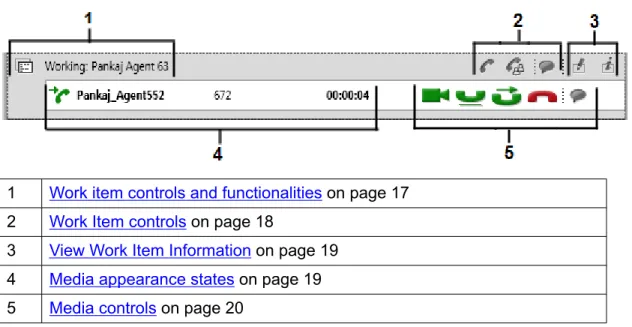
The Work List window consists of work items and control buttons corresponding to the work item. The controls and functionalities change depending on the work list window behavior. The Familiarizing with the Avaya one-X Agent UI
table below explains controls and icons that appear on the work list window during an active call.
The top right corner of the Work List window has work item controls. These controls are common to all work items in the Work List window. When a call arrives, the system notifies the corresponding call details in the work list window. When you accept the call, the control buttons appear for the associated work item.
The illustration below explains the Work List window and its elements.
1 Work item controls and functionalities on page 17 2 Work Item controls on page 18
3 View Work Item Information on page 19 4 Media appearance states on page 19 5 Media controls on page 20
Work item controls and functionalities
The work item menus and its corresponding icons appear on the top left corner of the Work List window. The controls and functionalities change depending on the Work List window behavior state. The table below explains controls and icons that appear on the Window List during an active call.
The Work List menu appears when you have a work item in the work list window. By default, the option is set to Manual-Accept. You can switch between these options as needed. The Work list menu provides the following controls:
Icon Name Description
Manual-Accept This icon indicates that you must manually accept the call to answer the call. For details, see Answering a call on page 51.
Auto-Accept This icon indicates that the application accepts the call automatically when the
Icon Name Description
system recognizes a call. For details, see Answering a call on page 51.
The Work Item status icon appears when you have an active work item in the Work List window. Icons change dynamically depending on the work item state. For example, when you have an active work item, the alerting icon appears with the corresponding textual message. When you accept the call, the icon changes to work state dynamically. The following are the work item states that appear when you have an active work item in the Work List window:
Icon Name Description
Alerting This icon appears when the system recognizes an incoming work item. The icon remains in the alert state until you accept the call.
Working This icon appears when you accept an incoming call. The icon remains in the working state through the call.
Follow-up This icon appears when you release an active call and start the follow-up work for the work item. The icon remains in the follow-up state until you complete the follow-up work for the call.
Related topics:
Changing the answer settings on page 81
Work Item controls
The Work Item controls appear when you initiate a call or when the system recognizes an incoming call. The Work Item buttons appear on the top right corner of the Work List window, and are common to all work items in the Work List window. The following are the work item controls available during an active call:
Button Name Description
Add New Call This button allows you to talk to a contact in the list or a supervisor during a live call. This also adds another call to the current work item. For details, see Consulting the supervisor or an agent.
Conference This button allows you to conference a contact or a supervisor to a live call. For details, see Making a conference call on page 60.
Button Name Description
Add IM This button allows you to add an IM interaction to an active work item. You can select the IM user ID from your speed dial contacts, manually type the IM user ID, or select an ID from your contact list. For details, refer Starting IM interaction on a voice call on page 74
View Work Item Information
You can view the details of a work item for an active call in the Work List window. The following are the work item controls available in the Work List window:
Button Name Description
Work Code This button appears during an active call. For details, see Assigning a work code on page 84.
WorkItem Details This button appears for an active work item. For details, see Viewing the Work Item details on page 83.
Media appearance states
Media appearance states appear when the client recognizes an incoming work item, or when you make a call. In addition to the call appearance status, you can see call-related information including call type, caller name, phone number, and call time and duration.
The following are the media states that appear in the Work List window at the beginning and during an active call:
Icon Name Description
Incoming Call This icon indicates an incoming call. The icon first flashes and remains in the answered state (Talking) when you accept the call.
Outgoing Call This icon indicates an outgoing call. The icon first flashes and remains in the answered state (Talking) where the called party answers the call.
Call Hold This icon indicates that the call is on hold.
Icon Name Description
IM request This icon indicates an IM interaction. TTY Call This icon indicates a TTY call. Accept Desktop
Share This icon indicates that you arerequested to start a desktop sharing session with the caller. The icon is displayed as long as desktop sharing is in progress.
Service
Observing Indicates a service observing session inprogress on the supervisor desktop.
Media controls
Media controls appear when the system recognizes an incoming work item or when you make an outgoing call.
The following are the media controls that appear in the Work List window:
Button Name Description
Call Answer This button appears when a system recognizes an incoming call or when you put an active call on hold. For details, see Answering a call on page 51.
Call Hold This button puts and active call on hold. For details, see Putting a call on hold on page 58.
Call Transfer This button allows you to transfer an active call to any other contact. For details, see Transferring a call on page 63.
Call End This button allows you to release an active voice call session. For details, see Ending a call on page 67.
Video Call This button allows you to initiate a video call, if available. The video button appears only if the called party is using a video feature. For details, see Initiating a video call on page 117.
Video Mute This toggle button appears in
conjunction with the video call and allows you to mute or unmute the video session. Familiarizing with the Avaya one-X Agent UI
Button Name Description
For details, see Muting or unmuting the video on page 120.
Video End This button appears in conjunction with the video call and allows you to end the video session.
Initiate IM This icon appears when you receive an IM conversation invite. For details, see Managing Instant Messaging and Presence on page 69.
End IM This button ends the IM conversation. This button appears when you receive an IM conversation invite. For details, see Ending an IM interaction on page 75.
Initiate TTY Receives the incoming TTY call and opens the TTY window to begin the TTY interaction. For details, see Answering a TTY call on page 79.
End TTY Ends TTY interaction. For details, see Ending a TTY call on page 80.
Listen In (toggles
to Barge In) Enables the Listen In feature and startsservice observing for the supervisor. Listen In is always on initially when service observing is started. This is a toggle button and appears only for supervisor desktop. For details, see Observing agent service on page 146. Barge In (toggles
to Listen In) Enables supervisor to enter a call underservice observation and communicate with the agent and customer on that call. This is a toggle button and appears only for supervisor desktop. For details, see Barging into an agent call on page 148. Quick Alert Opens the Quick Alert window for a call
under service observation session. Supervisor can send quick alerts using this feature. For details, see Sending a quick alert on page 146.
Coach Starts a supervisor coaching session on a call under service observation. This opens an IM window for the supervisor to begin a coaching session for the agent, while the agent is still on the call. For details, see Coaching an agent on
Action bar
The action bar provides global controls such as creating a new work item, searching a contact, initiating a media element, and opening the secondary windows. The action bar stays at the bottom of the main window and remains at the bottom as the window expands.
The following illustration explains the action bar and its elements.
1 New Work menu on page 22
2 Text Input field
3 Work Options menu on page 23
4 through 8 Secondary windows on page 24
New Work menu
The New Work menu appears in the left side of the action bar. Note:
When you select a media type from the New Work menu, the function button changes the menu to match the selected media type.
Menu Name Description
New Call This menu clears the Text input field to accept the number you want to dial. The Work Options icon changes to . New IM This menu clears the Text input field to
accept the IM ID. The Work Options icon changes to .
Work Options menu
The Work Options menu is available in conjunction with the Text Input function menu. The Work Options menu performs multiple functions based on contexts such as searching a contact, initiating a call, conference, and transfer.
Note:
As you type a character, characters matching the result dynamically appear in the Contact List window or the Contact Logs window based on your selection.
The following are the available in the Work Options menu:
Button Name Description
Search The default state of the text input field is searching contacts from the Contacts window. You can view the following prompts in the Text Input field on a mouse rollover depending on the context:
•Search Contact: Use this option when you are searching contacts in the Contacts window.
•Search Call Log: Use this option when you are searching call logs in the Contact Logs window.
For details, see Finding a contact on page 96.
Initiate Call This button is available from the Work Option menu. Use this option when you want to make a new call. For details, see Making a call from the Text Input field on page 53.
Conference This button allows you to initiate a conference. For details, see Making a conference call on page 60.
Initiate IM This button initiates an IM interaction with valid IM ID provided in the adjacent Text input field.
Transfer The button allows you to transfer an active call to a supervisor or an agent in the contact list. For details, see
Transferring a call on page 63.
Secondary windows
Secondary windows are available as toggle buttons in the action bar. When you click a button for the first time, the corresponding window opens and when you click the button again the opened window closes. The following are the available secondary window buttons:
Button Name Description
Contact List Clicking this button opens the Contacts window below the Work List window. For details, see Managing the Contact List window on page 91.
Dial Pad Clicking this button opens the dialpad window. For details, see Using Dialpad. Work Log Clicking this button opens the Contacts
Log window below the work list window. For details, see Managing the Work Log window on page 99.
VuStats Clicking this button opens the VuStats monitor window. For details, see Managing the VuStats Monitor window on page 109.
Launch External
Applications Clicking this button open a windowapplications if it has been administered in the Launch Application panel. For details, see Managing Launch Application on page 105 Familiarizing with the Avaya one-X Agent UI
Chapter 3: Getting started
This section describes how to log on to Avaya one-X Agent Release 2.0. The procedure to log on depends on the configuration of Avaya one-X Agent deployed in your network and the type of authentication supported. The two types of authentication are described below.
Basic authentication
In basic authentication, your user credentials get authenticated against the servers, namely Communication Manager, Central Management, and Presence Services, deployed in your network. In case of an authentication failure on Central Management or Presence Services, Avaya one-X Agent logs you on with the basic telephony features.
Single sign-on
In this type of authentication, you can log on to your enterprise network and Avaya one-X Agent with the same user credentials. You do not need to provide separate user credentials to log on to Avaya one-X Agent.
In this section, you will learn how to launch the Avaya one-X Agent application on your personal computer, log in as an extension, and register as an agent.
Important:
To enable Single Sign-on, Central Management and Presence Services must be configured for Avaya one-X Agent.
Logging on to Avaya one-X Agent
You must register your station with Communication Manager to configure your system preferences, make and receive direct calls or to sign in as an agent. The system logs you in automatically if you have enabled automatic registration in the System Settings panel. If you have Avaya IP Agent or Avaya IP Soft phone already installed, your login credentials, contact lists, and contact logs can be imported when you log in to Avaya one-X Agent for the first time. Avaya one-X Agent shows an Import Settings from IP Agent/IP Softphone dialog box when you log in for the first time. You can choose Import Login Settings, Import Call History, and Import Contacts on the dialog box. Avaya one-X Agent detects the database file and shows the path in the Database File field. Whatever you choose to import is displayed in the relevant windows on Avaya one-X Agent. However, make sure you have logged out of Avaya IP Agent or Avaya IP Soft phone while importing the relevant details.
Use the following steps to log on to Avaya one-X Agent. Before logging on to the application, obtain the following user credentials from your system administrator:
• Agent Login ID and password • IM user name and password Note:
• If Presence Services are not installed, IM user name and password are not required. • For installations without Central Management, all the above credentials except User
authentication ID and password are required.
1. Launch Avaya one-X Agent on your personal computer. This displays the User Authentication window if you are not using Single sign on.
2. Enter your ID and password on the User Authentication window. This step is not required if you are using Single sign on or if Central Management is not installed as a part of server installations and you will directly see the Welcome window after you launch Avaya one-X Agent.
The Welcome window may display a welcome message or an important instruction configured through Central Management, provided Central Management is installed as a server component.
You can complete the initial configuration using the Welcome window menu, when you launch Avaya one-X Agent on your personal computer for the first time. The initial task may include configuring your agent settings, defining your user profile, or setting the dialing rules. To configure the basic settings, see Setting up the initial configuration on page 29.
3. On the Welcome window, click OK. This displays the Login window.
• If you have enabled automatic registration settings in the System Settings Login panel, the system logs you on to Avaya one-X Agent automatically. • If you have not enabled automatic registration settings in the System
Settings Login panel, you need to enter your user credentials for each of the subsequent login windows.
• If you have multiple user profiles, the system prompts you to choose an appropriate profile from the Profile window. You must choose a profile to proceed.
4. On the Login window:
a. In the Extension field, enter the telephone extension number. b. In the Password field, enter the password.
c. Click Log in. This shows the Agent Sign In to ACD window.
5. To make and receive ACD calls, you must log on to the ACD server using the agent extension. On the Agent Sign In to ACD window:
a. Enter the agent login ID in Agent field. b. Enter the password in the Password field.
c. Click Log in. This shows the Connect to IM Server window. Connect to IM Server window is not displayed if Presence is not a part of your deployment. In such case you are directly logged on to Avaya one-X Agent after this step. 6. On the Connect to IM Server window:
a. Enter your IM user name in User Name field. b. Enter the password in the Password field.
c. Enter the IM server domain name in the Domain field.
d. Click Log in. This launches the application and logs you on to Avaya one-X Agent.
Note:
The respective details appear as you log on to Avaya one-X Agent.
If you have logged into Avaya IP Soft Phone, a warning message is displayed. You need to log out to be able to import contact logs into Avaya one-X Agent.
Chapter 4: Setting up the initial
configuration
If you are an agent working from multiple locations and not an Avaya Central Management provisioned user (from the contact center, from your home, or from a different location), you must change your settings each time you change locations. This section describes how to configure various settings after logging in to Avaya one-X Agent.
Important:
You may not have permission to change, add, delete, or configure some of the features in the application as these features may be have been restricted at the enterprise level. These restricted features are visible, but grayed out.
Configuring phones for different locations
You can perform day-to-day tasks from the contact center, at home, or while traveling by registering Avaya one-X Agent with Communication Manager.
You can select an appropriate configuration that optimizes the voice endpoints and network connectivity requirements of your current location. You need not change the configuration, as long as you do not access the contact center from any other location. However, if you work from multiple locations (from the contact center, from your home, or from a different location), you must configure Communication Manager IP on Avaya one-X Agent to connect to the correct Communication Manager each time that you change locations.
Avaya one-X Agent offers several options to register with the Communication Manager. Depending on your location, telephone set, and network, you can place and receive calls using:
• My Computer • Desk Phone • Another Phone
This section lists the minimum requirements and provides steps to set up each configuration. If you are not sure about the configuration type, contact your system administrator.
Setting up the My Computer configuration
make or receive voice calls through Avaya one-X Agent using a headset connected to your personal computer.
The My Computer setting provides the best IP audio quality that is possible with your connection speed, personal computer performance, and network setup.
Prerequisites
• Network connection from a personal computer running the Avaya one-X Agent application to Communication Manager.
• Network interface card for connectivity to Communication Manager and a sound card (full-duplex recommended).
• An USB-compliant headset connected to the personal computer (recommended), or a personal computer microphone and speakers, or a headset with a microphone connected to the mini connectors.
• Telephone extension number, password, and Communication Manager address. Use the My Computer configuration when you are traveling and need to access
Communication Manager through the Internet. You can configure the My Computer setting for VoIP either through the Login window or through the System Settings dialog box.
1. On the top bar, click System Options > System Settings .
2. In the System Settings dialog box, Login panel is displayed by default with the Telephony tab.
3. In the Telephony tab:
a. Select the Enable automatic connection to CM option if you want the system to connect to Communication Manager automatically using the last successful registration.
b. In the Extension field, specify the telephone extension number if you want Communication Manager to identify your telephone extension number each time you log in to the system.
c. In the Password field, specify the password for the associated telephone extension number.
d. Select Save password during sign in if you want the system to save the password when you are signing in with the associated extension number. e. If the extension has been administered on Communication Manager to support
Auto Answer, select the CM Auto Answer Support Required option.
f. In the Server Address field, enter the IP address of Communication Manager. g. Select the appropriate License Type.
The Basic license supports only Desk Phone as the device to place and receive calls. Therefore, to set Place and receive calls using field as My Computer, make sure that your License Type selection is not set to Basic. h. In the Place and receive calls using drop-down field, select My Computer. 4. Click OK.
The system applies the new changes in the next login.
Related topics:
Telephony Login panel field descriptions on page 161
Setting up the Desk Phone configuration
The Desk Phone configuration uses an Avaya IP/DCP telephone for voice path and an Avaya one-X Agent to share control of the same administered station using the same button layout and features. You access audio components from your office phone and visual components from your personal computer.
Prerequisites
• Network connection from a personal computer running the Avaya one-X Agent application to Communication Manager.
• Avaya DCP or IP telephones capable of receiving calls from Communication Manager. • Network interface card for connectivity to Communication Manager.
• Desk phone extension number, password, and Communication Manager server address.
Use the Desk Phone configuration when you are at the contact center and want to share the control between the office telephone and your personal computer. While registering as a Desk Phone with Communication Manager, you must register the desk phone number as the extension number. You can configure the Desk Phone setting either through the Login window or through the System Settings dialog box.
1. On the top bar, click System Options > System Settings . 2. In the System Setting dialog box, click Login.
3. In the Telephony tab:
a. Select the Enable automatic connection to Communication Manager option if you want the system to connect to Communication Manager automatically using the last successful registration.
b. In the Extension field, specify the desktop extension number if you want Communication Manager to identify your telephone extension number each
c. In the Password field, specify the password for the associated desktop extension number.
d. Select Save password during sign in if you want the system to save the password when you are signing in with the associated extension number. e. If the extension has been administered on Communication Manager, select the
CM Auto Answer Support Required option.
f. Select the appropriate License Type. If you select Basic, the Place and receive calls using field is set to Desk Phone and is disabled.
The Basic license supports only Desk Phone as the device to place and receive calls. If you select Basic as the License type, the Place and receive calls using field is set to Desk Phone by default and is disabled.
g. In the Place and receive calls using drop-down field, choose Desk Phone. 4. Click OK.
The system applies the new changes in the next login.
Related topics:
Telephony Login panel field descriptions on page 161
Setting up the Other Phone configuration
The Another Phone configuration registers with Communication Manager as an off-site agent through a telephone and an IP connection. The telephone can be a PSTN telephone, a cellular telephone, or an extension on a local or remote switch. The Another Phone configuration uses an IP connection to connect to a Communication Manager and a PSTN connection to make or receive calls.
Prerequisites
• Network connection from a desktop computer running Avaya one-X Agent to Communication Manager.
• Any telephone capable of receiving calls from Communication Manager.
• Communication Manager connection, one user connection for signaling connection and the other for off-site use, one trunk connection, or for on-site use, an additional user connection.
• Telephone extension number, password, and the Communication Manager server address.
• Telephone numbers to be configured as Other Phone must be added on the Phone Numbers panel. Refer Adding a new phone number on page 139 for information on adding phone numbers.
Use the Another Phone configuration when you are telecommuting and want to use Avaya one-X Agent from a remote location with a PSTN telephone connected to a Communication Setting up the initial configuration
Manager directly. You can configure the Other Phone setting either through the Login window or through the System Settings dialog box.
1. On the top bar, click System Options > System Settings . 2. In the System Settings dialog box, click Login.
3. In the Telephony tab:
a. Select the Enable automatic connection to Communication Manager option if you want the system to connect to Communication Manager automatically using the last successful registration.
b. In the Extension field, specify the telephone extension number if you want Communication Manager to identify your telephone extension number each time you log in to the system.
c. In the Password field, specify the password for the associated telephone extension number.
d. Select Save password during sign in if you want the system to save the password when you are signing in with the associated extension number. e. If the extension has been administered on Communication Manager, select the
CM Auto Answer Support Required option.
f. In the Server Address field, enter the IP address of Communication Manager. g. Select the appropriate License Type.
The Basic license supports only Desk Phone as the device to place and receive calls. Therefore, to set Place and receive calls using field as Other Phone, make sure that your License Type selection is not set to Basic. h. In the Place and receive calls using drop-down field, select Other Phone.
i. In the Telephone At field, enter the telephone number you want to use for voice calls.
If you are using a telephone number repeatedly, such as a home telephone number, you must add another number.
4. click OK to save the settings.
The system applies the new changes in the next login.
Related topics:
Telephony Login panel field descriptions on page 161
Configuring the agent settings
Prerequisites
Obtain the agent extension number and password from your system administrator. 1. On the top bar, click System Options > System Settings .
2. In the Login Settings dialog box, click the Agent tab. 3. In the Agent tab:
a. Select the Automatically sign into the ACD server to register the agent extension with the ACD server automatically with the previous successful registration through Communication Manager.
b. In the Agent field, specify the agent extension number if you want the ACD service to identify your agent extension number each time you log in to the system.
c. In the Password field, specify the password for the agent extension number. d. Select Save password during sign in if you want the system to save the
password when you are signing in as an agent with the associated agent extension number.
e. In the Default Agent state upon ACD connection drop-down field, choose the appropriate option.
4. Click OK.
Related topics:
Agent Login panel field descriptions on page 163
Configuring IM settings
Prerequisites
Obtain your IM user name and password, domain name, and IM server IP address from your supervisor or system administrator before you configure IM settings.
1. On the top bar, click System Options > System settings . 2. On System Settings dialog box, click Login > IM tab. Setting up the initial configuration
3. On IM tab, select Enable IM Login check box to enable instant messaging. Once you have selected this check box, you need to provide the user credentials required to log on to Avaya Presence Services.
4. Select Enable automatic connection to IM server check box to if you want to automatically connect to IM server with the last successful registration. This step is optional.
5. Enter the IM user ID, password, and domain name in User Name, Password, and Domain fields respectively.
6. Select Save password during sign in check box if you want to save the credentials for subsequent log in.
7. Enter the IM server IP address in Server Address field. 8. Click OK.
Setting up the dialing rules
The dialing rules depend on the country and location of your Communication Manager. The dialing rules help the system to distinguish extensions from trunk calls, based on the length of the dialing string. It ensures that the system uses the right Automatic Route Selection (ARS) code, and if needed, modifies the digits in keeping with Communication Manager and the PSTN requirements.
Use dialing rules when you want the system to dial the correct digit sequence to register the settings with your Communication Manager.
Tip:
For traveling agents visiting a different location and needing to register with a different Communication Manager, Avaya recommends defining a user profile with appropriate dialing rules for that location and using a login with the corresponding profile so that the dialing rules for the system do not change.
Note:
You must change the dialing rules each time you register the telephone settings with a different Communication Manager.
Use the following steps if you are a travelling agent using Avaya one-X Agent from a different location, and want to register the settings with a different Communication Manager.
1. On the top bar, click System Options > System Settings . 2. In the System Settings dialog box, click Dialing Rules. 3. In the Dialing Rules panel:
a. In the Number to dial to access outside line field, specify the number required to dial to access your outside line.
You may have to dial '0' or '9' (or another number) to get an external line. b. In the Your Country Code field, specify the country code of your
Communication Manager. For example, type 1 if you are accessing your Communication Manager from the United States.
Note:
In the context of the Communication Manager, the country code is called as the ARS access code.
c. In the Your Area/City Code field, type the area or city code of your Communication Manager. For example, type 415 if you are accessing the Communication Manager located at San Francisco.
d. In the Number to dial for long distance calls field, type the long distance prefix number of your Communication Manager.
e. In the Number to dial for international calls field, type the international prefix. f. In the Length for internal extension calls field, type the length of the internal extension calls. For example, if your internal extensions consist of five digits, enter 5. If you specify the multiple extension lengths, Avaya one-X Agent performs the exact matches.
When you assign the length of the internal extension number, Avaya one-X Agent treats the dialed number consisting of the selected number of digits as an internal extension.
Your Communication Manager may have multiple length extension numbers, for example, if your company supports internal three-digit, five-digit, and seven-digit extensions, type 3,5,7. You must use a comma to separate the values. g. In the Length of national phone numbers including City/Area code field,
type the length of the number for internal extension calls. This number should also include the code used to identify a city or an area.
h. Select Include area/city code when making a local call, if area code should be prefixed with a number when making a local call. For example, if you dial a telephone number, the system prefixes the area code number defined in the Your Area/City Code field and dials the telephone number.
i. Select Display confirmation window before dialing a number, for confirmation before dialing.
4. Click OK to save the settings.
Related topics:
Dialing Rules field descriptions on page 179 Setting up the initial configuration
Configuring the Work Handling options
Prerequisites
To be able to specify Aux Codes during the Transition to Ready state interval, Aux. Codes must be defined prior to following this procedure.
Use the Work Handling options to configure the incoming work items, to use Communication Manager settings to change the agent status (if administered), to define the agent's transition state after releasing the call, and to set the work completion options.
1. On the top bar, click System Options > System Settings .
2. In the System Settings dialog box, click Work Handling. This displays the Work Handling panel with Basic and Advanced tabs.
3. On the Basic tab:
a. In the Work Completion for ACD calls section, define the work completion mode, as appropriate.
b. In the Transitions to Ready State section, define the agent's transition state after releasing the call.
The With Aux Code option gets enabled if you select the Manual-Ready option.
4. On the Advanced tab tab:
a. In the Work Items section, select the appropriate option to accept incoming work items.
Auto-Accept automatically accepts calls; however, this is not related to CM Auto Answer Support Required option on the Login window but provides the same functionality on the client side.
b. In the Communication Manager Ready mode section, select Auto In if you want Communication Manager to do the work handling, so that all work items get auto-completed. Selecting Auto In disables most Work Handling panel settings. If Manual In is selected, agent controls the work handling.
5. Click OK to save the settings.
Related topics:
Work Handling panel field descriptions on page 165
Configuring the incoming call appearance
Use the following steps to set the incoming call notifications to display the main window, or to flash the icon on the task bar when the system recognizes an incoming call.
1. On the top bar, click System Options > Agent Preferences . 2. In the Agent Preferences dialog box, click Call Handling. 3. In the Call Handling panel, use any of the following options:
• Select Consultive Transfer to consult the caller before transferring the call.
• Select Consultive Conference to consult the second caller before adding the first caller to the conference.
• Select Auto-Hold to automatically put the call on hold before transferring or conferencing the call.
• Select Bring main window to front if you want the system to bring the main window to the foreground and activate the window for a ringing call. • Select Flash icon if you want to view the call flashing in the task bar when
the system recognizes a ringing call. 4. Click OK to save the settings.
Related topics:
Call Handling panel field descriptions on page 156
Configuring incoming instant message appearance
Use these settings to define how you want to be notified about an incoming instant message. You can also specify messages to be sent automatically as greetings when you begin IM interaction or as responses when receive to an instant message. The messages set using the this procedure are available through the Add Response button on the IM window.
1. On the top bar, click System Options > Agent Preferences . This opens the Agent Preferences dialog box.
2. On the Agent Preferences dialog box, select Instant Messaging. This displays the Instant Messaging panel with General, Alerts, and Responses tabs.
3. On the General tab, enter your automated IM greetings in the Greeting field. Setting up the initial configuration
4. On the Alerts tab, select the following options:
a. Select the Display main window check box if you want the system to display main Avaya one-X Agent window on the foreground for an incoming message. b. Select the Display IM window check box if you want the system to display the
incoming message directly in an IM window.
c. Select the Flash icon check box if you want the system to flash the one-X Agent icon to flash on the task bar for an incoming message.
5. On the Responses tab, set your automated IM response using the following steps. You can record multiple responses and use them anytime during your IM interaction.
a. Click the + (plus) button to add a response.
b. Select the response and add the text for you automated IM response. c. Repeat steps a and b to add more IM responses.
d. To user the IM responses, click the Add response button on the IM window and select the IM response and press Enter.
6. Click OK on the Instant Messaging panel to save your settings.
Configuring incoming TTY appearance
Use this procedure to define how an incoming TTY call must be displayed. You can also set an automated response to the incoming TTY message and specify numbers for which the TTY message window should be displayed.
1. On the top bar, click System Options > Agent Preferences . This opens the Agent Preferences dialog box.
2. On the Agent Preferences dialog box, select TTY. This displays the TTY panel with General and Abbreviations tabs.
3. On the General tab panel, perform the following steps: a. Enter your agent greeting in the Greeting text box.
b. To display TTY window on every incoming voice call, select Show TTY window on every voice call check box.
c. To display TTY window for specific incoming voice calls, select Show TTY window when a call comes from check box and then specify the TTY numbers.
d. Perform this step if you have selected the Show TTY window when a call comes from check box. Click the + (plus) button. This adds a blank text item.
e. Select the blank text item and type the number for which you want the TTY whindow to be displayed.
f. To display the TTY window for every voice work item on the work list window, select Always show TTY button in Voice interaction.
4. On the Abbreviations tab, perform the following steps:
a. To view the preset TTY abbreviations, select any abbreviation in the list. The abbreviation details are displayed in the Meaning, Literal Meaning, and Description fields.
b. To add a new abbreviation, click the + button. This adds an untitled abbreviation to the list.
c. Select the untitled abbreviation and enter the abbreviation. d. Enter a short explanation in the Meaning field.
e. Enter the expansion in the Literal Meaning field.
f. Use the Description field to add additional description or information on the abbreviation.
The abbreviations are displayed in rectangular boxes on the TTY window. To view the abbreviation details, you must click the abbreviation box on the TTY window. The details are displayed in a popup box on the TTY window. The recipient can also view the same details if the same abbreviation and details are configured through the recipient's Avaya one-X Agent.
5. Click OK to save the settings.
Setting the audio options
Use the following steps to set the auto options to adjust the audio volume for playback, recording, and incoming calls. You can also set the system to play ring tone through the personal computer speaker and select a ringtone for an incoming call.
1. On the top bar, click System Options > Agent Preferences . 2. In the Agent Preferences dialog box, click Audio.
This displays the Audio panel with Basic and Advanced tabs. The Basic tab is active by default.
3. On the Basic tab, perform the following steps in the Volume section to set the basic audio settings. The steps are optional and you can skip to the required step. Setting up the initial configuration
a. Adjust the Playback slider to set the volume for all sound output through your computer speakers or headphones.
b. Adjust the Record slider to set the recording volume of all sound transmitted through a microphone to your personal computer.
c. Select the Mute check box adjacent to the Record slider to eliminate any sound being sent to your personal computer through the microphone.
These settings will not affect the headset volume if the headset is attached to a telephone rather than the personal computer.
d. Adjust the Ringing slider to set the volume of the sound played through your speakers or headset when you receive an incoming call.
e. Select the Mute check box adjacent to Ringing slider to eliminate any sound that indicates an incoming call.
f. Select Play ringing through the internal PC speakers to play the sound associated with an incoming call through the speakers of your personal computer and your headset simultaneously.
If your personal computer does not have an internal speaker, this option has no effect.
g. Select Use Custom ringtone to play the a custom ringtone (a Wave file) through the speaker or headset when you receive an incoming call. The wave file is played from the specified location.
When you select Use Custom ringtone, a Browse field and Test Ringtone button are displayed below . Use the browse field to locate the wave file and click Test Ringtone to test the wave file.
Refer the Audio Basic tab field descriptions for more information.
4. On the Advanced tab, perform the following steps in the Audio Devices section to set the advanced audio settings:
a. Select the audio play back hardware on your local system from the Playback Device list.
b. Select the audio recording hardware on your local system from the Record Device list.
c. To be able to test the background noise, click Background Noise Test. This opens a Background Noise Test window. Click the Test button on that to test the background noise.
Refer the Audio Advanced tab field descriptions for more information. 5. Click OK to save the audio settings.
Related topics:
Audio Basic tab field descriptions on page 151 Audio Advanced tab field descriptions on page 153