AssuredSAN Event Descriptions Reference Guide
P/N 83-00006223-10-01 Abstract
This guide is for reference by storage administrators to help troubleshoot storage-system issues. It describes event messages that may be reported during system operation and specifies any actions recommended in response to an event.
AssuredSnap, AssuredCopy, AssuredRemote, EcoStor, SimulCache, R/Evolution, and the R/Evolution logo are trademarks of Dot Hill Systems Corp. All other trademarks and registered trademarks are proprietary to their respective owners.
The material in this document is for information only and is subject to change without notice. While reasonable efforts have been made in the preparation of this document to assure its accuracy, changes in the product design can be made without reservation and without notification to its users.
About this guide. . . 5
Intended audience . . . 5
Prerequisites. . . 5
Document conventions and symbols . . . 5
Event descriptions. . . 7
Introduction . . . 7
Events and event messages . . . 7
Event format in this guide . . . 7
Resources for diagnosing and resolving problems . . . 7
Event descriptions . . . 8
Troubleshooting steps for leftover disk drives . . . 69
Using the trust command . . . 70
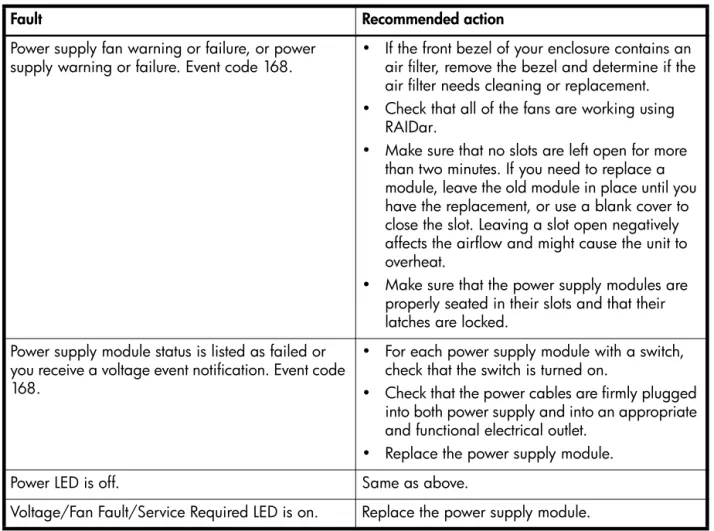
Power supply faults and recommended actions. . . 71
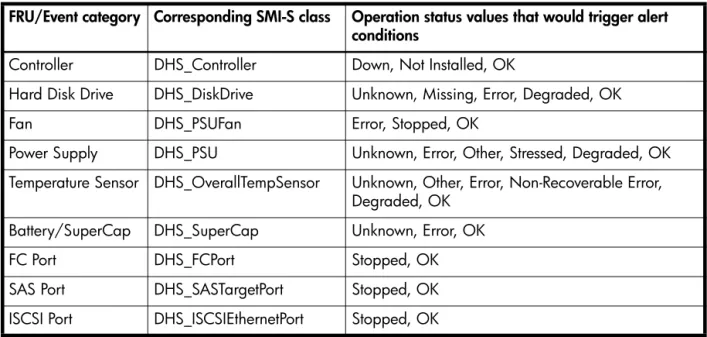
Events sent as indications to SMI-S clients . . . 72
Glossary . . . 73
About this guide
This guide describes events that the AssuredSAN™ storage systems may report and recommended actions to take in response to those events. It also gives more details for troubleshooting leftover disks and warnings for usage of the trust command.
Intended audience
This guide is intended for storage system administrators and service personnel.
Prerequisites
Prerequisites for using this product include knowledge of:
• Network administration
• Storage system configuration
• Storage area network (SAN) management and direct attach storage (DAS)
• Fibre Channel, Serial Attached SCSI (SAS), Internet SCSI (iSCSI), and Ethernet protocols
• RAID technology
Before you begin to follow procedures in this guide, you must have already installed enclosures and learned of any late-breaking information related to system operation, as described in the Setup Guide and in Release Notes.
Document conventions and symbols
CAUTION: Indicates that failure to follow directions could result in damage to equipment or data.
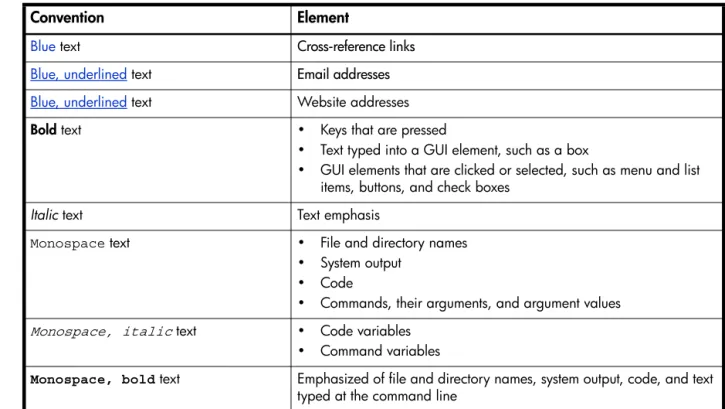
Table 1 Document conventions
Convention Element
Blue text Cross-reference links
Blue, underlined text Email addresses
Blue, underlined text Website addresses
Bold text • Keys that are pressed
• Text typed into a GUI element, such as a box
• GUI elements that are clicked or selected, such as menu and list items, buttons, and check boxes
Italic text Text emphasis
Monospace text • File and directory names
• System output
• Code
• Commands, their arguments, and argument values
Monospace, italic text • Code variables
• Command variables
Monospace, bold text Emphasized of file and directory names, system output, code, and text typed at the command line
1
Event descriptions
Introduction
This guide is for reference by storage administrators and technical support personnel to help troubleshoot storage-system issues. It describes event messages that may be reported during system operation and specifies any actions recommended in response to an event.
This guide applies to AssuredSAN 4004 Series storage systems, and to AssuredSAN 2333, 2002 Series, and 3000 Series storage systems that have been updated to the most recent firmware available. It describes all event codes that exist as of publication. Depending on your system model and firmware version, some events described in this guide may not apply to your system. The event descriptions should be considered as explanations of events that you do see. They should not be considered as descriptions of events that you should have seen but did not. In such cases those events probably do not apply to your system.
Events and event messages
When an event occurs in a storage system, an event message is recorded in the system’s event log and, depending on the system’s event notification settings, may also be sent to users (using email) and host-based applications (via SNMP or SMI-S).
Each event has a numeric code that identifies the type of event that occurred, and has one of the following severities:
• Critical: A failure occurred that may cause a controller to shut down. Correct the problem immediately.
• Error: A failure occurred that may affect data integrity or system stability. Correct the problem as soon as possible.
• Warning: A problem occurred that may affect system stability but not data integrity. Evaluate the problem and correct it if necessary.
• Informational: A configuration or state change occurred, or a problem occurred that the system corrected. No immediate action is required. In this guide, this severity is abbreviated as “Info.”
An event message may specify an associated error code or reason code, which provides additional detail for technical support. Error codes and reason codes are outside the scope of this guide.
Event format in this guide
This guide lists events by event code and severity, where the most severe form of an event is described first. Events are listed in the following format.
Resources for diagnosing and resolving problems
For further information about diagnosing and resolving problems, see:
• The troubleshooting chapter and the LED descriptions appendix in your product’s Setup Guide
• The topics about verifying component failure in your product’s FRU Installation and Replacement Guide For a summary of storage events and corresponding SMI-S indications, see “Events sent as indications to SMI-S clients” (page 72).
Event code
Severity Event description.
Recommended actions
Event descriptions
1
Warning If the indicated vdisk is RAID 6, it is operating with degraded health due to the failure of two disks. If the indicated vdisk is not RAID 6, it is operating with degraded health due to the failure of one disk. The vdisk is online but cannot tolerate another disk failure.
If a dedicated spare or global spare of the proper type and size is present, that spare is used to
automatically reconstruct the vdisk; events 9 and 37 are logged to indicate this. If no usable spare disk is present, but an available disk of the proper type and size is present and the dynamic spares feature is enabled, that disk is used to automatically reconstruct the vdisk; event 37 is logged.
Recommended actions
• If no spare was present and the dynamic spares feature is disabled (that is, event 37 was NOT logged), configure an available disk as a dedicated spare for the vdisk or replace the failed disk and configure the new disk as a dedicated spare for the vdisk. That spare will be used to automatically reconstruct the vdisk; confirm this by checking that events 9 and 37 are logged.
• Otherwise, reconstruction automatically started and event 37 was logged. Replace the failed disk and configure the replacement as a dedicated or global spare for future use.
• Confirm that all failed disks have been replaced and that there are sufficient spare disks configured for future use.
3
Error The indicated vdisk went offline.
One disk failed for RAID 0 or NRAID, three disks failed for RAID 6, or two disks failed for other RAID levels. The vdisk cannot be reconstructed. This is not a normal status for a vdisk unless you have done a manual dequarantine.
Recommended actions
• The CLI trust command may be able to recover some of the data in the vdisk. See the CLI help for the trust command. It is recommended that you contact technical support for assistance in determining if
the trust operation is applicable to your situation and for assistance in performing it.
• If you choose to not use the trust command, perform these steps:
• Replace the failed disk or disks. (Look for event 8 in the event log to determine which disks failed and for advice on replacing them.)
• Delete the vdisk (delete vdisks CLI command).
• Re-create the vdisk (create vdisk CLI command).
• To prevent this problem in the future, use a fault-tolerant RAID level, configure one or more disks as spare disks, and replace failed disks promptly.
4
Info. The indicated disk had a bad block which was corrected.
Recommended actions
• Monitor the error trend and whether the number of errors approaches the total number of bad-block replacements available.
Warning A failure occurred during initialization of the indicated vdisk. This was probably caused by the failure of a disk drive. The initialization may have completed but the vdisk probably has a status of FTDN (fault tolerant with a down disk), CRIT (critical), or OFFL (offline), depending on the RAID level and the number of disks that failed.
Recommended actions
• Look for another event logged at approximately the same time that indicates a disk failure, such as event 55, 58, or 412. Follow the recommended actions for that event.
Info. Vdisk creation failed immediately. The user was given immediate feedback that it failed at the time they attempted to create the vdisk.
Recommended actions
• No action is required.
7
Error In a testing environment, a controller diagnostic failed and reports a product-specific diagnostic code.
Recommended actions
• Perform failure analysis.
8
Warning One of the following conditions has occurred:
• A disk that was part of a vdisk is down. The indicated disk in the indicated vdisk failed and the vdisk probably has a status of FTDN (fault tolerant with a down disk), CRIT (critical), or OFFL (offline), depending on the RAID level and the number of disks that failed. If a spare is present and the vdisk is not offline, the controller automatically uses the spare to reconstruct the vdisk. Subsequent events indicate the changes that happen to the vdisk. When the problem is resolved, event 9 is logged.
• Reconstruction of a vdisk failed. The indicated disk was being used as the target disk for reconstructing the indicated vdisk. While the vdisk was reconstructing, another disk in the vdisk failed and the status of the vdisk went to OFFL (offline). The indicated disk has a status of LEFTOVR (leftover).
Recommended actions
• If a disk that was part of a vdisk is down:
• If the indicated disk failed because of excessive media errors, imminent disk failure, possible hardware failure, or a disk that is not supported, replace the disk.
• If the indicated disk failed because a user forced the disk out of the vdisk, or for an unknown reason, and the associated vdisk is offline or quarantined, contact technical support; otherwise, clear the disk's metadata to reuse the disk.
• If the indicated disk failed because a previously detected disk is no longer present, reinsert the disk or insert a replacement disk. If the disk then has a status of leftover (LEFTOVR), clear the metadata to reuse the disk. If the associated vdisk is critical, event 1 will also be logged; see the
recommended actions for that event. If the associated vdisk is offline or quarantined, contact technical support.
• If reconstruction of a vdisk failed:
• If the associated vdisk is online, clear the indicated disk's metadata so that the disk can be re-used. • If the associated vdisk is offline, the CLI trust command may be able to recover some or all of the
data in the vdisk. However, trusting a partially reconstructed disk may lead to data corruption. See the CLI help for the trust command. It is recommended that you contact technical support for
assistance in determining if the trust operation is applicable to your situation and for assistance in performing it.
steps:
• Delete the vdisk (delete vdisks CLI command).
• Clear the indicated disk’s metadata so the disk can be re-used (clear disk-metadata CLI
command).
• Replace the failed disk or disks. (Look for other instances of event 8 in the event log to determine which disks failed.)
• Re-create the vdisk (create vdisk CLI command).
• If you replace a disk, the replacement disk must be the same type (SAS SSD, enterprise SAS, or midline SAS) and the same or greater capacity. For continued optimum I/O performance, the replacement disk should have performance that is the same as or better than the one it is replacing.
9
Info. The indicated spare disk has been used in the indicated vdisk to bring it back to a fault-tolerant status. Vdisk reconstruction starts automatically. This event indicates that a problem reported by event 8 is resolved.
Recommended actions
• No action is required.
16
Info. The indicated disk has been designated a global spare.
Recommended actions
• No action is required.
18
Info. Vdisk reconstruction completed.
Recommended actions
• No action is required.
19
Info. A rescan has completed.
Recommended actions
• No action is required.
20
Info. Storage Controller firmware update has completed.
Recommended actions
Error Vdisk verification completed. Errors were found but not corrected.
Recommended actions
• Perform a vdisk scrub to find and correct the errors.
Warning Vdisk verification did not complete because of an internally detected condition such as a failed disk. If a disk fails, data may be at risk.
Recommended actions
• Resolve any non-disk hardware problems, such as a cooling problem or a faulty controller module, expansion module, or power supply.
• Check whether any disks in the vdisk have logged SMART events or unrecoverable read errors. • If so, and the vdisk is a non-fault-tolerant RAID level (RAID 0 or non-RAID), copy the data to a
different vdisk and replace the faulty disks.
• If so, and the vdisk is a fault-tolerant RAID level, replace the faulty disks. Before replacing a disk, confirm that a reconstruction is not currently running on the vdisk. It is also recommended to make a full backup of all the data in the vdisk before replacing disks. If more than one disk in the vdisk has errors, replace the disks one at a time and allow reconstruction to complete after each disk is replaced.
Info. Vdisk verification failed immediately, was aborted by a user, or succeeded.
Recommended actions
• No action is required.
23
Info. Vdisk creation has started.
Recommended actions
• No action is required.
25
Info. The statistics for the indicated vdisk have been reset.
Recommended actions
• No action is required.
28
Info. Controller parameters have been changed.
This event is logged when general configuration changes are made; for example, utility priority, remote notification settings, user interface passwords, and network port IP values. This event is not logged when changes are made to vdisk or volume configuration.
Recommended actions
• No action is required.
31
Info. The indicated disk is no longer a global or dedicated spare.
Recommended actions
Info. Vdisk verification has started.
Recommended actions
• No action is required.
33
Info. Controller time/date has been changed.
This event is logged before the change happens, so the timestamp of the event shows the old time. This event may occur often if NTP is enabled
Recommended actions
• No action is required.
34
Info. The controller configuration has been restored to factory defaults.
Recommended actions
• For an FC controller, restart it to make the default loop ID take effect.
37
Info. Vdisk reconstruction has started. When complete, event 18 is logged.
Recommended actions
• No action is required.
39
Warning The sensors monitored a temperature or voltage in the warning range. When the problem is resolved, event 47 is logged for the component that logged event 39.
If the event refers to a disk sensor, disk behavior may be unpredictable in this temperature range. Check the event log to determine if more than one disk has reported this event.
• If multiple disks report this condition there could be a problem in the environment.
• If one disk reports this condition, there could be a problem in the environment or the disk has failed.
Recommended actions
For a 2U12 or 2U24 enclosure:
• Check that the storage system’s fans are running.
• Check that the ambient temperature is not too warm. The enclosure operating range is 5–40C (41F–104F).
• Check for any obstructions to the airflow.
• Check that there is a module or blank plate in every module slot in the enclosure.
• If none of the above explanations apply, replace the disk or controller module that logged the error. For a 2U48 enclosure:
• Check that the storage system’s fans are running.
• Check that the ambient temperature is not too warm. The enclosure operating range is 5–35C (41F–95F).
• Check for any obstructions to the airflow.
• Check that the drawers are closed and there is a module or blank plate in every module slot in the enclosure.
Error The sensors monitored a temperature or voltage in the failure range. When the problem is resolved, event 47 is logged for the component that logged event 40.
Recommended actions
For a 2U12 or 2U24 enclosure:• Check that the storage system’s fans are running.
• Check that the ambient temperature is not too warm. The enclosure operating range is 5–40C (41F–104F).
• Check for any obstructions to the airflow.
• Check that there is a module or blank plate in every module slot in the enclosure.
• If none of the above explanations apply, replace the disk or controller module that logged the error. For a 2U48 enclosure:
• Check that the storage system’s fans are running.
• Check that the ambient temperature is not too warm. The enclosure operating range is 5–35C (41F–95F).
• Check for any obstructions to the airflow.
• Check that the drawers are closed and there is a module or blank plate in every module slot in the enclosure.
• If none of the above explanations apply, replace the disk or controller module that logged the error.
41
Info. The indicated disk has been designated a spare for the indicated vdisk.
Recommended actions
• No action is required.
43
Info. The indicated vdisk has been deleted.
Recommended actions
• No action is required.
44
Warning The controller contains cache data for the indicated volume but the corresponding vdisk is not online.
Recommended actions
• Determine the reason that the disks comprising the vdisk are not online.
• If an enclosure is down, determine corrective action.
• If the vdisk is no longer needed, you can clear the orphan data; this will result in lost data.
• If the vdisk is missing and was not intentionally removed, see “Resources for diagnosing and resolving problems” (page 7).
47
Info. An error detected by the sensors has been cleared. This event indicates that a problem reported by event 39 or 40 is resolved.
Recommended actions
Info. The indicated vdisk has been renamed.
Recommended actions
• No action is required.
49
Info. A lengthy SCSI maintenance command has completed. (This typically occurs during disk firmware update.)
Recommended actions
• No action is required.
50
Error A correctable ECC error occurred in cache memory more than 10 times during a 24-hour period, indicating a probable hardware fault.
Recommended actions
• Replace the controller module that logged this event. Warning A correctable ECC error occurred in cache memory.
This event is logged with Warning severity to provide information that may be useful to technical support, but no action is required now. It will be logged with Error severity if it is necessary to replace the controller module.
Recommended actions
• No action is required.
51
Error An uncorrectable ECC error occurred in cache memory more than once during a 48-hour period, indicating a probable hardware fault.
Recommended actions
• Replace the controller module that logged this event. Warning An uncorrectable ECC error occurred in cache memory.
This event is logged with Warning severity to provide information that may be useful to technical support, but no action is required now. It will be logged with Error severity if it is necessary to replace the controller module.
Recommended actions
• No action is required.
52
Info. Vdisk expansion has started.
This operation can take days, or weeks in some cases, to complete. Allow adequate time for the expansion to complete.
When complete, event 53 is logged.
Recommended actions
Warning Too many errors occurred during vdisk expansion to allow the expansion to continue.
Recommended actions
• If the expansion failed because of a disk problem, replace the disk with one of the same type (SAS SSD, enterprise SAS, or midline SAS) and the same or greater capacity. For continued optimum I/O performance, the replacement disk should have performance that is the same as or better than the one it is replacing. If vdisk reconstruction starts, wait for it to complete and then retry the expansion. Info. Vdisk expansion either completed, failed immediately, or was aborted by a user.
Recommended actions
• If the expansion failed because of a disk problem, replace the disk with one of the same type (SAS SSD, enterprise SAS, or midline SAS) and the same or greater capacity. For continued optimum I/O performance, the replacement disk should have performance that is the same as or better than the one it is replacing. If vdisk reconstruction starts, wait for it to complete and then retry the expansion.
55
Warning The indicated disk reported a SMART event. A SMART event indicates impending disk failure.
Recommended actions
• Resolve any non-disk hardware problems, especially a cooling problem or a faulty power supply.
• If the disk is in a vdisk that uses a non-fault-tolerant RAID level (RAID 0 or non-RAID), copy the data to a different vdisk and replace the faulty disk.
• If the disk is in a vdisk that uses a fault-tolerant RAID level, replace the faulty disk. Before replacing the disk, confirm that a reconstruction is not currently running on the vdisk. It is also recommended to make a full backup of all the data in the vdisk before replacing disks. If more than one disk in the vdisk has reported SMART events, replace the disks one at a time and allow reconstruction to complete after each disk is replaced.
56
Info. A controller has powered up or restarted.
Recommended actions
• No action is required.
58
Error A disk drive detected a serious error, such as a parity error or disk hardware failure.
Recommended actions
• Replace the failed disk with one of the same type (SAS SSD, enterprise SAS, or midline SAS) and the same or greater capacity. For continued optimum I/O performance, the replacement disk should have performance that is the same as or better than the one it is replacing.
Warning A disk drive reset itself due to an internal logic error.
Recommended actions
• The first time this event is logged with Warning severity, if the indicated disk is not running the latest firmware, update the disk firmware.
• If this event is logged with Warning severity for the same disk more than five times in one week, and the indicated disk is running the latest firmware, replace the disk with one of the same type (SAS SSD, enterprise SAS, or midline SAS) and the same or greater capacity. For continued optimum I/O performance, the replacement disk should have performance that is the same as or better than the one it is replacing.
Recommended actions
• No action is required.
59
Warning The controller detected a parity event while communicating with the indicated SCSI device. The event was detected by the controller, not the disk.
Recommended actions
• If the event indicates that a disk or an expansion module is bad, replace the indicated device. Info. The controller detected a non-parity error while communicating with the indicated SCSI device. The error
was detected by the controller, not the disk.
Recommended actions
• No action is required.
61
Error The controller reset a disk channel to recover from a communication error. This event is logged to identify an error trend over time.
Recommended actions
• If the controller recovers, no action is required.
• View other logged events to determine other action to take.
62
Warning The indicated global or dedicated spare disk has failed.
Recommended actions
• Replace the disk with one of the same type (SAS SSD, enterprise SAS, or midline SAS) and the same or greater capacity. For continued optimum I/O performance, the replacement disk should have
performance that is the same as or better than the one it is replacing.
• If the failed disk was a global spare, configure the new disk as a global spare.
• If the failed disk was a dedicated spare, configure the new disk as a dedicated spare for the same vdisk.
65
Error An uncorrectable ECC error occurred in cache memory on startup.
The controller is automatically restarted and its cache data are restored from the partner controller’s cache.
Recommended actions
• Replace the controller module that logged this event.
68
Info. The controller that logged this event is shut down, or both controllers are shut down.
Recommended actions
• No action is required.
71
Info. The controller has started or completed failing over.
Recommended actions
Info. After failover, recovery has either started or completed.
Recommended actions
• No action is required.
73
Info. The two controllers are communicating with each other and cache redundancy is enabled.
Recommended actions
• No action is required.
74
Info. The FC loop ID for the indicated vdisk was changed to be consistent with the IDs of other vdisks. This can occur when disks that constitute a vdisk are inserted from an enclosure having a different FC loop ID. This event is also logged by the new owning controller after vdisk ownership is changed.
Recommended actions
• No action is required.
75
Info. The indicated volume’s LUN (logical unit number) has been unassigned because it conflicts with LUNs assigned to other volumes. This can happen when disks containing data for a mapped volume have been moved from one storage system to another.
Recommended actions
• If you want hosts to access the volume data in the inserted disks, map the volume with a different LUN.
76
Info. The controller is using default configuration settings. This event occurs on the first power up, and might occur after a firmware update.
Recommended actions
• If you have just performed a firmware update and your system requires special configuration settings, you must make those configuration changes before your system will operate as before.
77
Info. The cache was initialized as a result of power up or failover.
Recommended actions
Warning The controller could not use an assigned spare for a vdisk because the spare’s capacity is too small. This occurs when a disk in the vdisk fails, there is no dedicated spare available and all global spares are too small or, if the dynamic spares feature is enabled, all global spares and available disks are too small, or if there is no spare of the correct type. There may be more than one failed disk in the system.
Recommended actions
• Replace each failed disk with one of the same type (SAS SSD, enterprise SAS, or midline SAS) and the same or greater capacity. For continued optimum I/O performance, the replacement disk should have performance that is the same as or better than the one it is replacing.
• Configure disks as dedicated spares or global spares.
• For a dedicated spare, the disk must be of the same type as the other disks in the vdisk and at least as large as the smallest-capacity disk in the vdisk, and it should have the same or better
performance.
• For a global spare, it is best to choose a disk that is as big as or bigger than the largest disk of its type in the system and of equal or greater performance. If the system contains a mix of disk types (SAS SSD, enterprise SAS, or midline SAS), there should be at least one global spare of each type (unless dedicated spares are used to protect every vdisk of a given type).
79
Info. A trust operation has completed for the indicated vdisk.
Recommended actions
• Be sure to complete the trust procedure as documented in the CLI help for the trust command.
80
Info. The controller enabled or disabled the indicated parameters for one or more disks.
Recommended actions
• No action is required.
81
Info. The current controller has unkilled the partner controller. The other controller will restart.
Recommended actions
• No action is required.
83
Info. The partner controller is changing state (shutting down or restarting).
Recommended actions
• No action is required.
84
Warning The current controller that logged this event forced the partner controller to fail over.
Recommended actions
• Download the debug logs from your storage system and contact technical support. A service technician can use the debug logs to determine the problem.
86
Info. Host-port or disk-channel parameters have been changed.
Recommended actions
Warning The mirrored configuration retrieved by this controller from the partner controller has a bad cyclic redundancy check (CRC). The local flash configuration will be used instead.
Recommended actions
• Restore the default configuration by using the restore defaults command, as described in the CLI
Reference Guide.
88
Warning The mirrored configuration retrieved by this controller from the partner controller is corrupt. The local flash configuration will be used instead.
Recommended actions
• Restore the default configuration by using the restore defaults command, as described in the CLI
Reference Guide.
89
Warning The mirrored configuration retrieved by this controller from the partner controller has a configuration level that is too high for the firmware in this controller to process. The local flash configuration will be used instead.
Recommended actions
• The current controller that logged this event probably has down-level firmware. Update the firmware in the down-level controller. Both controllers should have the same firmware versions.
When the problem is resolved, event 20 is logged.
90
Info. The partner controller does not have a mirrored configuration image for the current controller, so the current controller's local flash configuration is being used.
This event is expected if the other controller is new or its configuration has been changed.
Recommended actions
• No action is required.
91
Error In a testing environment, the diagnostic that checks hardware reset signals between controllers in Active-Active mode failed.
Recommended actions
• Perform failure analysis.
95
Error Both controllers in an Active-Active configuration have the same serial number. Non-unique serial numbers can cause system problems; for example, WWNs are determined by serial number.
Recommended actions
• Remove one of the controller modules and insert a replacement, then return the removed module to be reprogrammed.
Info. Pending configuration changes that take effect at startup were ignored because customer data might be present in cache.
Recommended actions
• If the requested configuration changes did not occur, make the changes again and then use a user-interface command to shut down the Storage Controller and then restart it.
103
Info. The name has been changed for the indicated volume.
Recommended actions
• No action is required.
104
Info. The size has been changed for the indicated volume.
Recommended actions
• No action is required.
105
Info. The default LUN (logical unit number) has been changed for the indicated volume.
Recommended actions
• No action is required.
106
Info. The indicated volume has been added to the indicated vdisk.
Recommended actions
• No action is required.
107
Error A serious error has been detected by the controller. In a single-controller configuration, the controller will restart automatically. In an Active-Active configuration, the partner controller will kill the controller that experienced the error.
Recommended actions
• Download the debug logs from your storage system and contact technical support. A service technician can use the debug logs to determine the problem.
108
Info. The indicated volume has been deleted from the indicated vdisk.
Recommended actions
• No action is required.
109
Info. The statistics for the indicated volume have been reset.
Recommended actions
Info. Ownership of the indicated vdisk has been given to the other controller.
Recommended actions
• No action is required.
111
Info. The link for the indicated host port is up.
This event indicates that a problem reported by event 112 is resolved. For a system with FC ports, this event also appears after loop initialization.
Recommended actions
• No action is required.
112
Warning The link for the indicated host port has unexpectedly gone down.
Recommended actions
• Look for corresponding event 111 and monitor excessive transitions indicating a host-connectivity or switch problem. If this event occurs more than 8 times per hour, it should be investigated.
• This event is probably caused by equipment outside of the storage system, such as faulty cabling or a faulty switch.
• If the problem is not outside of the storage system, replace the controller module that logged this event. Info. The link for the indicated host port has gone down because the controller is starting up.
Recommended actions
• No action is required.
114
Info. The link for the indicated disk-channel port is down. Note that events 114 and 211 are logged whenever a user-requested rescan occurs and do not indicate an error.
Recommended actions
• Look for corresponding event 211 and monitor excessive transitions indicating disk problems. If more than 8 transitions occur per hour, see “Resources for diagnosing and resolving problems” (page 7).
116
Error After a recovery, the partner controller was killed while mirroring write-back cache data to the controller that logged this event. The controller that logged this event restarted to avoid losing the data in the partner controller’s cache, but if the other controller does not restart successfully, the data will be lost.
Recommended actions
• To determine if data might have been lost, check whether this event was immediately followed by event 56, closely followed by event 71; the failover indicates that the restart did not succeed.
117
Warning This controller module detected or generated an error on the indicated host channel.
Recommended actions
• Restart the Storage Controller that logged this event.
• If more errors are detected, check the connectivity between the controller and the attached host.
Info. Cache parameters have been changed for the indicated volume.
Recommended actions
• No action is required.
127
Warning The controller has detected an invalid disk dual-port connection. This event indicates that a controller host port is connected to an expansion port instead of to a port on a host or a switch.
Recommended actions
• Disconnect the host port and expansion port from each other and connect them to the proper devices.
136
Warning Errors detected on the indicated disk channel have caused the controller to mark the channel as degraded.
Recommended actions
• Determine the source of the errors on the indicated disk channel and replace the faulty hardware. When the problem is resolved, event 189 is logged.
139
Info. The Management Controller (MC) has powered up or restarted.
Recommended actions
• No action is required.
140
Info. The Management Controller is about to restart.
Recommended actions
• No action is required.
141
Info. This event is logged when the IP address used for management of the system has been changed by a user or by a DHCP server (if DHCP is enabled). This event is also logged during power up or failover recovery, even when the address has not changed.
Recommended actions
Warning The Management Controller (MC) has not communicated with the Storage Controller (SC) for 15 minutes and may have failed.
This event is initially logged as Informational severity. If the problem persists, this event is logged a second time as Warning severity and the MC is automatically restarted in an attempt to recover from the problem. Event 156 is then logged.
Recommended actions
• If this event is logged only one time as Warning severity, no action is required.
• If this event is logged more than one time as Warning severity, do the following:
• If you are now able to access the management interfaces of the controller that logged this event, do the following:
• Check the version of the controller firmware and update to the latest firmware if needed. • If the latest firmware is already installed, the controller module that logged this event probably
has a hardware fault. Replace the module.
• If you are not able to access the management interfaces of the controller that logged this event, do the following:
• Shut down that controller and reseat the module.
• If you are then able to access the management interfaces, check the version of the controller firmware and update to the latest firmware if needed.
• If the problem recurs, replace the module.
Info. The Management Controller (MC) has not communicated with the Storage Controller (SC) for 160 seconds. If communication is restored in less than 15 minutes, event 153 is logged. If the problem persists, this event is logged a second time as Warning severity.
NOTE: It is normal for this event to be logged as Informational severity during firmware update.
Recommended actions
• Check the version of the controller firmware and update to the latest firmware if needed.
• If the latest firmware is already installed, no action is required.
153
Info. The Management Controller (MC) has re-established communication with the Storage Controller (SC).
Recommended actions
• No action is required.
154
Info. New firmware has been loaded in the Management Controller (MC).
Recommended actions
• No action is required.
155
Info. New loader firmware has been loaded in the Management Controller (MC).
Recommended actions
Warning The Management Controller (MC) has been restarted from the Storage Controller (SC) for the purpose of error recovery.
Recommended actions
• See the recommended actions for event 152, which is logged at approximately the same time. Info. The Management Controller (MC) has been restarted from the Storage Controller (SC) in a normal case,
such as when initiated by a user.
Recommended actions
• No action is required.
157
Error A failure occurred when trying to write to the Storage Controller (SC) flash chip.
Recommended actions
• Replace the controller module that logged this event.
158
Error A correctable ECC error occurred in Storage Controller CPU memory more than once during a 12-hour period, indicating a probable hardware fault.
Recommended actions
• Replace the controller module that logged this event.
Warning A correctable ECC error occurred in Storage Controller CPU memory.
This event is logged with Warning severity to provide information that may be useful to technical support, but no action is required now. It will be logged with Error severity if it is necessary to replace the controller module.
Recommended actions
• No action is required.
161
Info. One or more enclosures do not have a valid path to an enclosure management processor (EMP). All enclosure EMPs are disabled.
Recommended actions
• Download the debug logs from your storage system and contact technical support. A service technician can use the debug logs to determine the problem.
162
Warning The host WWNs (node and port) previously presented by this controller module are unknown. In a dual-controller system this event has two possible causes:
• One or both controller modules have been replaced or moved while the system was powered off.
• One or both controller modules have had their flash configuration cleared (this is where the previously used WWNs are stored).
The controller module recovers from this situation by generating a WWN based on its own serial number.
Recommended actions
• If the controller module was replaced or someone reprogrammed its FRU ID data, verify the WWN information for this controller module on all hosts that access it.
Warning The host WWNs (node and port) previously presented by the partner controller module, which is currently offline, are unknown.
This event has two possible causes:
• The online controller module reporting the event was replaced or moved while the system was powered off.
• The online controller module had its flash configuration (where previously used WWNs are stored) cleared.
The online controller module recovers from this situation by generating a WWN based on its own serial number for the other controller module.
Recommended actions
• If the controller module was replaced or someone reprogrammed its FRU ID data, verify the WWN information for the other controller module on all hosts that access it.
166
Warning The RAID metadata level of the two controllers does not match, which indicates that the controllers have different firmware levels.
Usually, the controller at the higher firmware level can read metadata written by a controller at a lower firmware level. The reverse is typically not true. Therefore, if the controller at the higher firmware level failed, the surviving controller at the lower firmware level cannot read the metadata in disks that have failed over.
Recommended actions
• If this occurs after a firmware update, it indicates that the metadata format changed, which is rare. Update the controller with the lower firmware level to match the firmware level in the other controller.
167
Warning A diagnostic test at controller bootup detected an abnormal operation, which might require a power cycle to correct.
Recommended actions
• Download the debug logs from your storage system and contact technical support. A service technician can use the debug logs to determine the problem.
168
Error The indicated SES alert condition was detected in the indicated enclosure. This event is logged as Error severity when one of the power supplies in an enclosure has no power supplied to it or when a hardware failure is detected.
Recommended actions
For a 2U12 or 2U24 enclosure:• Check that all modules in the enclosure are fully seated in their slots and that their latches are locked.
• If the reported problem is with a power supply, perform these checks:
• Check that each power supply module has its switch turned on (if equipped with a switch). • Check that each power cable is firmly plugged into both the power supply and a functional
• Check that all of the enclosure's fans are running.
• Check that the ambient temperature is not too warm. The enclosure operating range is 5–40C (41–104F).
• Check for any obstructions to the airflow.
• Check that there is a module or blank plate in every module slot in the enclosure.
• If none of the above resolve the issue, the indicated FRU has probably failed and should be replaced. The failed FRU will probably have an amber LED lit.
When the problem is resolved, event 169 is logged. For a 2U48 enclosure:
• Check that all modules in the enclosure are fully seated in their slots and that their latches are locked.
• If the reported problem is with a power supply, perform these checks:
• Check that each power supply module has its switch turned on (if equipped with a switch). • Check that each power cable is firmly plugged into both the power supply and a functional
electrical outlet.
• If the reported problem is with a temperature sensor or fan or power supply, perform these checks: • Check that all of the enclosure's fans are running.
• Check that the ambient temperature is not too warm. The enclosure operating range is 5–35C (41–95F).
• Check for any obstructions to the airflow.
• Check that the drawers are closed and there is a module or blank plate in every module slot in the enclosure.
• If none of the above resolve the issue, the indicated FRU has probably failed and should be replaced. The failed FRU will probably have an amber LED lit.
When the problem is resolved, event 169 is logged.
Warning The indicated SES alert condition was detected in the indicated enclosure.
Recommended actions
For a 2U12 or 2U24 enclosure:
• Check that all modules in the enclosure are fully seated in their slots and that their latches are locked.
• If the reported problem is with a power supply, perform these checks:
• Check that each power supply module has its switch turned on (if equipped with a switch). • Check that each power cable is firmly plugged into both the power supply and a functional
electrical outlet.
• If the reported problem is with a temperature sensor or fan or power supply, perform these checks: • Check that all of the enclosure's fans are running.
• Check that the ambient temperature is not too warm. The enclosure operating range is 5–40C (41–104F).
• Check for any obstructions to the airflow.
• Check that there is a module or blank plate in every module slot in the enclosure.
• If none of the above resolve the issue, the indicated FRU has probably failed and should be replaced. The failed FRU will probably have an amber LED lit.
• Check that all modules in the enclosure are fully seated in their slots and that their latches are locked.
• If the reported problem is with a power supply, perform these checks:
• Check that each power supply module has its switch turned on (if equipped with a switch). • Check that each power cable is firmly plugged into both the power supply and a functional
electrical outlet.
• If the reported problem is with a temperature sensor or fan or power supply, perform these checks: • Check that all of the enclosure's fans are running.
• Check that the ambient temperature is not too warm. The enclosure operating range is 5–35C (41–95F).
• Check for any obstructions to the airflow.
• Check that the drawers are closed and there is a module or blank plate in every module slot in the enclosure.
• If none of the above resolve the issue, the indicated FRU has probably failed and should be replaced. The failed FRU will probably have an amber LED lit.
When the problem is resolved, event 169 is logged.
Info. The indicated SES alert condition was detected in the indicated enclosure.
Recommended actions
• No action is required.
169
Info. The indicated SES alert condition has been cleared in the indicated enclosure. This event indicates that a problem reported by event 168 is resolved.
Recommended actions
• No action is required.
170
Info. The last rescan detected that the indicated enclosure was added to the system.
Recommended actions
• No action is required.
171
Info. The last rescan detected that the indicated enclosure was removed from the system.
Recommended actions
Warning The indicated vdisk has been quarantined because not all of its disks are accessible. While the vdisk is quarantined, any attempt to access the volumes in the vdisk from a host will fail. If all of the disks become accessible, the vdisk will be dequarantined automatically with a resulting status of FTOL (fault tolerant and online). If not all of the disks become accessible but enough become accessible to allow reading from and writing to the vdisk, the vdisk will be dequarantined automatically with a resulting status of FTDN (fault tolerant with a down disk) or CRIT (critical); if a spare disk is available, reconstruction will begin automatically. When the vdisk has been removed from quarantine, event 173 is logged. For a more detailed discussion of quarantine, see the WBI help for the Tools > Dequarantine Vdisk panel or the CLI help for the dequarantine command.
CAUTION:
• Avoid using the manual dequarantine operation as a recovery method when event 172 is logged because this causes data recovery to be more difficult or impossible.
• If you clear unwritten cache data while a vdisk is quarantined or offline, that data will be permanently lost.
Recommended actions
• If event 173 has subsequently been logged for the indicated vdisk, no action is required; the vdisk has already been removed from quarantine.
• Otherwise, perform the following actions: • Check that all enclosures are powered on.
• Check that all disks and I/O modules in every enclosure are fully seated in their slots and that their latches are locked.
• Reseat any disks in the quarantined vdisk that are reported as missing or failed in the user interface. (Do NOT remove and reinsert disks that are not members of the vdisk that is quarantined.)
• Check that the SAS expansion cables are connected between each enclosure in the storage system and that they are fully seated. (Do NOT remove and reinsert the cables because this can cause problems with additional vdisks.)
• Check that no disks have been removed from the system unintentionally.
• Check for other events that indicate faults in the system and follow the recommended actions for those events. But, if the event indicates a failed disk and the recommended action is to replace the disk, do NOT replace the disk at this time because it may be needed later for data recovery. • If the vdisk is still quarantined after performing the above steps, shut down both controllers and then
power down the entire storage system. Power it back up, beginning with any disk enclosures (expansion enclosures), then the controller enclosure.
• If the vdisk is still quarantined after performing the above steps, contact technical support.
173
Info. The indicated vdisk has been removed from quarantine.
Recommended actions
• No action is required.
174
Info. Enclosure or disk firmware update has succeeded, been aborted by a user, or failed.
If the firmware update fails, the user will be notified about the problem immediately and should take care of the problem at that time, so even when there is a failure, this event is logged as Informational severity.
Recommended actions
Info. The network-port Ethernet link has changed status (up or down) for the indicated controller.
Recommended actions
• If this event is logged indicating the network port is up shortly after the Management Controller (MC) has booted up (event 139), no action is required.
• Otherwise, monitor occurrences of this event for an error trend. If this event occurs more than 8 times per hour, it should be investigated.
• This event is probably caused by equipment outside of the storage system, such as faulty cabling or a faulty Ethernet switch.
• If this event is being logged by only one controller in a dual-controller system, swap the Ethernet cables between the two controllers. This will show whether the problem is outside or inside the storage system.
• If the problem is not outside of the storage system, replace the controller module that logged this event.
176
Info. The error statistics for the indicated disk have been reset.
Recommended actions
• No action is required.
177
Info. Cache data was purged for the indicated missing volume.
Recommended actions
• No action is required.
181
Info. One or more configuration parameters associated with the Management Controller (MC) have been changed, such as configuration for SNMP, SMI-S, email notification, and system strings (system name, system location, etc.).
Recommended actions
• No action is required.
182
Info. All disk channels have been paused. I/O will not be performed on the disks until all channels are unpaused.
Recommended actions
• If this event occurs in relation to disk firmware update, no action is required. When the condition is cleared, event 183 is logged.
• If this event occurs and you are not performing disk firmware update, see “Resources for diagnosing and resolving problems” (page 7).
183
Info. All disk channels have been unpaused, meaning that I/O can resume. An unpause initiates a rescan, which when complete is logged as event 19.
This event indicates that the pause reported by event 182 has ended.
Recommended actions
Info. An enclosure management processor (EMP) write command has completed.
Recommended actions
• No action is required.
186
Info. Enclosure parameters have been changed by a user.
Recommended actions
• No action is required.
187
Info. The write-back cache has been enabled.
Event 188 is the corresponding event that is logged when write-back cash is disabled.
Recommended actions
• No action is required.
188
Info. Write-back cache has been disabled.
Event 187 is the corresponding even that is logged when write-back cache is disabled.
Recommended actions
• No action is required.
189
Info. A disk channel that was previously degraded or failed is now healthy.
Recommended actions
• No action is required.
190
Info. The controller module's supercapacitor pack has started charging.
This change met a condition to trigger the auto-write-through feature, which has disabled write-back cache and put the system in write-through mode. When the fault is resolved, event 191 is logged to indicate that write-back mode has been restored.
Recommended actions
• If event 191 is not logged within 5 minutes after this event, the supercapacitor has probably failed and the controller module should be replaced.
191
Info. The auto-write-through trigger event that caused event 190 to be logged has been resolved.
Recommended actions
Info. The controller module's temperature has exceeded the normal operating range.
This change met a condition to trigger the auto-write-through feature, which has disabled write-back cache and put the system in write-through mode. When the fault is resolved, event 193 is logged to indicate that write-back mode has been restored.
Recommended actions
• If event 193 has not been logged since this event was logged, the over-temperature condition probably still exists and should be investigated. Another over-temperature event was probably logged at approximately the same time as this event (such as event 39, 40, 168, 307, 469, 476, or 477); see the recommended actions for that event.
193
Info. The auto-write-through trigger event that caused event 192 to be logged has been resolved.
Recommended actions
• No action is required.
194
Info. The Storage Controller in the partner controller module is not up.
This indicates that a trigger condition has occurred that has caused the auto-write-through feature to disable write-back cache and put the system in write-through mode. When the fault is resolved, event 195 is logged to indicate that write-back mode has been restored.
Recommended actions
• If event 195 has not been logged since this event was logged, the other Storage Controller is probably still down and the cause should be investigated. Other events were probably logged at approximately the same time as this event; see the recommended actions for those events.
195
Info. The auto-write-through trigger event that caused event 194 to be logged has been resolved.
Recommended actions
• No action is required.
198
Info. A power supply has failed.
This indicates that a trigger condition has occurred that has caused the auto-write-through feature to disable write-back cache and put the system in write-through mode. When the fault is resolved, event 199 is logged to indicate that write-back mode has been restored.
Recommended actions
• If event 199 has not been logged since this event was logged, the power supply probably does not have a health of OK and the cause should be investigated. Another power-supply event was probably logged at approximately the same time as this event (such as event 168); see the recommended actions for that event.
199
Info. The auto-write-through trigger event that caused event 198 to be logged has been resolved.
Recommended actions
Info. A fan has failed.
This indicates that a trigger condition has occurred that has caused the auto-write-through feature to disable write-back cache and put the system in write-through mode. When the fault is resolved, event 201 is logged to indicate that write-back mode has been restored.
Recommended actions
• If event 201 has not been logged since this event was logged, the fan probably does not have a health of OK and the cause should be investigated. Another fan event was probably logged at approximately the same time as this event (such as event 168); see the recommended actions for that event.
201
Info. The auto-write-through trigger event that caused event 200 to be logged has been resolved.
Recommended actions
• No action is required.
202
Info. An auto-write-through trigger condition has been cleared, causing write-back cache to be re-enabled. The environmental change is also logged at approximately the same time as this event (event 191, 193, 195, 199, 201, and 241.)
Recommended actions
• No action is required.
203
Warning An environmental change occurred that allows write-back cache to be enabled, but the auto-write-back preference is not set. The environmental change is also logged at approximately the same time as this event (event 191, 193, 195, 199, 201, or 241).
Recommended actions
• Manually enable write-back cache.
204
Error An error occurred with either the CompactFlash card (NV device) or the transport mechanism. The system may attempt to recover itself.
The CompactFlash card is used for backing up unwritten cache data when a controller goes down unexpectedly, such as when a power failure occurs. This event is generated when the Storage Controller (SC) detects a problem with the CompactFlash as it is booting up.
Recommended actions
• Restart the Storage Controller that logged this event.
• If this event is logged again, shut down the Storage Controller and replace the controller module. Warning The system has started and found an issue with the CompactFlash card (NV device). The system will
attempt to recover itself.
The CompactFlash card is used for backing up unwritten cache data when a controller goes down unexpectedly, such as when a power failure occurs. This event is generated when the Storage Controller (SC) detects a problem with the CompactFlash as it is booting up.
Recommended actions
• Restart the Storage Controller that logged this event.
This event will be logged as an Error or Warning event if any user action is required.
Recommended actions
• No action is required.
205
Info. The indicated volume has been mapped or unmapped.
Recommended actions
• No action is required.
206
Info. Vdisk scrub has started.
The scrub checks disks in the vdisk for the following types of errors:
• Data parity errors for a RAID 3, 5, 6, or 50 vdisk.
• Mirror verify errors for a RAID 1 or RAID 10 vdisk.
• Media errors for all RAID levels including RAID 0 and non-RAID vdisks. When errors are detected, they are automatically corrected.
When the scrub is complete, event 207 is logged.
Recommended actions
• No action is required.
207
Error Vdisk scrub completed and found an excessive number of errors in the indicated vdisk.
This event is logged as Error severity when more than 100 parity or mirror mismatches are found and corrected during a scrub or when 1 to 99 parity or mirror mismatches are found and corrected during each of 10 separate scrubs of the same vdisk.
For non-fault-tolerant RAID levels (RAID 0 and non-RAID), media errors may indicate loss of data.
Recommended actions
• Resolve any non-disk hardware problems, such as a cooling problem or a faulty controller module, expansion module, or power supply.
• Check whether any disks in the vdisk have logged SMART events or unrecoverable read errors. • If so, and the vdisk is a non-fault-tolerant RAID level (RAID 0 or non-RAID), copy the data to a
different vdisk and replace the faulty disks.
• If so, and the vdisk is a fault-tolerant RAID level, replace the faulty disks. Before replacing a disk, confirm that a reconstruction is not currently running on the vdisk. It is also recommended to make a full backup of all the data on the vdisk before replacing disks. If more than one disk in the vdisk has errors, replace the disks one at a time and allow reconstruction to complete after each disk is replaced.
Warning Vdisk scrub did not complete because of an internally detected condition such as a failed disk. If a disk fails, data may be at risk.
Recommended actions
• Resolve any non-disk hardware problems, such as a cooling problem or a faulty controller module, expansion module, or power supply.
• If so, and the vdisk is a non-fault-tolerant RAID level (RAID 0 or non-RAID), copy the data to a different vdisk and replace the faulty disks.
• If so, and the vdisk is a fault-tolerant RAID level, replace the faulty disks. Before replacing a disk, confirm that a reconstruction is not currently running on the vdisk. It is also recommended to make a full backup of all the data in the vdisk before replacing disks. If more than one disk in the vdisk has errors, replace the disks one at a time and allow reconstruction to complete after each disk is replaced.
Info. Vdisk scrub completed or was aborted by a user.
This event is logged as Informational severity when fewer than 100 parity or mirror mismatches are found and corrected during a scrub.
For non-fault-tolerant RAID levels (RAID 0 and non-RAID), media errors may indicate loss of data.
Recommended actions
• No action is required.
208
Info. A scrub-disk job has started for the indicated disk. The result will be logged with event 209.
Recommended actions
• No action is required.
209
Error A scrub-disk job logged with event 208 has completed and found one or more media errors, SMART events, or hard (non-media) errors. If this disk is used in a non-fault-tolerant vdisk, data may have been lost.
Recommended actions
• Replace the disk with one of the same type (SAS SSD, enterprise SAS, or midline SAS) and the same or greater capacity. For continued optimum I/O performance, the replacement disk should have
performance that is the same as or better than the one it is replacing.
Warning A scrub-disk job logged with event 208 has been aborted by a user, or has reassigned a disk block. These bad-block replacements are reported as "other errors". If this disk is used in a non-fault-tolerant vdisk, data may have been lost.
Recommended actions
• Monitor the error trend and whether the number of errors approaches the total number of bad-block replacements available.
Info. A scrub-disk job logged with event 208 has completed and found no errors, or a disk being scrubbed (with no errors found) has been added to a vdisk, or a user has aborted the job.
Recommended actions
• No action is required.
210
Info. All snapshots have been deleted for the indicated master volume or snap pool.
Recommended actions
Warning SAS topology has changed; no elements are detected in the SAS map. The message specifies the number of elements in the SAS map, the number of expanders detected, the number of expansion levels on the native (local controller) side and on the partner (partner controller) side, and the number of device PHYs.
Recommended actions
• Perform a rescan to repopulate the SAS map.
• If a rescan does not resolve the problem, then shut down and restart both Storage Controllers.
• If the problem persists, see “Resources for diagnosing and resolving problems” (page 7).
Info. SAS topology has changed; the number of SAS expanders has increased or decreased. The message specifies the number of elements in the SAS map, the number of expanders detected, the number of expansion levels on the native (local controller) side and on the partner (partner controller) side, and the number of device PHYs.
Recommended actions
• No action is required.
212
Info. All master volumes associated with the indicated snap pool have been deleted.
Recommended actions
• No action is required.
213
Info. The indicated standard volume has been converted to a master volume, or the indicated master volume has been converted to a standard volume.
Recommended actions
• No action is required.
214
Info. The creation of snapshots is complete. The number of snapshots is indicated. Additional events give more information for each snapshot.
Recommended actions
• No action is required.
215
Info. A previously created batch of snapshots is now committed and ready for use. The number of snapshots is indicated.
Additional events give more information for each snapshot.
Recommended actions
• No action is required.
217
Error A supercapacitor failure occurred in the controller.
Recommended actions
Warning The supercapacitor pack is near end of life.
Recommended actions
• Replace the controller module reporting this event.
219
Info. Utility priority has been changed by a user.
Recommended actions
• No action is required.
220
Info. Roll back of data in the indicated master volume to data in the indicated snapshot has been started by a user.
Recommended actions
• No action is required.
221
Info. Snapshot reset has completed.
Recommended actions
• No action is required.
222
Info. The policy for the snap pool has been changed by a user. A policy specifies the action for the system to automatically take when the snap pool reaches the associated threshold level.
Recommended actions
• No action is required.
223
Info. The threshold level for the snap pool has been changed by a user. Each snap pool has three threshold levels that notify you when the snap pool is reaching decreasing capacity. Each threshold level has an associated policy that specifies system behavior when the threshold is reached.
Recommended actions
• No action is required.
224
Info. Roll back of data in the indicated master volume to data in the indicated snapshot has completed.
Recommended actions
• No action is required.
225
Error A copy-on-write failure occurred when copying data from the indicated master volume to a snapshot. Due to a problem accessing the snap pool, the write operation could not be completed to the disk. Data are left in cache.
Recommended actions
Error Roll back for the indicated master volume failed to start due to inability to initialize the snap pool. The roll back is in a suspended state.
Recommended actions
• Make sure the snap pool and the vdisk on which this volume exists are online. Restart the roll-back operation.
227
Error Failed to execute roll back for a particular LBA (logical block address) range of the indicated master volume.
Recommended actions
• Restart the roll-back operation.
228
Error Roll back for the indicated master volume failed to end due to inability to initialize the snap pool. The roll back is in a suspended state.
Recommended actions
• Make sure the snap pool and the vdisk on which this volume exists are online. Restart the roll-back operation.
229
Warning The indicated snap pool has reached its warning threshold.
Recommended actions
• You can expand the snap pool or delete snapshots.
230
Warning The indicated snap pool has reached its error threshold.
When the error threshold is reached, the system automatically takes the action set in the policy for this threshold level. The default policy for the error threshold is to auto-expand the snap pool.
Recommended actions
• You can expand the snap pool or delete snapshots.
231
Warning The indicated snap pool has reached its critical threshold.
When the critical threshold is reached, the system automatically takes the action set in the policy for this threshold level. The default policy for the critical threshold is to delete all snapshots in the snap pool.
Recommended actions
• If the policy is to halt writes, then you must free up space in the snap pool by deleting snapshots.
• For other policies, no action is required.
232
Warning The maximum number of enclosures allowed for the current configuration has been exceeded.
The platform does not support the number of enclosures that are configured. The enclosure indicated by this event has been removed from the configuration.