Apple, NeXT, and the publishers have tried to make the information contained in this manual as accurate and reliable as possible, but assume no responsibility for errors or omissions. They disclaim any warranty of any kind, whether express or implied, as to any matter whatsoever relating to this manual, including without limitation the merchantability or fitness for any particular purpose. In no event shall they be liable for any indirect, special, incidental, or consequential damages arising out of purchase or use of this manual or the information contained herein. NeXT or Apple will from time to time revise the software described in this manual and reserves the right to make such changes without obligation to notify the purchaser.
Copyright 1997 by Apple Computer, Inc., 1 Infinite Loop, Cupertino, CA 95014. All rights reserved.
[7010.01]
No part of this publication may be reproduced, stored in a retrieval system, or transmitted, in any form or by any means, electronic, mechanical, photocopying, recording, or otherwise, without the prior written permission of the publisher or copyright owner. Printed in the United States of America. Published simultaneously in Canada. NeXT, the NeXT logo, OPENSTEP, Enterprise Objects, Enterprise Objects Framework, Objective-C, WEBSCRIPT, and WEBOBJECTS are trademarks of NeXT Software, Inc. Apple is a trademark of Apple Computer, Inc., registered in the United States and other countries. PostScript is a registered trademark of Adobe Systems, Incorporated. Windows NT is a trademark of Microsoft Corporation. UNIX is a registered trademark in the United States and other countries, licensed exclusively through X/Open Company Limited. ORACLE is a registered trademark of Oracle Corporation, Inc. SYBASE is a registered trademark of Sybase, Inc. All other trademarks mentioned belong to their respective owners. Restricted Rights Legend: Use, duplication, or disclosure by the Government is subject to restrictions as set forth in subparagraph (c)(1)(ii) of the Rights in Technical Data and Computer Software clause at DFARS 252.227-7013 [or, if applicable, similar clauses at FAR 52.227-19 or NASA FAR Supp. 52.227-86].
This manual describes WebObjects 3.5.
Writing: Ron Karr and Kelly Toshach Editing: Laurel Rezeau and Jeanne Woodward
With help from: Andy Belk, Craig Federighi, John Graziano, Ben Haller, Kenny Leung, Charles Lloyd, Jean Ostrem, Becky Willrich, Greg Wilson
Table of Contents
Contents iii
Preface 7
About WebObjects 9 About This Book 9 Where to Go From Here 10
Creating a Simple WebObjects Application 11
Creating a WebObjects Application Project 14 Choosing the Programming Language 16 Examining Your Project 17
Launching WebObjects Builder 18 Creating the Page’s Content 20
Entering Static Text 21
Using the Inspector 22
Creating Form-Based Dynamic HTML Elements 23
Resizing the Form Elements 25
Binding Elements 27
Creating Variables 27
Binding the Input Elements 29
Implementing an Action Method 30
Creating the Application’s Output 32 Building and Running Your Application 35
Enhancing Your Application 37
Duplicating Your Project 39 Creating a Custom Guest Class 41
Binding the Class’s Instance Variables to the Form Elements 42
Creating a Table to Display the Output 43
Keeping Track of Multiple Guests 47
Creating a Guest List 48
Adding Guests to the Guest List 50
Adding a Second Component 51
Using a Repetition 53
Adding the Finishing Touches 56
Clearing the Guest List 56
Adding a Dynamic Hyperlink 57
Creating a WebObjects
Database Application 59
The Movies Application 62
Enterprise Objects and Relationships 63
Designing the Main Page 65
Starting the WebObjects Application Wizard 65
Specifying a Model File 66
Choosing an Adaptor 67
Choosing What to Include in Your Model 68
Choosing the Tables to Include 71
Specifying Primary Keys 71
Specifying Referential Integrity Rules 72
Choosing an Entity 74
Choosing a Layout 75
Choosing Attributes to Display 76
Choosing an Attribute to Display as a Hyperlink 77
Choosing Attributes to Query On 77
Running Movies 78
Examining Your Project 79
Examining the Variables 80
Examining the Bindings 81
Adding the MovieDetails Page 92
Creating the MovieDetails Component 93
Storing the Selected Movie 93
Navigating from Main to MovieDetails 94
Designing MovieDetails’ User Interface 95
Adding Date and Number Formats 96
Navigating from MovieDetails to Main 96
Running Movies 97
Refining Your Model 97
Opening Your Model 97
Removing Primary and Foreign Keys as Class Properties 98
Adding Relationships to Your Model 99
Using the Advanced Relationship Inspector 102
Where Do Primary Keys Come From? 103
Setting Up a Master-Detail Configuration 104
Creating a Detail Display Group 105
Adding a Repetition 108
Configuring a Repetition 109
Running Movies 110
Updating Objects in the Detail Display Group 111
Managing a DisplayGroup’s Selection 112
Adding a Form 113
Adding a Talent Display Group 113
Configuring the Browser 114
Adding Insert, Save, and Delete Buttons 116
Adding Behavior to Your Enterprise Objects 117
Specifying Custom Enterprise Object Classes 117
Generating Custom Enterprise Object Classes 118
Adding Custom Behavior to Talent 119
Providing Default Values in MovieRole 119
About WebObjects
WebObjects is an object-oriented environment for developing and deploying World Wide Web applications. A WebObjects application runs on a server machine and receives requests from a user’s web browser on a client machine. It dynamically generates HTML pages in response to the user’s requests. WebObjects provides a suite of tools for rapid application development, as well as prebuilt application components and a web application server.
WebObjects is flexible enough to suit the needs of any web programmer. You can write code using one of three programming languages: Java, Objective-C, or WebScript. You can write simple WebObjects applications in a matter of minutes. For more complex projects, WebObjects makes it easy by performing common web application tasks automatically and by allowing you to reuse objects you’ve written for other applications.
About This Book
This book contains three tutorials that help you learn what WebObjects is and how to use it:
• Chapter 1, “Creating a Simple WebObjects Application” (page 11), teaches you the basic concepts and steps involved in creating a WebObjects project, using the applications Project Builder and WebObjects Builder. You’ll create a simple application that takes input from a user and displays it.
• Chapter 2, “Enhancing Your Application” (page 37), extends the capabilities of your application and shows you additional techniques you use when working with WebObjects.
Preface
Where to Go From Here
After you have worked through the tutorials in this book, you should have a good working knowledge of WebObjects. For more in-depth information about how WebObjects works, read the WebObjects Developer’s Guide.
Other valuable information about WebObject is available online. You can access all online information through the WebObjects Home Page. It is located in your server’s document root, and you can access it at this URL:
http://localhost/WebObjects/Documentation/WOHomePage.html
In particular, the WebObjects HomePage gives you access to some books that are available only online:
• WebObjects Tools and Techniques is a more comprehensive guide to using Project Builder and WebObjects Builder to develop WebObjects applications.
• Serving WebObjects describes how to administer and deploy WebObjects applications after you’ve written them.
• The Dynamic Elements Reference documents the dynamic elements provided with WebObjects and provides examples of how to use them.
• The Client-Side Components Reference describes what client-side components are available for use in your program and the Java classes used to create them.
• The WebObjects Class Reference provides a complete reference to the classes in the WebObjects framework. Reference material is provided for both the Java and Objective-C languages.
Creating a Simple WebObjects Application
This chapter introduces you to the basic concepts and procedures of developing WebObjects applications. You’ll develop, in stages, a simple application for the World Wide Web. The application you’ll write is called GuestBook.
When you’ve finished the steps in this chapter, your application will have a single web page containing a form that allows users to enter their names, e-mail addresses, and comments. When the form is submitted, the
application redraws the page with the user’s information at the bottom.
Chapter 1 Creating a Simple WebObjects Application
Project Builder is an integrated software-development application. It contains a project browser, a code editor, build and debugging support, and many other features needed to develop an application. In this tutorial, you’ll learn to use Project Builder to:
• Create a new WebObjects application project.
• Write scripts or compiled code to provide behavior in your application. • Build and launch your application.
WebObjects Builder is an application that provides graphical tools for creating dynamic web pages. You’ll learn to use WebObjects Builder to:
• Create static content for your pages. • Add dynamic elements to your pages.
• Bind the dynamic elements to variables and methods in your code.
Creating a WebObjects Application Project
A WebObjects application project contains all the files needed to build and maintain your application. You use Project Builder to create a new project. 1. Launch Project Builder.
On Windows NT, you can launch Project Builder from the WebObjects program group in the Start menu. On other platforms, you can launch the application by navigating to the directory NeXT_ROOT/NextDeveloper/Apps/ and launching ProjectBuilder.app. NeXT_ROOT is an environment variable defined when you installed WebObjects. On Windows NT systems, it is C:\NeXT by default. On Mach systems, it is the root directory /.
2. Choose Project m New.
Set project type here.
Creating a WebObjects Application Project
4. Click Browse.
5. In the Save panel, navigate to the DocumentRoot/WebObjects directory. DocumentRoot is your HTTP server’s document root, which you specified when you installed WebObjects.
6. Type the name of the project you want to create (GuestBook). 7. Click Save.
The New Project panel shows the path you specified. 8. Click OK.
The WebObjects Application Wizard starts.
Type project name here.
Click when finished. Choose WebObjects under the server’s document root.
Choose level of assistance.
Chapter 1 Creating a Simple WebObjects Application
9. For Available Assistance, choose None.
If you are developing an application that accesses a database, you may wish to use one of the levels of assistance that WebObjects provides. For more information on these options, see Chapter 3, “Creating a WebObjects Database Application” (page 59).
Choosing the Programming Language
WebObjects supports three languages: • Java
• Objective-C • WebScript
Java and Objective-C are compiled languages. They require you to build your application before running it. WebScript, which is based on Objective-C, is a scripted language. It allows you to make changes to your application while it is running.
When you create a new project, Project Builder provides you with a component called Main. In WebObjects terminology, a component represents a page in your application (or possibly part of a page).
In the Wizard, you specify the language you’ll use to program your Main component, as well as the application and session code files (which will be described later).
1. For the primary language, select Java.
Later, you’ll create an additional component for your application and write its code in WebScript.
2. Click Finish.
Examining Your Project
Examining Your Project
Project Builder displays a browser showing the contents of your project. The first column lists several categories of files that your project may contain. This section describes some of the most important files you’ll use.
1. Select Web Components.
The next column displays a list with one element, Main.wo, which is a directory containing the first component in your application. Every application starts with a component called Main.
2. Select Main.wo.
The files you see displayed in the next column are some of the files you work with when developing your component:
• Main.api is used for components that are going to be reused by other components; you won’t use it in this tutorial. See WebObjects Tools and Techniques for more information on creating reusable components. • Main.html is the HTML template for your page. It can include tags for
dynamic WebObjects elements as well as regular HTML. Typically, you do not edit this file directly; you create your page’s elements graphically using
Categories (“suitcases”) of project resources.
Your project’s components.
Chapter 1 Creating a Simple WebObjects Application
3. Select Classes in the first column of the browser.
You’ll see three files listed in the second column:
• Main.java is a file that allows you to specify behavior associated with the
component. You do this by writing code in Java (since you specified Java as the language when you created the project). You use Project Builder to edit this file.
• Application.java and Session.java are other Java files that you may want to work with. In Chapter 2, you’ll add code to Application.java and learn about application and session variables.
Launching WebObjects Builder
Now that you’ve created your project, you’ll edit the Main component with WebObjects Builder.
1. Select Web Components in the first column of the browser.
Your application’s Java classes.
Launching WebObjects Builder
2. Double-click Main.wo in the second column.
The application WebObjects Builder launches and displays a window entitled Main.wo. This represents your application’s Main component.
You create your component graphically in the upper pane of the component window. The browser at the bottom of the window (known as the object browser) is used to display variables and methods your component uses. Note that there are two variables already defined,
application and session. You’ll create others later.
The toolbar at the top of the window contains several buttons that allow you to create the content of your component. WebObjects Builder also has menu commands corresponding to these buttons.
Note: Depending on the width of the window, the toolbar may appear in two rows or one.
These buttons change properties of selected elements.
Object browser shows variables and methods in your application’s code.
Pull-down menu lets you add variables, methods, and actions to your source code. Pop-up list switches
editing modes
Click to inspect selected element.
Chapter 1 Creating a Simple WebObjects Application
This pop-up list allows you to switch between graphical editing mode and source editing mode. When you choose source editing mode, the text of your HTML template (Main.html) appears. It is a skeleton at this point, since the page is empty. As you add elements graphically, their corresponding HTML tags appear in this file.
The bottom pane shows your declarations (Main.wod) file. Later, when you bind variables to your dynamic elements, this file stores the information. Normally, you never edit this file directly.
4. Switch back to graphical editing mode. For the rest of the tutorial, you’ll work in this mode.
Creating the Page’s Content
A web page consists of elements. In addition to the standard static HTML elements found in all web pages, WebObjects allows you to create dynamic elements, whose look and behavior are determined at run time.
To create elements, you use the buttons on the bottom row of the toolbar (or at
The HTML source for your component.
Creating the Page’s Content
• Structures . Use these buttons to create paragraphs, lists, images, and other static HTML elements. This setting is the default.
• Tables . Use these buttons to create and manipulate HTML table elements.
• Dynamic form elements . Use these buttons to create form elements in which users enter information. WebObjects gives your application access to the data entered by users by allowing you to associate, or bind, these elements to variables in your application.
• Other WebObjects . Use these buttons to create other dynamic elements, which you can bind to variables and methods in your program to control how they are displayed. Some of these (such as hyperlinks) have direct HTML equivalents. Others are abstract dynamic elements, such as repetitions and conditionals, which determine how many times an element is displayed or whether it is displayed at all.
Entering Static Text
The simplest way to add text to a page is to type it directly into the component’s window. To demonstrate this, add a title for the GuestBook’s page.
1. Type My Guest Book and press Enter.
The text is displayed at the insertion point, in this case at the beginning of the page.
2. Select the text you just typed.
3. Click the button in the toolbar. This converts the text to a heading element and displays it in bold.
Chapter 1 Creating a Simple WebObjects Application
Using the Inspector
You use the Inspector window to set properties of the elements in your component. The Inspector’s title and contents reflect the element you’ve selected in the component window.
1. Click .
A window titled Heading Inspector appears. It allows you to set the level of the heading.
2. Click “1”.
The text is now part of an <H1> tag, and it is displayed in a larger font. 3. Click the icon at the top of the window.
The top of the window shows the element path to the selected element. Any element can be contained in a hierarchy of several levels of elements and can in turn contain other elements. Here, the element path shows that the heading element is contained in the page element, which is the top level of
Creating the Page’s Content
Each element has its own Inspector that allows you to set properties appropriate for the element. The Page Attributes Inspector allows you to set properties such as the page’s title and its text color.
4. Enter a title (such as My Guest Book, or something else of your choosing) in the Title text field. This is the title of the window that appears in your web browser when you run the application.
5. Close the Inspector window.
6. Choose File m Save to save the Main component.
Note: Version 3.5 of WebObjects Builder doesn’t allow you to undo actions you take when editing your component. Therefore, it is a good idea to save frequently. That way, if you make a mistake, you can revert to your previously saved version.
Creating Form-Based Dynamic HTML Elements
In this section, you’ll create a form with several elements to capture input
1. To display the dynamic form elements buttons in the toolbar, choose from the Elements pop-up list.
2. Place the cursor on the line after the “My Guest Book” text and press Enter. 3. Click .
WebObjects Builder adds a form element to your component. The triangle at the upper-left corner indicates that it is a dynamic form, as opposed to a static form.The gray border indicates the extent of the form. You can increase its size by adding additional elements inside it.
4. Type the text “Name: ” and press Enter.
This text replaces the word “Form” that was displayed by default. 5. Type “E-mail: ” and press Enter twice
6. Type “Comments: ” followed by Enter.
You have just entered three lines (and a blank line) of static text inside the form. Now you’ll enter some dynamic elements to receive input from the user: two text fields and a multi-line text area.
7. Place the cursor to the right of the text “Name: ”.
8. Click to create a dynamic text field element (WOTextField). 9. Repeat steps 7 and 8 for “E-mail: ”.
10. Use the button to create a multi-line text area below the “Comments: ” line.
11. Press Enter twice to create two blank lines.
12. Click to create a Submit button, which is used to send the data in the form to the server.
Creating the Page’s Content
The window should now look like this:
Resizing the Form Elements
The text fields and text area are a bit small, so you’ll resize them using the Inspector window.
To inspect an element, you must first select it. Some elements (such as text fields and text areas) can be selected simply by clicking them; they appear with a gray line underneath.
You select text elements as you would in most text-editing applications (by dragging, or by double-clicking words, or by triple-clicking lines); they appear with gray shading.
Dynamic form elements buttons.
Dynamic text field elements.
1. Inspect the Name text field (that is, select the text field and open the Inspector window).
2. Change the setting of the pop-up list at the upper right of the window from Dynamic Inspector to Static Inspector.
All WebObjects elements have a dynamic inspector, that is, one that allows you to set bindings (you’ll work with bindings in the next section). In addition, many WebObjects elements (those with direct counterparts in static HTML) also have a static inspector. This inspector allows you to set the standard HTML attributes for that type of element.
In this window, you can set various attributes of the static counterpart of a WOTextField, which is an HTML <INPUT TYPE=TEXT> element. 3. In the Size field, type 20 and press Enter to set the width of the text field
to 20 characters.
Note: Be sure to press Enter after typing the values; otherwise, they won’t “stick.”
Choose Static Inspector from this pop-up list.
Binding Elements
5. Inspect the multi-line text area.
In Text Area Inspector, you can set various attributes corresponding to those of a <TEXTAREA> element.
6. Increase the size of the element by specifying the number of columns and number of rows to, say, 30 and 6.
7. Save the Main component.
Binding Elements
When a user enters information in GuestBook’s form elements, your application needs a way of accessing that information. This is done by binding the form elements to variables in your application. When the user submits the form, WebObjects puts the data into the variables you’ve specified.
Then, your application typically processes the data and returns a new page (or the same page) displaying information that makes sense based on the user’s input. The information displayed is usually represented by other dynamic elements that are bound to variables and methods in your code. This process of receiving a request (triggered by actions such as submitting a form or clicking a hyperlink) and responding by returning a page is known as the request-response loop. This loop is at the heart of WebObjects
programming.
In this tutorial, you’ll have WebObjects return the same page, with the information you received from the user displayed, in a slightly different format, at the bottom. In the second chapter, you’ll add an additional page to your application.
Creating Variables
WebObjects Builder allows you to declare variables without having to edit your source file directly. At the bottom of the window there is a pull-down menu called Edit Main.java. It has three items:
• Add Variable/Method allows you to add a key to your source file. A key can be either an instance variable or a method that returns a value.
• Add Action allows you to add the template for an action method, which is a method that takes no parameters and returns a component (the next page to be displayed).
• View Source File opens the source file in a Project Builder window. 1. Choose Add Variable/Method from the pull-down menu.
The Add Variable/Method panel opens.
2. Type guestName in the Name field.
3. To specify the variable’s type, select String from the pop-up menu (or you can type String directly in the box.
4. Click Add.
You have just created a variable called guestName of type String. It appears in the first column of the object browser. A declaration for guestName also appears in Main.java, which you’ll edit later.
Type variable name here.
Binding Elements
Binding the Input Elements
Each dynamic element contains several attributes. These attributes determine what happens when the element is displayed or when a form element is submitted. When you bind an element, you actually bind one or more of its attributes.
For example, a WOText element (which represents a multi-line text area) is defined as having two attributes:
• value specifies the string the user enters in the text area. • name specifies a unique identifier for the text area.
In this tutorial, the only attribute you are concerned with is value, which represents the string entered by the user in the comments field. You’ll bind this to the comments variable. You don’t need to bind the name attribute in this application. In a later example, you’ll bind more than one attribute of an element.
1. In the object browser, click the comments variable and drag the cursor into the Comments text area. Then release the mouse button.
Binding appears here when complete.
The Inspector window comes to the front, displaying the bindings for the text area. The value attribute is automatically selected (since that is the one that is most commonly used in bindings). If you wanted to choose a different attribute to bind (you don’t at this time), you would simply select the binding of your choice.
2. Click Connect Variable.
comments appears in the Binding column next to the value attribute of the text area, indicating that the binding has been made. Also, the text comments appears in the text field to show that it has been bound.
Note: you can also bind a variable by typing its name directly in the Binding column for the desired attribute.
3. In the same way, bind the guestName and email variables to the two text fields. 4. Save the Main component.
Implementing an Action Method
When the user clicks the Submit button, your application will respond by redisplaying the page with the submitted information shown at the bottom. To make this happen, you implement an action method and bind that method to the
action attribute of the WOSubmitButton.
1. From the Edit Main.java menu at the bottom of the object browser, choose Add Action.
2. Enter submit as the name of your action method.
Binding Elements
3. From the “Page returned” pop-up menu, select null.
The value returned by an action method represents the next page (component) to be displayed. When you return null (or nil if using WebScript), the current page is redrawn. In a later task, you’ll see how to return a new component.
4. Click Add.
The submit action appears below a horizontal line in the first column of the object browser.
5. Click submit in the object browser and drag the cursor to the submit button.
The Inspector opens with the button’s action attribute selected. 6. Click Connect Variable.
You just bound the submit method you created to the action attribute of the WOSubmitButton. You don’t need to write any additional code, so your application is now ready to run. However, you may want to look at your source file.
7. From the pull-down menu at the bottom of the window, choose View Source File.
Project Builder becomes active and displays the code for your
component (in Main.java). You’ll notice that this file contains declarations for the variables you created earlier, as well as a declaration for the
Creating the Application’s Output
So far, you have a way for the guest to enter information and a way for the application to store that information. Now, the application needs to do something with the information.
For now, you’ll have the application simply display the same information the user entered, in a slightly different format. This allows you to verify that you have correctly received the data. To do this, you’ll add dynamic string elements (WOStrings) to the main page and bind them. In the next chapter, you’ll use more complex forms of output.
1. In WebObjects Builder, place the cursor at the end of the document, making sure that it is outside the gray rectangle that represents the form, and press Enter.
Variable definitions.
Creating the Application’s Output
2. Choose from the Elements pop-up list to display the Structures buttons.
3. Click to create a horizontal line (an <HR> element). 4. Press Enter to add a blank line.
5. Select from the Elements pop-up list to display the Other WebObjects buttons.
6. Add a WOString element by clicking .
A WOString is a dynamic element whose value is determined at run time. It is shown as a small rectangle surrounded by two icons.
7. In the object browser, click the guestName variable and drag the cursor to the center rectangle of the WOString.
Notice that the name guestName appears inside the WOString, and the Inspector window doesn’t come to the front. The message “Connected guestName to value” appears in the upper-right corner of the window.
WebObjects provides this shortcut for binding to the value attribute of WOStrings, because it is the attribute you most often want to bind. The value attribute signifies the string that will be displayed when the page is drawn. If you want to bind a different attribute, you drag-connect to the left or right icon, and the Inspector appears as usual. 8. Click to the right of the WOString and press Enter.
9. Create two more WOStrings and bind them to email and comments, respectively.
10. Save your component. It should now look like this:
In summary, when the user clicks the Submit button, a new request-response cycle begins. WebObjects stores the data entered in the dynamic form elements in the variables they are bound to (guestName contains the value in the Name field,
email contains the value in the E-mail field, and comments contains the value in the Comments field). It then triggers the action method bound to the action attribute of the WOSubmitButton. The action method returns a page (which, in this example, is the same page). When the page is redrawn, the dynamic strings at the bottom show the values entered by the user.
Now you are ready to test your application.
Building and Running Your Application
Building and Running Your Application
1. Make Project Builder active. A quick way to do this from WebObjects Builder is to choose View Source File from the pull-down menu at the bottom of the window.
To build and launch your application, you use buttons in Project Builder’s toolbar.
2. Click in the toolbar to open the Project Build panel. 3. Click in the Project Build panel.
The Project Build panel displays the commands that are being executed to build your project. If all goes well, it displays the status message “Build succeeded.”
4. Close the panel.
Click here to open the Project Build panel.
Click here to open the Launch panel.
6. Click in the Launch panel to launch your application.
The Launch Panel displays a series of messages. If all goes well, you should see messages such as the following, which mean that your application is running successfully.
Your web browser (such as Netscape Navigator or Internet Explorer) should launch automatically and load the correct URL for your application. If it doesn’t, do the next step; otherwise, proceed to step 8.
7. Launch your web browser and load a URL with the following form: http://web_server_host/cgi-bin_directory/adaptor/application_directory
Your application directory is GuestBook, which was created by Project Builder under the WebObjects subdirectory of your server’s document root when you first created the project. The default adaptor name is WebObjects (see Serving WebObjects for more information about WebObjects adaptors). So if, for example, your web server is named gandhi and its cgi-bin directory is named
cgi-bin, you would use this URL:
http://gandhi/cgi-bin/WebObjects/GuestBook
Enhancing Your Application
Duplicating Your Project
In the previous tutorial, you learned how to create a web component that has input and output elements and how to bind these elements to variables and methods in your code.
Now you’ll add some additional features to your project that move it a bit more in the direction of being a real-world web application. The application will:
• Use a custom Java class to represent the data for a guest, rather than using three separate variables.
• Maintain a guest list, which keeps track of all guest data (whether entered by you or multiple users of your application), rather than just the current guest.
• Have a second component, so that the guest list is displayed in a new page rather than the same page. You’ll use WebScript rather than Java to implement this component’s behavior.
• Make use of additional interface elements (such as HTML tables).
Duplicating Your Project
Before proceeding, you’ll create a new project by copying the old one and renaming it. This way, you can make changes and still retain your previous version.
1. In WebObjects Builder, close the component window. 2. In Project Builder, close GuestBook’s project window.
If there are any unsaved files, you are prompted to save them. 3. In your machine’s file system, navigate to the directory where your
4. Duplicate the GuestBook folder.
On Windows NT, you can do this by selecting the folder, choosing Edit m Copy, then Edit m Paste.
5. Open the new folder (Copy of GuestBook) and double-click the project file
PB.project.
Project Builder opens a new browser window for this project.
(Alternatively, you could have opened the project from within Project Builder by choosing Project m Open, then navigating to the project folder and selecting PB.project.)
6. Click from the toolbar to bring up the Project Build panel. 7. Click in the Project Build panel.
This command deletes all the files that were generated when you built the project previously.
8. Click to open the Project Inspector.
9. Choose Project Attributes from the pop-up list at the top of the window. 10. In the Name field, enter GuestBookPlus and press Enter.
Creating a Custom Guest Class
Creating a Custom Guest Class
In the first chapter, you created individual variables to store a guest’s name, e-mail address, and comments. When keeping track of multiple guests, it’s more useful to encapsulate all the data for a guest as a single entity. You’ll do this by creating a Java class that contains the data for a single guest. 1. In Project Builder’s browser, select Classes in the first column. 2. Choose File m New in Project.
3. Type Guest.java as the name of the file. 4. Click OK.
The newly created file contains a skeleton for a class called Guest. 5. Enter the following code to complete the definition of the Guest class.
Type name of class here.
also a class, specifically a subclass of the class next.wo.Component (called WOComponent in WebScript or Objective-C).
Java classes require a constructor to initialize an instance (or object) of a particular class whenever one is created. A constructor has the same name as the class and returns no value.
Whenever your application creates a new Guest class, its instance variables are initialized with empty strings, which is the default value if the user enters no data. (If you prefer, you can use different strings for these initial values.)
6. Save Guest.java.
Saving the file lets WebObjects Builder know about your newly created Guest class.
Binding the Class’s Instance Variables to the Form Elements
In the first chapter, you bound the input elements to variables in Main’s code. Now you’ll modify the bindings to use the class you just created.
1. Select Web Components in the first column of the browser. 2. Double-click Main in the second column of the browser to open the
component in WebObjects Builder.
3. Using the Add Variable/Method panel, add a variable called currentGuest to your component and specify its type as Guest. (Note that you can now choose Guest from the Type pop-up menu.)
An entry for currentGuest appears in the object browser. Notice the “>” symbol to the right of its name. This means that there is additional data to be displayed in the second column.
4. Select currentGuest in the object browser.
The second column displays the three fields of currentGuest, as determined by the definition of its class, Guest.
5. Click guestName in the second column of the object browser next to currentGuest
Creating a Custom Guest Class
6. Double-click the row containing the value binding.
This removes the binding for guestName you made previously and binds
currentGuest.guestName to the value attribute.
7. Bind the other two input elements to currentGuest.email and
currentGuest.comments.
Creating a Table to Display the Output
In the first chapter, you created three WOString elements to display the information the guest entered. In this task, you’ll create a different type of element, an HTML table, to display the information. In later tasks, you’ll display data for multiple users in the table.
1. Delete the WOStrings below the horizontal line in the Main component, because you’ll be replacing them with a table.
2. Choose from the Elements pop-up list to display table elements. 3. Click the button.
A table with two rows and two columns appears.
4. Click the icon at the upper right of the table.
A third column appears, and the columns are equally spaced. 5. Select the upper-left cell of the table by clicking it.
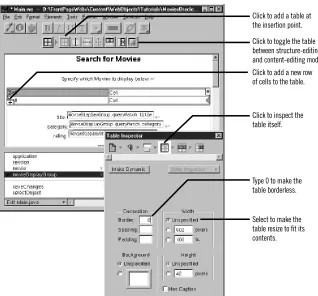
There are two modes for table editing: content-editing mode, which lets you change the text in a cell and add other elements to it; and structure-editing mode, which lets you perform operations on a cell such as splitting it in two. The cell you just selected is now in structure-editing
Click here to add a row.
Click here to add a column. Double-click to enter
6. Double-click the upper-left cell.
You can now edit the contents of the cell. If you want to resume structure editing, click in the toolbar, which allows you to toggle between modes. (Alternatively, you can hold down the Control key and click in a different cell to enter structure-editing mode.)
7. Change the text in the cell to Name. 8. Open the Inspector.
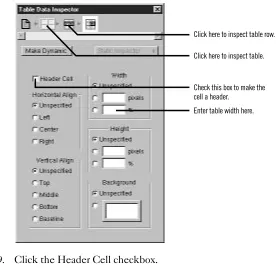
The Inspector presents a number of modifiable settings that apply to the table cell you’ve selected. Note also that the top row of the Inspector window shows the element path, which includes the cell, the row it is contained in, and the table itself. Selecting any of those allows you to set specific properties of the elements.
9. Click the Header Cell checkbox.
The text in the cell becomes bold and centered. (However, you don’t see the changes until you begin editing another cell.)
Click here to inspect table row.
Enter table width here. Click here to inspect table.
Creating a Custom Guest Class
11. Click in the component window, then press Tab.
Pressing Tab when editing a table causes the contents of the next cell to the right to be selected (or the first cell of the next row if in the rightmost column). Pressing Shift-Tab moves in the opposite direction through the table.
12. Repeat steps 7 through 11 for the second and third cells of the top row. Label the middle column E-mail and set its width to 150 pixels. Label the third column Comments and leave its width unset. (The comments field takes up the remainder of the width of the table.)
Note: It isn’t necessary to adjust the height of the columns, since they expand at run time to accommodate the size of the text being displayed.
Adding Dynamic Elements to Table Cells
Tables and cells are static HTML elements, so you can’t bind them to variables or methods. To display dynamic information in cells, you add dynamic elements, such as WOStrings, to the cells.
1. Select the contents of the first cell in the second row of the table by clicking in the cell, then double-clicking the text.
2. Choose from the Elements pop-up list. 3. Click to add a WOString to the cell. 4. Press the Tab key.
The contents of the next cell to the right are selected.
5. Repeat steps 3 and 4 for the other two cells in the second row.
Binding the Dynamic Elements in the Table
The table should now look like this:
3. Save the Main component.
Creating the Guest Object
Earlier in this chapter, you created a Java class of type Guest and wrote a constructor for it. You also added a variable of that class, currentGuest, to the Main component. However, adding a variable in this way doesn’t actually create a new Guest object; you need to create one explicitly at some point in your code. You’ll create the Guest object in the constructor method for your component. This method is called when the component is first created; that is, the first time the user accesses the component.
Note: In WebScript or Objective-C, you use a method called init for this purpose. 1. Choose View Source File from the pull-down menu at the bottom of the
window.
Project Builder becomes active and displays the code for Main.java. Notice the following declaration that was added to your code when you added the
currentGuest variable:
protected Guest currentGuest;
2. Delete the declarations of guestName, email and comments, since you aren’t using them anymore.
3. Add the constructor method inside the Main class definition:
Main() {
super();
currentGuest = new Guest(); }
Keeping Track of Multiple Guests
4. Save Main.java.
5. Build and run your application.
The application should work similarly to the first chapter, except that the guest’s data is displayed in a table at the bottom of the page instead of as plain text.
At this point, your application still handles information from a single guest only; in the next section, you’ll keep track of multiple guests.
Keeping Track of Multiple Guests
Before doing this, it is important to understand the scope and life span of variables in WebObjects:
• Component variables, such as currentGuest, exist for the lifetime of the component. These variables are defined in the component (in this case,
Main.java) and are accessible only by its methods. Each user that uses a component gets a separate instance of the variable.
• Session variables exist for the lifetime of one user’s session and are accessible by all code in the session. They are defined in Session.java. An instance of each session variable is created for each user.
• Application variables live as long as the application does and are accessible by all code in the application. They are defined in Application.java. A single instance of an application variable is shared by all users of the application.
Creating a Guest List
To store the information from all guests that have accessed the application, you’ll create an application variable called allGuests, which exists for the life of the application.
1. In Project Builder, select Classes in the first column of the Browser. Then select Application.java from the second column.
Keeping Track of Multiple Guests
Note that there is one method already defined: Application, which is the constructor for the application object. The first line calls the constructor for Application’s superclass (which is the class
WebApplication). The second line prints a message, which you see in the Launch panel when you launch your application.
2. After the call to super, enter this code:
allGuests = new MutableVector();
This statement initializes allGuests to be a new object of class
MutableVector. This class is the Java equivalent of the Objective-C class NSMutableArray, which provides an interface that allows you to add, change and delete objects from an array.
You add this line.
You add this line.
3. At the top of the Application class definition, enter this declaration:
protected MutableVector allGuests;
This declares allGuests to be of type MutableVector. Declaring it
protected means that it is accessible only from this class or one of its
subclasses. It is standard object-oriented practice for a class to prevent other classes from directly manipulating its instance variables. Instead, you provide accessor methods that other objects use to read or modify the instance variables.
4. Add the accessor methods addGuest and clearGuests, as shown in the figure. The addGuest method adds an object of class Guest to the end of the allGuests
array, using the MutableVector method addElement (its Objective-C equivalent is addObject).
The clearGuests method removes all the objects from the array using the MutableVector method removeAllElements (its Objective-C equivalent is
removeAllObjects). 5. Save Application.java.
Adding Guests to the Guest List
Now, when the user submits the form, you’ll add the information to the allGuests
array rather than displaying it directly. 1. Switch to the code for Main.java.
2. In the submit method, add the following code before the return statement:
((Application)application()).addGuest(currentGuest);
currentGuest = new Guest();
This code calls the application’s addGuest method, which adds an object (in this case, currentGuest) to the end of the array. Then it creates a new Guest object to hold the next guest’s data.
Adding a Second Component
Adding a Second Component
In this section, you’ll create a new component. Instead of Java, you’ll implement its code using WebScript.
1. In Project Builder’s browser, click Web Components in the first column. 2. Choose File m New in Project.
Note that the Web Components suitcase is selected.
3. Type GuestList as the name of the new component. Then click OK. The WebObjects Component Wizard appears.
4. Choose None for Available Assistance and WebScript for Component Language.
5. Click Finish.
6. In the second column of the browser, click GuestList.wo.
Note that there is an additional file you didn’t have with your Java component. GuestList.wos is your script file, the WebScript equivalent of
Main.java in the Main component. For WebScript components, the script files are stored under the component, rather than in the Classes bucket. You’ll add code to your script file in a later step.
7. Double-click GuestList.wo to bring up the component window in WebObjects Builder.
8. Create a heading for this page, as you did for the Main component. Call it “Guest List” (or something else of your choosing). Then press Enter twice.
9. Add a WOString below the heading. Then type the text “ guests
have signed this guestbook.”
10. In the object browser, click application.
There is an entry in the second column for the allGuests application variable you created. This entry appears in the Main component as well, since application variables are accessible from anywhere in the code.
If you click allGuests, you’ll see in the third column an entry for count. This is a standard method that returns the number of objects in the array.
11. Click count and drag to the center rectangle to bind it to the WOString’s
value attribute.
12. Save the GuestList component.
You need to do one more thing so that the GuestList page now displays when the user submits the form.
Using a Repetition
pageWithName is a standard WebObjects method (defined in the
WebApplication class) that allows you to specify a new page to display. At this point, the code for Main.java looks like this:
14. Save Main.java.
15. Build and run your application.
Each time you submit the form, the number of guests displayed in the WOString should increase.
To return to the Main page, you’ll have to use your browser’s backtrack button. Later in the tutorial, you’ll add a hyperlink to return to the Main page.
Using a Repetition
You’ll bind the allGuests array to the WORepetition’s list attribute. This tells WebObjects to generate the elements in the repetition once for each item in the array. Each time WebObjects iterates through the array, it sets the repetition’s
item attribute to the current array object. You bind item to the variable currentGuest
and use currentGuest’s fields to bind the elements inside the repetition (such as WOStrings). At run time, the table will consist of one row (displaying name, e-mail address, and comments) for each guest.
1. In WebObjects Builder, make the Main component window active.
2. Select the table at the bottom of the page by clicking outside it and dragging across it.
3. Choose Edit m Copy.
4. Make the GuestList component active.
5. Place the cursor at the bottom of the page and choose Edit m Paste. You have just copied the table from Main into GuestList. It has all the same properties, including the bindings. The WOStrings in the table are still bound to instance variables of currentGuest. Since currentGuest is a
component variable defined in Main, it isn’t accessible from GuestList. Therefore, you need to declare it here.
6. From the pull-down menu at the bottom of the window, choose Add Variable/Method. Enter currentGuest as the name of the variable and Guest as its type.
7. Choose from the Elements pop-up list to display the Tables buttons. 8. Click somewhere in the table, then click in the toolbar to enter
structure-editing mode. (Alternatively, Control-click on the table.) 9. Click one of the triangles in the second row to select the entire row. 10. Choose to display Other WebObjects in the toolbar and click
Using a Repetition
11. In the object browser, select application in the first column.
12. In the second column, click allGuests and drag the cursor to anywhere inside the row (but not inside one of the WOStrings).
The Inspector window opens showing the repetition’s bindings. The
list attribute is selected by default.
13. Click Connect Variable to bind application.allGuests to the list attribute. 14. Bind currentGuest to the repetition’s item attribute.
Element path shows that WORepetition is contained by table and contains a table row. Select table row , then click here
to create repetition around row.
Drag variable to table row to bind to repetition.
Click here to bind
allGuests to the repetition’s list attribute. Blue border and background
By using the name currentGuest for the item attribute, you are taking advantage of the fact that the strings in your table are already bound to the fields of
currentGuest.
You now have finished implementing the repetition. When the table is generated, it will have one row for each item in the allGuests array. 15. Save the GuestList component.
16. Delete the table from Main, since you no longer need it. 17. Build and launch your application.
18. Test your application by entering data for multiple guests and verifying that each guest appears in the table.
Adding the Finishing Touches
There are a few additional things you’ll do to make your application a bit more user friendly:
• Add a button that, when clicked, clears the guest list.
• Add a hyperlink to the GuestList page that allows users to return to the Main page.
Clearing the Guest List
While developing your application, you may find it useful to be able to remove all guests from the list. (Typically, you wouldn’t allow users to remove all guests from the list.)
1. In WebObjects Builder, make the GuestList component window active. 2. Choose Add Action from the pull-down menu at the bottom of the window.
In the panel, enter clearGuestList as the name of the action and set the page returned to nil.
3. Choose View Source File from the pull-down menu.
Adding the Finishing Touches
4. Enter the following code before the return statement in clearGuestList:
[[self application] clearGuests];
This code calls the application’s clearGuests method, which removes all the Guest objects from the array.
5. Save GuestList.wos.
6. Go back to WebObjects Builder.
7. Place the cursor below the table and press Enter.
8. Choose from the Elements pop-up list and click .
This creates a submit button that the user will click to clear the guest list.
9. Using the Inspector, bind the submit button’s value attribute to (including the quotes) "Clear Guest List".
This changes the title of the button. Note that the quotes are necessary to indicate that you’re binding a string, not a variable. 10. Bind the action attribute to clearGuestList.
When the user clicks the button, the clearGuestList action method is called, which causes the guest list to be cleared and the page to be redrawn.
Adding a Dynamic Hyperlink
Now you’ll create a hyperlink that returns the user to the Main page. 1. Place the cursor below the submit button (outside the rectangle of its
containing form).
2. Choose from the Elements pop-up list and click .
3. Double-click the text “Hyperlink” and type Return to Sign-in
5. Select the pageName attribute, then double-click in the Binding column and type (including the quotes) "Main".
Note: You must specifically type the quotation marks in “Main”, because you are specifying a string representing the name of the page to be returned. If you left off the quotes, you would be specifying a variable or method called
Main.
6. Save the GuestList component. 7. Test your application.
Creating a WebObjects
Database Application
One of the most powerful features of WebObjects is its ability to provide access to databases. To do so, it uses a framework called the Enterprise Objects Framework. This chapter introduces you to the Enterprise Objects Framework by showing you how to create a simple database application. The steps you take in creating this application demonstrate the principles you’ll use in every other application you develop with the WebObjects and Enterprise Objects Framework.
The application you’ll create in this tutorial is called Movies. It makes use of a sample database, the Movies database, that contains information about movies. Before you do this tutorial, you need to set up the Movies database as described in the Post-Installation Instructions. In addition, if you aren’t familiar with Project Builder and WebObjects Builder, read the first tutorials in this book, “Creating a Simple WebObjects Application” (page 11) and “Enhancing Your Application” (page 37), which introduce basic concepts and procedures you should know before you go on. In this tutorial, you will:
• Use the WebObjects Application Wizard to create a fully functional Main component that reads and writes from the Movies database. • Create and configure display groups for interacting with a database in
terms of objects.
• Create bindings between display groups and a user interface. • Write code to manipulate display groups’ selected objects. • Set up display groups in a master-detail configuration. • Use EOModeler to maintain a model file.
• Create custom enterprise object classes.
The Movies Application
The Movies application has two pages, each of which allows you to access information from the database in different ways:
• MovieSearch (the main page) lets you search for movies that match user-specified criteria. For example, you can search for all comedies starting with the letter “T” that have an R rating. Once you find the movie you’re looking for, you can make changes to its data or delete it. You can also use this page to insert new movies into the database.
The Movies Application
Enterprise Objects and the Movies Database
Enterprise Objects Framework manages the interaction between the database and objects in the Movies application. Its primary responsibility is to fetch data from relational databases into enterprise objects. An enterprise object, like any other object, couples data with methods for operating on that data. In addition, an enterprise object has properties that map to stored data. Enterprise object classes typically correspond to database tables. An enterprise object instance corresponds to a single row or record in a database table.
The Movies application centers around three kinds of enterprise objects: Movies, MovieRoles, and Talents. A movie has many roles, and talents (or actors) play those roles.
The Movie, MovieRole, and Talent enterprise objects in the Movies application correspond to tables in a relational database. For example, the Talent enterprise object corresponds to the TALENT table in the database, which has LAST_NAME and FIRST_NAME columns. The Talent enterprise object class in turn has lastName and firstName instance variables. In an application, Talent objects are instantiated using the data from a corresponding database row, as shown in the following figure:
Enterprise Objects and Relationships
Talent1028 Federighi Craig
1132 Feldman Corey
TALENT_ID LAST_NAME FIRST_NAME TALENT
MOVIE_ROLE table having a MOVIE_ID column. In the MOVIE table, MOVIE_ID is a primary key, while in MOVIE_ROLE it’s a foreign key. A primary key is a column or combination of columns whose values are guaranteed to uniquely identify each row in that table. For example, each row in the MOVIE table has a different value in the MOVIE_ID column, which uniquely identifies that row. Two movies could have the same name but still be distinguished from each other by their MOVIE_IDs.
A foreign key matches the value of a primary key in another table. The purpose of a foreign key is to identify a relationship from a source table to a destination table. In the following diagram, notice that the value in the MOVIE_ID column for both MOVIE_ROLE rows is 501. This matches the value in the
MOVIE_ID column of the “Alien” MOVIE row. In other words, “Ripley” and “Ash” are both roles in the movie “Alien.”
Suppose you fetch a Movie object. Enterprise Objects Framework takes the value for the movie’s MOVIE_ID attribute and looks up movie roles with the corresponding MOVIE_ID foreign key. The framework then assembles a network of enterprise objects that connects a Movie object with its MovieRole objects. As shown below, a Movie object has a vector of its MovieRoles, and the MovieRoles each have a Movie.
1028
Ripley 501 501 Alien
1132
Ash 501 703 Toy Story
TALENT_ID MOVIE_ROLE
MOVIE_ID MOVIE_ID TITLE
Designing the Main Page
Designing the Main Page
Every WebObjects application has at least one component—usually named Main—that represents the first page the application displays. In Movies, the Main component represents the MovieSearch page.
To design the Main component, you’ll use the WebObjects Application Wizard. The wizard performs all the setup that’s necessary to fetch database records and display them in a web page. Specifying different wizard options yields different pages: The MovieSearch page is an example of one of the many different layouts you can generate with the wizard.
Starting the WebObjects Application Wizard
1. In Project Builder, choose Project m New.
2. In the New Project panel, select WebObjects Application from the
Movie
MovieRole
MovieRole MutableVector movieRoles
5. Type Movies in the “File name” field. 6. Click Save.
7. In the New Project panel, click OK.
This starts the WebObjects Application Wizard. 8. Choose Wizard under Available Assistance.
With this option, the wizard guides you through the creation of a Main component for your application. When you finish, you can immediately build and run your application without performing any additional steps and without adding any code.
9. Choose Java as the primary language. 10. Click Next.
Specifying a Model File
A model associates database columns with instance variables of objects. It also specifies relationships between objects in terms of database join criteria. You typically create model files using the EOModeler application, but the wizard can create a first cut at a model as a starting point. Later on, you’ll use EOModeler to modify the model created by the wizard.
Designing the Main Page
Choosing an Adaptor
An adaptor is a mechanism that connects your application to a particular database server. For each type of server you use, you need a separate adaptor. WebObjects provides adaptors for Informix, Oracle, and Sybase servers. If you’re working on a Windows platform, WebObjects also provides an ODBC adaptor for use with ODBC-compliant database sources.
1. In the wizard panel, choose the adaptor for your database. 2. Click Next.
3. Complete the login panel.
Specify the connection information you provided when you created and populated the Movies database. Post-Installation Instructions provides more information.
4. Click OK.
When you use the wizard to create a model file, the wizard uses the adaptor you specify to connect to your database. With the information you specified in the adaptor’s login panel, the adaptor logs in, reads the database’s schema information, and creates a model. The wizard uses your answers to the questions in the next several pages to configure that model.
Choosing What to Include in Your Model
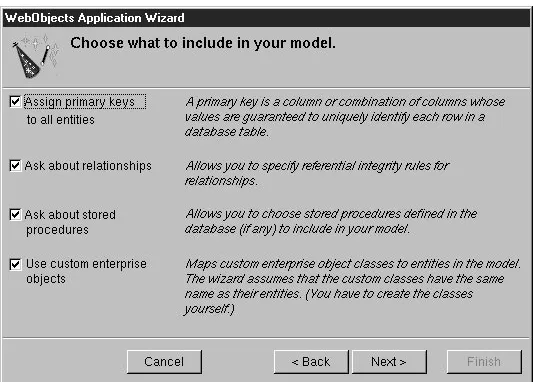
In this next wizard page, you can specify the degree to which the wizard configures your model.
Designing the Main Page
A relationship is a link between two entities that’s based on attributes of the entities. For example, the Movie entity has a relationship to the MovieRole entity based on the entities’ movieId attributes (although the attributes in this example have the same name in both entities, they don’t have to). This relationship makes it possible to find all of a Movie’s MovieRoles.
How complete the basic model is depends on how completely the schema information is inside your database server. For example, the wizard includes relationships in your model only if the server’s schema information specifies foreign key definitions.
Using the options in this page, you can supplement the basic model with additional information. (Note that the wizard doesn’t modify the
underlying database.)
1. Check the “Assign primary keys to all entities” box.
Enterprise Objects Framework uses primary keys to uniquely identify enterprise objects and to map them to the appropriate database row. Therefore, you must assign a primary key to each entity you use in your application. The wizard automatically assigns primary keys to the model if it finds primary key information in the database’s schema information.
Checking this box causes the wizard to prompt you to choose primary keys that aren’t defined in the database’s schema information. If your database doesn’t define them, the wizard later prompts you to choose primary keys.
2. Check the “Ask about relationships” box.
3. Uncheck the “Ask about stored procedures” box.
Checking this box causes the wizard to read stored procedures from the database’s schema information, display them, and allow you to choose which to include in your model. Because the Movies application doesn’t require the use of any stored procedures, don’t check this box.
4. Uncheck the “Use custom enterprise objects” box.
An entity maps a table to enterprise objects by storing the name of a database table (MOVIE, for example) and the name of the corresponding enterprise object class (a Java class, Movie, for example). When deciding what class to map a table to, you have two choices: GenericRecord or a custom class. GenericRecord is a class whose instances store key-value pairs that correspond to an entity’s properties and the data associated with each property.
If you don’t check the “Use custom enterprise objects” box, the wizard maps all your database tables to GenericRecord. If you do check this box, the wizard maps all your database tables to custom classes. The wizard assumes that each entity is to be represented by a custom class with the same name. For example, a table named MOVIE has an entity named Movie, whose corresponding custom class is also named Movie.
Use a custom enterprise object class only when you need to add business logic; otherwise use GenericRecord. The Movies application uses
GenericRecord for the Movie entity and custom classes for the Talent and MovieRole entities. Later on, you’ll use EOModeler to specify the custom classes.
Designing the Main Page
Choosing the Tables to Include
1. In the wizard panel, select MOVIE, MOVIE_ROLE, and TALENT in the Tables browser.
The wizard creates entities only for the tables you select. Since the Movies application doesn’t interact with any of the other tables (DIRECTOR, PLOT_SUMMARY, STUDIO, and
TALENT_PHOTO), you don’t need to include them in the model. 2. Click Next.
Specifying Primary Keys
If you are using a database that stores primary key information in its database server’s schema information, the wizard skips this step. The wizard has already successfully read primary key information from the schema information and assigned primary keys to your model.
However, if primary key information isn’t specified in your database server’s schema information (as with Microsoft Access), the wizard now asks you to specify a primary key for each entity.
Shift-click to select more than one table.
1. Select movieId as the primary key for the Movie entity. 2. Click Next.
3. Select both movieId and talentId as the primary key for the MovieRole entity. MovieRole’s primary key is compound; that is, it’s composed of more than one attribute. Use a compound primary key when any single attribute isn’t sufficient to uniquely identify a row. For MovieRole, the combination of the movieId and talentId attributes is g